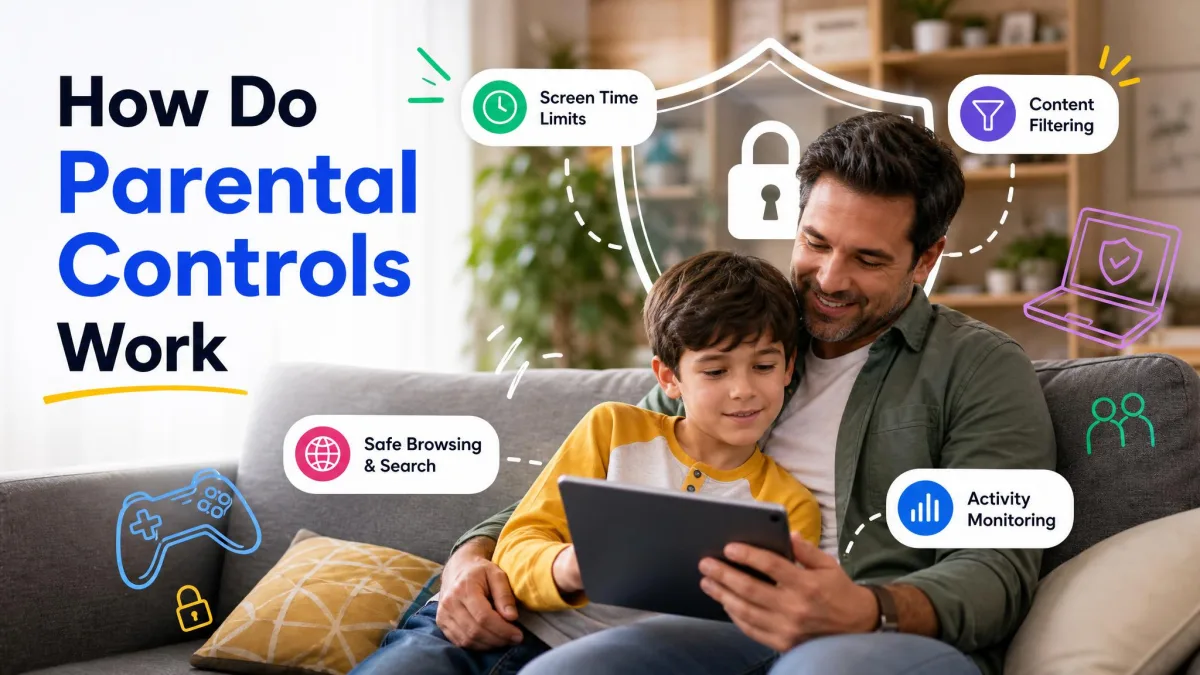
Parental controls are built-in tools that let you filter content, block websites and apps, limit screen time, and manage what your kids can access online. Here's how to set them up on the devices your family uses.
Kids reach the internet through more than a phone. A smart TV, a console, a school Chromebook, and a social app each connect on its own terms, and no single switch covers them all. Every major platform now includes parental controls for free, so most families can build a complete setup without buying anything.
We'll walk through router-level filtering, the built-in controls on Android, Windows, iPhone, and Mac, and the settings on browsers, streaming, consoles, and social media. We recommend starting with the free built-in controls on the devices your family uses, then adding layers where you find gaps.
What Are Parental Controls and What Do They Do?
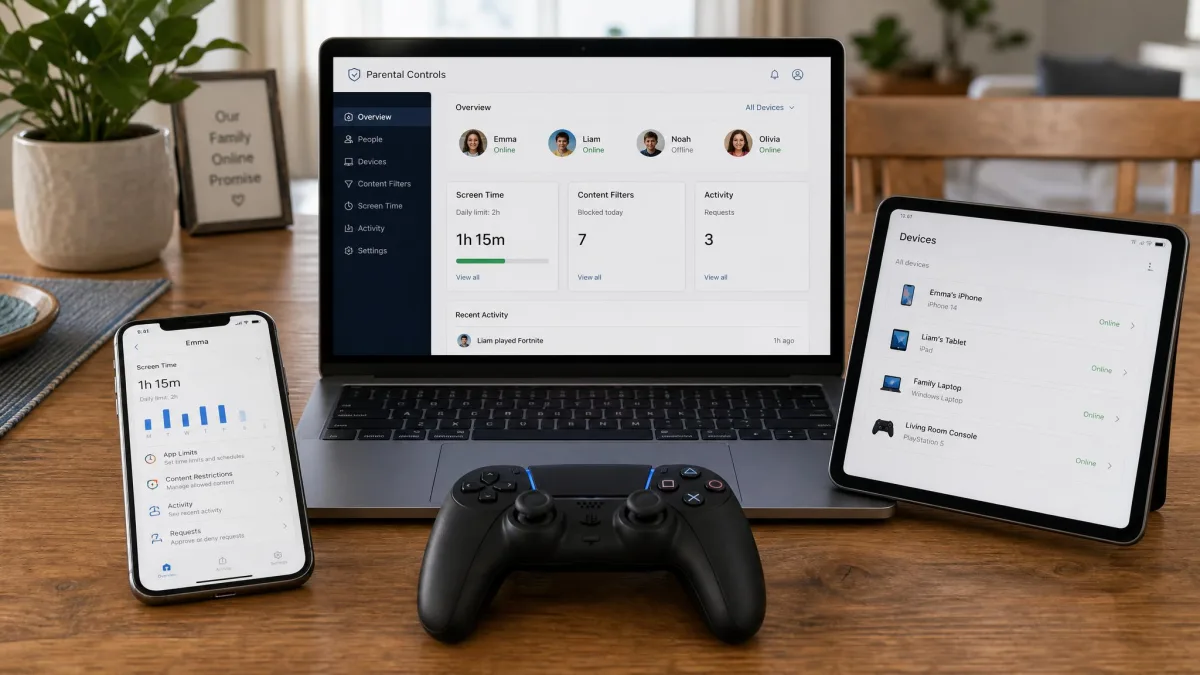
Parental controls are a practical layer of online safety and security between your child and the open internet. They come in three flavors, each designed to help with a different problem.
Content filtering and website blocking
Content filters restrict access by category, so certain categories like adult content, gambling, and violence are blocked automatically. Many tools also let you allow or block a specific website by hand, useful for approving a homework site or removing a distraction.
Screen time and app limits
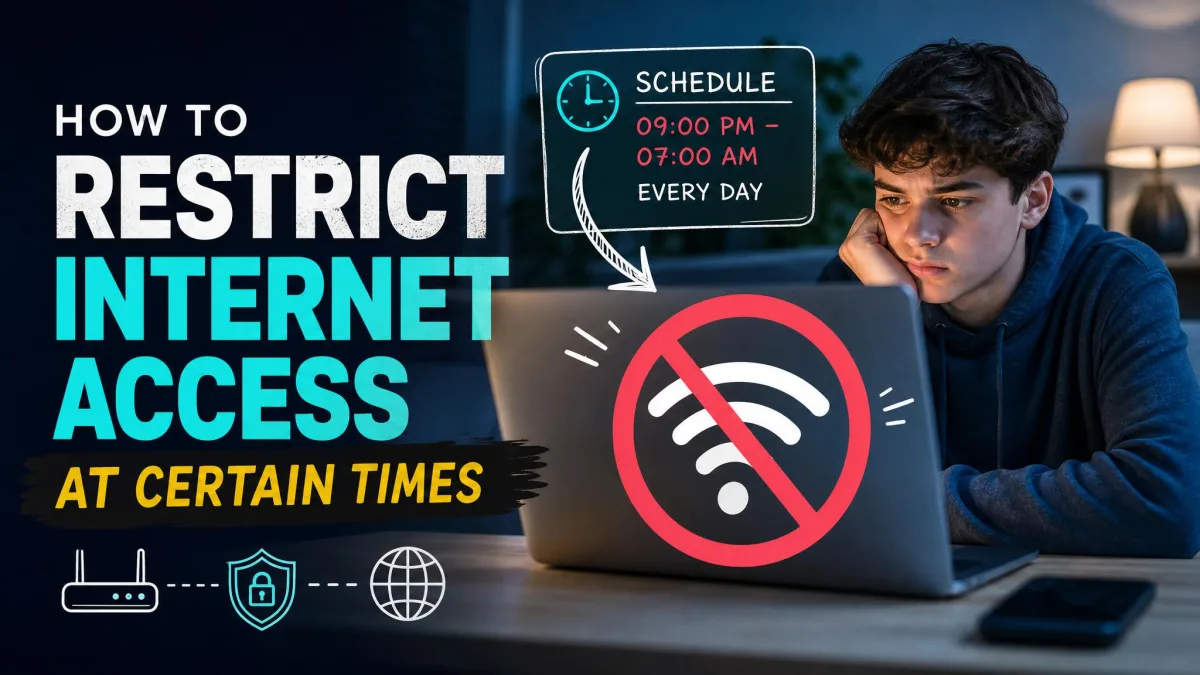
Time controls cap daily usage for the whole device or for individual apps and games. Downtime windows work like a digital bedtime, blocking access overnight or during school hours.
Monitoring activity and reports
Activity reports show what your child searched, which apps they opened, and how long they spent on each. Microsoft emails weekly summaries, Apple keeps a usage report in Screen Time, and Family Link shows app-usage views. Reporting is context for a conversation, not surveillance.
What You Need Before You Set Up Parental Controls
Before you start, gather a few things so the whole process goes quickly.
- Admin access to your router or its companion app
- A Google Account or Apple ID for your child
- The parent app for the platform you choose, such as Family Link or Microsoft Family Safety
- A PIN or passcode your child does not know
- A list of the devices your child uses
One setup rarely covers everything, so treat the list above as the full set of doors you want to close.
How to Set Up Parental Controls on Your Router
Router-level controls are the only layer that covers every device on your home network at once, which makes them the most reliable starting point. They catch smart TVs, consoles, and even a friend's phone before those devices reach an adult site.
Router parental controls by brand (ASUS, TP-Link, NETGEAR, Eero)
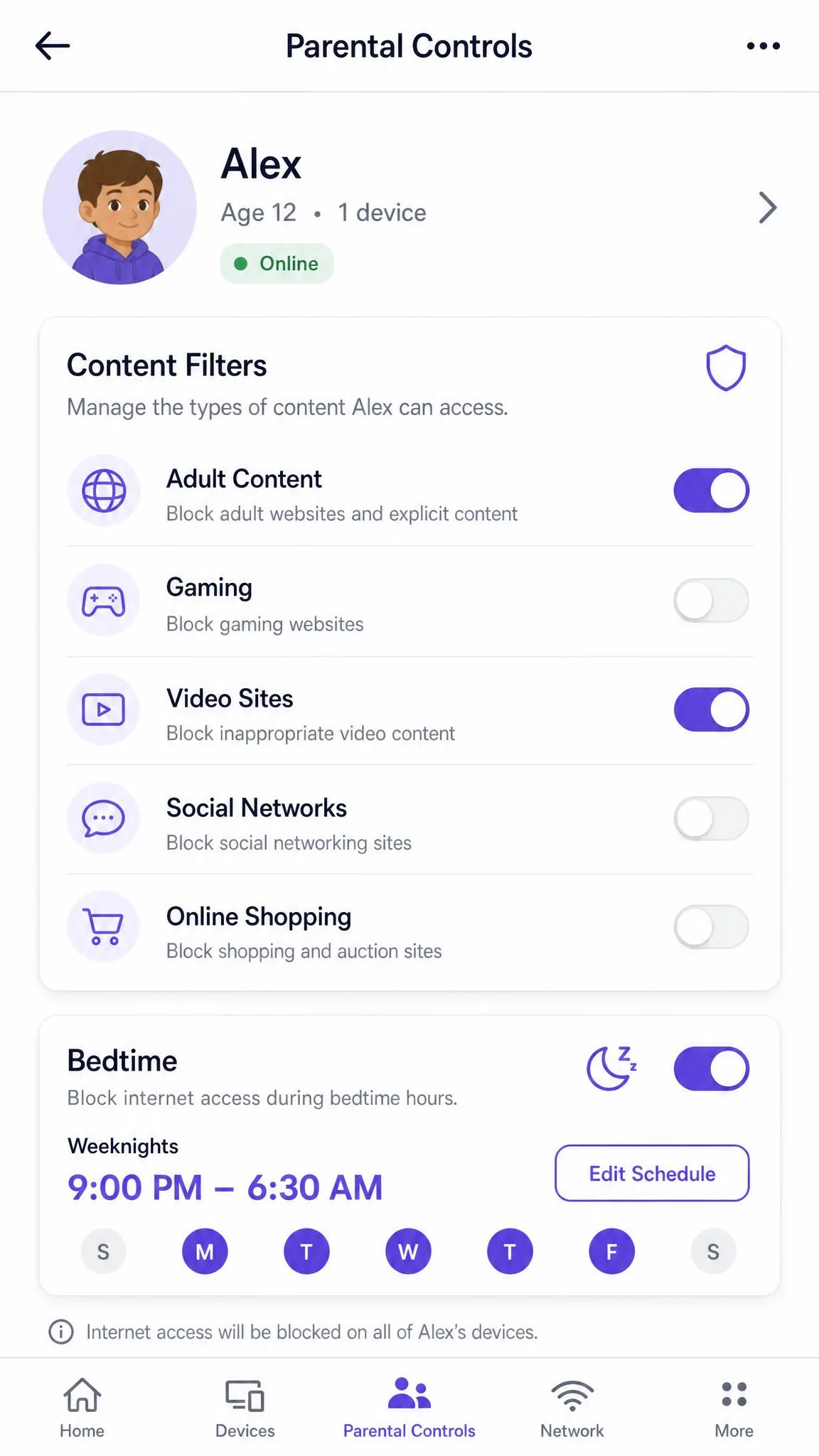
Most modern routers include parental controls in their companion apps. ASUS AiProtection is free. TP-Link HomeShield includes free profiles, URL filtering, and bedtime schedules, while time limits and app blocking sit behind its paid Advanced tier with a 30-day free trial. NETGEAR Smart Parental Controls offer free internet pausing, with usage tracking, filtering, and time limits behind Premium, also with a 30-day trial. On eero, pausing, profiles, and wifi scheduling are free, while content filters and app blocking require eero Plus.
The menu varies by brand, but the flow is the same. Open the companion app, find the parental controls section, create a profile for your child, attach their devices, then set filters and a schedule.
Set up DNS-level content filtering (OpenDNS / NextDNS) as a router alternative
If your router has no parental controls, point it at a filtering DNS service instead. DNS filtering routes every lookup through a server that blocks known bad categories, so the whole network is protected without installing anything.
OpenDNS FamilyShield is free and blocks adult content network-wide, no account required. Set your router's DNS to 208.67.222.123 and 208.67.220.123, and filtering starts immediately. NextDNS offers a free tier of 300,000 queries per month, enough for a typical family, with unlimited use on the paid plan.
Expect a modest technical step. DNS filtering is the most technical setup here, and in our testing it took a few minutes per router plus a visit to the network settings that trips up non-technical parents. It also over-blocks at times; we hit false positives like a state lottery page re-categorized as gambling.
How to Set Up Parental Controls with Google Family Link (Android, Chromebook, YouTube)
Google Family Link is the built-in supervision tool for Android phones, tablets, and Chromebooks, and it is completely free with no subscription and no credit card required. The Google Family Link parent app runs on Android or iPhone, while the child's device runs the supervised profile.
Set up Family Link for your child's account
Open the Family Link app on your phone and follow the guided setup.
- If your child is under 13, create a supervised Google Account for them.
- Add the account to your family group.
- Install the child app on their device and sign in.
Set content restrictions on Google Play
In Google Play, set content filters to restrict apps, games, movies, and books by maturity rating, and require your approval for every download. You can also require permission before any in-app purchase goes through.
Set app and screen time limits
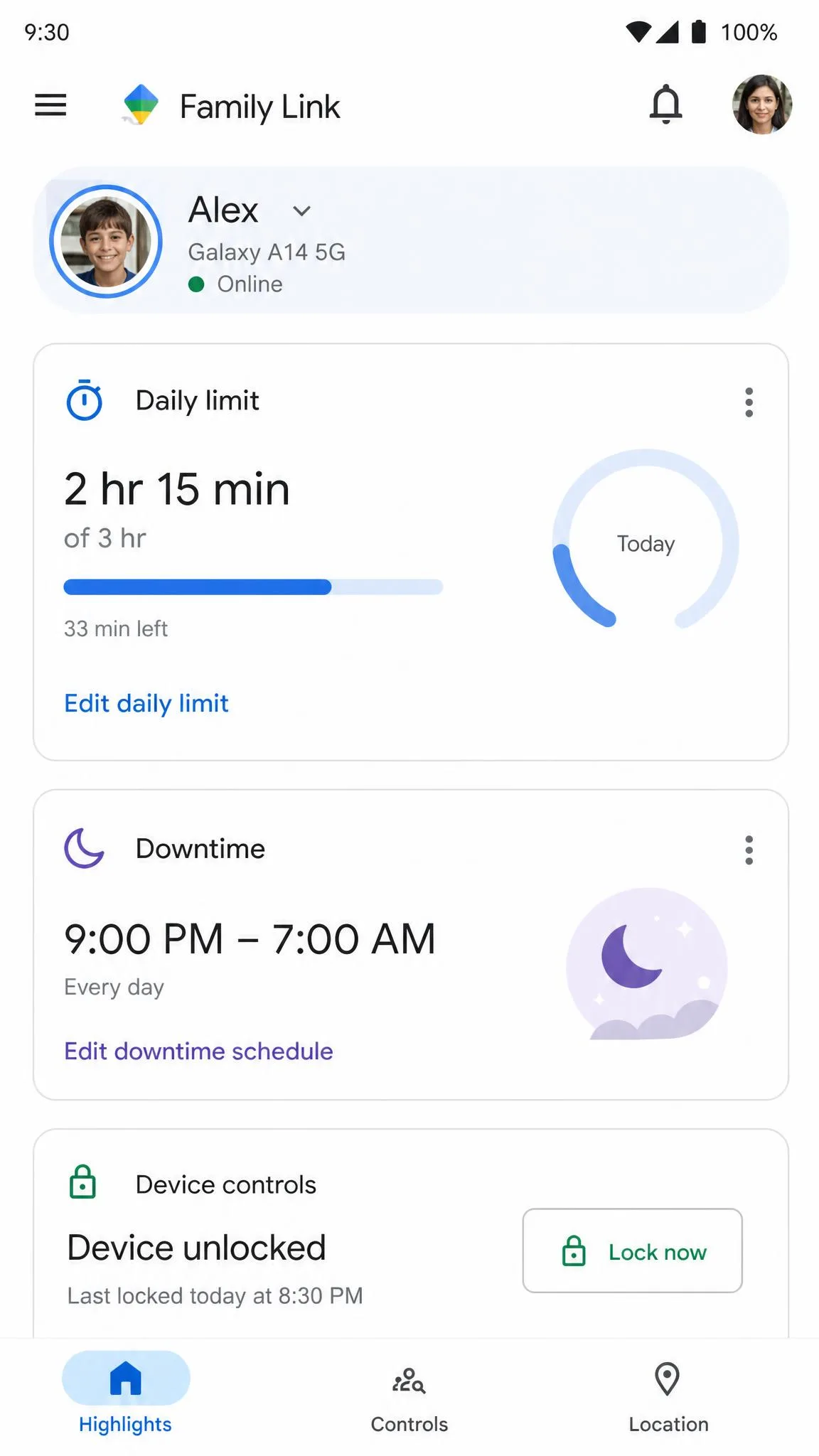
Under daily limits and downtime, set a screen time cap per device or per app, schedule downtime for bedtime or school, and lock the device remotely when you need an immediate break.
Filter YouTube and Google Search
SafeSearch is on by default for Family Link-managed accounts of children under 13, and you can filter YouTube content and manage website allow and block lists in Chrome.
One limitation matters. Family Link gives a parent almost no control on a child's iPhone or iPad, because there is no child app for iOS, so screen time limits, app blocking, and browser filtering do not apply. Kids also find workarounds; in our testing they got around Chrome filtering with alternate browsers, VPN apps, guest accounts, and in-app browsers, and airplane mode blocks remote lock commands.
Plan for the age limit too. When your child turns 13, supervision ends automatically, and the child can take over the account and turn the controls off without your consent.
How to Set Up Parental Controls on Windows and Xbox with Microsoft Family Safety
Microsoft Family Safety is free to download and use, and a Microsoft 365 subscription is not required for the core controls. Screen time limits work on Windows 10 and Windows 11, Xbox One, Xbox Series X, and Xbox Series S, plus Android apps and games, making it the strongest option if your household lives in Microsoft's ecosystem.
Sign in to the Microsoft Family Safety family group with your Microsoft account, add your child, then install the Family Safety app on each device. On Windows you can set device, app, and game time limits, approve screen time requests, and get notified about purchases.
One detail is easy to miss. Web and search content filters require Microsoft Edge, so other browsers are blocked for filtering to work. Once running, the app emails a weekly summary of your child's screen time and activity.
How to Set Up Parental Controls on iPhone, iPad, and Mac with Apple Screen Time
Screen Time, built into iOS 12 and later and macOS, is a free feature that covers the iPhone, iPad, and Mac. To set it up on a child's device:
- Open Settings, tap Screen Time, and turn it on.
- Create a Screen Time passcode that only you know.
- Tap Content and Privacy Restrictions and enable the limits you want.
If you manage a Family Sharing group, you can set up Screen Time from your own device for the whole family at once. The core tools are Downtime, App Limits, Communication Limits, and Content and Privacy Restrictions. Apple Screen Time also includes Communication Safety, which blurs nudity in messages.
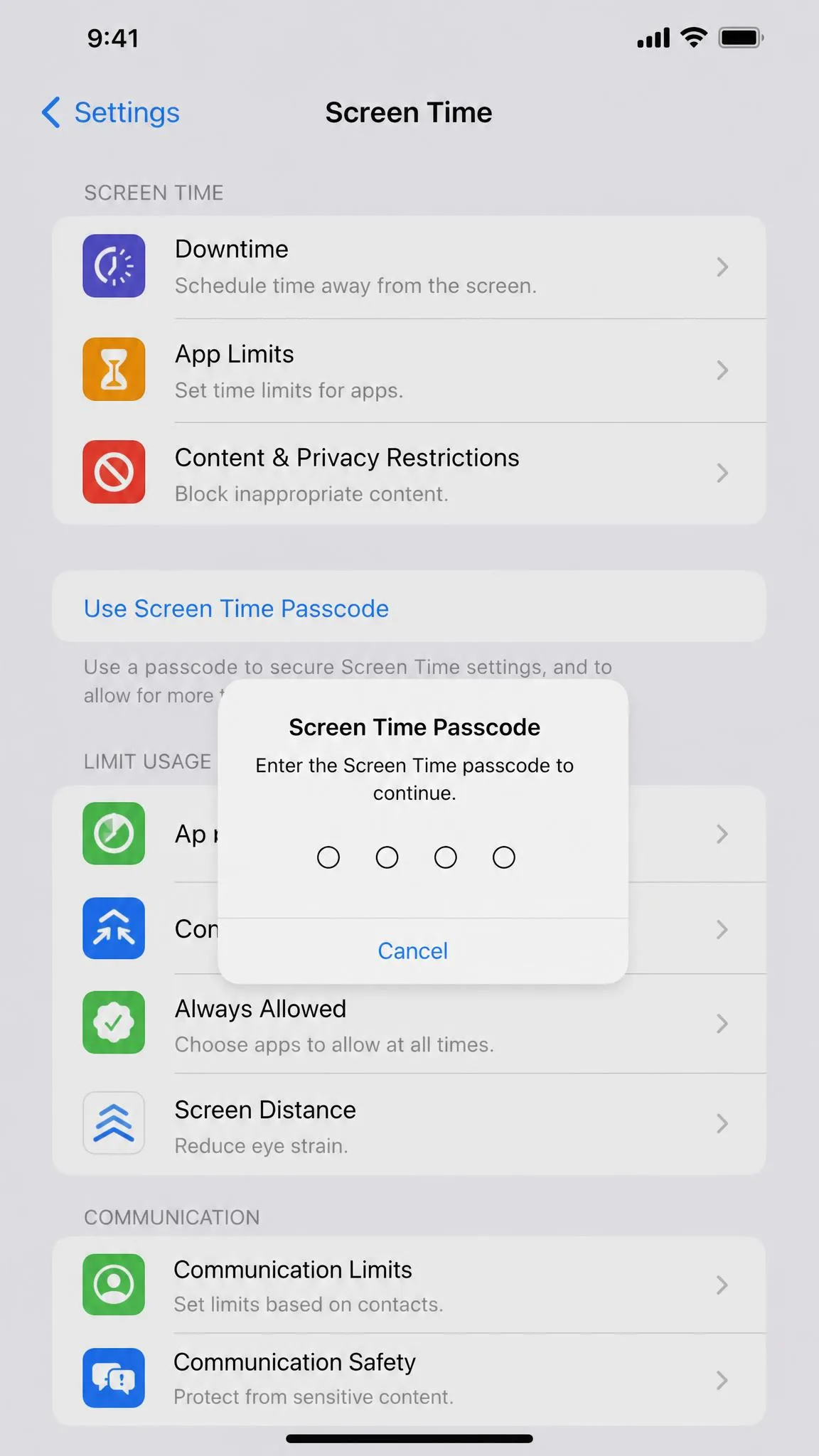
Two settings are easy to miss. Limits only remind by default, so you must turn on Block at Downtime to actually enforce an app limit. And because a child who knows the family Apple ID password can tap Forgot Passcode and reset the restrictions, the passcode alone is not a lock.
Screen Time has had a patchy reliability record. A bug let kids reach inappropriate sites by typing text into Safari's address bar, fixed after June 2024 coverage, and Downtime limits would not save until iOS 17.1. Apple previewed a redesigned Screen Time for iOS 27, expected in fall 2026, with per-category Time Allowances and Ask to Browse in Safari.
How to Turn On Parental Controls in Web Browsers
Microsoft Edge Kids Mode
Kids Mode used to be Edge's answer to safe browsing, but Microsoft removed it in version 117, released September 2023, and no longer supports it. Parental controls in Edge now route through Microsoft Family Safety, where web and search filters require Edge itself.
Parental controls in Chrome, Firefox, and Safari
Chrome's parental controls come through Family Link on supervised accounts, where you manage allow and block lists and SafeSearch. Firefox and Safari have no full built-in parental-control suite, so filtering on those browsers depends on OS-level controls, third-party extensions, or DNS-level filtering at the router.
Turn on SafeSearch in Google, Bing, and Yahoo
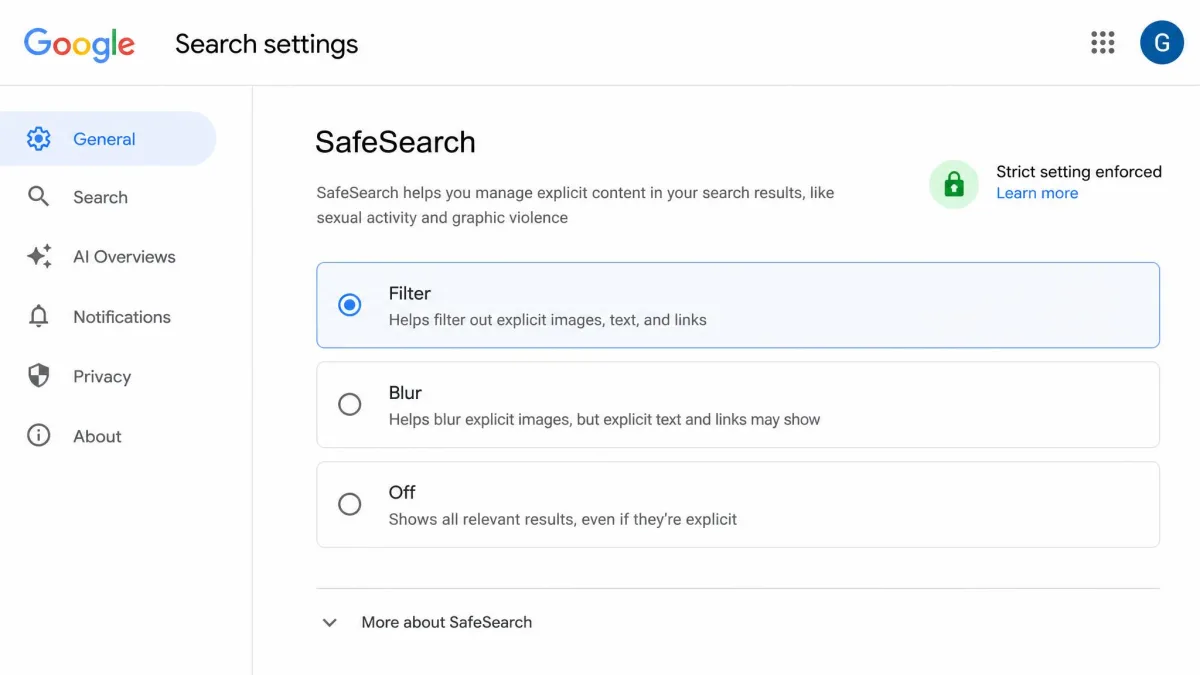
SafeSearch Strict blocks explicit text, images, and video results in Google, Bing, and Yahoo. Open Google Search settings, choose the Filter option under SafeSearch, and save. Bing can be forced to Strict at the network level for managed devices.
SafeSearch can be switched off by a curious kid unless it stays locked. On Google, choose the Strict filter and confirm the lock icon shows it is enforced.
How to Set Up Parental Controls on Streaming Services (YouTube, Netflix, Hulu)
YouTube runs on Restricted Mode and supervised experiences for children's accounts. YouTube parental controls walk through locking Restricted Mode and choosing a content level, and on a Family Link-managed account you can pick a YouTube Kids or supervised setting.
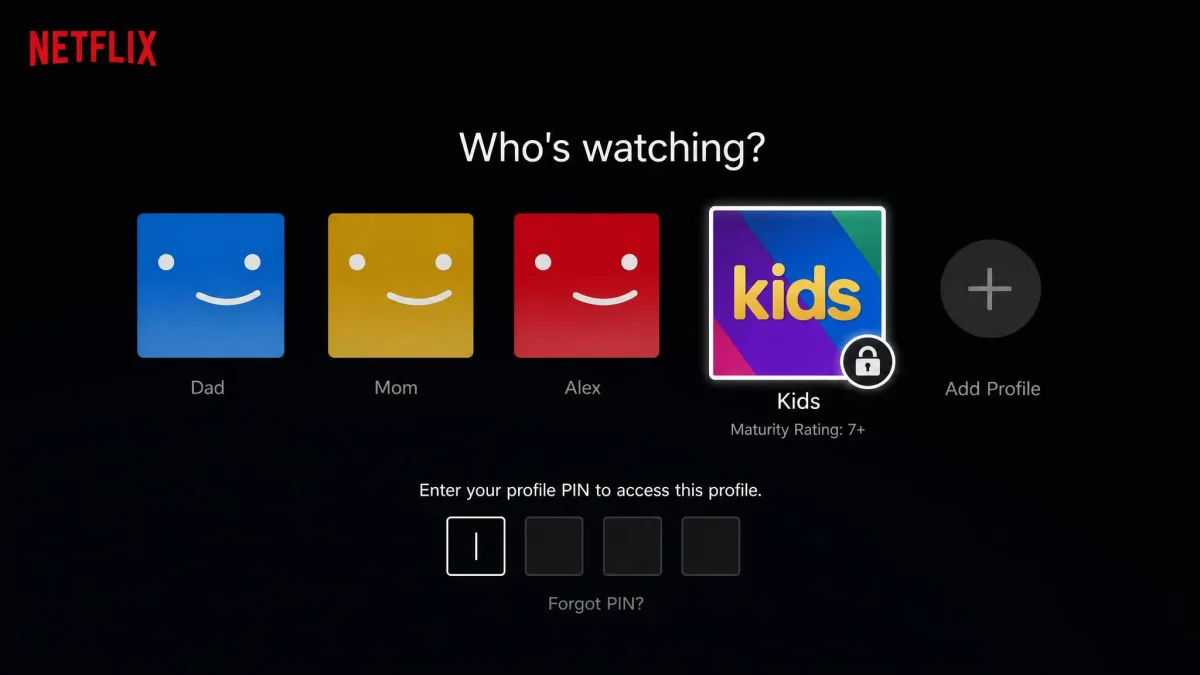
Netflix uses a four-digit profile-lock PIN, a dedicated Kids experience, per-profile maturity-rating limits, and the ability to block specific titles. Open your account settings, choose the profile, and set the maturity rating and PIN.
Hulu offers Kids profiles that auto-filter content by age and a PIN to protect adult profiles, but it does not support blocking individual titles. Open Hulu's profiles menu, create a Kids profile, and set the PIN on the adult profiles.
How to Set Up Parental Controls on Gaming Consoles (Xbox, PS5, Nintendo Switch)
Consoles are easy to forget because they feel like toys, but they stream video, browse the web, and chat with strangers.
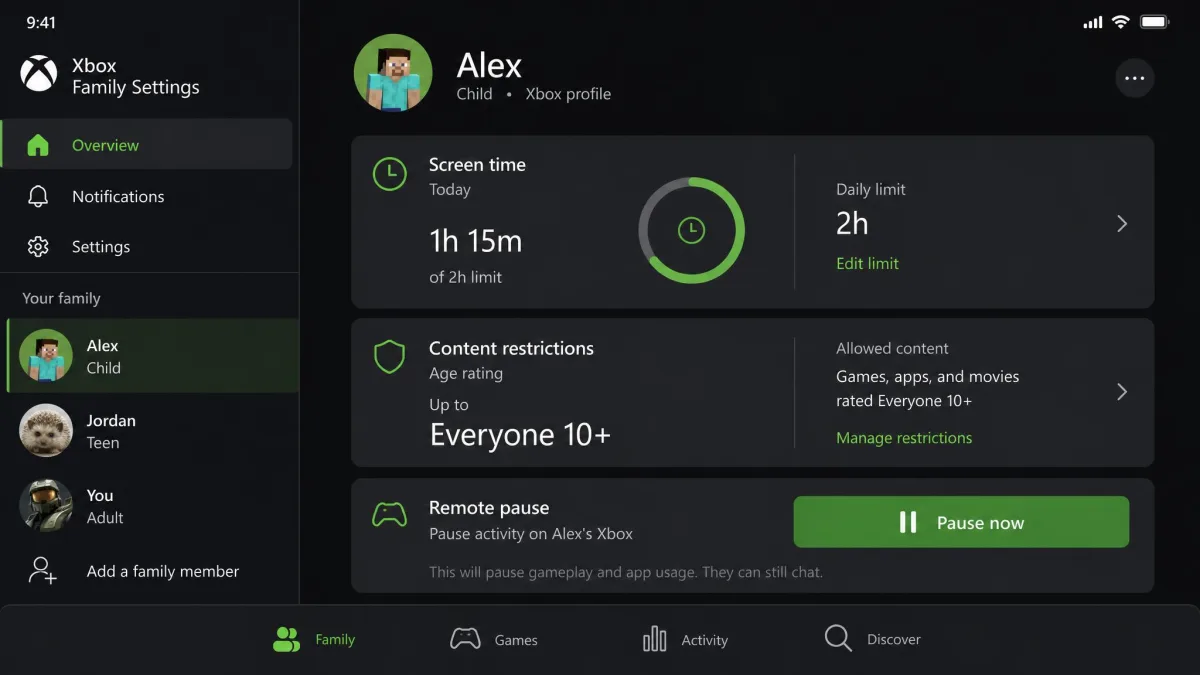
On Xbox, the Xbox Family Settings app gives you screen time limits with remote pause, content restrictions, Ask to Buy spending management, friend controls, and activity reports. On PS5, the PS Family app provides age-based restriction presets, a monthly spending limit, communication restrictions, and playtime controls. On Nintendo Switch, the Parental Controls app sets daily play-time limits that auto-interrupt, a bedtime schedule, age-based content restrictions, and eShop spending restrictions.
How to Set Up Parental Controls on Social Media (TikTok, Instagram, Snapchat)
Social media is where kids spend much of their connected time, and the platforms now include real parental tools.
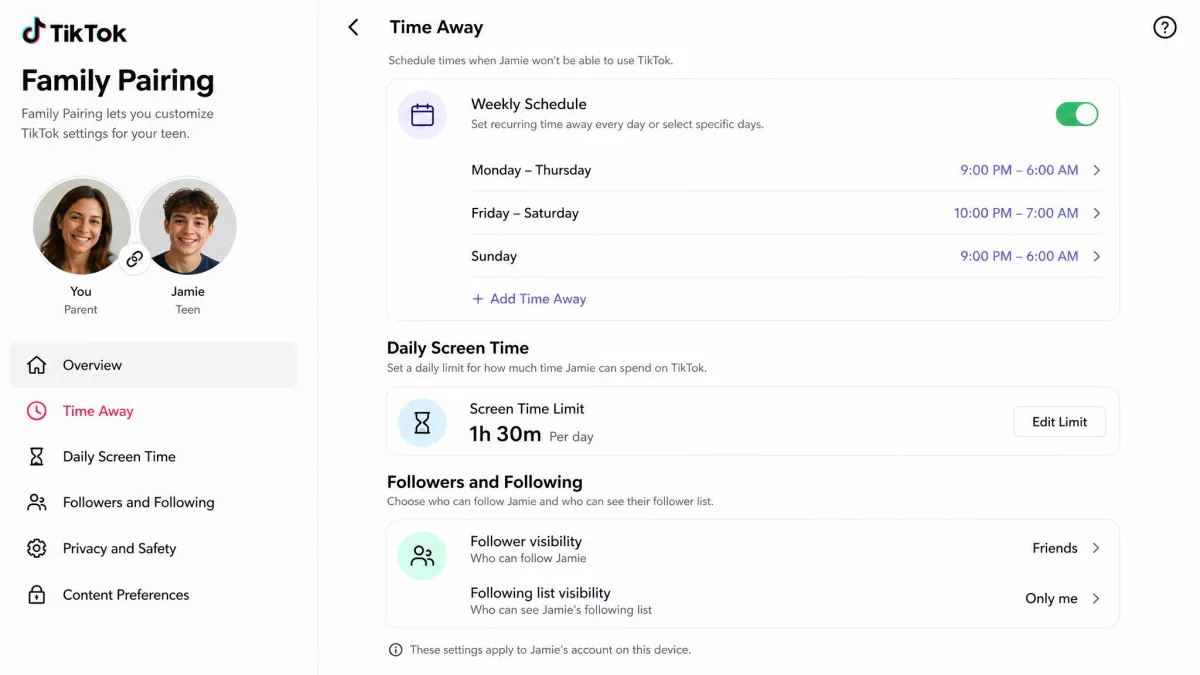
TikTok Family Pairing links a parent's account to a teen's and puts more than 15 safety, privacy, and well-being settings under parent control, including Time Away schedules, daily screen-time limits, and follower visibility. TikTok also defaults accounts of users under 18 to a 60-minute daily screen-time limit.
Instagram supervision lives in the Family Center, where parents can set time limits and sleep mode, see seven-day activity insights, view follower lists, and approve or deny teen setting changes. Supervision auto-ends at 18.
Snapchat Family Center shows parents who their teen talks to and how much time they spend, without exposing the content of private conversations, plus options to report accounts and restrict My AI.
Choosing a Parental Control App: Do You Need One?
For most families, the built-in controls we've covered are enough. They are free, they live on the platforms your kids already use, and they handle filtering, screen time, and reports. A paid app is worth considering when you have a specific gap, such as monitoring social media, or when your family mixes platforms and you want one dashboard.
The paid apps each have real tradeoffs. Bark flags risky texts and posts, but it surfaces only alert-triggering messages rather than full history, and iPhone monitoring needs iCloud credentials. Qustodio's dashboard can lag behind activity, and its iOS monitoring needs a VPN profile that conflicts with Screen Time. Net Nanny's Windows and iOS web filtering is reliable, while its Android app has a history of setup failures.
For families whose main concern is social media, our starting point is Bark. Our roundups of the best parental control apps for Android and the best parental control apps for iPhone compare the full field, and PCMag's best parental control software list is a useful second opinion.

The table below compares the built-in options and the paid apps at a glance.
| Product | Platform | Content filtering | Screen time limits | Price |
|---|---|---|---|---|
 |
Android, Chromebook | Chrome, Play, and Search filters | Daily limits, downtime, remote lock | Free |
 |
Windows, Xbox, Android | Edge web and search filters | App, game, and device limits | Free |
 |
iPhone, iPad, Mac | Content and Privacy Restrictions | Downtime, App Limits | Free |
|
Android, iOS, Windows, macOS | AI web and social monitoring | Per-device screen time | From $14/month |
 |
Android, iOS, Windows, macOS, Chromebook | Web filtering and app blocking | App and category time limits | From $54.95/year |
 |
Android, iOS, Windows, macOS | AI-driven web filtering | No per-app time limits | From $39.99/year |
Tips for Making Parental Controls Work
Keep the controls protected with a PIN or password
Every control is only as strong as the passcode guarding it. Set a passcode your child does not know, and keep your Apple ID and Google passwords private, because a child who learns them can change settings you thought were locked.
Talk to your kids about online safety
The best filter is a conversation. The FTC's parental controls guide, published in April 2025, puts talking with kids about family rules at the center, framing parental controls as a way to reinforce good habits rather than replace guidance.
A Stanford Medicine study found no meaningful link between the age a child gets a first phone and their well-being; the average age of first phone was 11.6. The rules and the relationship matter more than the exact age you hand over a device.
Review and adjust settings as your child grows
A setup that fits a seven-year-old is wrong for a fourteen-year-old. Revisit content ratings, screen time limits, and allowed apps every few months, and set up controls on new devices as they arrive. Family Link's supervision ends at 13 and Instagram's at 18. Australia's eSafety Commissioner parental controls guide recommends this kind of regular review, so schedule a check-in when an age milestone lands.