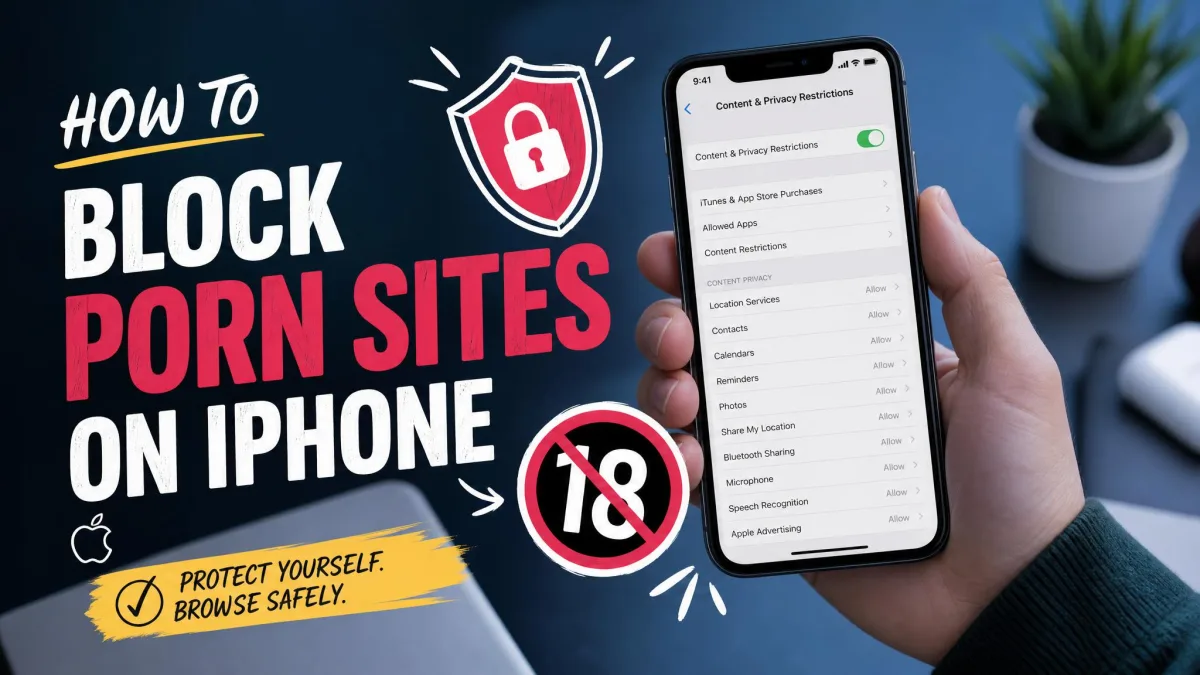
Blocking inappropriate websites on your kid's phone takes about fifteen minutes of setup. The best filters are free, and most are already built into the device you are holding. You just need to know which settings to flip and how to stack them so a child cannot click around the edges.
This guide walks you through eight ways to block adult content on iPhone and Android, from built-in parental controls to search filters, DNS blocking, and the apps and hardware that add another layer. If you take one thing from it, use Screen Time on the iPhone, Family Link on Android, and a free DNS filter underneath both.
Method 1: Use Apple Screen Time (iPhone)
Screen Time is built into every iPhone and iPad, and it has been there since iOS 12 launched in 2018. It is free, needs no download, and it is the strongest content filter on the platform.
How to enable Screen Time and block websites
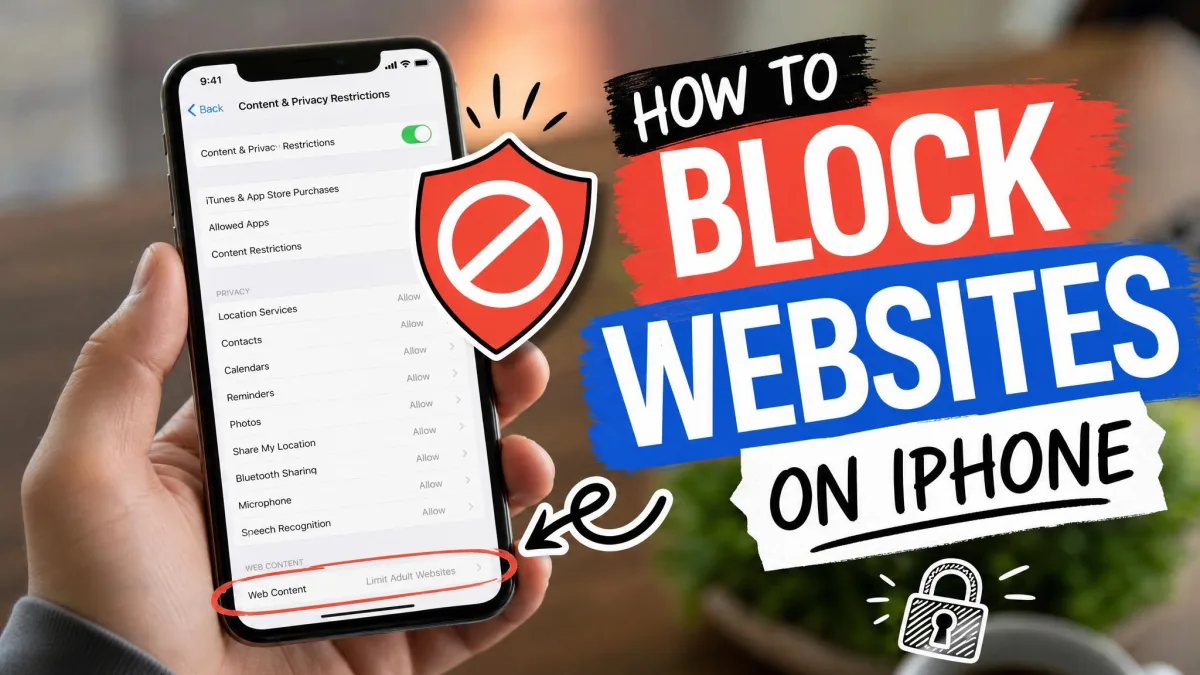
Open Settings → Screen Time and tap Turn On Screen Time. The phone asks you to set a Screen Time passcode, and you should keep this code different from the device unlock code. Anyone who can reach Settings without the passcode can flip Web Content back to Unrestricted.
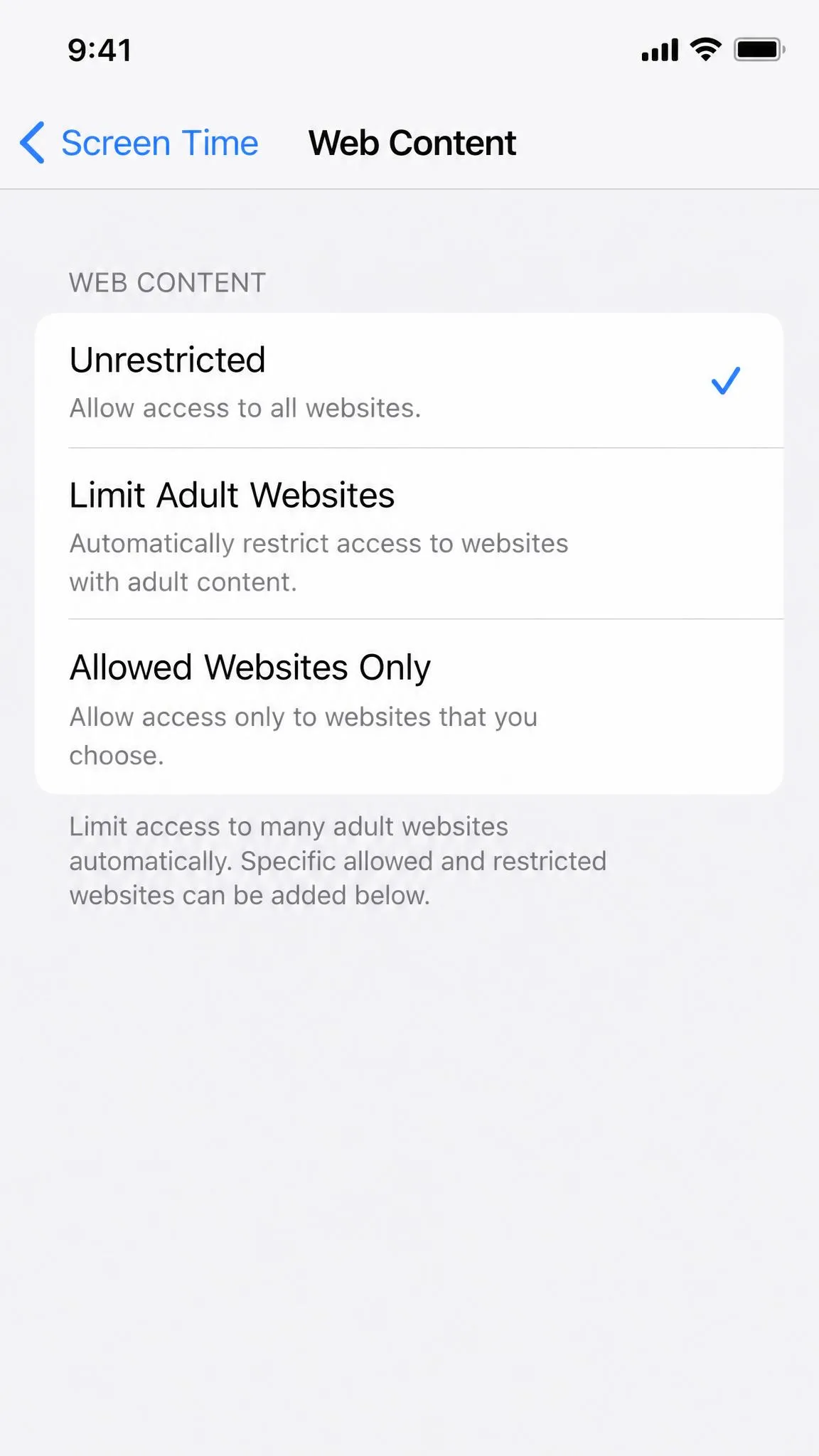
Next, open Content & Privacy Restrictions, confirm the passcode, then tap App Store, Media, Web, & Games and choose Web Content. That screen holds every website filter on the phone.
If the phone is managed through Family Sharing, set up Screen Time from your own device. You can change web restrictions remotely instead of asking the child to hand the phone over every time something needs adjusting.
Limit adult websites and manage content restrictions
Web Content offers three modes. Unrestricted does nothing, Limit Adult Websites blocks known explicit domains automatically, and Allowed Websites Only loads only the sites you approve first. For most families, Limit Adult Websites is the right starting point because it works before you build any list of your own.
Turning on Limit Adult Websites also disables Safari Private Browsing on the device. We switched it on and found no private tab left to dodge the filter. You can still add specific sites to an Always Allow or Never Allow list, which helps for a school portal the filter misreads.
Know one gap before you rely on this alone. The filter covers Safari and WebKit apps, but it does not enforce safe search inside third-party in-app browsers such as the one embedded in Google Maps or Facebook. A child can still hit adult content inside those apps, so pair Screen Time with a DNS filter from Method 8.
Method 2: Use Google Family Link (Android)
Where Screen Time owns the iPhone, Family Link is Google's answer on Android. It is free, and it manages a child's Google Account rather than one phone, so the restrictions follow the login. Google's Family Link guide covers the account setup in detail.
What you need to set up Family Link
You need a Google Account for the parent and a separate account for the child. The child's device has to run Android 5.0 or higher, and Google recommends Android 7.0 or newer for the full experience. The parent installs the Family Link app, and that app needs iOS 16 or newer if the parent manages things from an iPhone.
Supervision is designed for a child under 13, or under the age of consent where you live. A child at that age cannot stop supervision on their own, and the parent must be 18 or older and live in the same country.
Blocking websites and apps in Family Link
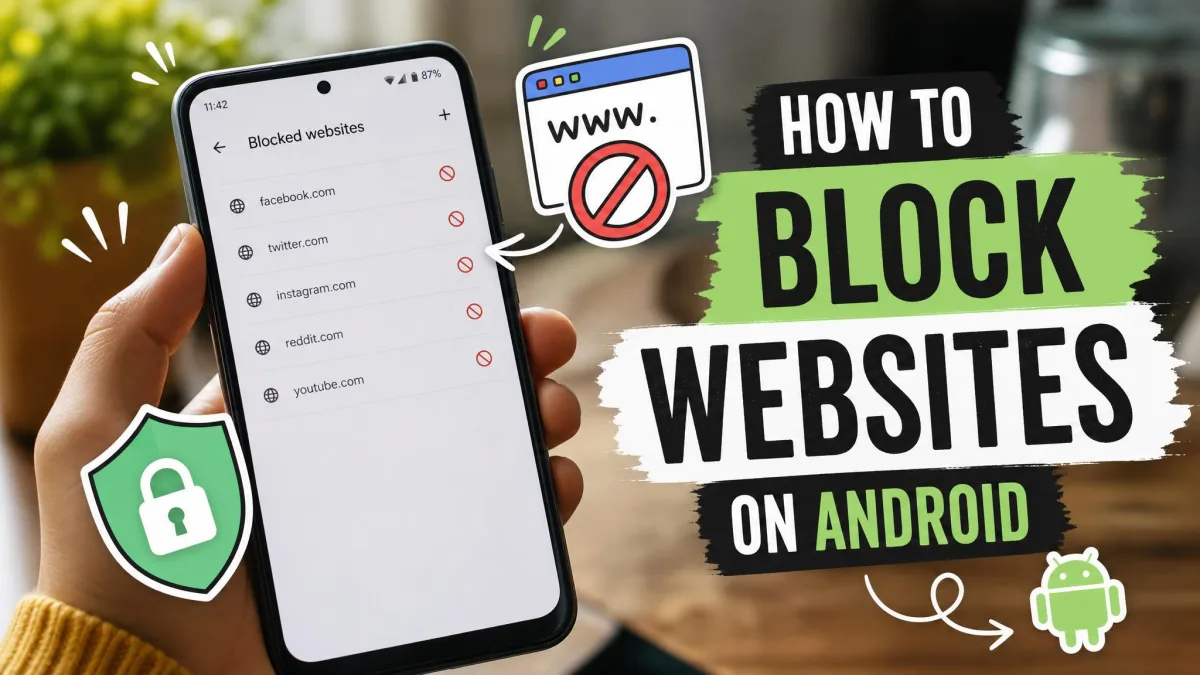
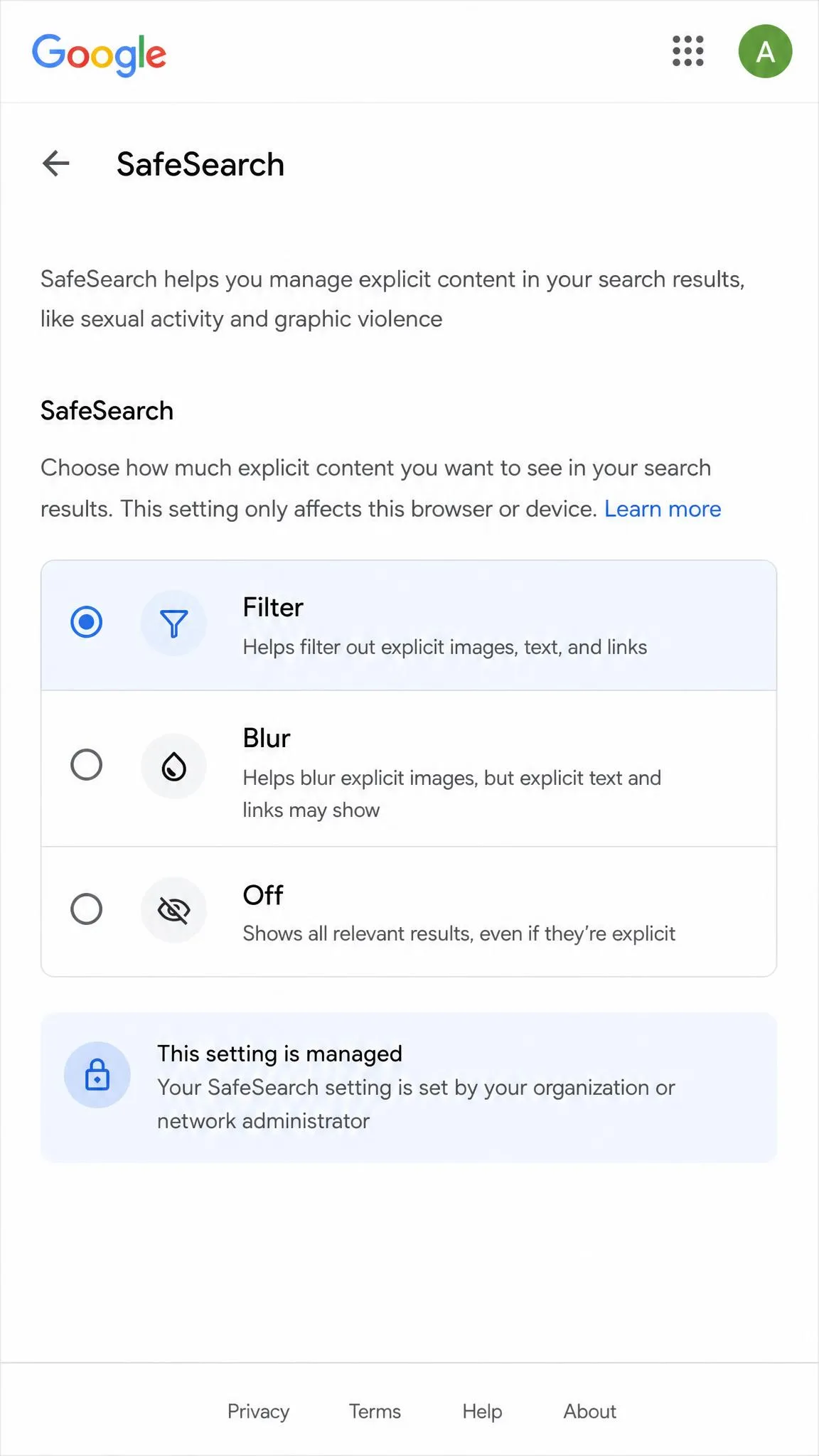
Open the Family Link app and go to Controls → Content restrictions → Google Chrome. You get three filter modes: Allow all sites, Try to block explicit sites, and Only allow approved sites. Choose Try to block explicit sites for a sensible default, then use Manage sites to add your own entries when the filter misses one.
Family Link switches off Chrome's Incognito mode for the managed account entirely. We verified this on an Android phone, and there is no way to open a private tab. The filter only covers Chrome and some Android apps, though. If the child installs Firefox or Samsung Internet, those browsers sit outside the filter, so use the Play Store restrictions to block alternative browser installs. When a child hits a blocked site, the phone sends an Ask in person or Ask in a message request that you approve from the Family Link app.

Method 3: Turn On Google SafeSearch
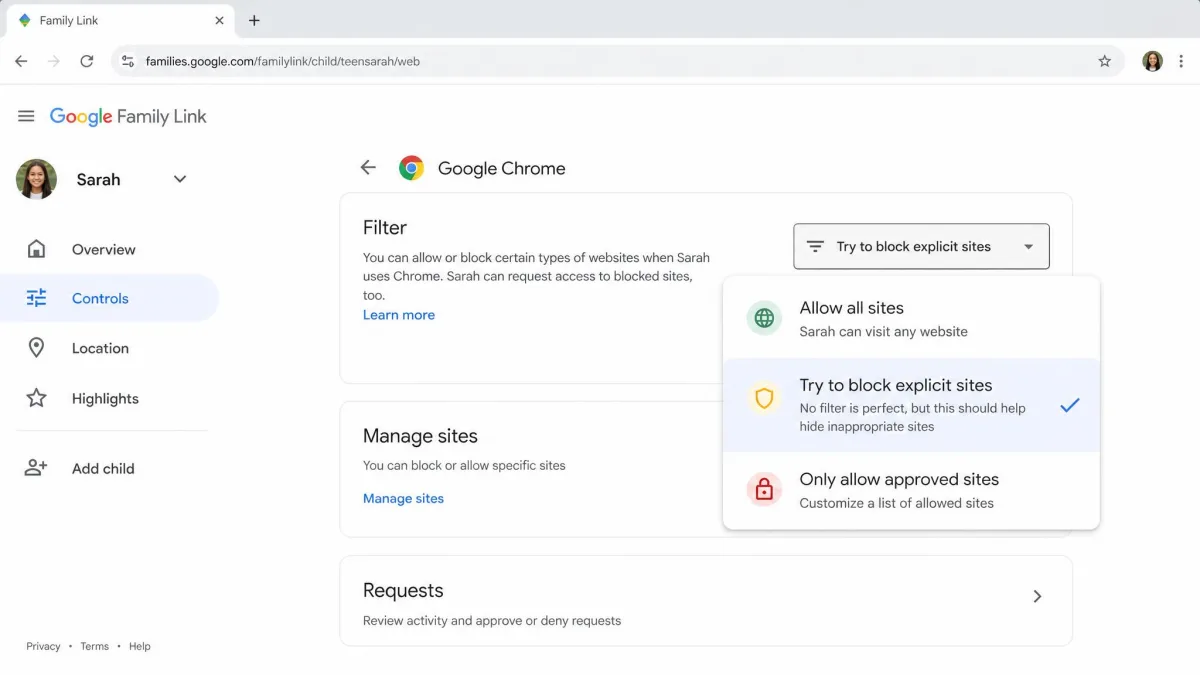
SafeSearch filters explicit content inside Google Search, and it takes under a minute to switch on. It is not a full website blocker, since it only affects Google's search results and does nothing about a site you reach by typing an address or following a link. Google's SafeSearch help page lists the three settings: Filter hides explicit results, Blur blurs explicit images, and Off shows everything.
Filter is the default when Google's systems think the account may belong to someone under 18, and Blur is the default otherwise. A Family Link managed account locks SafeSearch to Filter, and only a parent can change it. Without that lock, anyone with access to the Google Account settings can switch it back off, so SafeSearch on its own is a weak layer.
Enable SafeSearch on iPhone
SafeSearch is a Google setting, not a phone setting, so the steps are identical on any device. Open Google's SafeSearch settings page in Safari, sign in with the child's Google Account, and select Filter. On a shared phone, make sure the child is signed into their own account rather than yours.
Enable SafeSearch on Android
Open the same SafeSearch settings page in Chrome and select Filter. On a phone supervised by Family Link, a lock icon means the setting is managed elsewhere and the child cannot change it. On an unsupervised phone, the setting is one tap away from being turned back off, so pair SafeSearch with Family Link or Screen Time.
Method 4: Turn On Chrome Safe Browsing
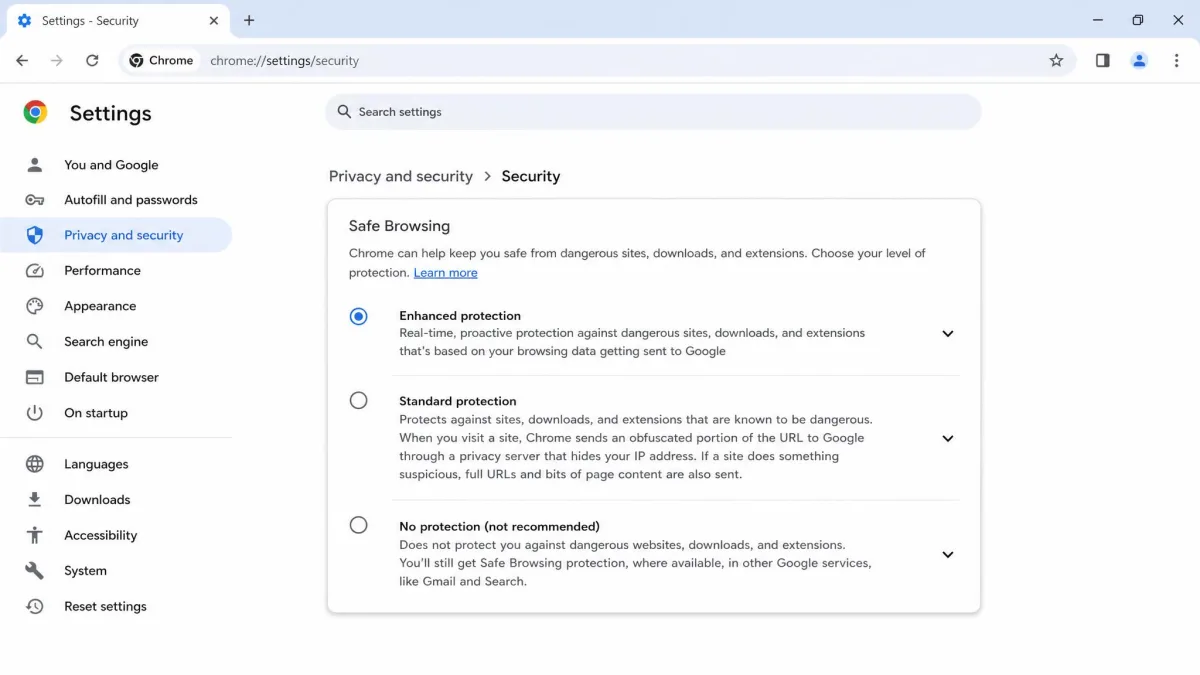
Chrome's Safe Browsing is a security filter, not a content filter. It warns about malware, phishing, and dangerous downloads, but it does not block adult websites. We include it because parents often assume a "safe browser" covers adult content, and it does not.
If you want it on anyway, open Chrome → Settings → Privacy and security → Security. Choose Enhanced protection, Standard protection, or No protection. Standard protection is the default and blocks known dangerous sites. Enhanced protection adds deeper download scans and catches new dangers faster. Keep Screen Time or Family Link doing the content filtering.
Method 5: Install a Parental Control App
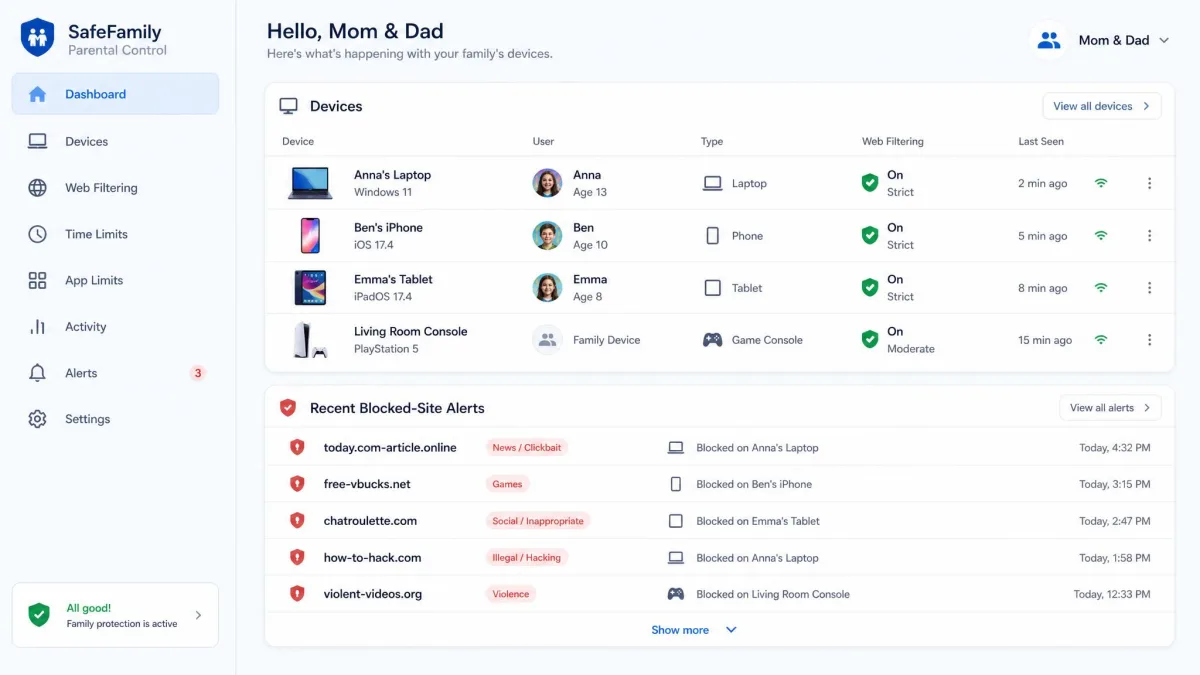
Parental control apps add cross-platform filtering, dashboards, and monitoring that the built-in tools do not offer. They earn their place when the family mixes iPhones, Androids, and Chromebooks and you want one place to manage it all.
Norton Family is the one we point most families to. It costs $49.99 per year for unlimited kids and devices, with a 30-day trial and a 60-day refund window, and it blocks unsuitable sites by category, watches YouTube, and sends a real-time alert when a child tries to visit a blocked site. Qustodio is a strong alternative with AI-powered alerts and social media monitoring, running roughly $54.95 to $59.95 per year depending on region. Kidslox is cheaper and simpler, starting around $37 to $50 per year for one device, with a blocklist of millions of URLs updated weekly.
Whatever you choose, the setup follows the same pattern. Install the app on the child's device, create a parent account, and let the app's filter route web traffic through its own blocking engine.

Method 6: Block Websites at the Router Level
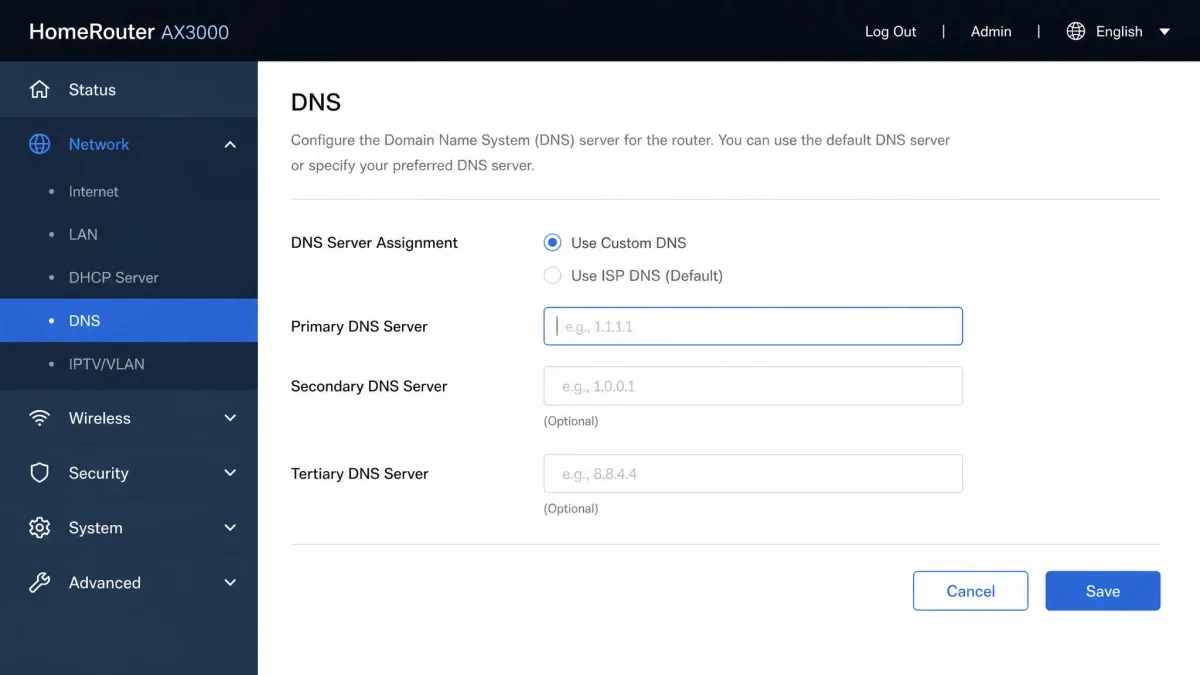
Router-level filtering blocks adult content before any device on the network connects. It covers phones, laptops, TVs, and consoles in one shot, and nothing gets installed on the child's device. Point the router's DNS at a filtering provider such as OpenDNS FamilyShield or CleanBrowsing, and every device on the home network inherits the filter.
The catch is that router filtering stops at the front door. Protection drops off the moment the child leaves the house and joins school Wi-Fi or uses cellular data. Use router filtering as a home-network blanket and keep a device-level filter for when the phone travels.
Method 7: Install a Kid-Safe Browser
A kid-safe browser swaps the whole browsing experience for a filtered one, and it suits younger children who do not need the full internet yet.
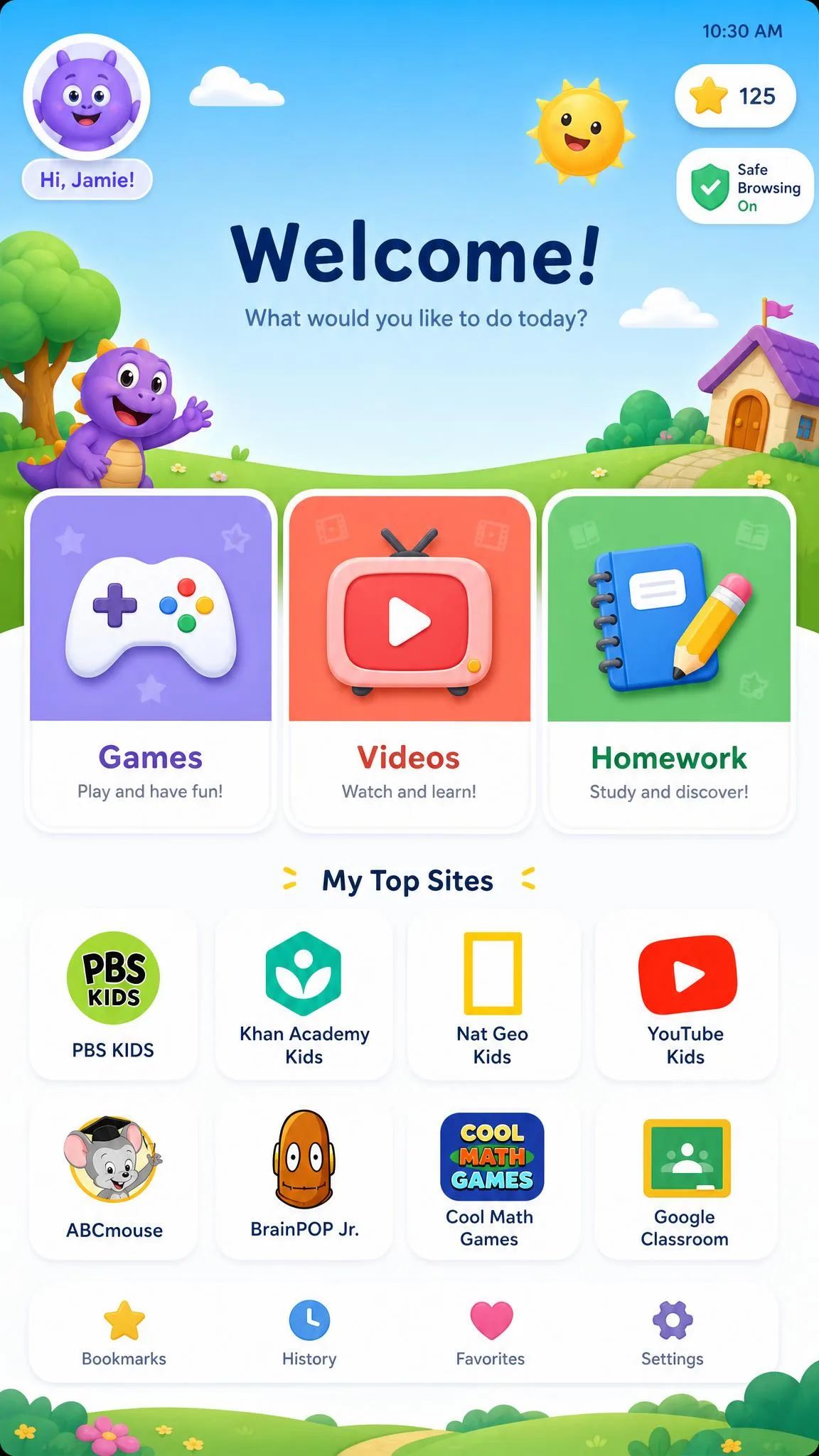
Kiddle, the kids search engine built on Google Custom Search, includes site and keyword blocking and a kids-safe search mode. It is a search engine rather than a full browser, so pair it with a normal browser that has its own controls. Mobicip is a safe browser and parental control app that analyzes page content, video metadata, URLs, and keywords, with a whitelist-only mode for younger kids. Kiddofy is a free kid-safe browser on the App Store that uses an allowlist of age-appropriate sites approved from the parent's phone.
A kid-safe browser works as an extra layer, but an older child can simply install a normal browser to move past it. Treat these as a tool for younger kids rather than a complete solution.
Method 8: Block Websites at the DNS Level
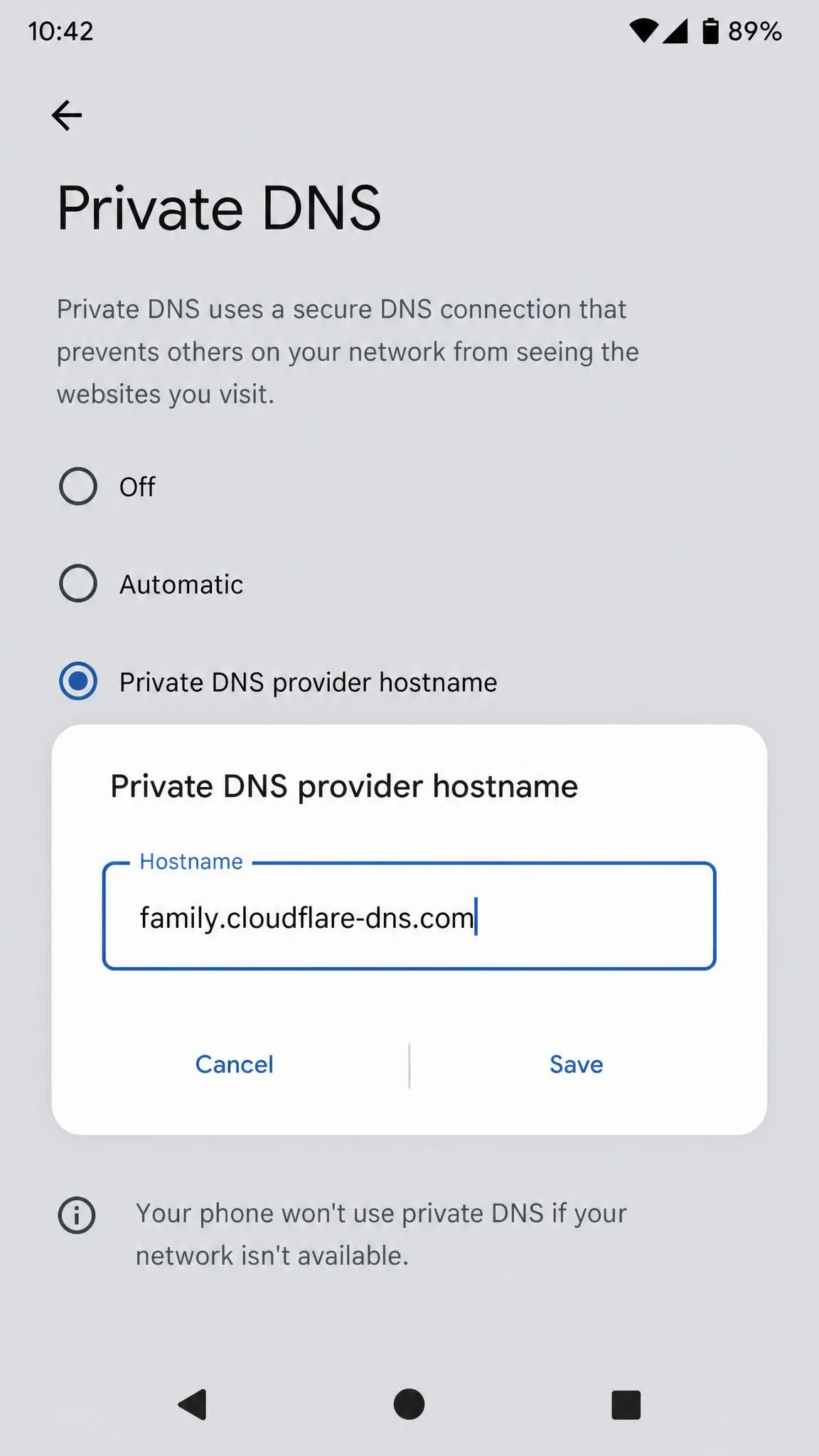
DNS filtering is the strongest free safety net on this list. It routes every request through a filter at the network level, so it covers every browser and app on the phone, not just Chrome or Safari. On Android, setup is a single Private DNS hostname entry. On iPhone, you configure DNS per Wi-Fi network, or install a configuration profile to cover cellular data too.
The filters here all cost $0, and the extra latency on each page lookup is tiny. We could not notice the difference during normal browsing. One caveat: private DNS filtering does not remove the private browsing option, so pair it with Family Link or Screen Time, which shut private browsing down at the browser level. Check the entry the first time the phone joins a new network, because some Android devices reset the Private DNS setting.
Cloudflare for Families
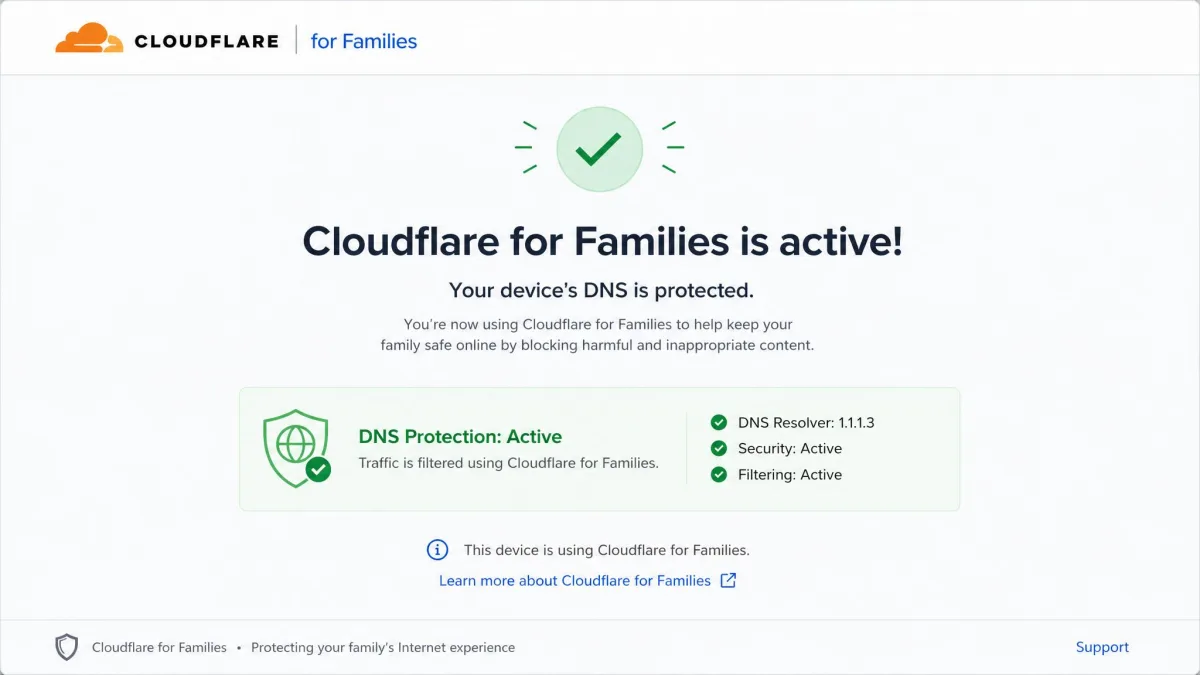
Cloudflare for Families is free, with no trial and no account, and it is the easiest to set up. The primary family resolver is 1.1.1.3, which blocks malware, phishing, and adult content, with 1.0.0.3 as the backup. For Android Private DNS, type family.cloudflare-dns.com. When the filter blocks a domain, it returns 0.0.0.0 instead of a real address, so the phone simply cannot connect. The Cloudflare for Families setup guide has the full instructions, including encrypted DNS endpoints.

OpenDNS FamilyShield
OpenDNS FamilyShield is the other fully free option, and it has worked as a set-and-forget adult content blocker since 2010. It needs no account at all. The nameservers are 208.67.222.123 and 208.67.220.123, and FamilyShield blocks adult categories plus proxies and anonymizers, phishing sites, and malware. The OpenDNS FamilyShield setup guide shows how to point a router or a single device at those servers.
CleanBrowsing Family Filter
CleanBrowsing's Family Filter is free but throttled, and it is the most aggressive of the three. It blocks adult and explicit sites, plus proxy and VPN domains used to dodge filters, and it forces Google, Bing, and YouTube into SafeSearch. The family nameservers are 185.228.168.168 and 185.228.169.168, and the Android Private DNS hostname is family-filter-dns.cleanbrowsing.org. CleanBrowsing's family filter page spells out the block lists, and paid plans start at $8.99 per month for custom filters and encrypted DNS.
CleanBrowsing also publishes iOS and macOS configuration profiles, which is the cleanest way to get DNS filtering running on an iPhone over cellular data.
Which Method Should You Use?
If the child has an iPhone, start with Screen Time and add a DNS filter for the gaps. If the child has an Android, start with Family Link and add a DNS filter underneath it. Add router-level filtering at home if you want the whole household covered at once. Skip parental control apps unless you need cross-platform dashboards or social media monitoring.
For most families, the free stack of Screen Time or Family Link plus DNS filtering is enough. Paid apps mostly add convenience and reporting rather than meaningfully better blocking. The table below shows how the five approaches compare.
| Product | Buy | Blocks incognito | Best for | Bypass risk | Price |
|---|---|---|---|---|---|
 |
Yes | Android kids | Medium | Free | |
 |
Yes | iPhone kids | Medium | Free | |
 |
No | Quick search layer | High | Free | |
 |
Yes (network level) | Whole home network | Low to medium | Free | |
 |
Yes | Multi-device families | Low | From about $37/yr |
The fastest setup for most families: turn on Screen Time or Family Link today, add a free DNS filter this week, and review the restrictions every few months as the child gets older.
How to Stop Kids From Bypassing Website Filters
Most kids never try to beat a filter. Some do, and the common bypasses are easy to close.
On iPhone, the biggest risk is the Screen Time passcode. Kids sometimes figure out the code, so keep it different from the phone's unlock code and change it if you suspect it has leaked. On Android, the list is longer. A child can enable Developer Options and USB debugging, remove the Family Link account, factory-reset the device, or hide browsing inside Samsung Secure Folder or Private Space. Turn Developer Options off and lock down account removal from the parent app.
Two more Android gotchas. Family Link settings only apply to the user profile the child signs into, so PIN-lock any extra profiles. And if the child's Google password changes, supervision stops applying until they sign back in, a common "the filter stopped working" cause.
Layering shrinks the gaps. A DNS filter at the network level still catches a browser the child installs to dodge Family Link, because that browser routes through the same DNS. Router filtering covers the home network but drops off on cellular and school Wi-Fi, so keep the device-level filter for when the phone leaves the house.
Every filter on this list has a way around it for a determined teenager. That is not a reason to skip the setup. It is a reason to use two layers instead of one, and to keep an ongoing conversation about online safety rather than relying on software alone.
Why Block Inappropriate Content on a Phone?
A phone in a child's pocket means unsupervised internet access, and adult content is a few taps away on most sites. Filtering is not surveillance. It is a guardrail around an experience the child is still learning to manage.
For a level-headed reference on reasonable limits, the National Library of Medicine publishes guidance on screen time limits. It is a useful companion to the technical setup here, because a filter works best when the limits make sense to the whole family. Set the filter before the phone goes into the child's hands, explain why it is there, and adjust it as the child earns more freedom.
Frequently Asked Questions
Do Screen Time and Family Link block adult websites?
Can I block websites on my phone without installing an app?
What is the best free DNS filter for blocking adult content?
Can kids bypass website blocking on their phone?
Does blocking websites slow down my phone?
At what age should I start using website filters?
Bottom Line
Start with Screen Time on the iPhone or Family Link on the Android, add a free DNS filter underneath, and on Android block alternative browser installs in the Play Store. The layered setup costs nothing and takes about fifteen minutes. Keep the passcode to yourself, check the settings again as the child grows, and treat the filter as one part of an ongoing conversation about what your kids see online.