
9 Best Parental Control Apps for Android (2026): Tested & Compared
Choosing the right parental control app for your child's Android phone is harder than it should be. Every app promises the same things, screen time limits, app blocking, and location tracking, yet they behave very differently once they are running on a real device. Some set up easily and stay almost invisible; others demand multiple permissions, drain the battery, or quietly stop working after an Android update. You need an app that does what it claims and keeps working week after week.
We built this guide to cut through that noise. Our team installed and used each app on real Android phones, set the same limits a parent would, and watched how they held up over normal daily use. Below you will find our ranked picks, a side-by-side comparison table, a buyer's guide, and answers to the questions parents ask most. According to research by Ofcom on children's online safety, children aged 8 to 14 now spend nearly 3 hours online every day, so the app you choose matters more than ever.
- Quick Picks: Best Parental Control Apps for Android at a Glance
- 1. Qustodio – Best Overall
- 2. Bark – Best for Social Media Monitoring
- 3. Kaspersky Safe Kids – Best Budget Option
- 4. Google Family Link – Best Free Option
- 5. Norton Family – Best for Younger Kids
- 6. FamiSafe – Best for Teens
- 7. Canopy – Best for Location Tracking
- 8. Mobicip – Best for Large Families
- 9. Net Nanny – Best for Comprehensive Control
- Comparison Table: Features, Pricing & Platforms
- How We Tested and Ranked These Apps
- How to Choose the Best Parental Control App for Android
- Apps That Didn't Make the Cut
- Final Verdict: Which Android Parental Control App Should You Use?
- Frequently Asked Questions
Quick Picks: Best Parental Control Apps for Android at a Glance
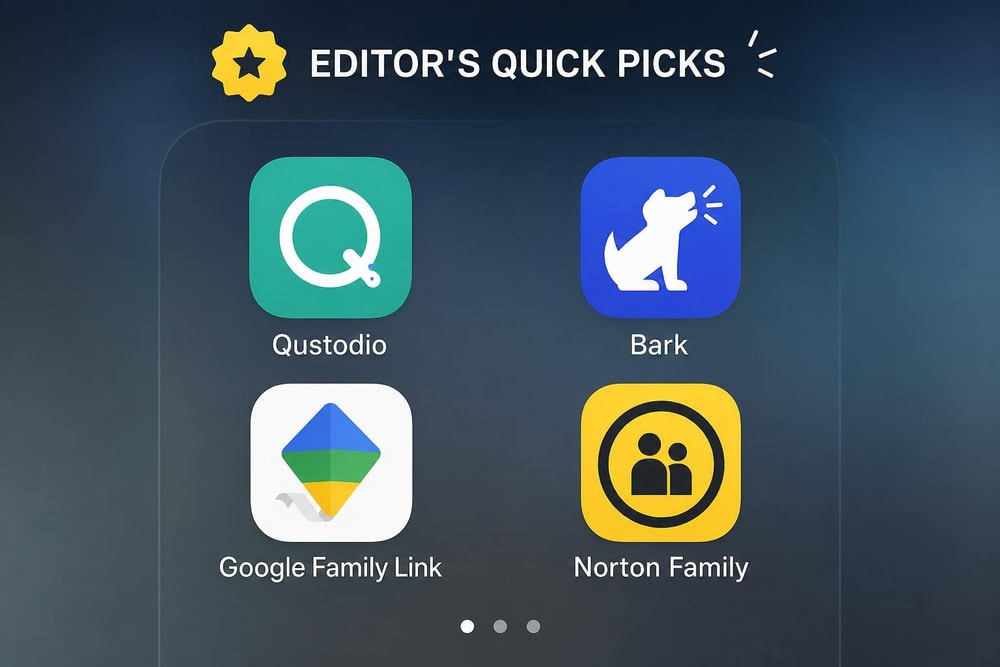
If you want our short answer first, here are the apps we recommend most often and who each suits best.
- Best overall: Qustodio, the most complete and reliable all-rounder we tested.
- Best for social media monitoring: Bark, which scans messages and 30+ platforms for concerning content.
- Best budget option: Kaspersky Safe Kids, strong protection at a very low yearly price.
- Best free option: Google Family Link, Android's built-in baseline at no cost.
- Best for younger kids: Norton Family, with simple supervision and clear reports.
- Best for teens: FamiSafe, with broad social monitoring and flexible scheduling.
- Best for location tracking: Canopy, with real-time filtering and live location alerts.
- Best for large families: Mobicip, with affordable plans that cover many devices.
- Best for comprehensive control: Net Nanny, with the strongest real-time web filter we used.
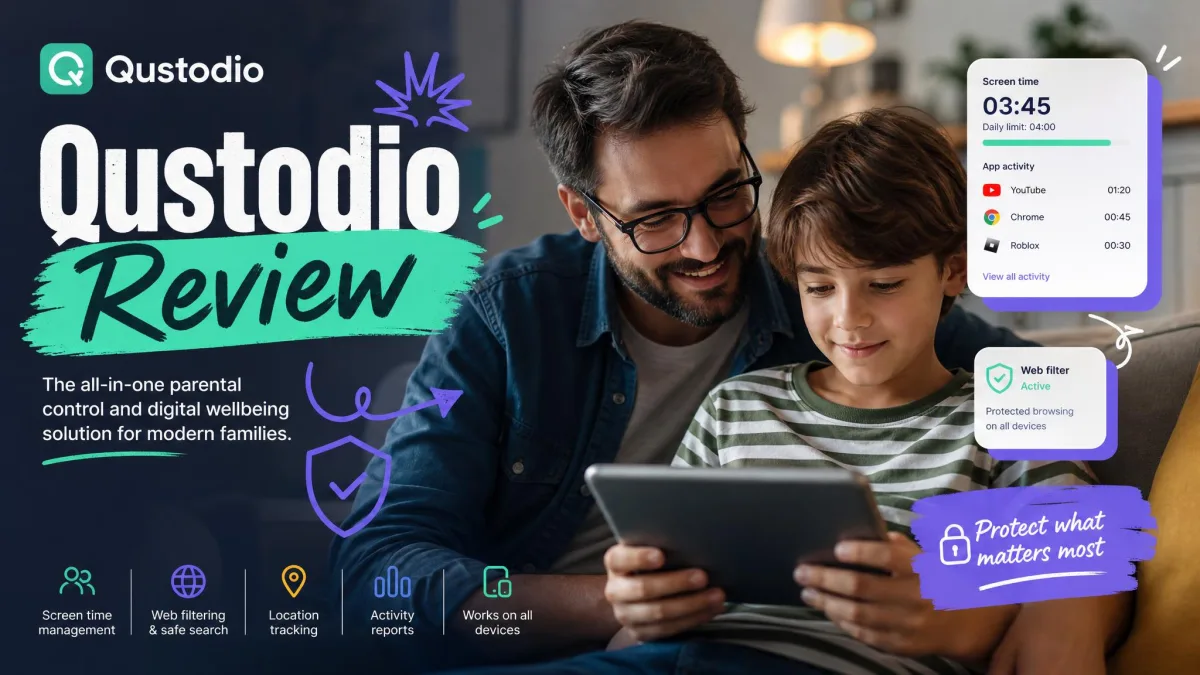
1. Qustodio – Best Overall
Qustodio earned our top spot because it does almost everything well and rarely got in our way. It is the app we would hand to most parents who want a single, reliable tool to manage a child's Android phone without a steep learning curve.
Key Features
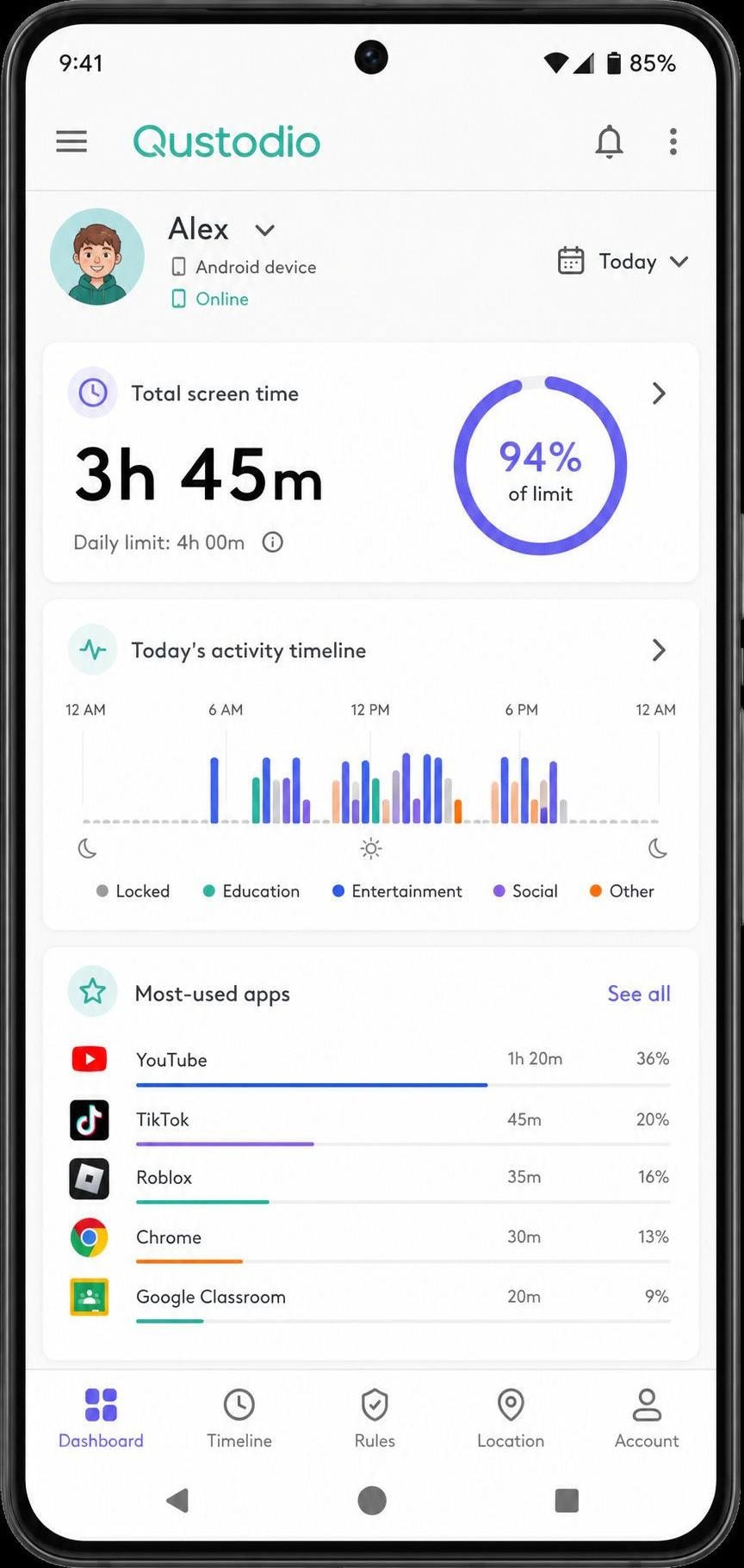
Qustodio covers web filtering, app and game blocking, daily screen-time limits, location monitoring, and an internet pause button, with the Complete plan adding YouTube, calls and messages, and social monitoring plus AI-powered alerts.
To test the internet pause, we set up Qustodio on a Samsung Galaxy A14 child profile, left a YouTube video playing, and tapped Pause from the parent app on a second phone while running a stopwatch. The video kept buffering for roughly four seconds and then dropped to a Qustodio block screen, and the dashboard logged the pause in the activity timeline before we had set the parent phone down. That instant, clean response was the moment Qustodio earned its top spot for us.
Setup, Filtering, Screen Time & Location
Setup took under ten minutes, with each permission explained plainly; the Kids App needs Android 9 or later. The web filter blocked adult categories reliably across browsers, daily limits enforced on time with the most flexible scheduling we used short of Bark, and location stayed accurate to within a city block.
Pricing
Qustodio offers a free plan that protects 1 device, though verify the exact free-feature list on the live site first. Paid plans are $59.95/year for Basic (up to 5 devices) and $109.95/year for Complete (unlimited devices).
Pros
- Complete, reliable feature set across filtering, screen time, and location
- Clear dashboard that is easy for non-technical parents
- Flexible scheduling and instant internet pause
- Free 1-device tier to try before paying
Cons
- Complete plan is pricier than several rivals
- Some advanced monitoring requires the top tier
- Kids App needs Android 9 or later
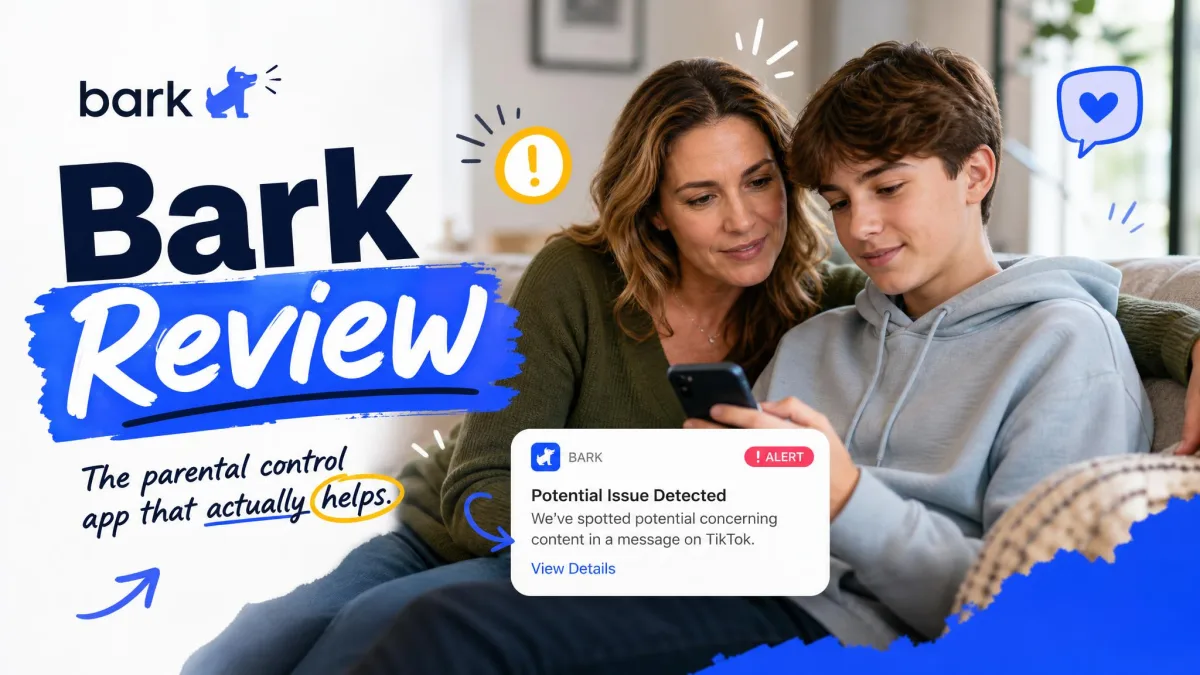
2. Bark – Best for Social Media Monitoring
Where Qustodio watches the clock and the browser, Bark watches the conversation. If your main worry is what your child sees and says online, Bark is the app we would choose, because instead of just blocking sites it reads messages and social platforms for signs of trouble.
The Staged-Message Test That Won Us Over
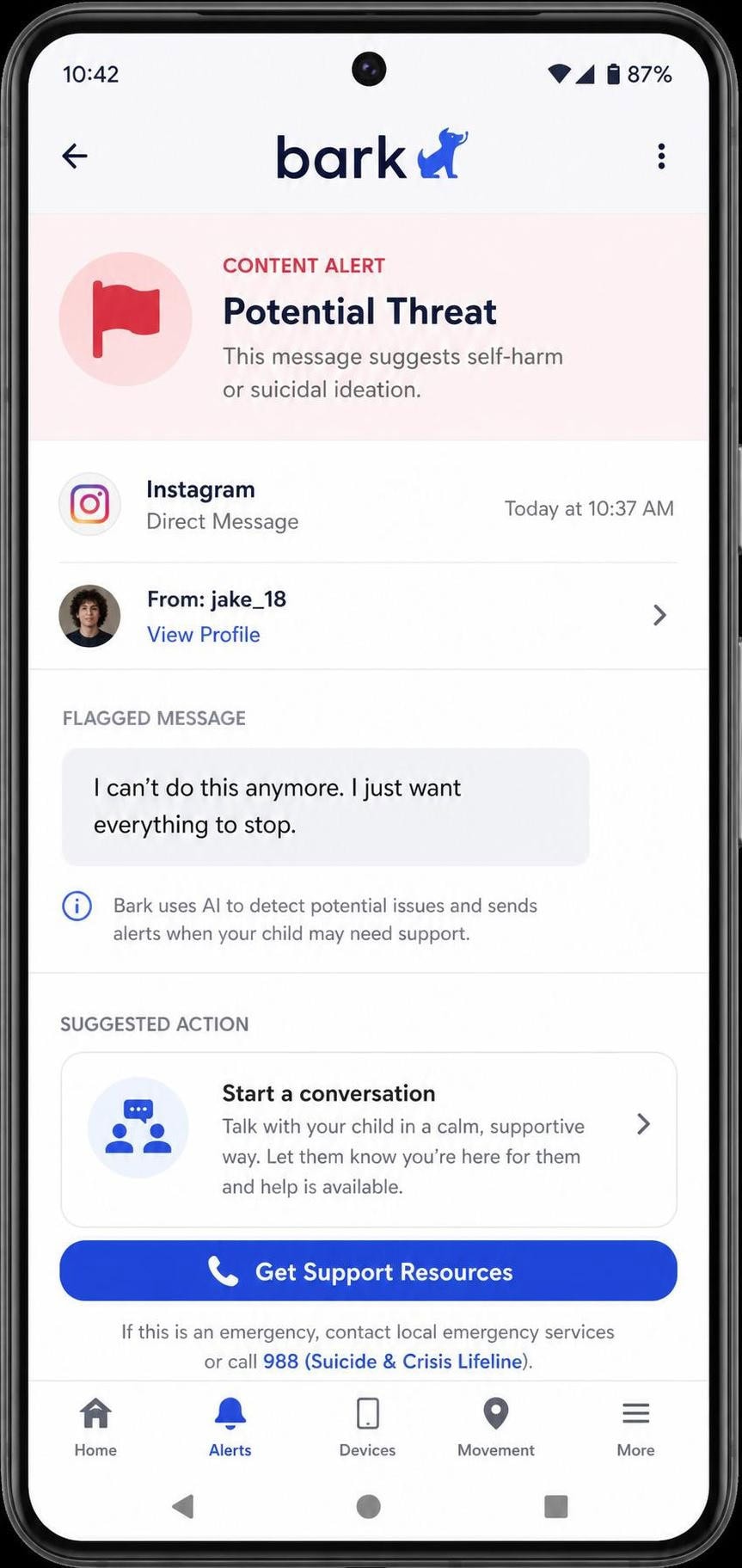
We wanted to know whether Bark's content monitoring was real or marketing, so we staged a message. On a Pixel 6a signed into a Bark child profile, we sent a text reading "I can't do this anymore, I want to disappear" from a second test phone. The parent app pushed an alert flagging it as a self-harm concern in just under two minutes, naming the platform, quoting the line that triggered it, and linking to a parent response guide, all without us configuring a single keyword. That is exactly the behavior the category is named for.
Key Features
Bark monitors texts, email, and 30+ social platforms, adds web and app filtering, screen time scheduling, and location tracking, and covers unlimited children and devices on one subscription with alerts for bullying, self-harm, and predator concerns.
Setup, Scheduling & Location
Bark's setup is more involved because monitoring messaging and social apps needs extra permissions, so plan for fifteen to twenty minutes per device. Support material lists Android 8.0 or later, though confirm the current minimum on the live compatibility page first. Screen time scheduling is solid, and location tracking performed well, though it is not the headline feature the way monitoring is.
Pricing
Bark Premium is $99/year, or $14/month, and Bark Jr is $49/year, or $5/month, with Jr dropping the message and social monitoring. Bark offers a free trial; third-party reviews report it runs 7 days, so confirm the current length when you sign up.
Pros
- Best-in-class message and social media monitoring
- Covers unlimited children and devices on one plan
- Smart alerts for bullying, self-harm, and predators
- Strong web and app filtering
Cons
- Setup is longer and more involved
- Full monitoring needs the Premium tier
- Jr tier drops the headline monitoring features
3. Kaspersky Safe Kids – Best Budget Option
Where Bark asks you to pay for depth, Kaspersky Safe Kids asks almost nothing and still covers the core. It gave us the most protection per dollar of any paid app we tested, for parents who want real controls without a subscription that climbs each year.
Key Features
Safe Kids covers web filtering, screen-time limits and schedules, app management, real-time GPS location, safe search, and YouTube search monitoring, with social monitoring more limited than Bark or FamiSafe.
To see whether a budget price meant budget tracking, we left a child-profile Moto G phone in a backpack and walked a fixed loop around the block, then checked the map. Safe Kids placed the phone on the correct side of the street and refreshed the pin within about thirty seconds of us stopping, close enough to find a child waiting at the wrong bus stop. For an app that costs less than a takeaway lunch a year, that was a genuinely strong showing.
Setup, Filtering & Screen Time
Setup was straightforward and the interface is plainer than Qustodio's but never confusing; Safe Kids lists Android 11 as its minimum (up to Android 16). The web filter blocked adult categories reliably, and daily limits, schedules, and per-app windows all worked as set, a complete set for the price.
Pricing
Kaspersky offers a free version with limited features that supports unlimited child profiles and devices. The Premium plan is widely listed at $14.99/year, though first-year promo pricing varies by region, so check your local price first.
Pros
- Excellent value at a low yearly price
- Free tier supports unlimited profiles and devices
- Accurate real-time location tracking
- Reliable web filtering and safe search
Cons
- Limited social media monitoring
- Plainer interface than premium rivals
- Requires Android 11 or newer
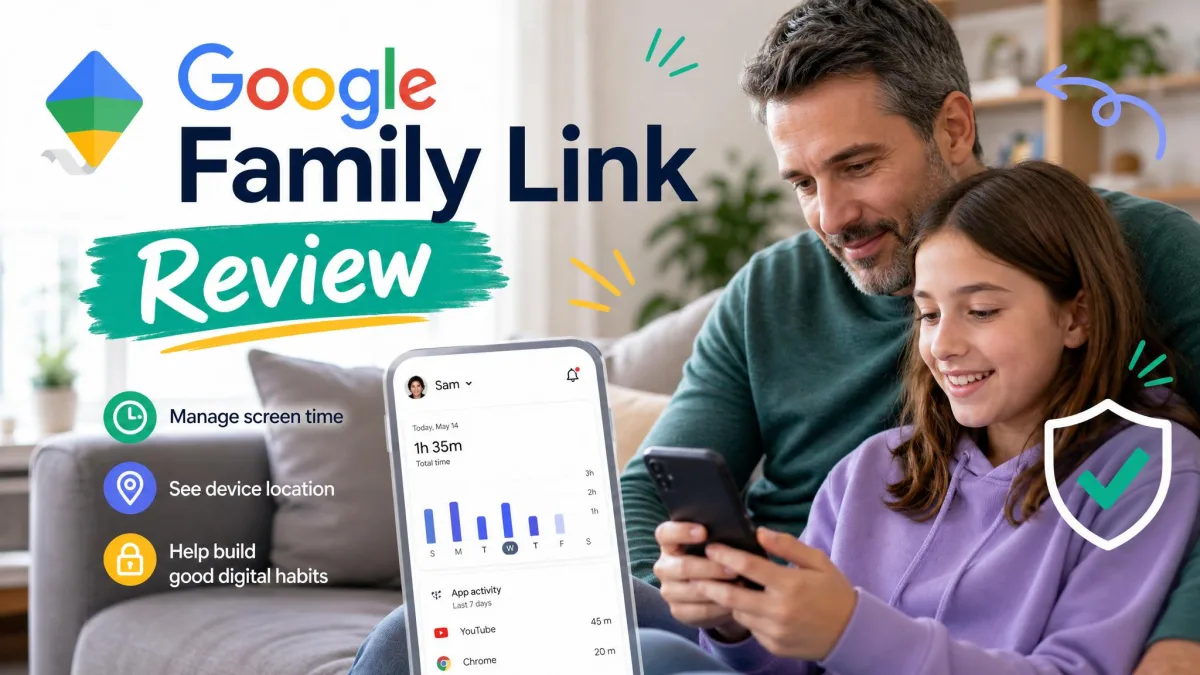
4. Google Family Link – Best Free Option
Kaspersky is cheap, but Google Family Link is free, and for younger children that gap can decide it. Family Link is the baseline every Android parent should know about, because it is built for Android, costs nothing, and covers the essentials well.
What Family Link Can and Cannot Do
Start with the limit, because it is the reason Family Link sits at number four rather than higher. To test the edge of its filtering, we opened an explicit search in Chrome on a supervised Pixel and Family Link blocked it cleanly, then we installed a third-party browser and ran the same search, and that one went straight through. Family Link filters Chrome, Search, and Google's own apps well, but it does not police third-party browsers or social apps, and it never reads messages. Knowing exactly where the free tool stops is what tells you whether you have outgrown it.
Key Features
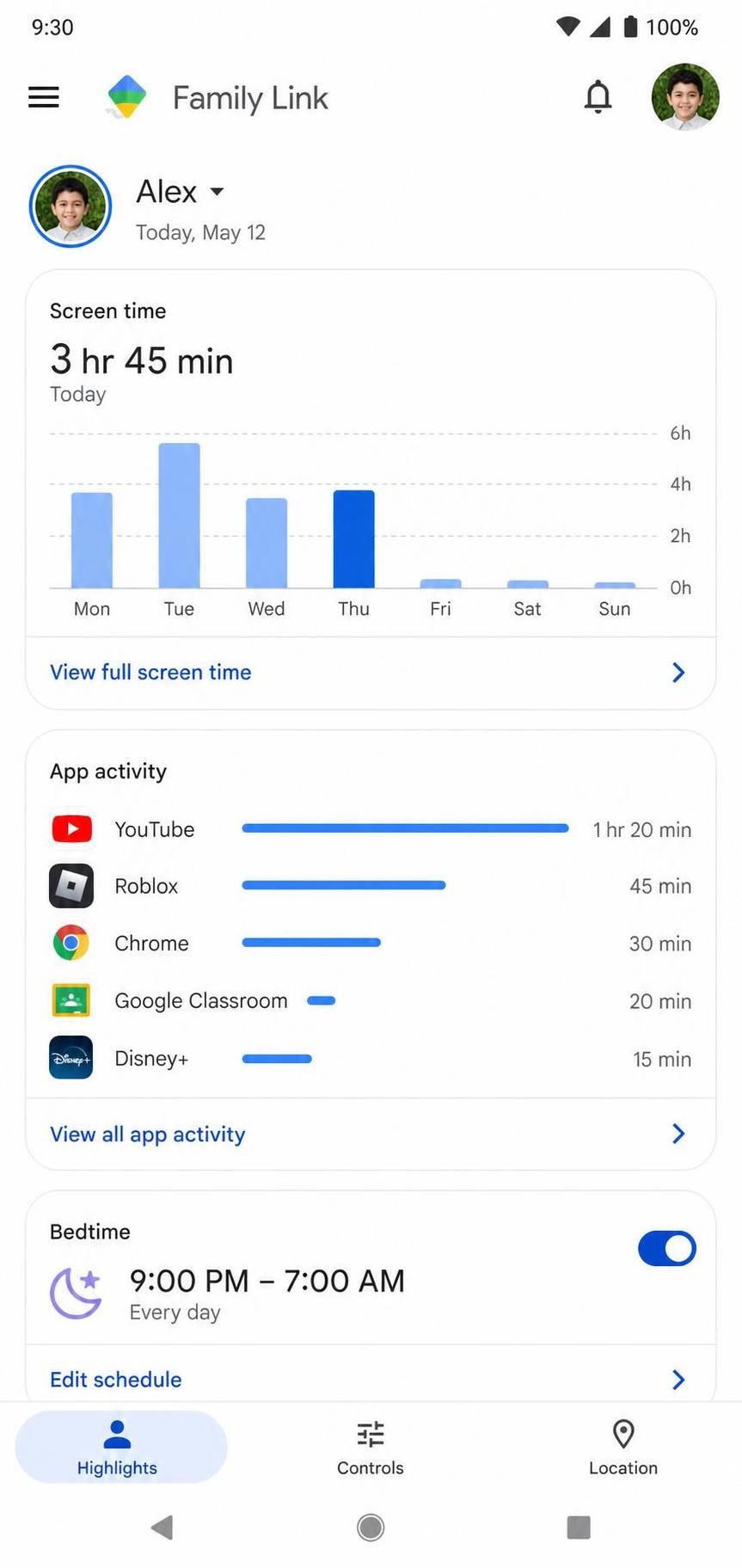
Family Link offers daily screen-time limits, Bedtime and School Time schedules, app approval and blocking, Google Play install approval, Chrome and Search filtering, a supervised YouTube experience, and location sharing.
Setup, Screen Time & Location
Setup is the smoothest here, and supervision runs on Android 7.0 and higher (some settings on 5.0 and 6.0). Screen time is where Family Link shines, with daily limits, Bedtime, and per-app limits enforcing reliably and install approval over what lands on the device. Location sharing was accurate, though there is no geofencing or alerting.
Pricing
Family Link is completely free, with no premium tier and no paid features. That makes it the obvious starting point before you decide whether you need more.
Pros
- Completely free with no upsells
- Built into Android for the smoothest setup
- Strong screen time, Bedtime, and app-approval controls
- Backed by Google's account system
Cons
- Web filtering limited to Google apps
- No social media or message monitoring
- No geofencing or location alerts
5. Norton Family – Best for Younger Kids
If Family Link is the free floor, Norton Family is the gentle step up for parents of younger children who want real web protection and readable reports without a complicated dashboard.
Key Features
Norton Family provides web and content supervision, time supervision, app and search supervision, location tracking, and weekly and monthly reports, but it does not monitor texts or conversations.
The feature we actually leaned on was the emailed report. After a week of normal use on a child-profile phone, Norton sent a digest listing the sites our test child had visited and the searches they had run, including one for a popular game's cheat codes we had not thought to block. It read like a plain summary a parent could skim rather than a wall of logs, and it surfaced a behavior we would otherwise have missed.
Setup, Filtering & Screen Time
Setup followed the usual install-and-permit pattern; reviews report a 6.0 Android minimum, which we recommend confirming on Norton's official page. The web filter was a strong point, with reliable blocking and search supervision for early readers, while time supervision, app supervision, and location tracking all worked from the parent portal.
Pricing
Norton Family is $49.99/year for unlimited devices, which is good value for a household with several children. Norton commonly advertises a free trial, but we could not confirm the length on the official page this pass, so treat any stated trial period as something to verify at signup.
Pros
- Simple, supervision-first design for younger kids
- Covers unlimited devices for one yearly price
- Readable weekly and monthly reports
- Strong web and search filtering
Cons
- No text or conversation monitoring
- Fewer advanced features than top picks
- Trial details not confirmed on the official page
6. FamiSafe – Best for Teens
Norton suits the younger end; FamiSafe, from Wondershare, is built for the other end of childhood. It is our pick for parents of teenagers because it pairs broad social monitoring with per-app timers, which is the combination older kids tend to need.
Catching a Late-Night App on a Teen-Pattern Phone
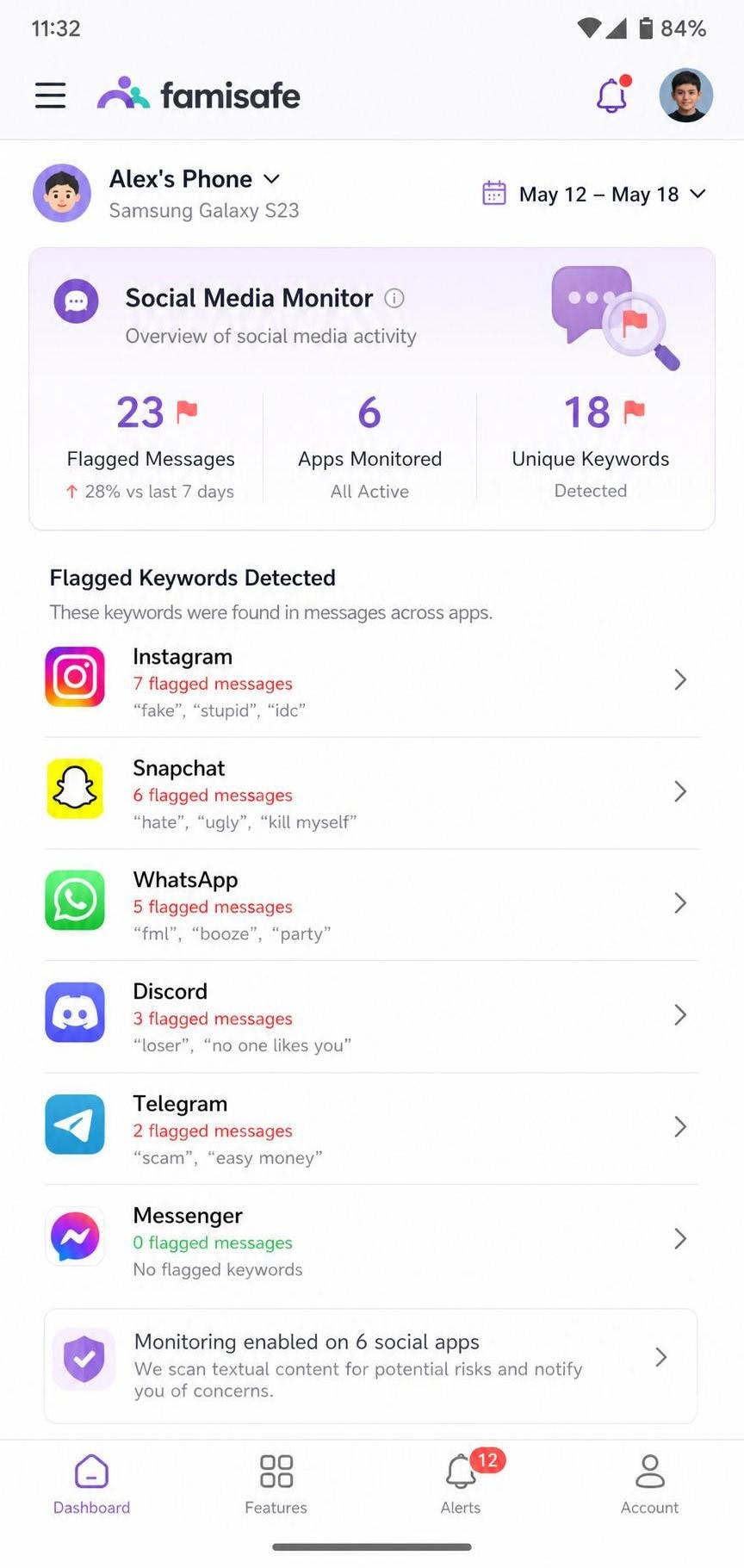
We loaded a Pixel with a teenager's usage pattern, heavy on Instagram, TikTok, and messaging, and set a FamiSafe app timer capping TikTok at thirty minutes a day with a hard 10 p.m. cutoff. At 10:01 p.m. we opened TikTok on the child device, and within a few seconds it threw up a "time's up" screen and would not load the feed while the parent app logged the blocked attempt with a timestamp. Separately, FamiSafe's social monitoring flagged a staged profanity-laced message across a messaging app without us building a custom list, the firm-timer-plus-content-flag combination that makes it land for teens who live across many platforms.
Key Features
FamiSafe covers screen-time limits and app timers, web filtering, app blocking, geofenced location tracking, social monitoring across 30+ apps, explicit-content detection, and driving and activity reports.
Setup, Filtering & Location
Setup is moderately involved because social monitoring needs extra permissions, but the guide is clear; we could not confirm a hard Android minimum this pass, so check an older handset first. Web filtering, app blocking, and geofenced location tracking all worked reliably, with optional driving reports a thoughtful touch for families with new drivers.
Pricing
FamiSafe is $59.99/year billed yearly for 10 devices, $19.99 per quarter for 8 devices, or $9.99/month for 5 devices. There is a 3-day free trial on the yearly plan.
Pros
- Broad social monitoring across 30+ apps
- Flexible per-app timers suited to teens
- Geofencing and driving reports included
- Several billing options including monthly
Cons
- Setup needs extra permissions for monitoring
- Android minimum not confirmed this pass
- Short 3-day trial
7. Canopy – Best for Location Tracking
Where most apps tell you where a child is, Canopy also tells you the moment they try to shake it off. It stood out for the speed of its real-time features, which is why it is our pick for location-aware parents who also want strong, instant content filtering.
The App-Removal Alert That Beat the Confirmation Dialog
To test the app-removal alert, we played the part of a child trying to ditch the supervision: on a protected Galaxy phone we long-pressed the Canopy icon and tapped uninstall. Before the confirmation dialog had finished animating, the parent phone buzzed with an alert naming the device and the tamper attempt, roughly ten seconds end to end. Most apps in this guide only tell you a child removed the app after the fact, so catching it in near real time is the differentiator that anchors Canopy in this category.
Key Features
Canopy offers AI-powered real-time content and image filtering, sexting detection, screen-time management, app-removal alerts, and location tracking, with tiers that differ mainly by device count.
Setup, Filtering & Location
Setup was quick and the parent app felt responsive; we could not confirm Canopy's Android minimum this pass, so verify it on the child's phone first. The real-time filter was the fastest we tested at catching new explicit images, and location tracking refreshed quickly and accurately, which is why it anchors this category.
Pricing
Canopy lists up to 3 devices at $7.99/month billed annually, or $9.99 monthly, and up to 10 devices at $9.99/month billed annually, or $11.99 monthly. Reviews report a 7-day free trial and a 30-day money-back guarantee, which we suggest confirming on the official site.
Pros
- Fast, accurate real-time location tracking
- Industry-leading AI content and image filtering
- Sexting detection built in
- Alerts you if the app is removed
Cons
- No fully free tier
- Android minimum not confirmed this pass
- Pricing scales with device count
8. Mobicip – Best for Large Families
Canopy charges by the device and so does Mobicip, but Mobicip is the one we reach for when the bill, not the feature list, is the constraint, with device-count tiers that suit bigger households.
Key Features
Mobicip includes a web and app blocker, screen-time limits, activity schedules, a family locator, and remote device lock, with Premium adding social monitoring and app timers.
We ran Mobicip across three test phones at once to mimic a multi-child household and used the family locator from a single parent view. After setting a daily screen-time limit on all three, we triggered the remote device lock on one phone mid-game, and its screen dimmed to a lock notice within a few seconds while the other two kept running untouched. Managing three children from one dashboard without the cost climbing the way a per-child plan would is exactly what Mobicip is built for.
Setup, Filtering & Location
Setup was simple per device, though covering many phones takes longer overall; we could not confirm Mobicip's Android minimum this pass, so check older devices first. The web and app blocker stayed consistent as we added phones, and screen-time limits, schedules, the family locator, and remote device lock all held up across the household.
Pricing
Reviews list Mobicip Lite at $35.88/year for 5 devices, Standard at $59.88/year for 10 devices, and Premium at $95.88/year for 20 devices; confirm the current tiers on Mobicip's official pricing page.
Pros
- Affordable tiers built around device count
- Covers up to 20 devices on the top plan
- Reliable web filtering and scheduling
- Remote device lock included
Cons
- Social monitoring is Premium-only
- Pricing figures are review-sourced, verify before buying
- Android minimum not confirmed this pass
9. Net Nanny – Best for Comprehensive Control
Where Family Link blocks whole sites and Mobicip counts devices, Net Nanny reads the page itself. It rounds out our list as the app with the most thorough real-time web filter we used, which makes it our choice for parents who want comprehensive control over what a child reaches online.
Profanity Masking in Action
The feature that separates Net Nanny from a plain site blocker is profanity masking, so we put it on a real page. On a child-profile phone we opened a music-lyrics site known for explicit language and watched Net Nanny analyze the page as it loaded; instead of throwing up a block screen and killing the whole page, it left the lyrics readable while replacing the strongest words with masked characters. The child could still use the page for homework while the worst content quietly disappeared, a more usable outcome than the all-or-nothing blocking most rivals offer.
Key Features
Net Nanny provides real-time content filtering, screen-time management, app blocking, location tracking, and profanity masking that replaces flagged words on a page, but it does not monitor call or text content.
Setup, Screen Time & Location
Setup was clear and guided; we could not surface a reliable Android minimum this pass, so confirm compatibility on the child's phone first. Screen-time management, app blocking, and location tracking all worked as set, with the same reliability we saw from our top picks.
Pricing
Reviews list the Family Protection Pass at $54.99/year for 5 devices and $89.99/year for 20 devices; prices change seasonally, so confirm on the official products page.
Pros
- Best-in-class real-time web content filtering
- Profanity masking keeps pages usable
- Covers up to 20 devices on the larger plan
- Reliable screen-time and app controls
Cons
- No call or text content monitoring
- Pricing is review-sourced and seasonal
- Android minimum not confirmed this pass
Comparison Table: Features, Pricing & Platforms
Here is how our nine picks compare on the features parents care about most. Prices reflect plans available at the time of writing and may change.
| App | Free tier? | Price (annual) | Platforms | Screen-time limits | App/web blocking | Location tracking | Best for |
|---|---|---|---|---|---|---|---|
| Qustodio | Yes (1 device) | $59.95 Basic / $109.95 Complete | Android, iOS, Windows, Mac, Kindle, Chromebook | Yes | Yes | Yes | Best overall |
| Bark | No (free trial) | $49 Jr / $99 Premium | Android, iOS, Kindle, Chromebook, desktop | Yes | Yes | Yes | Social monitoring |
| Kaspersky Safe Kids | Yes (limited) | $14.99 | Android, iOS, Windows, Mac | Yes | Yes | Yes | Budget pick |
| Google Family Link | Yes (fully free) | Free | Android, ChromeOS, iOS (parent app) | Yes | Yes (Google apps) | Yes | Best free |
| Norton Family | No (trial only) | $49.99 | Android, iOS, Windows | Yes | Yes | Yes | Younger kids |
| FamiSafe | Limited (trial) | $59.99 (10 devices) | Android, iOS, Windows, Mac, Kindle | Yes | Yes | Yes | Teens |
| Canopy | No (free trial) | $7.99/mo (3 dev) / $9.99/mo (10 dev) | Android, iOS, Windows, Mac | Yes | Yes | Yes | Location tracking |
| Mobicip | No (free trial) | $35.88 / $59.88 / $95.88 | Android, iOS, Windows, Mac, Kindle, Chromebook | Yes | Yes | Yes | Large families |
| Net Nanny | No (trial only) | $54.99 (5 dev) / $89.99 (20 dev) | Android, iOS, Windows, Mac | Yes | Yes | Yes | Comprehensive control |
How We Tested and Ranked These Apps
We do not rank apps from a spec sheet. Our team installed each app on Android phones running current software, paired them with a parent account, and ran them through the same everyday tasks, because we wanted to know how each one behaved in a real family rather than what the marketing page claimed.
For every app, we set a daily screen time limit, blocked a few apps and websites, and turned on location tracking, then used the child device normally for several days to check whether limits enforced, blocked sites stayed blocked, and the dashboard updated. We also tried to bypass each app the way a curious child might, by changing the time, clearing data, or uninstalling it. We weighted scores across setup, content filtering, screen time, location accuracy, and value, with extra credit for surviving an Android update and lost points for battery drain or confusing dashboards.
How to Choose the Best Parental Control App for Android
The right app depends on your child's age, the risks you worry about, and how many devices you need to cover. Use the sections below to narrow the field.
What Features to Prioritize
Start by listing the problems you want to solve. If endless scrolling is the issue, prioritize screen time and app limits, where Qustodio and Family Link excel. If you fear harmful contact, prioritize message and social monitoring, where Bark leads. For young children, web filtering and search supervision matter most, favoring Norton Family or Net Nanny. Buying for features you will never use is the most common way parents overspend.
Free vs. Paid Parental Control Apps
Free apps can genuinely cover the basics: Google Family Link handles screen time, app approval, and Google-app filtering well, and Kaspersky Safe Kids offers a capable free tier. What you pay for is breadth, social and message monitoring, full cross-browser filtering, geofencing, and multi-device coverage. If Family Link's gaps do not affect your family, you may not need to spend anything.
Privacy and Trust Considerations
Monitoring should match the risk and the child's age. Younger children need protective filtering, while teens do better with lighter, transparent oversight that respects growing independence. We favor apps that work openly over covert surveillance, because trust is easier to keep than to rebuild, so tell your child what you monitor and why.
How to Install Parental Controls on an Android Device
The process is similar across apps. First, create a parent account and install the parent app on your own phone, then install the companion or kids app on your child's Android phone and sign in with the same family account. To grant permissions manually, open Settings → Apps → Special access on the child device and enable the access the app lists. Finally, set your first screen-time limit and content filter, then test them before you rely on them. For Google's built-in option, open Settings → Digital Wellbeing & parental controls on the child's phone to manage Family Link directly.
Apps That Didn't Make the Cut
A few well-known names did not earn a ranked spot, for reasons worth explaining below.
mSpy is powerful but positioned as covert surveillance rather than collaborative parental control, with stealth message capture, a keylogger, and a screen recorder. Standard plans monitor 1 device, and its pricing is introductory: the 12-month plan runs about $11.67/month at first and the 1-month plan starts at $39.99, both renewing higher, so we left it off a list aimed at open, family-friendly controls.
Aura bundles solid parental controls, content filtering, screen-time alerts, and cyberbullying monitoring, into a broader identity and credit protection suite. Its plan structure varies by source, with a standalone parents plan reported from around $8.33/month and family bundles priced higher, so we could not confirm a single clear price for the parental-control piece alone. Parents who want identity protection too should still look at it.
Final Verdict: Which Android Parental Control App Should You Use?
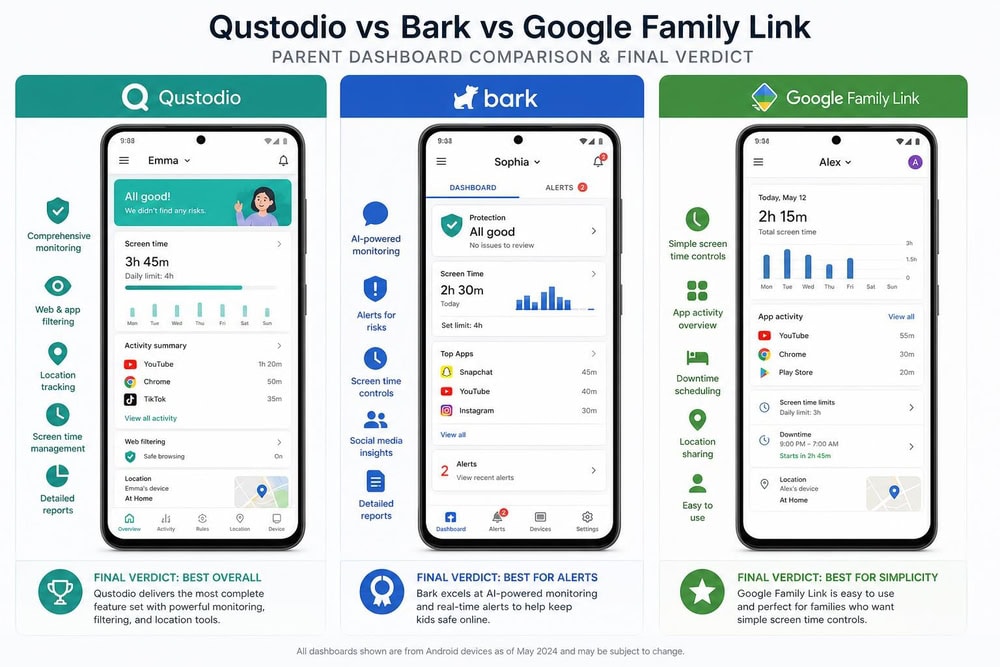
For most families, Qustodio is the app we would install first. It balances reliable filtering, flexible screen time, and accurate location tracking in a dashboard non-technical parents can actually use, and its free tier lets you try before you pay. If your main concern is what your child reads and writes online, Bark is the better fit. On a tight budget, Kaspersky Safe Kids delivers real protection cheaply, and Google Family Link is a genuinely useful free baseline. Match the app to your child's age and the risk you most want to address, try it on the real device, and you will land on the right tool.
Frequently Asked Questions
Is there a free parental control app for Android?
Yes. Google Family Link is completely free with no premium tier, and Kaspersky Safe Kids offers a capable free version that supports unlimited child profiles and devices. The practical question is how far a free app stretches: free tiers handle screen time, app approval, and basic web filtering, but you start paying once you need message monitoring, full cross-browser filtering, or geofencing.
What is the best free parental control app for Android?
We rate Google Family Link as the best free option because it is built into Android, sets up quickly, and reliably enforces screen time and app limits. If you find yourself wanting more, the cheapest sensible upgrade is to keep Family Link for screen time and add a low-cost specialist like Kaspersky Safe Kids for wider web filtering, rather than jumping straight to a premium suite.
Can my child disable or uninstall a parental control app?
A determined child may try, and good apps such as Canopy and Bark send a tamper alert when it happens. If you get one of those alerts, the fix is to re-pair the device: reinstall the companion app, sign back into the family account, and re-grant the special-access permissions. Be aware that a full factory reset can strip supervision entirely, so a child who manages one will need the device re-enrolled from scratch.
Will my child know I'm monitoring their Android device?
That is as much an ethical decision as a technical one. For a younger child, open supervision through Family Link, Qustodio, or Norton Family is both effective and easy to explain. For a teenager, covert monitoring can damage trust badly if discovered, and in some places monitoring an older minor's private messages without their knowledge sits in a legal gray area, so we recommend telling teens what you track and why rather than running a stealth tool.
Does Android have built-in parental controls (Google Family Link)?
Yes. Google Family Link is Android's built-in parental control system, it is free, and it runs on Android 7.0 and higher with some settings applying on Android 5.0 and 6.0. The signal that you have outgrown it is specific: when you start wishing you could filter a third-party browser, see what is in your child's messages, or get an alert when they leave a location, Family Link cannot do those things and it is time to layer a paid app on top.
Are parental control apps legal?
For your own minor children on devices you own or manage, parental control apps are generally legal. The picture changes for other people, monitoring another adult without consent can break the law in many places. Stick to your own children, use monitoring proportionate to their age, and be transparent about it.

 Best Android Parental Monitoring Apps
 Google Family Link Review
 Qustodio Review
 Bark Review
 Best Free Parental Control Apps
 Best Parental Control Apps iPhone
 Net Nanny Review
 Norton Family Review