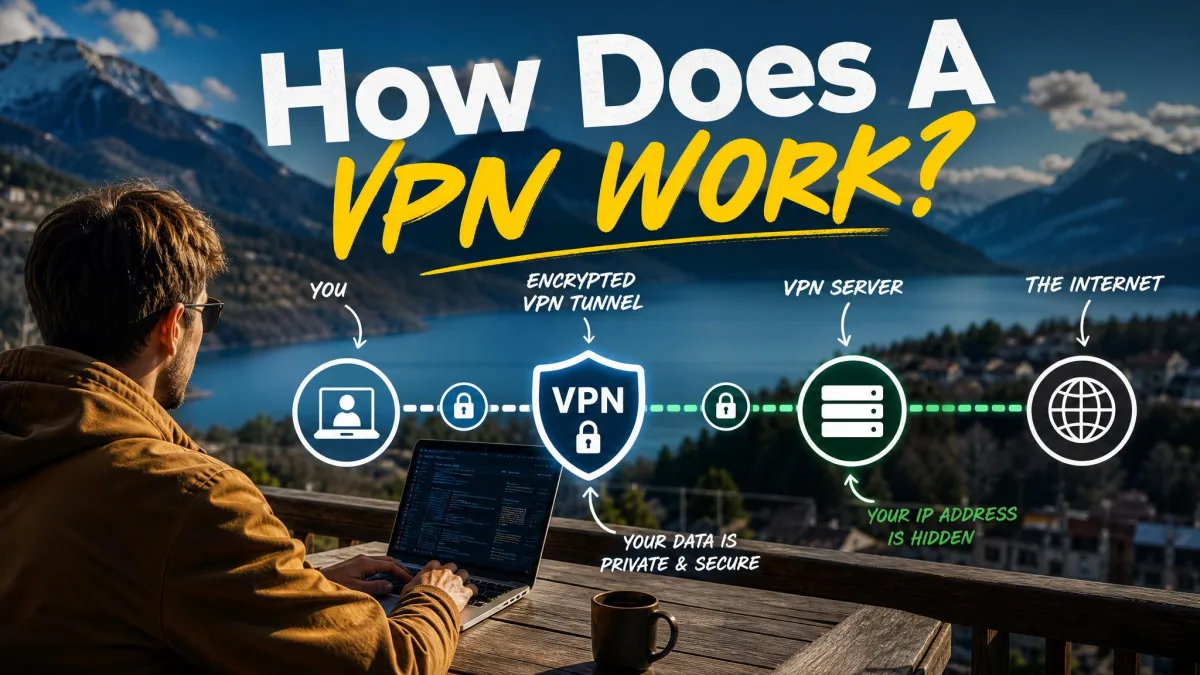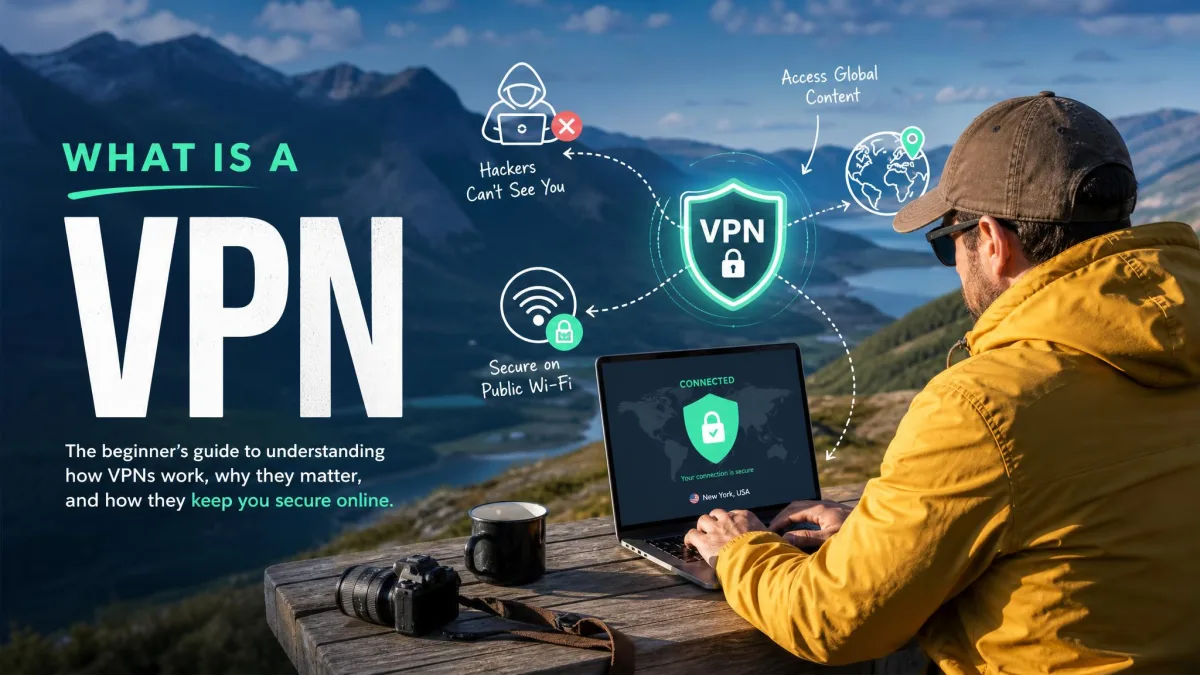
A VPN, or virtual private network, is a service that wraps your internet traffic in strong encryption and routes it through a server run by the VPN provider. Anyone watching the network sees an encrypted tunnel instead of the websites you visit, and those websites see the server's IP address instead of your home one. We have set these apps up on Windows, macOS, Android and iPhone, and the honest headline is that modern apps do almost all of the work for you.
This guide covers the four steps that get you connected, per-device instructions for every screen in your house, the manual setup path for hardware with no app, and the settings worth turning on once you are up and running. We also cover how to check the connection is genuinely protecting you, because a green icon is not proof on its own.

We set up and connect VPN apps as part of our regular device and privacy testing at HTS, so the steps below match the current apps rather than a screenshot from three years ago.
What a VPN Actually Does
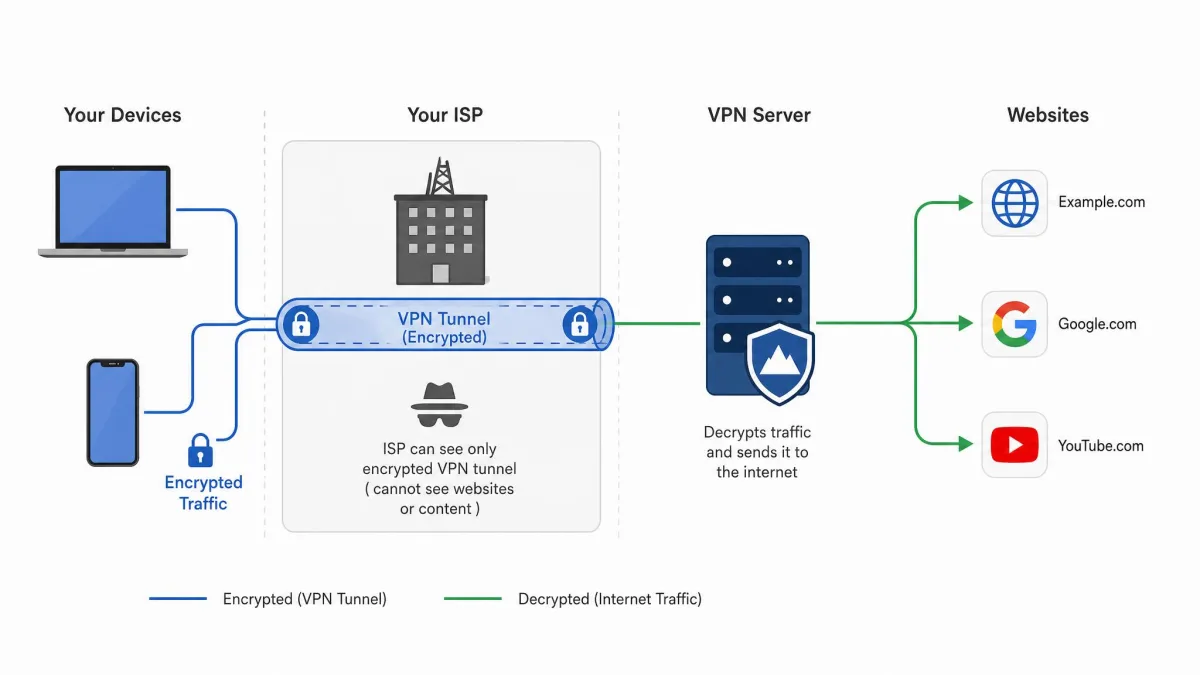
Think of your normal connection as a postcard. Your internet service provider, the coffee shop router, and anyone else on that network can read the address on the front, which means they can see which websites you are talking to. A VPN seals the postcard in an envelope and sends it to one trusted forwarding address first.
How a VPN protects your connection
Two things happen when you connect. The app encrypts everything leaving your device, so the local network and your ISP see only that encrypted traffic is flowing to a VPN server. Your traffic then exits from that server, so the services you use record its IP address and location rather than yours.
That second part is why a VPN changes what content you can reach, and why the server you pick matters so much for speed. The encryption itself is standard, well-understood stuff: AES-256 or an equivalent modern cipher, inside a tunnel built with WireGuard, OpenVPN or a provider's own lightweight protocol. For the formal version, NIST's guide to IPsec VPNs is the reference behind most corporate deployments.
What a VPN does not hide
A VPN is a network privacy tool, not an invisibility cloak. It hides your traffic from the network and from your ISP, but it does not log you out of anything: a signed-in Google or Facebook session still ties your activity to your account no matter which server you use.
Cookies, browser fingerprinting and third-party trackers also keep working, so pair the VPN with a tracker-blocking browser setup and read through the Electronic Frontier Foundation's privacy tools for the browser side of the job. A VPN does not stop malware either, and it will not save you from a phishing page.
Your device's own location services are separate from your IP address. To change what apps see rather than what websites see, our guides on how to change your location on iPhone and how to change your location on Android cover that ground.
Before You Start: What You Need
The list is short. You need a device with an internet connection, a payment method if you are going with a paid service, and about five minutes. No networking knowledge is required, and nothing about your router has to change unless you choose the whole-home route later.
Decide two things in advance: which devices you want covered, because device limits vary a lot between providers, and whether you mainly want privacy on public Wi-Fi, access to content while travelling, or both. That second answer decides which server network is worth paying for.
How to Use a VPN in 4 Steps
Here is the short version that applies to almost every service. Installing a provider's own app and pressing Connect takes only a few minutes, and it is by far the easiest path for a first-time user.
Step 1: Choose and subscribe to a VPN service
Pick a provider, choose a plan length, and create an account on its website. Longer terms are dramatically cheaper per month. NordVPN works out at $3.49 per month on its two-year plan, and Surfshark's 24-month Starter plan lands at $2.49 per month, against monthly rates several times higher.
Nearly every major provider offers a 30-day money-back guarantee, so the first month is effectively a trial you have to claim a refund on. If you would rather not pay yet, Proton VPN has a genuinely free tier with no data cap.
Long-term subscriptions renew at a much higher rate than the headline first-term price. Set a calendar reminder a week before renewal so you can decide deliberately instead of being surprised by the charge.
Step 2: Download and install the VPN app
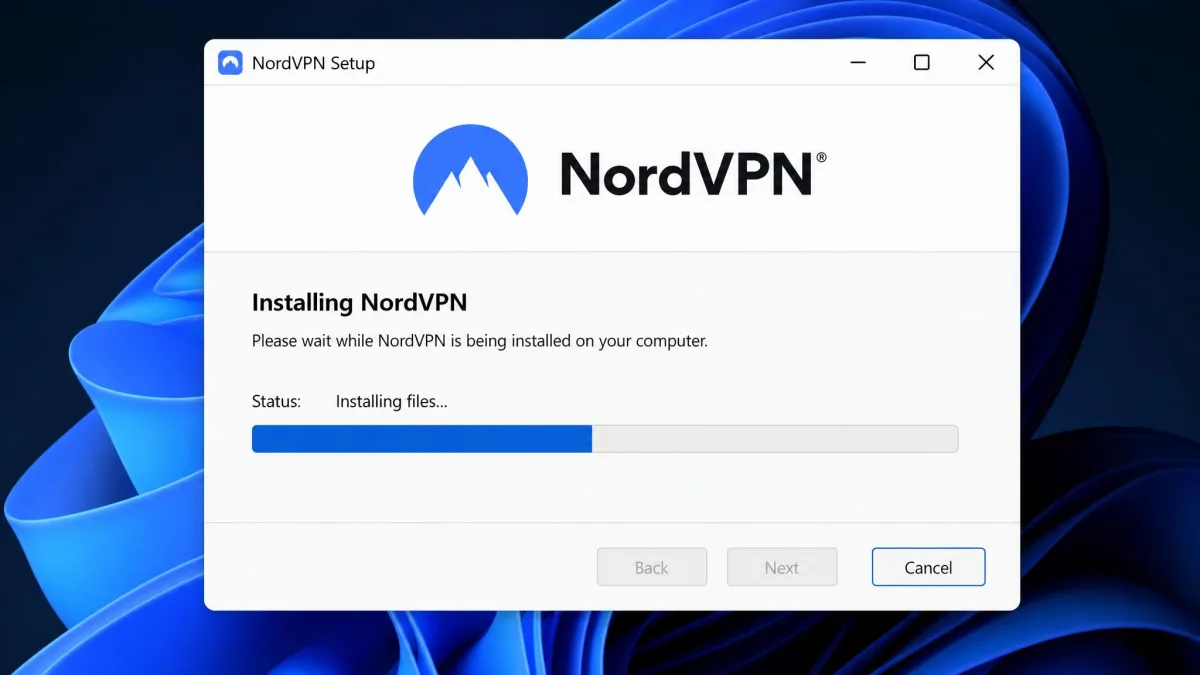
Go to the provider's website on a computer, or the Play Store or App Store on a phone, and download the official app. Avoid third-party download sites entirely, because a VPN client is exactly the kind of software you want from the source.
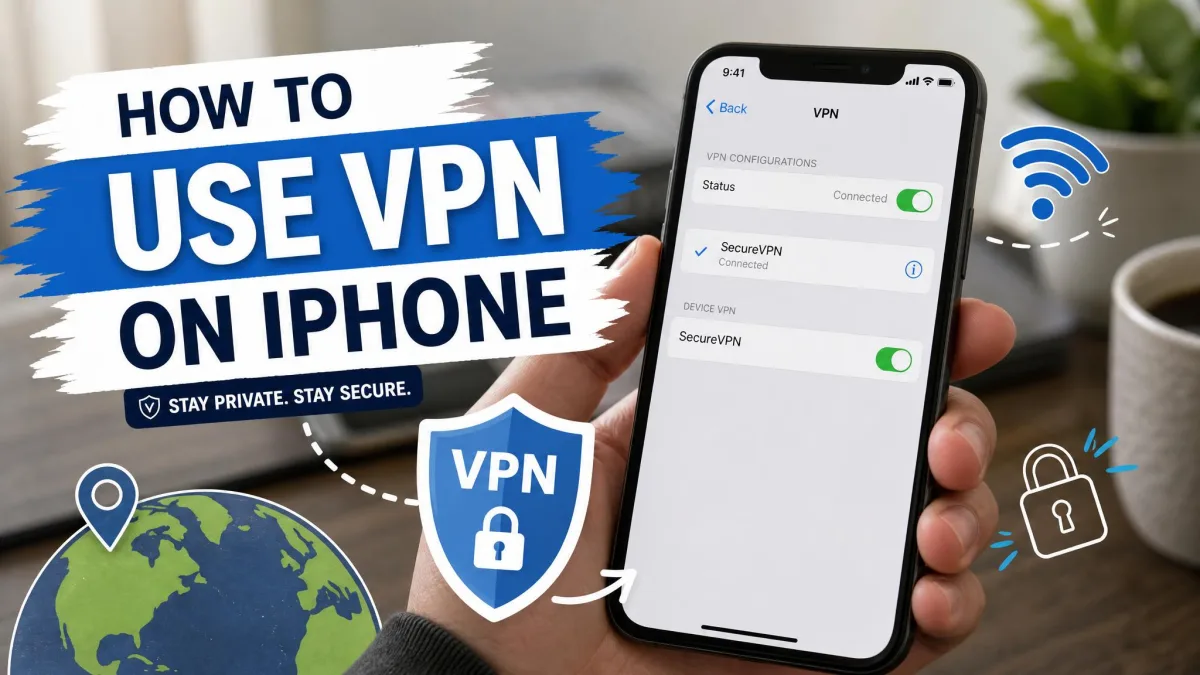
Installation is normal on every platform. On iPhone and iPad there is one extra prompt: the app asks permission to add a VPN configuration profile, and you approve it with Face ID or your passcode before anything will connect.
Step 3: Sign in and pick a server location
Open the app and sign in. You land on a map or country list with a large Connect button and a quick-connect option that picks the fastest server for you.
For everyday privacy, take that recommendation or choose a server in your own country. Picking the nearest server keeps speed loss small, while a server on another continent adds noticeable lag and buffering. Choose a distant country only when you want to appear to be there.
Step 4: Connect and confirm you are protected
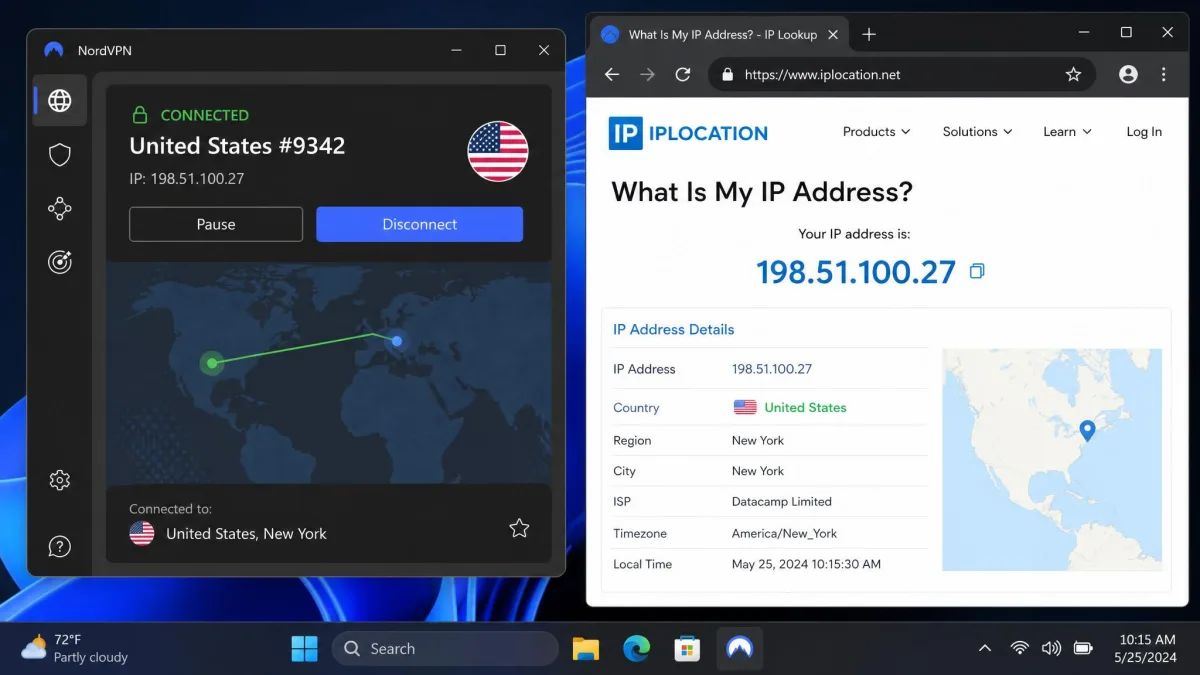
Press Connect. The app should reach a connected state within a few seconds, and your device will show a small VPN indicator in the status bar.
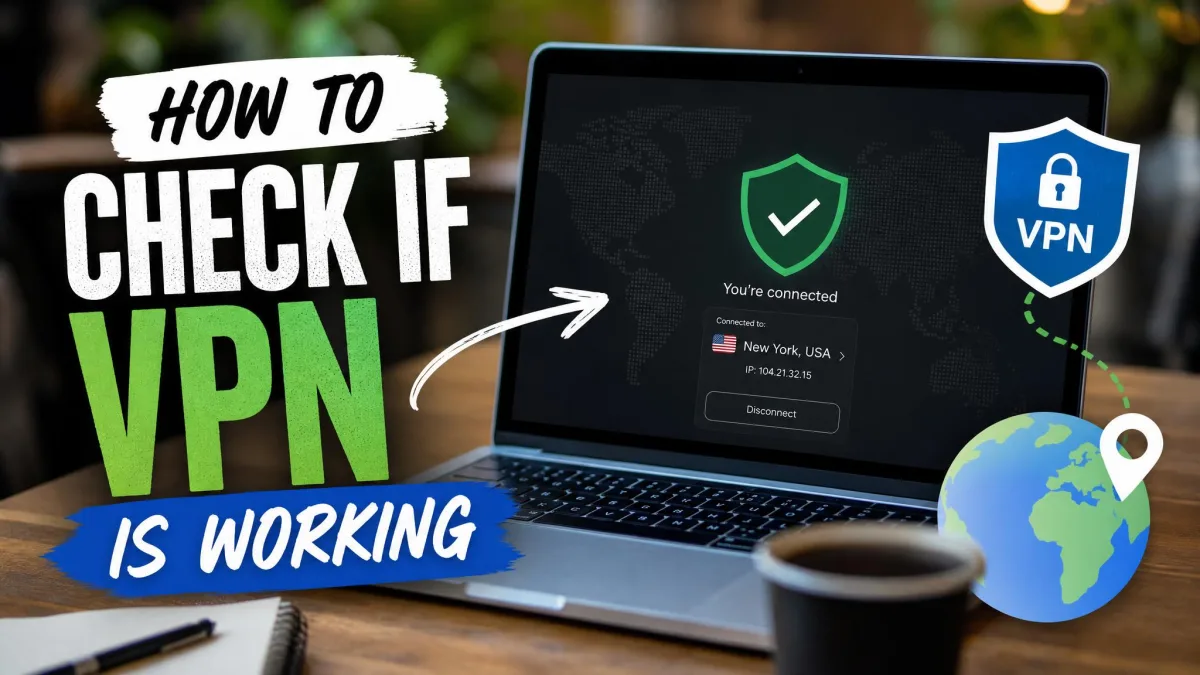
Then verify it. Search for "what is my IP" and check that the address and country match the server you chose, then run a DNS leak test and confirm the listed DNS servers belong to the VPN rather than your ISP. Confirming protection means checking both, not trusting the app's green indicator alone. It takes thirty seconds and it is the step people routinely skip.
How to Use a VPN on Every Device
The process above is the same everywhere, but each platform has its own quirks. Here is how the options compare.
| Device | Setup method | Difficulty | Time | Best for |
|---|---|---|---|---|
| Windows | Provider app, or Settings > Network & internet > VPN > Add VPN | Easy to medium | 5 minutes | Everyday desktop use |
| macOS | Provider app from the site or the App Store | Easy | 5 minutes | Everyday laptop use |
| Android | Play Store app, one-tap connect | Easy | 3 minutes | Mobile and public Wi-Fi |
| iPhone and iPad | App Store app, approve the VPN profile prompt | Easy | 3 minutes | Mobile and travel |
| Browser extension | Add from the browser store, then sign in | Easy | 2 minutes | Browser-only traffic |
| Router or smart TV | Router admin page, or a native app on Android TV and Fire TV | Hard | 20 to 45 minutes | Whole-home and TVs with no app |
Windows
Install the provider's desktop app, sign in, and connect, then turn on launch at startup and auto-connect on untrusted networks so you are never relying on memory. If you would rather not install anything, open Settings, go to Network & internet, choose VPN, then select Add VPN and fill in the server details from your provider. Microsoft's Windows VPN instructions cover the fields in that dialog.
macOS
Download the app from the provider's site or the Mac App Store, sign in, and allow the configuration when macOS asks. Add the app to your login items and enable the menu-bar icon so you can see the connection state at a glance.
Android
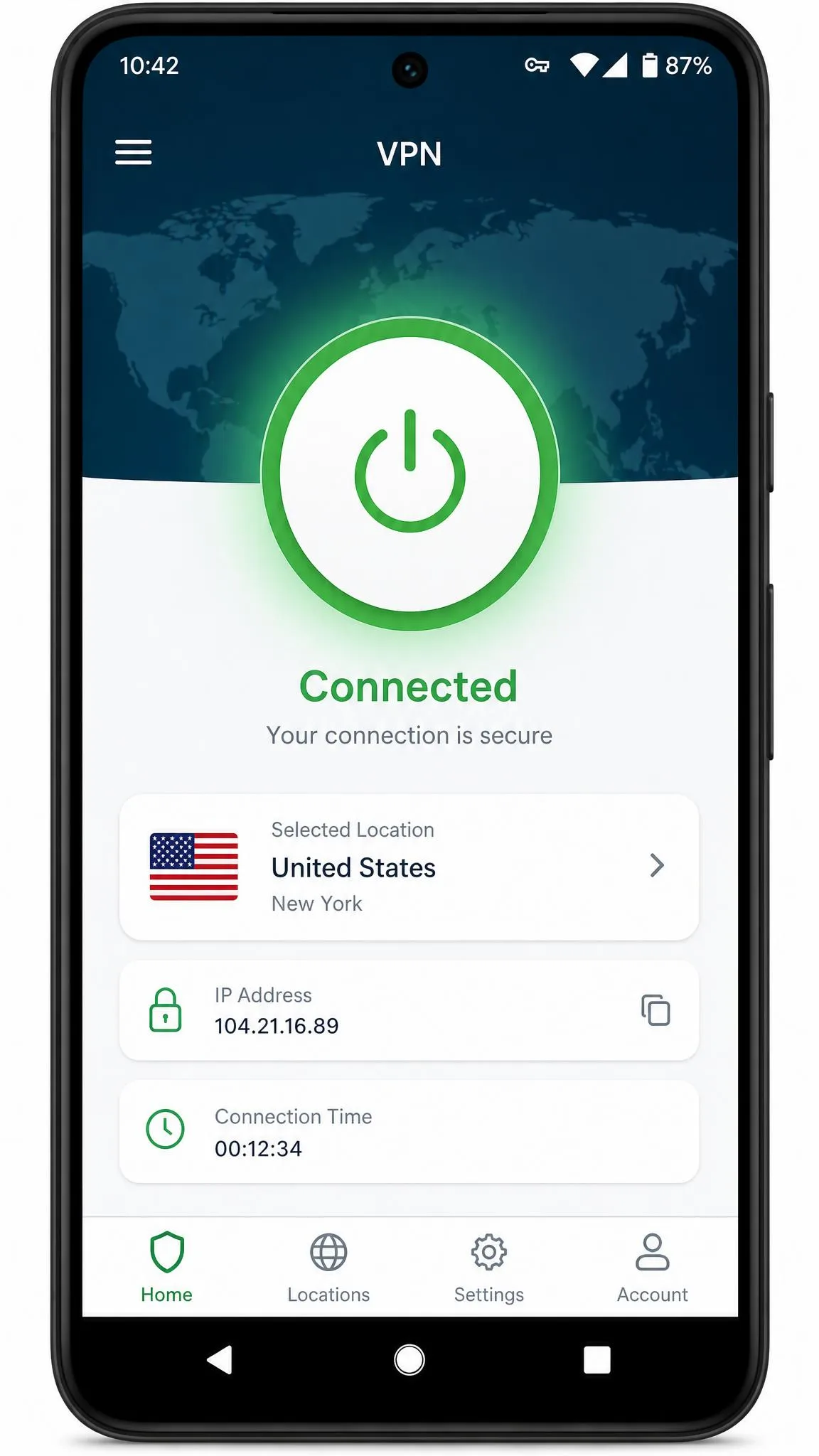
Install the app from the Play Store, sign in, and tap Connect. Android shows a one-time connection request the first time, and the key icon in your status bar then tells you the tunnel is up. Turn on the always-on option if you want the tunnel to return automatically after a reboot or a dropped signal.
iPhone and iPad
Install the app from the App Store, sign in, then approve the VPN profile prompt with Face ID, Touch ID or your passcode. You can also add a configuration by hand in Settings, which is what a work connection usually needs, and Apple's iPhone VPN setup instructions walk through those fields.
Browser extensions
Most providers ship a Chrome, Edge or Firefox extension. It installs in seconds and is handy for quick location switching, but browser extensions only cover browser traffic, so your email client, your games and your background apps carry on unprotected.
Smart TV and router
Android TV and Fire TV run native VPN apps, so you install and connect exactly as you would on a phone. Tizen, webOS, Roku TV, VIDAA and SmartCast have no VPN app at all, and those need a router, a shared hotspot or an Ethernet share instead.
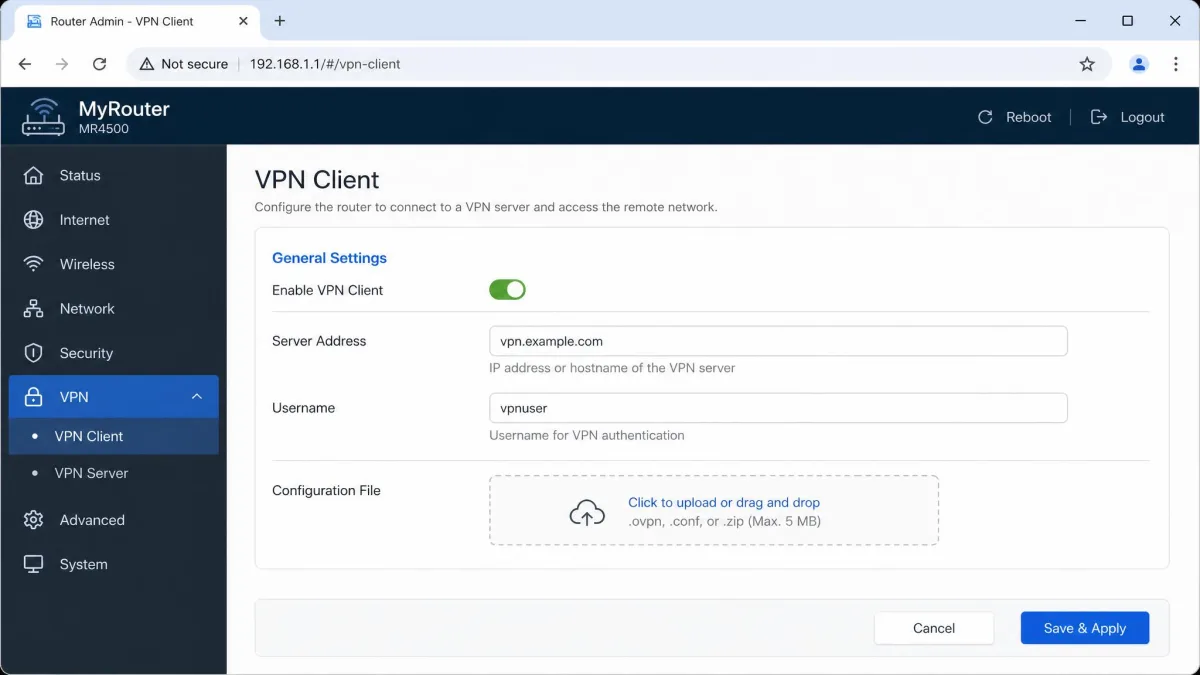
Router setup covers every device in the house at once, including those TVs, but it counts as a single connection on your plan and cannot be toggled per device. To set it up, open your router admin page at 192.168.1.1 in a browser, sign in, and look for a VPN or OpenVPN client section. If the firmware has no such section, you need a flashed or VPN-ready router.
How to Set Up a VPN Manually (Without an App)
Manual setup means telling the operating system the server address, protocol and credentials yourself. It is the slow path, and it needs details pulled from your provider's support pages, including service credentials that are often different from your account password.
There are three good reasons to do it anyway: your device cannot install apps, you are connecting to a company or university network, or you want a permanent connection on a router. For everything else, use the app, which also brings the kill switch and auto-connect logic that a bare configuration lacks.
How to Choose the Right VPN Server
Server choice is the biggest lever you have over speed and reliability, and it takes one tap to change.
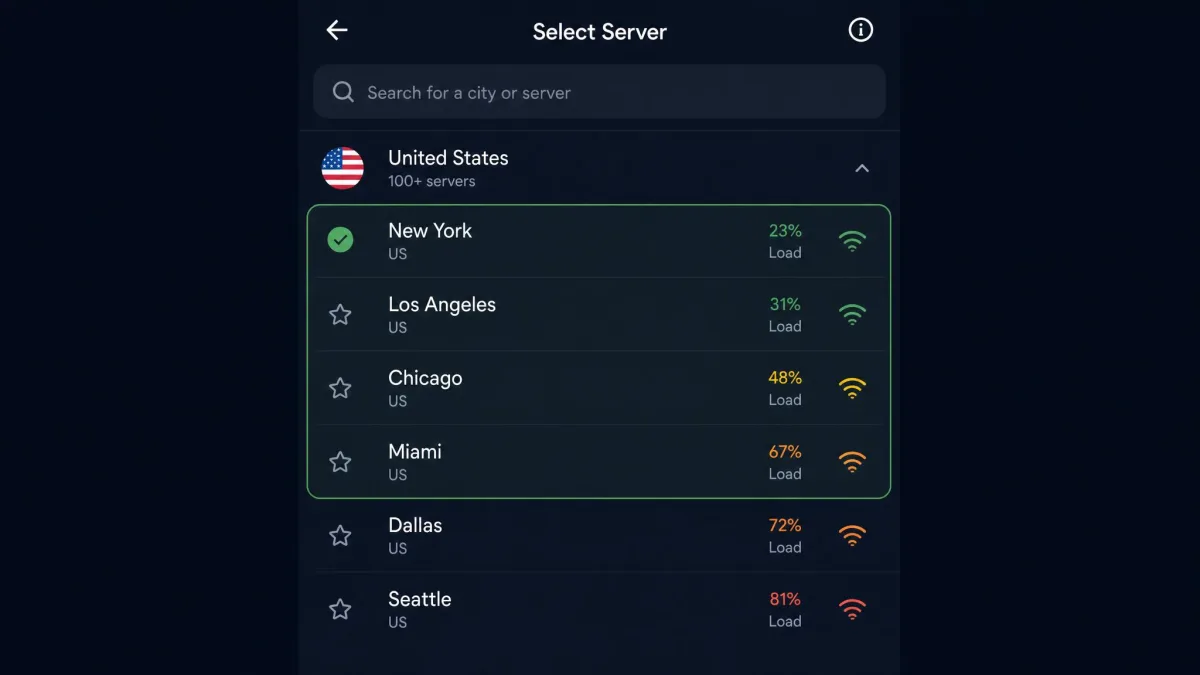
Start close to home. A nearby server keeps the round trip short, and a good VPN keeps roughly 70-90% of your normal speed on one. Move to another continent and the distance shows up as lag in video calls and buffering in streams.
Switch countries only for a reason. Streaming services block shared VPN IP addresses quickly, so a server that worked for Netflix last week can throw a proxy error today, and switching to another server in the same country usually clears it. A dedicated IP, sold as an add-on by most major providers, avoids the "hundreds of users on one address" detection pattern and stays unblocked longer for streaming and banking.
For money tasks, stay home. Banking sites and some shopping accounts flag a sudden foreign IP and demand extra verification, so a home-country server is the safer choice when you are paying bills.
If a page loads slowly or a video refuses to play, change server before you change anything else. Busy servers in popular cities are a common cause, and a second city in the same country usually fixes both problems in one tap.
How to Choose the Right VPN
There are dozens of credible services, and the differences that matter are narrower than the marketing suggests. Five things are worth comparing.
Privacy and logging policy
Look for a no-logs policy checked by an outside auditor, not just claimed on a landing page. Jurisdiction matters too, since a provider inside the Five Eyes alliance operates under different data-sharing arrangements than one based in Panama or Switzerland.
Server network and locations
Count countries rather than raw servers. Proton VPN advertises servers across 140 or more countries on paid plans, NordVPN covers 137 countries, ExpressVPN lists servers in 105 countries, and Surfshark covers 100 countries. Any of those is plenty for normal use, so check the specific places you care about are on the list.
Speed
Across 30 VPNs tested in early 2026, the average speed loss was 20.67%, with the best performer giving up only 6.26% of baseline speed and the worst losing 62.77%. On a fast home connection a 20% loss is invisible. On a slow one it is not, which is when protocol choice matters: switching to WireGuard or a provider's lightweight proprietary protocol recovers most of the speed lost on older OpenVPN connections.
Device support and simultaneous connections
Check the device limit against your actual household. NordVPN allows 10 simultaneous device connections, ExpressVPN's allowance depends on which plan tier you buy, and Surfshark places no limit on connections at once. Proton VPN's free plan secures 1 device at a time, while VPN Plus secures 10 devices simultaneously. A router counts as one connection while covering everything behind it.
Price and free trials
Compare the renewal price, not the first-term price. The cheapest long-term rates cluster around $2.49 to $3.49 per month on two-year terms, and the month-to-month price varies by plan tier and current promotion, so treat any single monthly figure as a moving target. The 30-day money-back guarantee is the practical way to try a service, and ExpressVPN and its main rivals all offer one.
Free vs. Paid VPNs
Free VPNs come in two very different forms. A free tier from an established paid provider is a limited version of a real product. A standalone free app with no paid business behind it has to make money some other way, and your data is usually the product.
The numbers on that second category are grim. A study of 281 free Android VPN apps presented at NDSS in February 2026 found that 246 of them contacted known advertising and tracking servers, 29 leaked traffic outside the encrypted tunnel, and 4 ran tunnels with no encryption at all. Those flagged apps have been installed more than 2.4 billion times combined.
Pros
- A reputable free tier costs nothing and covers occasional public Wi-Fi use
- Proton VPN's free plan runs with no data cap, which is rare
- No payment details required, so there is nothing to cancel
Cons
- Free apps commonly cap data, throttle speed and limit which servers you can choose
- Many carry embedded trackers, and several request camera, microphone, contacts and precise location permissions
- Free tiers usually assign the server for you and slow at peak times
- Streaming support and advanced features are almost always paid-only
Treat any free VPN app that asks for camera, microphone, contacts or precise location access as a hard no. A VPN needs network permission and nothing else, and those extra requests were a common pattern among the apps flagged in the 2026 study.
VPN Features Worth Turning On
Once you are connected, three settings are worth finding in the app's preferences.
Kill switch
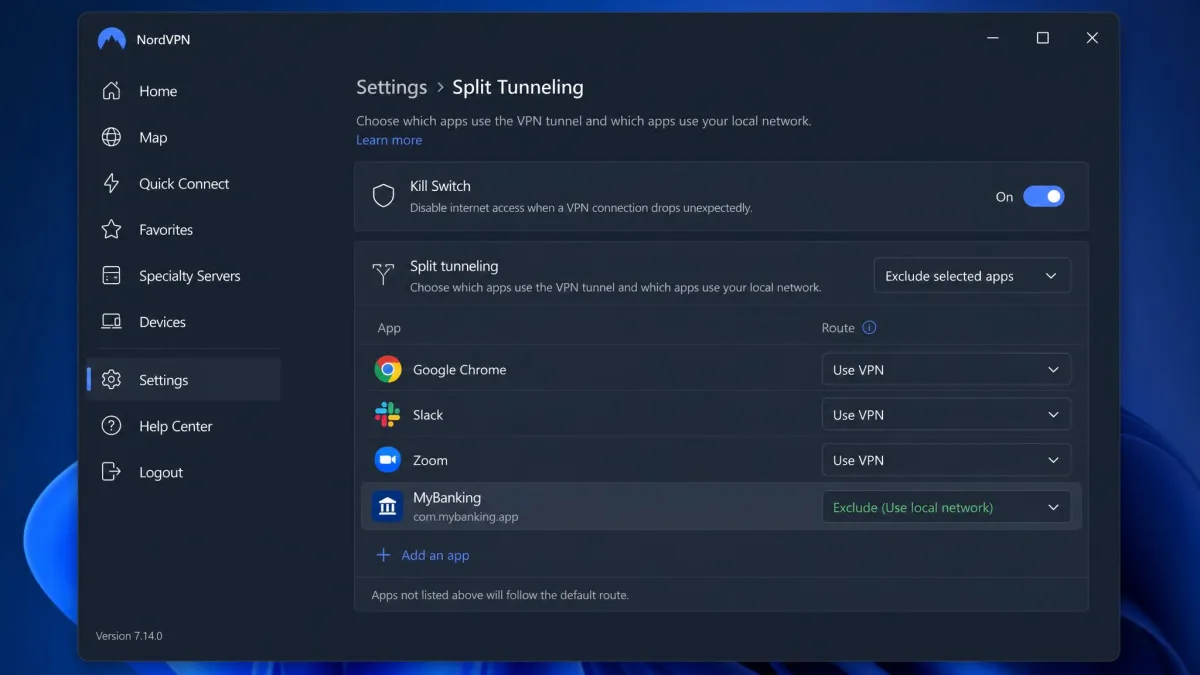
A kill switch blocks all internet traffic if the tunnel drops, so nothing escapes unprotected during a reconnect. Turn it on before you use public Wi-Fi, because that is where an unnoticed drop matters most.
Know the trade-off. An aggressively tuned kill switch can cut all internet access on a brief stutter, which reads as a dead connection until the VPN reconnects. Most kill switches restore the connection on their own once the tunnel is back, so give it a few seconds before troubleshooting.
Split tunneling
Split tunneling lets you choose which apps use the VPN and which bypass it. It is the fix for the banking app that objects to a foreign IP address and the local service that refuses to work while you are connected.
Multi-hop and specialty servers
Multi-hop, sold as Double VPN or Secure Core depending on the provider, sends traffic through two servers instead of one. It costs speed and most people do not need it. Specialty servers for streaming, peer-to-peer traffic or obfuscation are usually flagged in the app's server list.
What You Can Do With a VPN
Stay safe on public Wi-Fi
This is the clearest everyday use. On hotel, airport and cafe networks you have no idea who else is connected or how the router is configured, and a VPN removes the question by encrypting your traffic before it reaches that network.
Stream and access content while traveling
Streaming libraries change by country, and services you pay for at home may behave differently abroad. Connecting to a server back home restores the familiar catalogue in most cases, with the caveat that platforms actively detect VPN addresses, so expect to switch servers occasionally.
Stop ISP throttling and targeted ads
Because your ISP can no longer see which services you use, it cannot slow down specific traffic types. A VPN also breaks the link between your browsing and your home IP address, which removes one signal advertisers use to build a profile. Cookies and account-based tracking continue regardless.
Shop, bank, and game more privately
For shopping and banking, the benefit is the encrypted tunnel on untrusted networks, not the location change. For gaming, a VPN helps against address-based harassment on voice platforms, and a nearby server keeps the added latency small enough to ignore in most titles.
Is Using a VPN Legal? Limits and Trade-offs
In the United States, the United Kingdom, Canada, Australia and across the European Union, using a VPN is legal and routine. Businesses have relied on the same technology for remote access for decades.
The nuance is that a handful of countries restrict or ban consumer VPN use, and the rules change, so check the local position before you travel. A VPN also does not make an illegal activity legal, and it does not override a service's terms: using one to sidestep a streaming licence is usually a terms-of-service issue rather than a legal one, but it can still cost you the account.
Do not rely on a general article for the legal status of VPNs in a specific country. Restrictions vary and get updated, so confirm the current rules with an official source for your destination before you travel.
The everyday trade-offs are milder: a modest speed cost, the occasional site that blocks VPN addresses, and captchas that appear more often when you share an address with hundreds of other people.
VPN Not Working? Common Fixes
Most problems come down to a handful of causes, and they are quick to work through in order.
- The connection keeps dropping. Connections drop when Wi-Fi is weak or when a phone hands off between Wi-Fi and mobile data, and busy servers in popular cities drop more often. Move closer to the router or pick a quieter server.
- Everything feels slow. Change to a nearer server first, then switch protocol to WireGuard or the provider's lightweight option.
- A streaming service shows a proxy error. Switch to a different server in the same country and clear your browser cookies before retrying.
- Nothing loads at all. Check whether the kill switch has blocked traffic after a stutter, wait a few seconds for the automatic reconnect, then toggle the VPN off and on.
- A banking site locks you out. Disconnect, or use split tunneling to keep that one app on your normal connection.
- The app will not connect anywhere. Restart it, confirm your subscription is active, and check that you have not exceeded your device limit.
Frequently Asked Questions
Is it legal to use a VPN?
Will a VPN slow my internet?
Should I leave a VPN on all the time?
Can I use a free VPN?
Can I still be tracked with a VPN on?
Do I need a VPN on my phone?
How many devices can one subscription cover?
The Bottom Line
Using a VPN is genuinely a five-minute job now. Subscribe, install the official app, sign in and pick a server, then connect and confirm your IP address and DNS have actually changed. That fourth step separates people who are protected from people who assume they are.
Three habits do most of the rest. Keep the kill switch on, keep your default server close to home, and use split tunneling for the banking and local services that object to a foreign address.