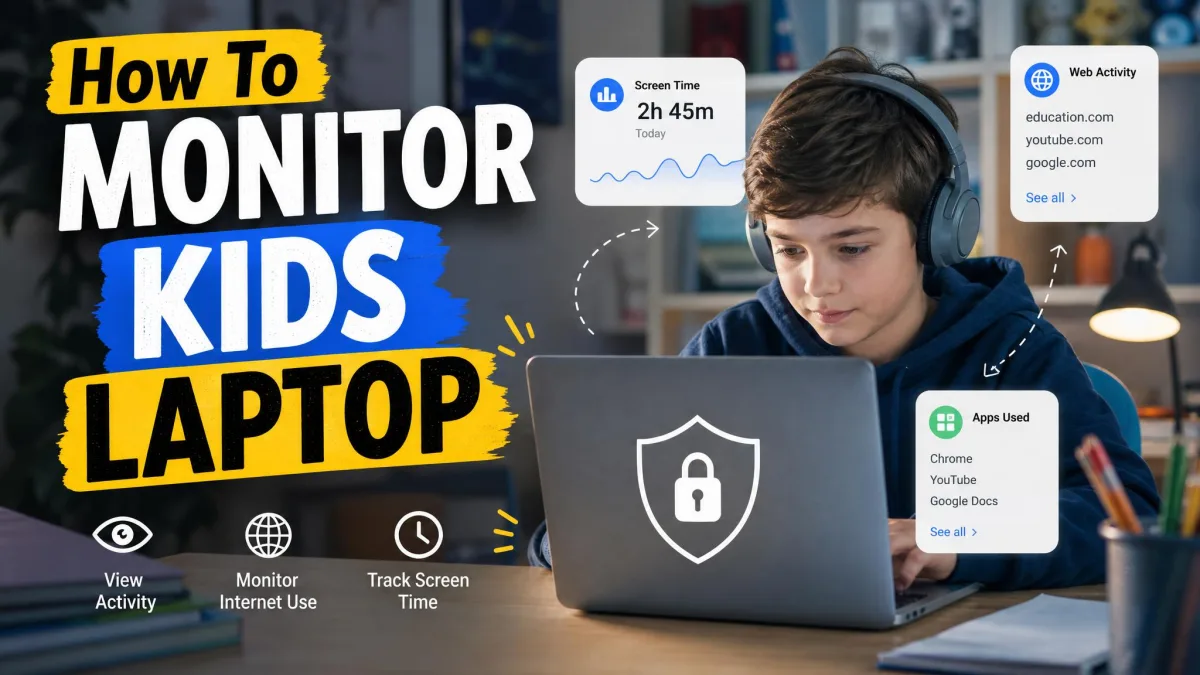
You hand your child a computer and wonder, within the hour, what they will find on it. The web is wide open, apps install with a single click, and a school night can quietly turn into a three-hour gaming session. You don't need to buy extra software to fix that. Windows 11 includes a full parental-control system called Microsoft Family Safety, and the core controls are free. Screen time limits, website filtering, app restrictions, activity reports, and purchase approvals all run from one family dashboard, with no subscription required. In this guide you'll set it up from start to finish: creating a child account, adding it to your family group, and turning on each control, plus the common problems to watch for.
What Are Windows Parental Controls (and What Can They Do)?
Windows parental controls run through Microsoft Family Safety, a free service that ties your family's Microsoft accounts together. You manage everything from one dashboard, and the settings push out to each child's device automatically.
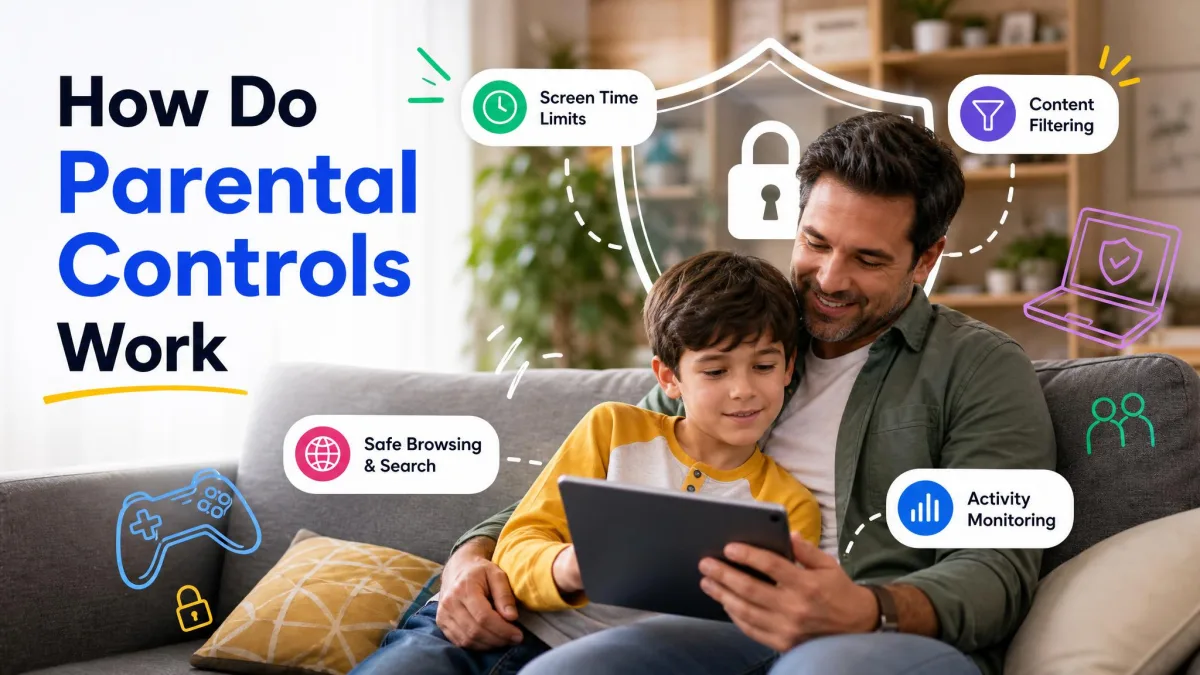
- Screen time limits for devices, apps, and games
- Web and search content filtering with block and allow lists
- App and game restrictions based on age ratings
- Activity reports and Microsoft Store purchase approvals
Screen time limits
Screen time limits cap how long your child can use a device, an app, or a game. Device-level limits work on Windows and Xbox, while app and game limits extend to Android. Idle time also counts toward the limit, so a child left on the login screen can use up the allowance.
Web filtering and content blocking
Web filtering blocks sites by category, and search filtering keeps results safe. Both work only in Microsoft Edge, and turning the filter on blocks every other browser rather than filtering them. You can also use a block list or allow-list mode.
For an extra layer, Microsoft Edge Kids Mode adds a browser shell with allow-list websites, strict Bing SafeSearch, and a password-protected exit.
App and game restrictions
App and game restrictions block titles by age rating, so older-rated content doesn't launch on the child's account. They hold only while the child account stays a Standard user.
Activity reports and purchase approvals
Activity reporting records what your child searched, browsed, and played, with a weekly email summary sent to both of you. You can also approve purchases at the Microsoft Store. One catch: web history appears only when your child browses in Microsoft Edge.
Prerequisites: What You Need Before You Start
Setting this up needs three things, all of them free:
- A Microsoft account for the parent, the family organizer
- A Microsoft account for the child, created below
- A Windows 10 or 11 computer for the child to sign into
A Microsoft account for your child
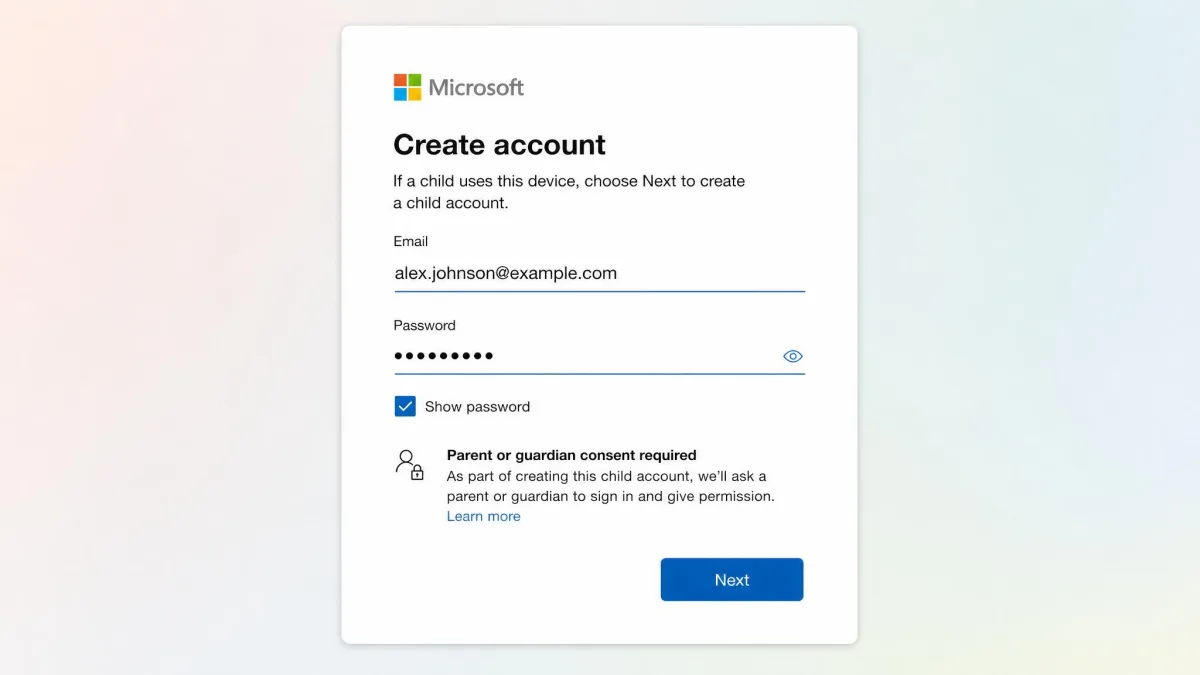
Your child needs their own Microsoft account, separate from yours. A local offline account cannot be managed as a child account, and the device appears in your dashboard only after your child signs in with that Microsoft account.
Microsoft Family Safety availability (Windows 10 and 11)
Family Safety is built into Windows 10 and 11, so the core controls need no installation. Screen time, web filtering, app restrictions, and activity reports are free; a few extras tie into a paid Microsoft 365 Family subscription.
Set up the family group from your account first, then sign your child in on their PC.
How to Set Up Parental Controls on Windows 11 (Step by Step)
Create the child account, add it to your family group, then turn on each control from the family dashboard.

Step 1: Create or convert a Microsoft account for your child
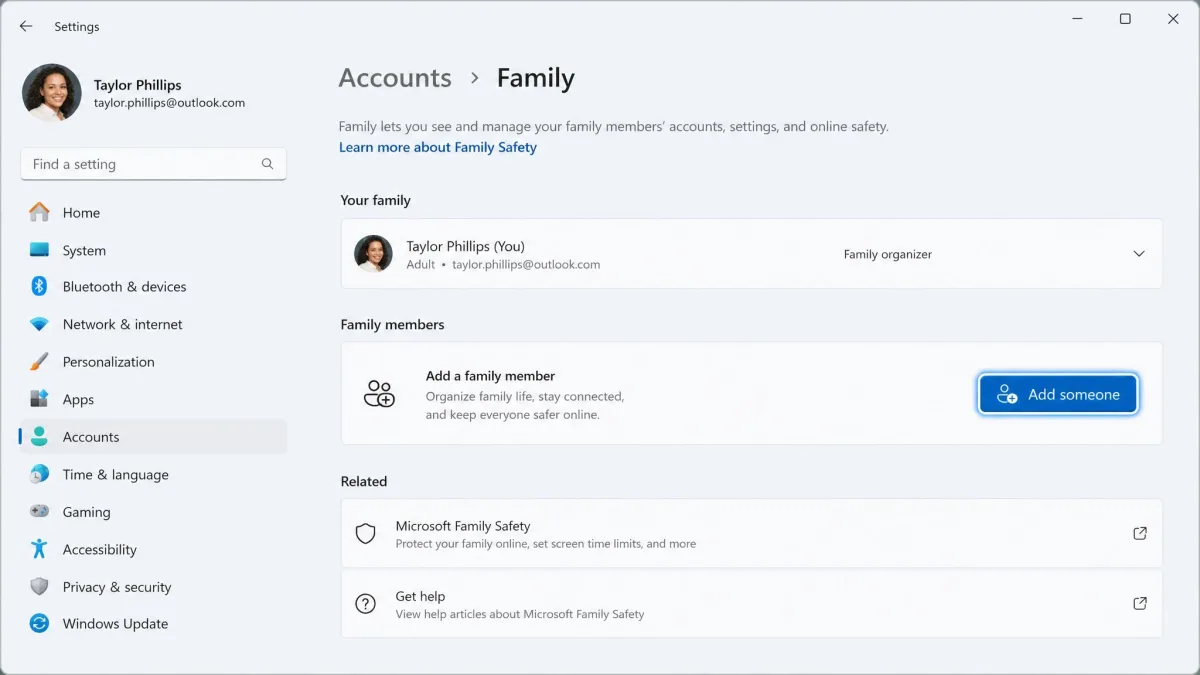
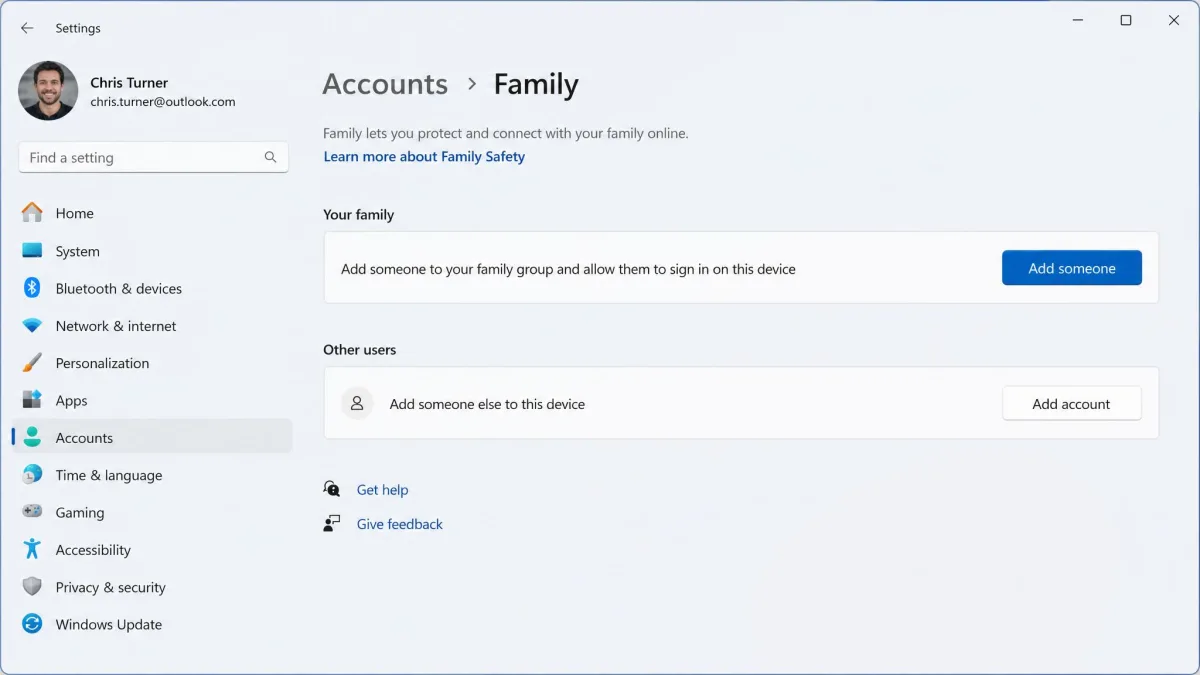
On your own PC, open Settings and go to Accounts > Family, then click Add someone. If your child has no Microsoft account, create one here; the process includes a bot check and parental consent, and it generates an Outlook.com address and password for your child.
Step 2: Add your child to your Microsoft Family group
Add your child from the same Family page in Settings. Then open your Microsoft Family Safety dashboard to manage their settings, and sign your child in on their PC.
Step 3: Set screen time limits
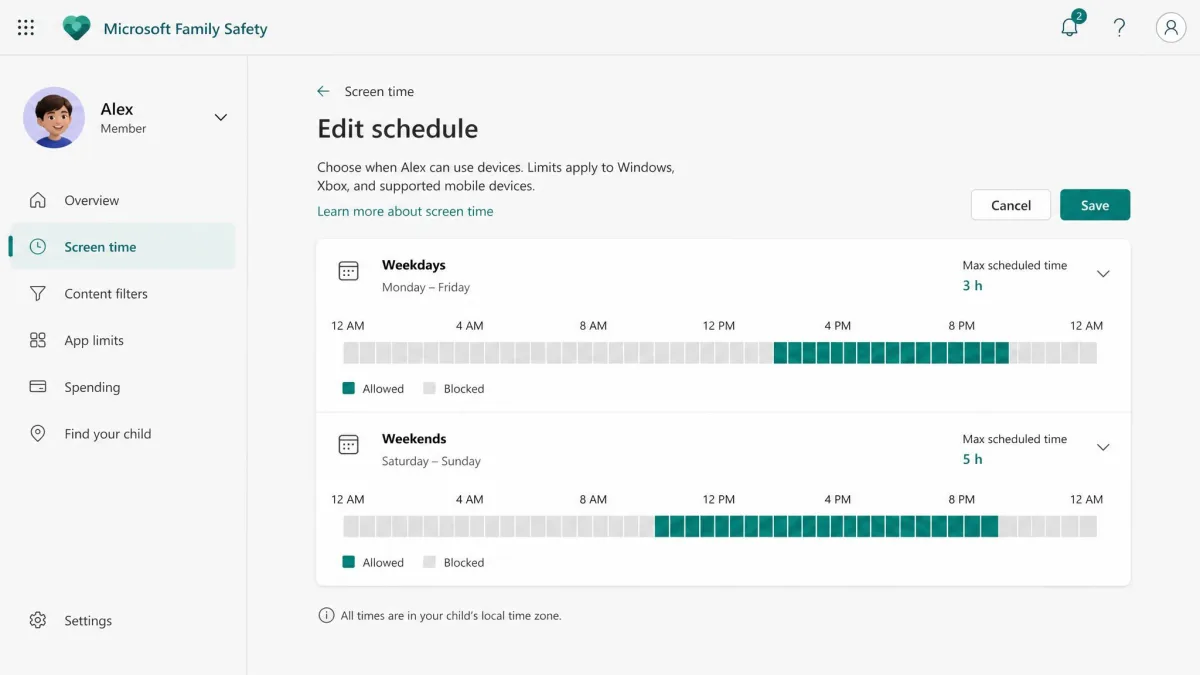
In the dashboard, select your child and open the Screen time tab. Set a device limit for Windows and Xbox, app and game limits for Android, and use the schedule view for different hours on weekdays and weekends.
Step 4: Filter and block websites
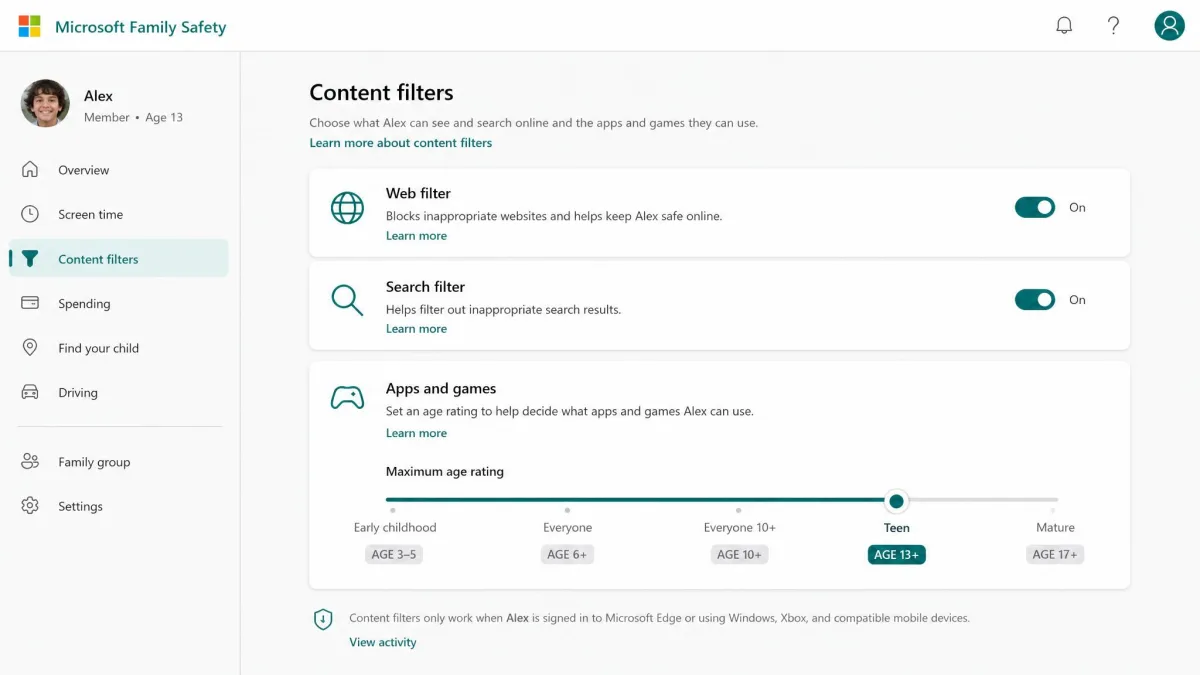
Open the Content filters tab and turn on the web and search filter to block adult content by category. The filter works in Microsoft Edge and blocks other browsers rather than filtering them. Add a site to the block or allow list if it slips through.
Step 5: Restrict apps and games
Stay on the Content filters tab and set an age-rating limit for apps and games; anything above that threshold won't open. Double-check that the account is a Standard user, because an admin-level child account can override Family Safety entirely.
Step 6: Review activity reports
Under Activity, turn on activity reporting. You get a weekly email summary, and your child sees the same reports you do. Only Microsoft Edge activity gets logged, so check the browser if history looks thin.
Step 7: Manage purchase approvals and spending controls
Open Spending in the dashboard and turn on purchase approval. Every Microsoft Store purchase sends a request to you for approval, and you can add money to your child's account.
Advanced Settings and Tips
Location tracking
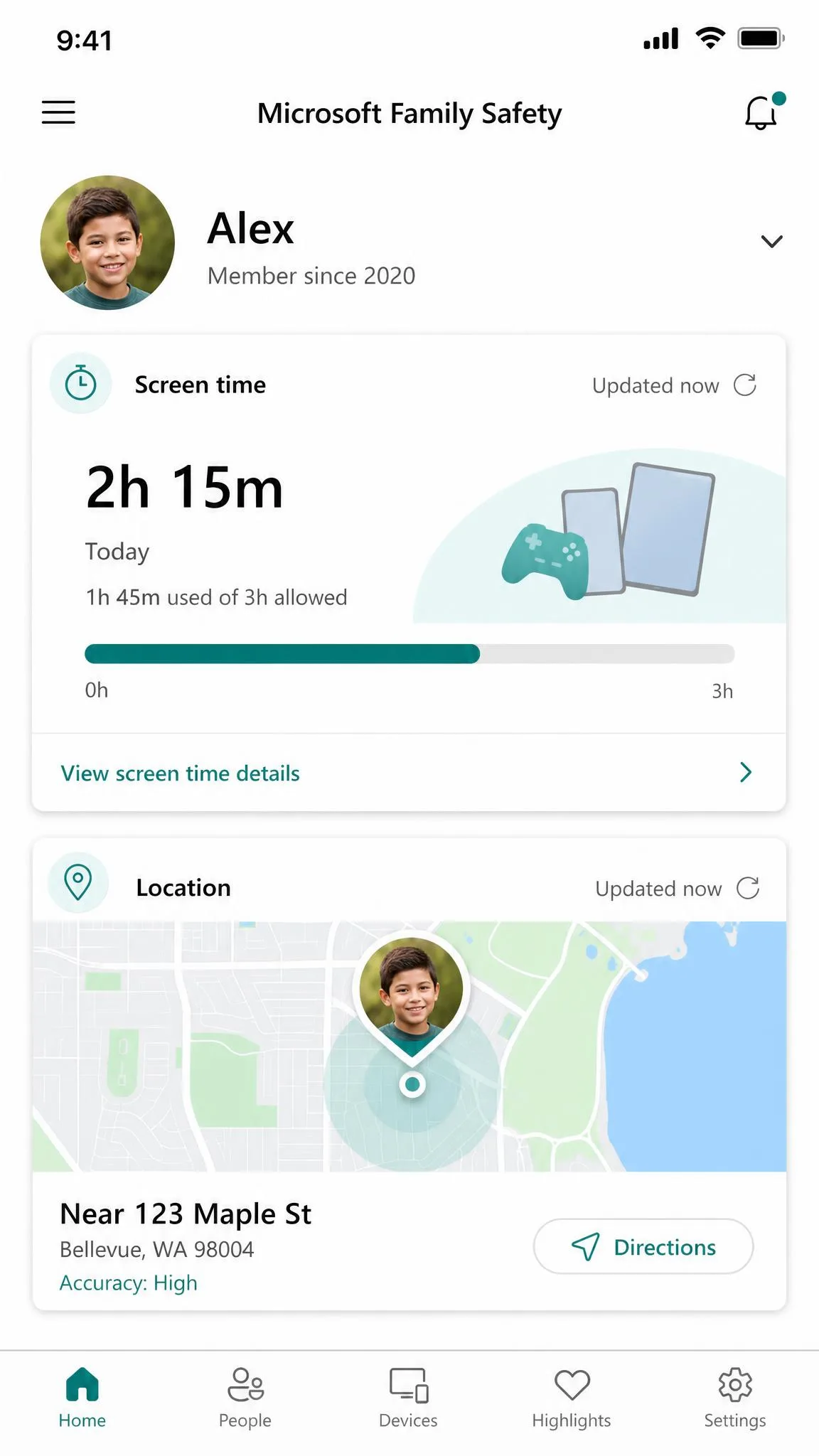
Install the Family Safety app on your phone to see your child's device location on a map. It runs from the same dashboard that controls screen time and filters.
Managing multiple devices
One child account covers every device your child signs into. A Windows PC, an Xbox, and an Android tablet all fall under the same screen time and content rules.
Emergency bypass and teen accounts
When your child hits a limit, the lock screen offers a request button, and you approve or deny it from the dashboard or phone app. A child 13 or older can turn off activity reporting on their own, and you can't re-enable it without their consent.
Common Problems and How to Fix Them
Family Safety is dependable, but a few issues are worth knowing before they hit you.
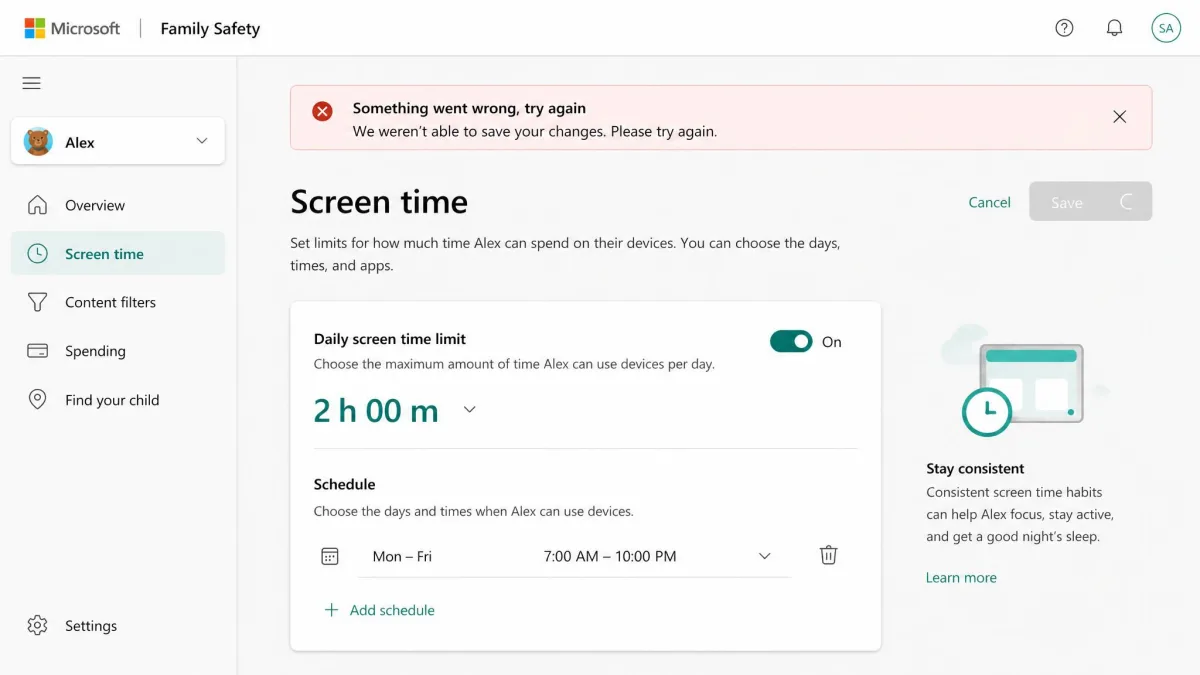
- Changes fail to save. Screen time changes sometimes fail with errors like "Something went wrong, try again". In our testing these trace to Microsoft's servers, so waiting and retrying usually clears them. If a limit stops applying, delete the parental-controls settings folder on the child's PC or remove and re-add the child account.
- Idle time eats the allowance. A child left on the lock screen can use up the whole day's budget, with almost no usage shown in the report.
- Web history is missing. If the report shows no browsing history, your child was likely outside Microsoft Edge, because visits in other browsers aren't logged. If you still can't resolve it, Microsoft's Family Safety app help page walks through troubleshooting.
One older problem keeps coming up. Microsoft's web filter once blocked newer versions of Google Chrome for months, until a fix rolled out in early 2026; Chrome launches normally now. App-store reviewers rate Microsoft Family Safety 3.87 out of 5 across roughly 55,561 reviews, with complaints centered on sync reliability.
Kids find workarounds, like launching an app right after a reboot before the newest limits sync.
Windows Parental Controls vs Third-Party Parental Control Software
The built-in system covers a lot, but it has limits. Web filtering works only in Edge, and nothing scans text messages. Paid tools like Qustodio and Bark fill those gaps: Qustodio adds live location and app-level YouTube controls, from about $59.95 a year for five devices; Bark monitors texts and social media with AI alerts, from $14 a month on Android.
| Feature | Windows Family Safety | Qustodio | Bark |
|---|---|---|---|
| Price | Free, built in | Free tier; from about $59.95/yr | From $14/mo |
| Platforms | Windows, Xbox, Android, iOS | Windows, macOS, Android, iOS, Kindle, Chrome | iOS, Android, plus Bark Home hardware |
| Screen time limits | Yes | Yes | Yes |
| Web filtering | Edge only; other browsers blocked | All browsers | All browsers |
| App and game restrictions | Yes | Yes | Yes |
| Social media monitoring | Activity reports only | Limited | AI alerts on texts and social |
| Location tracking | Yes | Yes | Yes |
| Activity reports | Weekly email; Edge history only | Yes | Yes |
| Purchase approvals | Yes, Microsoft Store | Not a core feature | Not a core feature |
When is the built-in tool enough? For most families with younger children on Windows and Xbox, Family Safety is all you need. Consider a paid tool when any of these fit:
- Your child has a smartphone full of social apps
- You want filtering outside Microsoft Edge
- You want geofencing alerts beyond basic location sharing
Using the Microsoft Family Safety Mobile App
You don't have to sit at the family PC to manage these settings. The Family Safety app for Android and iOS puts the dashboard in your pocket. From the app you can:
- Adjust screen time
- Approve purchases
- Review activity
- See location
You can get the Microsoft Family app from the Microsoft Store, or on Google Play and the Apple App Store.
Frequently Asked Questions
Can my child see that I'm monitoring their activity?
What happens when my child turns 18?
Can parental controls block YouTube completely?
Do parental controls work if my child creates a new local account?
What if my child uses a different browser to bypass filters?
Final Thoughts
Setting up parental controls on Windows 11 is a short one-time job that pays off every school night after. Microsoft Family Safety handles the core jobs for free, covering screen time, web filtering, app limits, and honest activity reports. Start with the free tier, watch two weeks of activity reports, and add a paid tool only if a real gap shows up. For most families, the built-in system is enough.