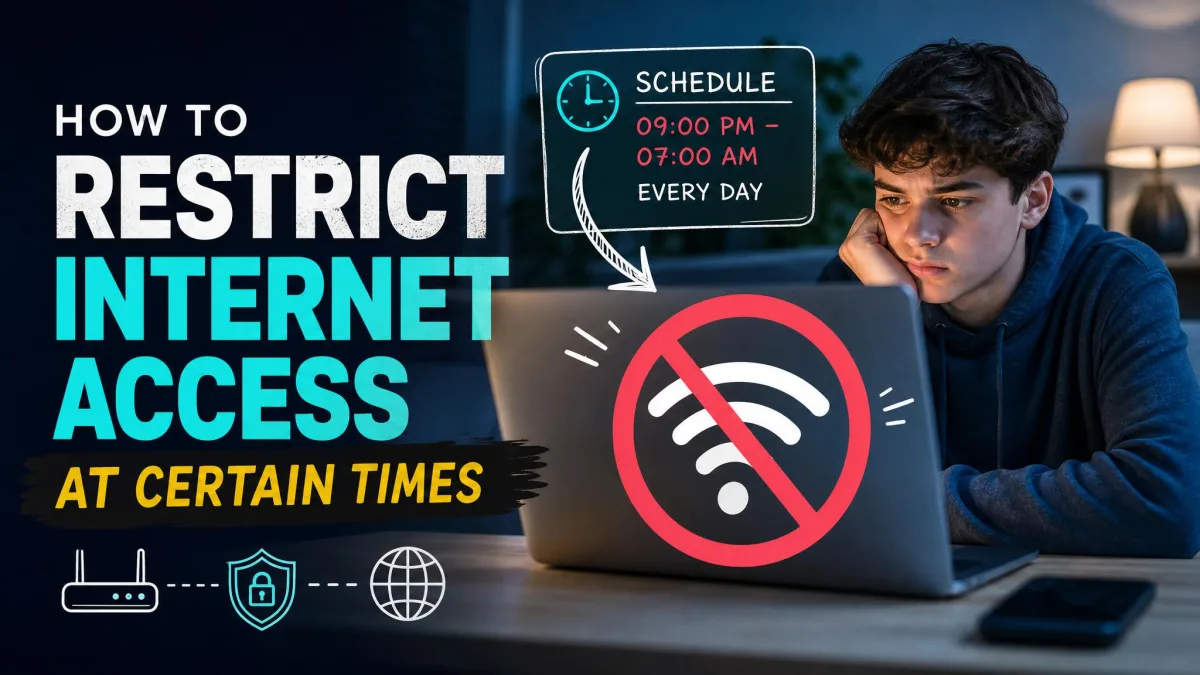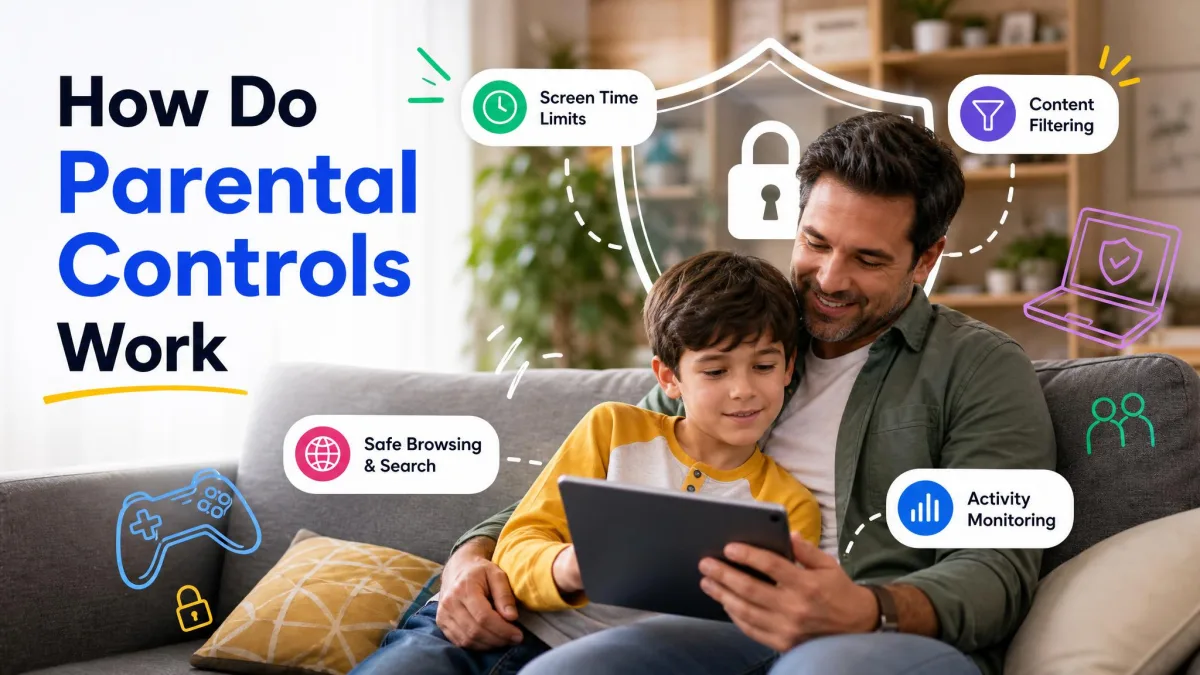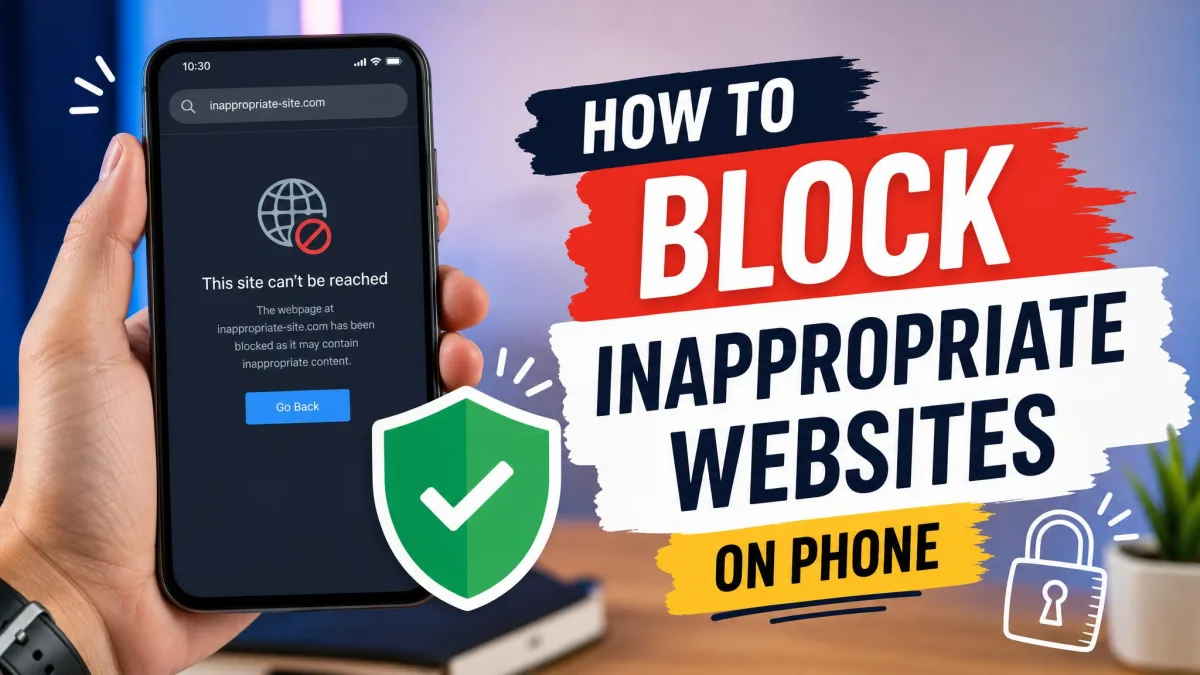
A parental lock on the internet is a set of rules that decides what your child can reach online and when. This guide covers every layer you can set up: browser-based controls, router-level blocking, DNS filtering, device-level limits like Screen Time and Family Link, and full parental-control apps.
We have set up each layer on family hardware and watched where the rules stick and where kids slip past them. No single lock is bulletproof. A determined child will always find an exit around a lone layer, so stack the right layers and close the easiest exits first.
By the end you will know which layers fit your family, where each one leaks, and how to combine them into a plan that survives contact with a curious preteen.
What Is a Parental Lock on the Internet?
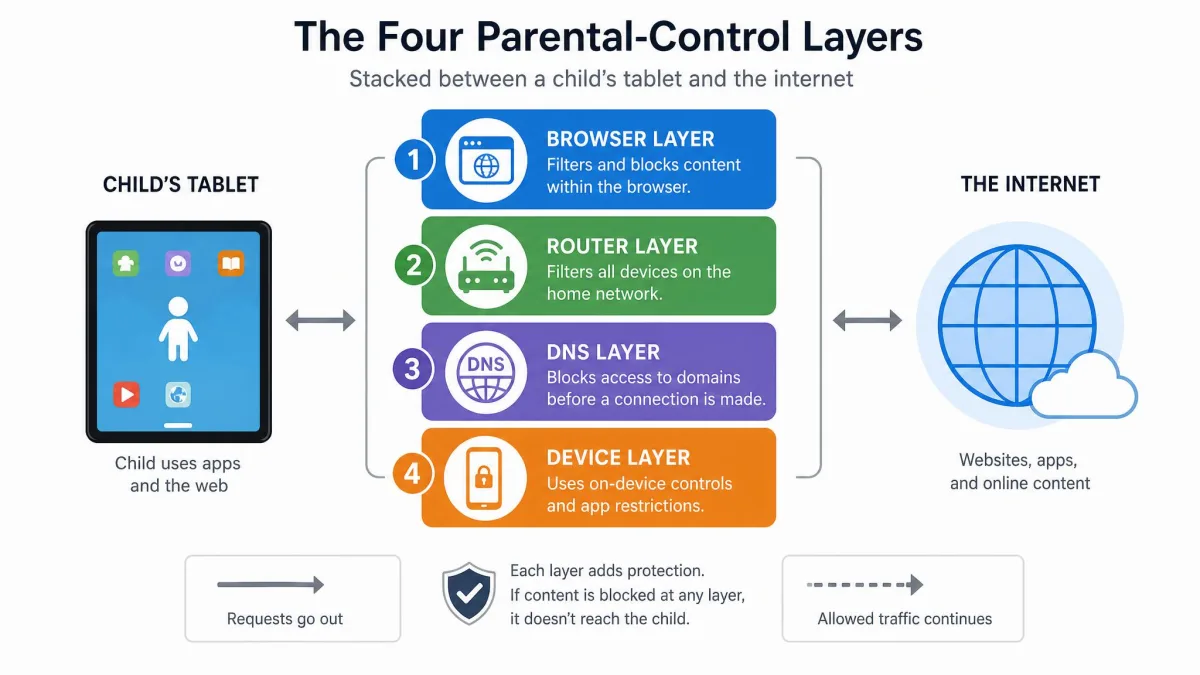
At its simplest, a parental lock stops certain internet traffic from reaching your child's screen. What it blocks depends on where you place it. A browser lock filters what loads in that browser. A router lock filters everything on your home network. A device lock filters apps and content on one device. A DNS filter blocks at the network layer, so it covers every device that uses the configured resolver, including phones, TVs, and game consoles.
Locks higher up the chain catch more devices but know less about what is happening. Locks on the device know exactly what your child opens, but they only cover that one device. Most families layer two or three of these together.
A parental lock is a guardrail, not a vault. It stops casual access and shapes habits, but it does not replace supervision.
Why Your Family Needs an Internet Lock
The internet is where kids learn, play, and socialize, so most of the risk is content arriving through autoplay, recommendations, and search results. 46% of US teens say they are online almost constantly, according to Pew Research.
On the other side, 39% of parents report using parental controls to block, filter, or monitor their teen's online activity. Families who use none rarely make a deliberate choice. They usually do not know where to start.
A parental lock keeps the basics off your child's screen, enforces a bedtime for apps, and buys you time to talk about what they are seeing. The best lock is one your child cannot talk their way past in five minutes.
Browser-Based Parental Locks
The fastest lock to set up is the one already built into the browser your child uses. These work best as a first layer while you decide on the wider setup.
Google Chrome
Chrome no longer has a parental-control panel of its own. Google retired its supervised profiles in 2018 and folded browser filtering into Family Link. From the parent app you pick one of three filtering modes: allow all sites, try to block explicit sites, or only allow approved sites.
The filter binds tightly on Android and Chromebooks, but on Windows and Mac a child who signs out of Chrome, switches profiles, or opens another browser sails around it.
Microsoft Edge (including Kids Mode)
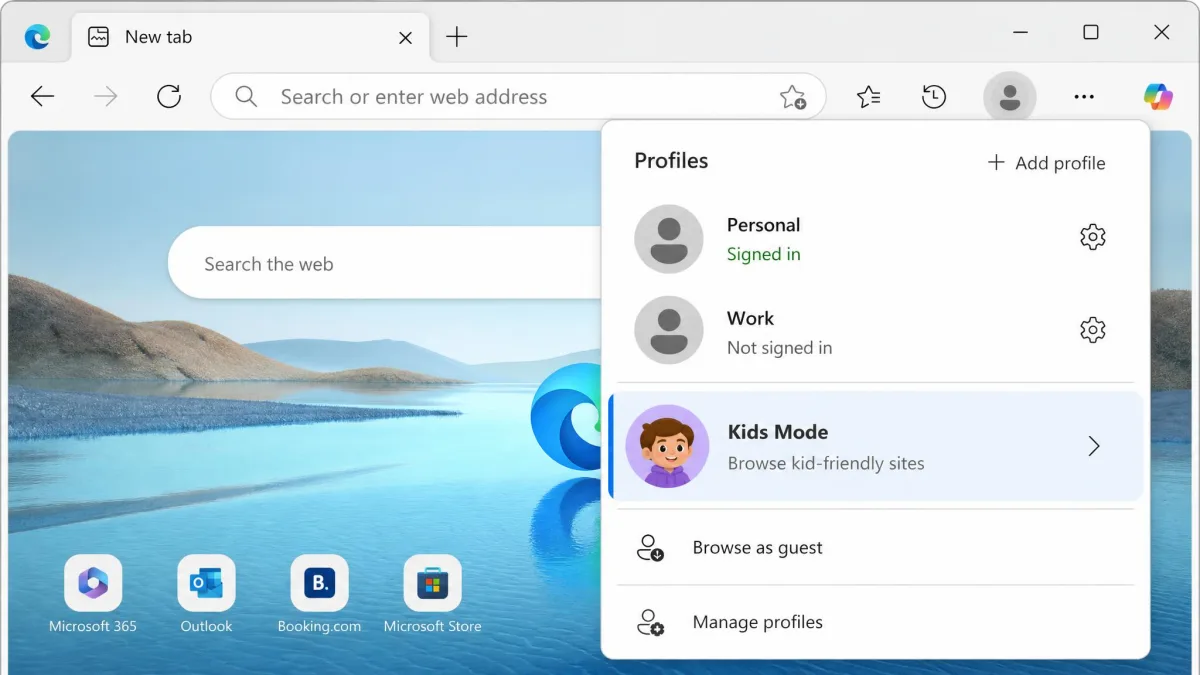
Edge pairs with Microsoft Family Safety. Open the profile menu and pick Kids Mode, a password-exited browsing space with a curated allow list of kid-friendly sites for ages 5-8 and 9-12, Bing SafeSearch forced to strict, and browsing data cleared when the session closes.
For fuller controls, create a family group and add your child's account to filter web and search content inside Edge, block apps and games by age rating, and enforce screen-time limits. Web filtering only works inside Edge; enabling it blocks the child's other browsers entirely.
Mozilla Firefox
Firefox has no built-in parental filter. It honors the operating system's settings through a mode called Prefer:Safe, and beyond that you rely on third-party extensions that a determined kid can disable in a couple of taps.
Apple Safari
Safari has no separate parental-control pane either. On iPhone and Mac it is governed by Screen Time, where Content & Privacy Restrictions block specific websites and App Limits cap how long Safari stays open. Set Screen Time up first and Safari follows.
Router-Level Locks: Block the Internet at the Source
Browser locks follow your child around one browser on one device. Router locks sit at the front door of your home network and apply to every device that connects, which makes them the widest single net you can throw.
Using your router's built-in parental controls
Most home routers ship free parental controls covering three things: blocking or allowing devices, blocking or allowing websites, and setting offtime schedules. Where the controls live depends on the brand.
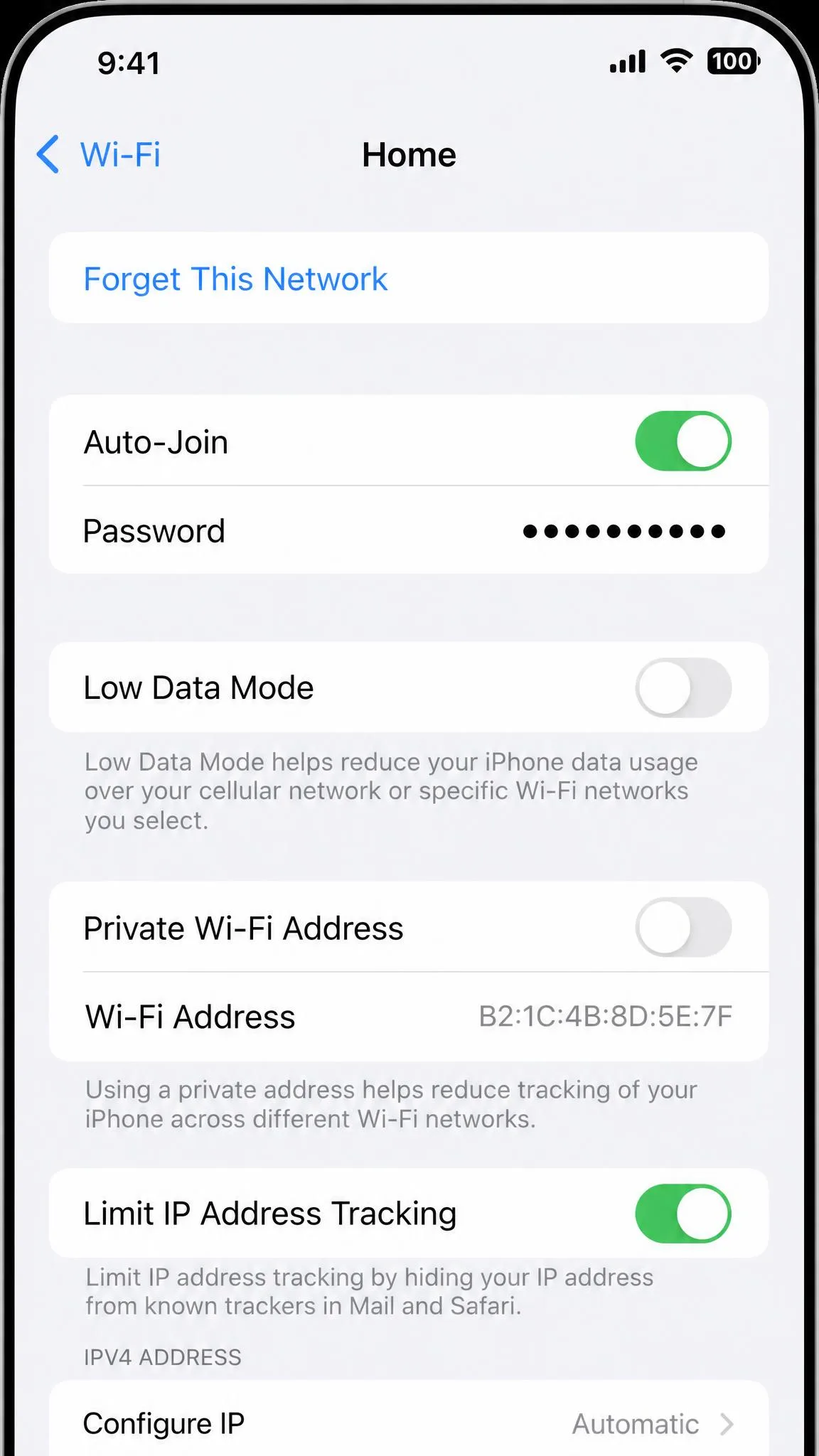
On TP-Link, they are in the Tether app: create a profile with a name, age, and avatar, tie the child's devices to it, then set content filters, website block lists, daily time limits, a Bedtime cutoff, and an instant pause. A TP-Link Cloud account is required, and you must turn off private MAC addresses on managed devices or the rules will not take effect. If you use a TP-Link router, set up parental controls on your router with the vendor's walkthrough.
Other brands vary: ASUS handles each device individually, TP-Link HomeShield and Eero are app-only, and NETGEAR's free tier only pauses a profile. The free baseline stays stable, but prices drift; advanced tiers run about five to ten dollars a month.
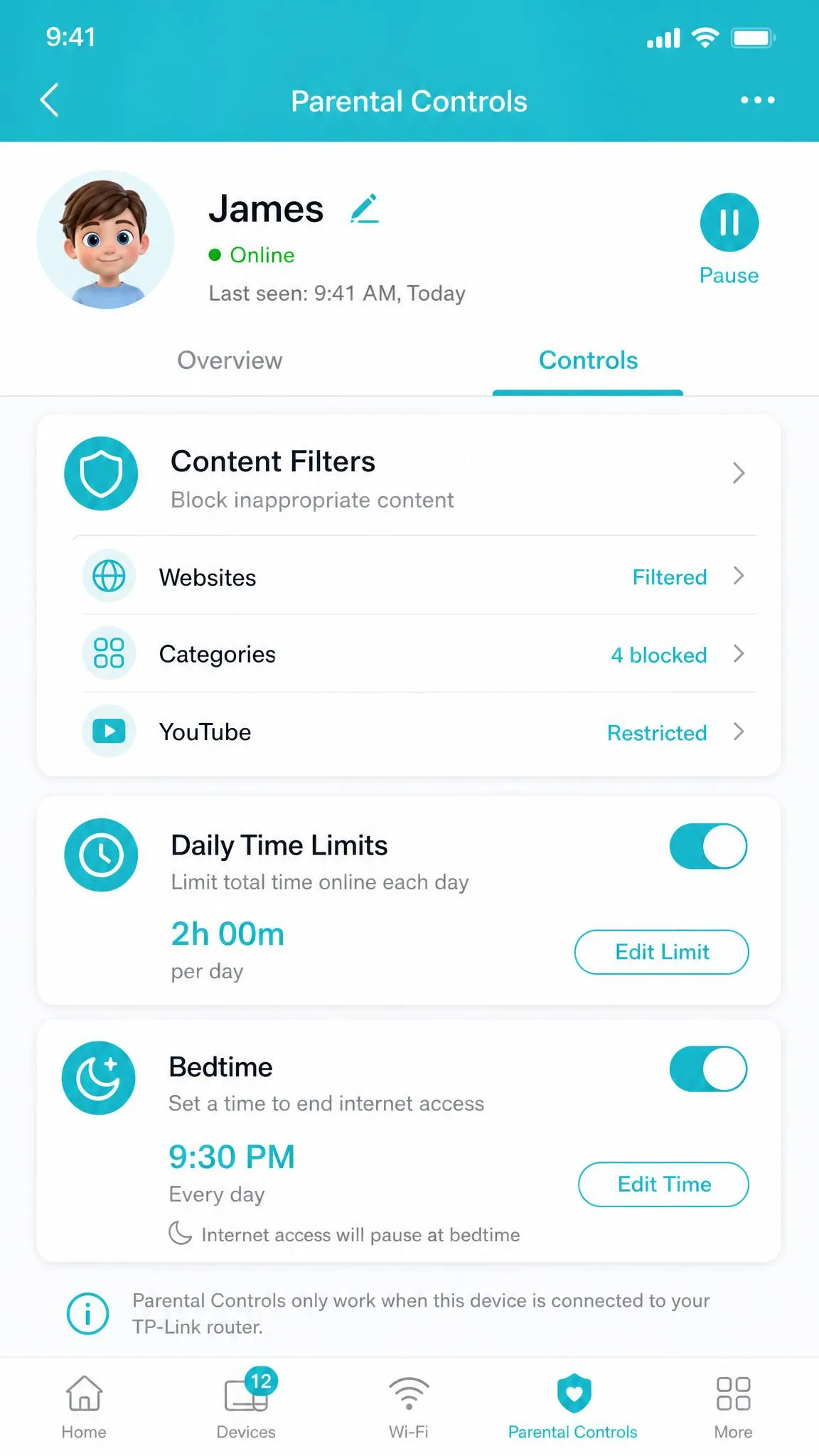
A router lock only covers traffic on your home network. Anything sent over cellular data, a hotspot, a neighbor's Wi-Fi, or a VPN sails past the rules, and a child with physical access to the router can factory-reset it and wipe every rule in minutes.
Turn off private Wi-Fi addressing on managed devices. iOS, Android, and Windows 11 randomize MAC addresses by default, so a device can look like a new, unrestricted guest to the router.
DNS filtering for network-wide protection
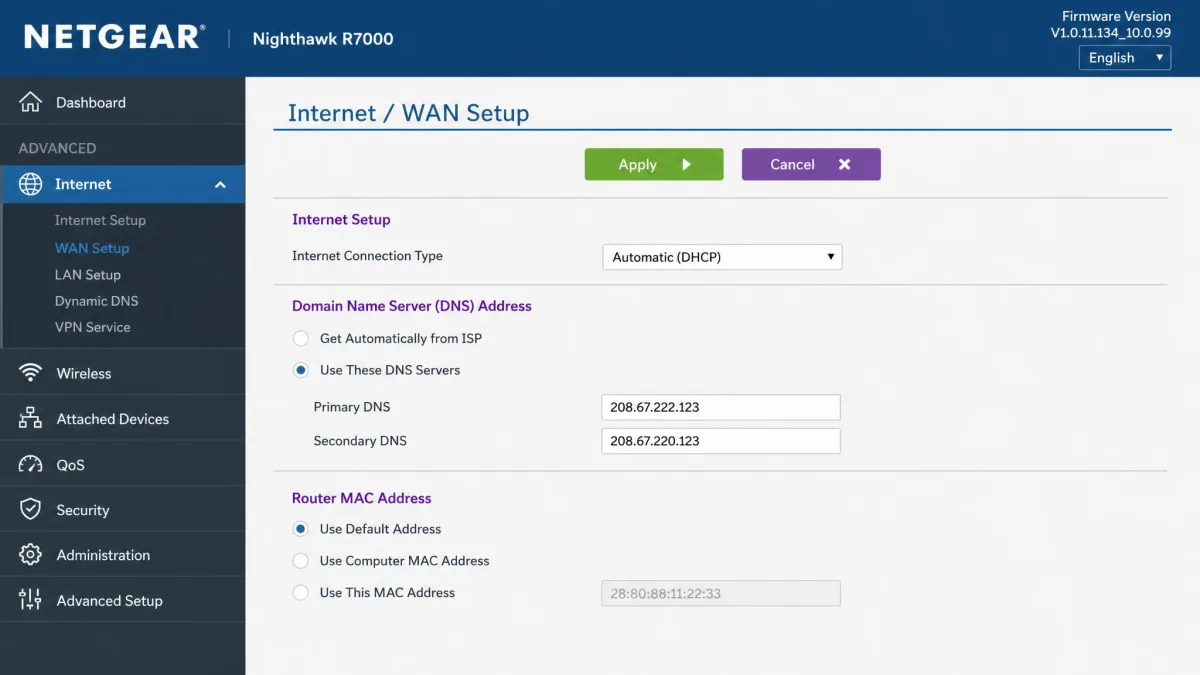
DNS filtering blocks at the network layer, so one change covers every device that uses the configured resolver, including phones, TVs, and game consoles. OpenDNS FamilyShield is free with no account or signup and blocks adult content. Point the router's DNS at 208.67.222.123 and the work is done.
CleanBrowsing's free Family Filter adds SafeSearch enforcement on Google, Bing, and YouTube and uses 185.228.168.168. NextDNS offers finer per-category toggles, free up to 300,000 queries a month.
DNS has two weaknesses. Chrome, Firefox, and Edge have encrypted DNS (DoH) built in, and when a browser uses DoH the router filter never sees the query. And DNS filters over-block: whole-domain blocking catches legitimate sites, with forums, cloud-storage links, and some shopping and education pages the frequent victims.
Device-Level Parental Locks
Where router and DNS locks cover the network, device-level locks cover the screen. They see which apps your child opens, how long they stay in them, and what the operating system does. Each lock has to be configured on each device.
Windows 10 & 11
Windows families already have a free answer in Microsoft Family Safety. Create a family group, add your child's account, then filter web and search in Edge, block apps and games by age rating, and set per-device and per-app screen-time limits. Extras such as find-on-map need a Microsoft 365 subscription.
macOS
On the Mac, the controls are Screen Time, which replaced the old Parental Controls pane when macOS Catalina arrived. Family Sharing lets you manage a child's Screen Time remotely, setting Downtime, App Limits, Communication Limits, Always Allowed, and Content & Privacy Restrictions. Ask to Buy requires family members under 18 to approve purchases and is on by default for children under 13.
iOS (Screen Time)
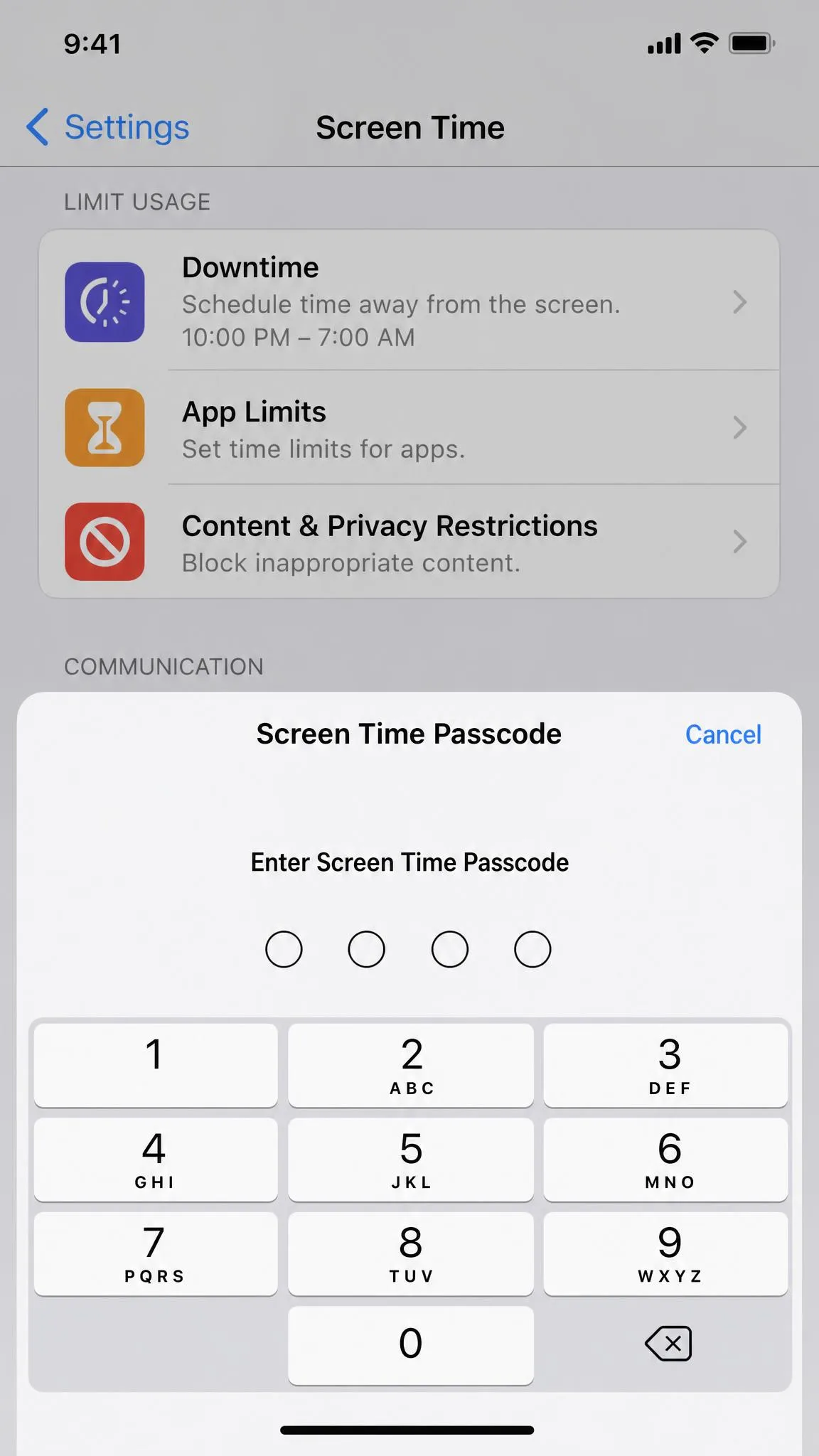
Screen Time came to iOS 12 and is the lock most iPhone families live in. Turn it on in the child's Settings, then choose a Screen Time passcode your child does not know. If you use Google's tools on iPhone, the Family Link app in the App Store only supervises Google-account-level settings such as Search, Chrome, and YouTube. It cannot manage Screen Time, app installs, or device locking.
Android (Family Link)
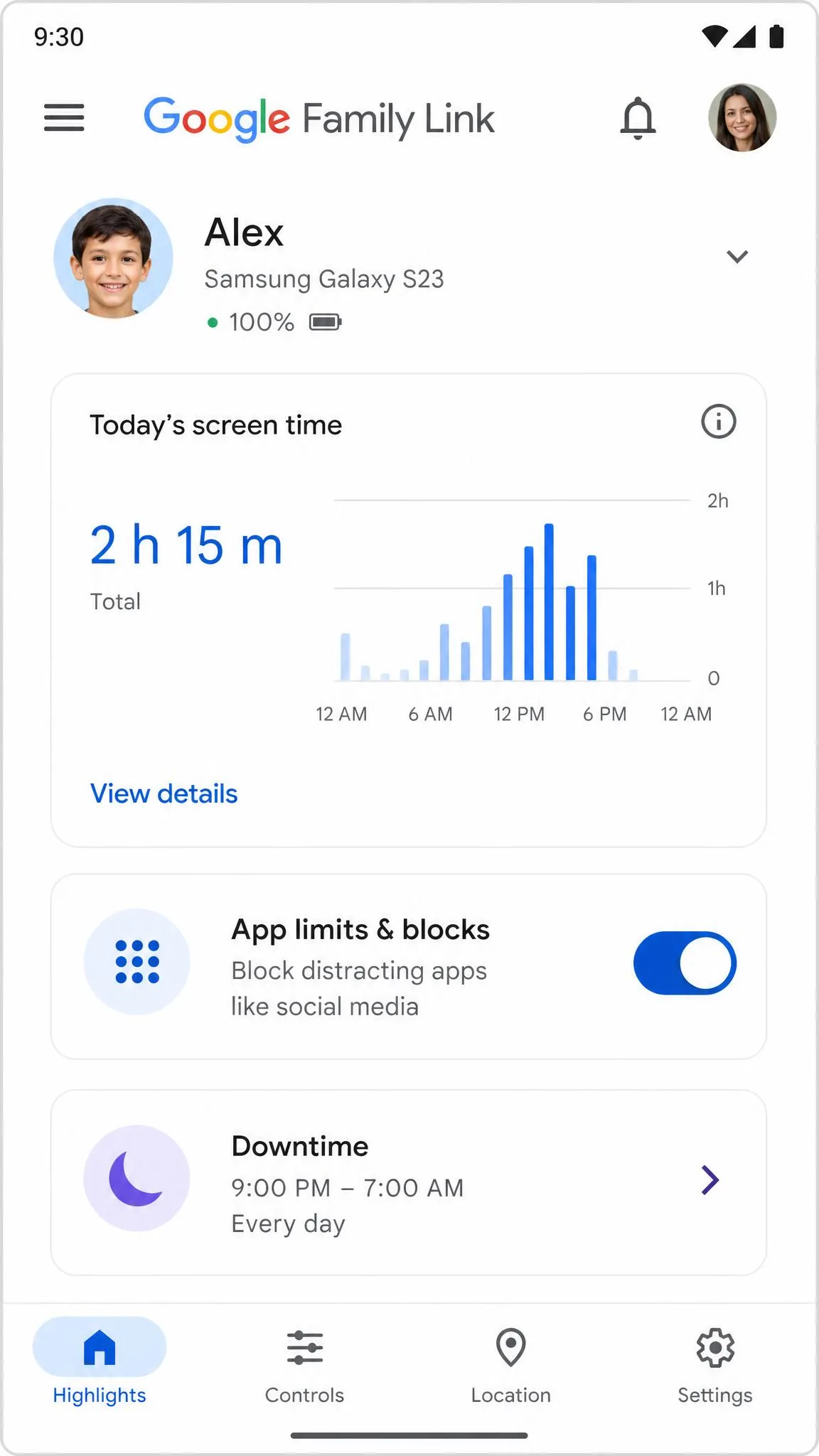
For Android, the Google Family Link app is the free standard. You create a supervised Google Account for a child under 13, or the age of digital consent in your country. The parent app runs on Android 6.0 and iOS 16 and up.
From the parent side you set daily screen-time limits with Downtime and School Time schedules, per-app time limits, app blocking, content filters for Chrome, Play, YouTube, and Search, and approval for new downloads. Google's YouTube parental controls extend that to YouTube Kids. Download the parent side from Family Link on Google Play.
Family Link has rough edges. On phones with aggressive battery managers, such as Xiaomi, OnePlus, and OPPO, the app's background service can be killed, so limits stop enforcing unless you disable battery optimization. Site approvals are per-page and repetitive, and reported screen-time totals often do not match what you see on the device.
Comprehensive Parental Control Apps
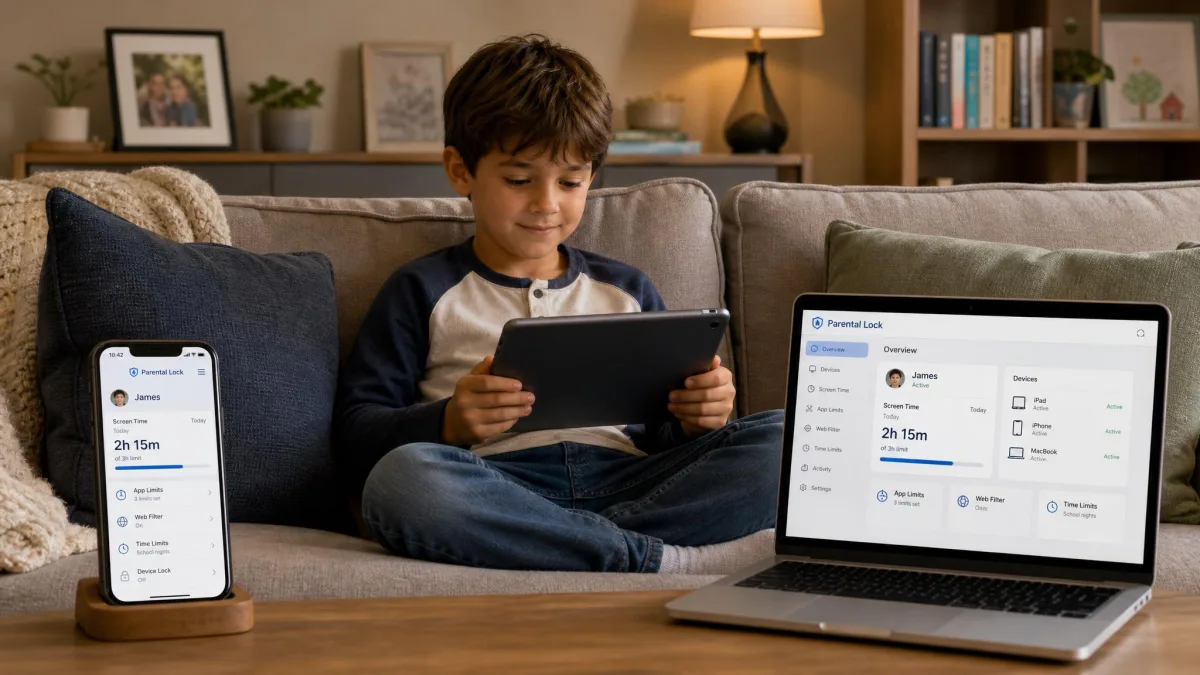
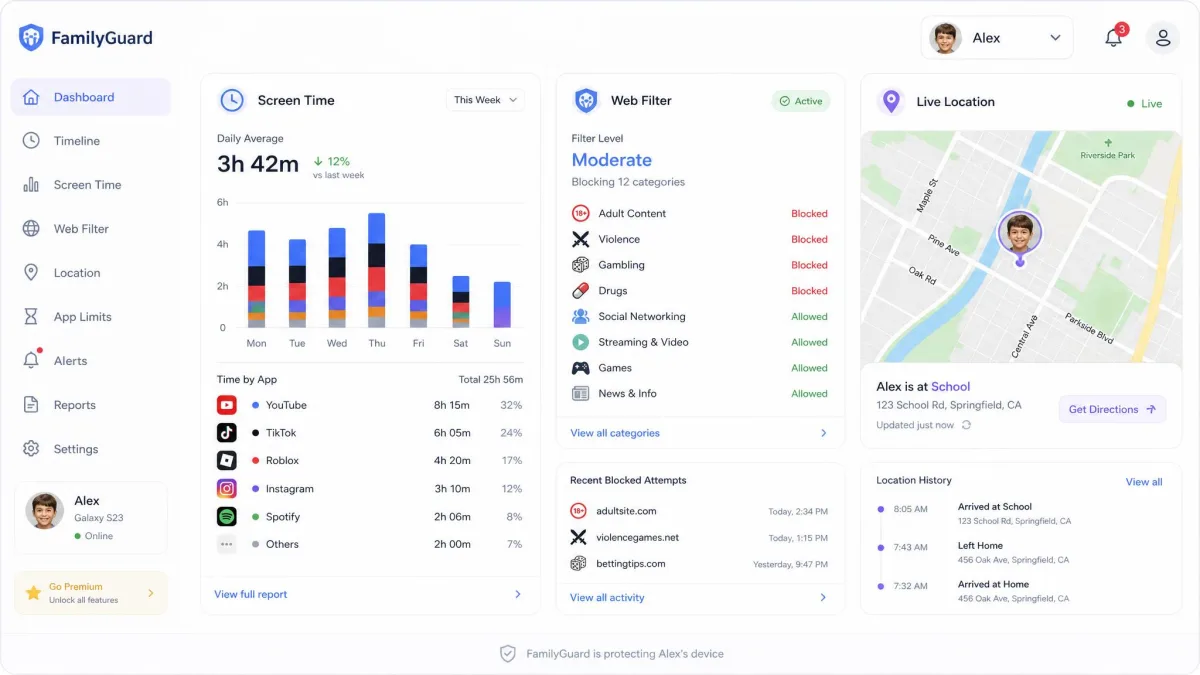
When a built-in lock is not enough, or when your family mixes Android, iOS, and Windows, a dedicated parental-control app pulls everything into one dashboard. These apps bundle screen-time limits, web filters, app blocking, and usually location tracking into a single subscription.
The catch is consistency. The app has to stay running and keep enforcing your rules, and that reliability is where free and budget tiers wobble. We have tested the field, and our roundups break down which ones hold up: the best parental control apps for Android and the best parental control apps for iPhone.
Safes is a representative example. It advertises a 7-day free trial, and its features are broad: screen-time limits with smart schedules, activity reports, web filtering with Safe Search, app and game blocking, social-media monitoring, and live location with geofencing. Pricing is where we advise caution: the App Store lists $5.99 a month, while its own site quotes $4.99 a month. Google Play rates the Android app 2.9 out of 5, and in practice it suffers recurring parent-child sync failures and inconsistent blocking.

Internet Lock Methods Compared
Here is how the layers stack up.
| Method | Devices covered | Setup difficulty | Circumvention risk | Cost |
|---|---|---|---|---|
| Every device on the home Wi-Fi | Medium, log into the router admin app | High, cellular data, hotspots, factory reset | Free built-in; advanced tiers $5.99-$9.99/mo | |
| Every device using the configured resolver | Low, change two DNS server addresses | High, VPNs, browser DoH | Free tiers (OpenDNS, CleanBrowsing, NextDNS) | |
| That browser on that device | Low, pick Kids Mode from the profile menu | High, switch to another browser | Free | |
| One phone, tablet, or computer per platform | Low to medium, one passcode or child account | Medium, nudgeable limits, alt apps, sign-out | Free | |
| Android and iOS, parent and kids apps | Medium, install two apps | Medium, same bypasses plus sync bugs | From about $5/month, 7-day trial |

How to Stop Kids From Bypassing Parental Locks
Every lock has an exit, and kids find them faster than vendors patch them. Here are the bypasses we have seen in practice, and how to close each one.
Switch browsers. If the filter lives inside Edge or Chrome, the fix is opening Safari, Firefox, or another browser. Pair the browser filter with a router or DNS filter that blocks regardless of which browser is open.
Use a VPN. A VPN routes traffic outside your home network and past router and DNS rules, which is why it is hard to block completely. A device-level lock that blocks VPN apps helps, as does watching for VPN icons in the status bar. Our guide to what a VPN is and how it works covers the mechanics.
Randomized Wi-Fi addresses. If a device is missing from your router's rules, a randomized MAC address is usually why. Turn off private addressing for the home network on each managed device, then re-add it.
Encrypted DNS. A browser with its own encrypted DNS can skip the router filter. On managed devices, disable automatic DoH or force the safe resolver.
Cellular data and hotspots. Router rules only cover the home Wi-Fi, so a phone with its own data plan is outside them. The device-level lock is your only handle.
Flight mode and offline apps. Scheduled downtime still lets a child play offline games and watch saved videos, because those need no live connection. Device time limits, not network rules, are the fix.
Factory reset. A child with physical access to the router can reset it and wipe every rule. Keep the router somewhere your child cannot reach.
One More Minute. Apple's Screen Time lets a child tap One More Minute to stretch a limit, with no way to fully disable the prompt. Apple has also acknowledged a bug where limits reset unexpectedly, recurring across multiple iOS releases.
Layering is the single best bypass defense. A router filter plus a device-level time limit plus one honest conversation beats any single premium app.
Setting Screen-Time Limits Alongside Your Lock
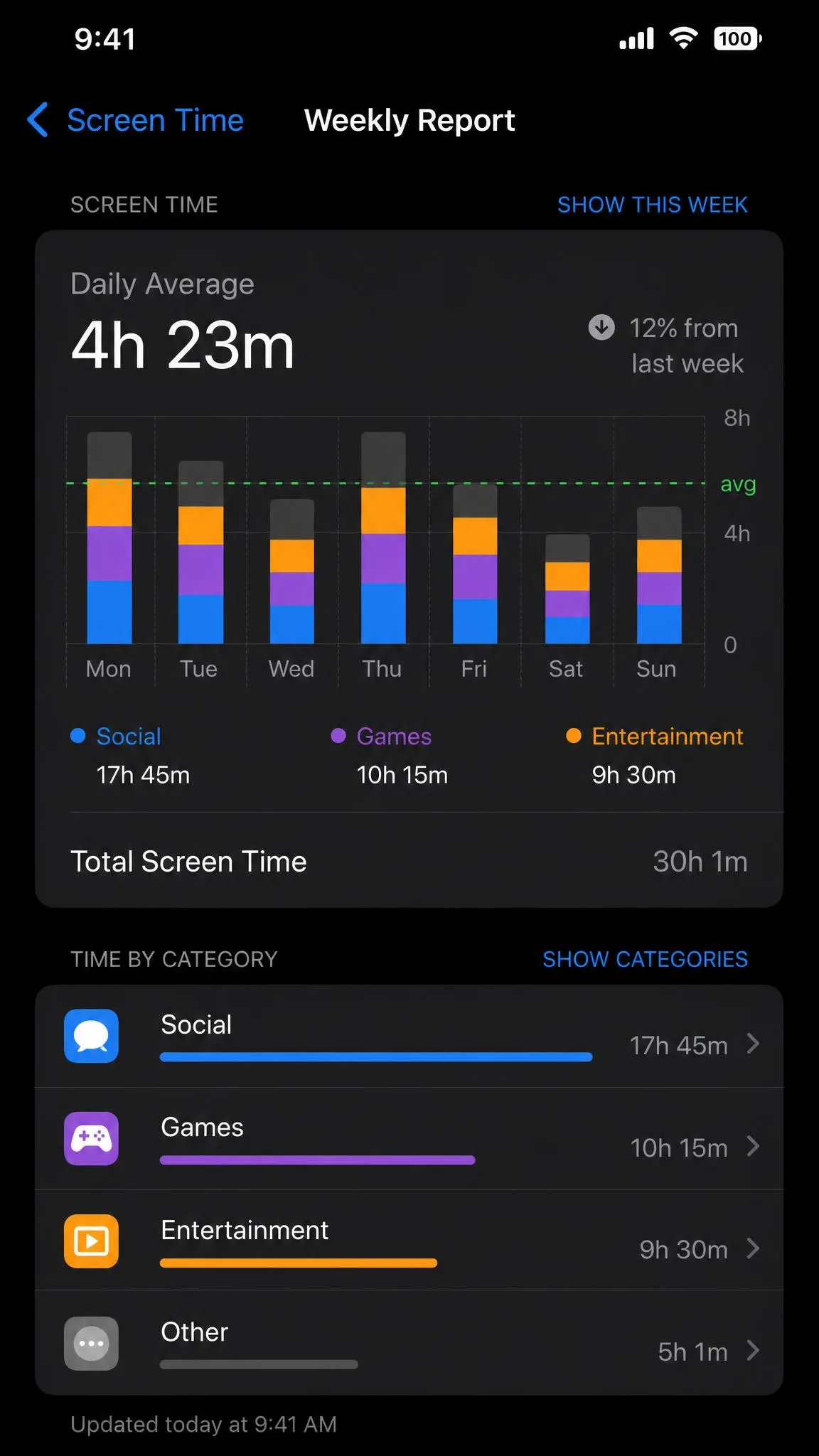
Screen-time limits decide when the device goes dark, and they matter as much as what the filter stops. On iOS and macOS, Downtime dims the device outside approved hours while App Limits cap individual apps and categories. On Android, Family Link's Downtime and School Time schedules do the same, and Family Safety covers Windows and Xbox.
Set limits that match your family's actual schedule rather than the defaults, and adjust them as your child's routine changes. Build in a little slack on busy weeks. Screen time is a habit-shaping tool, not a precise accounting system.
Frequently Asked Questions
Do parental-control locks work on every device?
Can kids bypass parental locks (and how do I stop them)?
What's the difference between router-level and app-level blocking?
What does a parental lock on the internet block?
Do I need a paid app or are free router controls enough?
The Bottom Line
A parental lock on the internet is not one product. It is a stack, and the stack only works when you pick the right layers for your family's devices.
Start free. Set up Screen Time or Family Link on the devices your child actually uses, turn on your router's built-in controls or point it at OpenDNS FamilyShield, and enable Kids Mode in Edge. That combination covers most households at zero cost. Add a paid app only if your family mixes operating systems.
Above all, treat the lock as a conversation starter rather than a finished wall. Families who talk about the rules get more cooperation than the ones who only enforce them.