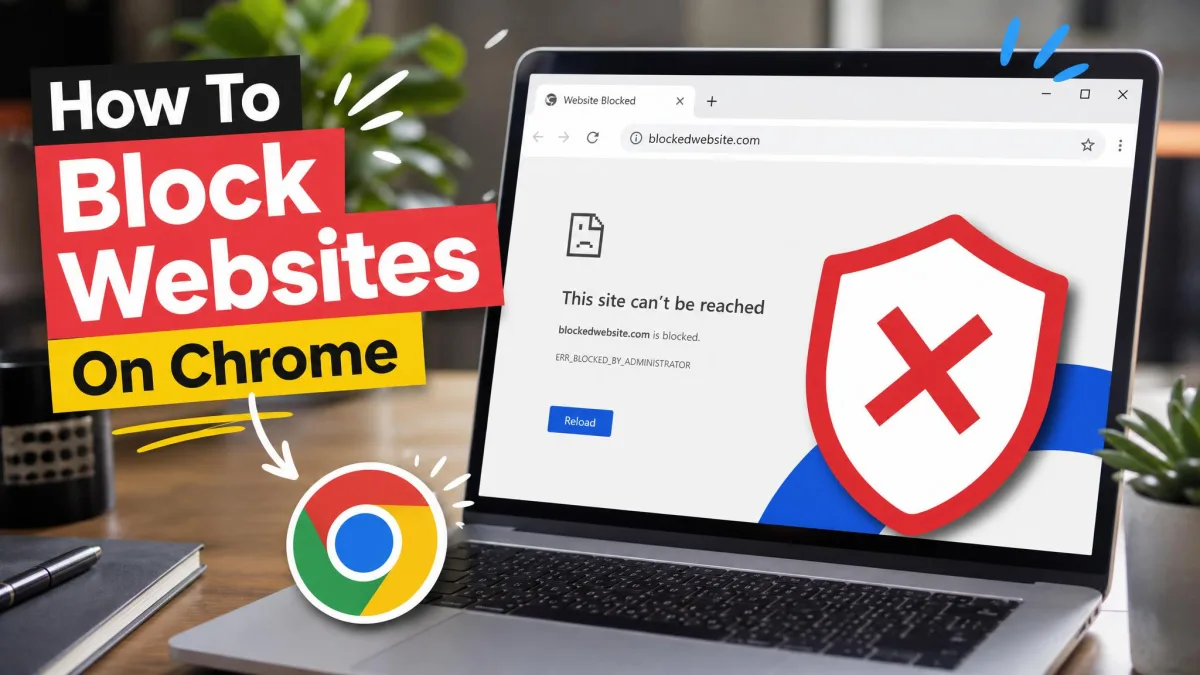
Ever gone looking for the setting in Chrome that blocks a website, and come up empty? There isn't one. Chrome has no built-in switch that shuts off an arbitrary site, so blocking one means picking a method that sits somewhere else: in an extension, in a system file, in your Google account, or on your router.
That choice matters more than the steps. A block that works for your own focus is a poor fit for a nine-year-old, and a block that covers one computer does nothing for the tablet in the next room. Below are six methods, in order of effort, plus how to handle Chrome on a phone.
Why Block Websites in Chrome?
Most people arrive here for one of three reasons. The first is attention: you want to work, and a tab you did not decide to open keeps winning. The second is family. Kids and teens reach the web from several devices at once, and Pew Research Center data on teen device access shows how normal that is, so one blocked site on one laptop rarely settles anything. The third is security, where blocking known phishing and malware domains keeps a bad click from becoming a bad afternoon.
Blocking sites isn't about censorship. It's a practical way to protect your attention, your kids, and your security.
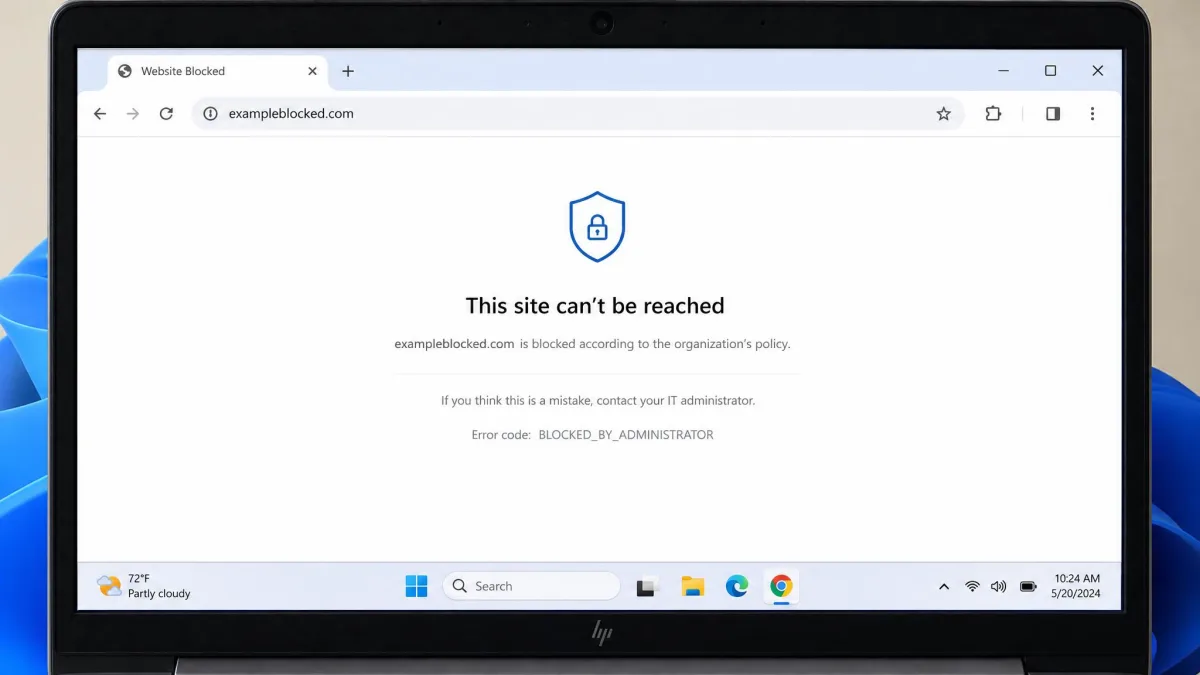
Method 1: Block Websites With a Chrome Extension (Easiest)
Extensions are small add-on apps for the browser, and a blocker extension is the quickest way to stop a site loading in Chrome. This method suits anyone blocking their own distractions.
Step 1: Install BlockSite or StayFocusd
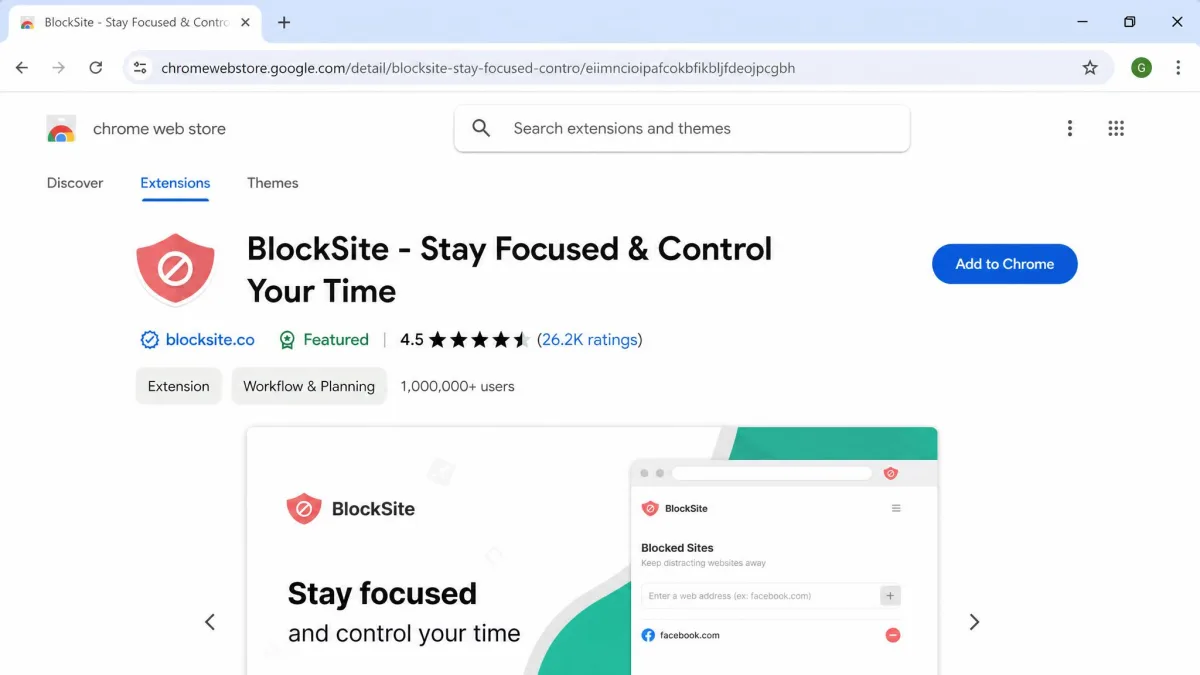
Open the Chrome Web Store, search for a blocker, then click Add to Chrome and confirm the permissions prompt. The most-used option is BlockSite, which carries 4.5 out of 5 stars across 32.3K ratings and sits at 1,000,000 users, with version 7.1.1 last updated July 26, 2026 and an 18.79 MiB download.
The free tier covers a basic block list. Lifetime access is advertised at $49.99 with a risk-free 30-day guarantee. Subscription tiers exist too, though BlockSite's subscription prices vary by plan length and by the offer shown at checkout, so the monthly figure you see may differ.
StayFocusd is the other name worth knowing. It has been available since 2011, it is free, and it also rates 4.5 out of 5. Instead of an outright block, you set a daily time allowance per site and it cuts you off. It can block by site, subdomain, path, page or in-page content.
Step 2: Add the Sites You Want Blocked
Click the extension icon in Chrome's toolbar, choose the block list, then enter each domain and press add. Most blockers accept a bare domain, so typing example.com covers the whole site rather than one page. BlockSite can also block by category or keyword and sync the same list to Chrome on another computer.
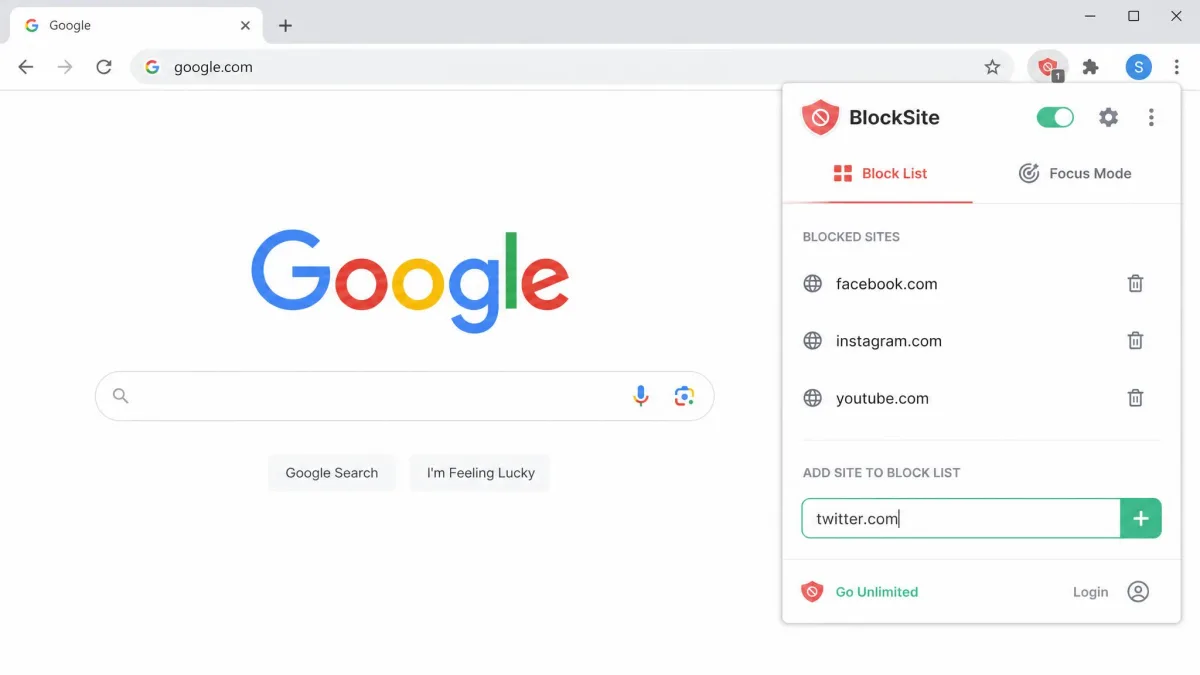
Step 3: Set a Schedule or Password Lock
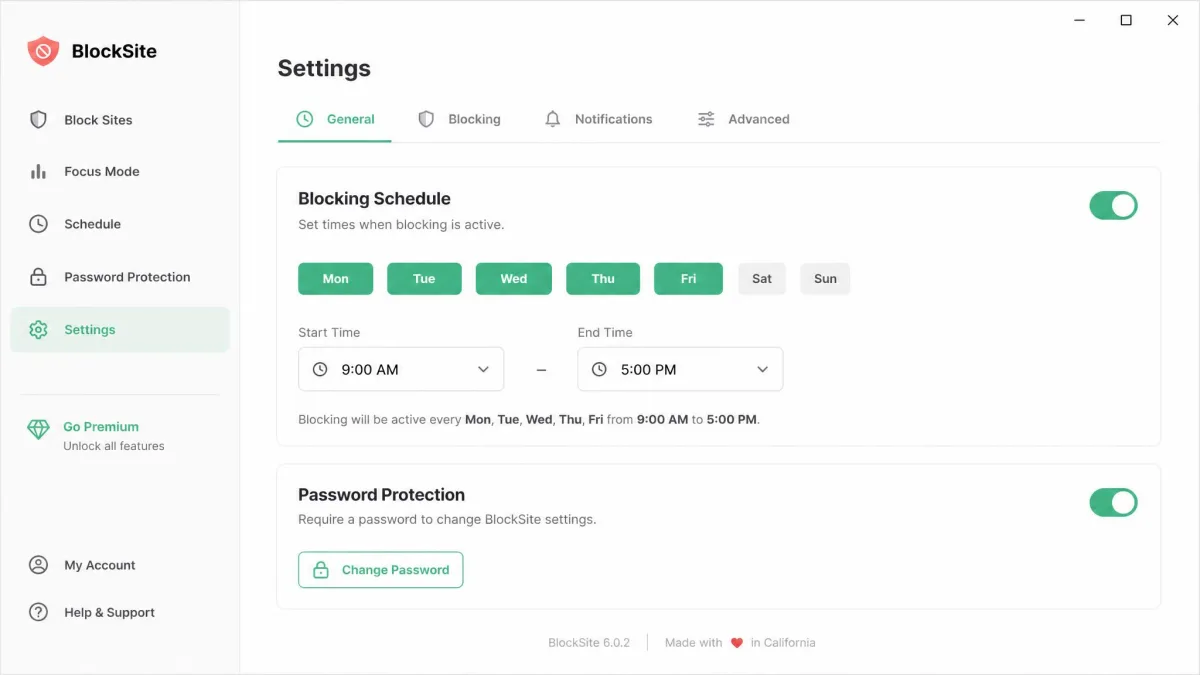
A permanent block is often too blunt. Both extensions let you set active hours and active days, so a site stays blocked during work and opens again in the evening. BlockSite adds a Focus Mode timer; StayFocusd has the Nuclear Option, which locks your chosen sites for a set period and cannot be cancelled once it starts.
Turn on password protection before you need it. An extension you can switch off in two clicks is not a block, it is a suggestion, and the password is what keeps it standing in a weak moment.
When This Method Falls Short
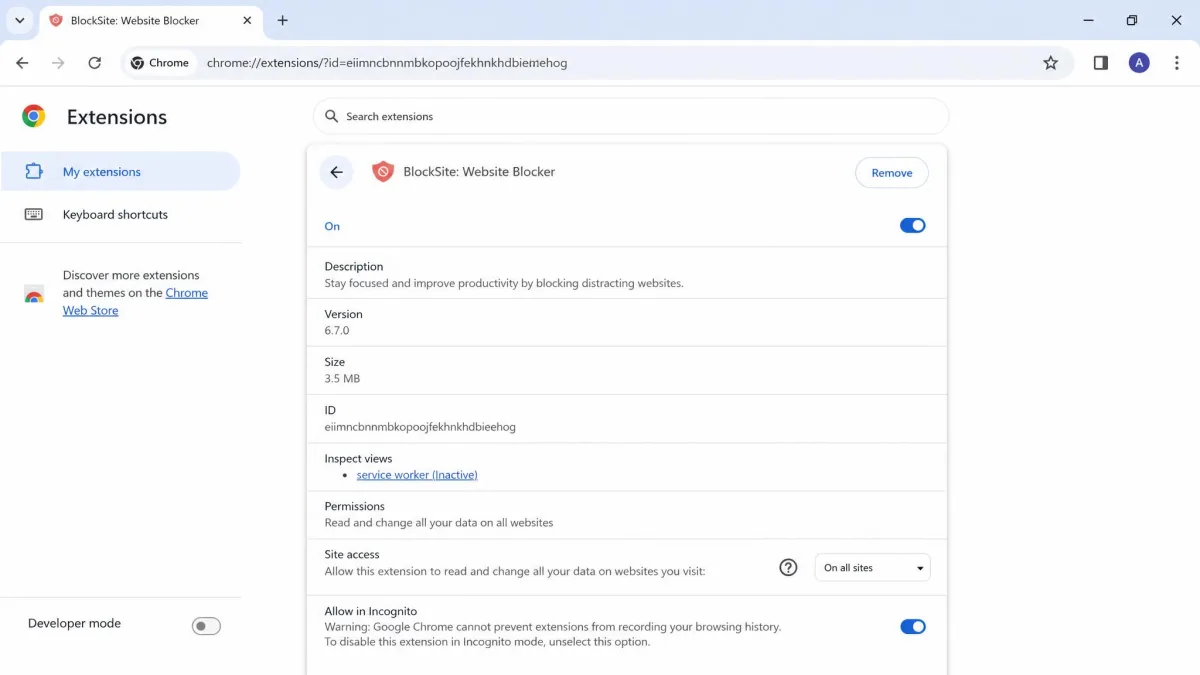
Chrome switches extensions off in Incognito windows by default, so an extension block stops applying the moment an Incognito window opens, unless you enable Allow in Incognito on the extension's details page first. The block also guards only the browser it is installed in, so opening a second browser that never got the extension reaches the site immediately. And it is not a hard lock against a determined user, because anyone who can reach the extensions page can disable or remove it in a few clicks unless password protection is set.
BlockSite's data collection is a further sticking point, so privacy-sensitive setups are better served elsewhere.
Pros
- Fastest method to set up, with no admin rights needed
- Schedules, keyword blocking and password locks in the free or paid tiers
- Sync the same block list to Chrome on another computer
Cons
- Off in Incognito windows unless you enable it there
- Covers only Chrome, not other browsers on the same computer
- Removable by anyone with access to the extensions page
Method 2: Block Sites in Chrome's Own Settings
Chrome's built-in controls will not block a site outright, but they do shut down the behaviour that makes some sites unbearable. Use this when a site is annoying rather than off-limits.
Blocking Notifications, Pop-Ups, and Redirects Per Site
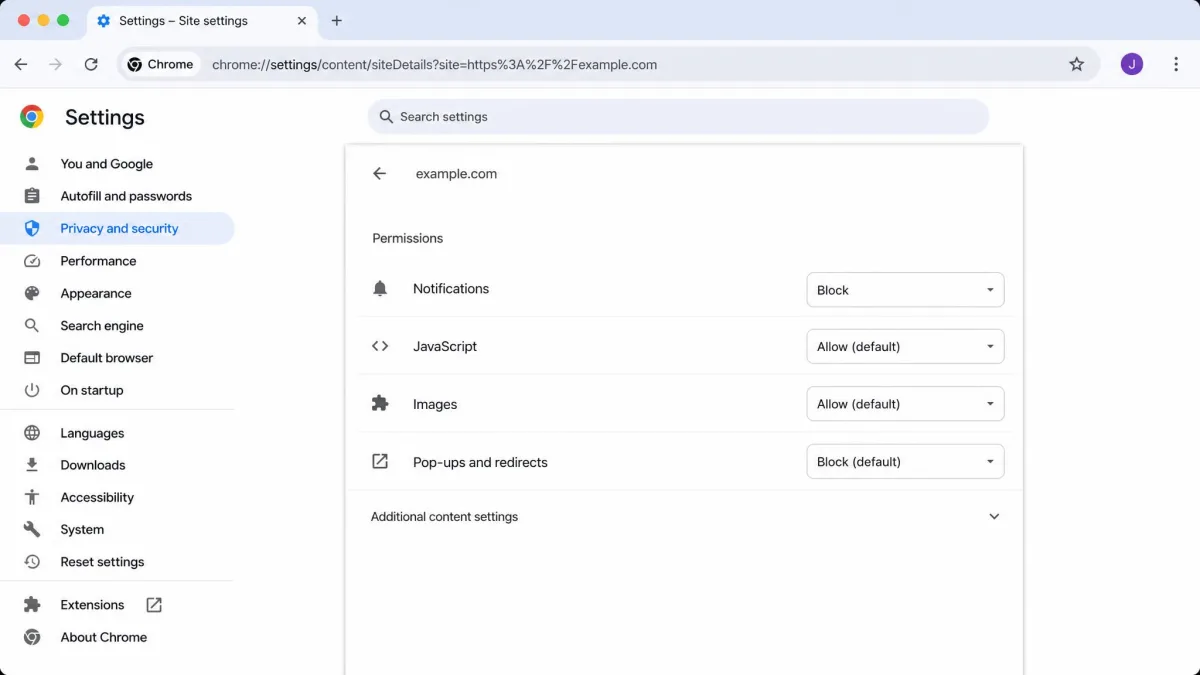
Open Chrome, click the three-dot menu, choose Settings, then select Privacy and security followed by Site settings. From there you can add a specific site under notifications, pop-ups and redirects, or ads, and set each one to Block. You can also click the icon to the left of the address bar while you are on the offending page and change its permissions there. Chrome's site settings manage permissions per site rather than access to the site, so treat this as noise control.
Turning On Safe Browsing Enhanced Protection
In the same Privacy and security panel, choose Security and enable Enhanced protection. Chrome then warns you before dangerous sites, downloads and extensions load. It is not a personal block list, but it does shut out a whole category of sites you never wanted to reach.
Method 3: Edit the Hosts File (System-Wide and Free)
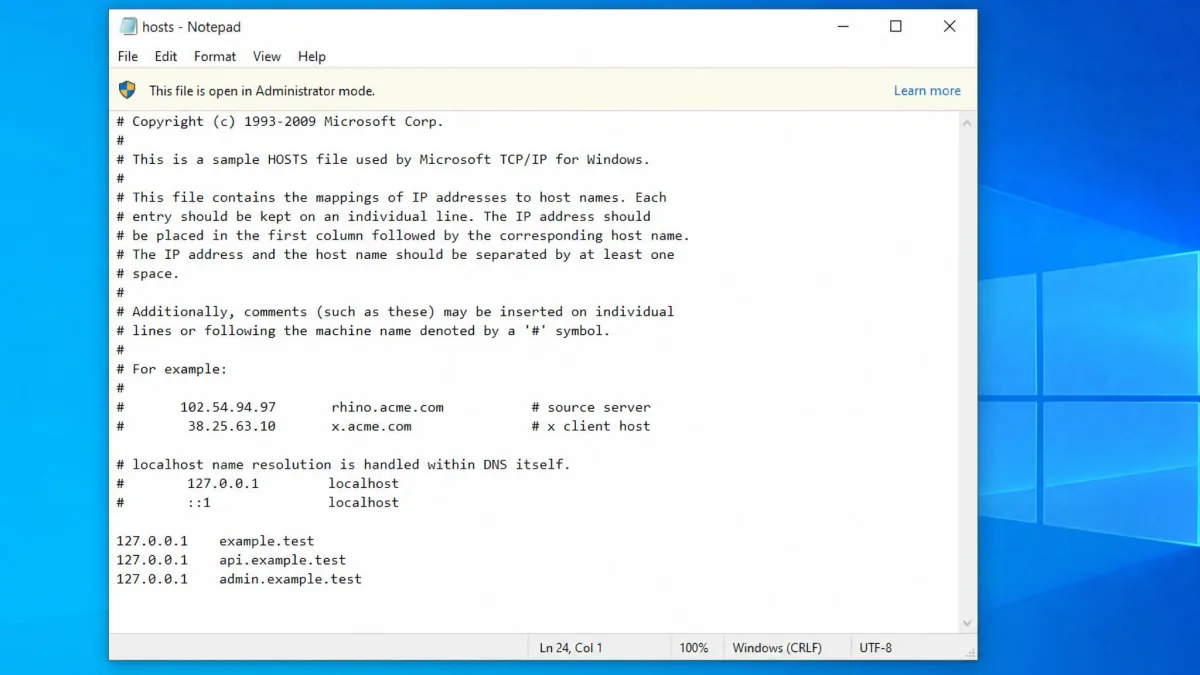
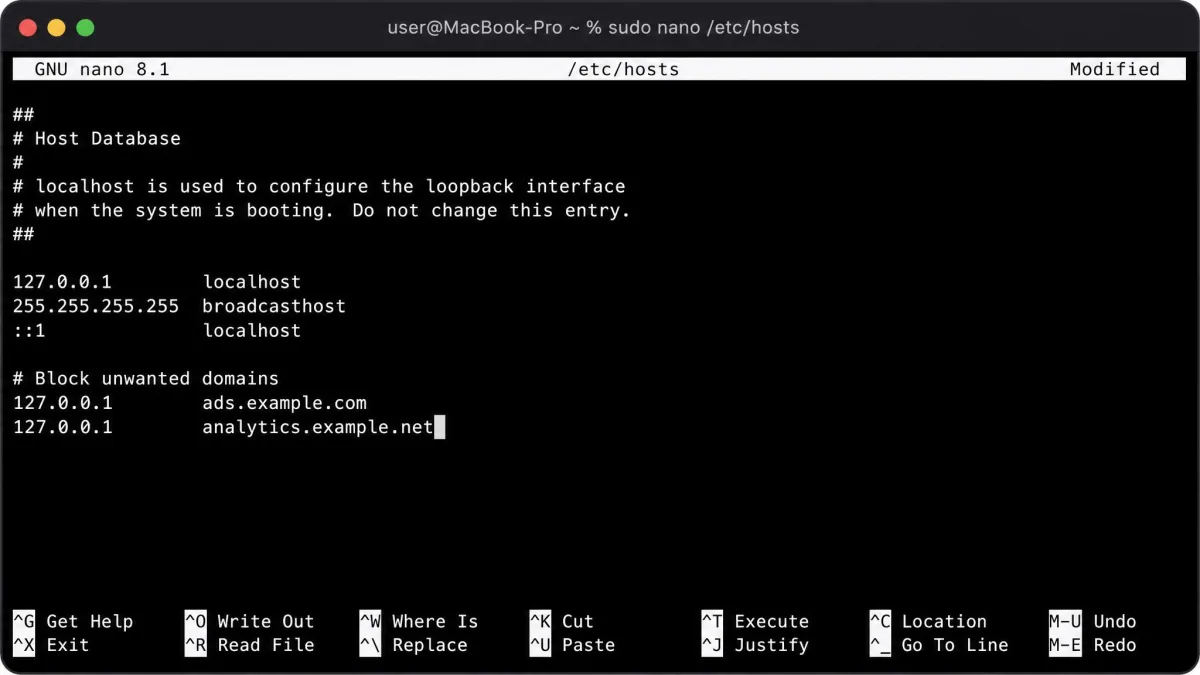
The hosts file is your computer's own phonebook: it maps a website name to an address before any DNS server gets asked. Point a domain at the loopback address 127.0.0.1 and the request never leaves the machine. It is free, needs no app, and covers every browser on that computer, which is why it suits one shared family desktop.
You need administrator rights on Windows or sudo on a Mac to save this file, and a mistyped line can break sites you never meant to touch. Copy the original file somewhere safe before you edit it.
On Windows
Open Notepad as administrator, then open C:\Windows\System32\drivers\etc\hosts. Add one line per site at the bottom of the file, in the form 127.0.0.1 example.com, and add a second line for the www version. Save the file in place.
On Mac
Open Terminal and run sudo nano /etc/hosts, enter your password, then add the same 127.0.0.1 example.com lines at the end. Press Control+O to write the file and Control+X to close the editor.
Flush the DNS Cache and Test the Block
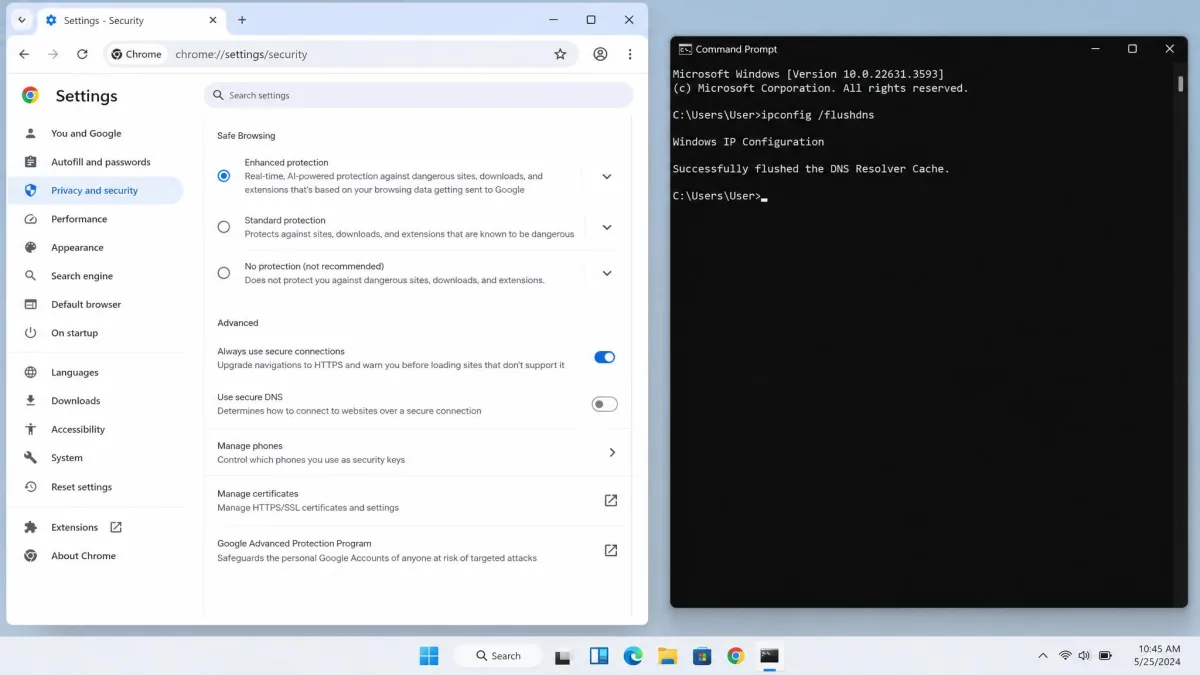
Your computer remembers recent lookups, so a new entry often looks broken when it is only stale. On Windows, run ipconfig /flushdns in Command Prompt, then reopen Chrome and check the site.
One real limit: hosts file edits fail silently when the browser has Secure DNS turned on, because DNS-over-HTTPS resolves the name remotely and skips the local file. If your entry looks ignored, turn Secure DNS off in Chrome's security settings and test again.
Method 4: Use Google Family Link for Parental Controls
Google Family Link is free from Google and is the right method when the person you are blocking is a child rather than yourself. It works with Android devices, Chromebooks, iPhone and iPad, and Windows, Mac or Linux computers.
Set Up Supervision on Your Child's Account
Install Family Link on your own phone, create or add your child's Google account, then follow the prompts on their device to accept supervision. Supervision behaviour changes once a child turns 13, or the applicable age in your country, so check what they can switch off themselves. Windows households can pair this with Microsoft Family Safety for the same job at the system level.
Approve or Block Specific Sites
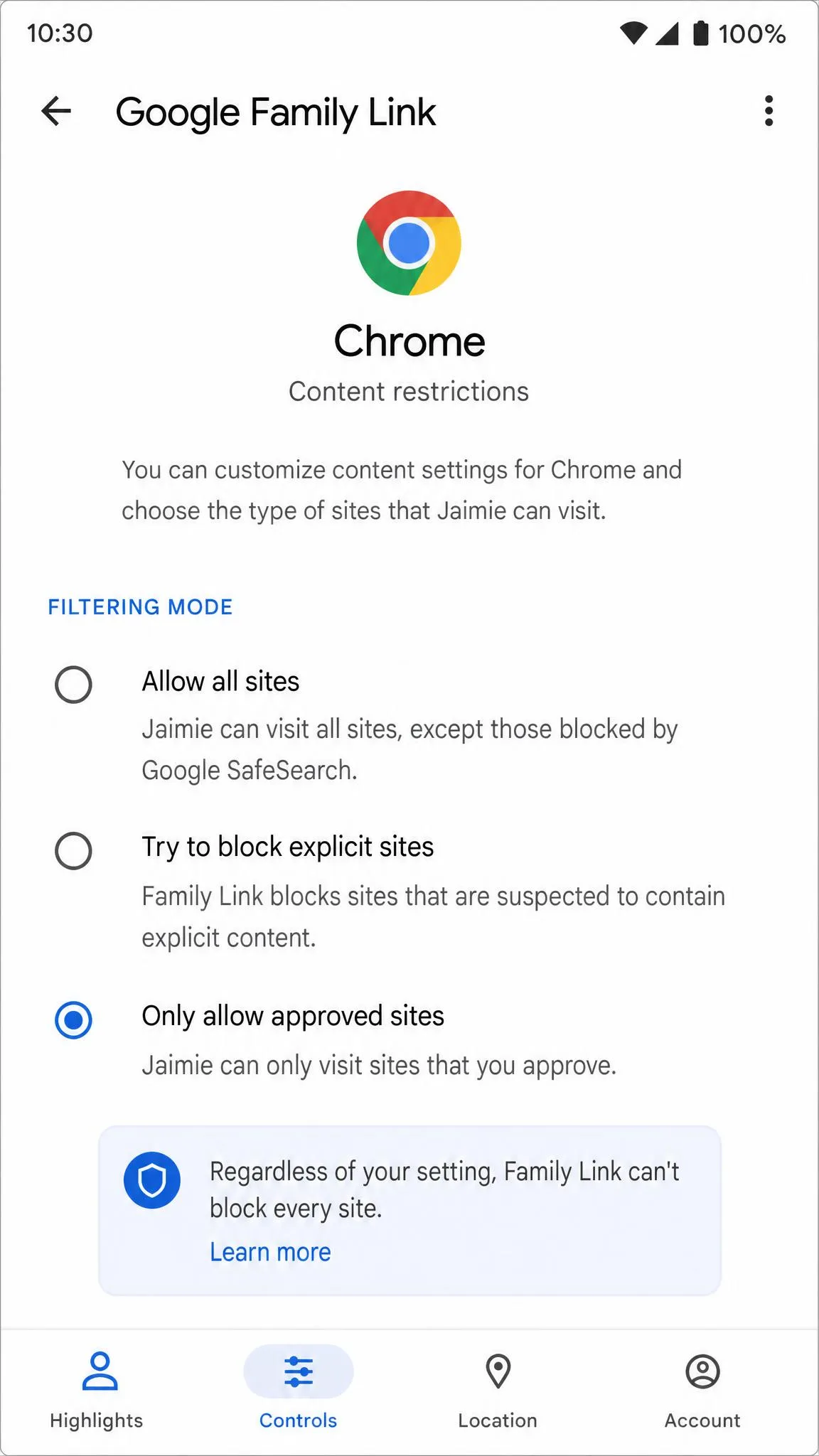
In Family Link, open your child's profile, choose Controls, then Content restrictions, then Google Chrome. You get three Chrome filtering modes: allow all sites except ones you block, try to block explicit sites, or only allow approved sites. Add individual addresses to the blocked or approved list from the same screen.
Expect two rough edges. The "try to block explicit sites" setting is best-effort rather than exhaustive, and mature pages do slip past it. The web supervision screens are also the least polished part of the app.
Family Link's site filtering applies to Chrome only, and only while your child is signed into their supervised Google account. Signing out of Chrome, or opening a different browser, takes them outside the filter. Search filtering also leans on Google SafeSearch, so switching search engines drops it.
Method 5: Block Websites at the Router Level
A router rule covers every device on the network at once, including phones, tablets and consoles that never touch your computer. This is the method for a household rather than a person.
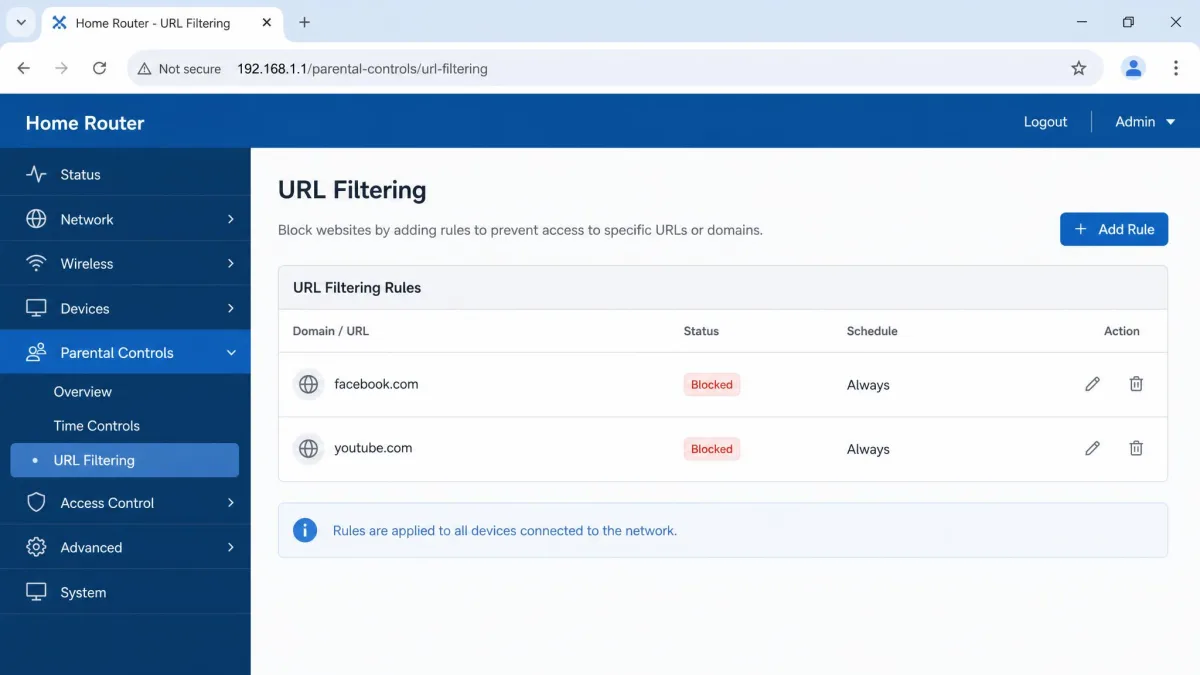
Log In to Your Router's Admin Page
Type your router's address into Chrome, usually 192.168.0.1 or 192.168.1.1, then sign in with the admin credentials printed on the router. To keep one device off the network entirely, see our guide on how to block a device from your WiFi router.
Add Sites to the URL Filter or Blocklist
Look for a section named URL filtering, parental controls, or access restrictions. Add each domain you want blocked, choose whether the rule applies to all devices or a chosen few, then save and let the router restart.
Router menus vary by brand, and a wrong entry in an access-restriction rule can knock the whole household offline. Note your existing settings before you change them, and test on one device before you apply a rule to everything.
Use DNS Filtering as an Alternative
If your router has no filtering page, change its DNS servers instead. Cloudflare's 1.1.1.2 resolver blocks malware domains, and 1.1.1.3 blocks malware plus adult content. Set those on the router and every device inherits them.
DNS filtering only catches domains already on a blocklist, so a brand-new or newly compromised domain gets through, and safe sites are occasionally caught by mistake. Cloudflare's family resolvers have over-blocked legitimate sites, and 1.1.1.3 has been reported letting adult sites through, usually because the device was still using its old resolver. Confirm each device actually picked up the change.
Method 6: Block Sites for a Managed Team (Chrome Enterprise)
If you administer Chrome for a school or a workplace, policy is the only method here a user cannot switch off. It needs managed Chrome, so it is not an option on a personal computer.
Set the URLBlocklist and URLAllowlist Policies
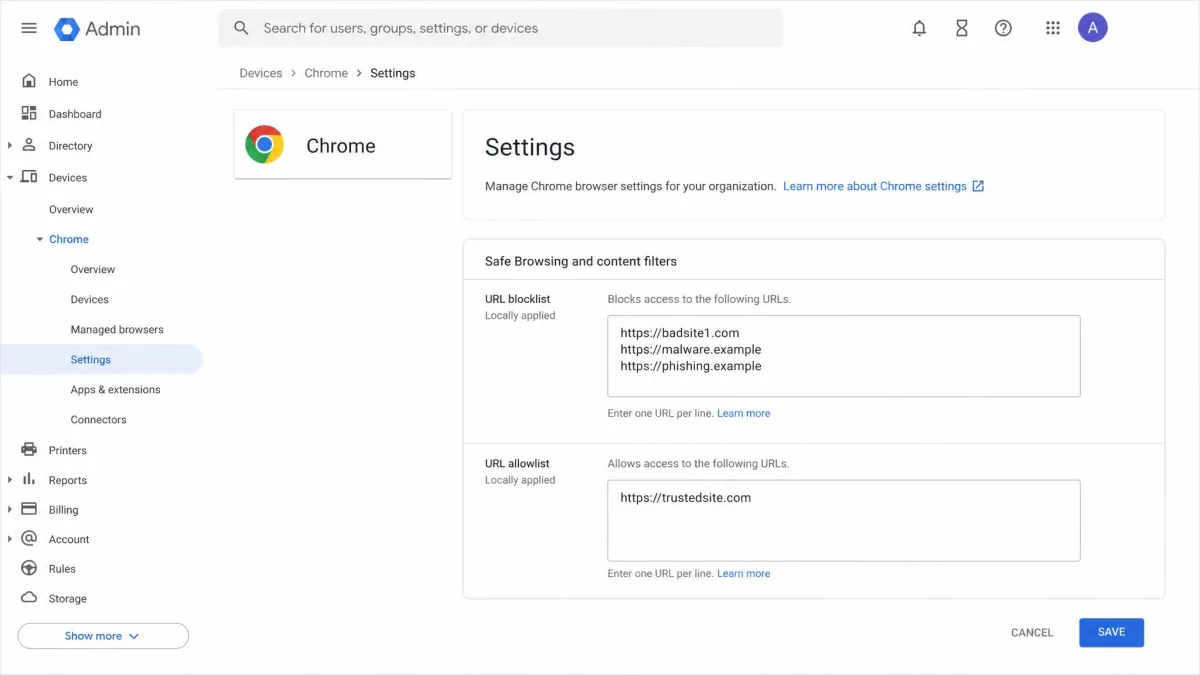
The two policies are URLBlocklist and URLAllowlist, and you can block and allow up to 1,000 URLs. In the Google Admin console, open Devices, then Chrome, then Settings, and enter your addresses under the URL blocking fields. Google's Chrome Enterprise guide to blocking URLs lists the accepted formats.
The allowlist takes precedence over the blocklist, so an allowlisted address still opens even when a broader rule covers it. That is how you build a walled garden: a single * entry in URLBlocklist blocks everything, leaving the allowlist as the only route in. Google warns admins not to block chrome://settings or chrome-untrusted:// addresses, because that can cause unexpected device problems.
How to Block Websites on Chrome Mobile
Chrome on a phone does not accept desktop extensions, so mobile blocking happens at the operating system level.
Android
Family Link handles Chrome on a supervised Android account using the same three filtering modes. Its app time limits cover Play Store apps rather than browser tabs, so time spent in Chrome is governed separately. For the wider set of options, see how to block websites on Android, or how to block apps on Android if the app itself is the problem.
iPhone and iPad
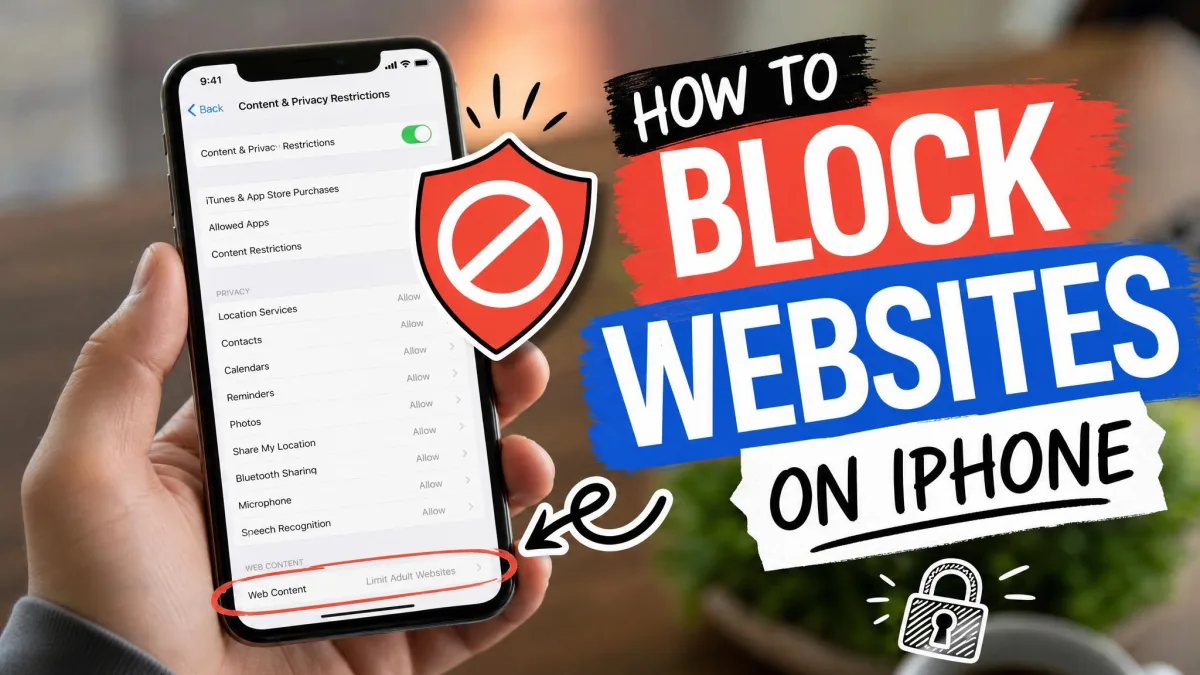
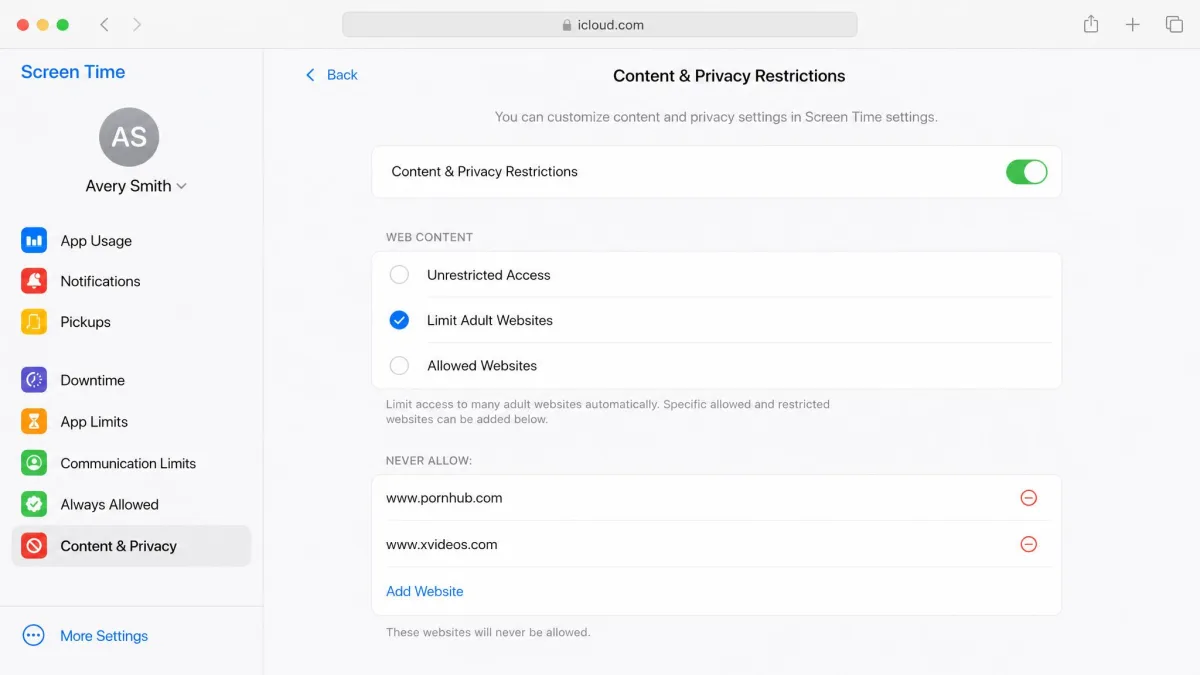
On iOS, open Settings, choose Screen Time, then Content & Privacy Restrictions, and use the web content options to limit adult sites or allow only approved ones. Apple's Screen Time content restrictions guide walks through each field, and our guide to how to block websites on iPhone covers the same ground with screenshots.
Which Blocking Method Should You Use? A Quick Comparison
Pick by scope first, then by how hard the block needs to be.
| Method | Difficulty | Cost | Scope | Bypassable by user? | Best for |
|---|---|---|---|---|---|
| Chrome extension (BlockSite / StayFocusd) | Easiest | Free tier; BlockSite lifetime $49.99 | This browser, this profile | Yes, unless password-locked; off in Incognito by default | Self-control and focus |
| Chrome's own settings | Easy | Free | This browser, per site permission | Yes | Notifications, pop-ups, redirects |
| Hosts file | Moderate | Free | Whole device, all browsers | Yes with admin rights; skipped by Secure DNS | One shared computer |
| Google Family Link | Easy | Free | Chrome on the child's supervised account | Yes, by signing out or using another browser | Parents |
| Router / DNS filter (1.1.1.3) | Moderate | Free | Whole network | Yes via VPN or DNS-over-HTTPS | Households, all devices |
| Chrome Enterprise URLBlocklist | Hardest | Needs managed Chrome | Every managed device, up to 1,000 URLs | No, policy-enforced | Schools and workplaces |
| Mobile (Android / iPhone) | Easy | Free | The phone or tablet | Varies by OS controls | Phones and tablets |
What You Can't Block (and How People Get Around It)
Every method above has a seam, and it helps to know where.
- Incognito windows. Extensions are off there by default, so the block simply is not running.
- A second browser. An extension guards Chrome and nothing else. Edge or Firefox opens the site straight away.
- DNS-over-HTTPS. Domains blocked at the router still load on devices with Secure DNS enabled, because the name is resolved at a remote encrypted server your network never sees. The same feature defeats hosts file entries.
- A VPN. Network-level rules stop applying once traffic leaves through a tunnel.
- Signing out. Family Link's filtering ends the moment a child signs out of the supervised account.
Only the Chrome Enterprise policy holds against a user who is actively trying, and that needs managed Chrome. For everyone else, layering is the answer: an extension for the browser, a network filter under it, and a conversation about why the rule exists.
Troubleshooting: When the Block Doesn't Stick
Work through these in order.
- The site still loads after a hosts file edit. Flush the DNS cache with
ipconfig /flushdns, then check whether Chrome's Secure DNS is on and turn it off. - The extension does nothing in a private window. Open
chrome://extensions, click Details on the blocker, and enable Allow in Incognito. - The block list emptied itself. On some BlockSite installs the list is not restored after a reboot and has to be re-entered, so re-check it after any update.
- The router rule applies to some devices only. Confirm each device picked up the new DNS server rather than caching the old one, then reconnect it.
- A site you need is blocked by mistake. DNS filters catch safe sites occasionally, so add an exception rather than switching the whole filter off.
How to Unblock a Website You Blocked
Undoing a block is method-specific, and it is worth knowing before you set one.
- Extension: open the block list, remove the entry, and enter the password if you set one.
- Chrome settings: return to the site's permission row and switch it back to Allow.
- Hosts file: delete the line, save, then flush the DNS cache again.
- Family Link: move the address from the blocked list to the approved list.
- Router: delete the rule from the URL filter, or set the router's DNS back to your provider's default.
- Enterprise policy: add the address to URLAllowlist, which takes precedence over the blocklist.
Frequently Asked Questions
Can I block a website on Chrome without an extension?
How do I block a website in Chrome permanently?
Does blocking a site in Chrome also block it in incognito?
How do I block a website on Chrome mobile?
Can my child bypass the block?
How do I unblock a website I blocked?
Is there a free way to block websites on Chrome?
The Bottom Line
Chrome gives you no single button for this, so the work is choosing the right layer. Block your own distractions with an extension and lock it with a password. Block a shared computer with the hosts file. Block for a child with Family Link, and back it up at the router so tablets and phones are covered too. Schools and offices want the URLBlocklist policy, the only option here a user cannot switch off.
Whichever you choose, test it once in a normal window and once in an Incognito window before you trust it. That single check catches most of the ways a block quietly stops working.