If you've wondered how to keep adult sites off every device in the house, the answer isn't one setting. Blocking adult content at home means layering filters across your router, your family's phones, and the browsers they use. The good news is that most of these steps are free and take minutes.
This guide walks through each method that works. You'll set up SafeSearch on Google and Bing, a family-safe DNS on your home network, Screen Time on iPhone, Family Link on Android, and Microsoft Family Safety on Windows, plus parental control apps and browser extensions as extra layers.
No single filter catches everything, so this guide builds a stack. Start at the network layer, where one change protects every device on the Wi-Fi, then add device-level controls for phones that travel.
Before recommending a method, we set it up and tried to break it. A family DNS filter stopped most adult domains, but encrypted DNS or a VPN app routed around it in minutes. That is why the methods here work best stacked, not alone.
Why Blocking Adult Sites Is Harder Than It Looks
Adult sites are not a fixed list. New domains appear constantly, and blocklists take time to catch up. A DNS filter blocks whole domains, so it misses adult subpages inside an otherwise allowed site. Built-in web filters only cover the browser they ship in, so a different browser slips past them.
Search settings do part of the job. Google SafeSearch filters results on Google, not other search engines or direct visits. Router filters also stop working the moment a device switches to mobile data.
The point is not that blocking fails. It is that one filter is a start, not a finish. Families that combine a network filter with device-level controls stop most adult content. Our guide to how parental controls block adult content explains the full mechanics.
The Layers of Adult Content Blocking (Quick Overview)
Think of adult-content blocking as five layers, and each covers a different gap.
Search-engine filtering. SafeSearch on Google and Bing hides explicit results, though it does not stop direct visits.
Network-level DNS filtering. Point your router at a family-safe DNS service, and adult domains are blocked before they reach any device.
Device-level controls. Screen Time, Family Link, and Microsoft Family Safety manage what each device can open.
Parental control apps. Qustodio and Net Nanny add activity reports, time limits, and app blocking.
Browser extensions. A small extension blocks adult sites before they load, in that browser only.
The layers are not equal. Network filtering protects the whole house at once, so it is where this guide starts.
Turn On SafeSearch Across Google, Bing & Other Search Engines
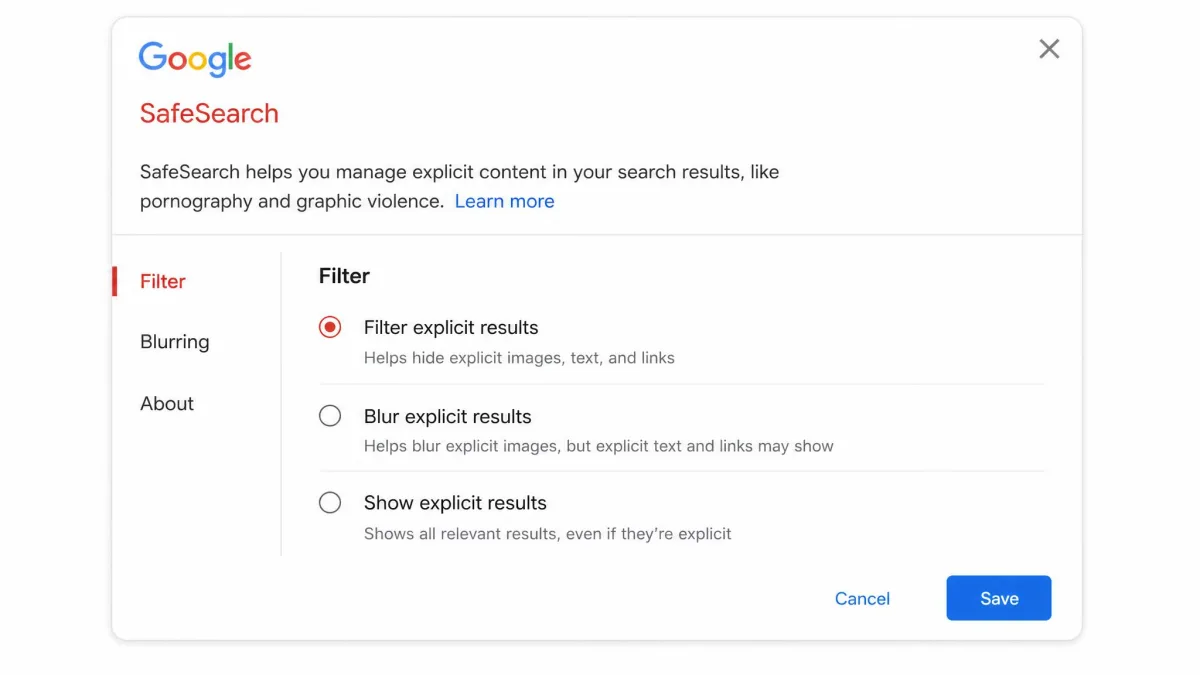
SafeSearch is the fastest filter you can turn on, and it works at the account level. Google SafeSearch offers three levels. Filter hides explicit results, Blur hides images while leaving text links, and Off does nothing. For an account Google believes belongs to someone under 18, Filter is the default and only a parent can change it.
To change it: Open the SafeSearch settings page in your account, pick Filter, and save. On Bing, open the menu, go to Settings, choose More, and set SafeSearch to Strict. Bing's SafeSearch settings work the same way.
If you manage the network, you can hard-lock it. Admins map Google domains to forcesafesearch.google.com, and SafeSearch cannot be turned off on those devices.
SafeSearch only filters search results. A site typed into the address bar still loads, so pair SafeSearch with a network filter for direct visits.
Block Adult Sites at the Network Level: DNS & Router Filtering
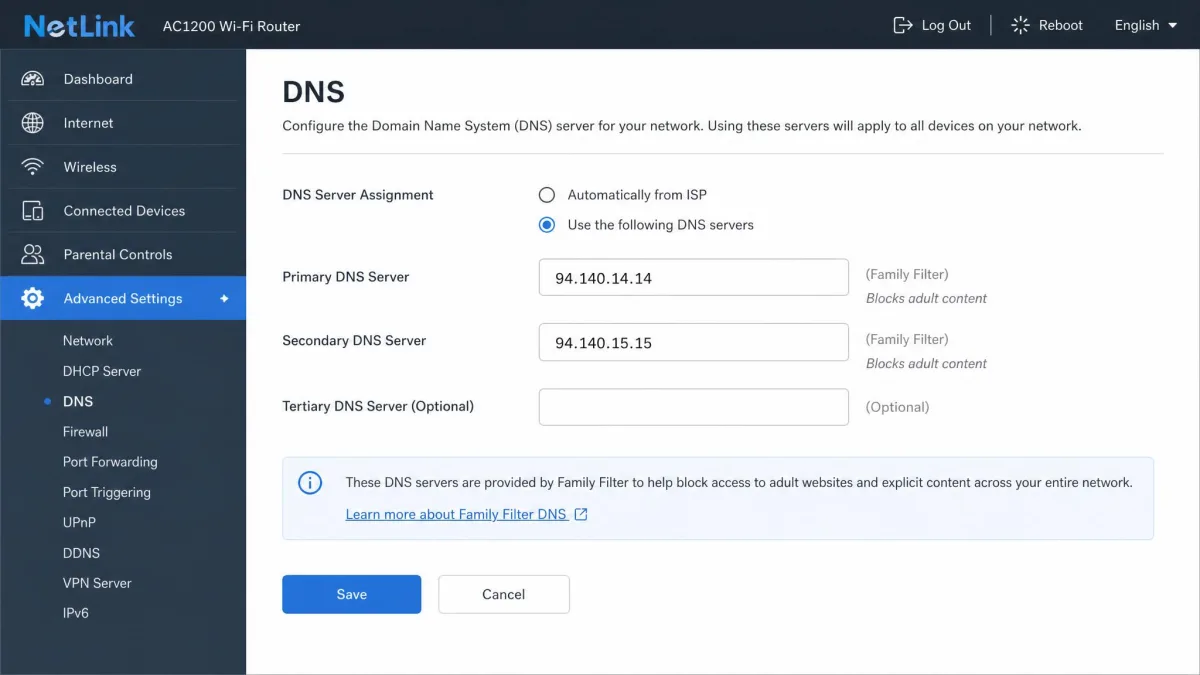
The most effective free step is filtering at the network level. DNS, short for Domain Name System, is the internet's phone book. Point its server at a family-safe service, and adult domains are blocked before they reach any device on your network.
Use a Family-Safe DNS Service (OpenDNS FamilyShield, CleanBrowsing, AdGuard DNS, Cloudflare 1.1.1.3, Yandex DNS)
Family-safe DNS services keep a blocklist of adult domains and refuse to answer for them. Five free options stand out, and the table below lists the addresses you will type in.
| Service | Primary DNS | Secondary DNS | Also blocks | Price |
|---|---|---|---|---|
| OpenDNS FamilyShield | 208.67.222.123 | 208.67.220.123 | Adult content categories | Free |
| CleanBrowsing Family | 185.228.168.168 | 185.228.169.168 | Adult content, enforces SafeSearch, security threats | Free |
| AdGuard DNS Family | 94.140.14.15 | 94.140.15.16 | Ads, trackers, phishing, adult content | Free |
| Cloudflare for Families | 1.1.1.3 | 1.0.0.3 | Malware, phishing, adult content | Free |
| Yandex DNS Family | 77.88.8.7 | 77.88.8.3 | Adult and erotic content plus malware | Free |
OpenDNS FamilyShield is the classic pick, free with no account. Cloudflare for Families uses easy addresses, 1.1.1.3 and 1.0.0.3. To confirm the filter is live, open nudity.testcategory.com in a browser and the adult test page should refuse to load. Yandex family addresses are 77.88.8.7 and 77.88.8.3.
How well do they work? AV-Comparatives tested six DNS filters against 1,000 adult websites in July 2025. The best, Yandex Family DNS, blocked 92%, and CleanBrowsing blocked 84%. All six posted zero false alarms on 200 child-friendly sites. None hit the 95% bar AV-Comparatives uses for parental-control certification, so DNS alone is not a complete answer.
Use 77.88.8.7 and 77.88.8.3 for Yandex's family filter. The 77.88.8.88 addresses only block malware and phishing, so adult sites still load.
Turn On Your Router's Built-in Parental Controls
Many routers ship with parental controls built in. Log in to the router admin page, usually at 192.168.1.1 or 192.168.0.1, open the parental controls section, and enable adult-content blocking. Some routers let you apply the filter on a schedule.
The catch is consistency. Every router brand labels these settings differently, and some block adult content better than others. A family DNS service behaves the same on every router, which is why we recommend it as the default.
Set Up a Family DNS Service on Each Device
Router DNS covers devices on your Wi-Fi. Phones and tablets leave that network and need their own DNS settings.
On Android 9 or newer: Open Settings, tap Network & internet, then Private DNS. Choose the private DNS provider option and enter family-filter-dns.cleanbrowsing.org from CleanBrowsing's free family filter guide. The filter follows the phone on Wi-Fi and mobile data.
On iPhone or iPad: Open Settings, tap Wi-Fi, then the info icon beside your network. Tap Configure DNS, switch to Manual, and add the primary and secondary addresses.
On Windows: Open Settings, tap Network & internet, choose your connection, and edit the DNS server assignment to Manual. Enter the addresses and save.
Block Adult Sites on iPhone & iPad with Screen Time
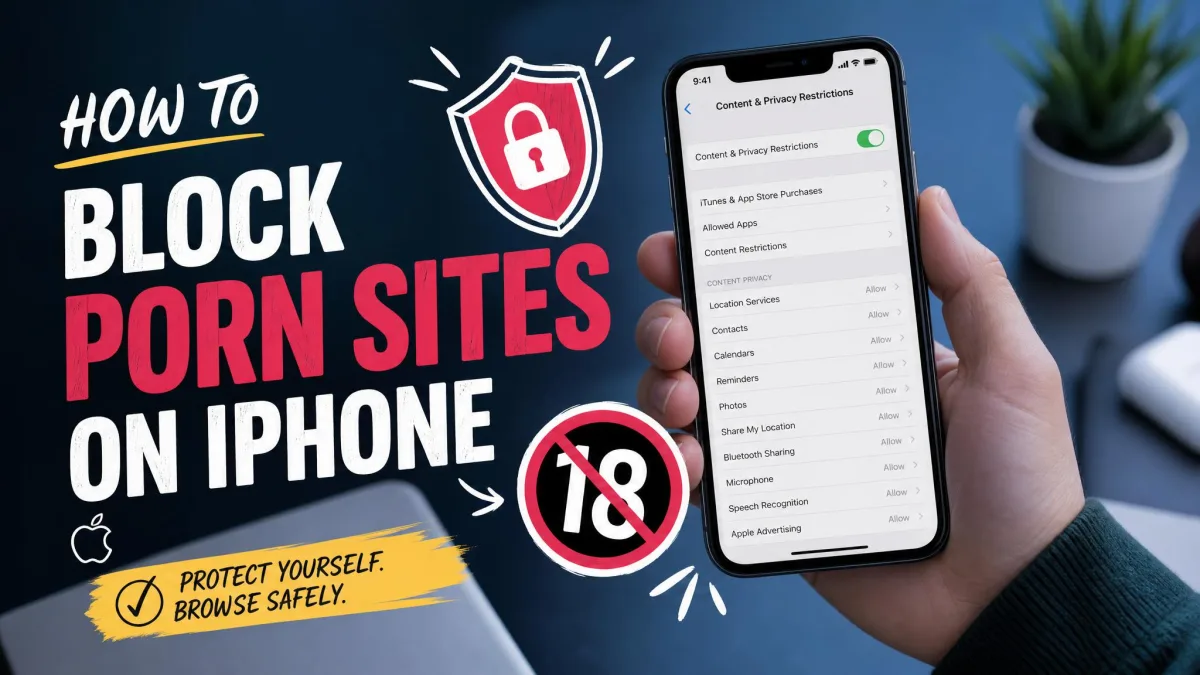
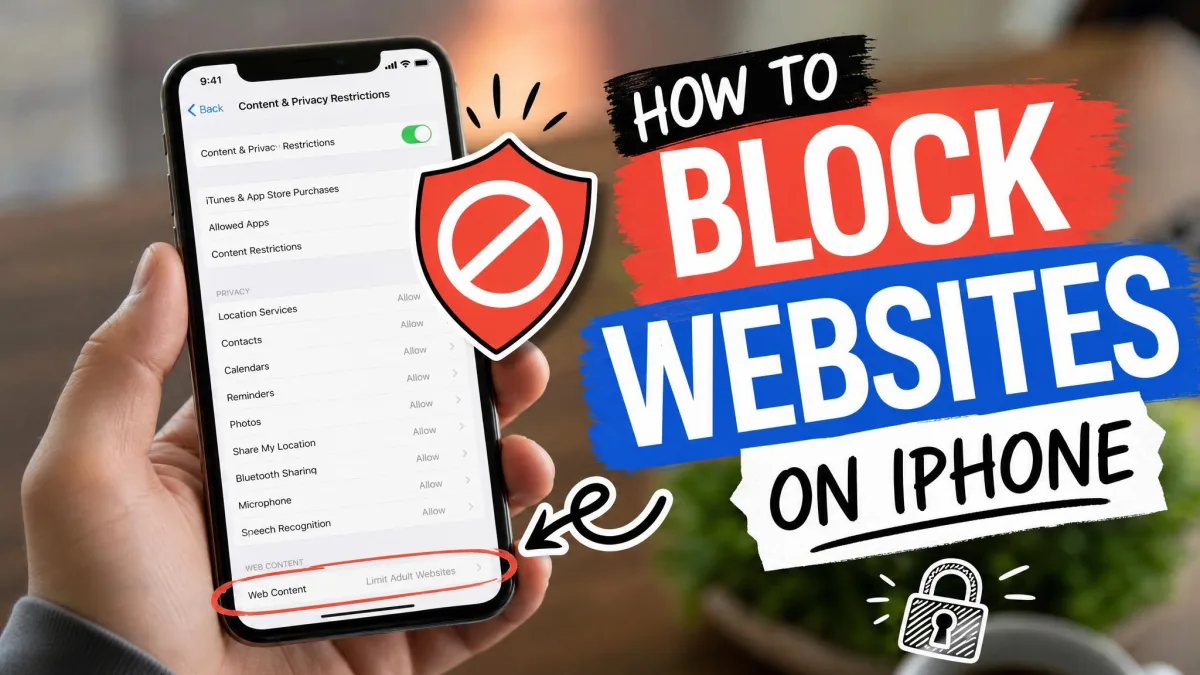
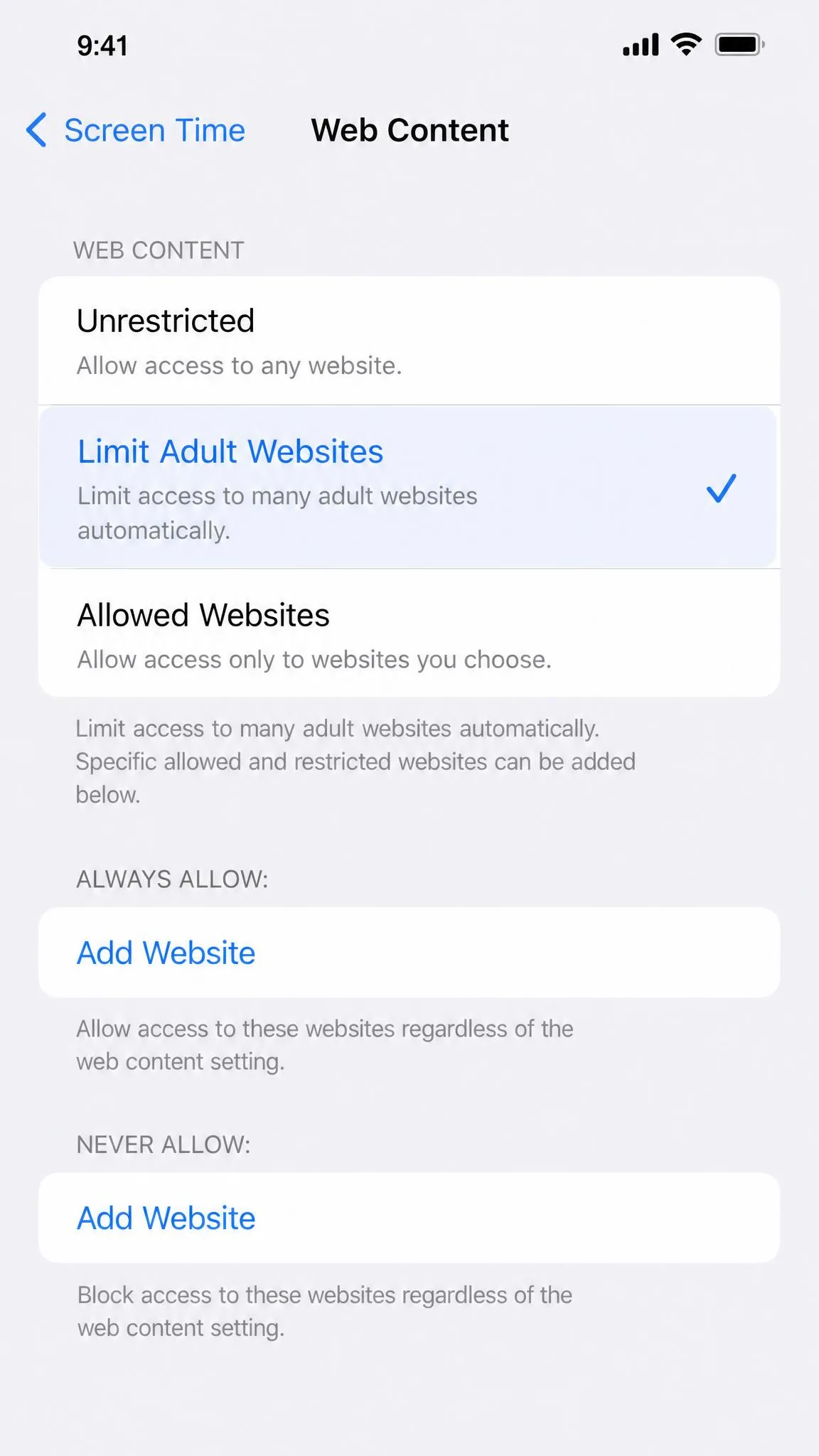
Apple's Screen Time has a web-content filter built into iOS and iPadOS. Open Settings, tap Screen Time, then Content & Privacy Restrictions, then App Store, Media, Web, & Games, then Web Content. Apple Screen Time restrictions cover the whole path.
Three options appear. Unrestricted leaves everything open. Limit Adult Websites blocks Apple's list of adult sites and turns off private browsing in Safari. Allowed Websites Only keeps the browser to a short list you approve.
Set a Screen Time passcode before you leave this screen. Without one, anyone can open Settings and undo the block in seconds. With Family Sharing, create the child's Apple Account and turn on restrictions before setting the web-content limit.
Use a Screen Time passcode that differs from the device passcode. Anyone who knows the device passcode can reach Screen Time settings otherwise.
One limit matters: Screen Time's web filter covers Safari. Installing Chrome or Firefox sidesteps it, so pair this with a family DNS filter.
Block Adult Sites on Android with Family Link & Digital Wellbeing
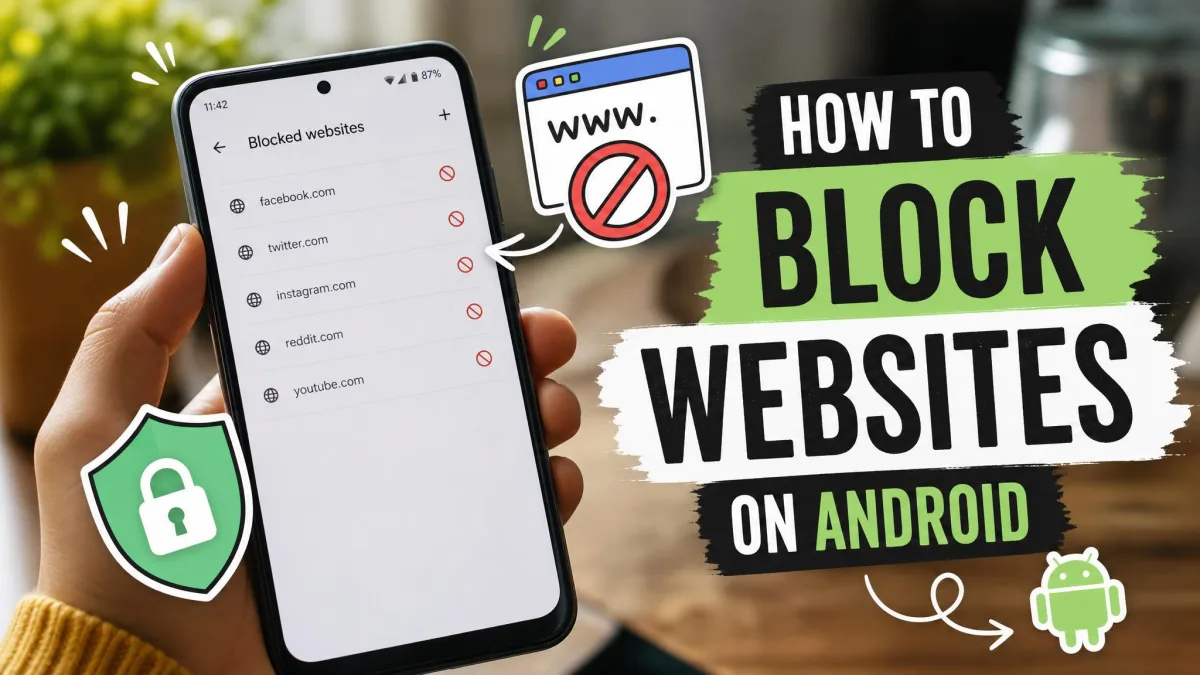
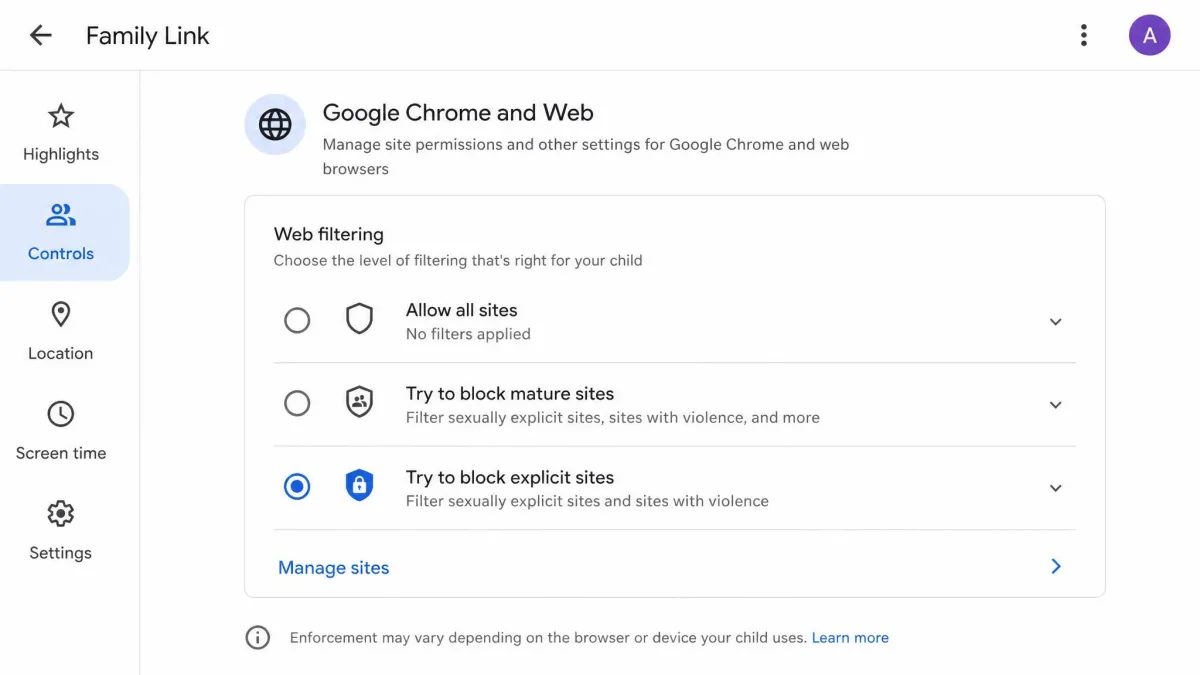
Family Link is Google's parental control app for Android. It requires a child Google Account that you manage. In the app, open Controls and tap Google Chrome and Web to reach the content filters. Google Family Link content filters offer three levels: Allow all sites, Try to block explicit sites, and Only allow approved sites.
Choose the middle option for typical filtering, then add specific sites to the block or allow lists as needed. Incognito mode stays off while the child is signed in to Chrome with the managed account.
Family Link's browser controls also work on Chromebook, iPhone, iPad, Windows, Mac, and Linux while the child stays signed in to Chrome. On those devices, signing out of Chrome or opening another browser drops the filter.
Watch the bigger loopholes. Family Link enforces many controls locally, and a determined kid has escape routes such as changing the clock, cloning apps, or resetting the device. Digital Wellbeing mainly handles app timers, not adult-content filtering, so it is not a replacement for Family Link.
Block Adult Sites on Windows & Mac (Family Safety, DNS, Hosts File)
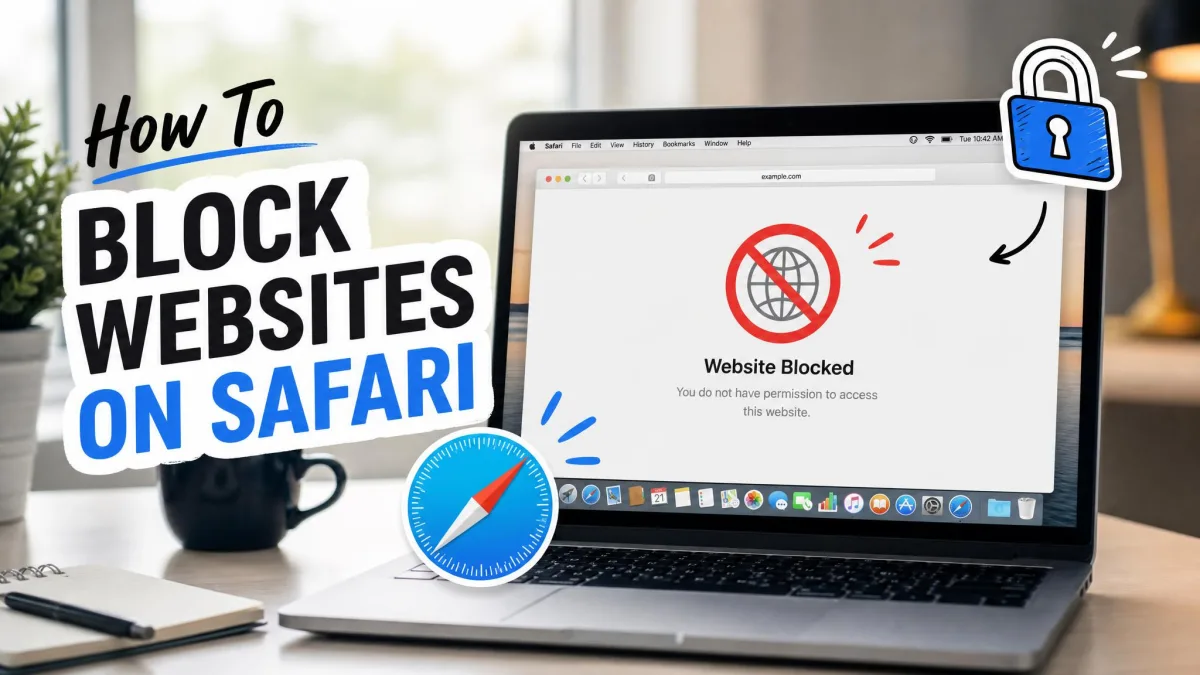
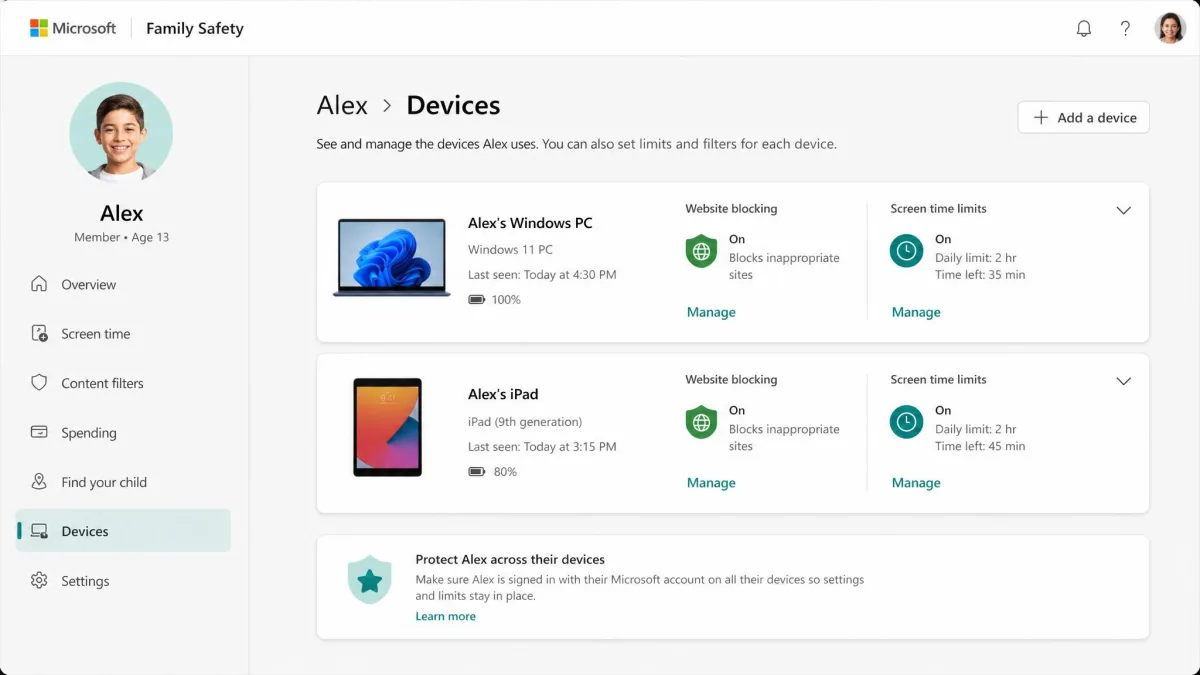
On Windows, Microsoft Family Safety is the built-in option. Set up a family group at account.microsoft.com/family, add your child's Microsoft account, and block websites and searches from the organizer dashboard. Microsoft's guide to filtering websites and searches walks through the individual settings.
In our testing, one limit kept coming up: the web filter covers Edge, so Chrome and Firefox are not filtered. Keep a family DNS filter in place for those browsers. The family group extends to Xbox and the mobile apps.
On a Mac, there is no one-click adult filter. The most reliable free route is Apple Screen Time, which also runs on macOS, plus a family DNS service on the device.
A more manual option is the hosts file. Add adult domain names so they resolve to a dead address. It works, but it only covers the domains you list and is easy to edit back. Treat it as a stopgap, not a full solution.
Router DNS covers every browser on the network, including Chrome and Firefox. Just know that a browser set to use encrypted DNS can bypass it, which is where device-level controls step in.
Block Adult Sites on Smart TVs and Other Devices
Smart TVs are where most people forget to filter. Built-in controls like the Roku PIN, Samsung rating locks, or LG app locks protect the TV's own menus. They do not filter content inside streaming apps or the TV's web browser.
The fix is network-level. Set a family DNS on the router, and every device on the Wi-Fi, including the TV and consoles, inherits the filter. It is the only approach that reliably covers a TV.
For a TV with its own browser, check its settings for a filtering option as a second layer. Router DNS remains the dependable answer.
Use Parental Control Software & Apps (Qustodio, Net Nanny)
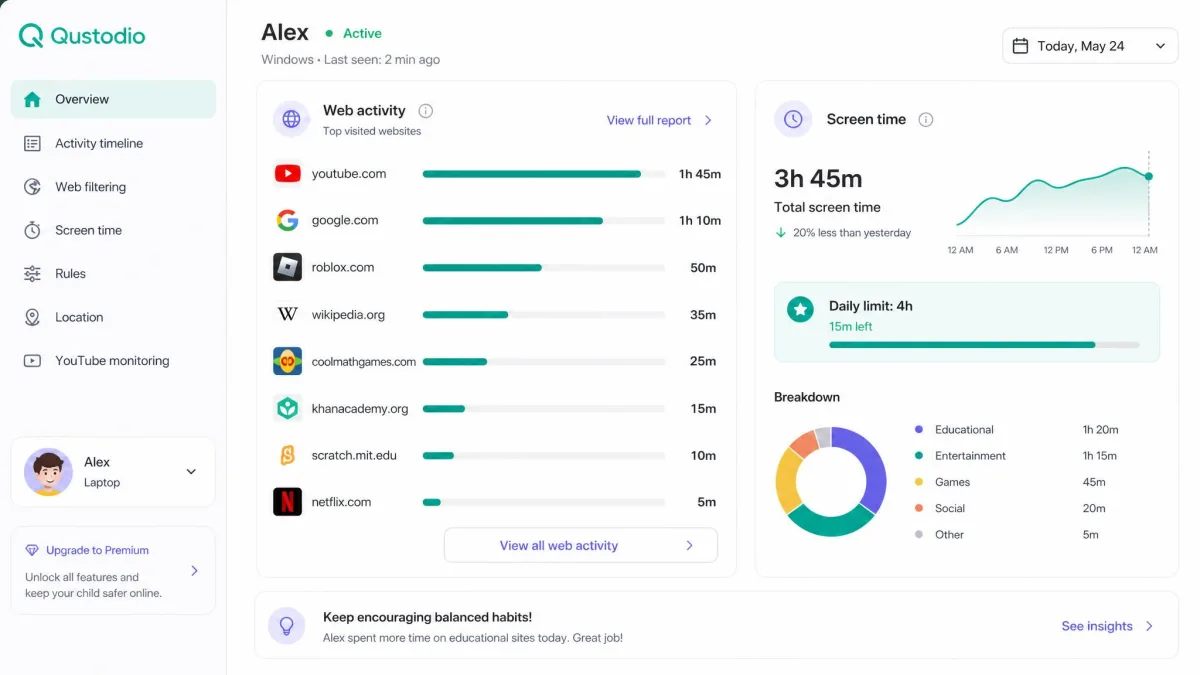
Built-in filters protect the network and the default browser. Parental control apps add the layer parents often want most: visibility. They report what kids search, which apps they open, and how much time they spend on each.
Qustodio is one of the easiest to set up, with clean dashboards. Qustodio's premium plans start with a free single-device plan. Basic Premium costs $59.95 per year for up to five devices; Complete Premium costs $104.95 for unlimited devices. Paid plans carry a 30-day money-back guarantee.
The honest caveats matter. Children can disable or delete the Qustodio app, and site and usage reports can lag several days. Apple's privacy rules also limit the app on iPhone, with no call or message monitoring, limited screen-time depth, and a panic button that stays Android-only.
Net Nanny takes a different route, scanning pages in real time. Net Nanny's family plans run $39.99 per year for one desktop, $54.99 for five devices, and $89.99 for twenty. There is no free tier, and current family plans do not cover Android. It blocks most known adult sites, but in our testing it over-blocked some legitimate pages, ran slowly on the test device, and its tamper protection only asked for the account password.
Both apps earn their place as oversight tools, but neither replaces a network filter, because a filter catches content when an app is not running.

Install a Browser Extension for Extra Filtering
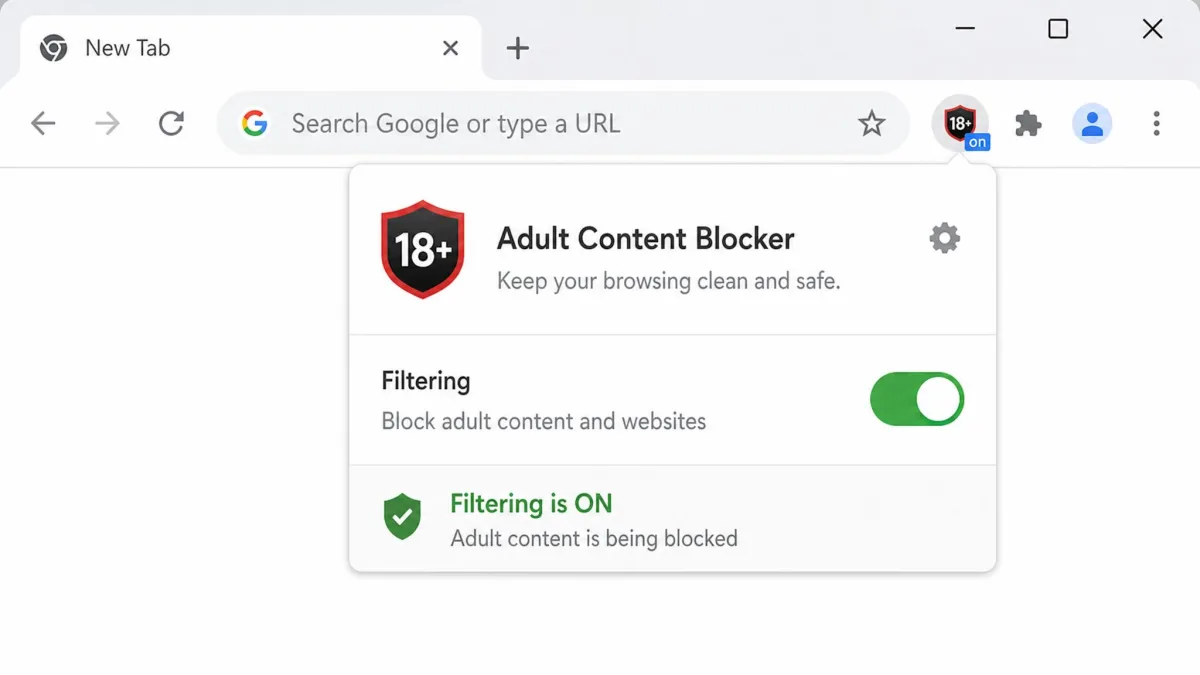
Browser extensions add a filter that runs inside the browser itself, catching adult sites before the page loads. BlockNSFW is a lightweight Chrome option that uses pattern matching and configurable filtering. Search the Chrome Web Store and pick one with recent updates.
Extensions have a clear limit: they only cover the browser they live in. A child can open a different browser, and the extension is gone. Treat them as an extra for a shared family browser, not the main filter.
For phones, the device-level controls matter most. Our guide to how monitoring and spy apps work on iPhone and Android explains the trade-offs there.
Frequently Asked Questions
How do I block adult sites for free?
Can a tech-savvy kid bypass these filters?
Will DNS filtering slow down my internet?
Do I need separate blocking for mobile data?
How do I block porn on Smart TV?
How do I block adult sites on iPhone and Android for free?
The Bottom Line
Blocking adult sites on every device comes down to three moves. Set a family-safe DNS on your router to cover the whole network. Turn on SafeSearch plus the built-in filters on each phone, tablet, and computer. Then decide whether your family wants the reporting that parental control apps provide.
Start with the free layers. A family DNS, SafeSearch, Screen Time, and Family Link stop the vast majority of adult content. For visibility into what kids do online, add an app like Net Nanny, which scans pages in real time and reports activity.
No filter is perfect, and a determined kid will find a way around most of them. The layers still do most of the work. Add an honest talk about why the filters exist, and you have a setup that protects the whole house.