Parental controls are tools that let you limit what your child can see and do online. They filter websites, cap screen time, block apps, and show you how your kids use their devices.
Every device in your home comes with some form of parental control, and most of it is free. Phones, tablets, game consoles, and even your Wi-Fi router can all be set up to help keep your child safe. This guide explains how the controls work and how to set them up on the devices your family actually uses.

What Are Parental Controls?
Parental controls are settings that shape what your child can access, how long they can use a device, and what they can download or buy. They work in three layers: built into the operating system, like Apple's Screen Time, Google Family Link, and Microsoft Family Safety; at the network level in your Wi-Fi router or internet service provider; or as a separate app you install, like Bark, Net Nanny, or Qustodio.
Nearly every major platform includes parental controls as standard, and the built-in options are free. They filter websites and media, cap screen time, require your approval for downloads, and show you what your child did and when.
Start with the free controls already built into your child's devices. Add a paid app later only if you want deeper monitoring.
How Do Parental Controls Work?
Parental controls run on a few basic mechanisms. Understand them, and the setup on any device looks familiar.
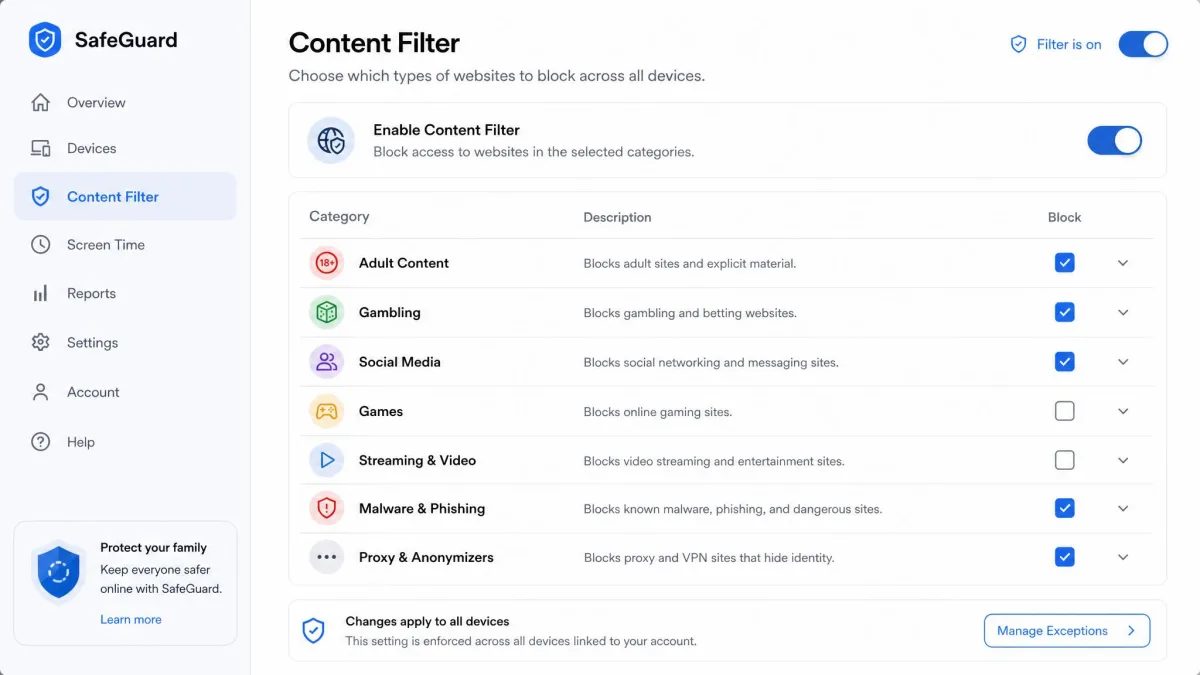
Content Filtering and Website Blocking
Content filters check every web request against a category database. When your child's device asks to load a website, the filter looks up the address and decides in milliseconds whether to allow it. Sites are sorted into categories like adult content, gambling, malware, and social media, and you choose which ones to block. That same engine lets a router filter your entire home network at once.
Games and video are gated by ratings instead. The ESRB and PEGI rate games, and movie and TV ratings gate streaming, so a control can simply refuse anything above a rating you set. On an iPhone, you can pick between unrestricted web access, an adult-site filter, or a short list of approved websites.
Screen Time Limits
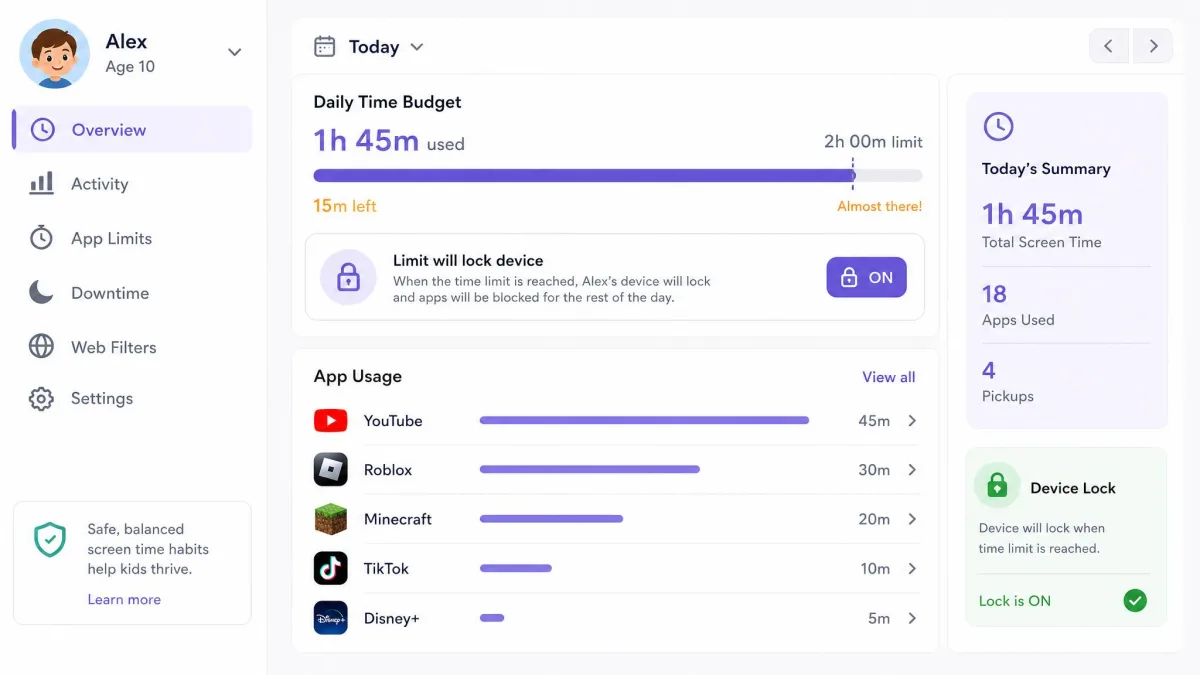
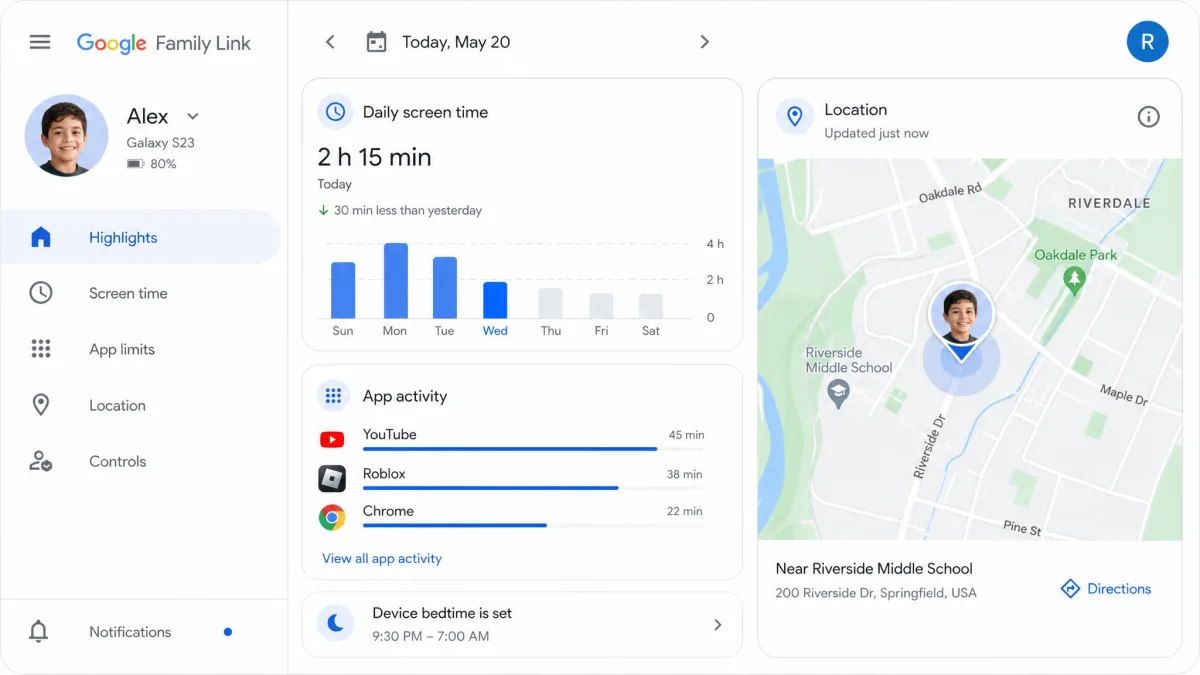
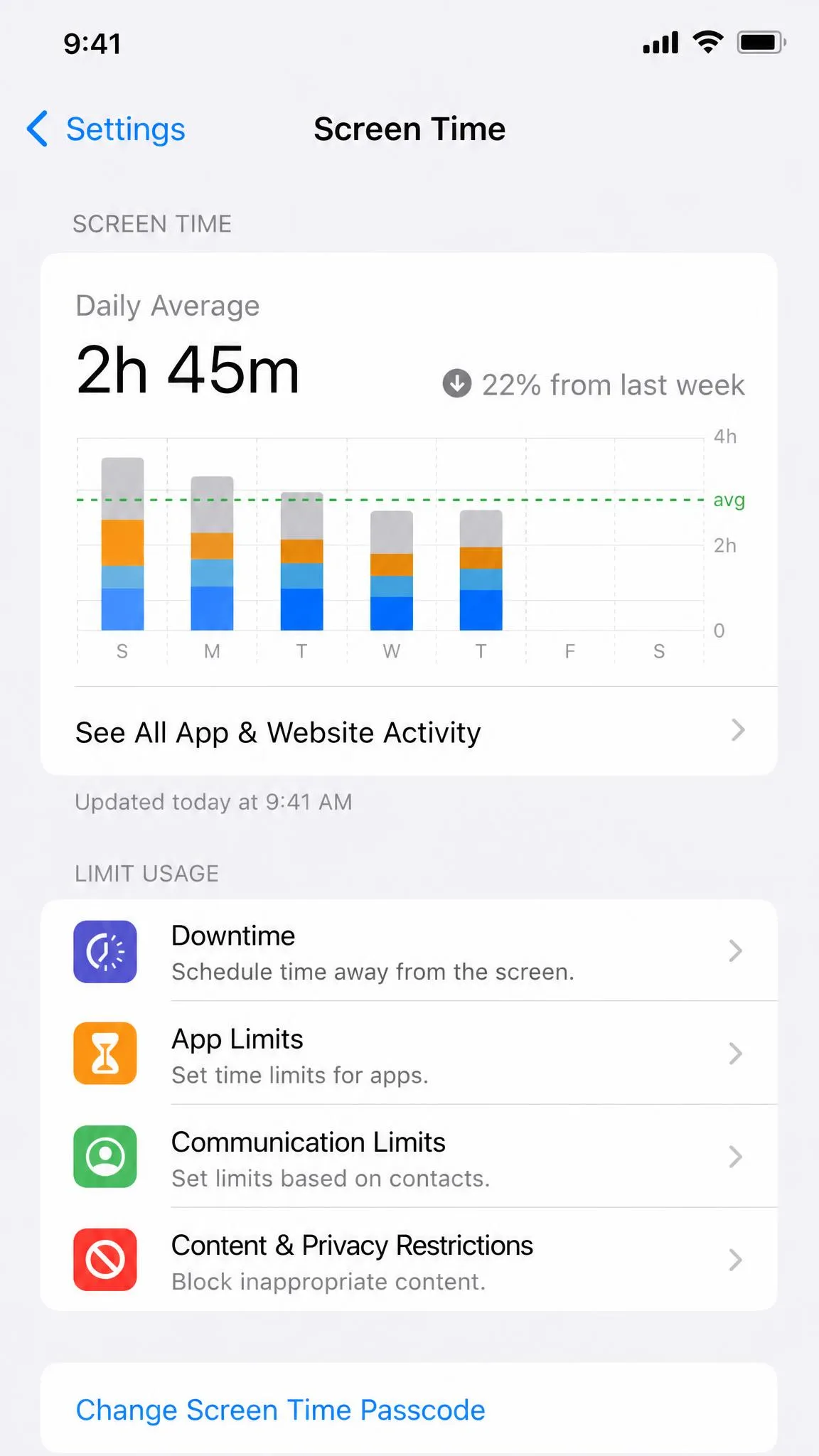
Screen time limits are a clock with a budget. The device tracks how long an app is used, and when the budget runs out, the app locks until the next day. Apple's Screen Time splits this into Downtime, a scheduled off-hours block, and App Limits, per-category or per-app caps, as described in Apple's guide to setting schedules with Screen Time. Google Family Link adds daily limits plus bedtime and school downtime, and Microsoft Family Safety can cap time across Windows and Xbox together, as Microsoft's screen time setup guide shows.
Activity Monitoring
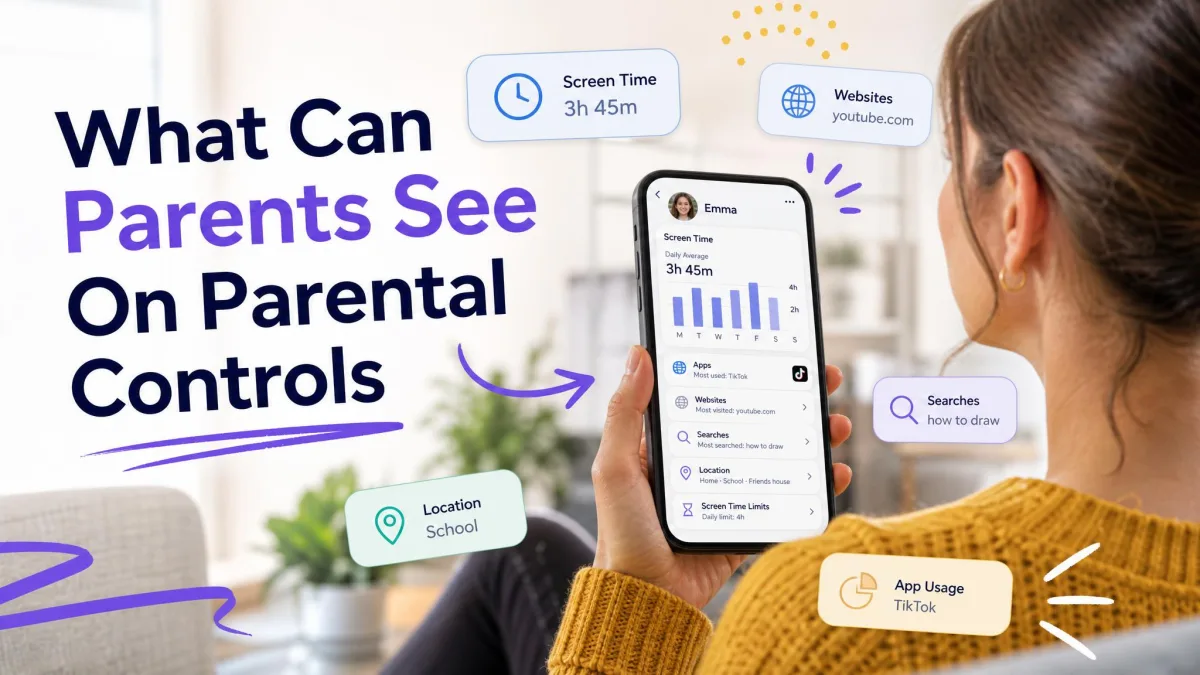
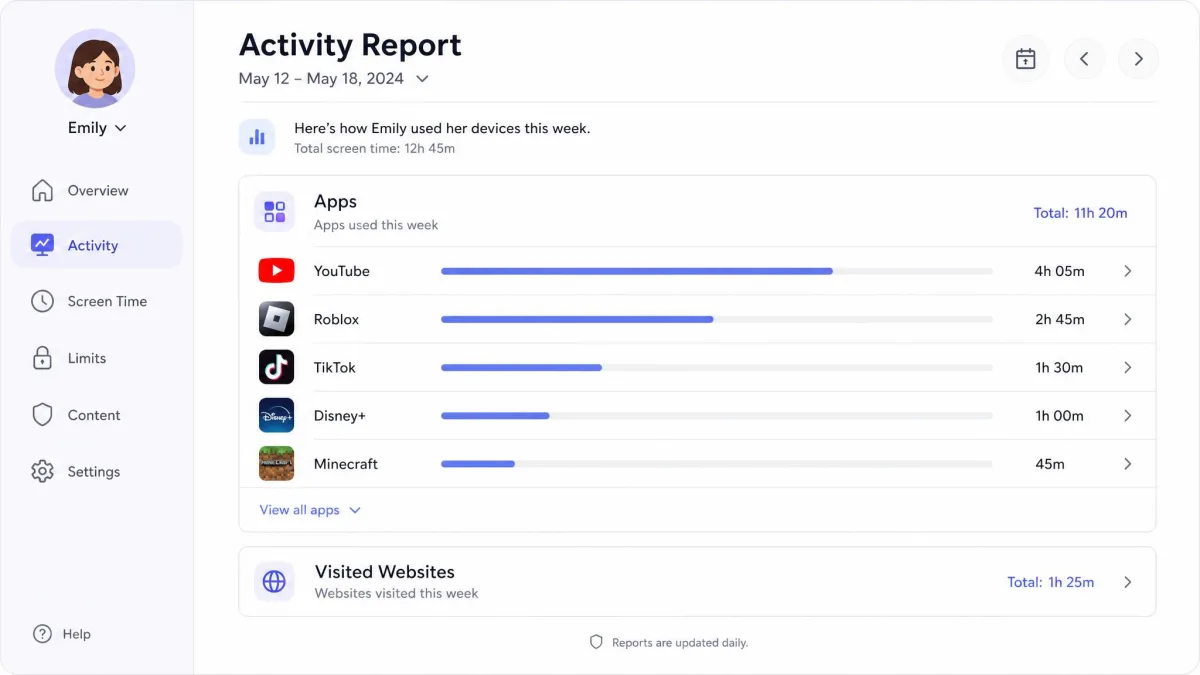
Most controls also produce reports. They show which apps your child opened, how long they used them, and sometimes which websites they visited. Google Family Link can even show your child's location. These summaries are useful for spotting a habit early, though they are a digest, not a full transcript. To go deeper, our roundup of the best apps to monitor your child's text messages covers the tools that read actual message content.
App and Purchase Restrictions
App controls work through approvals. On Android, Family Link can require your permission before a new app downloads, and Apple's Ask to Buy does the same. These approvals only cover the store's own billing system, so in-app or web purchases slip through. Content and Privacy Restrictions also let you hide built-in apps and lock down privacy settings on Apple devices.
Search and SafeSearch Controls
Search engines add a layer of their own. SafeSearch prevents explicit results from appearing in search, and it is switched on by default for children under 13 who are managed by Family Link. YouTube's Restricted Mode and the maturity ratings on app stores work the same way, hiding anything outside the range you set. These settings only protect the app or browser they live in, so pair them with a device-level or router-level filter.
How to Set Up Parental Controls on Different Devices
The basics are free on every major platform. Here is how to set them up on the devices your kids actually use.
Windows and macOS
On Windows, create a family group with Microsoft Family Safety, then add your child and set screen time limits across Windows, Xbox, and Android. Activity summaries show what your child did, and web and search filters are available. One catch: those filters only work in Microsoft Edge, so other browsers are blocked while filtering is on.
Macs use Screen Time, the same system that runs on iPhones. Open System Settings, choose Screen Time, and set app limits and content restrictions. Screen Time is built into iOS 12 and later, iPadOS, and macOS, and the controls sync across every family device.
Android (Google Family Link)
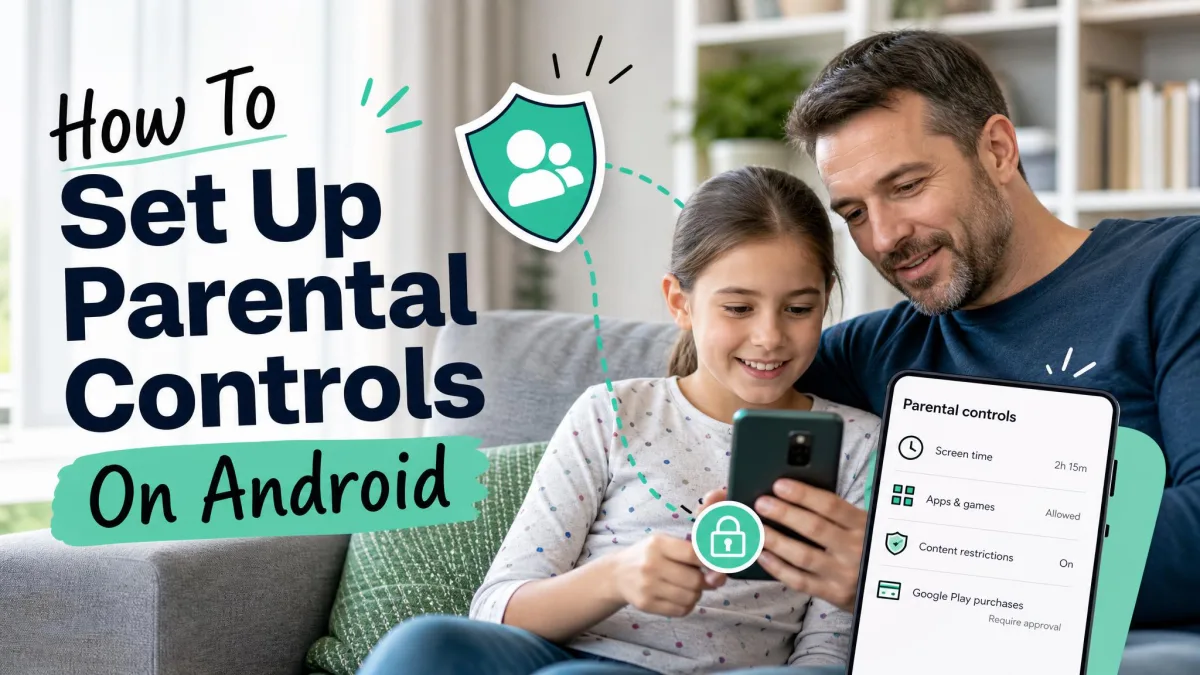
Google Family Link is free. Install it on your phone and your child's device, then create a Google Account for a child under 13. The supervising parent must be 18 or older. Family Link supervises Android 6.0 and later, Chromebooks, and compatible Fitbits, though iPhones and iPads cannot be child devices. From the app you can approve apps, set daily limits and downtime, filter Chrome, and check location.
iPhone and iPad (Screen Time)
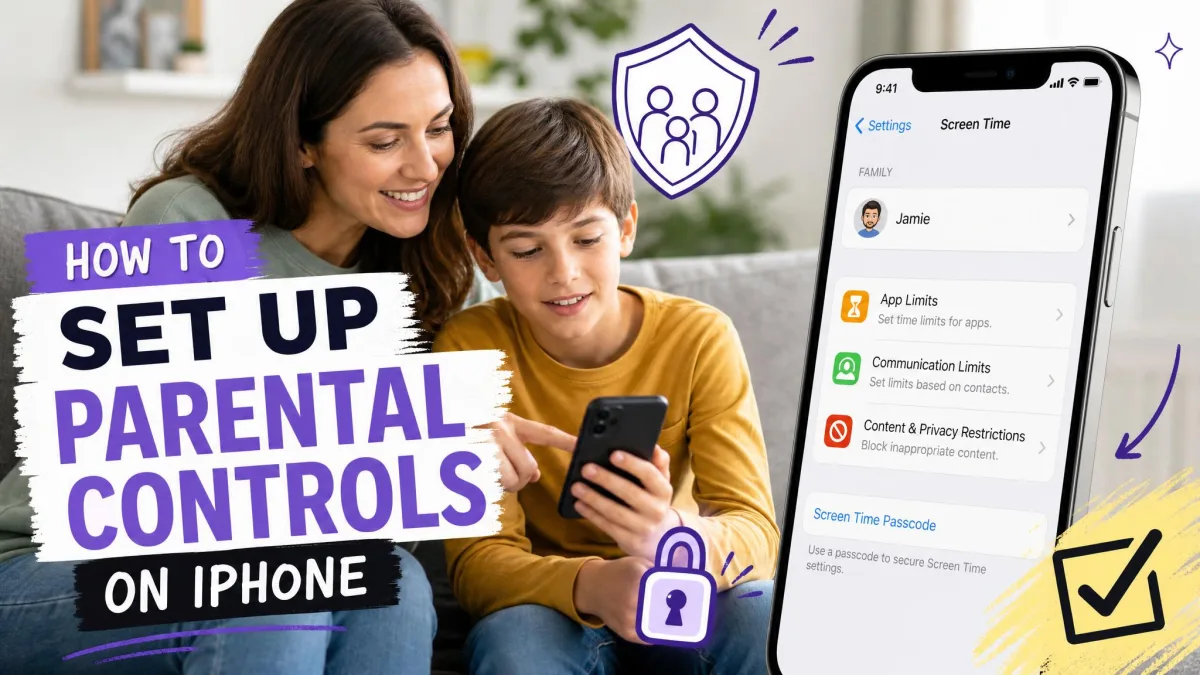
On an iPhone or iPad, Screen Time lives in Settings. Turn it on for your child's device, create a four-digit Screen Time passcode, then choose Downtime, App Limits, and Content and Privacy Restrictions. Communication Limits control who your child can call, FaceTime, or message. Everything is managed through Family Sharing, and those settings sync across every Apple device in the family.
Keep the Screen Time passcode to yourself. A four-digit code is easy to guess or to spot over a child's shoulder.
Web Browsers and Search Engines
Browser-level filtering is the fastest setup. Turn on SafeSearch in Google search, switch on the browser's built-in controls, or add a filtering extension. YouTube's Restricted Mode filters mature videos. These settings are quick, but they only cover the app they run in, so pair them with device or router controls.
Gaming Consoles
Consoles have their own parental controls, and they lean on the ESRB rating system. Xbox runs on Microsoft Family Safety, so the limits you set on Windows apply on the console too. PlayStation and Nintendo Switch offer family accounts with age-based restrictions of their own.
Wi-Fi Routers
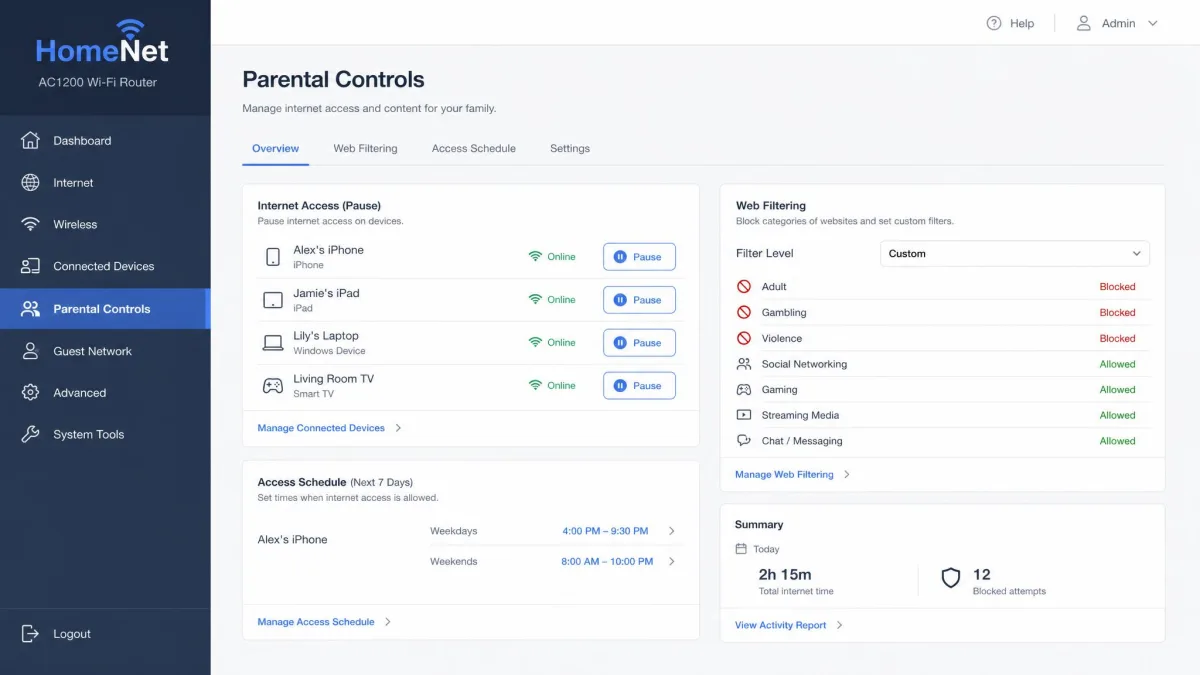
Your router can filter every device on the home network at once. Router and ISP controls use DNS filtering, which checks each site request against a blocklist before the page loads, with no app needed on any device. The trade-off is that network-level controls stop the moment your child uses mobile data or joins another Wi-Fi network.
We recommend starting with your router's settings because they cover every device in the house at once.
Social Media and Streaming Apps
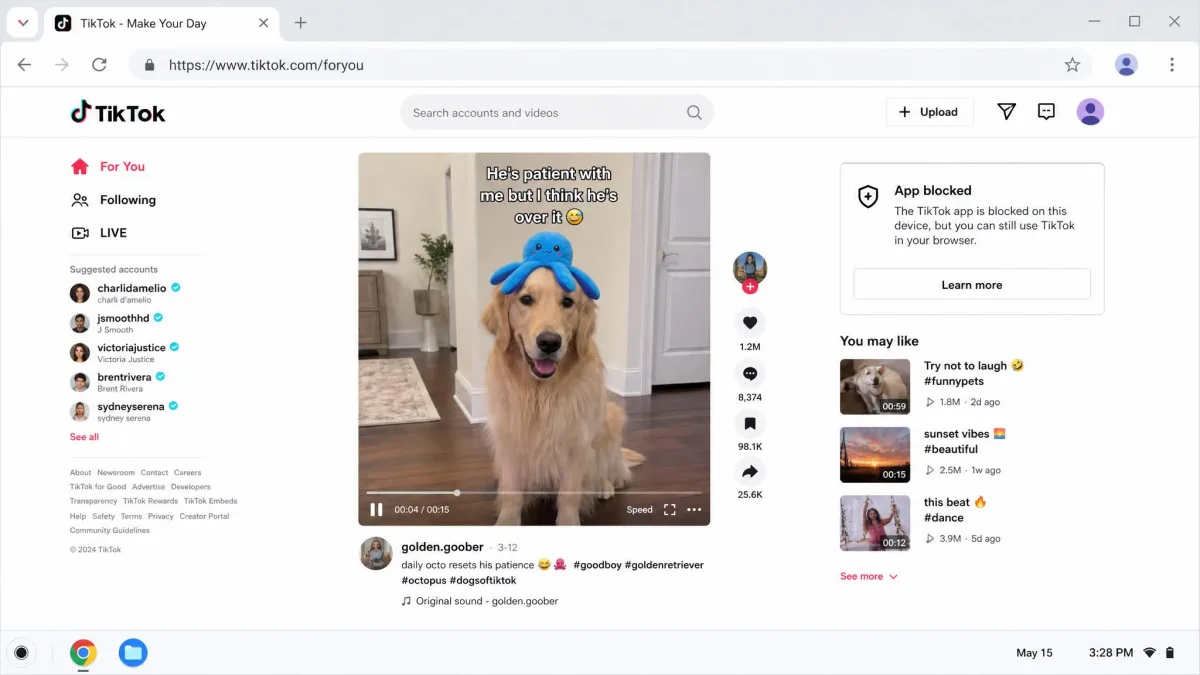
Many individual apps ship their own controls. TikTok's Family Pairing links your account to your teen's and puts screen time, direct messages, and Restricted Mode under your control. Every TikTok account for a user under 18 comes with a default 60-minute daily screen time limit, and reaching it requires a parent-set passcode to continue. Streaming services offer age-based profiles, and Amazon Kids wraps Fire tablets and Alexa in a child-safe environment.
Social media is where much of a child's time online now happens. Up to 95% of teens ages 13 to 17 use a social platform, and nearly 40% of children ages 8 to 12 use one despite the age 13 minimums, per the Surgeon General's advisory on social media and youth mental health.
Third-Party Parental Control Apps
Built-in controls cover the essentials, but third-party apps go deeper. Bark monitors text messages, email, and more than 30 social platforms for signs of cyberbullying, predators, and depression, and it works on unlimited devices. Qustodio gives you granular per-app time limits, like a 45-minute daily cap on TikTok, plus detailed activity dashboards. Net Nanny filters content on Windows, macOS, and iOS, with plans from about $40 a year for one device.
Pricing shifts with plans and promotions, and Net Nanny dropped Android, Chromebook, and Kindle support in early 2024, so check its current device list first. Our roundups of the leading parental control apps for Android and the iPhone parental control apps are a good place to start.

Do Parental Controls Actually Work?
The honest answer is that parental controls work best as one layer of a larger plan. A 2023 review of 40 studies found the evidence for them as a standalone solution is mixed, with some studies finding little effect and others reporting adverse outcomes like family conflict and eroded trust.
That does not mean you should skip them. A 2016 Pew Research survey found that 61% of parents had checked which websites their teen visits, and 39% used parental controls to block, filter, or monitor activity. Child-safety charity Internet Matters found that 50% of UK parents now use parental controls, up from 43% three years earlier. The American Academy of Pediatrics notes that 89% of features in parental online-safety apps focus on control, while only 11% support teen self-regulation. The FTC's guidance on parental controls is clear that they help, but there is "really no substitute" for talking with your child about family rules.
How Kids Bypass Parental Controls
Kids work around limits faster than most parents expect. The most common trick is opening the website version of a blocked app, like Discord or TikTok, right in the browser. Screen Time's "one more minute" prompt lets a child keep granting extra time, and the four-digit passcode is easy to guess or watch over your shoulder. We have also seen kids screen-record YouTube during allowed hours and watch the clip later, and deleting and reinstalling an app resets its restrictions.
Some gaps are deeper and took years to fix. A bug that let kids dodge Safari's web filter by typing a specific string into the address bar went unfixed for about three years until a Wall Street Journal report prompted a patch in June 2024. A 2025 Google Family Link bug blocked outgoing calls on supervised devices while incoming calls and texts still worked. Even when the controls work, step-by-step directions for undoing them are easy to find online, so audit your settings now and then.
Common Limitations of Parental Controls
Every control has a boundary. Network-level filters stop the moment your child leaves your Wi-Fi and uses mobile data or another network. Browser filters only cover the browser they run in, which is why Microsoft's web filtering only works in Edge. A router-level filter cannot see inside encrypted traffic, so it decides based on the site address rather than the page content. Screen time is often enforced by sign-in time, so idle minutes count against the limit even though they do not show in the report.
Best Practices for Using Parental Controls
Used well, parental controls are a family agreement for your digital life, not a surveillance system. If you are wondering where the line sits between oversight and spying, our explainer on how do spy apps work covers the more invasive end of that spectrum.
Talk to Your Kids and Set Family Rules
Open communication beats any filter. Sit down with your child and agree on screen time, which apps are off limits, and what happens when a limit is hit. Kids who understand the reason behind a rule are far less likely to fight it. For the balance side of that conversation, our guide to how to monitor your kid's phone usage without invading their privacy is a useful read, along with the eSafety Commissioner's parental controls guide.
Adjust Controls as Your Child Grows
Parental controls should change as your child gets older, and the platforms know it. Family Link treats age 13 as a milestone and notifies both parent and child, and Apple switches some controls on automatically based on age. The details differ by platform, however, so plan to review your settings every few months. Loosen what no longer fits, keep what still protects, and hand over more independence as your child shows they are ready for it.

Frequently Asked Questions
What do parental controls do?
Can kids bypass parental controls?
Do parental controls turn off at a certain age?
Can I remove parental controls?
Do paid parental control apps work better than the built-in ones?
The Bottom Line
Parental controls are worth setting up on every device your child uses. The free tools from Apple, Google, and Microsoft cover most families' needs, from filtering to screen time and approvals. No control replaces judgment, however. Start with the free settings already in place, add a router-level filter so the whole home is covered, and talk to your kids about why the rules exist. Review the controls as your child grows and keep the conversation going. Good tools plus open communication is what actually keeps children safer online.