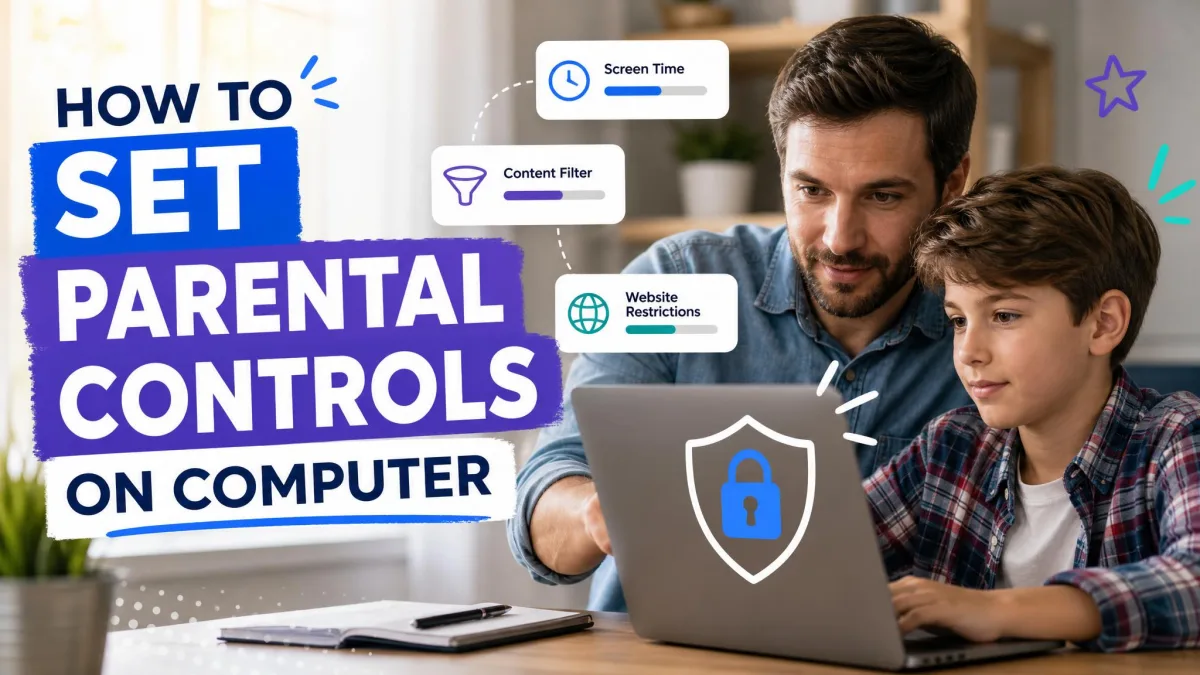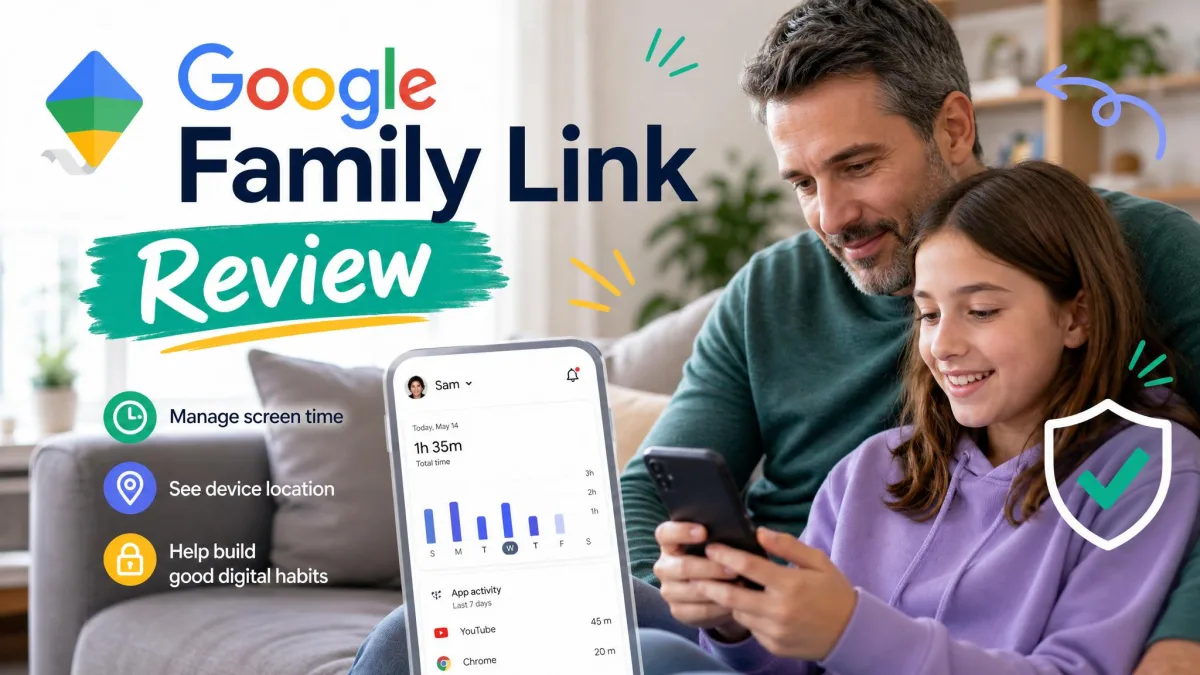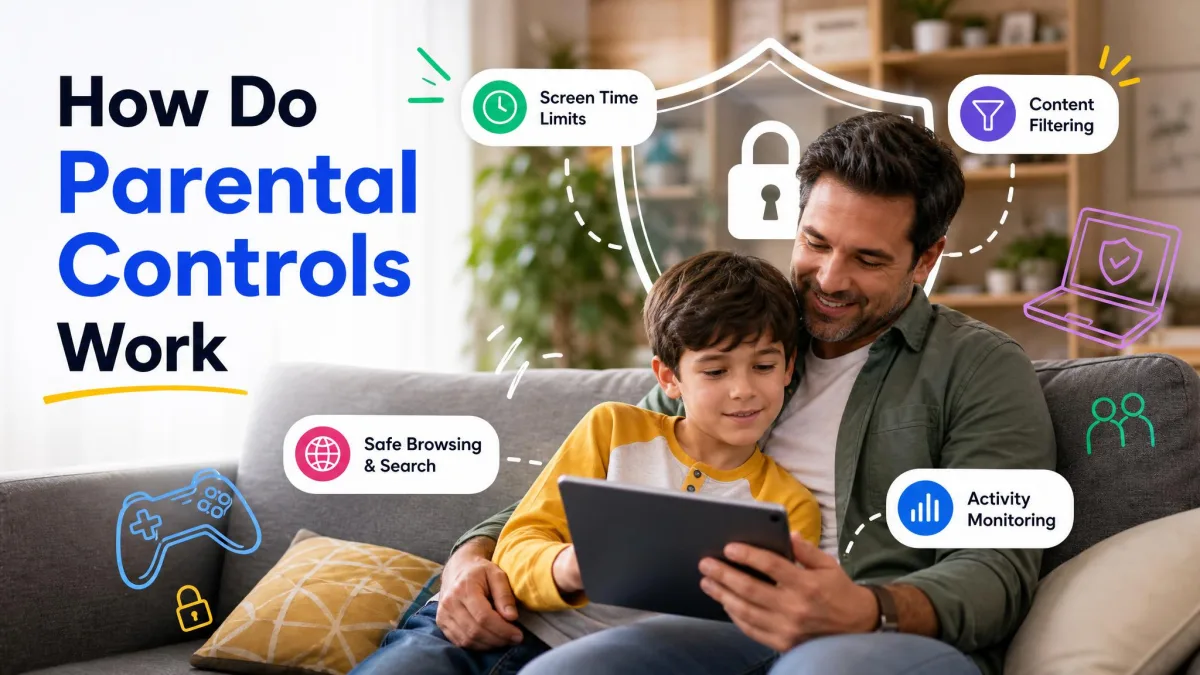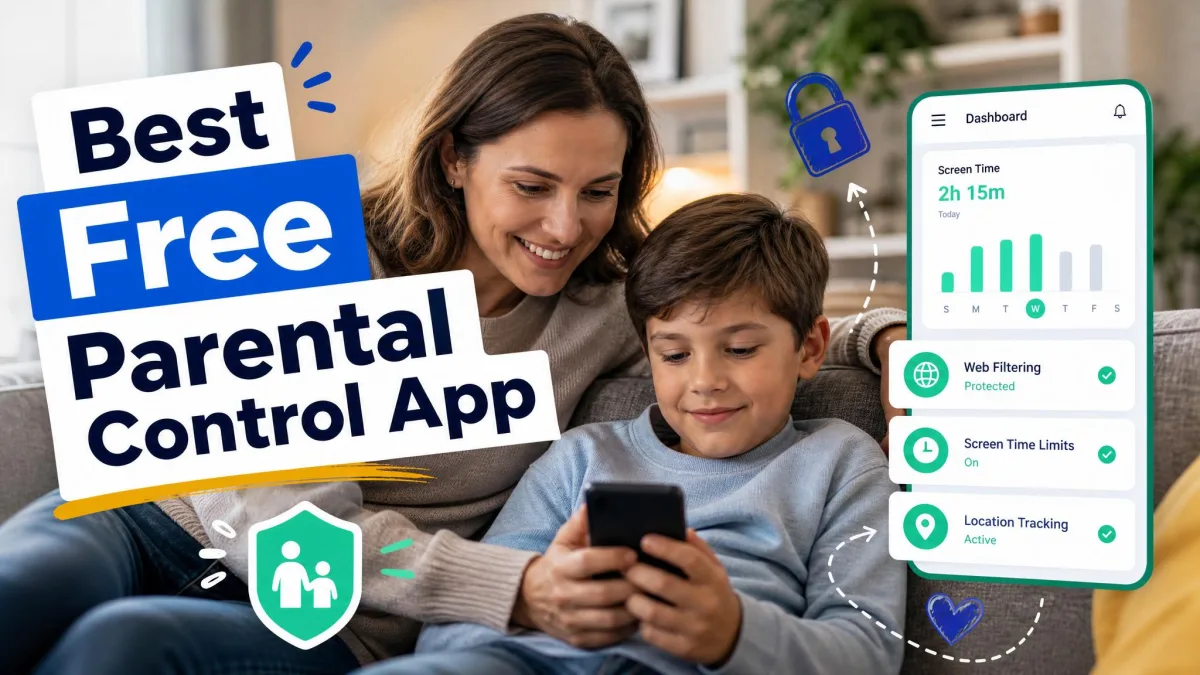
Microsoft Family Safety is a free set of parental controls that helps you manage screen time, filter web content, review activity reports, and oversee purchases for your children across Windows, Xbox, Android, and iOS. It is built into Windows 10 and 11 and also available as an app for your own phone. One naming detail confuses nearly everyone: Microsoft Family Safety is not Microsoft 365 Family. The first is free and focused on child safety, and the second is a paid productivity subscription. This guide explains what Family Safety does, how a family group works, and how to set it up step by step.
Microsoft Family Safety vs Microsoft 365 Family: The Naming Confusion, Explained
The names look alike, but these are two separate products. Family Safety is the free parental-control system built around a family group. Microsoft 365 Family is a paid subscription that brings Office apps, cloud storage, and Copilot to your household.
What you get free with Family Safety
Every Family Safety feature is free, with no paid tier and no trial, which makes it a genuinely free parental-control suite. That includes:
- Screen time limits for devices, apps, and games
- Web and search content filters that work in Microsoft Edge
- Weekly activity reports
- Purchase controls and spending limits
- Approval for requests your child sends when they hit a limit
Microsoft's Microsoft Family Safety product page is the authoritative reference for the full list.
What you pay for with Microsoft 365 Family
Microsoft 365 Family is a separate subscription at $129.99 a year or $12.99 a month after a one-month free trial. It covers up to six people, lets each person sign into five devices at once, and includes up to 6 TB of cloud storage split as 1 TB per person. You get Word, Excel, PowerPoint, Outlook, OneNote, OneDrive, Microsoft Defender, and Teams. Buying it adds no parental-control features. Microsoft 365 Family is a productivity purchase, not a safety one.
| Feature | Microsoft Family Safety | Microsoft 365 Family |
|---|---|---|
| What it is | Free parental-control suite | Paid productivity subscription |
| Cost | Free | $129.99/year or $12.99/month |
| Screen time limits | Yes | No |
| Web and content filters | Yes, in Microsoft Edge | No |
| Activity reports | Yes | No |
| Who it is for | Parents managing kids on Windows, Xbox, Android | Households that want Office apps and cloud storage |
What Is a Microsoft Family Group?
A family group is the connection that makes Family Safety work. It links your Microsoft account with your children's accounts so the settings you configure in one place apply across every device they sign into. Microsoft's getting started with Microsoft Family Safety article is the clearest official walkthrough of how a group is organized.
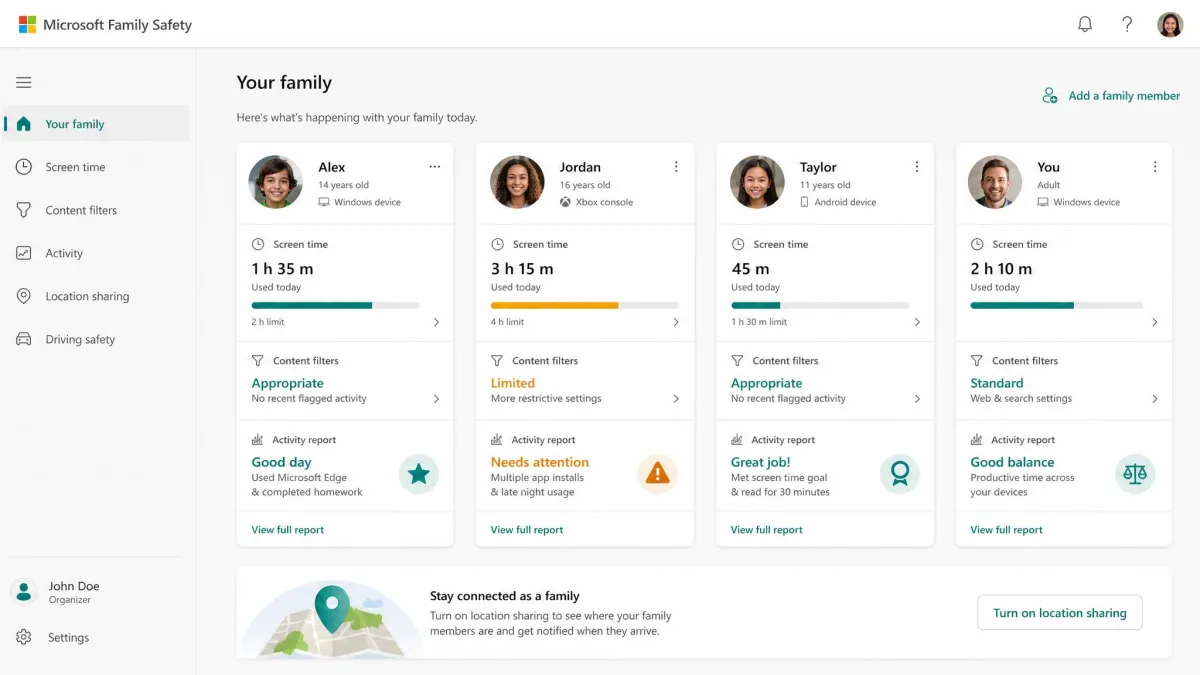
How a family group connects Microsoft accounts
Each member signs in with their own Microsoft account. You create a Microsoft account for a child who does not have one, or add an account they already use. Once linked, the child's sign-in on any family device reports back to the organizer's dashboard. The family portal is where you see every member and the settings applied to each one.
The organizer role and family roles
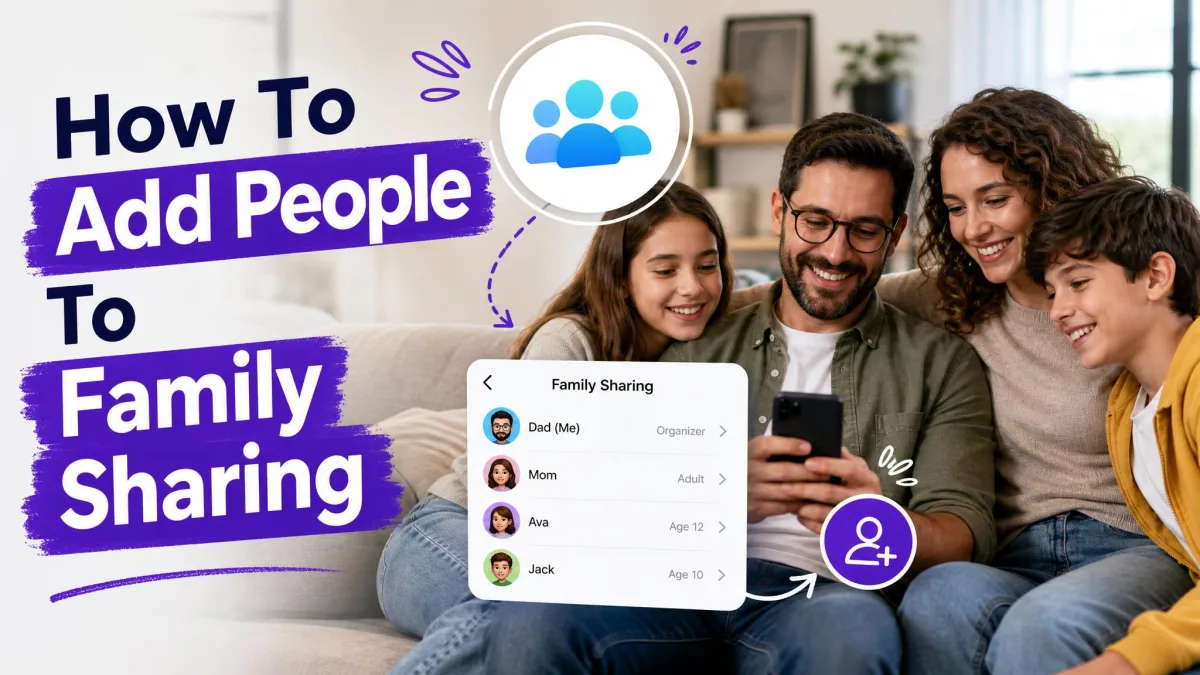
Family organizers are the administrators of the group. They can add and remove members, manage limits and permissions, and view activity reporting details. Children and other adults are members with their own settings. When you first set things up, you will Add people to your family group from the same portal.
Core Microsoft Family Safety Features
Once your family group exists, these are the controls you can apply to each child.
Parental controls: what Family Safety lets you manage
Parental controls in Family Safety cover the everyday levers parents care about: screen time, content filters, app and game limits, activity reports, and purchase approvals. You apply them per child, so a younger child can have stricter limits than a teenager.
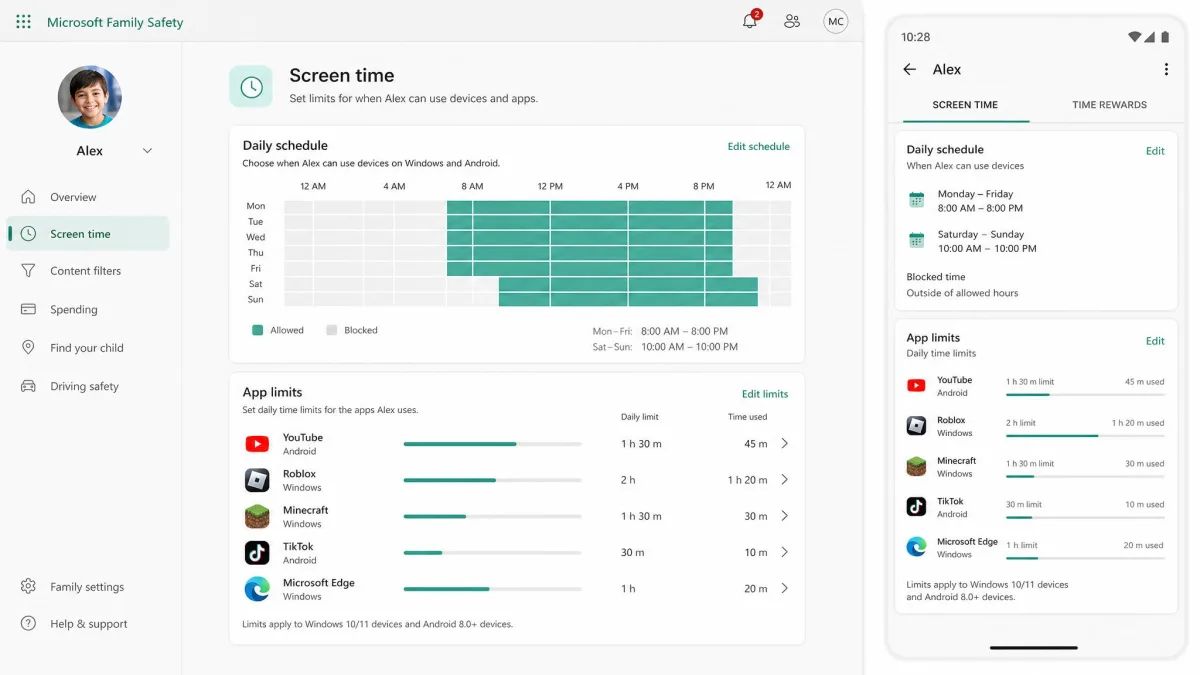
Screen time limits
Screen time limits let you cap how long a child uses a device, an app, or a game, and schedule when those limits apply. They work on Windows 10 and 11, Xbox One, Xbox Series X/S, and Android apps and games, and you manage them with the Family Safety app on Android or iOS. When a child hits a limit, they can send you a request for more time, which you approve or decline from your phone. Enforcement on Android has shown real-world inconsistencies, with some children able to keep using apps past their scheduled limit.
Content filters and web safety
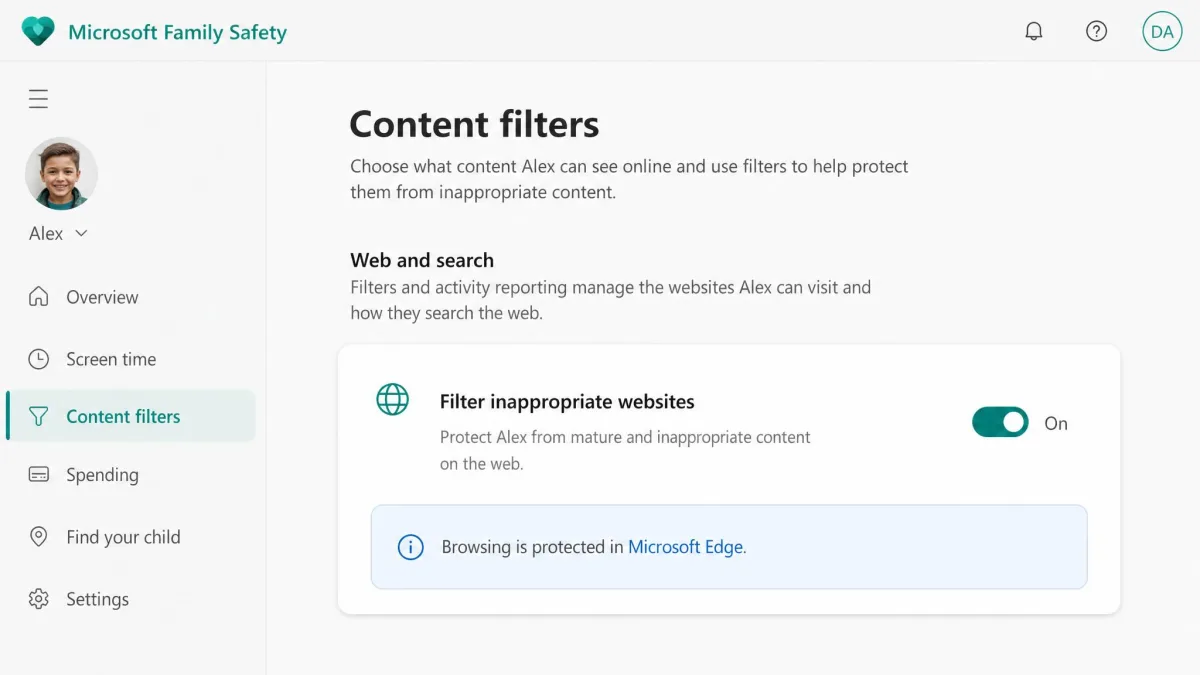
Web and search content filters are the most talked-about feature, and they come with a catch: filtering works only when your child browses in Microsoft Edge on Windows, Xbox, or Android. Turning the filter on blocks other browsers from launching, so a child cannot bypass it by opening Chrome. We confirmed that behavior in our testing, and disabling the filter lifts the block and removes the protection at the same time. Because all filtered browsing happens in Edge, that is the browser your child will actually use. If Edge misbehaves, our guide to how to clear cache on Microsoft Edge covers the common fixes.
App and game restrictions
Beyond screen time, you can block specific apps and games by age rating or by name. Family Safety applies content restrictions to app and game purchases and to what a child can install from the Microsoft Store. You can also restrict individual apps on a child's Windows and Android devices.
Activity reports and monitoring
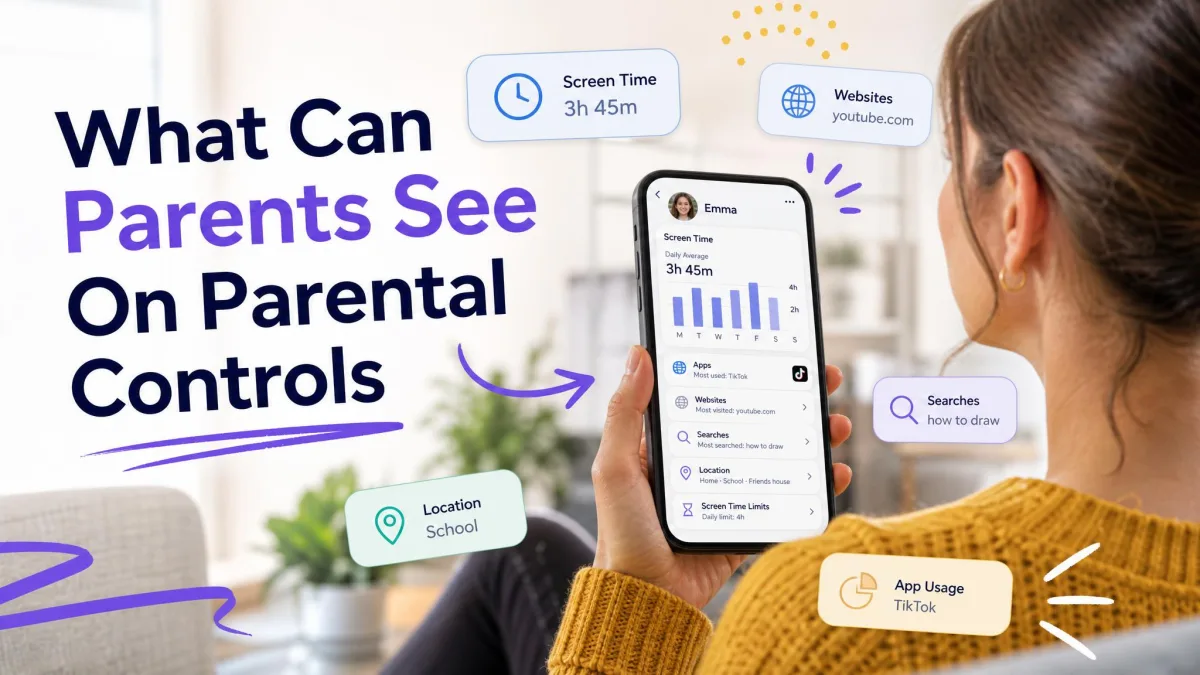
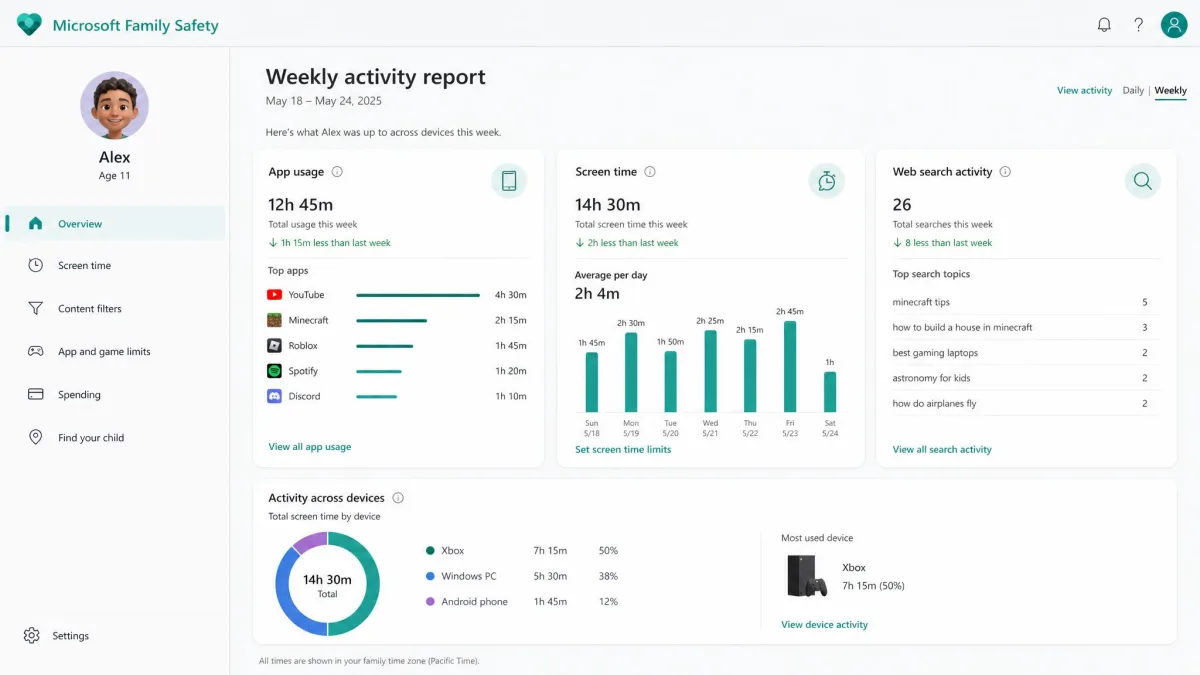
Activity reports give you a weekly digest of how your child spent their time online, including apps and games used, hours per device, and web searches. One quirk we ran into during testing: screen time is enforced against signed-in time including idle time, but the activity report does not count that idle time, so the report can show far less usage than was actually limited. An incorrect time zone on a child's device can also push usage to the wrong day.
Location sharing (and what changed in 2024)
Location sharing used to be part of Family Safety, and in 2024 it quietly went away. Microsoft discontinued the location and driving safety features, which were Android and iOS only, and families who had chosen Family Safety specifically for tracking were left without a built-in replacement. We saw the location controls disappear from the app and the family portal with no in-app notice. Location alerts had been a premium Microsoft 365 Family feature.
Watch out for two changes that surprise parents. Web and search content filters work only in Microsoft Edge, and enabling them blocks other browsers from launching, so you either accept Edge or turn the filter off and lose the protection. Location sharing in Family Safety was discontinued in 2024 with no built-in replacement, so do not rely on it for tracking.
Spending and purchase controls
Family Safety also lets you add money to a child's Microsoft account and set spending limits on purchases. When a child tries to buy something, the request routes to you for approval, working alongside the app and game content restrictions.
How to Set Up Microsoft Family Safety (Step by Step)
The whole flow is guided, and Microsoft's Set up Microsoft Family Safety page walks through the same steps.
Step 1: Sign in with your Microsoft account
Go to the Microsoft Family Safety portal and sign in with the Microsoft account you will use as the organizer. This account owns the group and controls every setting, so use the account you check daily.
Step 2: Create a family group
From the portal, choose Create a family group. You will name the group, then add members. The organizer account stays the administrative account unless you hand the role over.
Step 3: Add your child's account
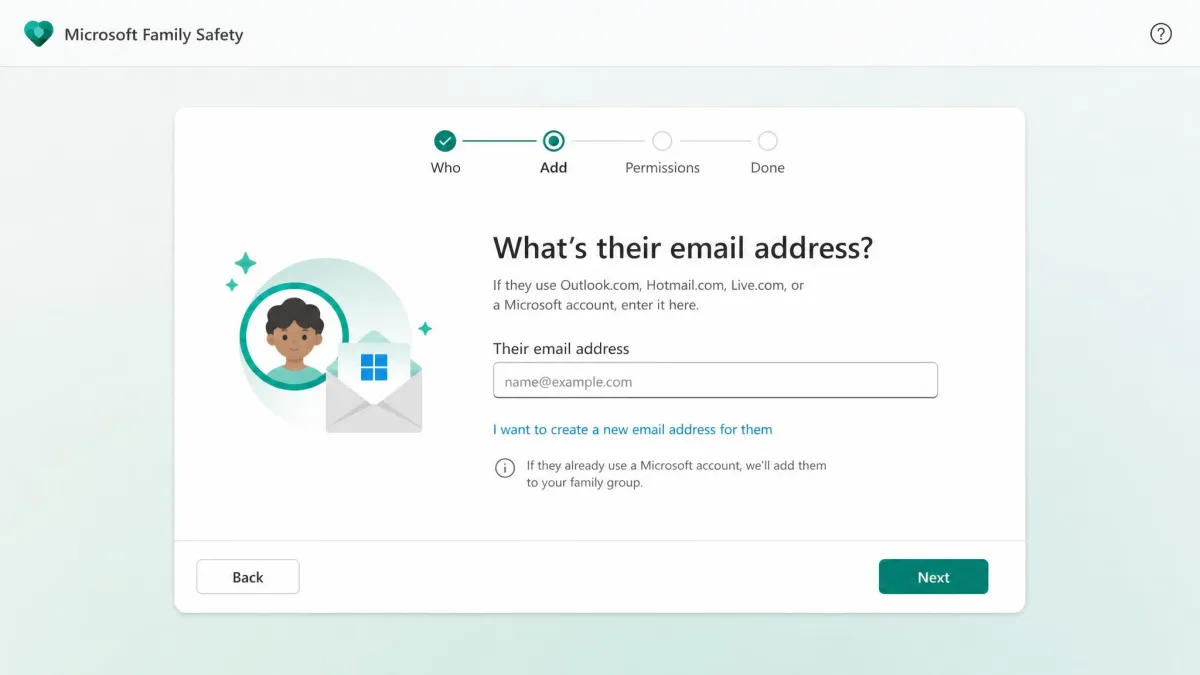
Add each child by email address. If a child does not have a Microsoft account, you create one from the same screen. A child under 13 triggers extra parental-consent steps to comply with child privacy laws, including a credit-card verification that is not charged and is never billed.
Step 4: Configure screen time and content filters
Once the child is in the group, open Family Safety and set screen time schedules, app limits, and content filter levels. The settings apply the next time the child signs into any family device. To manage everything from your phone, Get the Microsoft Family Safety app from Google Play or the Apple App Store.
Quick start: set the content filters and screen time limits before your child first signs into a family device, so the protections are active from the first use.

Microsoft Family Safety Across Devices
Family Safety reaches the devices your kids actually use, but not every platform gets the same treatment.
Windows
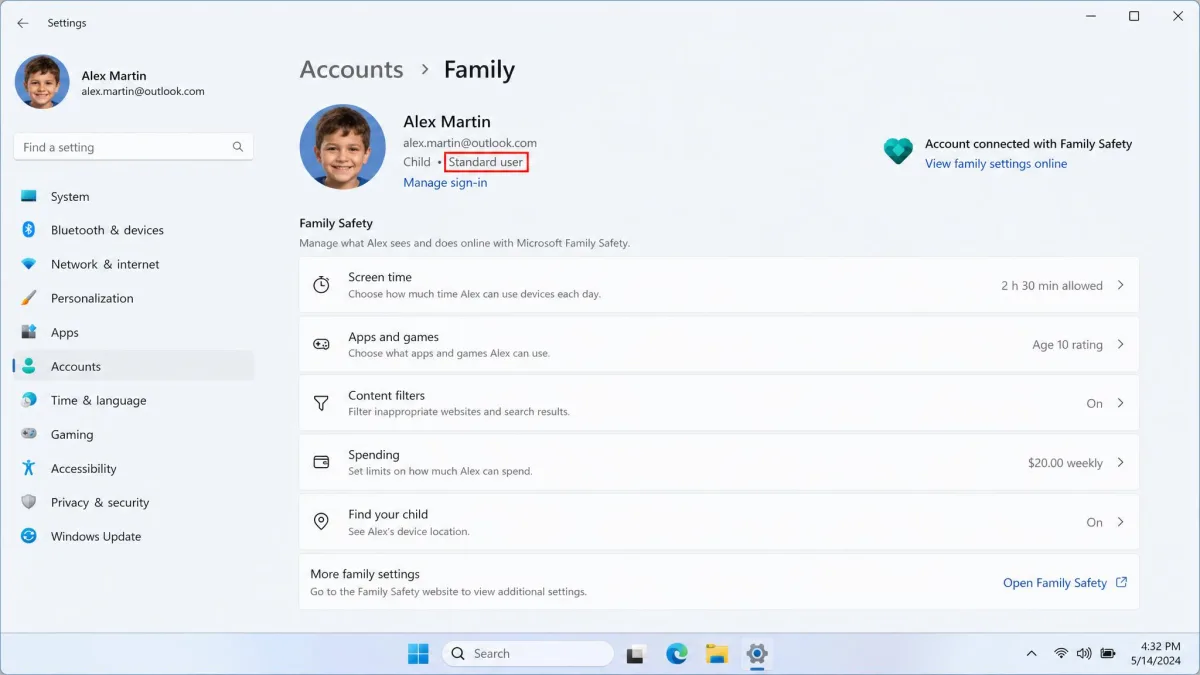
Windows is where Family Safety is most complete. Family Safety's Windows parental controls are built into Windows 10 and 11, so screen time, content filters, and activity reporting work without installing anything extra. The child signs into their own Microsoft account, and the organizer sees activity on the family dashboard.
Xbox
Screen time limits apply to Xbox One and Xbox Series X/S, and the console respects the same schedules you set for Windows. Xbox privacy and online safety settings live in the same family dashboard, so you can check in on game time in one place.
Android
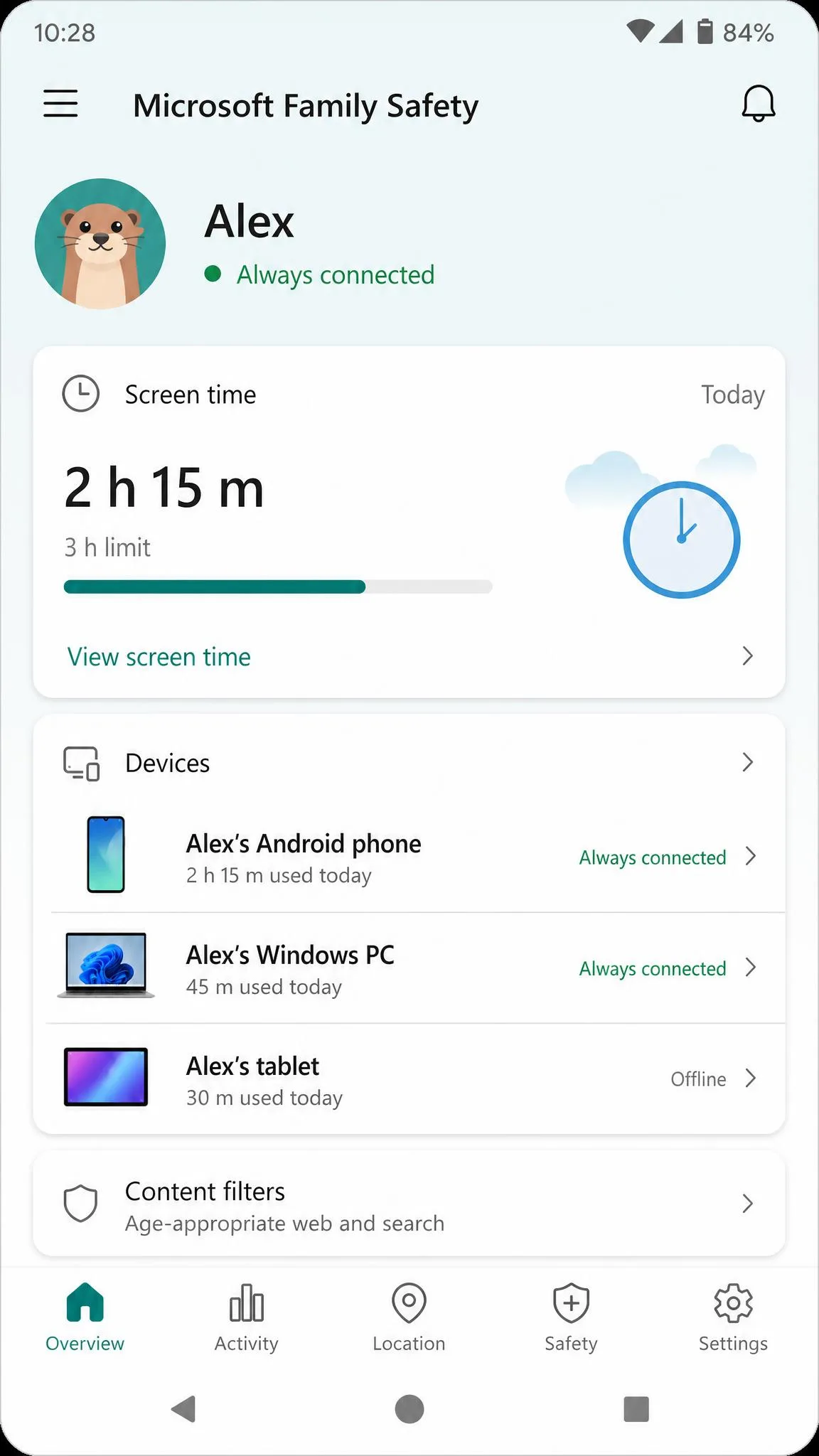
Android apps and games are covered by screen time limits, and the Family Safety app on Android is the fullest mobile build of the tool. If Family Safety does not quite cover what you need on a child's Android phone, our roundup of the leading parental control apps for Android compares dedicated alternatives.
iOS
The Family Safety app exists on iOS, but it is the more limited of the two mobile builds. You can manage settings, review reports, and approve requests from an iPhone, and you can monitor children from a Mac through the web dashboard. Family Safety cannot be installed on children's Macs, so an Apple-only household gets partial coverage. For fuller options on an iPhone, see our guide to the leading parental control apps for iPhone.
Microsoft Family Safety Privacy and Security
Family Safety collects usage data to build its activity reports, which is worth knowing before you set expectations. Children 13 and older can opt out of activity reporting, and once they do, you need their consent to switch it back on. A child set up as an administrator on a device can change or break Family Safety settings, so keeping child accounts as Standard users prevents that. Network-level ad blockers such as Pi-hole can break activity reporting for the whole group. Parents cannot remotely shut down a child's device or take control of it from the dashboard, and Family Safety has no social media, messaging, or text monitoring and no camera or audio features. It is a limits-and-reporting tool, not a spy app.
Microsoft Family Safety vs Google Family Link
Google Family Link is the closest free alternative, and the choice usually comes down to your device ecosystem. Family Link offers full supervision on Android and Chromebooks, while Family Safety is strongest on Windows and Xbox. If your household already runs Microsoft products, Family Safety fits more smoothly; if your kids are on Chromebooks, Family Link is the natural fit.
| Feature | Microsoft Family Safety | Google Family Link |
|---|---|---|
| Cost | Free | Free |
| Full supervision on | Windows, Xbox, Android | Android 5.0+, Chromebooks |
| Web and content filters | Microsoft Edge only | Chrome, Search, Play, YouTube |
| Screen time | Device, app, and game limits | Daily limits, Downtime, per-app limits |
| Location sharing | Discontinued 2024 | Yes, on a map |
| Social media or text monitoring | No | No |
Frequently Asked Questions
Do I need to pay for Microsoft Family Safety?
Which devices support screen time limits?
How do content filters work?
Do these settings work across all Microsoft services?
What is the difference between Microsoft Family Safety and Microsoft 365 Family?
Can I manage family settings from my phone?
What happens when my child turns 18?
How do I remove someone from the family group?
Conclusion: Building Healthy Digital Habits
The real value of Family Safety is that it turns limits into a conversation. Screen time schedules, content filters, and weekly reports give you a shared picture of how the family spends time online, without turning every device into a surveillance point. Start with the free family group, set the basic limits, and check the activity report once a week, then loosen or tighten the rules together as habits settle.