If your child keeps getting around the limits you set in Screen Time or Family Link, you are not alone. Tech-savvy kids find workarounds and loopholes fast, and the built-in tools are not always as airtight as they look. This guide covers the official ways to turn off parental controls on iPhone and Android, the limits of each method, and the countermeasures that hold up when the standard blocks stop working.
On an iPhone, parental controls live inside Screen Time. On Android, they are split between Google Play Store restrictions and the Family Link app. Some methods need the passcode or the Apple ID, others do not, and a few are a last resort because they erase the phone.
Why People Look for a Parental Control Bypass (and the Legal Reality)
Most searches for a parental control bypass fall into two camps. Parents who forgot a passcode or bought a used phone with limits still active want them removed. Kids who outgrew the limits want a way around them, and they swap tricks quickly.
Pew Research Center data on teen screen time shows why parents keep the tools on. About 76% of parents say managing their teen's phone time is an important or top priority, and 47% limit their teen's phone time. Nearly 4-in-10 parents admit the job is hard, and 38% of parents and 38% of teens say they argue about phone time.
For teens, the phone is social infrastructure. A hard limit can feel like social isolation, and that is what drives most bypass attempts.
What "Bypassing Parental Controls" Actually Means
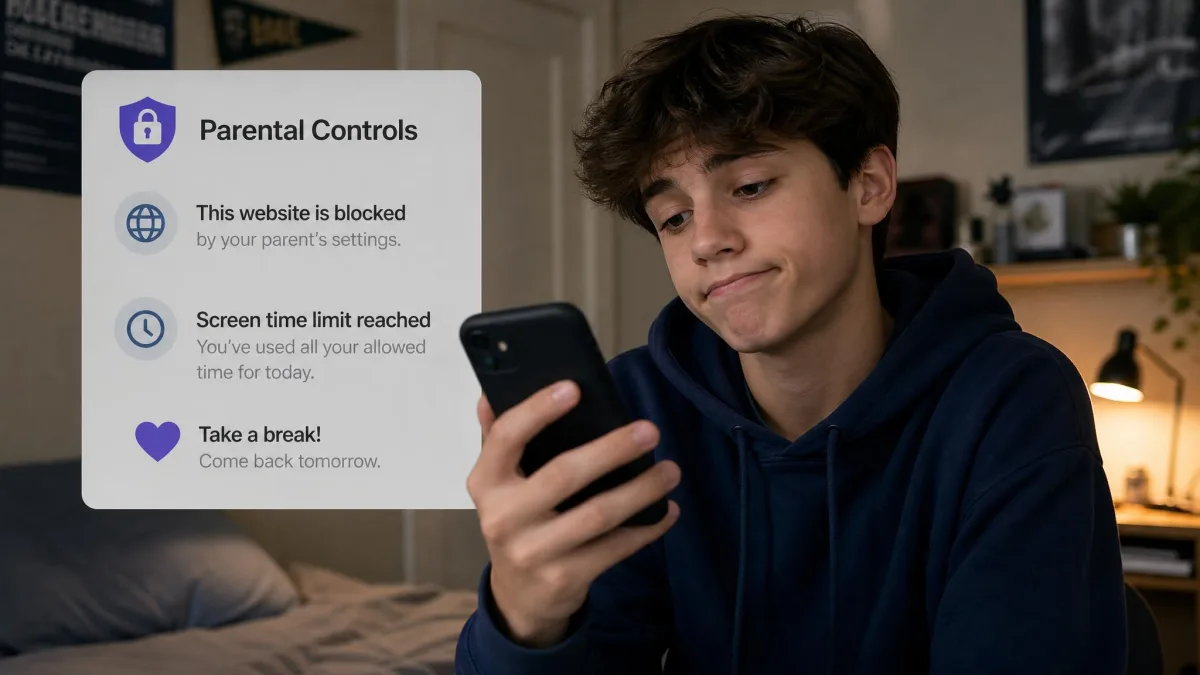
Bypassing means different things depending on who is asking. For a parent, it usually means turning the controls off, resetting a forgotten passcode, or lifting a single restriction. For a child, it means keeping an app alive after a limit hits without the parent noticing.
Is It Legal or Allowed? (Important Considerations)
Turning off parental controls on a phone you own or supervise is a settings change, not a crime. The parent who set the limits up has every right to remove them. The picture gets complicated when a child overrides limits the parents set, or when someone unlocks a device that belongs to another person.
Keep any removal on phones that belong to you or your family. Unlocking parental controls on a school-issued, employer-issued, or secondhand device that is not yours can break the terms you agreed to.
How to Bypass Parental Controls on iPhone (Screen Time)
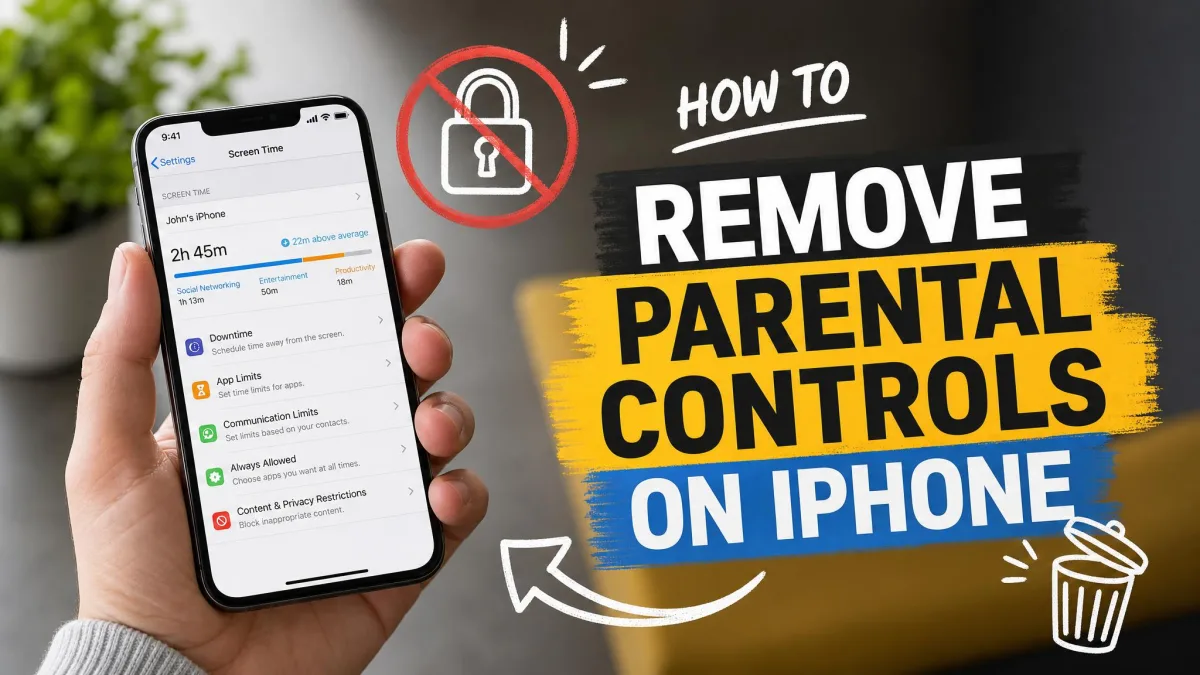
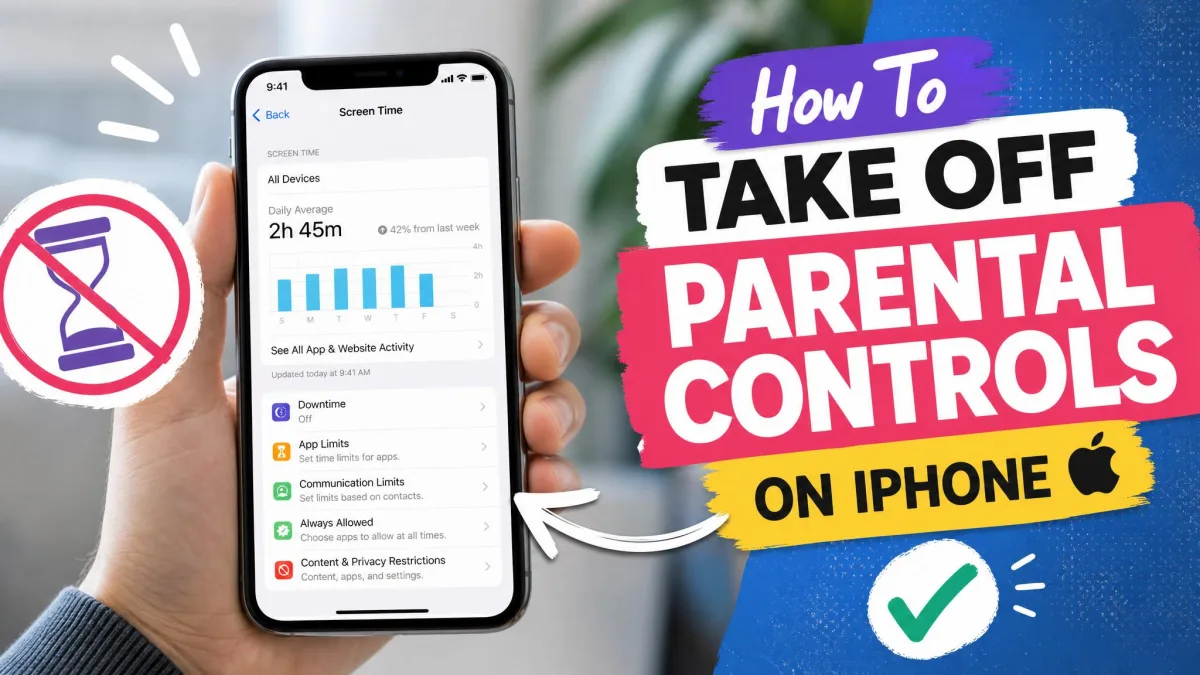
Screen Time has shipped free with iOS since iOS 12 in fall 2018, and it is still where parental controls live. The right method depends on whether you have the passcode, the Apple ID, or neither.
Method 1: Turn Off Screen Time With the Passcode
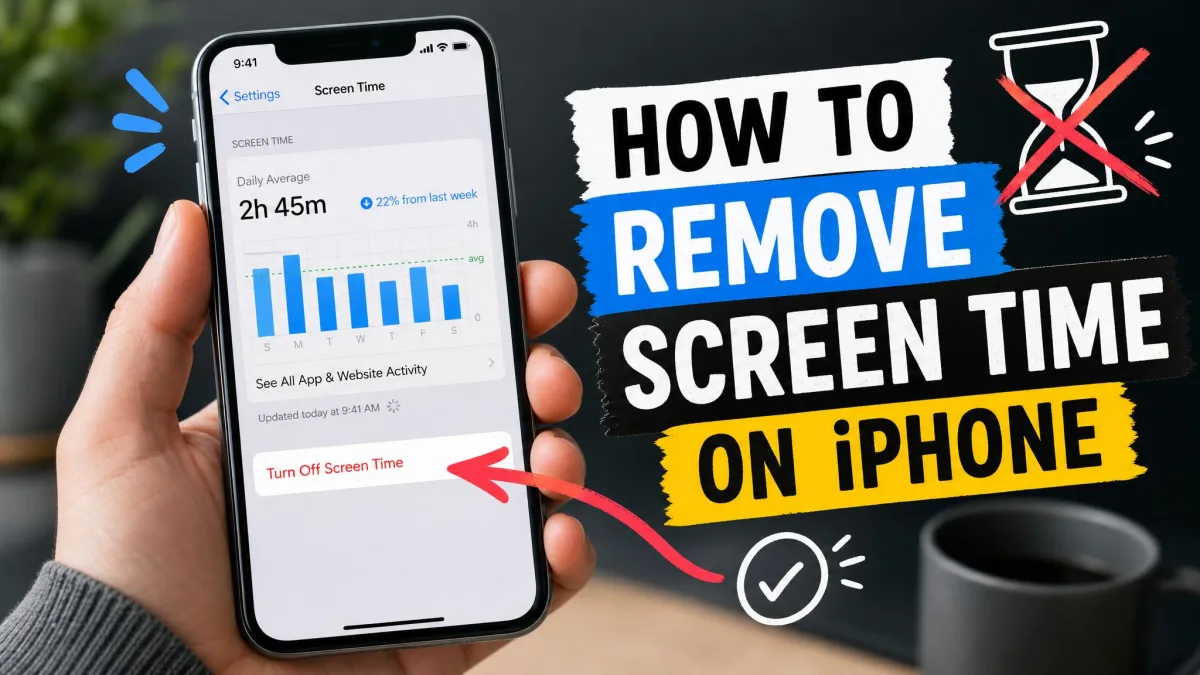
The fastest way off is to turn Screen Time off entirely, which takes a minute when you have the passcode.
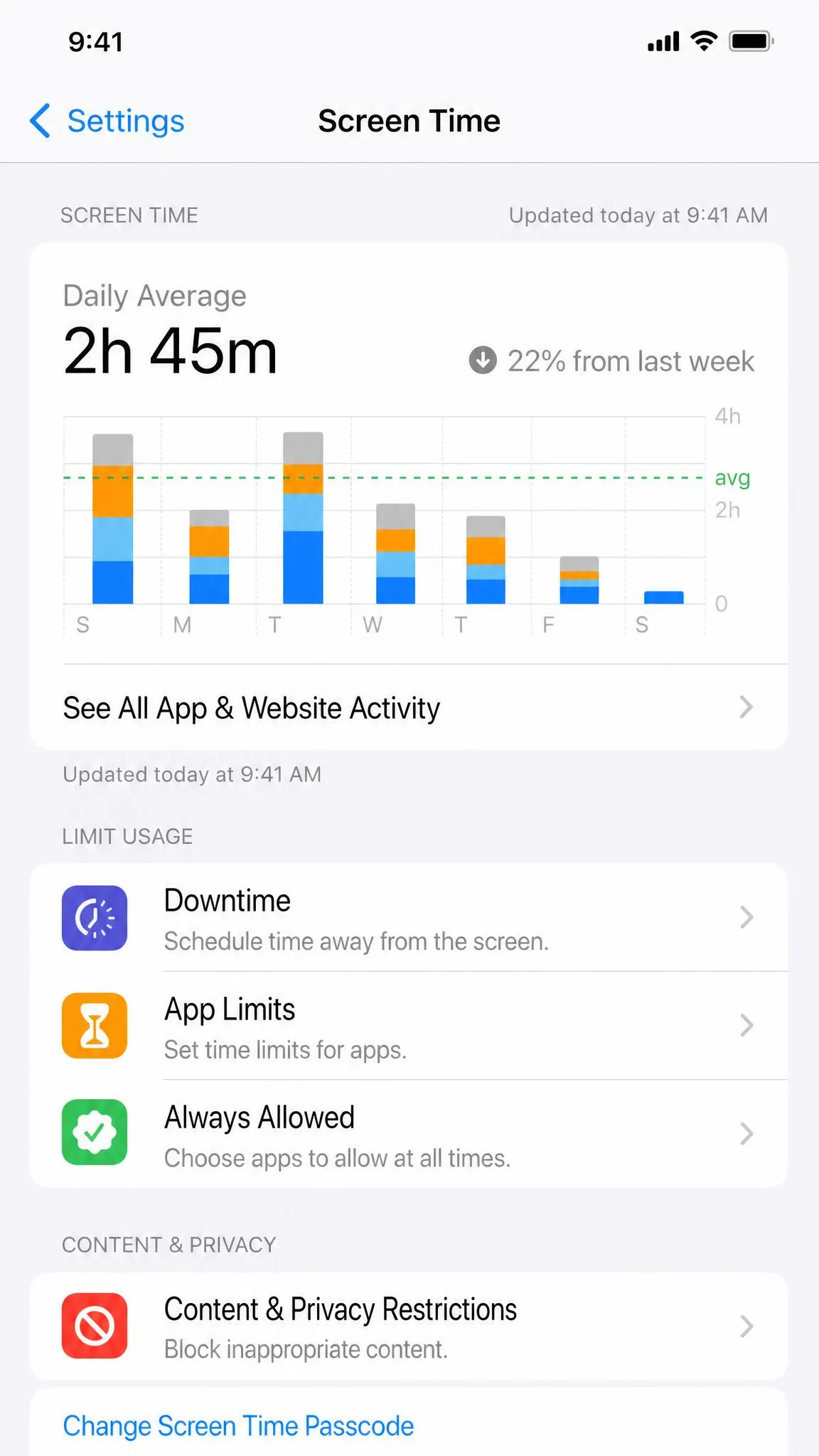
- Open Settings → Screen Time.
- Tap Change Screen Time Passcode, then tap Change Screen Time Passcode again.
- Enter the current passcode.
- Tap Turn Off Screen Time to disable the limits and the passcode together.
With Share Across Devices on, turning it off on one device changes it on every device linked to the same account.
Method 2: Turn Off Screen Time Without the Passcode (Apple ID Reset)
If you do not have the Screen Time passcode but do have the Apple ID that set it up, Apple's Screen Time support documentation walks through the recovery route.
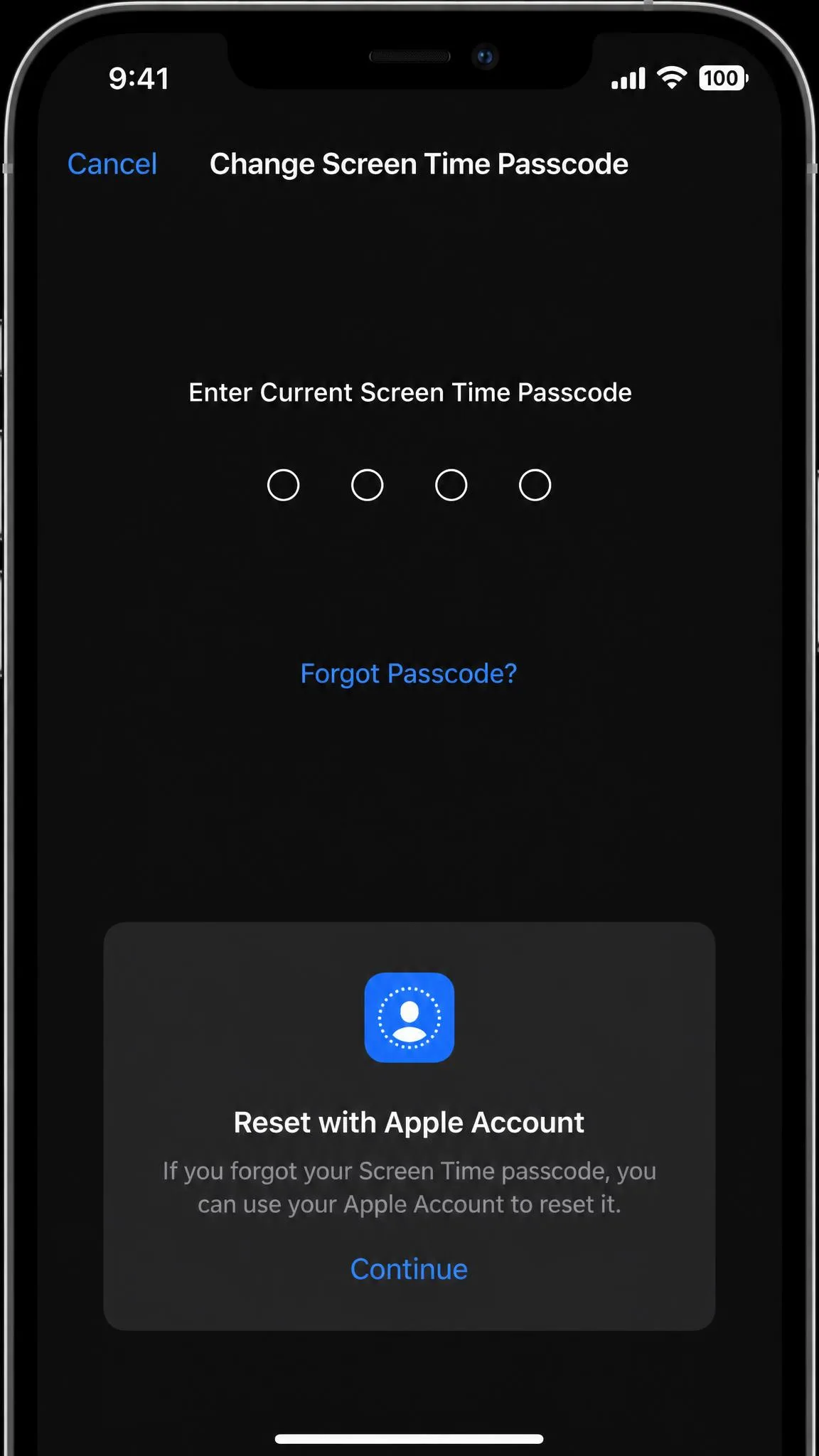
- Open Settings → Screen Time → Change Screen Time Passcode → Change Screen Time Passcode again.
- Tap Forgot Passcode.
- Enter the Apple Account email and password that were used to set up the passcode.
- Choose a new passcode.
The most common failure we have seen is entering the Apple ID of the account signed in on the phone instead of the account originally used to set up Screen Time. That account can be a family member's or the child's.
Without the Apple ID password either, a third-party unlocker tool can strip the passcode from a USB-connected iPhone. AnyUnlock's Screen Time removal runs from about $45.99 for three months.
Method 3: Factory Reset the iPhone as a Last Resort
When the passcode is a holdover from the old Restrictions era, no Forgot Passcode option appears at all, and the only official path left is erasing the phone.
A factory reset deletes everything on the iPhone, including photos, messages, and app data. It only helps if you set the phone up as new. Restoring from a backup made while Screen Time was active brings the passcode back.
- Back up anything you want to keep to iCloud or a computer.
- Open Settings → General → Transfer or Reset iPhone → Erase All Content and Settings.
- Confirm the erase and wait for the phone to finish.
- Set the phone up as new, or restore a backup and expect to reset the passcode again.
Method 4: Disable Specific Restrictions Without Removing Screen Time
Sometimes you do not need to remove Screen Time at all. You just want one block gone, such as app installs, web content, or purchase limits.
- Open Settings → Screen Time → Content & Privacy Restrictions.
- Enter the passcode when prompted.
- Tap the category you want to change, such as Allowed Apps, App Store Purchases, or Web Content.
- Set it to Allow or choose a lower level of filtering.
Screen Time also includes Downtime, App Limits, Always Allowed, Communication Limits, and activity reports, so you can lift one restriction and keep the rest running. Block at Downtime and Block at End of Limit stop a child from requesting more time.
How to Bypass Parental Controls on Android (Family Link)
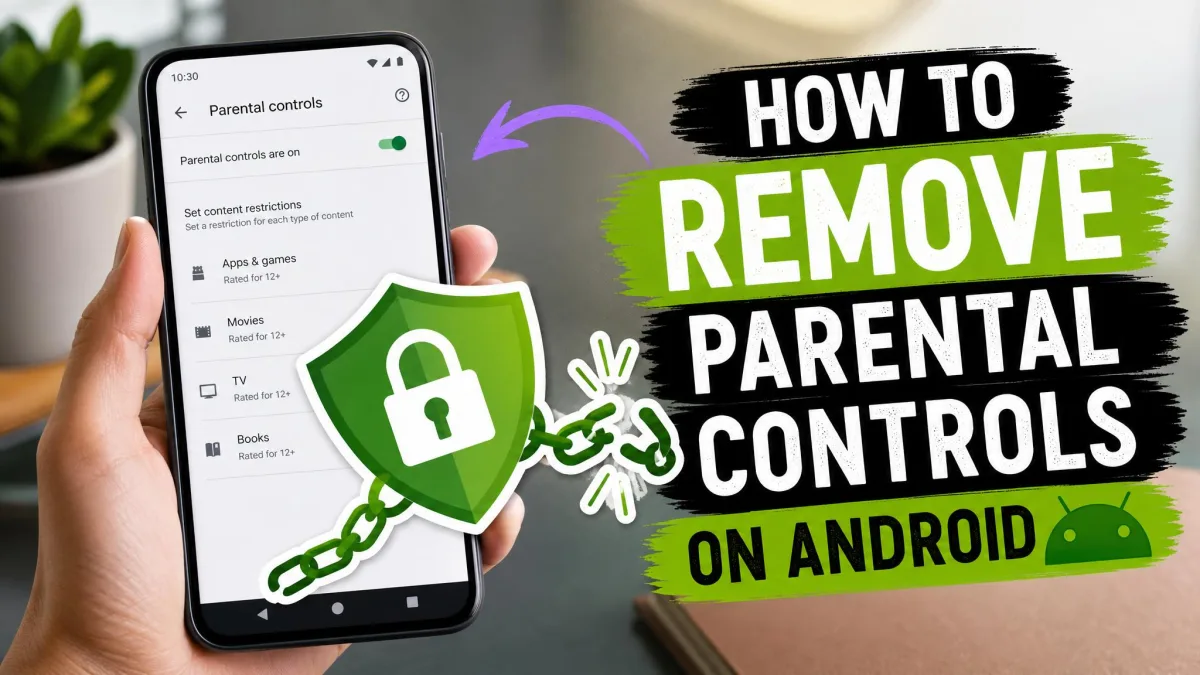
Google Family Link has handled Android parental controls since it launched in 2017. Supervision lives on the Google account rather than the phone, which changes how removal works. On a device running Android 7.0 or later, here is what works.
Method 1: Disable Google Play Store Parental Controls
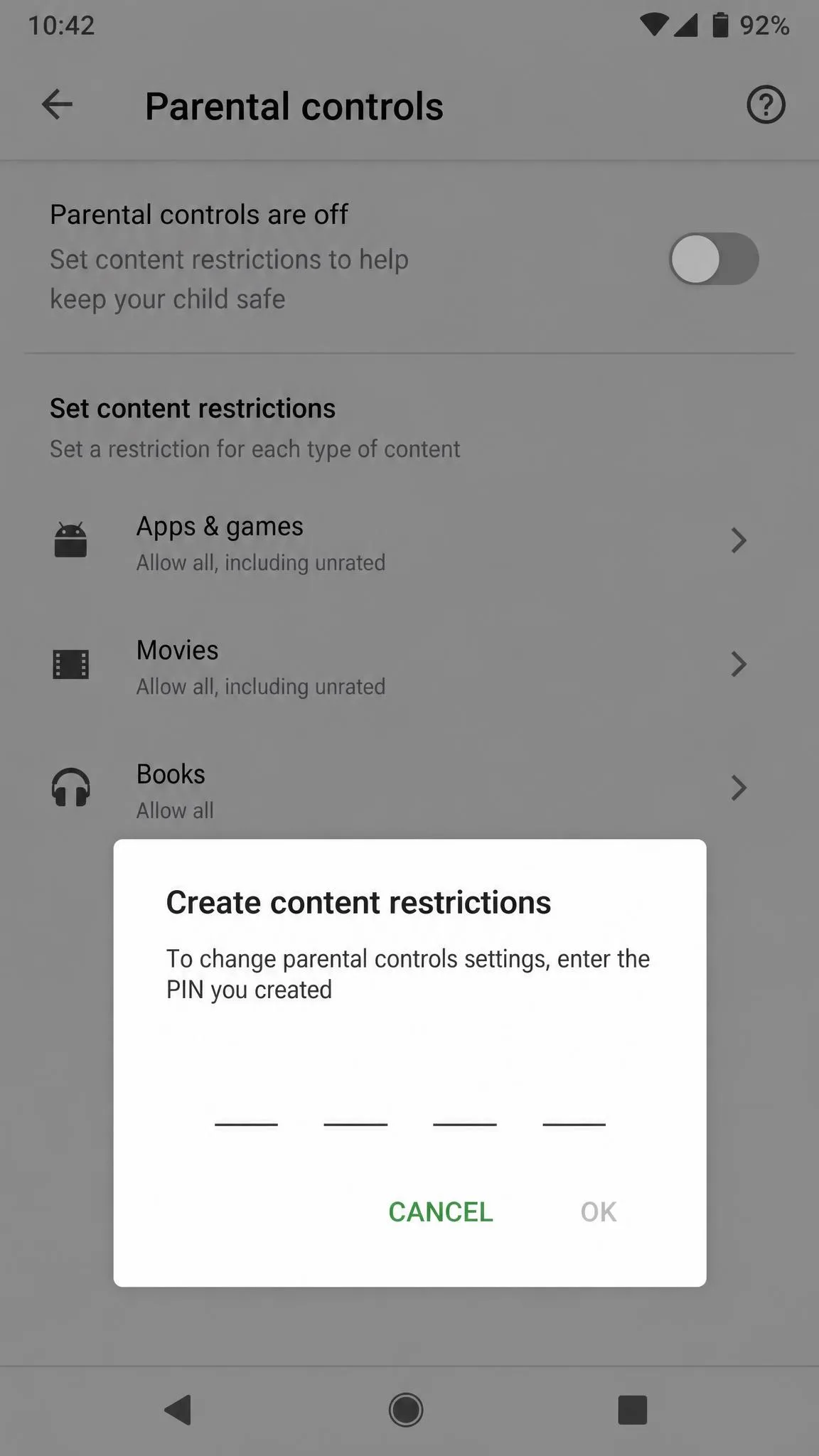
Google Play Store parental controls block adult apps and purchases with a PIN. Deleting the PIN turns the content restrictions off.
- Open the Play Store app and tap the profile icon.
- Go to Settings → Family → Content restrictions.
- Tap Go to Parental controls and enter the PIN.
- Tap Delete PIN to turn off Play content restrictions.
In our testing on Android, clearing the Play Store's data also wipes the PIN without anyone entering it. Head to Settings → Apps → Google Play Store → Storage → Clear data to do it, then set the controls up again.
Method 2: Remove Google Family Link Supervision
The complete way to remove Family Link on Android is to stop supervision. Google's Family Link Help Center notes that a child can stop supervision once they reach 13, or the applicable age in their country. Under 18, stopping requires a parent's approval.
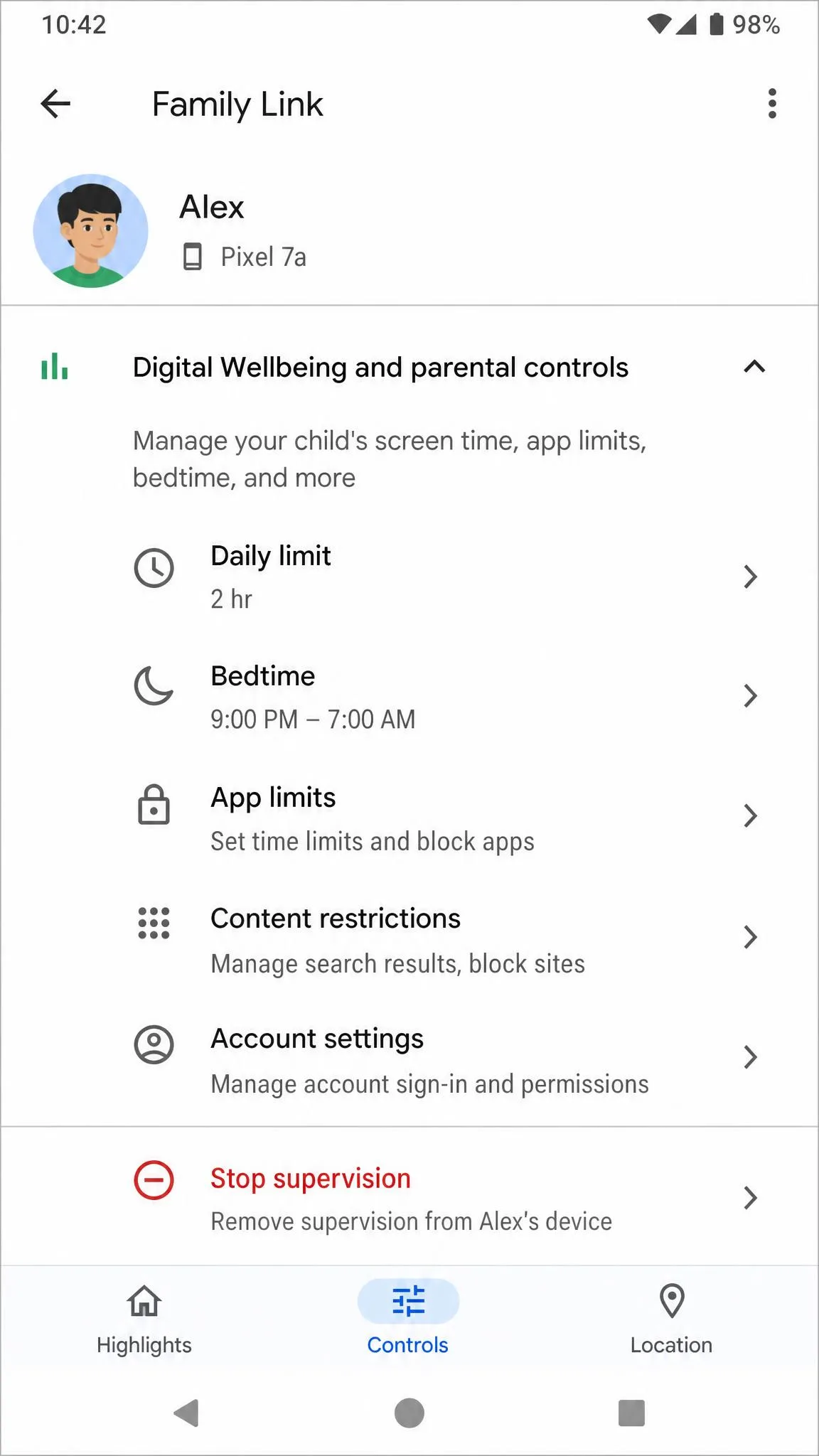
- On the child's device, open Settings → Digital Wellbeing & parental controls.
- Tap More, then Stop supervision.
- Confirm with the parent's sign-in or Parent Access Code.
- Both parent and child get a notification when supervision ends.
From the parent's side, open the Family Link app and go to Controls → Account Settings → About supervision → Stop supervision. Supervision is tied to the Google account, not the device, so removing the child's account from a phone does not end supervision. Once a child is old enough, a parent cannot block the exit.
Method 3: Reset App Preferences
Reset app preferences is the lighter-weight option when an app misbehaves under restrictions but you want to keep Family Link running.
- Open Settings → Apps.
- Tap the three-dot menu and choose Reset app preferences.
- Tap Reset apps to confirm.
This preserves your data but re-enables any disabled apps and clears notification, default-app, and background-data restrictions.
Method 4: Factory Reset (Last Resort)
A factory reset strips Family Link from the device, and it is the fallback when nothing else works. On most Android phones it takes roughly 30 to 45 minutes.
- Back up anything you want to keep.
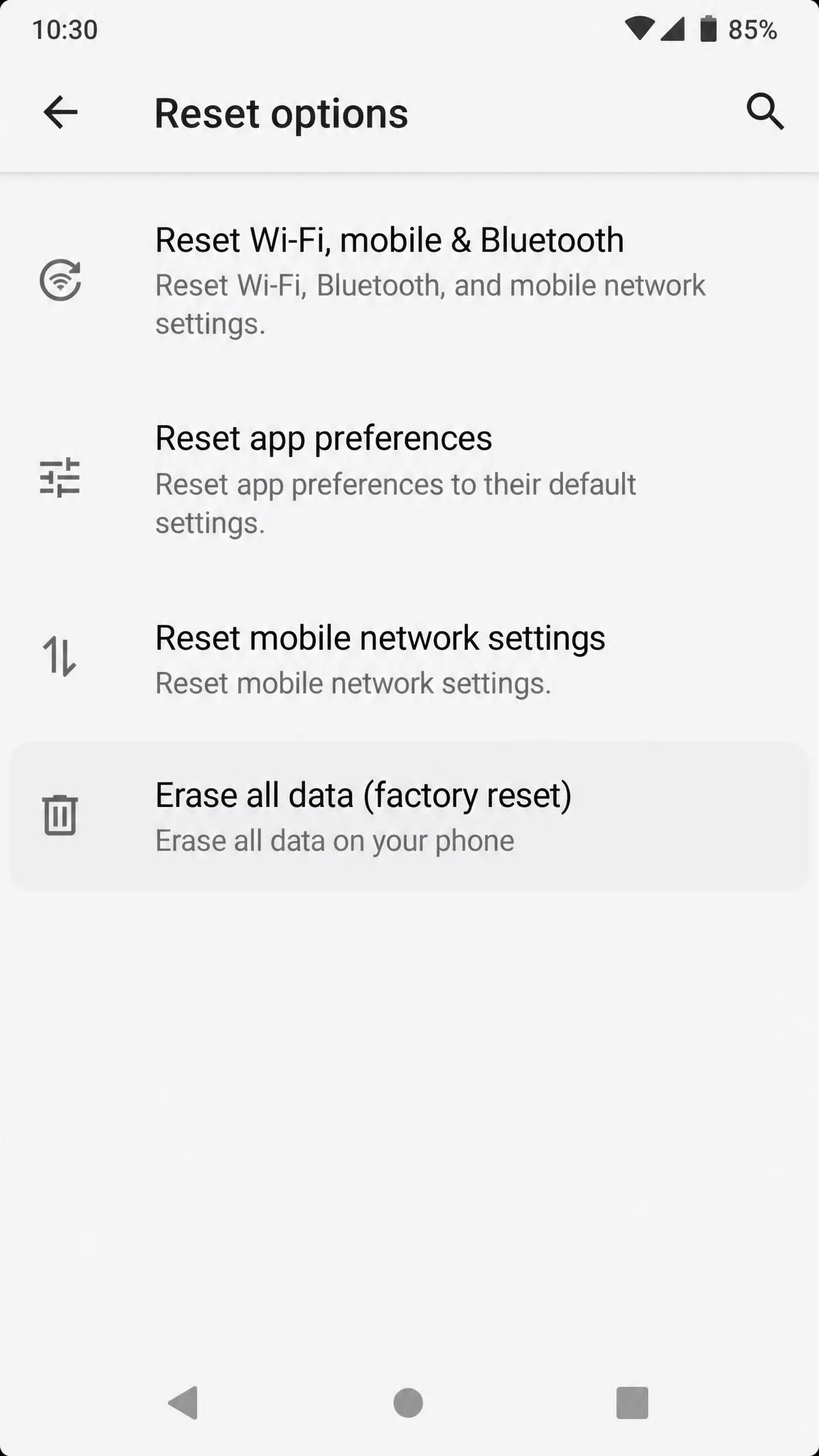
- Open Settings → System → Reset options → Erase all data, factory reset. On Samsung, go to Settings → General management → Reset → Factory data reset.
- Confirm and let the phone reset.
Factory Reset Protection may ask for the original Google account credentials before setup completes, and signing back in with the same child account can bring the restrictions back.
What to Do When You Can't Turn Them Off (Troubleshooting)
Even with the steps above, some devices refuse to cooperate. Here are the two most common stalls and the fixes.
Forgotten Passcode or PIN
When the Forgot Passcode button is missing on an iPhone, the passcode is usually a holdover from the old Restrictions era, and the only fix is a factory reset set up as new. Apple guidance points users to iOS 16.2 or later when it does not appear, though availability depends on the version you run.
On Android, the Play Store PIN comes off the same way as Method 1 above, by clearing the app's data at Settings → Apps → Google Play Store → Storage → Clear data. Then set the controls up again and create a new PIN.
Family Link Keeps Reactivating
Family Link keeps coming back after a reset because supervision lives on the Google account, not the phone. If the child signs in again with the same supervised account, the restrictions follow. Stop supervision through the proper channel rather than resetting the phone.
Some families also see limits behaving oddly, with phones locking or unlocking at the wrong times. That is usually a sync problem between the parent and child apps, not a bypass.
Common Ways Kids Get Around Parental Controls, and How to Block Them
Tech-savvy kids share tricks, and the built-in tools have well-known workarounds. Knowing each one is the first step to blocking it.
The Most Common Bypass Methods (iOS and Android)
On iPhone, the most popular bypass is the One More Minute prompt. When an App Limit hits, a child can tap One More Minute to keep going, and no Screen Time setting removes that prompt. Deleting and reinstalling a limited app also resets its limit. Kids also sidestep Downtime by switching the device time zone, opening video links inside iMessage, and asking Siri to send messages.
Turning on Block at Downtime or Block at End of Limit makes the ask-for-more-time prompt disappear entirely. That single toggle closes the most popular loophole.
On Android, the routes are different. Samsung phones offer Secure Folder, and recent Android versions add Private Space, both of which hide apps from Family Link. The Accessibility menu, cloned or dual apps, factory resets, and Always Allowed apps that open embedded browsers all get kids past a block.
These are ordinary phone features that sit outside the parental-control boundary, not exotic hacks. Parents have catalogued them for years in a long-running Apple forum thread on Screen Time workarounds, and most counters are a Settings toggle away. Some kids skip the phone entirely and go around the router instead.
Blocking the technical routes only goes so far. Restrictive mediation is linked to more conflict, and restricting something makes it more desirable to a teen. Oxford researcher Ekaterina Hertog has described how heavy top-down monitoring can read as a lack of trust, which pushes kids to bypass and to hide trouble.
When Screen Time and Family Link Aren't Enough: Stronger Options
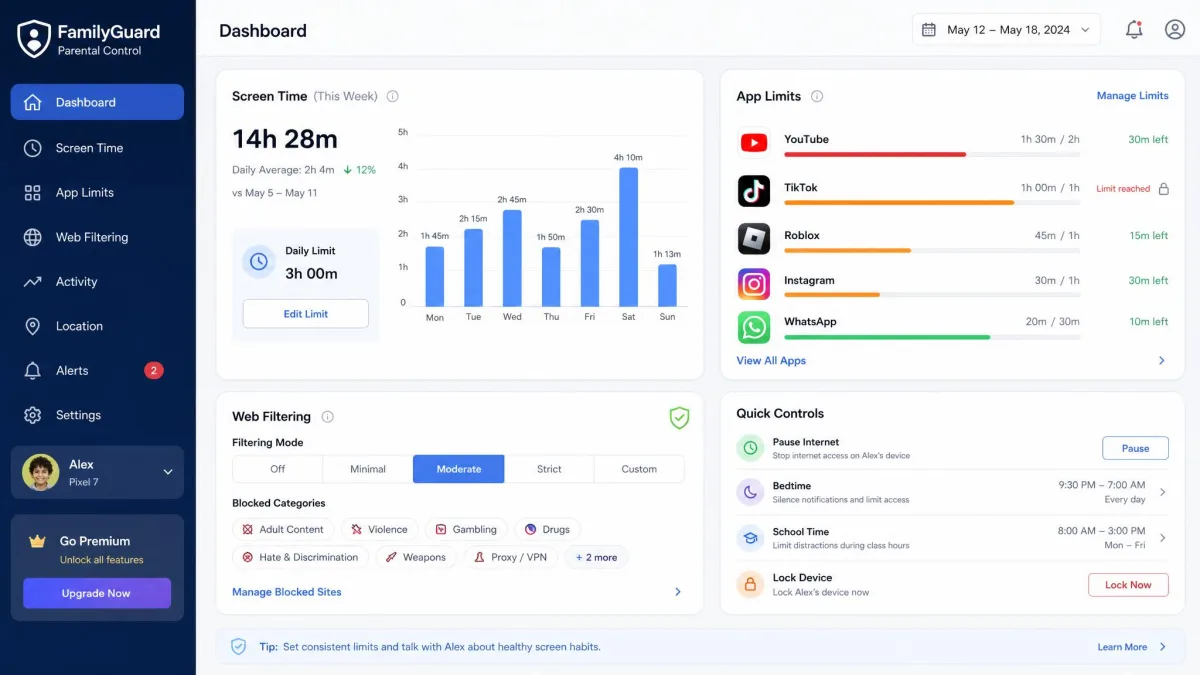
When the built-in tools keep failing, a third-party parental control app is the usual next step. These apps hold a device-admin role, making them harder to remove than a built-in setting. PCMag's parental-control roundups rate the top three options as follows.
| Product | Buy | Best for | Price |
|---|---|---|---|
 |
Check price → | Restriction-first filtering and screen-time enforcement | from about $59.95/yr |
 |
Social media monitoring on top of web filtering | $14/mo, about $99/yr | |
 |
Budget screen-time management and web filtering | from $2.99/mo |
Qustodio is the restriction-first option of the three, with daily time limits, web filtering, and internet pausing on both iOS and Android. For a family that keeps hitting the built-in limits, it is the strongest starting point.
Bark is built around social media monitoring with lighter enforcement in its base plan, which suits older teens. Mobicip keeps the monthly price low while covering screen-time management and web filtering. Most families try the free built-in tools first and upgrade only when the gaps keep showing up.
Frequently Asked Questions
Can you turn off parental controls without the password?
Does factory reset remove parental controls?
How do I remove Family Link after turning 18?
Will removing parental controls delete my apps and data?
Can a child disable parental controls on an iPhone?
What is the best prevention strategy?
Final Thoughts
Parental controls are not a set-and-forget layer. The built-in options on iPhone and Android are powerful but leaky, and kids who want around them will usually find a way. Know the official removal methods, harden the settings that stop the most popular workarounds, and pair the technical fixes with a conversation about why the limits exist.
Screen Time can be relaxed one restriction at a time, and Family Link supervision ends on its own at the applicable age. The tools have built-in exits, which makes them a starting point rather than a permanent contract, so review the limits together as your child gets older.