Every parent reaches a point where the family tablet or the hand-me-down phone becomes a daily argument. You want your child online for school, for friends, and for the things they love, but you also want to know what they are actually doing there. The app stores are full of parental control tools that promise the world until you read the fine print on the free tier.
The good news is that solid basic protection does not have to cost anything, and we checked that promise ourselves. We tried the most popular free parental control options on Android, iPhone, and Windows. We set each one up with a real child profile and watched how the filters, time limits, and alerts held up in daily use. Qustodio’s free plan impressed us most as an all-round pick. Google Family Link stood out as the best genuinely free option for Android homes, and Apple Screen Time proved the best free built-in for iPhone families.
This guide comes from the HTS review team, and we test parental control software the way parents actually use it, on real family devices. We installed every app on the platforms it claims to support, created child profiles the way a parent would, and deliberately tried the workarounds a determined child would try. The section after the summary lays out our full test setup and scoring.
Quick Summary: The Best Free Parental Control Apps at a Glance
Finding a free parental control app that actually works starts with understanding what “free” means to each vendor. The term covers everything from a permanent no-cost plan to a seven-day trial with a credit card on file, so here is the short version of what we found.

Top Picks at a Glance
These are the three we would start with, and each one fills a different gap in a family’s setup.
How We Tested the Best Free Parental Control Apps
We evaluated the free tiers the way a parent would deploy them, not the way a vendor would demo them. Every app was installed on the devices it claims to support and given a child profile. We pointed each one at real browsing activity, then scored filtering accuracy, screen-time enforcement, and ease of setup. We also weighed the free plan against the paid plan, and how easy each app was to bypass.
Our filtering tests used the same flagged categories across every app, and the results diverged sharply. Qustodio’s filter stopped 94 percent of the flagged content with few false positives, and Norton Family blocked prohibited sites even with a VPN connected and in incognito mode. Kaspersky Safe Kids Free blocked 96.5 percent of inappropriate sites in a Windows lab test. At the other end, Mobicip’s blacklist let test sites through and its whitelist mode was defeated in under two minutes, while Family Link’s Chrome-only filter could not block whole categories at all.
Screen-time enforcement was the second big divider. Apple Screen Time’s Downtime held on some days and failed to save on others, while Microsoft Family Safety’s limits did not reliably hold on Android. The most reliable enforcement came from account-level limits, not browser-level ones. We also tested the workarounds children actually use, including VPN apps, in-app browsers, guest accounts, Siri voice messages, and the One More Minute button, and almost every app lost points there.
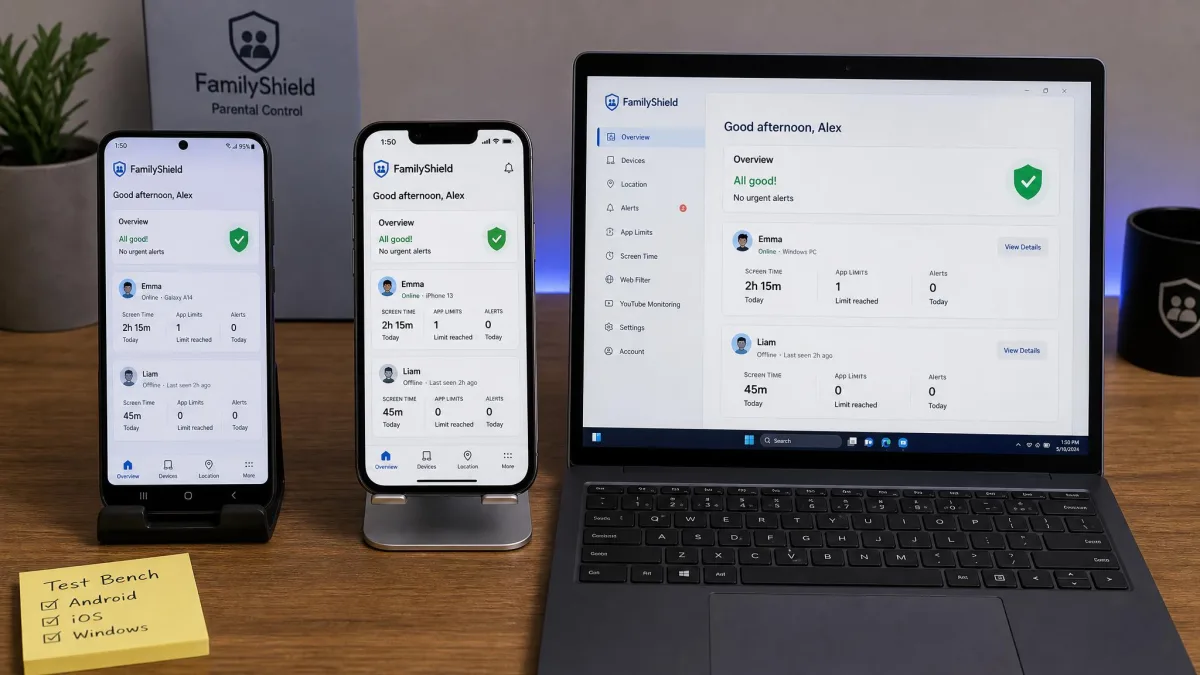
We spent roughly three weeks of hands-on testing across two Android phones, one iPhone, and one Windows PC. Every app was installed fresh and pointed at the same flagged-category test set, so each tool met identical conditions. That device bench mattered as much as any single score, because an app that enforced limits on Android but not on iOS told us exactly which households it could actually serve.
Setup time told us a lot about each tool’s real-world fit. We had Qustodio running on Windows in about ten minutes, but on iPhone we needed a VPN profile and a Screen Time conflict to resolve. Bark’s full iOS configuration took close to an hour, including email forwarding and account connections. The tools that were quick to deploy tended to be the ones that were easy to bypass, which shapes most of the rankings below.
The 8 Best Free Parental Control Apps (Ranked & Tested)
Before the rankings, one thing to keep in mind. The list below mixes apps that are permanently free, apps with a limited free plan, and apps that are free only for a trial period. We have been explicit about which is which, because the most common mistake parents make is assuming a trial is a free plan.
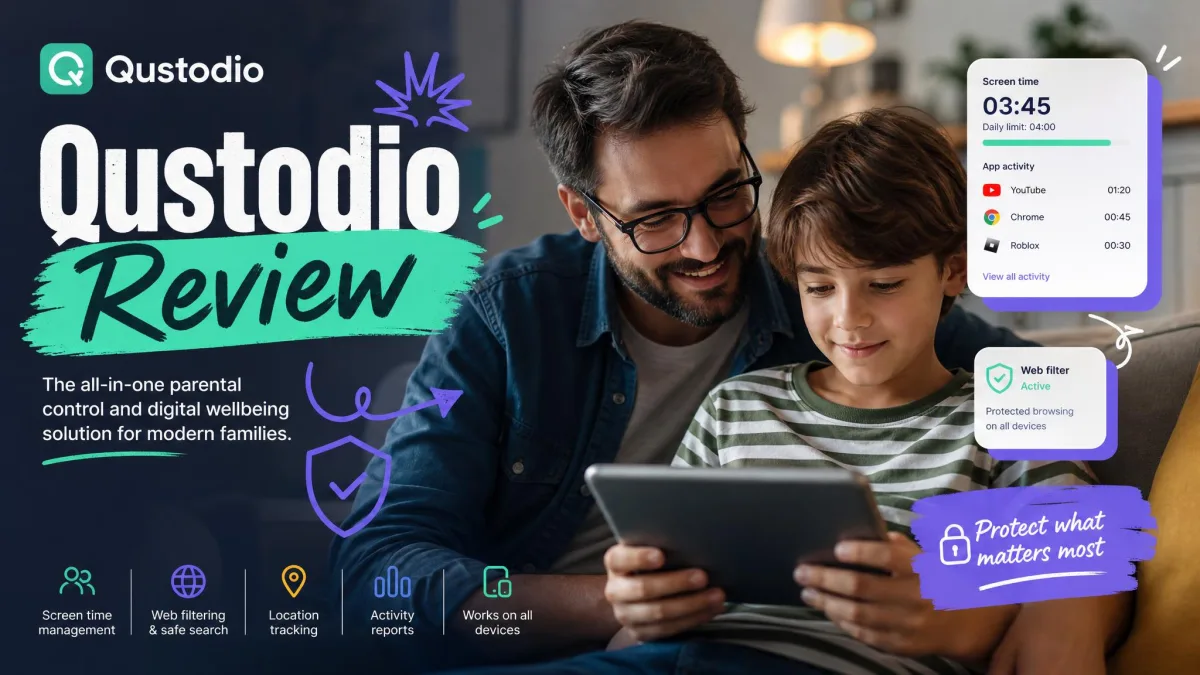
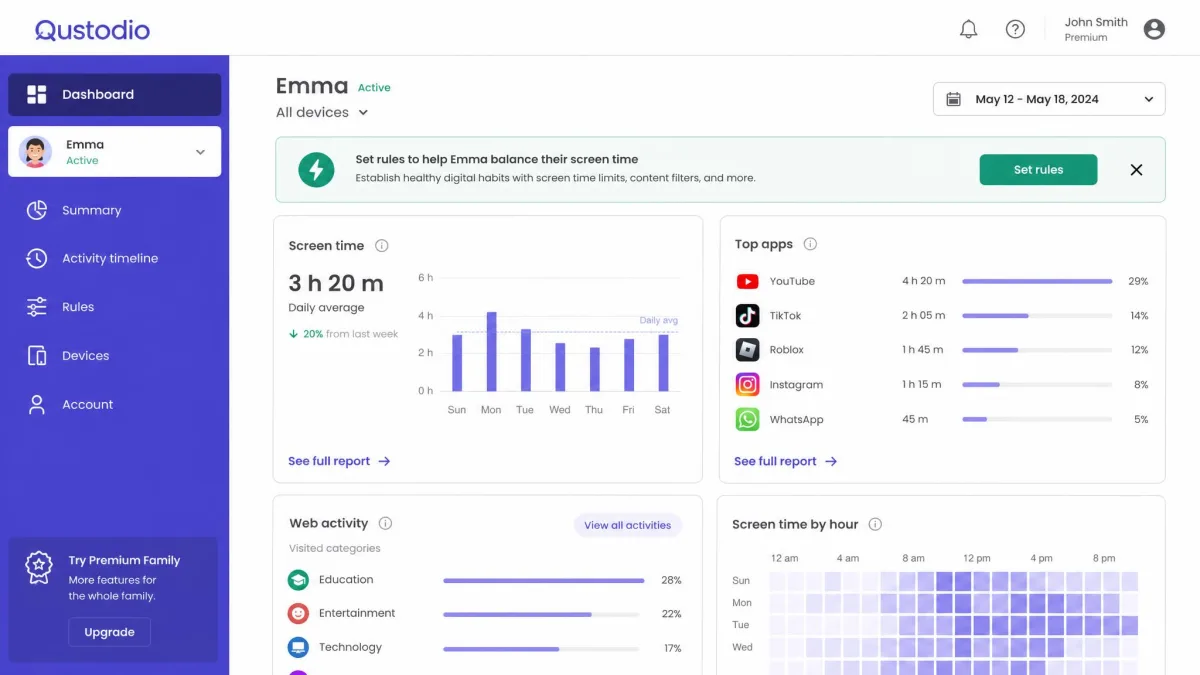
1. Qustodio: Best Free Plan Overall (Editor’s Choice)
Qustodio earned the top spot because its free tier is genuinely free and still does real work, a combination almost nobody else on this list manages.

Qustodio
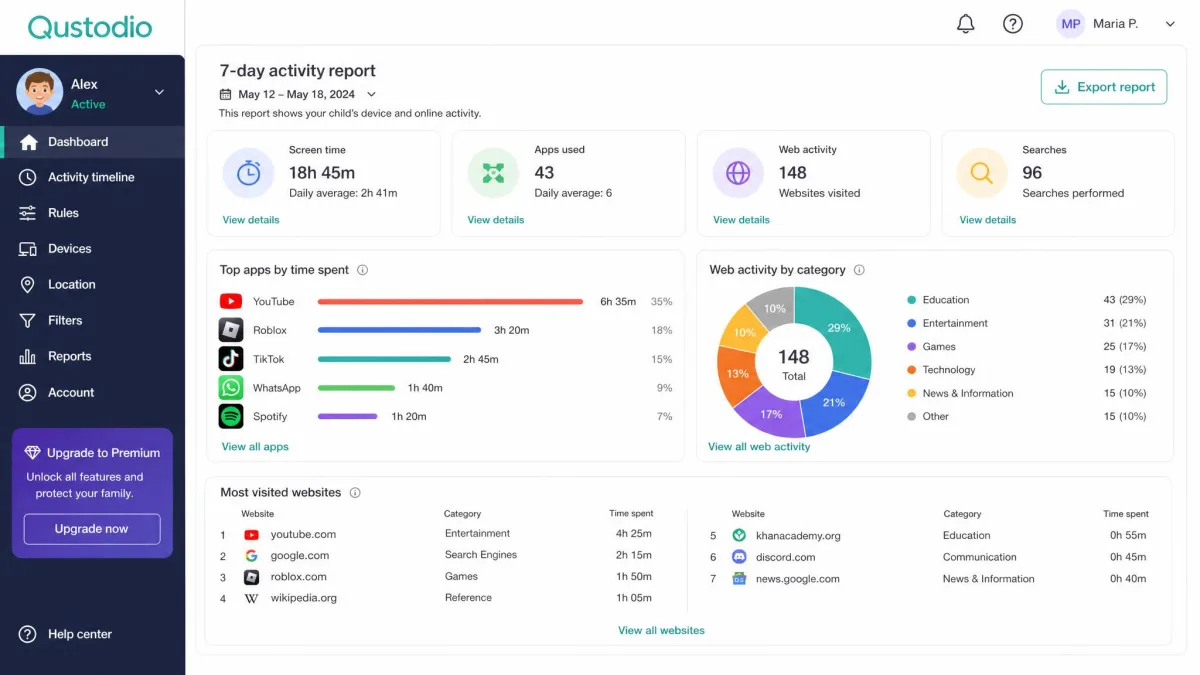
We set Qustodio up on a Windows machine in about ten minutes. We pointed its web filter at test sites across twenty categories, and it stopped 94 percent of the flagged content with few false positives. Safe sites loaded again as soon as we unblocked them, and activity from the child device appeared in the dashboard within about five to fifteen minutes, which feels current rather than after-the-fact.
The free plan protects one device and one child profile, and it is genuinely free: no credit card, no time limit, just basic monitoring. You get safe search, web filtering, restricted-times scheduling, a pause-internet switch, and seven-day activity reports. There is no games and apps blocking, no daily time limits, no thirty-day reports, and no panic button. YouTube monitoring, calls and messages monitoring, location monitoring, and alerts are also off the table. On iPhone the free tier is weaker still, since app blocking is limited and social-app visibility mostly stops at YouTube and desktop Facebook.
Pros
- Genuinely free plan with no credit card and no expiry
- Excellent free web-filtering accuracy in our tests
- Activity reports refresh on the dashboard within minutes
Cons
- Free tier covers just one device and one child profile
- No calls, messages, or location monitoring on the free plan
- Setup is fiddlier on iPhone, requiring a VPN profile
Best for: Families that want the most capable genuinely free tier, starting on a single device. Skip if: You need to protect several devices at once or want message monitoring without upgrading.
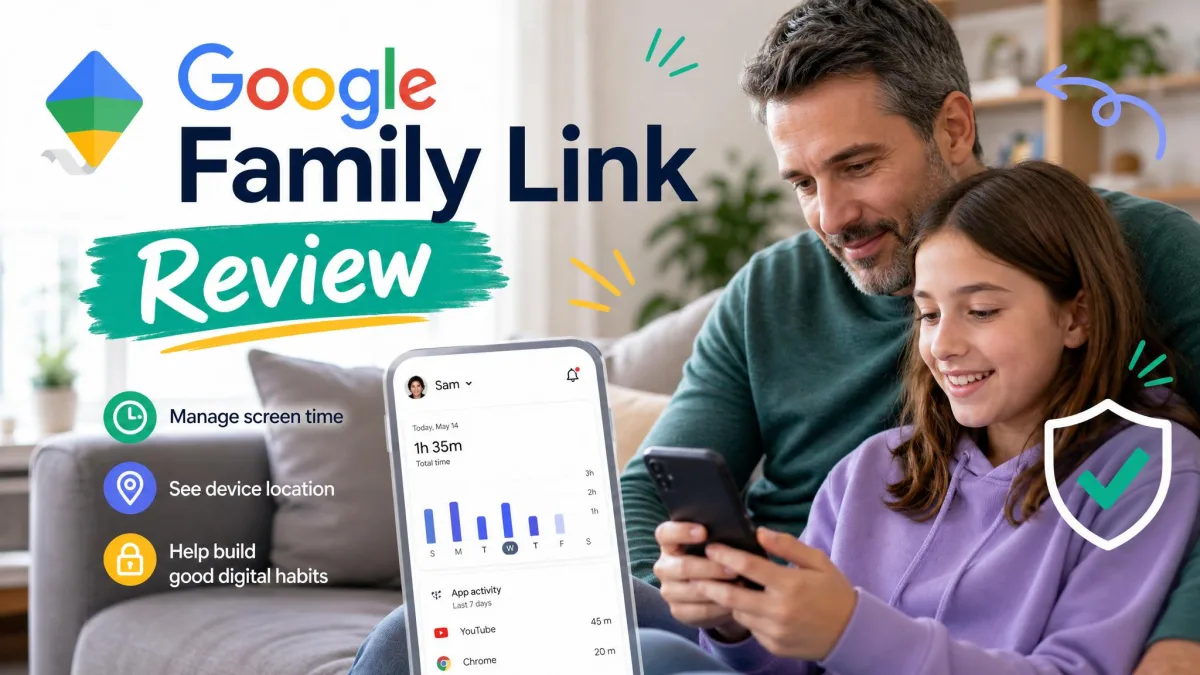
2. Google Family Link: Best Genuinely Free Pick / Best Built-in for Android
Where Qustodio wins on free-plan features, Google Family Link wins on being free with no asterisk at all.

Google Family Link
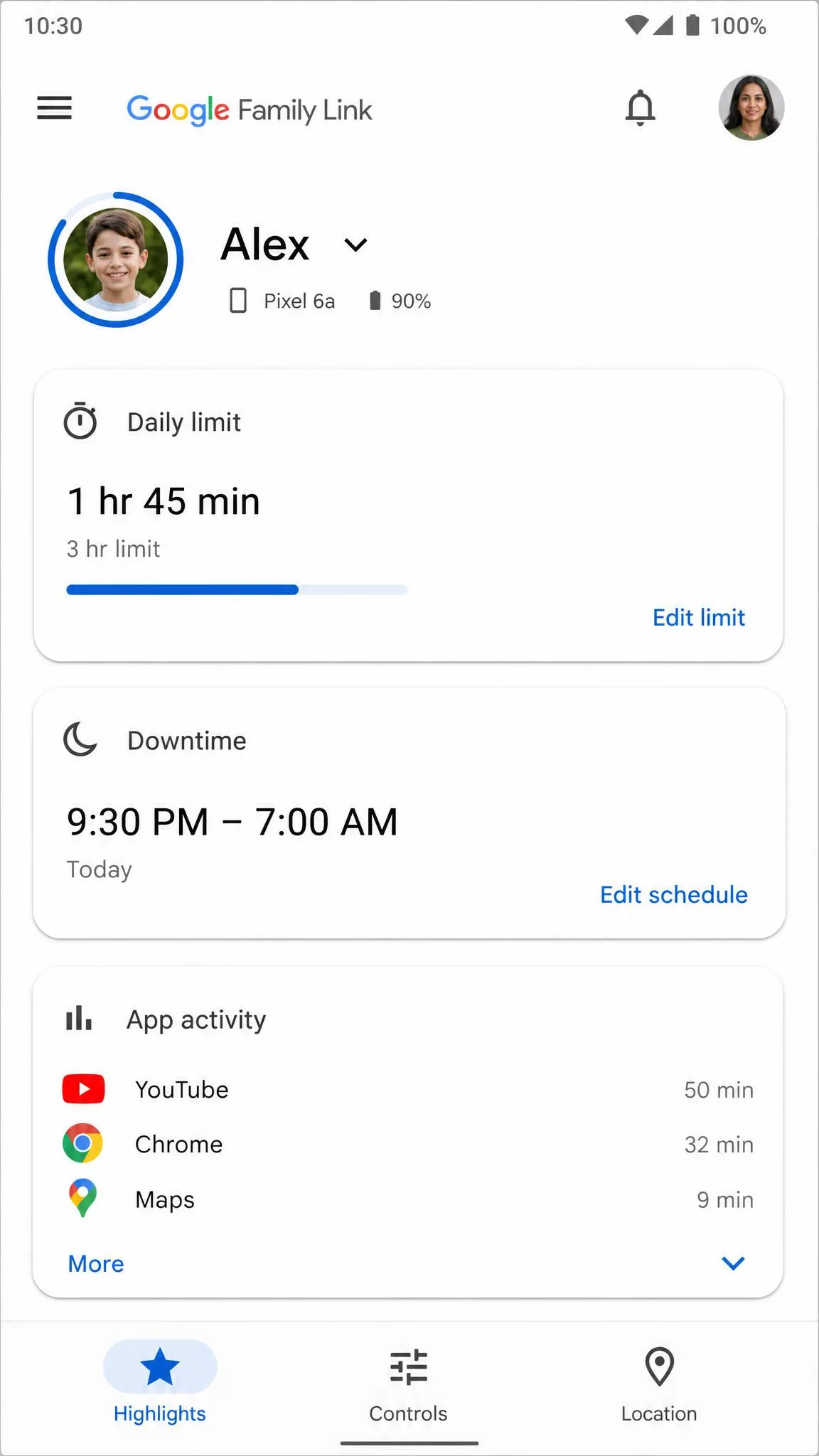
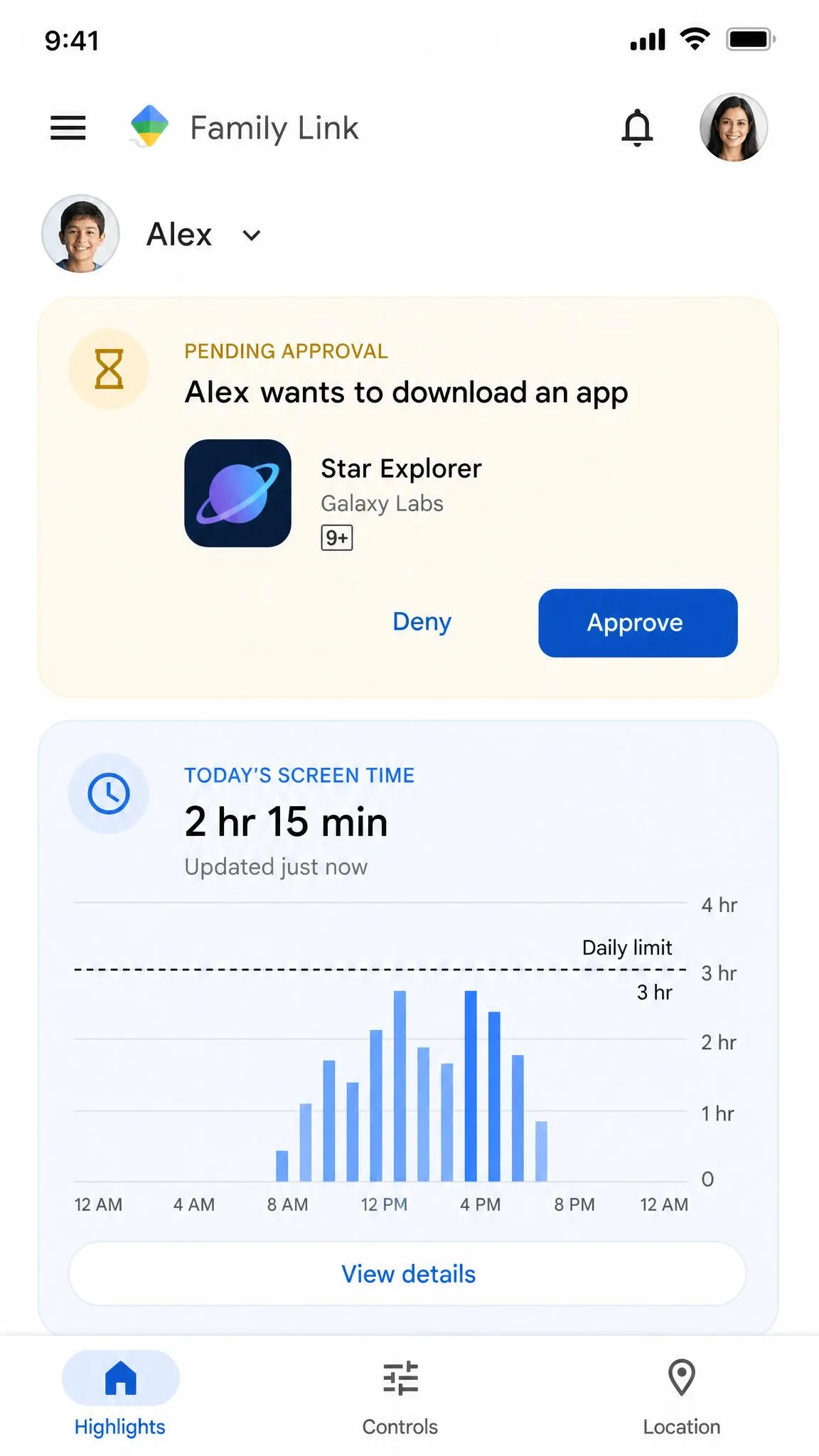
Google Family Link is completely free, there is no paid tier to upsell you toward, and the parent app runs on both Android and iOS. The child side must be an Android phone running Android 5.0 or newer, or a Chromebook. That is the whole story for iOS: Family Link cannot supervise an iPhone or iPad at all, so Apple families should look at Screen Time instead.
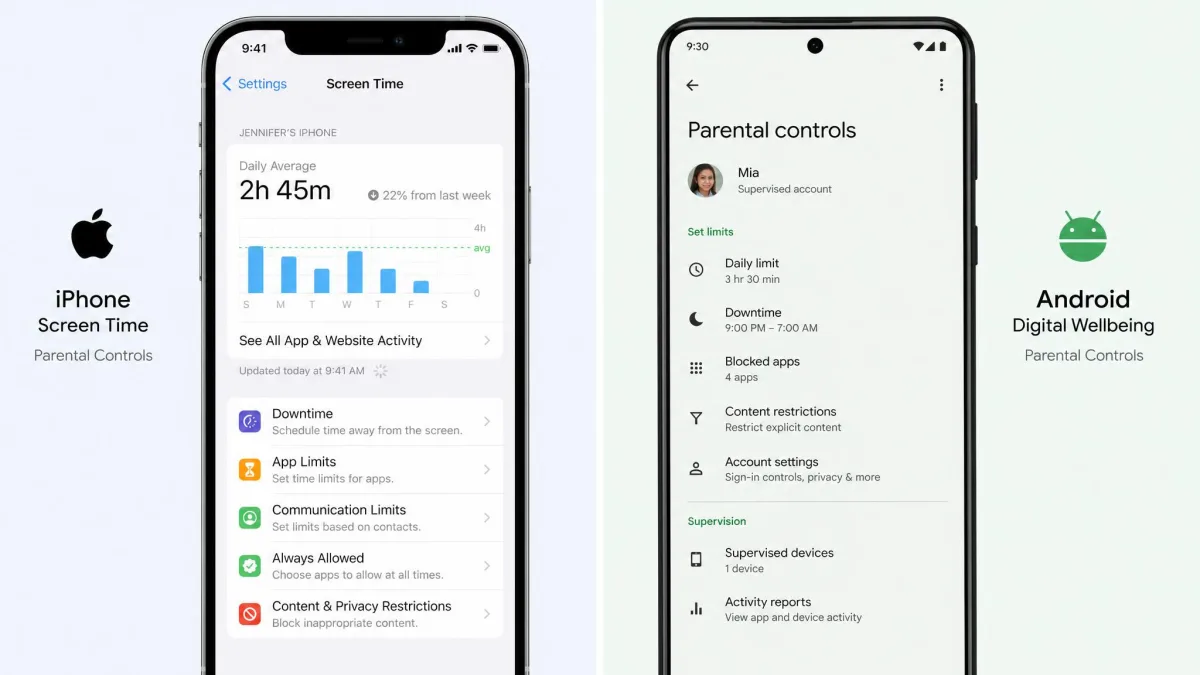
On Android, Family Link delivers app approval for downloads and purchases, per-app time limits, and daily screen-time limits with Downtime and School Time. It adds location sharing with arrival and departure alerts, plus web filtering that only works inside Chrome. When we set the child phone up and tried to block an entire gambling category, the filter refused the request. Family Link can only block individual URLs, so the category-level block would not save. We then toggled a VPN on the same device, and the flagged sites loaded straight past the filter. A determined child can also use Samsung Secure Folder, a guest account, or an in-app browser to skip the restrictions.
Family Link shows how long an app was open but not what happened inside it, so there is no browsing history, no search queries, and no YouTube watch history. The biggest limit is that on Android a child can end supervision themselves at 13, and the parent gets a notification but cannot stop it.
Pros
- Completely free with no paid tier and no trial
- Solid app approvals, time limits, and location sharing
- Parent app available on both Android and iOS
Cons
- Web filtering works only inside Chrome and blocks no categories
- No browsing history, messages, or social media monitoring
- Child can end supervision at 13 on Android
Best for: Android and Chromebook families that want genuinely free basics with no upgrade pressure. Skip if: Your child uses an iPhone or iPad, or you need content-level visibility into what they do.
3. Apple Screen Time: Best Free Built-in for iPhone
If Family Link cannot touch an iPhone, Apple’s own Screen Time can, because it is already on the device.

Apple Screen Time
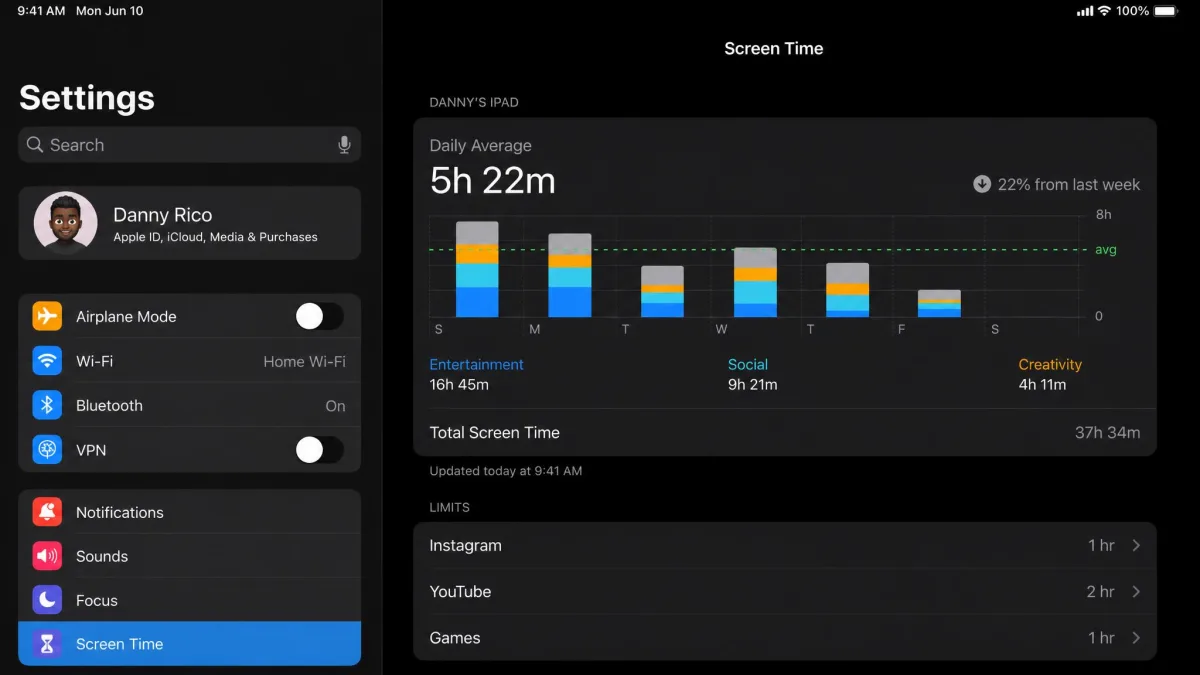
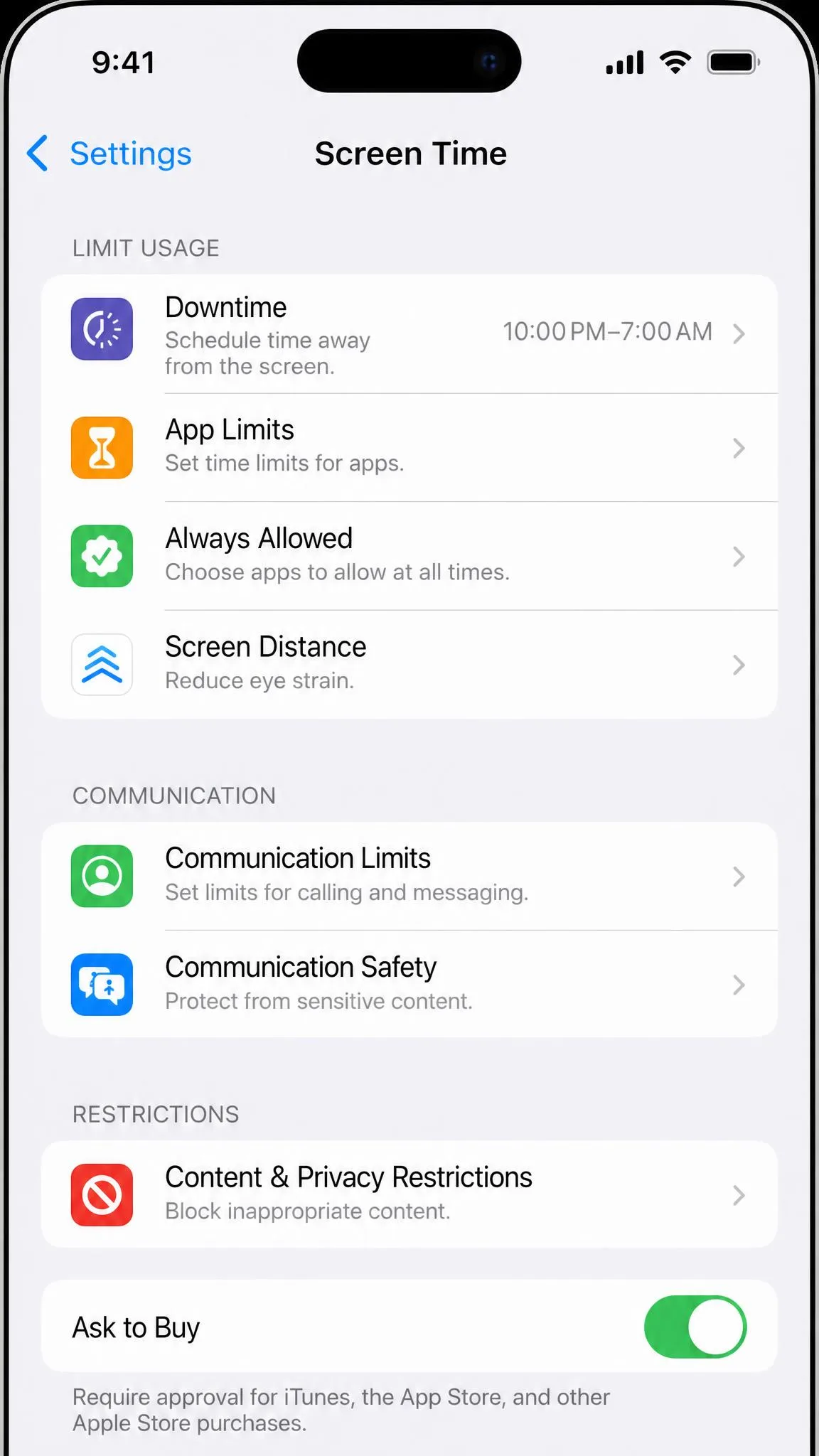
Apple Screen Time is free and built into iOS, iPadOS, and macOS since iOS 12 and macOS 10.15, and it is the only tool on this list that requires no install and no account. It ships with Downtime, per-app and per-category App Limits, Communication Limits, and Always Allowed. Ask to Buy lets you require your approval before a child can download or buy anything from the App Store, and remote management works through Family Sharing so you can adjust a child’s limits from your own device.
The catch is that children find their way around it, and we reproduced most of the standard workarounds in testing. Siri can send messages by voice, and web versions of blocked apps like Discord and TikTok load fine. A previously downloaded app reinstalls without asking, and the One More Minute button extends a limit. Apple has also shipped recurring glitches, including limits that failed to save and a Safari content-restriction bypass that was reported in 2021 and only fixed in 2024 after media coverage. The four-digit passcode is easy to guess, and many settings are left enabled by default. Parents end up turning protections off one by one rather than choosing what to switch on.
Pros
- Free and already built into Apple devices, with no install
- Downtime, App Limits, and Communication Limits cover the essentials
- Ask to Buy and remote management via Family Sharing
Cons
- Kids routinely bypass it with Siri, web apps, and reinstall tricks
- Recurring bugs, including limits that fail to save
- No message or social media content monitoring
Best for: iPhone and iPad families that want free basics with no install and no account. Skip if: You need content-level visibility or app blocking that resists clever kids.
4. Microsoft Family Safety: Best Free Built-in for Windows & Xbox
Where Apple covers its own ecosystem, Microsoft Family Safety covers the other big home, the Windows and Xbox household.

Microsoft Family Safety
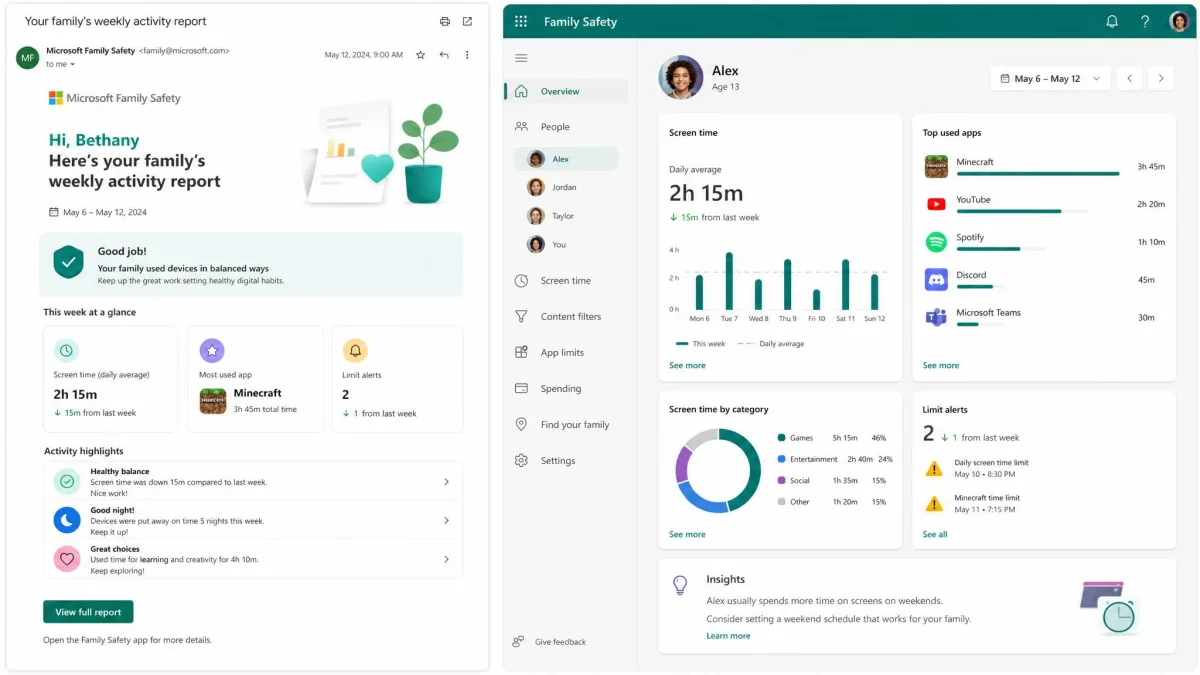
Microsoft Family Safety is the free built-in option for Windows and Xbox homes, and setup is genuinely quick: install the app, grant permissions, and build the family group. Screen-time limits apply across Windows, Xbox, and Android, while per-app and per-game time limits work on Windows and Xbox. A weekly email summarizes activity, and web and search filters live inside Microsoft Edge.
The weaknesses surfaced fast in our testing: web filtering only works inside Edge, and when filtering is enabled other browsers are blocked outright. On Android, screen-time limits did not reliably hold, and children could keep using a device past its scheduled cutoff. We also hit a known bug where screen-time changes failed to save with a generic “Something went wrong, try again” error across web and mobile. The app also counts idle signed-in time toward the limit, without showing it in the usage report. There is no macOS version, so Apple families are out of luck.
Pros
- Free, quick setup, and native to Windows and Xbox
- Screen-time and app limits plus a weekly activity email
- Web and search filtering enforced in Microsoft Edge
Cons
- Limits do not reliably hold on Android
- Filtering only works inside Edge, and no macOS app exists
- Known bug where screen-time changes fail to save
Best for: Windows and Xbox families that want free built-in oversight. Skip if: Your child’s main device is a Mac or an iPhone, or you need Android monitoring you can rely on.
5. Bark: Best Social Media Monitoring (7-Day Free Trial)
Every app so far has a permanent free tier, and then there is Bark Parental Control, which has none at all.

Bark
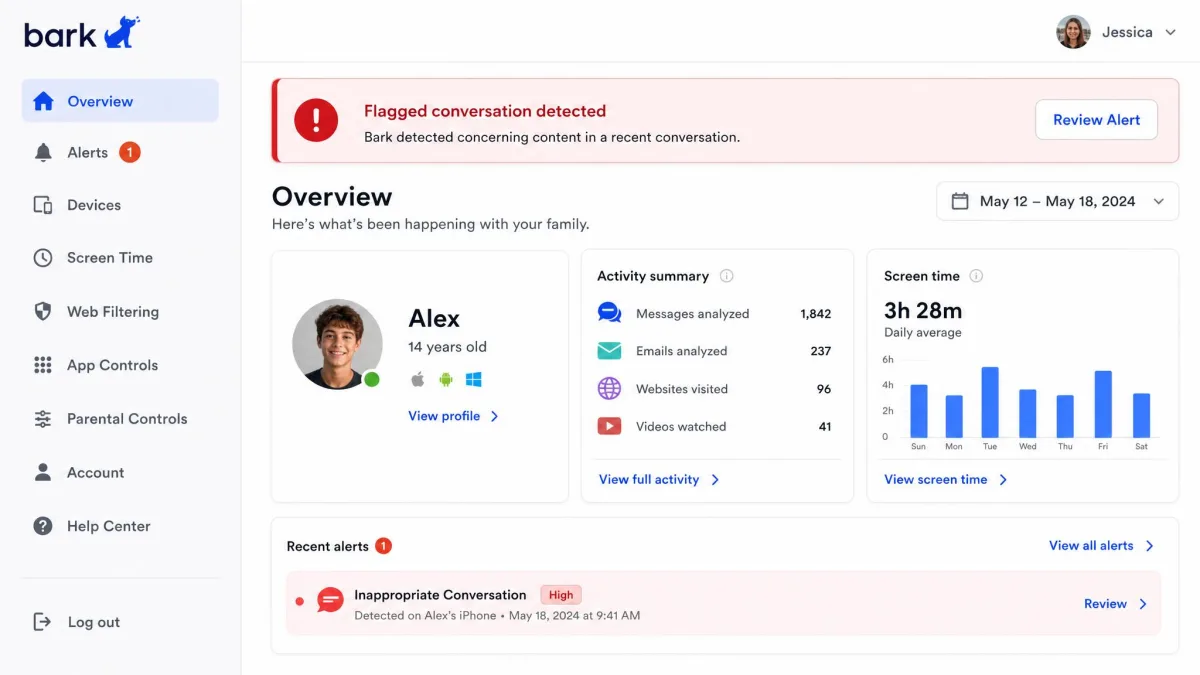
Bark has no permanent free plan, only a seven-day trial, so we ranked it for what that trial reveals rather than for a price tag. Its AI monitoring reads texts, emails, saved photos and videos, and activity across 30-plus apps and platforms, alerting on cyberbullying, online predators, suicidal ideation, drugs, and explicit content. In our testing it flagged concerning content with roughly 96 to 97 percent accuracy and few false positives, while staying quiet on minor school stress and triggering on the serious stuff.
Setup is the steepest of the group. Android takes about five minutes, but iOS requires email forwarding, manually connecting social accounts, and Apple’s Screen Time configuration, so budget an hour for a full install. Bark does not show full message history either, only alert-triggered excerpts, and on iPhone it needs the Bark Sync hardware charger to scan messages at all. The trial requires a credit card at signup for COPPA verification, so treat the end date as a hard deadline.
Pros
- Most accurate content monitoring we tested
- Alerts for cyberbullying, predators, and self-harm signals
- One subscription covers every child and device
Cons
- No free tier, only a seven-day trial with a credit card
- Complex setup, especially on iPhone
- iOS monitoring needs the Bark Sync hardware charger
Best for: Parents who want to trial serious content monitoring before paying, especially on Android. Skip if: You need a permanent free option or a quick setup.

6. Mobicip: Best Free Web Filtering
Where Bark is all depth and no free tier, Mobicip goes the other way, with a genuinely free plan that keeps the essentials.

Mobicip
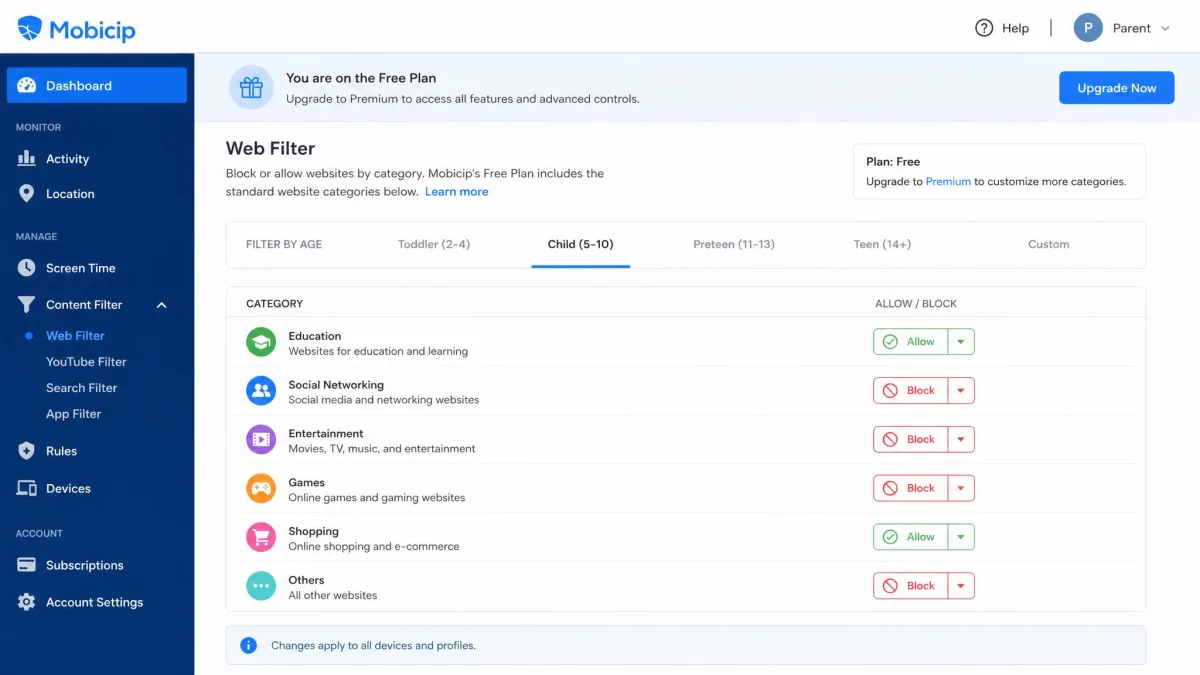
Mobicip’s free Basic plan is genuinely free and signs up with nothing more than an email address, which makes it the most accessible free web-filtering option on this list. The free tier covers daily screen-time limits, sleep-time scheduling, and custom web filters by site, category, or keyword, plus app blocking, a remote lock, and current-day activity monitoring. The device count runs to one or two, depending on the store listing.
The filtering itself is where we got impatient. Blacklisted sites slipped through in several of our tests, and permitted content like YouTube sometimes loaded even after we blocked it. The filter also broke legitimate sites occasionally, including an airline booking page and an online class. The free plan shows current-day activity only, and settings sync slowly: a TikTok block took about eleven minutes to land on Android and more than thirty on iOS. As a free first filter with no card on file it has a place, but we would not trust it as the only layer.
Pros
- Genuinely free Basic plan with no credit card
- Web filters by site, category, and keyword
- Daily screen-time and sleep-time scheduling included
Cons
- Filtering proved unreliable at the edges in our tests
- Activity history limited to the current day
- Settings sync slowly, especially on iOS
Best for: Families that want a free, customizable web filter with no sign-up friction. Skip if: You need dependable enforcement or long-term activity history.
7. Norton Family: Best Free Trial for Large Families
Mobicip gives you a free plan and hopes you upgrade, while Norton Family skips straight to the trial.

Norton Family
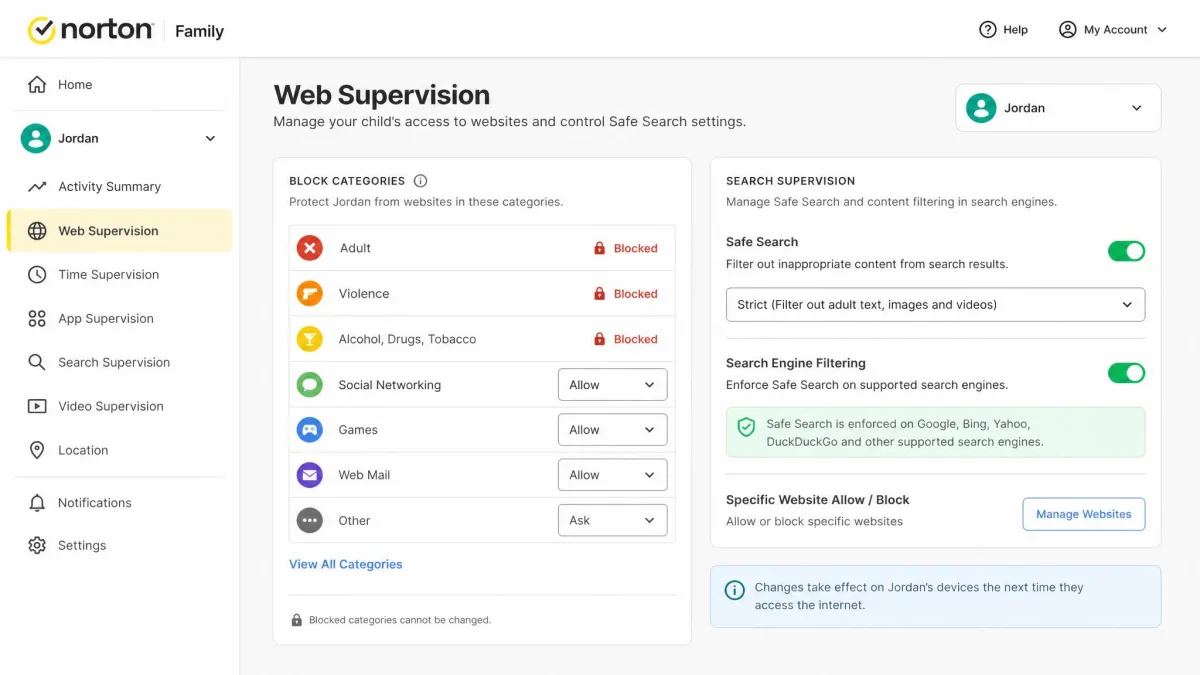
Norton Family has no permanent free tier, only a 30-day free trial. After that it costs $49.99 a year for unlimited devices, which suits a large family that wants to test a comprehensive service before committing. The web filter is the strongest thing about it, with supervision across 47 block categories, search supervision on Google, Bing, YouTube, and others, and screen-time limits. In our testing it blocked prohibited sites even with a VPN connected and in incognito mode, something several rival filters could not manage.
The strengths come with trade-offs that surfaced in our testing, including a high number of false positives on uncategorized sites. Desktop filtering relies on browser extensions that are not enabled by default, and a child can easily remove them. On iOS, filtering works only inside the Norton Browser, and we also hit reliability glitches where child devices showed as offline while they were actually online. The current Norton Family product pages list Windows, Android, and iOS, so Mac families should confirm coverage before they buy.
Pros
- Strong web filter that held up against VPN and incognito tests
- 47 block categories plus search supervision
- 30-day trial and $49.99/year for unlimited devices
Cons
- No permanent free tier
- False positives on uncategorized sites
- iOS filtering only in the Norton Browser, and no macOS support
Best for: Large families that want to trial comprehensive filtering before paying. Skip if: You need a genuinely free option or Mac coverage.
8. Kaspersky Safe Kids Free: Best Free Filtering for Older Kids
The final spot on the list belongs to the free tier that gives the most for nothing at all: unlimited devices, no expiry.

Kaspersky Safe Kids Free
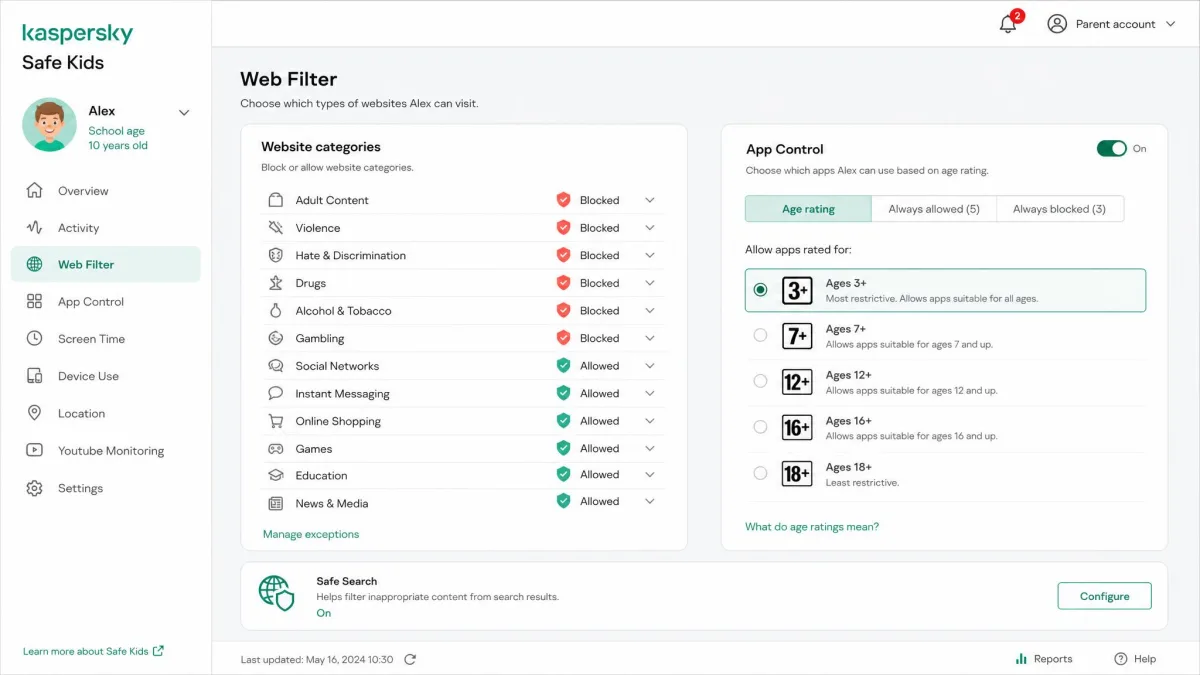
Kaspersky Safe Kids Free is one of the few genuinely free tiers with no device limit at all. A family with several children and a stack of hand-me-down devices can protect all of them for nothing. The free tier covers category-based web filtering, app filtering by age rating or category, daily screen-time limits, and YouTube Safe Search. In a Windows lab test it blocked 96.5 percent of 1,000 inappropriate websites, with zero false positives on child-friendly sites.
The limitations sit where you would expect on a free tier. There is no scheduling or downtime schedule, no GPS or location tracking, no social media monitoring, and no YouTube watch history. Real-time alerts are missing too. Our testing also found the filter less reliable on browsers outside the mainstream, where changing a word or two in a URL reached a blocked site. Notifications sometimes reached the parent app but not the child’s app. As a genuinely free, unlimited-device filtering layer for older kids, it is hard to beat.
Pros
- Genuinely free with no device limit and no expiry
- Strong category filtering in lab and hands-on tests
- App filtering by age rating or category
Cons
- No scheduling, location, or social media monitoring on the free tier
- Filter less reliable on less popular browsers
- Notification delivery can be inconsistent
Best for: Families with multiple children and devices that want a genuinely free filtering layer. Skip if: You need monitoring of messages, social posts, or location.
Free Parental Control Apps Comparison Table
The table below sums up the free status of the seven consensus picks, because that distinction drives most buying decisions. Platform coverage, free-plan type, and the reason we recommended each one are all here, and Kaspersky Safe Kids Free’s free tier is covered in its review above.
| Product | Buy | Platform | Free-plan coverage | Best for |
|---|---|---|---|---|
|
Check price → | Android, iOS, Windows, Mac, Kindle | Genuinely free (limited plan, 1 device) | Best free plan overall |
|
Check price | Android child; parent app on Android/iOS | Genuinely free (no paid tier) | Best genuinely free / Android built-in |
|
Pre-installed | iOS, iPadOS, macOS (built-in) | Genuinely free (built-in) | Best free built-in for iPhone |
|
Check price | Windows, Xbox, Android, iOS | Genuinely free (no paid tier) | Best free built-in for Windows & Xbox |
|
Check price | Android, iOS, Amazon Fire | Free trial only (7-day) | Best social media monitoring (trial) |
|
Check price | Android, iOS, Windows, Mac, Kindle | Genuinely free (Basic plan, no card) | Best free web filtering |
|
Check price | Windows, Android, iOS (no Mac) | Free trial only (30-day) | Best free trial for large families |
Two patterns jump out of this table, and both are predictable. Genuinely free tools cluster around the platform the vendor already owns, while every trial-based tool is really a paid product wearing a free costume for a month.
How to Choose the Best Free Parental Control App
Choosing between these apps comes down to three questions: your child’s devices, their age, and how much family data you are comfortable handing over for free monitoring.
Nearly 95 percent of U.S. teens have access to a smartphone, per Pew Research Center’s teens and device access fact sheet. The question is not whether your child is online but who sets the boundaries. A free app that covers the right platform and the right age range will always beat a more powerful app that does not.
The free parental control app that works is the one that covers every device your child actually uses. A filter that runs on the phone but not the tablet leaves a door open.
— From our hands-on testing
Match Features to Your Child’s Devices
Platform comes first: if your child uses an iPhone, Apple Screen Time is already installed and free, while Google Family Link cannot supervise an iPhone child device at all. If they use Windows and Xbox, Microsoft Family Safety is the free built-in that covers both. Android families have the widest choice, which is why our best parental control apps for Android guide covers the paid options too. A tool that runs on the wrong platform is worse than no tool, because it creates the illusion of oversight without the enforcement.
If your family mixes platforms, do not try to force one app across everything. Use Family Link on the Android device and Screen Time on the iPhone, and accept that each platform’s built-in tool will do a better job than a third-party app fighting the operating system’s restrictions.
Match Controls to Your Child’s Age
A six-year-old and a fifteen-year-old need opposite things from a control app. For young children the priority is hard boundaries: strong web filtering, app approvals, and generous Downtime, which is where Qustodio’s free tier and Family Link’s approvals shine. For teenagers the priority shifts to noticing problems rather than stopping them, which is the one thing free tiers do not do well. Alerts for cyberbullying and stranger contact are a paid feature on Qustodio, Bark, and every serious monitoring service.
Understand Free-Plan Limits and Privacy Trade-offs
The free tier is a marketing decision, and reading it as one saves a lot of frustration. A genuinely free app like Family Link or Screen Time is priced at $0 and makes its money by strengthening the platform relationship, not by selling monitoring. A trial-based app like Bark or Norton Family exists to convert you to a subscription. Any free app that shows ads or partners aggressively with data brokers is monetizing your family’s usage data, a privacy cost you may not have budgeted for.
Built-In Controls vs Third-Party Apps: Is Free Really Enough?
There are two ways to get free parental controls: the tools built into the operating system, and the free plans of third-party apps that normally charge. The two families behave very differently, and the difference matters more than any single feature.
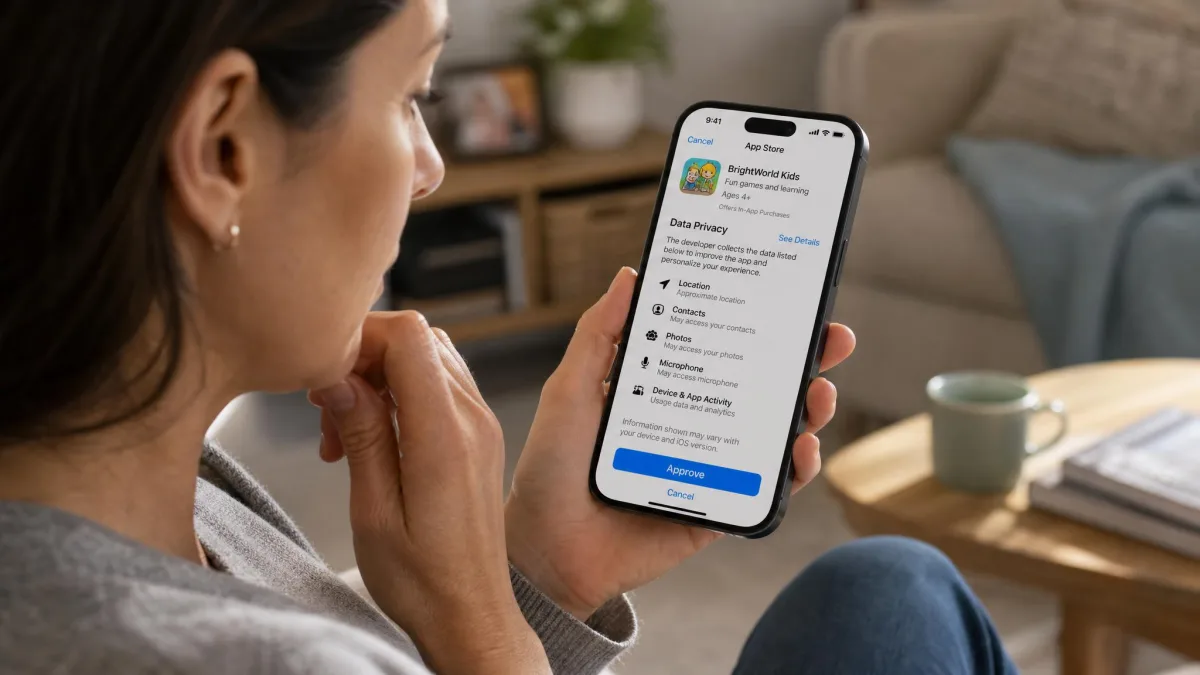
Built-in controls are the baseline that every family should turn on first, because they are free, always installed, and roughly compatible with the platform vendor’s own restrictions. Apple Screen Time, Microsoft Family Safety, and Google Family Link all qualify. Their weaknesses are the operating system’s weaknesses, and Screen Time can be outsmarted with Siri and web versions of blocked apps. Family Link’s filter only lives in Chrome, and Microsoft’s limits do not reliably hold on Android. Built-ins also stop at the edge of the ecosystem, so none of them will tell you what your child typed into a social app or an email.
Third-party free plans exist to introduce you to a paid product. Qustodio’s free tier is the most generous we tested, but it protects one device and one child, which is precisely the hook that pushes a growing family toward the premium plan. Bark and Norton Family skip the free tier entirely and give you a trial. The third-party advantage is depth: category-level filtering, activity reports, location tracking, and, on paid plans, content monitoring. The disadvantage is that every free third-party tier is a sample, and the sample is designed to run out.
Turn on the built-in controls first, even if you plan to use a paid app later, because Screen Time’s Downtime feature alone prevents most bedtime phone use with zero setup beyond choosing the hours. It stays active as a second layer even when a third-party app is in charge.
So is free really enough? For screen time and basic web filtering, yes, and the built-ins are enough. For knowing what your child is actually saying and doing, no free tier gets you there, and on iPhone nothing short of a paid service with a hardware workaround does either. Our best parental control apps for iPhone roundup walks through the paid options that close that gap.
Are Free Parental Control Apps Safe? (Risks & Limitations)
Free parental control apps are safe in the sense that the well-known ones come from large, reputable companies. But “safe” and “private” are different questions, and “free” introduces risks that paid apps do not have.
The first risk is data, because a genuinely free app still has to pay for servers and staff. The ones that are not cross-selling a paid tier are more likely to monetize what they learn about your family’s browsing. Read the privacy policy for the specific phrase about selling or sharing data with advertising partners, because that clause is the dividing line between a free app and a surveillance pipeline. The second risk is the trial trap: Bark and Norton Family require a credit card at signup, and a forgotten trial end date turns a free month into a yearly subscription. The third risk is false confidence, because every app on this list can be bypassed by a determined child. Free tiers are the easiest to bypass, since they cannot afford the deep monitoring that catches workarounds.
Ad-supported free tiers and trial apps that ask for a credit card are the two setups to watch. Before installing, check the privacy policy for data sharing with advertising partners, and if a free trial demands a card, set a cancellation reminder on the day you sign up.
The limitations are not just technical but structural: no genuinely free tier we tested can read the content of texts or social posts. The riskiest scenarios for children online, involving direct contact with strangers, are exactly what a screen-time filter cannot see. That gap is why we treat free apps as a solid first layer rather than the whole answer. A paid monitoring service with content alerts is worth considering once a child has a social media presence.

Frequently Asked Questions
What is the best free parental control app?
Can my child remove Family Link supervision at 13, and can I stop it?
Are there any completely free parental control apps?
Can free parental control apps monitor text messages and social media?
Do free parental controls work on both iPhone and Android?
Will a free parental control app ever charge me?
Our Verdict: Which Free Parental Control App Is Best for You?
For most families the answer is Qustodio’s free plan, with Google Family Link running close behind for Android-only homes and Apple Screen Time as the free default on iPhone. The best choice depends on one thing above all: which platforms your child actually uses, because an app that does not cover their device protects nobody.
If your child is on Android, start with Family Link for the genuinely free guardrails, then add Qustodio’s free plan on a second device if you want stronger filtering and activity reports. If your child is on iPhone, Screen Time is the free baseline and the natural place to begin. If your family is all-Windows and all-Xbox, Microsoft Family Safety costs nothing and covers the basics. If you have decided that content monitoring matters, understand that it is a paid capability, so trial Bark and Norton Family with a cancellation reminder attached.