
Acronis True Image Review
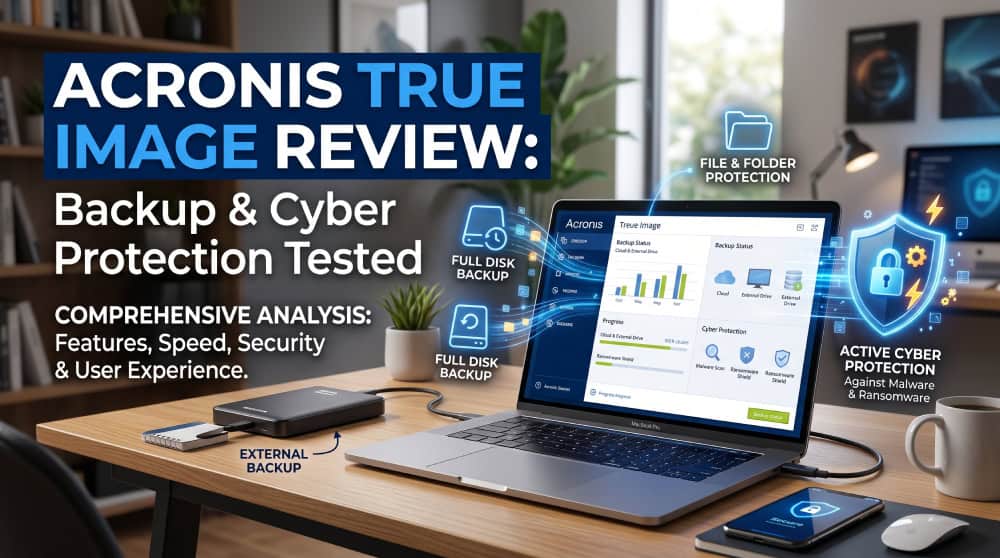
Acronis True Image is an all-in-one backup and cyber-protection suite for home users, combining full disk-image backups, file-level backups, disk cloning, and built-in malware and ransomware defense. We tested it over three weeks on a Windows 11 desktop and a 2020 MacBook Air, running backup jobs to an external SSD, a 2.5Gbps NAS box, and Acronis Cloud, then throwing malicious test pages at its real-time protection. Our short verdict: it is one of the most complete data-safety tools you can buy, and the price reflects that. It is more than most people need if you only want simple file backups, and the interface still has rough edges. This review is reader-supported, and we may earn a commission if you buy through our links.
What Is Acronis True Image and Who Is It For?
Acronis True Image (formerly sold as Acronis Cyber Protect Home Office) is consumer backup software that bundles three jobs into one program: imaging and restoring your drives, cloning disks, and actively protecting your machine against malware. The full feature list lives on the official Acronis True Image product page, but the headline is breadth. It backs up entire disks, individual partitions, or selected files and folders, to local storage, a network share, or Acronis Cloud.
This is software for people who treat their data as irreplaceable and want belt-and-suspenders coverage. Photographers, freelancers, and home-office users who cannot afford a lost drive are the natural fit. If all you need is to copy a documents folder to an external drive, this is more capability than you require.
Pros
- Comprehensive disk-image and file-level backup with flexible scheduling
- Integrated malware and ransomware protection that worked in our tests
- Fast, dependable disk cloning and bootable recovery media
- Native apps for Windows, macOS, Android, and iOS
Cons
- Pricier than dedicated backup-only rivals
- Interface could be refined; a few menus feel dated
- Advanced features are gated behind the Advanced and Premium tiers
- Cloud backup and sync require an ongoing subscription and an Acronis account
Pricing and Plans
Acronis sells True Image as a yearly subscription in three tiers, and there is no perpetual license. A 30-day free trial is available without payment details, which is a fair way to test the software before committing. The table below reflects the tiers as we saw them during testing.
| Plan | Price (per year) | Cloud storage | Best for |
|---|---|---|---|
| Essentials | $49.99 | None | Local and network backup only, single PC |
| Advanced | $72.99 | Included (allotment varies by promotion) | Most users who want some cloud backup plus extra malware tools |
| Premium | $124.99 | 1 TB | Power users who want blockchain file certification and digital signatures |
The pricing logic is straightforward once you see it. Essentials covers local and network backups with ransomware protection but no cloud storage. Advanced adds cloud backup for a single PC plus extra malware features, and Premium tops out with 1 TB of cloud storage and extras such as blockchain notarization. Priority support is Premium-only, and every plan offers multi-year licenses.
The value question is whether you will lean on the cloud tier at all. If you back up only to your own drives and a NAS, Essentials does the job for the lowest yearly cost.
Setup and User Interface
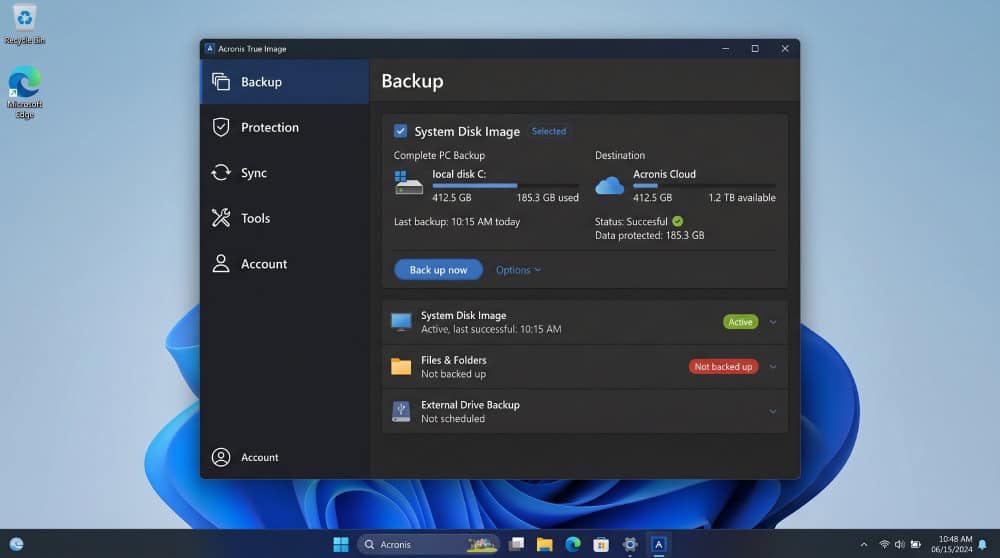
Installation is the first place the "do-it-all" ambition shows. The Windows installer is large, roughly 1 GB, and it will not let you start until you register an Acronis account. Once installed, the app opens on a spacious left-rail layout with clearly labeled tabs, and it is one of the better-looking backup interfaces we have used.
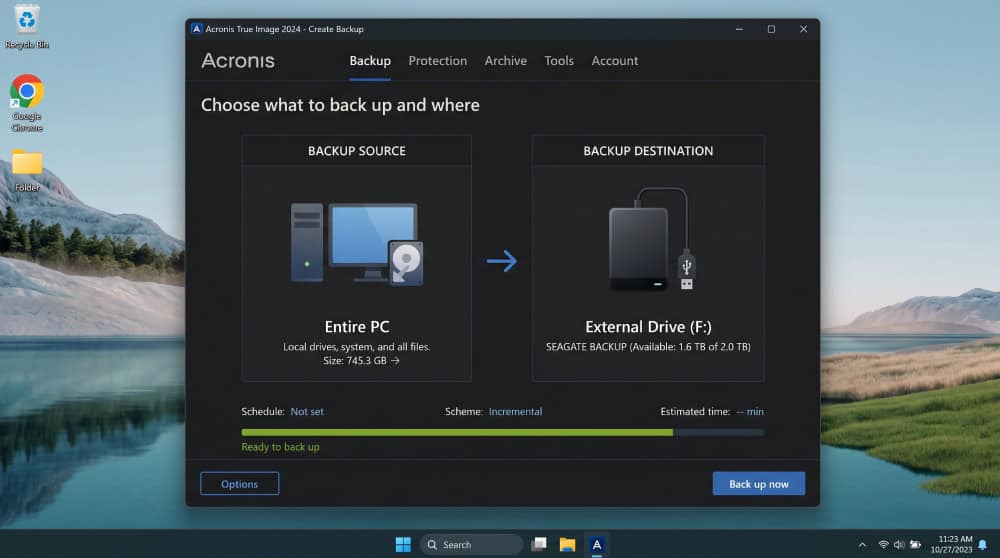
Creating a backup is genuinely simple. You see two big icons, one for the source and one for the destination, and you click each to pick what to protect and where to send it. The source can be the whole PC, a disk or partition, or specific files; the destination can be an external drive, a NAS, another PC, or the cloud. Scheduling, encryption, and retention rules were all easy to set.
The polish is uneven, though. When we tried to set up a OneDrive backup, the app told us to open the online dashboard, then dropped us somewhere without the button we needed, so we dug through the help files. On the About screen, the version field showed placeholder text instead of a real build number. None of this stops the software from working, but it undercuts confidence in a product whose whole job is to be trustworthy.
Backup and Recovery Features
This is the heart of the product, and the feature set runs deep enough that most people will never touch its edges.
Disk-Image and File-Level Backups
True Image creates image files from whole drives or partitions, and it backs up selected files and folders just as readily. You choose between full backups, incremental backups that capture only what changed since the last run, and differential backups that capture everything changed since the initial image. You can also schedule jobs, cull old backups automatically when space runs low, copy sector-by-sector or data-only, and validate a backup after it completes.
The software also writes to almost any destination you can name. We sent backups to local SSDs, an external USB drive, a NAS, optical media, and Acronis Cloud, and each ran without a hitch. For disaster recovery, True Image builds bootable recovery media on a USB stick or disc that loads a stripped-down version of the program, so you can restore a dead machine from scratch. We built the Windows PE recovery disk and restored our test image with it cleanly.
Disk Cloning and Restoring Your Data
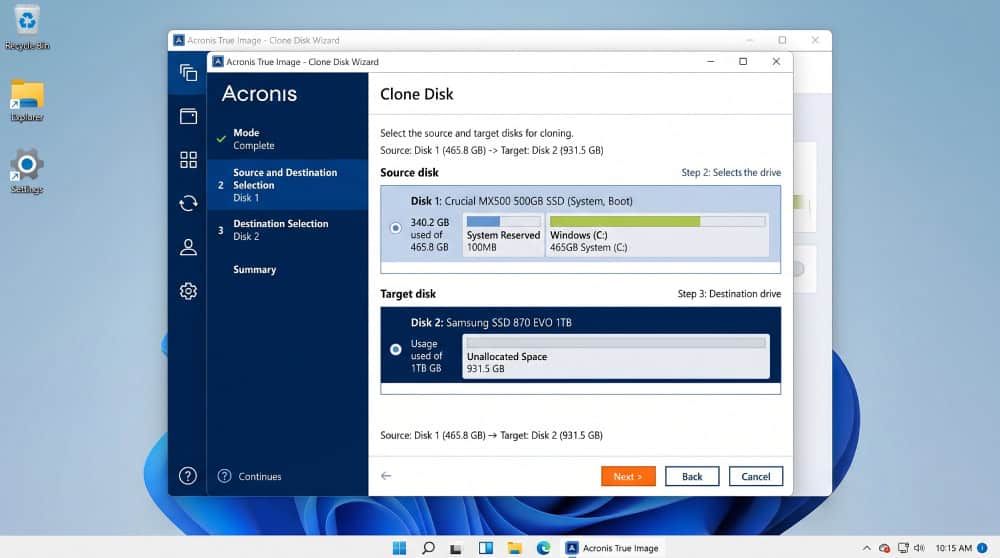
Disk cloning is the feature most people come to True Image for when they upgrade a drive, and it works well in practice. The Clone Disk Wizard copies your entire system, operating system included, from one drive to another so the new disk boots exactly like the old one. We cloned a 500 GB system SSD to a larger drive and booted straight into Windows on the first try.
The wizard itself is the weak link. It uses a more cramped, dated style than the polished main app, and the dialog boxes do not explain much, so first-timers may want to read the Acronis support documentation first. The result is reliable; the path to it could be friendlier. Restoring individual files is more pleasant, with a browsable view of saved versions, and our restores returned the right data.
Cyber Protection: Malware and Ransomware Defense
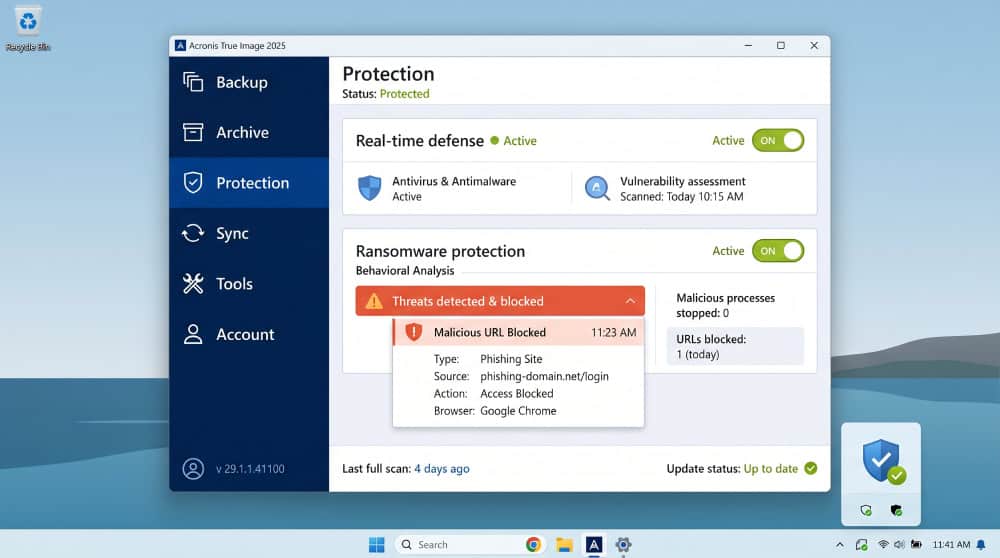
Backup software that also fights malware once seemed like an unusual pairing, but it makes sense the moment you think about ransomware. If malware can reach your backups, your backups are worthless, so Acronis guards both your live files and your archives. The suite blocks general malware, malicious websites, and behaviors such as code injection, and it can lock access to existing backups the instant it detects a ransomware attempt.
We put the real-time protection through its paces using known malicious test pages and a browse through deliberately unsafe corners of the web. True Image flagged and blocked every threat we sent at it, and warned us before any dangerous page could load. Protection is optional, but we would leave it on. For independent confirmation, consult the AV-Test malware-protection results.
Is Acronis True Image Safe? Security and Privacy
Acronis True Image is safe to use, and the encryption options are solid. You can encrypt backups with a private key, and cloud archives travel to Acronis servers over a protected connection. The account requirement adds friction, but it keeps your data tied to you rather than to whoever picks up your drive.
The privacy trade-off deserves a plain statement. Using the cloud features means your data lives on Acronis' servers, and you must keep an active account to retain access. If you are uneasy about a third party holding your files, you can run True Image entirely with local and network destinations and skip the cloud.
How Fast Is Acronis True Image? Performance and System Impact
Speed was a strong point throughout our testing. Backup jobs ran about as fast as each destination's bandwidth allowed, whether we wrote to an internal SSD, the external USB drive, or the 2.5Gbps NAS, and none stalled or threw errors. Cloud uploads were paced by our connection rather than the software, which is exactly what you want. Disk cloning was equally quick.
System impact is the asterisk. The app is slow to launch because it spins up a dozen background processes and connects to Acronis Cloud before showing its interface, and that footprint sits in memory while protection stays active. On modern hardware we noticed no day-to-day slowdowns. This is the cost of folding backup and live protection into one resident program.
Customer Support
Support coverage is generous on paper. Every plan includes 24/7 phone, email, and live chat, and Premium subscribers get priority handling. Acronis also maintains an extensive knowledge base, which we leaned on more than once when the interface hid a button we needed.
In practice, the self-service resources carried most of the weight for us. The documentation is thorough and well organized, and for common tasks such as building recovery media, the written guides answered us faster than a live agent would have. That is a reasonable balance for a product this deep, though expect to read a little.
Acronis True Image vs the Competition
Where pure-backup rivals do one thing, True Image does three, and that framing explains both its appeal and its price. Dedicated tools such as EaseUS Todo Backup and Macrium Reflect handle imaging and cloning capably and cost less, but they do not bundle active malware and ransomware protection the way Acronis does. If backup is all you want, those alternatives are leaner and cheaper.
The comparison shifts once cloud storage enters the picture. Cloud-first services like Backblaze price their large-capacity plans aggressively, but they generally do not offer local disk imaging, cloning, or built-in antivirus. True Image's pitch is that you pay one subscription and stop juggling separate apps for backup, cloning, and protection. Whether that bundle is worth the premium depends on whether you will use all three parts.
Frequently Asked Questions
Is there a perpetual license, or what happens to my backups if my subscription lapses?
There is no perpetual license; all tiers are annual subscriptions. If yours lapses, your local and network backups stay on your drives and remain restorable, but new jobs stop, cloud sync ends, and after a grace period you can reach cloud archives only through the recovery media. Keep one local copy so a lapse never locks you out.
Is Acronis True Image safe, and does it protect against ransomware?
Yes. It encrypts backups and includes active ransomware protection that, in our testing, blocked every malicious page we tried and can cut off access to your backups the moment it detects an attack.
Will Acronis True Image slow down an older PC?
It can. Backup speeds track your hardware, but the always-on protection keeps a dozen processes resident in memory and the app is slow to launch. On a machine with 4 GB of RAM or an aging hard drive you will feel that footprint. If your PC is older, turn off real-time protection and rely on scheduled backups to keep it light.
Does Acronis True Image include cloud storage?
Cloud storage comes with the Advanced and Premium tiers, with Premium offering 1 TB. Essentials backs up only to local and network destinations, and cloud sync requires the app on at least two computers.
Should I choose Acronis True Image over a cheaper backup-only tool like EaseUS or Macrium?
Choose Acronis only if you want the bundled malware and ransomware defense alongside imaging and cloning. EaseUS Todo Backup and Macrium Reflect image and clone just as reliably for less, but they leave security to a separate antivirus. If you already run an antivirus you trust, the cheaper tool covers the backup job at a lower yearly cost.
Verdict: Is Acronis True Image Worth It?
After three weeks of hands-on testing, Acronis True Image lands as the most complete consumer data-safety tool we have used, and our 8/10 reflects both that breadth and its rough edges. Backups and cloning were fast and dependable, the ransomware defense earned its place, and the recovery media did its job. The friction sits in the polish and the pricing model, not the core engine.
Buy it if you want imaging, cloning, and active protection in one subscription and will use all three. If your needs are simpler, a dedicated backup-only tool will cost less. For the right user, the all-in-one approach is exactly the convenience it promises.
Get Acronis True Image
 EaseUS Todo Backup Review
 Disk Drill Review
 IObit Advanced SystemCare Review
 Avast Cleanup Review
 CCleaner Review