Firefox has no built-in way to block a website. Search the browser settings and you will find nothing that stops a specific site from loading, because the permissions screen only governs cookies, pop-ups and site data.
Six methods do work, and each covers a different amount of ground. An add-on blocks sites inside Firefox in minutes, the hosts file blocks a domain for the whole computer, a policy file survives a curious teenager, and router DNS covers every device on the Wi-Fi at once. Here is all six, step-by-step, on Windows, Mac and Android.
Why Firefox Has No Built-In Site Blocker
Mozilla treats site blocking as an add-on job rather than a browser feature, so Firefox ships content controls for tracking, cookies and pop-ups but nothing that takes a URL and refuses to load it.
That shapes how you pick a method, because anything you set inside Firefox stays inside Firefox. Open Chrome or Edge on the same computer and the site loads normally, so a browser-only block is a soft block. If it needs to hold everywhere, skip ahead to the hosts file or the router.
Method 1: Block a Site With the Block Site Add-On
The fastest route is an extension. Block Site is a small, free add-on that stops matching requests before they reach the server.
Install the Add-On
- Open Firefox and install the Block Site add-on from Mozilla's add-ons site.
- Click Add to Firefox, then confirm the permission prompt.
- Click Add when Firefox asks to complete the install.
- Look in the toolbar for the new add-on icon.
The listing carries a 3.9 out of 5 rating across 530 reviews, and roughly seventy thousand people run it, though that count moves week to week. The current release is version 0.5.7, last updated November 15, 2025. Ratings are genuinely split: 324 people give it five stars, while 104 of those 530 reviews are one-star.
Add Your First Blocked Site
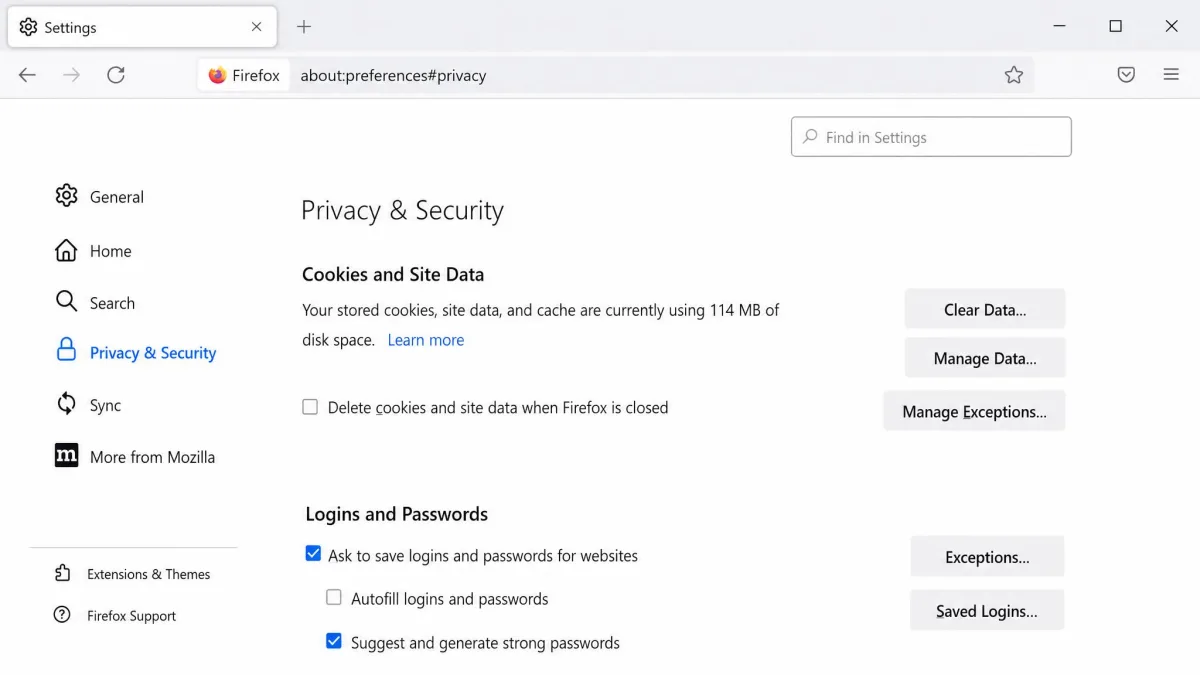
- Click the add-on icon in the toolbar and choose Options.
- Type the domain you want to block, for example
reddit.com, into the list field. - Click Save.
- Open a new tab and visit the site to confirm the block page appears.
Adding a site is fiddlier than it looks, because the entry field sits behind the Options screen rather than the toolbar button, and a bare domain can leave a subdomain reachable unless you use a wildcard pattern. The add-on also supports regular expressions, custom redirects and messages, and auto-closing blocked tabs.
Set a Password So It Sticks
Anyone who can open about:addons can switch the extension off, so if you are blocking sites for a child, set the password protection before you hand the computer back.
Set the Block Site password before your child ever sees the extension icon. An add-on that arrives already locked draws far less attention than one that gets noticed and removed the same afternoon.
Two limits are worth knowing. The time-period scheduling does not always fire, so a site set to block during working hours can still open, and Block Site can stop applying once a second browser window is open, which makes the block look inconsistent from window to window.
Method 2: Use LeechBlock NG for Scheduled Blocking
If you want a site blocked at certain times instead of permanently, LeechBlock NG is the better tool. It is the higher-rated of the two extensions here, at 4.8 out of 5 across 2,020 reviews against 3.9 for Block Site, around one hundred thousand people use it, and the current release is version 1.7.3. Both add-ons come from Mozilla's own catalogue, the safest place to get an extension, and you can check whether one carries a badge from Mozilla's Recommended Extensions programme.
Create a Block Set
- Install LeechBlock NG, then open its Options screen.
- Pick a block set tab at the top of the screen.
- Enter the sites for that set, one per line, in the Sites to block box.
- Give the set a name so you can find it later, then click Save Options.
You get up to 30 separate block sets, each with its own schedule, so work sites, social media and video can run on different rules.
Set Time Windows and Daily Limits
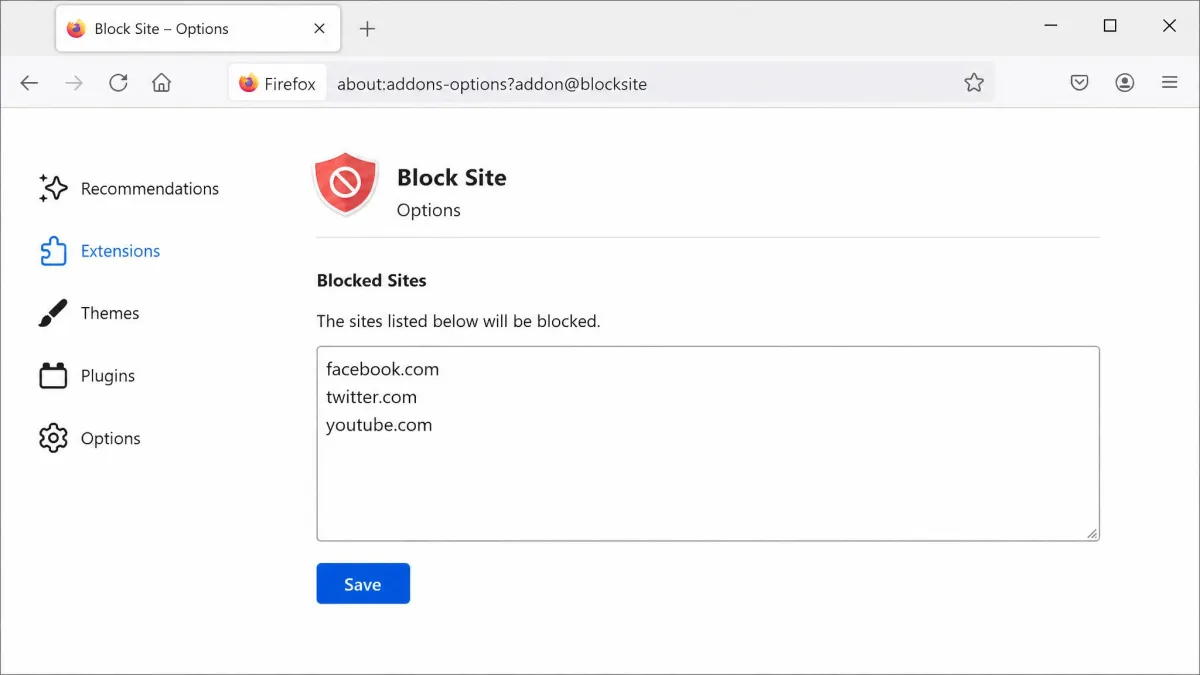
- Open the When to Block tab for your set.
- Enter a fixed window such as
0900-1700, or a time limit such as 10 minutes per hour. - Tick the days of the week the rule should apply.
- Click Save Options.
Setting up a long list is tedious, since sites and schedules go in one at a time, and finding the setting for an indefinite always-on block takes several minutes of hunting through the tabs. The password and random access-code lock is not airtight either, because disabling the extension from the add-ons screen bypasses it. Schedules occasionally fail to trigger, and some installs have stopped working after a browser update.
Method 3: Use Firefox's Built-In Permissions and Exceptions
Firefox cannot block a site outright, but its exceptions list can make a site far less usable by cutting off the data it stores.
Block Cookies and Site Data for a Specific Site
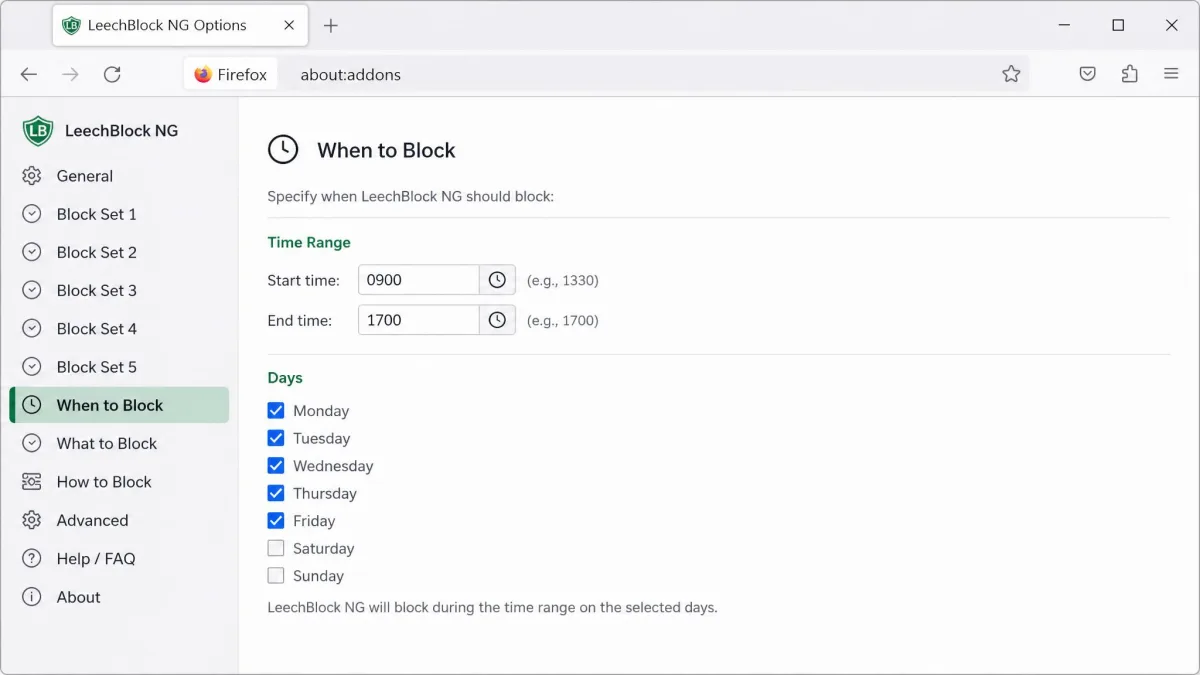
- Open the Firefox menu and choose Settings, then Privacy & Security.
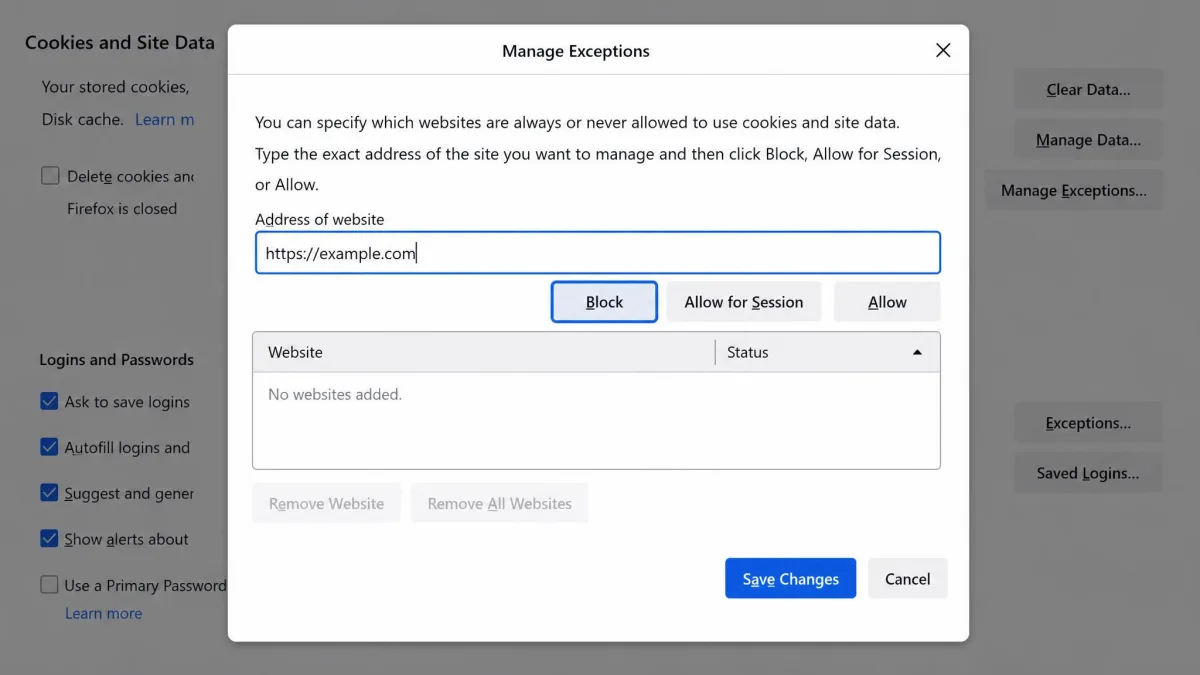
- Scroll to the Cookies and Site Data section and click Manage Exceptions.
- Type the full address of the site, for example
https://example.com, into the address bar of that dialog. - Click Block, then click Save Changes.
The same steps apply if you need to clear cookies in Firefox on a Mac.
Where the Built-In Settings Fall Short
The page still loads. The site simply cannot keep you signed in or remember anything between visits, which is annoying rather than blocking, so treat it as a supplement to an add-on or a hosts entry.
Method 4: Edit the Hosts File (Windows, macOS, Linux)
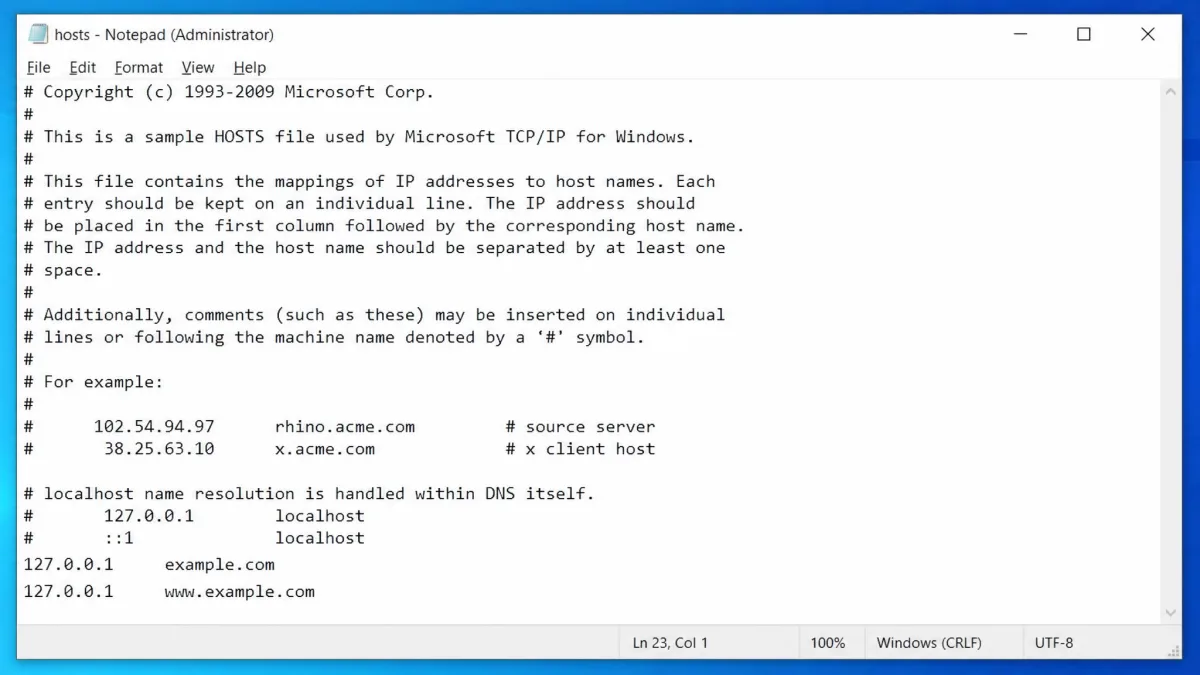
The hosts file is a plain text list your computer checks before it asks the internet where a domain lives. Point a domain at 127.0.0.1 and the request goes nowhere, in every browser on that computer.
Editing the Hosts File on Windows
- Click the Start button, type
notepadin the search bar, right-click Notepad and choose Run as administrator. - Open
C:\Windows\System32\drivers\etc\hosts, setting the file type filter to All Files so it appears. - Add a new line reading
127.0.0.1 example.com, then a second line for127.0.0.1 www.example.com. - Save the file and reopen Firefox.
Editing the Hosts File on macOS and Linux
- Open Terminal.
- Type
sudo nano /etc/hostsand press Return, then enter your password. - Add the same
127.0.0.1 example.comlines at the bottom of the file. - Press Control+O to save and Control+X to exit.
An edit will not save unless the editor was launched with administrator or sudo rights, and that is where most attempts stall.
The hosts file controls name resolution for the whole computer, so a typo in an existing line can break services you rely on. Copy the file somewhere safe first, add your entries at the bottom, and leave every existing line untouched.
Method 5: Block Sites With a Firefox Policy File
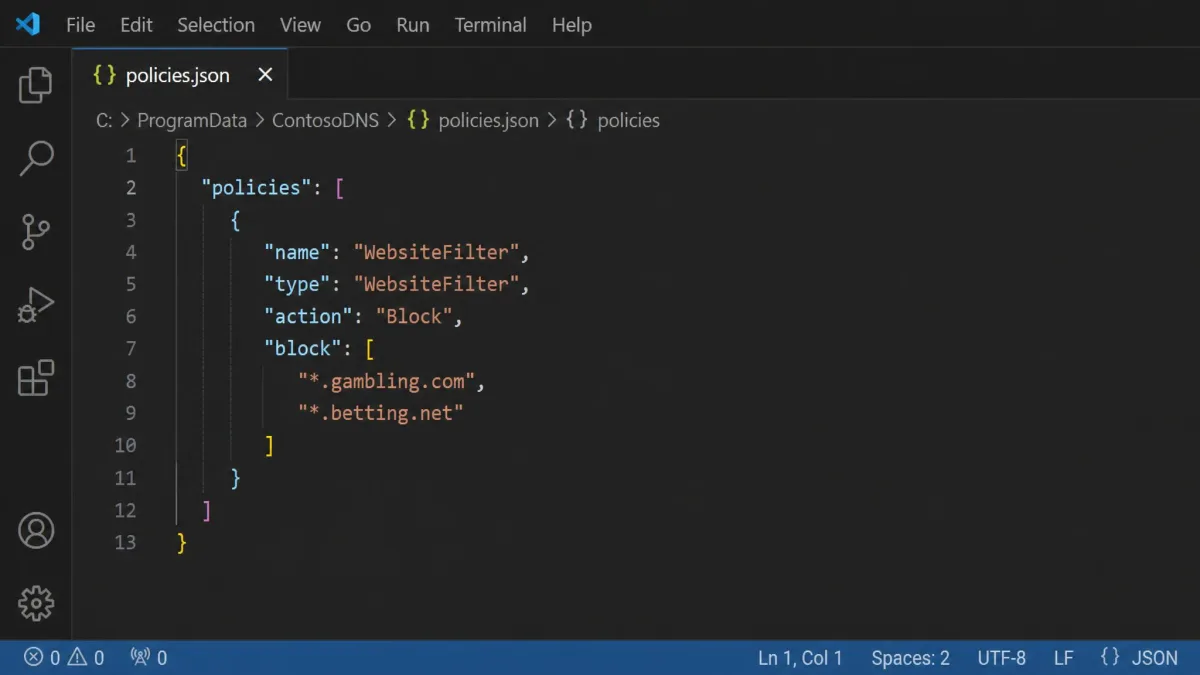
A policy file is the hardest block to remove from inside Firefox. The browser reads policies.json at startup and applies a WebsiteFilter rule that no extension menu can switch off. The policy engine has been part of Firefox since version 60, including the ESR builds, so any current install supports it.
- Create a folder named
distributioninside the Firefox installation folder. - Create a file called
policies.jsonin that folder. - Add a
WebsiteFilterpolicy with aBlockarray listing your match patterns, such as*://*.example.com/*. - Save the file and restart Firefox.
The Block and Exceptions arrays hold up to 1000 entries each, and only http and https addresses are supported. For a strict allow-list, block everything with <all_urls>, then name the sites you permit under Exceptions. Syntax and deployment through Group Policy, Intune or a macOS profile are covered in Firefox enterprise policies (policies.json).
Method 6: Block at the Router or With Family-Safe DNS
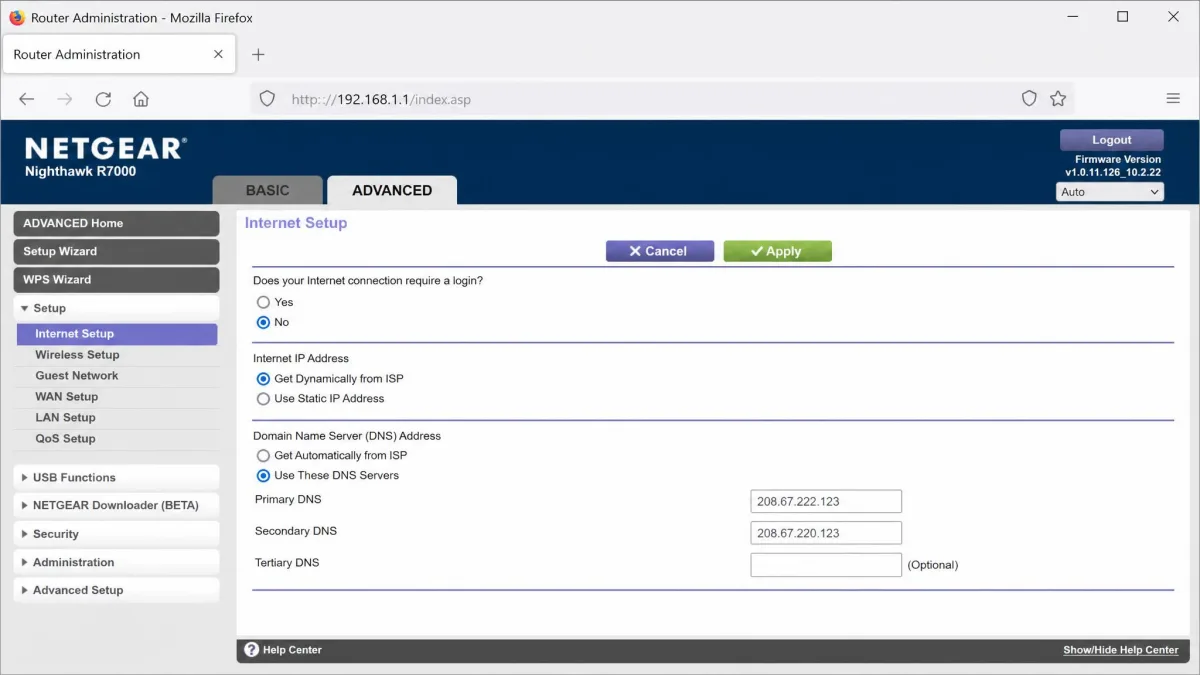
Blocking at the network level covers every device on the Wi-Fi at once, phones and consoles included, and no software goes on any computer.
- Sign in to your router's admin page, usually at
192.168.1.1, in a new Firefox tab. - Find the DNS server fields, often under Internet, WAN or Basic Setup.
- Enter
208.67.222.123and208.67.220.123for OpenDNS FamilyShield, or1.1.1.3and1.0.0.3for Cloudflare's 1.1.1.1 for Families. - Save the settings and restart the router.
FamilyShield needs no account and is pre-set to block adult categories, so changing the DNS servers is the only step, and Cloudflare's family option filters malware and adult content the same way. Windows households can pair either with Microsoft Family Safety web filtering for per-child rules. Network filtering has one clear gap: it stops applying the moment a phone leaves the house and falls back to mobile data.
How to Block Websites in Firefox on Android
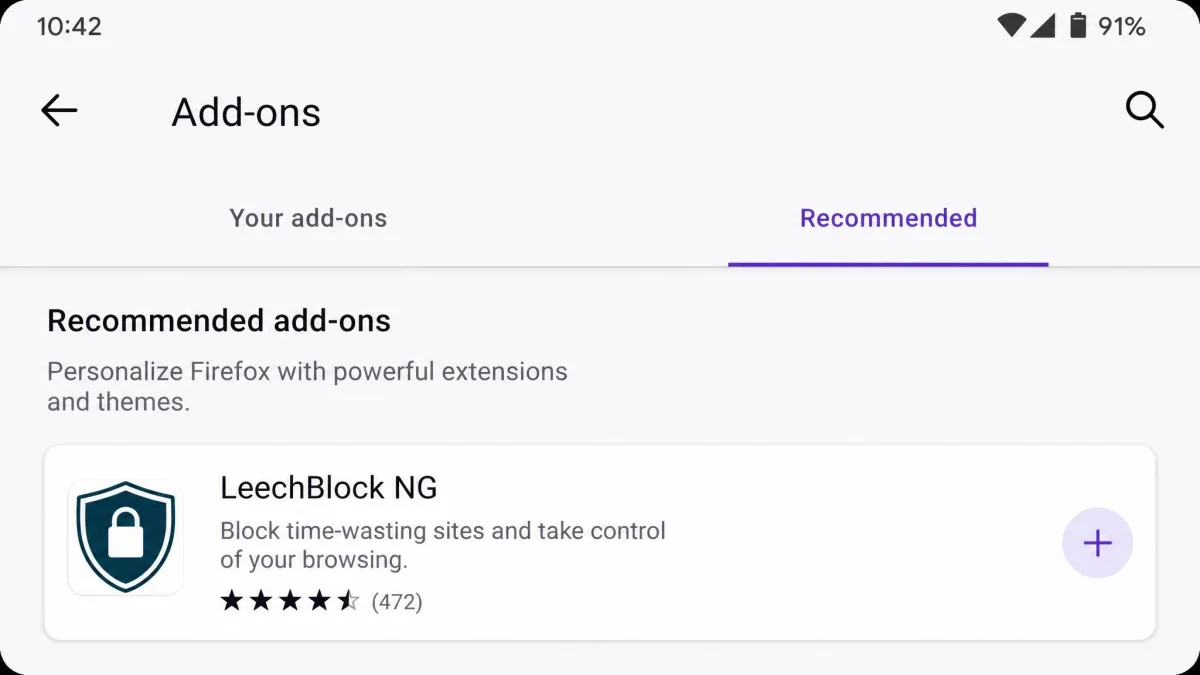
Firefox for Android takes the same extensions as the desktop browser. Mozilla opened the mobile browser to the full add-on ecosystem with more than 450 extensions at launch in December 2023, and LeechBlock NG is one of them, so the same block sets work on the phone.
- Open Firefox on the phone and tap the three-dot menu.
- Tap Add-ons, then Add-ons Manager.
- Find LeechBlock NG in the list and tap the plus icon to install it.
- Open the add-on's settings, add your sites, and tap save.
For a block that covers every app on the handset, set it at the system level instead. Our guide to how to block websites on Android covers the Family Link route, and the same logic applies to blocking websites on Chrome.
How to Block Websites in Firefox on iPhone and iPad
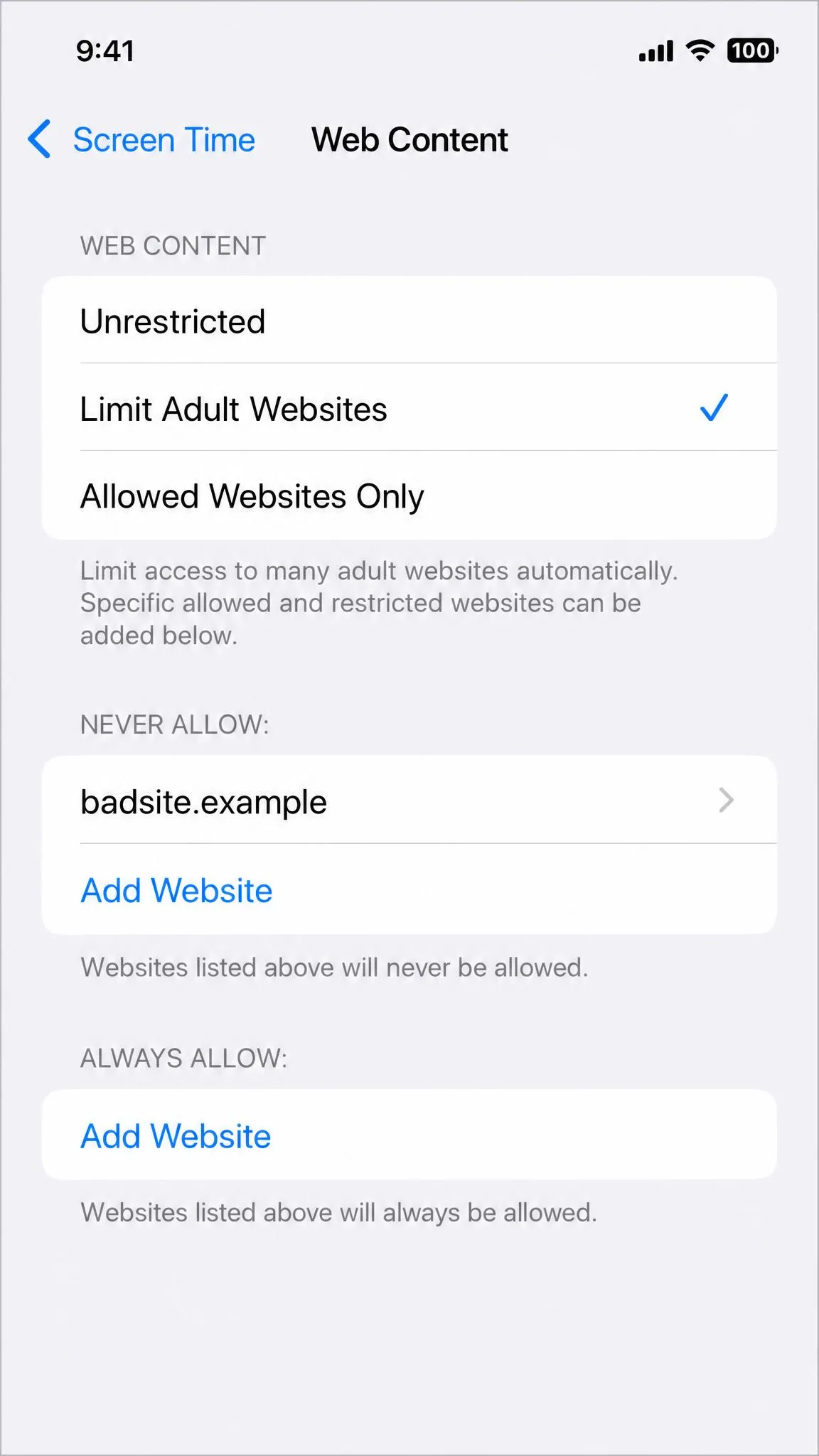
Firefox for iOS cannot install add-ons, because Apple requires its own browser engine and extension system. On iPhone and iPad the block has to be set in Screen Time instead, which is the better outcome anyway, since it applies to Safari and every other browser on the device.
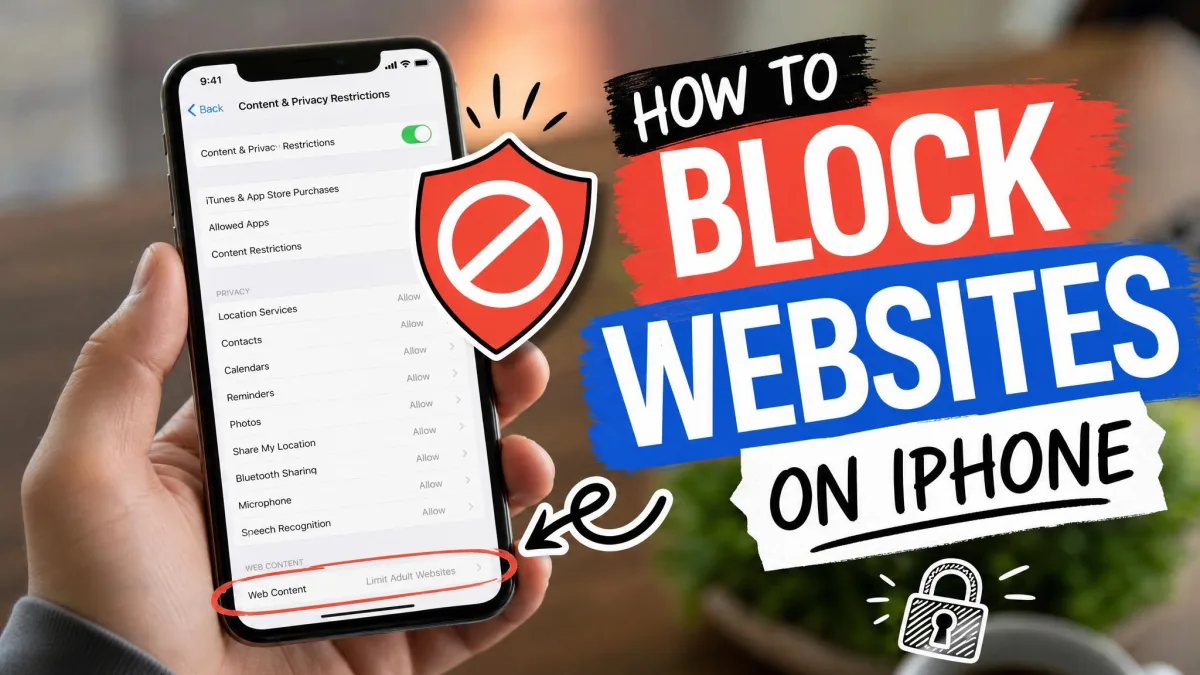
- Open Settings and tap Screen Time.
- Tap Content & Privacy Restrictions and switch them on.
- Tap Content Restrictions, then Web Content.
- Choose Limit Adult Websites, then tap Add Website under NEVER ALLOW and type the address.
Screen Time's content restrictions cover far more than Firefox, and our walkthrough on how to block websites in Safari shows the same screens in detail.
How to Unblock a Site You Blocked
Reversing each method takes less time than setting it up.
- Add-on: open the extension's Options screen, delete the entry from the list, and click save.
- Firefox exceptions: open Settings, then Privacy & Security, click Manage Exceptions, select the site and click Remove Website.
- Hosts file: reopen the file as an administrator, delete the line you added, and save.
- Policy file: remove the entry from the
Blockarray, or deletepolicies.jsonentirely, then restart Firefox. - Router DNS: put the original DNS servers back, or set the router to obtain them automatically.
One quirk catches people out. If a site still refuses to load after you remove a hosts entry, Firefox is serving a cached result, so clear your DNS cache and try a new tab.
Closing the Bypass Gaps: Private Windows, Other Browsers, VPNs
An extension block is easier to walk around than most people expect, and three gaps account for nearly all of it.
The first is private browsing, because extensions do not run in private windows unless you allow them to, so a blocked site loads normally in one. Open about:addons, click the add-on, open its Details tab and set Run in Private Windows to Allow. Mozilla documents this as expected behaviour, so treat it as a setting to change rather than a bug.
The second is other browsers, since an add-on block only covers Firefox and the same site opens normally in Chrome or Edge, which is the argument for the hosts file or the router. The third is a VPN, which routes traffic around a DNS filter and leaves a router block with nothing to inspect, so parental controls that restrict app installs are the practical answer.
A browser-only block does not stop a second browser, a phone on mobile data, or a VPN. If the block genuinely matters, layer a device-level or network-level method underneath the add-on rather than relying on the extension alone.
These tools rarely fail outright. They half-work in ways nobody notices for weeks: Block Site applying in one window and not the next, a LeechBlock schedule that quietly stops firing, a lock that comes undone from the add-ons screen. Test every block yourself from a private window and a second browser before you trust it.
Which Blocking Method Should You Use?
| Method | Blocks browser-wide or device-wide? | Needs admin rights? | Easy to bypass? | Setup time |
|---|---|---|---|---|
| Firefox only | No | Yes, private window or another browser | About 5 minutes | |
| Firefox only, desktop and Android | No | Yes, extension can be disabled | About 10 minutes | |
| Firefox only, cookies and site data | No | Yes, site still loads | About 2 minutes | |
| Whole computer | Yes | Moderate, needs admin to undo | About 5 minutes | |
| Whole Firefox install, 1000 entries | Yes | Hard | About 15 minutes | |
| Every device on the network | Router login | Yes, mobile data or VPN | About 10 minutes |
Setup times above are our own estimates rather than stopwatch figures, so treat them as a rough guide.
Pick by who you are blocking. For your own focus, LeechBlock NG wins on schedules and daily limits. For a young child on a shared computer, the hosts file plus family DNS is harder to undo than any extension. For a teenager who knows how to open about:addons, only the policy file and network filtering hold up.
Frequently Asked Questions
How do I block a website on Firefox without add-ons?
policies.json file in the Firefox distribution folder. Both need administrator rights, so neither works on a managed work laptop.Does Firefox have a built-in website blocker?
How do I block a website in Firefox on Android?
Can my child bypass a Firefox block with another browser or a private window?
How many websites can I block at once?
www version, so a hundred sites means two hundred lines by hand.Is editing the hosts file safe?
The Bottom Line
Firefox gives you no built-in blocker, so the right method depends on how determined the person on the other side is. For most readers we would start with LeechBlock NG, which is free, rates 4.8 out of 5 with Mozilla's add-ons community, handles schedules and daily limits, and works on desktop and Android alike.
If the block needs to hold, add a hosts-file entry so other browsers are covered, point the router at OpenDNS FamilyShield, and check the result from a private window before you consider the job done.