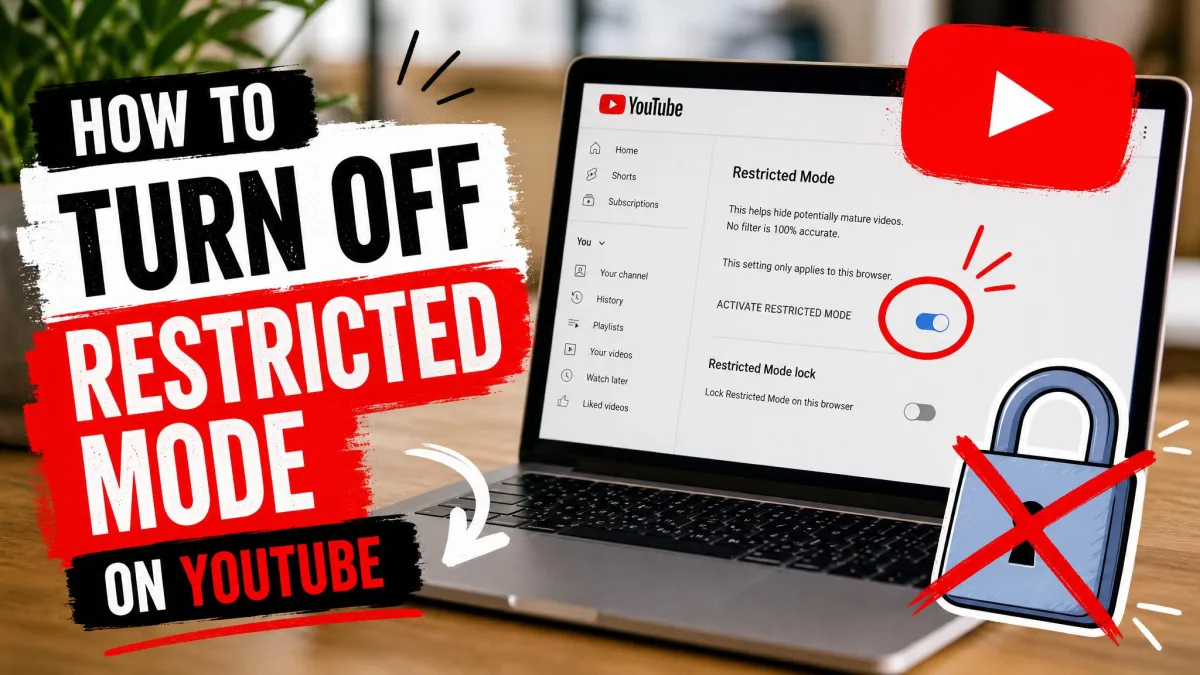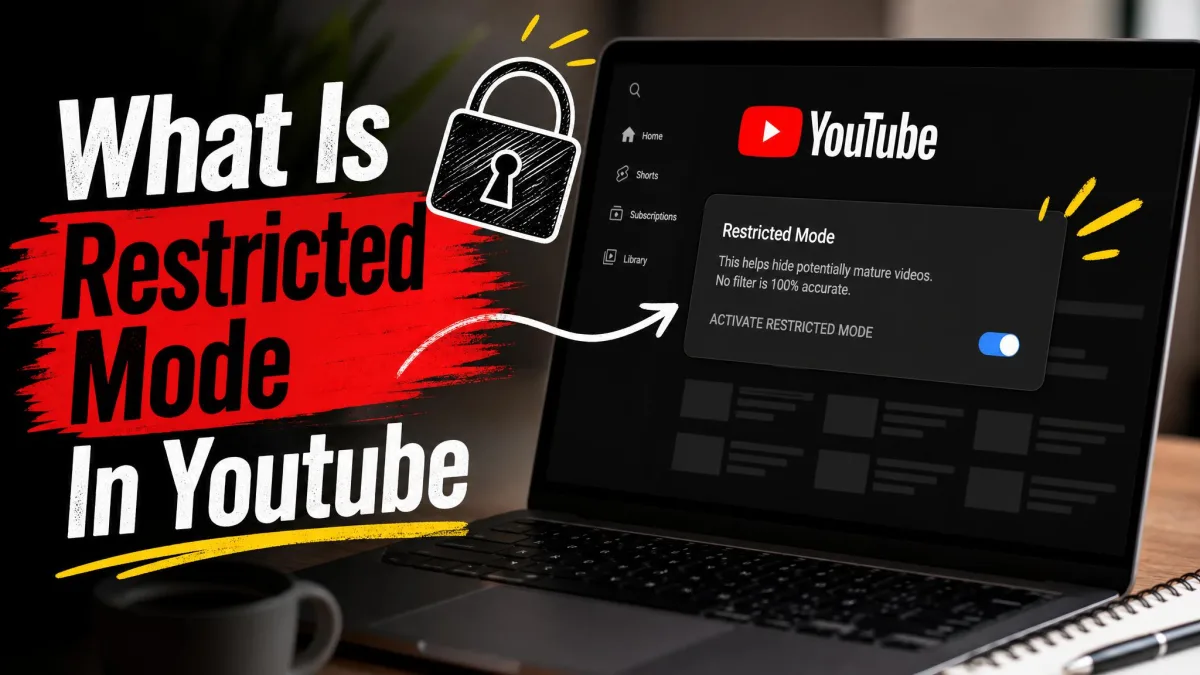
Restricted Mode is an optional YouTube setting that screens out videos the site judges to be potentially mature. It is free, it works on any device, and YouTube leaves it off by default. That default comes with an asterisk. A school, a workplace or a home network can switch it on before you ever open the site, which is why most people meet the setting only when a video refuses to play.
This guide covers what the filter does, how to turn it on or off on each device, how to lock it so a child cannot undo it, and what to check when it will not turn off. We have spent time with it across browsers, phones and living-room devices. It helps, but it is never airtight.
What Restricted Mode Is
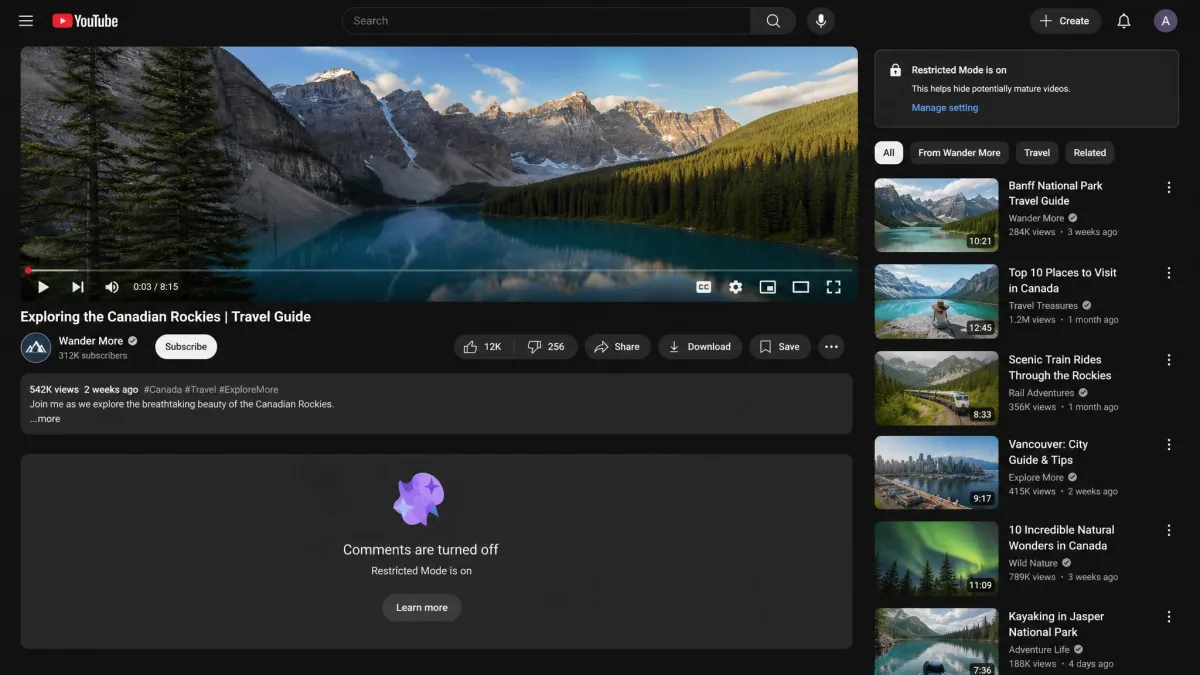
Restricted Mode is a viewing filter, not an account type. Turn it on and YouTube stops showing videos its systems have flagged as potentially mature. It also hides the comments section on everything you do watch. Nothing about your account changes.
It has been available since 2010. It was built for libraries, schools and shared family computers rather than for one person's Google account, which explains most of how it behaves today.
Restricted Mode is not a parental control. It has no screen-time limits, no per-channel blocking and no viewing report for parents. A child who signs out or opens a different browser is past it in seconds. Treat it as one useful layer, not the whole plan.
How YouTube's Restricted Mode filter actually works
The filter is mostly automated. YouTube's systems check signals like a video's metadata, its title and the language used in the video, and human reviewers add formal age restrictions on top. Anything caught by either route drops out of your search results, recommendations and subscriptions feed.
The categories it aims at are drugs and alcohol, sexual situations, graphic violence, mature subjects such as terrorism, war and crime, profanity, and incendiary or demeaning content. YouTube also says plainly that its automated system sometimes makes mistakes.
How to Turn Restricted Mode On or Off
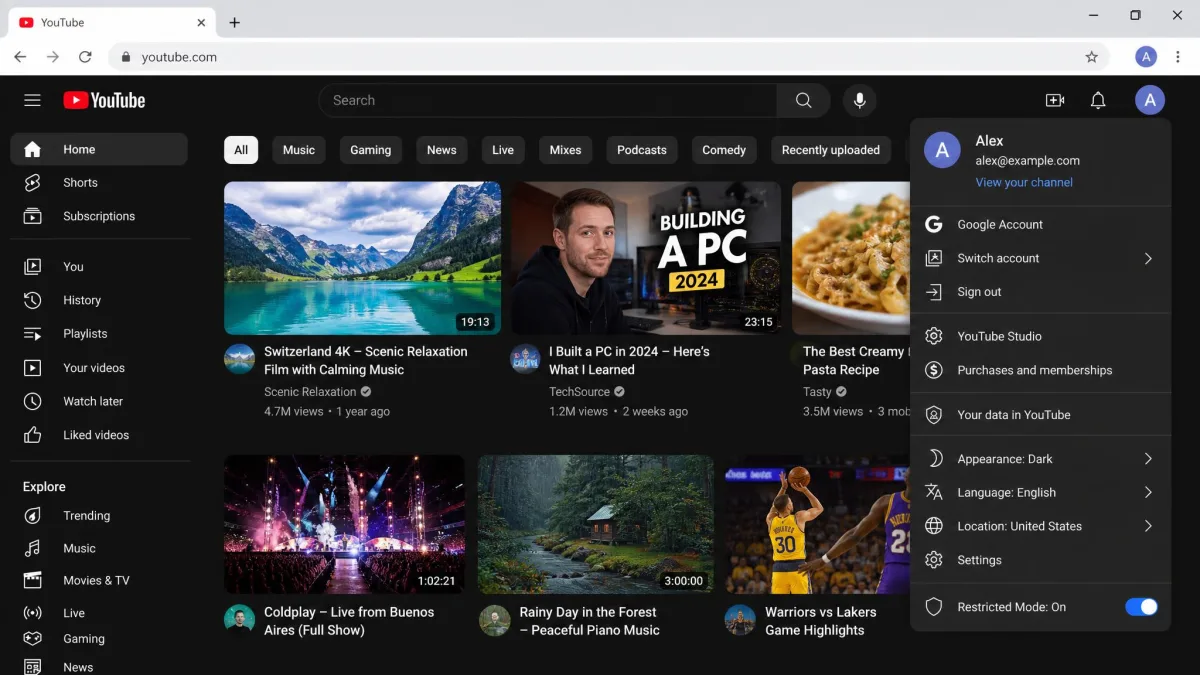
The same toggle turns the filter on and off, so the steps below work in both directions. It sits about three taps deep in the profile menu and applies as soon as the page refreshes. YouTube's official instructions for turning Restricted Mode on or off carry the same paths from the source.
On a desktop browser (Chrome, Edge, Firefox, Safari)
- Sign in to YouTube.
- Click your profile photo at the top right.
- Click Restricted Mode near the bottom of the menu.
- Turn on Activate Restricted Mode, or turn it off to remove the filter.
- Refresh the page, then check that a normal video's comments are back.
If you use Chrome and Edge on the same machine, repeat this in both, and again in a second profile or a guest window.
On the YouTube app for Android
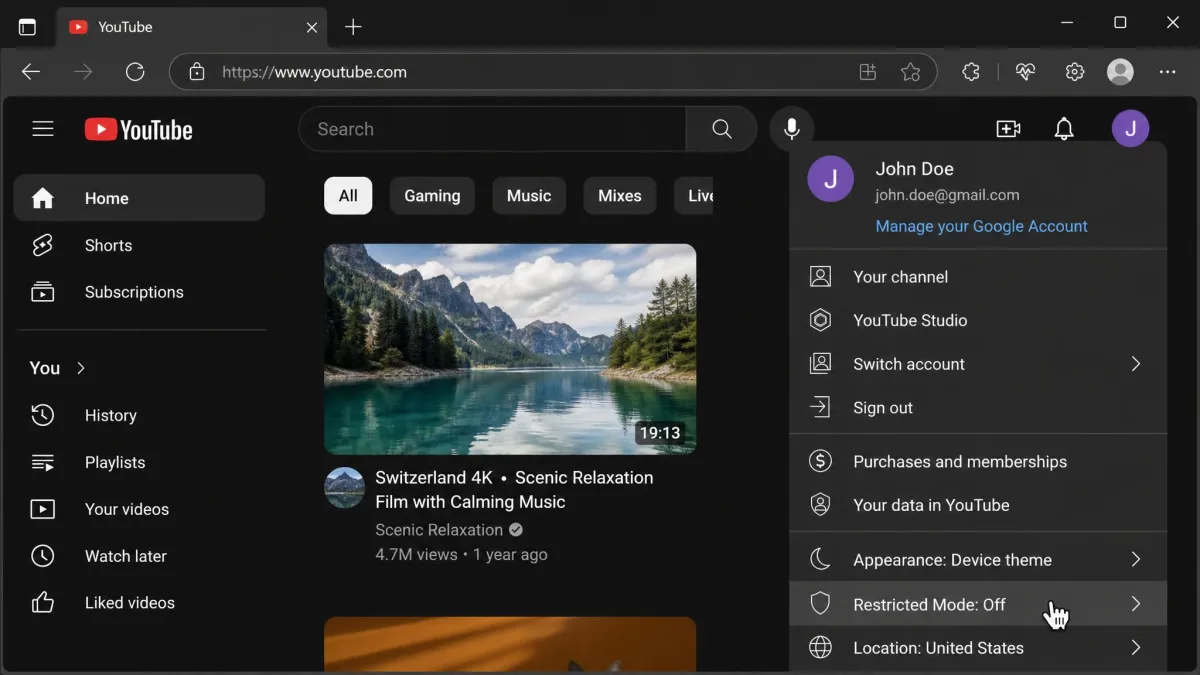
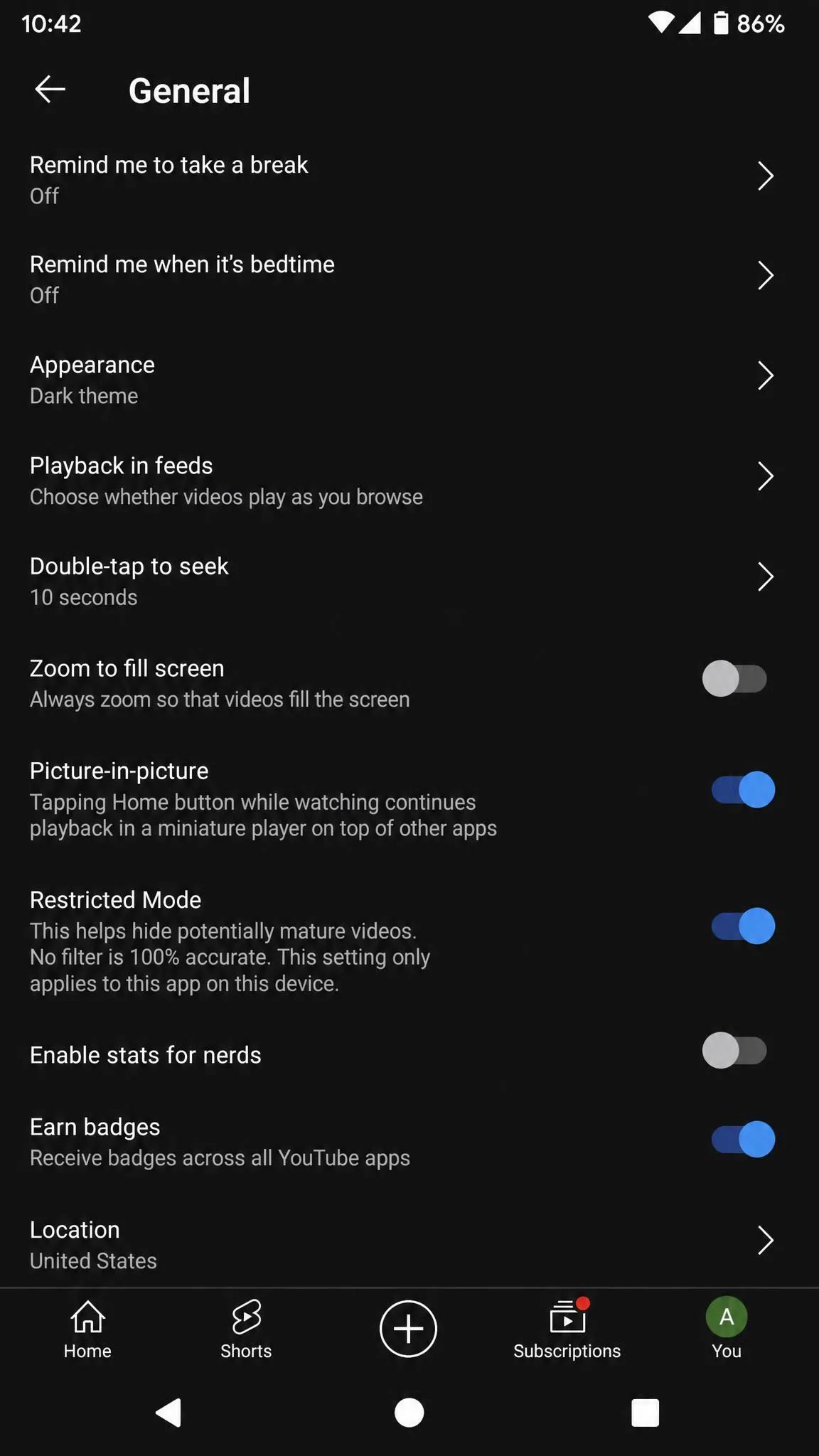
- Open the YouTube app and sign in.
- Tap your profile photo at the top right.
- Tap Settings, then tap General.
- Turn Restricted Mode on or off.
On the YouTube app for iPhone and iPad
The path is identical on iOS: profile photo, Settings, General, then set the toggle. Doing it in the app does nothing to Safari on the same phone, so do both if you are filtering for a child.
The setting lives with the app and the browser, not with your Google account. A family with a laptop, two phones and a tablet has four toggles to set, and a newly installed browser adds a fifth.
On a smart TV, Roku, Fire TV, or game console
Whether a Restricted Mode item appears inside the YouTube app on Roku, Fire TV, PlayStation or Xbox varies by device and app build, so we would not promise you will find one. YouTube's own instructions cover only computers, phones and tablets, and smart speakers and displays.
Check the app's settings first and use the toggle if it is there. If not, set the restriction at the device level: Roku's parental controls and PIN, Amazon's parental settings on Fire TV, or the family settings on PlayStation and Xbox. For a Google speaker or display, open the Google Home app, then Settings, then Notifications and digital wellbeing, then YouTube settings.
On a Chromebook
A Chromebook has no menu of its own. Chrome follows the desktop steps and the Android app follows the Android steps. On a school-enrolled Chromebook the setting is pushed down by the admin console, and clicking in the browser will not override it.
What Restricted Mode Blocks (and What It Doesn't)
Videos, comments, and search results
Three things change when the filter is on. Videos flagged as mature stop appearing anywhere you would normally find them, search results and recommendations are trimmed to match, and the comments section disappears. That last one surprises people. The mode does not filter comments, it removes the whole section.
Where the filter misses
Independent testing has put the miss rate somewhere around 20 to 30 percent of mature content. The share that gets past swings widely by content type and shifts as YouTube retunes the filter, so treat it as a rough band.
The patterns are consistent. Shorts are the weakest spot, because the feed scrolls fast enough that clips go by before the filter catches up. Fresh uploads slip through more often than older ones. Non-English videos are filtered less reliably than English ones. Gaming footage with heavy violence passes far more often than explicit sexual content does. Because the system leans on titles and metadata, a bland title and a dull thumbnail can carry an unsuitable video straight past it.
The filter also errs the other way, hiding educational and documentary videos by mistake. In March 2017 YouTube was criticised for hiding LGBTQ videos. By April 2017 it said a fix had made 12 million additional videos available in Restricted Mode. Its stated policy is that the filter should not screen content based on attributes such as gender, gender identity, political viewpoints, race, religion or sexual orientation. One more limit: you cannot block a single channel, because the filter is all or nothing.
How to Lock Restricted Mode So It Can't Be Switched Off
Locking it to a browser or profile
On its own, the toggle is not locked at all. Signing out or opening an incognito window clears it in seconds, and switching browsers sidesteps a setting applied to only one. For a genuine lock, you need an account-level or network-level control.
Google Family Link and supervised accounts
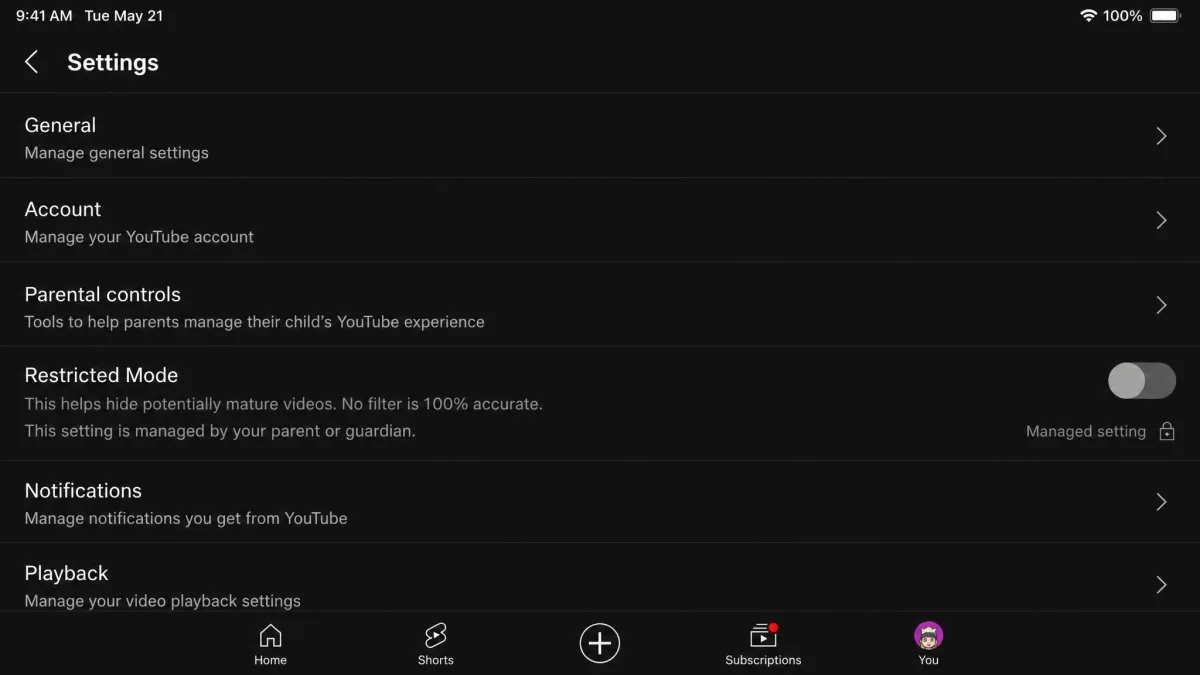
A supervised account is the real answer for a child's device. Set one up through Google Family Link, then open the child’s profile, then Controls, then Content restrictions, then YouTube, and pick Explore, Explore More, or Most of YouTube. Explore is aimed at viewers aged 9 and older, Explore More at 13 and older.
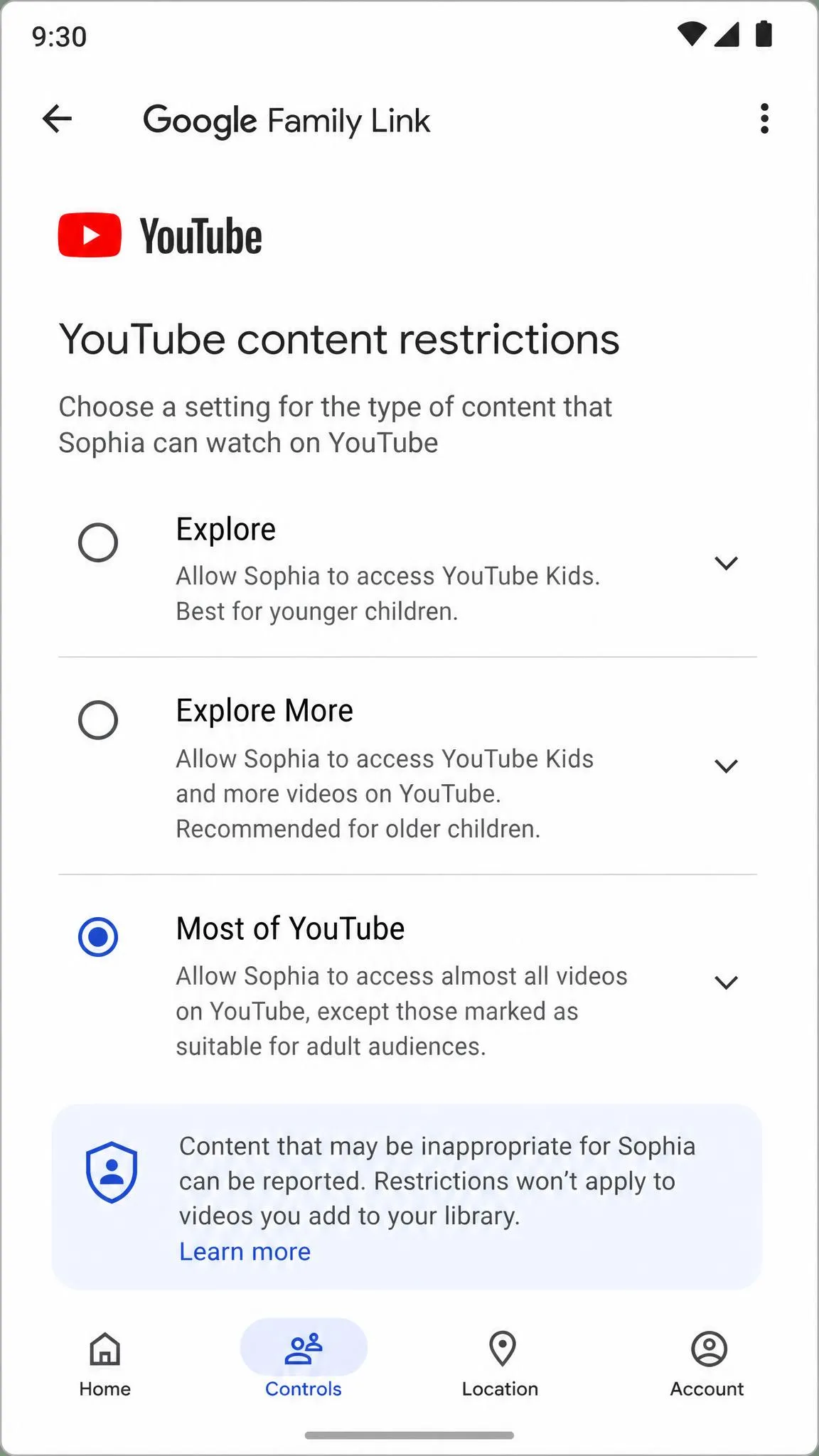
Enabled this way, the child cannot change it on any device they are signed in to. The toggle on their phone greys out and will not move.
Network and Google Workspace admin settings
Schools and companies use a heavier lever. A Google Workspace administrator can set Strict Restricted or Moderate Restricted access, where Moderate makes a much larger collection of videos available. Networks enforce the same thing with the YouTube-Restrict HTTP header set to Strict or Moderate. They can also point YouTube at restrict.youtube.com or restrictmoderate.youtube.com with a DNS CNAME record. For signed-in users, the Admin console setting overrides the network or device.
Why Restricted Mode Won't Turn Off: Troubleshooting
It's locked to your browser or device
Start with scope, the usual culprit. You may have turned the setting off in one place and be looking at another: a second browser, a second Chrome profile, or the app rather than the mobile site. Turn it off where you are actually watching, then reload.
You're signed into the wrong account
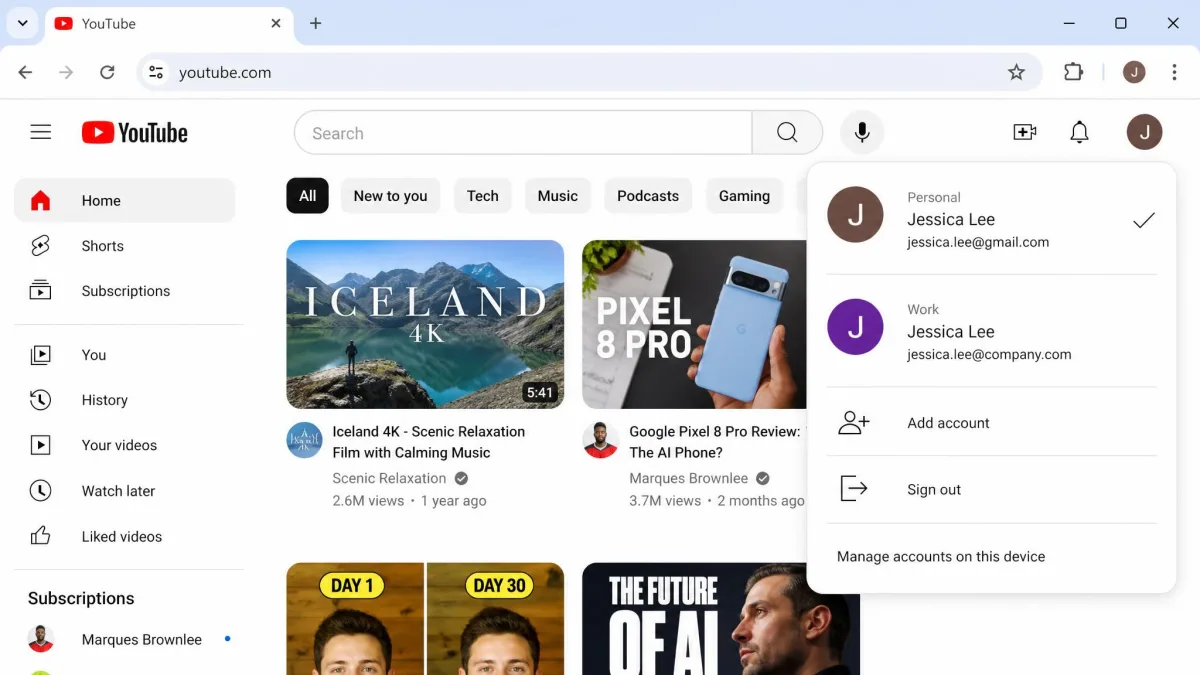
A second Google account signed in to the same browser is a frequent reason the setting appears not to save. Check the profile photo at the top right, confirm which account is active, and set the toggle again from there.
Your network administrator or school enabled it
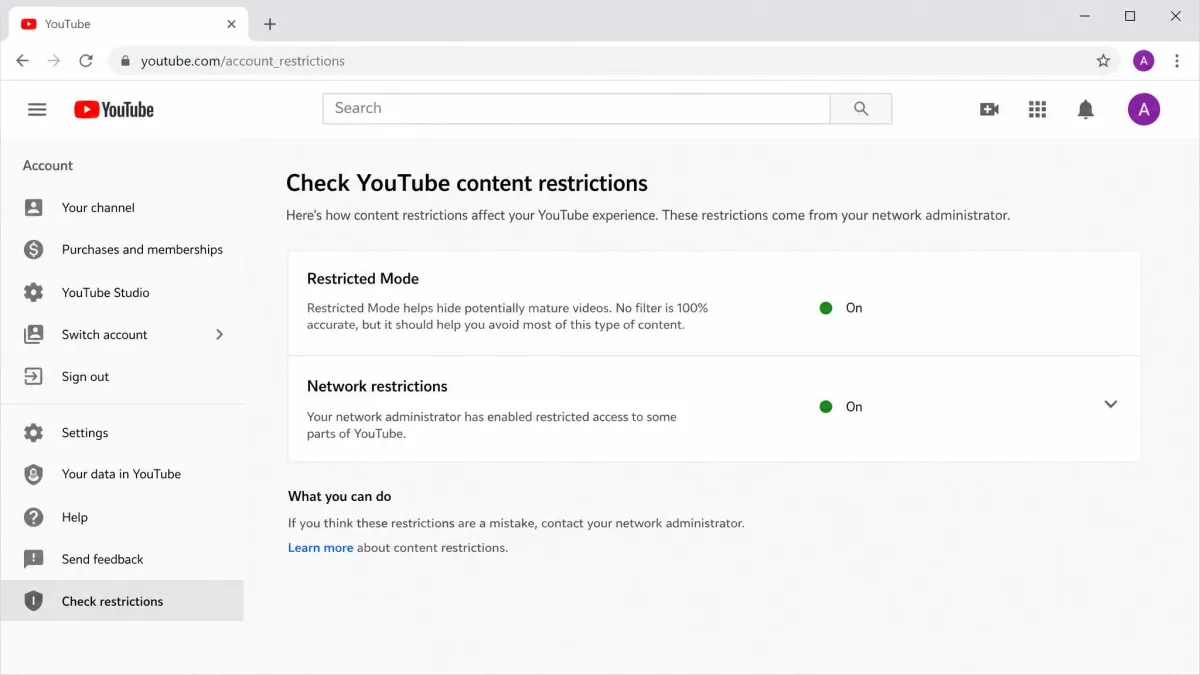
If the toggle snaps straight back on, the restriction is applied at the network layer and nothing in YouTube's settings will hold. Sign in and open YouTube's content restrictions settings page, which shows whether an administrator or network provider imposed it. It is not always an institution. Some mobile carriers ship parental-control settings that load YouTube in Restricted Mode on cellular data, and people who run their own home network hit the same notice, usually from DNS-level filtering.
Clear the browser or app cache
A stale cache can keep serving the restricted view after the setting has been switched off. Clear the browser cache, or the YouTube app's storage on Android, then sign back in and open a video that normally shows comments. If they are back, the change took.
Restricted Mode Messages Explained
That check page raises a fair question: what does YouTube actually tell you when the filter bites? It rarely names Restricted Mode outright. You are more likely to find the video quietly missing from search, see an unavailable-video notice, or read a line on the settings screen telling you Restricted Mode has been enabled by your network administrator. Treat that last one as a paraphrase, because the wording differs between desktop and the mobile app.
Restricted Mode vs YouTube Kids vs Supervised Accounts
Restricted Mode filters. YouTube Kids curates. A supervised account sits in between, running inside the main YouTube app with a parent-chosen content tier the child cannot change.
| Feature | Restricted Mode | YouTube Kids | Supervised Account |
|---|---|---|---|
| Filters mature videos | Yes, automated filter | Yes, curated for children | Yes, by content tier |
| Hides comments | Yes, hidden entirely | Yes, comments off | Yes, comments off |
| Blocks specific channels | No | Yes, block or approve-only | Partly, blocking supported |
| Locks per device | Per browser and per device | Per app profile | Locked to the account |
| Works when signed out | Yes, if set on that browser | Not applicable | No, requires sign-in |
| Cost | Free | Free | Free |
| Age target | Any viewer | Under 13 | Explore 9, Explore More 13 |
For a younger child, YouTube Kids gives you age-tiered profiles, a screen timer, approved-content-only viewing and per-channel blocking. For a teen who has outgrown it, a supervised account keeps them in the main app while Family Link handles screen time. Restricted Mode suits a shared family laptop or a guest machine, where you want a light filter and nobody needs to be locked out.
Restricted Mode and Your Own Videos as a Creator
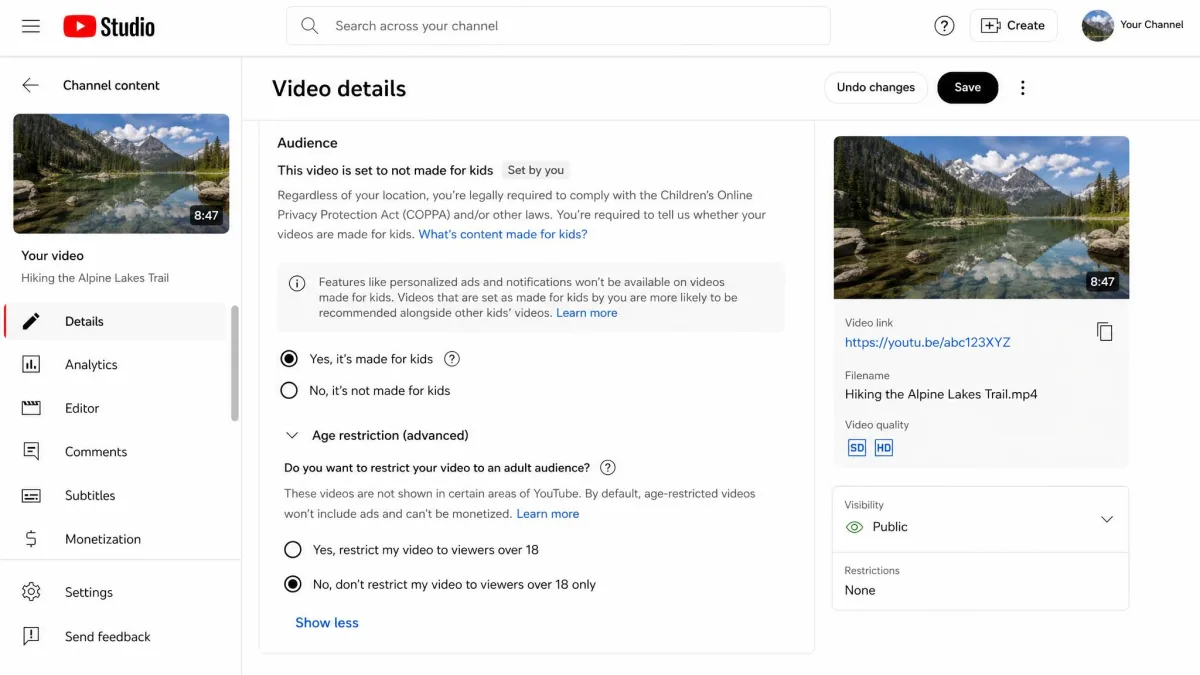
If you upload, the filter can cost you views without costing you money. Videos screened out of Restricted Mode can still be monetized, and community reports alone do not trigger filtering. Only a formal age restriction blocks visibility outright, as YouTube's guidance on Restricted Mode and your own content sets out.
Because the system reads titles, descriptions and spoken language, a tame clip can be filtered over a single word in the title. If you think a video was caught wrongly, edit it and send it back through review, or submit feedback through YouTube's contact form.
Common Mistakes People Make With Restricted Mode
The biggest mistake is treating the job as finished after one device. Parents set the filter on the family laptop, then find a week later that the phone app and the tablet were never touched.
The second is expecting precision. There is no channel blocklist and no keyword list you can edit, so you cannot allow one borderline channel while blocking another. If that is what you need, a supervised account or YouTube Kids is the tool.
The third is assuming a hidden video means the system is working well. In our experience the false positives get noticed far more often than the mature clips the filter lets past.
Should You Use Restricted Mode? The Bottom Line
Who is this actually for? Three groups get real value from it. The first is anyone running a shared computer, where a filter that follows the machine rather than the person is exactly the right shape. The second is a household lending a device to a visiting child or a younger sibling for an afternoon, since a setting you can apply in seconds suits a short loan. The third is an adult who simply does not want mature clips surfacing in autoplay on a work laptop.
There is one case where it is clearly the wrong tool. A child old enough to want around it will beat it. A curious eleven-year-old with their own phone finds the toggle, or a second browser, faster than you expect, and the filter leaves no report to tell you it happened. In that situation you are not looking for a filter at all. You are looking for an account-level control, and reaching for this one will only give you the feeling of having done something.