Family Sharing lets you share purchases, subscriptions, and iCloud storage with up to five other family members, each using their own Apple Account, so you never share personal information like photos or documents. Here's how to add someone to your group on iPhone, plus what to do if they don't accept.
What Is Family Sharing and How Does It Work?
Family Sharing lets the people in your household share what they buy and use. A group holds up to 6 people total: one organizer plus up to five other members, each keeping their own Apple Account so messages, photos, and documents stay private.
The organizer runs the group, inviting members and setting the shared payment method. Family Sharing has been part of the iPhone since iOS 8, and it powers shared purchases, subscriptions, iCloud storage, and Screen Time.
What You Need to Set Up Family Sharing
Before you create the group, gather a few basics.
- Each person needs their own Apple Account; children under 13 can't create one on their own, so a parent makes it for them.
- The organizer must be an adult; Apple may ask them to confirm with a credit card in their name.
- A valid payment method has to be on file, such as a credit card or Apple Pay.
- Every Apple Account must show the same country, and shared purchases must be available there.
- You can belong to only one group at a time, switching only once per year.
How to Set Up a Family Sharing Group
Set up the group once, and members slot in afterward.
On iPhone or iPad
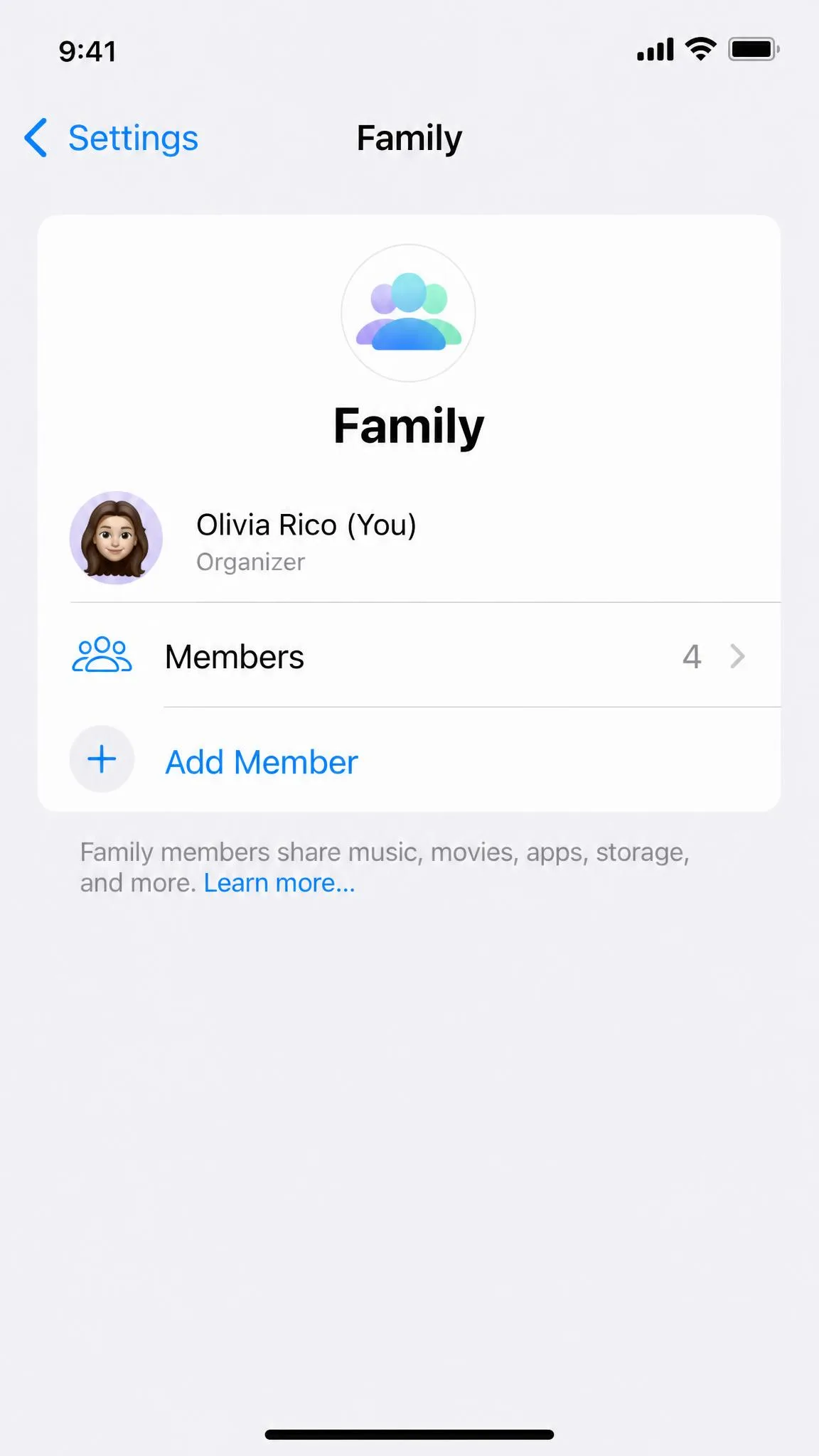
Open Settings and tap your name. On iOS 18 and later, Family is a top-level section with a plus button; on earlier versions, tap Family Sharing under your name. Tap Set Up Family Sharing, then confirm you're an adult and add a payment method.
Apple can open Family settings for you from a browser.
On Mac
Open System Settings, or System Preferences on older macOS, then click your name and click Family Sharing. The flow matches iPhone: confirm you're an adult and add a payment method. Apple's guide to setting up Family Sharing on your iPhone, iPad, or Mac covers all three devices.
How to Add Someone to Family Sharing
Adding a member takes about a minute, and there are two cases: someone with an existing Apple Account, and a child who needs an account created for them.
Add a Family Member with an Apple Account
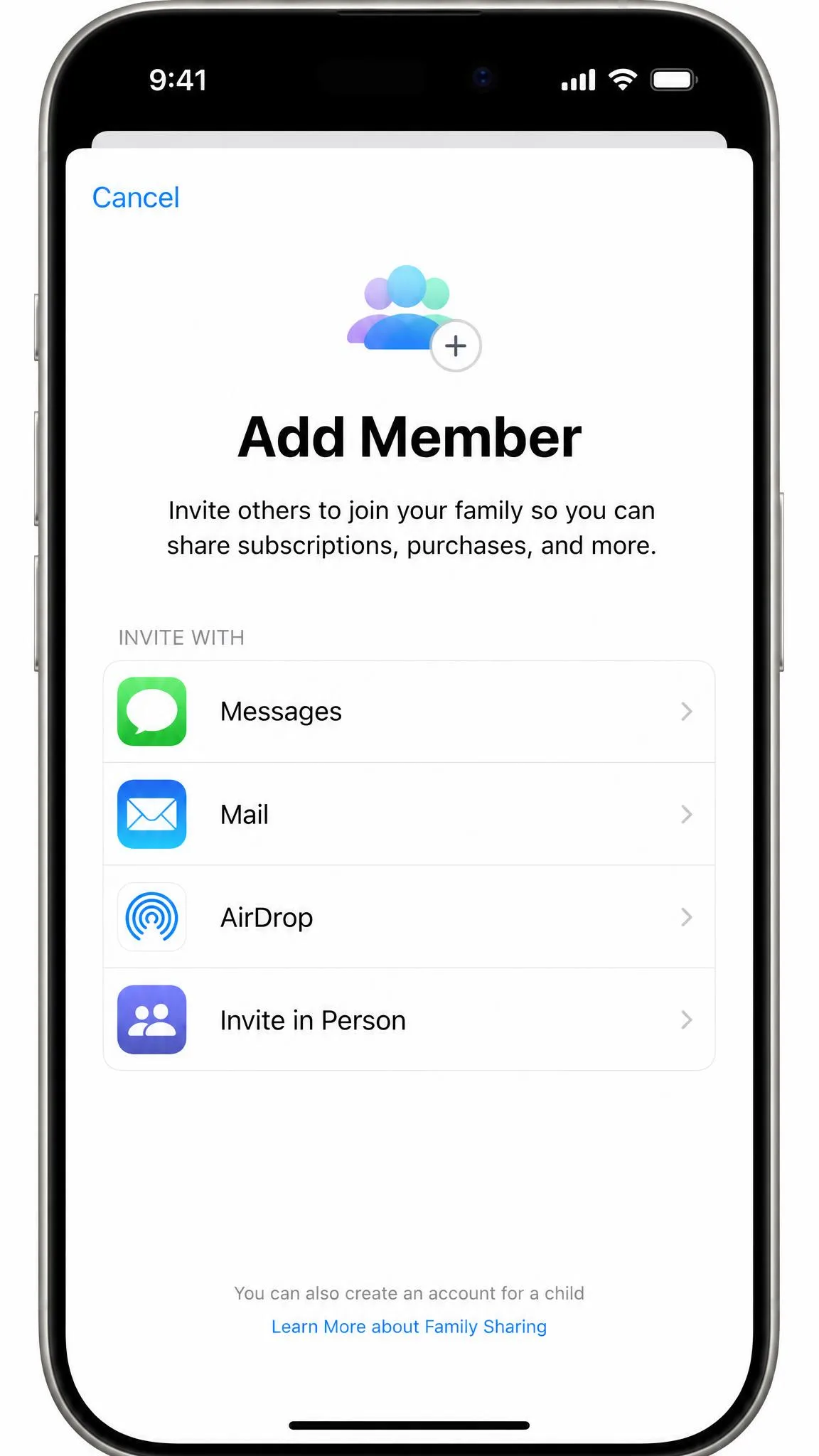
Open Settings and tap Family on iOS 18 and later, or tap your name, then Family Sharing on earlier versions. Tap Add Member, then Invite Others.
From there you can invite someone by:
- Messages, so the invitation arrives as a chat link.
- Mail, if email works better for you.
- AirDrop, when the person is nearby on an Apple device.
- Invite in Person, so they enter their Apple Account on your device.
Apple's walkthrough of how to add a member to a Family Sharing group on iPhone explains each method.
If you're near them, use Invite in Person so they can enter their Apple Account on your device.
Create an Apple Account for a Child
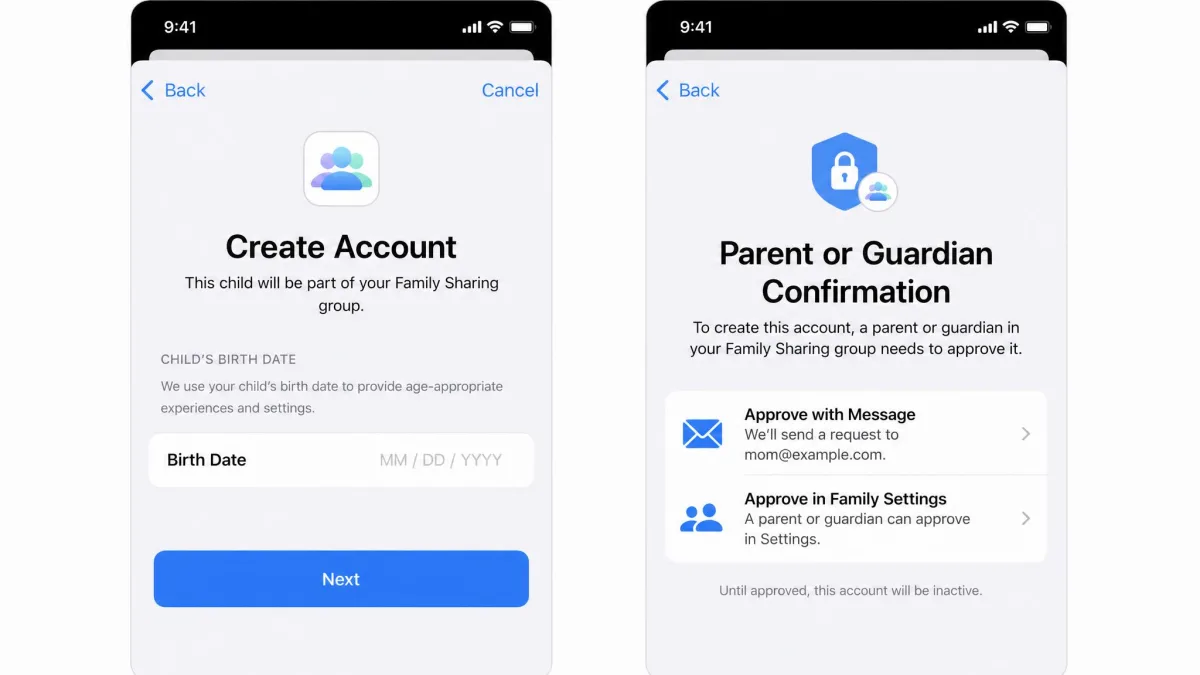
In most countries, children under 13 can't create an Apple Account on their own, so a parent or guardian makes one for them. From Settings, tap Family, then Add Member, then Create an Apple Account for a Child, and confirm you're a parent or guardian. The age cutoff varies by region, so check family settings for kids and teens by region.
The child joins your group as soon as the account exists, and Ask to Buy is usually turned on. Apple's steps to create an Apple Account for your child walk through the process. Android families instead use Google Family Link parental controls.
How to Accept, Resend, or Check an Invitation
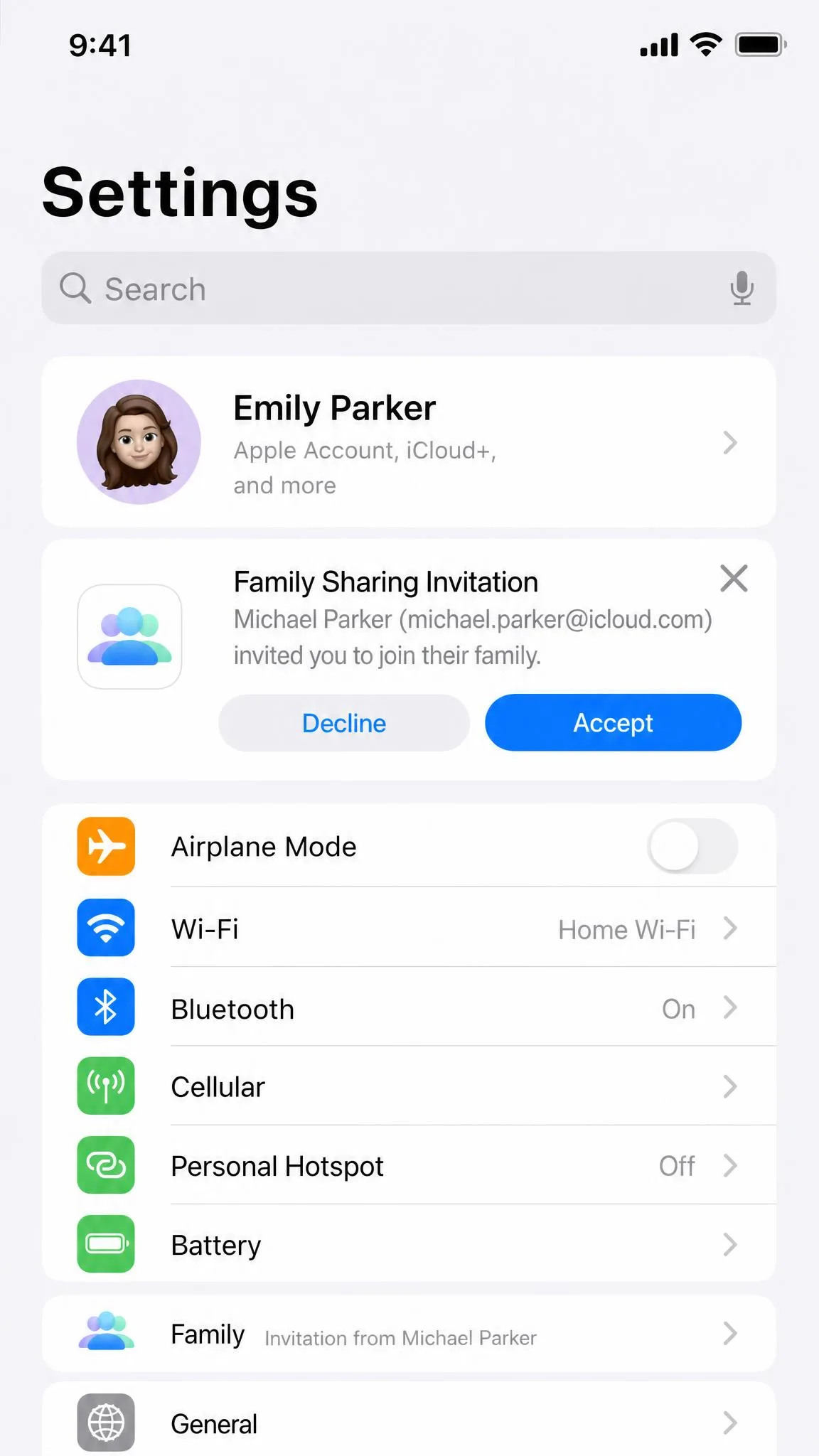
After you send an invite, the other person has to act. They find it at the top of Settings in the Family row and tap Join before anything is shared.
If an invite seems to vanish, have them check Settings, then their name, then Invitations. It may be waiting there rather than in Messages or email.
When an invitation won't go through, you can resend or cancel from Settings, then Family, then the member's row. In our experience, most stuck invitations trace back to an existing group membership or a country mismatch.
What You Can Share with Family Sharing
Once everyone joins, the shared items are broad:
- App Store purchases, music, movies, TV shows, and Apple Books.
- Subscriptions such as Apple Music, Apple TV+, Apple Arcade, and iCloud+.
- A shared photo album, calendar, reminders, passwords, and locations.
Two limits are worth knowing. Apple Music needs a dedicated family plan, and only iCloud+ plans of 200GB or 2TB share with the family when you turn sharing on. Each member keeps their own free 5GB, and nobody can see another member's stored files.
One billing detail to flag: with Purchase Sharing on, every purchase is charged to the organizer's payment method, including in-app purchases.
How to Manage Family Sharing Permissions
Ask to Buy sits at the center of managing a child's account. When it's on, every purchase and download needs the organizer's approval, and it can't be enabled for adults. Two adults in a group act as parents or guardians. You change these settings from Settings, then Family, on the organizer's device.
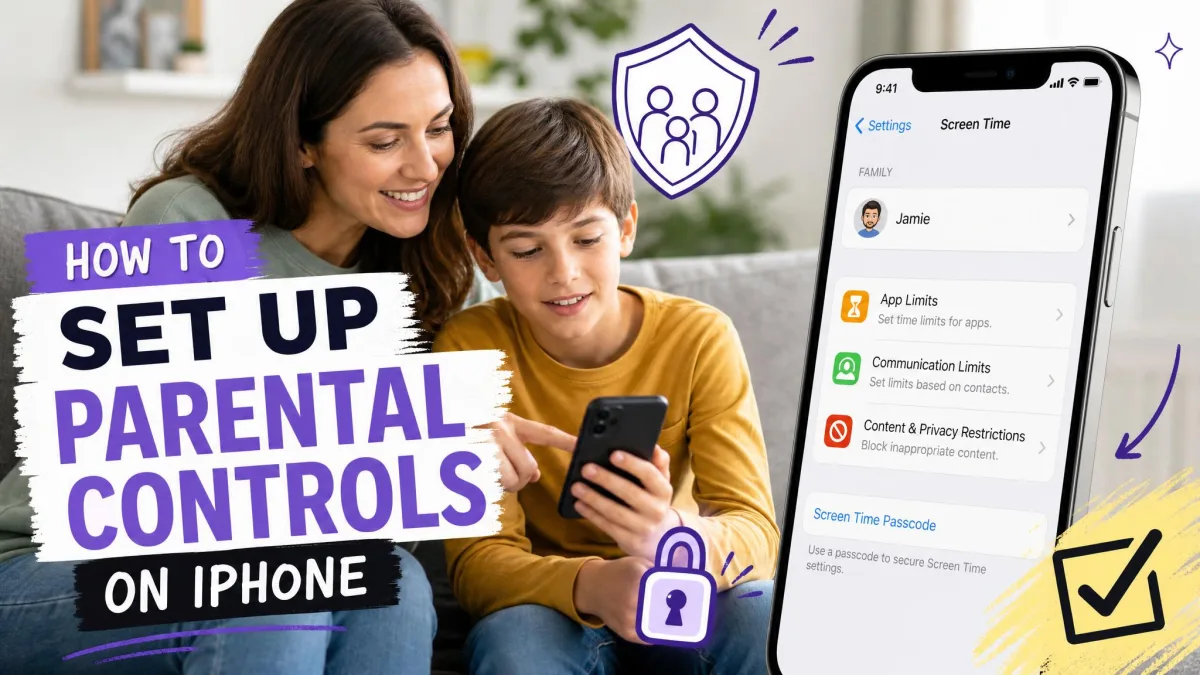
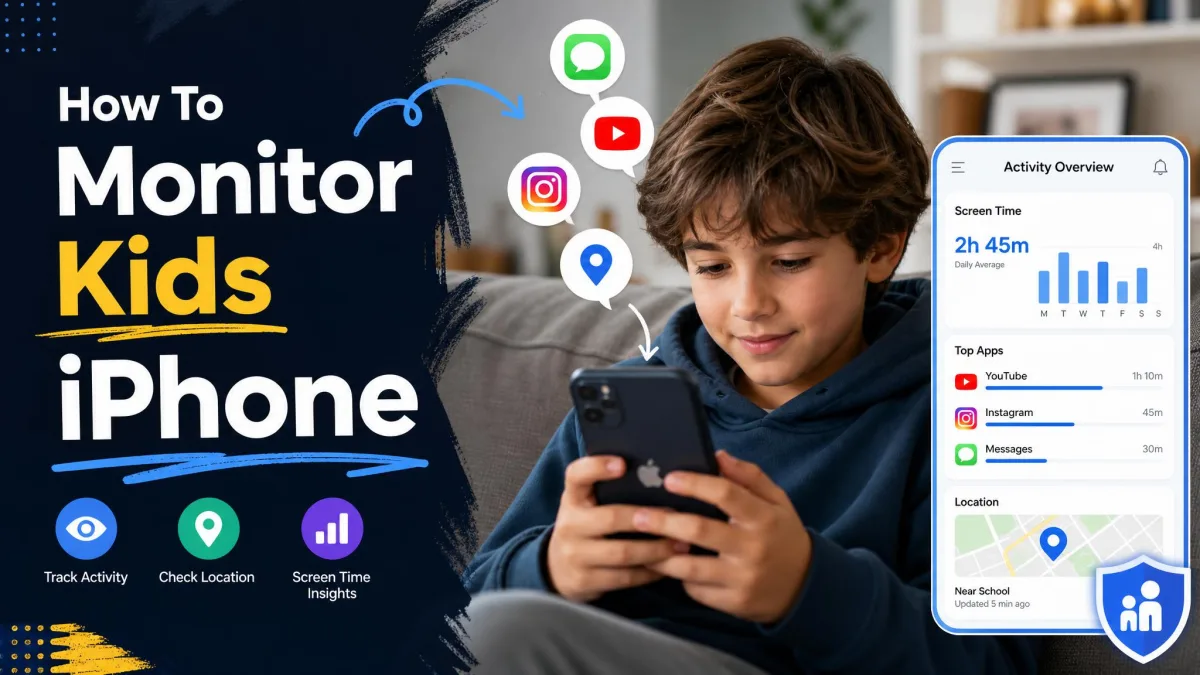
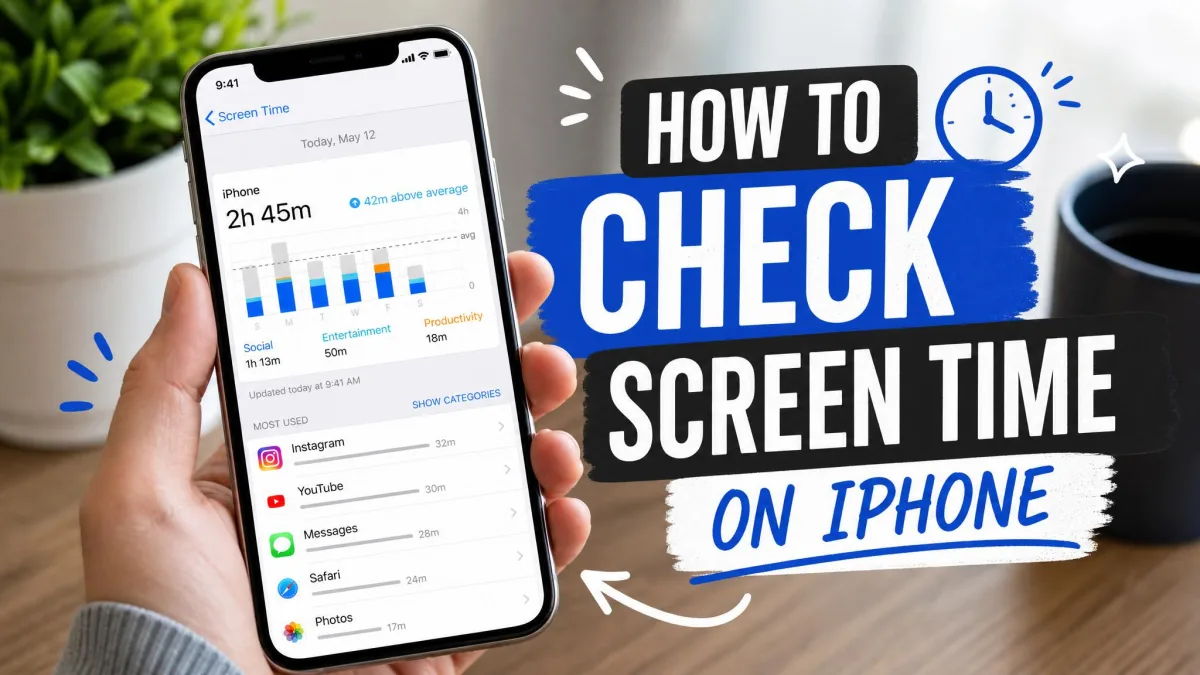
There's no direct way to hand the organizer role to someone else; the current organizer has to disband the group and another adult creates a new one. Our guides to parental controls on iPhone, parental controls on iPad, and checking Screen Time on iPhone cover the details.
How to Remove Someone or Leave a Family Group
Removing a member is straightforward. From Settings, tap Family, tap the member's name, then tap Remove. Leaving works the same way.
When a member leaves, they lose access to shared content, subscriptions, and shared iCloud storage.
A child under 13 can't be removed directly. The child has to be moved to another Family Sharing group, or you wait until they turn 13. The organizer can delete the whole group with Stop Using Family Sharing.
When a child's supervision is no longer needed, our guide to removing parental controls on iPhone covers the cleanup.
Family Sharing FAQ
How many people can join a Family Sharing group?
Can I add an adult and a child the same way?
Can I change the Family Sharing organizer?
What happens to purchases when someone leaves?
Can I leave and join a different family group?
Set up the group, invite the adults, create accounts for the kids, and you're done.