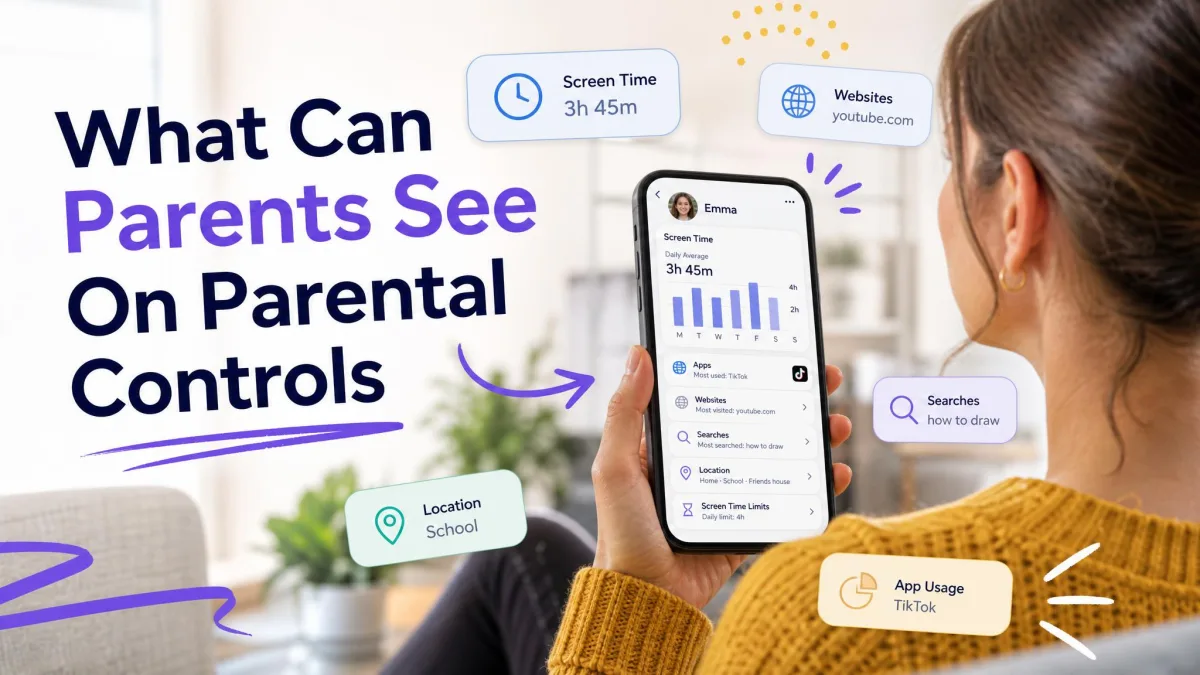
What can parents see through parental controls? The answer goes well beyond a single block button, because the right setup surfaces app usage, screen time totals, websites and search history, texts and social chats on some tools, photos and media, and real-time location. About half of tweens and a quarter of teens say their parents already monitor their devices, per Common Sense Media's 8-18 census report.
We tested Apple's Screen Time, Google Family Link, Bark, Qustodio, and Net Nanny across the devices each one supports, from iPhones and Android phones to a Windows laptop, working through the same setup you will face. Standing up a full multi-tool household took ten to ninety minutes.
Key Takeaways: What Parents Can See at a Glance
What Parents Can See: App Usage, Screen Time, Web & Social Activity
Parental controls arrive in two layers: the operating system baseline and the third-party app on top.
App Usage and Installed Apps
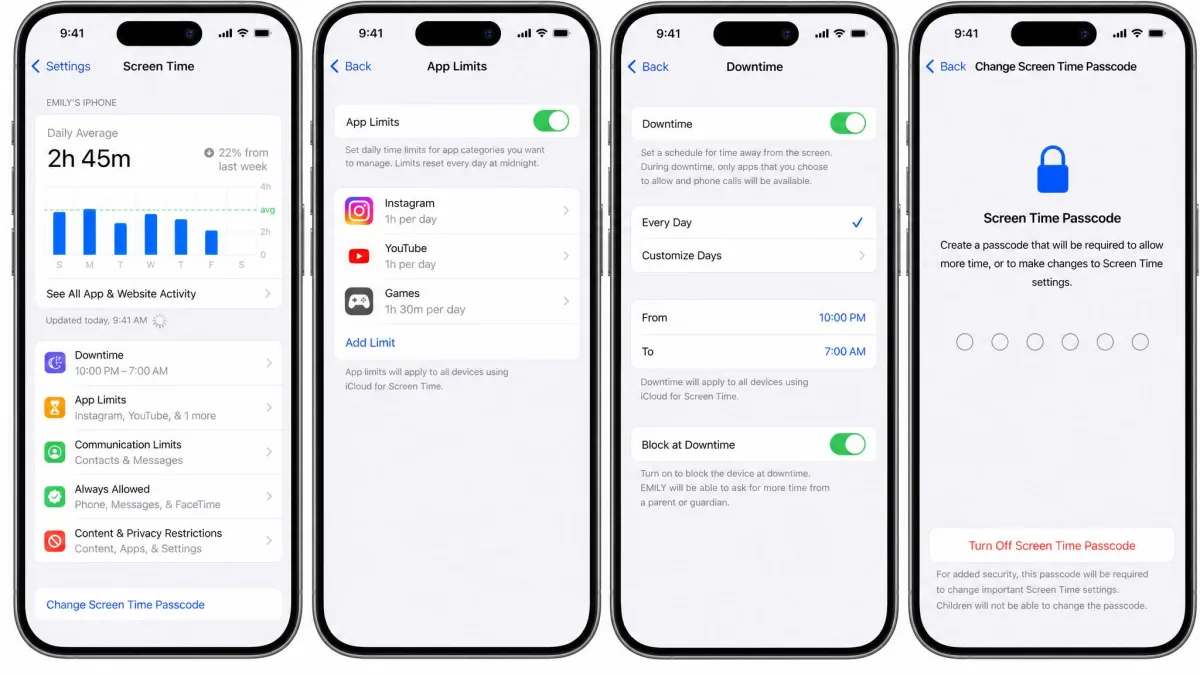
Apple's Screen Time lists every app your child opens, how long they spend in each, and which apps ping the most notifications. Google Family Link's activity report does the same and adds saved activity like Google search terms and YouTube history.
Screen Time and Daily Limits
Apple's App Limits cap time per app or category, and Downtime shuts the screen off overnight. Family Link adds a daily screen-time limit, a bedtime schedule, and a remote lock with a bonus-time button. Both run on the device, so limits hold up off home Wi-Fi.
Web Browsing and Search History
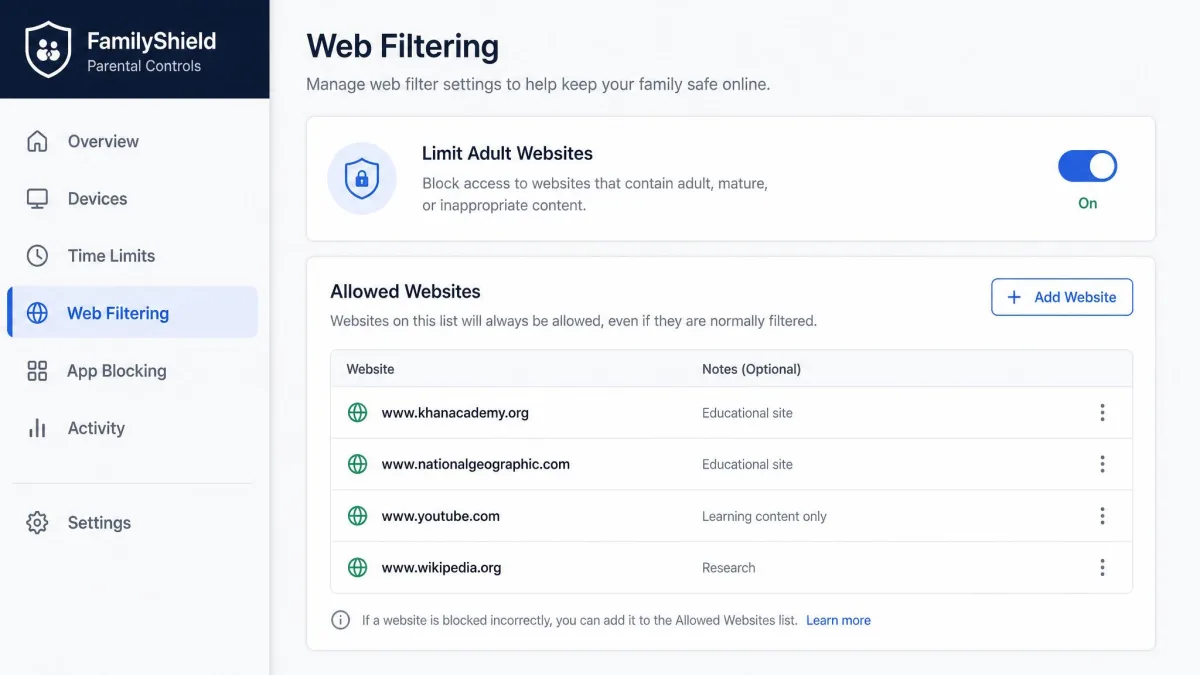
On iPhone and iPad, Screen Time records the websites your child visits in Safari and can filter adult content or limit browsing to an approved list. On Android, Family Link keeps Chrome history and filters web content by age.
Text Messages and Social Media Chats
Text messages are the least visible category on any tool, since neither Apple's Screen Time nor Google Family Link exposes the content of texts or social chats. On Android, third-party apps can read SMS, and Bark scans more than 30 platforms. On iPhone, Apple blocks third-party text monitoring outright, so Bark covers only social apps.
Photos, Media and Files
Screen Time can restrict camera and microphone access and hide specific apps, while Bark scans saved photos and videos for risky content. Amazon Fire tablets go further and put camera and gallery access under the parent dashboard.
Real-Time Location and Location History
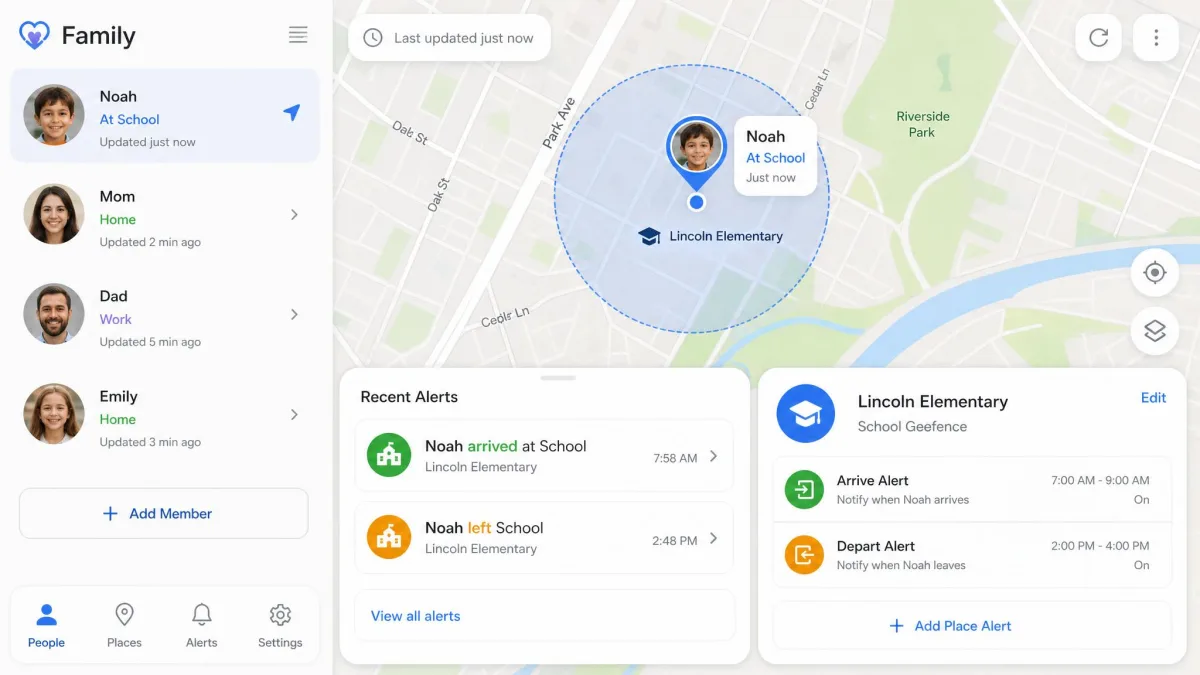
Apple's Find My shares your child's location, and Screen Time can lock location-sharing changes. Family Link tracks location on Android only, while Bark and Qustodio add real-time GPS plus geofence alerts that flag arrival at school or departure from it.
Best Parental Control Apps and Tools (2026)
Here is how the tools we tested line up by specialty, scored on setup friction, monitoring depth, alert quality, and household cost.
Best All-Round Monitoring App
Setup is where Qustodio costs you time. On the iPhone we worked through a VPN profile, disabled Apple Screen Time, granted system permissions, and restarted more than once before monitoring engaged, and the Mac install repeated much of that routine. Windows, by contrast, gave us the smoothest install of the three platforms.
Once running, Qustodio is the most complete package we tested. It pairs per-app and per-device time limits with app blocking and web filtering, then adds AI social monitoring that reads WhatsApp, Instagram DMs, Snapchat, TikTok, X, and LINE. The Premium tier reads SMS on Android and adds geofence alerts, and Qustodio's plans list Basic at $59.95 a year for five devices and Complete at $104.95 a year for unlimited devices.

Best for Risky-Message Detection
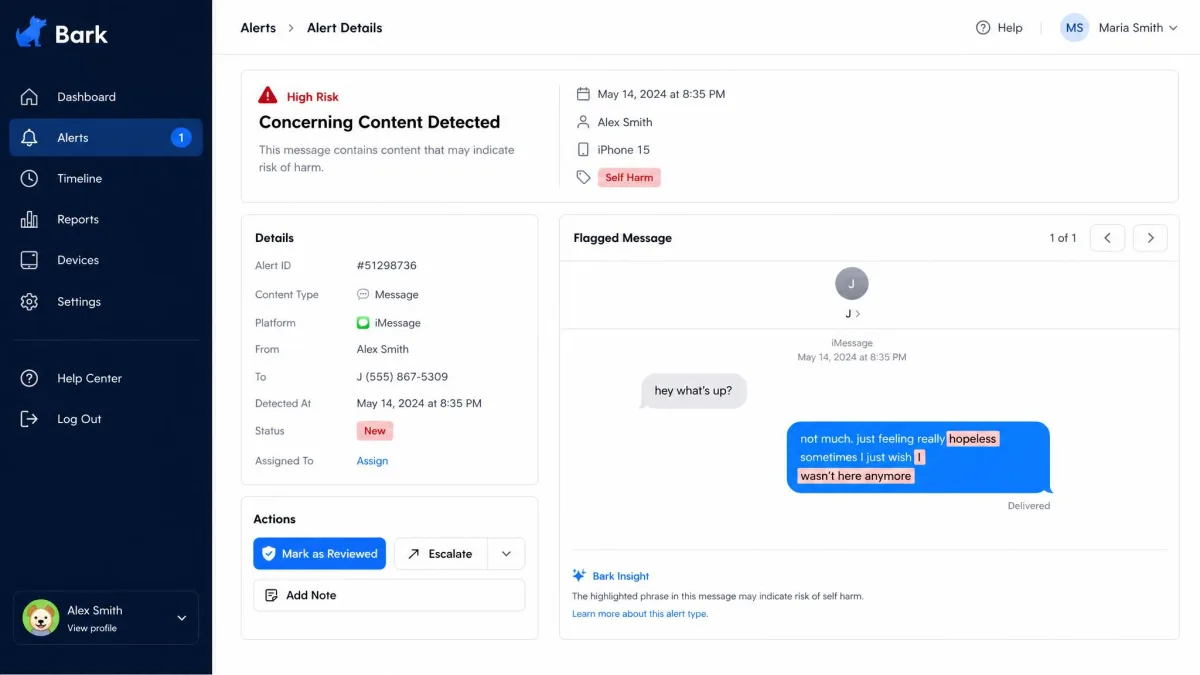
Bark does one thing better than anything else we tested: it catches the message that matters. Its AI scans texts and social media and flags cyberbullying, predators, self-harm, and drug content. In our testing it surfaced the specific message that triggered an alert rather than a full conversation, and alerts could arrive thirty minutes to several hours later. It also flagged innocent content, with roughly one to two genuinely concerning alerts per week. The Android install took about five minutes; iOS took closer to fifteen and cannot read iMessage. Bark Premium runs $14 a month or $99 a year and covers unlimited children and devices.
Best Free Baseline Options
Every household should start with the free built-in tools, since they cost nothing and cover the essentials. Screen Time and Family Link handle app limits, downtime, web filtering, and purchase approval, but both leave chat content invisible.
Screen Time, Content Filtering, and App Purchase Controls
Beyond visibility, parental controls are about setting boundaries on how a device gets used. Here is how the major tools handle the three controls families rely on most: digital breaks, web filtering, and purchase approval.
Enforcing Digital Breaks and Downtime
The phone-side controls described above handle the daily routine. Consoles add their own layers: Xbox schedules playtime by day, PlayStation caps playtime with Notify Only or Log Out, and Nintendo suspends the game when time runs out.
Web Filtering and SafeSearch
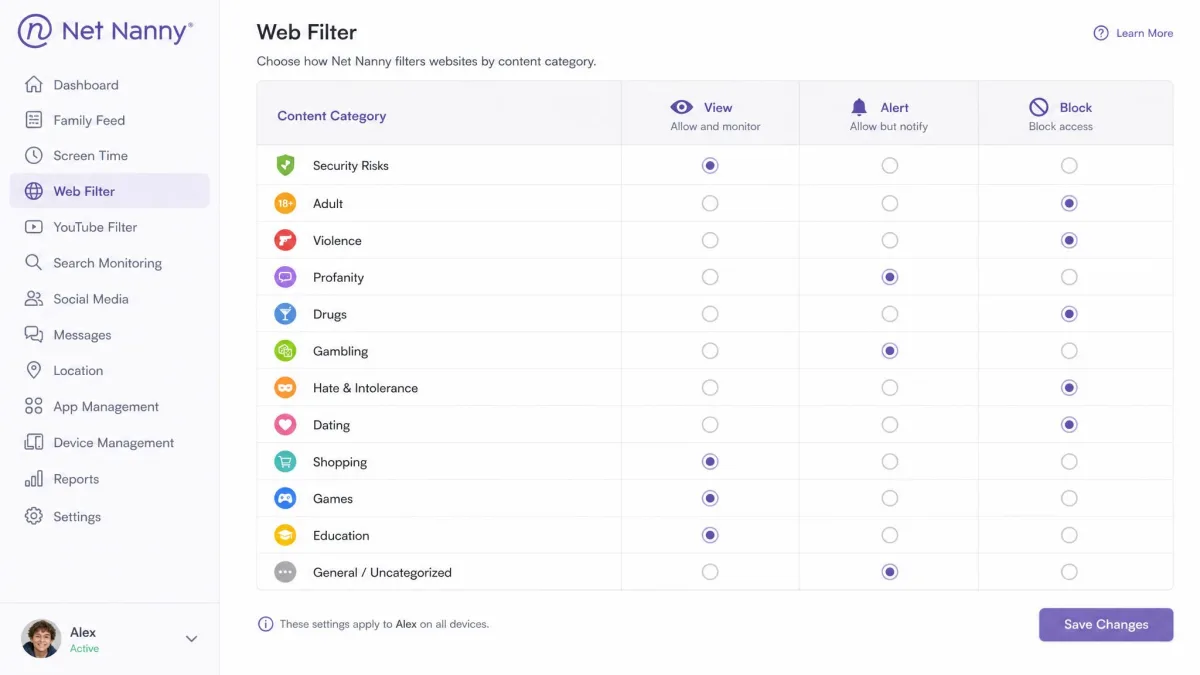
Apple's Content and Privacy Restrictions set ratings for music, movies, TV, and books and block adult sites by default based on the child's age. Family Link filters Chrome by age. Net Nanny is the strongest filter we tested, blocking across fourteen content categories with per-child View, Alert, or Block settings, per Net Nanny's feature page. Bark's filter blocked most problem sites but missed some newer, uncategorized ones, and Google SafeSearch adds a further layer inside the apps.
Managing In-App Purchases
Purchases are the one control where every platform hands parents the final say. Apple's Ask to Buy routes every App Store purchase to your approval, and Family Link sends Google Play purchases to you as well. Amazon Kids+ controls app-store and in-app purchases on Fire tablets, while Nintendo restricts eShop spending on the Switch.
How to Set Up Parental Controls on Your Child's Device
Set the operating system controls first, then decide whether a third-party layer is worth adding. The order matters because the built-in tools handle the platform plumbing, so the third-party app has a clean base.
Set Up Built-In OS Controls First
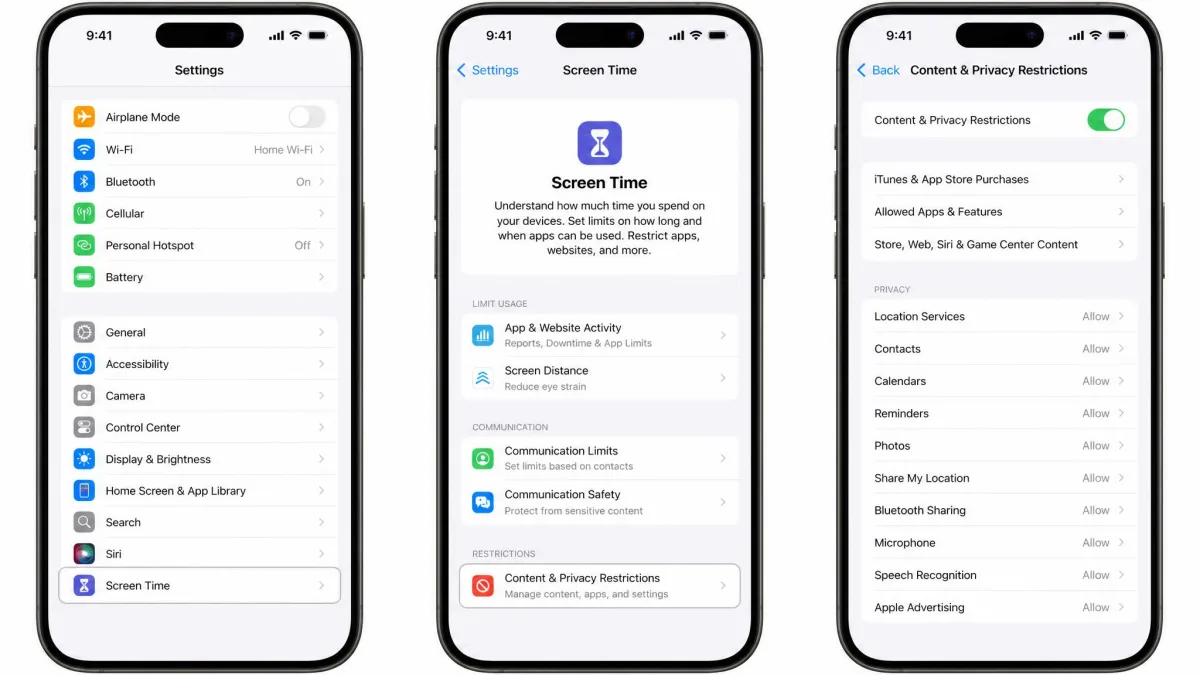
On an iPhone or iPad, open Settings, then Screen Time, and set a passcode your child does not know. Turn on Content and Privacy Restrictions and apply the app limits and Downtime schedule described above. Create your child's account through Family Sharing so the controls apply from day one. On Android, set up Google Family Link with a supervised account for children under 13, then choose the daily limit, bedtime, and web filtering.
Layer on a Third-Party App When Needed
Add a third-party app when you need message scanning, location alerts, or cross-platform coverage. Bark's Android install took about five minutes in our testing, while the iOS version took closer to fifteen and required pairing with Screen Time. Qustodio's iOS setup is the fiddliest of the group. Budget for maintenance, since Instagram asked to reconnect partway through our testing.
Platform-Specific Parental Controls: iOS vs Android vs Gaming Consoles
The features differ sharply by platform, because Apple and Google decide what third-party apps can see. The matrix below compares the five tools, and the sections that follow cover the built-in options.
| Feature | Apple Screen Time | Google Family Link | Bark | Qustodio | Net Nanny |
|---|---|---|---|---|---|
| Price | Free | Free | $14/month | Free to $104.95/year | About $40/year per device |
| App usage monitoring | Yes | Yes | Yes | Yes | Yes |
| Screen time limits | Yes | Yes | Yes | Yes | Yes |
| Web history visible | Safari and web | Chrome only | Partial | Yes | Yes |
| Text message content | No | No | Android only | Android only | No |
| Social media content | No | No | AI alerts on 30+ apps | Selected apps | Protect modes |
| Location tracking | Yes | Android only | Yes | Yes | Yes |
| iOS support | Built in | Limited | Partial | Yes | Yes |
| Android support | No | Built in | Yes | Yes | No since 2024 |
| Best for | Apple households | Android defaults | Risky messages | Granular limits | Web filtering |
Apple Screen Time (iOS/iPadOS)
Apple's Screen Time is the deepest free option for Apple households, and every layer runs on-device, not in the cloud. That design decision shapes what you can see. Content and Privacy Restrictions block explicit content, lock privacy settings, and apply age-based ratings. It will not show message content, since Communication Limits only governs who your child talks to and Communication Safety analyzes photos locally so Apple never sees them.
Google Family Link (Android)
Family Link is Google's free answer on Android and Chromebooks, and it cannot read text messages, emails, or phone calls. Location tracking works on Android only, which is the main gap for mixed-device households, and setup relies on a supervised Google account for children under 13. Google Family Link walks through the flow.
Console and Streaming Controls
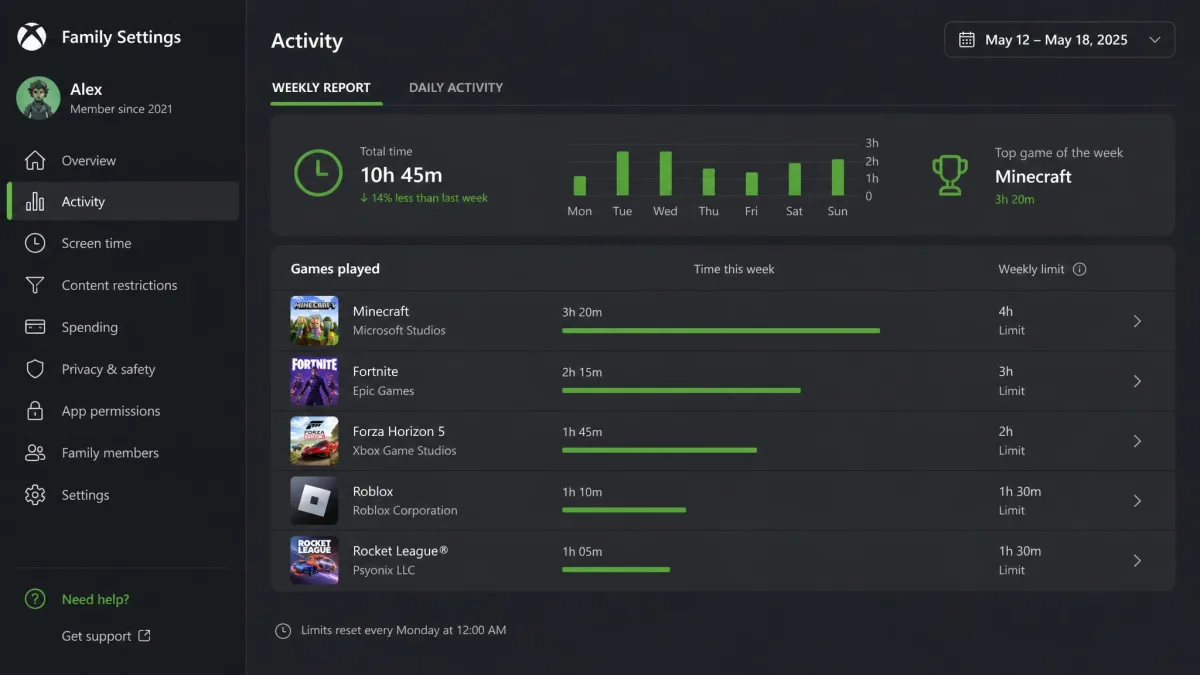
Consoles ship with their own family apps that sit alongside the phone controls. Xbox Family Settings delivers activity reports, per-game time limits, and purchase controls, while PlayStation's Family app shows the game being played and past-week playtime. Nintendo's app reports playtime and restricts eShop spending, and Amazon Kids+ adds age filters and time limits across Fire tablets and Kindle for $5.99 a month with Prime.
What Parents Cannot See: Privacy Limitations
For all the coverage above, every parental control has a ceiling. Understanding the limits matters as much as knowing the features, because the gaps change what you can expect from any tool.
Encrypted and Deleted Content
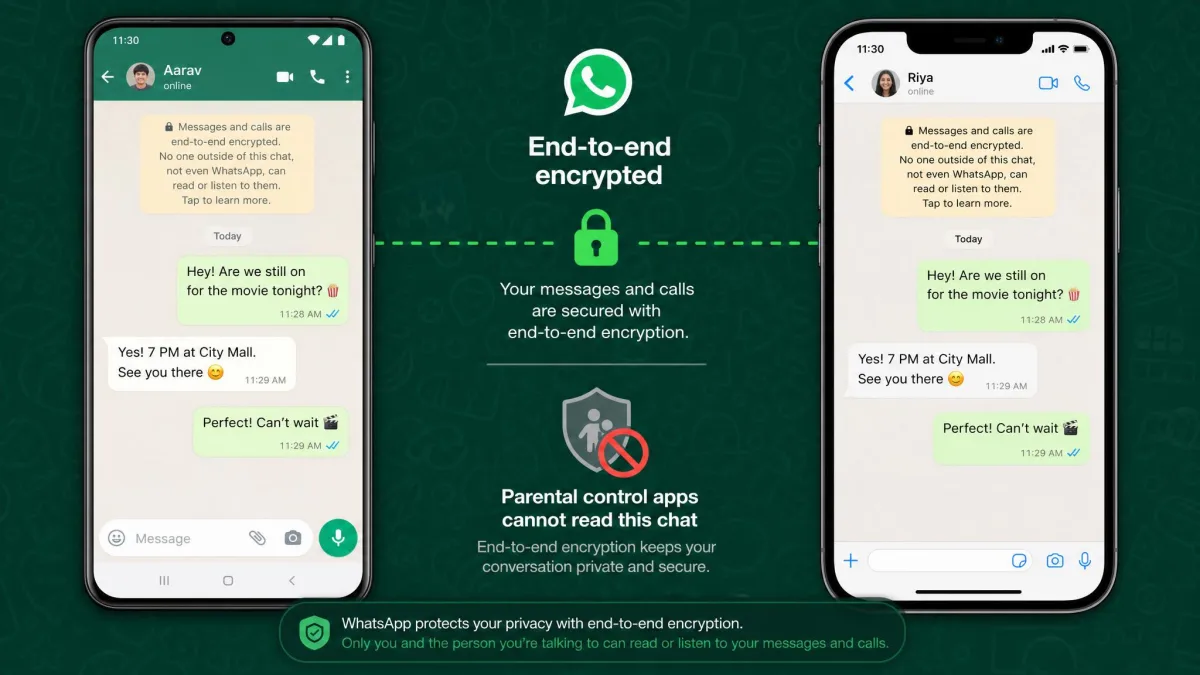
No parental control app can read end-to-end encrypted content on WhatsApp, iMessage, Signal, Telegram, or Snapchat's photo and video DMs, and the wall applies to paid apps as much as built-in tools. Disappearing messages compound the problem, since Snapchat messages are designed to vanish and deleted content is unrecoverable if removed before a scheduled scan. In our testing, Bark scanned iOS devices once on home Wi-Fi and Android devices roughly every six hours.
App-Specific Restrictions (Snapchat, TikTok, etc.)
Social platforms have their own family features that deliberately limit what parents see. Snapchat Family Center shows who your teen chatted with in the last seven days, but never the message content. TikTok Family Pairing manages screen-time limits, Restricted Mode, and message settings, yet it does not show the feed, full watch history, or direct messages. Our guide to how parents can monitor Snapchat covers the workable options.
Built-In Controls vs Third-Party Monitoring Apps
The practical difference between the layers is how far each can reach. Built-in controls manage the whole device for free but stop at the content wall, since they never show text contents, chat contents, or social feeds. Third-party apps reach further but hit the same encryption wall, and on iPhone, Apple blocks third-party text monitoring entirely, which is why Bark pairs with Screen Time.
Effectiveness and Bypass Concerns
Controls are only as strong as their latest update. Apple's Screen Time shipped for years with a flaw that let kids bypass Safari content restrictions by pasting a character string into the address bar on iOS 15 through 17, and the fix arrived only after coverage surfaced in 2024. Family Link has seen the same back and forth with a clock-change workaround, patched but still recurring on older devices. In our testing, bypass attempts like VPNs, new accounts, and factory resets mostly triggered alerts to parents, and uninstalling Bark required the parent's password. A determined teen can outrun most controls, so supervision beats surveillance.
Privacy, Trust, and Talking to Your Kids About Monitoring
Open communication is the difference between controls that protect and controls that backfire. Tell your child what the tools show you, why they are in place, and what will change as they get older. A child who understands the monitoring is there to keep them safe is more likely to come to you with a problem. Age shapes the right approach, too, since Apple and Google apply the strictest content filters for children under 13 and expect you to lighten the load over time. A filter level that fits a 9-year-old can feel invasive to a 14-year-old, so aim for a gradual handover rather than a permanent surveillance relationship.
Pair the controls with open communication. When your child knows what you can see and why it is there, they are more likely to flag a problem themselves than to hide one.
Conclusion
So what can parents see on parental controls? A great deal, but never everything. App usage, screen time, web history, location, and purchase approvals are reliably visible on the free built-in tools. Text messages and chat content are the gap, since encryption means even the paid apps never see it all. Start with Screen Time or Family Link, add a monitoring app if message scanning matters, and keep the conversation open as your child grows.