Net Nanny is a subscription parental control app that filters web content in real-time, sets screen time limits and schedules, blocks apps, and reports back to a parent dashboard you can open from any browser. It has been sold under the same name since 1996, and the current version covers Windows, macOS and iOS from plans that start at $39.99 a year for a single computer. It suits parents who want a strong, opinionated web filter on a family iPhone or home PC and who value a tidy set of controls over a sprawling monitoring suite.
The caveat is large enough to name before anything else: there is no Android child app. If the device you most want to manage is an Android phone or tablet, this is not the product for you, and no amount of dashboard tinkering changes that. Everything below covers what the filter actually catches, how the screen time tools behave, what setup involves on each platform, what the plans really cost once the promotional pricing lapses, and how Net Nanny stacks up against Qustodio, Bark and Norton Family.
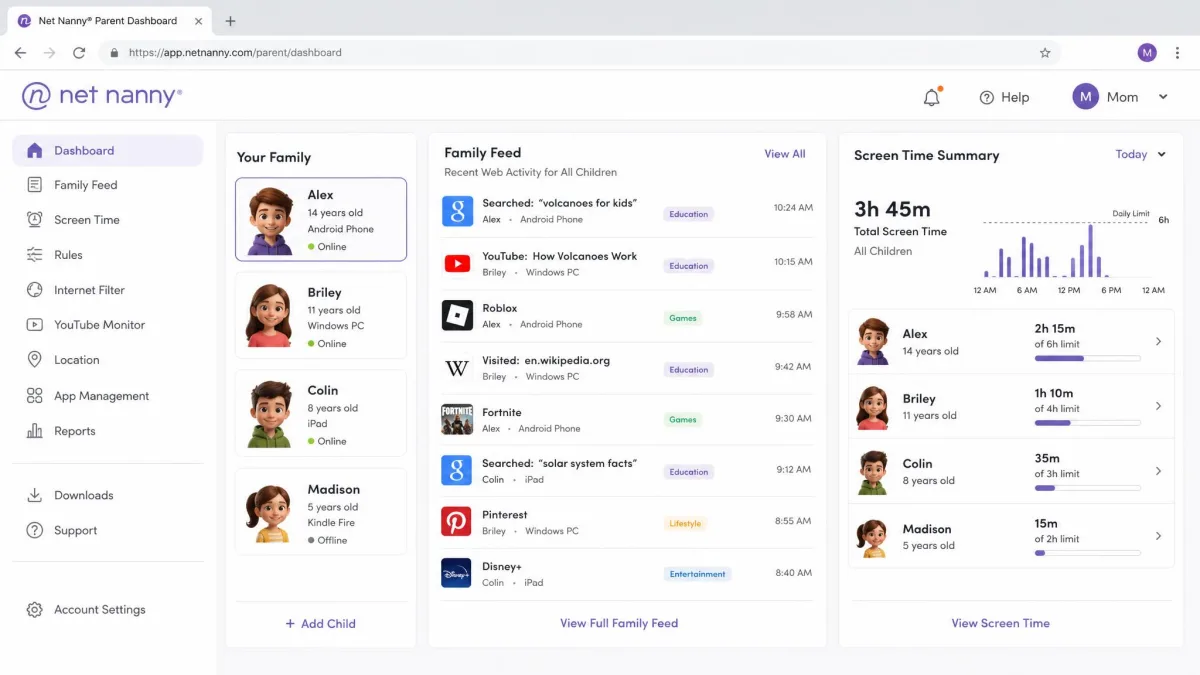
What Is Net Nanny and Who Is It For?
Net Nanny is one of the oldest names in parental control software, on sale in one form or another since 1996, and the site is now operated by SafeToNet Limited after the product's long run under ContentWatch Holdings. That history matters mostly because it explains the product's shape. It was built as a content filter first, and monitoring features were layered on afterwards, which is the opposite of how newer rivals such as Bark were designed from the ground up.
In practice, the app installs on each child device and applies a filter and a set of rules that you manage remotely. You get real-time web and content filtering, pornography blocking, website blocking, app blocking with approved lists, screen time limits and schedules, an internet pause button, location tracking on iOS, YouTube monitoring, social media protection, alerts and a family feed, and activity reports you can review at the end of the week.
The parent it fits is the one with younger children on a family iPad or a shared home computer, who wants firm boundaries around what the browser will load. It fits less well for a parent of teenagers who needs to see who their child is talking to, because there is no text message monitoring and no call blocking anywhere in the product. It is also a poor match for anyone who wants to loosen one app while tightening another, since per-app time limits do not exist here.

Net Nanny Pros and Cons
Pros
- Website blocking is the strongest part of the filter and holds up well for curating a safe browsing list
- Real-time category filtering across 14 content categories, plus custom filters you build yourself
- Setup on iPhone and Windows is straightforward
- Location tracking and YouTube monitoring are accurate on iOS
- The filter catches explicit thumbnails in YouTube search and blocks risky in-game ads
- Plans scale sensibly, and the 5-device tier works out at roughly $11 per device per year
- A 14 day return policy applies to orders placed directly through netnanny.com
Cons
- No Android child app, so Android phones and tablets cannot be covered at all
- No per-app time limits, so screen time rules are all or nothing
- No text message monitoring, call blocking, geofencing or advanced tamper detection
- The iPhone management profile is weakly protected and can be removed from device settings
- No tamper alert fires when the kid app is disabled
- Alerts can take hours to appear rather than arriving in real-time
- Cancelling auto-renewal is difficult from the account area
Net Nanny Features
The feature set is broad on paper and uneven in use. We worked through each area on a family iPhone, an iPad and a Windows laptop, and the pattern that emerged is consistent: the filtering layer is mature and dependable, while the reporting and management layer around it feels a generation behind what competitors ship today.
Web and Content Filtering
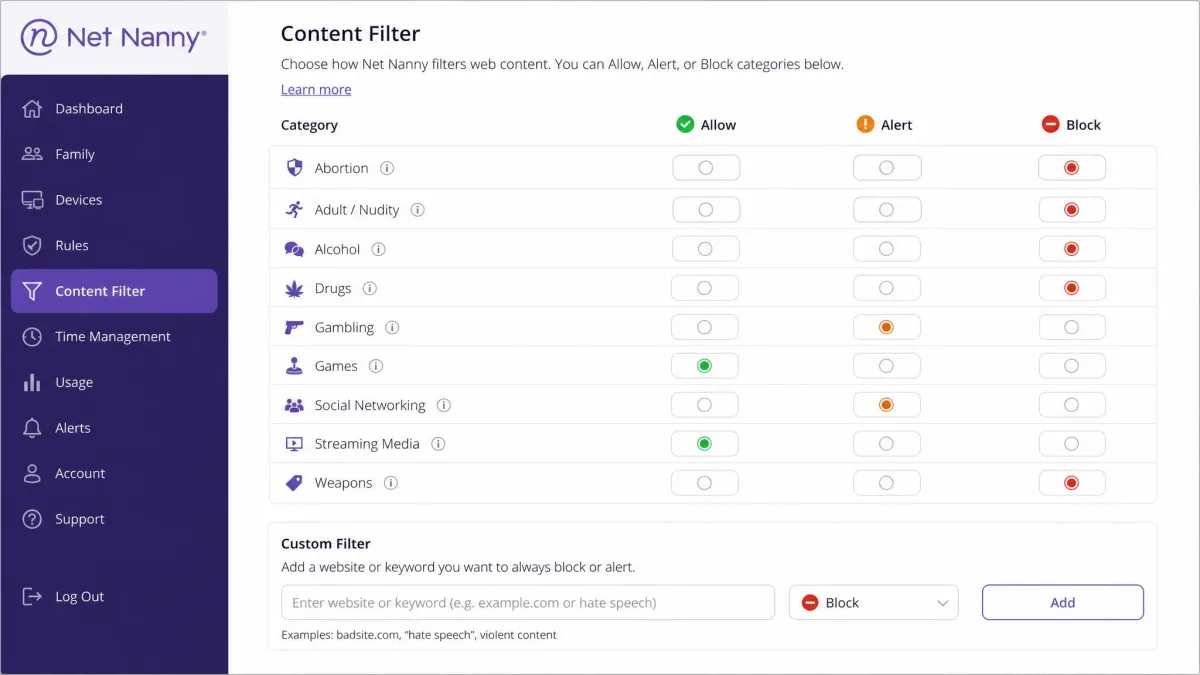
This is the heart of the product and the main reason to buy it. Net Nanny filters in real-time across 14 content categories, and you can build custom filters on top of those defaults. Each category can be set to allow, alert or block, so you can let an older child reach a category while still being told that they went there.
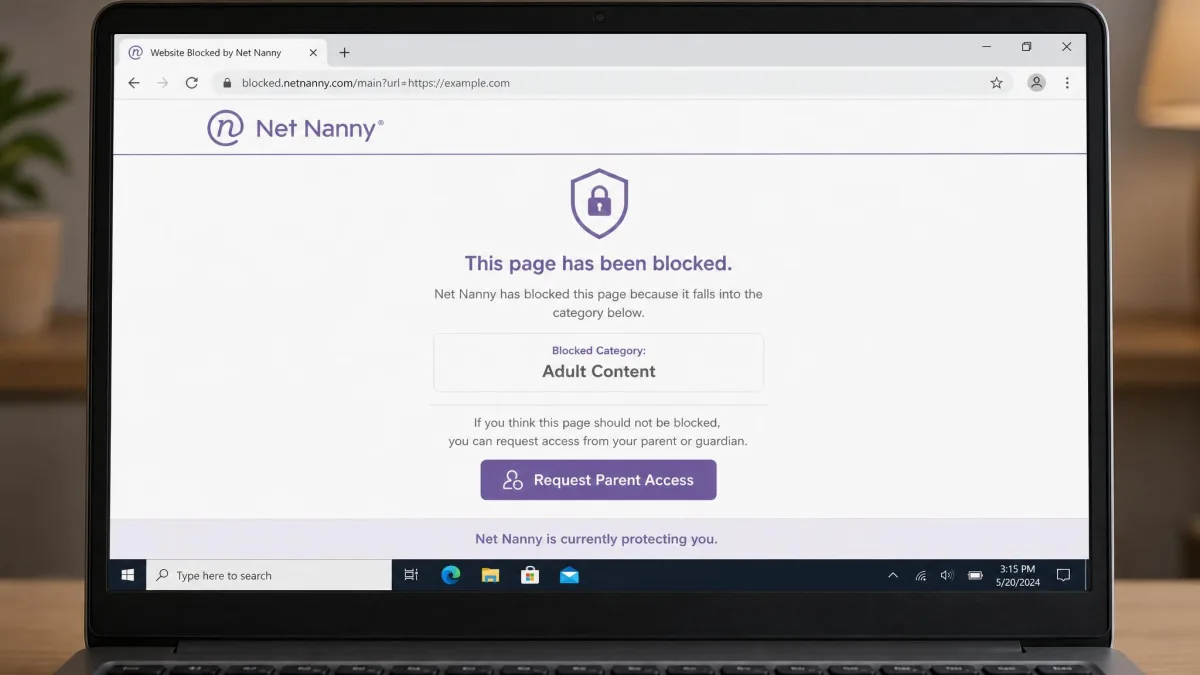
Website blocking is the strongest part of the whole system. When we added specific domains to the block list, they stayed blocked, and the approved-list approach worked well for building a small, safe browsing world for a younger child. That reliability is exactly what parents of primary-age kids need most.
Category filtering is less airtight than the marketing suggests. Named websites in a restricted category were blocked consistently, but searches within that same category still went through, so a blocked gambling category did not stop gambling-related search results appearing. Custom content filtering also missed vulgar language embedded in song lyrics and article text, even after we configured the filter specifically to catch it.
Category filtering and website blocking are two different tools inside the same app. If a category matters to you, block the specific sites as well rather than trusting the category toggle on its own.
Screen Time Management and Scheduling
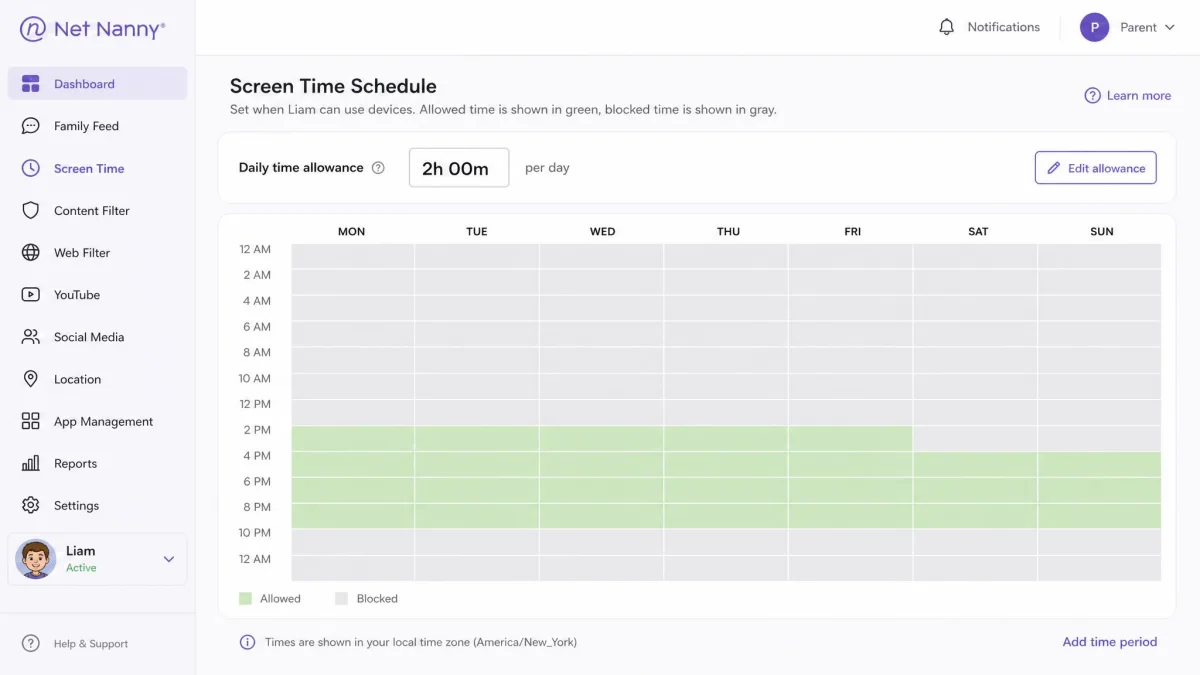
Screen time in Net Nanny means a daily allowance plus a schedule, and an internet pause button you can hit from your phone when dinner is on the table. The schedule tooling is a simple weekly grid, so you set a weekday pattern and a weekend pattern for each child, and the pause button overrides both from the parent app.
The limitation is rigidity. There are no per-app time controls, so you cannot grant an hour of a homework app and twenty minutes of a game inside the same daily budget. Every minute is a general minute. Parents who want that granularity will find Qustodio's Complete tier a better fit.
App Blocking and App Advisor
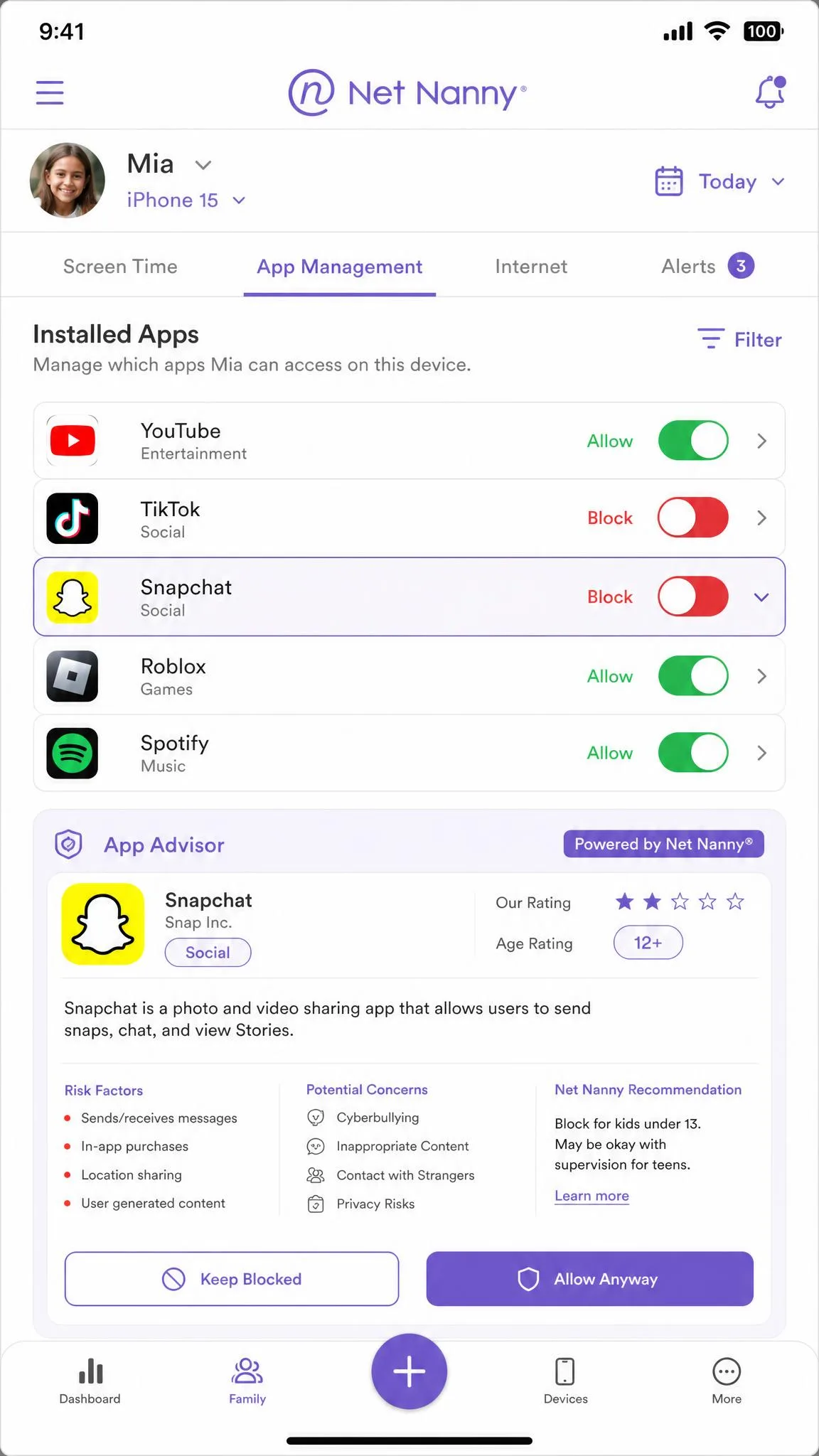
App blocking works through allow and block lists rather than time budgets. You review the apps installed on a child device and decide which ones are permitted, and Net Nanny's app blocking and approved lists then enforce that decision across the family. App Advisor, delivered through the parent portal, adds context about what a given app does and what parents should know before approving it, which is genuinely helpful when your child asks for something you have never heard of.
One rough edge showed up repeatedly in our testing: app blocking changes did not sync instantly between devices. A change made on the dashboard sometimes took a while to land on the child device, which is awkward when you are trying to settle an argument in the moment.
Location Tracking
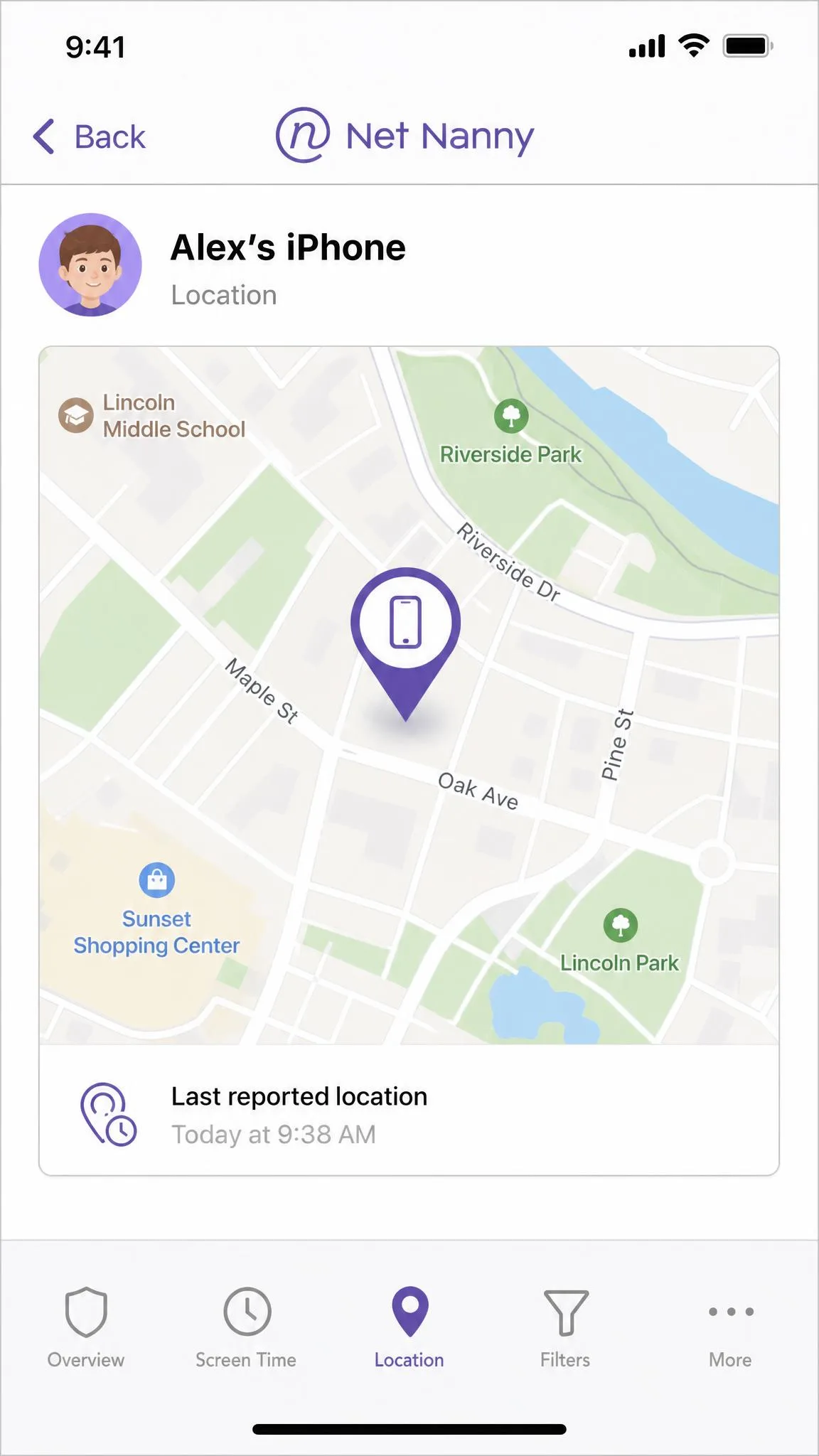
Location tracking is iOS only, and on iOS it is accurate. We checked reported positions against the actual device several times and the readings lined up each time. What is missing is geofencing, so you cannot draw a boundary around school or home and be alerted when your child arrives or leaves it. You can look up where a device is; you cannot ask the app to watch on your behalf.
YouTube and Social Media Monitoring
YouTube monitoring works, with a caveat that matters more than it first appears. The filter reaches browser-based YouTube activity, and there it did a good job, catching explicit thumbnails in search results and blocking risky in-game ads that surfaced during play. It does not reach inside the native YouTube app, which is where most children actually watch. If YouTube is the reason you are buying, block the app and force browser use, or your coverage will be partial.
Social media protection here is filtering rather than monitoring. Net Nanny can block or restrict access to social platforms, but it does not read messages, and it does not cover texts or calls at all. Parents looking for conversation-level insight want Bark instead, and that difference is the single clearest fork in this market.
Net Nanny does not monitor text messages or block calls. If your concern is who your child is talking to rather than what they are browsing, this app will not answer that question.
Alerts, Family Feed and Activity Reports
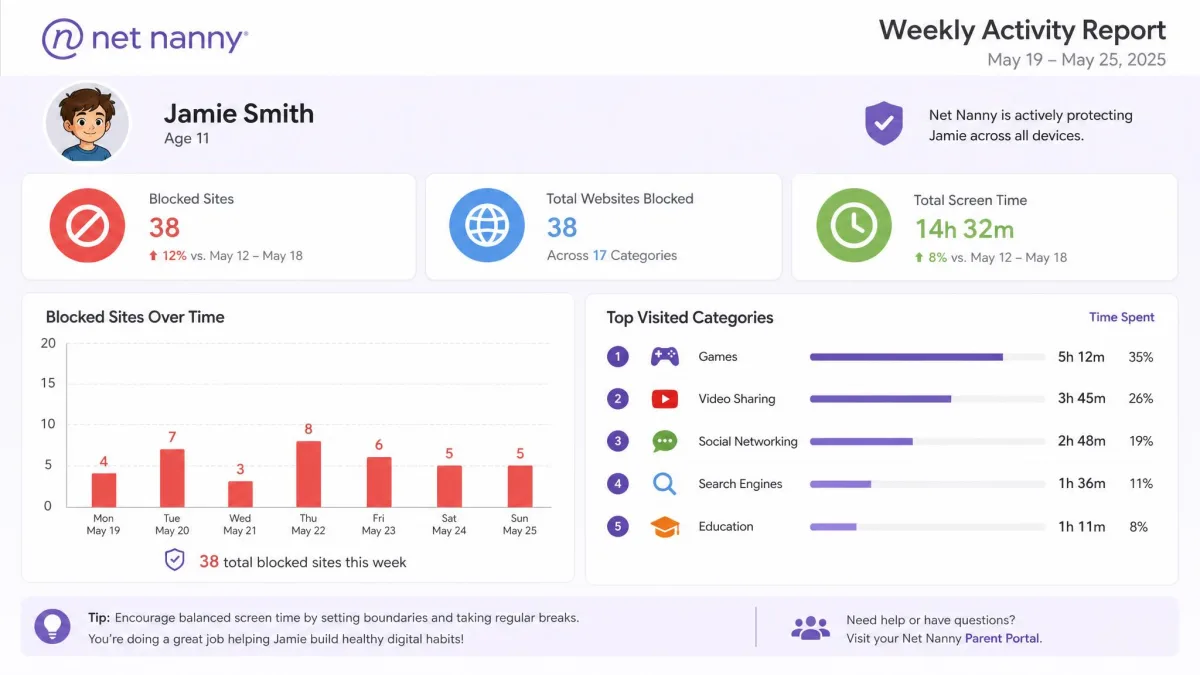
The family feed collects recent activity into a single scrolling column, and activity reports summarise it over time. The idea is sound and the presentation is readable. Timeliness is the problem. Alerts often took hours to appear in the dashboard rather than arriving as events happened, which undercuts the point of a real-time filter sitting underneath them. The searches tab was slower still, sometimes taking days to populate, and it did not capture everything a child had looked for.
Setup and Installation
Setup follows the standard parental control pattern: create an account, install the parent side, then install and pair the child app on each device. Net Nanny's setup documentation covers the steps, though onboarding material is thinner than what competitors such as Bark provide, with fewer walkthrough tutorials to fall back on when something does not behave as described.
We set Net Nanny up on an iPhone and a Windows laptop and had both devices reporting into the dashboard in roughly 15 minutes, including account creation. That is a good result, and it is the part of the experience we would most readily recommend to a parent who is not especially tech-savvy.
Installing the Parent App
The parent side is a web dashboard plus a companion phone app, and getting started is quick. You create the family, add a child profile with an age, and Net Nanny proposes a starting filter configuration based on that age. We would treat those defaults as a draft rather than a finished policy, since the age presets are broad and most families will want to adjust several categories immediately after setup.
Installing the Kids App
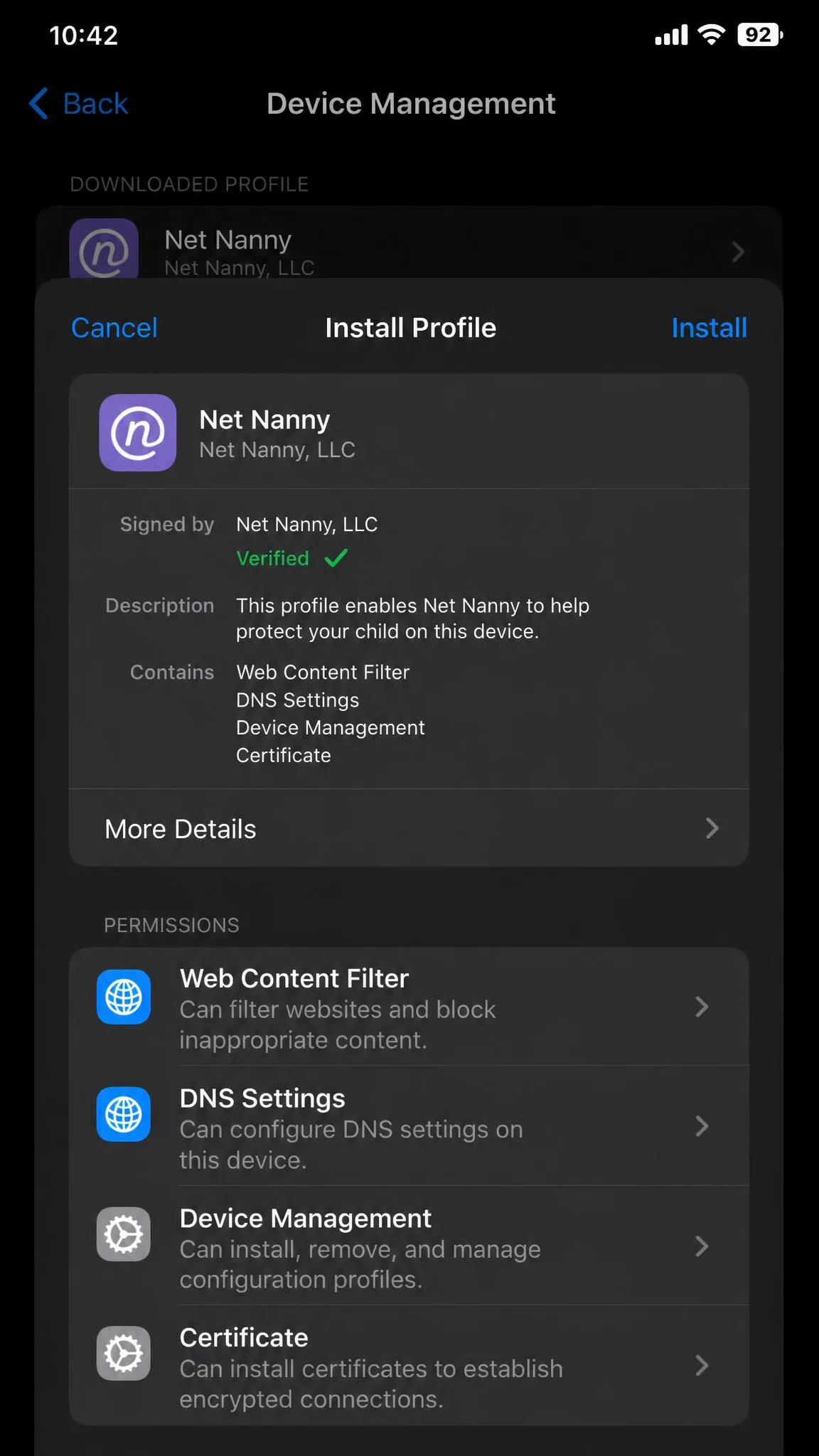
The child install is where platform differences begin to bite. On Windows and Mac it is a conventional application install with no surprises. On iPhone and iPad it uses a device management profile, which is standard practice for iOS parental controls but is only as strong as its protection, and here that protection is weak. The profile can be removed from the device settings by a child who goes looking, and no tamper alert fires when the kid app is disabled. The dashboard simply goes quiet, which is easy to mistake for a well-behaved week.
Set a Screen Time passcode on the iPhone itself and restrict profile changes before you hand the device back. It is the simplest way to stop the Net Nanny profile being peeled off in thirty seconds.
Ease of Use: Living With the Parent Dashboard
Day to day, the parent dashboard is clean but dated. Information is legible and the layout is uncluttered, yet navigation is unintuitive next to newer competitors, and finding a specific setting often means hunting through a menu you have already visited once. Nothing here is broken; it simply asks more of you than it should.
The iPad app was the least stable piece of the experience, showing intermittent crashes during extended use. Combined with the syncing delay on app blocking changes and the lag on alerts, the overall impression is of software that works but does not feel current. A parent who is comfortable with technology will not be slowed much. A parent who wants to set the rules once and never think about the interface again may find it a chore.
The filtering engine is a decade ahead of the dashboard wrapped around it, and that gap is the single best summary of Net Nanny in 2026.
— From our hands-on testing across iPhone, iPad and Windows
Device and Platform Compatibility
That dated-but-workable dashboard is only half the question, because what matters more is which devices it reaches at all. Supported platforms are Windows, macOS and iOS. That is the complete list, and the gaps in it are most of the story.
iPhone and iPad
iOS is where Net Nanny is most complete. Filtering, screen time, app blocking, YouTube monitoring and location tracking all function, and location and YouTube monitoring were accurate in our checks. The weaknesses are the removable management profile and the iPad app's stability under sustained use.
Android
There is no current Android child app. Android does not appear among the supported platforms, and support has given no release date for one. This is the point at which many families stop reading, and reasonably so, because households with an Android child device commonly move to Bark or Qustodio once they discover the phone cannot be covered.
It gets more confusing than a simple absence. Android-labelled options still surface in the parent dashboard even though no Android child app exists, which is misleading during setup and can leave parents believing they have configured protection they do not have. Where an Android build does surface, it does not complete onboarding and never connects to the dashboard. Treat any claim that Net Nanny works on Android as unsupported. Google Play's parental approval system and Family Link will cover more of an Android device than Net Nanny can.
Windows, Mac, Kindle Fire and Chromebook
Windows and Mac are properly supported, and the child app arrives there as a conventional application install with no surprises. Chromebook and Kindle Fire were not covered in our testing, which is worth knowing if a school-issued Chromebook is the device your child spends most of their time on. For that scenario, our guide to the best parental control software for PC is a better starting point than this review.
Net Nanny Pricing and Plans
Assuming your devices are on that supported list, the next question is what covering them costs. Pricing is charged per year and tiered by device count rather than by feature, which is refreshingly simple next to rivals that lock their best tools behind a premium tier.
Plan Tiers and What Each Covers
| Plan | Devices | Price | List price |
|---|---|---|---|
| 1 Desktop | 1 PC or Mac | $39.99/yr | $49.99/yr |
| Family Protection Pass | 5 devices | $54.99/yr | $79.99/yr |
| Family Protection Pass | 20 devices | $89.99/yr | $129.99/yr |
Every tier gets the same feature set, so you are buying seats rather than capability. The 5-device plan is the sensible default for most families and works out at roughly $11 per device per year.
Renewal Rates, Refunds and Free Trial
The discounted rates above are a limited-time promotion, so the price at checkout can be the higher list figure. Subscriptions then auto-renew for another term of the same length at the then-current non-promotional rate unless you opt out, which in practice means year two is billed at the list price rather than the discounted one: roughly $49.99 for one device, $79.99 for five and $129.99 for twenty. Treat those as guides rather than fixed figures, because Net Nanny publishes no set renewal price and can change fees with notice by email before the charge lands.
Refunds run to a 14 day return policy on orders placed directly through netnanny.com, requested by email. Buy through Google Play or the App Store instead and you fall under those stores' own refund rules rather than Net Nanny's, which is a meaningful difference if you expect to change your mind quickly.
Free trial availability is the murkiest part of the picture. Trial availability varies by signup route and promotion, and the official site does not advertise a free trial at all. Plan on buying outright rather than testing first.
Cancelling auto-renewal is hard to do from the account area, and billing can continue after a cancellation is confirmed. Charges may also appear under an unfamiliar merchant name rather than Net Nanny, so check your statement carefully and keep the confirmation email.
Is Net Nanny Good Value?
At $54.99 a year for five devices, Net Nanny sits almost exactly where Qustodio's Basic plan sits and well below Bark. On price alone it is competitive. On value for money the answer depends entirely on your devices: an iOS and desktop household gets a capable filter for a fair sum, while an Android household gets nothing usable at any price. The renewal uncertainty and the cancellation friction deserve weight too, because a subscription you cannot easily stop is more expensive than its sticker suggests.
Is Net Nanny Safe? Privacy and Security
Net Nanny is a legitimate product from an established company rather than spyware, and it is safe to install in the ordinary sense of that word. The more useful question is what it does with your child's browsing data, and that answer needs reading rather than summarising. The Net Nanny privacy policy sets out the retention window: once a contract ends, personal data is deleted from live systems within 30 days and removed from backup systems after 12 months. On sharing, the policy covers suppliers and service providers such as IT, customer support and payment processing, plus professional advisers including lawyers, auditors and insurers. It states that personal information is not passed to ad networks for use outside the Net Nanny services, and it contains no sale-of-data provision.
Set against the profile fragility described in the setup section, that policy is the reassuring half of the picture, because the data handling is conservative even where the on-device supervision is not.
Customer Support
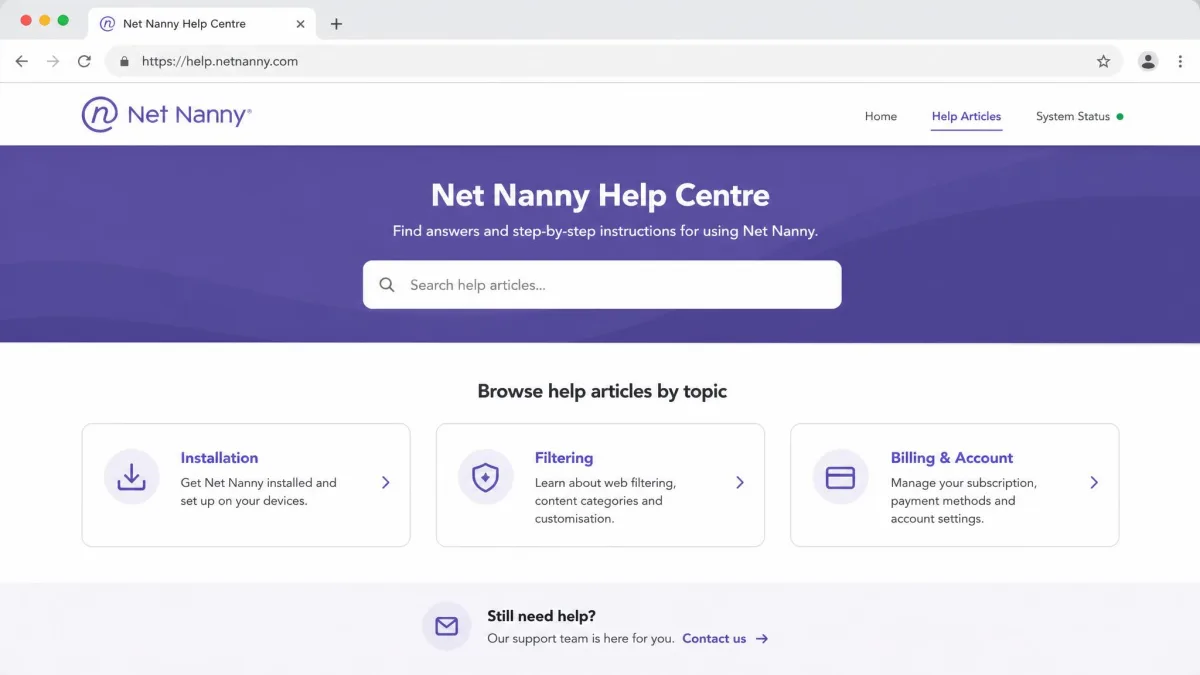
When the interface does slow you down, support is where you end up, and that is delivered by email and through the web help site, and the experience is polite without being effective. Agents replied courteously and supplied instructions that did not work, with escalation timelines left vague, which is the frustrating middle ground between rudeness and resolution. Support documentation on the website can also be out of date relative to the current apps, so a walkthrough that does not match what is on your screen is a real possibility rather than an edge case.
Net Nanny vs the Competition
Net Nanny competes in a crowded field, and the table below is the fastest way to see where it wins and where it simply cannot play.
| Product | Buy | Price per year | Devices covered | iOS support | Android support | Screen time | App blocking | Location tracking | Social monitoring |
|---|---|---|---|---|---|---|---|---|---|
|
Check price → | $54.99(5 devices) | 1, 5 or 20 | Yes | No | Schedules and limits | Yes, approved lists | Yes, iOS only | Content and YouTube, no texts |
 |
$54.95(Basic, 5 devices) | 5 on Basic, unlimited on Complete | Yes | Yes | Plus per-app limits on Complete | Yes | Yes | Call and text monitoring on Complete | |
 |
$99Android, $148 iOS | Unlimited | Yes | Yes | Schedules | Yes | Check-ins | Texts, email and 30+ platforms | |
 |
$49.99first year | All household devices | Yes | Yes, Android 8 or later | Limits and School Time | App monitoring | Yes | Search and video supervision, no texts |
Net Nanny vs Qustodio
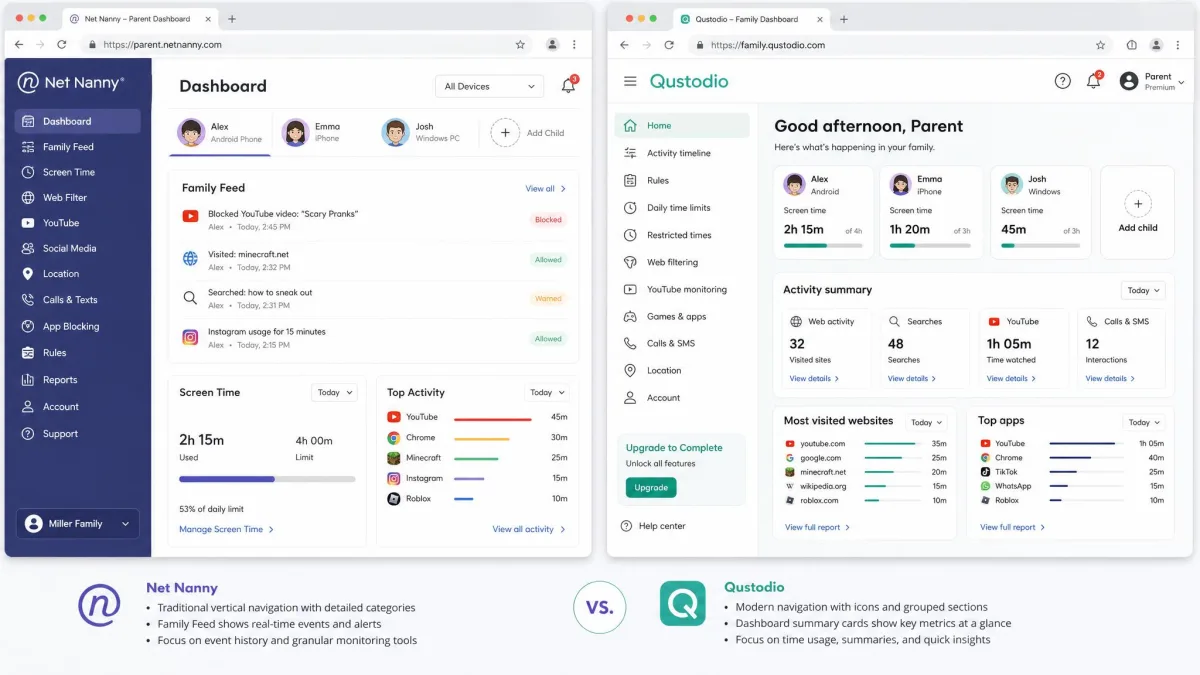
Qustodio's Basic plan costs $54.95 a year for up to five devices, effectively the same money as Net Nanny's equivalent tier, and it covers Android, iOS, Windows, Mac, Chromebook and Kindle. It also offers a free tier covering one device with basic web filtering, time limits and a short activity history, which is a gentle way to try the approach before paying anything. The Complete plan, listed between roughly $99.95 and $109.95 a year depending on region and promotion, adds per-app time limits, custom routines, and call and text monitoring.
Net Nanny's filter is the more assertive of the two on pure content blocking, and its approved-list workflow is cleaner to manage. Qustodio wins on breadth, platform coverage and the granularity of its time controls. For most mixed-device families, Qustodio is the safer buy.
Net Nanny vs Bark
Bark answers a different question altogether. It charges $148 a year for iOS or $99 a year for Android, covers unlimited devices and accounts for the whole family, and includes a 7-day free trial. Its focus is content monitoring and alerts across texts, email and 30 or more social platforms, alongside screen time schedules, web filtering and location check-ins, with Bark Phone, Bark Watch and Bark Home available as hardware options.
If you want to know what your teenager is saying and who is saying things to them, Bark is the tool and Net Nanny is not really in the conversation. If you want a hard filter on a nine-year-old's iPad, Net Nanny does that for a third of the price. Our Bark review goes deeper on how those alerts read in practice.
Net Nanny vs Norton Family
Norton Family costs $49.99 for the first year, with a renewal price higher than that first-year rate which Norton does not publish on its product page. It runs on Windows 7 SP1 or later, on Android 8 or later, and on the current and previous two iOS versions, with no macOS support at all. Features cover web supervision, time limits and scheduling, location tracking, app monitoring, search and video supervision, School Time and activity reports through the parent portal.
The trade is straightforward: Norton covers Android and Net Nanny covers Mac. Norton's School Time feature is genuinely useful for remote learning, while Net Nanny's filter is the more precise instrument. Mac households should not buy Norton Family, and Android households should not buy Net Nanny.
What Real Users Say
Trustpilot's community rates Net Nanny Poor, and billing and cancellation dominate the negative reviews rather than complaints about the filtering itself. That split matches what we found in our own use: the product does its technical job better than the company handles the commercial relationship wrapped around it.
The complaints that recur are not about blocked websites. They are about charges that continued after a cancellation was confirmed, and about support replies that were courteous without ever being correct.
Who Should Buy Net Nanny (and Who Should Not)
Buy Net Nanny if your children use iPhones, iPads, Windows PCs or Macs, if content filtering is your main goal, and if you want a straightforward set of rules that does not demand constant management. Parents of primary-age children get the most from it, because the approved-list model suits an age where you are curating rather than negotiating.
Do not buy Net Nanny if any child device runs Android, if you need per-app time limits, if text and call monitoring matters to you, or if you want geofencing and tamper alerts. Those are not preferences the app can be talked into; they are simply absent. If your household is Android-first, our guides to the top parental control apps for Android and the best free parental control apps are better starting points, and parents focused mainly on daily limits should read our roundup of apps to limit screen time.
Final Verdict: Is Net Nanny Worth It in 2026?
Net Nanny is a good filter attached to an average app, sold by a company whose billing practices need work. That said, the core promise holds up. Blocked sites stayed blocked, the approved-list approach protected a young child's browsing sensibly, setup was quick on both platforms we installed it on, and location and YouTube monitoring on iOS were accurate. For an iOS and desktop family that wants firm content boundaries, $54.99 a year for five devices is fair value and buys a measure of genuine peace of mind.
The reasons to hesitate are concrete rather than aesthetic. There is no Android child app and no date for one. Screen time cannot be tuned per app. Alerts lag, the iPad app crashes intermittently, the iOS profile can be removed without warning you, and the auto-renewal is harder to cancel than it was to start. Weigh those against your own household, and the answer usually decides itself within a sentence of listing your children's devices.
Frequently Asked Questions
What should I do if the dashboard suddenly goes quiet?
What devices does Net Nanny work on?
Does Net Nanny monitor texts and calls?
How much does Net Nanny cost?
Is Net Nanny better than Qustodio or Bark?
I bought Net Nanny for an Android phone. How do I get my money back?
What happens on a device two children share?
For a wider view of this market, see our roundup of the leading parental control apps for iPhone and our primer on how parental controls work.