
8 Best Parental Control Apps for iPhone
If you want to keep your child safe on their iPhone, the right parental control app makes all the difference between knowing what is going on and guessing. We tested 8 of the leading parental control apps on real iPhones running the latest iOS to find the ones that actually work, and just as importantly, the ones that fall short on Apple's locked-down platform.
iOS is not Android. Apple restricts what any third-party app can see and do on an iPhone, so features that work perfectly on a child's Android phone, such as deep message monitoring or call logging, are limited or unavailable on iOS. We kept that reality front and center while testing, because a parental control app is only worth paying for if it delivers on the device your child actually carries. According to CDC data on children's screen time, kids and teens spend hours on screens every day, and that is exactly why parents want tools they can trust. The stakes are real, too: Javelin's 2024 Child & Family Cybersecurity study found that social media exposes children to growing fraud and privacy risks, which is part of why thoughtful oversight matters.
1. Qustodio - Best Overall Parental Control App for iPhone
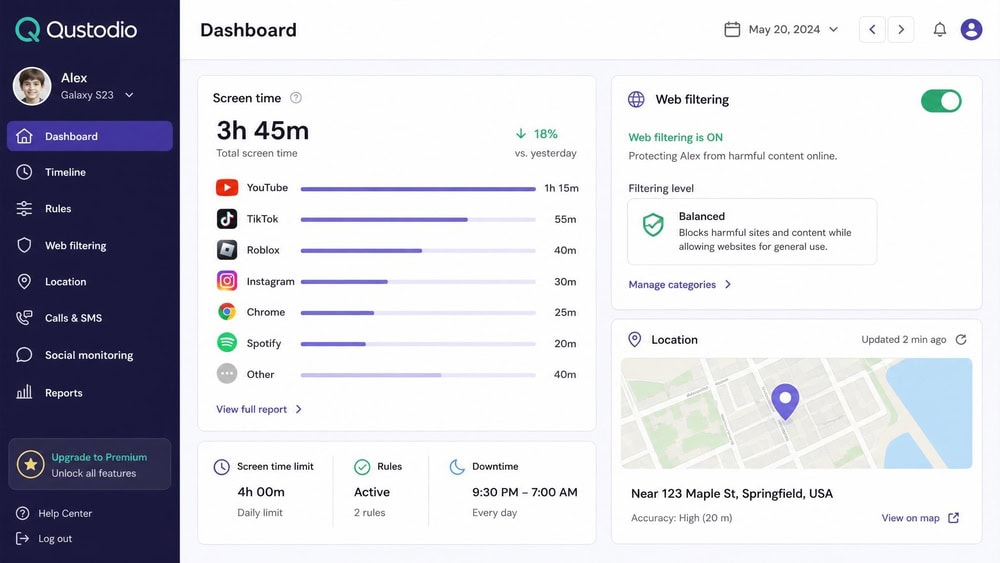
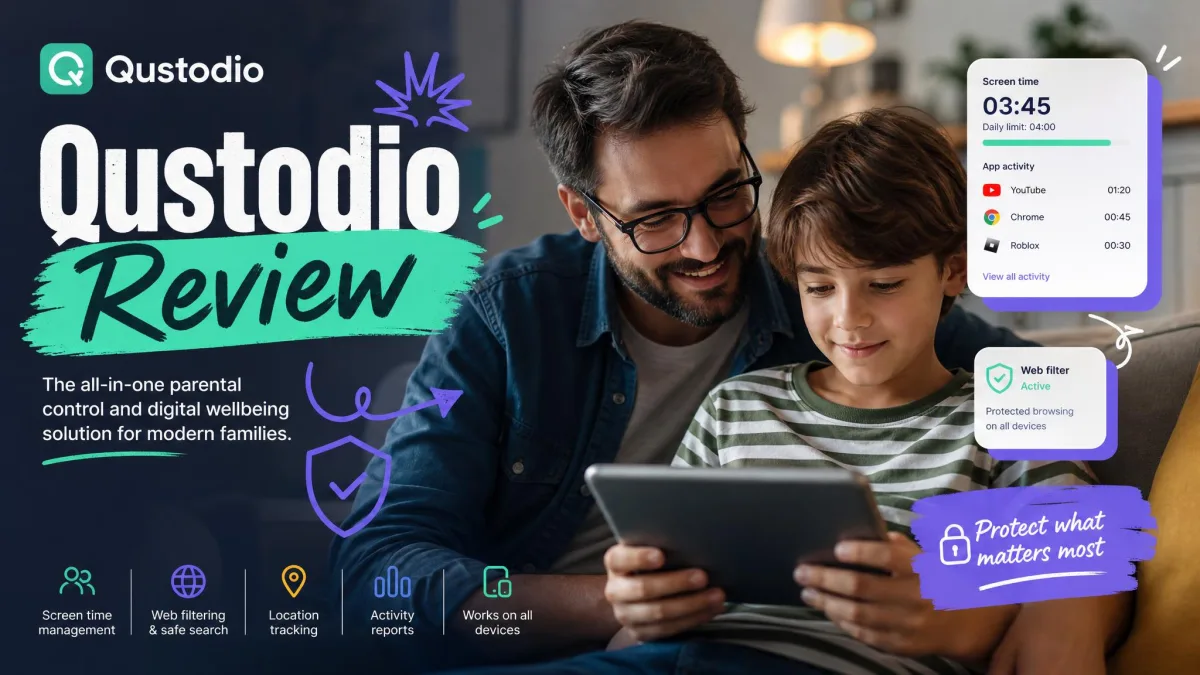
Qustodio earned our top spot because it covers the things iPhone parents care about most without overpromising on the things iOS will not allow. Setup was among the smoothest we tested, the parent dashboard is genuinely readable, and the daily activity reports gave us a clear picture of how a phone was being used without burying us in data.
To put the filtering to the test, we set the web filter to block adult content, then on the child's iPhone we opened Safari and tried to load a handful of sites that should trip the filter. Each one resolved to a Qustodio block page instead of the site, and within a minute or two the attempt showed up as a flagged item in the parent dashboard on our second phone. The block also held when we switched the test phone from Wi-Fi to cellular, the failure point we most wanted to check.
Key Features
Qustodio handles web and content filtering, app blocking, screen-time limits and schedules, location tracking, and daily activity reports, plus YouTube monitoring. On iPhone, the one real catch is calls and messages monitoring, which requires a Windows or Mac computer to set up because of Apple's restrictions. Everything else runs from the phone itself. The free plan protects a single device with basic features, which is a useful way to try before you commit.
Pros & Cons
Pros
- Clean, beginner-friendly parent dashboard
- Strong web filtering and screen-time scheduling on iOS
- Free plan covers 1 device for testing
Cons
- Calls and messages monitoring on iOS needs a connected computer
- Top-tier features sit behind the Complete plan
Pricing
The Basic Premium plan is $59.95/year and covers up to 5 devices, while the Complete Premium plan is $109.95/year and covers unlimited devices. A free plan protects 1 device, and paid plans are backed by a 30-day money-back guarantee. We recommend leading with the annual figure rather than a monthly estimate, since the per-month number shifts with whatever promotion is running.
Visit Qustodio2. Aura - Best All-in-One Digital Safety App
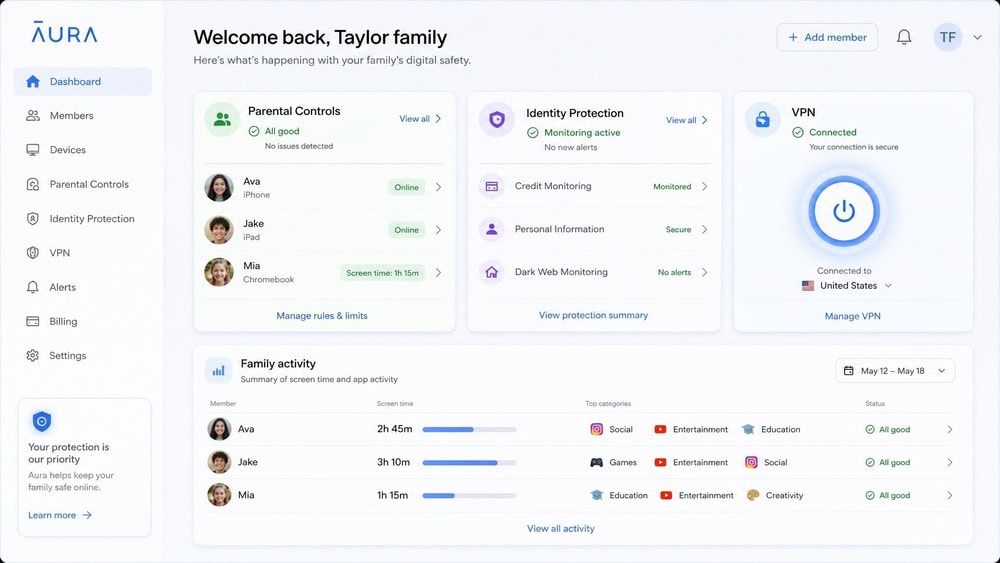
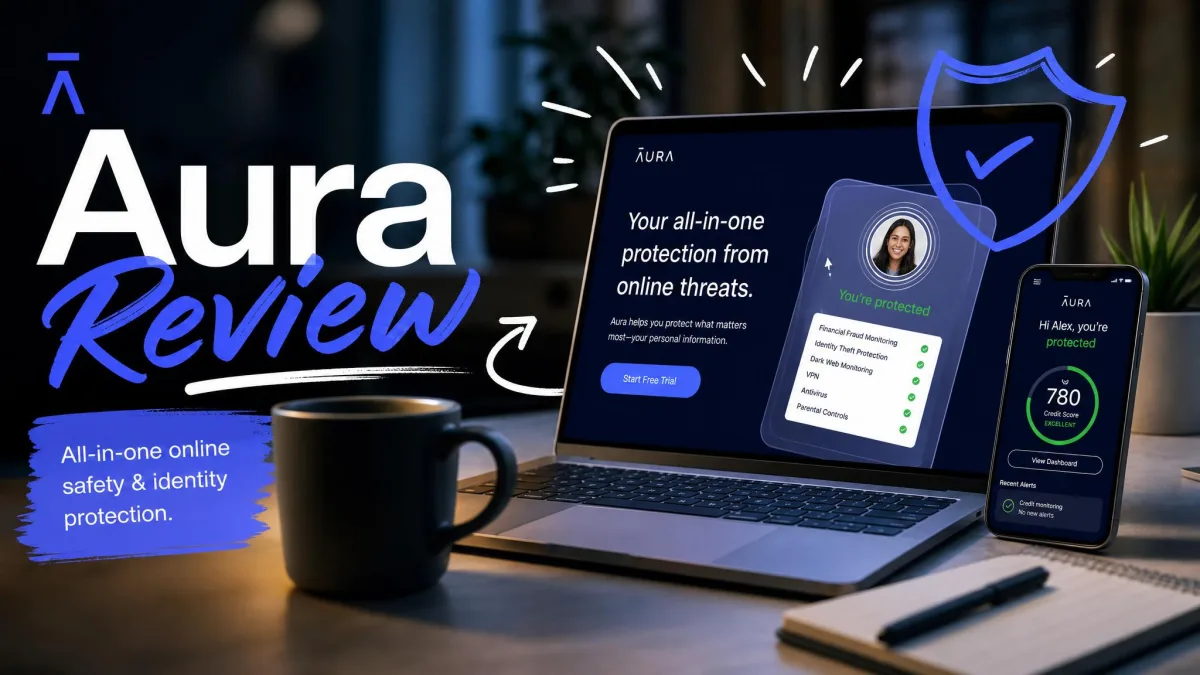
Where Qustodio is a focused parental control app, Aura bundles everything. Alongside content filtering, screen-time limits, and location tracking, Aura folds in identity-theft protection, antivirus, a VPN, and a password manager under one subscription. For a family trying to consolidate several security tools into a single bill, that breadth is the whole appeal.
During setup we watched the consolidation play out on one screen: after installing the Kids profile on the test iPhone, the parent app showed the child's filtering and screen-time tiles right next to the household's identity-monitoring and VPN status. When we ran the same blocked-site attempts we used on Qustodio, the filter caught them and logged the activity, though Aura, like every iOS app here, showed nothing from the child's private messages because Apple does not permit that access.
Key Features
Aura delivers parental controls, content filtering and site blocking, screen-time limits and scheduling, and location tracking, then layers on its wider security suite. The iPhone limitation to know is that Aura cannot monitor private messages inside any app, which is consistent with what iOS allows. If your goal is filtering, time limits, and whereabouts rather than reading messages, Aura covers it well.
Pros & Cons
Pros
- Parental controls bundled with identity protection, VPN, and antivirus
- Clean setup and a polished parent app
- Generous trial and refund window
Cons
- No private-message monitoring on iOS
- The full-value Family plan is a bigger commitment
Pricing
The Kids plan, which carries the parental controls, is $10/month billed annually, while the broader Family plan that bundles the full security suite is $32/month billed annually. An Individual plan runs $12/month billed annually. Every plan includes a 14-day free trial, and annual plans come with a 60-day money-back guarantee, one of the longest in this round-up.
Get Aura3. Bark - Best for Social Media & Message Monitoring
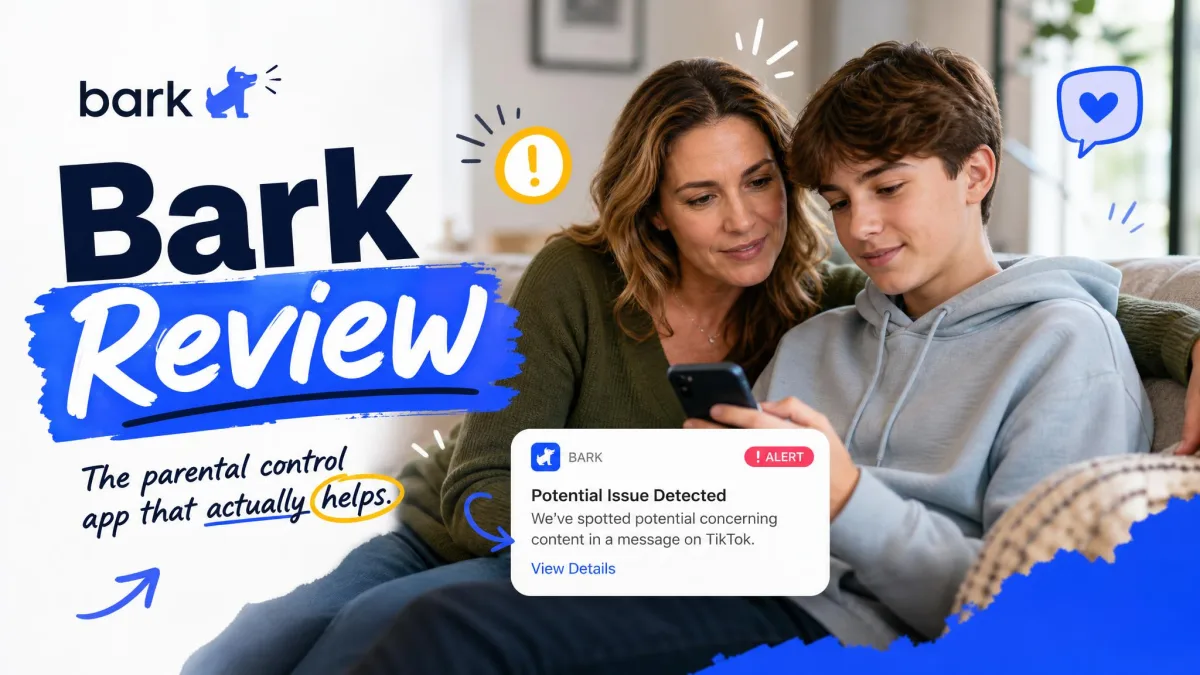
Where Qustodio blocks and schedules, Bark watches and alerts. It built its reputation on AI-driven content monitoring that flags concerning messages, images, and search activity, then alerts you rather than dumping raw logs in your lap.
The alert we staged
To see how the alerting actually behaved, we staged a concerning exchange on the test iPhone, typing a message that included the kind of language Bark is built to flag, such as references to self-harm. The flag did not come instantly, but within the same testing session an alert card surfaced on the parent app, summarizing the concern and pointing to where it was found rather than reproducing the whole conversation. Approached as an alerting tool rather than a full message reader, it did what it promised in our testing.
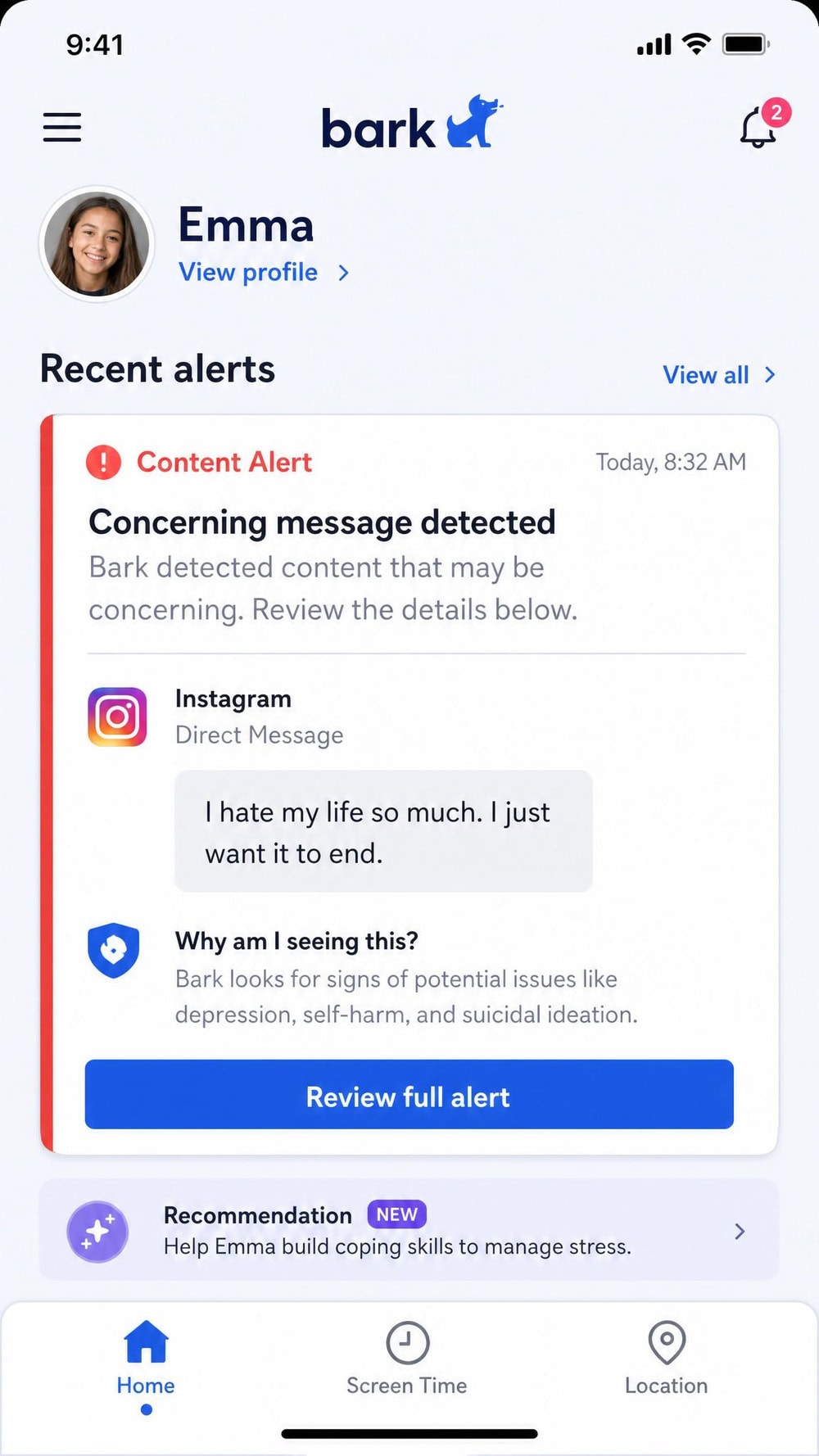
Beyond the alerting, Bark offers screen-time management, website and app blocking, and location tracking, so it is not a monitoring-only tool. The important iPhone detail is that deeper text, photo, and video monitoring requires the Bark Sync charger, and social-media monitoring is narrower on iOS than on Android. Know that going in and Bark delivers; expect full message reading without the hardware and you will be disappointed.
Pros & Cons
Pros
- Smart alerts instead of overwhelming raw logs
- Strong focus on social media and messaging risks
- Screen-time and blocking tools included
Cons
- Deep iOS monitoring needs the Bark Sync hardware
- The iOS plan costs more than the standard Premium plan
Pricing
The Bark app for iPhone and iPad is $20/month or $148/year, and that annual plan includes the Bark Sync charger that unlocks deeper monitoring. The standard Bark Premium plan for Android and other devices is cheaper at $14/month or $99/year, so iPhone parents do pay a premium for the hardware. There is a 7-day free trial. Bark also sells its own managed devices: the Bark Phone is $29/month plus a $10/month device payment.
Visit Bark4. Norton Family - Best for School & Web Filtering
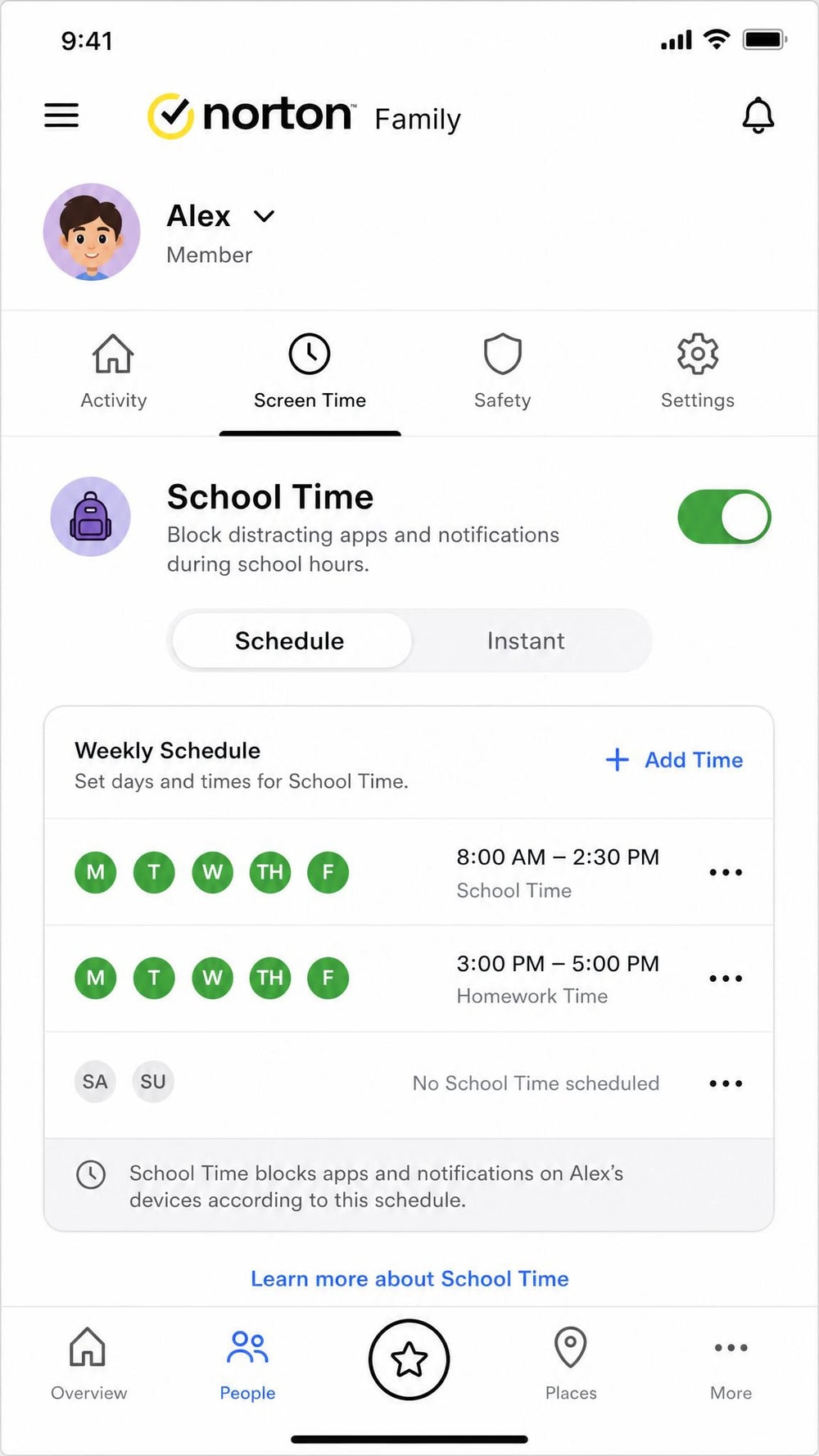
If Bark is the watcher, Norton Family is the supervisor, leaning into web filtering and a School Time mode that keeps kids focused during remote-learning hours. It comes from a trusted security name, and its web and search supervision is among the most thorough we tested, which makes it a natural fit for families who care most about what their kids browse and read.
We spent our test time on the supervision feed, since that is the draw here. After enabling web and search supervision on the child profile, we browsed a mix of categories on the test iPhone, and the activity report listed each visited category on the parent side, though video and search supervision only registered when we used Norton's own in-app browser rather than Safari. That browser dependency is the catch to plan around: outside the Norton browser, the deepest supervision does not see the activity.
Key Features
Norton Family provides web and content filtering and supervision, time supervision for screen-time scheduling, location tracking, search and video supervision, School Time mode, and activity reports. On iPhone, video and search supervision require Norton's in-app browser, and there is no Mac support, so plan your household devices accordingly. For web-focused families, the filtering depth is the draw.
Pros & Cons
Pros
- Excellent web and search supervision
- School Time mode for focused learning hours
- Covers multiple children on one subscription
Cons
- Video and search supervision rely on the Norton browser
- No Mac support
Pricing
Norton Family is $49.99/year, which is competitive given that one subscription covers multiple children's devices. It is backed by a 60-day money-back guarantee. The official page implies coverage for an unlimited number of children rather than stating a hard cap, so treat it as a multi-child plan rather than counting on a specific device number.
Visit Norton Family5. Mobicip - Best for Scheduling & Real-Time Alerts
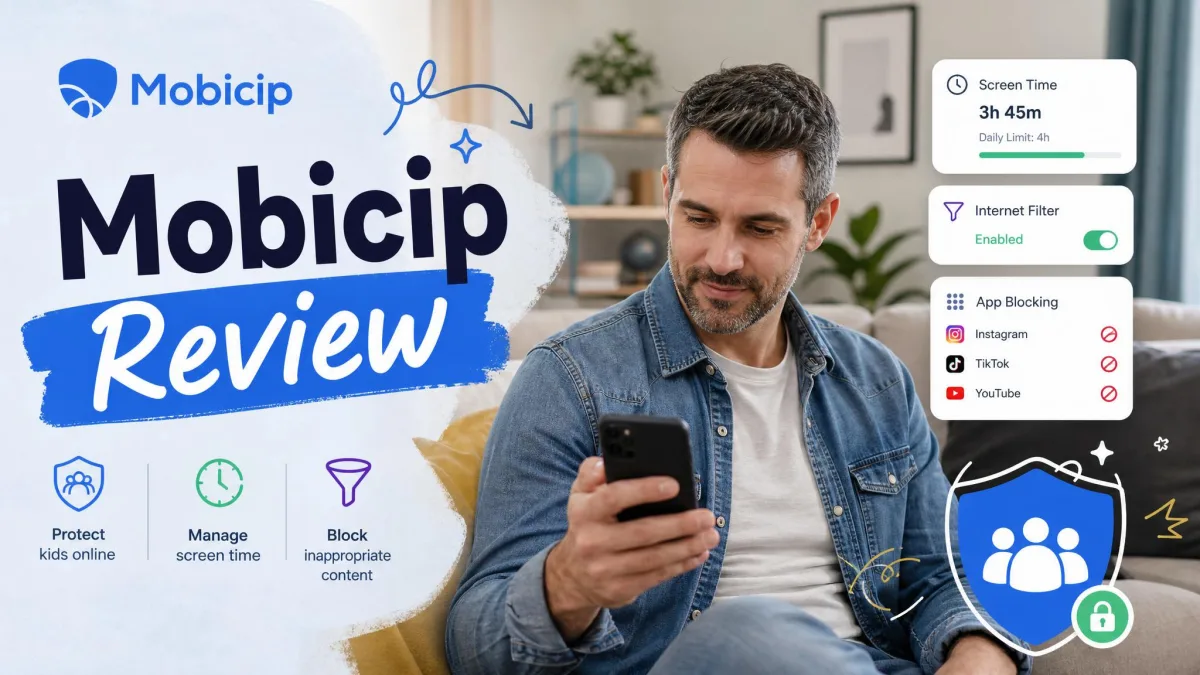
If Net Nanny is the filter specialist coming up next, Mobicip is the scheduler: the app we kept recommending to parents who think in terms of routines like homework time, dinner, bedtime, and weekends.
The schedule we built
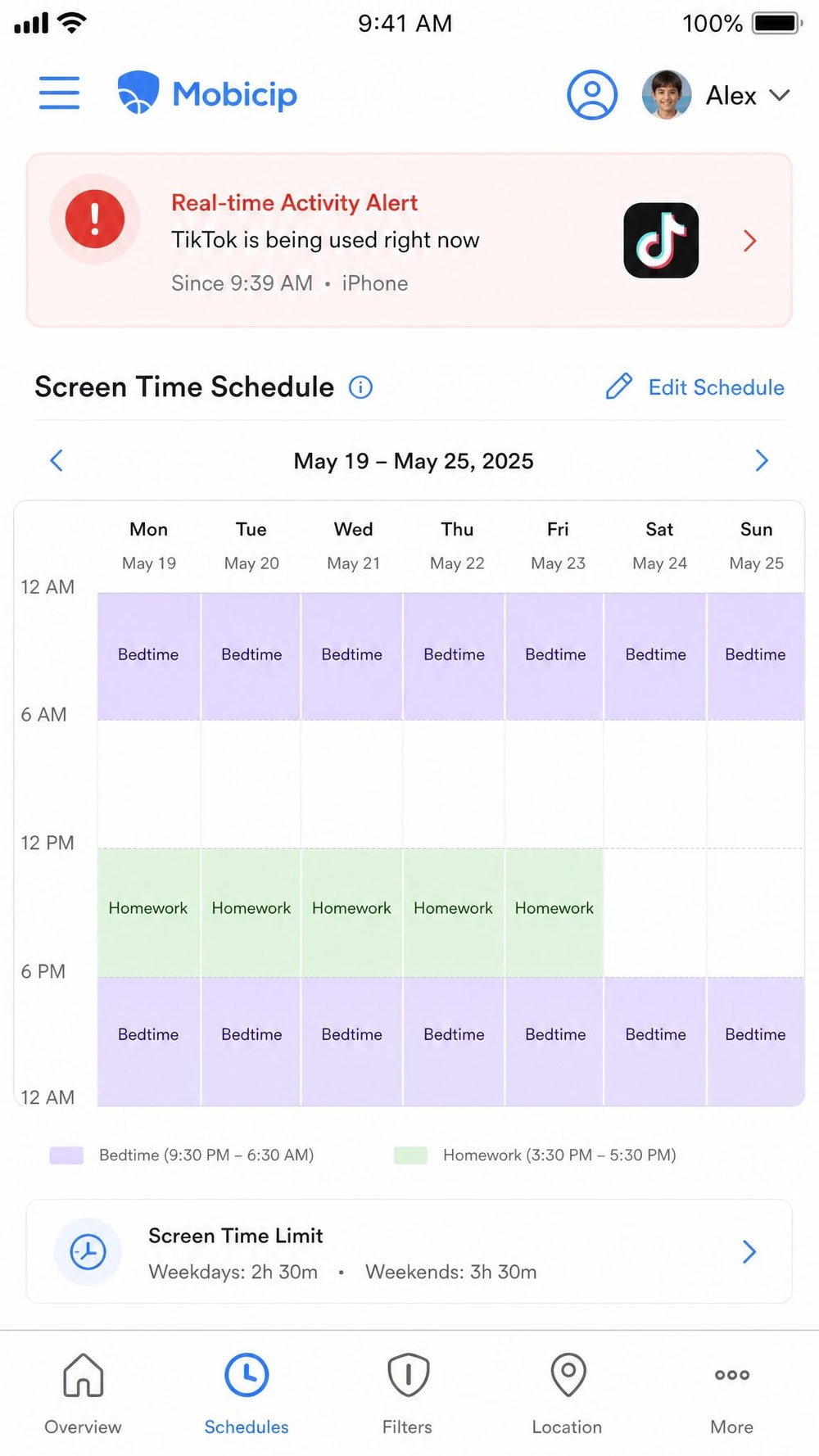
To stress its core strength, we built a full week of routines for the test iPhone in the schedule grid: a homework block on weekday afternoons, a dinner pause, and a bedtime cutoff that locked non-essential apps overnight. When the bedtime block kicked in, the previously open apps grayed out on schedule, and a real-time activity alert landed on the parent phone shortly after we tried to reopen one of the blocked apps. The lag between the action and the alert was short enough that we never felt we were checking a stale dashboard. Mobicip is also the most affordable paid app in this round-up.
Key Features
Mobicip covers web and content filtering, app blocking, screen-time scheduling, real-time activity alerts, location tracking, and a family locator, and it supports iPhone well. Like other apps on iOS, it does not read private messages, so think of it as a filtering, scheduling, and location tool rather than a monitoring one.
Pros & Cons
Pros
- Flexible, easy-to-build screen-time schedules
- Real-time alerts that arrive promptly
- The lowest entry price of any paid app here
Cons
- No message monitoring on iOS
- Higher device tiers cost more
Pricing
Mobicip's Lite plan is $2.99/month billed annually and covers up to 5 devices, the Standard plan is $4.99/month billed annually for up to 10 devices, and the Premium plan is $7.99/month billed annually for up to 20 devices. Premium features are free for 7 days with no card charge during the trial, and there is a 30-day money-back guarantee.
Visit Mobicip6. Net Nanny - Best for Content Filtering
While Mobicip wins on scheduling, Net Nanny wins on the filter itself, and it has been the name in content filtering for years. Its real-time filter is still the sharpest we tested at catching and masking inappropriate material as it loads rather than after the fact.
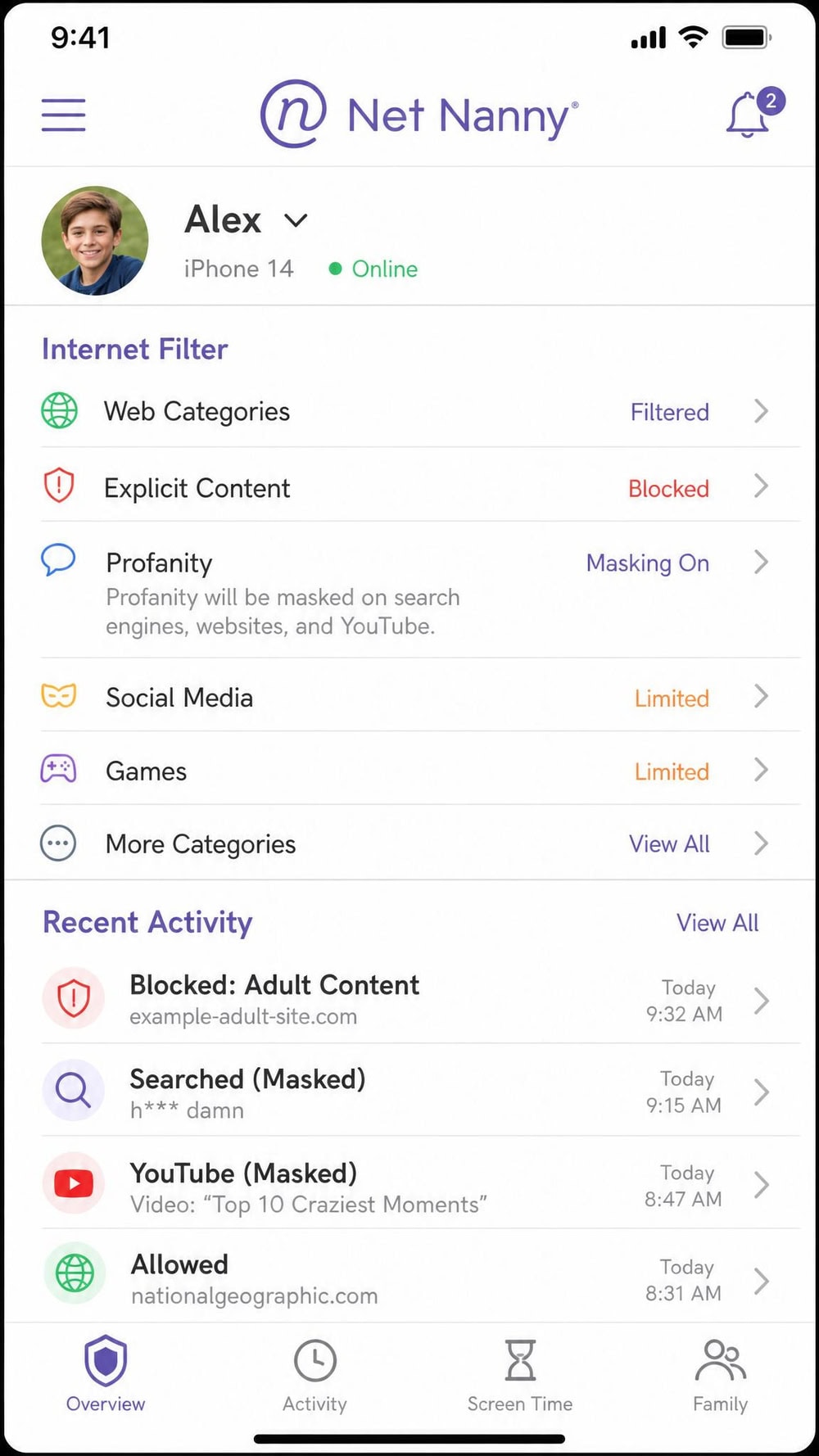
We checked the masking on the test iPhone by browsing to a page known to carry coarse language, and Net Nanny replaced the profanity inline as the page rendered, leaving the rest of the article readable rather than blocking the whole page. The masked words showed up afterward in the parent-side activity feed, the kind of granularity the filtering-first families we hear from actually want. It worked through Net Nanny's own filtering layer rather than a separate in-app browser, which made it feel less fragile than browser-dependent supervision.
Key Features
Net Nanny delivers real-time content filtering, app blocking, screen-time management, a web and internet filter, profanity masking, alerts and reporting, and a family-feed location view. iOS is supported on the multi-device plans, so make sure you pick a plan that includes it rather than the desktop-only option.
Pros & Cons
Pros
- Best-in-class real-time content filtering
- Profanity masking that works as pages load
- Clear alerts and activity reporting
Cons
- iOS only on the multi-device plans, not the desktop plan
- No message monitoring on iPhone
Pricing
The 5 Devices Family Protection Pass is $54.99/year and the 20 Devices Family Protection Pass is $89.99/year, both covering PC, Mac, and iOS. There is also a 1 Desktop plan at $39.99/year, but it is PC and Mac only and excludes iOS, so iPhone families should skip it. Reviewers report a 14-day money-back guarantee, though we did not see that term confirmed on the official page during testing, so verify it at checkout.
Visit Net Nanny7. OurPact - Best for Simple Screen Time Limits
After the filtering specialists, OurPact is a deliberate step toward simplicity, built for the parent who does not want a feature-stuffed dashboard.
What OurPact skips
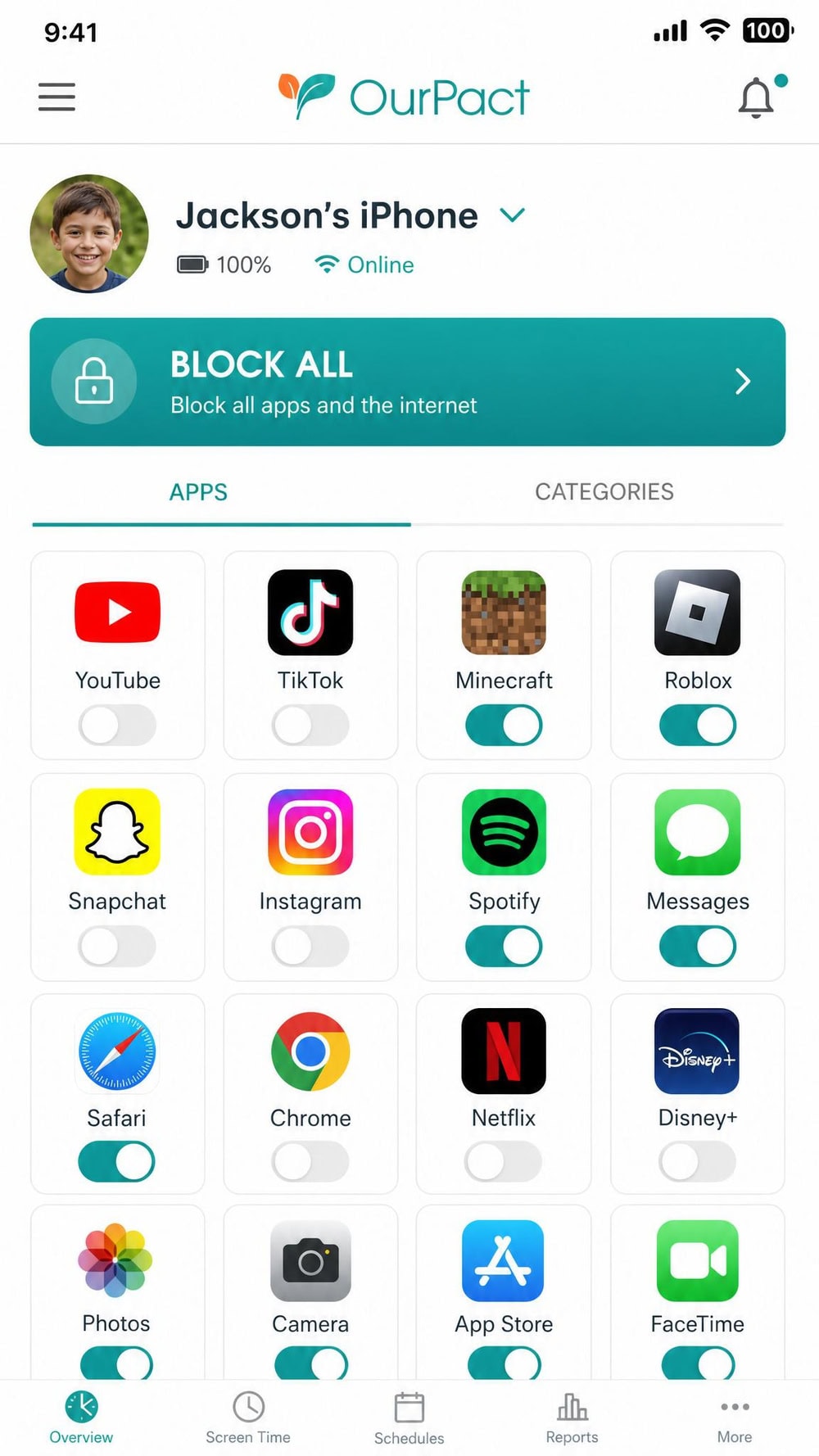
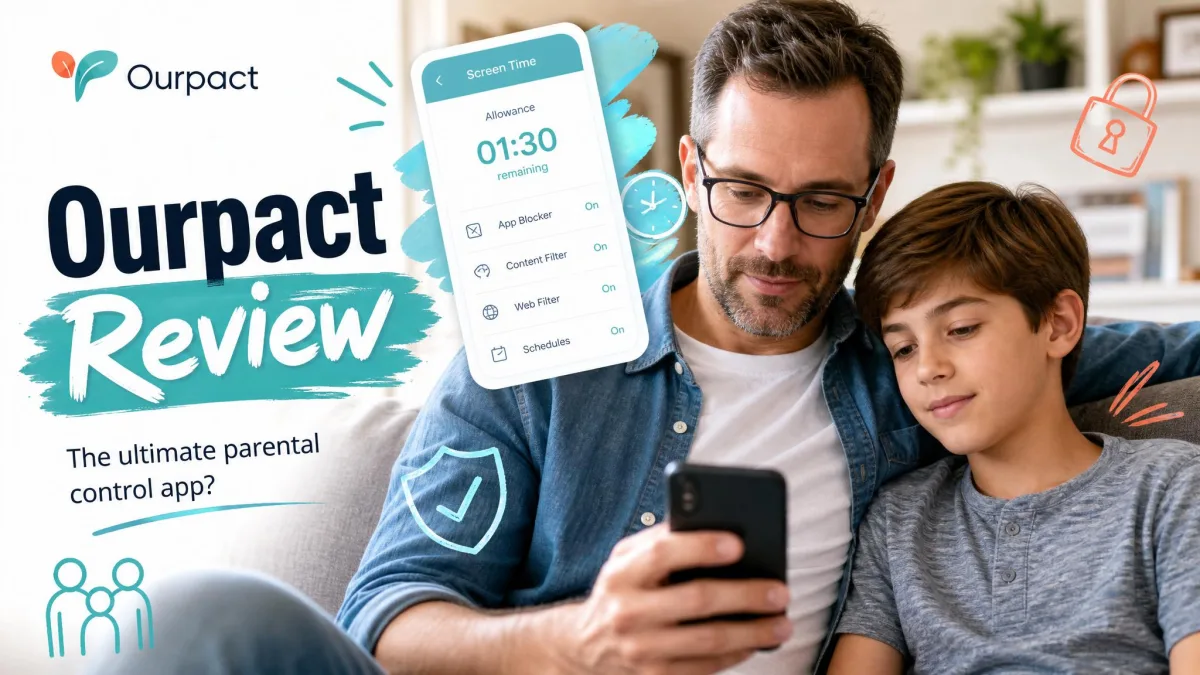
It is worth leading with what OurPact leaves out, because that is the point of it. There is no deep web filter to rival the filtering-first apps above, no message monitoring, and no sprawling reporting suite. What it does instead is dead simple: schedule screen time, block apps on demand, and grant allowances when kids earn them. On iOS 18 it adds app restrictions and removal prevention, which closes a common loophole where kids simply delete the management app.
We tested exactly that loophole on the child's iPhone. With removal prevention active on iOS 18, we pressed and held the OurPact-managed app to delete it the way a kid would, and the usual delete option did not behave as it does for an ordinary app, so the management did not vanish with a tap. That single behavior is why a simple app like this still earns a spot: controls a child can erase in seconds are not really controls.
Key Features
OurPact provides screen-time scheduling, on-and-off app blocking, location sharing, app rules and allowances, and content monitoring on its higher tier. It supports iPhone and iPad and includes iOS app restrictions plus removal prevention on iOS 18. Web filtering is more limited than the filtering-first apps above, so OurPact is best when scheduling and blocking, not filtering, are your priority.
Pros & Cons
Pros
- Simple, fast on-demand app blocking
- Removal prevention on iOS 18 stops easy uninstalls
- Covers up to 20 child devices
Cons
- Web filtering is limited compared with rivals
- Content monitoring only on the Premium+ tier
Pricing
OurPact Premium is $69.99/year, or $6.99/month, and covers 20 child devices. Premium+ is $99.99/year, or $9.99/month, and adds content monitoring on the same 20-device allowance. Signup includes a 14-day free trial. We did not find a stated money-back guarantee, so plan around the trial period if you want to test before fully committing.
Visit OurPact8. Google Family Link - Best Free Parental Control App
What Family Link can't do on iPhone
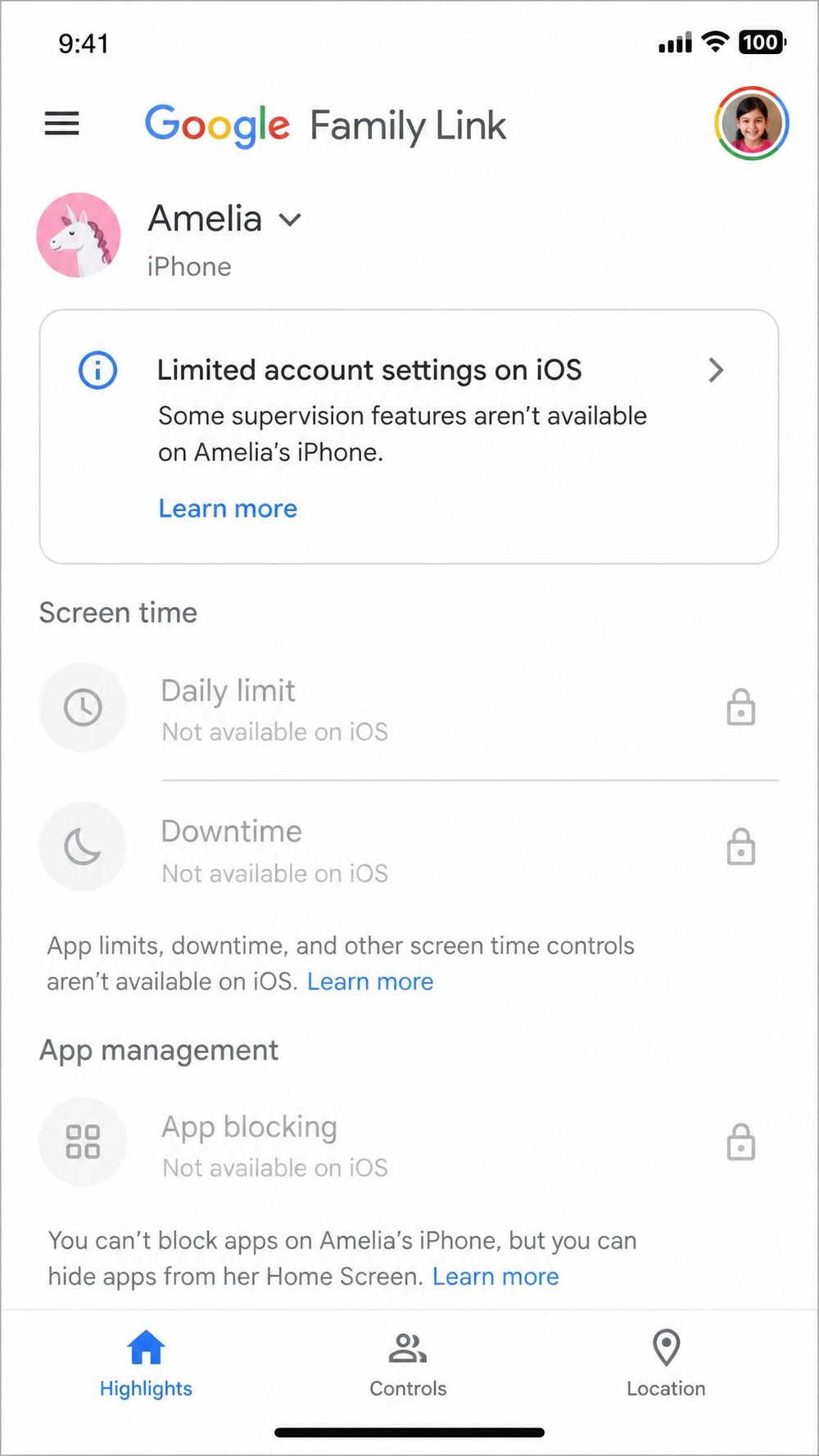
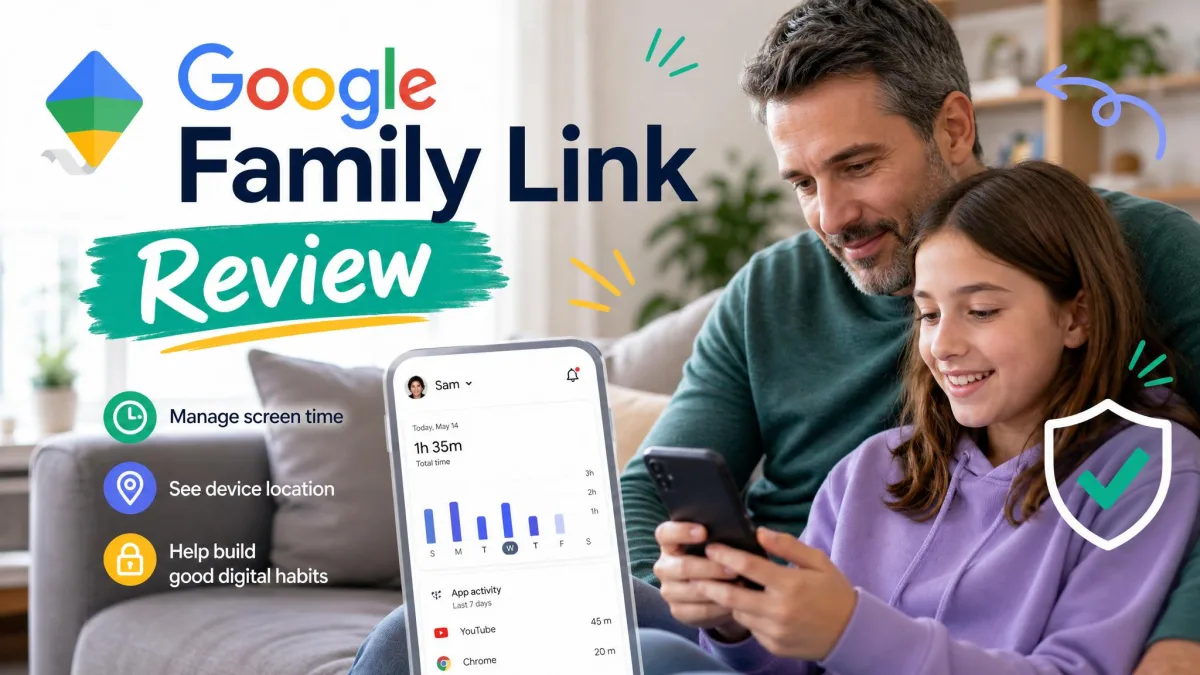
Unlike every paid app above, Google Family Link is genuinely free, which is exactly why we need to be blunt about iPhone: on a child's iOS device, Family Link does NOT meaningfully control the phone. There is no app blocking, no Chrome filtering, and no screen-time limits on iPhone. You can manage only some YouTube and Google Search account settings.
We confirmed this on the test iPhone rather than taking the marketing at face value. After installing Family Link and linking the child account, we looked for the app-blocking and screen-time controls that work so well on Android, and on iOS those options were absent or greyed out, leaving only the limited account-level settings. We rank Family Link here because it is the best free option for Android families, but on iPhone its real free counterpart is Apple's built-in Screen Time.
Key Features
On Android and Chromebook, Family Link offers app approval and blocking, screen-time limits, location, and content filters at no cost. On iOS, those features do not apply; only partial account-level controls for YouTube and Search are available. There is no app blocking, no Chrome filter, and no screen-time limit on a child's iPhone, so set expectations accordingly.
Pros & Cons
Pros
- Completely free with no subscription
- Full-featured on Android and Chromebook
- Backed by Google account infrastructure
Cons
- Does not meaningfully control a child's iPhone
- No app blocking, filtering, or screen-time limits on iOS
Pricing
Google Family Link is free. There is no paid tier and no trial to manage, because the entire app costs nothing. One thing worth noting: reviewers report that once a child turns 13 they can choose to stop supervision, with the parent notified, though the exact self-management age varies by country. On iPhone specifically, free does not translate into real control, so weigh Apple Screen Time instead.
Visit Google Family LinkQuick Summary: Best iPhone Parental Control Apps at a Glance
Here is how the 8 apps shook out after testing. Qustodio is our top overall pick for protecting your child's iPhone, thanks to a balanced mix of filtering, screen-time limits, and location tracking. Aura is the best all-in-one choice if you want digital safety bundled with identity protection, antivirus, and a VPN. Bark is the strongest option for parents focused on social-media and message monitoring, and Norton Family stands out for school-time and web filtering.
Mobicip is the app we reach for when scheduling and real-time alerts matter most, while Net Nanny remains the benchmark for content filtering. OurPact keeps things refreshingly simple for parents who only want screen-time limits, and Google Family Link is the best genuinely free option, though with a major iPhone caveat we explain below. Each pick earned its spot for a specific kind of family, so read past the rank to find the one that fits yours.
Best iPhone Parental Control Apps Compared (Comparison Table)
This table puts every app side by side so you can scan starting prices, iOS feature support, and our rating before diving into the full reviews. Prices reflect the annual plans most parents choose, and the iOS columns note where Apple's restrictions limit what an app can do.
| App | Best for | Key iOS features | Free tier? | Starting price | Our rating |
|---|---|---|---|---|---|
| Qustodio | Best overall | Web filter, location, screen-time limits; iMessage/call monitoring limited (needs a computer) | Yes (1 device) | $59.95/year | 9.2/10 |
| Aura | All-in-one digital safety | Web filter, location, screen-time limits; no private-message monitoring | No (14-day trial) | $10/month (annual) | 8.8/10 |
| Bark | Social media & message monitoring | Web filter, location, screen-time limits; deeper monitoring needs Bark Sync | No (7-day trial) | $148/year (iOS) | 8.7/10 |
| Norton Family | School & web filtering | Web filter, location, screen-time limits; web/search supervision only, no Mac | No | $49.99/year | 8.5/10 |
| Mobicip | Scheduling & real-time alerts | Web filter, location, screen-time scheduling; no message monitoring | No (7-day trial) | $2.99/month (annual) | 8.4/10 |
| Net Nanny | Content filtering | Web filter, location, screen-time limits; no message monitoring | No | $54.99/year | 8.3/10 |
| OurPact | Simple screen-time limits | Location, screen-time scheduling, app blocking; limited web filter | No (14-day trial) | $69.99/year | 8.0/10 |
| Google Family Link | Best free | Partial account settings only on iPhone; no app blocking, filter, or screen-time limits on iOS | Yes (fully free) | Free | 6.5/10 |
How We Tested and Ranked These Apps
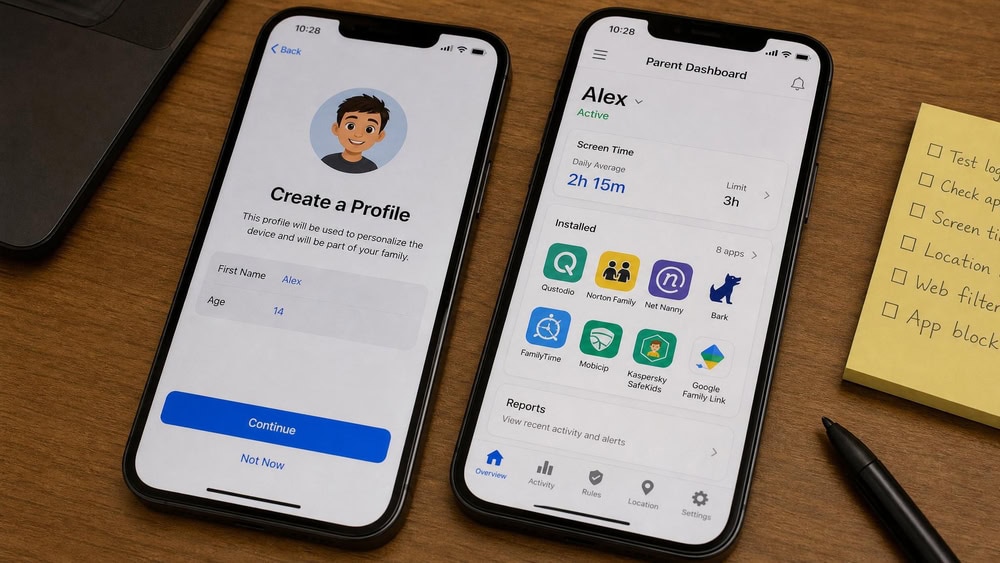
We started by shortlisting the apps that parents actually search for and that reviewers consistently rate, then we installed each one on real iPhones running current iOS. For every app we created a child profile, paired it with a parent device, and configured the full feature set: web filtering, app blocking, screen-time schedules, location tracking, and any monitoring the app advertised.
We then used each phone the way a child would. We tried to reach blocked sites, attempted to delete the management profile, switched between Wi-Fi and cellular, and waited to see how quickly alerts arrived on the parent side. We logged setup friction, because an app you cannot configure is an app you will not use. We weighed five things in the final ranking: iOS feature coverage, accuracy and reliability, ease of use, value for the price, and how hard the controls were for a determined kid to bypass.
Pricing came straight from each vendor's own pages on the day of testing, and we noted where promotional pricing was in play so the numbers you see match what you will actually pay. We did not let any affiliate relationship change a ranking; the order below reflects test results.
What to Look for in an iPhone Parental Control App
Choosing for an iPhone is different from choosing for an Android phone, and that difference should drive your decision. iOS sandboxes apps tightly, so web filtering, screen-time limits, app blocking, and location tracking all work reliably, while reading private messages, logging calls, or recording activity does not, at least not without connected hardware or a computer. Start by accepting that boundary, as recommended in Oxford Internet Institute research on parental control apps, which urges parents to treat these tools as one part of a broader conversation rather than a complete solution.
From there, weigh the features that match your worry. If filtering what your child sees is the priority, look hard at the depth of the web filter and whether it works inside the apps your child uses. If routines matter, focus on scheduling flexibility. If you are concerned about messaging and social-media risks, understand that real monitoring on iPhone usually needs extra hardware. Ease of use matters more than parents expect; an app you find confusing is one you will stop checking. Finally, consider removal prevention, because controls that a child can delete in thirty seconds offer little real protection. For a vendor-neutral primer on what these controls can and cannot do, the FTC's guide to using parental controls to keep your kid safer online is a useful starting point.
Apple Screen Time is the free baseline every iPhone already has, and any third-party app needs to clearly beat it to be worth paying for. The paid apps above earn their price through better filtering, friendlier dashboards, cross-platform coverage, and removal prevention. Keep that bar in mind as you compare.
How to Set Up Parental Controls on an iPhone (Step by Step)
You can start with Apple's free, built-in tools today, then layer a third-party app on top if you need more. Apple Screen Time is free and built into iOS, and parental management of a child's device requires Family Sharing and the latest iOS on both devices.
- Open Settings and tap your name, then set up Family Sharing and add your child's Apple Account if you have not already.
- On the child's device, open Settings → Screen Time and turn it on, choosing that the phone belongs to your child so the parent controls appear.
- Go to Settings → Screen Time → Content & Privacy Restrictions and enable filtering for web content, explicit material, and purchases.
- Open Settings → Screen Time → Downtime to schedule hours when only allowed apps work, then set App Limits for specific categories.
- Set a Screen Time passcode that differs from the device passcode so your child cannot simply turn the restrictions off.
- If you want more than Apple offers, install your chosen third-party app, follow its profile-installation prompts, and pair it with your parent device.
Best Free Parental Control Apps for iPhone
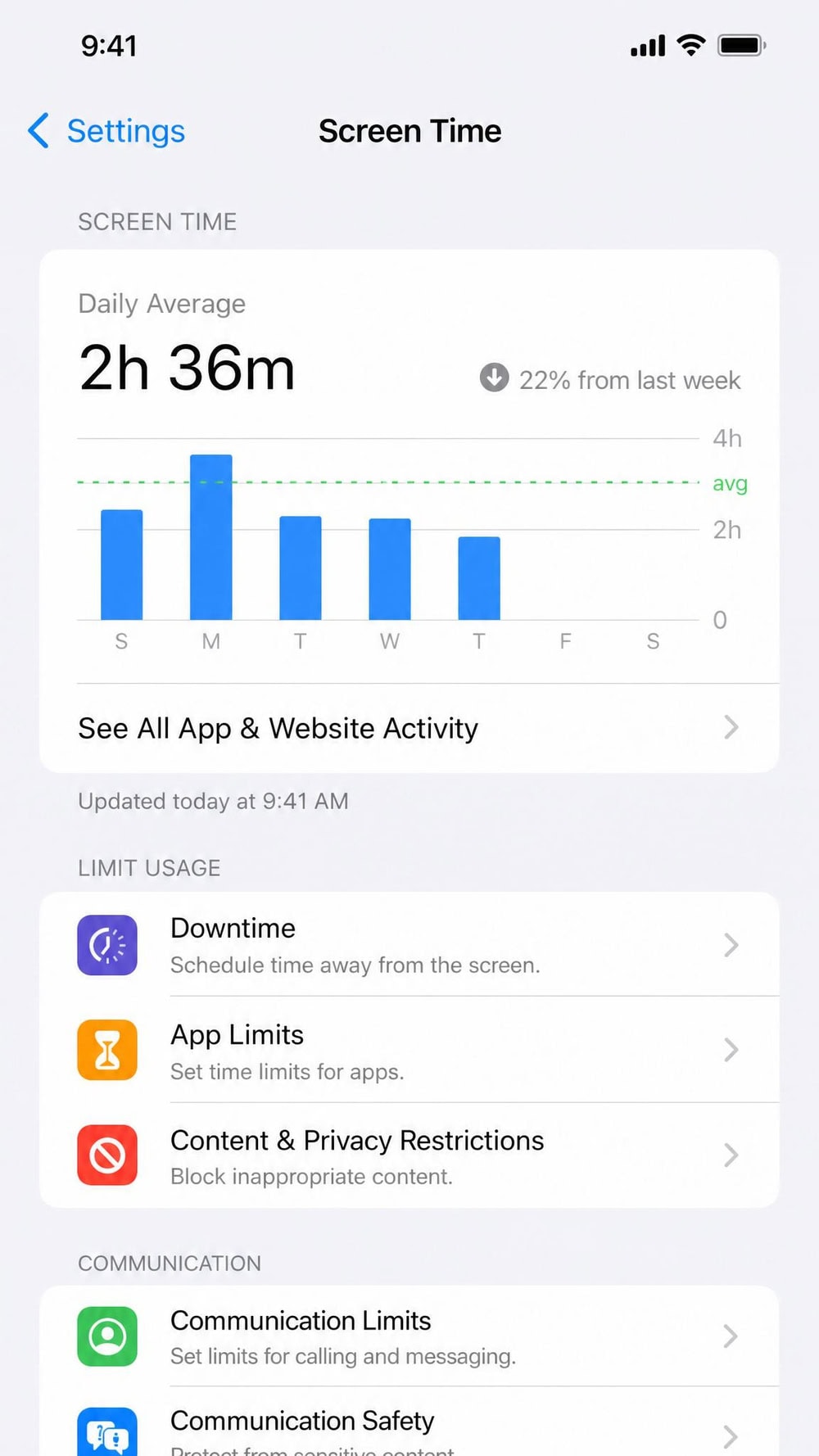
The honest answer for iPhone is short. The best free parental control tool on an iPhone is Apple Screen Time, which is free and built into iOS, with app limits, Downtime, content and privacy restrictions, web filtering, and communication limits, all managed through Family Sharing. It will not match a paid app's dashboard or cross-platform reach, but it costs nothing and is already on the phone.
Google Family Link is the other name parents reach for, and it is genuinely free, but on a child's iPhone it does not deliver app blocking, a Chrome filter, or screen-time limits. It manages only limited account settings on iOS. So if you want free controls on an iPhone, configure Apple Screen Time first. Family Link earns its "best free" title on Android, not on Apple's platform.
Apple Screen Time vs. Third-Party Apps: Do You Need One?
Apple Screen Time is capable, free, and already installed, so it deserves a fair hearing before you spend anything. It offers App Limits, Downtime, Content and Privacy Restrictions, web filtering, and Communication Safety, all managed through Family Sharing. For many families, that is a solid foundation that costs nothing.
Where third-party apps pull ahead is in three places. First, filtering and reporting are usually deeper and easier to read than Apple's. Second, paid apps span platforms, so the same dashboard manages your child's iPhone, an Android tablet, and a school Chromebook. Third, and most important to the parents we hear from, several paid apps resist removal, while a determined child can disable or factory-reset an iPhone to clear Screen Time restrictions. If your child is younger and compliant, Screen Time may be enough. If they are tech-savvy, persistent, or using multiple devices, a paid app pays for itself in reliability.
Frequently Asked Questions
Do parental control apps drain an iPhone's battery or use a lot of data?
In our testing the day-to-day battery hit from these apps was modest, since most of the work is filtering and reporting rather than constant recording. The bigger variable is location tracking, which pings GPS in the background and uses a little more battery and data when it updates frequently. If you notice a drain, lengthen the location-update interval in the app's settings and the impact usually shrinks.
What happens to the controls when my child upgrades to a new iPhone?
The controls do not move automatically. When your child gets a new iPhone you generally reinstall the app's management profile on the new device and re-pair it with your parent account, the same way you set up the first phone. Your existing subscription and child profile carry over, so you keep your rules and reports, but the profile itself has to be installed fresh on the new hardware, and you should remove the old profile from the retired phone.
Can I manage both an iPhone and an Android child device from one app?
Yes, and this is a real advantage of the paid apps over Apple Screen Time, which is iPhone-only. Qustodio, Aura, Bark, Norton Family, Mobicip, Net Nanny, and OurPact all run cross-platform, so one parent dashboard can cover a child's iPhone and a sibling's Android phone or a school Chromebook. Just remember that each platform enforces its own limits, so the Android device will usually expose deeper monitoring than the iPhone will.
Can I monitor my child's iPhone without them knowing?
On a standard iPhone you cannot covertly read private messages, because iOS blocks that level of access without extra hardware or a connected computer. You can see filtered web activity, screen-time use, and location through a parental control app. We recommend setting controls openly with your child where age-appropriate, both for trust and because secret monitoring of a teen can raise legal questions.
Do parental control apps work without jailbreaking, on the latest iOS?
Yes. Every app we tested works on current iOS without jailbreaking, which you should never do. They install a standard management profile or use Apple's Family Sharing framework. The trade-off is that iOS restricts deep message and call monitoring, so apps work within those limits rather than around them.
Can my child bypass parental controls or factory-reset the iPhone?
A determined child can try, and Apple Screen Time can be cleared with a factory reset or a guessed passcode. This is why removal prevention matters; apps like OurPact resist being deleted on iOS 18. Always set a unique Screen Time passcode and keep it private to close the most common loopholes we saw.
Can I monitor iMessage, Safari, and calls on an iPhone?
Web activity through Safari can be filtered and supervised, but reading iMessages or logging calls is restricted on iPhone. Qustodio can monitor calls and messages only with a connected Windows or Mac computer, and Bark needs its Bark Sync hardware for deeper monitoring. No app reads private messages on a standard iPhone alone.
Is it legal to monitor my teenager's phone?
As a parent of a minor, monitoring your own child's device is generally permitted, but the rules around recording calls and conversations differ by location, and call-recording laws vary by state. Monitoring an adult's phone without consent is a different matter. When in doubt, be transparent with your teen and check local law.
Final Thoughts: Which iPhone Parental Control App Should You Choose?
After more than 60 hours of testing, our recommendation comes down to what you actually need. Qustodio is the best overall parental control app for iPhone for most families, because it does the iOS-friendly jobs well and stays easy to use. If monitoring for safety risks is your focus, choose Bark and budget for the Bark Sync hardware. If you want everything in one subscription, Aura is the all-in-one pick.
For browsing-focused households, Norton Family and Net Nanny lead on filtering, Mobicip is the value choice for scheduling and alerts, and OurPact is the simplest way to enforce screen-time limits. If you want to spend nothing on an iPhone, start with Apple Screen Time rather than Google Family Link. Whichever you pick, set a private Screen Time passcode, configure the controls with your child where you can, and you will get the peace of mind these tools are meant to deliver.

 Qustodio Review
 Aura Review
 Bark Review
 Norton Family Review
 Mobicip Review
 Net Nanny Review
 OurPact Review
 Google Family Link Review