A show turns up in your child's Netflix row that you would rather they never opened, and the obvious fix is not on the screen in front of you. Here is how to block it: Netflix lets you hide named titles from a profile, set a maturity rating that filters everything above a chosen level, and lock a profile behind a PIN. All three live in the same corner of your account settings, and all three take a couple of minutes each.
The catch is that none of those switches sit inside the Netflix app on your TV. We set every one of these controls up on a family account, and the whole job has to be done on a phone or a laptop while the TV waits. This guide walks each method in order, platform by platform, and covers what to do when a blocked show stubbornly refuses to disappear.
Can You Block Specific Shows on Netflix?
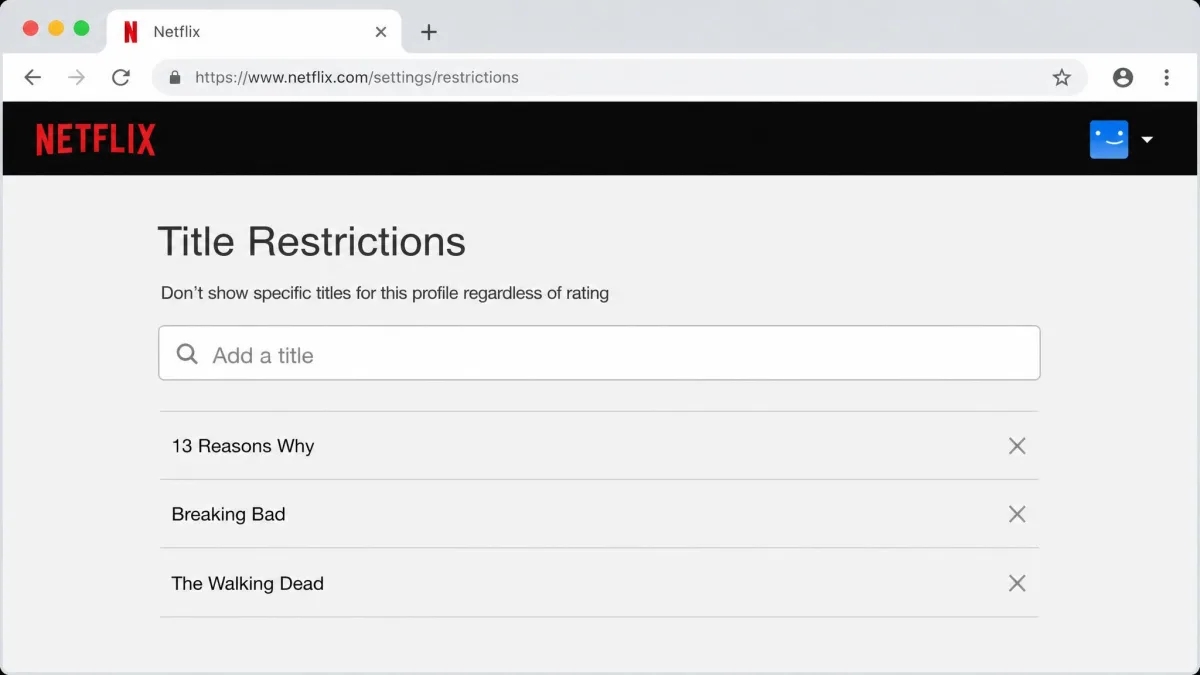
Yes. Netflix calls the feature Title Restrictions on a web browser and Block Titles in the mobile app, and it does exactly what the name promises. You type the name of a show or movie, select it from the suggestions, and it drops off that profile entirely. The blocked title stops appearing in that profile's rows, and it cannot be pulled back up by searching for it either, which is the part that matters when a determined nine-year-old goes looking.
The important limit is scope. A block applies to one profile, not the whole account. If you block a title on your child's profile and your household has four or five profiles, the show is still sitting there on every other one. Repeating the block profile by profile is the step people miss most often, and it is why a "blocked" show keeps reappearing on the living-room TV.
Before You Start: Where Netflix Keeps Parental Controls
Everything in this guide lives under a single profile's settings on your account page, which is also where Netflix documents its parental control features. Open Account Settings in a browser, find the Profiles section, and pick the profile you want to change. Inside that profile you will find Viewing Restrictions, which holds both the maturity rating and the title-blocking tool, plus Profile Lock, autoplay toggles, and the viewing history for that person.
One thing to expect before you start: Netflix asks you to verify your identity every time you change viewing restrictions. It will want your account password, or a code sent to the email address or phone number on the account. That check fires each time you open the restrictions screen, so adding five blocked titles in five separate visits means five verifications. Do the whole batch in one sitting.
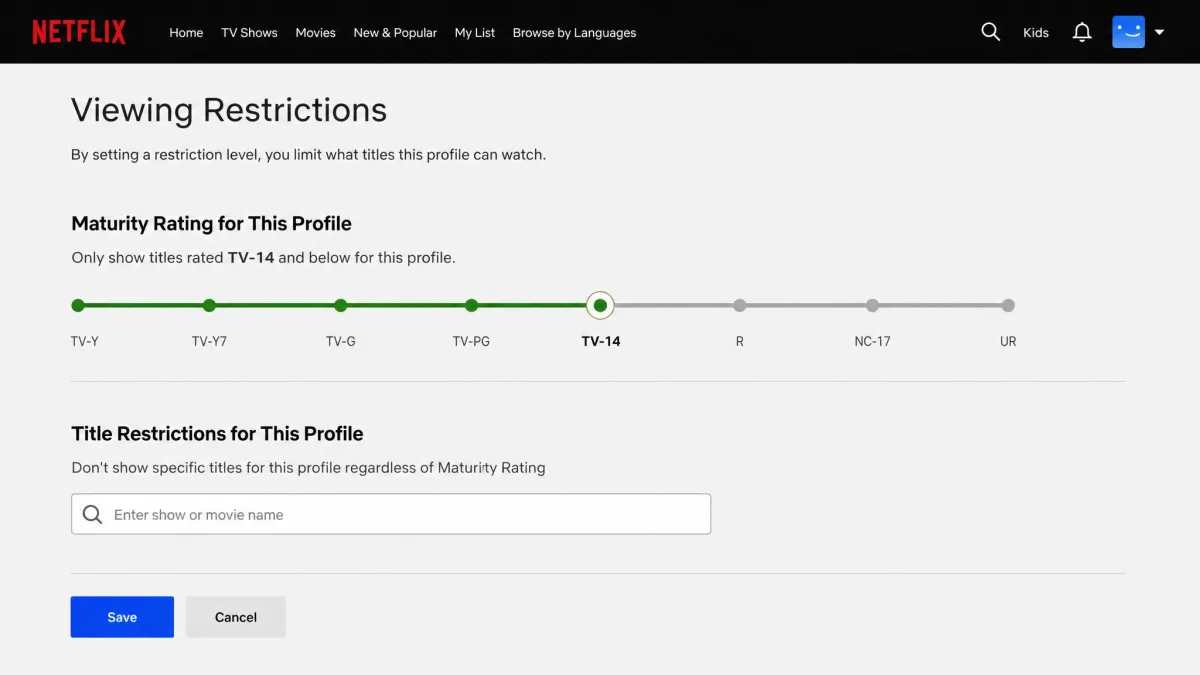
Set your restrictions on a laptop rather than a phone if you have the choice. The web version shows the maturity rating slider and the blocked-titles list on one screen, so you can set a rating and add specific titles without backing out to a menu between steps.
How to Block a Specific Show or Movie on Netflix
The steps differ slightly by device, so the three walkthroughs below cover a browser, the mobile app, and what happens on a TV. Netflix's own reference for this is its guide to setting profile maturity ratings or blocking titles, which covers the same two surfaces.
On a Web Browser
- Sign in to Netflix and open your account page from the profile menu in the top right corner.
- Select Profiles, then choose the profile you want to change.
- Open Viewing Restrictions and verify your identity with your password or an emailed code.
- Scroll to the title restrictions field and start typing the name of the show or movie.
- Select the correct title from the suggestions that appear. It moves straight into the blocked list.
- Add any other titles you want gone, then save.
To reverse a block later, come back to the same screen, select the X next to the title's name in the blocked list, and save again. Netflix only renders the first 100 blocked shows and movies in that list, though nothing stops you blocking more than that. If your list has grown past the display cap, search the title by name instead of scrolling for it.
On the iPhone or Android App
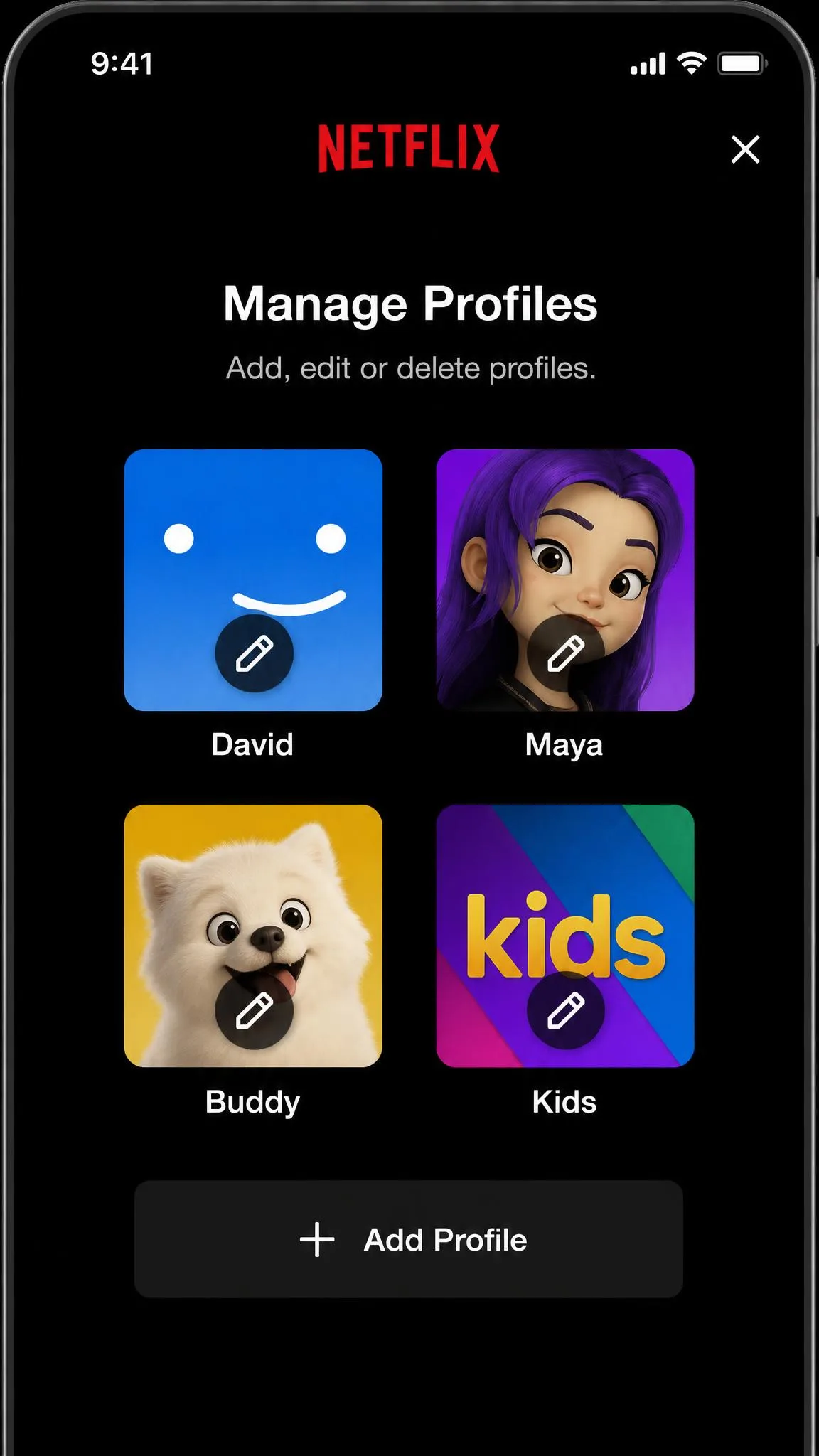
The mobile app buries the same controls one level deeper, but nothing is missing.
- Open the Netflix app and tap My Netflix in the bottom navigation bar.
- Tap your profile name at the top of the screen.
- Tap Manage Profiles and choose the profile you want to restrict.
- Tap Viewing Restrictions, then confirm your identity when prompted.
- Choose Block Titles, type the name of the show or movie, and select it from the results.
- Back out of the screen to save your changes.
The same screen holds a Maturity Rating option next to Block Titles, so you can do both jobs in one visit. One exception applies: if the profile is a Kids profile, the maturity level for it can only be edited from a web browser, not the app.
On a Smart TV, Roku, or Game Console
This is the part that surprises people. You cannot edit viewing restrictions from a smart TV, a Roku, a Fire TV stick, a Chromecast, or a games console. The Netflix app on those devices enforces whatever you have already set, but it gives you no way to set it. Every block, rating and PIN has to be created in a browser or the mobile app first, and the TV then obeys it.
That is why our own setup ran with a laptop open on the sofa. You change the setting there, then check the result on the TV.
New restrictions do not always land instantly on a device that is already signed in. A show you just blocked can keep sitting in a row on the TV, and changes take a while to reach other devices, so the same row can look different on a phone and a television for a short period. Switch to another profile and back, or sign out and back in, to force the device to pick up the change.
How to Set a Maturity Rating to Block Shows in Bulk
Blocking titles one at a time works for a handful of shows. When you want everything above a certain level gone, the maturity rating does the job in a single move. Set a level on a profile and Netflix only displays shows, movies and games rated at or below it. Everything above simply is not there.
You set it on the same Viewing Restrictions screen that holds title blocking. Choose the profile, drag or tap the rating you want as the ceiling, and save. Netflix's own parental controls guide covers the same setting if you want the company's phrasing alongside ours.
Netflix Maturity Ratings Explained
In the United States the selectable ratings run TV-Y, TV-Y7, TV-G, TV-PG, PG, PG-13, TV-14, R, TV-MA and NC-17. Netflix also groups these into friendlier bands in some places, roughly Little Kids only, Older Kids and below, Teens and below, and All Maturity Ratings, though the grouped tier labels vary by country and by rating board, so the exact wording differs outside the US. Whichever presentation your account shows, the underlying idea is identical: pick a ceiling, and content above it disappears from that profile.
| Method | What it blocks | Where you set it | Main limit |
|---|---|---|---|
| Maturity rating | Everything above a chosen rating | Viewing Restrictions, per profile | Rating codes vary by country |
| Title restriction | Named shows and movies | Viewing Restrictions, per profile | Only the first 100 appear in the list |
| Kids profile | Everything outside curated kids content | Manage Profiles, add a Kids profile | Default rating cannot be raised |
| Profile PIN lock | Access to a whole profile | Profile Lock in profile settings | A four-digit PIN can be shared or watched |
| Router or DNS filtering | All of Netflix on that network | Router or DNS provider settings | Breaks when addresses change, no mobile data |
| Third-party app | The Netflix app or the whole device | The control app on the child's device | Cannot block individual titles |
A rough rule for the top two rows: set the maturity rating first so the profile has a baseline, then block the individual titles that slip through it. Plenty of shows sit inside an age band you are happy with and still carry a storyline you would rather skip.
How to Create a Kids Profile
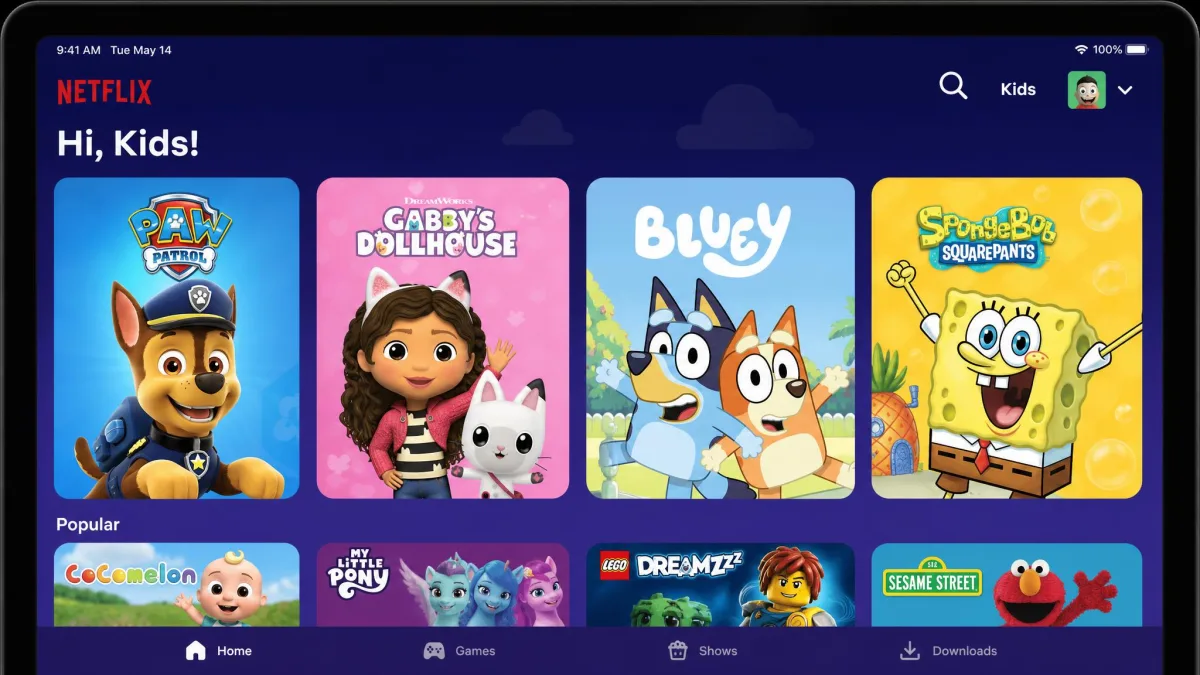
A Kids profile is the fastest way to hand a child a version of Netflix that is safe by default. The Netflix Kids experience is built for ages 12 and under, and beyond filtering content it blocks access to account settings and to Netflix mobile games.
- Open your account page in a browser, or tap Manage Profiles in the mobile app.
- Choose Add Profile.
- Name the profile and turn on the Kids setting before you finish.
- Save, then open the new profile's Viewing Restrictions to confirm the rating is where you want it.
Two constraints are worth knowing before you commit. The main profile on an account cannot be turned into a Kids profile, though this behavior is tied to the account's primary profile and can differ on older accounts and legacy profile layouts. And a default Kids profile applies a maturity ceiling that you cannot raise later. If you try, Netflix tells you that content above a certain maturity level is restricted, and there is no override. The only route forward is to delete that Kids profile and create a new standard profile with the rating you want.
We ran into that Kids-profile ceiling ourselves while testing, and it is genuinely one-way. Building the profile as a standard profile with a TV-Y7 or TV-PG rating from the start gives you room to raise the level as a child gets older, without deleting anything and losing the viewing history along with it.
How to Lock a Profile With a PIN
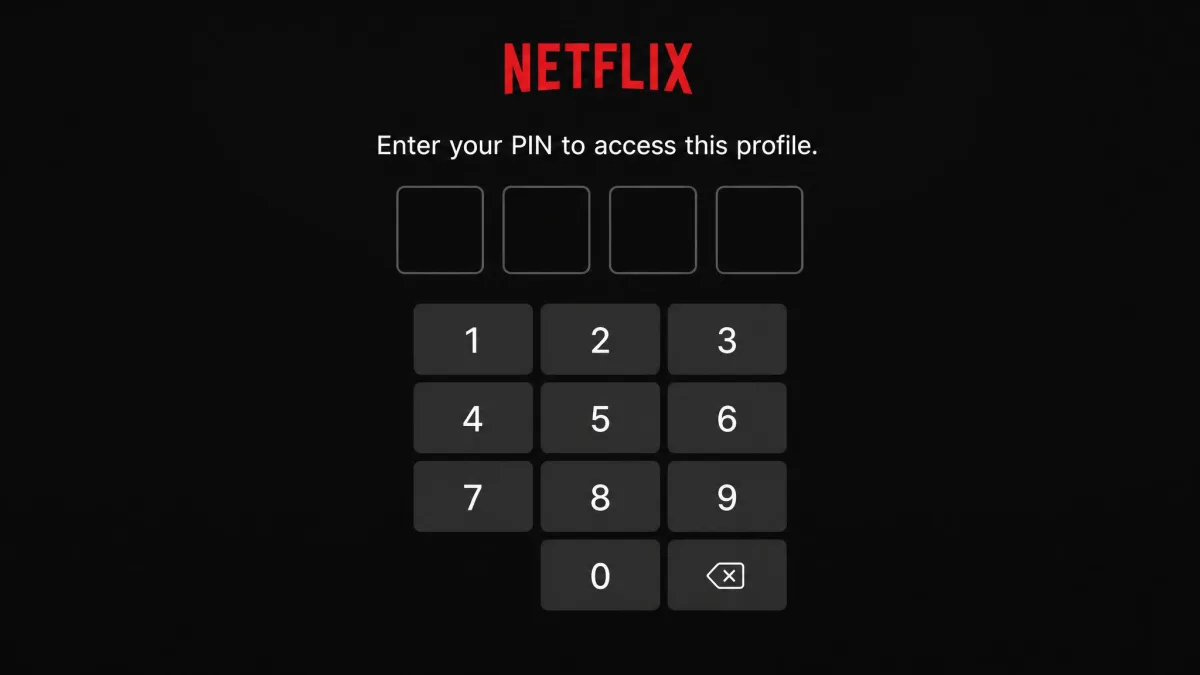
Blocking shows on a child's profile achieves nothing if the child can simply tap over to yours. That is the single most common way household controls fall apart, and Profile Lock is the fix. It puts a four-digit PIN in front of a profile so nobody opens it without the code.
- Open your account page and select the profile you want to protect.
- Find Profile Lock and select Change.
- Enter your account password to confirm it is you.
- Set a four-digit PIN and save it somewhere you will remember.
Lock the adult profiles, not just the child's. The PIN applies across every device signed in to the account, including smart TVs and web browsers, so a locked profile stays locked in the living room as well as on a phone.
Once a Profile Lock PIN exists on the main profile, an account-level option appears that requires a PIN before anyone can add a new profile. Turn it on. Without it, a child who cannot get into your profile can just create a brand new unrestricted one and watch whatever they like from there.
On some older televisions and streaming players the PIN prompt appears just before playback starts rather than at the profile selection screen. It looks like something has gone wrong, but it is normal behavior on that hardware and the lock is still doing its job.
Extra Controls: Autoplay, Previews, and Viewing History
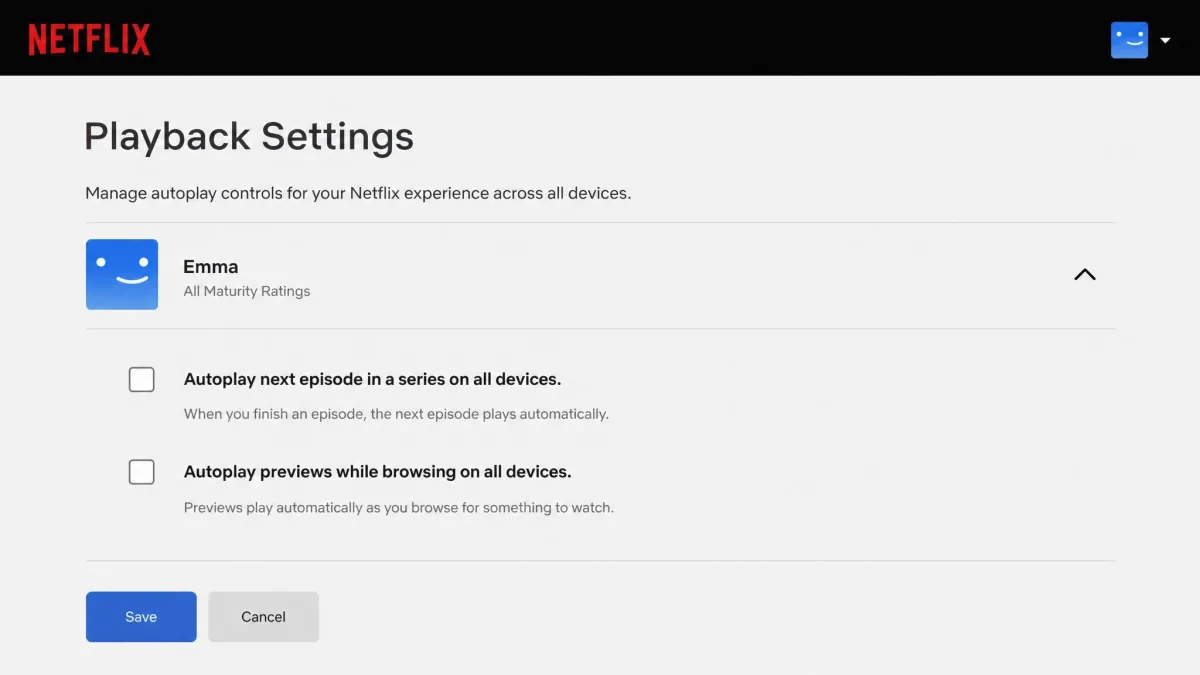
Two toggles sit alongside the restrictions and do more work than their size suggests. Autoplay previews controls whether Netflix starts playing trailers as you browse, and autoplay next episode controls whether the following episode rolls automatically. Turning previews off matters for a restricted profile because preview artwork and trailers can still surface age-inappropriate material even after your blocks are in place, which is exactly why parents turn them off separately.
Viewing history is per profile and it is worth checking now and then, both to see what is actually being watched and to remove anything that landed there by accident. Kids profiles cannot delete their own viewing history, so what shows up on that list is a reliable record rather than something a child can quietly tidy away.
Troubleshooting: A Blocked Show Still Appears
If a title you blocked is still on screen, work through these in order.
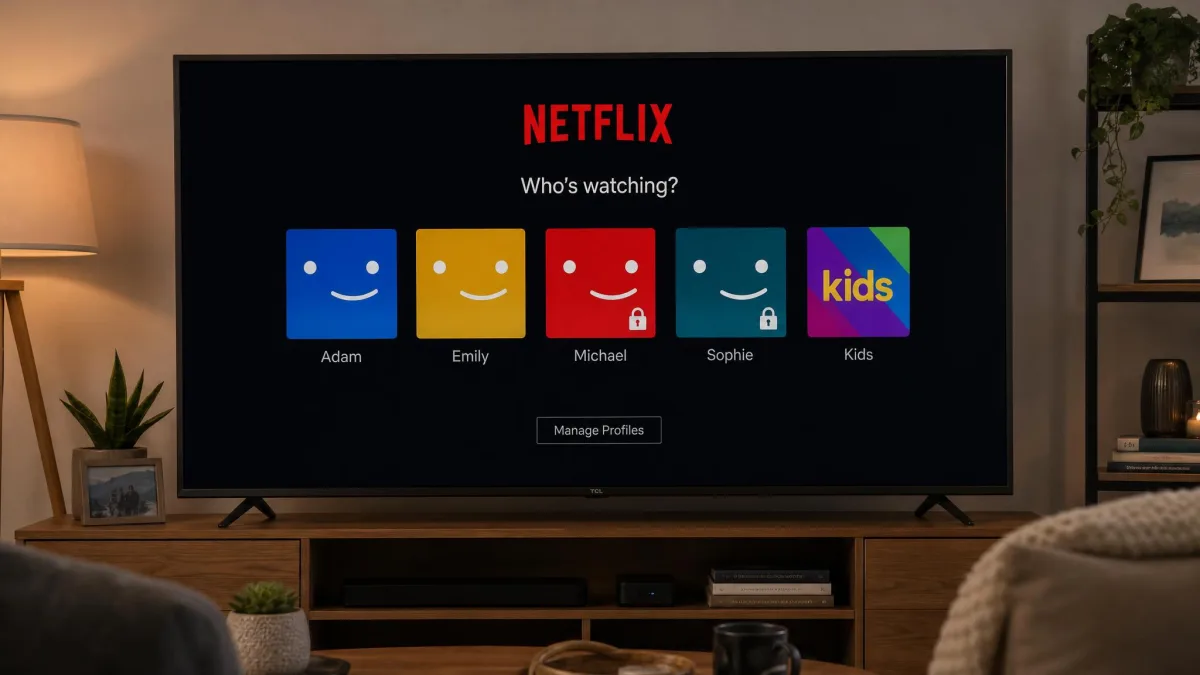
- Check which profile you are looking at. Blocks are per profile, so a show hidden on the kids' profile is still visible on every other one.
- Force the device to refresh. A newly blocked title can keep showing on a TV that is already signed in until you switch to another profile and back, or sign out and sign in again.
- Give it a few minutes across devices. Changes take a while to propagate, so a phone and a television can show different rows briefly.
- Confirm the change actually saved. If the identity verification prompt interrupted you, the block may never have been written. Reopen Viewing Restrictions and look for the title in the blocked list.
- Search for the title. If it is properly blocked, searching its name returns nothing on that profile. If search still finds it, the block did not apply.
What Netflix's Parental Controls Can't Do
Netflix's controls are solid at deciding what can be watched and silent on everything else. There are no daily screen time limits, no viewing schedules, and no bedtime cutoff. Netflix will happily keep playing all night inside a rating you approved, and it will not send you an alert about it. That gap is the limitation parents run into fastest.
You also cannot restrict Netflix on one device while leaving it open on another, because a profile follows the account rather than the hardware. On very old streaming players the model breaks down further: devices made before 2013 may not support adding profiles at all, though support varies by individual model rather than strictly by manufacture year. Without profiles, none of the controls in this guide exist there.
The PIN, the ratings and the blocked titles all protect the Netflix account. None of them touch what a child watches on YouTube, a browser, or another streaming service. If Netflix is one screen among several in your house, treat these settings as one layer rather than the whole answer.
Third-Party Ways to Block Netflix Content
When Netflix's own tools run out, two other approaches pick up some of the slack. Neither replaces what you have already set up.
Router and DNS Blocking
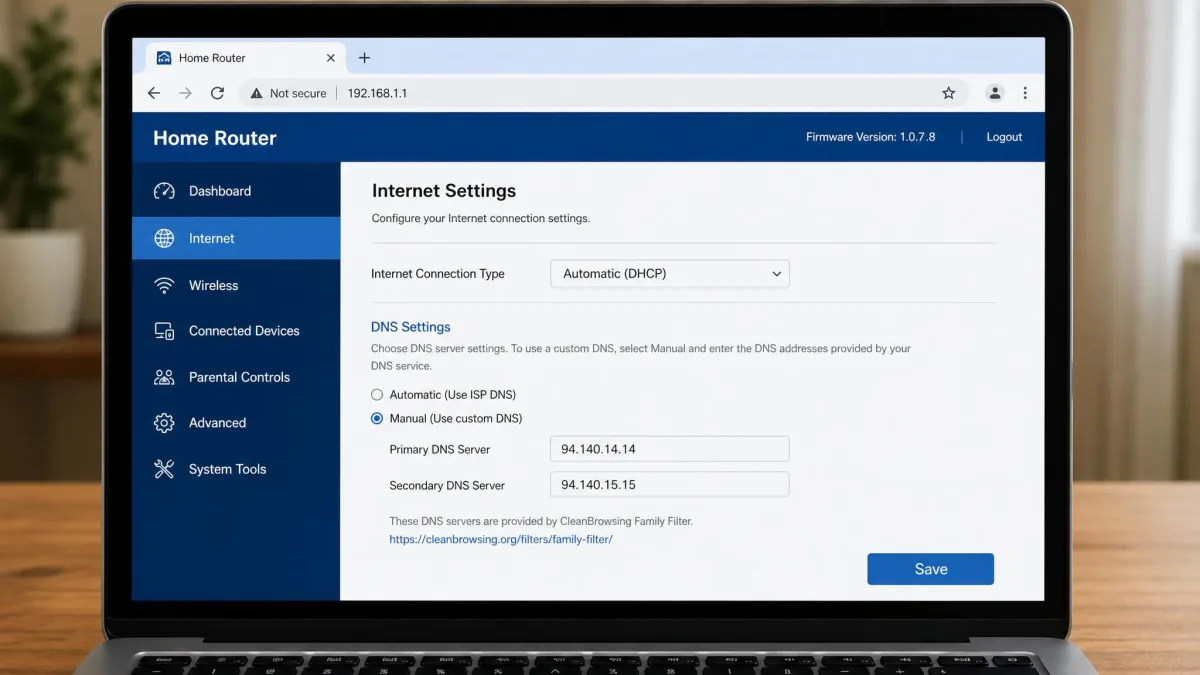
Filtering at the network level, through your router or a DNS service such as CleanBrowsing, blocks Netflix for every device on the home Wi-Fi at once. It is a blunt instrument by design. It cannot block one show, only all of Netflix, and it stops at the edge of your network, so a phone on mobile data walks straight around it. It can also stop working when Netflix rotates its address ranges, which shows up as Netflix suddenly loading again on a network that was blocking it fine last week.
Parental Control Apps
Parental control and monitoring apps work at the device level. They report on activity and enforce time limits and schedules, which is precisely the screen time gap Netflix leaves open. What they will not do is block an individual Netflix title, because that decision happens inside Netflix's account settings and nowhere else. Used together, the split is clean: Netflix decides what is watchable, and a device-level app decides when and for how long. For age-appropriateness calls on a specific show, a written review will tell you more than a rating code does.
Frequently Asked Questions
Can I block a specific show on Netflix?
Why does the blocked show still appear?
Can I block shows on a Smart TV or Roku?
What are Netflix maturity ratings?
Can kids switch to another profile?
How do I undo a block?
Do I have to block a show on every profile?
Final Thoughts
Netflix gives you four useful levers, and they work best stacked rather than chosen between. Set a maturity rating so each profile has a sensible baseline, block the specific titles that slip past it, use a Kids profile for younger children, and put a four-digit PIN on every profile you do not want opened. Then turn autoplay previews off so trailers stop undoing the work.
Do the setup on a browser or your phone, expect an identity check each time, and give your TV a profile switch afterwards so it picks up the change. What Netflix will not do is manage when or how long anyone watches, so if that is your actual concern, pair these settings with a device-level control rather than expecting Netflix to cover it.