Parental controls are built into every major device. Screen time limits, content filters, and app restrictions come free with the phones, tablets, computers, and consoles most families own, but they ship switched off. Nothing is protected until you turn them on.
This guide walks through setup on every major platform, from iPhone and iPad to Android, Windows, Mac, consoles, and streaming devices. We set up each built-in tool on an iPhone, an iPad, an Android phone, a Windows laptop, a Mac, and a game console, and used them the way a real parent would for at least two weeks before we wrote up the steps.
You do not need a paid app; every tool here is built in.
Why Parental Controls Matter
The American Academy of Pediatrics no longer leans on a single hourly cap. Its 2026 guidance reframes the question around five C's: child, content, calm, crowding out, and communication, suggesting under one hour a day for toddlers and preschoolers and 1-2 hours of non-school entertainment for school-aged children and teens.
Most devices ship with parental controls turned off, and controls on one device do nothing for a child using a friend's phone. In our testing, the failures were almost always coverage gaps.

Before You Start: What You'll Need
Each platform runs its own family group, so you need an adult account and a child's device. The exact requirements differ, and ConnectSafely’s guide to parental controls maps the full landscape of settings across the web if you want the wider view first.
Requirements for Google Family Link
Google Family Link needs one adult in charge: a parent with a Google Account who is 18 or older (or the applicable age in their country) and lives in the same country as the child. The parent app runs on Android 6.0 or later or iOS 16 or later; the child's device needs Android 6.0 or later, a Chromebook with Chrome OS 71+, or a compatible Fitbit. Family Link is built for children under 13 (or the country's age of consent); teens can join the family group.
Requirements for Apple Screen Time
Apple's Screen Time parental controls require Family Sharing. Children under 13 must have an Apple Account created by a parent, while teens 13 to 17 can create their own. Family-based Screen Time works on iOS 16 or later and is built into the operating system.
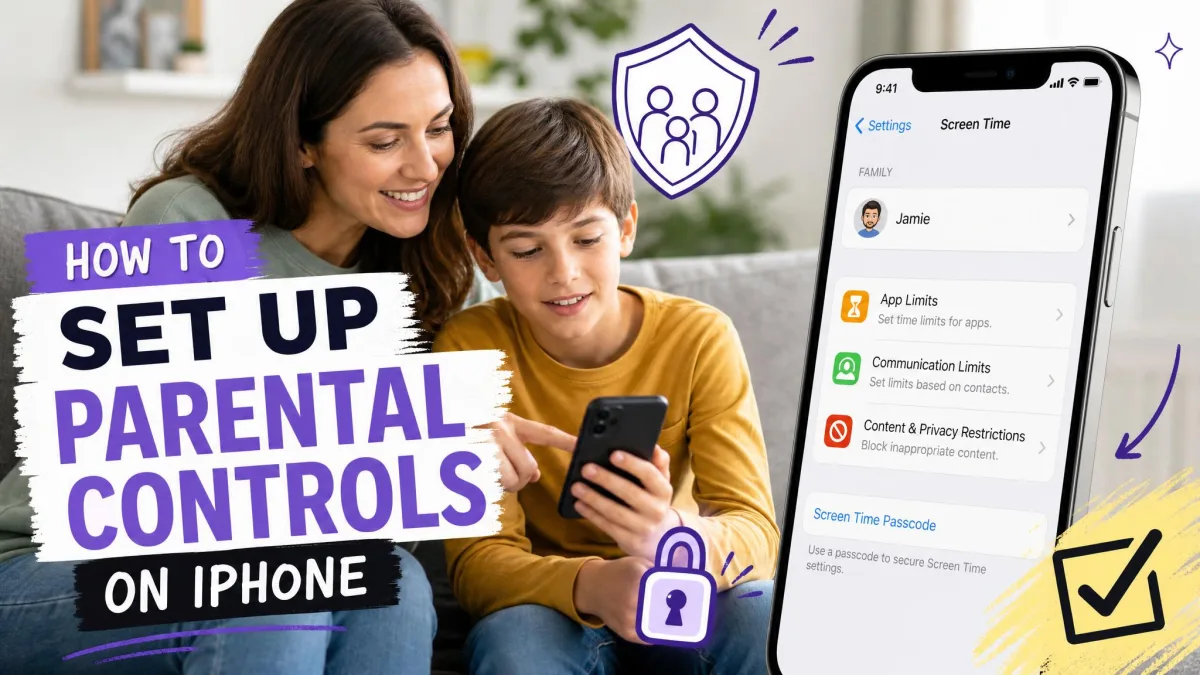
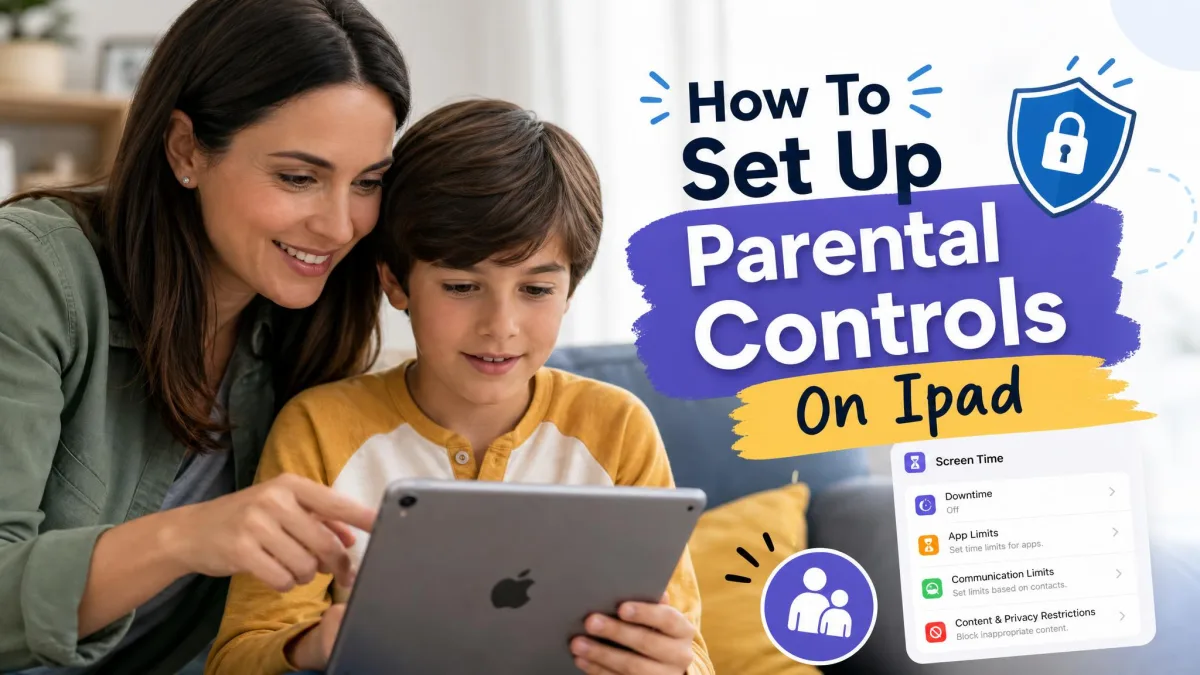
How to Set Up Parental Controls on iPhone and iPad
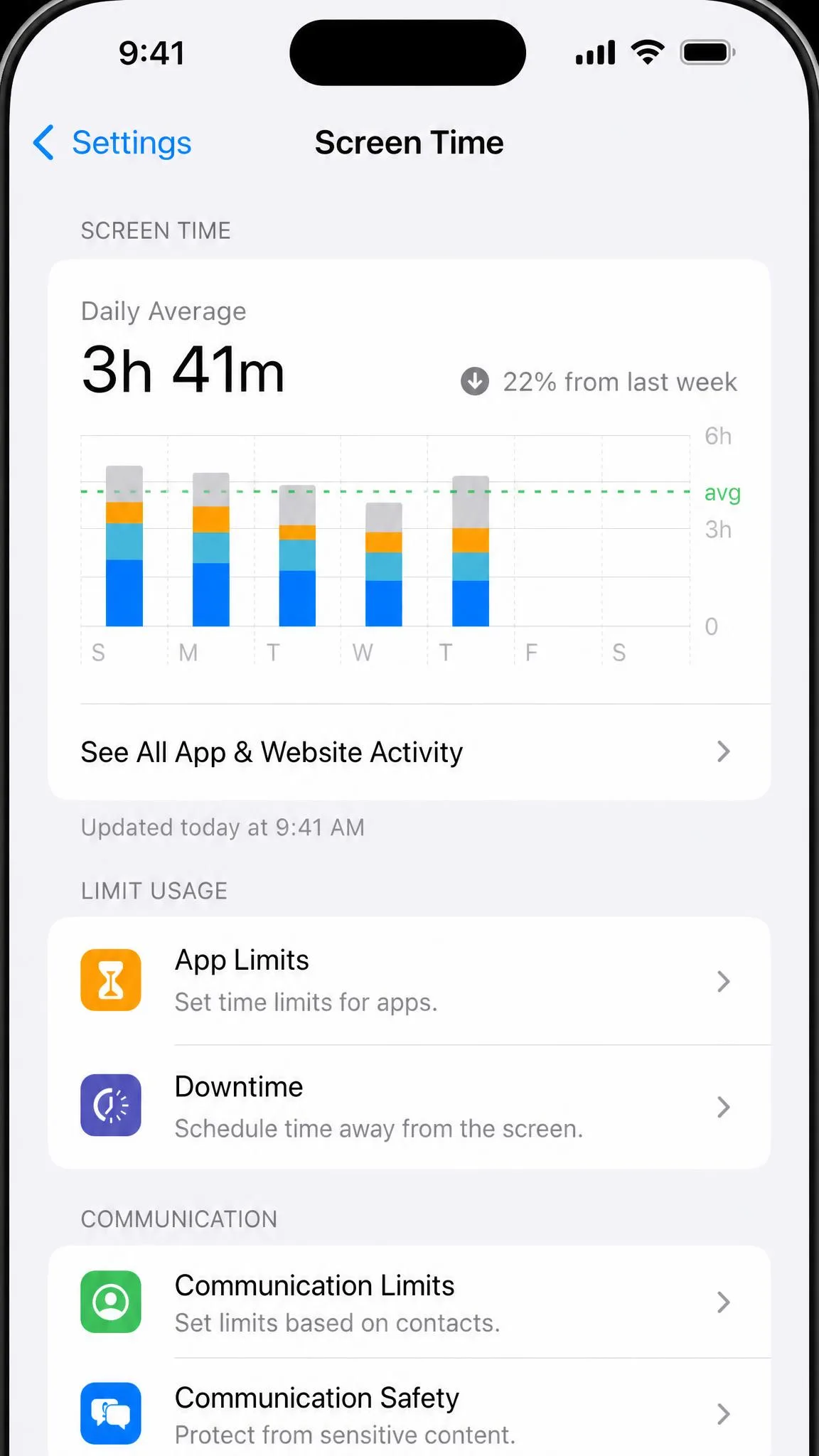
Screen Time is Apple's one-stop control panel for iPhone parental controls, and in our testing it handled day-to-day limits without fuss. It has no built-in location tracking; run Find My separately if you want that.
Turn On Screen Time
Open Settings → Screen Time and tap Turn On Screen Time. Set a four-digit Screen Time passcode, separate from the device passcode; pick a number your child does not know. With Family Sharing, manage Screen Time from your own device: open Settings → Screen Time → Family and tap the child's name.
Store the Screen Time passcode somewhere safe. Apple's supported recovery needs the Apple Account used at setup; the erase-and-restore workaround in forums is unofficial.
Set Content & Privacy Restrictions
Open Settings → Screen Time → Content & Privacy Restrictions and turn the switch on. For children under 18, communication safety and web content limits are on by default, but content restrictions need this toggle. Set an age rating for apps, movies, TV, and books, then turn on Limit Adult Websites or allow-list sites. On iOS 26 and later, children can request exceptions to your limits.
Set App Limits and Downtime
Open Settings → Screen Time → App Limits and add a limit for a category or a single app; Downtime lives on the same screen, where you schedule quiet hours and pick Always Allowed apps. In our testing, Screen Time sends a steady stream of permission requests; per-app to category limits cuts the volume.
How to Set Up Parental Controls on Android
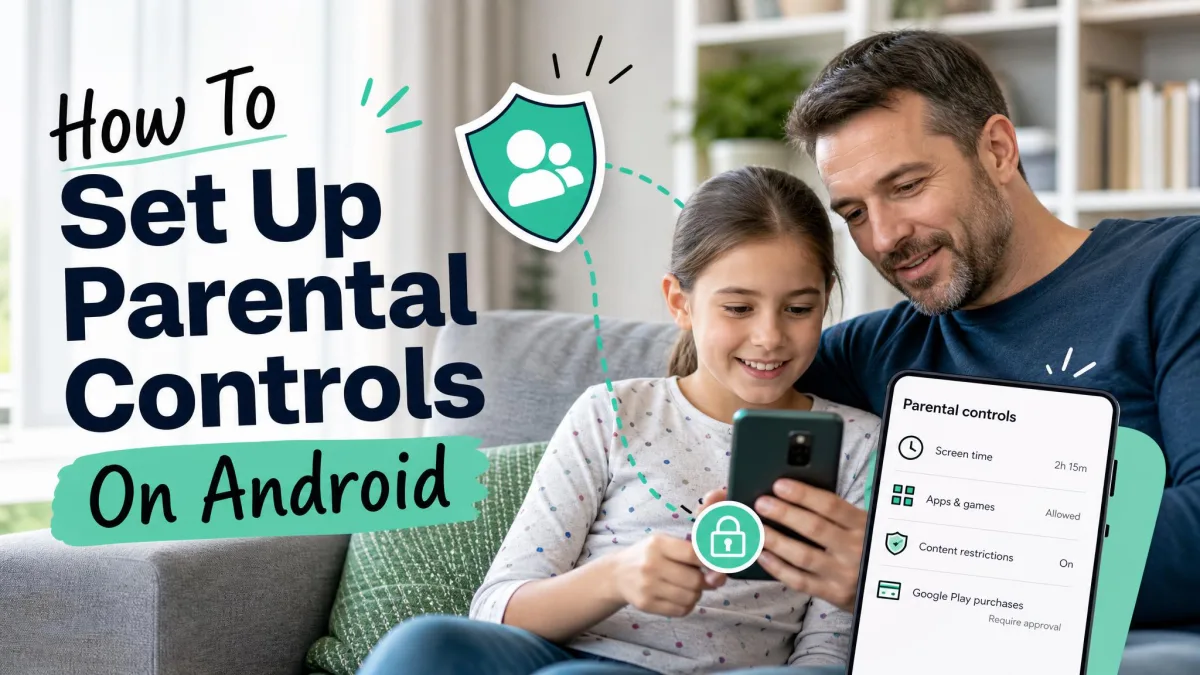
Android's parental controls run through Google Family Link, the same system that supervises Google accounts on Chromebooks. It is the most feature-complete of the three free tools, and it is also the one kids find the most holes in.
Set Up Google Family Link
To set up Android parental controls, download Family Link from Google Play or the App Store, sign in with your Google Account, and add your child's account to your family group; install the app on the child's device and pair the two with the on-screen code. It carries a 4.6 out of 5 rating on Google Play and 4.7 out of 5 on the App Store.
Set Content Restrictions on Google Play
Open Google Play, tap the child's profile, and open Settings → Parental controls. Set content ratings for apps, games, movies, TV, and books, then turn on purchase and download approval; changing them needs your Google Account password, so a determined kid cannot quietly loosen the rules.
Turn On SafeSearch and Web Content Filters
Turn on SafeSearch from the child's Google account settings, and use the Chrome filtering controls in Family Link to block explicit sites. Kids route around browser filters from an Always Allowed app, so keep the app-level controls tight.
Monitor Activity and Location
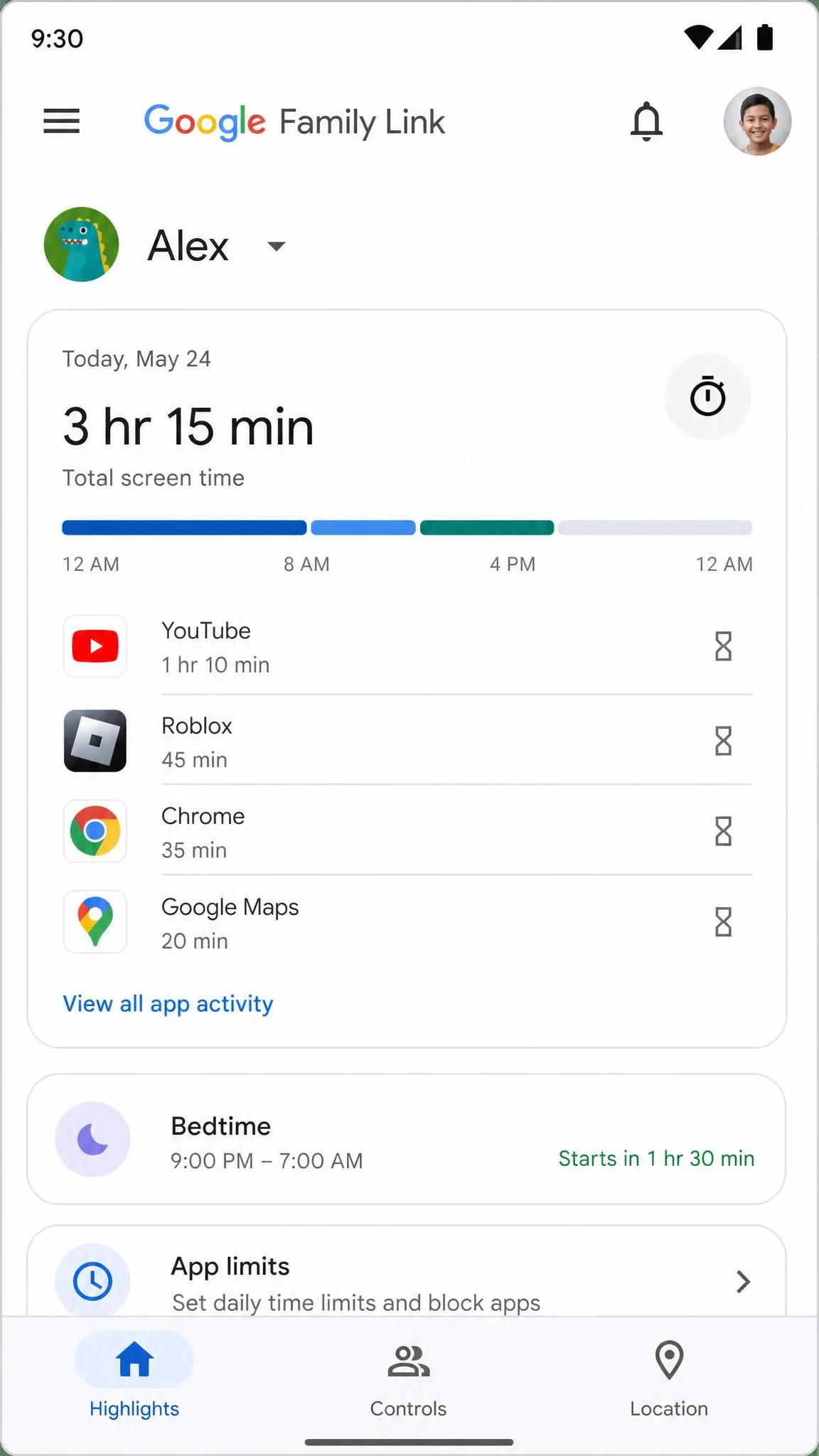
Family Link activity reports show app usage by time and category. Location tracking works while the child's device is on and online, though in our testing those alerts ran hours late. Treat them as a rough guide, not a live tracker.
Manage Screen Time and App Limits
Set a daily screen time limit, plus Downtime and Bedtime schedules and per-app limits so the math app stays available while games go dark. Expect pushback: kids change the device clock, reboot to reset timers, or hide apps in a second user profile, and a factory reset ends supervision.
Family Link enforces many limits on the device itself, leaving clock and time-zone loopholes. Set the child's passcode yourself and keep it private.

How to Set Up Parental Controls on Windows
Microsoft splits its Family Safety tools across a web dashboard and a mobile app, and the ecosystem can feel scattered. In our testing, the dashboard at account.microsoft.com/family is the right place to set limits, with the Family Safety app as a remote check-in.
Create a Child Account
Open the Microsoft Family Safety dashboard and add a family member as a child. Children under the statutory age for their region (13 in the US and UK; 16 in most EU countries) must be added by an adult.
Set Screen Time Limits at family.microsoft.com
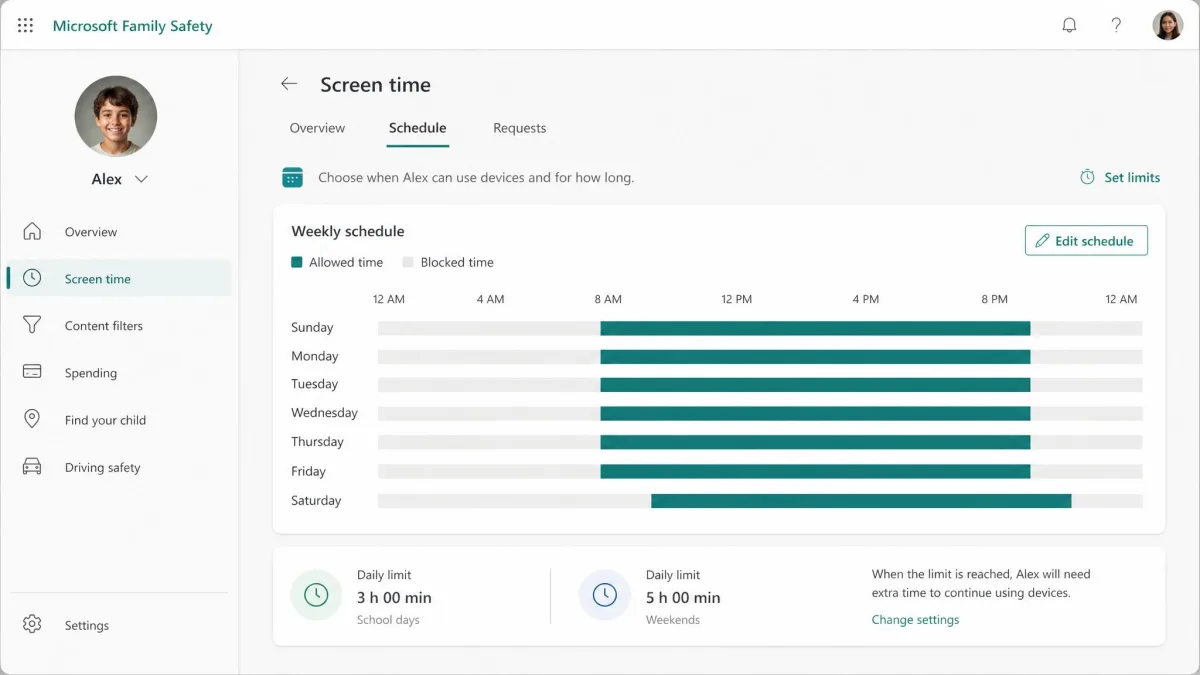
Pick the child's tile, open the Windows tab, and set allowed time ranges plus a total daily allowance. These Windows parental controls apply to any PC in the family group, with per-app and per-game limits in the same screen; mobile screen time is Android only, not iOS.
In our testing, the dashboard occasionally refused to save a change with a "Something went wrong" error, and the timer kept counting down while the PC was locked. When a change does not stick, retry on the web dashboard.
How to Set Up Parental Controls on Mac
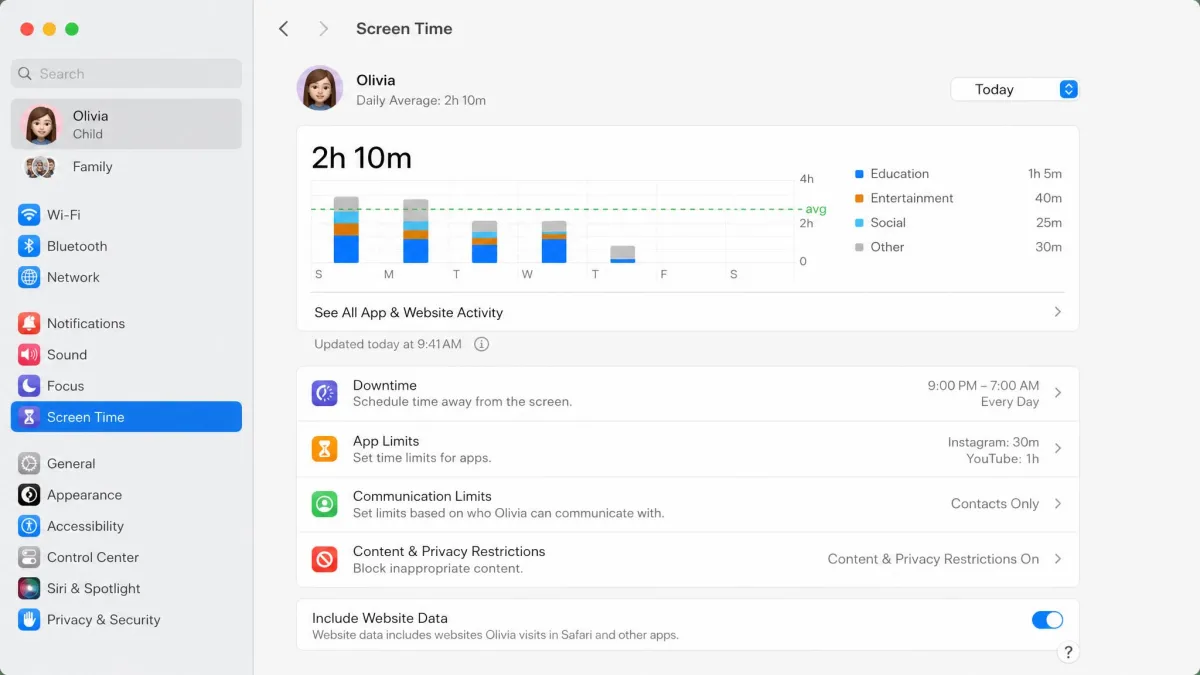
Since macOS Catalina, Mac parental controls run through the same Screen Time engine as iOS, which makes the Mac the most straightforward Apple device to lock down.
Create a Managed User Account
Open System Settings → Users & Groups and create a standard account for your child, not an administrator account. A standard account cannot change settings or install admin software. Screen Time on the Mac requires macOS Catalina 10.15 or later.
Configure Screen Time
Go to System Settings → Screen Time and turn it on for the child's account, then set App Limits, Downtime, and Content & Privacy Restrictions as on an iPhone. With Family Sharing, manage the child's Screen Time from your own Mac, iPhone, or iPad.
How to Set Up Parental Controls on Gaming Consoles
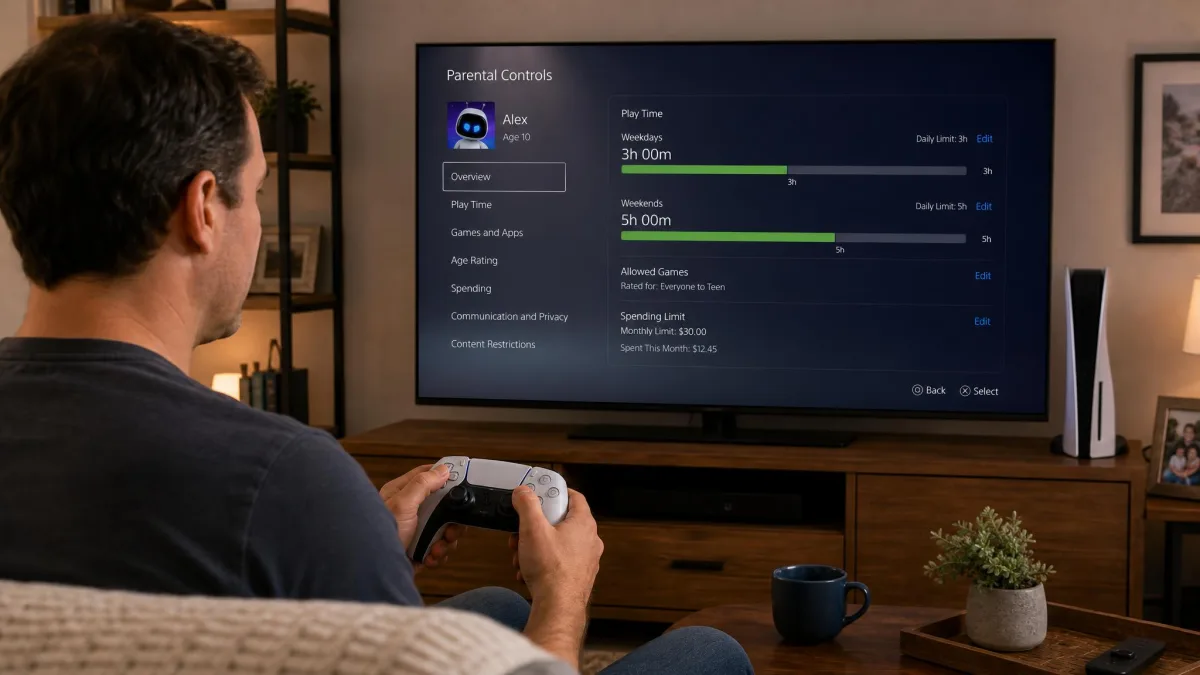
Consoles are where kids spend some of their biggest blocks of screen time, and each platform has its own family model. Microsoft ties Xbox into the same family group as Windows, while Sony and Nintendo run their own systems.
PlayStation
Open Settings → Family and Parental Controls → Family Management, create a family, and add your child with the correct date of birth. PlayStation ships age-based presets (Child, Early Teens, Late Teens or Older), and a child can only start games whose rating matches their age. Child members cannot add payment methods or leave the family.
Xbox
Xbox uses the same family group as Windows, so a child account for the PC carries over to the console. Entering the child's correct date of birth sets the strictest privacy and content-filtering defaults. The screen-time timer runs from sign-in to sign-out, so remind kids to sign out when they step away. In our testing, the Family Settings app sometimes showed zero minutes of usage or failed to sync, and there is no per-game blocking beyond a single Minecraft override.
Nintendo Switch
Nintendo Switch Parental Controls is a free mobile app and the only one of the three that needs a second device. Download it, create a Nintendo Account (18 or older), and link the console with a six-digit code; registration emails a four-to-eight-digit PIN to the parent's address. Restrictions apply to the whole console, so set them from the youngest child.
Parental Controls on Smart TVs and Streaming Devices
On modern TVs, most filtering happens inside the streaming apps. Netflix offers per-profile maturity ratings, a Kids profile, and PIN protection. For kids under 13, YouTube supervised accounts restrict content, and the YouTube Kids app adds age tiers and a parent passcode. Google TV and Android TV add kids profiles with bedtime and rating-based restrictions.
Other services ship their own parental sections with menu names that vary by app, so look for a Profile or Parental controls entry.
Best Practices and Maintenance Schedule
Review Settings Regularly
Set a reminder every few months to review the limits. A limit that made sense at nine is meaningless at twelve, and controls on one device do not protect a child using a friend's device.
Talk to Your Kids About Online Safety
Explain why the limits exist before you turn them on. FOSI's digital-parenting tips keep the conversation age-appropriate and two-way. Kids find the holes in these tools quickly, so the conversation matters as much as the configuration.
Keep Devices Updated
Every major platform has refined its parental controls recently. iOS 27, announced in mid-2026, adds per-day custom limits and per-app blocking, though it was not shipping when we wrote this. Leave automatic updates on.
Troubleshooting Common Parental Control Issues
Forgot the Screen Time passcode. On iOS 16.2 or later, open Settings → Screen Time → Change Screen Time Passcode and tap "Forgot Passcode?" to sign in with the Apple Account used at setup. On iOS 16.1 and earlier, the button may not appear; a restart or update fixes it.
Family Link limits are not holding. Changing the device clock, factory-resetting the phone, or removing the Google account drops supervision entirely. Re-add the account and keep the device passcode private.
The Microsoft dashboard will not save changes. The apps occasionally fail with "Something went wrong" or "It's not you, it's us". Retry on the web dashboard.
Screen Time requests are flooding your phone. Switch from per-app to category limits and let Downtime do the quiet-hours work.
Frequently Asked Questions
What's the best way to set up parental controls across multiple devices?
How do I set screen time limits on iPhones and Android phones?
What's the difference between built-in parental controls and third-party apps?
Are there parental controls for gaming consoles and smart TVs?
The Bottom Line
The tools are free and already installed. The work is setup and maintenance: turn the controls on per device, review them on a schedule, and talk to your kids about the rules.
In our testing, the built-ins held up well for screen time and content filtering; the gaps were almost always coverage gaps. Close those and they are enough for most families. For deeper monitoring, our guide on how to monitor kids' phone usage without invading their privacy is the natural next step.