Google Family Link is Google's free parental control app for Android phones, tablets and Chromebooks. Whether it is the right answer for your family comes down to a question you can settle before you install anything: what is your child actually holding? Family Link is built around Google accounts and Google devices, so that one answer decides how much of this app you will ever get to use. It decides it far more sharply than price or the feature list does. Two parents can read the same review and reach opposite verdicts, purely on the strength of what is in their child's pocket. This review covers what getting it running involves, how each control behaved when we put it to work, and where the gaps sit. We also cover pricing, device support, the age rules that arrive at 13, and how kids get around all of it.
Our Verdict on Google Family Link
Google Family Link is a free parental control app for Android and Chromebook devices, and it is the best free way to manage screen time, app installs and Google Play purchases on Android. It cannot monitor texts, calls or social media, and it does very little on an iPhone.
Everything else follows from that split. On a supervised Android phone the controls are granular and they hold. On an iPhone the same app becomes a thin shell that manages a Google account rather than a device. In short, what this app can reach is exactly what Google's own software reaches, and nothing beyond it.
Google Family Link Pros and Cons
Google has drawn a firm line around what this app will and will not do, so the strengths and the gaps are both easy to summarise.
Pros
- Genuinely free, with no paid tier and no in-app purchases
- Tight Android and Chromebook integration, with no app to install on the child's device
- Google Play install and purchase approvals, which no rival can offer
- Daily limits, Downtime and School Time scheduling that hold up in use
- Live location, place alerts, battery level and ring-the-device
- Unlimited devices per child under one set of rules
Cons
- Barely functional when the child's device is an iPhone or iPad
- No text, call or social media monitoring of any kind
- Web filtering only reaches Chrome and Google Search
- Supervision rules change at 13, and your child gets a say
- A second, unsupervised device defeats the whole arrangement
- Settings can be slow to reach the child's phone, and limits occasionally miss
Google Family Link at a Glance
| Detail | Google Family Link |
|---|---|
| Price | Free, with no paid tier |
| Parent app | Android, iOS and a web dashboard |
| Child devices supported | Android 7.0 and higher, Chrome OS 71 and higher |
| Not supervisable | iPhone, iPad, Windows PCs, Macs |
| Family group size | Up to 6 people, so five children plus one manager |
| Devices per child | Unlimited |
| Web filtering | Chrome and Google Search only |
| Message and social monitoring | None |
| Age rules | Teen account at 13, parent approval to end supervision until 18 |
| App Store rating | 4.7 out of 5 |
| Our rating | 8 out of 10 |
What Is Google Family Link and How Does It Work?
Family Link is a supervision layer for a child's Google account rather than a monitoring app in the way most parents picture one. Google introduced it in 2017, so that under-13s could hold their own Google accounts on Android devices. It has grown since. School Time reached Android phones and tablets in 2025, with Approved Contacts and Google Wallet for kids following the same year.
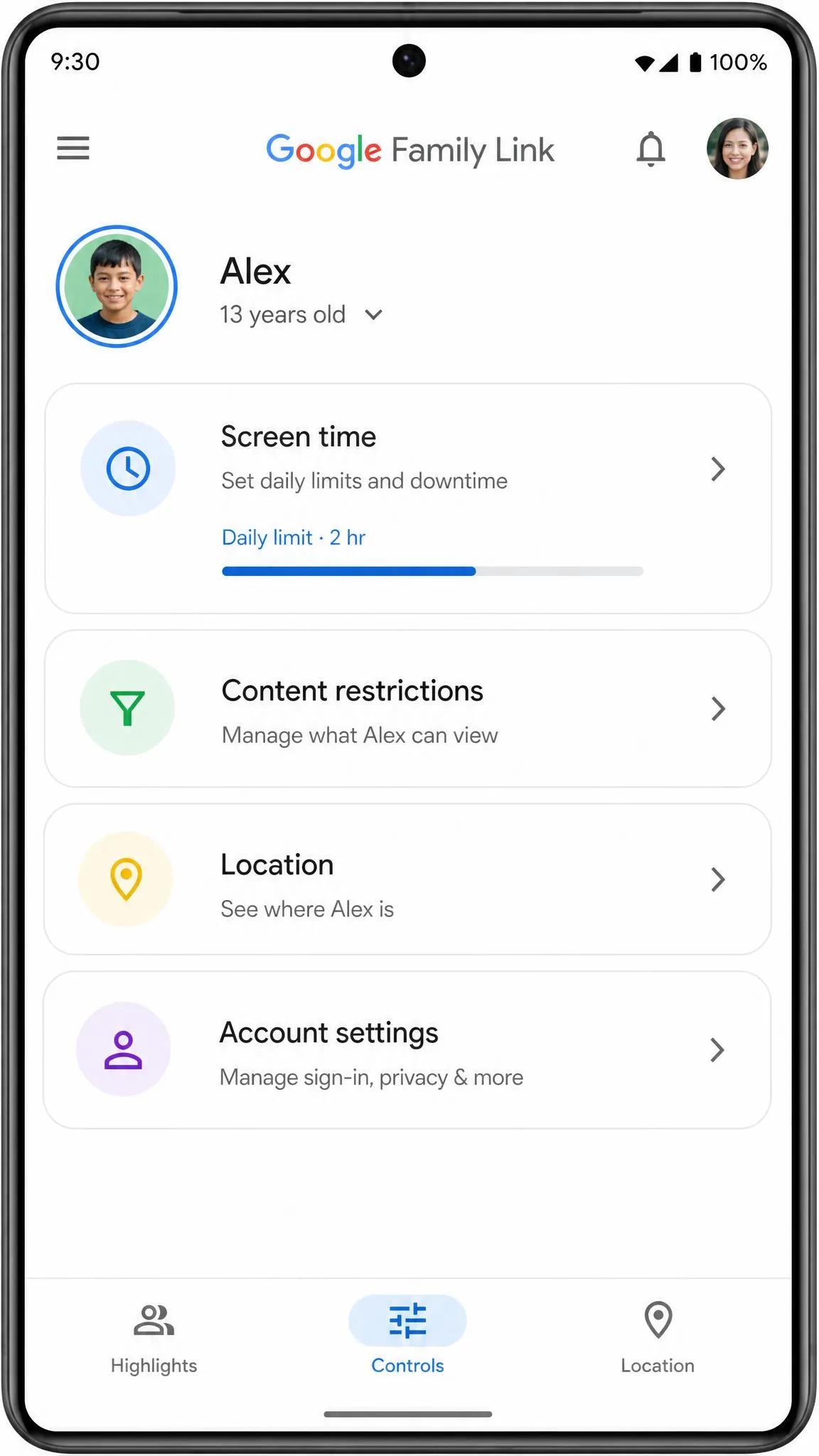
You create a family group and add your child's account to it. The rules you set on your phone then travel with that account to every device it signs into. Google Family Link gives you three tabs to work from: Highlights, Controls and Location.
A family group tops out at 6 people, so five supervised children alongside one manager, and unaccepted invitations still count. The manager has to be 18 or older and live in the same country as the child. Family Link is also not available in every country.
Pricing: Is Google Family Link Really Free?
Family Link is free in a way that almost no parental control app manages. There is no paid tier, no subscription and no in-app purchase attached to the controls. The Family Link on Google Play listing carries no price and no plan chooser, and nothing inside the app tries to sell you anything later.
That is worth pausing on, because Qustodio starts at $59.95 per year and Bark's cheapest plan is $49 per year. Free does have a shape to it, though. Everything runs through Google accounts, so the app works best when your child's digital life is already Google-shaped: an Android phone, a Chromebook, a school account.
Free does not mean unaccountable. Google needs a parent's verifiable consent before a child under 13 can hold a Google account at all. That is the FTC's children's privacy rules at work rather than a Google policy choice.
Which Devices Does Family Link Work On?
Device support decides how much of this review applies to you, so it is the first thing to check.
Android and Chromebook
Supervision is complete on child devices running Android 7.0 and higher. Android 5.0 and 6.0 may accept only some of the settings, and Chromebooks need Chrome OS 71 or higher. There is no separate app to install either. Once the child's account joins your family group, Google adds the parental controls automatically, which quietly removes the usual argument about putting monitoring software on a teenager's phone. Google's own setup guide is the reference to keep open if a device refuses to join. One child can be supervised across as many devices as they sign into.
iPhone and iPad: What Actually Works
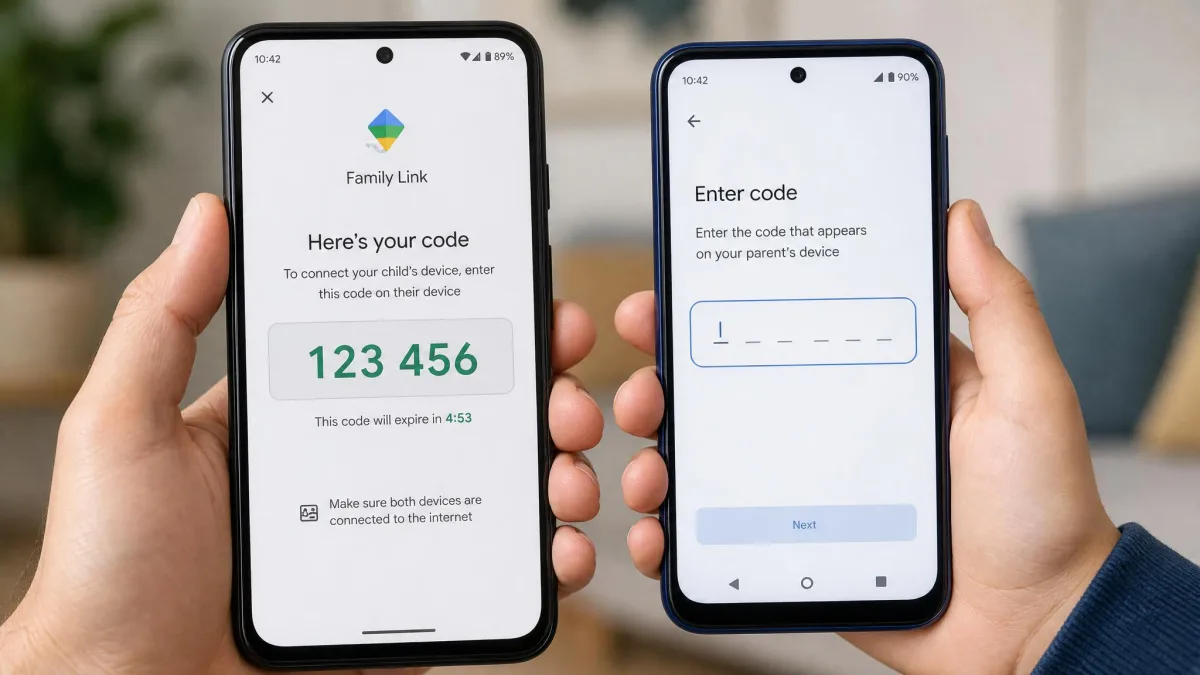
On iOS the picture reverses. The parent app runs perfectly well on an iPhone, so your own platform is never the constraint. But there is no Family Link child app for iOS at all. Google's device compatibility list is blunt about the consequence: iPhones, iPads and computers that are not Chromebooks cannot be supervised.
What you get instead is what Google calls partial supervision, which covers the child's Google account rather than their device. You cannot block or time-limit apps, you cannot see app activity, you cannot see where the device is, and you cannot stop your child signing out of Chrome. Even the parent app's minimum iOS version is unsettled. Apple's iOS App Store listing says one thing, Google's compatibility page says another and Google's own FAQ says a third. Treat the floor as a recent version of iOS rather than a number.
Setting Up Google Family Link
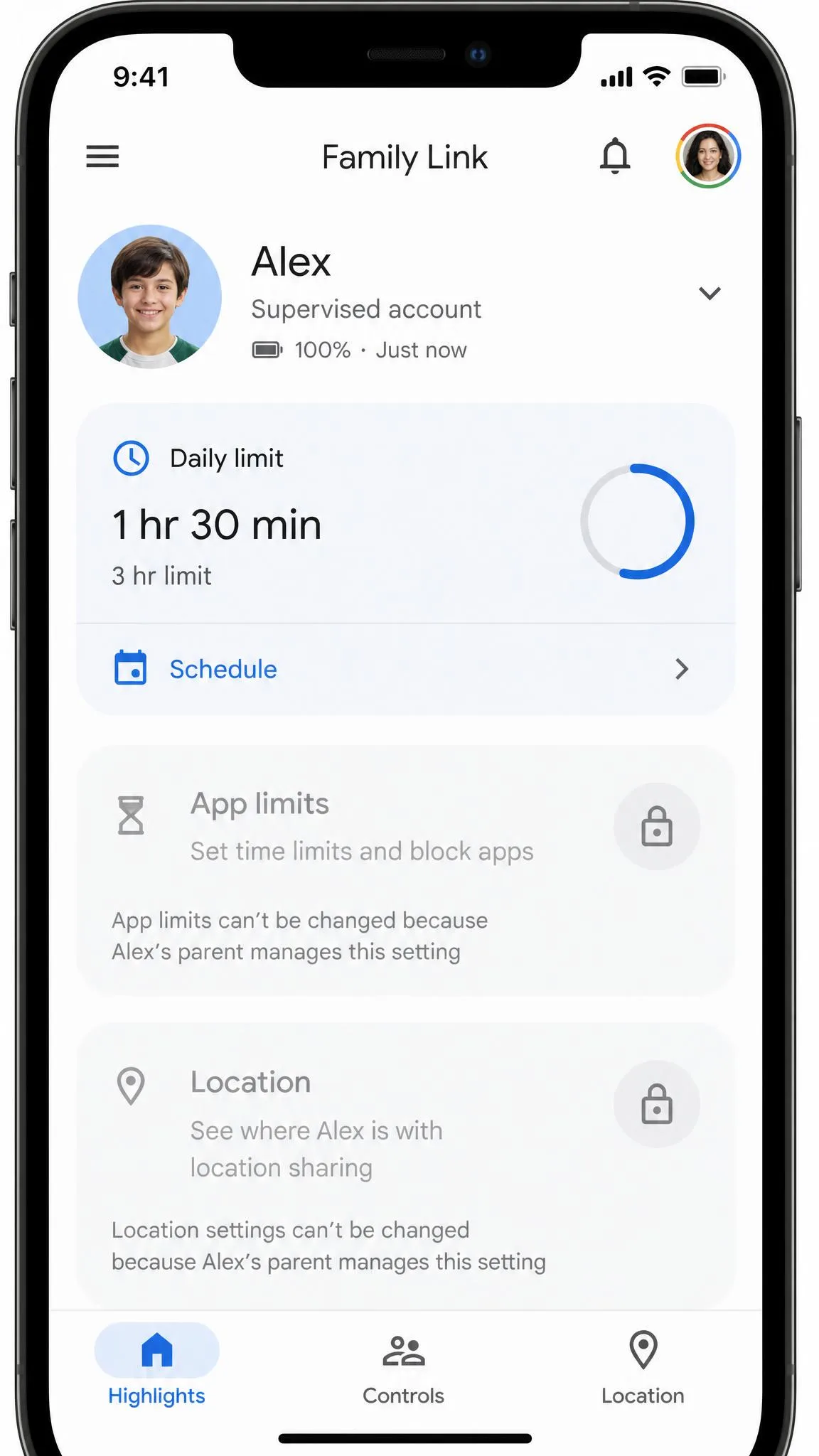
Assuming the device question came out in your favour, getting Family Link running takes roughly 10-15 minutes, and you need both phones in your hands. A confirmation code has to be typed on the child's device partway through.
On the Parent's Phone
You install the parent app and sign in with your own Google account. From there you either create a family group or add your child to one you already manage. If your child has no Google account yet, you create one for them in the same flow.
On the Child's Device
The child's side is where the friction shows up. Setup refuses to continue while more than one Google account is signed in on the child's phone, and it walks you through removing the extras first. Your child also has to enter their own device password before you can switch the parental controls on, which makes this a conversation rather than an ambush. One constraint catches people out. A parent account and a child account cannot live on the same phone, so this genuinely takes a second device.
Sign the child's phone out of every Google account except the one you plan to supervise before you begin, and put both phones on the table together. That turns a stop-start session into one clean pass.
Google Family Link Features, Tested
Once both phones are paired, the controls turn out to be broader than the app's reputation suggests, and the quality varies a lot from one to the next.
Screen Time Limits and Downtime
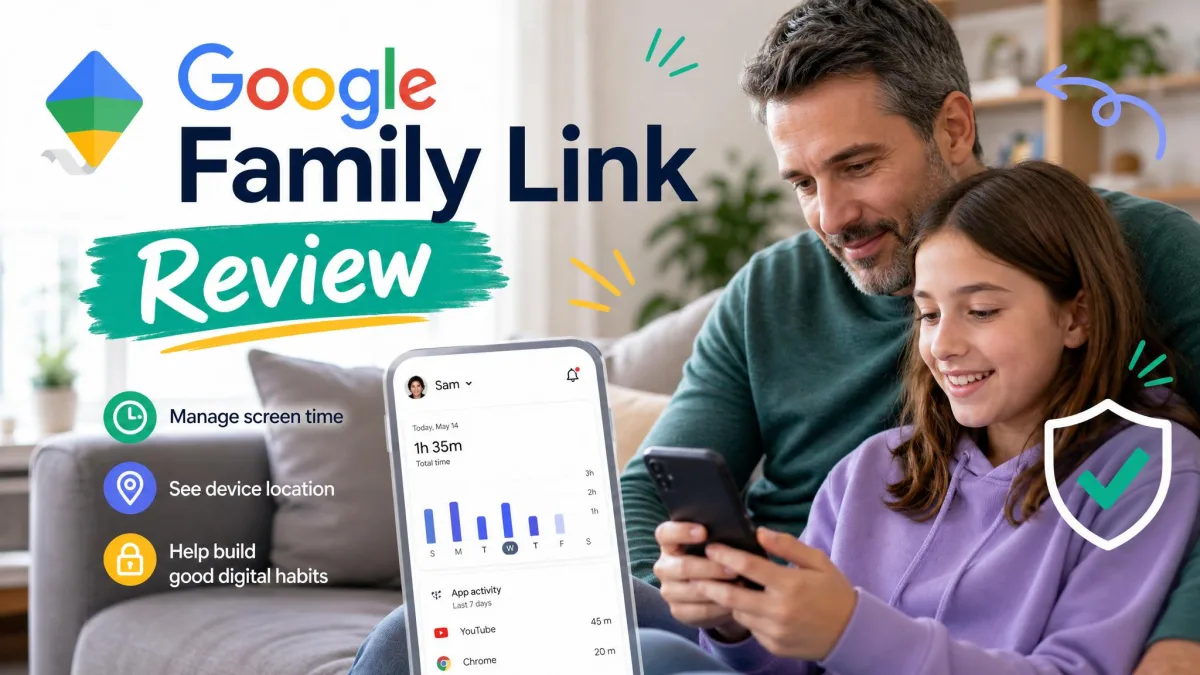
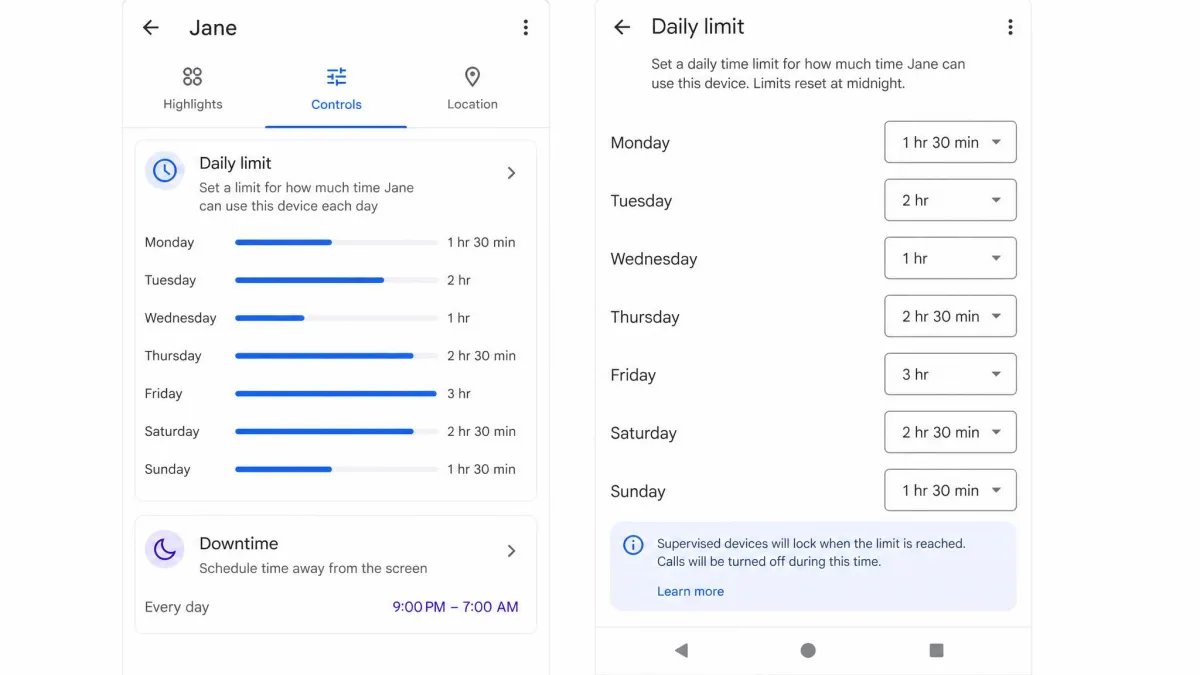
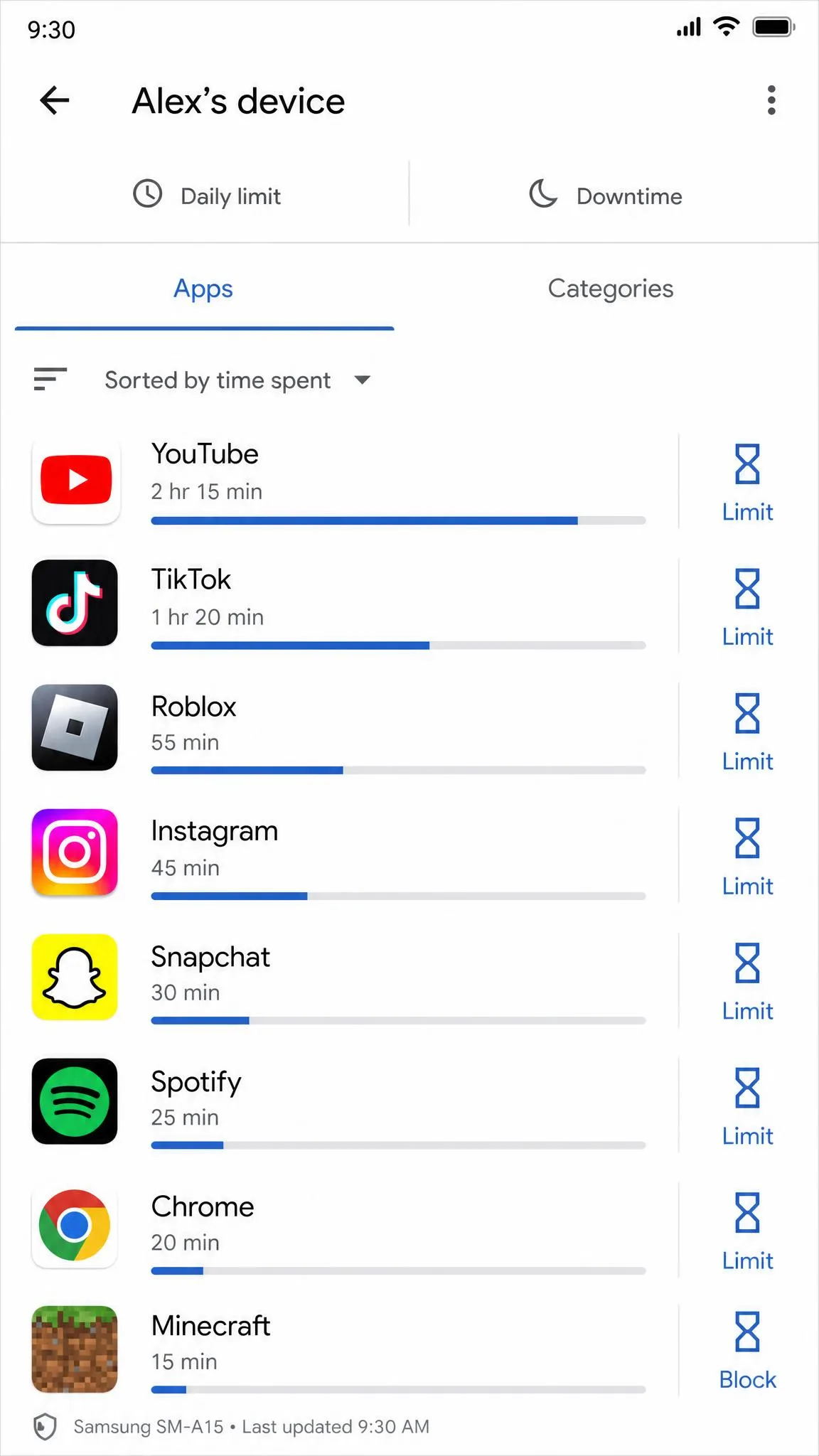
Screen time is the control most parents come for, and it is the one Family Link does best. On a supervised Android device you get:
- Daily limits that can differ for every day of the week
- Downtime and bedtime schedules
- School Time, which arrived on Android phones and tablets in 2025
- Per-app limits, plus Unlimited time apps that never count against the cap
- Change for today, for one-off bonus time
- Remote lock and unlock from the parent app
Those limits held reliably in our hands-on use, and giving Saturday a lighter cap than Wednesday took seconds. What happens at the cut-off is sensible. The device locks with no notifications and no apps, but your child can still answer calls, tap Emergency, and ring you to ask for more time.
Timing is the part worth warning a child about in advance. The lock arrives the moment the limit runs out, wherever they happen to be, including partway through a piece of schoolwork, unless you set that app as an Unlimited time app first. The counter deserves a look as well, because it can keep running while a device sits switched on and untouched, and an hour of homework done on paper then registers as an hour of screen time nobody spent.
Two constraints matter before you build a routine around this. Only one Downtime window can be active at a time, so a bedtime block and a separate homework block cannot both run. Daily limits also cover a contiguous stretch of hours rather than a custom timetable. Published figures for the step size split between 5-minute and 15-minute increments, and Google states it nowhere.
If you are still working out what the number should be, what pediatricians actually recommend is less prescriptive than most parents expect. Our guide to screen time limits for kids by age turns it into a figure you can actually set.
App Management and Play Store Approvals
App management is the strongest part of the product. It is where Family Link outperforms apps charging a hundred dollars a year. Every installed app is listed and sortable by time spent, name or install date. One tap on the hourglass icon beside any app sets a daily limit for it or blocks it outright.
The Google Play controls go further than any rival can, because Google owns the store. Family Link allows you to require approval for all content, for purchases on the family payment method, for in-app purchases only, or for nothing. You can also filter Play by content rating, block installs from unknown sources, and stop your child opening Developer options. Competing apps cannot offer store-level approvals at all. That is the best argument for running Family Link alongside a paid app rather than instead of one.
One oddity is worth knowing before you promise your child anything. Paid subscriptions and Play gift-card balances can be refused on a child account even with a family payment method added and nothing blocked in the app, and no explanation is given when it happens.
Content Filtering in Chrome and Google Search
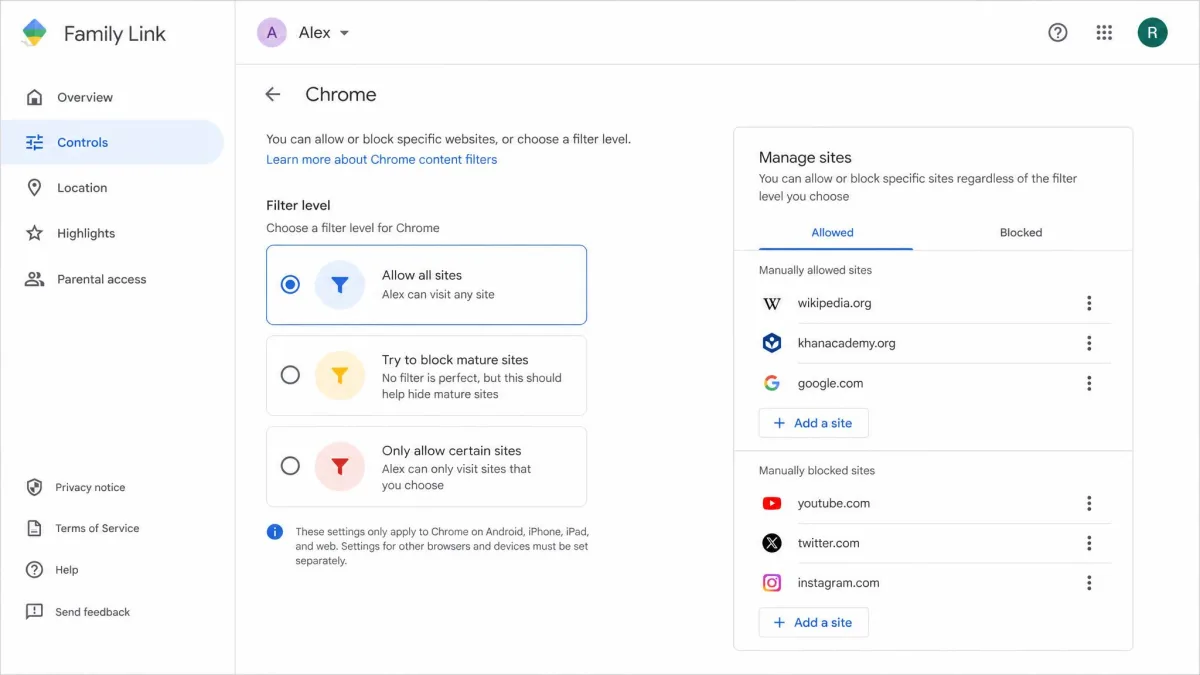
Web filtering is where the free price starts to show. Chrome filtering gives you exactly three choices:
- Allow all sites, with a manual block list for individual addresses
- Try to block explicit sites, the default most parents want
- Only allow approved sites, the strict option for younger children
Incognito mode is switched off while your child is signed in to Chrome with a supervised account. SafeSearch is on by default and only a parent can turn it back off. It either filters explicit images, text and links out entirely, or blurs explicit images while allowing explicit text through.
The filtering works within its borders. SafeSearch stripped mature results out of Google Search and Google Images on a supervised device, and Try to block explicit sites did block explicit pages. Google's own wording concedes that no filter is perfect. The borders are the problem. Content that Chrome, Google Search and YouTube all refused to show loaded without complaint in the Samsung browser that ships on the phone. Blocking one alternative browser only moves the problem to the next one.
When a child hits a blocked page they can ask for it. That request reaches you as a bare approve-or-deny prompt, with no space for them to explain why they need it. Ask in a message can be answered from anywhere; Ask in person can only be approved on the child's own device, using your Google password.
YouTube and YouTube Kids Supervision
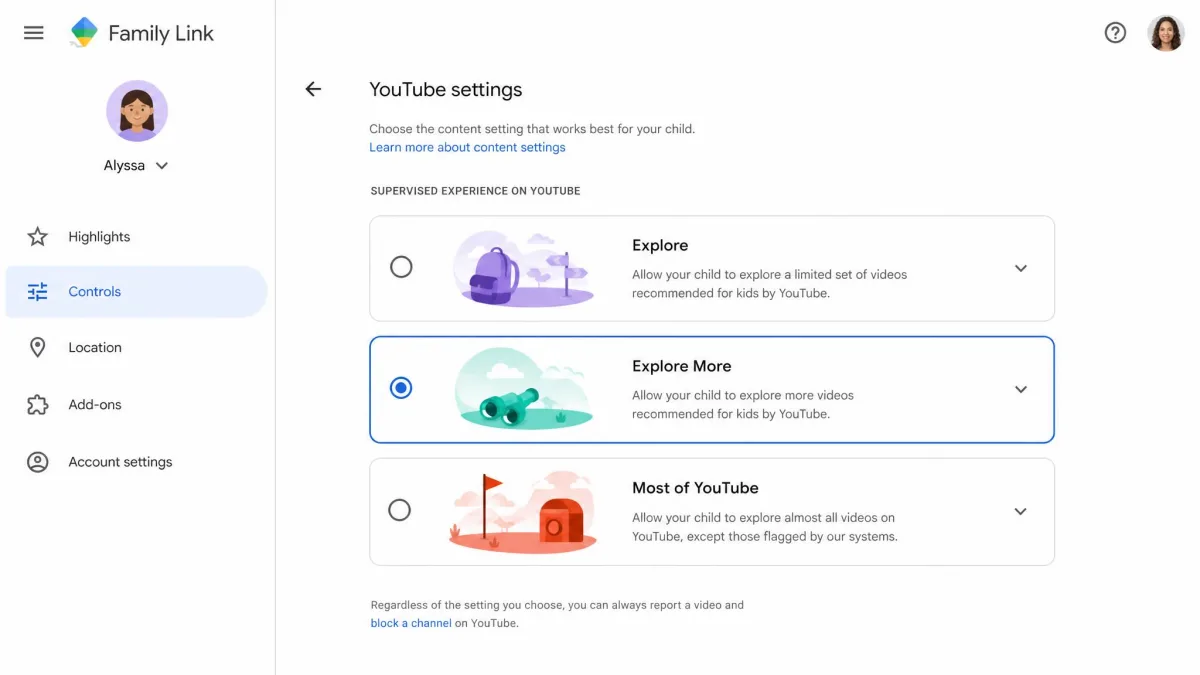
YouTube gets its own controls, and which set you use depends on your child's age. YouTube Kids offers three tiers: Preschool for 4 and under, Younger for ages 5 to 8, and Older for ages 9 to 12, with search optionally switched off. Supervised access to main YouTube offers three settings instead. They run from Explore for ages 9 and up, through Explore More for 13 and up, to Most of YouTube, which strips out only the most explicit material. Google is upfront that these filters are not perfect. One gap stands out: blocking the YouTube app device-wide does not stop YouTube opening inside other apps that embed it.
Location Tracking and Find My Device
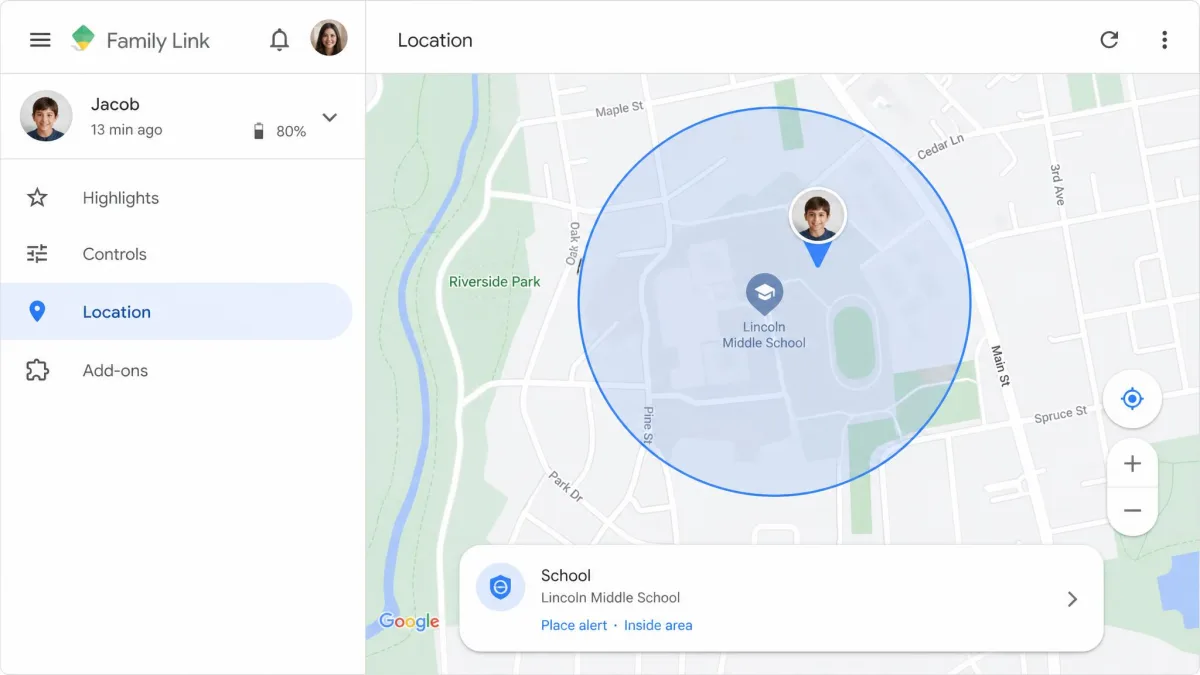
Location tracking is accurate and basic in equal measure. The parent app shows the child device's current or last known position on a Google map. Place alerts drawn around home or school give you arrival and departure notifications. Google does not publish the radius range, but expect a circle somewhere between 650 and 1,300 feet. You also get the device's battery percentage, and you can ring the device for 5 minutes at a time.
What is missing is history. Family Link keeps none at all, so there is no way to see where your child went earlier in the day. And it is the phone that is tracked, not the child. A handset left charging in a bedroom reports a child who is safely at home.
Activity Reports and Usage Insights
Activity reporting is the thinnest thing here. You get which apps were used and for how long, plus recent installs, and nothing about what happened inside those apps. There is no single activity view either, so app usage, YouTube usage and web history each take a different screen. Family Link also reads Google's built-in history rather than keeping its own copy, so a child who clears their Chrome history clears it before you ever see it.
What Google Family Link Cannot Do
Every parental control app has a boundary. Family Link's is drawn further in than most parents expect, and Google is unusually clear about where it sits.
No Text, Call or Social Media Monitoring
Family Link cannot read texts, chats or DMs, cannot log or listen to calls, and cannot monitor social media in any form. It does not surface search or browsing history in the parent app either. Say your reason for wanting a parental control app is to know who your child talks to and what they are sent. No setting inside this one will get you there.
If message content is the reason you are shopping, decide on the second app now rather than hoping a setting appears later. Bark and Qustodio are the two to price up, and both are built to run alongside Family Link rather than in place of it.
The Age 13 Cut-Off
Turning 13 changes the paperwork more than it changes the controls. Google emails both you and your child, who can then move to a supervised teen account. Supervision settings stay exactly as they were unless they act on that email.
What happens after that is where a lot of the advice online is stuck in an older version of the rules.
Older reviews still say a 13-year-old can switch supervision off on their own. Google's current documentation says the opposite: parent approval is required to stop supervision until your child turns 18, and both parent and child are notified when it stops.
If you do decide to end supervision yourself rather than waiting for that birthday, our guide to how to remove a child from Family Link covers what changes on their device.
How Kids Bypass Family Link
Tech-savvy kids can work around Family Link, and the workarounds have more to do with geography than with hacking. A second, unsupervised device sidesteps everything, because the rules travel with the Google account rather than with the child. On a shared family computer that is not a Chromebook, a child can simply not sign in, and none of your restrictions ever apply. Alternative browsers walk past web filtering, as covered above.
Uninstalling is murkier. A rotating parent access code is required to unlock a device or remove a supervised account while that device is offline. Nobody can promise that makes the child-side app uninstall-proof, so do not treat it as tamper-proof. Our guide to how kids try to bypass Google Family Link is worth reading precisely because you want to know the methods before your child does.
Ease of Use and Day-to-Day Reliability
Day to day, Family Link is pleasant to use and occasionally frustrating to trust. The interface is clean and uncluttered. The Android app, the iOS app and the web dashboard are near-identical, so it makes no difference which one you pick up. Changing a setting on your child's account triggers an immediate alert to you, down to small ones such as turning personal results off.
Reliability is the softer spot. Limits can fail to apply straight away, and settings can take time to travel between the two phones. When a daily limit does not take effect, closing the app on both phones, clearing it from recents and reopening it usually sorts it out. A device restart is the fallback.
The parent app has its own off days as well, refusing to load until you close other apps, restart it, or switch Wi-Fi off and back on. Support will not help you with any of that. There is no phone line, no live chat and no ticket queue, only Google's help centre articles, which are thorough and slow to resolve anything specific.
The public scores tell the same split story. The parent app holds 4.7 out of 5 on the App Store from roughly 288,000 ratings, ranks #51 in the Utilities category and ships in 56 languages. The recurring praise is the price, the school-hours scheduling and simply being able to see where a child is. SafetyDetectives' reader panel rates it 2.2 across 13 reviews in 6 languages, and the child-side app collects predictably hostile ratings from the kids whose device time it manages.
Two things caught us out while working through the settings. The switch for YouTube search and watch history lives under Google Search settings rather than with the YouTube controls, and ring-the-device is not on the Location tab. Family Link is easy to use once you know where everything is, which is not the same as easy to learn.
Google Family Link vs. Paid Parental Control Apps
Family Link's real competition is not other free apps. It is the paid ones parents buy when free turns out not to be enough.
| Product | Price | Platforms | Text and social monitoring | Location history | Free trial or guarantee |
|---|---|---|---|---|---|
 |
Free | Child: Android 7.0+, Chrome OS 71+ | No | No, current position only | Not applicable, it is free |
 |
$59.95/yr Basic, about $104.95/yr Complete | Android 9.0+, iOS 15+, Windows, macOS, Chromebook | Yes, calls, SMS and social apps | Yes, timestamped | 30-day money-back |
 |
$49/yr Jr, $99/yr Premium | iOS, Android, Chromebook, Windows, Mac, Fire | Yes, texts, email and 30+ apps | Yes, live GPS plus alerts | 7-day free trial |
 |
Free | iOS, iPadOS, macOS | No | No, Find My handles location | Not applicable, it is free |
Qustodio is the closest thing to a straight upgrade. Basic covers up to 5 devices and Complete covers unlimited devices, priority support is a $12.99 add-on on the cheaper plan, and every paid plan carries a 30-day money-back guarantee.
Bark solves a different problem. It scans texts, email, browsers and 30+ social apps to raise alerts rather than hand you transcripts, which is the right shape for older teenagers, and there is a 7-day free trial. Our Bark review covers how those alerts read in practice.
If your child's device is an iPhone, Apple's Screen Time and Family Sharing controls do more than Family Link can, for the same price of nothing. You get Downtime, app limits, Ask to Buy, web filtering in any browser, and remote approval of 15 more minutes, an hour or all-day access. A Family Sharing group tops out at 6 people exactly as Google's does.
Scores elsewhere split hard, which itself tells you something. NerdBible rates Family Link 8.5/10 and names it best free, while SafetyDetectives ranks it 23rd out of 27 apps it tests. Both are measuring honestly and measuring different things. Our roundup of the best free parental control apps shows where each rival's free tier lands.
Who Should Use Google Family Link (and Who Shouldn't)
Against those paid alternatives, the choice comes down to one thing. If your child's main device is an Android phone, a tablet or a Chromebook, Family Link is the right place to start, and the price makes the decision easy. Screen-time routines, app approvals, Play Store spending and finding a lost phone are all fully served here.
If your child uses an iPhone, set Apple's controls up on the device and treat Family Link as a way to manage their Google account instead. If you want to know what is being sent to your child on Snapchat, this app cannot help you. And if you have a determined teenager with access to a second device, treat Family Link as a speed bump rather than a wall.
Most families sit squarely in the first group, and for them the honest answer to whether free is good enough is yes. An app that already knows every device in the house, every account signed into them and every purchase attempted on them is a strong place to land, whatever you decide to add later.