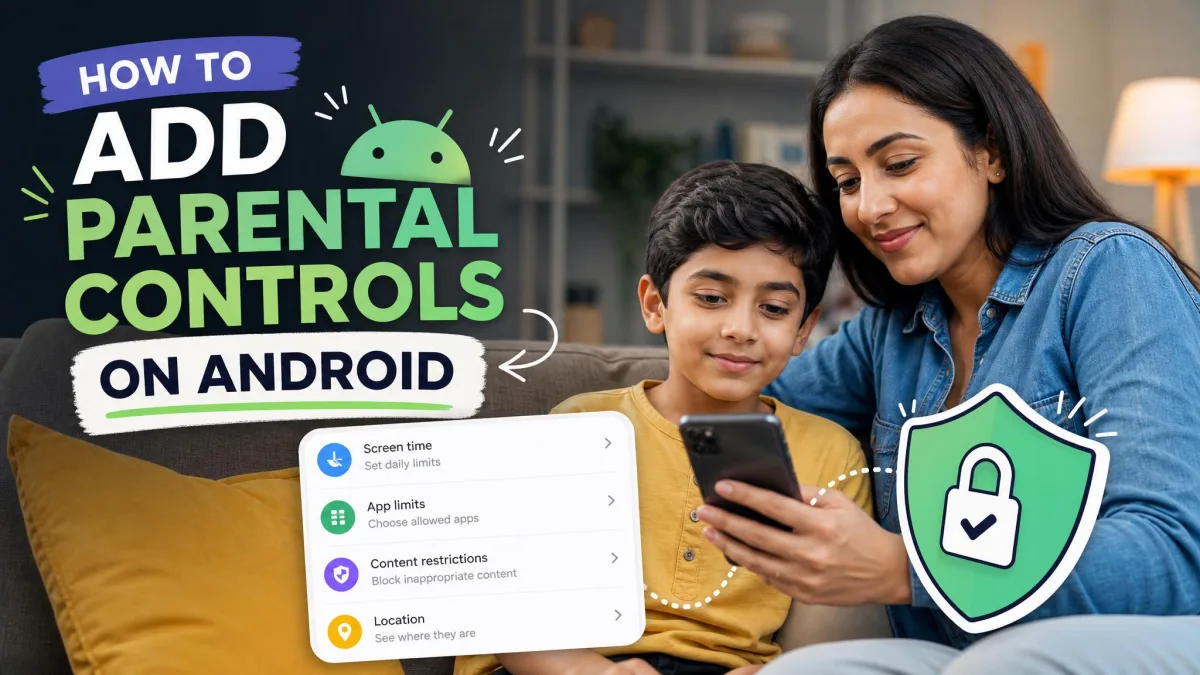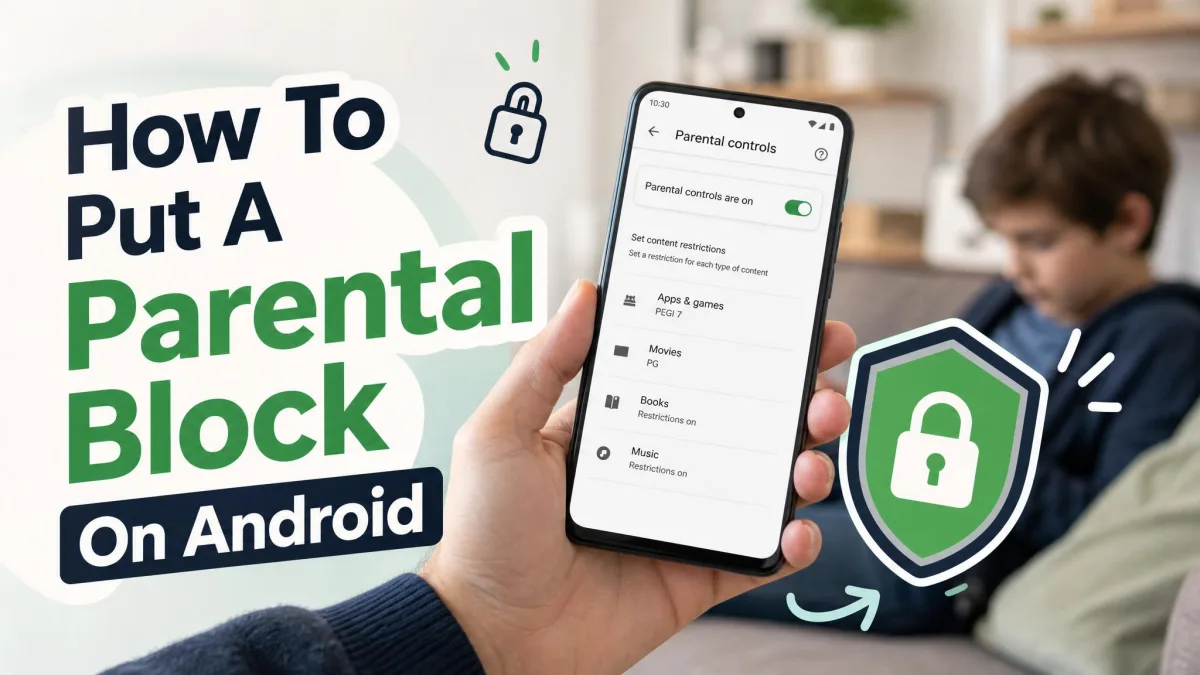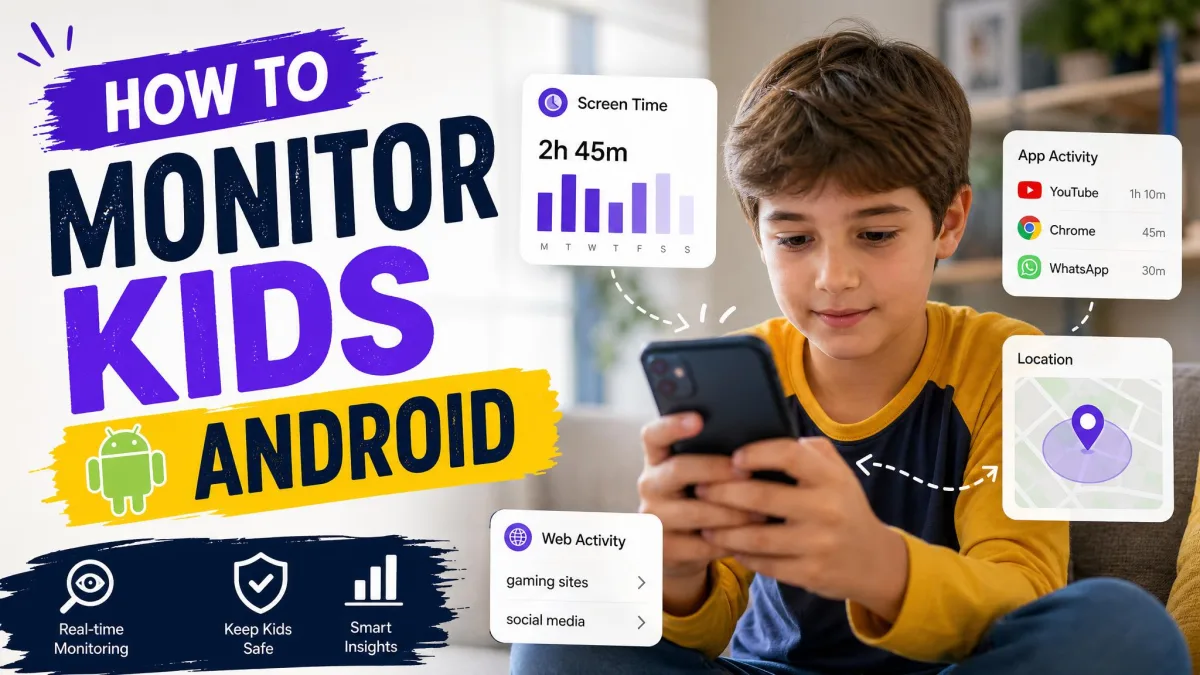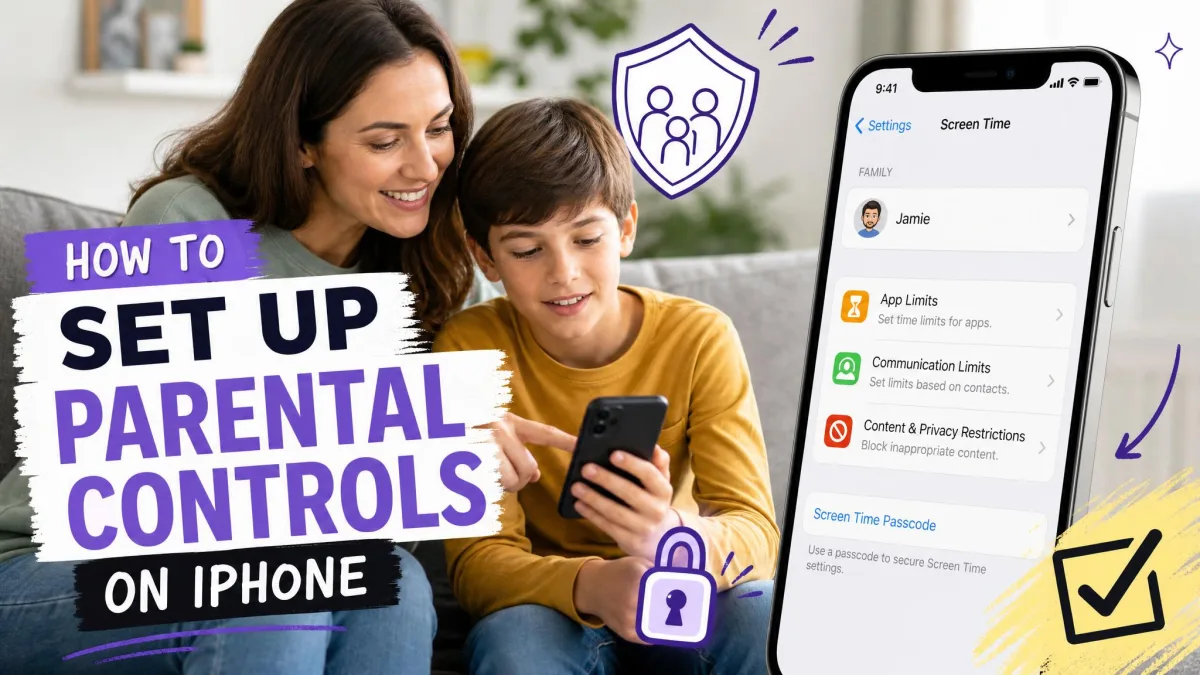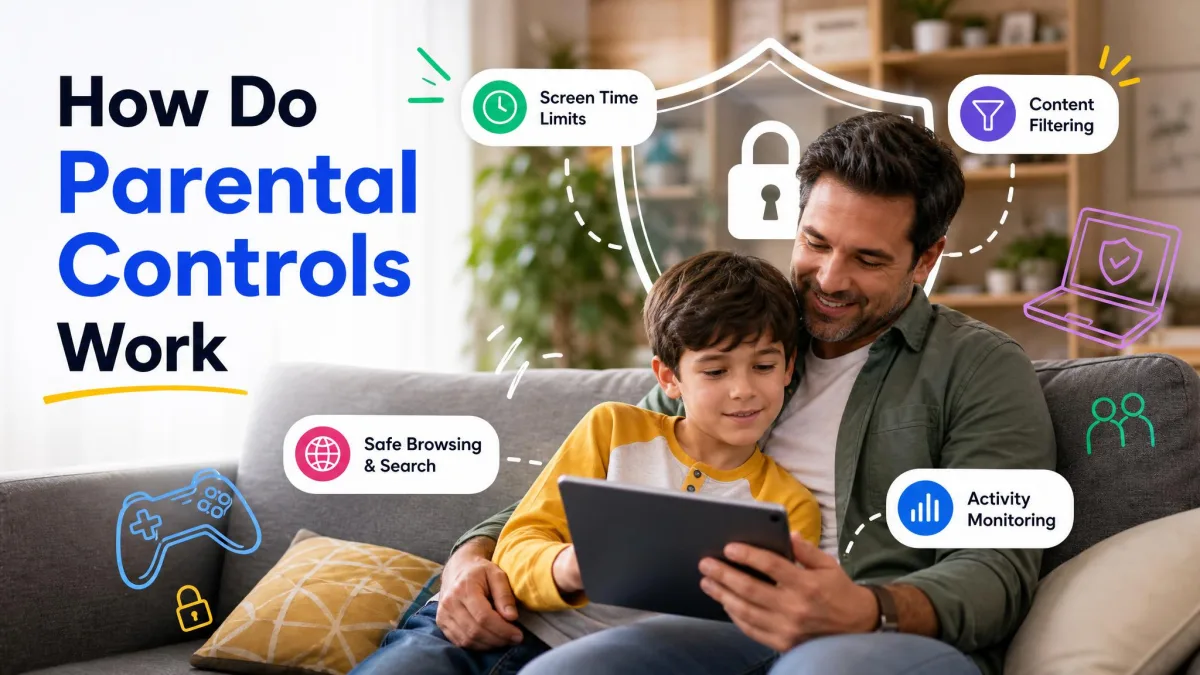
Parental controls on Android decide what your child can install, use, and see on their phone. Android offers two main ways to set them up. Google Family Link is the full remote-management app from Google, while the on-device controls in Android Settings handle screen time, app limits, and web filtering. A third layer, the Play Store's parental controls PIN, restricts downloads by age rating.
We'll walk you through all three paths, plus the extra controls on Samsung and other brands. Used well, these settings build healthy digital habits.
What Are Parental Controls on Android? (and How They Work)
Android parental controls limit what your child can access and for how long. You can set daily screen time limits, schedule downtime for bedtime, block specific apps, and filter web content. Research on screen time and child development, like this JAMA Pediatrics study, helps you set sensible screen time limits for kids.
The controls work at two layers. On-device controls live in Android Settings and need Android 17 or later. Google Family Link works from your phone and manages a supervised Google Account across every device your child uses.
What You Need Before You Start
Before you start, gather everything in one place. You'll need your own Google Account, which becomes the family manager account that supervises your child's device. Make sure the child's phone is charged and connected to Wi-Fi, and install the Family Link app on your phone.
The parent must be 18 or older and live in the same country as the child. Family Link runs on Android 7.0 or later (or an iPhone with iOS 16 or later) for the parent, and the child's device needs Android 7.0 or later, though some help pages still list 6.0. The app is free, with no ads and no subscription.
Method 1: Set Up Google Family Link (The Full Solution)
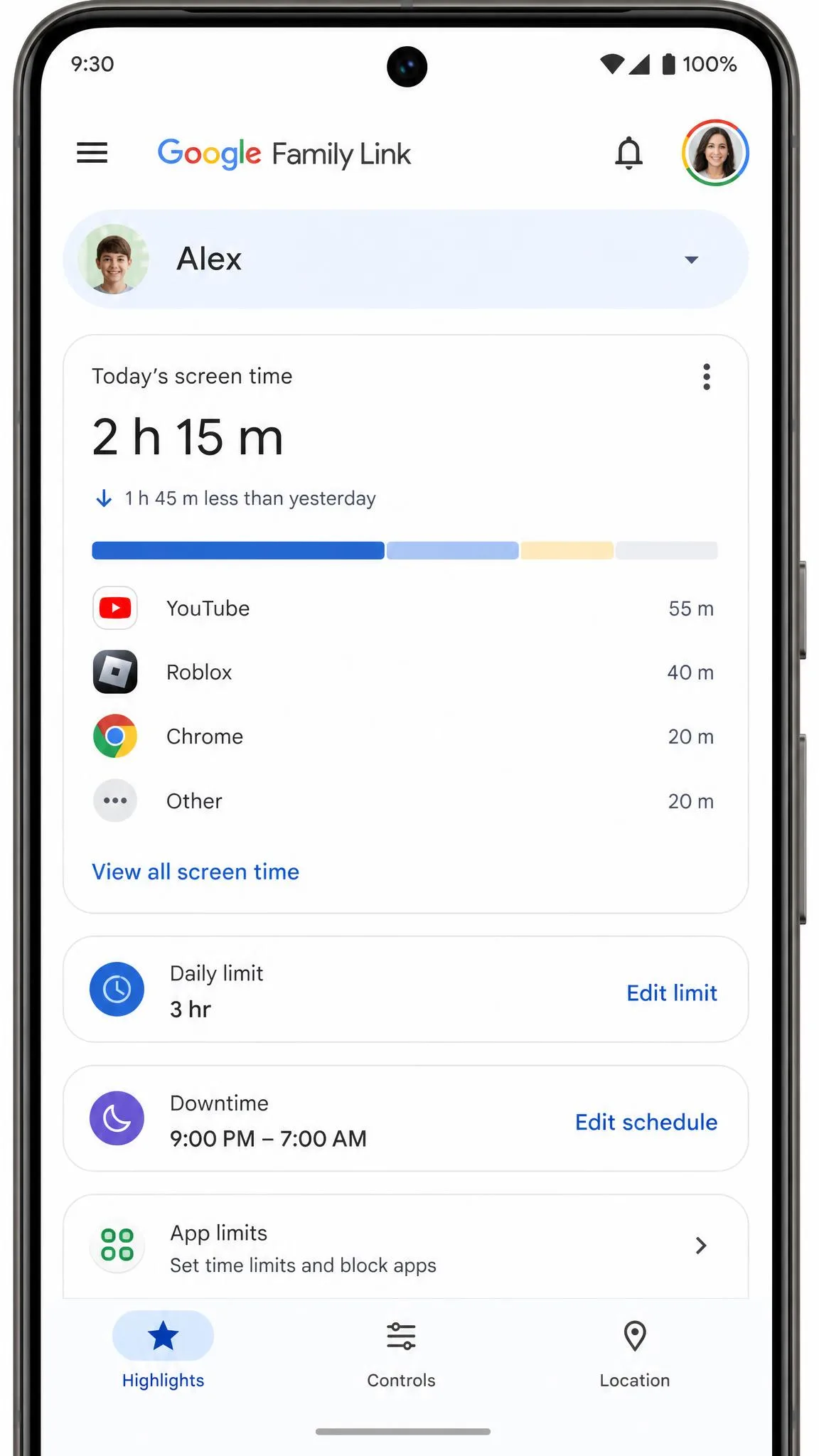
Google Family Link is the closest thing Android has to a complete parental control solution. It creates a supervised Google Account for your child and manages screen time, apps, content, and location from your own phone. Download the app, then follow the steps below.

Create a supervised Google Account for your child
Open the Google Family Link app and follow the prompts to add a child. If your child is under 13, Family Link creates a supervised Google Account for them, which you manage from your own phone. Setup asks for parental consent, usually via a credit-card authorization or a government-ID upload.
The credit-card step is only an identity check. Google does not charge the card, and the temporary hold clears within about 48 hours.
Download Family Link and link your child's device
With the account created, link your phone to your child's device. Sign in with the new supervised account on the child's phone, then follow the pairing prompts. Once linked, every setting you change applies across all of their devices. If your child is over 13, add supervision to the account they already use instead.
What Family Link lets you control (screen time, apps, content, location)
Everything is managed from your phone. Screen time tools include a daily limit, School Time schedules, and Downtime that locks the device during set hours. Per-app time limits can cap a game while leaving homework apps unlimited. You can block apps and require approval for new installs. Content filtering covers Chrome, Google Play, YouTube, Search, and communication.
Location sharing shows your child's current or last-known position, with arrival and departure alerts and a ring-the-device option. In our testing, it showed a live position rather than a location history, and there's no geofencing. Accuracy can be set to High, Battery saving, or Device only.
Method 2: Use the On-Device Controls in Android Settings
If you'd rather keep everything on the child's phone, Android now has parental controls built into Settings. They arrived with Android 16 on Pixel and expanded to all Android 17 devices, a change Google's announcement on expanded Android parental controls detailed when it rolled out on June 16, 2026.
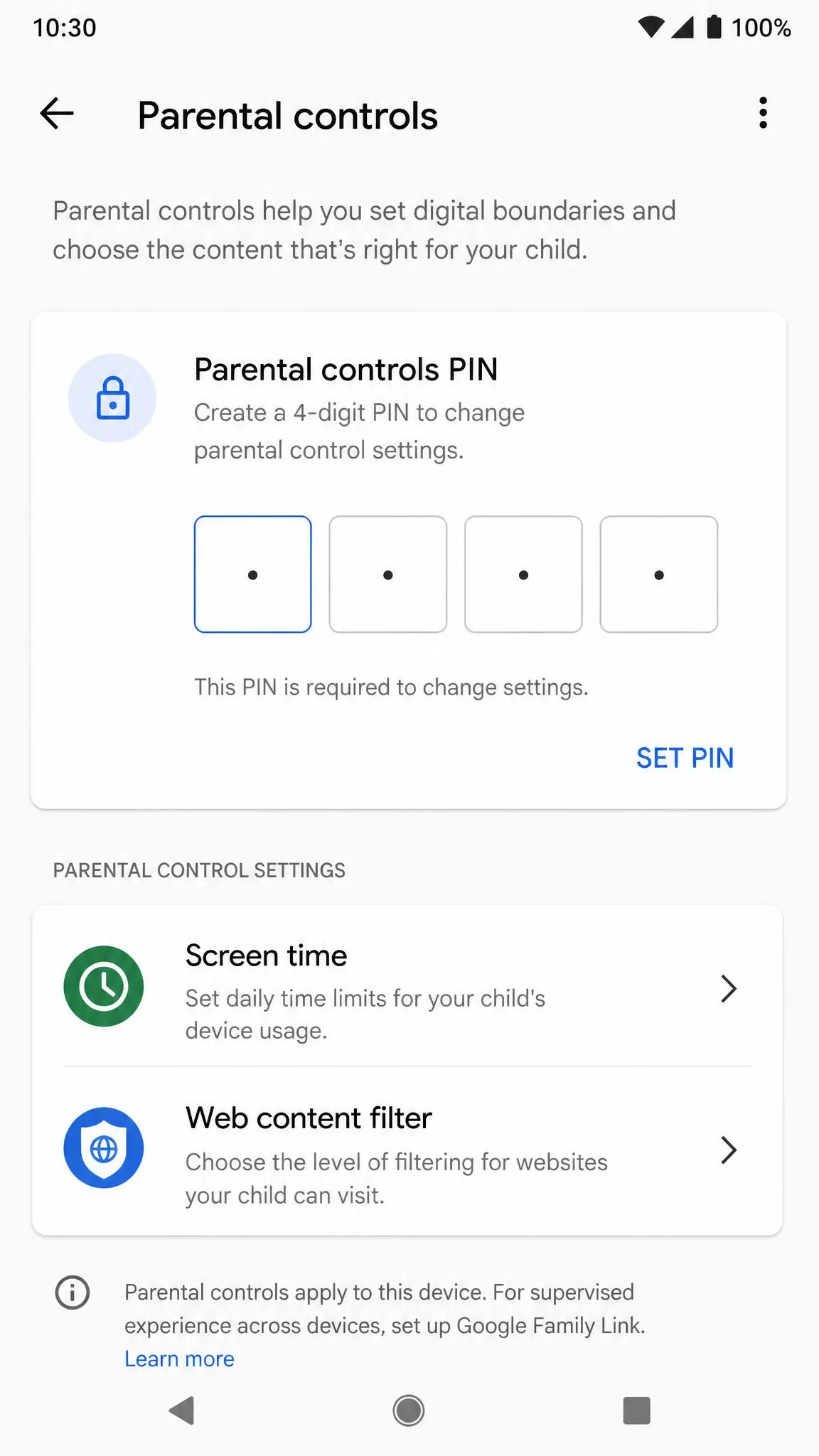
To open them, go to the device's Settings app and tap Parental controls. The first time, you'll set a 4-digit parental controls PIN. Choose one your child doesn't know.
Set screen time limits and schedule device downtime
The screen time tools work like a daily budget. Set a daily usage limit, and the device locks once your child reaches it. Your child can ask for extra time from the lock screen, granted via the PIN. Downtime is a separate scheduled window, so you can lock the phone during dinner, homework, or bedtime.
A consistent downtime schedule helps kids sleep and gives everyone a predictable break from screens.
Approve, block, or set time limits on individual apps
The same section lets you manage apps one at a time. Set a time limit for a single app, or block it completely, and a blocked app disappears from the app drawer. Approval for new installs lives in Family Link, so pair this with Method 1 if that's what you need.
Filter inappropriate web content (Chrome and Google SafeSearch)
Web filtering is handled through Chrome and Google Search. Turn on Block explicit sites to filter adult content, and enable Filter explicit search results via SafeSearch. These filters apply only inside Chrome and Google Search, so content opened in other apps or browsers won't be filtered.
Method 3: Restrict the Google Play Store with a Parental Controls PIN
The Play Store's content restrictions stop your child from downloading apps, games, movies, TV, and books that don't match their age. Google Play content ratings are set by local rating authorities, so levels vary by country.
Set up the parental controls PIN
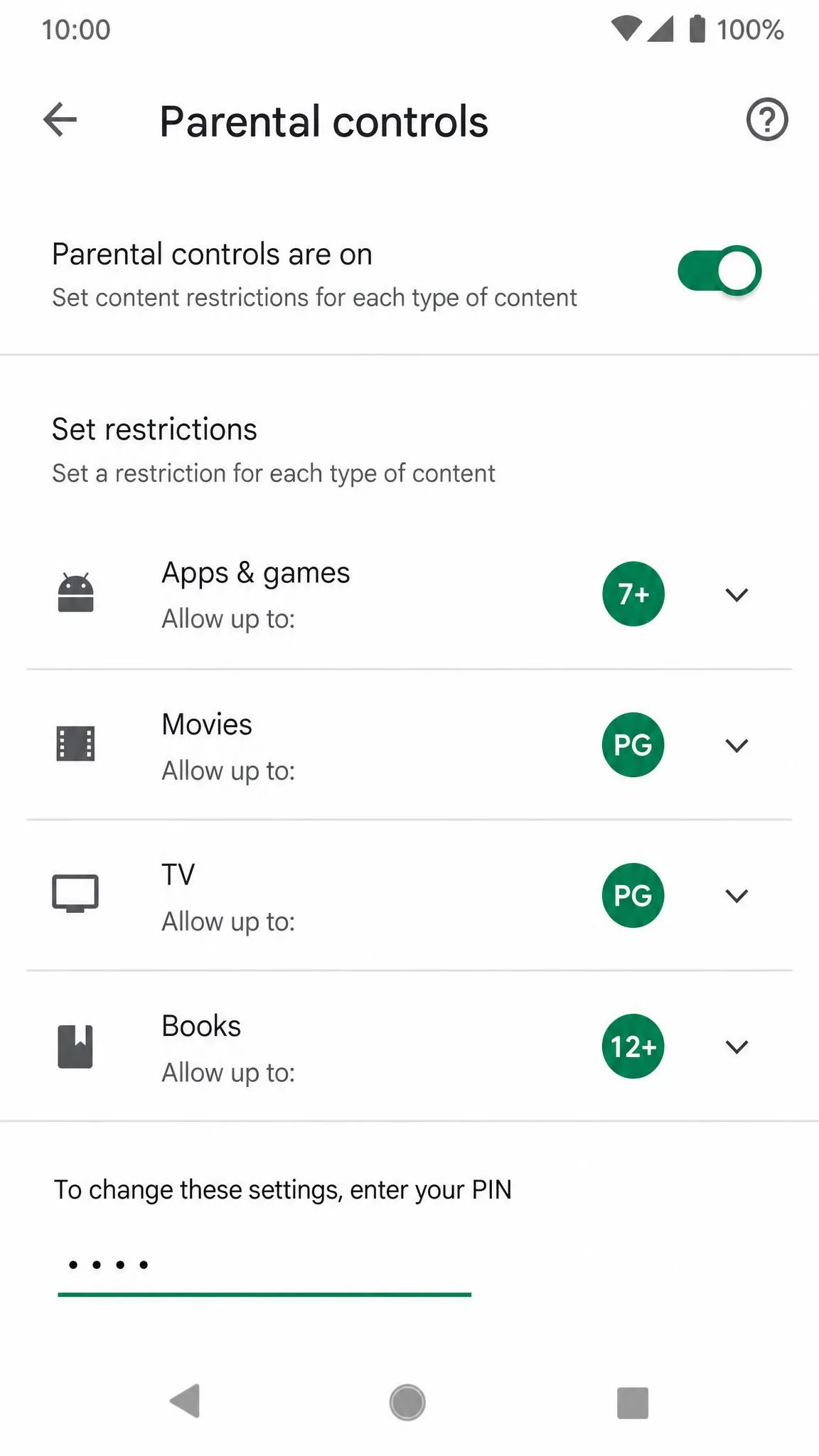
Open the Google Play app on your child's device, tap the profile icon, then Settings, then Family, then Content restrictions. Choose Parental controls and create a PIN your child doesn't know. The PIN must be entered any time the restrictions are changed.
Avoid guessable PINs. Skip birthdays, repeating digits, and the same passcode your child already knows from the phone's lock screen.
Filter apps, games, movies, TV, and books by age rating
Once the PIN is set, pick an age-rating level for apps and games, movies, TV, and books. Everything above that level is blocked from download. Content restrictions apply only to the device they're set on, so repeat the setup on each phone. On newer devices, the Play Store PIN is merging with the Android parental controls PIN.
How to Manage, Change, or Recover Your Parental Controls Later
Parental controls should change as your child grows. In Family Link, open the app and choose your child's account; every change requires your Google Account password. For the on-device controls, open Settings, then Parental controls, and enter the current PIN to update limits. Play Store restrictions are edited the same way.
Change the PIN and update settings
To change the on-device PIN, open Settings, tap Parental controls, enter the current PIN, and update it. In Family Link, PIN changes happen from your phone's app with your Google Account password.
What to do if your child figures out the PIN
If your child works out the PIN, change it quickly. For the Play Store, a forgotten or compromised PIN can be reset by clearing the Play Store app data, which removes the restrictions and forces a fresh setup. For the on-device controls, a recovery account lets you reset the PIN; without one, the only option is a factory reset.
Samsung and Other Android Brands: Extra Parental Control Settings
Samsung Galaxy devices add their own kids mode. Samsung Kids sets up a separate, curated home screen with approved apps, content, and playtime limits, and supports profiles for up to 6 children. Turn it on from the Quick panel and set a PIN or reuse the device lock. The PIN is required to exit or change its settings, and after 5 incorrect attempts, the device asks for your Samsung Account password to reset it.
On most other brands, the same controls appear in Settings under Parental controls; menu names differ, so check your device.
When Built-In Controls Aren't Enough: Top Third-Party Parental Control Apps
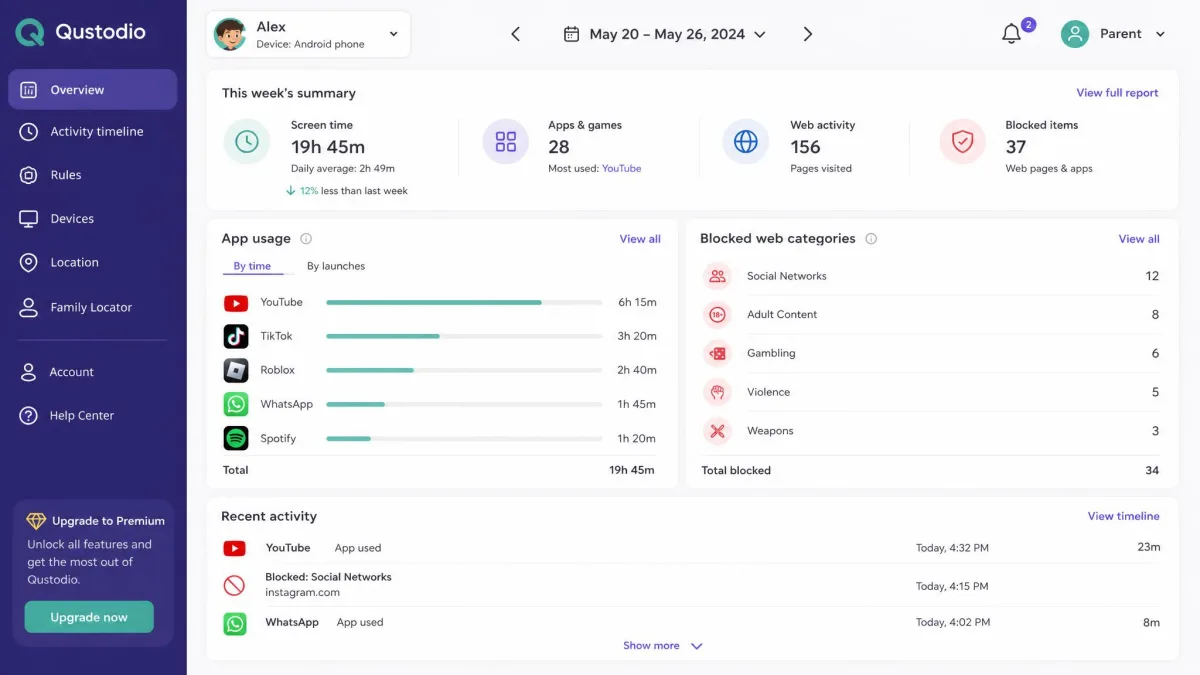
For most families, the built-in controls and Family Link are enough. If you want stronger web filtering or activity reports, a dedicated app adds another layer. Our guide to the top parental control apps for Android covers the leading options in depth, and Qustodio is the representative pick.
Qustodio has a free plan that protects a single device. Its Basic plan is listed at $59.95 per year for up to five devices, and the Complete plan at $104.95 per year for unlimited devices. Prices change, so check the vendor page before you buy.

Built-in vs Family Link vs third-party apps (comparison)
Here's how the three approaches compare at a glance.
| What it covers | Built-in controls | Google Family Link | Third-party apps (e.g., Qustodio) |
|---|---|---|---|
| Free, built into Android | Free, any number of devices | Free tier; paid plans from about $60/yr | |
| Daily limit, Downtime, bonus | Daily limit, School Time, Downtime | Daily limits and routines | |
| Per-app limits, block apps | Per-app limits, block, approval | Category blocking, per-app limits | |
| Chrome and Search (SafeSearch) | Chrome, Play, YouTube, Search, comms | Web filtering, social monitoring | |
| Not included | Live map and arrival alerts | Location monitoring, place alerts |
Frequently Asked Questions
Does Android have a Kids mode?
Can my child turn off parental controls?
Does Google Family Link work for teenagers over 13?
How can I control my child's phone from mine?
Do parental controls on Android work on third-party apps like Netflix or Roblox?
Do I need the Family Link app to use parental controls?
Conclusion
Setting up parental controls on Android is quick. Start with the two free Google tools: the on-device controls for screen time and app limits, and the Play Store PIN to gate downloads. Add Google Family Link for remote management, and a third-party app only if your child needs stronger filtering. Review the limits every few months.