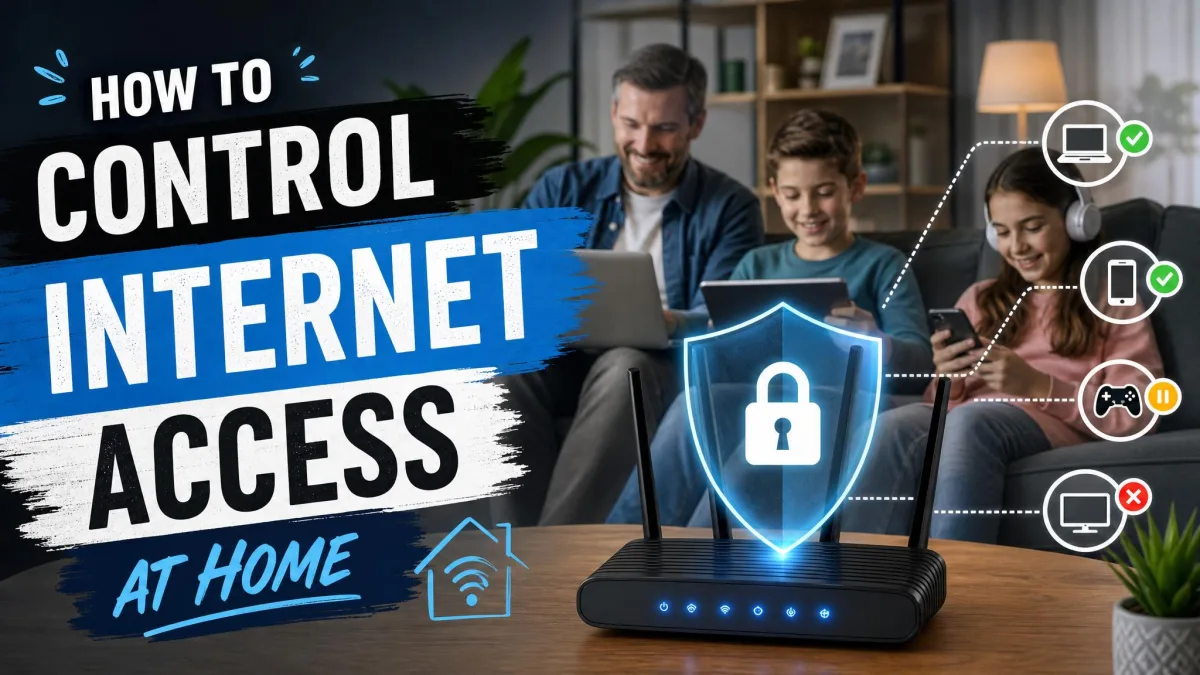
Controlling internet access at home means deciding which devices, users, and times get onto your network, and what they can reach once they're connected. The controls for that job live in the router, in the operating system on each device, and in the apps built to manage both.
Most families take this on for the same reason: kids. A phone or tablet is most children's gateway to schoolwork, friends, and entertainment, and most routers now ship with parental controls built in. This guide covers the controls in the order you would set them up: router-wide settings, content blocking, time schedules, and per-device limits on phones, consoles, and smart TVs. No single control is bulletproof, and the setups that stick combine layers.
Why Controlling Internet Access at Home Matters
Internet access is not all-or-nothing. A home network carries every phone, tablet, laptop, and console under one roof, which makes the router the one place where a single rule applies to everyone at once.
Benefits of managing your home network
Done well, home access control does more than keep kids away from adult content. Content filtering keeps age-appropriate material in reach, screen-time limits protect sleep and homework, and bandwidth management stops one stream from starving the rest of the house. Keeping unknown devices off the network lowers exposure to strangers on your Wi-Fi.
The stakes go beyond screen time. The FBI's Internet Crime Report logged more than 800,000 complaints and $10.3 billion in reported losses in 2022. Filtering what crosses your home network is a reasonable first line of defense.
Common reasons to limit internet access
Families reach for these controls for a handful of recurring reasons:
- Keeping kids off adult content and unfamiliar sites
- Protecting sleep and schoolwork from late-night scrolling
- Curbing a game console that starves the Wi-Fi
- Limiting what visitors and guest devices can reach
The sections below walk through each tool in the order that makes sense on most networks.
How to Control Internet Access Through Your Router
The router is where network-wide rules live, and it is the natural first stop because every device on your Wi-Fi connects through it. In our testing, the built-in tools handled the basics well, and the gaps were consistent: VPN traffic slips past most filters, rotating device addresses defeat per-device rules, and a determined child finds the way around that the manual never mentions.
Change your Wi-Fi password and network name
The Wi-Fi password is the first control to set, and the most overlooked one. A default or shared password lets anyone in range join your network.
Log into the router's admin page, open the wireless settings, and set the network name and passphrase. Choose a long passphrase that does not echo your address or family name, and set WPA3, the latest wireless encryption standard, if your router supports it. Then rejoin your own devices with the new passphrase.
Enable router-level parental controls
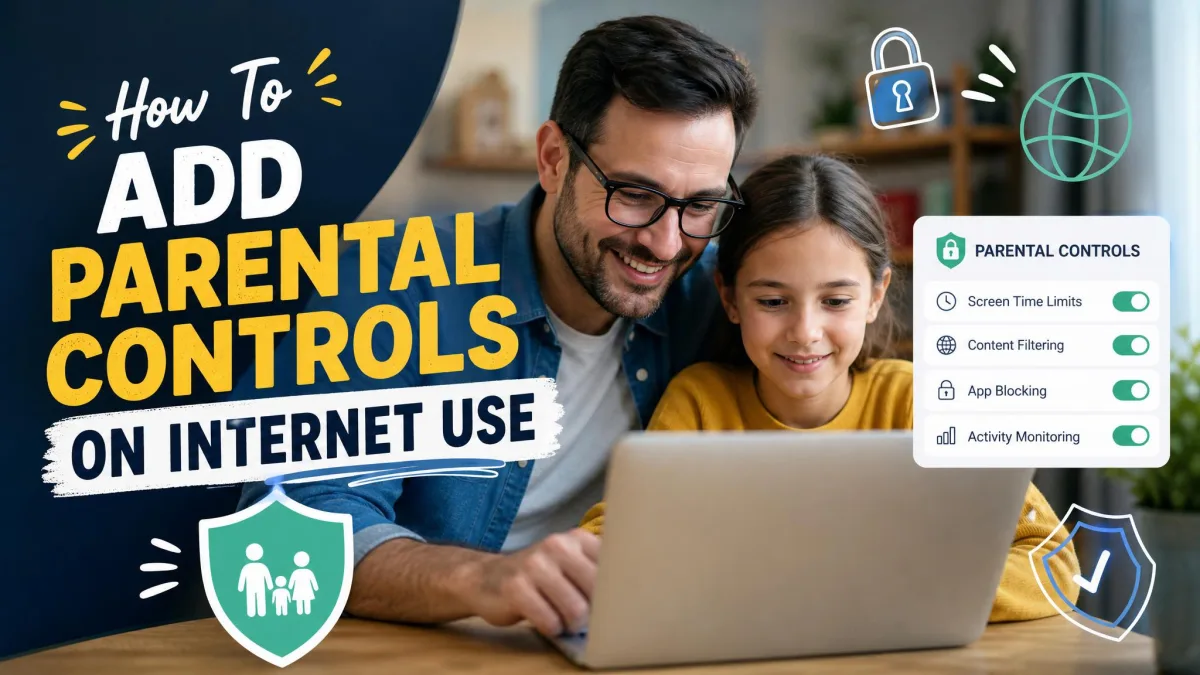
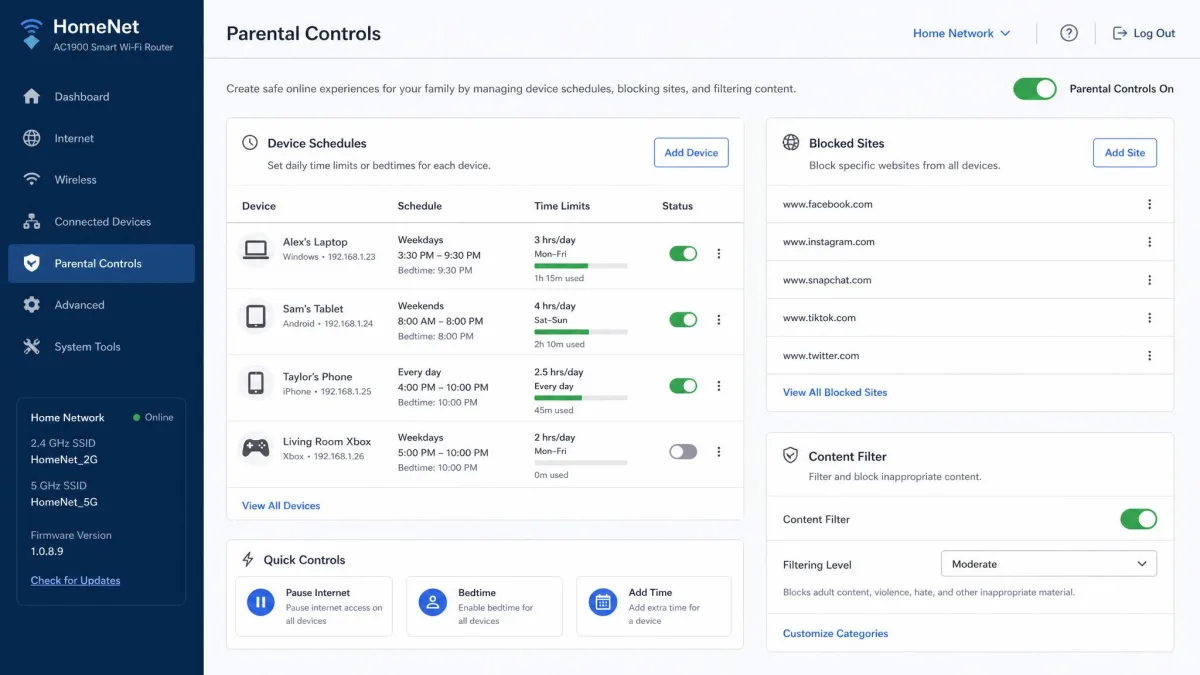
Every major router family ships a parental-controls panel now. Netgear pairs its built-in Block Sites and Schedule screens with Circle Smart Parental Controls, TP-Link bundles HomeShield, Asus uses AiProtection, and eero via its paid Secure plan. Across menus you get the same core: per-device schedules, website and app blocking, content filters, and SafeSearch enforcement.
For a brand-by-brand walkthrough, a Forbes guide to parental controls on your router covers the common admin panels. Some features sit behind a subscription. Circle Premium on NETGEAR routers, for example, costs $4.99 a month or $49.99 a year after a one-month free trial.
Set up a guest network for visitors and kids
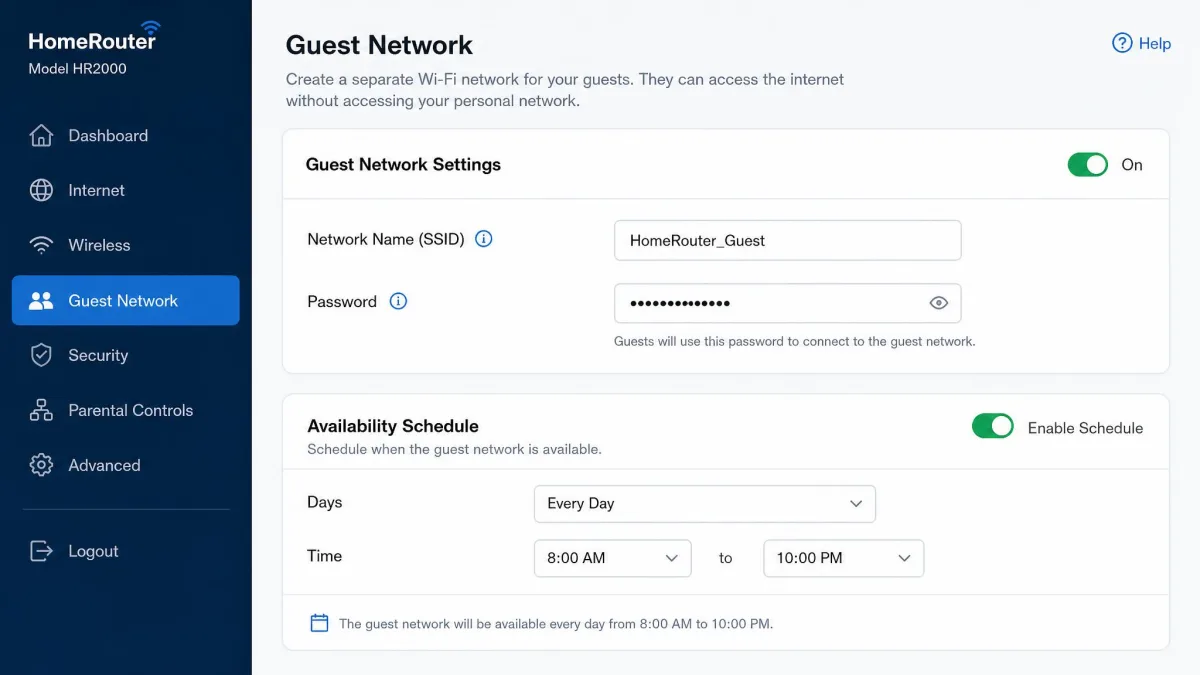
A guest network is a second, isolated Wi-Fi network with its own name and password. Devices on it cannot reach the main network's shared folders, and many routers let you schedule or restrict it independently, which makes it a natural home for kid devices.
One caveat from our testing: per-device rules do not always follow a device onto a guest network. On some routers a MAC-based policy applies only on the main network, so set the policy where the device actually connects.
Block specific devices with MAC address filtering
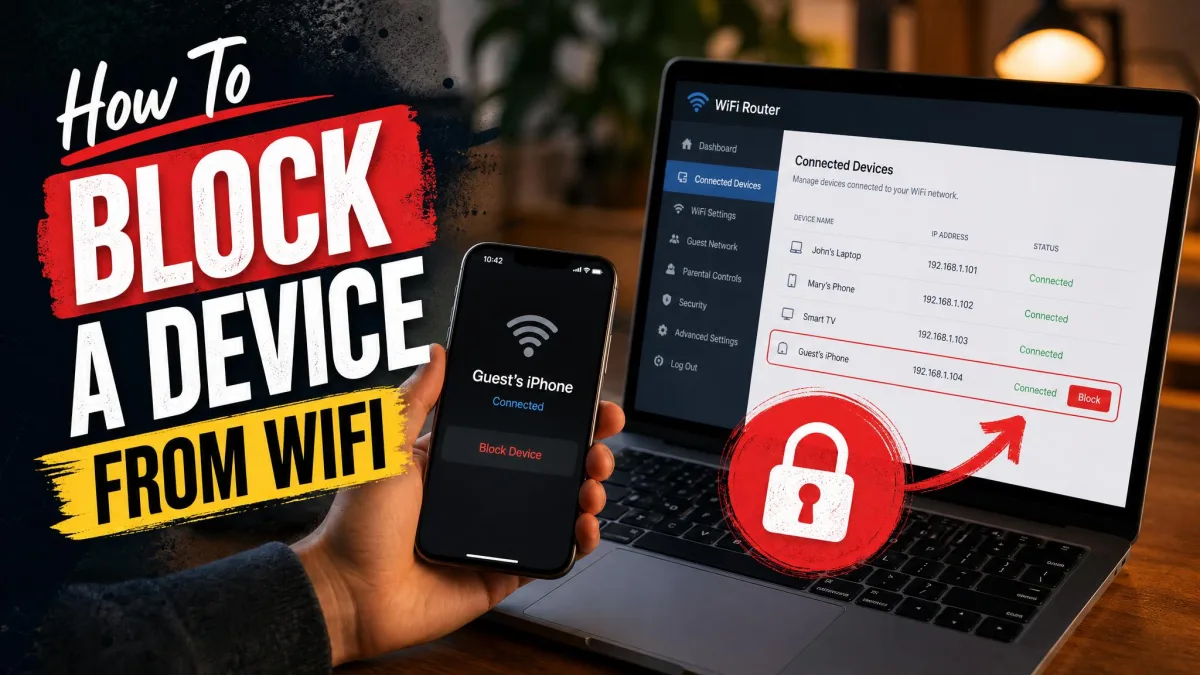
MAC address filtering blocks a device by its hardware address through the router's Access Control list. It is the oldest way to say "this specific device is not allowed", and it works until it quietly stops working.
Modern phones and tablets randomize their Wi-Fi MAC addresses. A child's device can reappear on the router as a brand-new, unrestricted device, and the block you set on Tuesday is gone by Thursday. Enabling some vendor parental-control suites also disables the router's own MAC-filtering fallback.
Router-level controls filter by device and schedule, not by person. A VPN client can carry traffic past most filters even after bedtime, and a phone that rotates its MAC address becomes a new device the next time it connects. Treat router rules as the baseline layer, not the whole answer.
How to Block Websites and Content at Home
Router schedules decide when a device can connect, but blocking content is a different job. It needs a filter that decides which sites and apps a device may reach.
Use DNS filtering to block content network-wide
DNS filtering is the fastest network-wide content block you can set. When a device asks where a website lives, a filtered resolver answers only for domains it allows, and because the router forwards those lookups for the whole network, one DNS change filters every connected device at once.
Three free services dominate the conversation, and none requires an account to start:
- Quad9 answers at 9.9.9.9 and blocks malware, phishing, and botnets, but it filters no content categories.
- CleanBrowsing's free Family Filter at 185.228.168.168 enforces SafeSearch on Google, Bing, and YouTube, blocks VPN and proxy domains, and adds more than 26 categories on paid plans from $75 a year.
- OpenDNS FamilyShield at 208.67.222.123 blocks four content categories plus phishing and dangerous sites.
Any of these is a change to one router field. Set the DNS servers your router hands to the family, and every device inherits the filter.
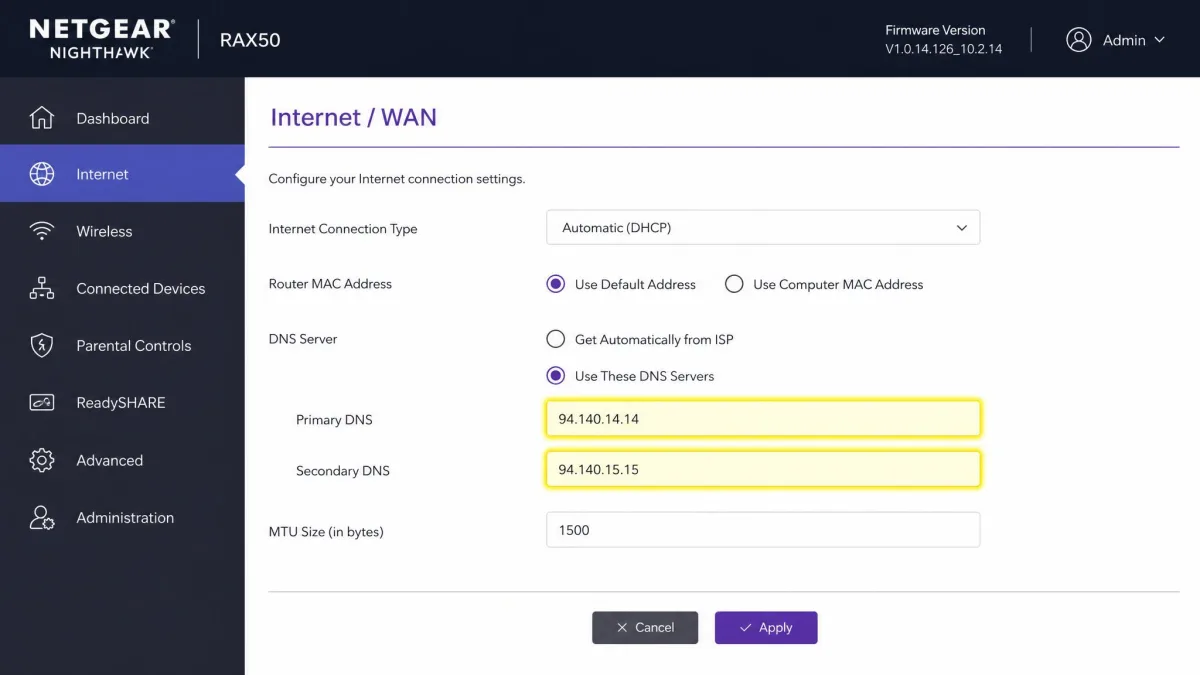
DNS filtering has a clean setup and a clear ceiling. It blocks at the domain level, so it cannot restrict one page inside an allowed website. It is also easy to route around: a device can change its own DNS settings, connect a VPN, or use a browser that sends DNS-over-HTTPS elsewhere. In our testing, the pattern held every time, so we pair DNS filtering with device-level limits.
In the AV-Comparatives 2025 DNS test, CleanBrowsing blocked 84% of 1,000 adult sites with zero false alarms on 200 child-friendly sites, and the same report warns that blocklists can still flag a legitimate site or miss a new domain.
Block specific websites and apps on your router
For individual sites, the router's built-in block list is the simplest tool. On a NETGEAR router, the Block Sites screen is a single field where you add a URL or keyword, and NETGEAR's support page walks through the steps. Asus and TP-Link offer the same idea under Web & Apps Filters and HomeShield.
Use parental control apps for granular control
Router and DNS filters control what a device can reach, but granular control of apps, time, and purchases needs a parental control app on the device itself. Google Family Link and Apple's Screen Time are the two built-in starting points, both free. For a current hands-on comparison, our 9 Best Parental Control Apps for Android (2026): Tested and 8 Best Parental Control Apps for iPhone (2026) put the leading options side by side.
How to Limit Internet Access by Time and Schedule
Content blocking decides what a device can reach, but time limits decide when it can reach anything at all. For most families, this is the control that changes daily life the most.
Set internet downtime schedules on your router
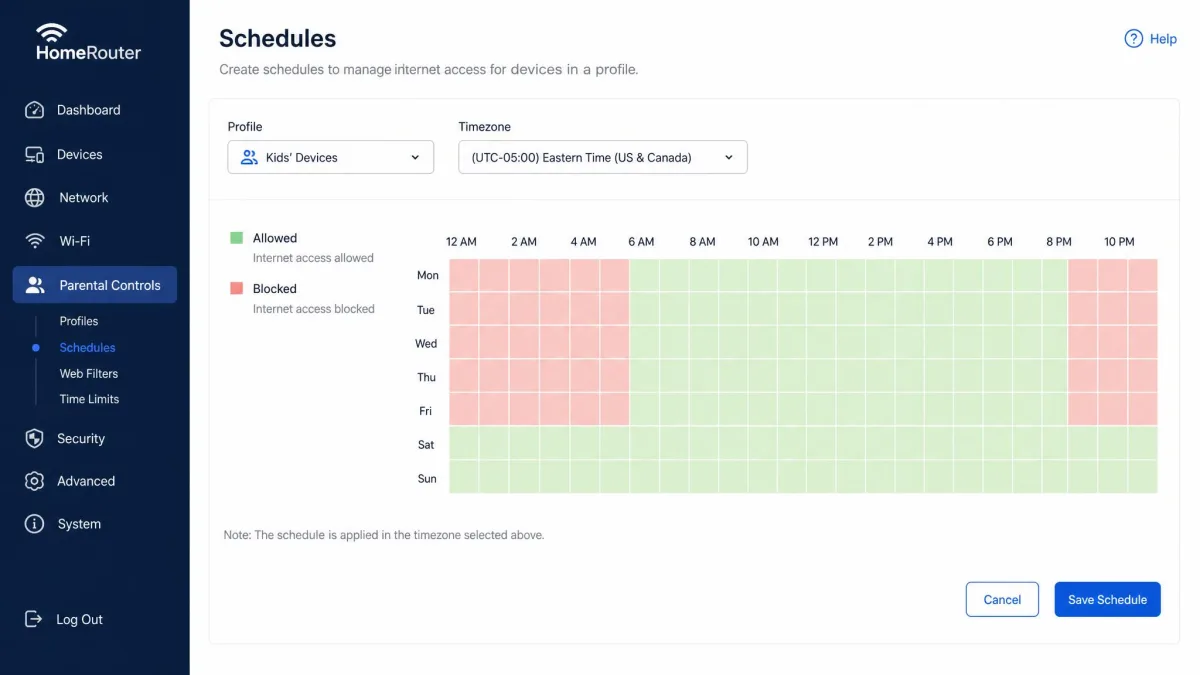
Nearly every modern router can take a device offline on a schedule. Netgear calls it Schedule, Asus Time Scheduling, and TP-Link Family Time, and each lets you set when a device's internet goes dark. The router-level approach also applies to consoles and smart TVs that have no built-in screen-time app.
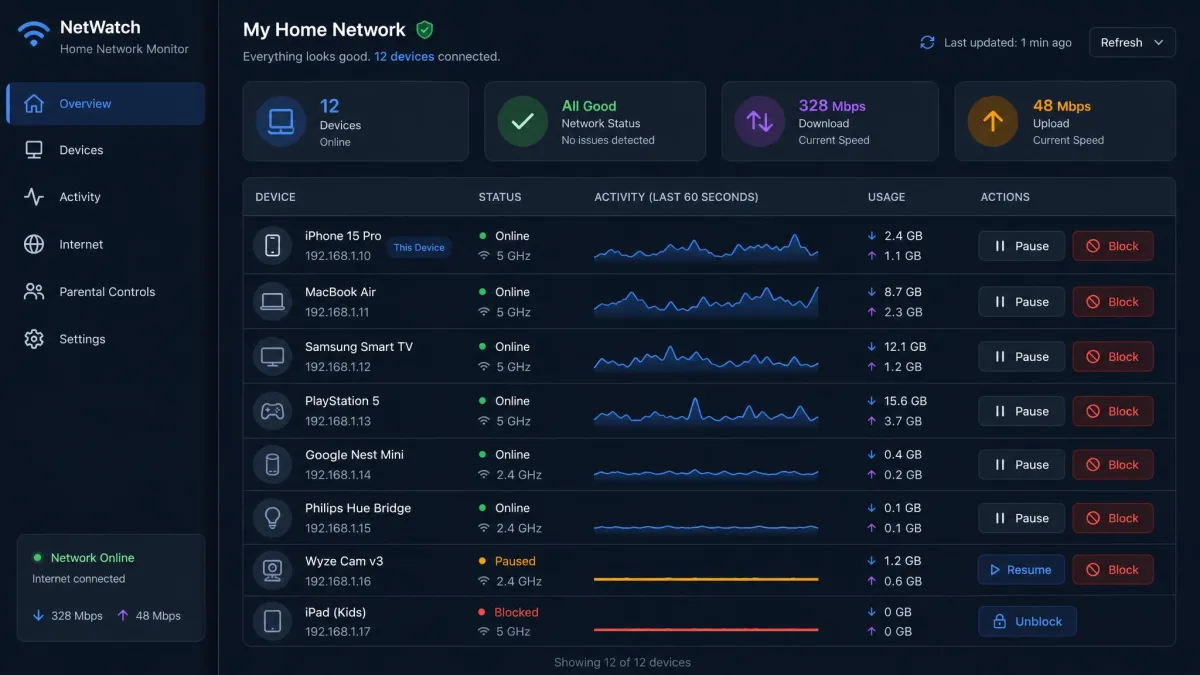
Dedicated network tools can layer flexibility on top with per-device downtime windows for households with different bedtimes.
Use screen-time limits on phones and tablets
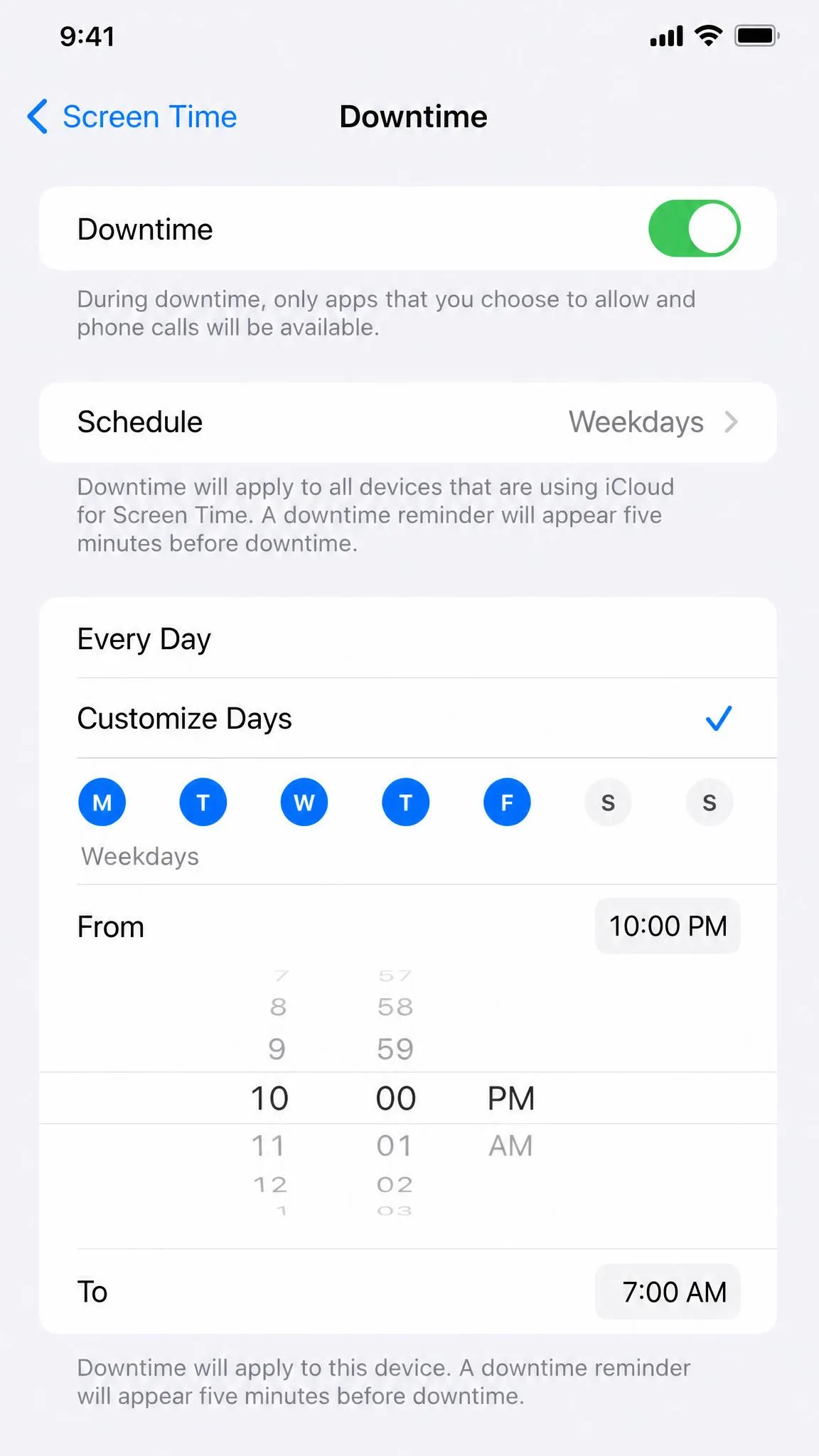
On phones and tablets, the operating system is the control panel. Apple's Screen Time, built into iPhone, iPad, and Mac since iOS 12, offers Downtime windows, per-app limits, and Communication Limits. Google Family Link does the same on Android with daily screen-time limits, School Time, and Downtime schedules, and it is free with a Google Account. Both apply on the device, so they keep working when the phone leaves home.
Both tools are strong, and both have gaps we logged while testing. Family Link's web filtering applies only inside Chrome, its supervision ends when the child turns 13 in most regions, and it sets per-app limits one at a time. Screen Time's four-digit passcode is easy to guess, and some children open the web version of an app in Safari to dodge an app limit.
Layer device limits under your router schedule. The router cuts the connection at bedtime, and the device's own limit still applies when the phone leaves the house or joins a different network. Together they cover the gap each one leaves.
Create internet-free zones during meals, homework, and bedtime
Technical schedules are easier to enforce when the household agrees on the same rules. An internet-free zone is a time and place where devices sit out of reach: phones in a basket during dinner, tablets in the living room overnight. The router schedule backs these habits up automatically.
How to Control Internet Access on Specific Devices
Router schedules cover the home network, but a phone leaves the house, and a console carries a full web browser. Some controls have to live on the device itself.
Phones and tablets (iOS Screen Time, Android Family Link)
On an iPhone or iPad, Screen Time works best through Family Sharing, so limits and content restrictions follow the child's Apple ID across every Apple device. On Android, Google Family Link supervises a child's device from a parent phone, and you can create and manage a Google Account for a child under 13. Family Link's parent app runs on Android or iOS, but it cannot supervise an iPhone or iPad, so Apple households use Screen Time instead.
Gaming consoles and smart TVs
Consoles keep their own family accounts, and each platform's parental settings live there: an Xbox family group, PlayStation family management, and Nintendo's parental controls app. Set the console's restrictions rather than assuming the router covers it, because consoles double as web browsers. Smart TVs are a mixed bag: most have app-level parental settings, but content a smart TV loads from the web needs a router schedule or DNS filter as the backstop.
PCs and work-from-home devices
Windows and macOS both include family-safety settings tied to the Microsoft account and the Apple ID. Leave work-from-home machines out of the family restrictions entirely. A work laptop answers to your employer's policy, and blocking it at home can cut you off from the job.
Advanced Internet Access Management
Once the basics are in place, the same router settings go further. The advanced options are not complicated.
Restrict bandwidth by device
Quality of Service, or QoS, decides which devices get bandwidth first. Use it to guarantee the home-office laptop enough speed for video calls, or to cap a game console's downloads so one player stops starving the house.
Monitor internet activity across your network
Most routers log which devices connected and when, and several vendor apps turn that into a readable report. For deeper visibility, network tools fill the gap, and in our testing Fing illustrates both the promise and the catch of app-based access control. The free tier identifies devices and monitors the network, while premium features such as per-device blocking and scheduled downtime start at $7.99 a month or $69.99 a year. Two caveats came out of the same testing: blocking rules only enforce while the controlling app stays running, and smart-home gadgets often show up as generic entries. Trustpilot's community rates the Fing app 4.5 out of 5 across more than 1,300 reviews.
Set up user profiles and per-device schedules
The most useful advanced router-software setting groups devices into people. Netgear, Asus, and TP-Link routers let you assign each device to a family member's profile, then apply one schedule and one content policy to the whole profile. A school-nights profile can cover a phone, tablet, and console with one bedtime.
Keeping Kids Safe Online (and Talking About It)
The technical controls reduce what a child can reach, but they cannot teach a child what to do when something slips through. That part is a conversation, and it belongs in the plan from the first day.
Set household expectations for device use
Write down what the household agrees on before you turn on a single filter. Decide where devices are allowed, when they power down, and what you want to happen when a limit is reached. Families that set expectations together enforce filters with less friction, because the child understands the rule as a family rule. Keep the agreement short, and review it every few months.
How to talk to your child about internet safety
Keep the conversation age-appropriate and routine. Explain why a filter exists in terms a child can hold: it is the same reason the front door locks. Tell your child to come to you with anything scary or confusing, and mean it. The Australian eSafety Commissioner's parental-controls guide is a strong resource for what to say at each age.
Good parental control is calibration, not surveillance. The goal is to protect a child, not to watch one, so review the monitoring you turn on and tell your child what is tracked and why. Tools that build trust last longer than tools that build resentment.
For more on that balance, How to Monitor Kids' Phone Usage Without Invading Privacy walks through the lighter-touch options.