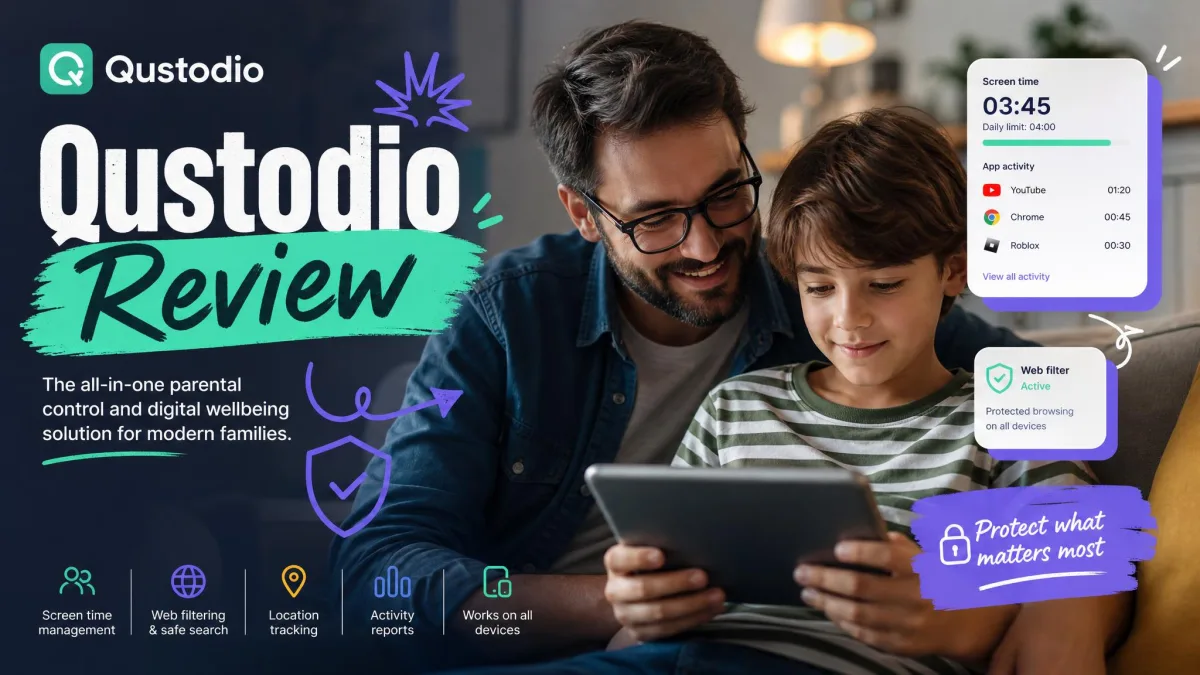
Qustodio is a parental control app that filters websites, sets screen time limits, blocks apps, tracks location and reports back on what your child is doing across their devices. Our verdict after living with it on real family devices is that it remains one of the strongest Android parental control apps you can buy, and a noticeably thinner product on iOS. If your household runs on Android phones, Qustodio is worth it. If your kids are on iPhones and you mainly want message monitoring, you will hit the platform limits fast.
We set Qustodio up on a parent iPhone, a child Android phone and a Windows laptop, then ran it as the household's only parental control app for several weeks of ordinary school-term use before writing this review.
Qustodio at a Glance: Our Verdict
Qustodio has been in this category for well over a decade, and the version we tested is a mature product rather than a work in progress. It sells one idea: a parent dashboard that pulls every child device into a single view, with rules you set once and adjust as your kids get older. Everything below unpacks how that idea holds up on real family phones, and how much of it depends on which phone your child happens to carry.
What Is Qustodio and Who Is It For?
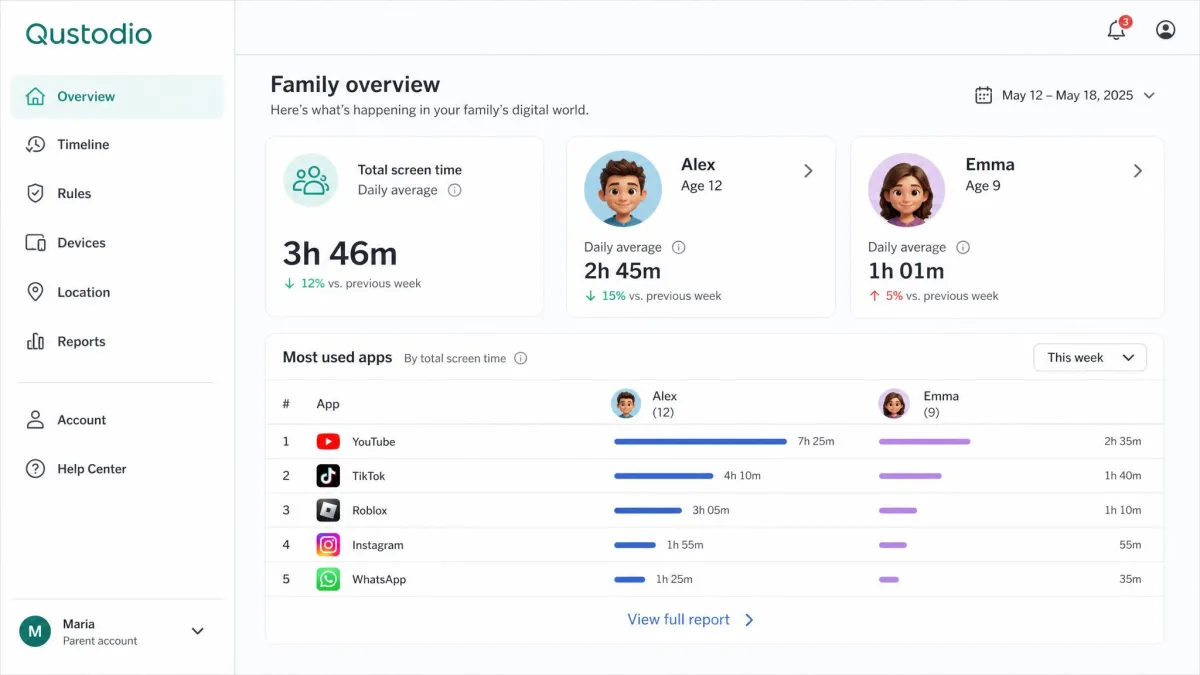
Qustodio is a subscription parental control service built around two pieces of software: a parent dashboard you use on the web or on your own phone, and a child app you install on each device you want to supervise. The child app reports activity back to the dashboard and enforces whatever rules you set, from a bedtime cut-off to a blocked website category.
It suits parents of primary and early secondary school kids best. At that age you are mostly setting boundaries rather than investigating, and boundaries are what Qustodio is good at.
Parents of older teenagers get a mixed deal. The monitoring depth is there on Android, but the tone of the app is supervisory rather than collaborative, and tech-savvy teens will start probing the edges of it.
Qustodio Pros and Cons
Pros
- Category-based web filtering with a useful third option beyond block and allow
- Accurate app-level restrictions and app usage tracking in day-to-day use
- A free plan that includes real filtering and screen time limits rather than a crippled demo
- Broad device support including Windows, macOS, Android, iPhone, iPad, Chromebook and Kindle
- Tamper and uninstall protection, including on iOS
- 30-day money-back guarantee on both paid plans
Cons
- Social message monitoring and call blocking are Android only
- Content alerting misses things, including bad language in texts and picture messages
- No way to tune the flagged search term list
- No phone support unless you buy the Care Plus add-on
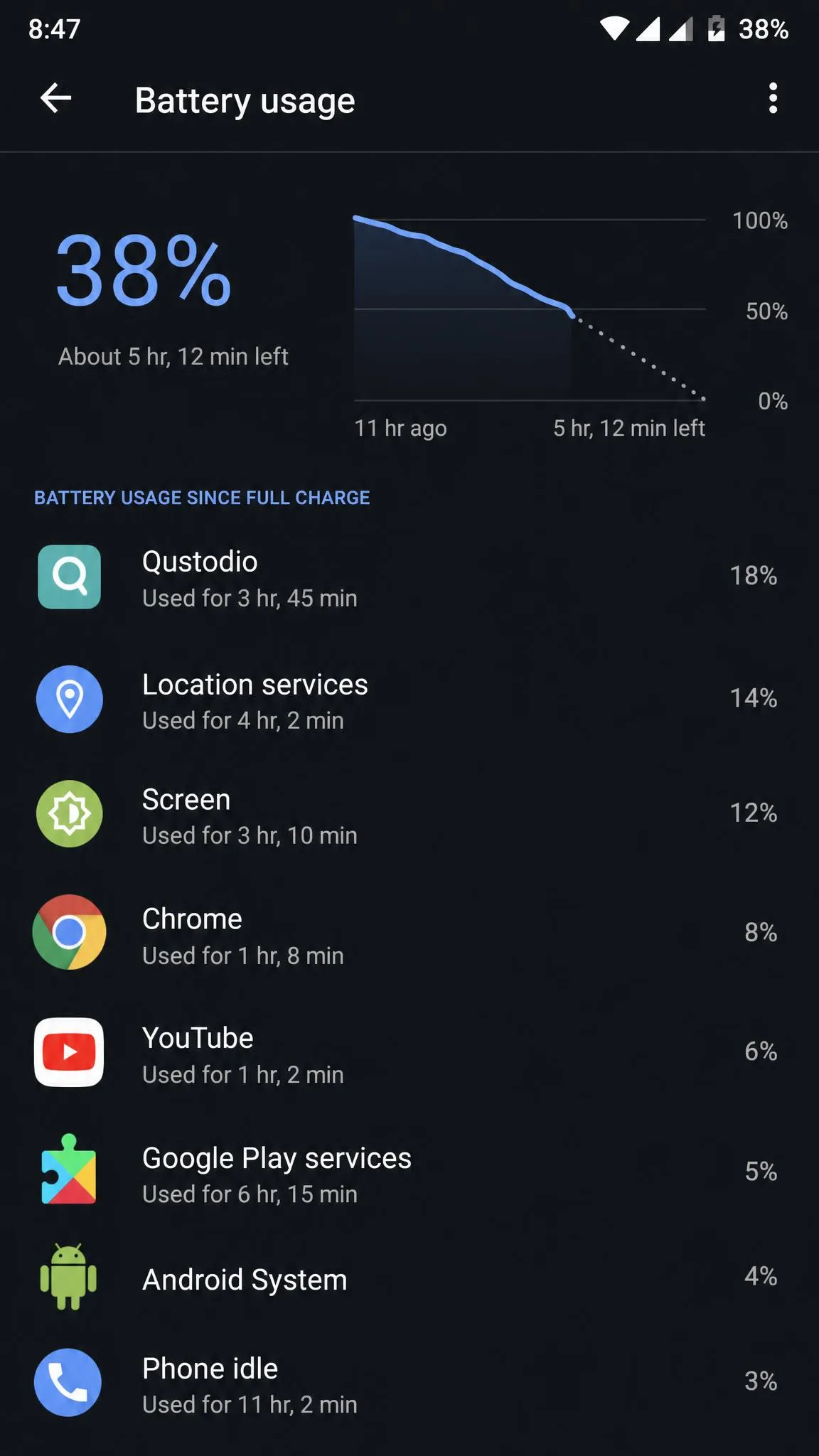
- Battery drain on the child device, especially on older phones
- Renewal and refund handling is a recurring complaint
Qustodio Features: What You Actually Get
The feature set covers web content filtering by category and by URL, daily and per-app screen time limits, daily routines, games and app blocking, location tracking, geofencing, call and text monitoring, the Panic Button SOS alert, YouTube monitoring, social message monitoring, activity reports and alerts, tamper protection and the family dashboard. Which of those you get depends on your plan and, just as much, on the platform your child is using.
Web Content Filtering
Filtering is the part of Qustodio we would keep if we could only keep one feature. You get roughly 25 to 30 web content categories, though published counts vary depending on how sub-categories are tallied, and each category can be set to one of 3 actions: block it, allow it, or allow it and send you an alert. That third option is the useful one, because it lets you keep tabs on a category like social networking without slamming the door on it.
In our testing the filter held. Blocked categories stayed blocked when the browser was switched to Incognito mode, and turning on a VPN app did not get around it either. That matters, because those two moves are the first things a curious kid tries.
You can also block or allow individual sites, which is how you handle the inevitable exceptions, such as a school research site that lands in a blocked category.
Set a handful of categories to allow with an alert rather than block. You get visibility without a daily stream of requests to unblock things, and the alerts tell you what to talk about.
Screen Time Limits and Daily Routines
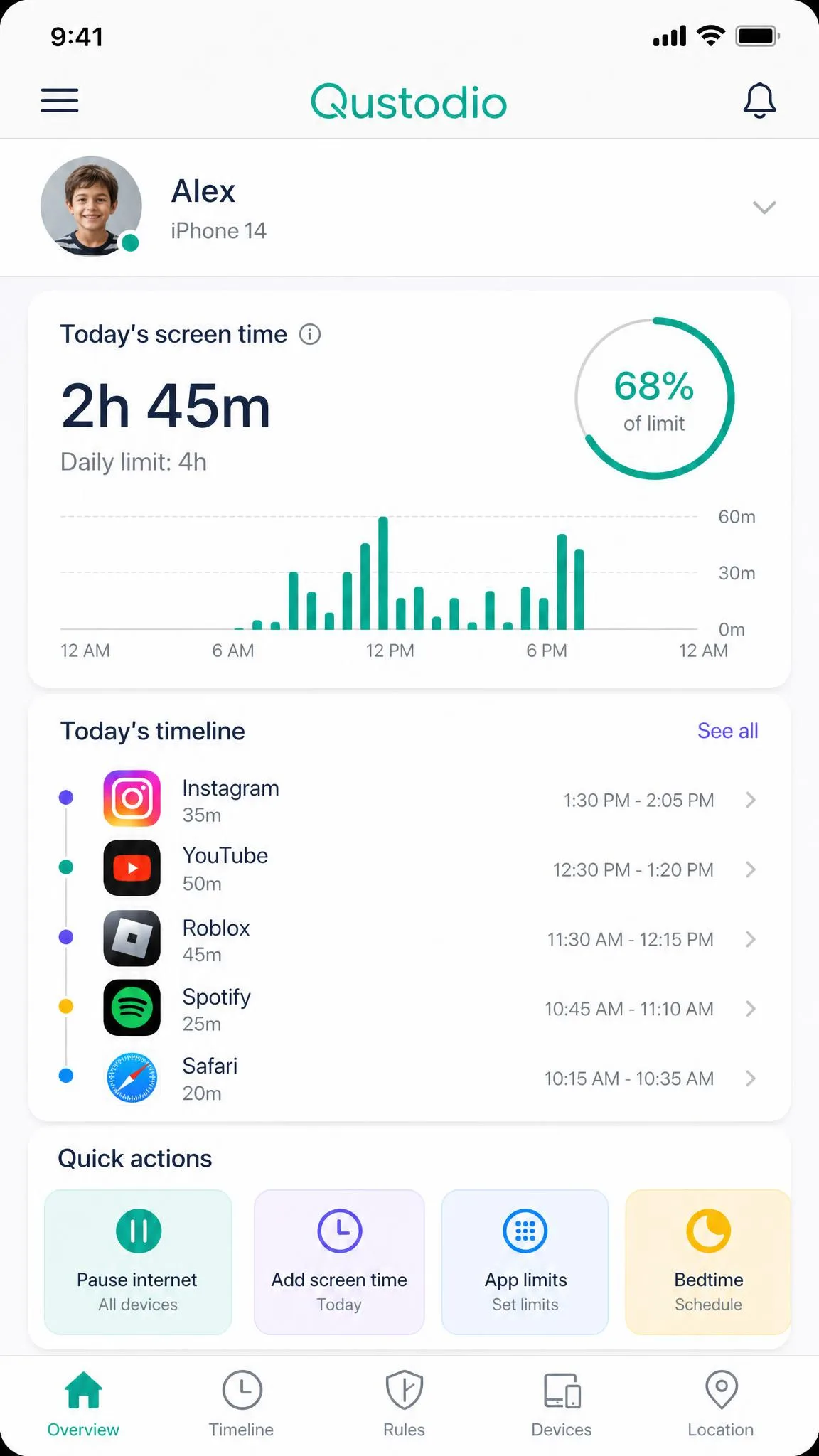
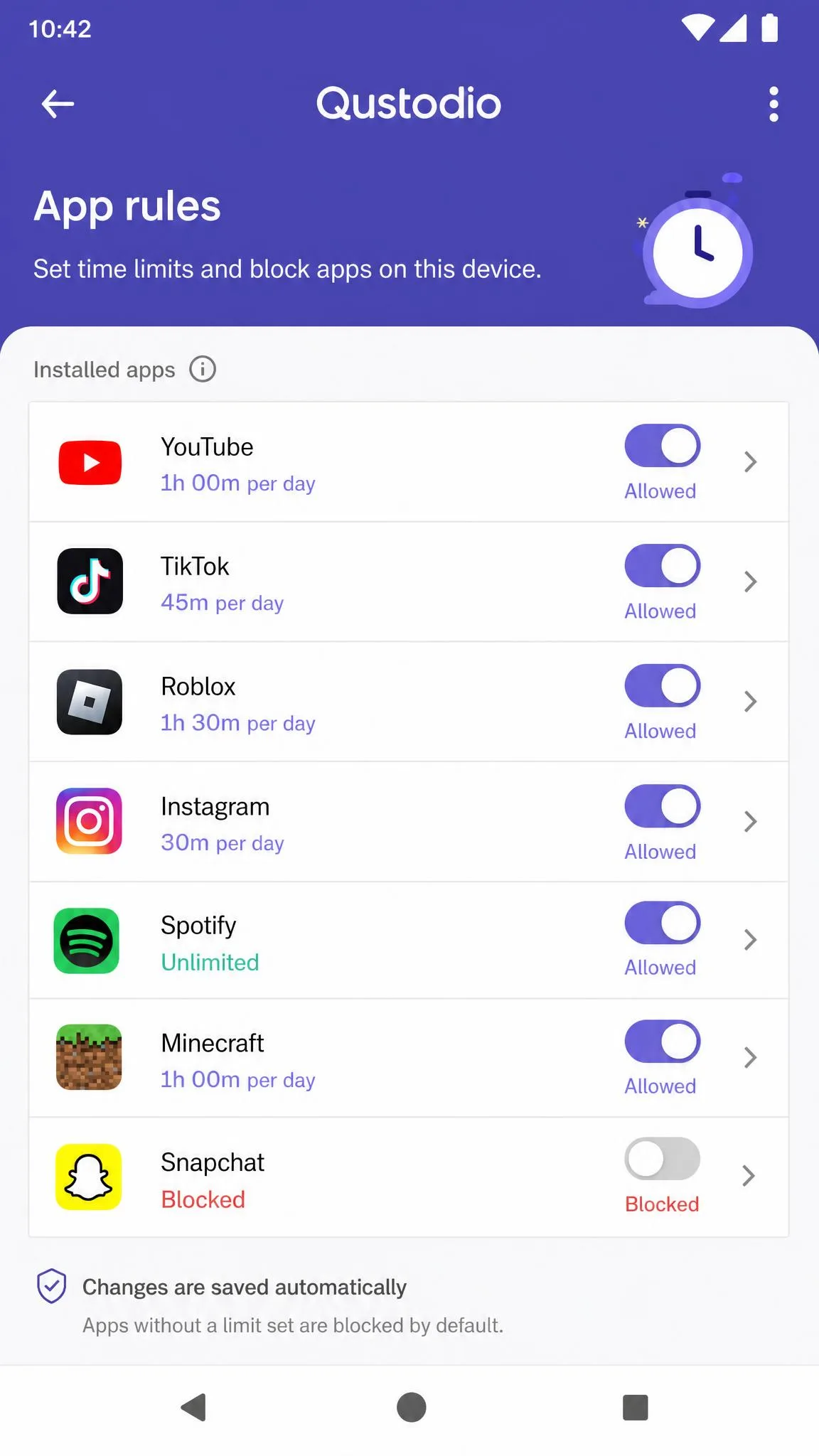
Screen time controls come in three layers. You can set a total daily limit, you can set a schedule that locks the device during specific hours, and on the Complete plan you can set per-app limits so a game gets 30 minutes while a homework app is unrestricted.
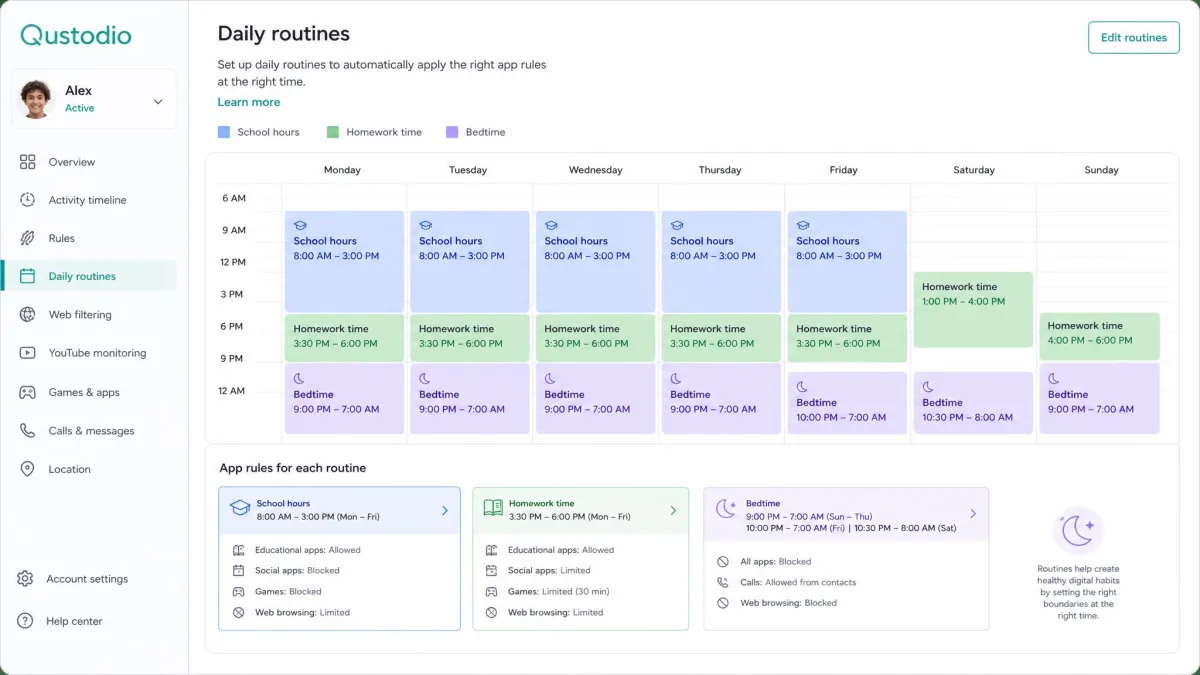
Routines are the layer parents underuse. Instead of one blanket limit, you define blocks such as school hours, homework time and bedtime, and give each block its own rules. Setting routines up takes longer than a single daily cap, and it causes far fewer arguments afterwards.
App Blocking and App Management
App blocking works, and it works accurately. In day-to-day use the app-level restrictions applied the way we set them, and the usage tracking matched what the phone itself reported.
The gap is in detection of new installs. When two games were downloaded onto a child device, only one of them triggered a parent notification. If you are relying on Qustodio to tell you the moment something new appears, check the app list yourself once a week rather than trusting the alerts alone.
Complete adds custom app rules on top of straight blocking, which is what you want once a child is old enough that "blocked" and "allowed" is too blunt a pair of options.
Location Tracking and Geofencing
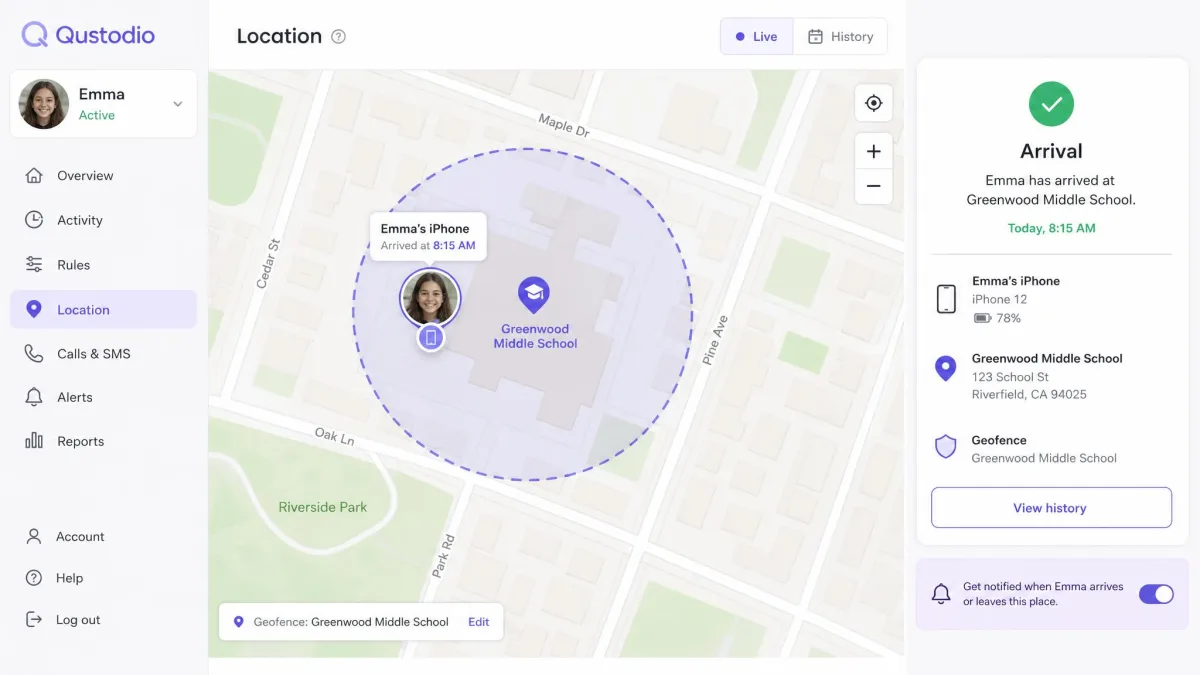
Location tracking shows the child device on a map with a history of where it has been, and geofencing lets you draw a zone around a place such as school or home and get an alert when the device arrives or leaves.
It does what you need for reassurance rather than investigation. You will know whether your child got to school, and you will know if they left a zone at an odd hour.
Always-on location is one of the two biggest battery costs of the child app, alongside the VPN profile that powers filtering. On older phones that shows up as a noticeably shorter day.
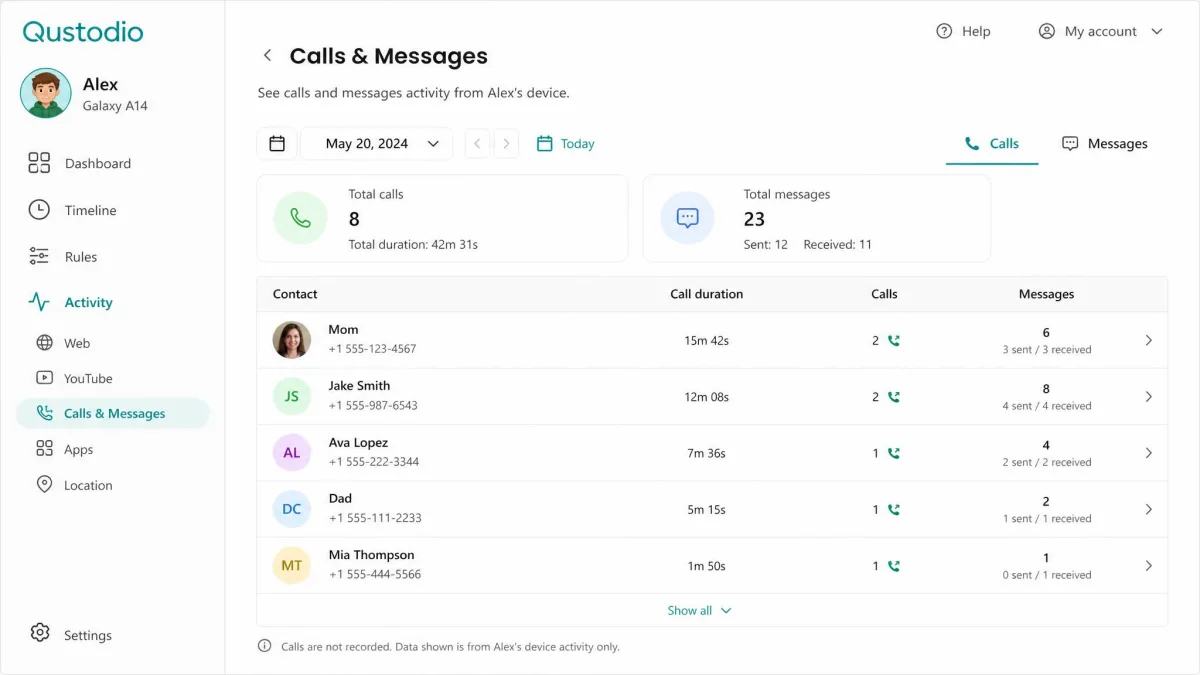
Call and Text Monitoring
This is the feature most likely to disappoint, and the requirements are the reason. On Apple devices, call and text monitoring needs iOS 14 or later, or macOS 10.15 and up, and the child device has to be on the same Wi-Fi network as the parent device to sync. That is a real constraint rather than a footnote, because it means the data arrives in batches when the child comes home rather than as it happens.
Alerting on message content is also unreliable. Inappropriate language in texts did not trigger an alert during our testing, and picture messages went unreported entirely. Treat the message log as a record you can review, not as a safety net that will tap you on the shoulder.
There is no way to tune what counts as a flagged search term either, so the alert list is take it or leave it. If a keyword matters to your family and it is not on Qustodio's list, you cannot add it.
Panic Button and SOS Alerts
The Panic Button gives your child a way to send an alert with their location to trusted contacts you nominate in advance. It is a genuinely good feature, and it is Android only. There is no equivalent on iPhone, so if the safety alert is the reason you are buying, check which phone your child carries before you pay.
Set the trusted contacts up with your child rather than for them. The feature only helps if they know it exists and have pressed it once in a calm moment.
Activity Reports and Alerts
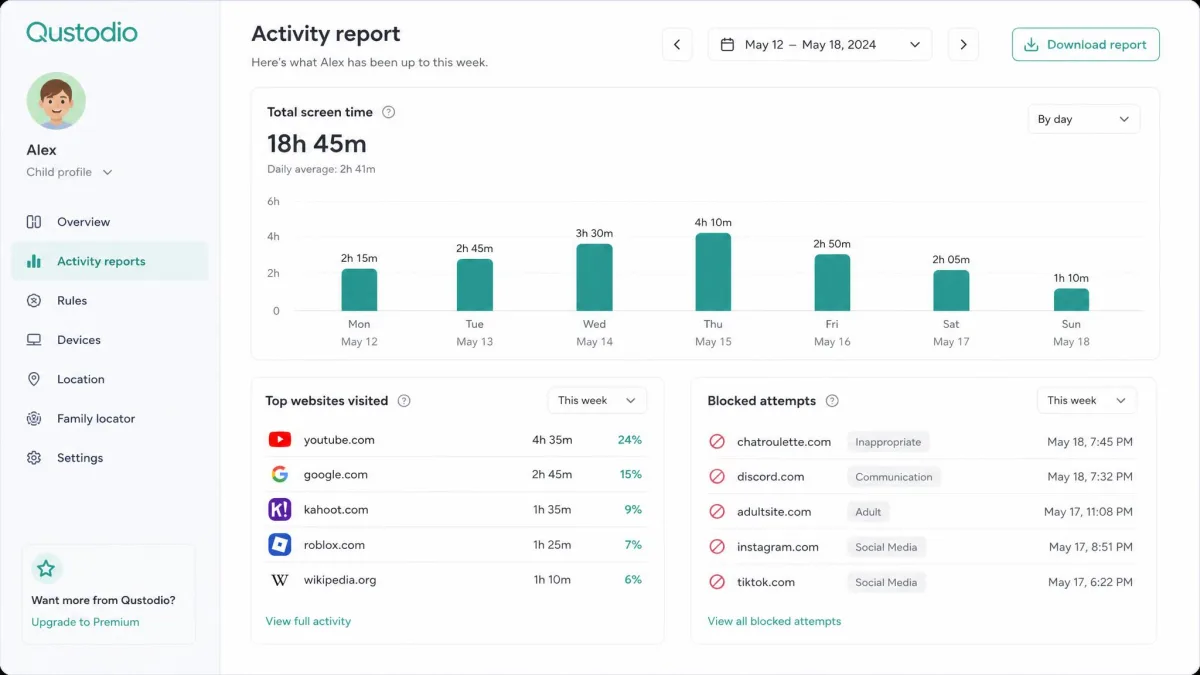
Activity reports pull everything into a timeline: sites visited, apps used, time spent, searches run and, on Complete, YouTube activity. The daily and weekly email summaries are the part most parents will actually read, and they are a reasonable prompt for a conversation.
The dashboard itself is the weak link. It draws complaints for being unintuitive, and we would agree that the settings are spread across more screens than they need to be. Reporting accuracy is not perfect either, and connectivity problems can leave the child app silently failing to report back at all, which looks identical to a quiet day.
If a child device shows no activity for a full day, check that the child app is still connected before you assume nothing happened. A silent failure and a screen-free day look the same on the dashboard.
Qustodio Pricing in 2026: Free vs Basic vs Complete
Qustodio sells a free plan and two paid tiers, Qustodio Premium Basic and Complete. Pricing is where you need to read carefully, because the figure on the plan page and the figure at checkout are not always the same.
| Feature | Free | Basic | Complete |
|---|---|---|---|
| Price | $0 | About $54.95 to $59.95/yr | About $99.95 to $104.95/yr |
| Devices | 1 device | 5 | Unlimited (advertised) |
| Web filtering | Yes | Yes | Yes, plus custom site rules |
| Screen time limits | Daily limits | Daily limits and routines | Plus per-app time limits |
| App blocking | No | Games and apps blocking | Plus custom app rules |
| Location and geofencing | No | Yes | Yes |
| Call and text monitoring | No | Limited | Yes |
| Panic button | No | Android only | Android only |
| Social monitoring | No | No | Android only |
| Activity reports | 7-day | Extended | Extended plus YouTube |
| Support | Email, Care Plus $12.99 | Email plus Care Plus included |
What the Free Plan Actually Gives You
Qustodio's free plan covers 1 device and includes web filtering, screen time limits and 7-day activity reports. That is more than most free parental control apps hand over, and for a single younger child on a single tablet it may be all you need.
The limits bite quickly, though. One device means one child, or one of your child's several devices, and 7-day reports mean you cannot look back at a pattern over a month. Location tracking and app blocking are not included at all.
Paid Tiers and Renewal Pricing
Basic covers up to 5 devices and adds app blocking, location and geofencing. Complete adds custom app and website rules, YouTube monitoring, calls and messages monitoring, per-app time limits and custom alerts, and is advertised as covering unlimited devices, although that allowance has been recorded elsewhere as capped at 10.
On price, Basic is listed at $59.95 a year on Qustodio's own page while other published figures put it nearer $54.95 a year, and Qustodio's Basic price varies by region and by whether a promotional rate is showing at checkout. Complete is listed at $104.95 a year with other figures nearer $99.95, and the same regional and promotional variation applies, so the checkout figure often differs from the list price.
Two extras are worth knowing about. Care Plus, the priority support add-on that unlocks phone support, costs $12.99 a year on Basic and is included with Complete. Both paid plans carry a 30-day money-back guarantee, and there is a 30-day free trial of the premium features on up to 5 devices.
Check the renewal price, not just the first-year price, before you commit. Introductory rates on parental control subscriptions rarely survive the second year, and the money-back window only helps you at the start.
Is Qustodio Worth the Money?
For an Android household, yes. Complete at roughly a hundred dollars a year buys filtering that holds up, time controls with real granularity and a safety alert your child can use, across as many devices as a typical family owns.
For an iPhone household the maths changes. You are paying the same money for a product missing social message monitoring, call blocking and the Panic Button, and the call and text monitoring you do get depends on the same Wi-Fi network to sync.

Setup and Ease of Use
None of those features do anything until the software is on the devices, and setup is two jobs: getting the parent side running, which is quick, and getting the child side running, which is not.
Installing Qustodio on a Parent Device
You create an account, add a child profile with an age, and pick a starting rule set. The parent app and the web dashboard show the same data, and you can do everything from either, though the web version has the fuller settings screens.
Budget ten minutes for the parent side, and most of that goes on deciding your rules rather than fighting the software.
Installing Qustodio on a Child Device
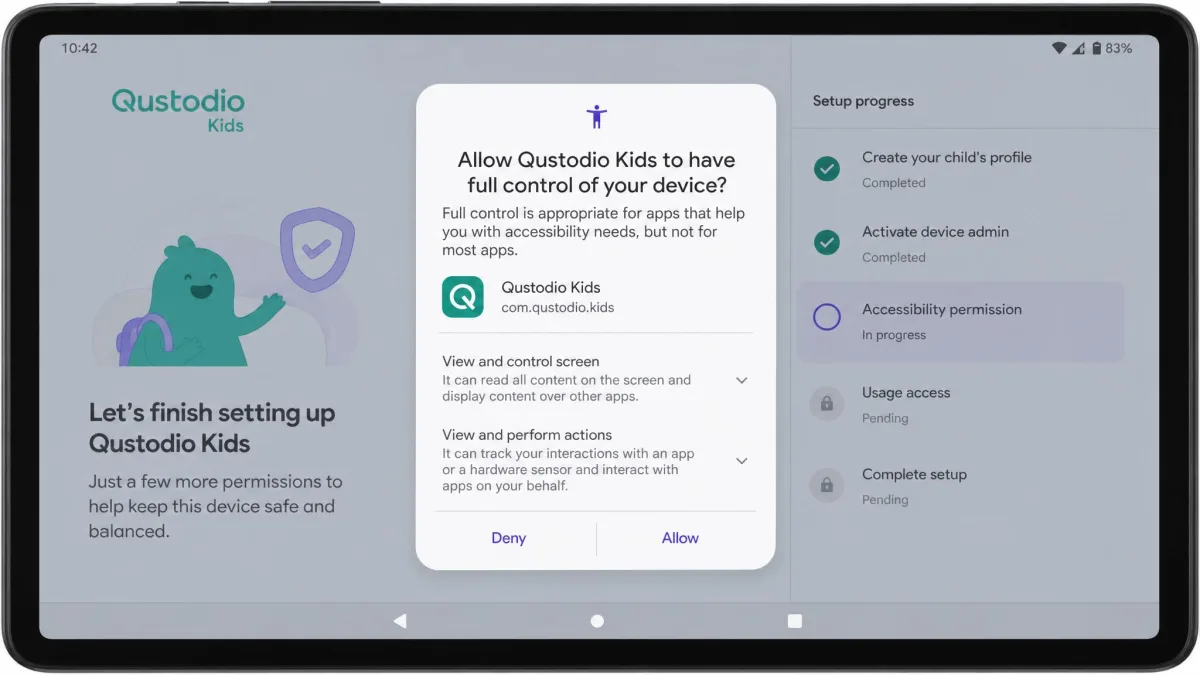
The child install is where the time goes. On Android it finishes in a few minutes. On iOS it can run over an hour, because Apple's built-in security delays slow down the profile installation step, and you need the child device in your hands for all of it.
Either way you are granting a run of permissions one after another: accessibility access, notification access, device admin rights and always-on location. The child app also needs an MDM profile installed on the device, and if you want call and text monitoring, that is a separate setup step on top of the main install.
None of this is difficult, but it is not something to start ten minutes before school. Do it on a weekend, with the child present, and explain what each permission is for as you go.
Device Compatibility: iOS vs Android vs Desktop
Setup effort is not the only thing that changes from one platform to the next. Qustodio runs on Windows, macOS, Android, iPhone, iPad, Chromebook and Kindle, which is unusually wide coverage. The catch is that the feature set is not the same everywhere.
On iOS you lose message monitoring for Instagram, TikTok, Snapchat and X, and you lose call blocking. Those stay on the Android side. iOS does get anti-tampering protection that stops the app being removed, which is more than some competitors manage on Apple hardware.
Desktop coverage is solid for what desktops are used for. Filtering, time limits and activity reporting all work on Windows and macOS, and the Windows client is the easiest of the lot to install.
Our short version: full-strength Qustodio is an Android product, and a good but reduced version of it runs everywhere else. Our guides to the top parental control apps for iPhone and the Android parental control apps go deeper into how the platforms differ.
Can Kids Bypass or Uninstall Qustodio?
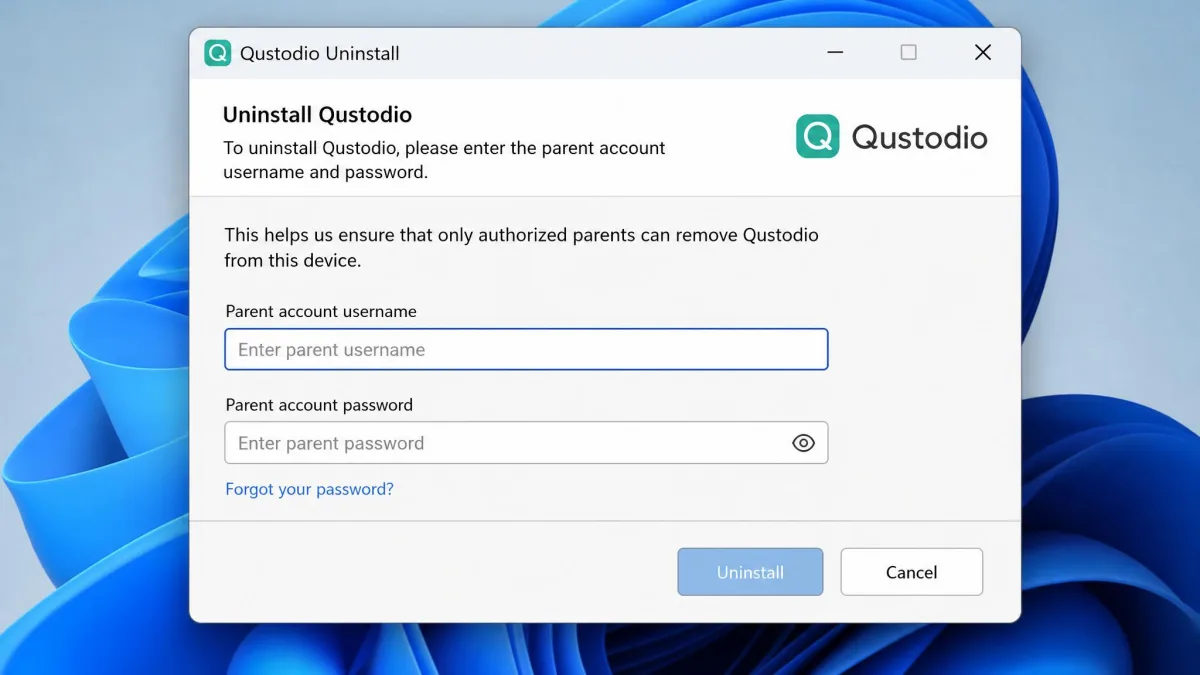
Uninstall protection is decent. On Windows, removal goes through the normal control panel route but prompts for the Qustodio account username and password first, so a child who does not have your login cannot simply remove it. On Android and iOS the app is protected against straight deletion.
The workarounds that circulate are the familiar ones. Booting an Android phone into safe mode is the classic route to disabling the app temporarily, and VPN apps are the usual attempt at getting around the filter. The VPN route did not work in our testing, which is a point in Qustodio's favour, but safe mode remains a known weakness of Android supervision generally rather than of Qustodio specifically.
There is also a quieter failure mode that looks like a bypass and is not. Connectivity problems can leave the child app silently failing to report back, and battery-saving settings on Android can stop it running in the background at all. Qustodio publishes its own battery-settings guide for Android, which tells you how common that is.
If activity reporting goes quiet, check the child device's battery optimisation settings before you accuse anyone of anything. Aggressive power management on Android phones will shut the child app down without telling either of you.
For a fuller picture of the tactics kids use, our guide to how kids bypass parental controls covers what to expect and how to respond.
Where Qustodio Falls Short
Three weaknesses stand out after extended use.
The first is alerting. Content alerts miss things, picture messages go unreported, new app installs do not reliably notify you, and you cannot tune the flagged term list. Everything is in the reports if you go and look, but the push side of the product asks you to check rather than trusting you will be told.
The second is battery. GPS tracking and the VPN profile are the heaviest draws, and older phones feel it most. Measurements vary a lot between devices: some testing shows roughly 10 to 15 percent faster drain, other testing shows no noticeable difference at all, so expect it to depend on the handset.
The third is support and billing. Support is email-first, replies can take up to 48 hours, and reaching a human by phone is not possible unless you buy Care Plus. Refund and cancellation handling is a recurring sore point, with requests passed between support and billing without a clear decision, reference number or timeline.
What Real Users Say About Qustodio
The gap between expert reviews and customer reviews is wider here than for most software, and it is worth understanding why.
On Android, Qustodio sits at or near the top of the category on the strength of its feature set, and it holds a 2026 Editors' Choice award for that platform. Sit down with the filtering and the time controls and you can see why, because they perform exactly as the settings screens promise.
Public sentiment is much cooler. Qustodio holds a Trustpilot rating of 2.6 out of 5, and Trustpilot's own summary of 285 reviews finds most reviewers unhappy overall, with extremely long customer service response times as the dominant theme. A second consumer complaints site sits lower still, again on billing and support rather than features.
The software does what it promises. The company around the software is where the complaints pile up, and almost all of them are about billing, cancellations and waiting for a reply.
Read that pattern carefully before you buy. It is not evidence that the filtering fails. It is a warning that if something goes wrong with your subscription, sorting it out will take longer than you want.
Privacy, Data Handling and Support
Billing complaints are one kind of trust question, and what the app knows about your child is the other. Any parental control app collects a lot about a child, and Qustodio is no exception: browsing history, app usage, location, and on Android, message and call metadata. Qustodio's privacy policy sets out what is gathered and how it is handled, and it is worth ten minutes of your time before you install anything on a child's phone. Parents in the US may also want to read the FTC's guidance on children's privacy, which explains what protections apply to data collected about under-13s. On retention, activity data from the child's device stays in the parent dashboard for a 60-day period, and once you close an account, subscription records are held for the life of the subscription and then blocked for 5 years to cover legal and administrative obligations.
The practical privacy question is not only about the vendor. It is about how much you monitor your own child. Qustodio lets you turn individual monitoring types off, and running with filtering and time limits alone, without message logs, is a defensible setup for an older teen.
On support, Qustodio's help center is well stocked with step-by-step articles, and for setup problems it is faster than waiting on email. For anything account-related you are in the email queue unless you have Care Plus.
Qustodio vs the Alternatives
| Feature | Qustodio | Bark | Eyezy | MMGuardian |
|---|---|---|---|---|
| Price | About $99.95 to $104.95/yr (Complete) | $99/yr | $9.99/mo on the 12-month plan | $99.98/yr for 5 devices |
| Devices | Unlimited (advertised) | Unlimited | Per-device licence | 5 (family plan) |
| Web filtering | Yes, about 25 to 30 categories | Yes | Yes | Yes |
| Screen time limits | Yes, including per-app | Yes, scheduling | Limited | Yes |
| App blocking | Yes | Limited | Yes | Yes |
| Location and geofencing | Yes | Check-ins | Yes | Yes |
| Call and text monitoring | Yes, iOS 14 and same Wi-Fi | Yes, AI alerts | Yes | Yes, AI alerts |
| Panic button | Android only | No | No | Yes, SOS |
| Free tier | Yes, 1 device | No | No | No |
| Money-back | 30-day | Not verified | Not verified | Not verified |
Bark is the one to consider if alerting is your priority rather than blocking. It monitors content and messages across texts, email and 30-plus social platforms with AI alerts, adds screen time scheduling, web filtering and location check-ins, and sells its own phone and watch hardware. It is weaker than Qustodio on hard app blocking. Our Bark review covers how that trade-off plays out.
MMGuardian is the closest competitor on features, with text and message monitoring, AI alerts, app control, screen time limits, web filtering, location tracking, call blocking and nude-image detection, and it is strongest on Android. It also has a working SOS feature, which Qustodio only offers on Android.
Eyezy sits in a different category. It is monitoring-led rather than control-led, with a keylogger, screen recorder and social app monitoring, and it charges the same on iOS and Android. That depth is more surveillance than most parents of younger children want, and it is worth thinking hard about before you install it on a teenager's phone.
If Qustodio's price is the sticking point, our roundups of the best free parental control apps and the best screen time control apps cover cheaper routes to the same outcome, and the Kids360 review looks at a lighter-touch option. If you are new to the category altogether, start with how parental controls work.
Frequently Asked Questions
Is Qustodio worth it in 2026?
Can a tech-savvy kid uninstall or bypass Qustodio?
Does Qustodio work the same on iOS as on Android?
Does Qustodio monitor iMessage and text messages?
Is Qustodio free, and what does the free plan include?
What happens to the panic button if the child device has no signal?
Can my child see what Qustodio is logging about them?
How do I cancel before the trial converts, and what if a refund stalls?
Common Mistakes Parents Make With Qustodio
The biggest mistake is installing it silently. Kids find it, and finding it by accident turns a boundary into a betrayal. Tell your child what it does and what you will and will not look at.
The second is setting the rules once and never revisiting them. A rule set that suited a nine-year-old is insulting to an eleven-year-old, and the arguments that follow are really about stale rules rather than about the app.
The third is over-collecting. Just because Complete can log messages does not mean you should. Filtering and time limits solve most household problems, and every extra monitoring layer costs you some trust.
Final Verdict: Should You Buy Qustodio in 2026?
The buying decision comes down to arithmetic and to hardware. On the arithmetic, Complete at roughly a hundred dollars a year across four supervised devices works out at about twenty-five dollars per device per year, which is where Qustodio beats the per-device competition. Enrol one child on one phone and the same subscription costs four times that per device, and at that point a cheaper single-purpose screen time app does the job for less money.
On the hardware, if your house is all-iPhone and your real goal is seeing what your teenager is saying to people, Bark is the tool built for that job, because it alerts on message content across texts and social platforms instead of trying to lock a device down. Our Bark vs Qustodio comparison reaches the same split, and Qustodio becomes the better buy the moment blocking and time limits matter to you more than reading does.
One thing to do differently on setup day, whichever way you go: enrol every device your child can reach, not only the phone. The old handset in a drawer and the school Chromebook signed into a personal account are what quietly undo an otherwise good rule set, and they are far more likely to be the hole in your setup than any clever workaround. Start the 30-day free trial on a weekend, do the enrolment with your child in the room, and you will know inside a fortnight whether the subscription earns its place in the household budget.