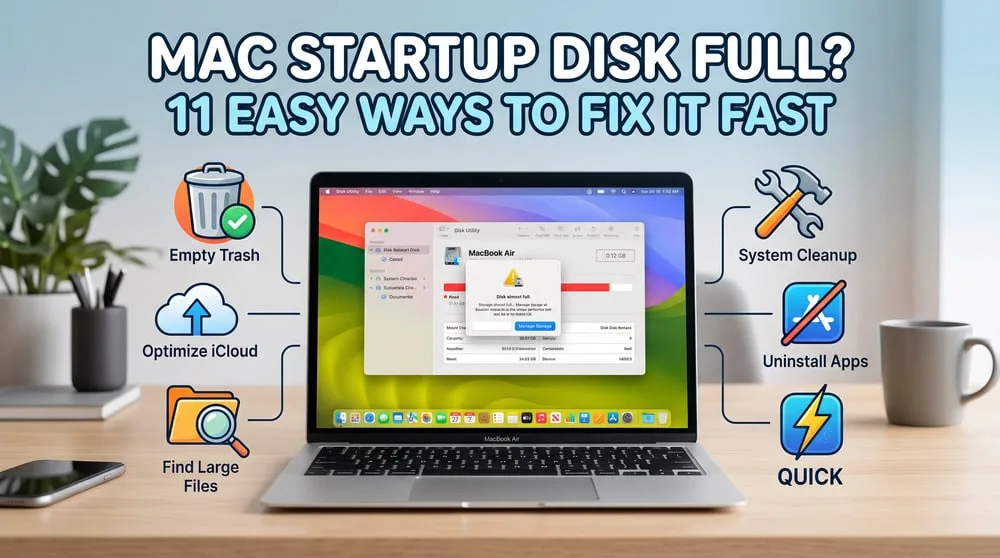
A full Mac slows down, throws "startup disk almost full" warnings, and makes small tasks feel sluggish. The good news is that most of what fills a Mac is junk you can safely get rid of: caches, forgotten apps, old backups, and files you no longer need. This guide walks through 12 ways to free up storage, from the fastest manual wins to the built-in macOS tools that do the heavy lifting.
We ran these steps across our own working Macs during routine cleanups and noted the numbers where they matter. You don't need any paid software to follow along; we only bring up a dedicated cleaner near the end, and we're honest about when it's worth it.
What takes up space on your Mac (and how to check storage)
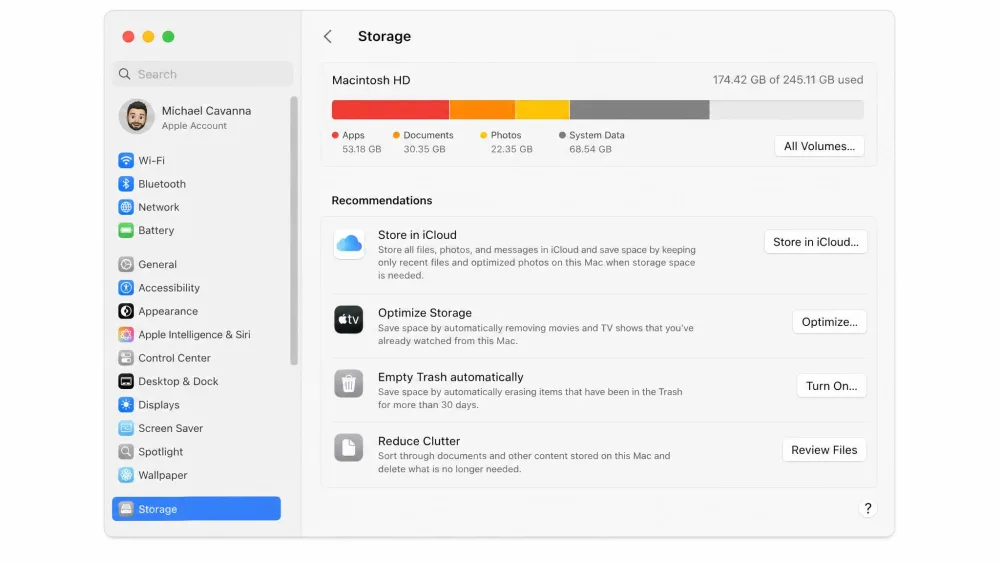
Before you delete anything, find out what's actually filling the drive. Mac storage breaks down into a few big categories: apps, photos and videos, documents, system files, and a large, vague bucket macOS labels System Data. Guessing wastes time, so start with the built-in breakdown and let it point you at the problem.
Press the space bar on any selected file in Finder to preview it with Quick Look. It's the fastest way to check what something is before you decide to keep or delete it.
How to check storage on macOS
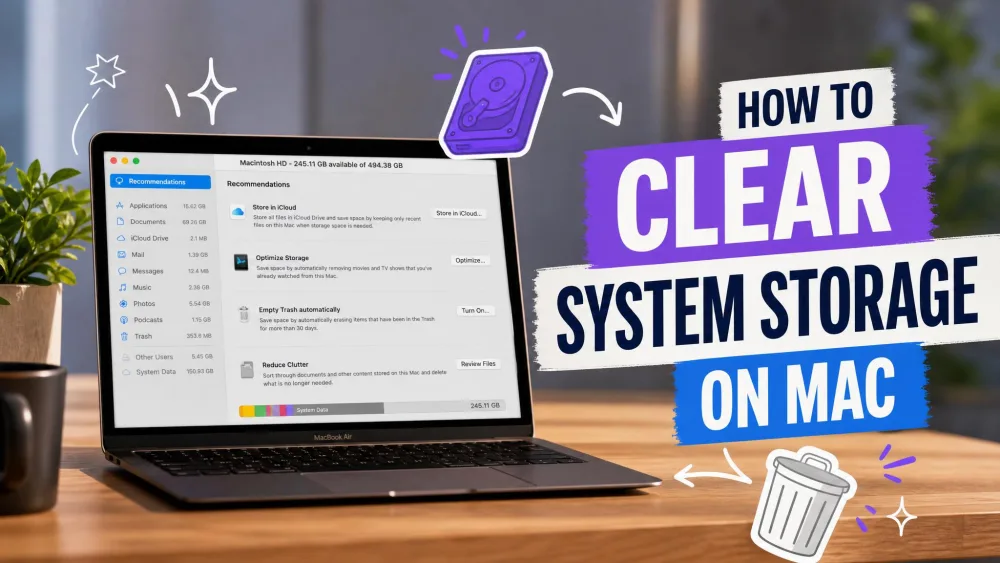
Open the Apple menu > System Settings > General > Storage. macOS draws a colored bar showing how much space each category uses, with recommendations underneath. Hover over a segment to see its size, and click the info icon to drill into the largest items. Note which categories are biggest, since that tells you which steps below will free the most space.
How to clean up your Mac manually
These first ten methods need nothing but Finder and a few minutes each. Work through them in order: the early steps clear the obvious clutter and make the later ones easier to judge.
1. Uninstall apps you no longer use
Apps are often the biggest quick win. Open the Applications folder, sort by size, and drag anything you no longer open to the Trash. Check the Storage pane for an "Unsupported Apps" list too: these no longer run on your macOS version, so they're safe, low-risk removals worth doing first. Dragging an app to the Trash leaves some preference and support files behind, which we clean up in the next step.
2. Clear system, user, and app cache
Cache files help apps load faster, but they pile up and can quietly take up space measured in gigabytes. To clear your Mac's app cache, open Finder, choose Go > Go to Folder, and enter ~/Library/Caches. Open each app's cache folder and delete the contents, not the folders. Your Mac rebuilds anything it still needs.
Delete the files inside cache folders, not the folders themselves, and leave system-level folders you don't recognize alone. Clearing app caches is safe and reversible; deleting core system files is not.
3. Empty the Trash
Deleting files only moves them to the Trash, where they still take up space until you empty it. Right-click the Trash icon in the Dock and choose Empty Trash. To automate the chore, open Apple menu > System Settings > General > Storage and turn on Empty Trash Automatically, which clears items after 30 days.
4. Declutter the Desktop and Downloads folder
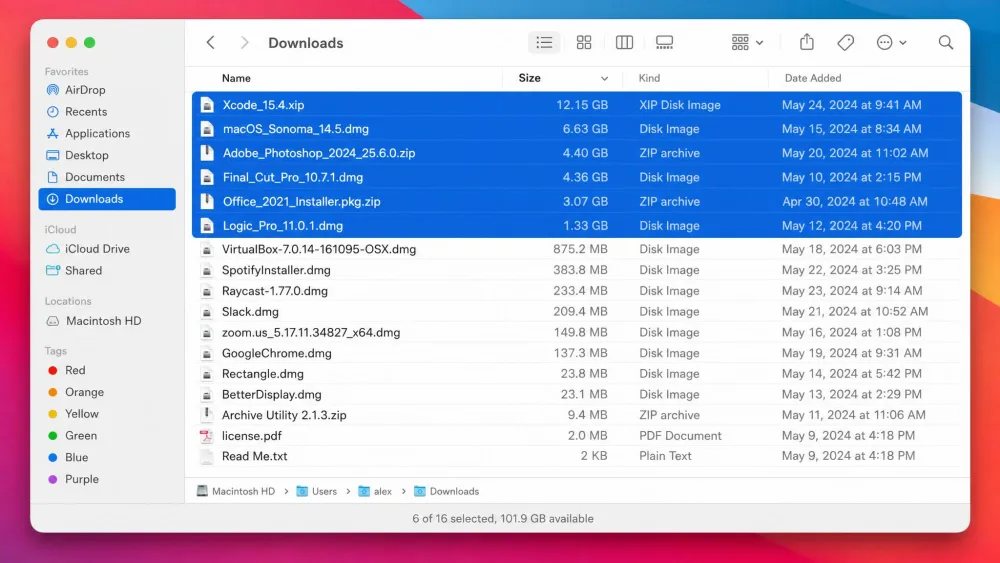
The Downloads folder is where junk files quietly gather: old PDFs, zip archives, images, and one-off attachments. Open it, sort by size or date, and get rid of what you no longer need. Do the same for a crowded Desktop, since every thumbnail there is rendered live and can slow an older Mac.
5. Delete large and old files
Back in the Storage pane, click the info icon and choose Documents to see your largest files and anything you haven't opened in a while. Sort by size, preview with the space bar, and remove what you've finished with.
Big app library files from tools like Lightroom or Final Cut Pro show up prominently here, but they're risky to delete and often look like easy wins when they aren't. Leave them alone and manage that content from inside the app instead.
6. Find and remove duplicate and hidden files
Duplicate downloads, repeated photo imports, and copies scattered across folders add up. macOS has no full duplicate finder, so scan manually by sorting folders by name and size to spot obvious pairs. A visual disk map is the fastest way to do this at scale, which we cover in the cleaner apps section below.
7. Remove old iOS and Time Machine backups
Old device backups are one of the biggest hidden space hogs. Hidden Time Machine cache can quietly eat huge chunks of the disk. In one of our cleanups, 30.2 GB was tied up in local Time Machine snapshots that standard steps never surfaced. Local snapshots age out on their own, but you can hurry them along in Time Machine preferences. To delete old iPhone or iPad backups, go to the Storage pane, select the backups category, and remove the devices you no longer own.
8. Delete leftover DMGs and installers
After you install an app from a downloaded disk image, the .dmg file sits in Downloads doing nothing. Search Finder for "dmg" and "pkg", then delete installers for apps you've already set up. These are pure junk files once the app is installed, and often hundreds of megabytes each.
9. Clear browser cache and history
Browsers cache images, scripts, and page data that can grow into gigabytes over months. In Safari, enable the Develop menu and choose Empty Caches, or clear your history from the History menu. In Chrome, open Settings > Privacy and security > Clear browsing data, then pick Cached images and files. Your bookmarks and saved passwords stay put.
10. Manage startup and login items
A cluttered login list won't free much storage, but it slows every startup. Open Apple menu > System Settings > General > Login Items, then select anything you don't need launching automatically and remove it with the minus button. Fewer background apps at boot means a Mac that feels quicker from log-in.
How to use built-in macOS tools
macOS ships with tools that automate some of the work above. They're the last two of our twelve steps, and where Apple's own recommendations live.
11. Optimize Storage and Store in iCloud
In the Storage pane, Apple offers recommendations including Store in iCloud, Optimize Storage, Empty Trash Automatically, and Reduce Clutter. Store in iCloud moves older files, photos, and messages to the cloud and keeps lightweight versions on your Mac, useful if you have iCloud space to spare.
Manage the same settings any time from Apple's guide to free up storage space on your Mac. It walks through each recommendation Apple surfaces in the Storage pane.
Set your expectations, though. The Optimize Storage toggle underdelivers because it only removes already-watched movies and TV shows from the TV app. It doesn't sweep general files, which surprises people expecting a full cleanup from one switch. Treat it as one small helper, not the whole job.
12. Clear System Data storage
System Data, once labelled "Other", is the category that frustrates everyone. It holds caches, logs, and system files, and macOS restricts direct deletion, so you can't fully clear it from the Storage pane. There's no reliable universal size for it, so don't panic if yours looks large.
You trim System Data indirectly. Restart your Mac to flush temporary files, clear the user caches from step 2, and remove the old backups from step 7. We've watched the category shrink from those three moves alone, without touching anything macOS protects. For the full rundown, see Apple Support on how to manage storage on your Mac.
The single biggest reclaim we've seen in a routine cleanup came from hidden Time Machine snapshots: 30.2 GB on one Mac that never showed up in the obvious places. If your System Data looks huge, old local backups are the first thing to check.
Update macOS
Keeping macOS current isn't strictly a cleanup step, but updates clear out deprecated files and patch bugs that cause runaway caches. Open Apple menu > System Settings > General > Software Update and install anything pending. Back up first with Time Machine so you can roll back if needed.
Should you use a Mac cleaner app?
You can do everything above by hand for free, and for most people that's enough. A dedicated cleaner earns its place in two situations: when you want a visual disk map to find oversized folders fast, or when you'd rather automate the routine junk sweep. A visual map, sunburst or Space Lens style, is the quickest way to spot the folders actually eating your drive, versus scrolling endless file lists.
Two apps cover the two jobs. DaisyDisk is a focused disk visualizer: it draws an interactive sunburst map, scans hidden and temporary files, and lets you drag oversized items to a collector for deletion. It's a $9.99 one-time purchase with a 30-day money-back guarantee, one license covers up to 5 personal Macs, and it needs macOS 10.13 or newer. It has no uninstaller or malware tools; it does one thing well.
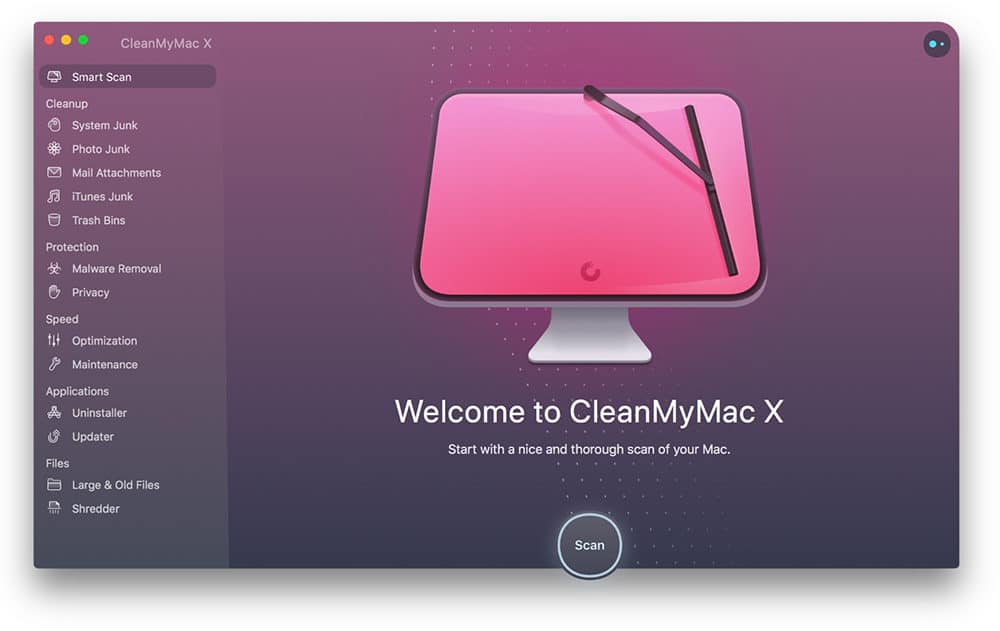
CleanMyMac is the all-in-one option, bundling a one-click Smart Scan, System Junk cleanup, an app uninstaller, a duplicate finder, and a Space Lens disk map. Its Smart Scan is fast, and on a typical machine flags a couple of gigabytes in a single pass; one of our runs surfaced about 2.2 GB of junk, duplicates, and maintenance tasks. It runs on macOS 11 or later, offers a 7-day free trial, and its unregistered mode caps cleaning at roughly 500 MB before you need a license. Pricing starts at $3.33/month, billed as $39.95/year for one Mac.
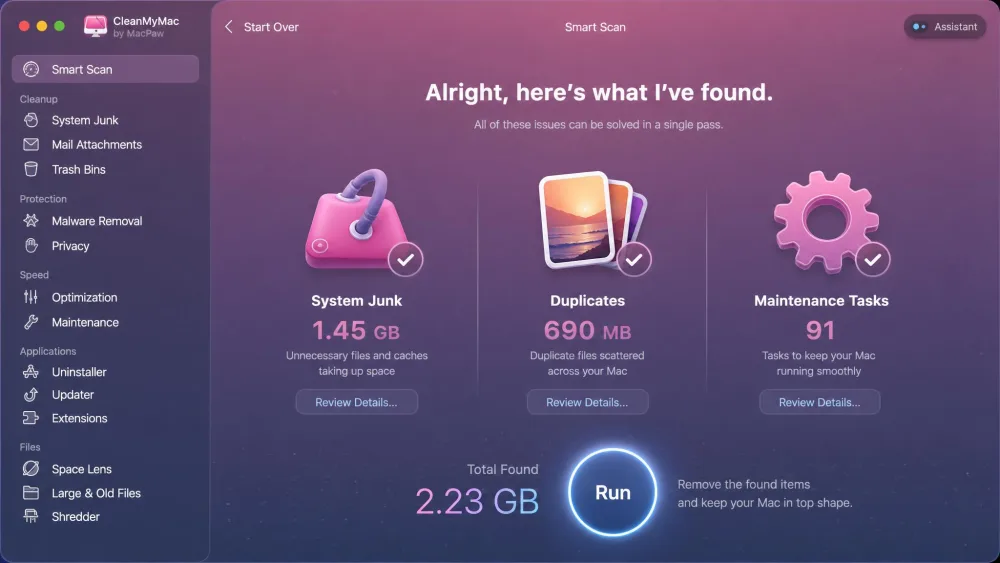
Set expectations on the headline numbers. The first-ever run of a cleaner on a long-neglected Mac can reclaim tens of gigabytes, but routine follow-up scans return far less. The dramatic figures are a one-time payoff, not a monthly result. And CleanMyMac is a maintenance tool, not real antivirus; its malware module falls short of dedicated security software.

How to physically clean your Mac (screen and keyboard)
Software isn't the only clutter. Shut down and unplug your Mac first. Wipe the screen with a dry or slightly damp lint-free cloth, and never spray liquid onto the display. For the keyboard, hold the Mac at an angle and use compressed air between the keys. On laptops with vents, a little airflow helps it run cooler too.
How often should you clean up your Mac?
For most people, a light cleanup every month or two keeps a Mac healthy: empty the Trash, clear Downloads, and glance at the Storage pane. Do a deeper pass through caches, old backups, and unused apps a couple of times a year, or whenever you get a low-storage warning. Consistency beats one big annual purge, since small regular cleanups stop junk files piling up.
Frequently asked questions
How often should I clean up my Mac?
Will cleaning up delete important files?
Do I need a third-party cleaner, or can I clean manually?
What is System Data storage, and can I safely clear it?
Can cleaning up actually speed up my Mac?
Is CleanMyMac safe to use?
Final thoughts
Cleaning up a Mac isn't complicated once you know where the space hides. Check your storage, clear the safe wins first (caches, Trash, downloads, and old backups), then let Apple's built-in tools handle the rest. The biggest reclaims almost always come from things you can't see at a glance, like local Time Machine snapshots, so those are worth hunting down.
Keep a light routine going and you'll rarely see a full-disk warning again. If you'd rather not do it by hand, a focused tool like DaisyDisk or an all-in-one like CleanMyMac speeds up the search, but the manual steps above cost nothing and get you most of the way there.