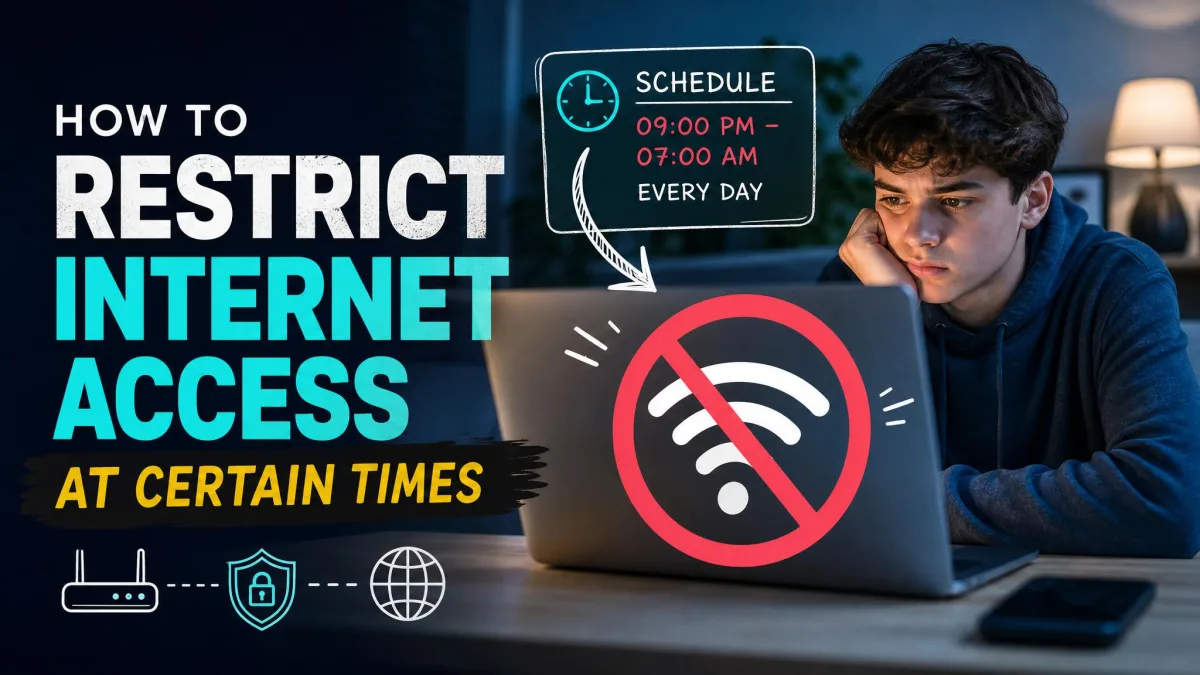
You can restrict internet access at certain times with router parental-control schedules, per-device blocking like MAC address filtering, or device-level tools such as Apple Screen Time and Google Family Link. DNS filtering services and a smart-plug timer also work. Each method reaches different devices, so the right choice depends on which gadgets must stay connected and who needs internet at which hours.
Whether you are enforcing bedtime or cutting off overnight bandwidth hogs, time-based restrictions are the cleanest way to set internet hours. Most routers already include a scheduling feature, and the tools on your family's phones fill the gaps the router leaves open. Below we walk through all five methods and close with a menu-by-menu router walkthrough that works on most models.
What you will learn in this guide: how to set time-based schedules in your router's parental controls, how to block specific devices with MAC filtering, how to use Screen Time, Family Link, and Windows Family Safety, and how DNS filtering and smart-plug timers extend control to cellular and wired devices.
Why You'd Want to Restrict Internet Access at Certain Times
Setting internet hours works on the network level instead of asking anyone to self-regulate. A schedule that cuts off the Wi-Fi at 9 PM applies to every device at once.
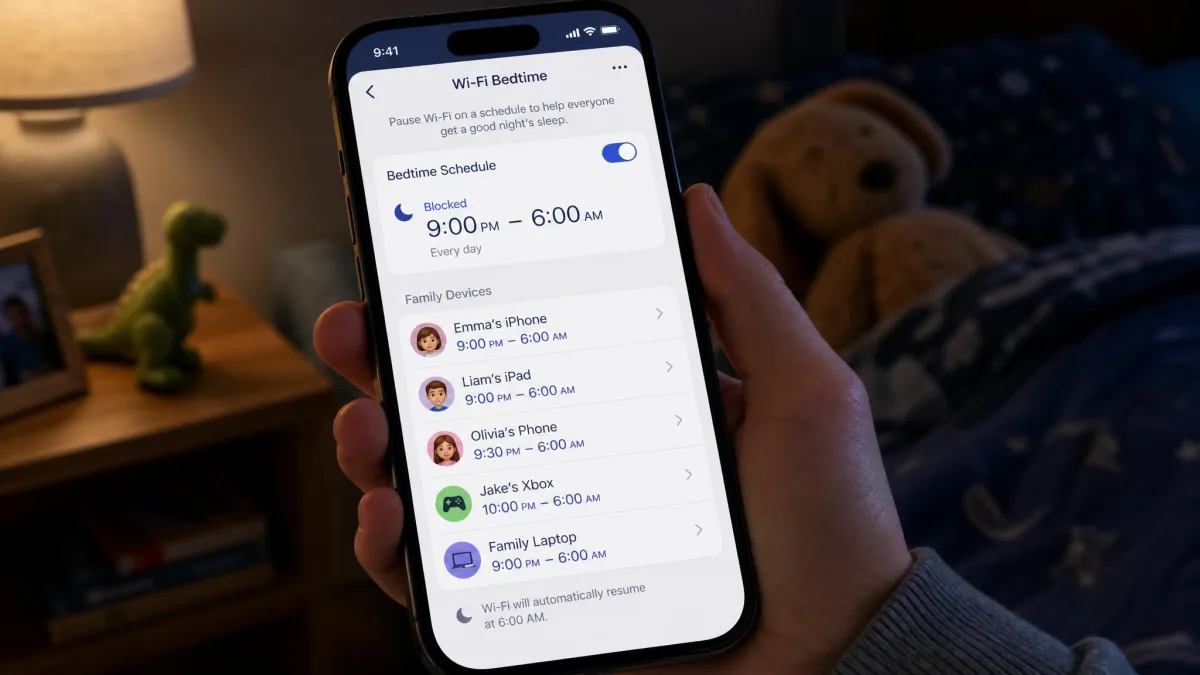
Cut down screen time and enforce bedtime
Bedtime is the most common reason families set a schedule. When the router goes quiet at the same hour every night, phones stop being a temptation, because the connection is not there. Apple Screen Time, Google Family Link, and Microsoft Family Safety all include bedtime schedules for the same reason.
Stop bandwidth hogs and boost productivity
Streaming and game downloads at night can saturate a connection for everyone else. A scheduled quiet window keeps the bandwidth free, and the same block that enforces bedtime doubles as a focus tool for homework hours.
Protect kids from inappropriate content overnight
Late-night browsing is when filters matter most, because no adult is around to catch a wrong turn. A time-based block narrows the hours a child can wander and pairs well with the content categories in Family Link, Screen Time, and most router parental controls.
What to Consider Before You Set Up Time-Based Restrictions
Before you pick a method, ask which devices must stay connected, whether a device can slip around the block over cellular data, and whether different people need different schedules.
| Method | Skill needed | Typical cost | Device coverage |
|---|---|---|---|
 |
Medium | Free | Per device, home network only |
 |
Low | Free | Per device, home network only |
 |
Low | Free | Per device, follows the phone |
 |
Medium | Free trial, then paid tiers | Per device or network, follows the phone |
 |
Low | About $14 for a plug | Whole network, wired and wireless |
Which devices must stay connected (smart home, cameras, alarms)?
A network-wide block also silences the smart home. Cameras and cloud-reliant alarms lose contact when the connection drops, so a household with security gear should prefer a per-device schedule.
Can a device slip around the block over cellular data?
Router schedules only reach devices on the local network, so a phone on cellular data ignores the block entirely. If a child's phone has its own data plan, the cutoff needs to live on the phone itself.
Do different people need different schedules?
One schedule for the whole household rarely fits everyone, and most router parental controls solve this by scheduling per device. Family Link supports different limits per child.
Method 1: Schedule Internet Access With Your Router's Parental Controls
The router sits between every device and the internet, making it the most powerful place to enforce time limits. Most consumer routers, including Linksys, ASUS, and TP-Link models, build scheduling into the parental controls. In our testing, a drifted router clock fired the block at the wrong hour.
Set a time-based block schedule (step-by-step)
The workflow below follows the Linksys parental controls and is representative of most brands.
- Log in to the router's web interface.
- Open Parental Controls and flip the main switch on; the device list stays grayed out until enabled.
- Pick the device and choose Specific Times under Block Internet access.
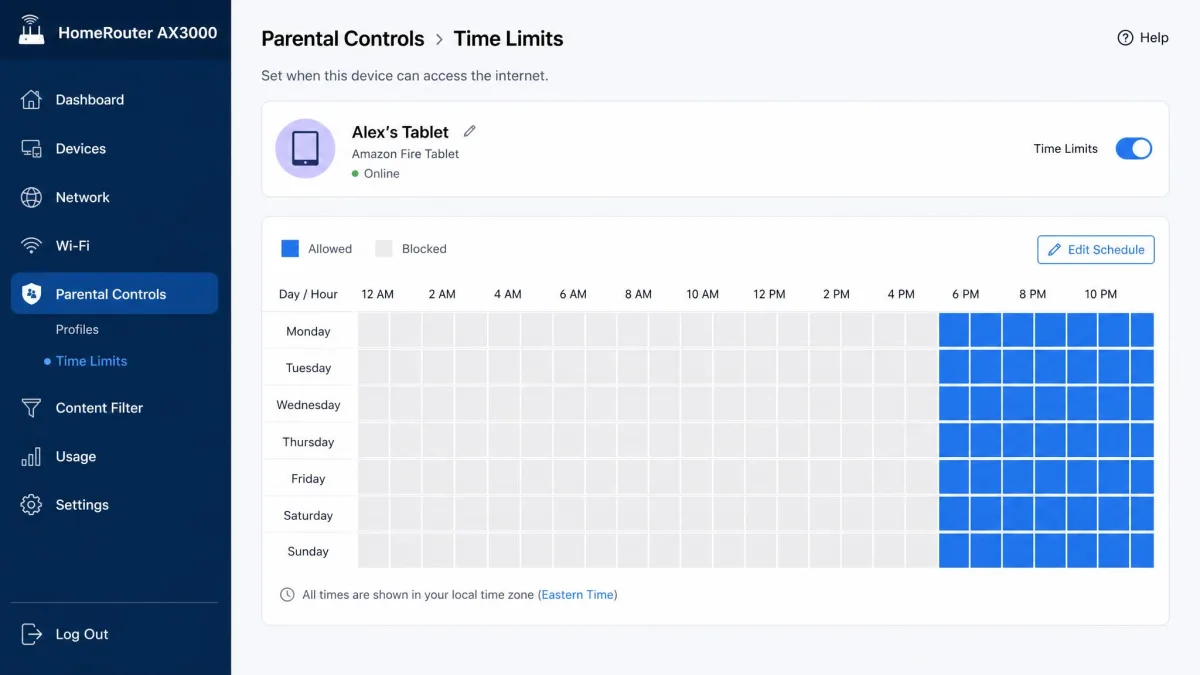
- Click or drag across the day and hour grid to mark blocked hours, where blue squares mean blocked.
The vendor's knowledge base walks through the same grid if you want to restrict internet access on specific times using the router's parental controls.
Restrict internet for specific devices only
Router parental controls restrict individual devices rather than the whole network, which makes them workable for a family. Each device gets its own grid selection, so the TV can stay online while a child's tablet shuts off.
Enable Wi-Fi scheduling on a guest network
Many routers also offer Wi-Fi scheduling, which turns the wireless signal off on a schedule (TP-Link's Wireless Schedule, ASUS's Wi-Fi Scheduling, Huawei's Wi-Fi Timer). It only silences the wireless bands, and on supported routers you can apply it to a guest network so visitors' devices cut off while the family network stays up.
Method 2: Block Devices With MAC Address Filtering
Where router parental controls schedule by device name, MAC filtering identifies devices by a hardware address and admits or denies them at the door. Think of it as a way to block a specific gadget.
Find a device's MAC address
You can find the address in a device's network settings, and the router's connected-device list usually shows it. The address is six two-character groups, like 00:1A:2B:3C:4D:5E.
Add devices to the router's deny list
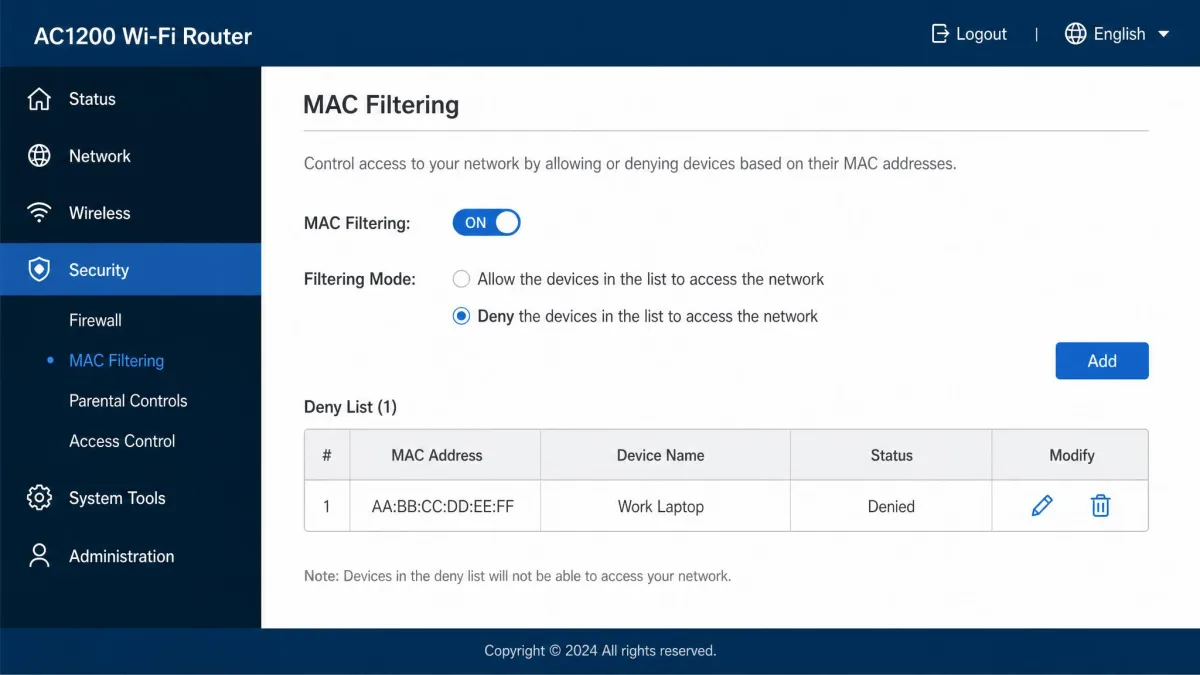
Log in to the router and open the access control or MAC filtering section. Add the device to the deny list and save, and the router stops handing it an internet connection.
Why MAC filtering is easy to bypass (and when to still use it)
MAC filtering is the weakest of the five methods. MAC addresses travel in plaintext, so a nearby device can capture an approved address and clone it, and spoofing one is a few clicks in the OS settings. Many phones randomize their Wi-Fi MAC address, so a phone can escape the block while still showing as a known device in the router app. It still stops younger children. Real security comes from WPA3 encryption, mandatory on Wi-Fi CERTIFIED devices; a deny list is not encryption.
Method 3: Use Device-Level Controls
If the router cannot reach a device, the device itself usually can. Operating-system controls live on the phone or console and follow the device onto any network.
Apple Screen Time (iPhone / iPad)
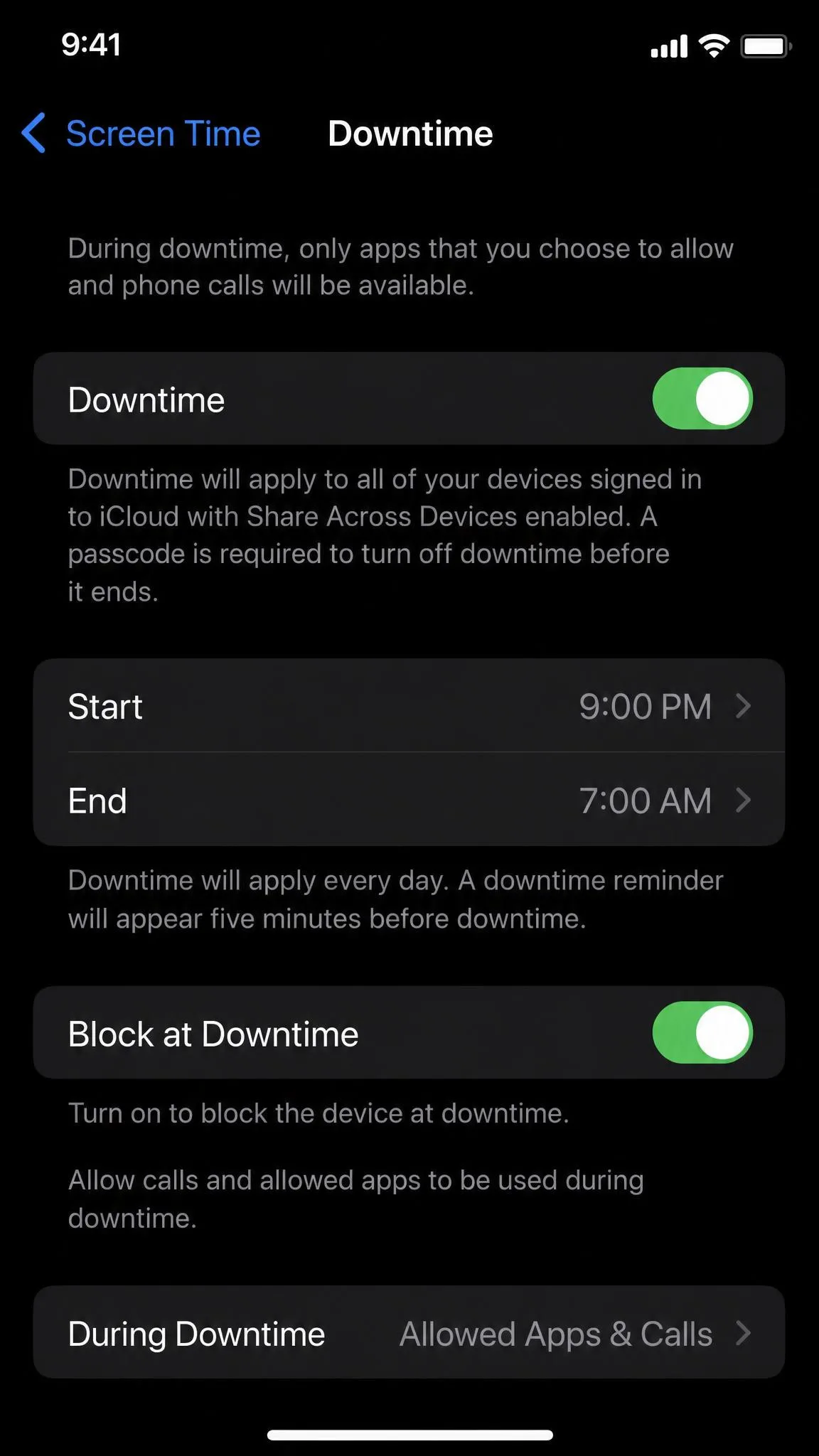
On iPhone and iPad, Screen Time parental controls live in Settings. Downtime sets a daily window when only chosen apps stay available, and App Limits caps minutes per category or app, with a 5-minute reminder before Downtime. Blocks occasionally fail to hold even after iOS updates, so confirm the enforcement toggles.
Google Family Link (Android)
Google Family Link is the closest Android equivalent. The parent app sets daily time limits, per-app limits, Downtime schedules, and content filters for Chrome, YouTube, Play, and Search. It is designed around a child under 13, app limits require Android 7.0 or later, and web filtering only applies inside Chrome.
Windows Family Safety and third-party parental-control apps
On Windows, Microsoft Family Safety sets per-day screen-time limits with a total-hours cap, free with a Microsoft account. We found its enforcement the most easily bypassed of the three, because a child can switch back to a full-screen game past the cap. Third-party apps fill the gaps: Fing blocks devices from a phone, and AT&T Secure Family sets limits in 15-minute increments across up to 30 devices.
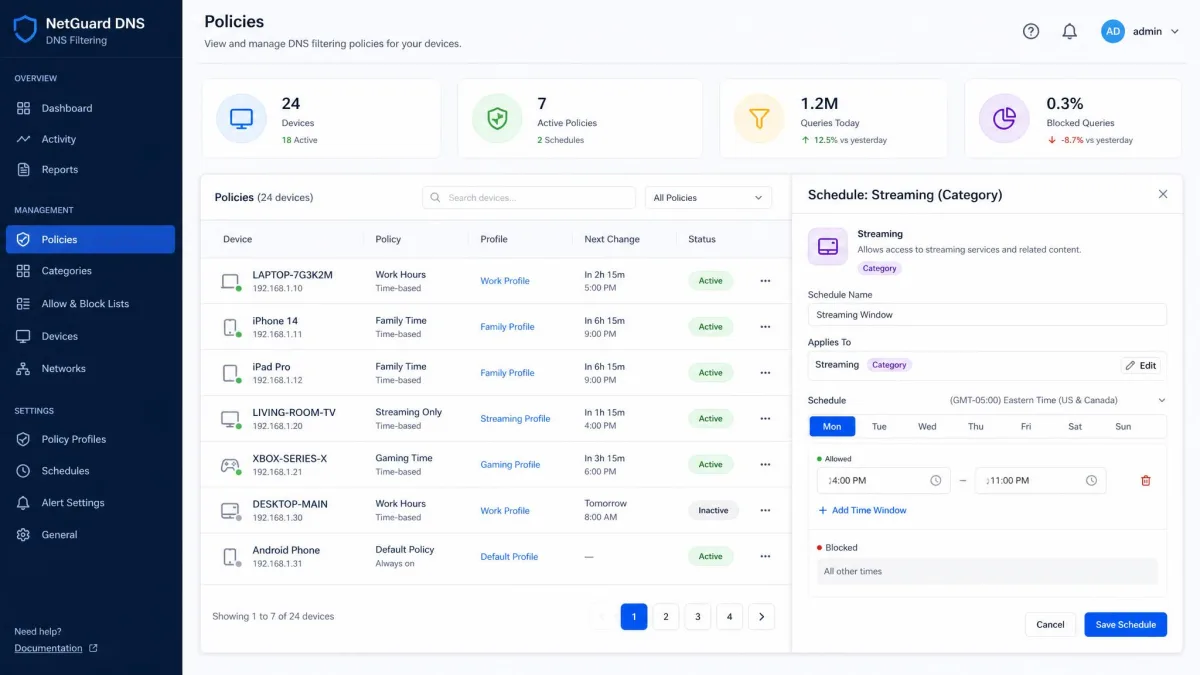
Method 4: Use a DNS Filtering Service With Time-Based Policies
DNS filtering takes a different path. Instead of blocking at the router or device, it intercepts the lookup that happens before any content loads, so Control D or NextDNS can block whole categories of sites on a schedule.
What DNS filtering is and why it catches what routers miss
Every time a device opens a site, it asks a DNS server to translate the domain into an address, and a filtering DNS service answers with a block when the domain is denied. Control D offers 20 native filter categories, over 1,000 blockable services, and an independently tested 99.98% malware block rate. A filter on the phone keeps working on cellular data.
Scheduling different DNS policies at different times of day
Control D enforces time-based rules per endpoint or profile, and NextDNS offers Recreation Time windows during which blocked categories are allowed, capped at 23.5 hours a day. A schedule can allow study sites all day, open streaming only after homework hours, and cut everything off at bedtime.

Control D runs a 14-day free trial with no credit card required. NextDNS schedule changes can take about five minutes to take effect, and in our benchmark testing Control D came back faster at the median lookup while NextDNS resolved nearly every request. A well-designed filter adds under 1 ms on average.
Method 5: Fall Back on Physical Controls
When software methods fail, or you want a hard cutoff nothing can talk its way out of, the physical layer still works. A timer on the router's power takes every device down.
Smart-plug timers that cut router power
A smart plug on the router's power cable costs around $14 and can cut power on a schedule set in the plug's app. Cloud-dependent plugs can miss their cutoff during an outage, so choose one that keeps the schedule on the device, like the Shelly. Schedule the plug off a minute before bedtime and on again a minute later to reboot the router cleanly.
Locking the router away or disabling remote administration
Two older controls still hold up. Locking the router away stops physical tampering and pairs with Wi-Fi scheduling, and disabling remote administration keeps the management page off the internet.
Router Time-Restriction Walkthrough: A Generic Step-by-Step
The menus differ by brand, but you follow the same steps on every router. This walkthrough mirrors the Linksys workflow in Method 1.
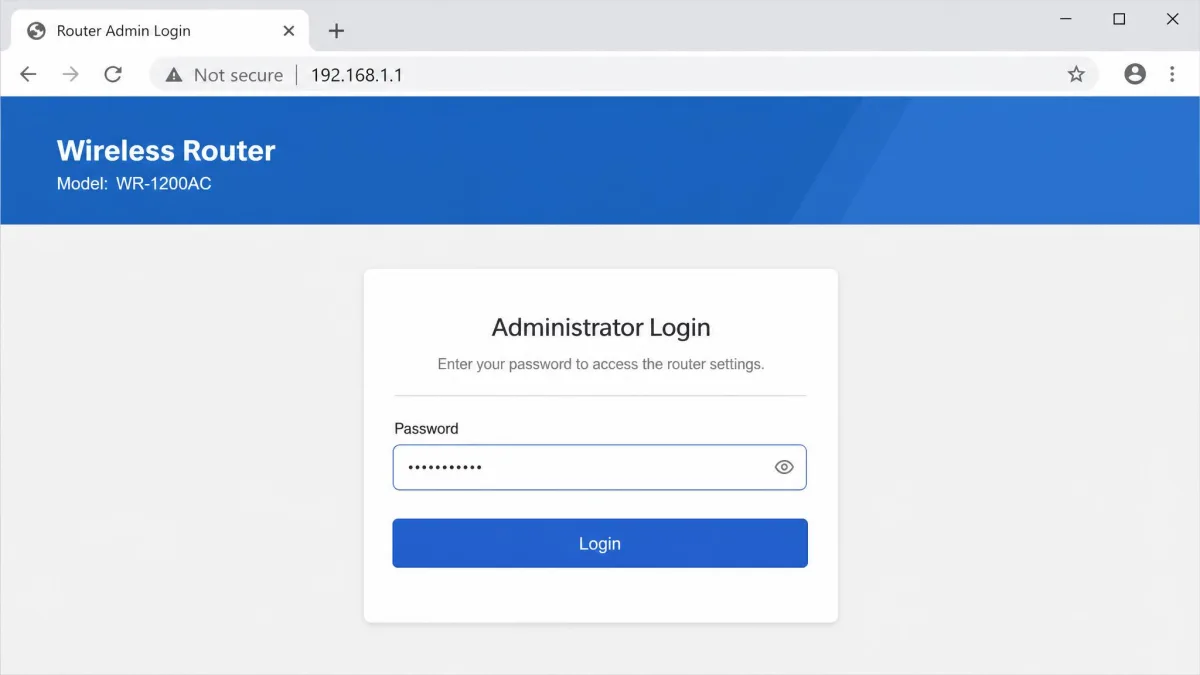
Log in to your router's admin page
Open a browser and go to the router's admin page, using the address on the sticker or in the manual, and sign in with the admin password.
Find Parental Controls / Access Restrictions / Scheduling
Look for the section labeled Parental Controls, Access Restrictions, or Scheduling. If your router has none of them, it likely has no scheduling feature, so use a device-level or DNS method instead.
Pick the device and the days + times to block
Select the device to restrict, mark the days, and drag across the hour grid to set the blocked window. If your router has trouble with a rule that crosses midnight, split it into two rules.
Verify router time and save
Check the router clock in the status page and make sure it matches your local time, because the schedule fires on the router's clock. Then save and test the block by setting it two minutes out.
Frequently Asked Questions
How do I schedule my Wi-Fi to turn off at night?
Can I restrict internet access to certain devices at certain times?
Does restricting Wi-Fi stop a phone on cellular data?
What's the easiest way to restrict internet access at home?
Do I need a new router to schedule internet access?
Will DNS filtering slow down my internet?
Final Thoughts
Time-based restrictions come down to picking the layer that matches your household. A router schedule is the right default for most families, because it is free and already in the settings. Device-level tools cover the phones that leave the house, and a DNS filter or smart plug fills the last gaps. Start with the router, add the device layer, and test before you rely on it.