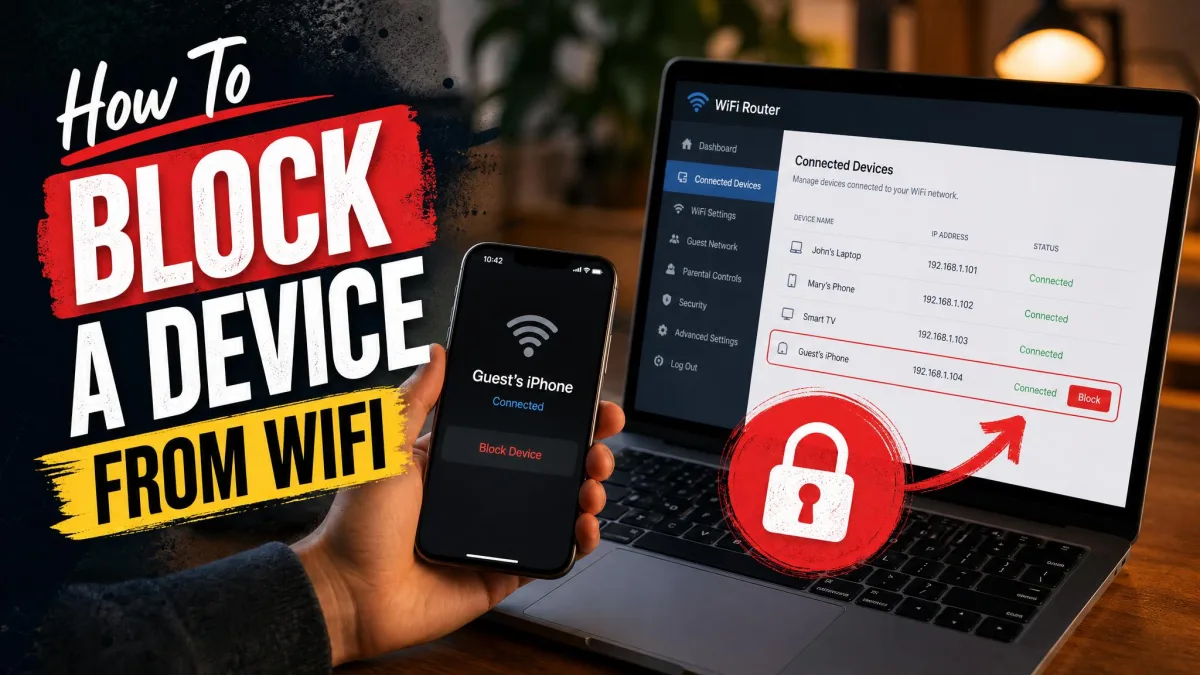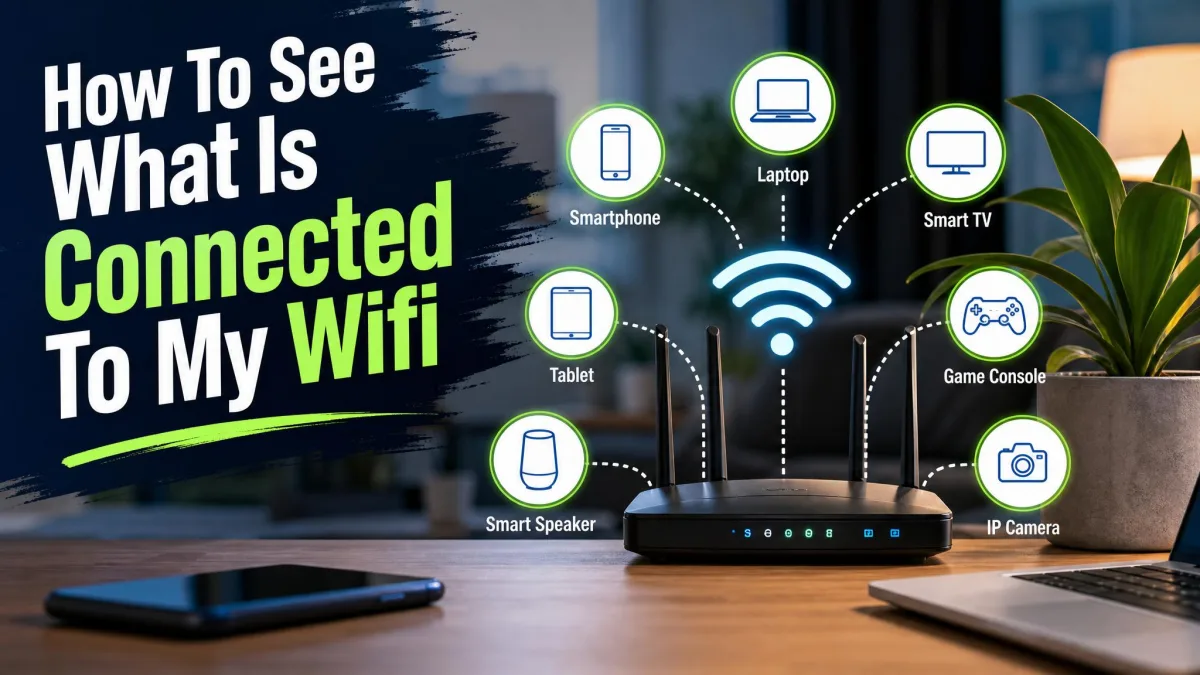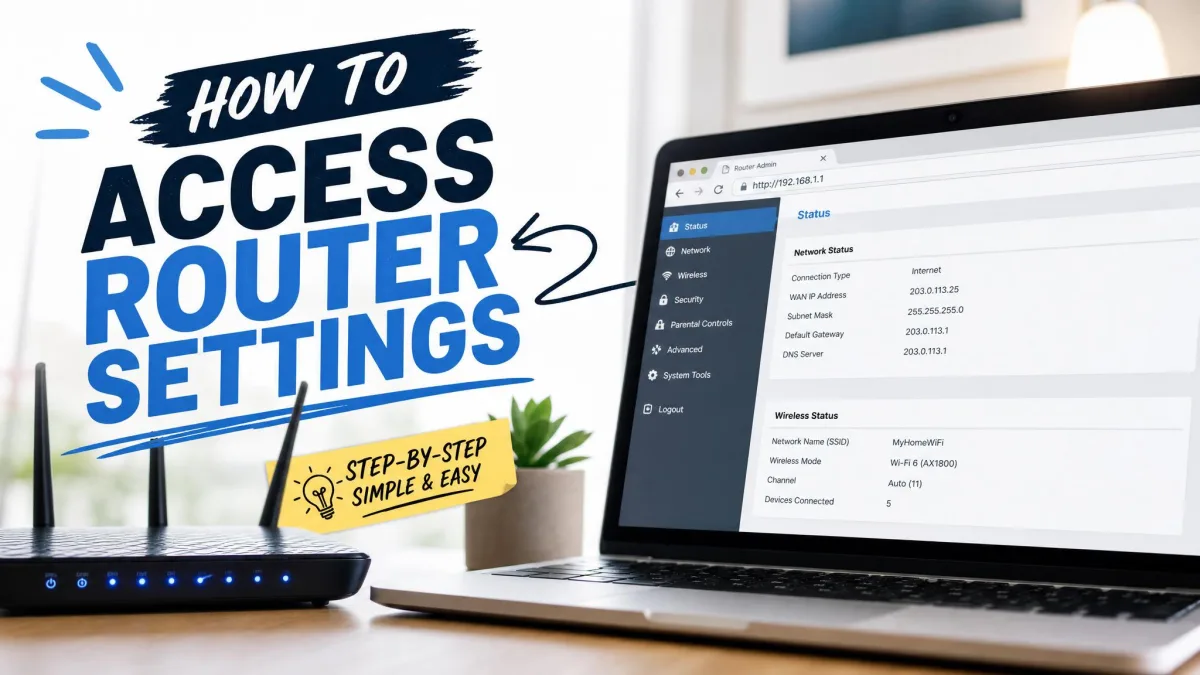
If you need to change your Wi-Fi password, update your router's firmware, or lock down your home network, the first step is getting into your router's settings. Every router has a built-in admin page, and you can reach it from any phone, tablet, or computer connected to the same network. You don't need to be a networking expert to get in.
In this guide, we'll give you step-by-step login instructions that work on any brand. You'll learn how to find your router's IP address on Windows, Mac, Android, and iPhone, and how to log in with the admin username and password. We'll also cover the default login addresses for Netgear, TP-Link, ASUS, and Linksys, and what to do when the login page won't load.
Key Takeaways
Every brand follows the same four steps. Connect your device to the network, open a web browser, type your router's IP address into the address bar, and sign in with your admin username and password. From the dashboard, you can change your Wi-Fi password, network name, guest network, and security settings.
Before You Begin: Find Your Router's IP Address
To open your router's admin page, you first need its IP address. This is the string of numbers, usually starting with 192.168 or 10.0, that your router uses on your local network.
The router's admin page is a small website hosted on the router itself. It loads even without internet.
Find Your Router's IP Address on Windows
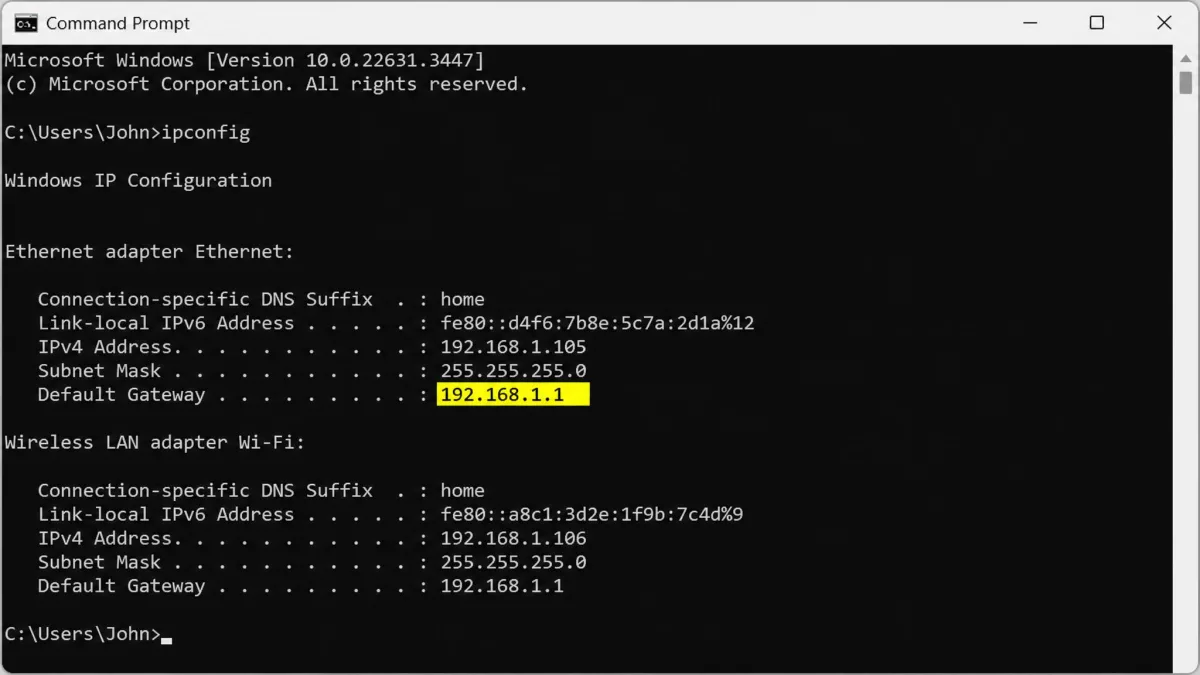
- Press the Windows key, type Command Prompt, and open it.
- Type ipconfig and press Enter.
- Look for the Default Gateway entry. The address next to it is your router's IP.
Find Your Router's IP Address on Mac
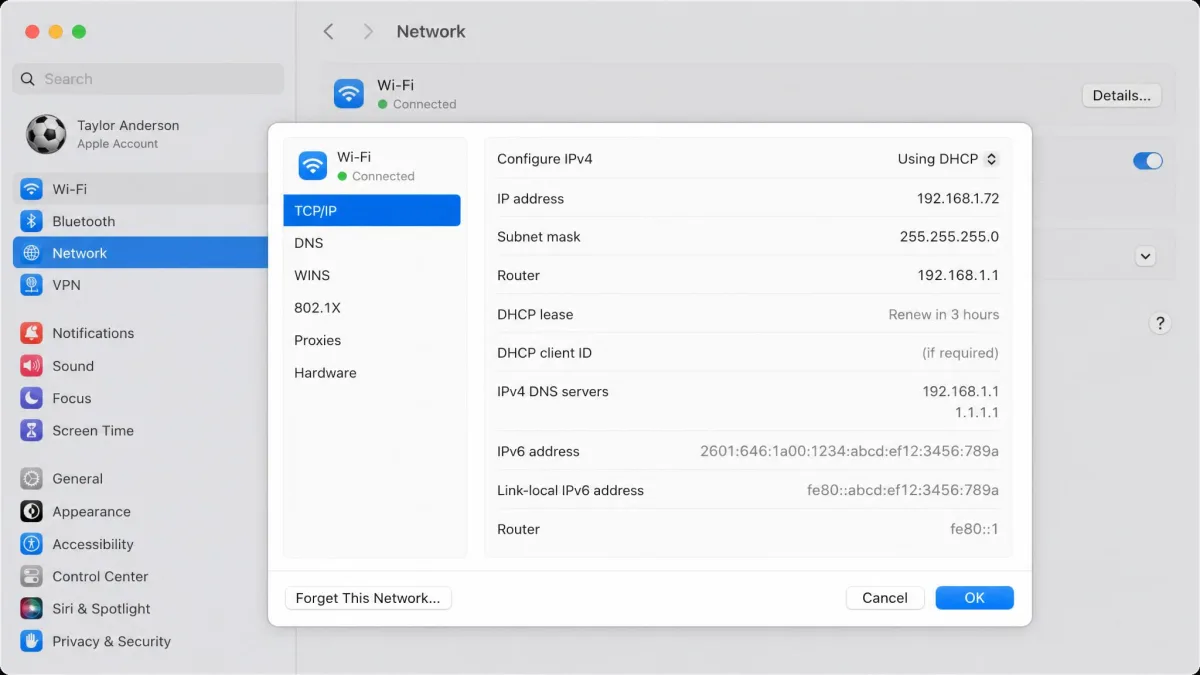
- Open System Settings, then Network, and select your active connection.
- Click Details and read the address next to Router.
Find Your Router's IP Address on Android or iPhone
- On Android, open Settings, then Wi-Fi, tap the connected network, and read the Gateway entry, which sits under Advanced on some devices.
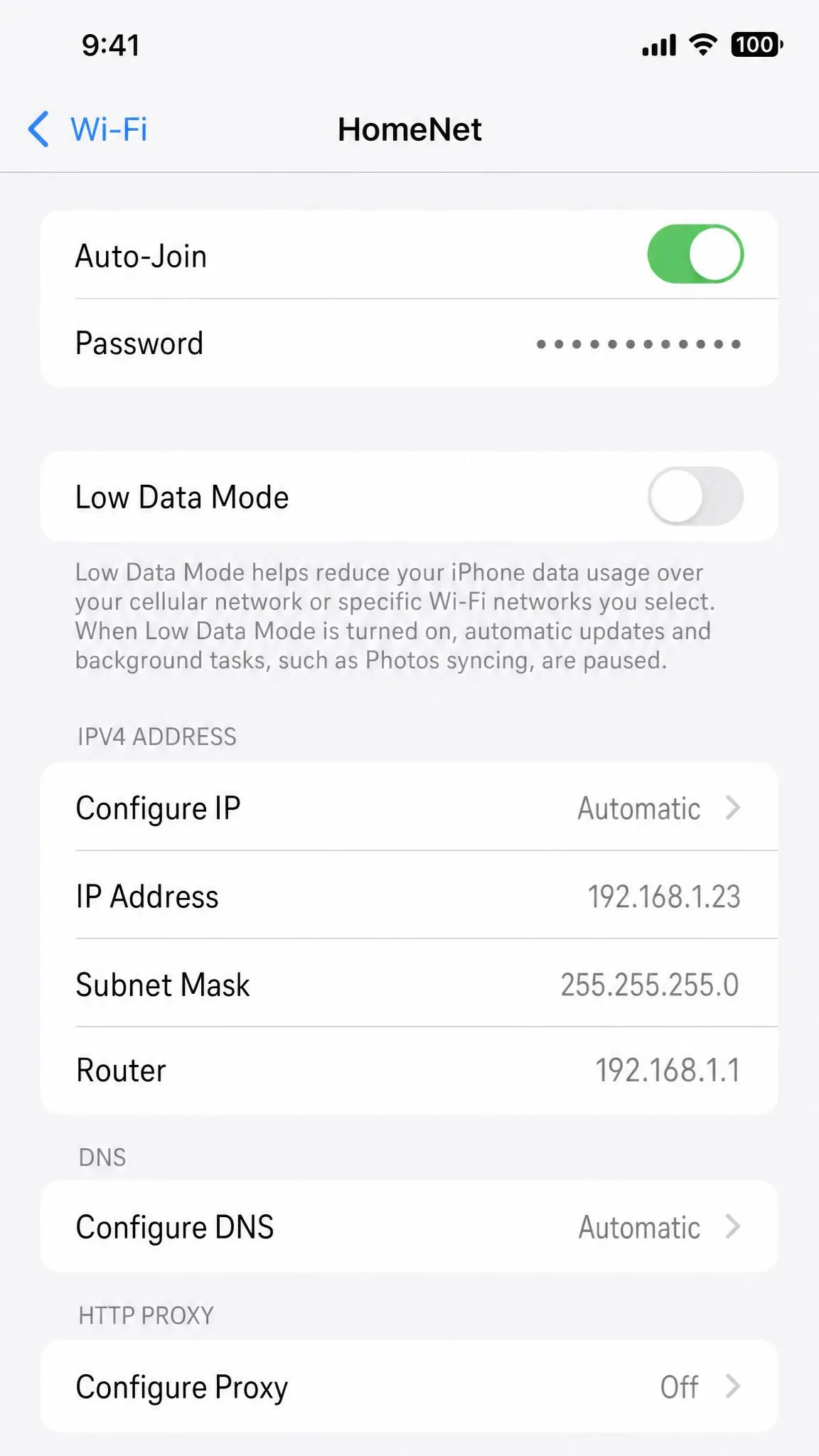
- On an iPhone or iPad, open Settings, then Wi-Fi, tap the (i) icon next to your network, and read the entry labeled Router.
Common Router IP Addresses and Login URLs
| Router Brand | Login URL | Default IP Address |
|---|---|---|
 |
routerlogin.net or routerlogin.com | 192.168.1.1 or 192.168.0.1 |
 |
tplinkwifi.net | 192.168.0.1 or 192.168.1.1 |
 |
router.asus.com | 192.168.50.1 or 192.168.1.1 |
 |
myrouter.local | 192.168.1.1 |
 |
dlinkrouter.local | 192.168.0.1 |
 |
eero app (no browser login) | None (app only) |
 |
Google Home app (no browser login) | None (app only) |
If you have a cable internet gateway from Xfinity, the admin page is at 10.0.0.1, and day-to-day changes happen in the Xfinity app at xfinity.com/myaccount.
How to Access Your Router Settings (Universal Method)
Once you have the address, the login flow is the same on every brand.
Step 1: Connect Your Device to the Router
Connect your device to the router's network, over Wi-Fi or Ethernet. The login page only loads when your device is on the same network as the router, so disconnect a VPN first.
Step 2: Open a Browser and Enter Your Router's IP Address
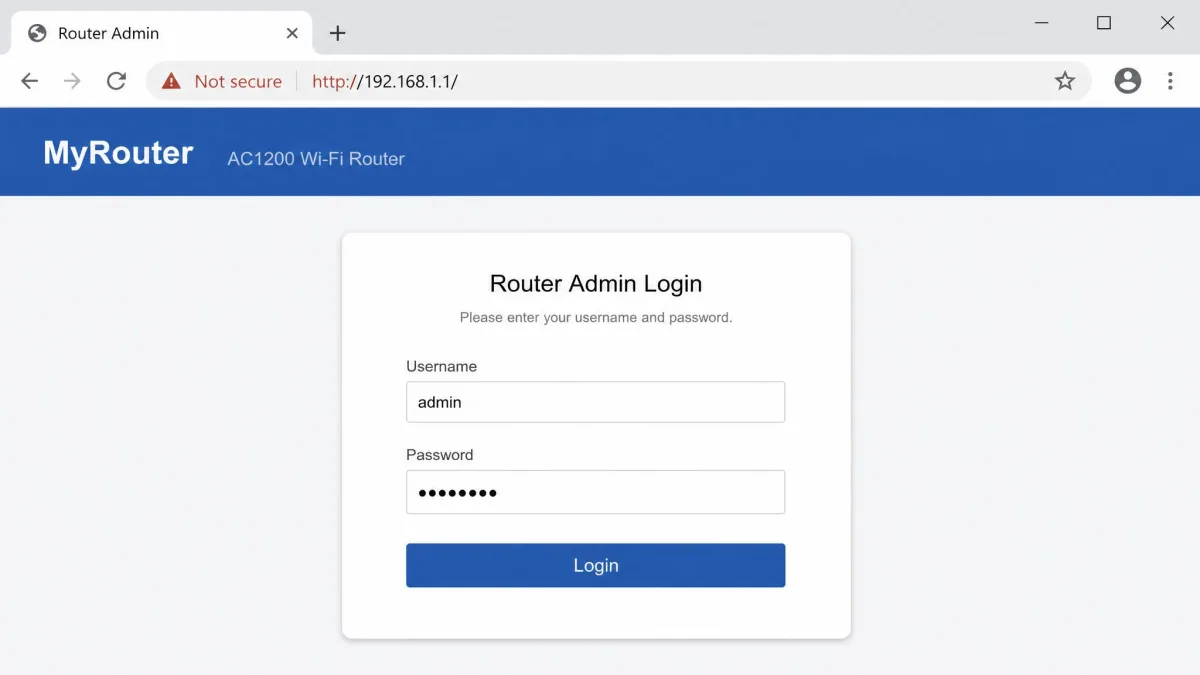
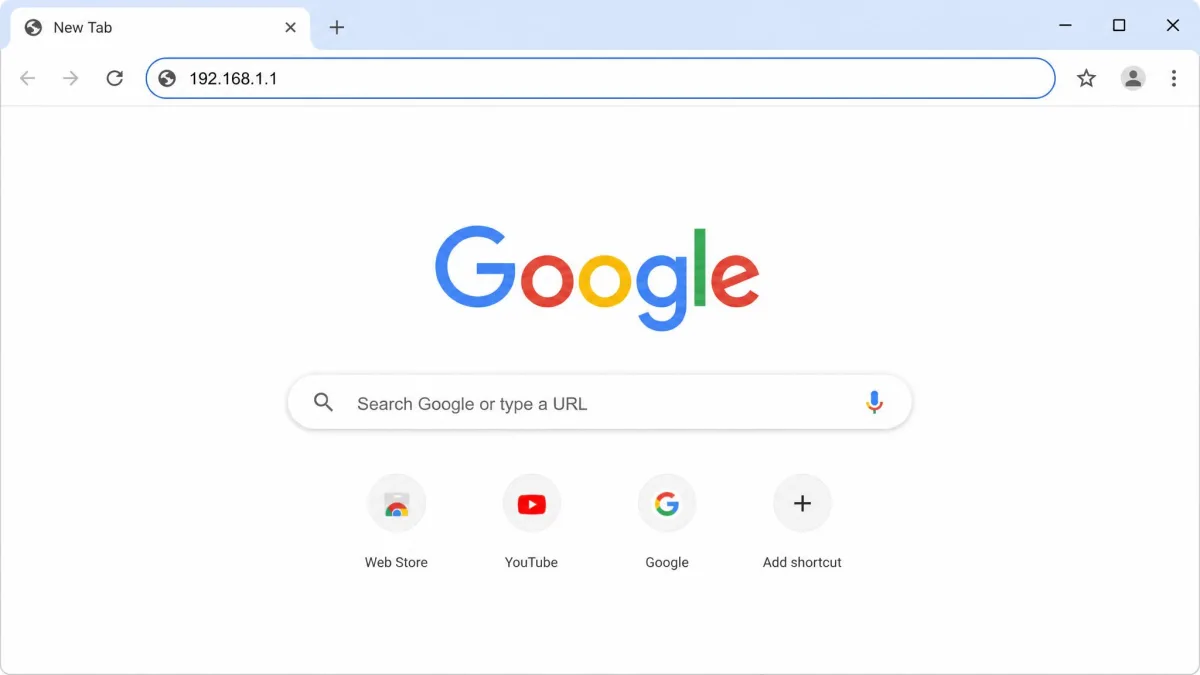
Open a web browser and type your router's IP address into the address bar, then press Enter. Use the address bar, not the search bar, because the search box returns web results instead of the login page. Some browsers need http:// before the address, since many routers serve the admin page over plain HTTP.
Step 3: Enter Your Admin Username and Password
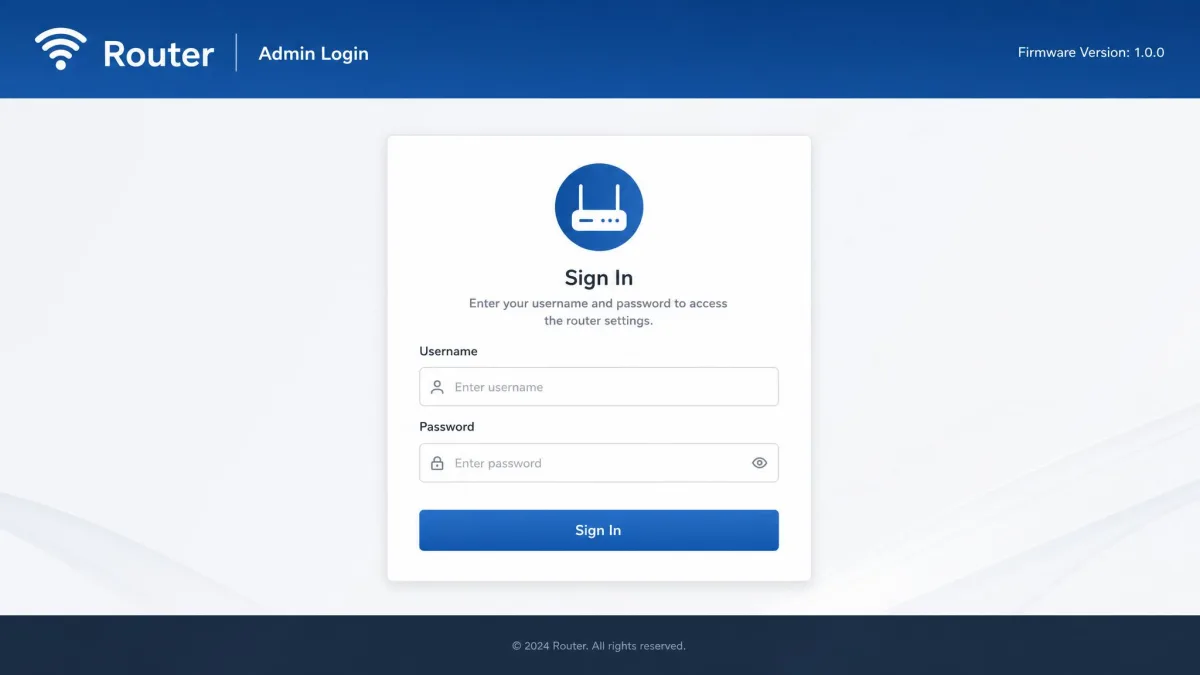
A login page asks for a username and password. On most consumer routers the default username is admin, and the default password varies by brand. Many newer routers require the password you created during initial setup.
Step 4: Explore the Router Dashboard
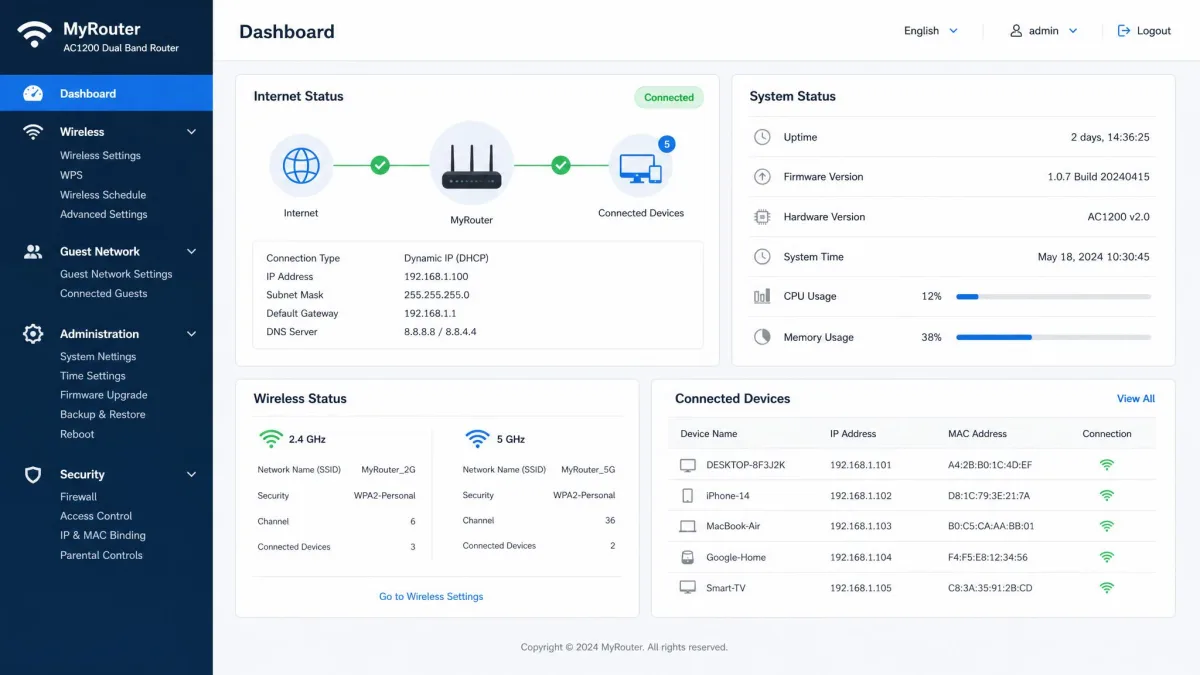
After you sign in, you land on the dashboard. It holds the settings you'll want to change, including the Wi-Fi password, network name, guest network, and security options.
How to Log In to Your Router With a Mobile App
Most standalone routers log in through a web browser, but many mesh systems are managed primarily through a mobile app. If your router is a mesh system like eero or Google Nest, the app is the main way in, and there may be no browser login page at all. You can also open the same IP address in your phone's browser.
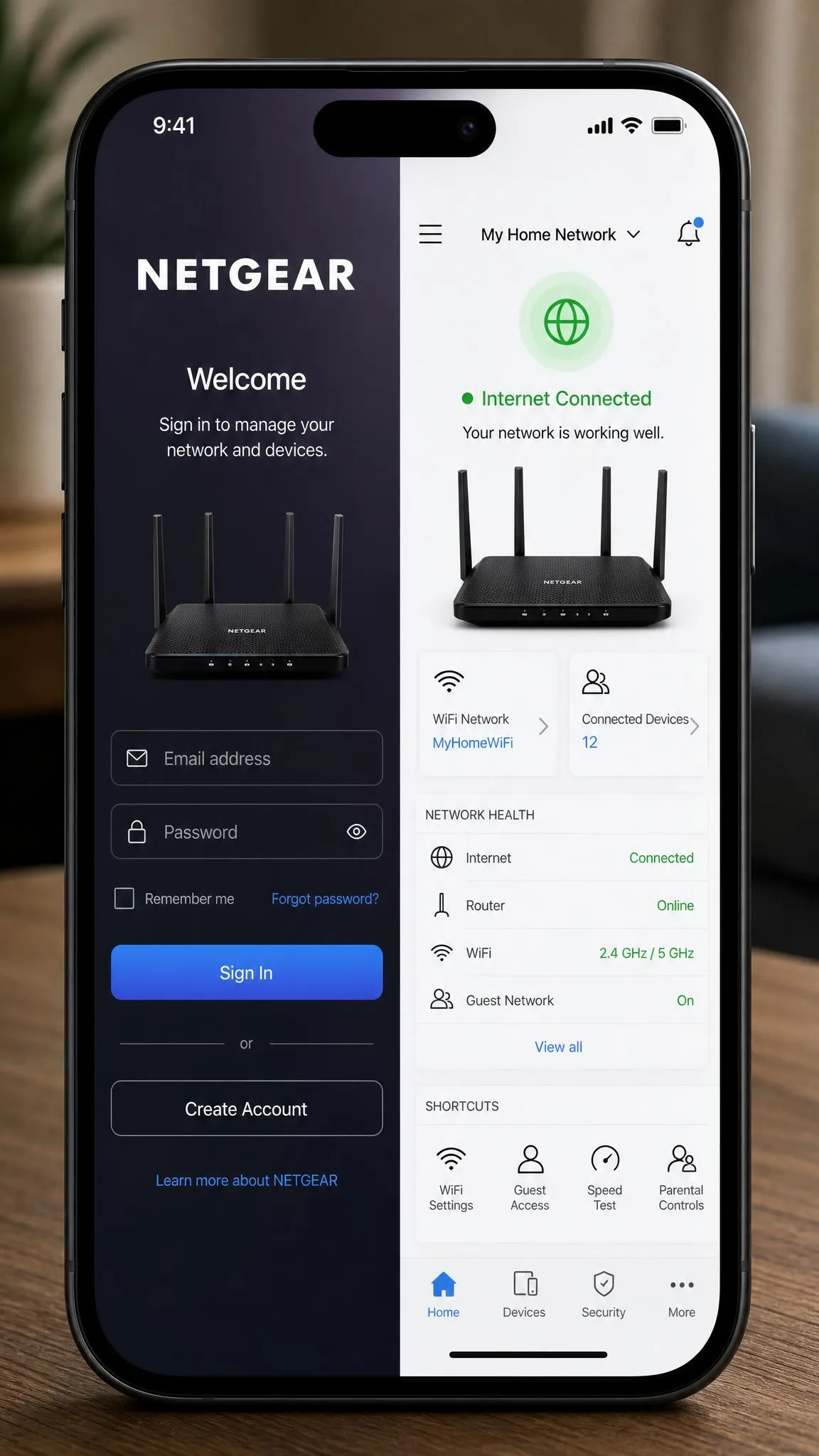
Router Login Instructions by Brand
Each manufacturer uses its own login address and default credentials.
Netgear (Nighthawk, Orbi)
Netgear routers log in at routerlogin.net or routerlogin.com, and the default IP is 192.168.1.1 or 192.168.0.1. The default admin password is password on older models; most newer models use the password you set during setup.
Netgear Orbi systems log in at orbilogin.net, and newer Orbi models use 10.168.168.1 instead of the older 192.168.1.1.
TP-Link (Archer, Deco)
TP-Link routers log in at tplinkwifi.net, and the default IP is 192.168.0.1 or 192.168.1.1. Older models use admin for both credentials, while some newer models create credentials at first setup.
TP-Link Deco mesh systems sign in at 192.168.68.1 or through the Deco app with your TP-Link ID password, and not every Deco model has a web interface. For standalone models, the TP-Link Tether app handles app-based management.
ASUS (RT, ROG Rapture, ZenWiFi)
ASUS routers log in at router.asus.com, and the default IP is 192.168.50.1 or 192.168.1.1. Older models use admin for both credentials, while newer models print model-specific credentials on a sticker or ask you to set an account at first login.
Linksys
Linksys routers log in at myrouter.local or 192.168.1.1, and the login page has no username field. Older models use admin as the default password, while newer models use the password you created during setup.
Google Nest Wi-Fi and eero
Google Nest Wifi has no browser admin page; you manage it in the Google Home app with a Google account. The Wi-Fi password must be 8-63 characters, using letters and numbers with no spaces.
eero works the same way, with all settings managed in the eero app and no browser login. eero uses a passwordless login, so the app sends a verification code to your email or phone.
How to Change Common Router Settings
Once you're in the dashboard, these are the settings most people log in to change.
Change Your Wi-Fi Password
- Open the section labeled Wireless, Wi-Fi, or Network.
- Find the password field and enter a new one.
- Save the change before leaving the page.
Changing the Wi-Fi password disconnects every connected device until each one rejoins with the new password.
Change Your Network Name (SSID)
Your network name is the SSID, the name in your device's list of available networks. Edit it in the same Wireless or Wi-Fi section. Avoid personal details like your address or family name, since the name is visible to anyone nearby.
Set Up a Guest Wi-Fi Network
- Look for a Guest Network or Guest Wi-Fi section in the dashboard.
- Turn it on and give the guest network its own name and password.
- Save, then share the guest password with visitors.
A guest network keeps visitors off your main network. For tighter control over what others can reach, see how to control internet access at home.
Change Security or Encryption Settings (WPA2/WPA3)
- Open the Wireless or Security settings.
- Set the security mode to WPA3 if every device on your network supports it.
- Change the admin password to something different from your Wi-Fi password.
WPA3 is the current standard and the most secure choice, with WPA2 as the fallback for older devices. Turn off features you don't use, like remote management and WPS. The FTC's router security guidance recommends changing both default credentials and keeping firmware current. If you use a VPN router, our guide to what a VPN router is explains the trade-offs.
Update Your Router Firmware
- Look for a Firmware Update or Administration section in the dashboard.
- Check for updates and install anything available.
- Turn on automatic updates if your router offers the option.
Keeping the firmware current is one of the simplest ways to keep your router secure.
Troubleshooting: Router Login Page Won't Load
If the page still won't load, work through these fixes in order.
Always type the router address into the browser's address bar, not the search bar. A search for the address returns web results, not the login page.
Wrong IP Address or Login Page Not Loading
Recheck the address and make sure you used the address bar, then check these causes.
- Your browser forced HTTPS. Some browsers auto-upgrade 192.168.1.1 to https, and routers that serve plain HTTP fail with an error. Type http:// before the address.
- You're on the wrong network. The admin page only loads from the router's own network, not cellular data or a neighbor's Wi-Fi.
- Secure DNS is blocking the name. DNS over HTTPS can stop names like tplinkwifi.net from resolving, so type the raw IP instead.
- You opened the wrong device. With an ISP modem plus your own router, ipconfig's Default Gateway shows which device is actually answering.
Forgot Default Username or Password
Check the sticker on the underside of the router first, because many routers print the exact login details there. Newer routers often force you to create your own admin password at setup, so a printed default may not apply. Sites like Router Passwords keep lists of factory defaults for older models. If nothing works, a factory reset is the only fix.
Factory Reset (Last Resort)
Hold the recessed reset button on the back of the router for about 10-15 seconds to restore factory defaults. The exact hold time varies by manufacturer. A reset erases every custom setting, including your Wi-Fi name, Wi-Fi password, admin credentials, and port-forwarding rules, so plan to reconfigure the router afterward.
Browser, Cache, or Firewall Issues
Antivirus web protection, VPNs, and virtual network adapters can silently block the admin page while the internet works. Try disabling the VPN or security add-on, or open the page in a private window. Routers also send permanent redirects that browsers cache aggressively, so clearing the cache restores access. On some Xfinity gateways, 10.0.0.1 shows a prompt to download the xFi app instead of the login page, so use the app there.