There comes a time when parental controls have served their purpose. The kids outgrew them, or you bought a used device that still carries the previous owner's restrictions. Maybe the family tablet just needs a fresh start. If any of that sounds familiar, you're in the right place. In our experience, two problems come up again and again: a forgotten passcode and a control that outlived its purpose. This guide walks you through deleting parental controls on iPhone, Android, Windows, Mac, and the game consoles.
Removal works differently on every platform. Screen Time and Google Play controls live on the device and clear in settings. Family Link, Microsoft Family Safety, and console family groups are tied to accounts, so they follow the account across devices. Turn off the control first, then delete an account only if you truly want it gone.
What Are Parental Controls (and Why Remove Them)?
Parental controls are the built-in safety features that limit what a child can do on a device. Apple calls its version Screen Time, Android splits the job between the Google Play Store and Family Link, Windows uses Microsoft Family Safety, and every major game console ships its own system. All of them are free and built into the platform.
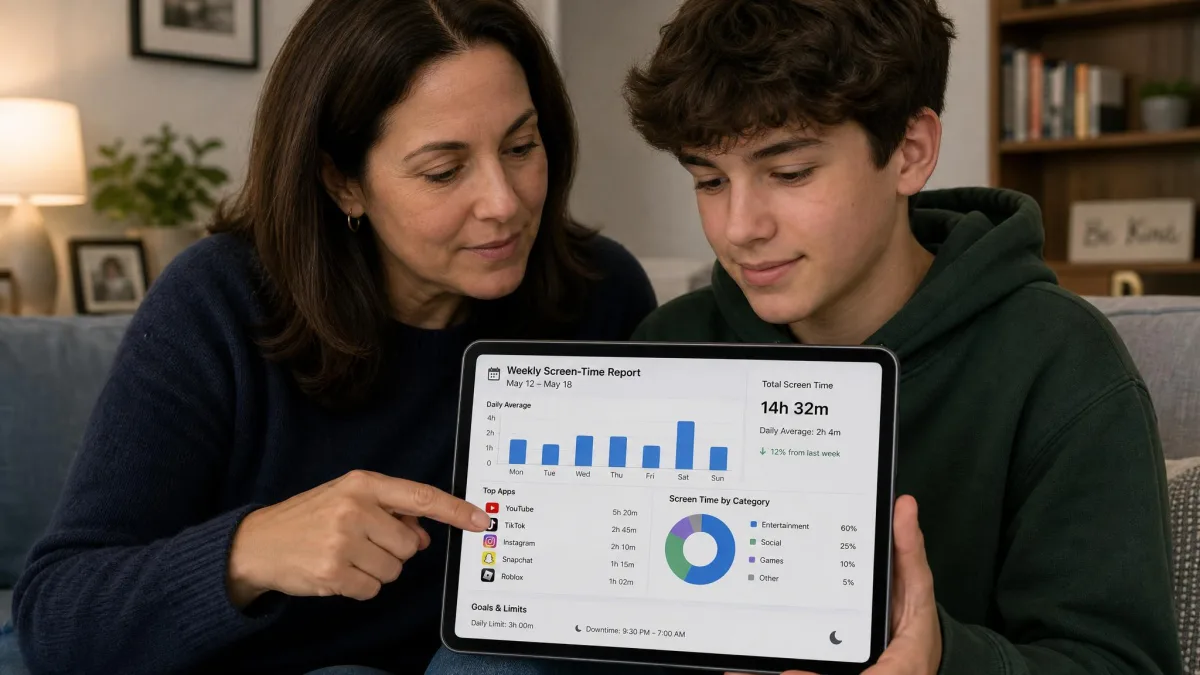
They can block mature apps and sites, cap screen time, approve purchases, and pause a console after bedtime. They also generate activity reports, so you can see what your child actually does in their digital world. That structure is valuable while kids are young. As they grow, the same settings start to feel like walls, and that's when most parents look for the off switch.
Removing them is a normal stage of parenting, not a lapse in judgment. Kids outgrow restrictions at different ages and with different readiness. UNICEF's online-safety guidance makes the same point: protection matters most early, and independence, introduced gradually, is part of healthy digital habits.
When You Should and Shouldn't Turn Them Off
Turn them off when your child has shown they can handle more freedom. The usual signs are managing their own homework time, keeping up with schoolwork, and respecting the house rules about screens. Loosening limits in stages, rather than all at once, gives them room to prove it.
Keep them on for younger kids even when they push back. Under about 13, the structure is still doing the work, and dropping it all at once tends to backfire. You don't have to choose between locked-down and wide open. Keep the content filters and purchase approval while you drop the time limits, and the safety net stays up while the restrictions loosen.
Before You Start: Quick Things to Check
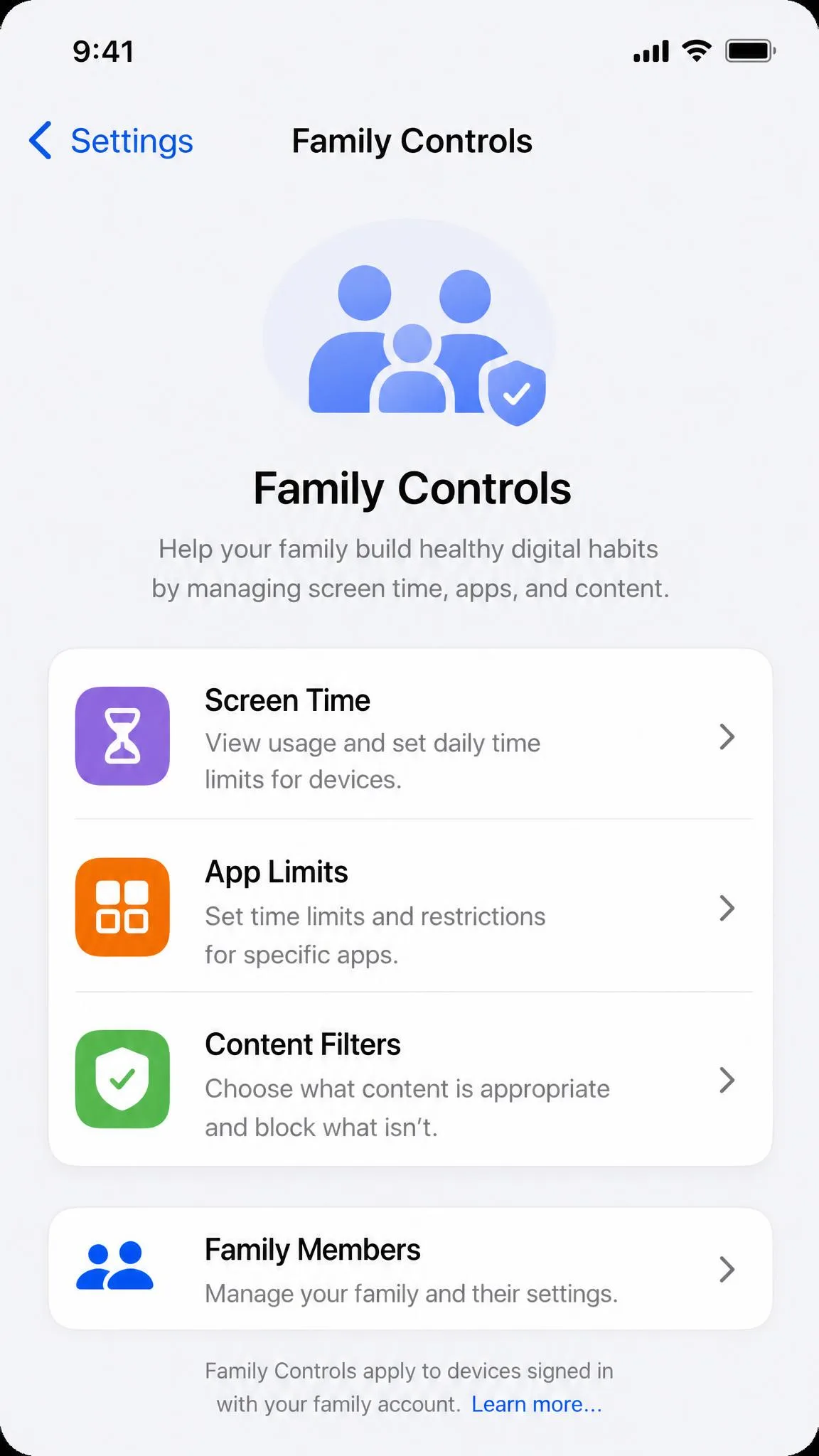
This checklist takes two minutes and can save you from wiping a device by accident.
First, know the difference between turning controls off and deleting an account. Turning off Screen Time keeps all the data. They are very different actions.
Second, gather the PIN, passcode, or account sign-in you'll need. Every platform has a recovery path if you forgot it, but having it saves time. Also check where the controls live. Family Link and Microsoft Family Safety are account-based, so they follow the account to every device and survive a factory reset. Screen Time and Google Play controls are device-based and clear when you reset.
Third, back up anything you don't want to lose before you change settings or delete accounts. A quick backup beats a lot of regret.
Turning off controls is not the same as deleting a child's account. Deleting a supervised Google Account wipes their email, photos, and Play purchases permanently. Turn controls off first, and only delete an account when you're sure that's what you want.
How to Turn Off Parental Controls on iPhone or iPad
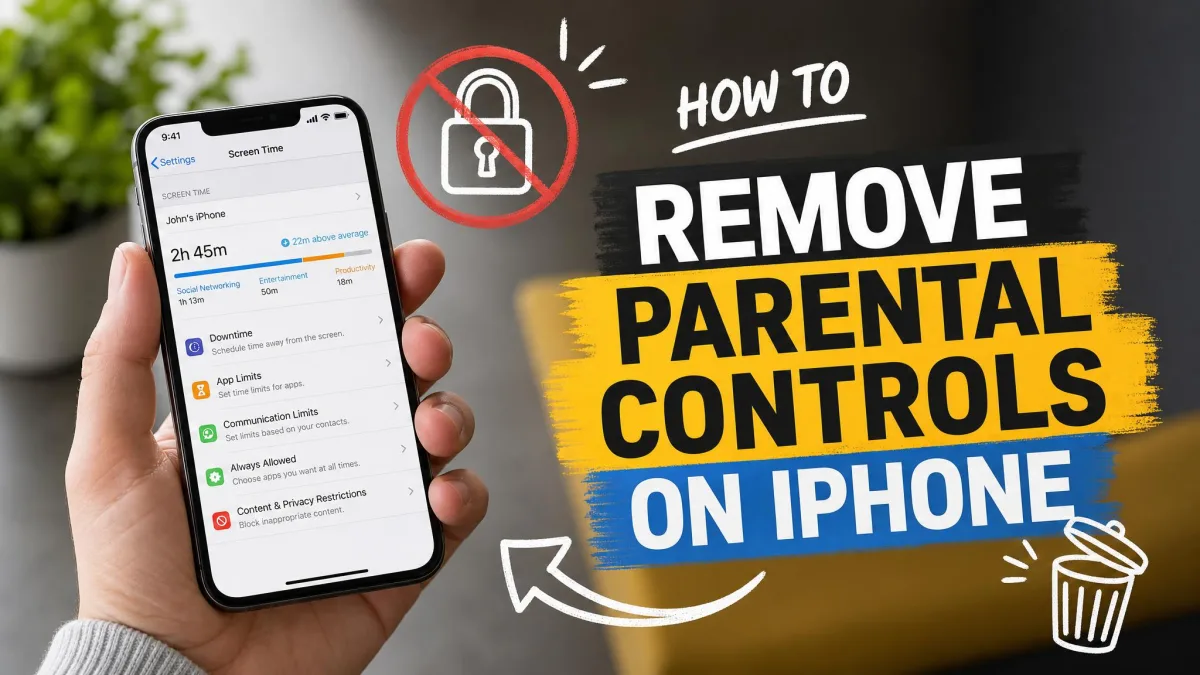
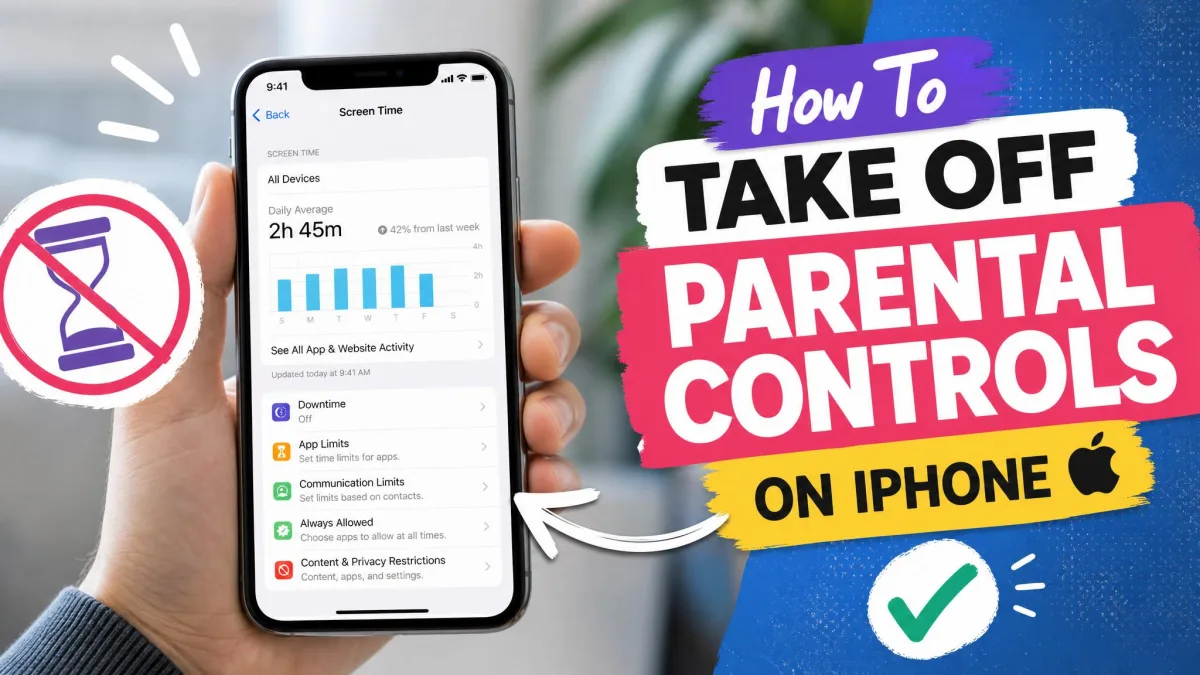
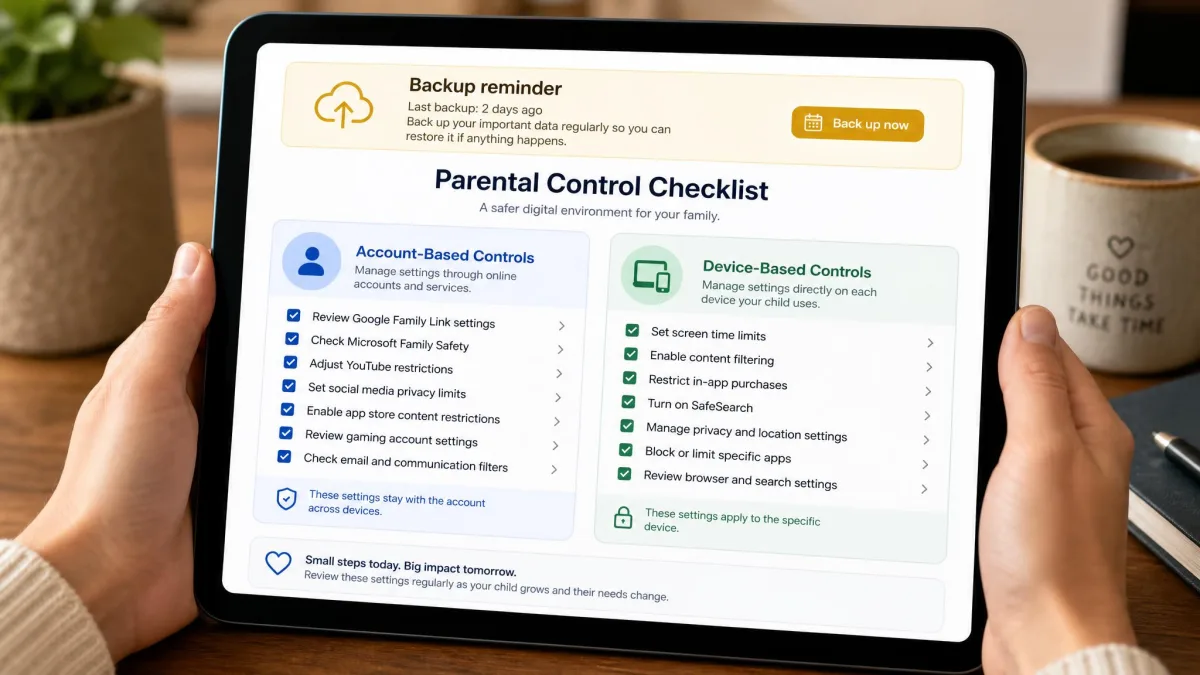
Apple devices use Screen Time for parental controls. It's been built into iPhones and iPads since iOS 12 and costs nothing. Apple Screen Time covers app limits, downtime, content restrictions, and activity reports.
Screen Time has a reputation among parents, and not always a good one. A forgotten passcode is the most common lockout we hear about, and repeated wrong attempts trigger longer and longer time-outs. So keep the passcode somewhere safe before you start.
Turn Off Screen Time and Content Restrictions
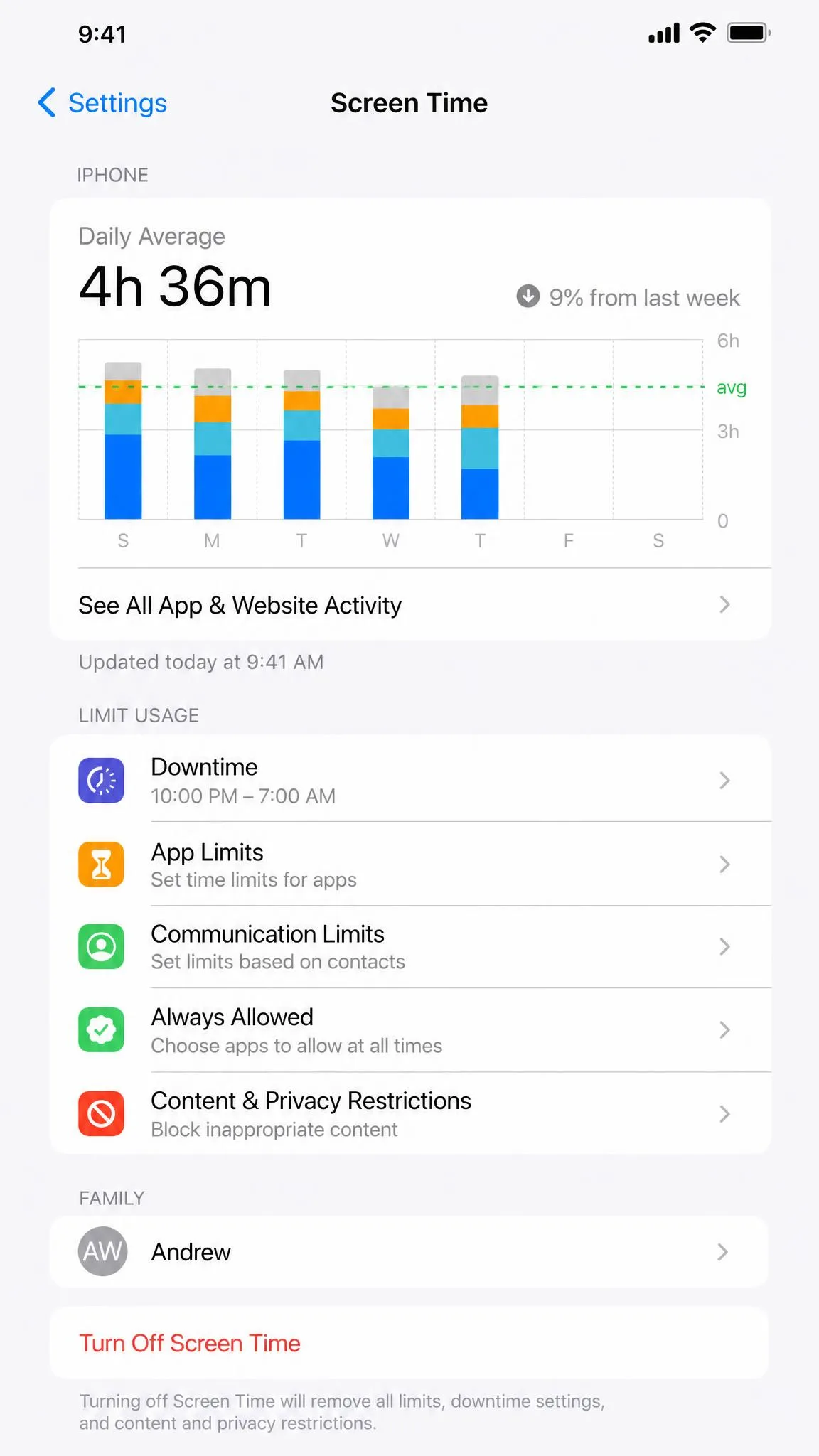
Open Settings and tap Screen Time. If you manage the device through Family Sharing, do this on your own phone or iPad as the family organizer.
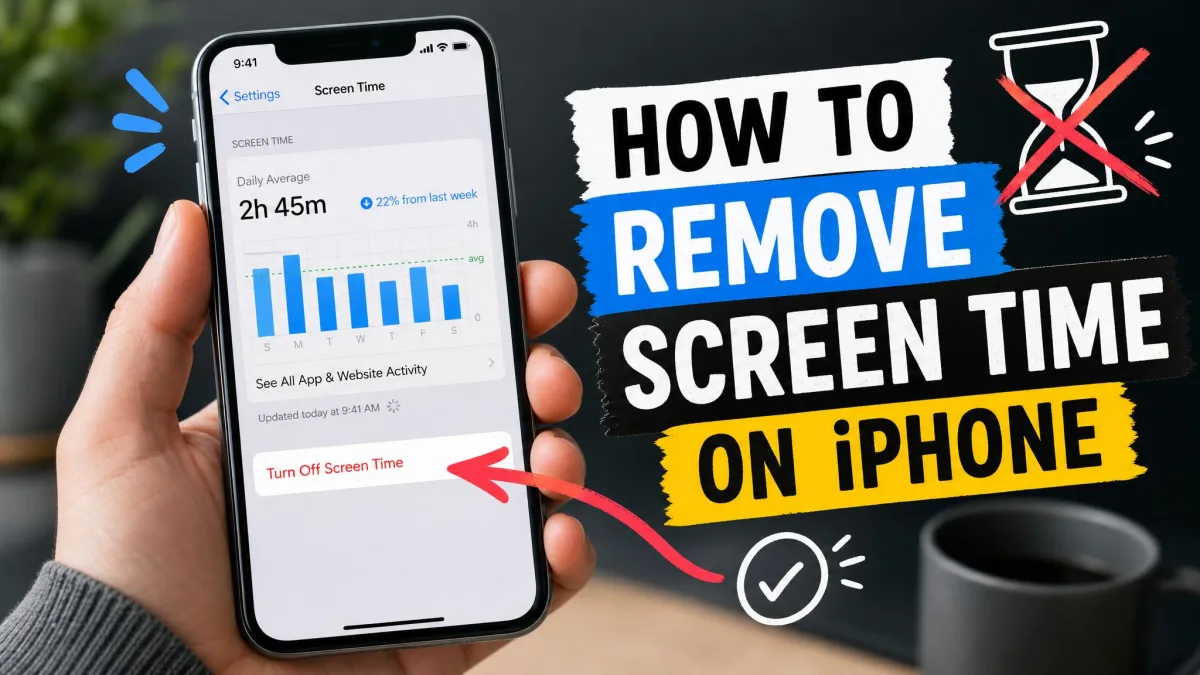
Scroll to the bottom and tap Turn Off Screen Time. Enter the Screen Time passcode to confirm, and Screen Time stops tracking activity. Downtime, App Limits, and most restrictions turn off with it.
Content and Privacy Restrictions run separately. Go back to Settings → Screen Time and open Content and Privacy Restrictions. Toggle the switch off to pause every blocked category at once. It stays off until you switch it back on, so it's a pause rather than a permanent delete.
Reset a Forgotten Screen Time Passcode
The Screen Time passcode is not your device passcode. Resetting it follows one rule: it must match the Apple Account that was signed in when the passcode was created. On a used device, that can be the previous owner's account or a family member's, not the account on the phone right now.
Go to Settings → Screen Time → Change Screen Time Passcode, then choose Forgot Passcode and enter the Apple Account details. Apple sends a confirmation email within about 72 hours, and the reset can then take several days or longer. Apple Support cannot shorten the wait.
This route only works if Screen Time Passcode Recovery was enabled when the passcode was created. If it was skipped, your realistic options are waiting out account recovery or erasing the device and setting it up as new. Apple's Screen Time passcode guide explains the account requirement in detail.
How to Disable Parental Controls on Android
Android runs two layers of parental controls, and to fully remove parental controls on Android you may need to clear both. Google Play controls restrict apps by maturity rating on a single device. Family Link supervises the whole Google Account and follows it everywhere.
Turn Off Parental Controls in the Google Play Store
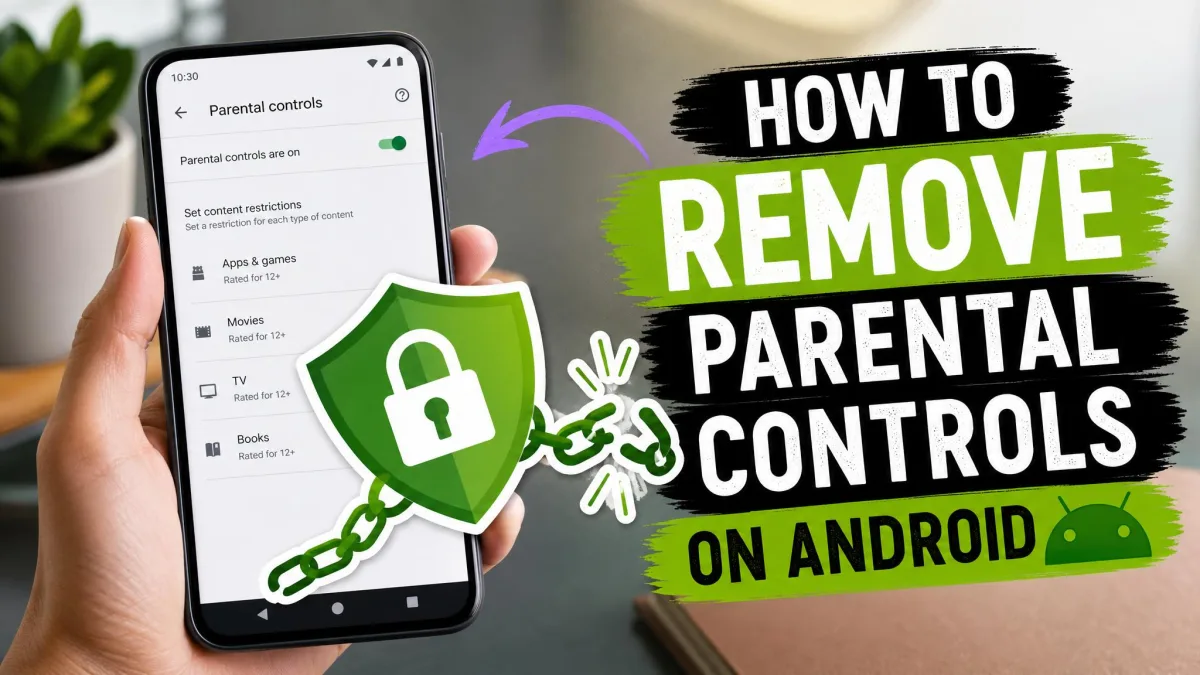
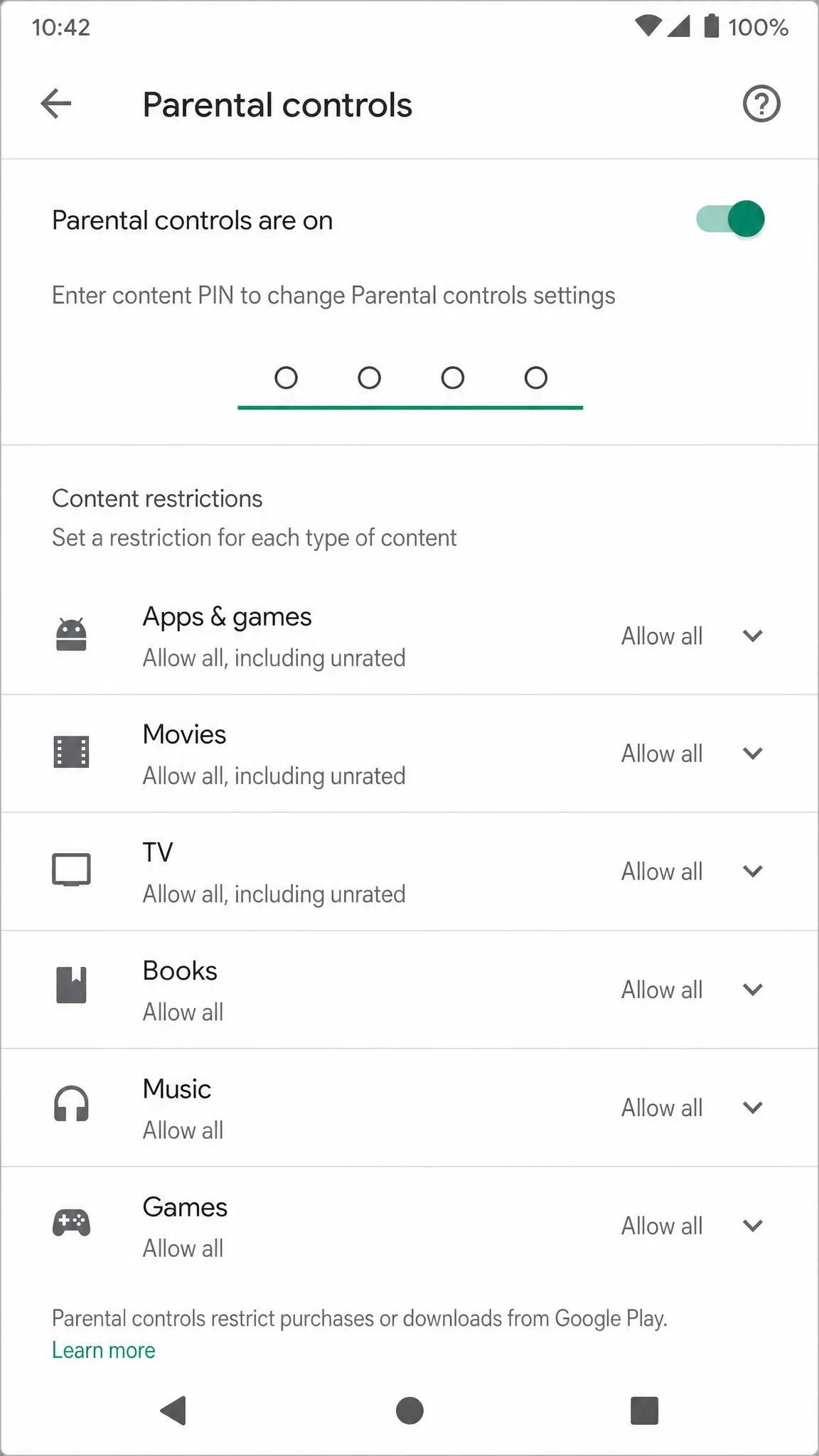
Open the Play Store and tap your profile picture in the top right. Go to Settings → Family → Parental controls, and enter the PIN you set when controls were enabled. Toggle the switch off.
That lifts the maturity-rating limits on this one device. It does not affect Family Link, and other devices keep their own Play controls. Google Play parental controls are set per device, so repeat this on every phone or tablet your child uses.
Stop Supervision in the Family Link App
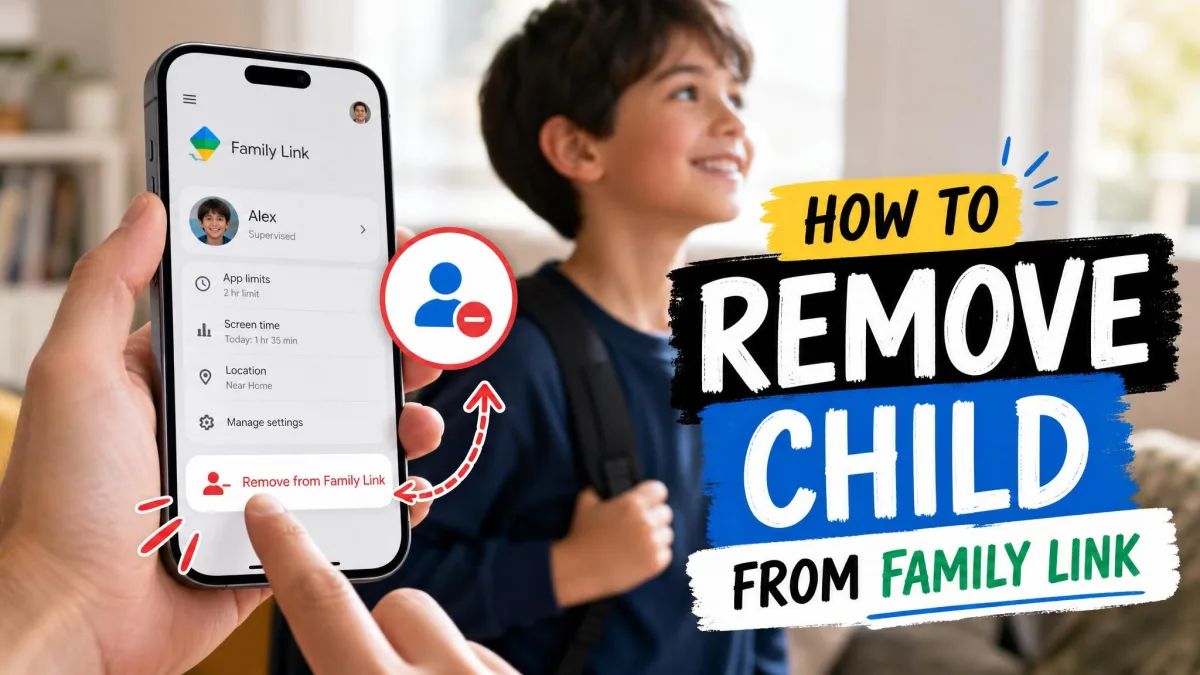
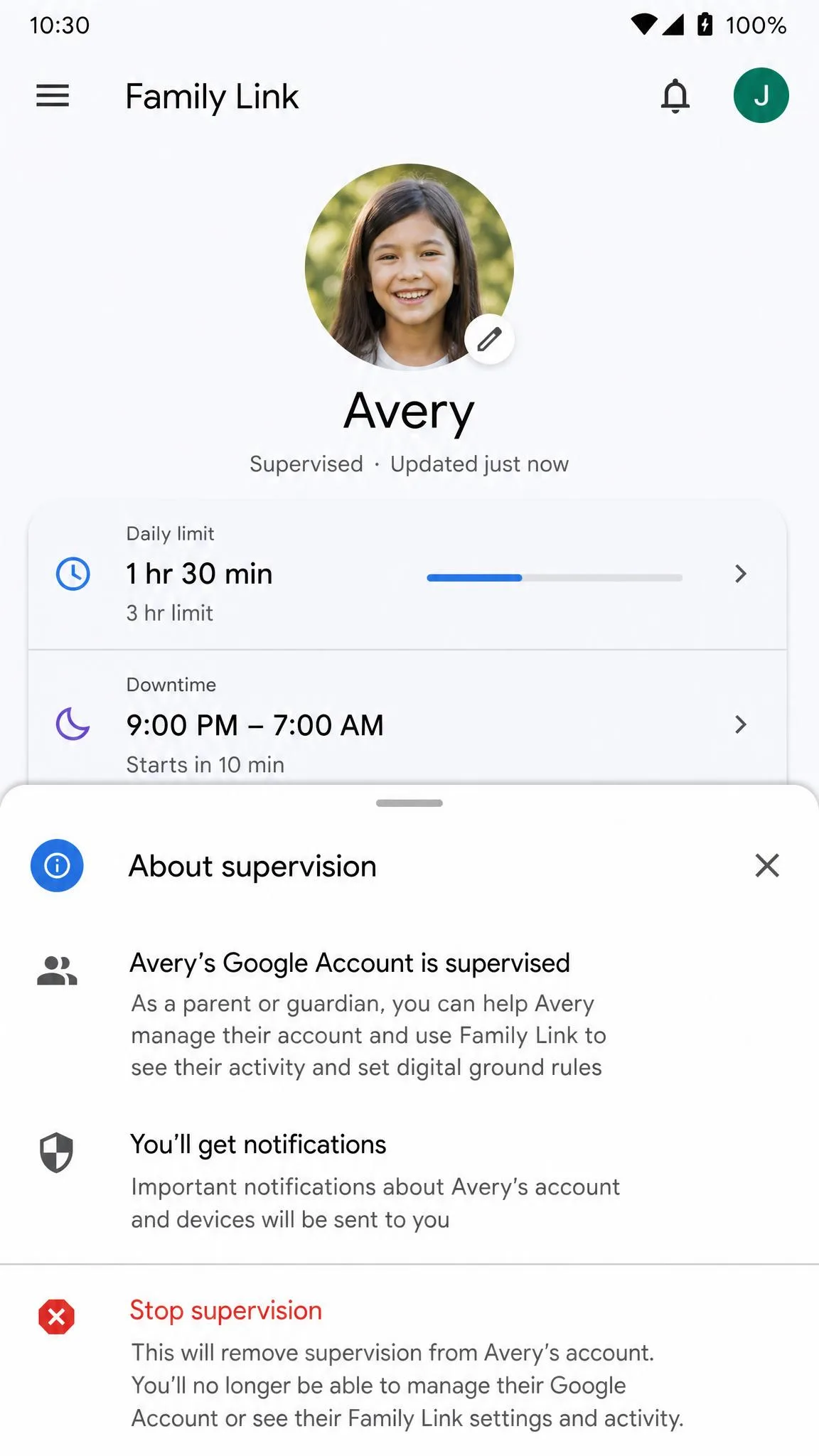
Family Link is the account layer. Open the Family Link app on your phone and select the child's profile. Go to Controls → Account Settings → About supervision → Stop supervision, then sign in to verify. Both you and your child get a notification when it ends.
A child who has turned 13 can stop supervision from their own device, as long as the phone runs Android 7.0 or newer. Under 18, the stop still needs a parent's approval. Google Family Link documents the full flow, including the age rules.
Remove Parental Controls Without the PIN
Forgot the Play Store PIN? You don't need it. Clear the app's stored data instead: go to Settings → Apps → Google Play Store → Storage → Clear data. This also resets the restrictions themselves, so the content limits drop with it. The next time you open controls, Android sets a fresh PIN at the device level.
Menu names vary a little between Android versions and phone brands, so you may see Apps and notifications instead of Apps. The principle is the same. This trick only clears the Play Store layer, not Family Link, which always needs an account sign-in.
How to Delete Parental Controls From a Google Account or Chromebook
Google accounts come with two removal paths, and the order of operations matters.
For a child who is 13 or older, stopping supervision on a child's Google Account keeps the account and its data intact. Use the Family Link steps above, or open familylink.google.com in a browser and stop supervision there.
For a child under 13, there is no partial option. Removing the child from the family group requires deleting the Google Account, with the data-loss consequences covered above. Google's guidance on deleting or restoring a child's account covers the short restore window if you act quickly.
Whichever path you take, remember that removing the account from the device and deleting the account are separate steps.
Delete the child's Google Account only after you've removed it from every signed-in device. If you delete first, the device can lock up and need a factory reset. The account must come off the device, then it can be deleted.
On a Chromebook, removing a supervised account is separate from the account deletion. At the sign-in screen, select the profile, tap the Down arrow, and choose Remove account. If the supervised account was the first one on the Chromebook, use the reset shortcut: press Ctrl+Alt+Shift+r, choose Restart, then Powerwash, then Continue. Powerwash returns the Chromebook to a factory state.
How to Remove Parental Controls on Windows
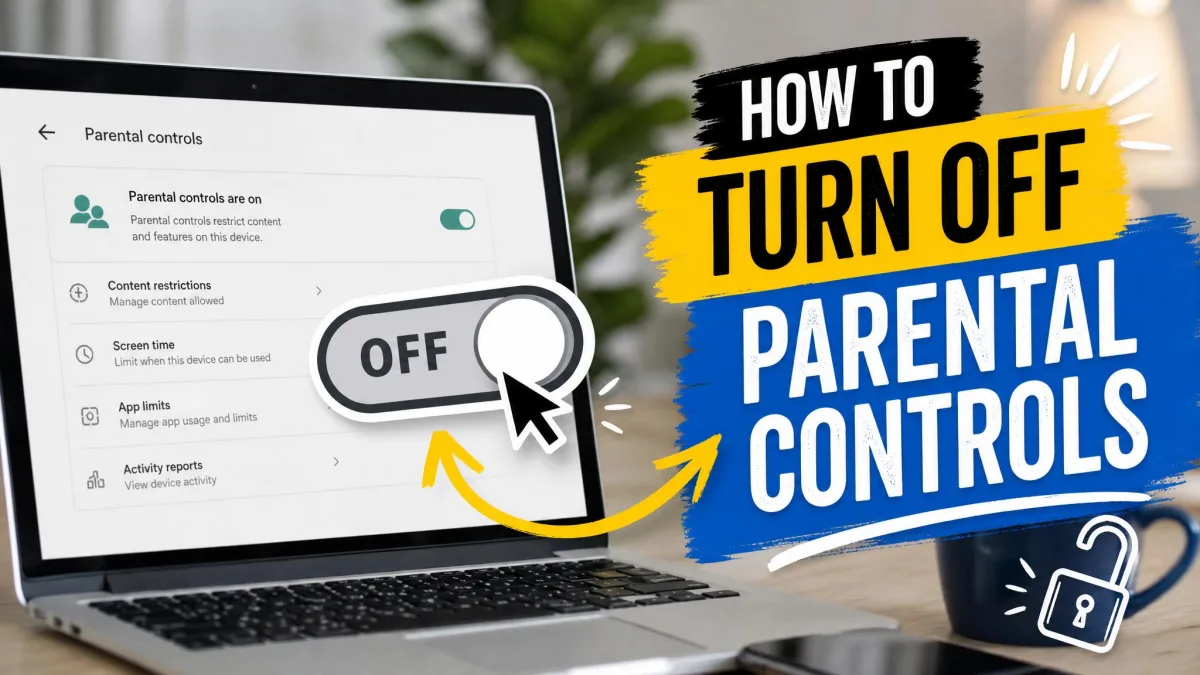
Windows family controls run through Microsoft Family Safety, a free service tied to a Microsoft account. It manages screen-time limits, content filters, and activity reports for each child, and it extends to Xbox.
Only an organizer of the family group can remove a member. A child cannot leave the group on their own, so the removal has to come from the parent's account.
Remove a Child Account From Your Family Group
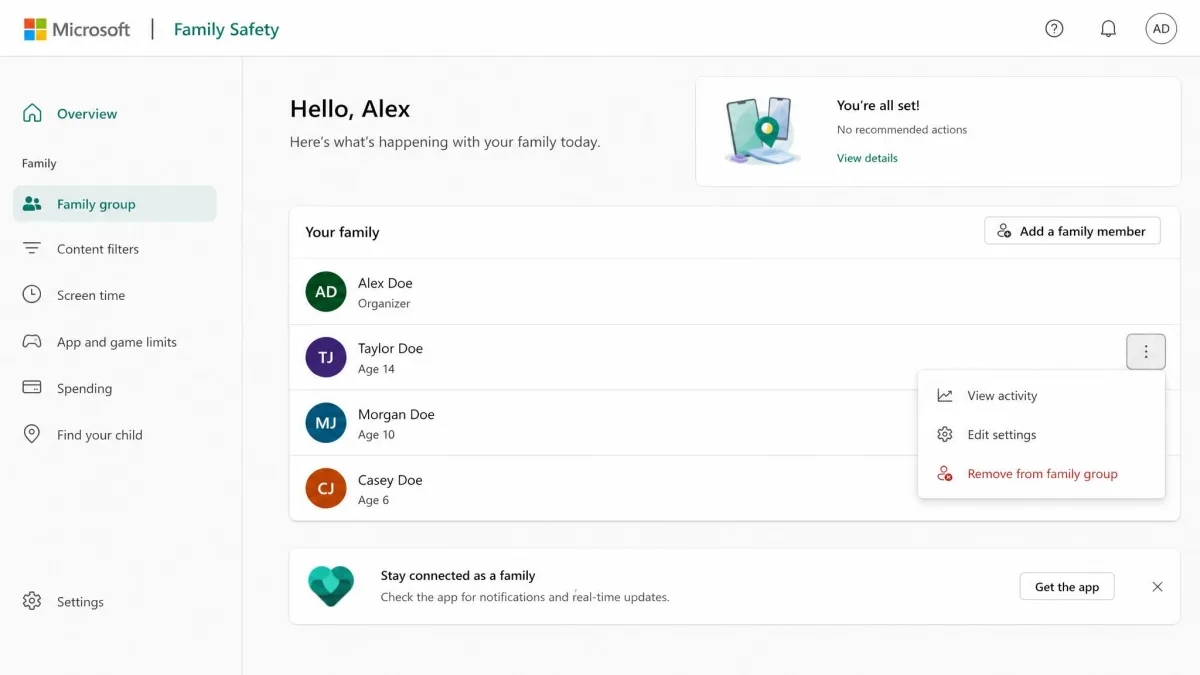
Sign in at account.microsoft.com/family as the organizer. Find the child's name, open the menu beside it, and choose Remove from family group, then confirm.
If the Remove option doesn't appear, choose Remove consent for this child's account first. Only the adult who originally granted that consent can remove it. Microsoft's family-group walkthrough covers this exact situation.
Removal ends the child's Family Safety features and their access to shared purchases like Microsoft 365 Family. The child keeps their Microsoft account, just without the family ties.
After removal, the account can keep asking for parental permission on apps. We've seen this lockout more than once. Clearing the cached Family Safety settings and checking that the account's birthdate marks the user as an adult usually fixes it.
How to Disable Parental Controls on Mac
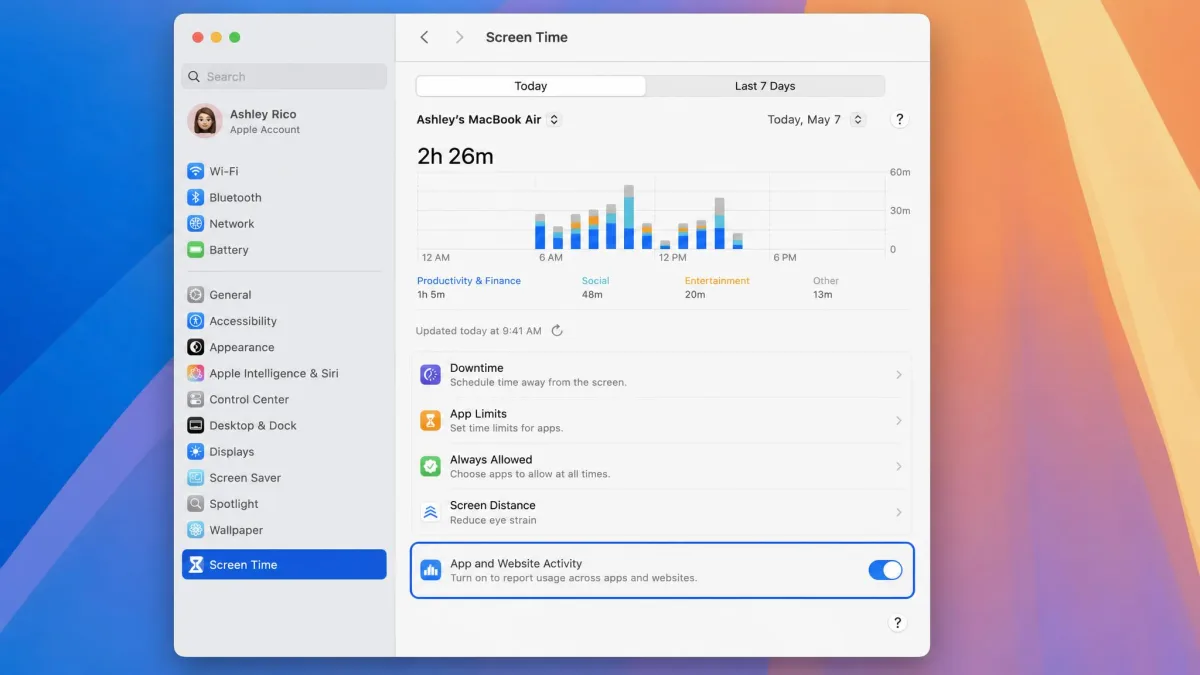
Screen Time on a Mac works like it does on an iPhone. Open System Settings and choose Screen Time from the sidebar. Scroll to the bottom and turn off App and Website Activity. That stops usage tracking and removes Downtime and App Limits. A Screen Time passcode may be required.
For a child's Mac inside Family Sharing, the controls sit under the parent's side. Open System Settings → Screen Time, use the Family Member pop-up menu to choose the child, then choose Manage Screen Time and turn off App and Website Activity. To stop managing the child's Mac entirely, turn off Screen Time Family Sharing. Apple's guide to Screen Time on a Mac walks through both paths.
How to Turn Off Parental Controls on PlayStation
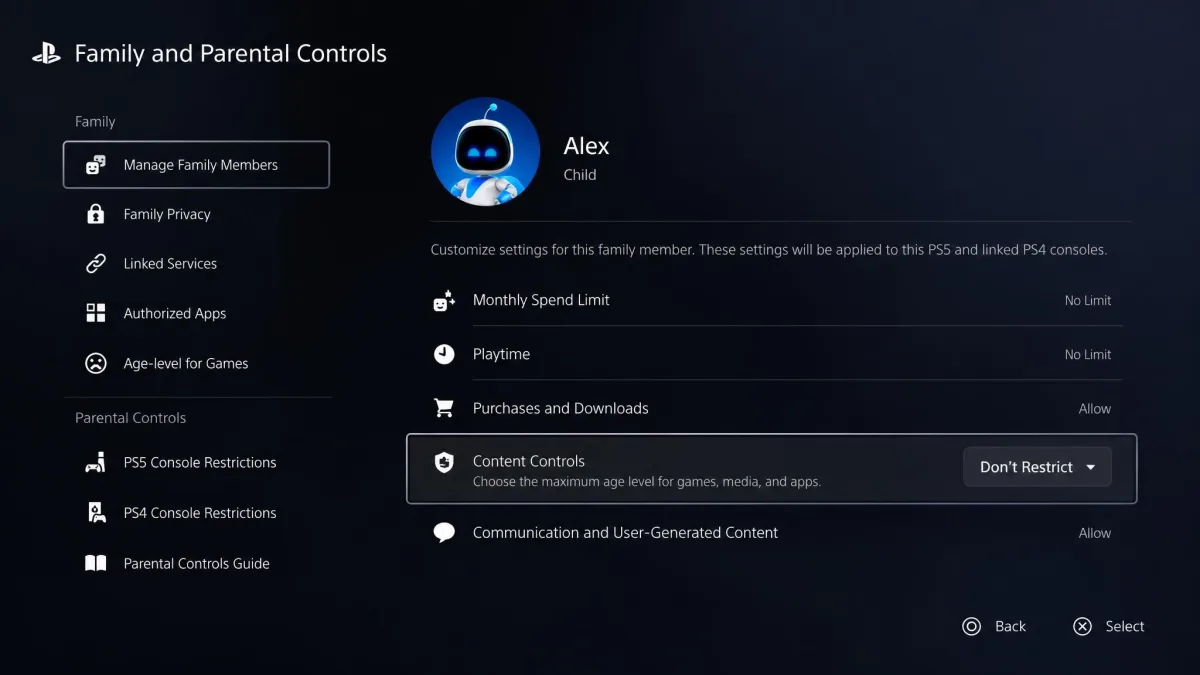
PlayStation family controls are managed from the family manager's account. Sign in on the console as the family manager, then go to Settings → Family and Parental Controls → Family Management. Select the child's profile and set each control to Don't Restrict, or raise the preset level from Child to Early Teens, Late Teens, or Older. Changing any single control switches the level to Customize.
If you never set a restriction passcode, the console default is 0000. Changes sometimes don't take effect until the child signs out and signs back in, so give it a moment before you assume nothing worked.
One surprise trips people up: child accounts cannot be removed from a PlayStation family at all. Only adult members can leave, and the family manager cannot leave the family. The only full removal is closing the child's PSN account, which permanently deletes the account and its content. If you just want the restrictions gone, set everything to Don't Restrict and keep the family structure. PlayStation's parental-controls guide has the full management steps.
How to Remove Parental Controls on Nintendo Switch
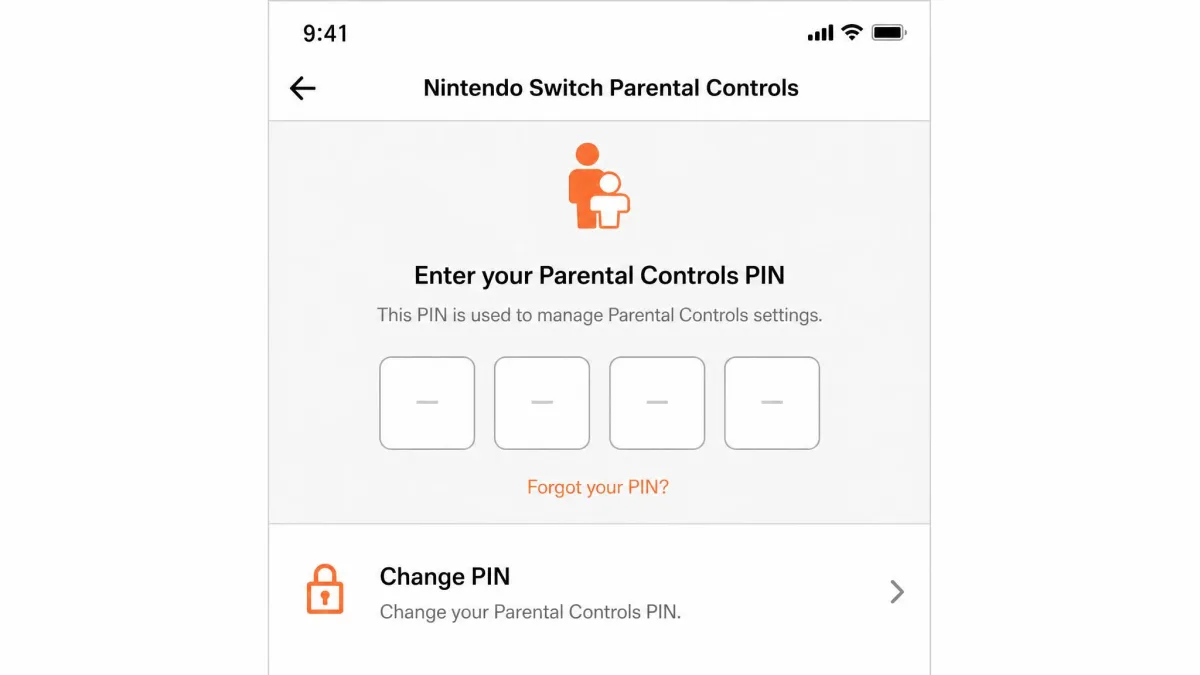
Nintendo's controls pair the Switch console with the free Nintendo Switch Parental Controls smartphone app. If the console is linked to the app, the PIN is viewable and changeable right there. Open Parental Controls in the app and update the PIN.
No app? Then you need the master-key route. Enter an incorrect PIN six times and press the Plus or Minus button for Help. The console shows an Inquiry Number. Note it down, but don't leave that screen, because the number becomes invalid the moment you do. Six wrong entries within 30 minutes also pause further attempts for 30 minutes, so take your time.
Open Nintendo parental controls in a browser, enter the Inquiry Number, and generate a master key. You'll need an email address. Enter the master key on the console to clear the PIN. The reset also unlinks the app and deletes the play-time history stored there.
Nintendo documents the PIN as 4-8 digits, depending on your region. Nintendo's forgotten-PIN instructions spell out the whole flow.
How to Delete Parental Controls on Xbox
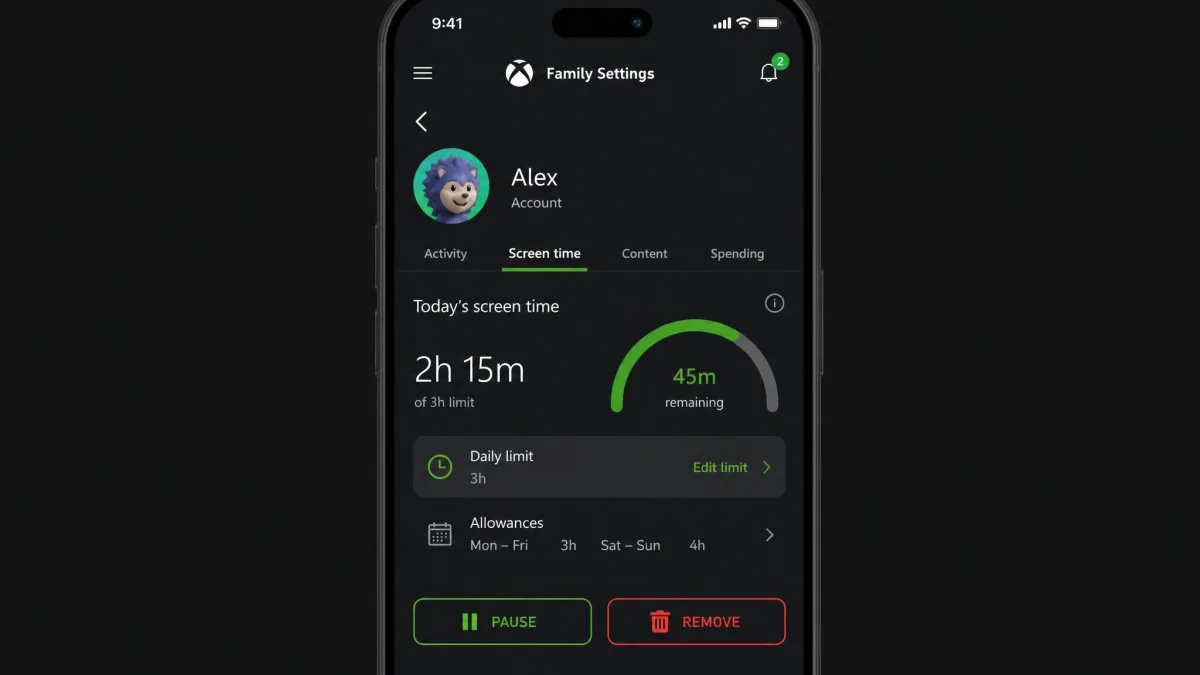
Xbox family safety runs through the Xbox Family Settings app on your phone and the family group in your Microsoft account. The app is free on iOS and Android and manages screen-time limits, content filters, and spending controls for each child.
To remove a child from the family group, open the app or sign in at account.microsoft.com/family as the organizer. Find the child's account, open the menu, and choose Remove from family group. If the child's account has parental consent, remove that consent first, and the removal option will appear.
A child cannot remove themselves from an Xbox family group. On the console, the organizer can go to Settings → Account → Family settings → Manage family members, select the account, and choose Remove from family.
Unlike PlayStation, removing a child here keeps their Xbox account and its content intact. The family link ends, and the controls that came with it go with it.
What to Do If You Forgot the PIN or Password
Every platform has a recovery path, and they fall into three groups. Figure out which one you're in, and you're most of the way there.
Account-based resets. Apple, Google's Family Link, Microsoft, and Xbox tie removal to an account sign-in. These are the cleanest routes because nothing gets wiped. On Apple, the Screen Time passcode resets with the Apple Account used at setup. On Google, the parent's Family Link sign-in ends supervision. On Microsoft and Xbox, the organizer's account is all you need.
Device-based resets. Google Play's PIN clears when you wipe the Play Store's app data, and PlayStation's restriction passcode defaults to 0000 if you never changed it. No account required.
Code-based resets. Nintendo generates a one-time master key from an Inquiry Number. It needs an email address, and the Inquiry Number expires if you leave the screen.
If none of those fit, a factory reset is the exit. It wipes the device, so back up first. We'll cover that below.
A last piece of advice: don't pay a third-party service that promises to unlock a device. Every official recovery path above is free, and nobody can shortcut Apple's or Google's account checks.
Factory Reset as a Last Resort
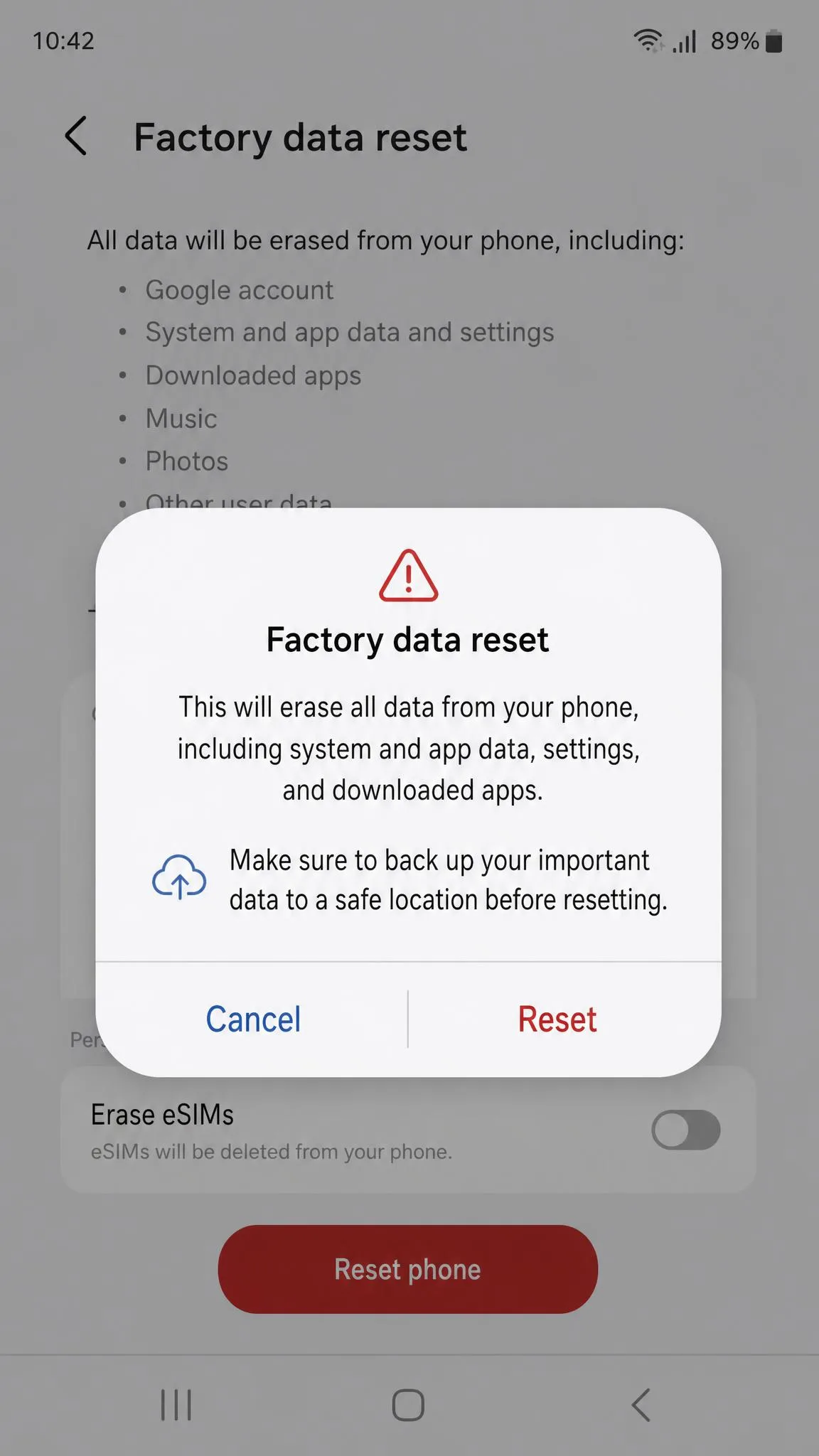
A factory reset erases everything on the device: apps, photos, messages, accounts, and settings. It also clears device-based parental controls like Screen Time and Google Play restrictions. Use it only when the recovery routes above fail, and treat it as a fresh start, not a clean fix.
Before you reset, back up the data you care about. On an iPhone, go to Settings → General → Transfer or Reset → Erase All Content and Settings. The device asks for the Apple ID password. On Android, go to Settings → System → Reset options → Erase all data. On Windows, go to Settings → System → Recovery → Reset this PC and choose Remove everything. A Mac uses Erase All Content and Settings, and a Chromebook uses the Ctrl+Alt+Shift+r Powerwash shortcut.
A reset only clears what lives on the device. Family Link and Microsoft Family Safety are tied to accounts, so supervision survives the reset and signs right back in. If your goal is ending supervision, close that loop in the account settings first.
The Screen Time passcode has one more trick. On older iOS versions it hides inside the device backup, so restoring from a backup after a reset brings the lock right back. Setting the phone up as new is the only clean exit, and we've seen families reset twice before realizing the backup was the culprit.
A factory reset erases all data on the device. Back up anything you want to keep first, and treat the reset as a last resort rather than a shortcut.
Parental Controls vs. Open Access: Safer Alternatives
You don't have to pick between locked-down and wide open. The middle path, and the one most family-safety experts recommend, is to loosen controls in stages while you build trust.
Start with the settings that cause the most friction and keep the ones that matter. Drop the time limits but keep the content filters. End Downtime but keep purchase approval. Keep location sharing while you let go of the activity reports. Each small release gives your child a chance to prove they can handle it.
Then talk about why the limits existed. Kids who understand the reasoning treat the phone with more respect. This matters because kids routinely find ways around even strict controls, so a lock alone isn't a complete safety net. The durable fix is helping them want to use the device well.
So the real question isn't whether to delete parental controls. It's how to replace hard blocks with judgment, and that's a conversation, not a setting. Loosen what you can, explain what you keep, and keep the dialogue open as your child's digital habits mature.