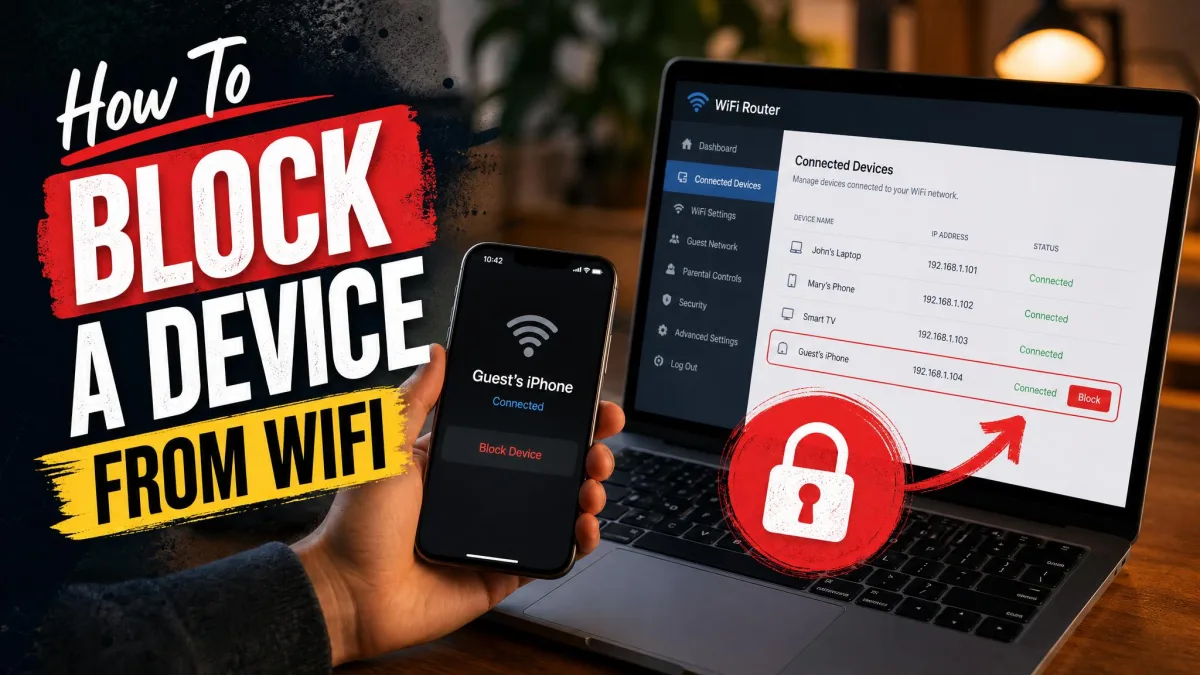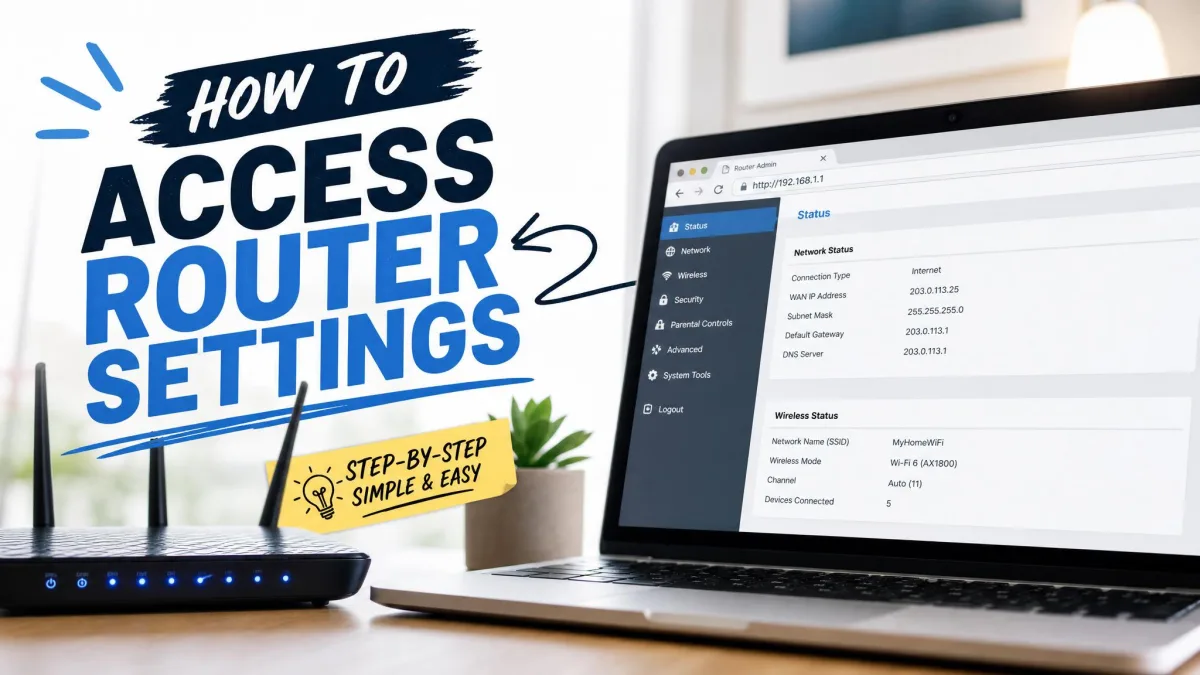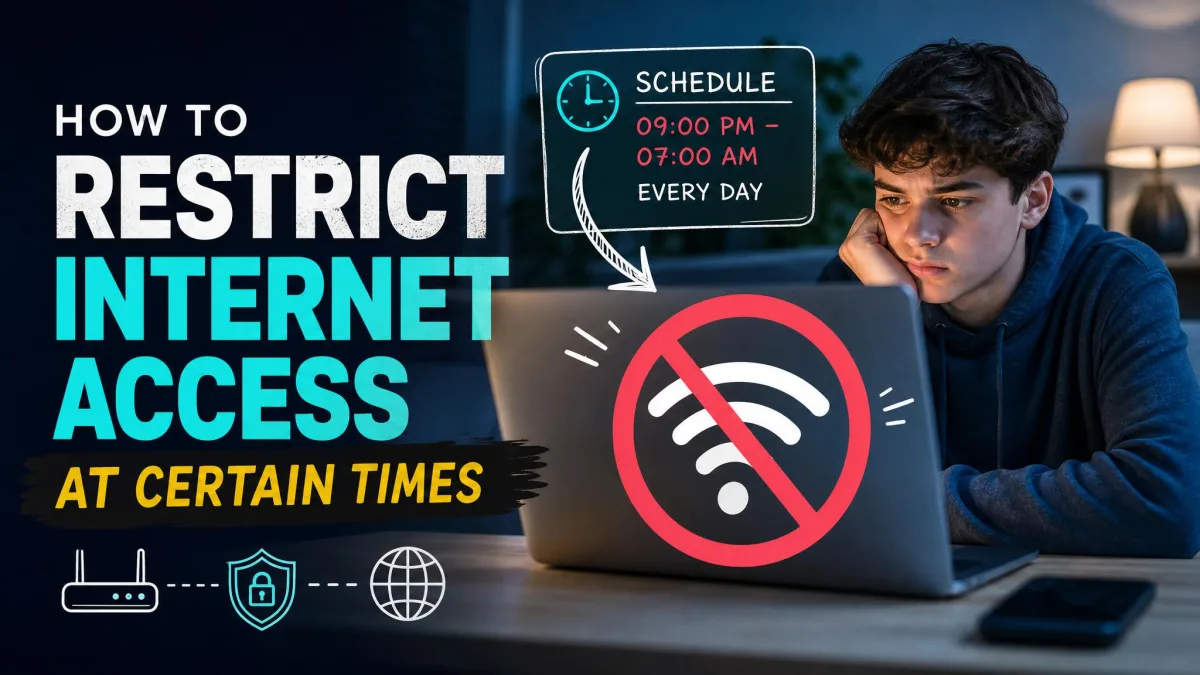
Kids can reach almost anything on the home network unless the router itself does the filtering. A parental-control app covers the phone it sits on, but it says nothing about the smart TV in the living room. It misses the console in the bedroom and the tablet a younger sibling grabs. Router-level controls answer at the network level, so every device that joins your Wi-Fi inherits the same content filters, screen-time rules, and bedtime schedules.
We put five parental-control routers through the same battery of tests. We set each one up from scratch, built child profiles, and tested content filtering and screen-time scheduling. We priced every free tier against its subscription.
Every pick here carries a trade, and our winner is a WiFi 5 router with a steep setup learning curve. So we also tested a budget WiFi 6 model, a whole-home mesh system, a purpose-built family router, and a value pick with free security. Here is how all five stack up.
At a Glance: Our Top Parental Control Router Picks
These five routers are where we would start your search. They cover the full range of the category, from a tech-savvy all-rounder to a purpose-built family router.
How We Picked and Tested
Every router in this roundup went through the same pass, and we set each one up from scratch and timed the process. The results ranged widely. The Gryphon AX took about five minutes through its app, while the Deco S4 needed around fifteen minutes and the right app. The Archer fought us on the first attempt, and the Synology's SRM interface cost us the better part of an afternoon before the controls were in place.
From there we built a child profile on every router and tested content categories and Safe Search. We checked screen-time schedules, bedtime windows, pause buttons, and shared time quotas. We also pushed on the workaround kids find first: pointing a device's DNS at a public resolver. Which filters held under that pressure separated the routers cleanly, and the results appear in each review below.
We also logged range and reliability, and we priced everything. We compared street prices and tested each free tier against its paid upgrade. Then we scored every router on setup, filtering depth, scheduling, range, and value. The scores on each review card reflect that full pass of real-world testing.
After setting up five routers from scratch, we built child profiles on each one. We tested content filters and screen-time schedules, and we priced every free and paid tier. In the end, the free-versus-subscription divide told us more than the sticker prices did.
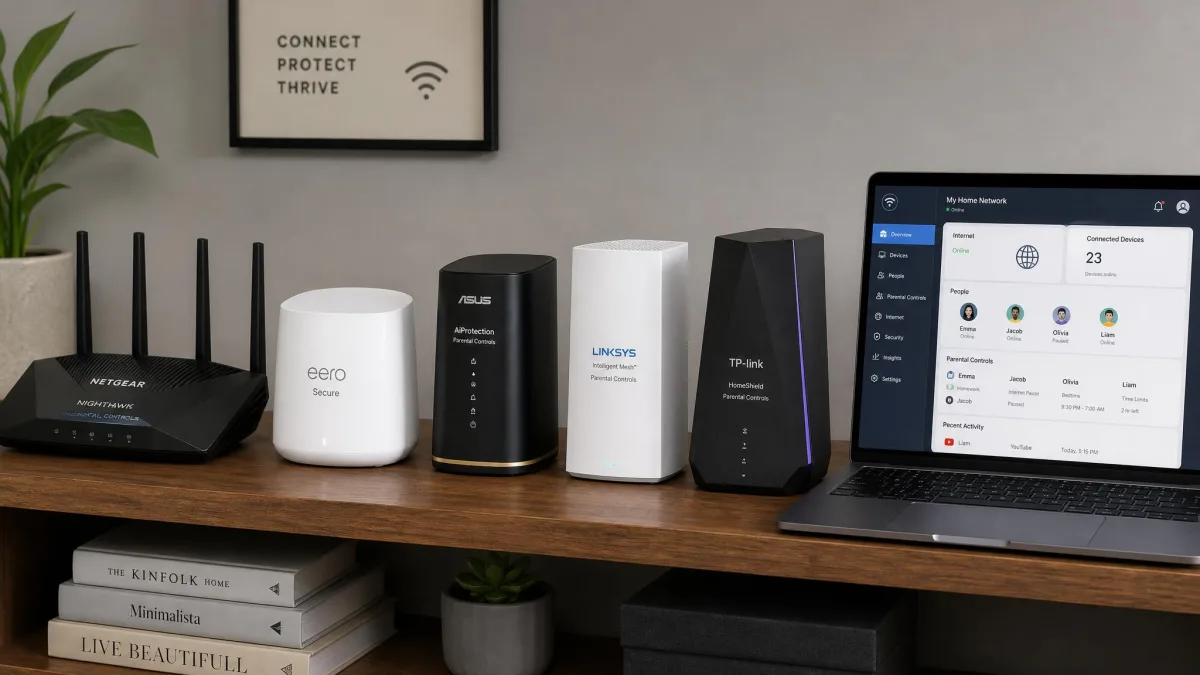
The table below lines up every router in this roundup on the numbers that matter most to parents. It covers price, parental-control cost, wireless standard, and the standout filtering feature.
| Router | Buy | Best for | Price | Standout parental-control feature |
|---|---|---|---|---|
 |
Check price → | Tech-savvy families | $229.99 MSRP (street near $150) | Free Safe Access: 20 filter categories, shared quotas, Safe Search |
 |
Check price | Whole-home mesh coverage | Roughly $130 to $150 (3-pack) | Free per-family profiles with age-based filter levels |
 |
Check price | Budget WiFi 6 | $99.99 MSRP (often ~$90) | Free URL blocking, profiles, and a bedtime toggle |
 |
Check price | Budget all-rounder with free security | $69.99 MSRP (street ~$58) | Free AiProtection security and off-time scheduling |
 |
Check price | Dedicated family-first controls | About $299 (single unit) | Age presets plus HomeBound off-network filtering |
Best Overall: Synology RT2600ac
Synology RT2600ac
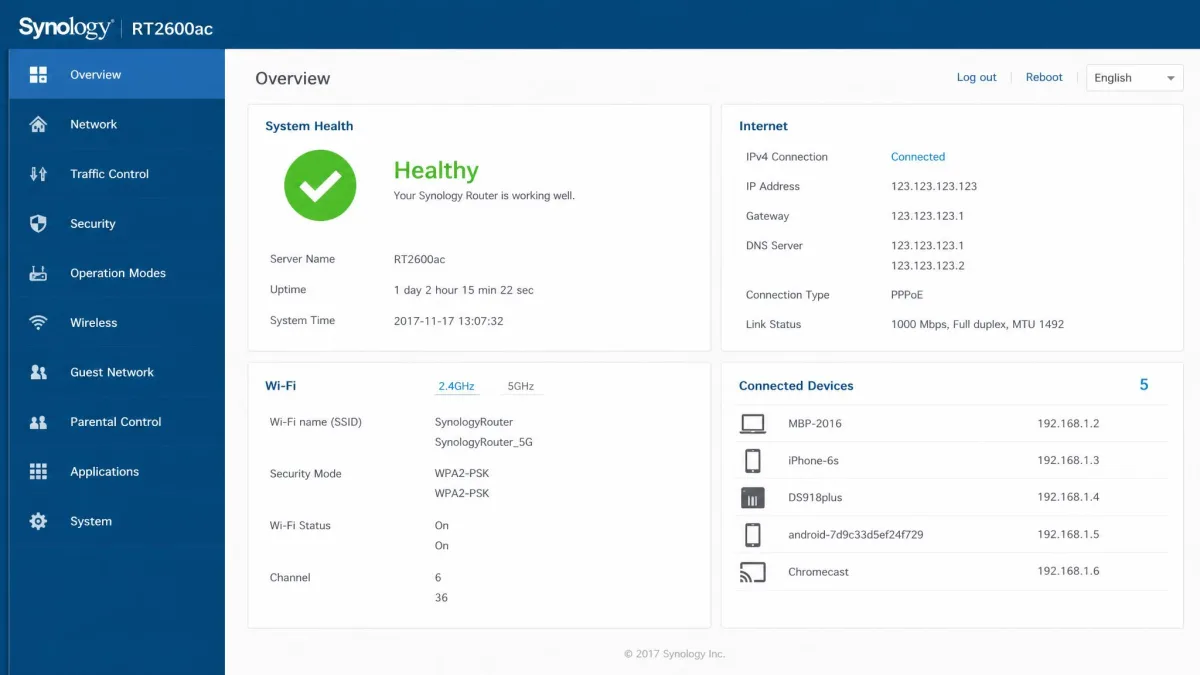
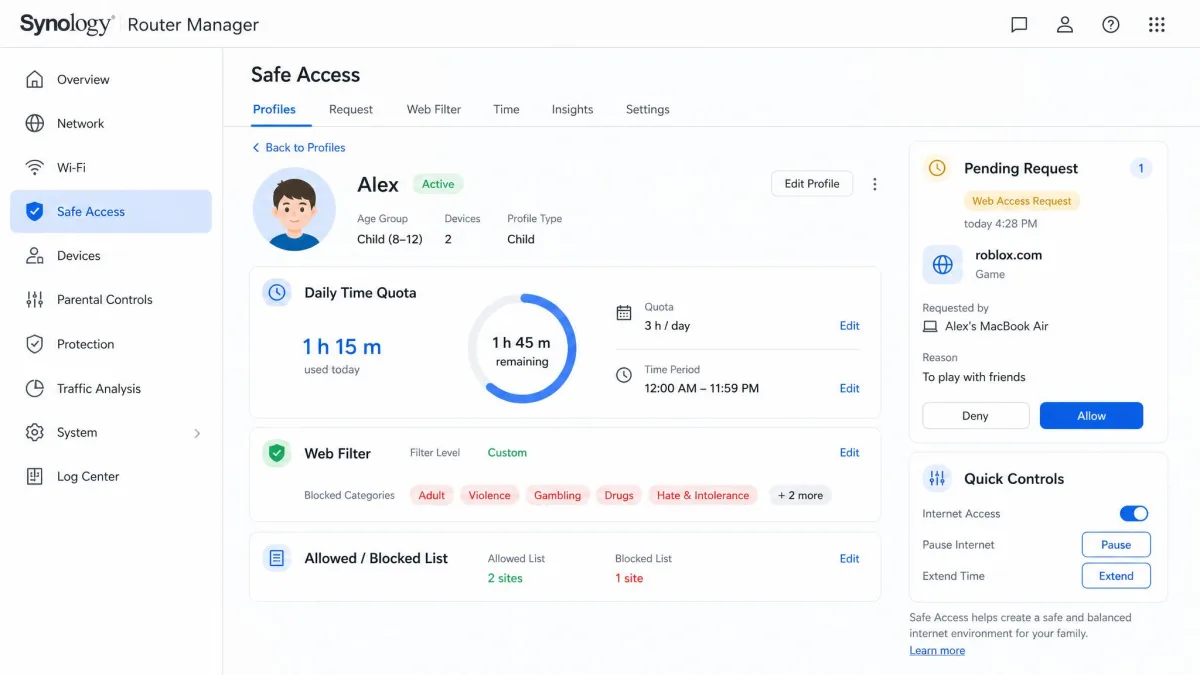
Setup on the Synology is the least friendly of the five, and that is the honest way to start. SRM, the router's desktop-style operating system, has a real learning curve. Our first pass through the configuration screens took most of an afternoon as we worked out the package system and the Safe Access settings.
The payoff arrives once the controls are in place. We set a three-hour daily quota on a child's profile, and the same budget applied across the phone, the tablet, and the laptop in that profile. The hour spent on the tablet came out of the total instead of stretching it. A request to extend time landed on the phone running the DS Router app, and we approved or denied it from there.
Safe Search also survived the workaround kids try most often: we changed the device's DNS to a public resolver, and the filter held. The RT2600ac handled our 25-device household without strain. Safe Access spans roughly twenty content categories, up to fifteen per-device profiles, and multiple downtime schedules per day.
Pros
- Deepest free parental controls we tested, with no subscription at all
- A shared daily time quota that applies across every device on a child's profile
- Safe Search enforcement that survives a kid changing DNS settings
Cons
- WiFi 5 only, so modern devices miss WiFi 6 benefits
- SRM has a real learning curve, and setup takes patience
- Support is email-only, and VPN throughput drops when Threat Prevention is on
Best for: Tech-savvy families who will trade a steep setup for no monthly fee. Skip if: You want a router online in ten minutes, or you need WiFi 6 across the whole house.
Best for Budget: TP-Link Archer AX21
TP-Link Archer AX21
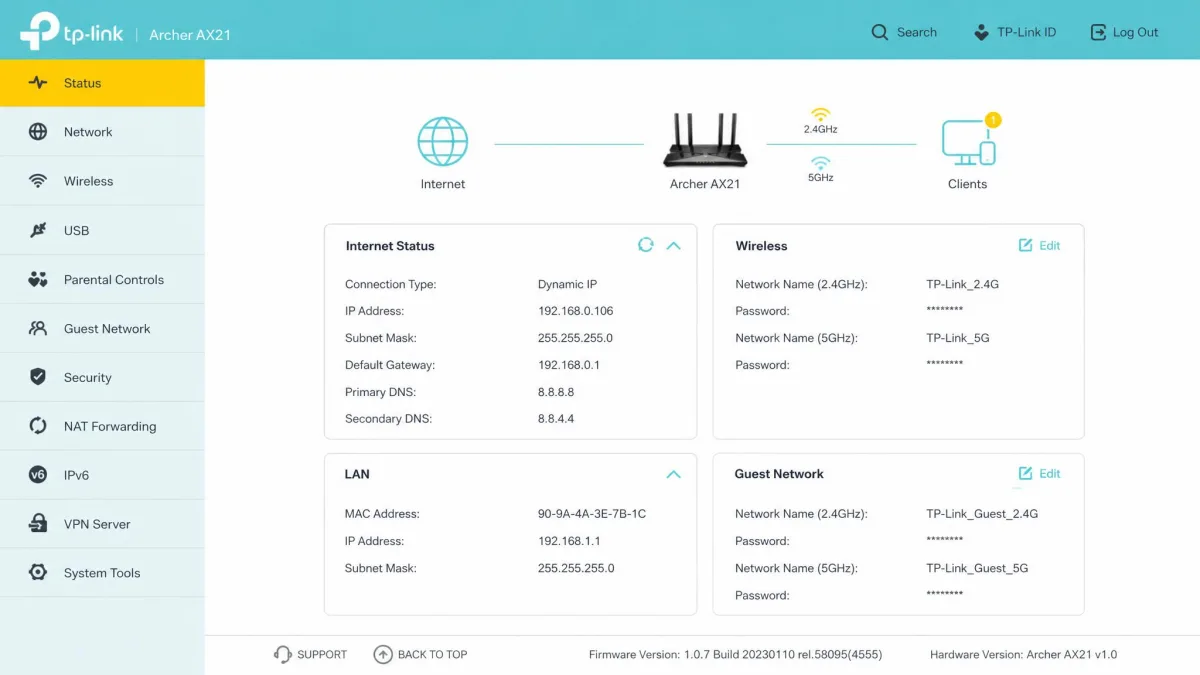
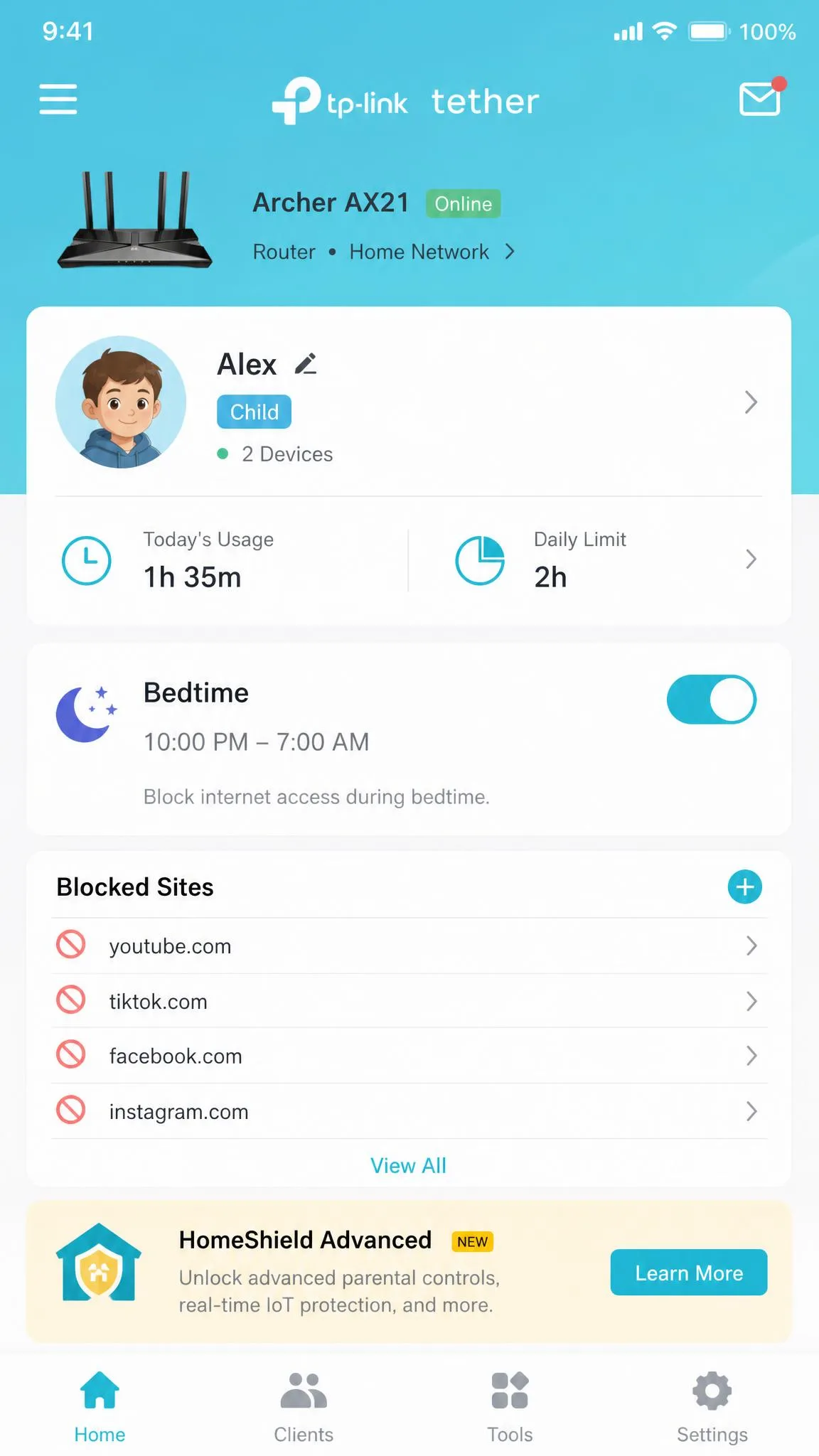
If the Synology is the no-subscription all-rounder, the TP-Link Archer AX21 is the budget WiFi 6 answer. Its free tier is more generous than you might expect. We set up a child profile in the Tether app. There we blocked specific sites, built an allow list, and flipped the bedtime toggle without opening a wallet. On the first pass, the URL block held and the toggle cut that profile at bedtime. HomeShield has a documented record of dropping rules after firmware updates, so we rechecked both in the first week.
App-based time limits, per-app blocking, and usage insights sit in HomeShield Advanced, a paid add-on at $2.99 a month or $17.99 a year. First-time setup fought us briefly, and we fell back to the web console for a smoother pass. Smart Connect merges the 2.4 and 5 GHz bands into one network name, so expect a single SSID instead of the two many older routers show. It is WiFi 6 AX1800, rated at 1,201 Mbps on 5 GHz and 574 Mbps on 2.4 GHz. Four Gigabit LAN ports and a Gigabit WAN port round out the hardware.
Pros
- Genuinely useful free tier: profiles, URL blocking, and a bedtime toggle
- WiFi 6 AX1800 for around $90, and often well under $60 on sale
- Both the Tether app and a full web console manage the router
Cons
- App-based time limits and insights need HomeShield Advanced
- The free controls are shallower than on its predecessor, which bundled the old HomeCare suite
- First-time setup can be rocky, and Smart Connect merges both bands into a single SSID
Best for: Budget-minded families who want WiFi 6 and free basic controls for about $90. Skip if: You need per-device time limits without a subscription. The Synology does that for free.
Best Mesh System: TP-Link Deco S4
TP-Link Deco S4
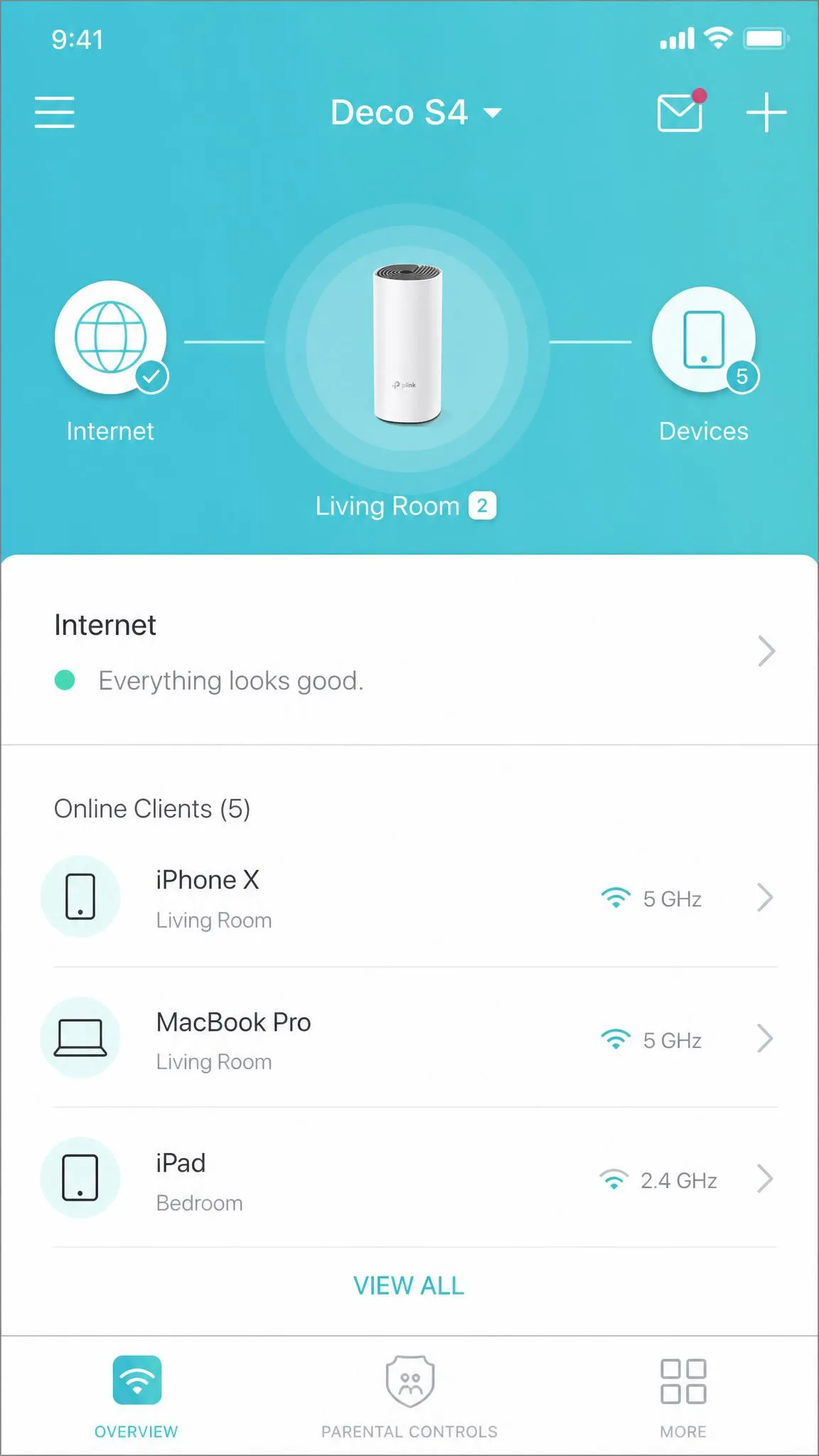
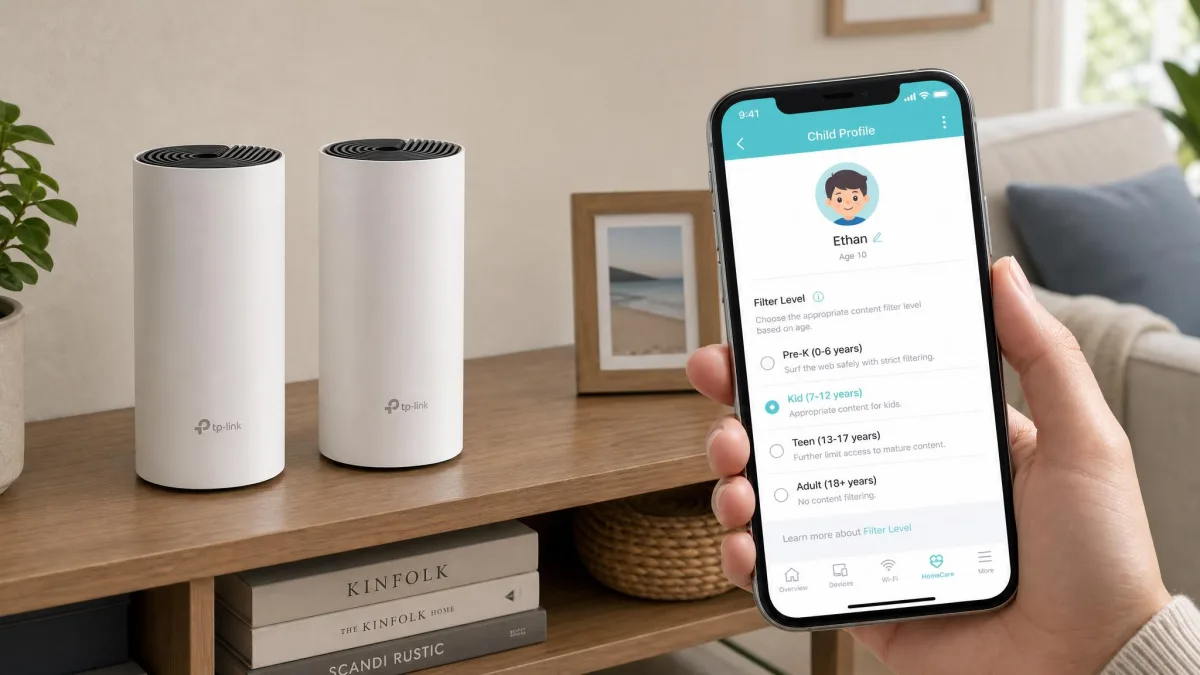
Where the Archer is a single box, the TP-Link Deco S4 spreads the same idea across the house as a mesh system. Its free parental controls are the best mesh story we tested. Setup runs through the Deco app and took us about fifteen minutes for the 3-pack. The app choice matters, because the wrong TP-Link app is easy to grab. Each unit carries three Gigabit Ethernet ports. The system is rated for more than 100 connected devices, and a single network name covers the whole house.
The honest caveats showed up in our testing too. We took a phone on the mesh, pointed its DNS at Cloudflare, and the free filtering fell away once the device stopped asking the router. TP-Link only blocks that secure-DNS bypass behind the paid tier. The most useful filtering sits in HomeShield Advanced at about $2.99 a month. This is a WiFi 5 system, and its speed rating depends on the hardware revision you buy. TP-Link's US page lists AC1900, while the EU datasheet lists AC1200.
Pros
- Free per-family profiles with one-touch age-based filter levels
- Whole-home mesh coverage from roughly $130 to $150 for a 3-pack
- Three Gigabit Ethernet ports per unit and support for 100-plus devices
Cons
- WiFi 5 only, with speed ratings that vary by hardware revision
- Deeper filtering and scheduling sit behind HomeShield Advanced
- Free filtering can be bypassed by pointing DNS at a public resolver
Best for: Large homes that need whole-home coverage with free basic parental controls on a budget. Skip if: You want WiFi 6, or you need filtering that survives a determined DNS workaround.
Best for Dedicated Parental Controls: Gryphon AX
Gryphon AX
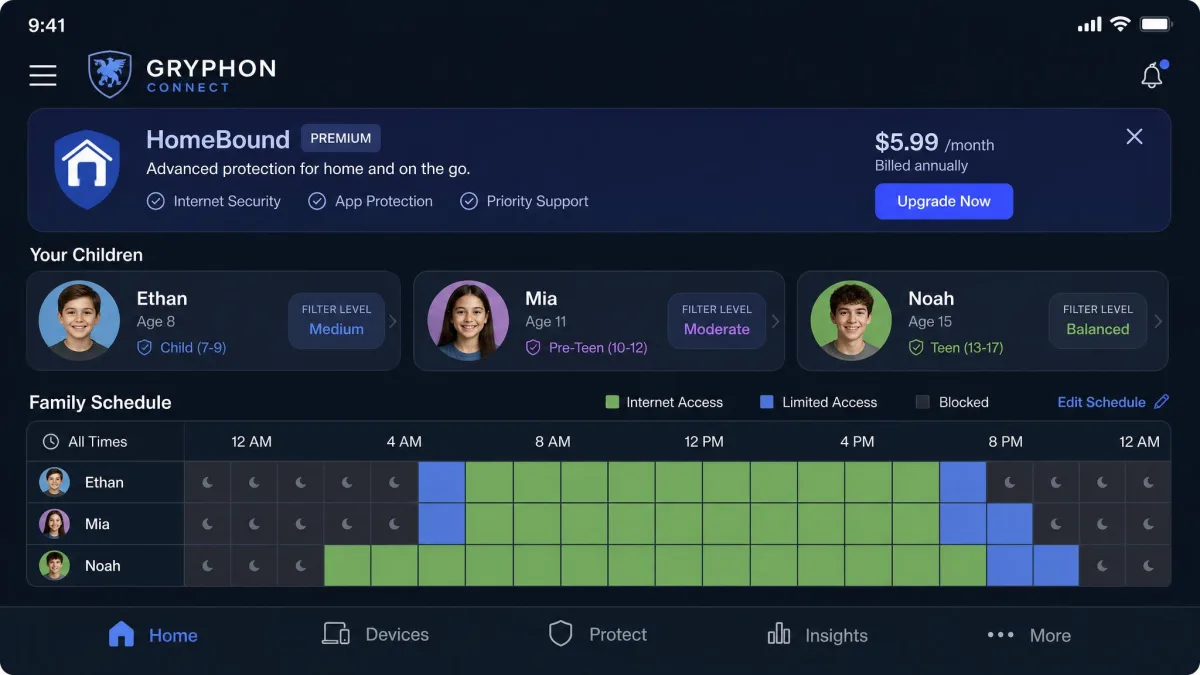
The Deco S4 covers a home with mesh hardware, while the Gryphon AX is built around parental controls first and performance second. Setup is genuinely fast, around five minutes with sensible defaults, and the Gryphon Connect app packs everything into one place. The age-based presets over-block in our testing, though. The elementary-school preset blocked the PBS Kids video app, and the middle-school preset blocked Minecraft multiplayer. The workaround we landed on was raising the profile to the 18-plus preset, which defeats the point.
Content controls filter by URL and app rather than inspecting what is inside a page, so mixed-content sites and in-app feeds can slip past. The headline feature, HomeBound, routes a kid's phone back through the home filter while it is on cellular or another Wi-Fi network. That is exactly the feature behind the roughly $90-a-year Premium subscription. Long-range throughput was the weakest of the five in our checks. The 855 Mbps we saw at two feet fell to 146 Mbps at 120 feet. The second 5 GHz band is reserved for mesh backhaul, which leaves one LAN port effectively usable.
Taken together, the Gryphon is the most family-first design here. You get purpose-built controls and genuinely fast setup in a well-organized app. The trade is over-blocking presets, a paywalled headline feature, and the weakest long-range throughput in the group.
Best for: Families who want a router built around parental controls and will pay for the full feature set. Skip if: Your home is large or long. Range was the Gryphon's biggest weakness in our tests.
Best Value with Free Security: ASUS RT-AX1800S
ASUS RT-AX1800S
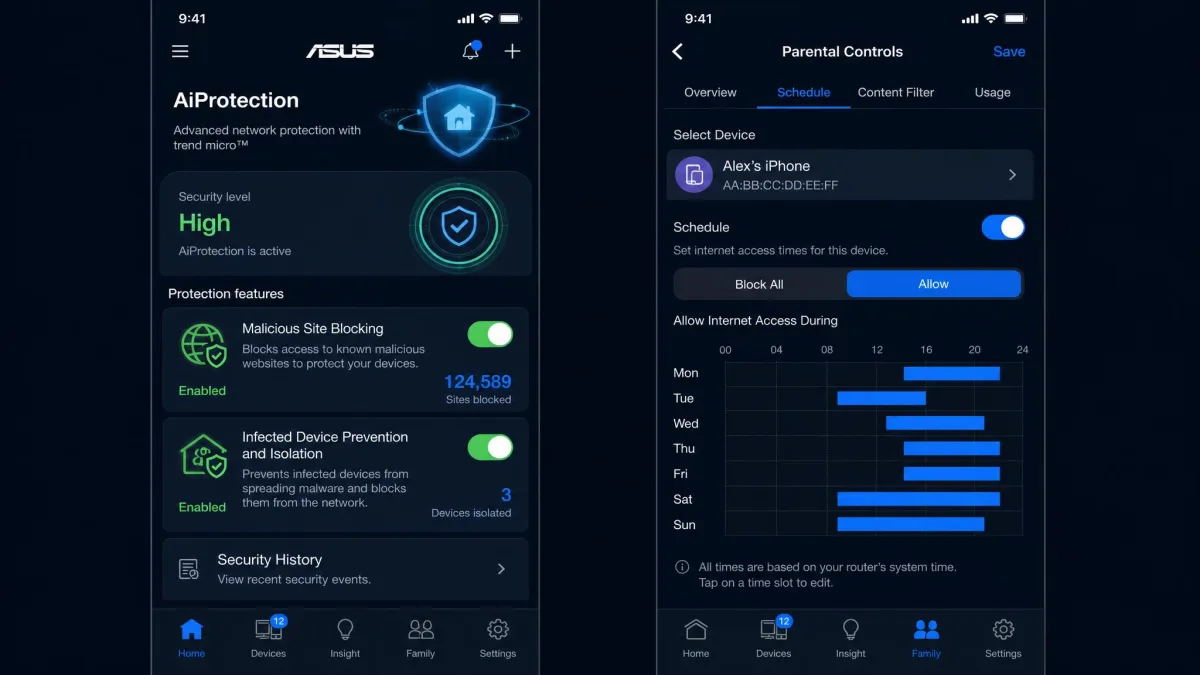
Where the Gryphon asks for a purpose-built premium, the ASUS RT-AX1800S keeps the price low and makes its security free. Free ASUS AiProtection, the bundled Trend Micro engine, blocks malicious sites and isolates infected devices at no extra cost. That security suite is the router's standout value. Everything lives in the ASUS Router app or a full web console.
The parental controls are the most basic we tested, with no per-device app filtering or monitoring. You can block all connected devices at once and schedule off-time windows. Our scheduling test turned up a genuine flaw. We set an off-time window that should have cut the network at night, and the connection stayed up anyway. The unit kept internet access at all hours, across factory resets and firmware updates.
Coverage fades in homes larger than about 1,800 square feet, and the gigabit WAN port caps multi-gig internet plans. It is a WiFi 6 AX1800 router rated at 1,201 Mbps on 5 GHz and 574 Mbps on 2.4 GHz. Four Gigabit LAN ports and a three-year warranty round it out.
In short, the ASUS is the value play for free security. AiProtection costs nothing, and the price is the lowest here. The trade is basic controls, a documented scheduling flaw, and coverage that fades past about 1,800 square feet.
Best for: Families who want free network security at the lowest price, and can live with very basic controls. Skip if: Per-device filtering or reliable schedule enforcement matters. The Synology is the better buy.
How to Choose a Parental Control Router
Choosing a parental-control router comes down to a few honest questions before any spec sheet matters. How much are you willing to pay per month, how technical are you, and how big is the space the router has to cover? Answer those three and most of the field narrows itself.
The free-versus-subscription divide told us more than any sticker price. Most routers gate the features parents want behind a paywall, and a few keep them free.
Content Filtering vs. App-Based Controls
Router-level filtering works at the network level. The router answers the name-to-address lookup for every device on your Wi-Fi and checks each domain against its filter lists. So a category such as adult or gambling applies to the smart TV, the game console, and the phone alike. HTTPS keeps page contents private from the router, but the domains a device visits stay visible, and the filter catches the site without seeing the article. The catch is geography, because network filtering only reaches home. On cellular data, at school, or on a friend's Wi-Fi, the router is not there, and it filters by domain and app rather than inspecting what is inside a page. That is where app-based controls earn their place, because they follow the child everywhere. They must be installed on each device, and anyone with admin rights can remove them.
The DNS workaround is easy, and it works. Point a device's DNS at a public resolver such as Cloudflare or Google, and router-level filtering can fall away. We verified that on the Deco S4. Keep firmware current, keep admin access off the child's device, and layer protections instead of trusting any single one.
Time Limits and Screen Time Scheduling
Screen-time controls come in two flavors: instant pause and scheduled windows. Instant pause cuts a device off on demand, while scheduled windows handle bedtime and school hours automatically. Every router here can pause the internet for a device or a profile. The difference that matters is where the limits live and whether they hold. On the Synology, a daily quota is shared across every device on a child's profile. Three hours is three hours total, not three hours per device. On the Archer, the free tier stops at a bedtime toggle, and app-level time limits sit behind HomeShield Advanced. Reliability matters more than the feature list, and that is where these picks split. ASUS time scheduling has a documented history of failing to enforce on some units, and TP-Link's HomeShield has shipped firmware updates where bedtime rules stopped sticking. Test your schedules in the first week, and recheck after updates.
Free vs. Subscription Parental Controls
The biggest line in this category is not between brands but between the free and paid tiers, and the range here is wide. The Synology keeps its whole Safe Access suite free at no extra cost, and the ASUS bundles AiProtection with no subscription. The Deco S4 and Archer AX21 give you profiles, basic filtering, and scheduling for free, then gate per-site categories, app time limits, and insights behind HomeShield Advanced. The table below lines up every router in the group.
| Router | Free tier | Paid tier |
|---|---|---|
|
Safe Access complete, at no extra cost | None |
|
AiProtection security and off-time scheduling | None |
|
Profiles, URL blocking, bedtime toggle | App time limits and insights, $2.99/mo |
|
Profiles, age filters, time limits, pause | Deeper filtering and scheduling, $2.99/mo |
|
Core profiles, schedules, ad blocking | HomeBound off-network filtering, ~$90/yr |
Practical rule: price the three-year cost before you buy. A cheap router with a monthly subscription can cost more over time than a pricier one with free controls. The subscription line in each review tells you exactly what you get before you pay a cent.
WiFi Standard: WiFi 5 vs WiFi 6 vs WiFi 7
The wireless standard sets how fast your network runs and how well it handles many devices at once. WiFi 5, the 802.11ac generation, is the oldest still on sale, and two of our picks use it. The Deco S4 and the Synology RT2600ac show that WiFi 5 can still cover a house and hold a steady connection. They just lack the multi-device efficiency of newer hardware. WiFi 6, the 802.11ax generation, adds OFDMA, MU-MIMO, and WPA3. Those matter in homes with many connected devices, and WiFi 6 is the standard we recommend for most families. The Archer AX21 and the ASUS RT-AX1800S are both WiFi 6. WiFi 7 is the newest generation, and none of our picks use it. The strongest parental-control routers in our testing did not offer it at a sensible price. One thing became clear across these five: the wireless standard has nothing to do with parental-control depth. The best filtering we tested ran on WiFi 5, while the budget WiFi 6 routers offered simpler controls.
Mesh vs. Single Router
A single router is enough when the box can reach every room where your kids use devices. That covers a lot of apartments and smaller homes, and it is the cheaper route. Mesh systems earn their money when the router sits in one corner and the dead zones live on the other side of the house, exactly where kids retreat with a tablet. The Deco S4 is the budget whole-home mesh here, and its free per-family profiles are the best mesh controls we tested. The Gryphon AX meshes only with other Gryphon units, so you commit to that ecosystem. The Archer AX21 supports OneMesh satellites if you want to extend it later. The Synology has an MR2200ac mesh extender in its family. Size your home against the conservative coverage figure, since mesh claims vary. TP-Link markets the Deco 3-pack at up to 5,500 square feet, while independent tests land near 3,800.
Setup, App Quality, and Remote Management
Setup is where parental-control routers separate fast, and this group spans the whole range. The Gryphon AX takes about five minutes through the Gryphon Connect app. It packs profiles, schedules, and how-to videos into one place, but it is mobile-only with no desktop console. The Deco S4 needs about fifteen minutes in the Deco app. The Archer fought us on the first attempt, and the web console gave us a smoother pass than the Tether app. The Synology is the hardest, because SRM is a desktop-style operating system with a real learning curve. The ASUS RT-AX1800S manages everything in the ASUS Router app or a full web console. Think about where you will manage the rules. The Synology's DS Router app is the only one here that lets a child send an access request. That request lands on your phone for approval, which is the most practical remote-management setup we tested. For the ASUS route, the official guide to setting up parental controls on an ASUS router walks through both the app and the web interface.
Parental Control Router vs. Parental Control Apps
The short answer is that you usually want both, because each layer covers what the other cannot.
A router-level filter protects every device on the home network at once, and a child cannot uninstall it or switch it off in a browser. It covers smart TVs, consoles, and guests' devices automatically, and it keeps working whether you are home or not. The limit is geography, because the moment a phone leaves the house, the router sees nothing.
App-based controls follow the child's phone everywhere, on cellular, at school, and on a friend's Wi-Fi. They can also inspect what happens inside apps, which router filtering cannot. They are only as strong as the device they run on, because a child with admin access can uninstall them. They also cover one device, not the whole household.
Our testing points to the layered approach. Use the router as the always-on safety net for home, and add an app for the times kids are away. For app-based options, our guides to the top parental control apps for iPhone and the top parental control apps for Android are where we would start. The goal is guidance, not surveillance, so set the rules together with your kids, explain the boundaries, and adjust as they get older.
Frequently Asked Questions
Which router has the best parental controls?
Can parents see my internet history through the router?
Do parental control routers block a kid's VPN workaround?
Are free router parental controls as good as paid subscriptions?
Can parental controls limit screen time?
Do I still need antivirus if the router has security features?
Do parental control routers slow down Wi-Fi?
Bottom Line
Free and deep rarely travel together in this category, and that divide shaped every pick above. Which router you should buy depends more on your house and your budget than on the raw feature list.
If you want control without a monthly bill, the Synology RT2600ac is the pick, steep setup included. If you want cheap, reliable controls on WiFi 6, the Archer AX21 covers the basics free for about $90. If dead zones are your problem, the Deco S4 3-pack blankets the house for roughly $130 to $150 with free per-family filtering. If you want a router built around family features and will pay for the full set, the Gryphon AX is the match and sets up in about five minutes. And if free security matters more than deep controls, the ASUS RT-AX1800S is the value play at $69.99.
Whatever you buy, treat the router as one layer, not the whole answer. Pair it with app-level controls for the times your kids leave the home network. Talk through the rules instead of setting them in secret, and revisit the boundaries as they get older. A setup that fits a ten-year-old will not fit a fifteen-year-old, and the routers above give you the headroom to adjust without replacing the hardware.