Key Takeaways
- Turning off Screen Time removes app limits, downtime, and content filters without deleting any of your apps, photos, or messages.
- The Screen Time passcode is a separate 4-digit code from your device unlock passcode.
- Forgot the passcode? Reset it with the Apple ID used when Screen Time was set up, on iOS 13.4 or later.
- On a child's iPhone, controls are removed from the family organizer's device, not the child's.
- A factory reset removes every restriction but wipes the whole phone, so back up first.
If you set up Screen Time a few years ago and your teen has outgrown it, this guide is for you. The same steps work if you bought a used iPhone and the previous owner's restrictions are still active. Removing parental controls takes only a few minutes, and most of the work happens in one place: the Screen Time settings built into iOS.
The catch is the Screen Time passcode. In our testing, the most common stumble is the code itself. People enter their device unlock code instead of the 4-digit Screen Time passcode. The two codes are separate, and confusing them stalls many removal guides at the first step. Face ID can also interfere with passcode entry. The reset steps below help when the on-screen prompts feel uncooperative.
Below we cover five ways to remove parental controls, with or without the passcode. You will learn how to turn off Screen Time entirely and remove specific restrictions. You will also see how to reset a forgotten passcode with your Apple ID, plus how to manage a child's device through Family Sharing. If you just want the fastest route, start with Way 1.
What Are Parental Controls on iPhone?
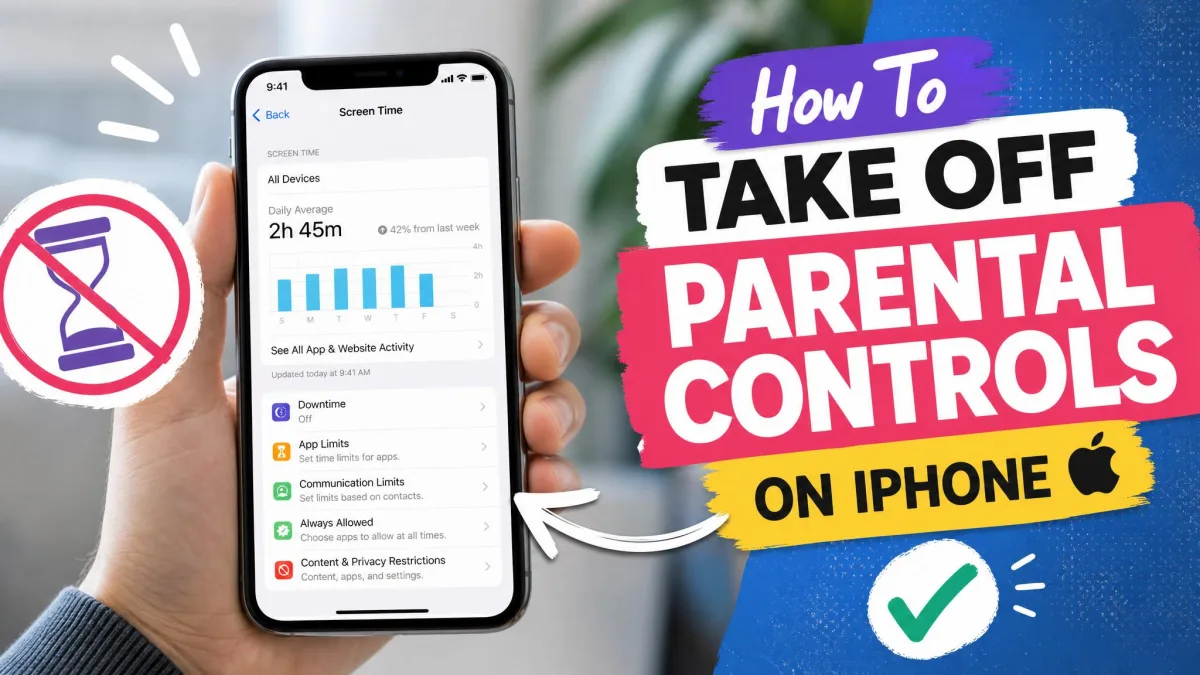
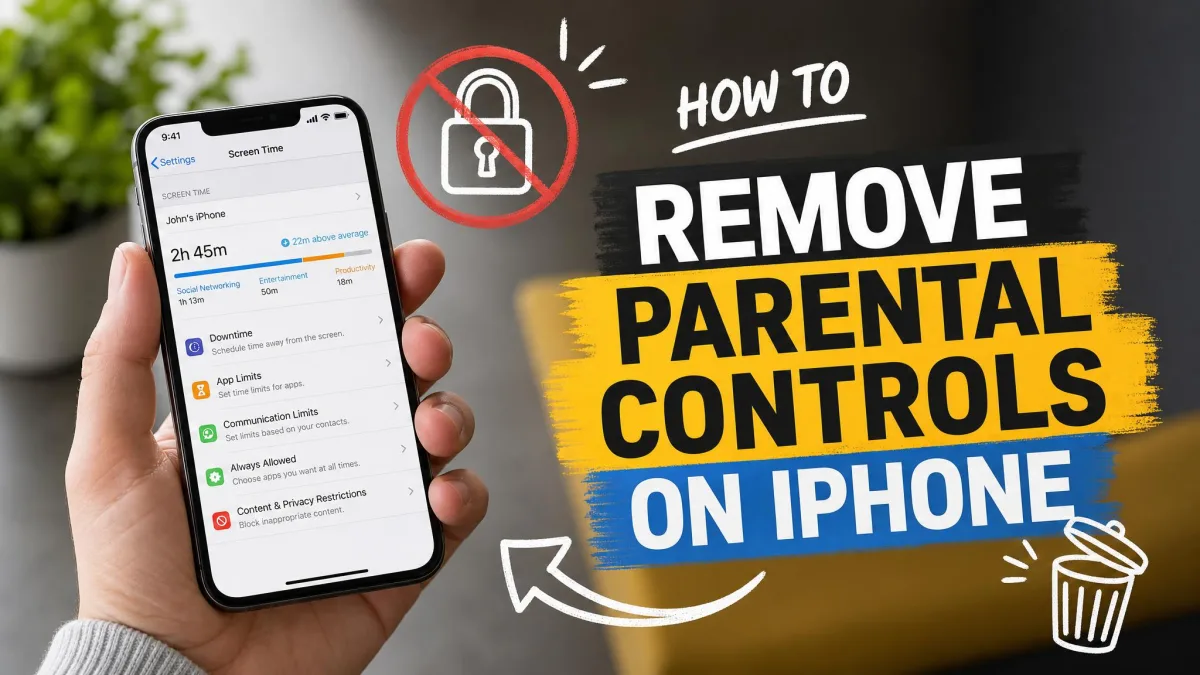
Parental controls on iPhone live inside Screen Time. Apple introduced these tools with iOS 12 and documents them in Apple Support's Screen Time overview. The feature replaced the older Restrictions menu that used to sit in Settings → General. Screen Time bundles app limits, downtime schedules, communication limits, and content filters into one dashboard. It can also block app installs, in-app purchases, and adult websites.
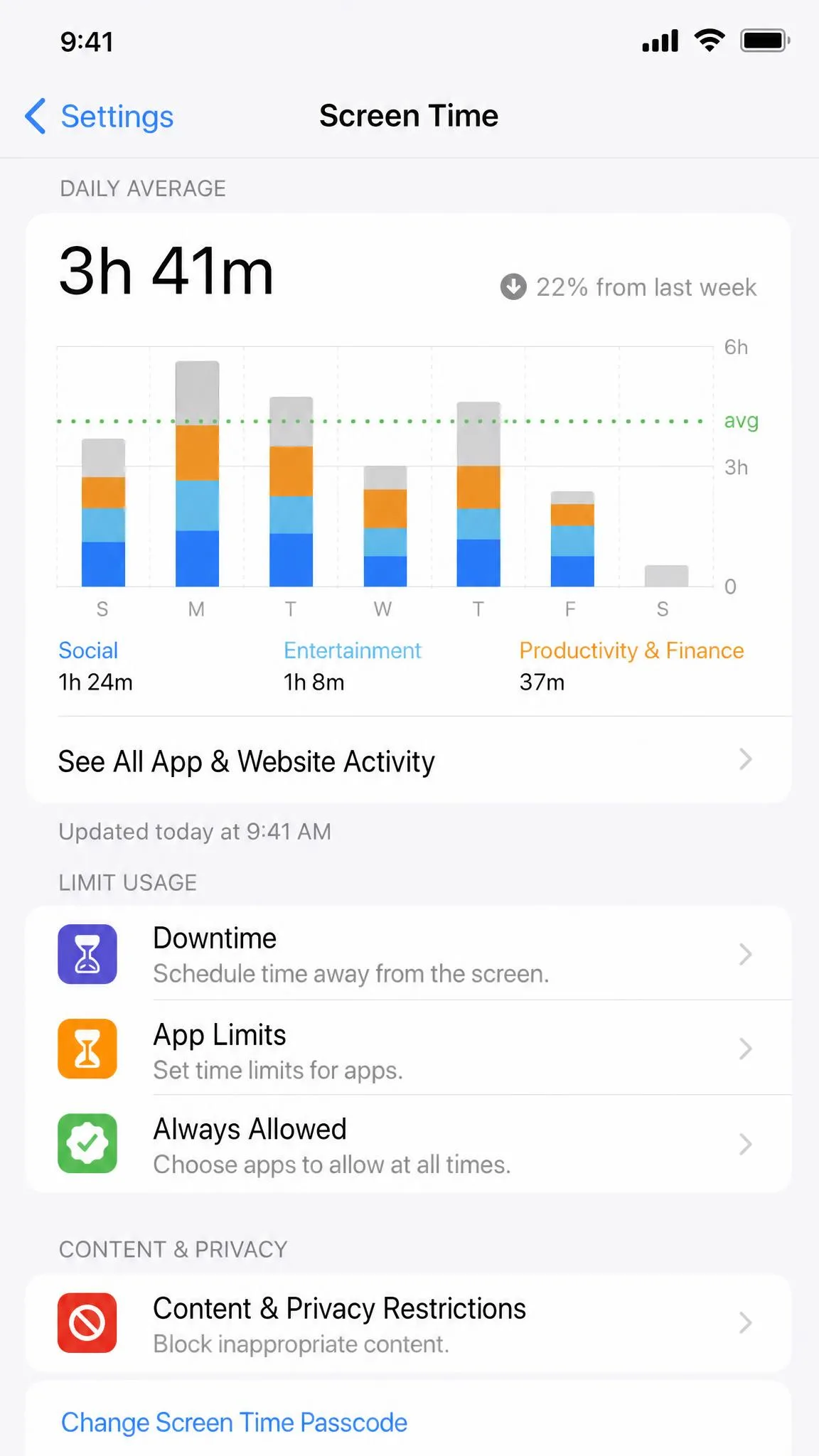
Most families enable Screen Time to manage a child's device, but the controls are protected by a passcode. The Screen Time passcode is always a 4-digit code, and it is separate from the code you use to unlock the device. If someone else configured the phone, the controls may be locked behind a passcode you do not know. That includes a previous owner, a school, or an employer. There are five supported ways to clear it, and we walk each one below.
Screen Time vs. Content & Privacy Restrictions
Screen Time is the umbrella feature. It covers usage monitoring, App Limits, Downtime, and Communication Limits, and it produces the weekly activity report. Content & Privacy Restrictions is a layer inside it. That layer filters what your iPhone can show and buy: web content, app ratings, media ratings, explicit content, and purchases.
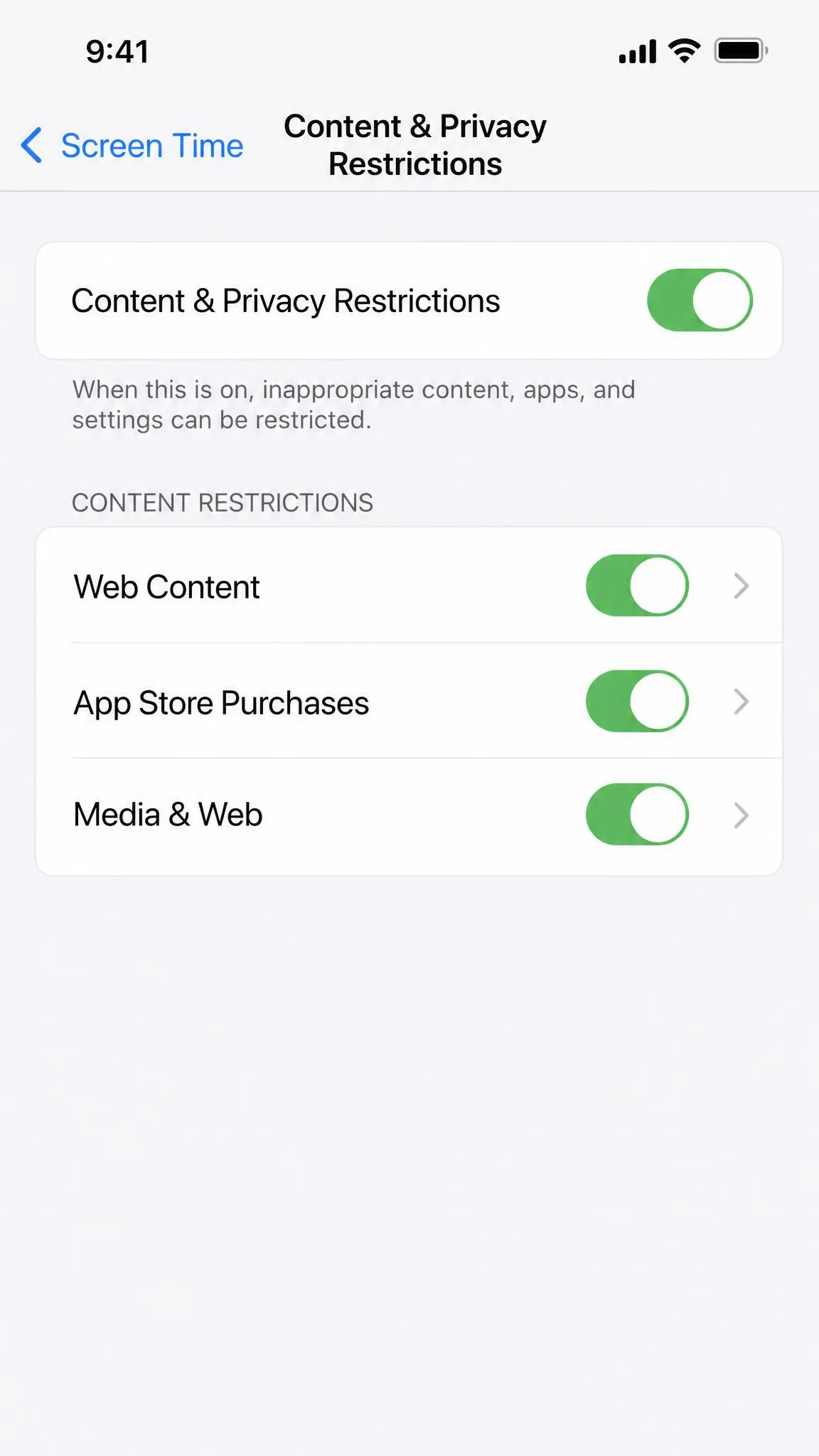
The distinction matters because you can turn them off independently. That is the middle ground most parents want, and Way 2 shows exactly how to get there.
5 Ways to Remove Parental Controls on iPhone
The right method depends on whether you have the passcode. It also depends on whose device you are removing controls from, and how many limits you want to keep. Work through the five ways in order if you are not sure where to start.
Way 1: Turn Off Screen Time Entirely (With the Passcode)
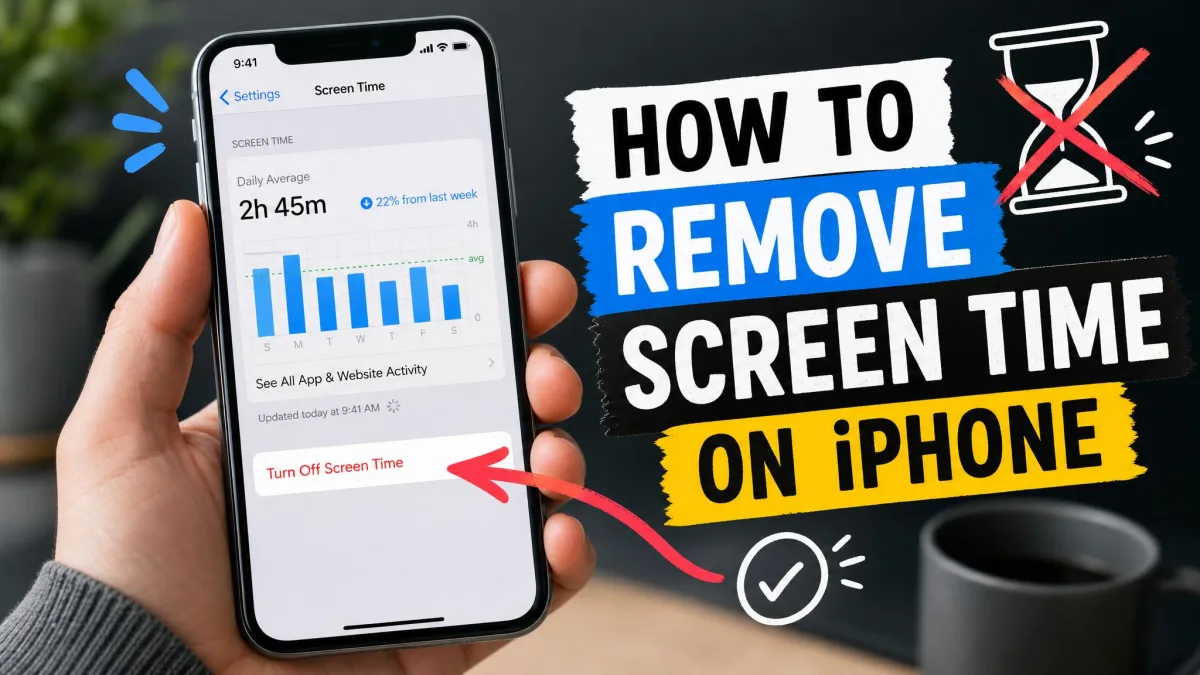
If you have the Screen Time passcode, this is the fastest way to remove parental controls completely. Go to Settings → Screen Time and tap Turn Off Screen Time. Enter the Screen Time passcode, then confirm the prompt to disable the feature on the spot.
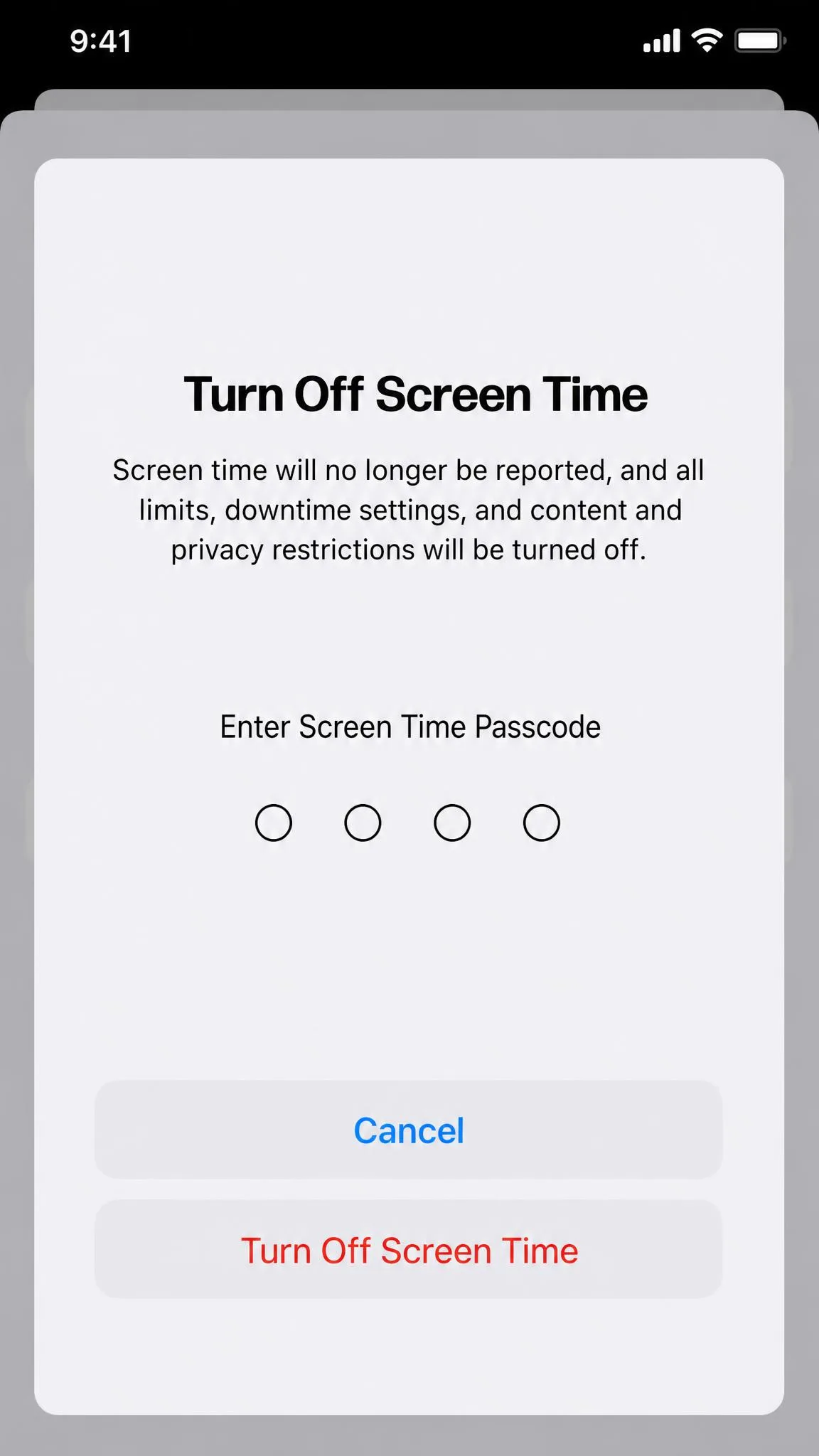
Turning off Screen Time stops enforcing app limits, downtime, and content filters, and it ends usage monitoring. Nothing else about the phone changes. You stay signed in with your Apple ID, and every purchase you made remains in place. No apps or data are removed. Use this option when you set up Screen Time yourself and simply want it gone. If you do not have the passcode, skip ahead to Way 3.
Way 2: Turn Off Specific Restrictions (Keep Screen Time On)
Maybe you want to keep downtime and app limits but loosen the content rules. That is where Content & Privacy Restrictions comes in. Open Settings → Screen Time → Content & Privacy Restrictions and enter the passcode. Toggle the master switch off to clear every content filter at once. Or open individual categories to remove only the blocks you want, such as web content restrictions, app store purchases, or explicit media.
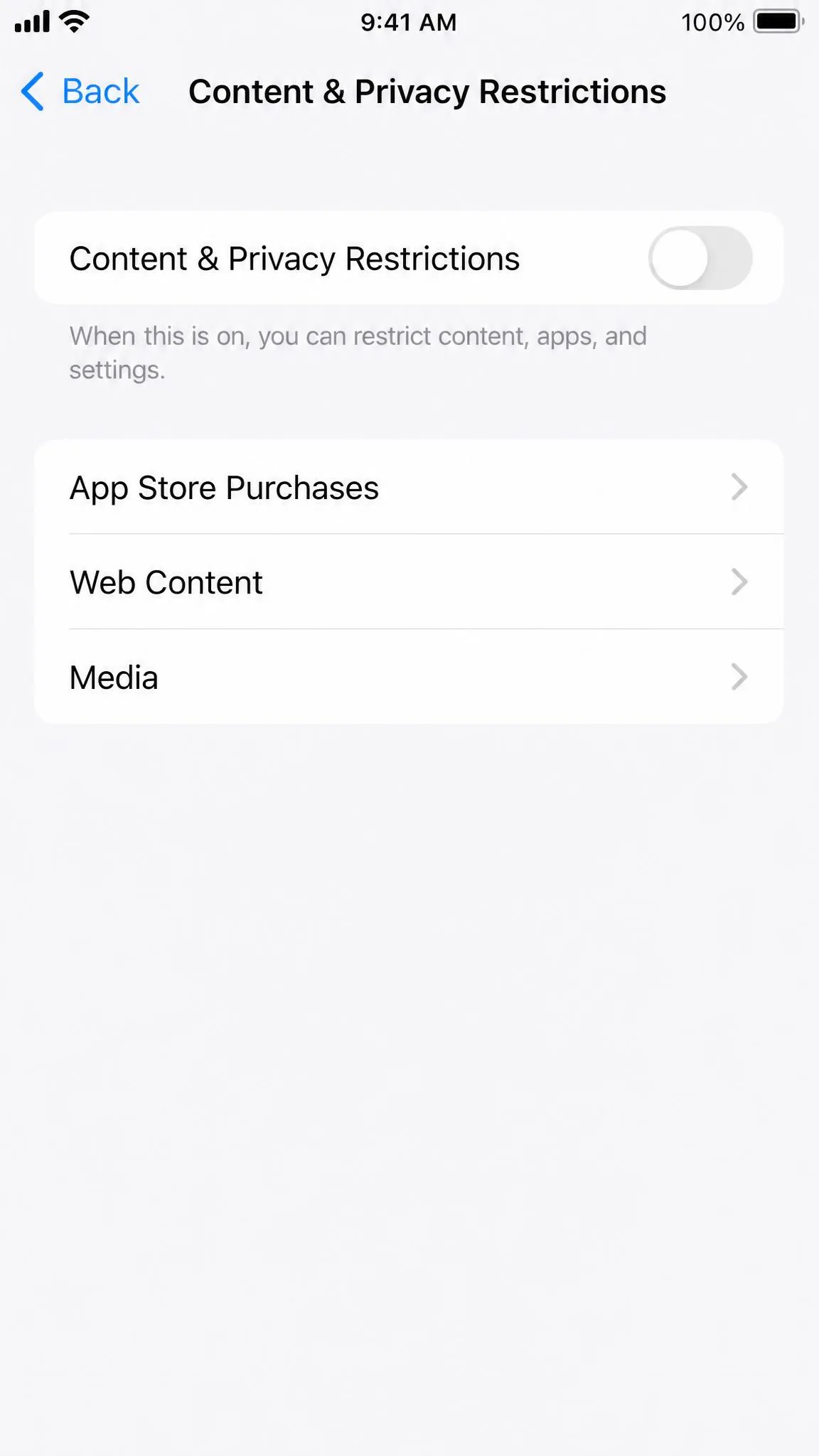
If you only need to relax a few limits, leave Screen Time running and turn off Content & Privacy Restrictions on its own. App Limits and Downtime keep working while the web, app, and purchase blocks drop away. You can also turn individual toggles back on later without resetting anything.
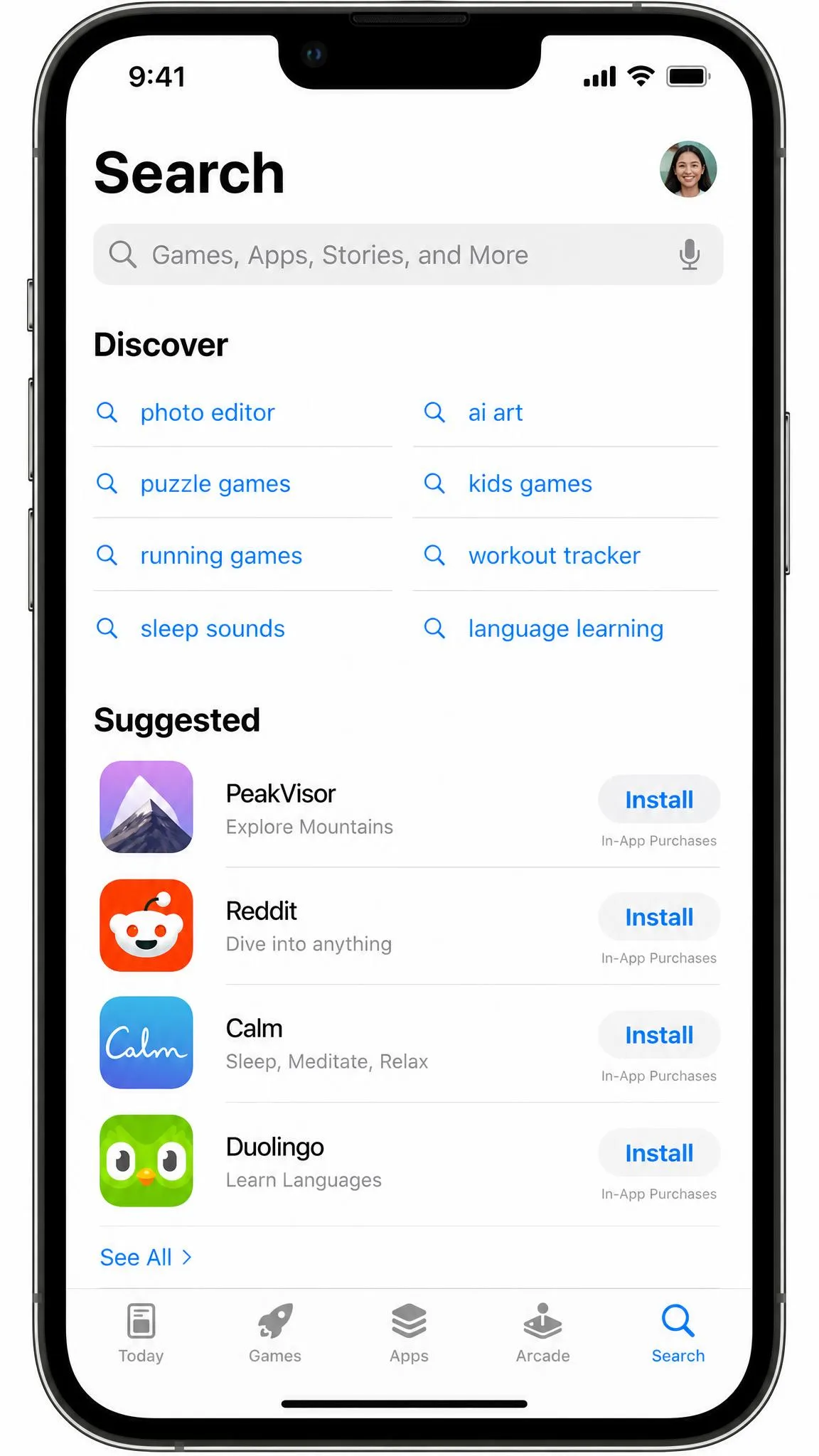
Purchase and install limits deserve a closer look. With Content & Privacy Restrictions on, the App Store blocks new installs and in-app purchases. Each one waits until a parent allows it. Removing those restrictions restores normal buying and installing on the device. Keep this layer on if the phone belongs to a child who still needs purchase approval.
Way 3: Reset the Screen Time Passcode With Your Apple ID (Without the Passcode)
Forgot the Screen Time passcode? If you linked your Apple ID when you set up Screen Time, resetting the code is easy. You do not need to erase the phone. Open Settings → Screen Time → Change Screen Time Passcode, tap Change Screen Time Passcode again, then choose Forgot Passcode?. Enter the email address and password for the Apple Account that set up the passcode. iOS then lets you create a new code on the spot.
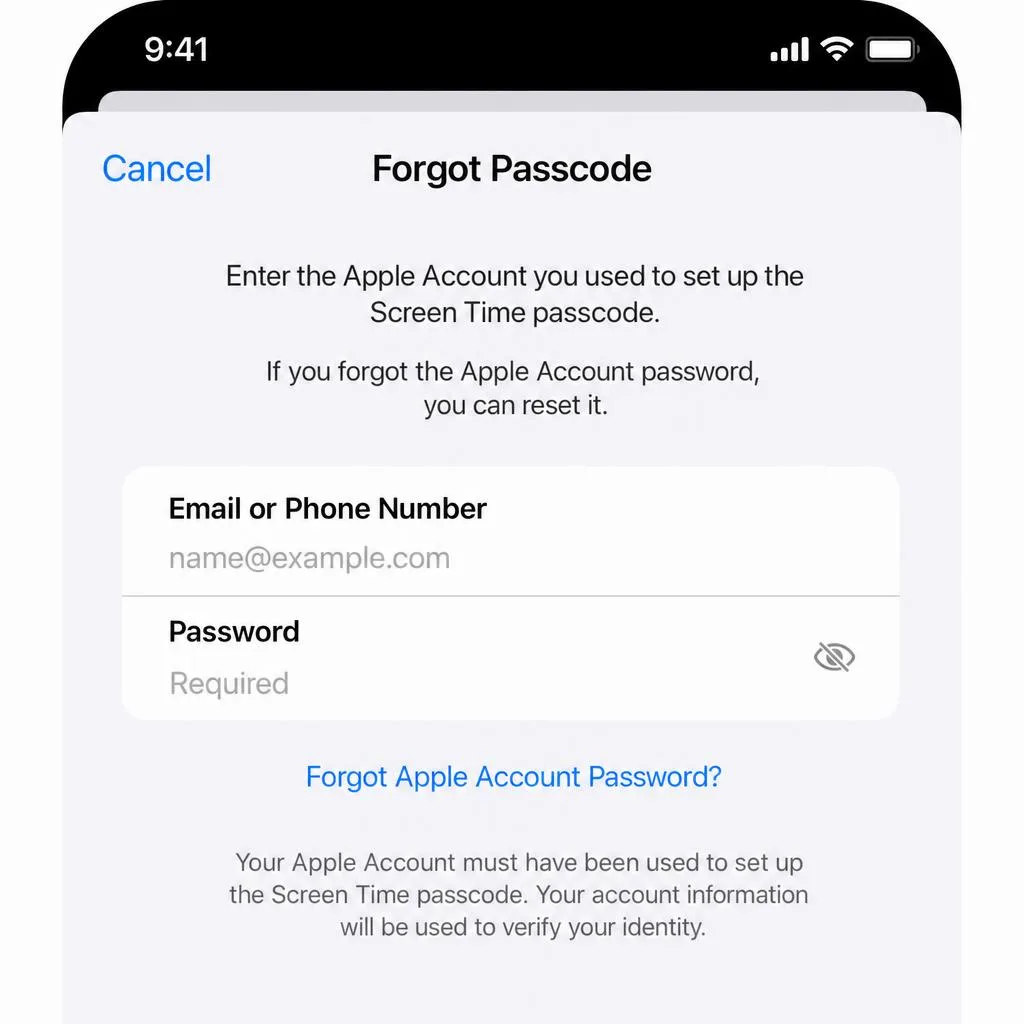
Resetting this way requires iOS 13.4 or later. It must also use the same Apple Account that originally set up the passcode. That is not always the account signed into the phone right now. In a Family Sharing group, it is sometimes the parent's account, so check before you give up. In our testing, most people who set up Screen Time on their own iPhone have this option available. It is the most reliable way to remove controls without losing data.
The reset uses the Apple Account linked to the passcode, not the account you are signed into right now. If your family set the phone up under a parent's Apple ID, sign in with that account before retrying. Face ID can also interrupt passcode entry, so temporarily disabling Face ID can make the passcode entry more reliable.
If the passcode was never linked to an Apple ID, the factory reset in Way 5 is the remaining path. The same applies when that account is also forgotten. There is no way to guess or bypass a Screen Time passcode.
Way 4: Remove Controls on a Child's iPhone via Family Sharing
With Family Sharing, parental controls on a child's iPhone are managed from your device, not the child's. The child's phone does not even show the option to disable Screen Time. That surprises most parents the first time they look. On your own iPhone, iPad, or Mac, open Settings → Screen Time. Tap the child's name, choose Turn Off Screen Time, and enter the parent's Screen Time passcode.
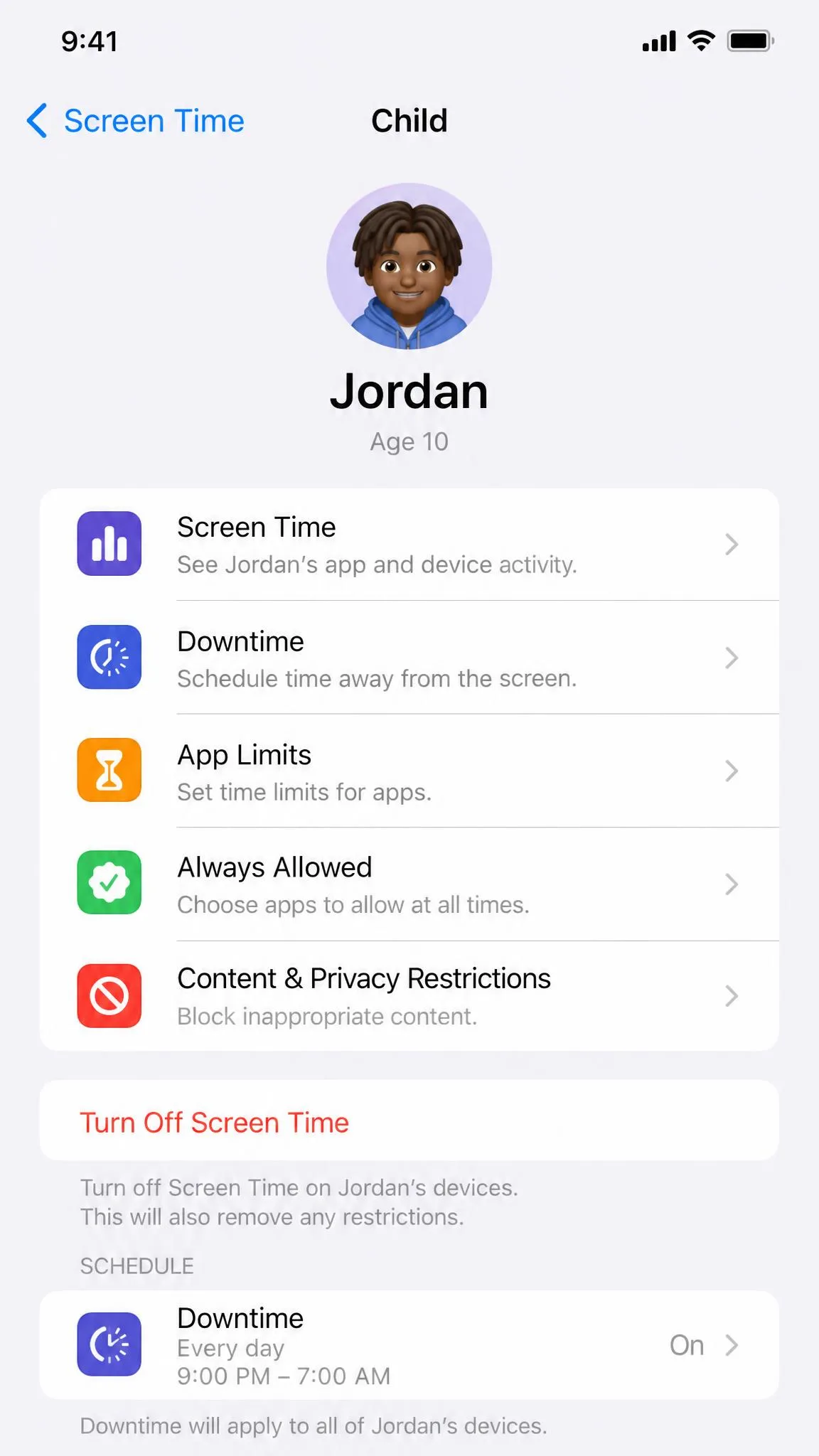
The change reaches the child's phone quickly. In our testing, Family Sharing updates synced to the child's device within about a minute over Wi-Fi. Until the update lands, Screen Time keeps enforcing its cached settings offline. Toggling the child's Wi-Fi or cellular data off does not bypass restrictions. There is no need to rush.
Family Sharing also lets the organizer manage content limits and downtime from a Mac or iPad. You are not tied to one device. If you only want to relax some rules, adjust the purchase permissions from the same screen. You do not have to disable everything.
Way 5: Factory Reset or Use a Third-Party Tool (Last Resort)
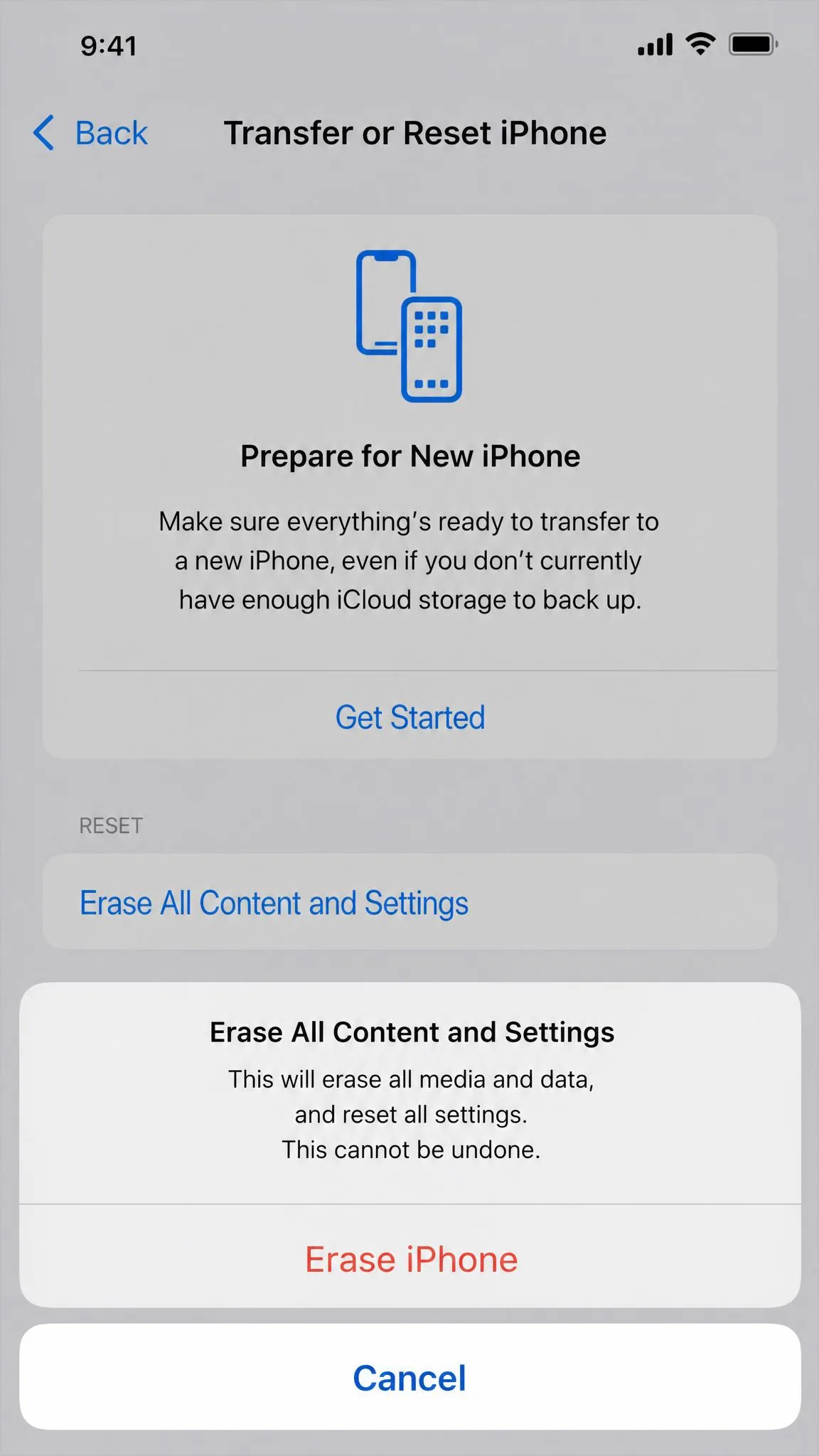
A factory reset wipes every photo, message, app, and setting on the phone. Restoring from a backup that included Screen Time brings the passcode and restrictions straight back. A reset only helps if you set the iPhone up as new without restoring an old backup. Back up anything you want to keep to a location that will not be restored.
If the Screen Time passcode and the Apple ID are both unavailable, a full erase is the only option. That method reliably removes the controls. Go to Settings → General → Transfer or Reset iPhone and tap Erase All Content and Settings. The phone then prompts you to set it up as new, at which point the old restrictions are gone. This is a heavy hammer. We only reach for it after the Apple ID route fails, because restoring an old backup can bring the passcode back.
Controls installed by a separate app behave differently. Apps such as Qustodio, Bark, or FamiSafe run outside Screen Time, so its settings will not touch them. Removing them means uninstalling the app from the phone. You also close the matching account on the parent's device. A monitoring app installed by someone else may require that person's cooperation to remove.
Where Screen Time itself feels too all-or-nothing, some families switch to a paid parental control app for more flexible scheduling. These tools need paid subscriptions, typically $5 to $15 per month, and separate installs on parent and child devices. Entry plans sometimes cost less. Of the third-party apps, Qustodio carries the broadest feature set — web filtering, screen time limits, and location tracking across up to five devices on its Basic plan. Some of its iOS controls require a Mac to configure, which adds setup friction for Windows-only families. Plan pricing changes over time, so check the current plans before you commit.

What Happens When You Turn Off Parental Controls?
Removing parental controls puts the iPhone back into an unrestricted state. App installs and in-app purchases no longer need approval. Web browsing is unfiltered, and explicit content becomes visible again. Apps start asking for camera, microphone, and location permissions on their own terms. Screen Time also stops collecting usage data. The weekly activity reports end, and on-device history rolls off after about a week.
Nothing you own disappears. Turning off Screen Time does not delete apps, photos, messages, or accounts, and your Apple ID stays signed in. The single exception is a factory reset. Because it wipes the device, we treat Way 5 as the last resort.
Two settings survive a Screen Time removal. Ask to Buy stays on. It is a Family Sharing toggle, not a Screen Time toggle. In some regions, controls for accounts under 18 stay locked on by law. If purchase approvals need to go too, the family organizer must turn off Ask to Buy separately.
Troubleshooting Common Issues
Most removal problems trace back to the wrong passcode, a managed device, or a settings bug. Check the simple fixes first before assuming the phone is broken.
If your changes do not save, force-quit the Settings app and try again. Signing out of iCloud and back in usually clears a stuck toggle. Installing the latest iOS update does the same when one is pending. iOS bugs that block settings saves are rare, but a fresh OS version resolves most of them.
Screen Time Still Shows as Enabled or Settings Are Grayed Out
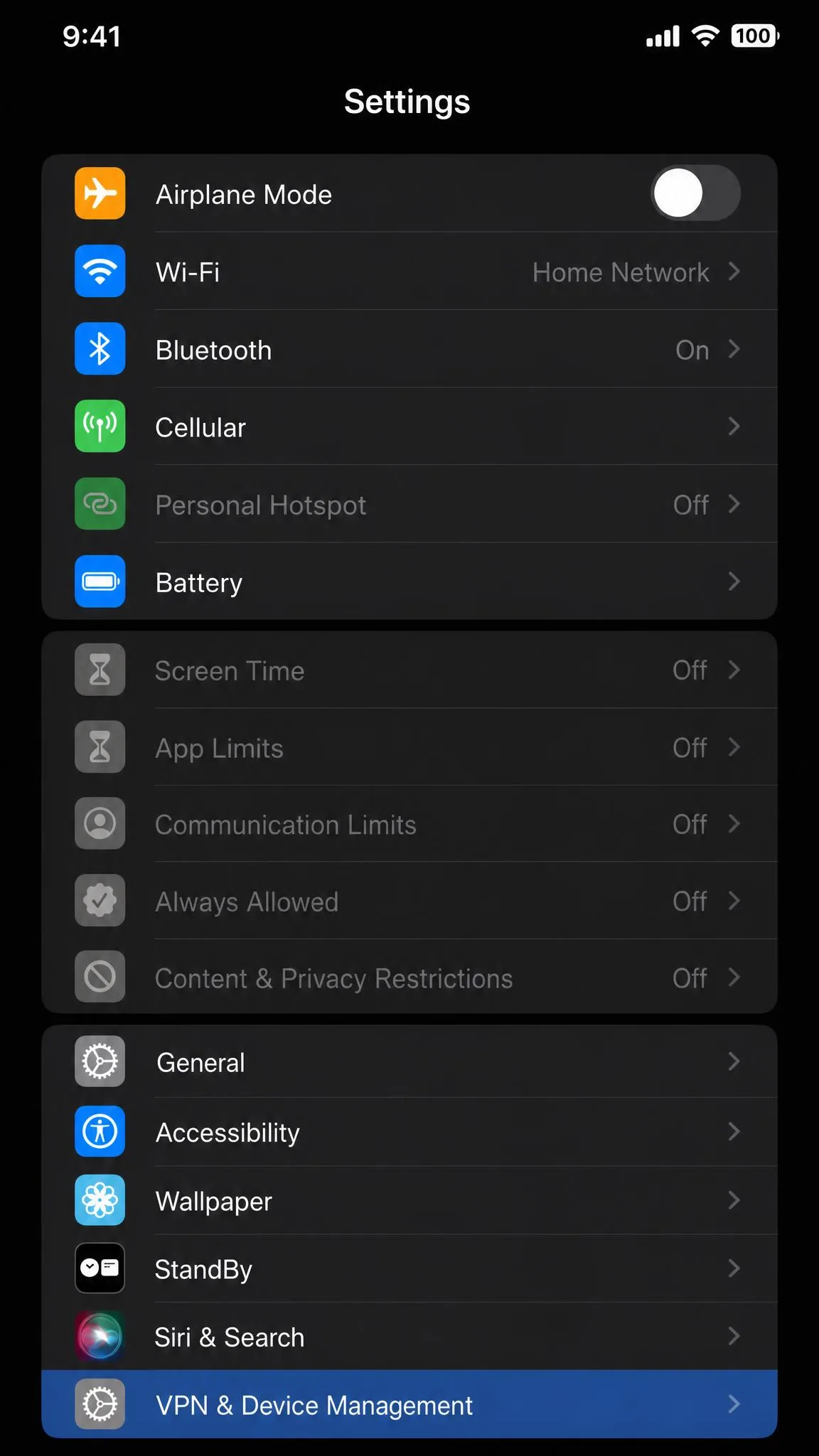
This usually means another party controls the phone. On a supervised iPhone, restrictions may come from a management profile. A school, employer, or carrier sets it up, and only the original installer can remove it. Check Settings → General → VPN & Device Management for any profiles. If one is listed there, the Screen Time settings stay locked no matter what you try.
Screen Time can also reappear as enabled. That happens when another Family Sharing organizer has access, or when a managed profile re-enforces the restrictions. If you bought a used iPhone and the old owner's settings persist, the device was not fully reset. A factory reset is the clean fix. When settings are grayed out because the Apple ID is managed, sign in with the account that owns the phone. Do not use your personal account.
Frequently Asked Questions
How do I turn off parental controls on my iPhone without the passcode?
How do I reset the Screen Time passcode with my Apple ID?
Does turning off Screen Time delete my apps or data?
How do I remove parental controls on my child's iPhone (Family Sharing)?
What's the difference between Screen Time and the old Restrictions feature?
Does disabling Screen Time remove Ask to Buy?

The Bottom Line
Removing parental controls on an iPhone comes down to one question: do you have the passcode? With it, turning off Screen Time takes under a minute and costs you no data. Without it, the Apple ID reset is your cleanest path, and the factory reset is the guaranteed fallback. For a child's device, remember the controls live on the organizer's phone, not the child's.
If the goal is less supervision instead of none, keep Screen Time running. Turn off only the content and purchase restrictions, or switch to a paid parental control app that fits your family's schedule. Either way, back up the phone before any reset. Confirm current app pricing too, because plans change over time.