To block an app from being downloaded, use the built-in parental controls on the device. Screen Time covers iPhone and iPad, Play Store parental controls or Google Family Link cover Android, and Microsoft Family Safety covers Windows. Each approach stops new installs, requires a parent's approval before a download, or both. This guide walks through every method with the exact menu paths.
Parents set these blocks to keep apps outside a child's age range off the phone, and employers use them to stop sideloaded files from reaching work devices. The built-in tools are free.
The quickest route on any phone: on iPhone, block App Store installs under Screen Time Content & Privacy Restrictions. On Android, set up Play Store parental controls with a PIN, or use Family Link to approve each download yourself.
Why You Might Need to Block App Downloads
App downloads are where most accidental costs and unwanted content show up. A child can install a free game with in-app purchases, or grab an app rated far above their age. Employers face a different risk: a sideloaded APK on a work phone can carry malware.
All of these controls live in settings that already exist. Parents who already monitor their child's text messages often add download blocks to keep the oversight complete.
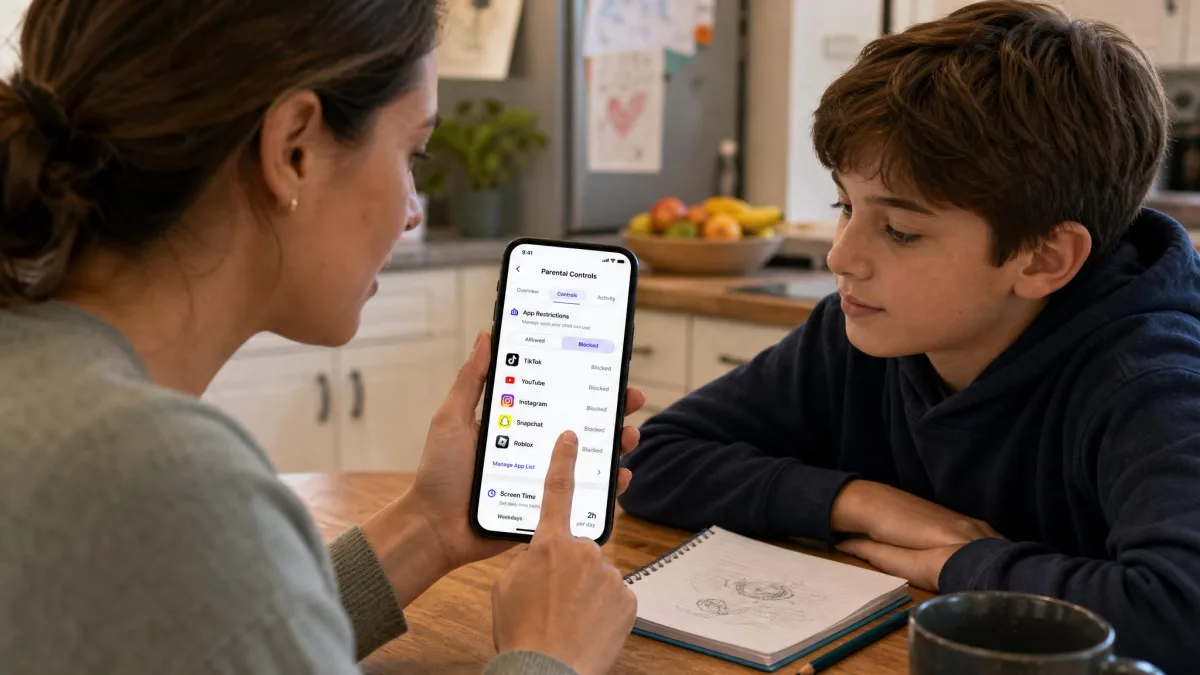
Method 1: Block App Downloads on iPhone and iPad (Screen Time)
Screen Time is the built-in block for iPhones and iPads. It stops new App Store installs, prevents redownloads, and blocks in-app purchases, all behind the Screen Time passcode.
Set Up Content & Privacy Restrictions
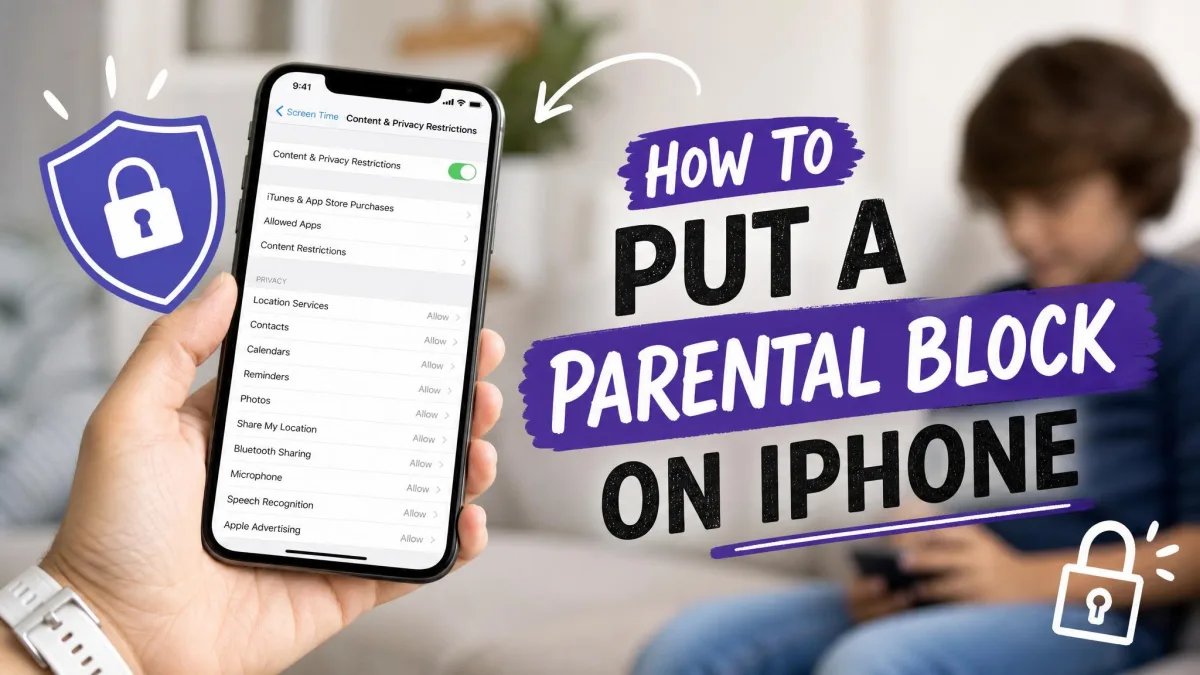
Open Settings and tap Screen Time. If you have not set it up before, turn it on and create a Screen Time passcode, and keep that passcode private from your child. Open Content & Privacy Restrictions, turn it on, and enter the passcode when prompted.
Stop App Store Installs, Redownloads, and Purchases
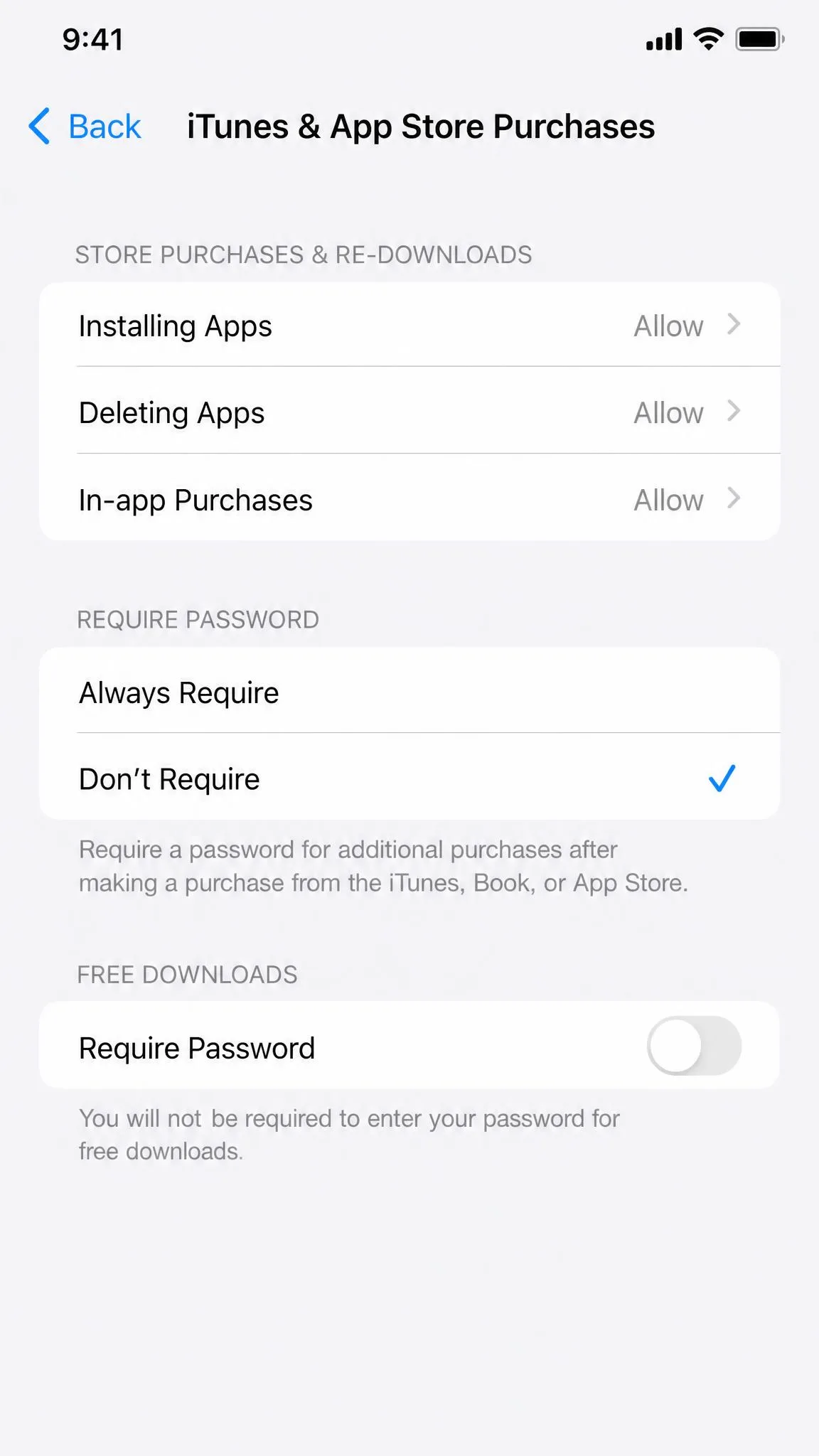
From Content & Privacy Restrictions, open iTunes & App Store Purchases and set Installing Apps to Don't Allow. That stops new installs and redownloads. Set In-App Purchases to Don't Allow as well. Apple's Screen Time guide walks through the same path.
We noticed a quirk in our testing: with Installing Apps set to Don't Allow, the App Store icon disappears from the Home Screen, so the store reads as missing rather than blocked.
For a lighter touch, the family organizer can turn on Ask to Buy, which requires approval for downloads and purchases for family members under 18. Children under 13 have it on by default.
Method 2: Block App Downloads on Android (Play Store Parental Controls)
On Android, the Play Store has its own parental controls that filter apps by age rating and lock the settings behind a PIN.
Turn On Parental Controls with a PIN
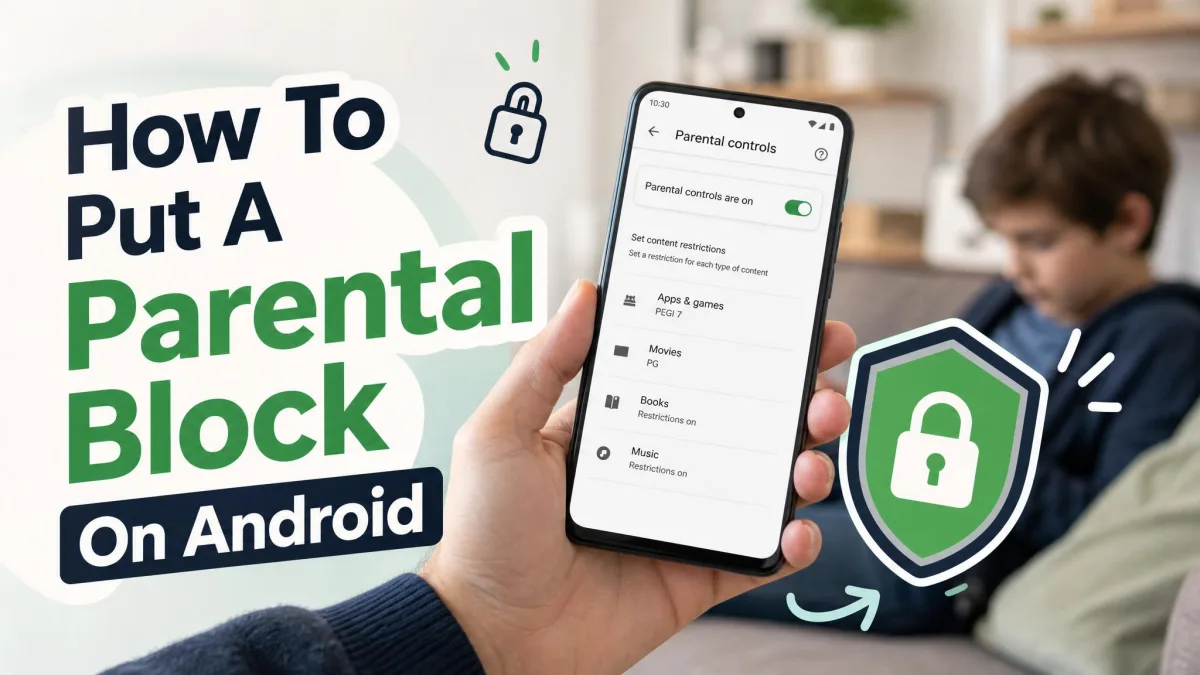
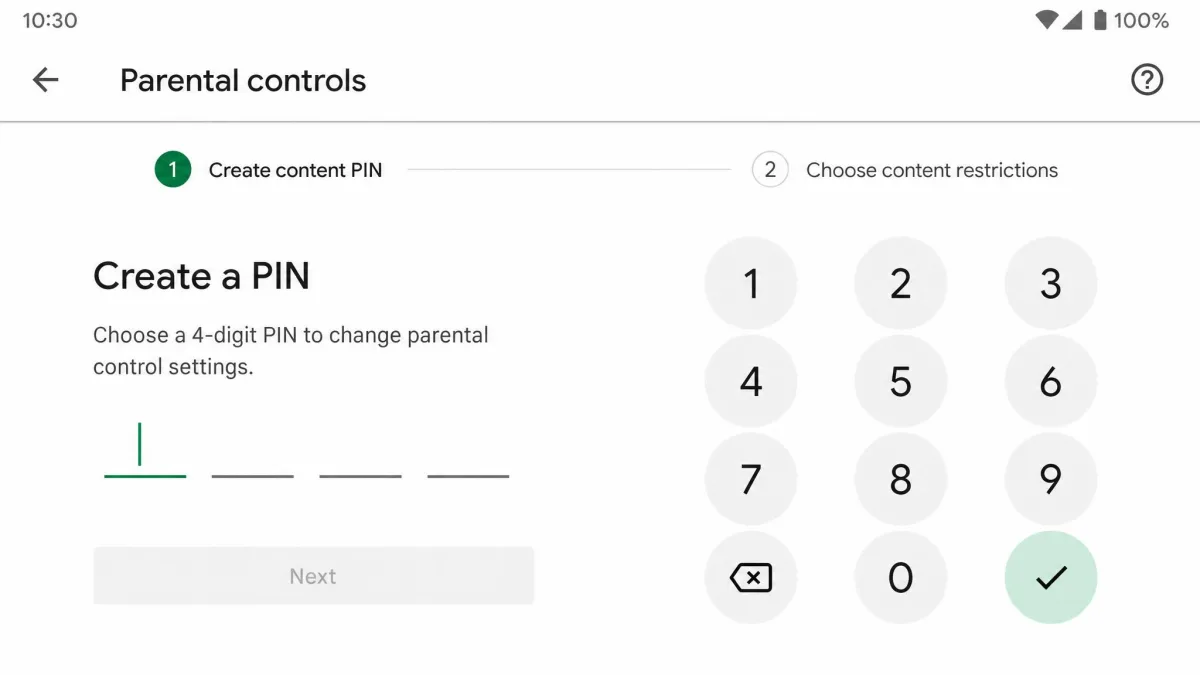
Open the Play Store app and tap your profile icon in the top right. Open Settings, then Family, then tap Content restrictions and choose Go to Parental controls. Set up a parental controls PIN the child does not know. That PIN is required to change or remove the restrictions.
Set Age Ratings for Apps and Games
The content filter is set by maturity rating: 3+, 7+, 12+, 16+, and 18+. Choose the highest rating your child may install, and apps above that rating become unavailable. When a child tries to download an out-of-range app, the Play Store reports it as unavailable with the message "This app isn't available for kids at this time."
The restrictions apply only to the device where you set them, so repeat the steps on each Android device. If the PIN is forgotten, clearing the Play Store's data in Settings resets them, and in our testing the controls lingered on some devices even after that.
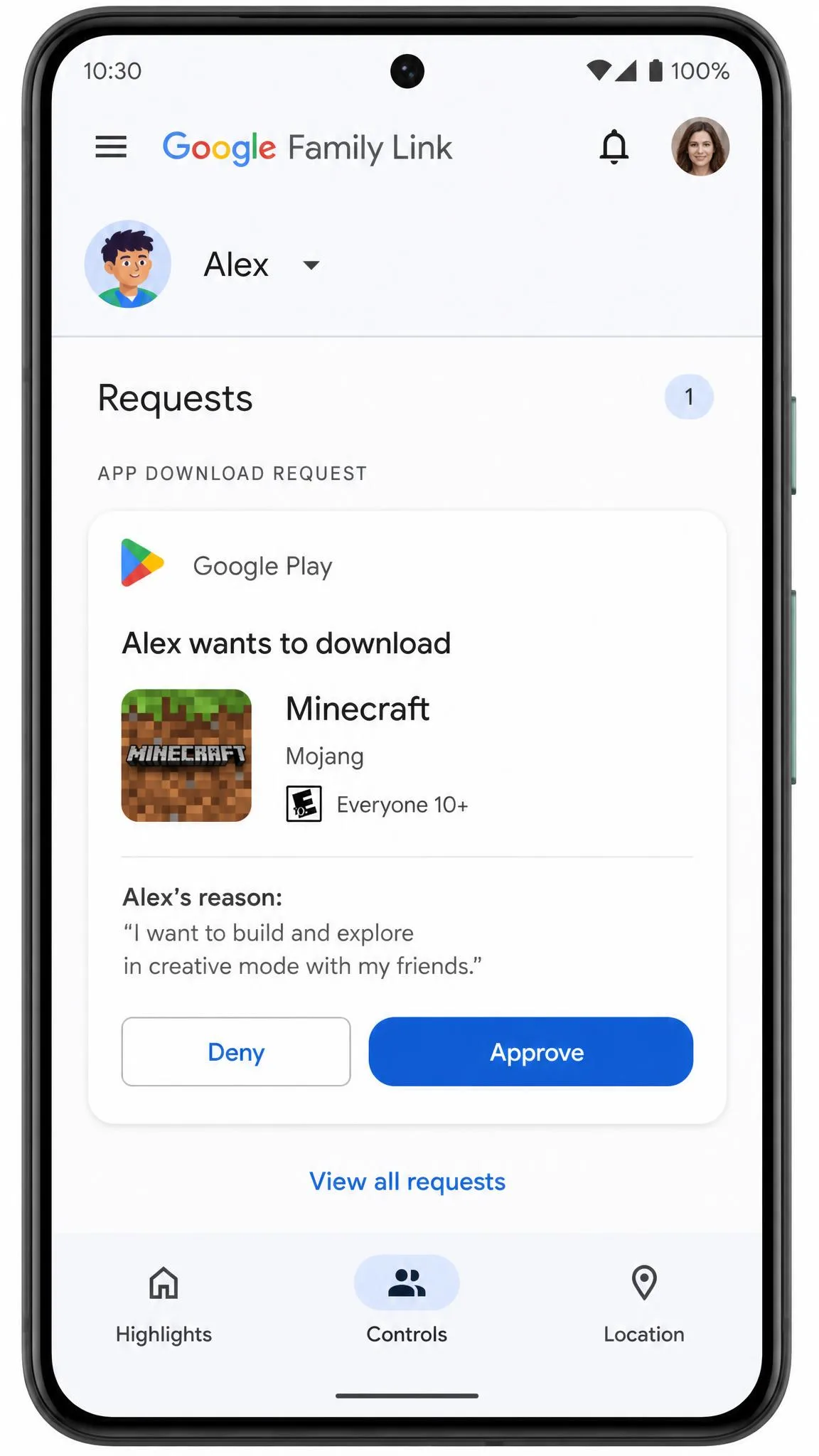
Method 3: Use Google Family Link to Approve Every Download
Where Play Store controls filter by rating, Google Family Link adds a parent approval step for every download. It also blocks APK installs from unknown sources on supervised devices by default.
Set Up Family Link for Your Child
Download Google Family Link and create a family group with the child's Google Account. The child's device needs Android 5.0 or newer to be supervised, and the parent app runs on Android or on an iPhone with iOS 16 or newer. Changes take effect in about 5 minutes. See our guide on parental controls on Android for more.
Require Approval for All Content
Open the Family Link app, select the child, then open Controls, then Google Play, then Purchases & download approvals. Choose Require approval for and pick All content, Paid content only, In-app purchases only, or Never. Children under 18 with managed accounts need approval for any content, including free apps. You approve from the child's device with your Google password, or from a notification on your phone.
Family Link is stricter than the Play Store filter in one way: it blocks apps with no content rating at all, not just apps above the child's level.
Method 4: Block App Installs on Windows (Microsoft Store / Family Safety)
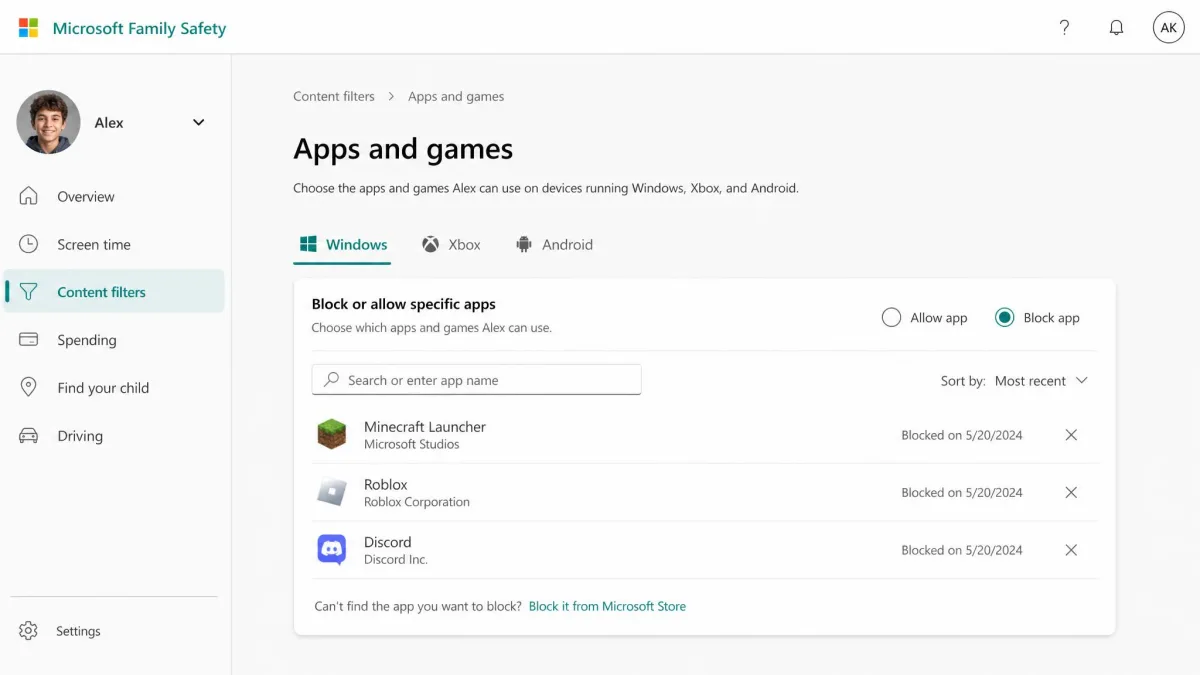
Microsoft Family Safety blocks apps and games across Windows, Xbox, Microsoft Edge, and mobile. Only a family organizer can block or unblock apps, so a family member cannot change the blocks themselves.
Sign in to Microsoft Family Safety as the organizer. Open the family member's tile, pick a platform tab such as Windows or Xbox, open Apps and games, select the app, and choose Block app. Repeat for each app, platform, and member.
The block is not always airtight. We have seen a blocked app still launch from a Start-menu shortcut on Windows, so test the block where your child opens apps. For the limits to hold, the child's Microsoft account should be a Standard user, because an Administrator account can change the settings.
Method 5: Disable Installation from Unknown Sources (Block APKs)
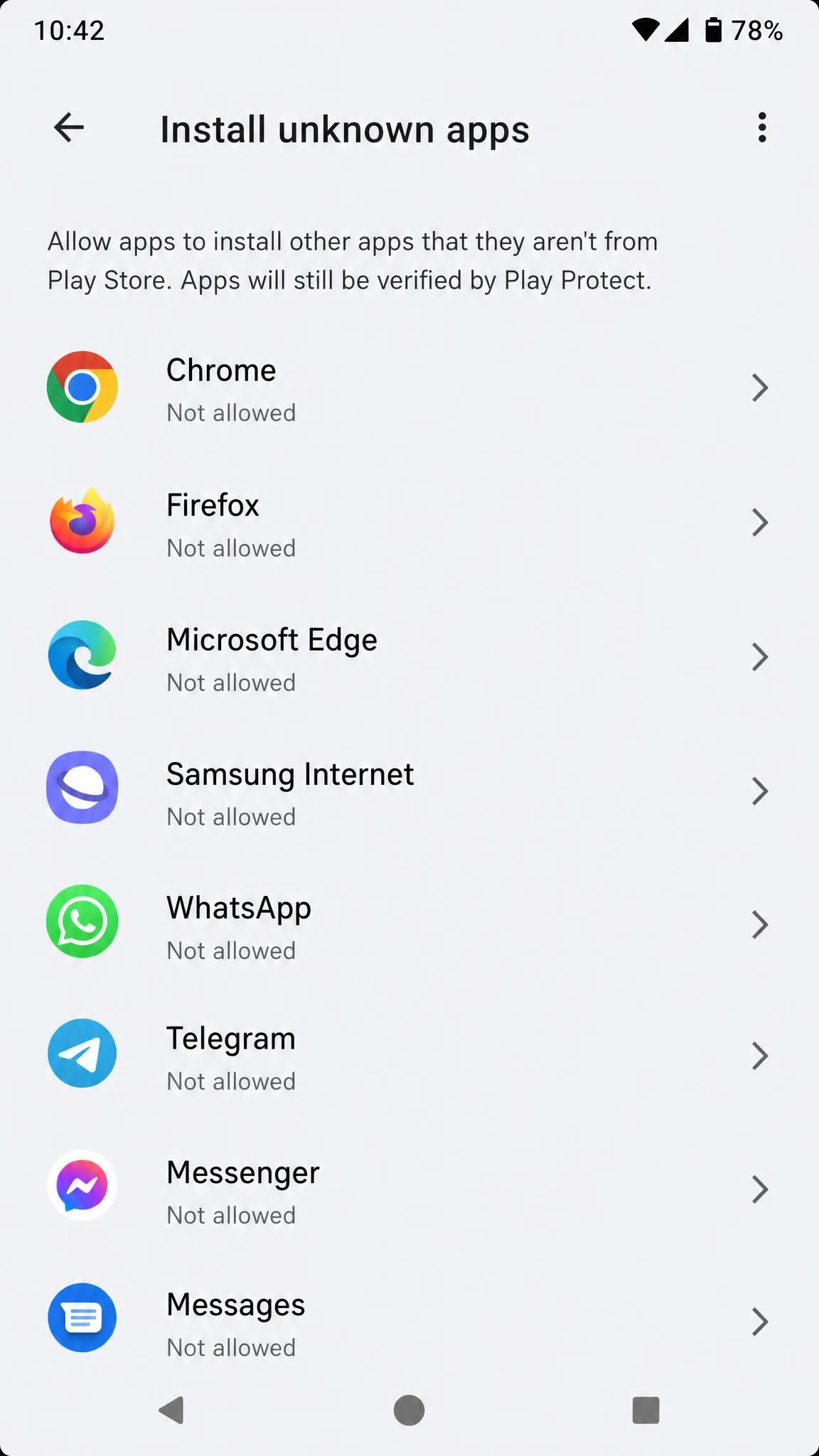
Play Store controls only cover Google Play. APK files installed from a browser, a file manager, or a messaging app bypass the store entirely, so block those sideloads separately.
On Android 8.0 and newer, sideloading an APK requires enabling Install unknown apps for each source app. Open Settings, then Apps, then the special app access list, and deny it for browsers, file managers, and messaging apps. On older Android versions, use the Unknown sources toggle under Settings, then Security. Family Link disables unknown sources on supervised devices by default.
Play Protect still runs a real-time check on installs from outside Google Play and scans the device daily for harmful apps.
Quick Reference: Which Blocking Method Should You Use?
Match the tool to the device and the child's age. The table below sums up each method.
| Platform | Best tool / mechanism | Where to set it |
|---|---|---|
| Screen Time, with Ask to Buy for approval | Settings, then Screen Time, then Content & Privacy Restrictions | |
| Play Store parental controls | Play Store, then Settings, then Family, then Content restrictions | |
| Google Family Link | Family Link, then Controls, then Google Play | |
| Microsoft Family Safety | account.microsoft.com/family | |
| OpenDNS or router DNS | Router DNS settings |
For work devices, IT admins can use mobile device management (MDM) to block apps on managed phones and laptops. Families that want more can add a third-party app such as Norton Family Parental Control or Kidslox, which add per-app blocking, web filtering, and usage schedules.
How to Close Bypass Paths and Make the Block Stick
No built-in control is airtight, and the workarounds are well documented. A few extra steps close the most common holes.
Passcodes, Profiles, and Purchase Prompts
Keep the Screen Time passcode and the Play Store PIN secret, because any child who knows them can lift the restrictions. On iPhone, erasing through Find My and restoring from a backup keeps the restrictions active but strips the protecting passcode. Ask to Buy has a similar gap: redownloading an app from the family's shared purchase history, including apps the parents downloaded, bypasses Ask to Buy entirely.
Screen Time's 4-digit passcode was brute-forceable through an erase flow until Apple patched it in iOS 18.0, and a child can still enter Assistive Access to get around Screen Time limits. On Android, Family Link enforces many controls locally, so kids work around them with developer tools, hidden browsers, app cloning, or a factory reset, and airplane mode dodges screen-time limits since there is no offline enforcement.
No parental control is a substitute for talking with your child about what they are downloading. A block that is easy to notice is usually a block your child will work around, so pair the settings with a short conversation about why they are there.
Network-Level Blocks (Router / DNS)
Router and DNS filters block at the network level, so every device at home is covered from one place. Point the router's DNS servers at OpenDNS, 208.67.222.222 and 208.67.220.220, and the filter takes effect in about 3 minutes.
Treat network blocks as a supplement, not a guarantee. DNS-level blocking of the App Store is unreliable because Apple spreads the store across many domains and CDNs that change after major iOS releases. VPNs, DNS-over-HTTPS browsers, and cellular data bypass router-level filtering. If one device keeps slipping through, you can also block a device from your WiFi.
Frequently Asked Questions
Can I block app downloads without Family Link?
Does blocking Play Store downloads also stop APK installs?
Can children bypass parental controls on Android?
What happens when download blocking is enabled?
How do I allow specific apps while blocking others?
Will a factory reset remove download restrictions?
Conclusion
Built-in parental controls handle most families: Screen Time on iPhone, Play Store controls or Family Link on Android, and Microsoft Family Safety on Windows. Set the block, keep the passcode or PIN private, and check the bypass paths once. When your child is ready, reverse the same settings in a minute.