Your PC feels sluggish, a webpage keeps showing an old layout, or your drive is quietly running out of room. In most cases the culprit is cache: the temporary files Windows and your apps stash away so they do not have to rebuild the same data every time. Clearing that cache is a quick, safe piece of housekeeping, and this guide walks through every type worth clearing on a Windows 10 or 11 computer.
Below you will find the exact menus, commands, and shortcuts we use to clear every type of cache on Windows, plus honest notes on what clearing the cache actually fixes and what it will not touch.
What Is Cache and Why Clearing It Helps
Cache is a store of temporary data your computer keeps so it can load things faster the second time around. Your browser saves copies of images and scripts so pages reappear quickly. Windows keeps thumbnails, update files, and other temporary data for the same reason. This is helpful right up until the stored files pile up, go stale, or start serving you an outdated version of something.
Clearing the cache clears out that temporary data so your system rebuilds it fresh. It can free up disk space and resolve display glitches, and over time it stops old files from crowding your drive. If you want the deeper background, our explainers on what a cache is and what a browser cache does go further than we will here.
Cache vs. cookies vs. browsing history
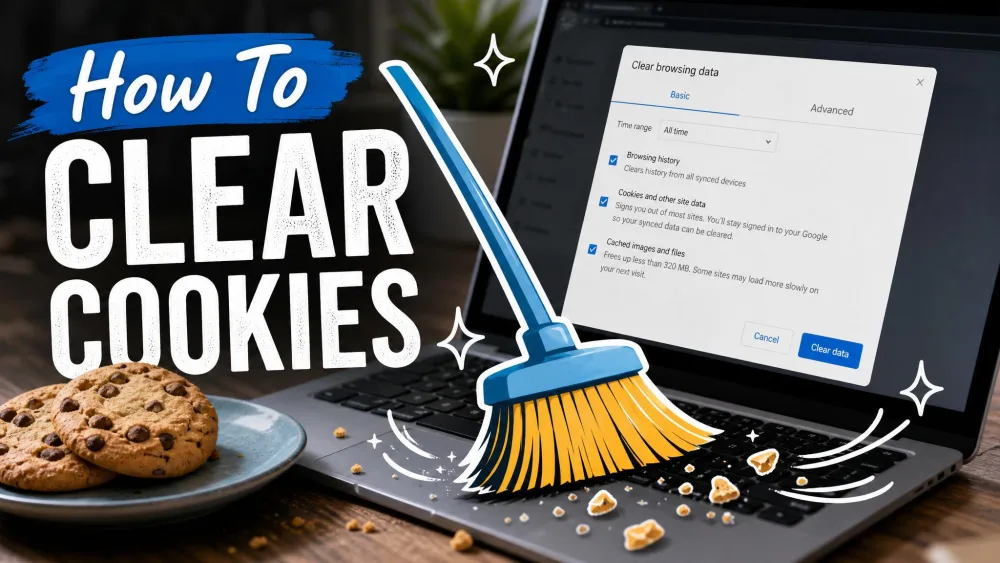
These three get lumped together, but they are not the same thing. Cache is the stored copies of page files, such as images and scripts, that help sites load faster. Cookies are small files that remember who you are, so clearing them logs you out of websites. Browsing history is simply the list of pages you have visited. When you only want faster, cleaner page loads, clear the cache and leave cookies alone so you stay signed in.
What Clearing the Cache Does (and Doesn't) Do
Clearing the cache frees up space and can fix pages or files that load incorrectly. In our testing, the real payoff is fixing broken page displays and loading glitches rather than a dramatic speed boost. Right after you clear it, the sites you visit load slightly slower the first time, because everything has to download fresh before the cache refills.
It is also worth knowing what a cache clear will not do. It will not resolve deep browser bugs, malware infections, or extension conflicts. People often reach for it as a catch-all fix and end up chasing the wrong problem. And clearing the cache never touches your personal files, documents, photos, or installed programs, so there is no risk to the things you actually care about.
Cache and cookies are cleared from the same dialog in most browsers. If you tick cookies as well, you will get logged out of every site you were signed into. Clear cached files only when all you want is a display fix.
How to Clear the Windows Cache
Windows stores several different caches, and each has its own quick way to clear it. You can work through all of them or just the one causing trouble.
Clear temporary files with Disk Cleanup
Disk Cleanup is the classic Windows tool for this. Type "Disk Cleanup" into the Start menu, open it, and pick your system drive. Tick the Temporary files box, along with anything else you want to clear, then confirm. To go further, click Clean up system files, which lets Disk Cleanup remove extras like Windows Update Cleanup that are otherwise hidden.
For a fast look at raw temp data, press Win+R and type %temp%, then press Enter. Windows opens the temp folder directly, and you can select everything and delete it. Any file currently in use will refuse to delete, which is normal; just skip it.
Clear temporary files in Settings (Storage)
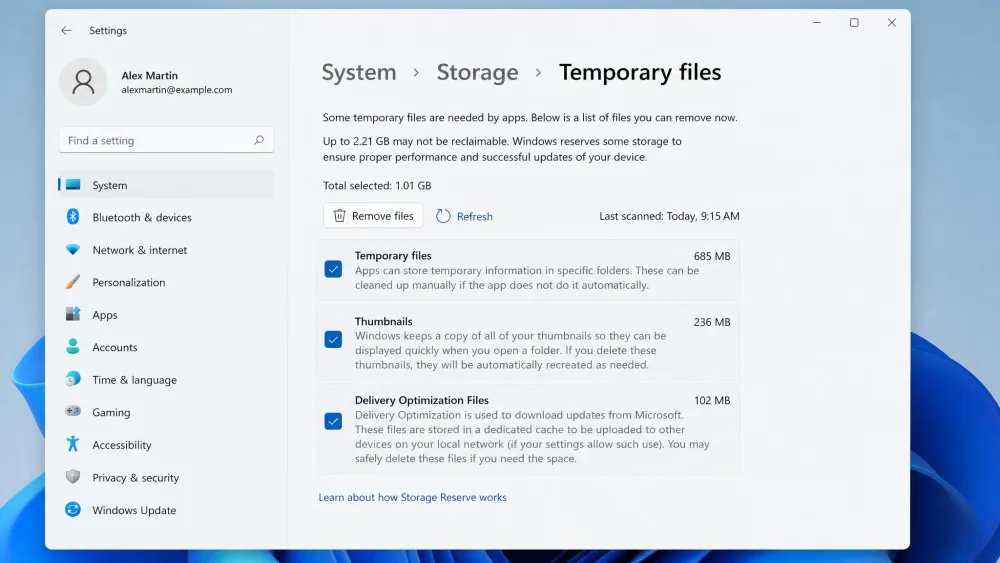
Windows 10 and 11 both offer a friendlier route through Settings. Press Win+I to open Settings, then go to System > Storage and click Temporary files. Windows scans and shows you what it can remove, including thumbnails, update leftovers, and other cached data. Tick what you want and choose Remove files.
During this cleanup, Windows may flag some files as currently in use. Those are actively held by Windows or an app, so they simply get skipped rather than throwing an error. You can also turn on Storage Sense here to auto-clean temporary files on a schedule, or trigger it on demand with Run Storage Sense now.
Clear the Microsoft Store cache (wsreset)
If the Microsoft Store fails to load, hangs, or downloads stall, resetting its cache usually sorts it out. Press Win+R, type wsreset.exe, and press Enter. In our testing this pops a brief black window and relaunches the Store on a blank loading screen, then closes itself once the reset finishes. Nothing you have installed is removed; only the Store's own cache is cleared.
Flush the DNS cache
Windows remembers the addresses of sites you have visited in a DNS cache. When a site has moved or the stored lookup goes stale, pages can fail to load even though the site is fine. Open Command Prompt as an administrator, type ipconfig /flushdns, and press Enter. A working flush returns the message "Successfully flushed the DNS Resolver Cache." Your next visits then fetch fresh address lookups.
Clear the location and other system caches
Windows keeps a few smaller caches too, including a location history. You can clear it under Settings, though the exact wording differs between versions: Windows 10 lists it under Privacy while Windows 11 uses Privacy & security, and the Clear button sits under the location settings in both. Beyond that, the temporary-files cleanup above already handles thumbnails, the DirectX shader cache, and Windows Update leftovers, so you rarely need to hunt them down individually.
How to Clear Your Browser Cache and Cookies
Browser cache is the one most people mean when they talk about clearing the cache. On Chrome, Edge, and Firefox for Windows, the shortcut Ctrl+Shift+Delete opens the clearing dialog in every one of them, which is the fastest way in. Below are the exact menu paths for each, and each official guide if you want the vendor's own walkthrough.
Google Chrome
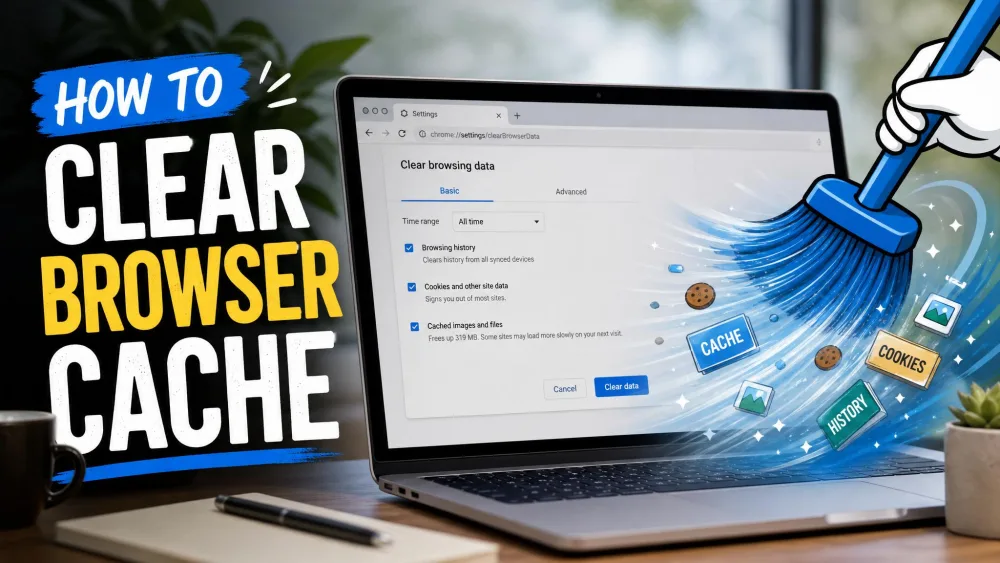
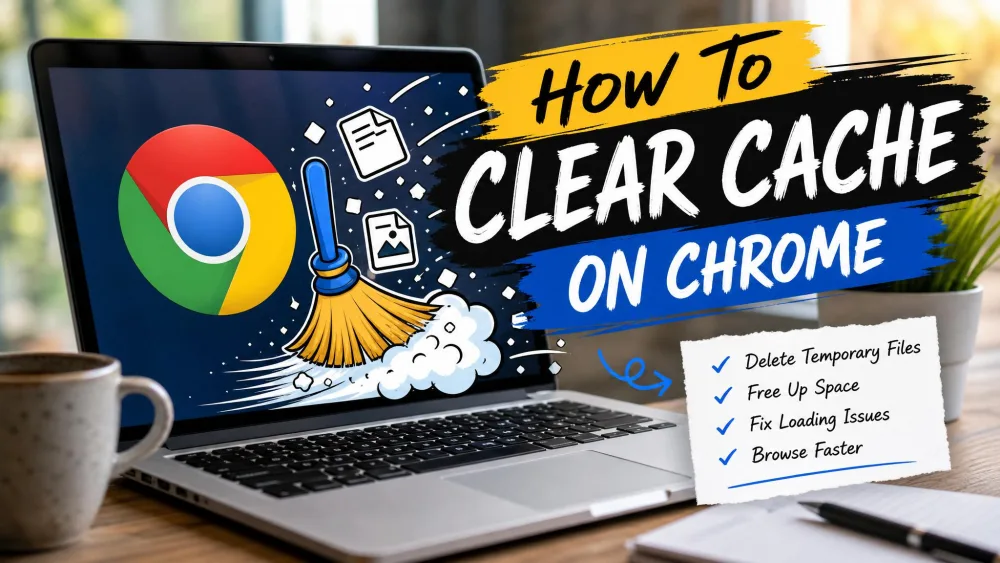
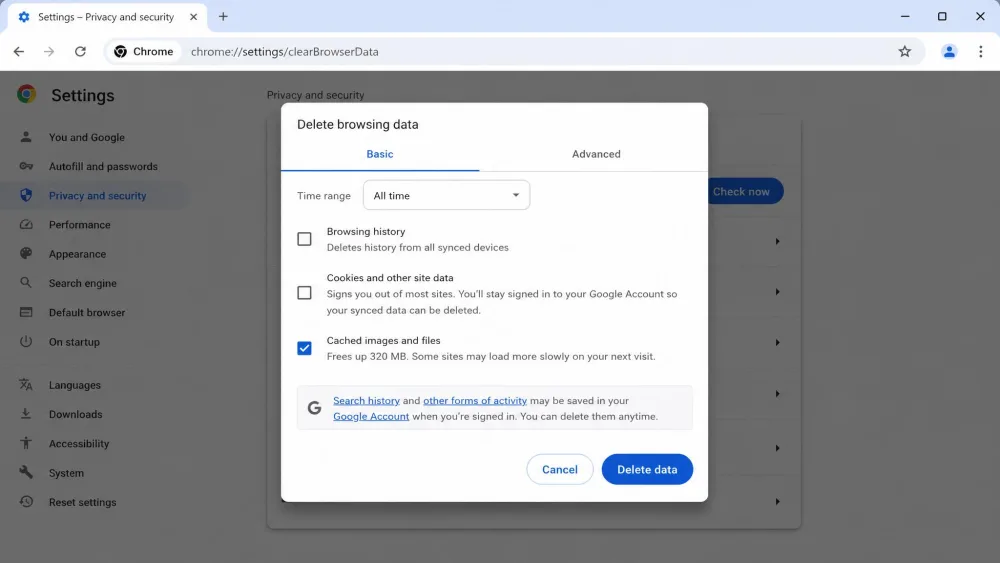
In Chrome, click More (the three dots) and choose Delete browsing data. Set the time range to All time, tick Cached images and files, and leave cookies unticked if you want to stay logged in. Click Delete data.
Microsoft Edge
In Edge, go to Settings and more, then Settings, then Privacy, search, and services. Under Clear browsing data, click Choose what to clear, tick Cached images and files, and confirm. Microsoft's own walkthrough for how to clear your cache in Microsoft Edge mirrors these steps.
Mozilla Firefox
In Firefox, open the menu button and go to Settings > Privacy & Security > Cookies and Site Data, then click Clear Data. Set When to Everything, tick Temporary cached files and pages, and click Clear. Mozilla's guide to clear the Firefox cache has the full detail.
Safari
Safari lives on Mac rather than Windows, and it hides cache clearing more than the others. There is no clear-cache-only button in the main interface, so you go to Safari > Settings > Privacy > Manage Website Data and choose Remove All. Apple's guide to manage Safari cache and cookies explains the options. To force a single page past the cache on a Mac, press Command+Shift+R.
Clearing the Cache on Other Devices
If the machine you are cleaning is not a Windows PC, we have dedicated step-by-step guides for the rest of your devices: clear the cache on a Mac, clear the cache on an iPhone, clear the cache on an iPad, and clear the cache on Android. For browsers specifically, our walkthrough to clear the cache in Chrome covers every platform Chrome runs on.
What to Do If the Cache Won't Clear (Troubleshooting)
Sometimes a page keeps showing the old version no matter how many times you reload. The quickest fix is a hard refresh, which forces the page to reload past the cache: press Ctrl+F5 (or Ctrl+Shift+R) on Windows, or Command+Shift+R on a Mac.
When a full cache clear seems stuck, the reliable escalation is to close all browser windows, then try again in a private or incognito window, and finally restart the PC. A restart releases files that were locked while apps were running, which is often what was blocking the clear in the first place.
| Cache type | How to clear | What you lose |
|---|---|---|
| Windows temp / system cache | Disk Cleanup, or Settings > System > Storage > Temporary files | Nothing important; frees disk space |
| Browser cache | Ctrl+Shift+Delete, then Cached images and files | Sites re-download on first visit; you stay logged in if cookies are kept |
| DNS cache | ipconfig /flushdns in an elevated Command Prompt | Nothing; your next lookups are fresh |
If manual cleanup is more fiddling than you want to do regularly, a dedicated cleaner can sweep temp files and browser caches in one pass.

How Often Should You Clear Your Cache?
Honestly, most people never clear their cache at all, and their computers keep running. A practical rhythm is once every few months, or weekly if you are a heavy browser who runs into stale pages a lot. The most reliable signal is simply behavior: when a site starts displaying oddly, a download stalls, or your drive is filling up, that is the moment a quick clear pays off. There is no need to make a ritual of it.
Frequently Asked Questions
Right after I clear the cache, why does my browser feel slower for a minute?
Is it safe to clear my cache? Will I lose passwords or history?
What does clearing the cache actually delete?
What should I not clear?
Does turning on Storage Sense mean I never have to clear the cache by hand?
What is the difference between cache and cookies?
Conclusion
Clearing the cache on a Windows computer is simple, safe housekeeping. Work through Disk Cleanup and the Storage settings for temp files, reset the Microsoft Store with wsreset.exe if it misbehaves, and flush the DNS cache when pages will not load. For the web, Ctrl+Shift+Delete clears your browser cache in seconds, and a Ctrl+F5 hard refresh fixes most single-page glitches. Do it every few months, or whenever something starts acting strange, and your PC stays lean without any risk to the files you care about.