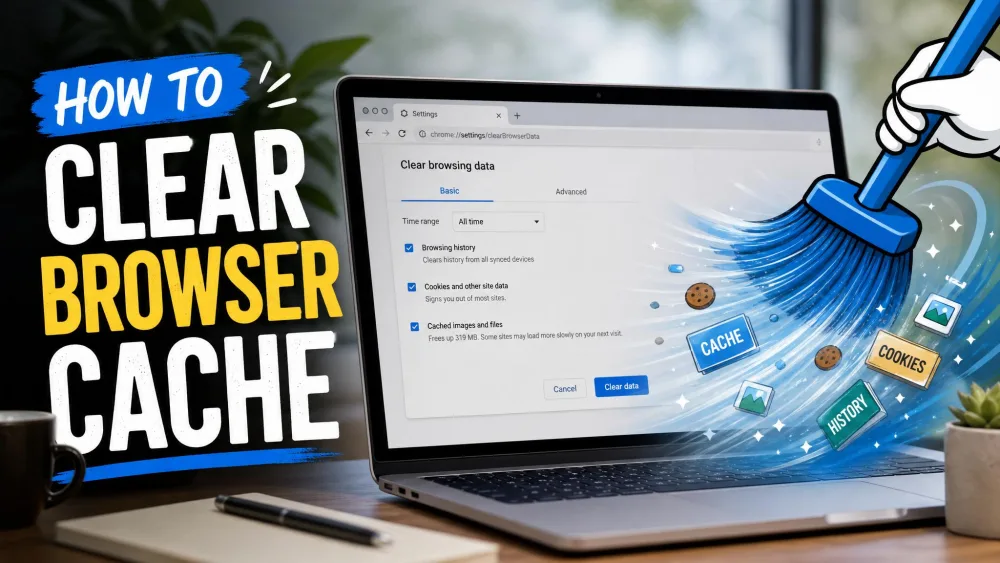
Your cache is a stash of files your browser already downloaded, like images, scripts and stylesheets, kept so pages load faster next time. Cookies are small text files a site saves to remember you, including whether you are signed in and what settings you picked. They are two different things, and browsers let you clear them separately.
Most people come here because a page looks broken or refuses to update. Clearing the cache is usually the fix. Below are the steps for every major browser and device, plus a plain answer on what you lose.
What Cache and Cookies Actually Are
The cache exists to save you a download. Your browser keeps copies of a site's heavy parts on your device, so the second visit reuses them instead of fetching them again. MDN's reference on how HTTP caching works covers the rules browsers follow.
Cookies do a different job. They hold site-specific data, mostly your sign-in state and preferences, and some track your activity across sites. Microsoft puts the difference well: your history remembers the pages you visited, while the cache helps jog your device's memory.
| Feature | Cache | Cookies |
|---|---|---|
| Purpose | Speeds up page and app loading by reusing files already downloaded | Stores site-specific data such as sign-in state and preferences |
| Storage type | Temporary copies of images, scripts and stylesheets | Small text files saved by the website |
| Lifespan | Often large, overwritten and refreshed frequently | Can persist until they expire or you delete them |
| Privacy impact | Little to none, the data is temporary | Can track activity across sites and hold sensitive session data |
| What breaks when you clear it | Nothing you notice, pages just reload fresh and are briefly slower | You are signed out of sites and site preferences reset |
Why and When You Should Clear Your Cache
The symptoms a cache clear genuinely fixes are specific. Pages render broken because old CSS is being served. Updates do not show up because you are seeing a cached copy. Both are the cache doing its job with stale files.
It also frees up space and clears data you may not want on a shared machine.
What it will not do is make a slow browser fast. Clearing the cache does not deliver a dramatically faster browser, and pages load slightly slower on your first visit afterwards. If the browser is still slow once the cache is gone, the cache was not the problem. Extensions, malware or an outdated browser are the usual causes.
How to Clear Cache on Desktop Browsers
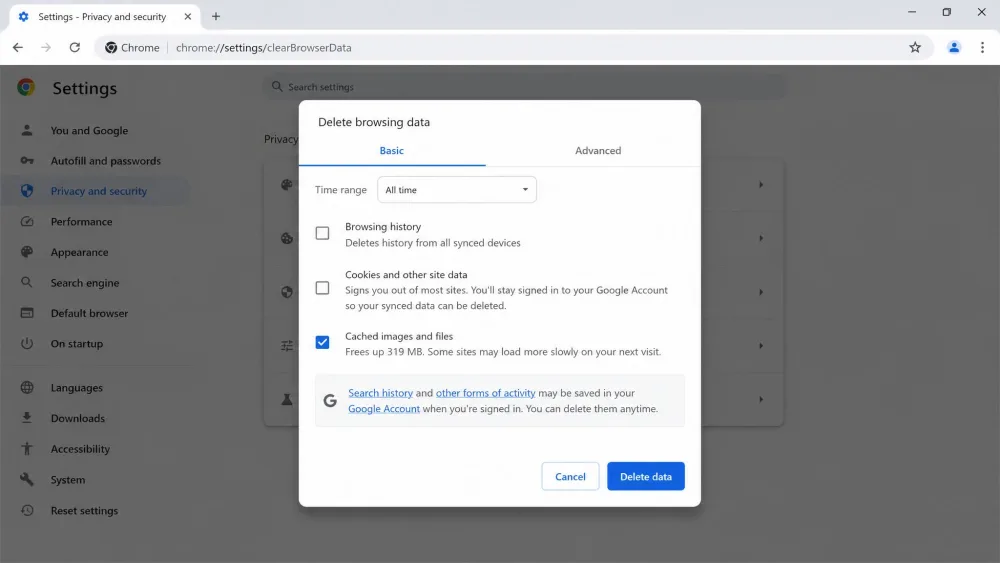
Google Chrome (Windows and Mac)
Chrome renamed this dialog, so the wording here matches the current build. Older installs and managed machines may still show the previous "Clear browsing data" label. The steps are the same.
- Click More, the three-dot menu at the top right.
- Choose Delete browsing data.
- Set the time range. Pick All time if you want the lot.
- Tick Cached images and files.
- Click Delete data.
Chrome's list also covers history, cookies, downloads, autofill and site settings. Tick only what you want gone, as Chrome's own delete-browsing-data steps explain.
Microsoft Edge
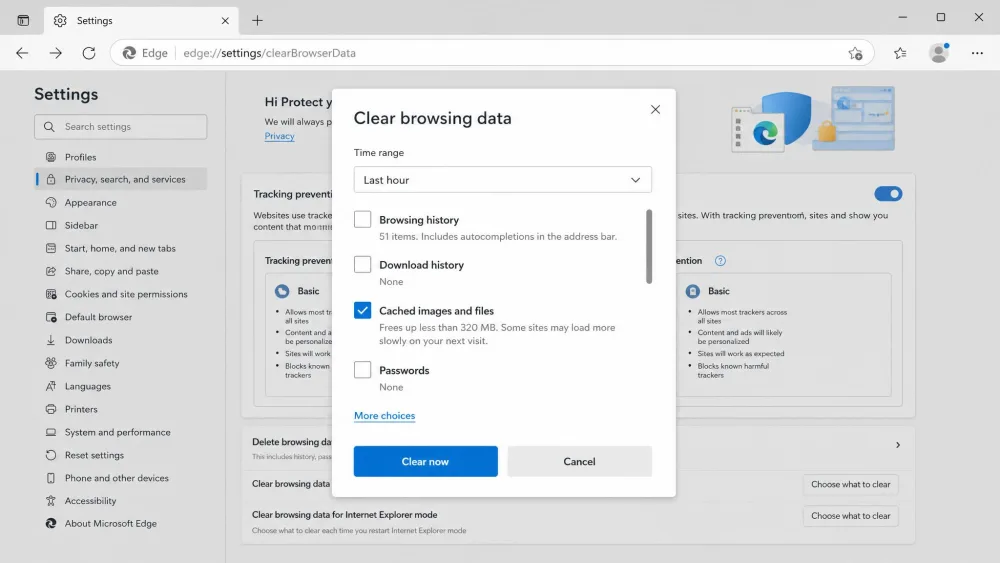
- Open Settings and more, then select Settings.
- Go to Privacy, search, and services.
- Under Clear browsing data, click Choose what to clear.
- Pick a time range from the dropdown and tick Cached images and files.
- Click Clear now.
Edge exposes a Passwords checkbox, so leave it unticked unless you mean it. Microsoft's Edge documentation lists them all.
Mozilla Firefox
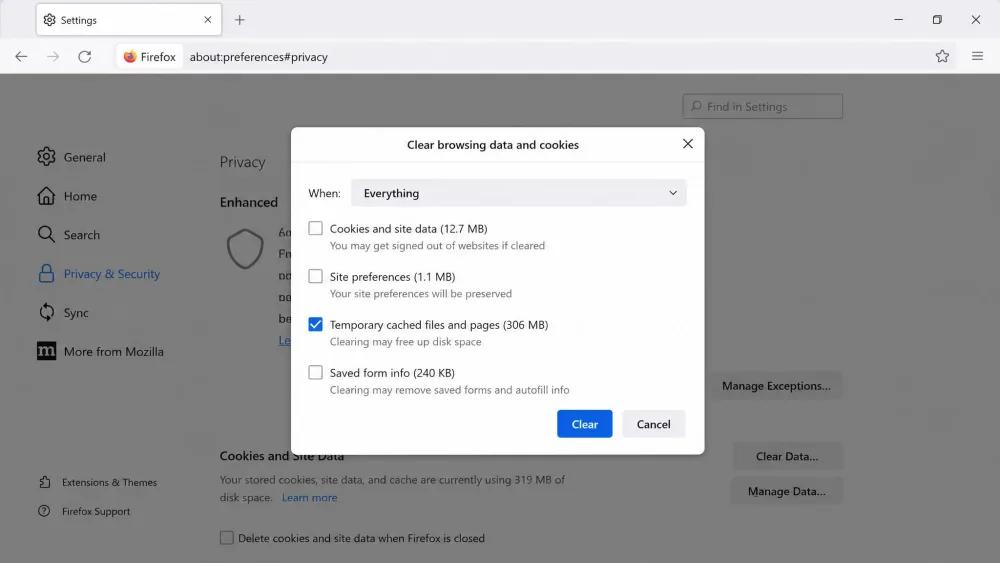
Firefox's wording has shifted over recent releases, so check the labels against your install.
- Open Settings, then Privacy & Security.
- Scroll to Cookies and Site Data and click Clear Data.
- In the Clear browsing data and cookies dialog, use the When: dropdown and choose Everything for a full clear.
- Tick Temporary cached files and pages.
- Click Clear.
Mozilla's Firefox cache instructions are the reference if a step reads oddly.
Safari (Mac)
Safari has no per-type checkbox, so clearing history is how you clear the cache.
- Choose History in the menu bar.
- Select Clear History.
- Use the pop-up menu to choose how far back to clear.
- Click Clear History.
This removes visited pages, your back and forward list, recent searches and the downloads list. The downloaded files stay put. See Apple Support's Safari guide for the rest.
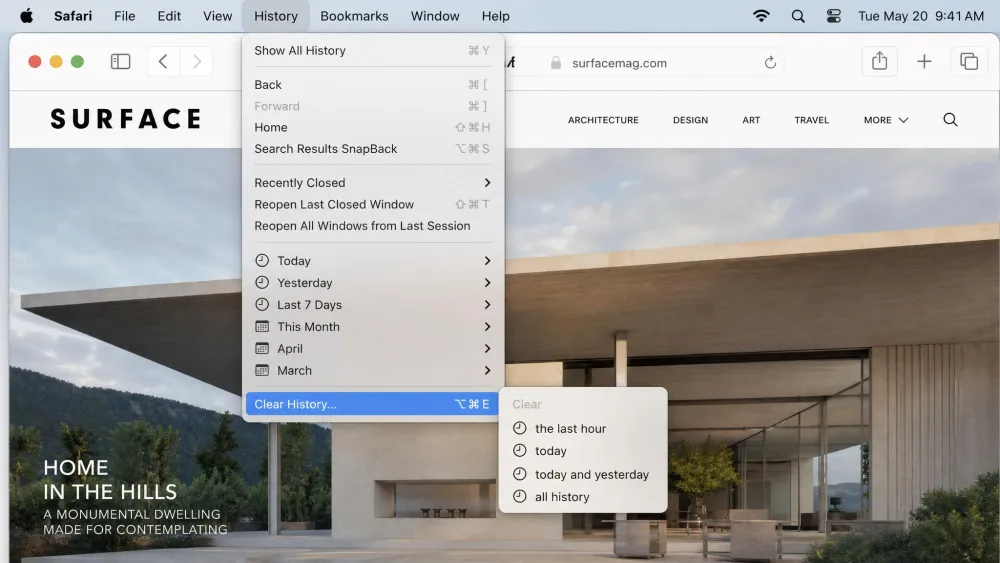
Press Ctrl+Shift+Del on Windows or Linux, or Command+Shift+Delete on a Mac, and the clear-data dialog opens straight away in Chrome, Edge and Firefox. Safari is the exception, with no equivalent shortcut on a default install. Use History > Clear History instead.
How to Clear Cache on Your Phone or Tablet
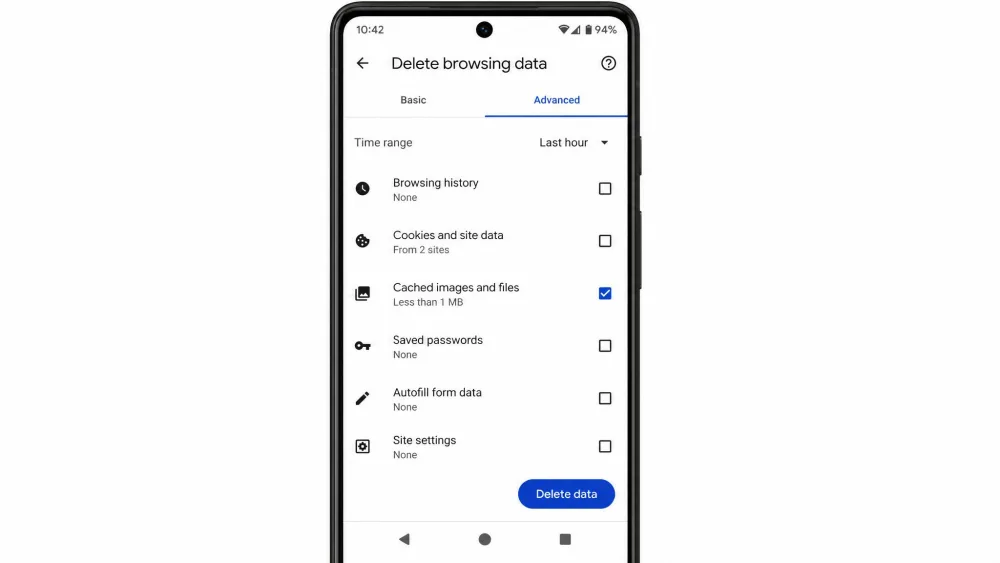
Chrome (Android)
- Tap More, the three-dot menu beside the address bar.
- Tap Delete browsing data.
- Quick delete covers the last 15 minutes by default. Tap More options for data types and a longer range.
- Tick Cached images and files, then confirm.
Safari (iPhone and iPad)
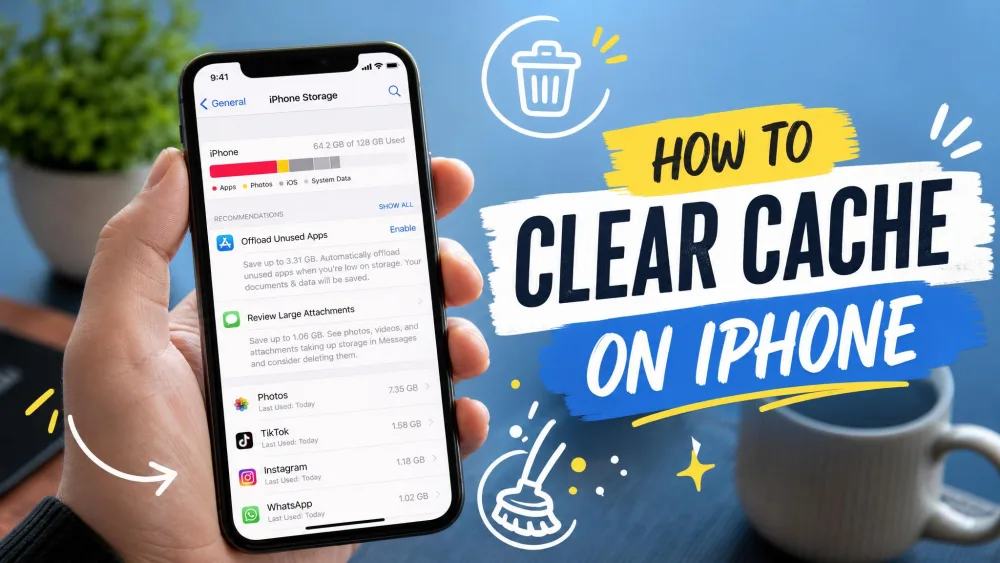
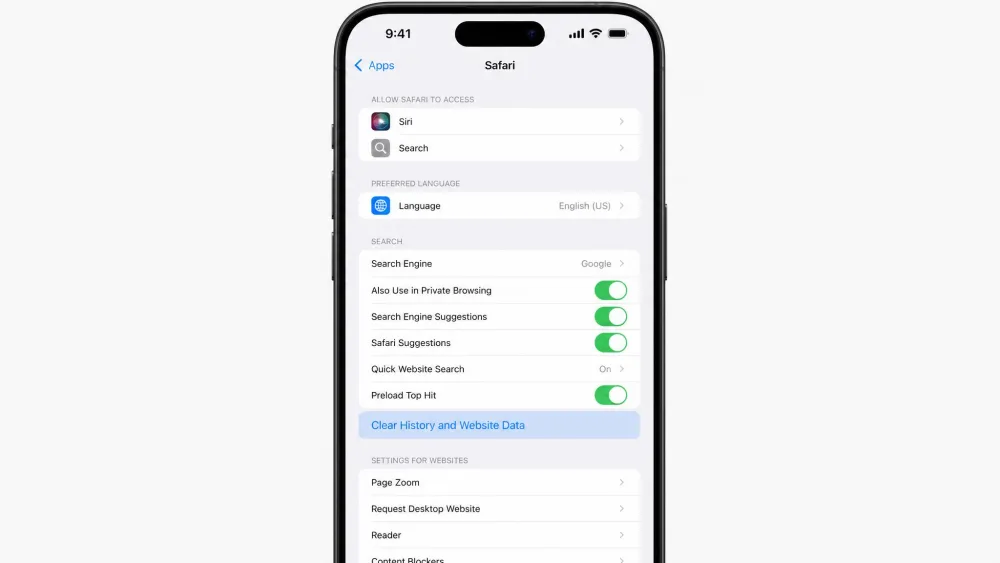
- Open Settings, then tap Apps, then Safari. On versions before iOS 18, Safari sits directly in the main Settings list instead.
- Tap Clear History and Website Data.
- Confirm the timeframe.
To drop site data without touching your history, go to Safari > Advanced > Website Data and tap Remove All Website Data. Both routes are standard on iPhone and iPad, and the Website Data screen is the one to use when you want your history left alone.
Samsung Internet (Android)
- Open Samsung Internet and tap the Menu button, the three lines.
- Tap Settings, then Personal browsing data.
- Tap Clear browsing data.
- Tick Cached images and files, tap Delete data, then Delete.
Samsung's list includes a Passwords box, so check what is ticked first. A phone holding a lot of data can take a minute or two. Samsung Support has the walkthrough.
Android App Cache
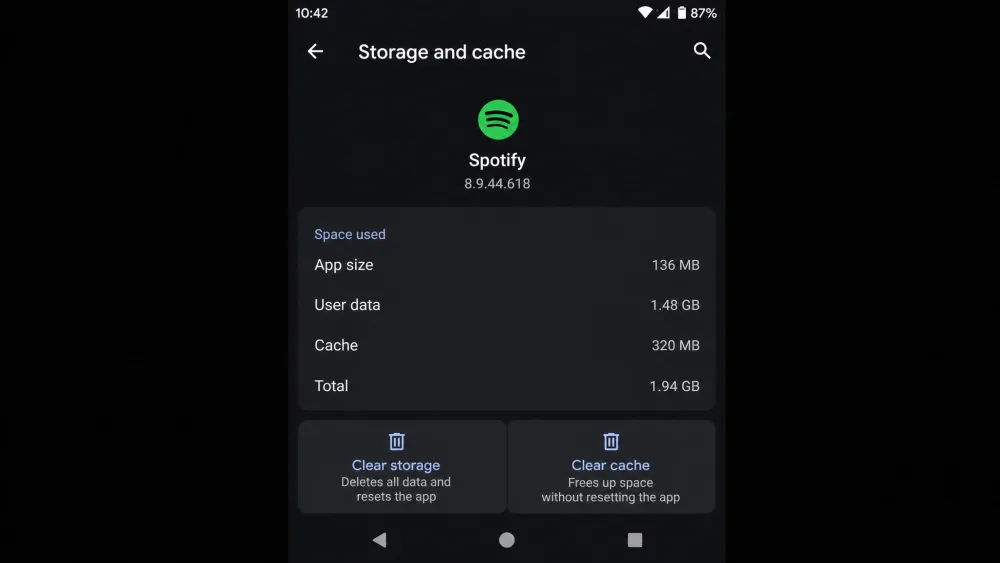
Apps keep their own cache, separate from your browser. The path varies by manufacturer, so wording may differ.
- Open Settings and tap Apps, which some devices label Apps and notifications.
- Pick the app.
- Tap Storage and cache.
- Tap Clear cache.
Look before you tap. Clear storage, sometimes called Clear data, sits next to it and does something bigger: it resets the app and signs you out. Clear cache only drops temporary files.
How to Clear System Cache on Windows and Mac
Windows 10 and 11 (Temp Files, Disk Cleanup, Microsoft Store)
Windows will not clear its system cache on its own. Storage Sense is off by default, so these are manual jobs.
- Go to Start > Settings > System > Storage.
- Under disk usage, select Temporary files.
- Choose Remove files.
For the deeper system caches, type disk cleanup in the taskbar search box, open it, choose Clean up system files and pick your drive.
If the Microsoft Store misbehaves, run wsreset.exe. It rebuilds the cache folders and reopens the Store.
DNS Cache
Windows also caches the addresses of sites you visit. Flush it after switching networks, using a VPN or changing DNS settings, or when a site that moved servers gives wrong redirects.
- Open Command Prompt as administrator.
- Type
ipconfig /flushdnsand press Enter. - Look for "Successfully flushed the DNS Resolver Cache".
What You Lose When You Clear Your Cache
Clearing the cache alone signs you out of nothing. Getting signed out is what happens when you tick the cookies box, and the two are separate checkboxes in the same dialog. Your saved passwords, bookmarks, autofill data and extensions all survive, because none of them are selected unless you tick them, and Chrome's desktop list does not include passwords at all. Edge and Samsung Internet are the two that put a Passwords checkbox in front of you, and ticking it is the only way your passwords go anywhere. If you do clear cookies by accident, the fix is logging back in.
Chrome treats its own account differently. If you delete cookies while signed in, it refreshes the Google cookies that keep you signed in, which is why people report being signed out of everything except Google.
How Often Should You Clear Your Cache?
Knowing how little you lose makes the frequency question easy: there is no schedule worth keeping. The cache is doing useful work most of the time, and wiping it weekly just means pages download again for no gain.
Clear it when something is wrong: a page looks broken, an update will not appear, or you need space back. Clear cookies too on a shared computer.
Troubleshooting: When the Cache Will Not Clear
Clearing on demand only helps if the clear actually takes, and sometimes it does not. Close every browser window completely and reopen. Leaving one open is the usual reason a clear does not land.
If a page still shows old content, press Ctrl+F5 to force a fresh download.
That plain hard reload often is not enough on modern sites, because resources pulled in later by JavaScript, iframes or third-party scripts still come from cache. This is the usual reason behind "I cleared it and nothing changed". For a stubborn page, open DevTools, right-click the reload button and choose Empty Cache and Hard Reload. That option only appears while DevTools is open.
A hard reload only touches cached files such as CSS, JavaScript, images and fonts, so cookies, passwords and form data stay untouched.
Not sure the cache is the culprit? Open the site in an incognito window. If it looks right there and wrong in your normal one, it is cache or cookies.
Frequently Asked Questions
What is the difference between cache and browsing history?
Can I clear the cache for just one website?
The Bottom Line
Clearing the cache is a small, low-risk fix, worth reaching for the moment a page behaves oddly. Tick the cache box, leave the cookies box alone, and nothing you care about goes with it.
Keep expectations honest. It repairs stale pages and frees up space. It will not rescue a browser that is slow for other reasons.