
If a page looks broken or refuses to load its latest version, clearing your browser cache usually fixes it in under a minute. The cache is a hidden folder of saved page files, and once it goes stale it can serve you an old layout, a missing image, or a login screen that keeps looping.
We test PC cleanup and optimization tools for a living, and clearing the cache is the first thing we try when a site misbehaves on our own machines. This guide walks through every major desktop browser at full step depth, then covers phones and tablets more briefly. You can jump straight to your browser using the table of contents.
The good news: the steps are short, they are safe, and you rarely lose anything you care about.
You can skip the menus in most desktop browsers. Press Ctrl+Shift+Delete on Windows or Cmd+Shift+Delete on Mac, and the clear-data dialog opens straight away in Chrome, Edge, and Firefox. Safari is the exception and uses its own menu instead.
What Is Browser Cache (and How It Differs From Cookies and History)?
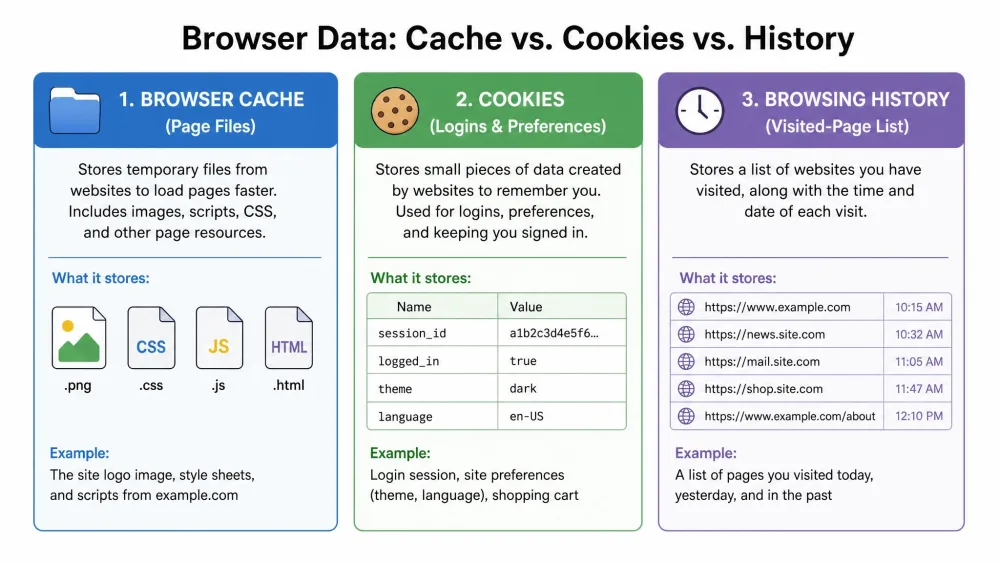
Your browser cache is a store of files that websites hand over so pages load faster next time. Think logos, stylesheets, scripts, and images. Instead of downloading them again on every visit, your browser keeps a local copy and reuses it. That is why a site you visit often snaps open almost instantly.
The trouble starts when a site updates but your browser keeps showing the old cached copy. Clearing the cache forces a fresh download, so you see the current, up-to-date version.
If you want the deeper background, we cover what a browser cache is in its own guide.
Cache vs. cookies vs. browsing history
These three often get lumped together, but they do different jobs.
- Cache stores page files (images, scripts, styles) to speed up loading. Clearing it only slows the very next visit slightly.
- Cookies store your logins and site preferences. Clearing them signs you out and resets settings.
- Browsing history is the list of pages you have visited. Clearing it removes that record but does not touch saved files or logins.
Cache and cookies are not the same thing. Cookies store logins and preferences, so clearing them is what signs you out and resets site settings. If you only want faster, fresher pages, clear the cache and leave cookies alone.
Why and When You Should Clear Your Cache
Most people clear the cache to fix a problem rather than on a schedule. A few common triggers:
- A page looks broken, half-loaded, or stuck on an old design.
- A site update or price change is not showing up.
- A login or checkout keeps failing for no clear reason.
- The browser feels sluggish and heavy after months of use.
Before you clear anything, try a hard refresh first. It forces the current page to re-download without wiping your whole cache, and in our experience it fixes a stale page instantly more often than not. Press Ctrl+F5 on Windows or Cmd+Shift+R on Mac.
If the hard refresh does not work, a full cache clear is the next step.
The Fast Way: Keyboard Shortcut to Open the Clear-Data Dialog
The quickest route into the clear-data screen is a keyboard shortcut. In Chrome, Edge, and Firefox, press Ctrl+Shift+Delete on Windows or Cmd+Shift+Delete on Mac. The clear-data dialog opens right away, and you pick what to remove from there.
Safari does not use this shortcut. On a Mac you clear its cache from the Safari menu instead, which we cover below.
How to Clear Cache on Desktop Browsers
Google Chrome (Windows & Mac)
Chrome keeps the controls a few clicks deep, but the flow is quick once you know it.
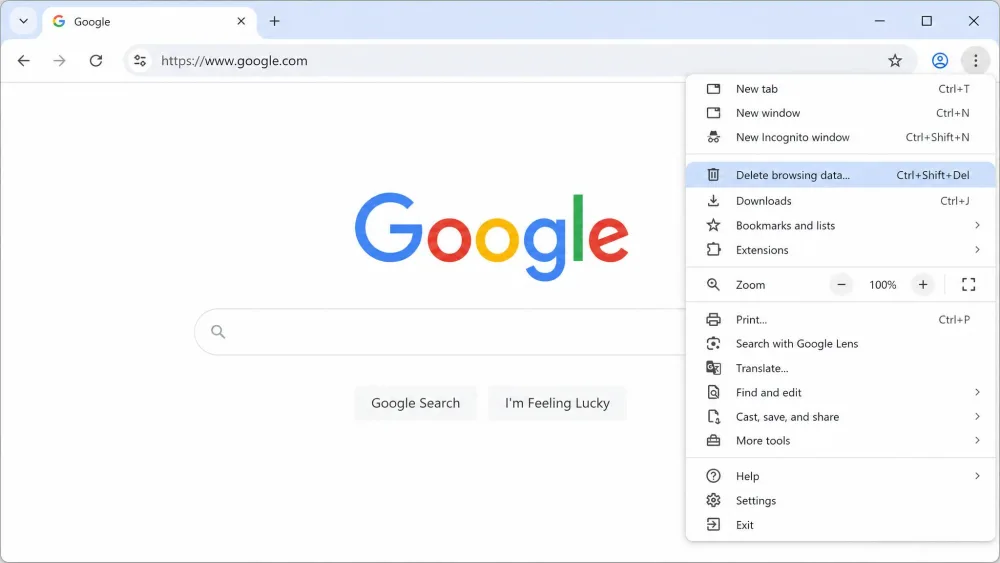
- Click the three-dot More menu in the top right.
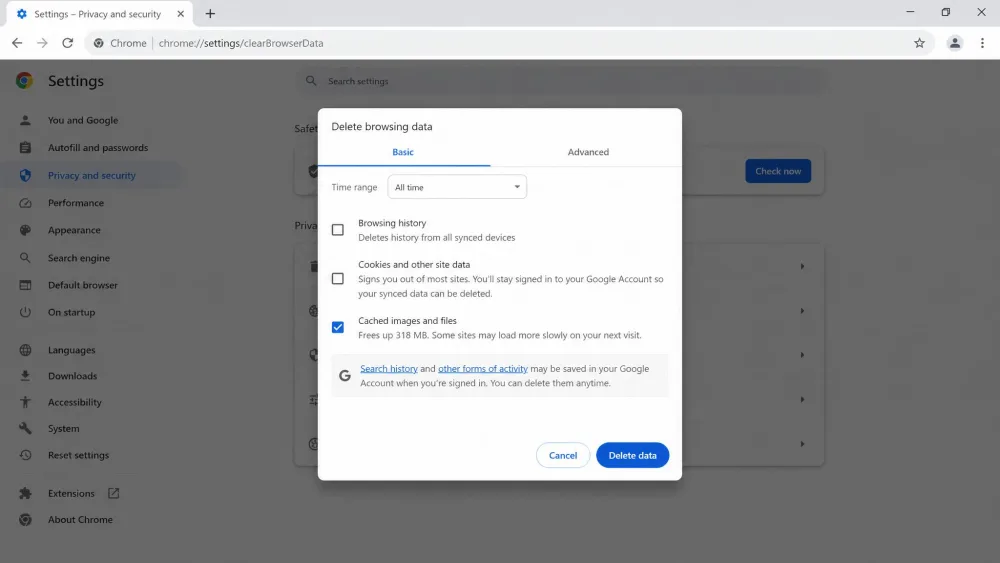
- Choose Delete browsing data. Some versions of Chrome still label this Clear browsing data, and both open the same dialog.
- Set the time range. The options run from Last hour to All time. To clear everything, pick All time.
- Tick the box labeled Cached images and files.
- Leave Cookies and site data unticked if you want to stay signed in.
- Click Delete data to finish.
Selecting only Cached images and files clears the cache without wiping your saved logins, so you generally stay signed in. You get logged out only when you also clear cookies and site data.
For the official walkthrough, see Google's own page on how to clear cache in Google Chrome.
Microsoft Edge
Edge shares Chrome's engine, so the labels look familiar.
- Click Settings and more, the three-dot menu in the top right.
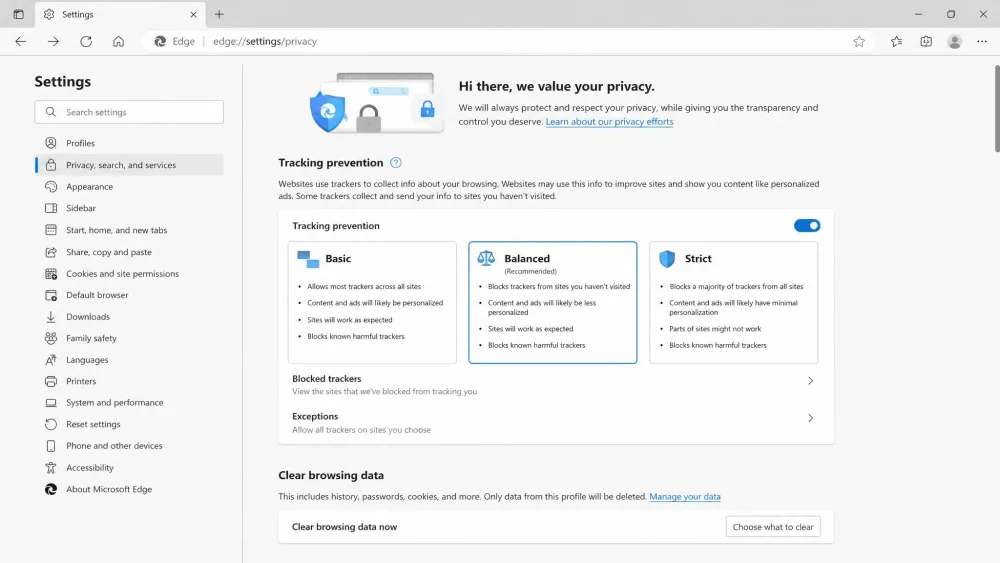
- Go to Settings, then Privacy, search, and services, then Clear browsing data, then Choose what to clear.
- Pick a time range from the dropdown.
- Tick Cached images and files.
- Click Clear now.
There is a faster route too. Type edge://settings/clearbrowserdata in the address bar and press Enter to jump straight to the dialog.
One thing to watch: clearing data in Edge pushes the deletion to every device signed in to the same account. That can catch people out when they only meant to tidy one machine. If you want the clear to stay local, sign out of the account first.
Our dedicated guide covers how to clear cache in Microsoft Edge in more depth.
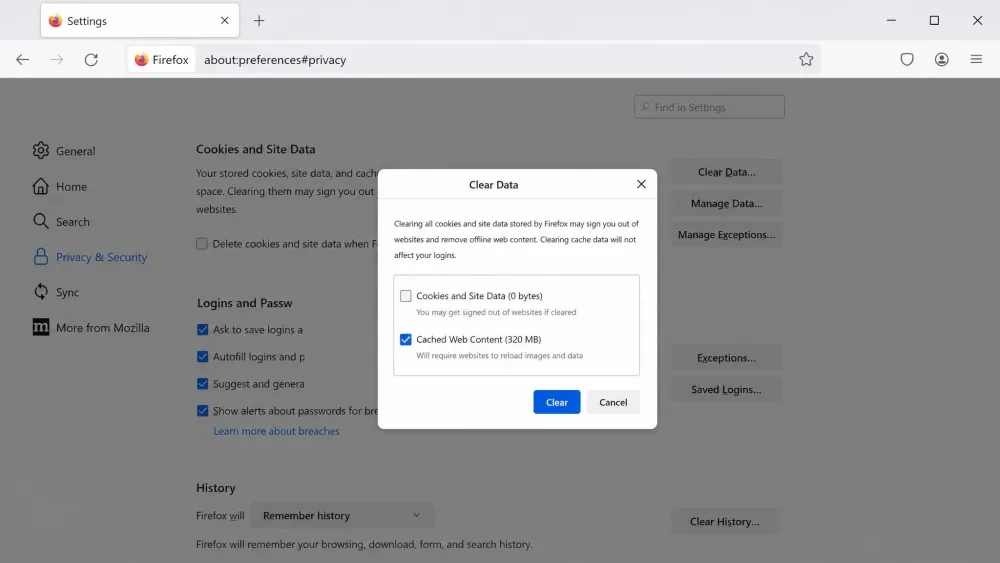
Mozilla Firefox
Firefox keeps its cache control under privacy settings.
- Open the Menu (the three lines in the top right), then Settings.
- Select Privacy & Security.
- Scroll to Cookies and Site Data and click Clear Data.
- Tick Cached Web Content.
- Leave the cookies box unticked to stay signed in, then confirm.
You can skip the menus here as well. Press Ctrl+Shift+Delete to open the Clear Data dialog directly in Firefox.
Note the wording: Firefox calls the cache Cached Web Content, not "cached images and files" like Chrome and Edge. It is the same idea with a different label. Mozilla's guide shows how to clear the Firefox cache step by step.
Safari (Mac)
Safari splits cache clearing into two paths, depending on how much you want to remove.
The simple route clears history, cached files, and cookies together:
- Click Safari in the menu bar.
- Choose Clear History.
- Pick a time range, then confirm.
This also signs you out of sites because it removes cookies along with the cache.
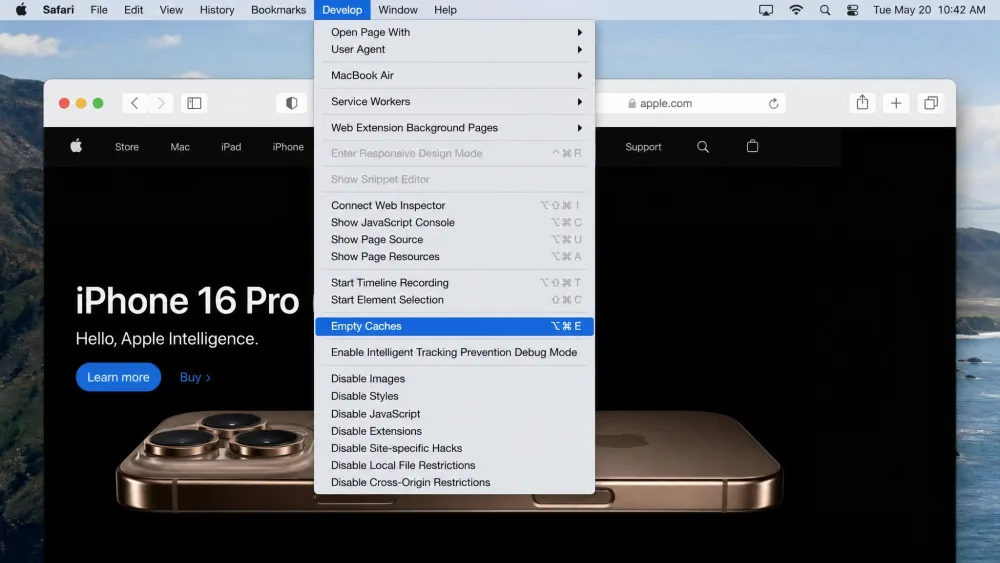
To clear only the cache and keep your logins, use the Develop menu:
- Open Safari, then Settings, then Advanced.
- Tick Show Develop menu in menu bar.
- Click Develop in the menu bar, then Empty Caches.
Apple documents both routes on its support page for how to clear Safari cache and manage website data, and our own guide to clearing the cache on Safari goes further.
Opera / Brave (other Chromium browsers)
Opera and Brave are built on the same Chromium engine as Chrome, so the shortcut and the labels match. Press Ctrl+Shift+Delete on Windows or Cmd+Shift+Delete on Mac to open the clear-data dialog, tick the cached-files box, choose a time range, and confirm. If you ever get lost in the menus, both browsers keep the control under Settings, then Privacy and security.
How to Clear Cache on Mobile Devices
Phones and tablets follow the same idea with smaller menus. Here are the short versions, with links to our full step-by-step guides.
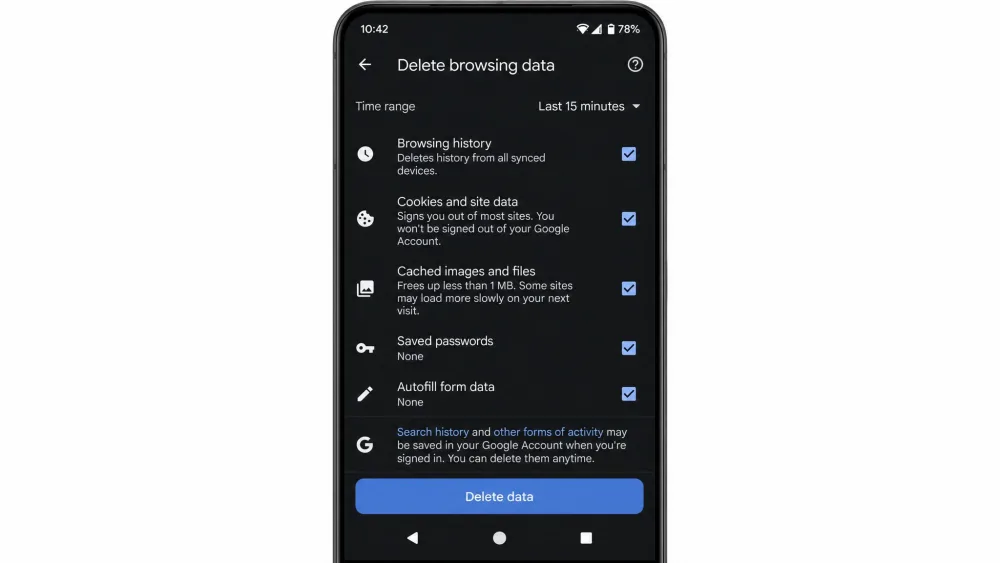
Chrome (Android)
- Open Chrome and tap the three-dot More menu.
- Tap Delete browsing data.
- Choose a time range. The dialog preselects a default range of 15 minutes, so change it if you want to clear more.
- Tap Delete data.
For screenshots and edge cases, see our full guide to clear the cache on Android.
Safari (iPhone & iPad)
Safari on iOS clears from the system settings, not from inside the browser.
- Open Settings.
- Tap Safari.
- Tap Clear History and Website Data, then confirm.
This clears history, cache, and cookies together, so it signs you out of sites. We break it down further for clear the cache on iPhone and for clear the cache on iPad.
Samsung Internet (Android)
Samsung Internet keeps its controls under the browser's own settings. Tap the Menu (the three-line button), open Settings, then go to Personal browsing data > Delete browsing data. Check Cached images and files and tap Delete data. Leaving the cookies box unchecked clears the cache without signing you out of anything. You can also check the Samsung Internet browser support pages for your specific device.
What Happens After You Clear Your Cache
Clearing the cache is low-stakes, but it helps to know what actually changes.
- Pages load slightly slower the first time. The cache rebuilds itself automatically as you browse, so sites speed back up after the first visit.
- You stay signed in if you cleared cache only. Logins live in cookies, not the cache. Clear only the cached files and your sessions survive.
- You get signed out if you cleared cookies too. Sites forget you, and you re-enter passwords on your next visit.
- Bookmarks and passwords are safe. Neither lives in the cache, so clearing it never touches them.
Here is the quick reference for the four desktop browsers.
| Browser | Menu path to the cache control | Cache checkbox label | Keyboard shortcut |
|---|---|---|---|
| Chrome | More (3 dots) > Delete browsing data | Cached images and files | Ctrl+Shift+Delete (Cmd+Shift+Delete on Mac) |
| Edge | Settings > Privacy, search, and services > Clear browsing data | Cached images and files | Ctrl+Shift+Delete |
| Firefox | Settings > Privacy & Security > Cookies and Site Data > Clear Data | Cached Web Content | Ctrl+Shift+Delete |
| Safari (Mac) | Safari menu > Clear History, or Develop > Empty Caches | Empty Caches / Clear History | Uses menu, not the shortcut |
Troubleshooting: When the Cache Won't Clear
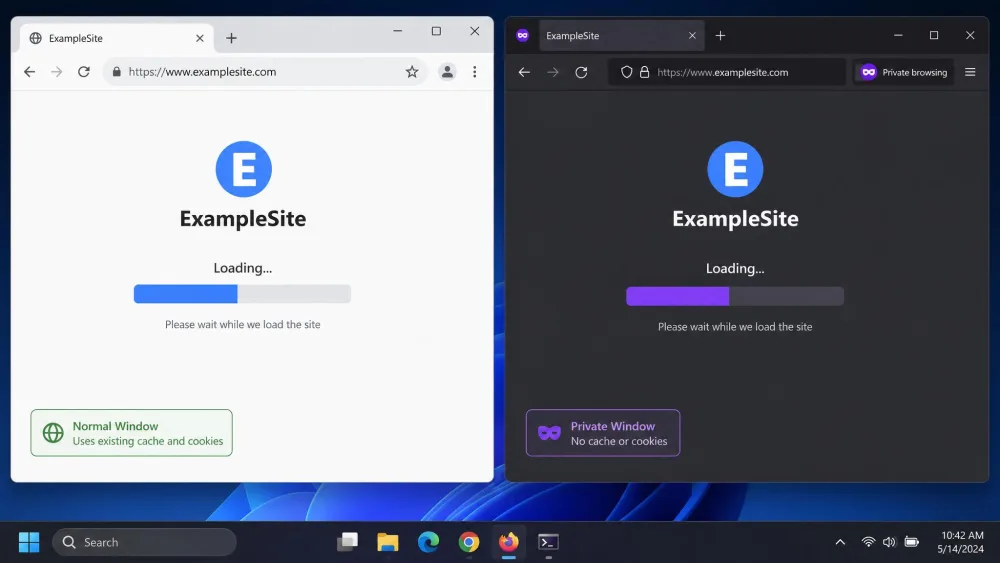
Sometimes you clear the cache and the old page still shows up. When that happens on our machines, a few fixes tend to work.
- Close the browser fully and reopen it. Not just the tab, the whole application. A locked file can survive an in-window clear.
- Open a private or incognito window and reload. Private mode ignores the normal cache, so it tells you whether the page itself is the problem.
- Clear again after restarting. With every window closed and the browser fresh, a second clear often takes hold.
If the old content still persists, the cache on your device may not be the culprit. Clearing the browser cache alone is often not enough, because content-delivery networks and host-level caches sit in front of many sites. Those layers keep serving outdated content until they expire or the site owner clears them, and there is nothing you can do from your end except wait.
How Often Should You Clear Your Cache?
For most people, there is no need to clear on a schedule. Clear it when something breaks, when a site refuses to update, or when you are handing a device to someone else. Clearing too often just throws away the speed benefit the cache exists to provide, since it has to rebuild every time.
A reasonable rhythm is once every couple of months, or whenever a page starts misbehaving. That keeps things fresh without slowing down your everyday browsing.
Quick Reference / Final Tips
- Try a hard refresh first. Ctrl+F5 on Windows or Cmd+Shift+R on Mac often fixes a stale page on its own.
- Use the shortcut. Ctrl+Shift+Delete or Cmd+Shift+Delete opens the dialog in Chrome, Edge, and Firefox.
- Clear cache only to stay signed in. Tick the cached-files box and leave cookies alone.
- Remember Edge sync. Clearing on one signed-in device clears them all unless you sign out first.
- On a Mac, Safari lives in its own menu, so the universal shortcut will not help you there.
For an all-in-one walkthrough that covers the whole family of devices, see our guide to clear cache and cookies on any browser. If you want the Chrome-specific version with more screenshots, we also keep a dedicated page on how to clear the cache in Google Chrome.