Cached files are the temporary data your apps stash on your phone so they load faster next time, and that means thumbnails, images and fragments of pages you have already looked at. They pile up over the months, so clearing them out frees up space and fixes apps that have started misbehaving. It is not the same thing as clearing app data, and that difference is what decides whether you keep your logins or have to sign in again everywhere.
Here are the three methods that work on modern Android phones.
Menu wording can vary by manufacturer and Android version, so a Pixel calls the screen "Storage & cache" while a Galaxy calls it plain "Storage". That gap is why steps written for one phone stall on the other.
Method 1: Clear the Cache for a Single App
This is the method that matters, because it targets the one app giving you trouble and it is the only cache control that stock Android hands you directly.
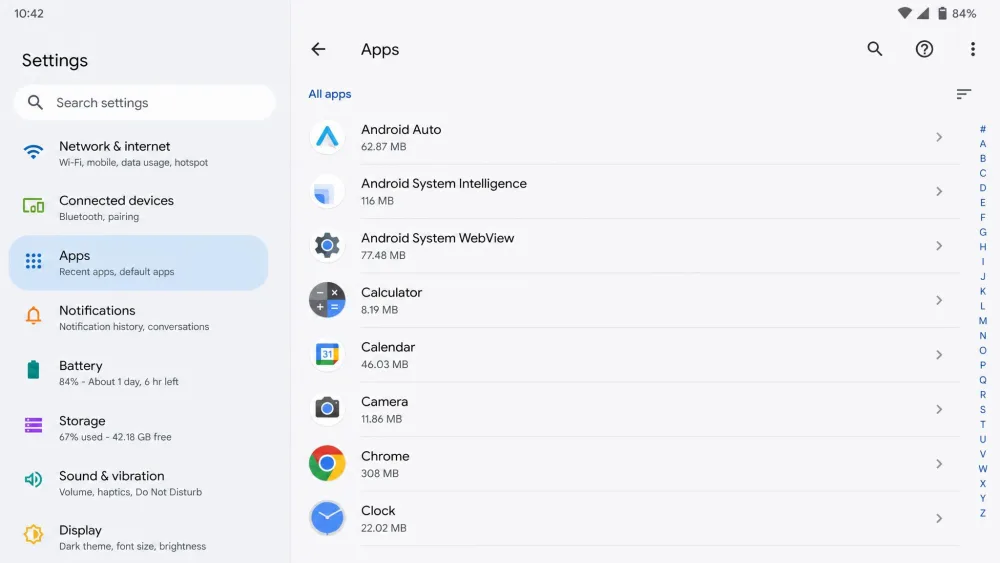
Step 1: Open Settings and Tap Apps
Open Settings, then tap Apps. Most phones land you on a short list of recent apps with a "See all apps" button underneath, and tapping that gives you the full list.
Step 2: Pick the App, Then Tap Storage
Scroll to the app, or use the search icon to find it faster, then tap its name to open the info screen.
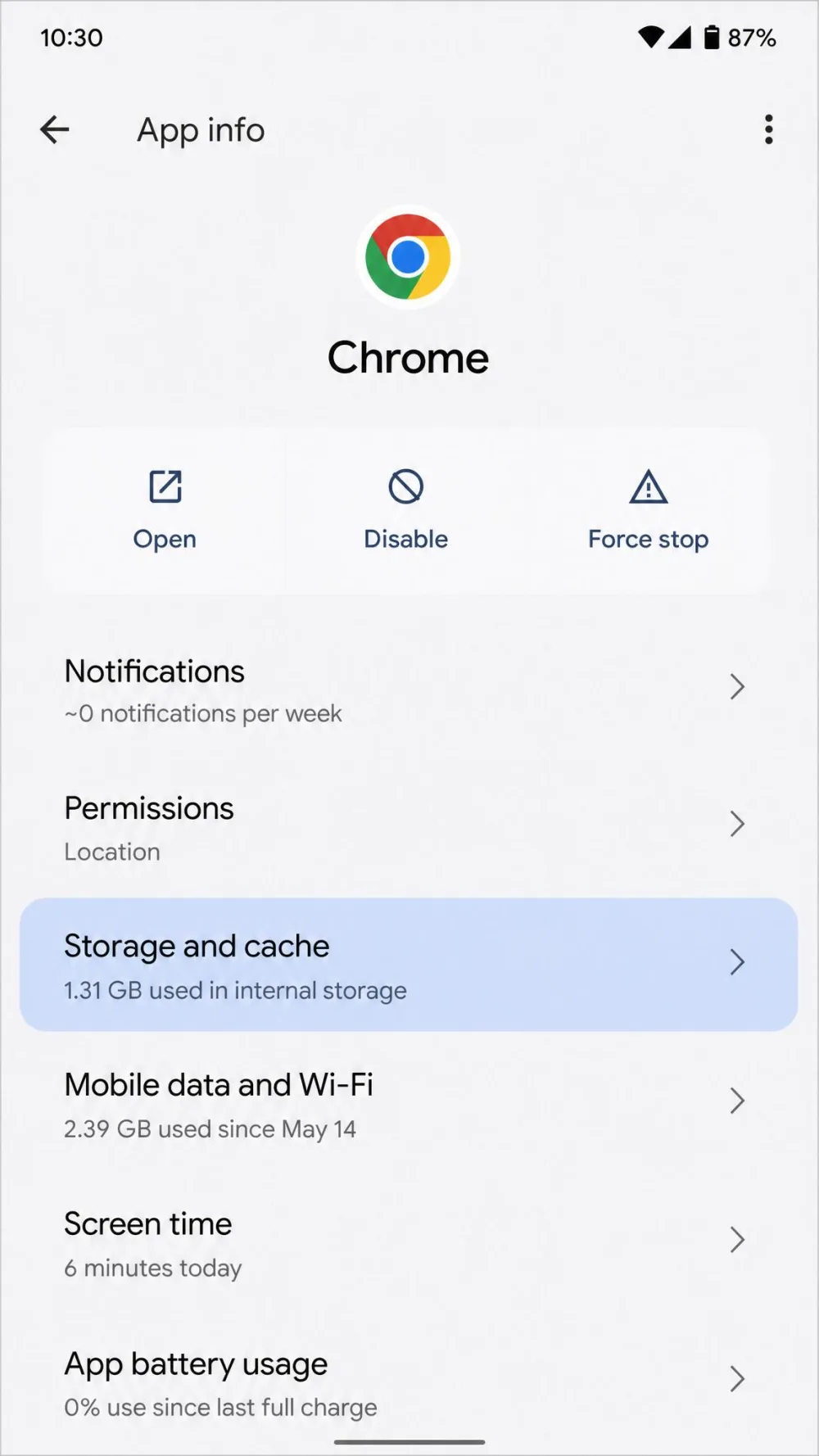
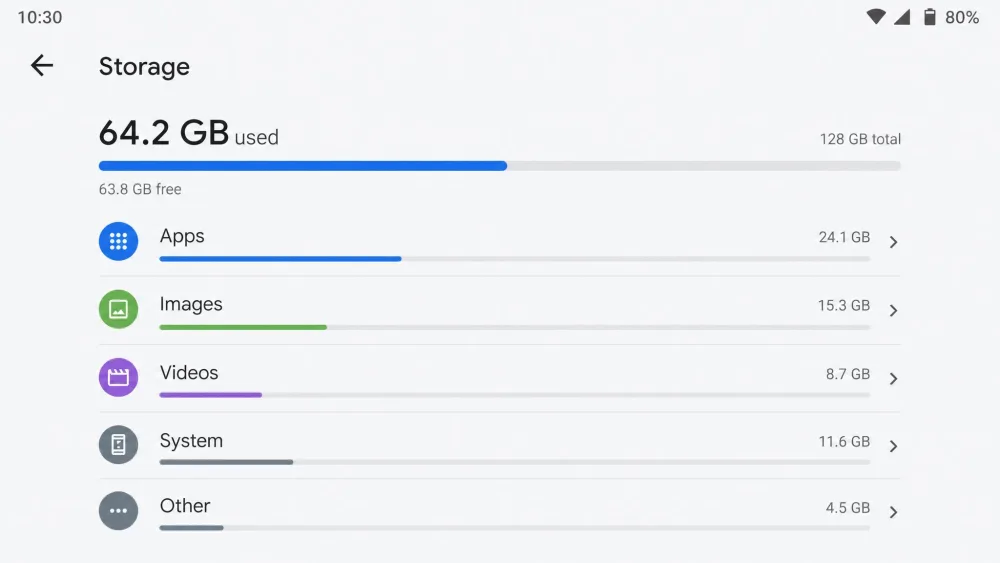
Now tap Storage & cache on a Pixel, or Storage on a Galaxy. Both open the same breakdown of the space that app is using, split between its data and its cache.
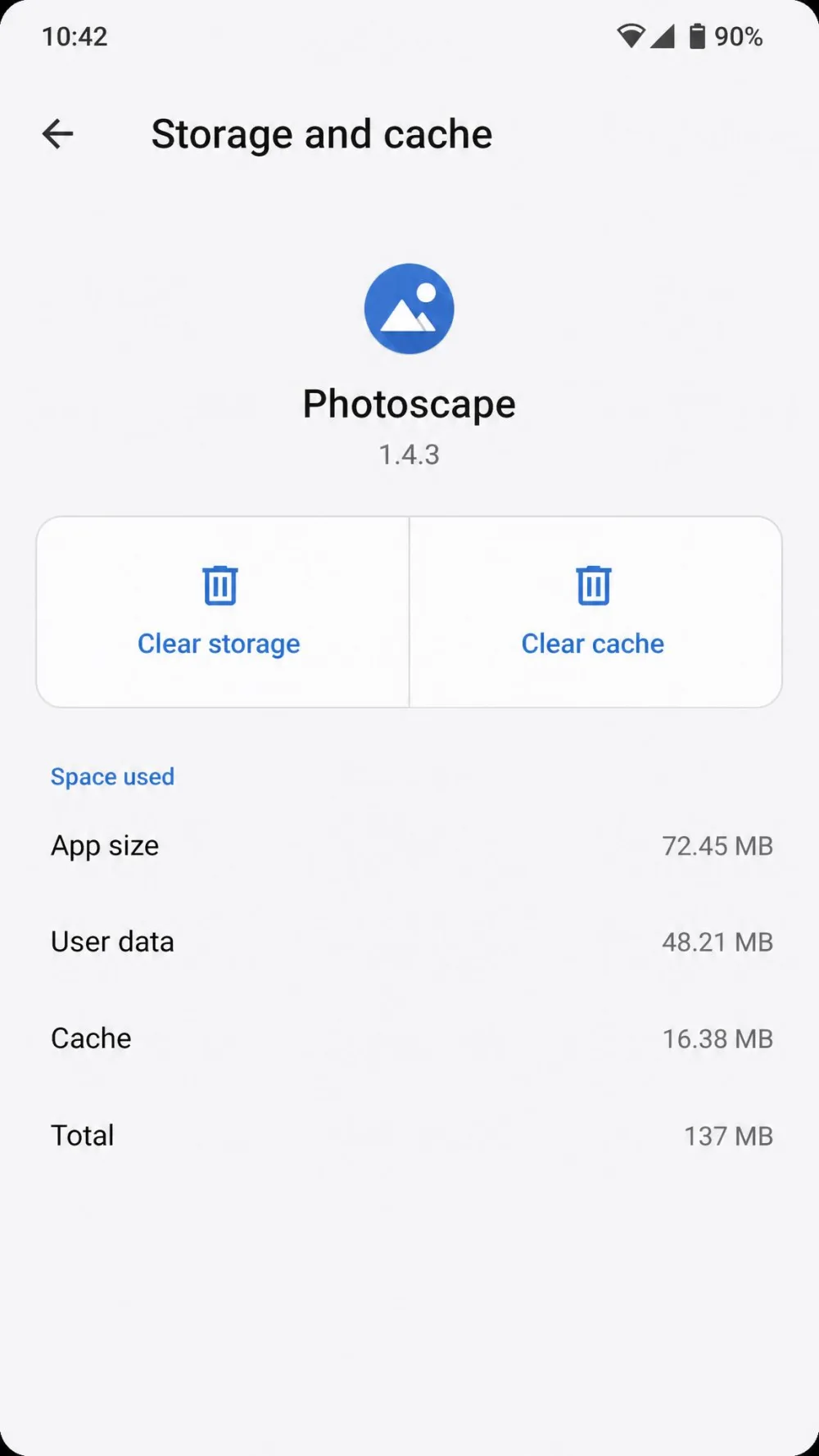
Step 3: Tap Clear Cache
Tap Clear cache. There is no confirmation dialogue and nothing here is at risk, so the figure beside it drops to zero straight away.
Leave the button next to it alone. Clear storage, which Samsung labels Clear data, is the destructive one.
Google's own storage guidance sets out what clearing cache and data of apps does, explaining that cache clearing "deletes temporary data" while clearing storage "permanently deletes all app data".
Method 2: Clear Cached Data for Every App at Once
Stock Android has no single button for this, because the global control that wiped every cache in one tap survived until Android 7.x and was removed in Android 8.0 Oreo. On a Pixel, the job is genuinely one app at a time.
Using Your Phone's Built-in Storage Tools
Some skins do expose a Select All control under Settings > Storage > App Cache if your phone happens to have it, and Samsung routes the same idea through Device Care instead. Files by Google is the fallback on any handset, so open it and tap Clean, and it scans for junk files including app caches.
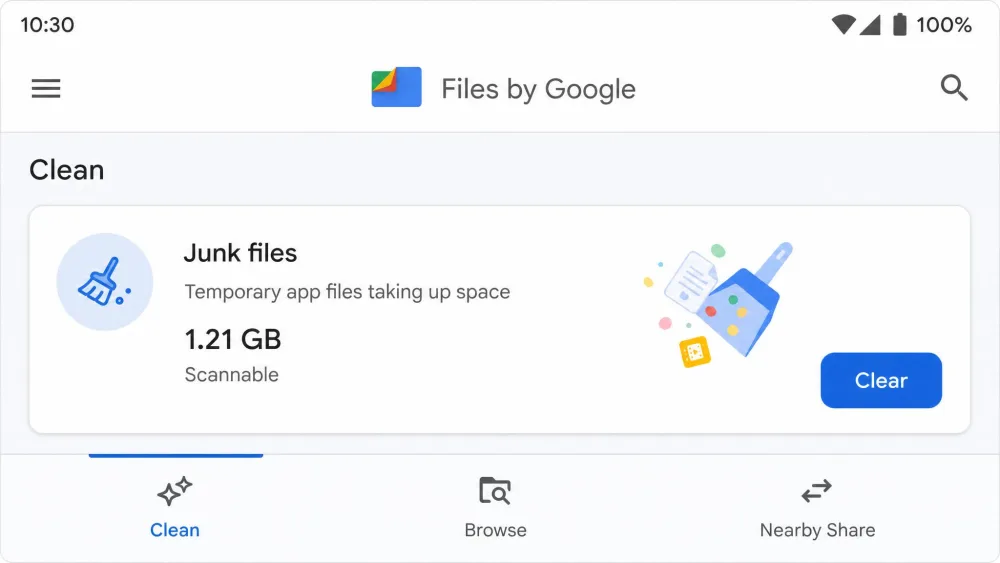
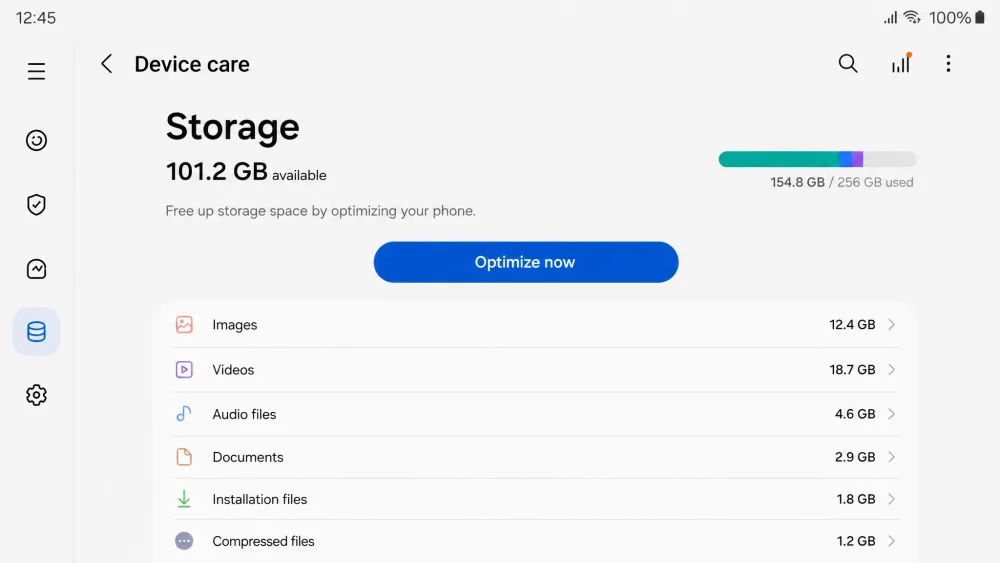
Testing on a Pixel running stock Android, we found that the space worth reclaiming sits in a handful of apps, because social, streaming and browsers hold nearly all of it between them. Clearing those few beats working down your whole app list. We quote no MB figure here, because the numbers swing wildly by handset and nobody credible publishes a measured one.
Sweeping every cache at once tends to backfire, because the apps then re-download those assets at a cost in mobile data and battery, and the phone feels briefly slower while the caches rebuild.
Method 3: Clear Your Browser Cache on Android
Your browser usually holds the biggest cache on the phone, and it keeps its own controls rather than leaning on Settings.
Chrome
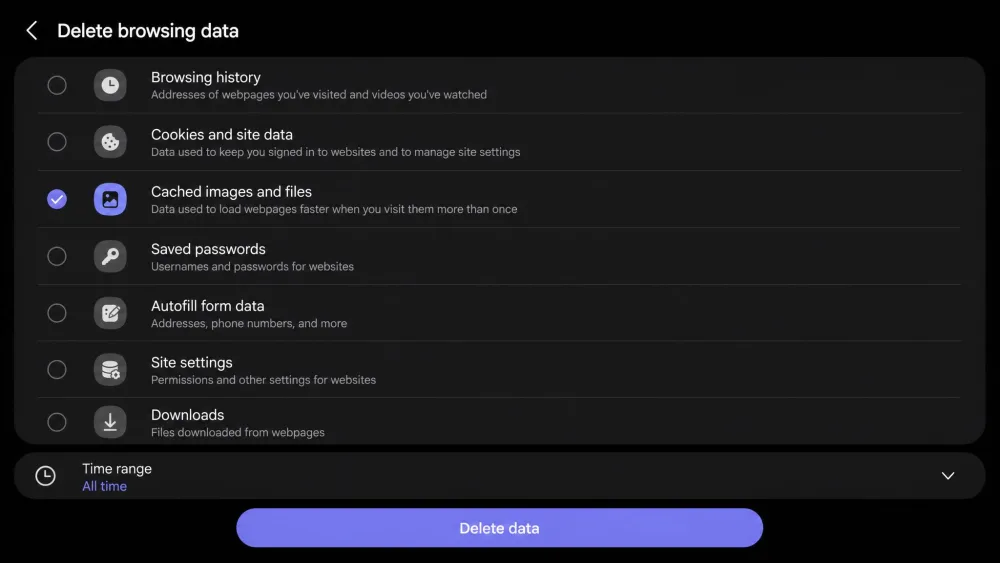
Open Chrome and tap the three-dot More menu right of the address bar, then tap Delete browsing data.
Older builds label it "Clear browsing data" and bury it under Settings > Privacy and security, or else under History, so it is worth checking both spots because both wordings are still in the wild.
Now the step everyone misses. The time range defaults to the last 15 minutes, so tapping straight through clears almost nothing. Change it to All time first.
Tap More options to tick "Cached images and files", then tap Delete data.
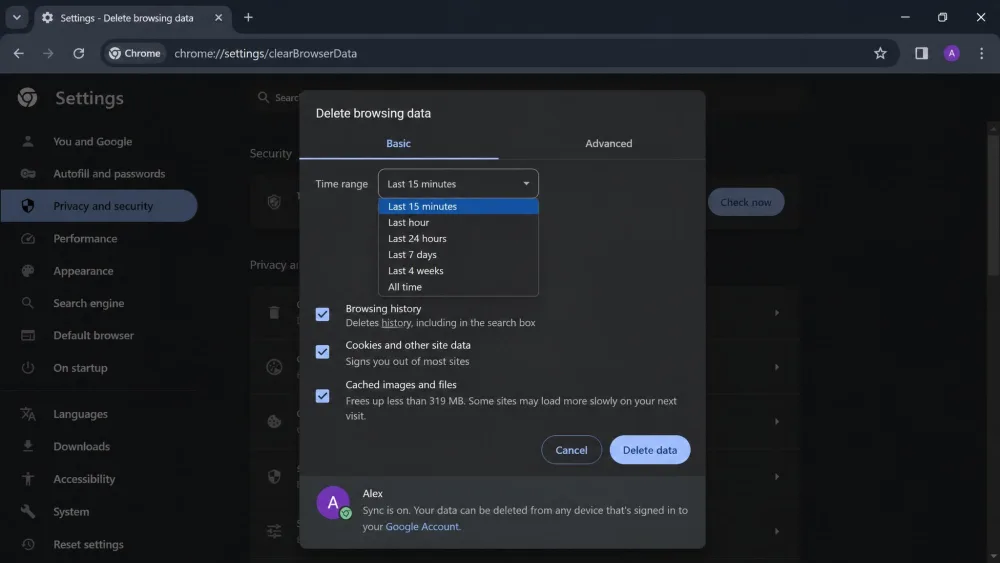
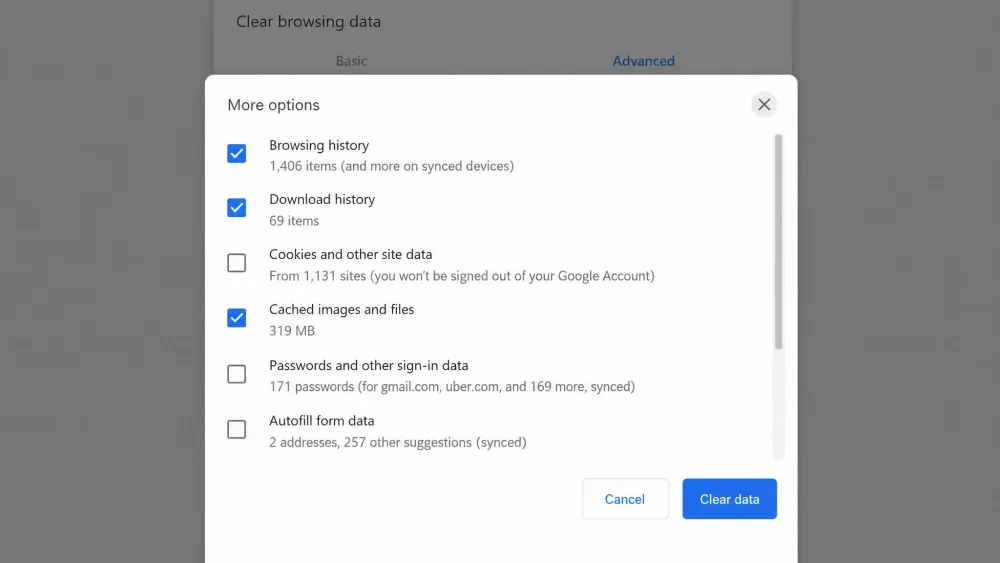
Your Google account survives this, because if you delete cookies while signed in to Chrome you won't be signed out of your Google Account. Individual sites are a different story, and you will need to sign in again on each one of them. Tick cache only and your logins stay exactly where they are.
Samsung Internet, Firefox and Edge
The pattern repeats across the other browsers, with each one keeping its own version of the same screen: Samsung Internet under Settings > Personal browsing data, Firefox under Settings > Delete browsing data, and Edge under Settings > Privacy and security. Wherever you land, look for the cached-files checkbox and leave cookies unticked so that you stay logged in.
What About the System Cache Partition?
If an older guide tells you to boot into recovery mode and wipe the cache partition, ignore it, because that option no longer exists on modern devices and it is not one of the methods.
The reason is the A/B update scheme, which splits storage into two slots and wipes the old slot on reboot, leaving no cache partition there to clear. Pixels lost the option years ago and Galaxy phones followed in February 2026.
Galaxy owners hunting for that old recovery-mode wipe now find a three-item menu offering only Reboot system now, Wipe data/factory reset and Power off. The option was taken away rather than hidden, so the phone is fine. Do not reach for Wipe data/factory reset instead, because that erases everything. System cache is handled automatically now, and the only user-facing control is per-app, through Settings.
What Happens After You Clear Your Cache
The app opens slower the first time rather than faster, because it has to fetch everything again, and Google's documentation says as much when it warns that some apps may be slow the next time you open them.
Then the cache comes straight back, because apps re-create the files as soon as you reopen them, which means the storage figure recovers within a day of normal use.
What you get out of it is immediate free space and, more usefully, a fix for one broken app, since clearing cache reliably sorts out stale content, a feed that will not load, or an app that keeps crashing. It does not make the whole phone quicker.
What Cached Data Is, and What Clearing It Actually Removes
Cache is disposable by design, and apps write copies of the things they expect to need again, such as an album thumbnail or a page asset, so they can pull them off local storage instead of the network.
That is why it accumulates over time, and why Android already evicts it automatically when storage runs low. A manual purge is therefore not routine maintenance but a targeted fix, and if general sluggishness is the problem then Google's guide to troubleshooting an Android phone for slowness is the better starting point.
Clear Cache vs. Clear Storage: What You Keep and What You Lose
This is the distinction worth getting right, because clearing cache removes cached images and files only, and your logins remain intact. Samsung frames it as removing the residual files that could be slowing the app down.
Clearing storage is a different action entirely, and Google's wording for it is blunt: it permanently deletes all app data. Samsung says Clear data completely resets the app and removes any personal settings saved in it.
Clearing data wipes your logins, settings and anything the app has saved locally, and clearing cache does not. If the button says Clear storage or Clear data, you are signing yourself out and starting that app again from scratch. Reach for it only after clearing the cache has failed.
| Feature | Cache | App Data |
|---|---|---|
| What it stores | Temporary data: cached images and files the app rebuilds on demand | Accounts, logins, settings and everything the app has saved |
| What you lose | Nothing permanent; the app stays signed in | Permanently deletes all app data; the app is reset |
| Do you re-login | No | Yes |
| Does it come back | Yes, apps re-create the files as you use them | No, only by signing in again |