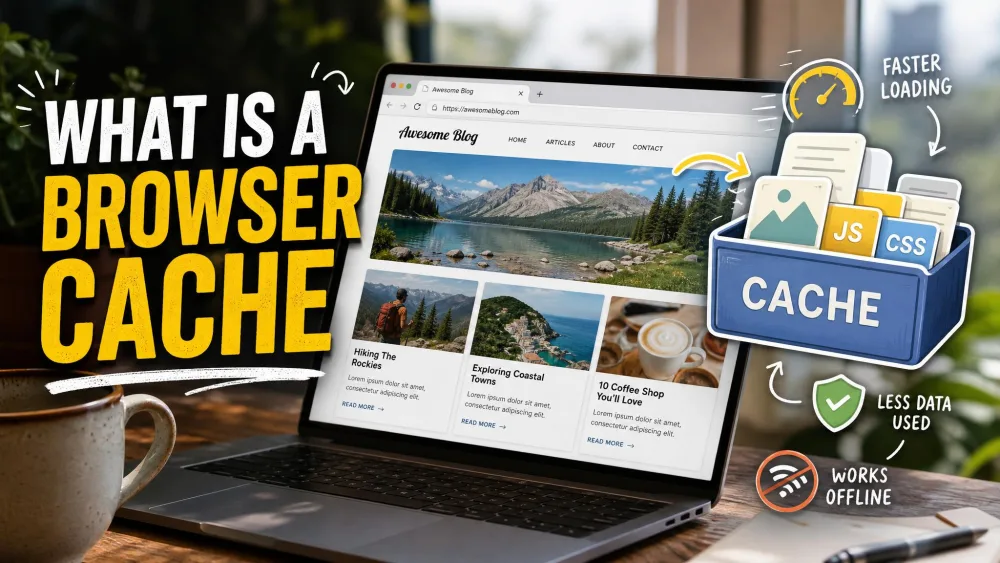
You have probably been told to clear your cache at some point, usually by a support page trying to fix a glitchy website. A browser cache is a temporary local storage area where your browser saves parts of the sites you visit, such as images, fonts, HTML, CSS, and JavaScript files, so those pages load faster the next time you visit. It works quietly in the background, which is why so few people know what it actually is.
This guide explains what the cache stores, how it speeds up your browsing, and where it fits alongside cookies and history. It also covers the part most people care about: when clearing it genuinely helps, when it does nothing, and how to clear it safely across every major browser.
What Is a Browser Cache?
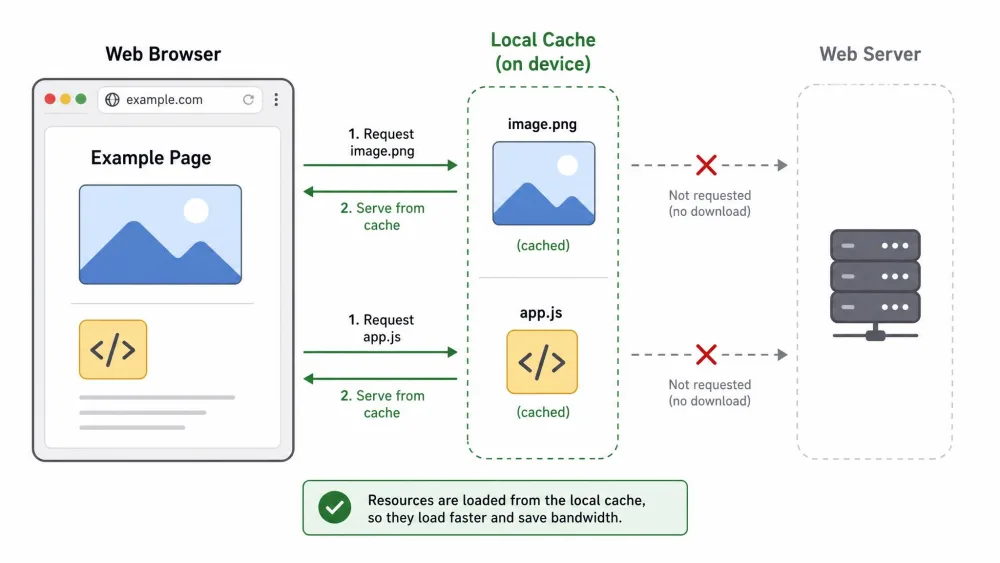
A browser cache is temporary storage on your device that holds pieces of the websites you visit. Instead of downloading the same logo, stylesheet, or script every time a page loads, your browser saves a copy locally and reuses it on the next visit, pulling it from your own drive rather than from a distant server.
Think of it as a personal shortcut. A site's logo might appear on every page you open, so downloading it once saves both time and data. This local copy is what the technical world calls a "private" cache, meaning it belongs to one user on one device, unlike the shared caches that content delivery networks and proxies run for many people at once.
The cache is not permanent. Files come and go as you browse, and browsers prune old entries on their own. Over months of use, though, cached files can still add up to several hundred megabytes or even a few gigabytes.
How Does a Browser Cache Work?
Every time you open a page, your browser requests the files it needs, and the server sends back a response with caching instructions attached. The main one is the Cache-Control header, which sets how long a file stays "fresh" using a max-age value in seconds. A setting of max-age=3600 keeps a file fresh for one hour, while max-age=604800 keeps it fresh for a week.
While a file is fresh, your browser reuses the stored copy with no server round trip. Once that timer expires, the file is "stale" and needs checking. The browser revalidates it with the server using validation tokens such as ETag or Last-Modified. If nothing has changed, the server replies with a 304 Not Modified status and the browser reuses its saved copy. If the file has changed, the server sends a fresh 200 OK response.
This is also why a manual refresh behaves the way it does. A normal reload sends Cache-Control: max-age=0 with validation headers, which tells the browser to check freshness. A force reload goes further and sends Cache-Control: no-cache, forcing a completely fresh copy from the server. If you want the deeper technical version, Mozilla's guide to how HTTP caching works walks through every header.
What Gets Stored in the Cache
Not everything on a page ends up cached, but the reusable building blocks usually do. The cache typically holds:
- Images, logos, and icons that repeat across pages
- Fonts the site loads for its text
- HTML documents and page structure
- CSS stylesheets that control layout and design
- JavaScript files that make features work
These are the parts of a site that rarely change between visits, so storing them locally is where the speed gain comes from.
Benefits of Browser Caching
Faster Page Loads
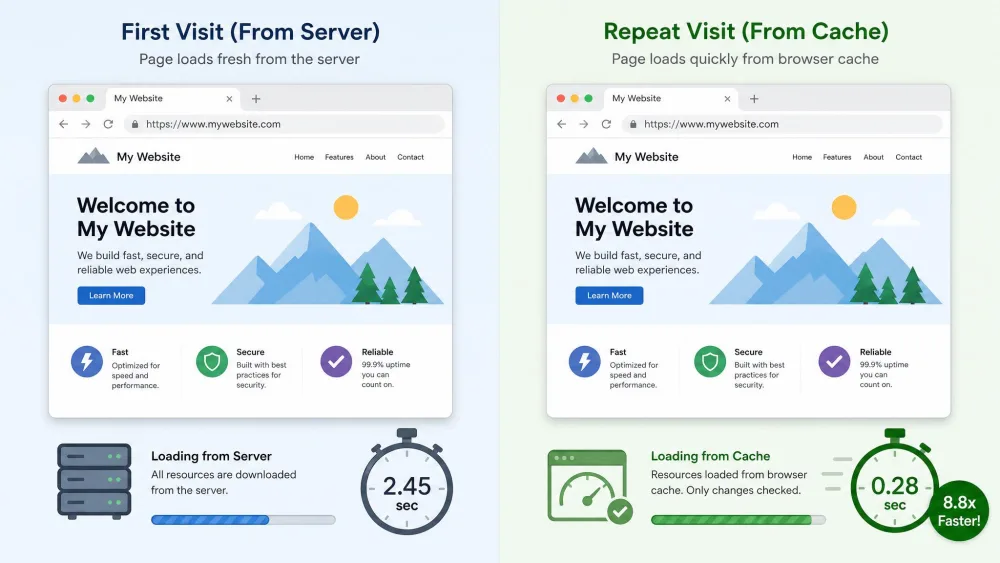
The headline benefit is speed. When your browser serves a page's images, fonts, and scripts from local storage, there is no waiting for those files to travel across the internet again. In our own use, media-heavy pages load noticeably faster on repeat visits, and sites you check daily feel snappier because their assets are already on your device.
Less Bandwidth and Data Use
Reusing stored files also means downloading fewer of them. Every asset served from cache is one your connection did not have to fetch again. On a metered connection or a capped phone plan, that reuse quietly saves bandwidth over a month.
A Smoother Browsing Experience
Speed and data savings add up to something you feel rather than measure. Frequently visited sites respond faster, navigation feels more fluid, and the browser spends less effort re-fetching what it already has.
Cache vs. Cookies vs. Browsing History
The cache is easy to confuse with two other things your browser stores locally. All three live on your device, but they do different jobs: the cache holds site files, cookies hold your logins and preferences, and browsing history is just a dated list of pages you have opened. Knowing the difference tells you what is safe to delete.
| Attribute | Cache | Cookies | Browsing history |
|---|---|---|---|
| What it stores | Site files (images, fonts, HTML, CSS, JavaScript) | Login and session tokens, site preferences, cart contents | A dated record of pages you visited |
| Its purpose | Reuse assets so pages load faster on repeat visits | Keep you logged in and remember your settings | Let you find and revisit pages you have seen |
| Safe to delete? | Yes, worst case pages reload a bit slower once | Yes, but it logs you out and forgets preferences | Yes, it only removes the visit record, not the sites |
Clearing the cache alone does not usually log you out, because your logins live in cookies rather than in cached files. The catch is that the everyday "Clear browsing data" dialog often ticks cookies too, and that combined clear is what signs you out.
When the Cache Causes Problems
Most of the time the cache helps. Now and then it works against you, and the symptoms are confusing because the site itself looks broken.
Outdated or Corrupted Pages
Because the cache serves stored copies, it can show an old version of a page after the real site has been updated. When stale files clash with a site's newer code, you can end up with broken layouts, missing buttons, or features that stop responding. Cached files can also become corrupted rather than just outdated, and clearing the cache is what resolves the resulting errors.
Login and Form Errors
A stale or corrupted cache is a common cause of forms that will not submit and login screens stuck in a loop. The page is running against files that no longer match what the server expects, so it hangs. Clearing the cache forces fresh copies and usually clears the jam.
Too Much Storage Used
Cached files build up over time, and on a device already low on space, several gigabytes of old cache can matter. Browsers delete old cached files periodically on their own, so the cache largely self-manages. Still, a manual clear is a quick way to reclaim space when you need it.
When You Should (and Shouldn't) Clear Your Cache
Here is the honest answer most guides dance around: you usually should not clear your cache at all. There is no upside to routine clearing, and it throws away the speed advantage the cache exists to provide. The rule we land on after years of testing cleanup tools is to leave it alone unless you have a specific reason to act: a site that renders wrong even after a refresh, a page that will not update, a stuck login or form, or a device genuinely low on storage. Treat it as an as-needed fix tied to a symptom, not as scheduled maintenance.
Before clearing anything, try a force reload first (Ctrl+Shift+R on Windows, or Cmd+Shift+R on a Mac). It fetches fresh files for just that page and often fixes a glitch without wiping your whole cache.
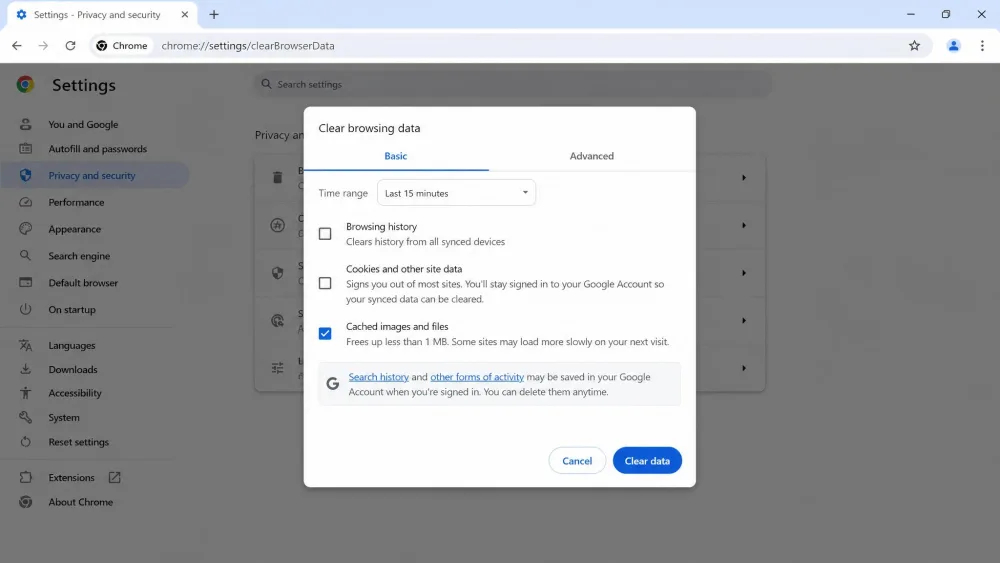
The common "Clear browsing data" flow often clears cookies along with the cache. When it does, it logs you out of the sites you were signed into and clears saved preferences, and every page loads slower on that first visit while fresh files download. If staying logged in matters, clear cached files only and leave cookies unticked.
When we clear a cache during a cleanup test, the first reload of each site is visibly slower while assets download fresh, and normal speed returns on the second load. That short slowdown is expected, not a sign anything went wrong.
How to Clear Your Browser Cache
The steps differ slightly by browser, but the shape is the same: open settings, find the privacy or history section, choose to clear cached images and files, and confirm. For more detail, our companion guide covers how to clear cache and cookies in depth, with dedicated walkthroughs for Android, iPhone, and iPad.
Here is the path for each major browser:
- Chrome: Open Settings > Privacy and security > Clear browsing data, choose a time range (the default is 15 minutes), tick Cached images and files, then delete. On Android or iPhone, tap the three-dot menu > Delete browsing data instead. Google's own steps for clearing the cache in Google Chrome mirror this.
- Firefox: Open Settings > Privacy & Security > Cookies and Site Data > Clear Data, select cached web content, then clear. Mozilla's page on clearing the Firefox cache has the current labels.
- Microsoft Edge: Press Ctrl+Shift+Delete to open the Clear browsing data dialog directly, or go to Settings > Privacy, search, and services > Clear browsing data. Choose Cached images and files and clear. If you are signed in and syncing, clearing here also removes the data on your other synced devices unless you sign out first.
- Safari: On a Mac, open History > Clear History and pick a timeframe. For a cache-only option, enable the Develop menu under Safari > Settings > Advanced, then choose Develop > Empty Caches. Apple's guide to clear Safari's cache covers both. If iCloud is set up for Safari, clearing history removes it from all your Apple devices.
What Happens After You Clear the Cache
Clearing the cache is far less dramatic than it sounds, and it does not touch the things people worry about. Your saved passwords, downloaded files, and custom settings survive, because none of those live in the cache. If you cleared cookies too, you will be signed out and your preferences reset, but that is the cookie clear at work, not the cache.
The one change you will notice is speed. Right after clearing, sites load a little slower on the first visit because images, fonts, and scripts download fresh. By the second load those files are cached again and normal speed returns, so the cache rebuilds itself from your next browsing session.
Frequently Asked Questions
How often should I clear my cache?
Will clearing the cache delete my passwords or history?
Does clearing the cache actually speed things up?
What's the difference between cache and cookies?
Bottom Line
A browser cache is a small convenience doing a large job: it saves parts of the sites you visit so they load faster and use less data next time. It works automatically, prunes itself over time, and rarely needs your attention. The best default is to leave it alone.
When a site starts misbehaving, refuses to update, or your storage runs tight, clearing the cache is a fast, low-risk fix. Just know what you are clearing. Cached files rebuild in a session or two, but if you sweep out cookies at the same time, expect to sign back in. Clear it when a symptom calls for it, not out of habit, and the cache stays your ally rather than a chore.