
A DNS cache is temporary storage that holds the results of recent DNS lookups, keeping a short record of which domain name maps to which IP address. Your browser, your operating system, your router, and your internet provider each keep one. Instead of asking the wider internet where a site lives every single time, your device answers from that saved record, which is why most pages after the first visit load noticeably faster.
That small piece of memory does a lot of quiet work, and it can occasionally hold on to an out-of-date answer. Below we cover how DNS caching works, where the records live, how long they last, and how to flush the cache when something looks stale.
What Is DNS Cache?
Every website has a human-friendly name, like example.com, and a machine-friendly address, like 93.184.216.34. The Domain Name System is the directory that translates one into the other. A DNS cache is the temporary storage of information about previous DNS lookups on a machine's operating system or web browser, kept so your device can resolve a domain name to its IP address without repeating the full lookup.
Think of it as a short-term memory for addresses you have already looked up. The first time you visit a site, your device does the full lookup and writes the answer down; for a set period after that, it reads the answer straight from memory. That shortcut is a big part of why the modern web feels quick rather than sluggish.
How DNS Caching Works
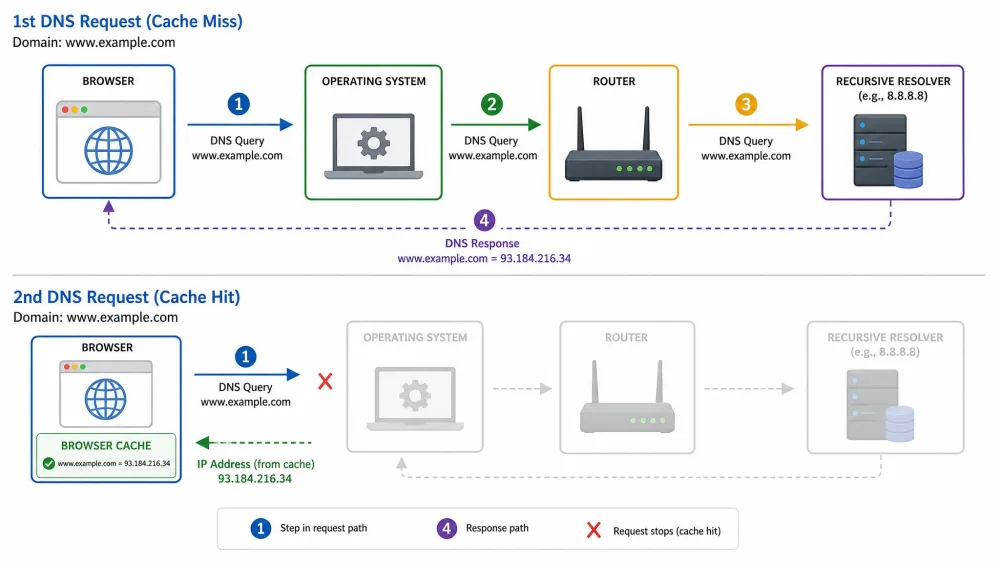
On a first request, your device has no saved answer, so it builds the lookup from scratch. It checks its own memory, then asks a recursive resolver, which works down through the DNS hierarchy until it finds the authoritative answer. That result travels back and gets stored at each stop along the way.
On every later request within the caching window, the flow is far shorter. Your browser or operating system already holds the address, so it answers locally and skips the outward journey. That difference between the first cold lookup and the cached ones is the whole point of caching, and it repeats across four independent layers.
Browser DNS cache
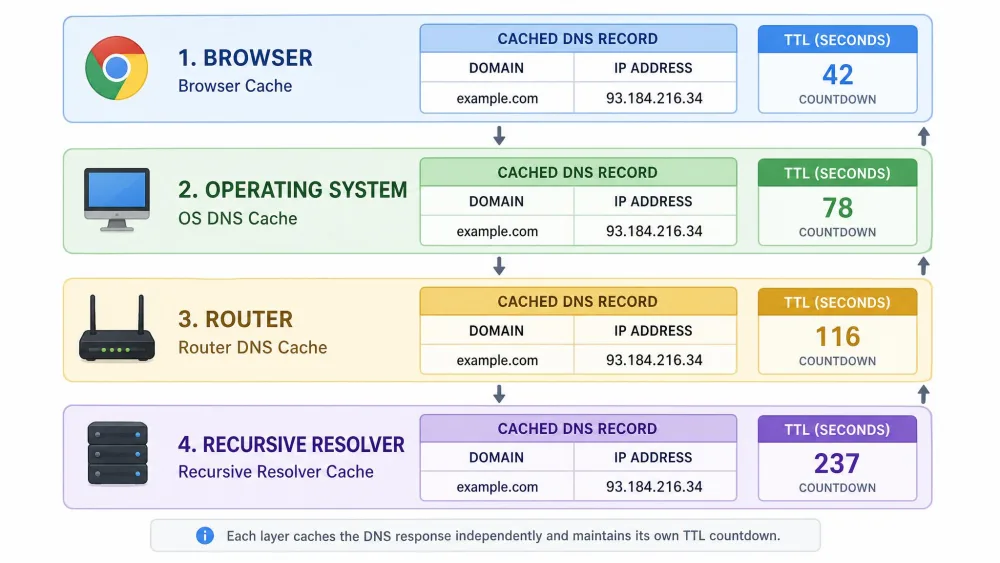
Web browsers keep their own internal DNS cache, separate from the rest of the machine. Chrome, for example, maintains a host cache you can inspect and clear at chrome://net-internals/#dns. It sits closest to the page, so it is checked first, and it is the one people most often forget when an address will not update.
Operating system (OS) DNS cache
Below the browser, your operating system runs a system-wide resolver cache that every app shares. On Windows this is the DNS Resolver Cache; on macOS the mDNSResponder service handles it. Because every program reads from it, a stale record here affects your whole system rather than one browser.
Router / home gateway cache
Many home routers cache DNS answers too, acting as a small shared resolver for the whole network. Your phone, laptop, and TV can all reuse a lookup one of them already performed. Clearing this layer usually means restarting the router, which is why it is easy to overlook.
Recursive resolver cache (ISP / public DNS)
Further out sits the recursive resolver, run by your internet provider or a public DNS service. Public resolvers include Google Public DNS at 8.8.8.8 and Cloudflare at 1.1.1.1. These serve huge numbers of users, so their caches stay warm, and you cannot clear them yourself; they hold records until the time-to-live expires.
Why DNS Caching Exists (The Benefits)
Caching exists because DNS lookups, though fast, are not free. Repeating a full lookup for every image, script, and page on a busy site would add up quickly, so storing the answer once and reusing it removes most of that overhead.
Faster website loading
A cached lookup resolves in a fraction of the time a fresh one takes, because the answer never leaves your device. On sites that pull resources from several domains, that saving multiplies with every connection.
Less network traffic and lower DNS server load
Every lookup you avoid is one less query crossing the network and one less request hitting a DNS server. At the scale of billions of devices, caching spares the whole system an enormous amount of repeated work.
More reliable browsing
If a resolver is briefly slow or unreachable, a valid cached answer lets you keep loading sites you have already visited, so you see fewer momentary failures.
A DNS cache is a short-term memory for addresses you have already looked up, and it is a big part of why the web feels quick rather than sluggish.
Where Is the DNS Cache Stored? (Types of DNS Cache)
There is no single DNS cache. Records are stored independently across the four layers above, and each keeps its own copy with its own countdown, which is why an address can be fresh in one place and stale in another at the same moment.
This layering matters when you troubleshoot. Clearing the operating system cache does not touch your browser's internal host cache. In our testing this is a common source of the "why is the old site still loading?" confusion, because Chrome kept serving its own stored answer even after the system cache was empty.
| Layer | Where it lives | Who it serves | Can you clear it? |
|---|---|---|---|
| Browser | Chrome, Firefox, etc. | One browser | Yes, per browser |
| Operating system | Windows / macOS / Linux | Every app on the device | Yes, with a command |
| Router / gateway | Home router | Every device on the network | Yes, usually via restart |
| Recursive resolver | ISP or public DNS | Very large user base | No, waits for TTL |
TTL: How Long DNS Records Stay Cached
Each DNS record carries a time-to-live, or TTL, a value in seconds that tells caches how long to keep it before checking again. When the TTL reaches zero, the record is discarded and the next request triggers a fresh lookup. TTLs are set by whoever manages the domain, and they vary by purpose.
Common TTL values: a short 300 seconds (five minutes) for records that change often, a default of 3600 seconds (one hour), and a long 86400 seconds (24 hours) for records that rarely move. Chrome adds its own floor: it caps positive DNS responses at about 60 seconds and enforces a 60-second minimum even when it does its own resolution.
That browser floor has a real consequence. Even after setting a 30-second TTL, we found Chrome and Firefox held the record for at least 60 seconds, so sub-minute DNS changes never took effect as fast as we expected. Chrome also caches failed lookups for roughly 15 seconds, though that figure reflects current browser behavior and can shift between versions.
TTL is also the key to propagation delay. So-called DNS propagation is not data spreading outward; it is old cached values expiring resolver by resolver, so different users worldwide can see different answers at the same moment. Lowering a record's TTL before you make a change makes the switch move faster, because resolvers refresh sooner.
DNS Cache Poisoning (DNS Spoofing) and Security
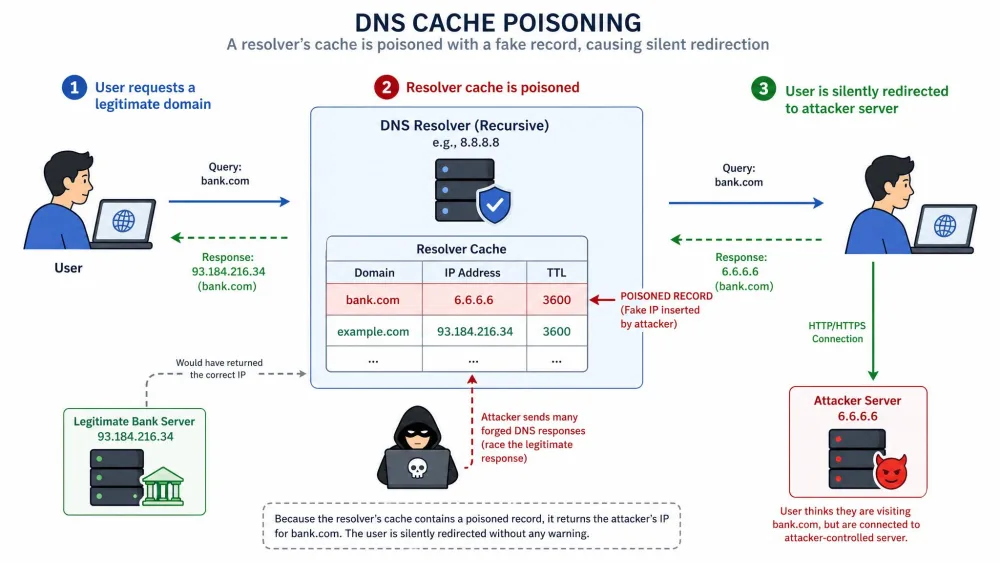
Because so much traffic trusts cached DNS answers, that cache is a target. DNS cache poisoning, also called DNS spoofing, introduces corrupt DNS data into a resolver's cache so it returns an incorrect IP address, redirecting users to attacker-controlled sites. The victim types a legitimate name and lands somewhere hostile with no warning sign.
The classic example is the flaw security researcher Dan Kaminsky disclosed in 2008, tracked as CVE-2008-1447. It made poisoning a resolver's cache alarmingly practical and prompted an industry-wide scramble to patch.
The main long-term defense is DNSSEC, a set of extensions that let resolvers verify a DNS answer is authentic and unaltered. It was deployed in the internet root zone in 2010 as a mitigation against cache poisoning, and alongside source-port randomization it makes the original attack far harder to pull off.
How to Flush (Clear) Your DNS Cache
Flushing the DNS cache tells your device to throw away its saved records so the next lookup is fresh. It is a routine fix for a site that will not load, a page pointing to an old server, or a DNS change that has not shown up yet. Here is the short version for each platform.
- Windows: run
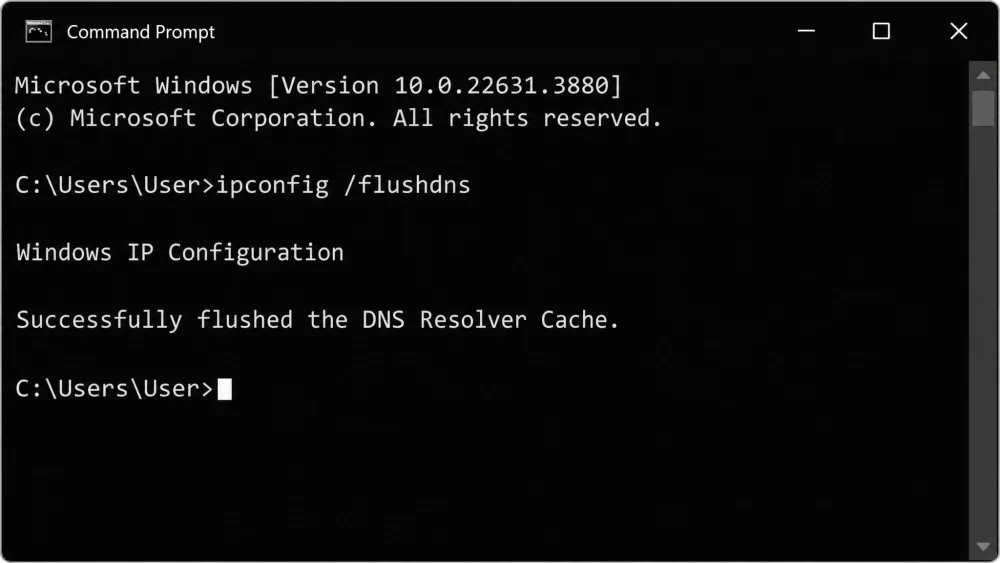
ipconfig /flushdnsin Command Prompt. A successful flush printsSuccessfully flushed the DNS Resolver Cache.You can inspect what is stored first withipconfig /displaydns. - macOS: run
sudo killall -HUP mDNSResponder. Because it uses sudo, it stops and asks for your account password first. - Linux (systemd): one common command is
sudo systemd-resolve --flush-caches, though the correct command varies by distribution and resolver daemon. - Chrome: visit
chrome://net-internals/#dnsand click Clear host cache to reset the browser's own cache.
Clearing the operating system cache does not clear Chrome's own host cache. If an address still will not update after a system flush, visit chrome://net-internals/#dns and clear the browser layer too. On Windows, you may need to open Command Prompt as an administrator for the flush to run cleanly.
For a full step-by-step walkthrough on every platform, see our companion guide on how to clear your DNS cache.
Why and When Should You Flush Your DNS Cache?
You do not need to flush on a schedule; the TTL countdown clears records on its own. Flushing is a targeted fix. The most common trigger is a stale record: a site has moved to a new server, but your device keeps loading the old address until the cache expires or you clear it.
It is also worth flushing after you change DNS servers, after a "this site can't be reached" error that persists across other browsers, or when a site you manage has just had its address updated. One honest limit: you can only flush your own device. The ISP and global resolver caches stay stale until their TTL expires, which is why a DNS change can look live for you but broken for others.
A quick myth to retire: private or incognito browsing does not use a separate DNS cache. It shares the browser and operating system caches with your normal sessions, so a private window is not a way to dodge a stale record. Flushing the actual cache is.
Frequently Asked Questions
What is a DNS cache?
How does DNS caching work?
How long does a DNS cache last (TTL)?
How do I flush or clear my DNS cache?
ipconfig /flushdns. On macOS, run sudo killall -HUP mDNSResponder. On many Linux systems, run sudo systemd-resolve --flush-caches. In Chrome, clear the host cache at chrome://net-internals/#dns.Is it safe to flush the DNS cache?
Does clearing the DNS cache delete my browsing history?
What is DNS cache poisoning?
Conclusion
A DNS cache is one of those background systems you rarely notice until it misbehaves. Most of the time it is doing exactly what it should: remembering the addresses you have already looked up so your browser, operating system, router, and provider can skip repeated work and load pages faster. That speed and the steadier browsing it brings are why caching sits at every layer between you and a website.
The trade-off is the occasional stale record, and now you know the fix. When a site will not update, clear the layer holding the old answer, remember that the browser and operating system keep separate caches, and give the wider internet time to let its own TTLs expire. For the full walkthrough, our guide on how to clear your DNS cache picks up where this one leaves off.