A site that won't load right, a login page that keeps rejecting you, a shopping cart that behaves oddly: these are the moments most people reach for the "clear cookies" button. Old cookies and a bloated cache quietly pile up as you browse, and eventually they cause more friction than they save. Clearing them out is one of the fastest, most reliable fixes we return to when a browser starts misbehaving, and it doubles as a quick privacy reset.
In this guide we walk through how to clear cookies and cache on every major browser, Chrome, Safari, Firefox, and Edge, across desktop and mobile. We also cover how to auto-delete cookies on close, the privacy tools that manage them for you, and how often clearing is actually worth the hassle. The exact menu labels shift from one browser version to the next, so we describe the route rather than promising one fixed wording. Follow the steps for your browser and you'll be done in under a minute.
What Are Cookies (and How They Differ From Cache)
A cookie is a small file a website stores in your browser to remember you. It's what keeps you logged in between visits, holds the items in your cart, and remembers that you prefer dark mode or a particular language. Some cookies come from the site you're visiting; others come from third parties, usually advertisers tracking you across sites.
The cache is a separate store. It keeps local copies of page files, images, scripts, and stylesheets, so a site you've visited before loads faster the next time. When those copies go stale, pages can render incorrectly until you clear them.
Cookies vs. Cache: What's the Difference
The short version: cookies store login, session, and preference data, while the cache stores copies of page files to load sites faster. You'll often clear both at once, but they solve different problems. If a site looks broken or shows an outdated layout, the cache is usually the culprit. If you're being logged out at the wrong times, seeing tracking follow you around, or want a privacy reset, cookies are what you want to target.
| Cookies | Cache | |
|---|---|---|
| What it stores | Login sessions, preferences, cart data | Copies of images, scripts, page files |
| Main purpose | Remembers you between visits | Loads previously visited sites faster |
| Clear it when | You want privacy or a login reset | A site looks broken or outdated |
| Side effect of clearing | Signs you out of sites | Sites reload more slowly the first time |
Why (and When) You Should Clear Cookies
Clearing cookies does two useful things. It's a privacy step, cutting down the tracking data advertisers and sites have built up about you, and it's a troubleshooting step. In our experience the most reliable trigger for reaching for it is a practical one: a site that won't load properly or keeps throwing login errors usually clears up after a cookie wipe.
There's a trade-off, though. Clearing cookies logs you out of nearly every site, so "remember me" and staying signed in stop working until you log back in. Saved preferences reset too. Language, dark mode, and cart contents disappear, so familiar sites feel new again. That's the cost of a clean slate, and it's worth knowing before you click.
Clearing cookies signs you out of nearly every account you're logged into and resets site preferences like language, theme, and saved settings. Make sure you know your passwords, or have them stored in a password manager, before you clear, or you may find yourself locked out of a site you can't quickly get back into.
How to Clear Cache and Cookies in Chrome
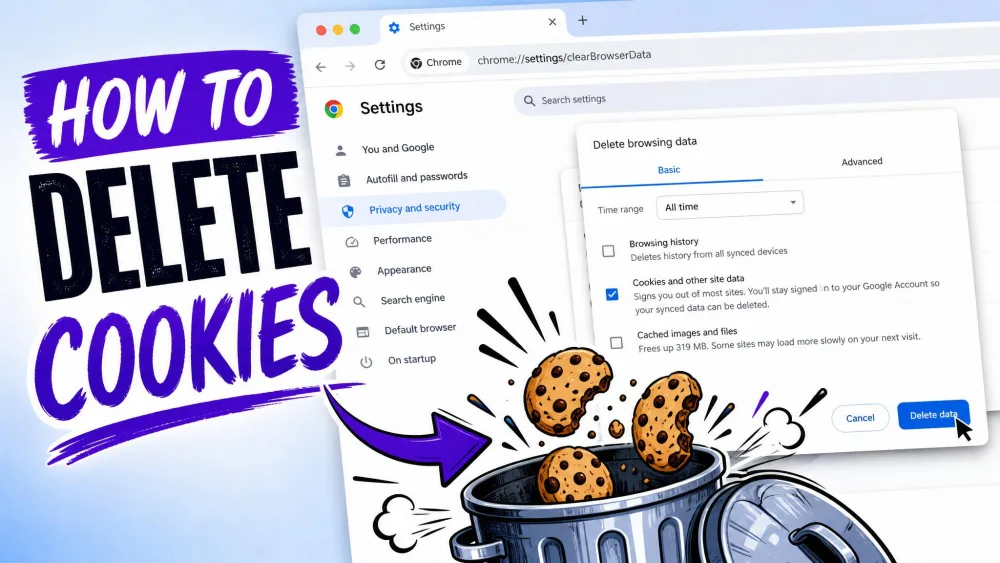
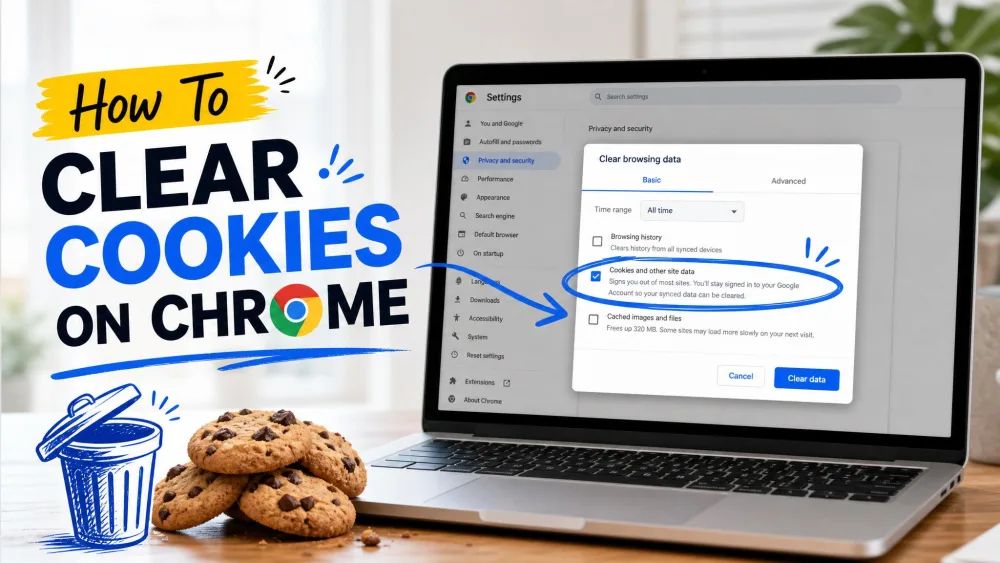
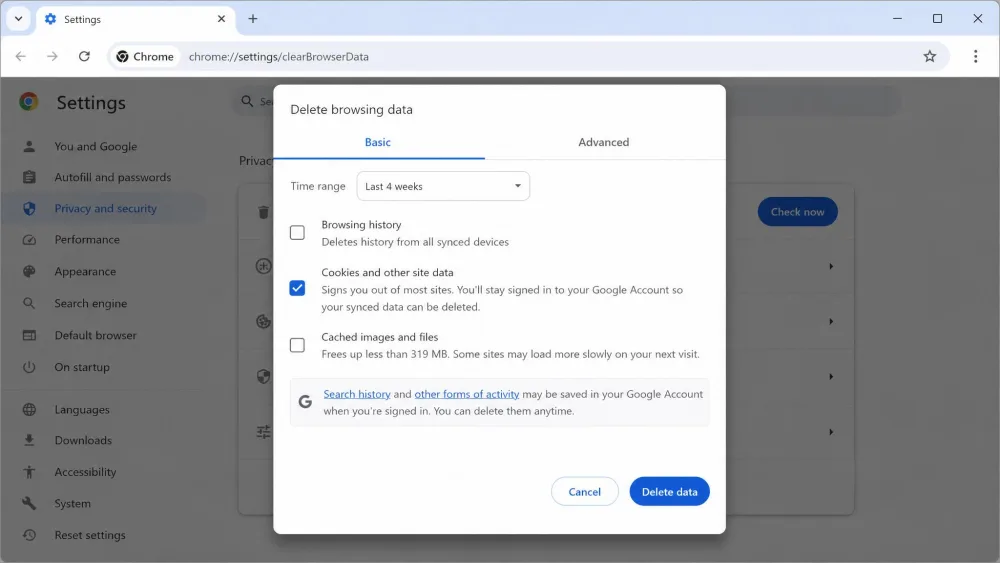
Chrome uses one clear-data dialog to clear browser cookies across every platform, though the menu wording has shifted between recent versions. Chrome recently renamed "Clear browsing data" to "Delete browsing data" and reorganized the dialog, so the label you see may differ from ours. For the current official steps, see Google's own instructions.
Desktop (Windows & Mac)
The fastest route is the keyboard shortcut. Press Ctrl+Shift+Delete on Windows, or Cmd+Shift+Delete on Mac, and the clear-data dialog opens straight away. If you'd rather use the menus, open the More menu (the three dots in the top corner), then choose Delete browsing data.
- Press Ctrl+Shift+Delete (Cmd+Shift+Delete on Mac), or open the More menu and choose Delete browsing data.
- Select a time range. Chrome offers Last hour, Last 24 hours, Last 7 days, Last 4 weeks, and All time.
- Check "Cookies and other site data." Add "Cached images and files" if you also want to clear the cache.
- Click the button to confirm and clear.
To clear cookies for just one site instead of all of them, open Chrome's site settings for that page and remove its data there. It's the tidier fix when a single site is misbehaving and you don't want to be logged out of everything else.
Android
On Android the flow mirrors the desktop, using Chrome's own menu rather than the phone's settings. Note that clearing cookies in Chrome on Android does not sign you out of your Google Account, so you won't lose access to Gmail or Drive.
- Tap More (the three dots), then tap Delete browsing data.
- Pick a time range.
- Use the More options view to select Cookies and site data specifically if you want to leave other data alone.
- Tap Delete data to confirm.
The label may read "Clear browsing data" instead of "Delete browsing data" depending on your Chrome release.
iPhone & iPad
On iPhone and iPad, Chrome keeps the clear-data controls inside the app rather than in iOS Settings. In Chrome, tap More (the three dots), then tap Delete Browsing Data. Check Cookies and Site Data, pick a time range, then tap Delete Browsing Data again to confirm. If you prefer a shortcut, you can also type "Delete browsing data" into the address bar and tap the action chip that appears.
How to Clear Cookies in Safari
Safari splits its cookie controls between the Mac app and iOS Settings, so the two paths look quite different.
Mac
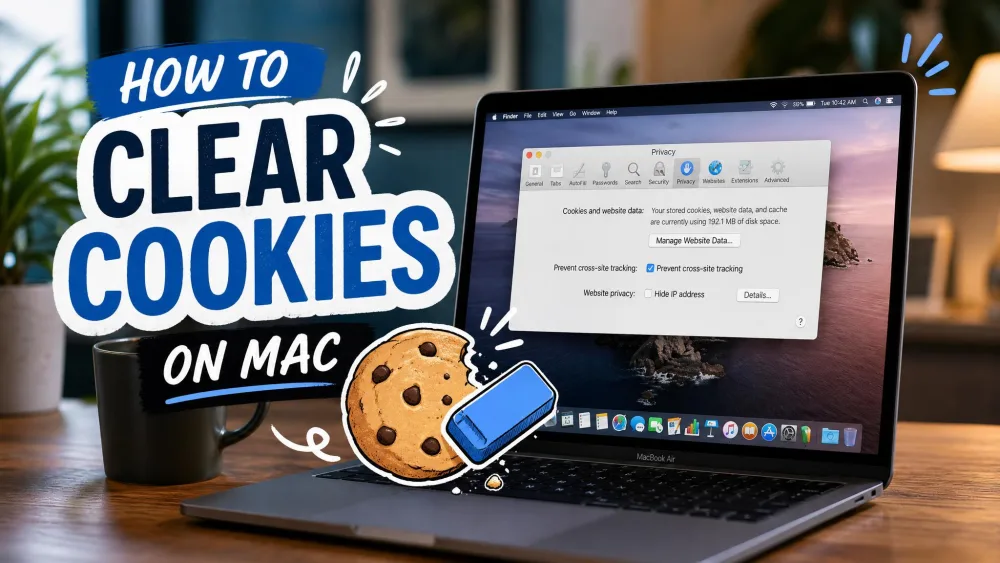
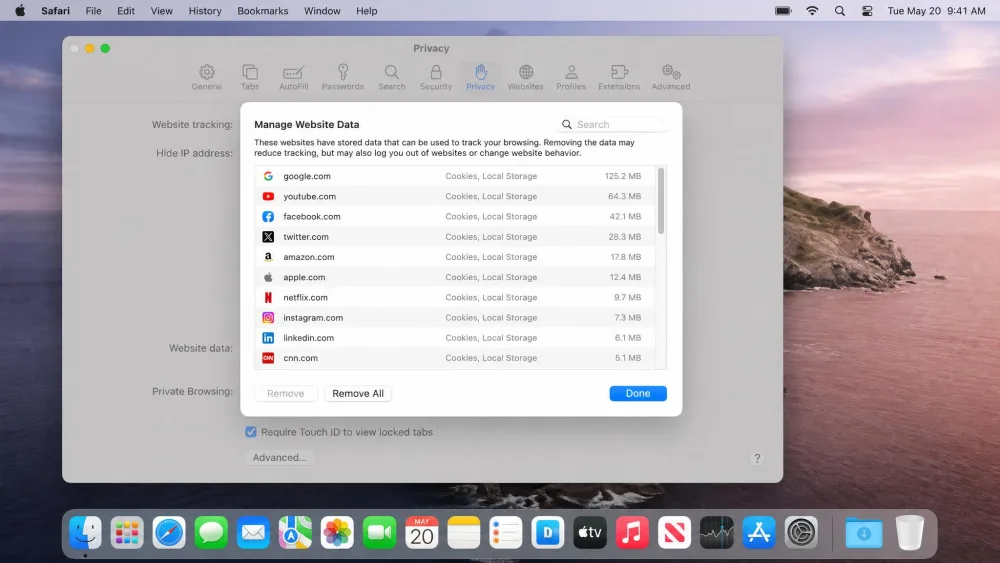
On a Mac, Safari lets you review and remove data site by site, which is handy when you only want to clear one troublesome site. Open Safari, then Settings, click Privacy, and click Manage Website Data. From there, select the sites you want and click Remove, or click Remove All to clear everything. For Apple's full walkthrough, see Apple's Safari cookie guide.
One thing worth knowing on the Mac: clearing Safari's website data can ripple into other apps that share that data, an unexpected side effect for many users. If a Mac app suddenly asks you to sign in again after a Safari cleanup, this is usually why. Safari has no keyboard shortcut for clearing cookies. The familiar Cmd+Option+E only empties the cache, not cookies, so the Manage Website Data panel is the route you actually need.
iPhone & iPad
On iPhone and iPad the control lives in Settings, not in Safari itself. On recent iOS the route runs through Settings, then Apps, then Safari, then Clear History and Website Data. On older iOS versions the path is Settings, then Safari directly, so the exact route depends on your iOS version. Once you tap Clear History and Website Data, confirm the timeframe and tap Clear History.
Good to know: clearing Safari history and website data does not delete AutoFill information such as saved passwords or payment details, so those survive the cleanup.
If the "Clear History and Website Data" button appears greyed out on your iPhone, you're not looking at a broken feature. Screen Time web-content restrictions disable it. Open Settings, go to Screen Time, and ease the content restriction, then return to Safari's settings and the button becomes tappable again.
How to Clear Cookies in Mozilla Firefox
Firefox groups cookies under its Privacy & Security settings, with a per-site option for surgical cleanups.
Desktop
- Open the menu (the three lines), then choose Settings.
- Select Privacy & Security, then scroll to Cookies and Site Data.
- Click the clear-data button, check Cookies and Site Data, then confirm.
Recent Firefox versions renamed that button from "Clear Data" to "Clear browsing data" and reworked the dialog, so the exact label varies by version. To clear just one site, open Privacy & Security, go to Cookies and Site Data, choose Manage Data, and search the site name to remove only its cookies. Mozilla keeps current Firefox instructions up to date if your dialog looks different. Bear in mind that clearing all cookies logs you out of most sites and deletes stored site data like shopping carts or saved items.
You can also press Ctrl+Shift+Delete in Firefox to open its clear-history dialog directly.
Mobile
The path differs a little between the two mobile versions, and Firefox shuffles these labels between app releases, so treat the wording as a guide rather than gospel. On Android, tap the three dots, tap Settings, tap Delete browsing data, check Cookies and site data, then tap Delete browsing data to confirm. On iOS, tap the menu icon, tap Settings, scroll to the Privacy section, then tap Data Management, tap Website Data, and tap Clear All Website Data.
There's one Firefox mobile quirk worth flagging. Firefox mobile only deletes cookies when you use its Quit command; swiping the app away does not trigger deletion. Users who only swipe the app closed find their cookies persist, then wonder why they're still logged in. If you've set Firefox to clear on quit, use the actual Quit command to make it fire.
How to Clear Cookies in Microsoft Edge
Edge shares Chrome's Chromium foundations, so the desktop flow will feel familiar. Microsoft's Edge support page covers the same steps in detail.
Desktop
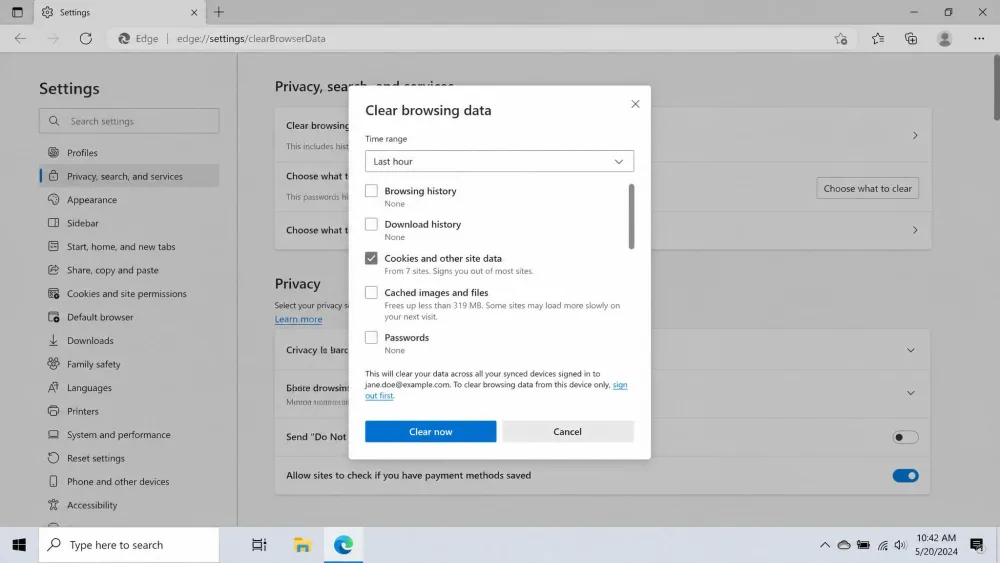
The quickest route is Ctrl+Shift+Delete, which opens Edge's Clear browsing data dialog directly. Through the menus:
- Open Settings and more (the three dots), then choose Settings.
- Select "Privacy, search, and services."
- Under Clear browsing data, click "Choose what to clear."
- Pick a time range, check "Cookies and other site data," then click Clear now.
To remove one site's cookies, go to "Privacy, search, and services," open Cookies, choose "See all cookies and site data," find the site, and delete it with the arrow next to its name.
Mobile
On Edge mobile, tap the menu, tap Settings, then tap "Privacy, security and services," tap Delete browsing data, check Cookies and site data, and tap Clear. The privacy label wording varies between platforms and app builds, so it may read slightly differently on your phone. Whether Edge mobile offers an auto-clear-on-close toggle is disputed: some guides describe a clear-on-exit switch, but Norton and Edge-specific guides say the mobile app clears only manually, so on your phone you'll typically clear cookies by hand or lean on a third-party app.
How to Automatically Clear Cookies When You Close Your Browser
If you'd rather not think about it, several browsers can wipe cookies for you every time you close them. In Edge on desktop, open "Choose what to clear every time you close the browser" and toggle "Cookies and other site data" on. Firefox has an equivalent setting, "Delete cookies and site data when Firefox is closed," under Privacy & Security. Chrome handles this at the site-settings level rather than with a single global toggle.
One caveat we've run into: auto-clear-on-close is inconsistent across browsers because each one defines "closing" differently. Just closing a single window may not count as closing the browser, so the wipe doesn't always fire when you expect. Test it once, close the browser fully, reopen, and confirm you've actually been logged out before you rely on it.
Auto-clear on close is a strong privacy habit for shared or public computers, but it means you'll re-enter logins constantly on your own machine. If that's too much friction, set it only for the browser you use for sensitive tasks and keep a second browser signed in for everyday use.
Privacy Tools That Manage Cookies for You
Beyond the built-in toggles, dedicated tools can manage cookies more precisely. Browser extensions like Cookie AutoDelete (for Chrome and Edge) and Forget Me Not (for Firefox) automatically remove cookies from tabs you've closed while keeping the ones you want, such as the sites you stay logged into. For a broader cleanup, dedicated apps such as Norton AntiTrack and Norton Utilities Ultimate bundle cookie and tracker management with wider privacy tools.
These are worth considering if you find yourself clearing cookies constantly, or if you want tracking cut down without losing every convenience cookie in the process. For most people, the built-in auto-clear settings plus the occasional manual wipe cover the job without adding another app to maintain.
How Often Should You Clear Cookies?
There's no official schedule here, and anyone who tells you to clear cookies on a fixed timetable is guessing. For privacy-minded users, clearing every few weeks is a reasonable habit. Beyond that, clear on demand: after using a shared or public device, or the moment a site fails to load or throws login errors. Those situational cleanups tend to matter more than any calendar rule.
The honest answer is that clearing cookies is a judgment call, not a standard. If your browser feels fine and your privacy comfort level is met, there's no need to clear on a schedule at all. Save it for when something breaks or when you want a deliberate privacy reset.
Frequently Asked Questions
How do I clear cookies for just one site instead of all of them?
Can I auto-delete cookies every time I close my browser?
Does clearing cookies delete my saved passwords?
How often should I clear cookies?
What's the difference between clearing cookies and clearing the cache?
Conclusion
Clearing cookies and cache is one of the simplest maintenance habits there is, and it solves a surprising range of everyday browser problems. Whichever browser you use, the route is broadly the same: open Settings, find the privacy section, choose what to clear, pick a time range, and confirm. The desktop shortcut, Ctrl+Shift+Delete on Windows or Cmd+Shift+Delete on Mac, gets you there even faster in Chrome, Firefox, and Edge.
Just remember the trade-off before you click. You'll be signed out of your accounts and your saved preferences will reset, but your passwords stay put. Use a manual wipe when a site misbehaves, set auto-clear-on-close if privacy is your priority, and lean on a cookie-management tool if you want the process handled for you. Do that, and you'll keep browsing fast, clean, and a little more private.