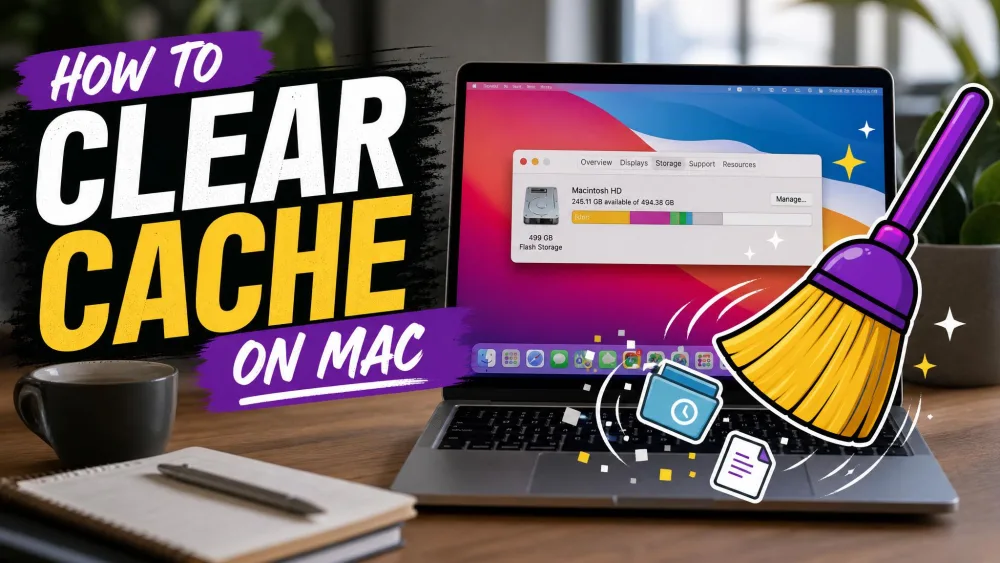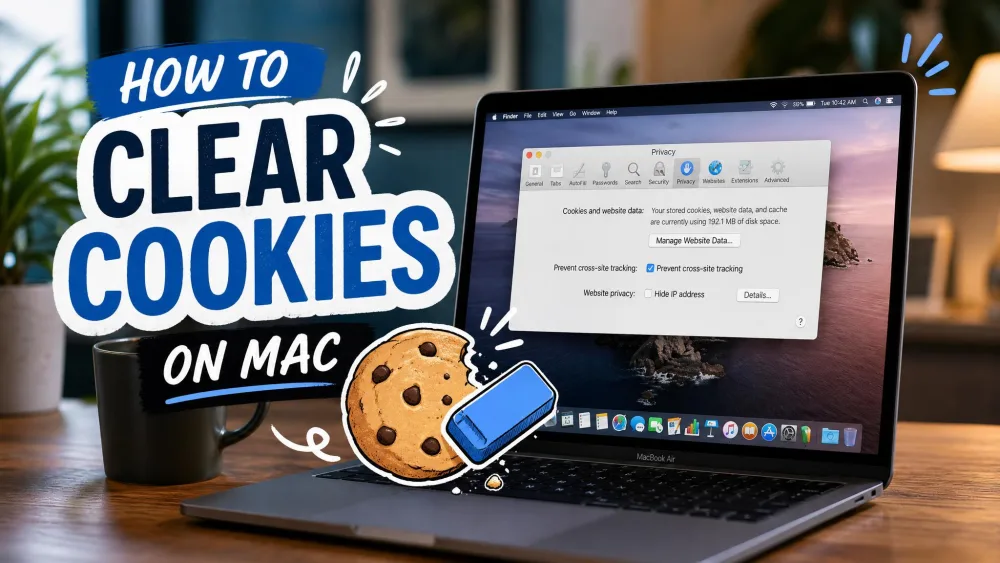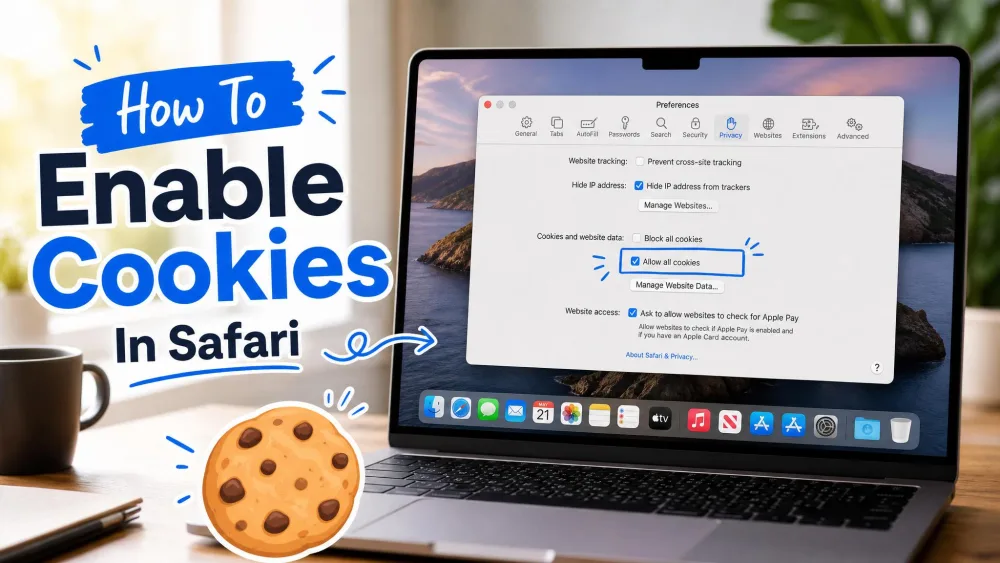
If Safari loads pages slowly or shows outdated content, clearing the cache usually fixes it. The cache is a store of temporary website files Safari saves as you browse. Over time those files can go stale and cause loading errors. Clearing them tells Safari to fetch a fresh copy of each site. The steps differ a little on iPhone, iPad, and Mac, so we cover all three below.
Quick Answer: Clear the Safari Cache in 3 Steps
Here is the fastest route on each device. The full sections below cover the other options.
- On iPhone or iPad, open Settings > Apps > Safari and tap Clear History and Website Data.
- On Mac, open Safari and choose History > Clear History, then pick a timeframe.
- Confirm the clear, then reload the page you were on.
What Is the Safari Cache (and What Clearing It Does)
The cache stores images, scripts, and page assets so sites reload faster on your next visit. When we cleared the cache on a stalled page, Safari reloaded it cleanly on the first try. Clearing reliably fixes pages that render wrong, load stale content, or refuse to load.
Cache vs. cookies vs. history: what's the difference?
Here is the short version. The cache holds temporary website files that help pages load faster. Cookies are small files that store your logins, preferences, and cart contents. History is the list of pages you have visited. Clearing one does not always clear the others.
What clearing the cache does and doesn't delete
Clearing website data signs you out of every site you were logged into. You will re-enter passwords, and any two-factor codes, on your next visit. Clearing cookies also empties shopping carts and wipes saved details like your name and address. Still, it is less destructive than people fear: your bookmarks, AutoFill contact info, and iCloud Keychain passwords stay intact.
Clearing cookies and website data signs you out of the sites you use. You will need your passwords, and any two-factor codes, to log back in. Safari also syncs over iCloud, so clearing on one device can sign you out on your iPad and Mac too.
How to Clear the Safari Cache on iPhone
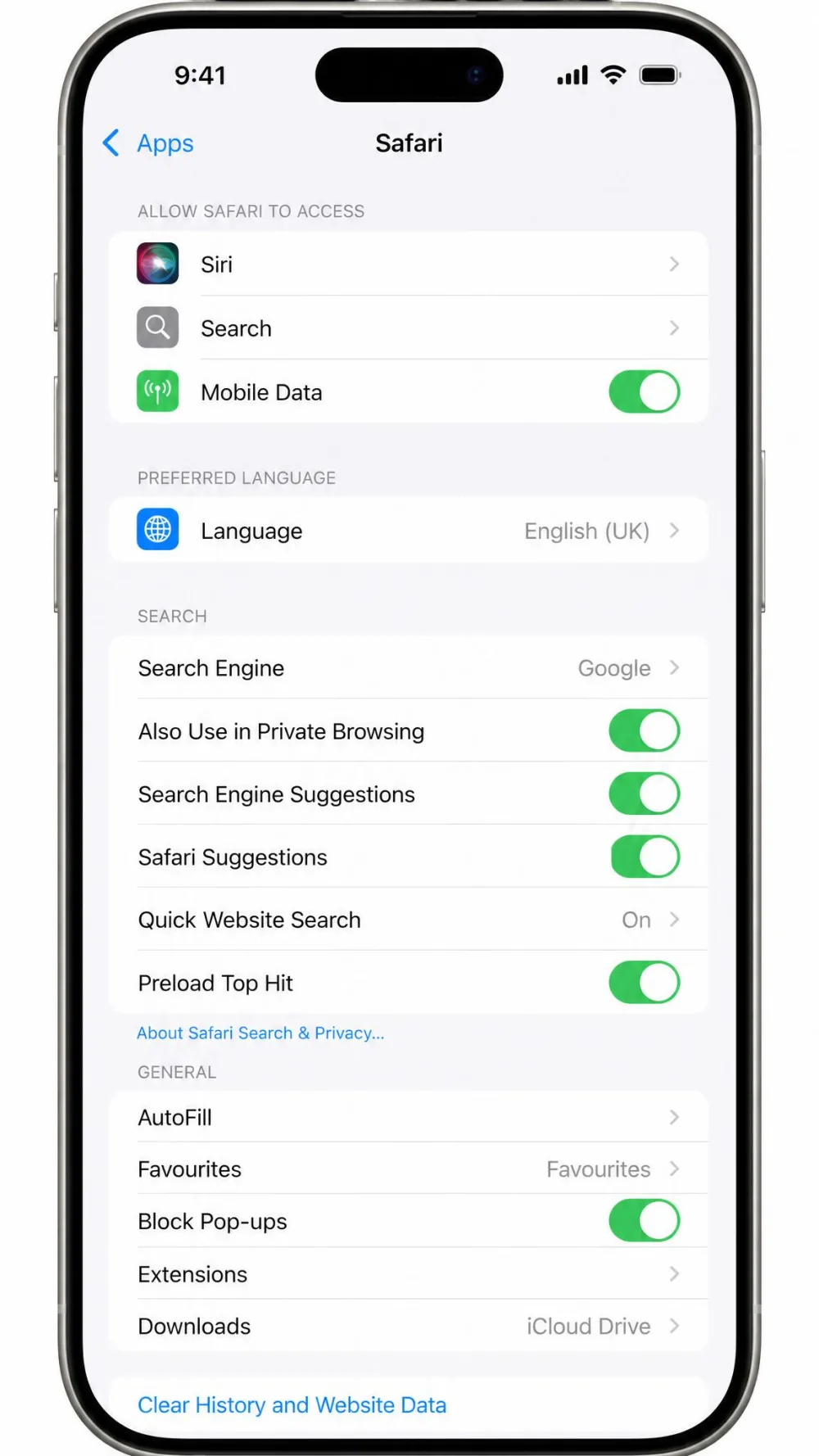
Safari's controls live in the Settings app, not inside Safari itself. iOS 18 moved them from Settings > Safari to Settings > Apps > Safari. On older iOS, look under Settings > Safari instead. You can clear everything at once, or keep your history and clear the rest.
Clear history, cache, and cookies in Settings
- Open Settings > Apps > Safari.
- Tap Clear History and Website Data.
- Choose a timeframe: Last hour, Today, Today and yesterday, or All history.
- Pick a profile or All Profiles if asked, then tap Clear History to confirm.
Apple documents the same sequence, Settings, Safari, Clear History and Website Data, so nothing here depends on a third-party tool.
Clear cookies and cache but keep your history
To wipe cookies and cache while keeping your history, use the Advanced menu instead.
- Open Settings > Apps > Safari > Advanced > Website Data.
- Tap Remove All Website Data.
- Confirm with Remove Now.
This clears cached files and cookies but leaves your browsing history in place.
Delete data for a single website
When only one site misbehaves, clear just that site and leave the rest alone.
- Open Settings > Apps > Safari > Advanced > Website Data.
- Search for the site in the list.
- Swipe left on its row, then tap Delete.
How to Clear the Safari Cache on iPad
The iPad follows the same path as the iPhone. iPadOS 18 keeps Safari's controls under Settings > Apps > Safari. There is no cache-only shortcut here, so you either clear everything or keep your history through the Advanced menu. For every iPad option in detail, see our full guide to how to clear cache on iPad.
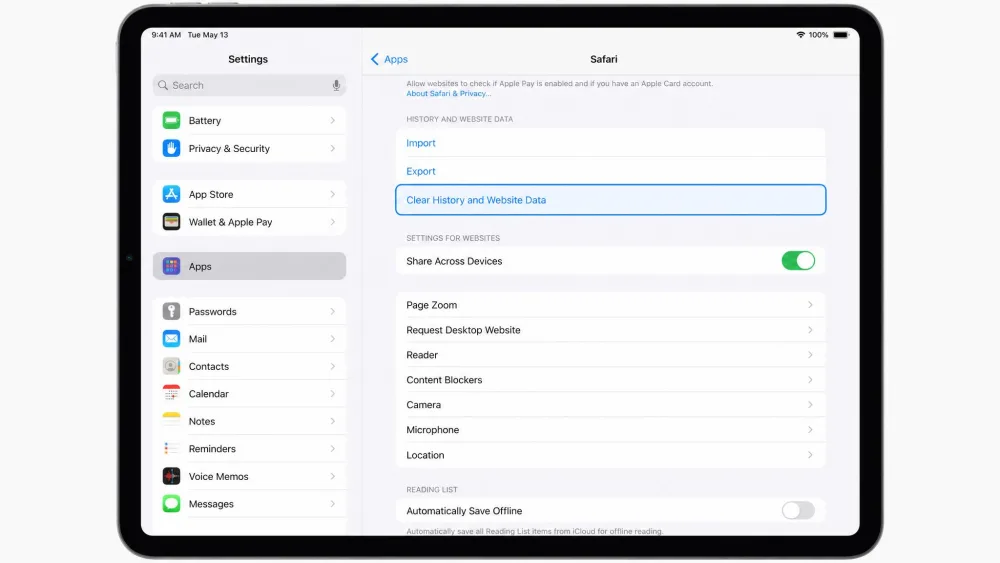
Clear Safari website data in Settings
- Open Settings > Apps > Safari.
- Tap Clear History and Website Data.
- Choose a timeframe, then confirm.
To keep your history, open Settings > Apps > Safari > Advanced > Website Data and tap Remove All Website Data instead.
How to Clear the Safari Cache on Mac
On a Mac, Safari keeps its controls in the menu bar. Current macOS labels the menu Safari > Settings; older versions call it Safari > Preferences.
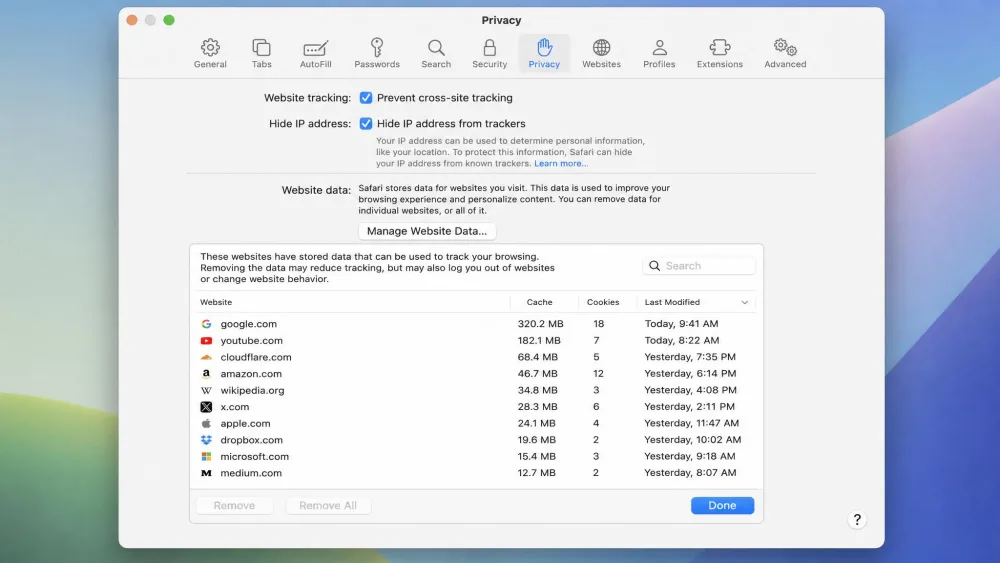
Clear cache and cookies from Safari Settings (Privacy)
- Open Safari and choose Safari > Settings > Privacy.
- Click Manage Website Data.
- Click Remove All, or select a site and click Remove.
To clear your history along with its cookies and cache, choose History > Clear History in the menu bar, pick how far back to go, then click Clear History. Apple lists these steps in Apple's Safari User Guide for Mac.
Clear only the cache using the Develop menu
If a single site misbehaves, clearing only the cache is the least disruptive fix, because it leaves you logged in. The one hurdle is that the Develop menu stays hidden until you switch it on.
- Choose Safari > Settings > Advanced.
- Tick the checkbox that turns on Safari's developer features. Older Safari labels it "Show Develop menu in menu bar"; Safari 17 and later call it "Show features for web developers."
- In the menu bar, choose Develop > Empty Caches. Newer Safari labels this Empty Caches for All Profiles.
You can also press Option+Command+E to empty the cache without opening the menu. This clears only the cache and leaves your cookies and history in place. For a second walkthrough, see Macworld's walkthrough for clearing Safari's cache on Mac.
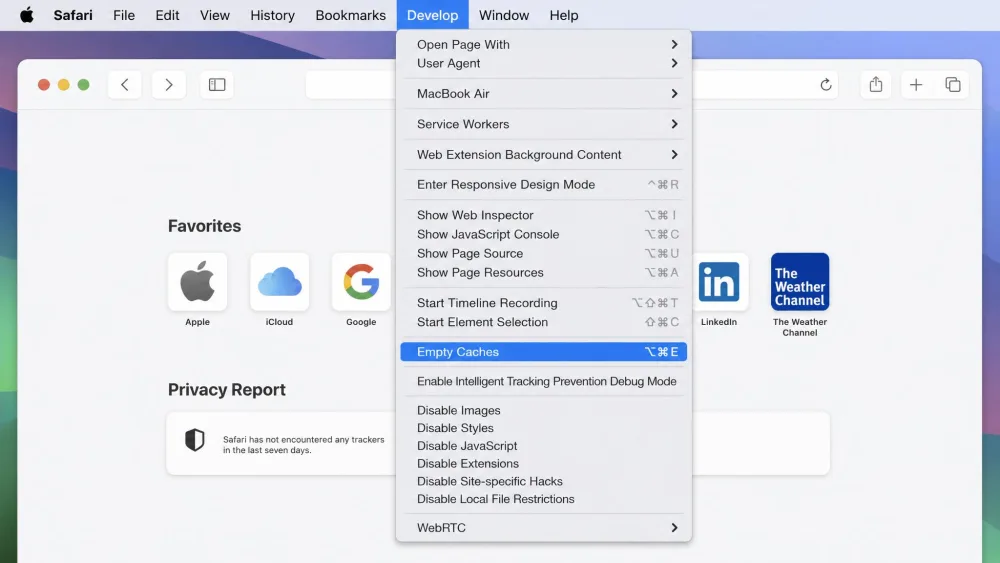
Got one site that looks broken? Empty its cache before you clear everything. Choose Develop > Empty Caches, then reload the page to check whether the fault clears.
How to Clear Cookies Without Clearing the Cache
Safari groups cookies and cached files together in most menus, so a pure cookies-only clear is not really possible. What you can do is target one site at a time, or manage how Safari handles cookies going forward.
To clear a single site's data on Mac, open Safari > Settings > Privacy > Manage Website Data, select the site, and click Remove. On iPhone or iPad, use the same Advanced > Website Data swipe-to-delete step from the iPhone section above. Either route resets that site's cookies and cached files together.
Clearing cookies empties shopping carts and wipes saved details like your name, address, and page layout. To limit cookies without deleting them, leave "Block All Cookies" off and turn on Prevent Cross-Site Tracking. Blocking every cookie tends to break sign-ins and checkout.
Troubleshooting: When Safari Won't Clear the Cache
Now and then the clear button will not respond, or nothing seems to change.
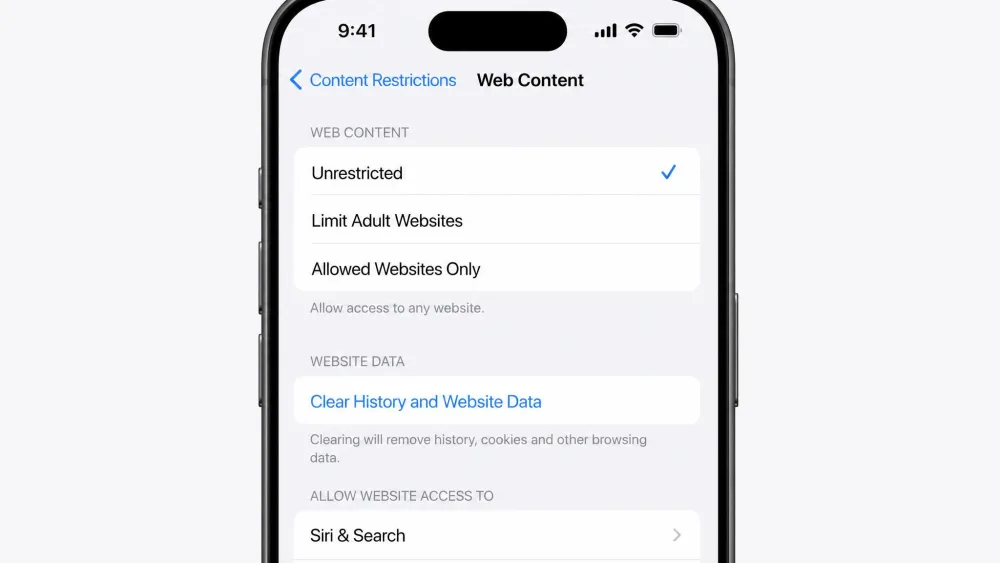
"Clear History and Website Data" is greyed out (Screen Time / restrictions)
A greyed-out Clear History and Website Data button is a common snag. It is almost always a Screen Time restriction rather than a bug, since Screen Time can lock web content and disable the button.
- Open Settings > Screen Time > Content & Privacy Restrictions.
- Tap Content Restrictions > Web Content.
- Set it to Unrestricted, then return to Safari and try again.
On a work or school device, your organization can lock this restriction, so clearing history may stay blocked even after you toggle Screen Time.
Frequently Asked Questions
Will clearing the Safari cache log me out of websites?
Does clearing the cache delete my saved passwords or bookmarks?
Does clearing the cache actually speed up Safari?
Can I clear only the cache without clearing history or cookies?
How often should I clear the Safari cache?
Bottom Line
Clearing the Safari cache is a quick fix for slow, stale, or stuck pages. On iPhone and iPad, use Settings > Apps > Safari > Clear History and Website Data. On Mac, use History > Clear History, or Develop > Empty Caches when you want to keep your logins. Expect to sign back in afterward, since clearing everything removes cookies too. Reach for it when a site misbehaves, and it usually loads cleanly within a minute.