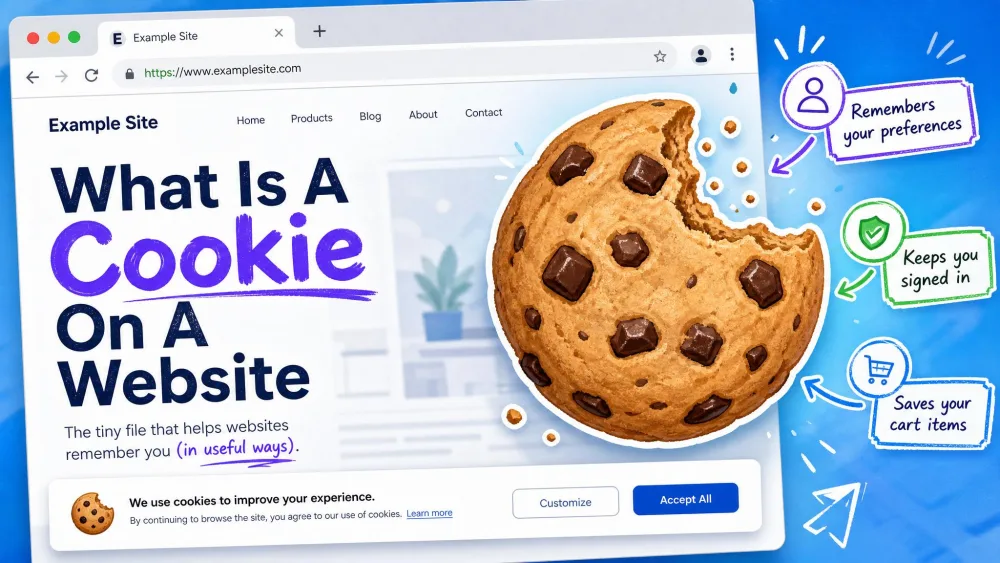
A cookie is a small text file that a website stores on your browser so it can remember you the next time you visit. It holds a short piece of data, such as a login token or a language preference, and your browser sends it back to the site on your later requests. That is the whole idea in one sentence, and everything else in this guide simply fills in the details.
Cookies get talked about as if they were something sinister, mostly because of the consent banners that now greet you on almost every page. In practice, most cookies are mundane housekeeping. They are the reason a shopping cart still has your items after you click around, and the reason you are not asked to log in again on every single page of a site.
Below, we'll explain what a cookie actually is, how it moves between a website and your device, the different types you will run into, what sites use them for, and whether they are safe. We'll also cover consent banners, the cookie law behind them, and how to view, clear, and manage cookies in every major browser.
What Is a Website Cookie?
A website cookie is a small block of text that a web server sends to your browser, and that your browser then stores on your device. The technical description from MDN Web Docs is a small piece of data a server sends to a user's browser, which the browser may store and send back with later requests to the same site.
The core problem cookies solve is memory. The web runs on HTTP, and HTTP is stateless, which means each request a browser makes is treated as brand new with no memory of the one before it. Without some way to carry information forward, a website would forget who you are between one click and the next. A cookie gives that stateless conversation a short memory, so the site can recognize your device across requests.
The name has a quirky origin. It comes from "magic cookie," a term Unix programmers already used for a small packet of data passed between programs. A Netscape programmer named Lou Montulli adapted the idea for web browsers back in 1994, and the mechanism has been part of the web ever since.
Cookies are deliberately tiny. Each one is capped at roughly 4 KB, and browsers are only required to store a limited number of them. That size limit matters, because it tells you what a cookie can and cannot be: it is a small note, not a database of your life.
A single cookie is limited to a maximum of 4,096 bytes, about 4 KB of text. Browsers are also expected to support at least 50 cookies per domain and a total of at least 3,000 cookies overall. These are minimum figures from the specification, and most modern browsers allow more.
How Do Cookies Work?
A cookie's whole life happens inside the normal back-and-forth between your browser and a website. Nothing is installed and nothing runs on its own. The server writes a small value, your browser holds onto it, and your browser hands it back when you return.
The request-and-response cycle
When you first visit a site, the server can include a special instruction in its reply called a Set-Cookie header. That header tells your browser, in effect, "please remember this value." Your browser stores the cookie, and on every later request to that same site it automatically attaches the value in a Cookie header. This is what gives stateless HTTP a working memory, and it is the mechanism defined in the current specification.
That specification is RFC 6265, the document that formally describes how cookies are set and sent. It was published in 2011 and replaced two earlier attempts at standardizing the same behavior. You never need to read it to use the web, but it is the authority that browser makers follow.
Cookies also carry attributes that control their behavior. A Secure cookie is only sent over an encrypted HTTPS connection. An HttpOnly cookie is hidden from JavaScript, which helps blunt certain attacks. The SameSite attribute controls whether a cookie is sent on cross-site requests, which is one of the tools browsers use to limit tracking.
What information a cookie stores
A cookie usually stores an identifier rather than your actual personal details. A login cookie, for example, typically holds a random session token that means nothing on its own; the real account data stays on the server, matched up by that token. Other cookies hold small preference values, such as your chosen language, your currency, or whether you dismissed a banner.
What a cookie does not do is read the rest of your device. A standard cookie is inert text. It cannot open your files, scan your hard drive, or reach into other programs. It only comes into play when your browser talks to the site that set it.
Where Are Cookies Stored on Your Device?
Cookies live inside your browser's own storage area, not loose on your desktop. Each browser keeps its own cookie store, which is why signing in through Chrome does not sign you in through Firefox. They are separate jars.
Because storage is per-browser, the same site can hold different cookies for you in different apps, and clearing one browser leaves the others untouched. This is worth knowing before you go hunting for cookies, since there is no single system-wide file you can open to see them all. You manage them from inside each browser's settings, which we cover further down.
Types of Website Cookies
Cookies get sorted along a few different lines, and the same cookie can sit in more than one category at once. It helps to think in terms of how long a cookie lasts, who sets it, and what job it does.
Session cookies vs. persistent cookies
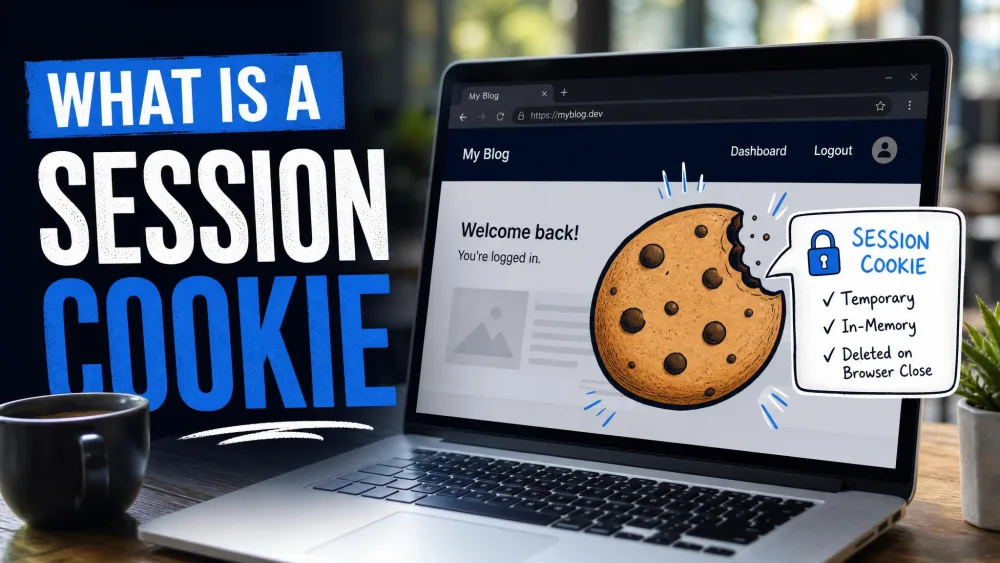
The clearest split is by lifespan. A session cookie has no set expiry date, so your browser deletes it the moment you close it and the session ends. These handle temporary jobs, such as keeping a shopping cart intact while you browse. A persistent cookie, by contrast, carries an expiry date and stays on your device across sessions until that date arrives. These are the cookies that keep you logged in and remember your settings from one day to the next.
| Feature | Session cookie | Persistent cookie |
|---|---|---|
| Lifespan / expiry | Deleted when the browser session ends | Stays until its expiry date elapses |
| Who sets it | The site you are visiting | The site or a third party, set to persist |
| Typical use | Temporary state such as a shopping cart | Remembering you and your preferences across visits |
| Privacy impact | Low, since it is gone at session close | Higher, since it can enable long-term tracking |
First-party vs. third-party cookies
The second split is by who sets the cookie. A first-party cookie is set by the site whose name is in your address bar. These are the well-behaved ones that handle logins, preferences, and basic functionality, and they are the kind you generally expect. A third-party cookie is set by a different domain whose content is embedded on the page, most often an advertiser or an analytics provider. Because the same third party can be embedded across many sites, its cookie can follow you from site to site, which is the basis of cross-site tracking. For this reason, browsers have been steadily tightening the rules on third-party cookies and moving toward blocking them.
Essential, functional, and advertising cookies
Consent banners tend to group cookies by purpose. Essential cookies, sometimes called strictly necessary cookies, are the ones a site cannot function without, such as those that keep you logged in or hold a checkout together. Functional cookies remember preferences that improve your browsing experience, such as your language or region. Advertising cookies, sometimes labeled marketing cookies, build a profile of your interests to target ads. This purpose grouping is the one that matters most for consent, since only the non-essential categories legally require your permission.
Other types (supercookies, zombie, flash, secure)
Beyond the everyday cookies sit a loose family of harder-to-remove trackers. Supercookies, zombie cookies, and Flash cookies are persistent tracking mechanisms that are difficult to delete, and some can even recreate themselves after you clear them. They are not standard HTTP cookies in the strict sense, but they get grouped in with cookies because they do similar tracking work by more stubborn means. A Secure cookie is a different idea altogether: it simply means the cookie is only ever sent over an encrypted HTTPS connection, which is a safety feature rather than a tracking one.
What Are Cookies Used For?
Cookies do three broad jobs, and most of what you experience online depends on the first two.
The first is session management. This is the machinery that keeps you logged in, holds your shopping cart together, and remembers where you are in a multi-step form. Without it, every click would drop you back to square one.
The second is personalization. Cookies remember your preferences so the site can adjust to you: your language, your region, your currency, a dark-mode setting, or the fact that you already dismissed a newsletter prompt. This is the quiet work that makes a site feel like it remembers you.
The third is tracking and analytics. Site owners use cookies to count visitors, see which pages perform, and, in the case of advertising cookies, to keep track of your interests across sites and target ads. This last job is the one that draws privacy concern, and it is the reason the other two sometimes get a bad name by association.
Are Cookies Safe? Privacy and Security Concerns
For the most part, cookies are safe, and it helps to separate the security question from the privacy question. Security is about whether a cookie can harm your device. Privacy is about how much a cookie reveals about you. The honest answer is that cookies are low on the first count and mixed on the second.
The pros of cookies
The upside is real convenience. Cookies are what let you stay signed in, keep a cart full while you shop, and skip re-entering the same settings on every visit. On the security front, a standard cookie is plain text data. It cannot access other files on your device and cannot spread malware on its own, so a normal cookie will not give your computer a virus. The one caveat is that maliciously crafted tracking cookies, such as certain zombie variants, can be abused as part of a broader attack, but that is an edge case rather than how ordinary cookies behave. For a plain-language rundown of the everyday risks, the FTC's guide to internet cookies is a solid reference.
The cons and tracking risks
The real downside is tracking. Third-party advertising cookies can follow you across many sites and build a detailed profile of your browsing habits over time. That profile is what powers targeted advertising, and it is the part of cookies most people are uneasy about. There is also a practical wrinkle worth knowing: clearing your cookies does not erase you permanently. Advertisers simply start building a fresh profile as you keep browsing, so a one-time cleanup slows tracking rather than ending it.
If tracking is your main worry, blocking third-party cookies in your browser settings does more good than repeatedly clearing everything. It cuts off the cross-site profiling at the source while leaving your logins and preferences intact.
Should You Accept Cookies? Consent Banners and Cookie Law
The pop-up asking you to accept or manage cookies is not a site being polite. In much of the world it is a legal requirement, and understanding why makes it easier to answer the accept-or-reject question sensibly.
Cookie consent banners explained
A consent banner is a legally mandated notice, not an optional courtesy. It exists so that a site can ask permission before setting cookies that are not strictly necessary. When you are given the choice, customizing the settings and rejecting non-essential cookies is generally the safer option, and it is almost always available behind a "Manage" or "Preferences" link next to the big "Accept All" button. Rejecting the non-essential categories still lets you use the site, because essential cookies do not need your consent to run.
GDPR, ePrivacy, and your cookie rights
The rules behind these banners come mainly from two pieces of European law that work together. The EU ePrivacy Directive, first passed in 2002 and amended in 2009, is the one often nicknamed the "cookie law," and it operates alongside the more recent GDPR. Together they require that a site obtain your prior consent before setting non-essential cookies, while strictly necessary cookies stay exempt.
The GDPR cookie rules go further than a simple yes-or-no prompt. A site must tell you what each cookie does, keep a record of the consent you gave, continue to grant you access even if you refuse the non-essential cookies, and make withdrawing consent as easy as it was to give. The consent-required categories are typically preferences, statistics, and marketing cookies. If you are outside the EU, you still benefit from these rules in practice, since most large sites apply one consent system worldwide.
How to View, Clear, and Manage Cookies
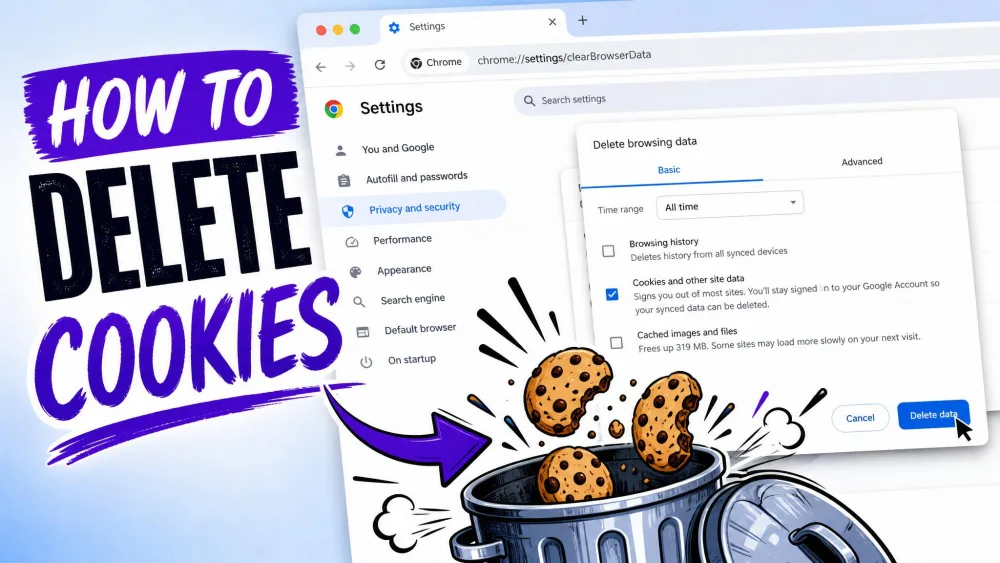
Every major browser lets you see, delete, and control cookies from its settings, and the steps are broadly similar. Before you clear anything, it is worth knowing what happens next. Clearing cookies logs you out of every site, because the cookies that kept you signed in are deleted. It also resets saved preferences such as language choices and font sizes, and it can make some sites feel harder to navigate for a while, since you re-enter data on each visit. Most browsers also offer a "clear cookies on exit" option that automates this cleanup for you.
Chrome
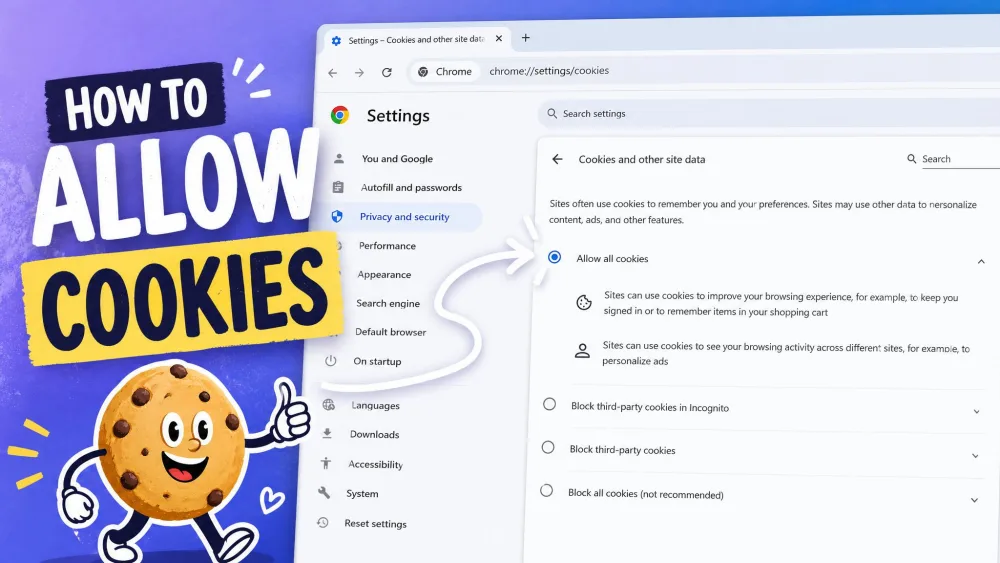
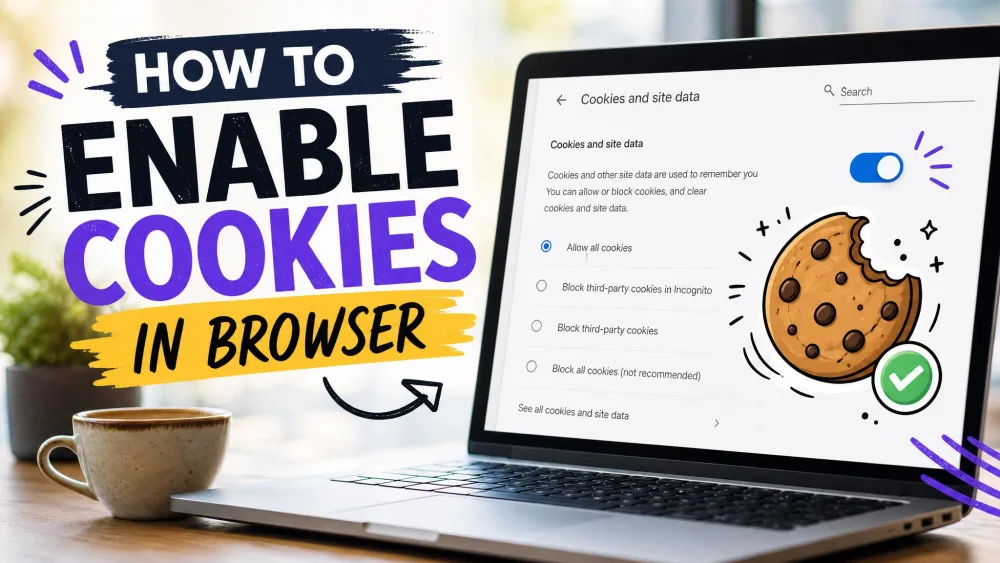
Open Settings > Privacy and Security > Clear Browsing Data, then choose cookies and other site data and confirm. From the same Privacy and Security area you can also block third-party cookies or set cookies to clear automatically each time you close the browser.
Safari
Open Settings > Privacy > Manage Website Data to see the sites storing cookies on your device, then remove them individually or clear them all at once.
Firefox
Open Settings > Privacy & Security > Clear Data to remove cookies and cached site data. Firefox groups its tracking protections here as well, so you can raise the blocking level for third-party trackers from the same screen.
Microsoft Edge
Open Settings > Privacy > Choose What to Clear, then select cookies and saved website data and confirm.
You rarely need to clear every cookie at once. Most browsers let you clear cookies for a single site, so if one page is misbehaving you can reset just that site and keep your logins everywhere else.
Frequently Asked Questions
Are cookies safe, and can a cookie give you a virus?
Should I accept or reject cookies?
What is the difference between first-party and third-party cookies?
How do I view, clear, or block cookies?
Do cookies track me across websites?
Conclusion
A cookie is a small text file that lets a website remember you, and most of the time that memory is working in your favor: staying logged in, keeping a cart full, and holding onto your preferences. The genuine concern is not the ordinary cookie but the third-party advertising cookie that tracks you across sites, and the good news is that you hold the controls. You can block third-party cookies, reject non-essential ones at the banner, and clear your cookies whenever you want from any browser's settings. Understanding what a cookie is turns those consent pop-ups from a nuisance into a simple, informed choice.