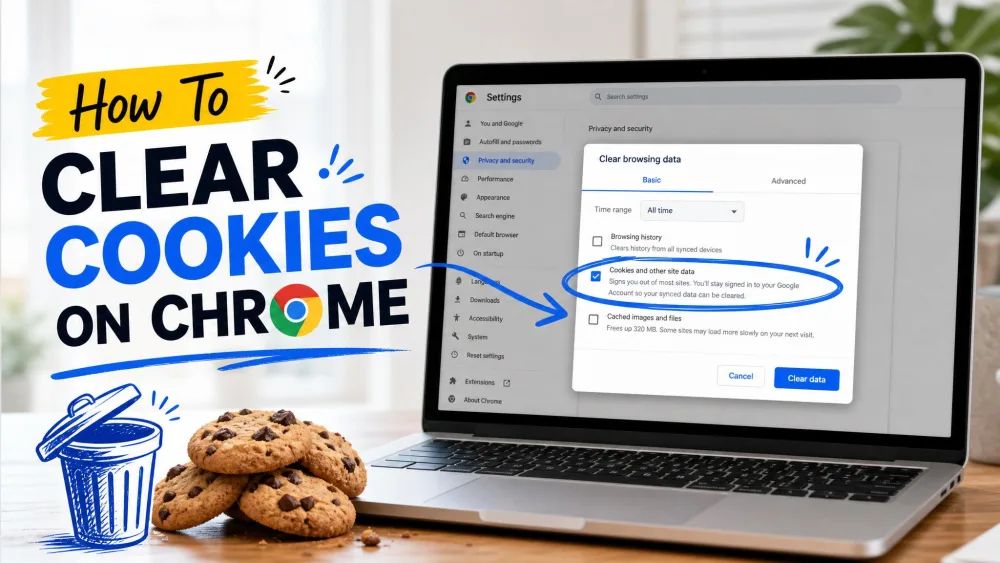
The cache is a store of images, scripts, and page files that Chrome saves so sites you have already visited load faster next time. Cookies are small files that remember your logins and preferences. Clearing them gives Chrome a fresh start, and it is the fix we reach for when a page looks broken, refuses to show recent updates, or the browser feels sluggish.
Below we walk through every path we use ourselves, on desktop, Android, and iPhone or iPad. For a wider view of caches beyond Chrome, see our guide to how to clear cache and cookies on any browser.
What Is the Cache and Why Should You Clear It?
Every time you load a site, Chrome saves parts of it locally so the next visit is quicker. That saved copy is the cache, and it usually helps. But a stale cached file can make a page render wrong, hide a recent update, or slow things down. For more, read our primer on what a browser cache is and what cache is and how it works.
The real reasons we clear it are simple: a page looks misformatted, a site is not showing its latest version, Chrome feels slow, or we want to reclaim storage. When a normal refresh does not fix a stubborn glitch, clearing the cache almost always does.
How to Clear Chrome Cache on Desktop (Windows & Mac)
On a Windows or Mac computer you have three quick routes into the same dialog. Each one lets you pick a time range and choose what to remove before you confirm.
Clear Cache via Settings > Privacy and Security
Open the three-dot More menu at the top right, then choose Delete browsing data. On some Chrome versions the item still reads Clear browsing data under More tools, so use whichever label your build shows. You can also open Settings, go to Privacy and security, and choose Delete browsing data.
In the dialog, set the time range. The desktop dialog commonly defaults to All time, which is what we pick for a full clean. Tick Cached images and files, leave Passwords unticked unless you mean it, and confirm with the Delete data button. To skip the menus, type chrome://settings/clearBrowserData into the address bar.
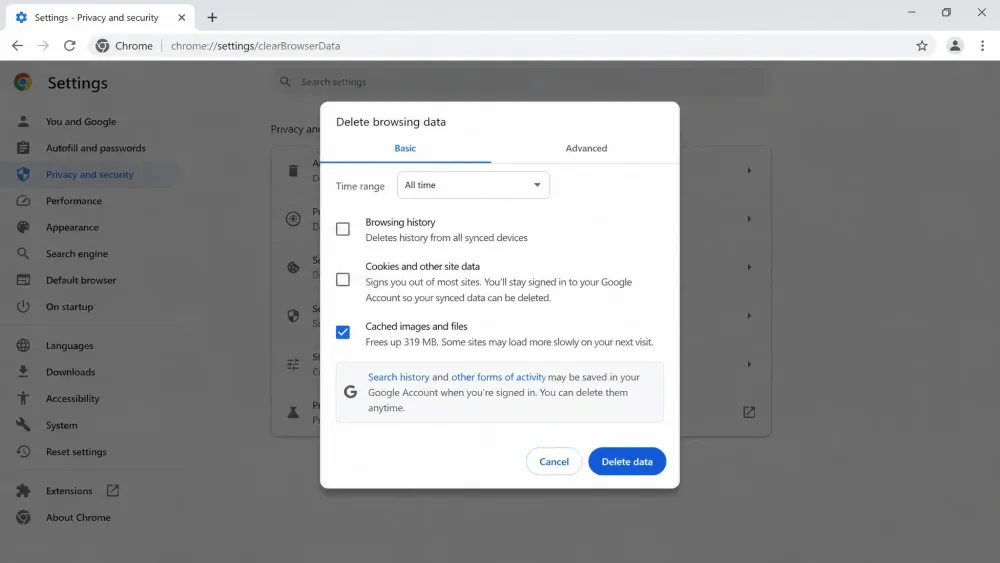
The fastest route on desktop is the keyboard shortcut. Press Ctrl+Shift+Delete on Windows, or Command+Shift+Delete on Mac, and the delete dialog opens straight away.
Shortcut: Ctrl+Shift+Delete (Cmd+Shift+Delete on Mac)
If you clear the cache often, learn the shortcut and skip the menus. Press Ctrl+Shift+Delete on Windows or Command+Shift+Delete on Mac from any Chrome window, then tick Cached images and files and choose Delete data.
Clear the Cache for a Single Site Only
Wiping everything is overkill when only one site misbehaves. To refresh a single site without touching your other logins, open DevTools with F12 (or Option+Command+I on Mac), right-click the reload button, and choose Empty Cache and Hard Reload. This forces a fresh copy of just that page, so it is what we prefer for one stubborn site.
Clearing cookies signs you out of the sites where you were logged in, and it clears saved site preferences. Clearing only the cache does neither, and it never deletes your saved passwords or bookmarks. Pick the checkboxes deliberately.
How to Clear Chrome Cache on Android
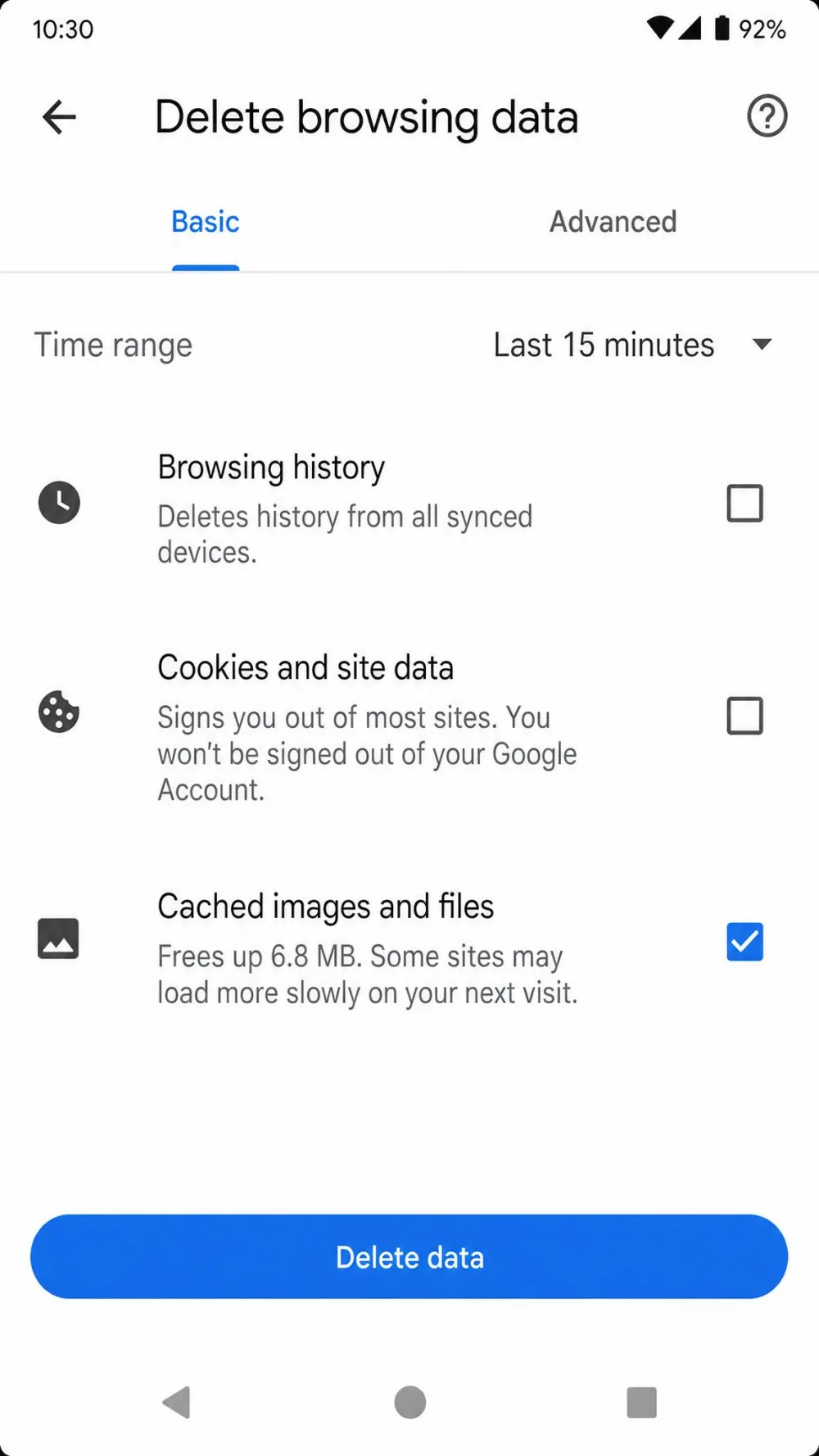
On Android, open Chrome and tap the three-dot More menu to the right of the address bar, then choose Delete browsing data. The default time range is 15 minutes, so change it if you want a fuller clean. Tap More options to pick specific data types, tick Cached images and files, and tap Delete data.
There is also a system-level route. Go to Settings, then Apps, choose Chrome, open Storage & cache, and tap Clear cache. For the full walkthrough, see our guide to clear cache on Android.
How to Clear Chrome Cache on iPhone and iPad
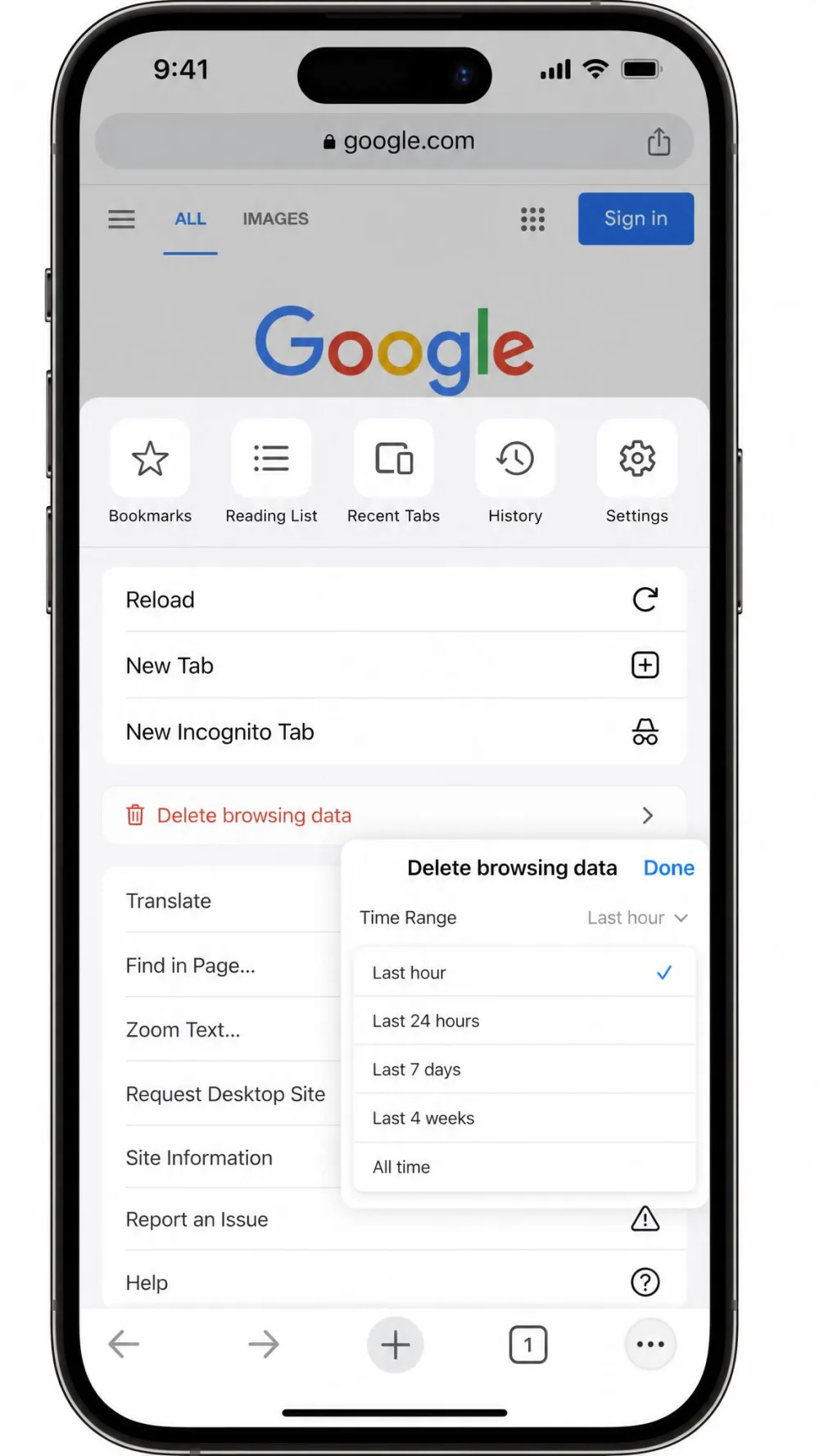
On iPhone and iPad the steps mirror Android, with one layout difference: the three-dot menu sits at the bottom-right of the screen. Tap it, then choose Delete browsing data. The default time range is again 15 minutes, adjustable from the Time Range dropdown.
Tap Browsing Data to choose which types to remove, make sure Cached images and files is selected, then tap Confirm and Delete Browsing Data. For step-by-step screens, follow our guides to clear cache on iPhone and clear cache on iPad.
What Happens After You Clear the Cache
Right after a clear, previously-cached sites load noticeably slower on that first visit. That is expected: Chrome has to re-download page content it had saved, so the initial load takes longer before speeds return to normal.
Your saved passwords and bookmarks stay in place. If you cleared cookies as well, you will be signed out of sites and will need to sign in again. Deleting cookies while you are signed in to Chrome refreshes the Google cookies that keep you logged in, so on desktop you are not signed out of your Google Account, though behavior can differ slightly by platform.
Cache vs. Cookies vs. Browsing History
These three often get cleared together, but they do different jobs. The table below shows what each one affects.
| What you clear | Signs you out of sites | Deletes passwords | Deletes bookmarks | Main effect |
|---|---|---|---|---|
| Cached images and files | No | No | No | First reload is slower, forces fresh page files |
| Cookies and site data | Yes | No | No | Logged-out sessions, cleared site preferences |
| Browsing history | No | No | No | Removes your visited-page list and autocomplete |
Cache is the safest thing to clear. It costs you nothing but a slightly slower first load, while cookies are what change your sign-in state.
Troubleshooting: Chrome Still Slow or Pages Not Loading
If a clear did not fix things, confirm you removed Cached images and files and set a wide enough time range, since a 15 minutes window on mobile leaves older files behind. For one broken site, use the DevTools Empty Cache and Hard Reload trick instead of clearing everything.
If Chrome still drags, the cache may not be the cause. Extensions, an outdated Chrome version, or low disk space can all slow the browser. On a Mac, freeing space can help, so see our guides to clear system storage on Mac and clear the Photoshop scratch disk on Mac if storage is tight.
Pro Tip: Auto-Clear Cache When Chrome Closes
You can have Chrome wipe cookies and site data automatically every time you close all windows. Open Settings, go to Privacy and security, find the Cookies and site data controls, and turn on the option to clear cookies and site data when you close all windows. You can add per-site exceptions so trusted sites keep you logged in.
The wording and location of the auto-clear toggle has shifted between Chrome versions, moving between the Cookies and site data and Third-party cookies panes. If you cannot find it, search Settings for "clear" and check both panes.
Clearing on exit means re-downloading and re-authenticating more often, so we keep it on only when privacy on a shared machine matters more than speed.
Frequently Asked Questions
Does clearing the cache delete my passwords or bookmarks?
Will clearing cache log me out of websites?
How often should I clear my Chrome cache?
What is the keyboard shortcut to clear cache in Chrome?
How do I clear the cache for one specific site only?
Does clearing the cache speed up Chrome?
Conclusion
Clearing the cache in Chrome is a quick, low-risk fix on every device. On desktop, the Ctrl+Shift+Delete shortcut or the Delete browsing data menu gets it done in seconds. On Android and iPhone, the three-dot menu leads to the same option, just remember to widen the 15 minutes default. Clear cache when something looks broken, keep cookies if you want to stay signed in, and reach for Google's official Clear cache and cookies guide for the first-party reference.