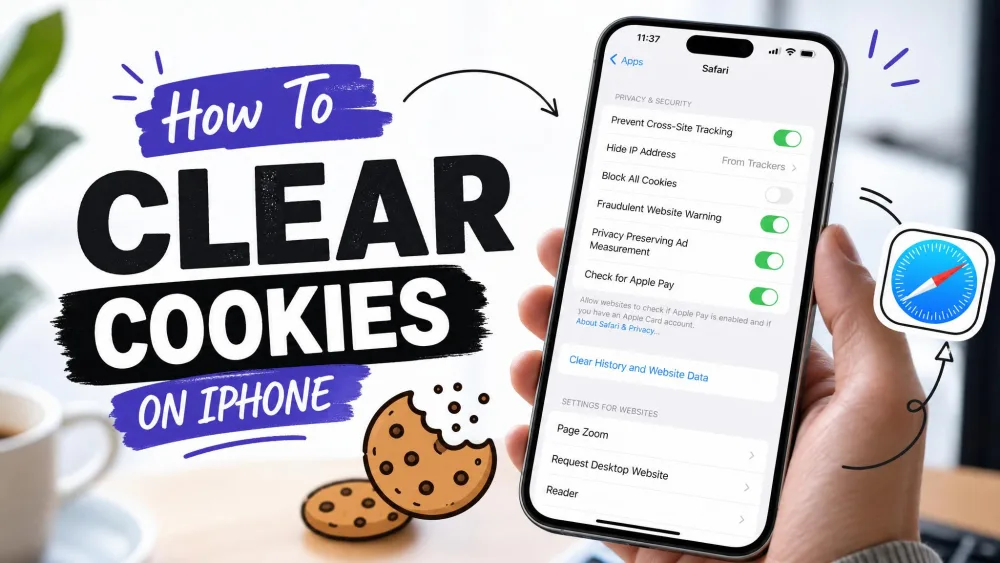
If your iPad feels sluggish, pages load slowly, or storage keeps filling up, a bloated cache is often the culprit. Clearing it is one of the quickest ways to reclaim space and get things running smoothly again.
This guide walks through every cache on your iPad in order: Safari, Chrome, Firefox, individual apps, and the temporary system files a restart clears. We ran each step on an iPad running iPadOS 26, so the menus below match what you will actually see today.
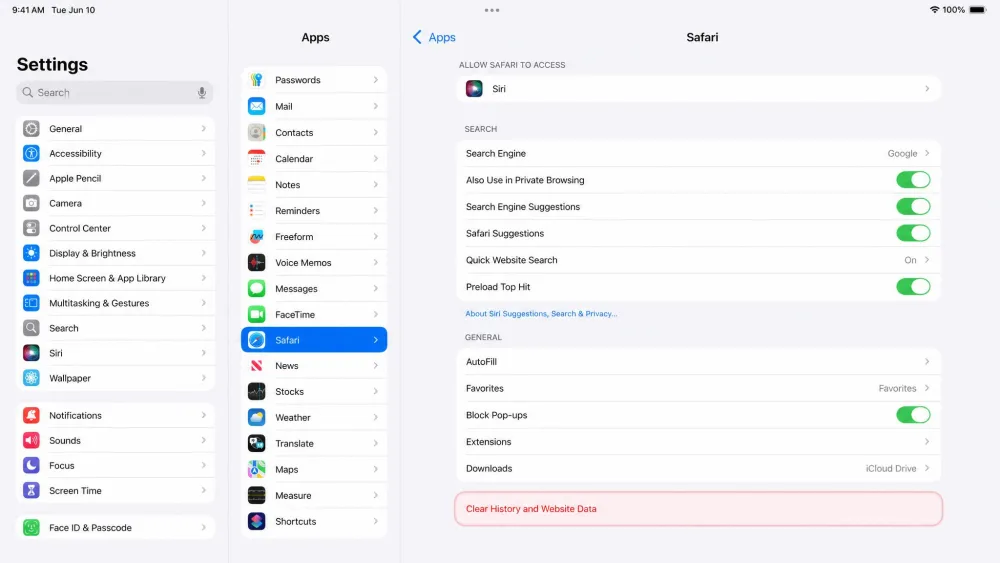
The one wrinkle worth knowing up front: in iPadOS 26, Safari's settings moved. It is no longer listed directly in Settings. You now open it under Settings > Apps > Safari, which trips up anyone following an older guide.
How to clear the Safari cache and cookies on iPad
Safari is the cache most people mean when they search for this. It stores page data, cookies, and site permissions so pages reload faster, but over time that pile grows and can slow browsing down.
On iPadOS 26, the setting sits at Settings > Apps > Safari. On older iPadOS versions, Safari stays at the top level of Settings, so look for it there if your menu does not show an Apps tier.
Clear all history and website data
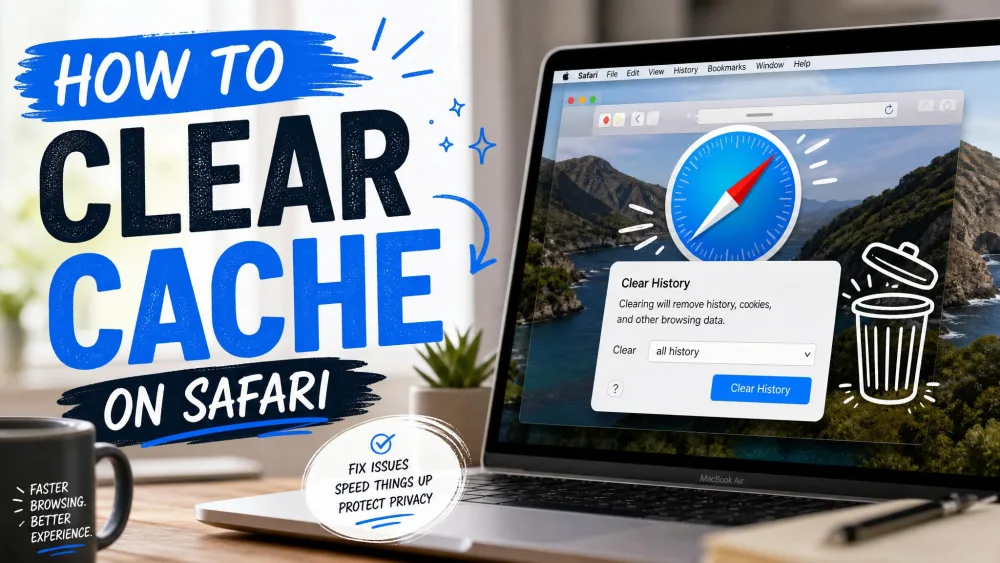
To wipe everything at once, open Settings > Apps > Safari, then tap Clear History and Website Data. This removes your browsing history, cookies, and cached files in one pass.
Clearing history and website data signs you out of most sites you are logged into, including Gmail, Facebook, and shopping carts. Have your passwords ready before you tap it, so getting back in is painless.
If the Clear History and Website Data button looks grayed out, it is rarely a bug. In our experience the usual cause is a Screen Time restriction, a management profile on the iPad, or simply no data left to clear. Check Settings > Screen Time > Content & Privacy Restrictions first.
For the exact button labels and any account-specific notes, Apple's official iPad support guide is the canonical reference.
Clear data for a single website only
If just one site is misbehaving, you do not need to nuke everything and lose all your logins. Open Settings > Apps > Safari > Advanced > Website Data, then swipe left on the site you want to remove and tap Delete. To clear cached data for every site while keeping history intact, tap Remove All Website Data at the bottom of that same screen.
This targeted approach is the one we reach for most, because it fixes a single stuck page without signing us out of everywhere else.
How to clear the Chrome cache on iPad
Clearing Safari does nothing for Chrome. Each browser stores its cache separately, so a sluggish third-party browser needs its own in-app clear.
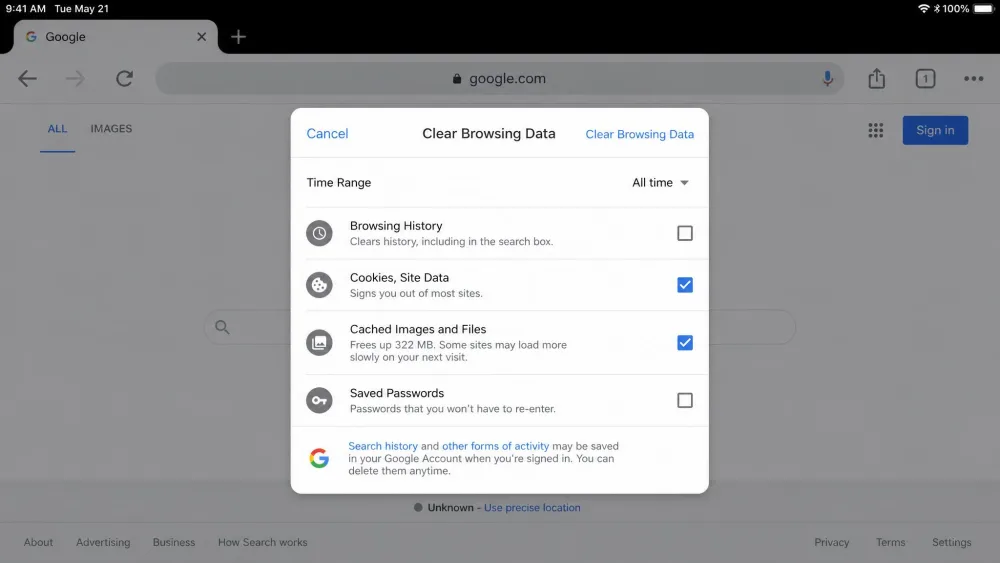
In Chrome, tap the three-dot More menu, then History, then Clear Browsing Data. Pick a Time Range, make sure "Cookies, Site Data" and "Cached Images and Files" are both checked, then tap Clear Browsing Data again to confirm.
One thing to watch: Chrome's default Time Range is only 15 minutes. If you want to clear the whole cache, change that dropdown to All time before you confirm, or you will barely dent it.
How to clear the cache in Firefox and other browsers
Firefox follows the same pattern. Tap the menu button in the top right on iPad, then Settings, then Data Management under Privacy, and tap Clear Private Data. Mozilla's own walkthrough for clearing browsing data in Firefox covers each toggle if you want to be selective.
Other browsers such as Microsoft Edge keep their clear-data controls in the same place: inside the app's own settings, not in the iPad's system settings. The rule holds across the board, so if you use several browsers, clear each one you actually browse in.
How to clear app cache by offloading apps
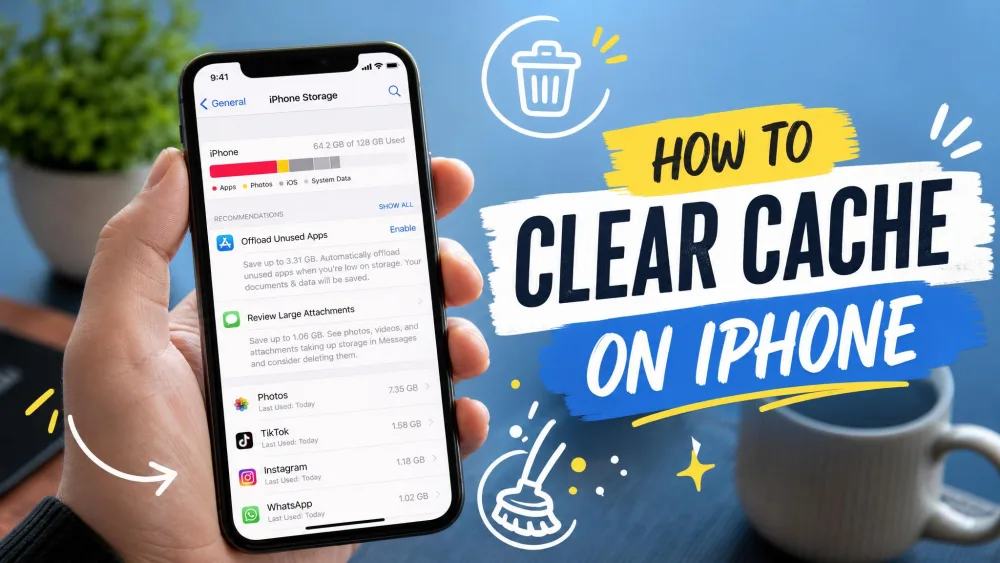
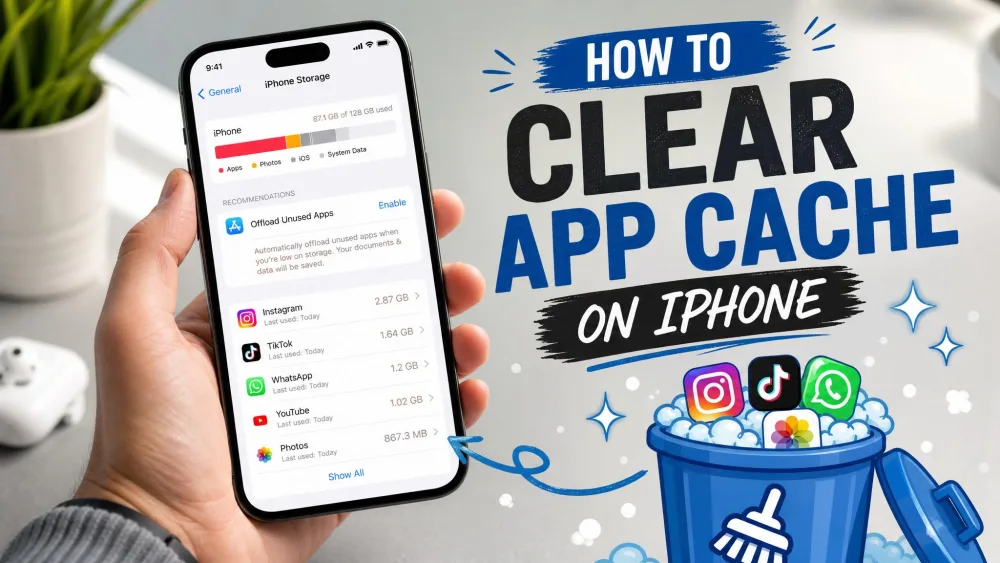
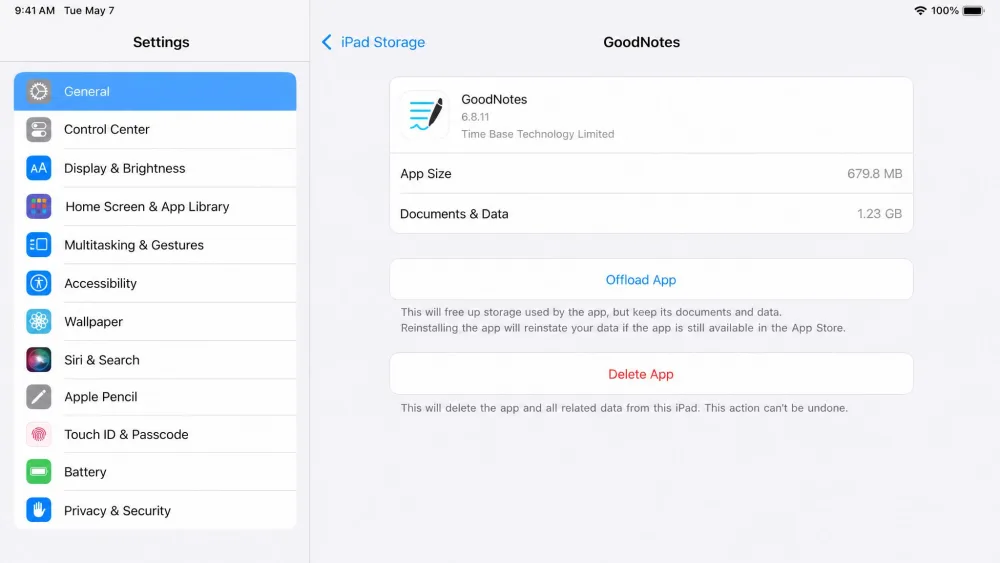
The iPad does not give you a per-app "clear cache" button the way a browser does. Instead, app cache is managed at Settings > General > iPad Storage. Open it and you will see every app listed by how much space it takes, largest first, which makes the space hogs obvious.
Offload an app to keep its data
Tap the app you want to trim, then tap Offload App. This removes the app's binary while keeping its documents and data. The icon stays on your Home Screen as a placeholder, and reinstalling later restores the app with a fresh cache and everything you left in it.
Offloading is the low-risk move. Your settings, documents, and logins survive, so reinstalling picks up right where you left off, just with the bloat cleared out.
Delete and reinstall an app to fully reset it
If an app is truly broken or you want to wipe its cache and login data completely, press and hold the app icon, tap Remove App, then Delete App. Reinstall it from the App Store afterward. This clears everything, including settings and saved accounts, so only do it when a clean slate is what you actually want.
While you are in iPad Storage, look for the Offload Unused Apps recommendation near the top. Turning it on lets iPadOS automatically offload apps you have not opened in a while, which keeps space free without you having to think about it.
Restart your iPad to flush temporary system files
A plain restart is the most underrated fix on this list. Rebooting flushes temporary system caches and often visibly trims lag and System Data without deleting a single file of yours.
On an iPad with Face ID and no Home button, press and release Volume Up, press and release Volume Down, then hold the Top button until the Apple logo appears. On an iPad with a Home button, hold the Home and Top buttons together until you see the logo.
If your iPad has felt slow for days, try this before anything more drastic. It costs you thirty seconds and frequently does the job on its own.
How to free up space with iPad Storage recommendations
The same iPad Storage screen doubles as a cleanup dashboard. At the top, iPadOS lists tailored recommendations: offloading unused apps, reviewing large attachments, and clearing downloaded media you no longer need.
How much you get back varies with how heavily you browse and how many apps you hoard, but the range is worth knowing. On our test iPad, clearing only the Safari cache while keeping history freed a few gigabytes, roughly 3 to 5GB, and a deeper clean of accumulated Safari data can climb past 12GB once Reading List articles and offline data are counted. Offloading a single cache-heavy app is often the biggest single-tap win: trimming one bloated game or media app reclaimed well over a gigabyte on its own. Expect Safari to slowly refill by a couple of gigabytes a month under normal use, which is why the occasional clear pays off more than treating this as a one-time fix.
Work through the recommendations top to bottom. They are ordered by how much space each one is likely to recover, so the first suggestion is usually the biggest win.
What "cache" means on your iPad (and why clearing it helps)
Cache is the pile of temporary files your apps and browsers save so they can load faster next time: images, page data, logins, and bits of media. It is helpful right up until it grows stale or oversized, at which point it slows things down instead of speeding them up. If you want the fuller picture, we cover what cache is and when to clear it separately.
Clearing it forces apps to rebuild only what they need, which is why a cleared cache so often feels like a fresh start.
Before you start: what clearing cache will and won't delete
Clearing your cache is safe. It removes browsing history, cookies, and site permissions such as location and notification access. It does not touch your photos, apps, notes, or files.
The main trade-off is that clearing cookies signs you out of logged-in sites, so you will re-enter passwords the next time you visit them. That is the whole cost, and it is why keeping your passwords handy is the only real preparation you need. The process works the same way when you clear the cache on iPhone, so the habit carries across your Apple devices.
Keep iPadOS updated to reduce cache buildup
Staying on the latest iPadOS helps too. Updates ship fixes for the memory and storage handling that lets cache balloon in the first place. Open Settings > General > Software Update and install whatever is waiting.
The current release is iPadOS 26, and keeping current is a low-effort way to reduce how often you need to do any of this by hand.
The single biggest change we hit on iPadOS 26 was Safari moving under Settings > Apps. If a step in an older tutorial sends you to Settings > Safari and it is not there, that is why. Look under Apps and you will find it.
Frequently asked questions
Will clearing the cache delete my photos, apps, or passwords?
Will I be logged out of websites?
Is cache the same as cookies?
How often should I clear the cache on my iPad?
Why does "System Data" stay large after clearing?
Bottom line
Clearing your iPad's cache is safe, quick, and genuinely effective when things feel slow or storage is tight. Start with Safari under Settings > Apps > Safari, clear any other browsers you use from inside those apps, then offload space-hungry apps from iPad Storage and finish with a restart.
If your iPad still feels cramped afterward, give System Data a day to settle, since iPadOS clears it on its own timeline. The same routine works on other devices too, whether you need to clear the cache on Android or clear cache and cookies on any browser or device.