The machine takes three minutes to reach the desktop. You click a folder and the cursor spins while nothing happens.
A slow computer feels random, but it almost never is. Slowness traces back to a short list of causes, and most of them are software problems you can fix in an afternoon without spending anything. The rest are hardware problems that at least tell you clearly what to replace.
The fastest way to find out which one is yours is to open Task Manager with Ctrl+Shift+Esc and watch the Performance tab while the computer misbehaves. One graph pinned near the top usually names the culprit. Below are the 12 causes we see most often on a slow Windows PC, each with the fix that addresses it.
1. Too Many Startup Programs Loading at Boot
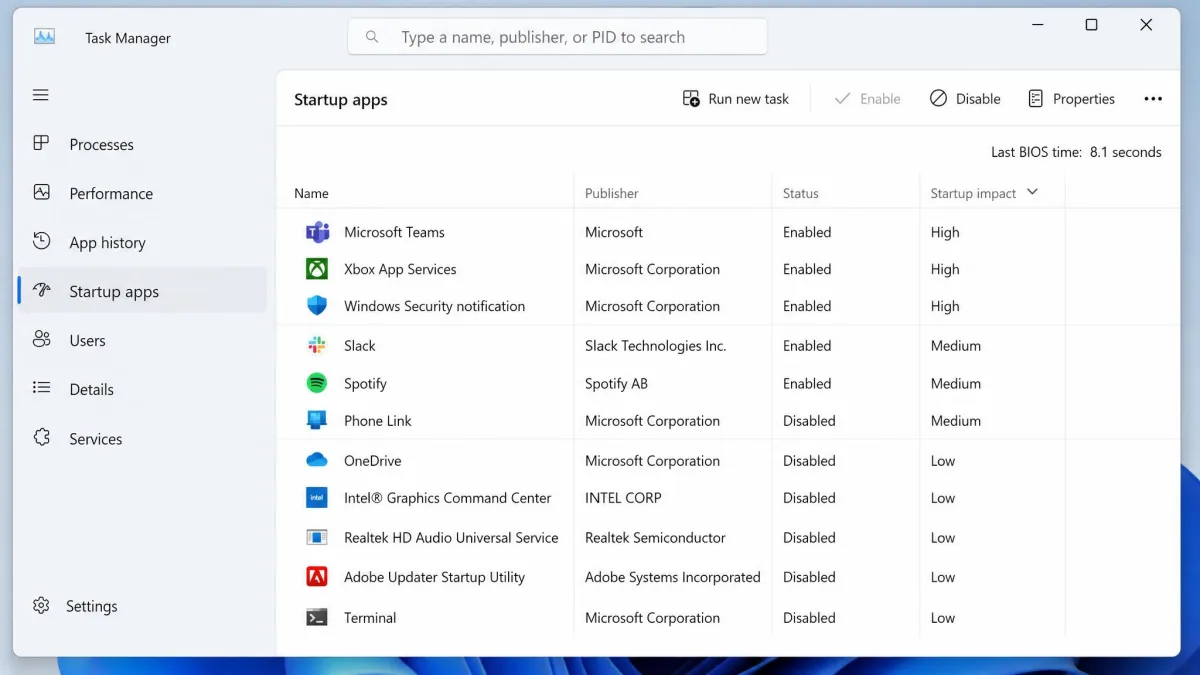
Every program that launches with Windows takes a share of your processor, memory and disk before you open anything yourself. Machines from big-name manufacturers arrive with trial antivirus, maker utilities and promotional apps already set to launch at startup, and that bundle alone stretches boot times. The list then grows, because installers quietly opt themselves into starting at boot to check for updates in the background.
How to Fix It: Disable Startup Apps
- Press Ctrl+Shift+Esc to open Task Manager.
- Select the Startup apps tab and sort by Startup impact.
- Right-click anything you do not need at login and select Disable.
Disabling an entry frees resources without uninstalling anything, which makes it the lowest-risk change here. Microsoft's own performance troubleshooting steps run through twelve numbered solutions and advise trying all of them, because slow machines usually have more than one cause stacked on top of each other.
2. Malware, Adware, or a Browser Hijacker
Malware costs you performance because it works. Crypto-miners use your processor, adware injects into every page you load, and a hijacker rewrites your browser settings and then fights you to keep them. The tell is a computer that got slow suddenly rather than over time.
How to Fix It: Run a Full Scan and Remove Threats
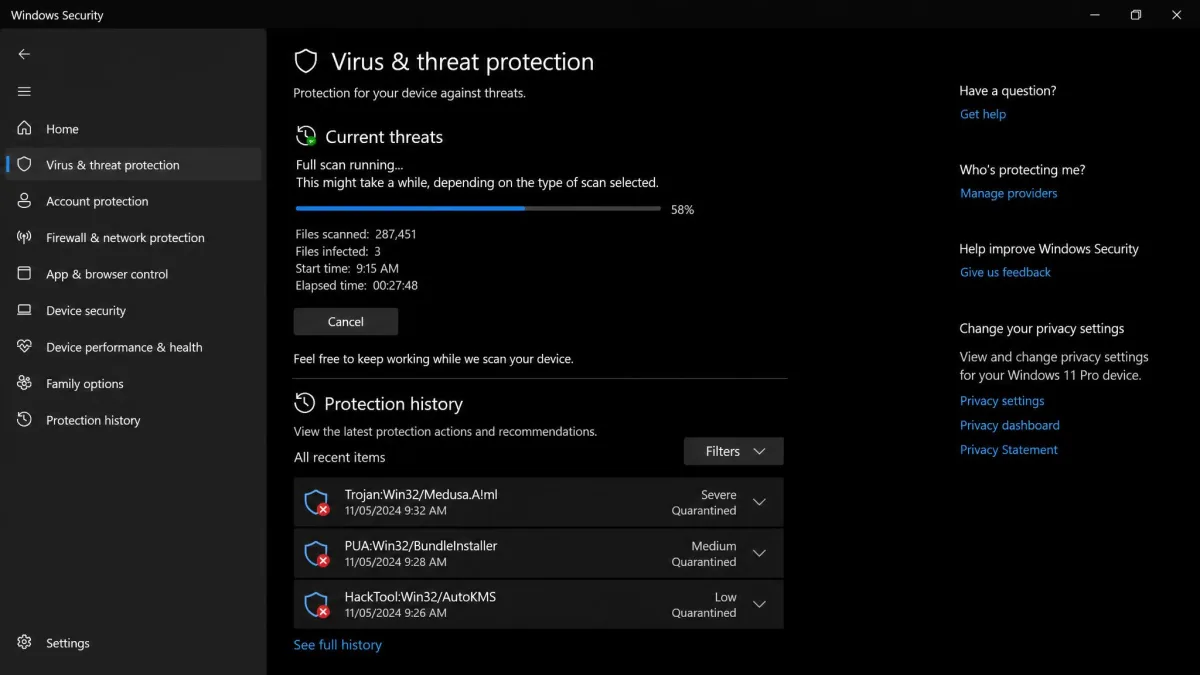
- Open Windows Security and run a full scan, not a quick one.
- Follow it with a second opinion scanner such as Malwarebytes, which catches adware that antivirus often ignores.
- Remove browser extensions you do not recognise, then reset your search engine and home page.
The second scan matters, because adware and browser hijackers often sit outside what a standard antivirus engine flags.
3. Your Hard Drive or SSD Is Nearly Full
A drive with almost nothing left has nowhere to put temporary files, page file growth or update downloads, and write speeds fall sharply as an SSD approaches capacity. Microsoft publishes no threshold, saying only that low disk space can reduce system performance. The right amount of free space depends on drive size and controller, and published figures range from roughly 10% to 25%.
How to Fix It: Free Up Disk Space Safely
- Select Start > Settings > System > Storage to see what is using the drive.
- Turn on Storage Sense, which deletes temporary files and hidden caches including old Windows Update files, and empties the Recycle Bin on a schedule.
- Uninstall large games you no longer open, and move photos and video to an external drive.
Storage Sense leaves the Downloads folder alone unless you switch that option on, which is why the first run frees less than people expect. From Windows 11 version 22H2 it also makes OneDrive files online-only once they have gone unopened for more than 30 days. Our guide to freeing up disk space covers the deeper cleanup.
Windows needs a 64 GB or larger storage device just to install, so a 128 GB laptop drive is close to full from the day you buy it. That is the machine most likely to feel slow for storage reasons alone.
4. Background Processes Are Eating Your CPU
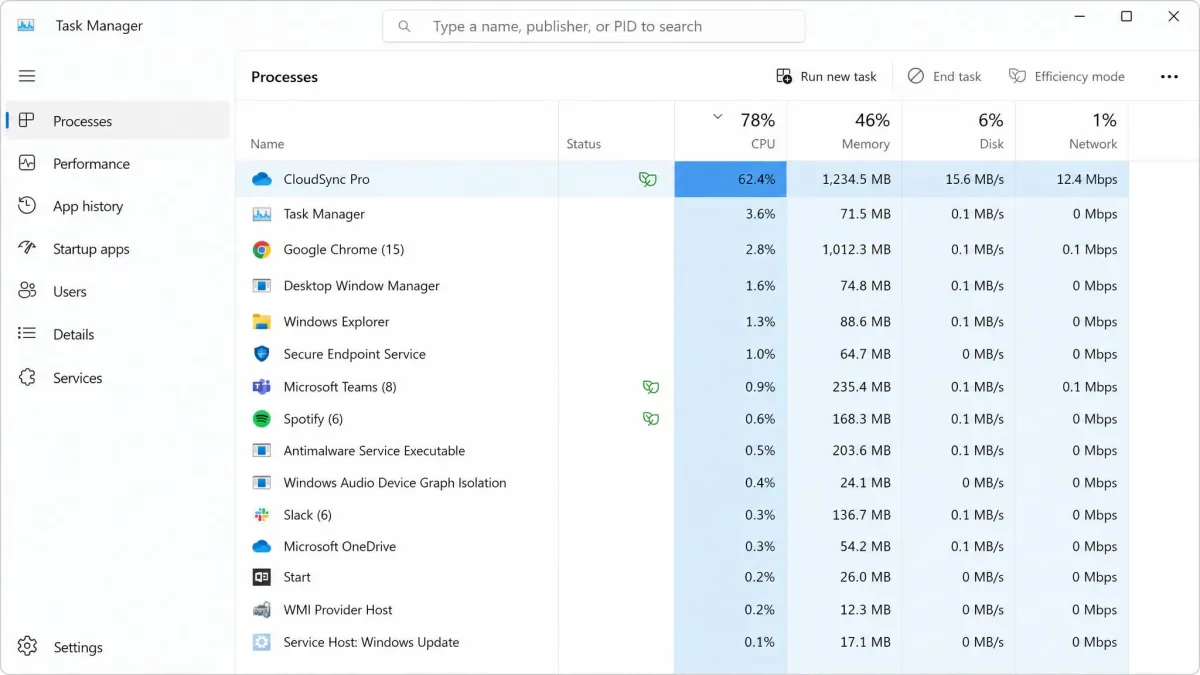
Startup entries load at boot; background processes keep loading all day. Something is always running that you did not open. Cloud storage clients syncing, hardware helper apps and always-on updaters are the background processes that most often show up eating processor time and memory on a slow machine.
How to Fix It: Close Resource-Hungry Programs and System Tray Apps
- Open Task Manager and select the Processes tab.
- Click the CPU column header to sort by usage.
- End the task on anything that stays at the top, then decide whether it needs to run at all.
A reading that sits permanently above 80% at idle or during light use points to a real bottleneck. During a render, a game or a large file copy, the same number is normal.
5. Not Enough RAM for What You Are Doing
Windows 11 requires at least 4 GB of RAM, which is a floor for the operating system rather than a workable amount for real use. When memory fills, Windows moves data to the drive, and the machine slows to whatever your storage can manage.
How to Fix It: Reduce Memory Pressure or Upgrade
- Watch the Memory graph in Task Manager while you work normally.
- If it stays above 80%, close the applications with the largest memory figures.
- Check for a free slot, then add a matching module or replace both with a larger pair.
Adding memory is the one hardware upgrade that reliably changes how a machine feels, and on most desktops it takes ten minutes.
| What to check | What to open | Healthy reading | What a bad reading means |
|---|---|---|---|
| CPU load | Task Manager, Performance tab | Below 80% at idle | A background process or malware is holding the processor |
| Memory | Task Manager, Performance tab | Below 80% in normal use | Too little RAM for the workload, or a leaking app |
| CPU temperature | Core Temp | Below 80 degrees Celsius | Dust, a failed fan, thermal throttling |
| GPU temperature | GPU-Z | Around 80 or lower | Blocked airflow or a failing cooler |
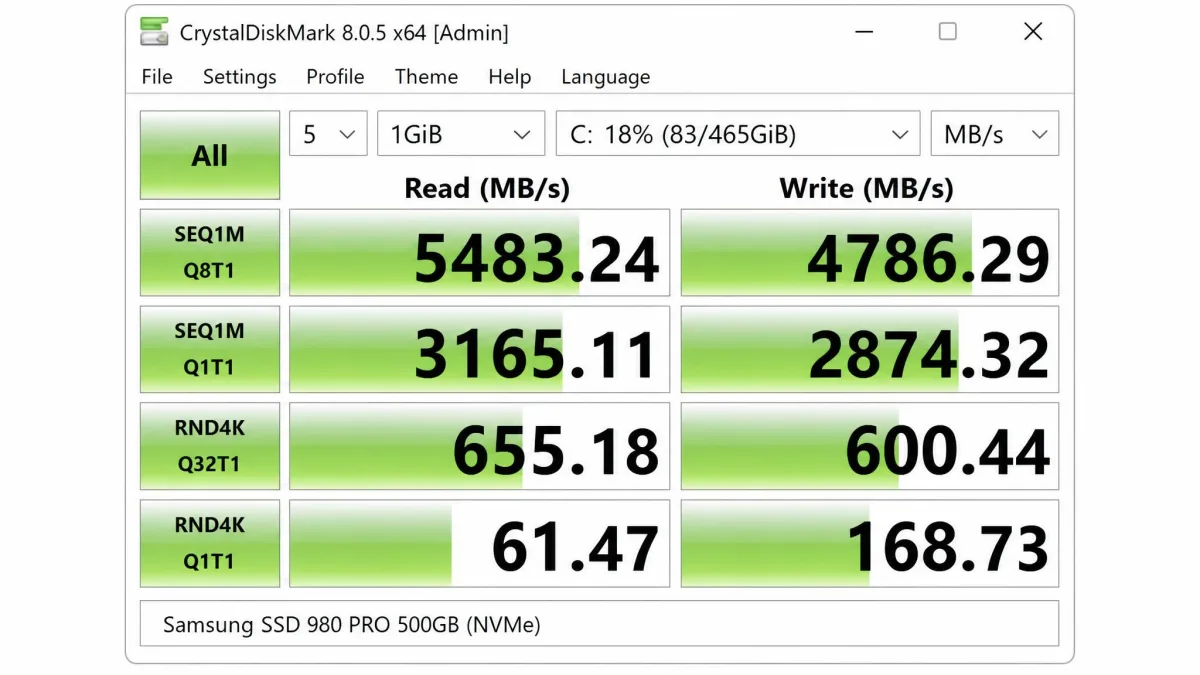
| Drive speed | CrystalDiskMark | Matches the drive's rated class | Failing drive, or a nearly full SSD |
| Drive health | S.M.A.R.T. values | No reallocated or pending sectors | The drive is failing and should be replaced |
| RAM integrity | MemTest86 | Zero errors at 100% coverage | A faulty module causing freezes and crashes |
6. Bloatware and Programs You Never Use
Disabling a startup entry leaves the program installed. Bloatware is the case for going further: it is the software you never chose, manufacturer dashboards, trial suites, toolbars that arrived alongside something else. Each one adds services and scheduled tasks that load whether you use the program or not.
How to Fix It: Uninstall What You Do Not Need
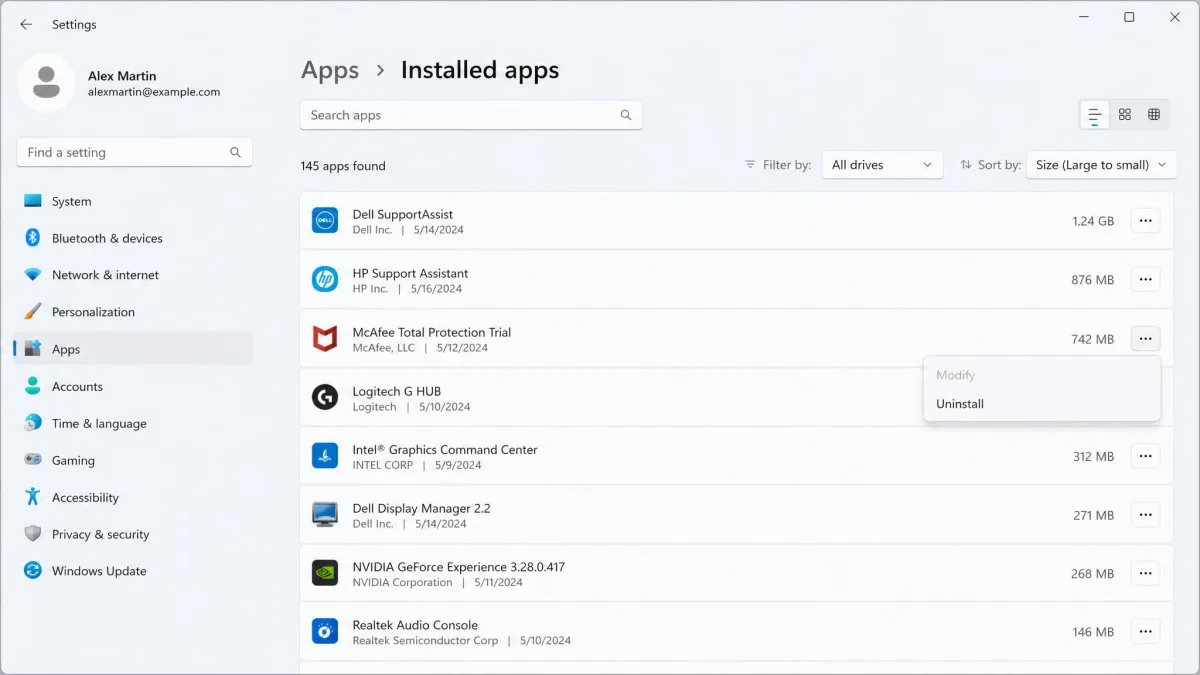
- Select Start > Settings > Apps > Installed apps.
- Sort by size, then by install date.
- Uninstall anything you do not recognise and have not opened, then restart.
Uninstalled applications leave behind services, scheduled tasks and registry entries that keep loading, so removing a program does not always remove its footprint. To prevent the next round, choose the Advanced or Custom option when you install something, because that is where bundled extras can be unticked. A dedicated computer cleaner can sweep the leftovers.
Registry cleaners and "PC speedup" tools promise more than they deliver, and the aggressive ones delete entries Windows still needs. If you use one at all, take a restore point first and read our take on registry cleaners before you let anything write to the registry.
7. Too Many Browser Tabs and Extensions
The browser is often the heaviest program on the computer. Every open tab holds its own memory, and every extension runs code on every page you visit.
How to Fix It: Lighten Your Browser
- Close tabs you have not touched today, or bookmark them instead.
- Open your browser's extension page and remove anything unused.
- Turn on tab sleeping or memory saver if your browser offers it.
Our walkthrough on clearing the cache covers the steps for each browser.
8. Outdated Windows, Drivers, or Software
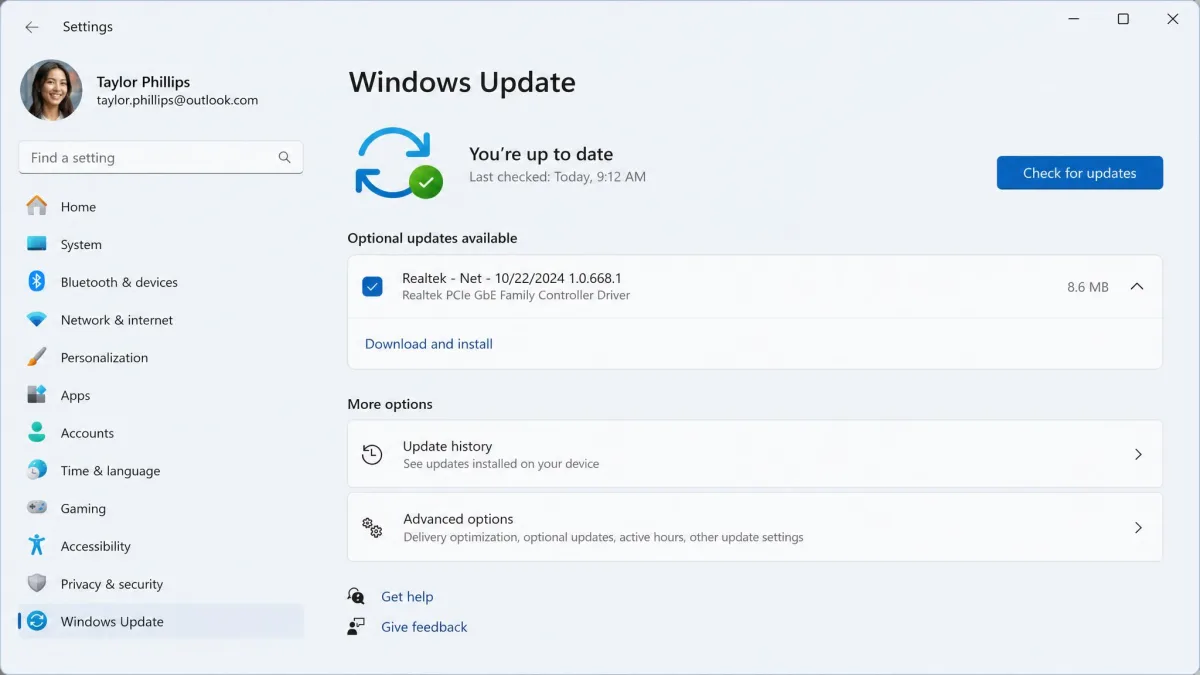
Updates carry performance fixes as often as security ones, and a graphics or storage driver several versions behind can cost you real speed.
How to Fix It: Install Updates and Driver Updates
- Select Start > Settings > Windows Update and install everything pending.
- Restart, then check again, because updates often arrive in sequence.
- Use Device Manager to update your drivers manually where Windows Update has nothing newer.
Take graphics drivers from the chip maker rather than a third party. If you would rather not chase each one by hand, a driver updater will do the checking for you.
9. Overheating and Thermal Throttling
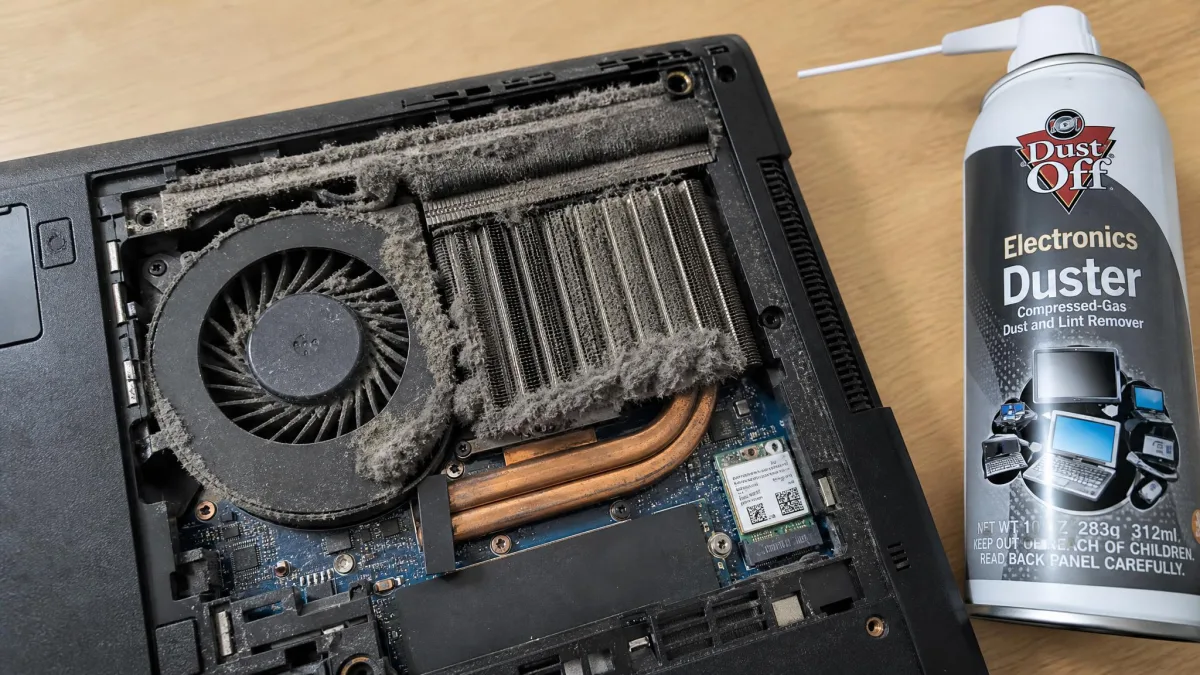
When a processor runs too hot it slows itself down on purpose to survive. That is thermal throttling, and it turns a fast machine into a slow one under exactly the loads you care about.
How to Fix It: Check Temperatures and Clear the Dust
- Install Core Temp and watch your processor under load, treating readings below 80 degrees Celsius as the safe range.
- Power the machine down, open it, and clear dust from the fans and vents with compressed air.
- Check that every fan actually spins when the computer starts.
A high temperature reading usually traces back to something physical, a fan that has stopped or a cooler that has worked loose, rather than to software. Dell's slow-performance troubleshooting checklist treats airflow the same way.
10. A Fragmented HDD, or an SSD That Needs Optimizing
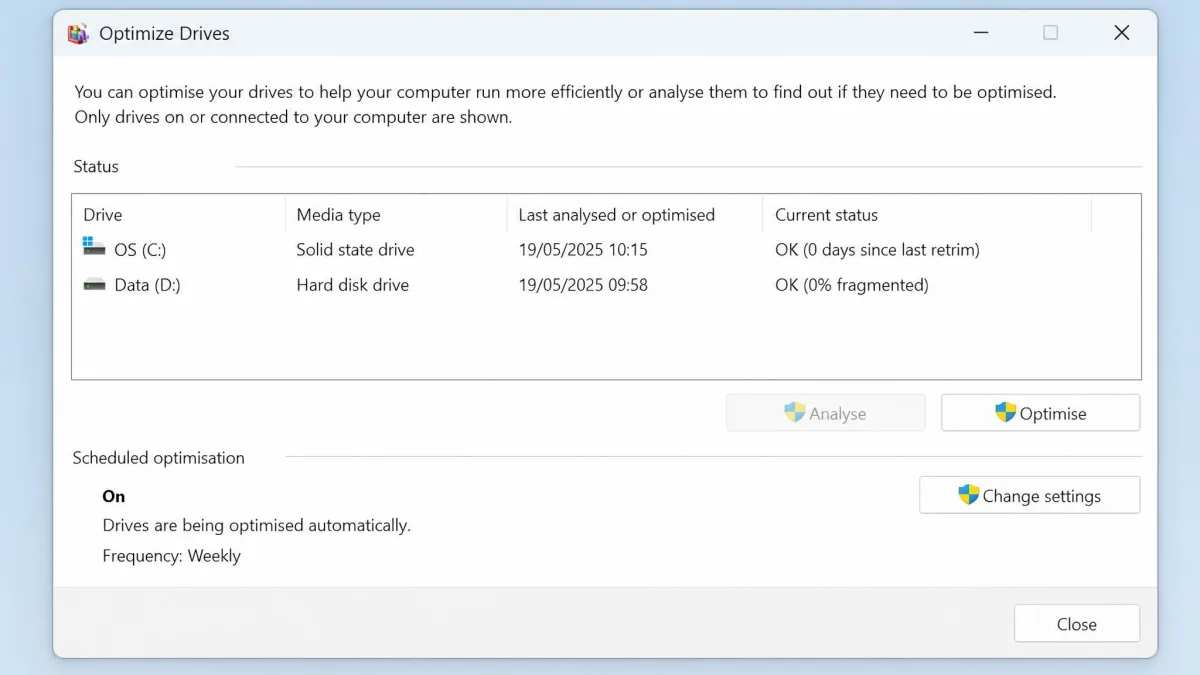
A full drive is not the only way storage costs you speed. Mechanical hard drives also get slower as files scatter across the platter. Solid state drives do not, and they need different maintenance entirely.
How to Fix It: Optimize Drives (and Why SSDs Are Different)
- Search for Defragment and Optimize Drives from the Start menu.
- Check the Media type column for each drive.
- Select a mechanical drive and choose Optimize, then leave the weekly schedule on.
Windows runs Optimize Drives weekly by default and sends solid state drives a Retrim rather than a defragmentation pass, which is how TRIM works on SSDs in practice.
Running defragmentation software against an SSD produces no speed gain and adds needless write wear. Windows sometimes misidentifies an SSD as a hard disk in Optimize Drives, so check the Media type column before you run anything manually.
11. Power Plan and Visual Effects Set for Looks, Not Speed
A laptop set to a battery-saving mode is deliberately holding your processor back, and Windows animations cost a little on older graphics hardware.
How to Fix It: Switch Power Mode and Cut Animations
- Select Start > Settings > System > Power & battery and set Power mode to Best performance.
- Search for View advanced system settings, open Performance settings, and choose Adjust for best performance.
- Turn transparency effects off under Settings > Personalization > Colors.
Best performance mode does speed a laptop up, and it noticeably shortens battery runtime. On a desktop there is no trade-off worth worrying about.
12. Failing or Simply Aging Hardware
A drive that is dying often looks like a software problem first: long pauses, files that take forever to open, a system that hangs and then recovers.
How to Fix It: Test the Drive, RAM, and GPU Before You Replace Anything
- Run CrystalDiskMark, compare the read and write figures against your drive's rated class, then check S.M.A.R.T. values for reallocated or pending sectors.
- Boot MemTest86 from a USB stick and let it reach 100% coverage, which detects around 95% of memory errors.
- Watch graphics temperatures with GPU-Z and keep them around 80 or lower.
Memory testing has to run against free memory, because Windows will not release memory that is in use. That means booting to the test tool rather than testing inside Windows, and a single Memtest instance covers only 2 to 3.5 GB of contiguous free memory at a time.
How to Tell What Is Actually Slowing Your PC Down
Guessing wastes hours. Two minutes of reading the right screen tells you which of the twelve causes above is yours.
Read Task Manager in 60 Seconds: CPU, Memory, Disk, GPU
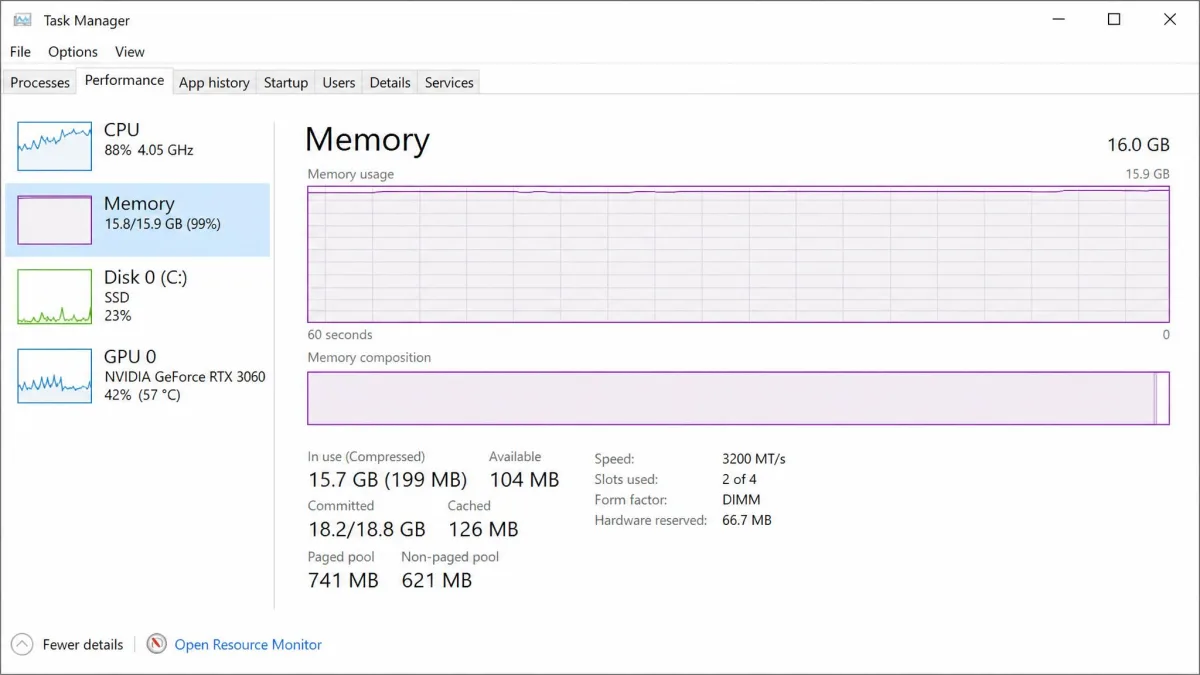
Open the Performance tab and use the computer normally until it stutters. Reading that tab is the fastest way to separate a processor problem from a memory or disk problem, because a single graph pinned near the top identifies the bottleneck in seconds. CPU near 100% points to a background process or malware. Memory near 100% points to too little RAM. Disk pinned at 100% with low throughput points to a failing or nearly full drive. All four calm and the machine still slow points to the browser or to something loading at boot.
Sudden Slowdown vs. Gradual Slowdown: What Each One Points To
A computer that was fine last week and is unusable today has one new cause: malware, a bad update, a full drive or failing hardware. A computer that has degraded over time has accumulated causes, mostly startup programs, bloatware and storage filling up.
The 10-Minute Fix Order: What to Try First
Work down this list and stop when the machine feels right.
- Restart. A restart clears a surprising share of sudden slowdowns, so it is worth doing before any deeper troubleshooting.
- Read the Task Manager Performance tab for one minute.
- Disable high-impact startup apps.
- Run a full malware scan.
- Free up disk space and turn on Storage Sense.
- Install pending Windows and driver updates.
- Check temperatures if the machine is loud or hot.
That order runs cheapest and safest first. Our companion guide on how to fix a slow computer goes deeper on each step.
When a Reset or Reinstall Is the Right Call
If none of the above helps, corrupted system files are worth ruling out. Open Command Prompt as administrator and run sfc /scannow, then chkdsk /f if the drive is behaving oddly. Both take a while and both report what they repaired.
A reset is the right call when the machine is fast in Safe Mode but slow normally, or when years of software have left a footprint no uninstaller can clear. Select Start > Settings > System > Recovery and choose Reset this PC, and back up your files first whatever the wizard promises. Hardware still sets the ceiling: Windows 11 needs a processor of 1 GHz or faster with two or more cores, and a machine near that floor will be slow on a fresh install too.
Frequently Asked Questions
Why is my computer slow even after restarting?
Does adding RAM actually fix a slow PC?
How do I know if my slow PC has a virus?
What is the single fastest way to speed up a slow computer?
Is it worth upgrading an old PC or should I replace it?
Why is my computer slow but the internet is fine?
The Bottom Line
A slow computer is a diagnosis problem before it is a repair problem. Open Task Manager, find the graph that is pinned, and match it to the cause in this list. Startup programs, malware and a full drive account for most of the machines we see, and all three are free to fix in an afternoon.
Work through the fixes in order rather than picking one, because slowness rarely has a single cause. When the software is clear and the machine is still slow, the hardware tests above will tell you exactly what to replace instead of guessing.