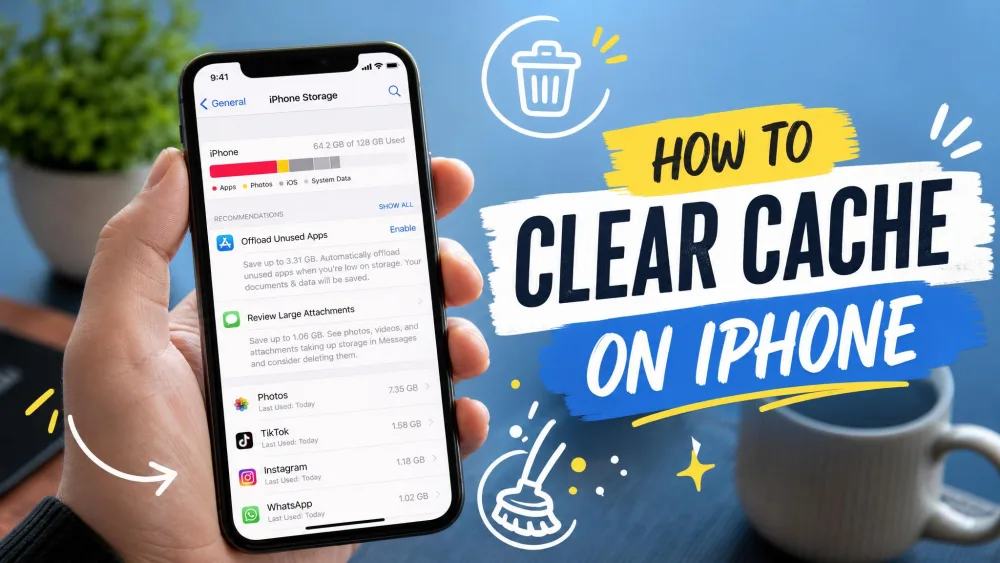
If your iPhone feels sluggish, or you keep dismissing "Storage Almost Full" warnings even though you've already deleted apps you never opened, cached data is a reasonable place to start looking. Over time, Safari, your other browsers, and most of the apps on your Home Screen quietly stash files they think you'll want again, and nothing on iOS sweeps all of that up for you.
There is no single button. There are five separate surfaces, each with its own control, and they free up wildly different amounts of space. This guide walks each one, from the two-minute Safari clear to the last-resort route for System Data, and it's honest about which are worth your time and which mostly just sign you out of everything.
- Clearing cache never touches your photos, messages, or saved passwords. You do get signed out of websites, because cookies go with the cache.
- Safari and third-party browsers each keep their own cache. Clearing one does nothing to the others.
- Most big apps ship no cache button, so offloading is usually your only route to their cached data.
- System Data has no control of any kind, and it's the one category that can quietly eat half your drive.
What Is Cache on an iPhone?
Cache is the pile of files an app keeps so it doesn't fetch the same thing twice: a browser saves images and scripts so a repeat visit loads instantly, and a social app saves the thumbnails you scrolled past. That trade stops working when cached files go stale and an app misbehaves, or when the pile grows faster than you notice. For the fuller background, we cover what cache is and when to clear it separately.
Cache vs. cookies vs. System Data
These three get used interchangeably, and they aren't the same thing. Cache is content stored to speed up loading, while cookies identify you to a site and keep you signed in. System Data isn't a cache at all: it's the iOS storage category for everything that doesn't fit Applications, Photos, or Music, holding app caches, system logs, and other working files.
Clearing your browser's cache also takes your cookies, which is why you get logged out. That surprises people who assume their passwords were wiped. The passwords are still there. The session cookies are not.
Method 1: Clear Safari Cache on iPhone
Safari is the surface most people mean, and it has the cleanest control.
Clear history, cache, and cookies together
This is the standard clear, documented in Apple's iPhone User Guide:
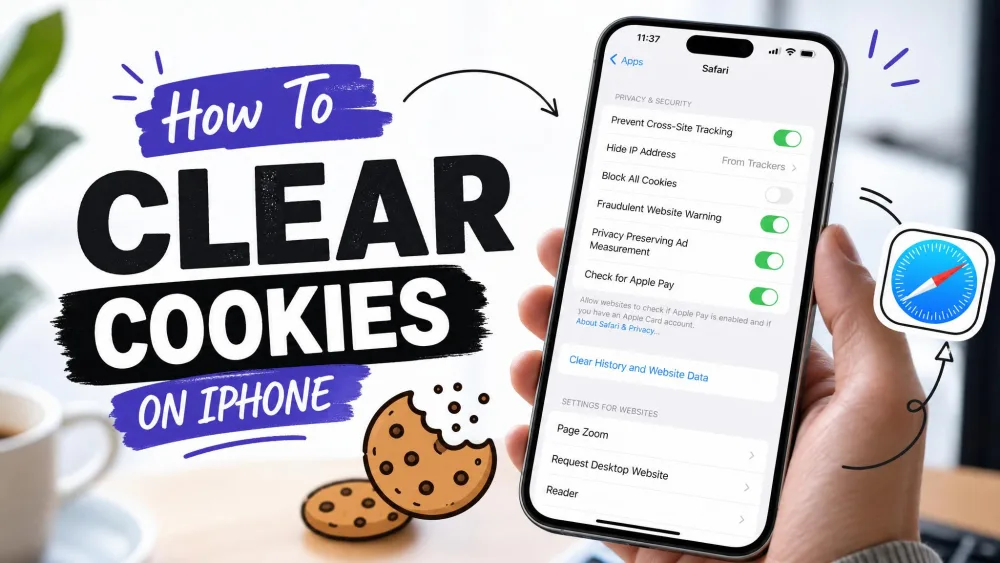
- Open Settings and tap Apps.
- Scroll to Safari and select it.
- Tap Clear History and Website Data.
- Choose All History from the time-range options.
- Confirm by tapping Clear History.
Safari now sits under the Apps section rather than the top-level Settings list where it lived for years, and the current guide is published for iOS 26. On older versions, look for Safari in the main list.
This erases your history, recent searches, cookies, cached files, and the permissions you granted sites for location or notifications. Your bookmarks and saved passwords survive it, which Apple Support confirms.
We won't quote a storage figure, because the numbers floating around come from companies selling cleaner apps. Safari's cache also refills as soon as you browse again, so this is housekeeping on a loop rather than a one-time win.
Clear website data but keep your history
To drop the cache and cookies without losing your history, use Safari's per-site list:
- Open Safari's settings pane and tap Advanced.
- Tap Website Data to see every site that's stored something, with sizes attached.
- Use the search field at the top to filter by domain.
The list is sorted by size, so the worst offenders sit at the top. If one site is holding hundreds of megabytes, clear that site rather than wiping everything and signing yourself out everywhere.
Remove a single website's cache
Same list, narrower action. Swipe left on a site and tap Delete, or tap Edit and use the red minus control. That clears the site's cookies, local storage, and cache while leaving your history and every other site alone, which is the right move when one site is broken and the rest are fine.
Method 2: Clear Chrome, Firefox, and Edge Cache on iPhone
Third-party browsers keep their own caches, and Safari's control doesn't reach them. Each clears from inside the app.
Google Chrome
In Chrome:
- Tap the three-dot menu and choose Delete browsing data.
- Set the time range to All Time.
- Tick Browsing history and Cached images and files.
- Tap Delete data. Your saved passwords are kept.
Firefox and Edge
In Firefox:
- Tap the menu icon and open Settings, then Data Management.
- Leave only Cache ticked, which clears the cache while keeping you signed in.
- Tap Clear Private Data.
In Edge:
- Tap the three-line menu and open Settings.
- Tap Privacy and security, then Clear browsing data.
- Tick Cached images and files and Cookies and other site data.
- Tap Clear Now.
Method 3: Clear Individual App Cache
This is where iOS gets frustrating. There's no system-wide app cache control, and whether an app lets you clear its cache is up to its developer.
Apps with a built-in cache setting (TikTok, Snapchat, Telegram)
A few big media apps offer one, and no two hide it in the same place.
- In TikTok, open your profile, tap the menu icon, choose Settings and privacy, scroll to Cache & cellular, then tap Free up space and Clear cache.
- In Snapchat, tap your profile icon, open Settings with the gear icon, scroll to Privacy Controls, tap Clear Data, then tap Clear Cache.
- In Telegram, open Settings, tap Data and Storage, then Storage Usage to clear cached media.
Clearing TikTok's cache leaves your saved videos and settings alone, though expect the app to feel slower right afterward while it rebuilds those files. There's no consistency to learn here, so check an app's own settings before assuming it has a control.
Offload an app to clear its cache and keep your data
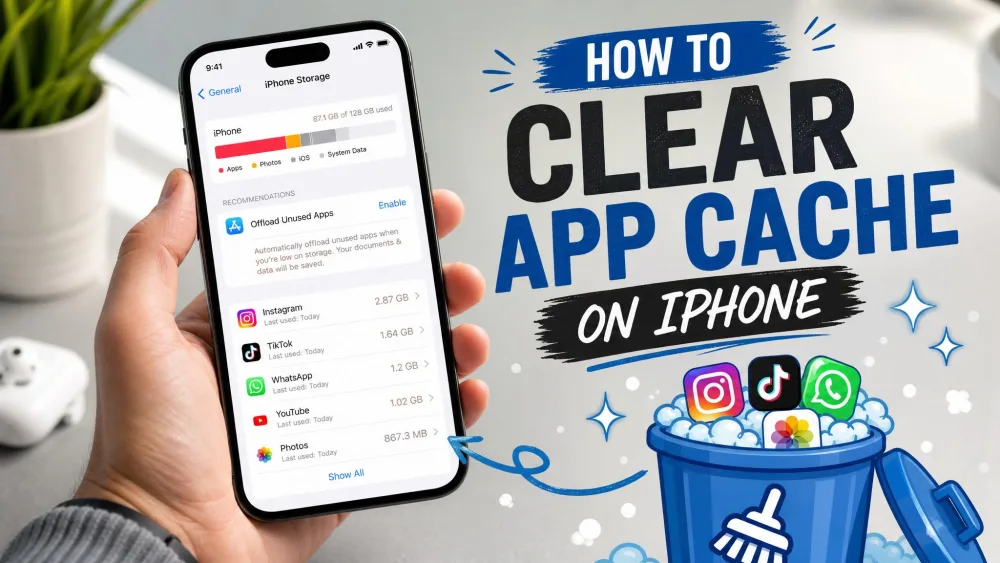
Most big apps ship no cache button at all. Instagram has no built-in cache option, so offloading or deleting is the only route to its cached data. Offloading is the gentler of the two:
- Open Settings and tap General.
- Tap iPhone Storage.
- Select the app from the list.
- Tap Offload App and confirm.
Offloading removes the app but keeps its documents and data, including settings and in-app progress. The icon stays on your Home Screen with a cloud badge, and tapping it reinstalls the app in the state you left it.
Offloading and deleting are not interchangeable. Offloading keeps your documents and data, so you stay signed in and your progress survives. Deleting removes the app's local data too, so a reinstall starts from an empty container. Reach for delete only when offloading hasn't fixed the problem.
Delete and reinstall an app for a full reset
When an app is genuinely broken and offloading didn't help, a clean container is the fix:
- Touch and hold the app icon and tap Remove App.
- Tap Delete App to confirm.
- Reinstall from the App Store and sign in again.
Anything the app stored only on your device goes with it: downloaded music, offline maps, unsynced drafts. Cloud-stored content returns on sign-in, and the rest doesn't.
Method 4: Restart Your iPhone to Flush Temporary Files
A restart is the cheapest thing on this list and the most oversold. It clears volatile memory and temporary working files, which is worth trying when one app is misbehaving.
It does not delete Safari's cache, per-app caches, or the stored data counted in System Data. If you restarted expecting the storage bar to move, that's why it didn't. Treat it as a fix for flaky behavior, not a storage remedy.
Method 5: Reduce System Data on iPhone
Open Settings, tap General, then iPhone Storage, and look at the grey segment labelled System Data. Under normal circumstances it shouldn't run much north of 20 GB. When it misbehaves, it really misbehaves.
Why there's no button for System Data
iOS exposes no control that clears System Data directly. No button, no menu item, no supported command. iOS reclaims the space on its own schedule when storage runs short, and you can't force that schedule from the interface. It's also why cleaner apps can't help here, which we come back to below.
What actually shrinks it, and the backup-and-restore last resort
The cheap fixes are worth trying first, but temper your expectations. On a 256 GB iPhone 15 Pro whose System Data had swollen to 134.91 GB, more than half the drive, every cheaper fix failed to move the number: restarting, clearing Safari's cache, shortening the message retention window, even changing the system date.
What worked was a full backup, erase, and restore cycle, which dropped System Data from 134.91 GB to 14.45 GB and reclaimed roughly 120 GB:
- Make an encrypted local backup to a Mac or PC.
- Open Settings, tap General, then Transfer or Reset iPhone.
- Choose Erase All Content and Settings.
- At setup, restore from the backup using the From Mac or PC option.
Recovering 120 GB is a genuine result, and we'd still call the method a poor trade. Wiping and rebuilding a phone to fix one storage category is heavy-handed, and it costs you an evening. Try it only when the category has clearly gone haywire and you need the space back.
Should You Use a Third-Party iPhone Cleaner App?
No, at least not for the job they advertise, and the reason is architectural rather than a matter of quality.
iOS runs every app inside a kernel-enforced sandbox. Each app lives in its own container directory, and its cache and temporary files sit inside that container where nothing else can reach them. A cleaner you install is just another sandboxed app, so it has no more access to Instagram's cache than Instagram has to your banking app's, and no permission you can grant changes that.
Tools like CCleaner for iOS and the various Phone Cleaner listings do help with adjacent jobs, mostly finding duplicate photos and large files, which is a real if modest service. It isn't cache clearing, and we go through what one of them actually does in our hands-on CCleaner for iOS review. Be sceptical of any figure a cleaner quotes about the junk it found: the company quoting the number is selling the remedy.
Signs It's Time to Clear Your iPhone Cache
You don't need a schedule. You need a symptom. Reach for one of the methods above when:
- A website loads a broken layout or stale content in one browser but works fine in another.
- One app freezes, fails to refresh its feed, or shows content that's clearly out of date.
- Storage is tight and iPhone Storage shows a media app holding gigabytes you can't account for.
- A site won't accept a valid login, which usually means a corrupted cookie.
How often you actually need to do this
Rarely. Cache clearing is routine housekeeping, not maintenance your phone depends on, and iOS handles most of it without your help. Clearing Safari every week accomplishes little beyond signing you out of everything, since the cache refills the moment you browse again.
Frequently Asked Questions
Does clearing cache delete my photos, passwords, or messages?
Will clearing cache make my iPhone faster?
Is cache the same as cookies?
Is there a way to clear all app caches at once?
Does restarting an iPhone clear the cache?
What's the difference between offloading and deleting an app?
The Bottom Line
Start with Safari, because it's the fastest clear and the most likely culprit behind a broken page. Move to individual apps next, using a built-in cache setting where one exists and offloading where it doesn't. Save deleting for apps that are actually broken. System Data is the outlier, with no button, cheap fixes that rarely move it, and one method that works but costs you an evening.