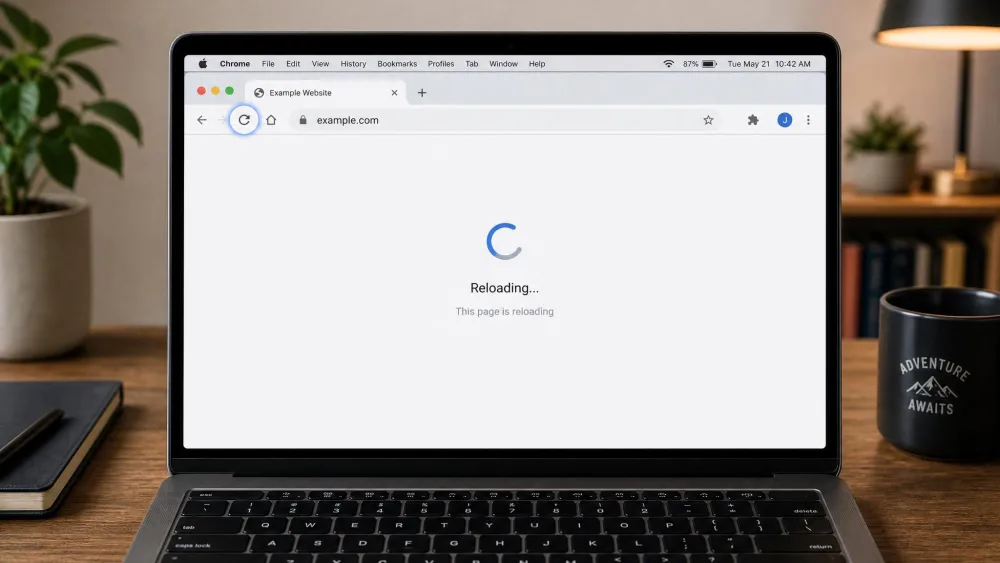
We've all been told to clear the cache when a page won't load right. The advice gets handed out constantly, and nobody explains what the thing is. A cache is a store of files your device keeps after downloading them once, so it can reuse them instead of fetching them again.
It's a mundane idea, and your browser, your apps and your processor all do a version of it. The interesting question isn't what a cache is. It's whether you should ever clear yours, and what happens when you do.
What is cache?
A cache is a small store of saved data that a device or program keeps close by, so it can reuse that data instead of fetching it a second time. The first time you load a website, your browser downloads the logo, the fonts and the images, and saves copies. Next visit, it uses the copies it already has.
The word covers a lot of ground. It's the same idea whether a browser holds onto a page's images or a processor holds onto numbers it just used. The pattern never changes: keep a copy of what you'll need again, somewhere you can reach it quickly.
Caches are meant to be temporary and disposable. Nothing in one is the only copy of anything, which is why clearing it is low-stakes rather than scary. Wikipedia's overview of cache in computing puts it the same way: a cache exists so future requests for the same data get served faster.
How does cache work?
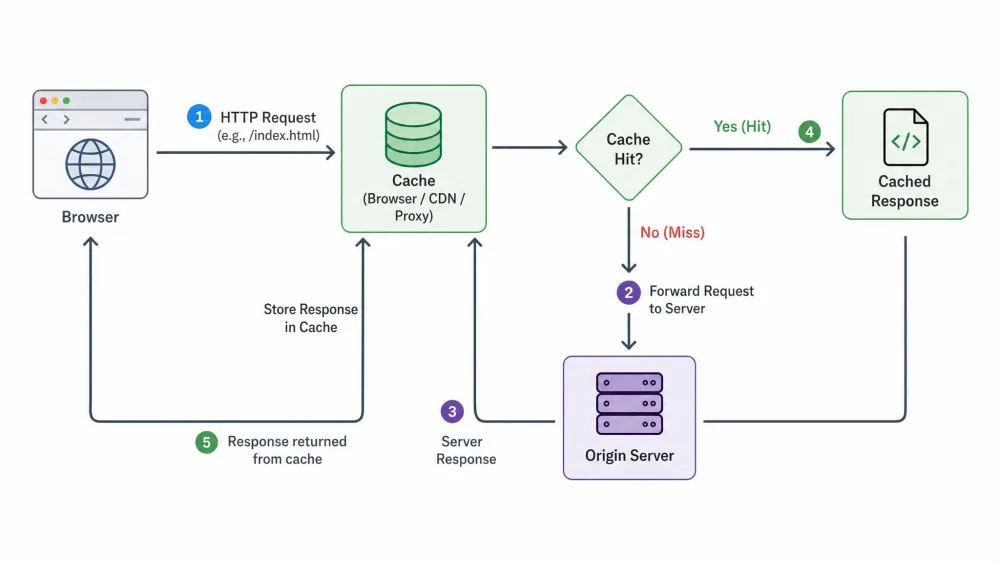
A cache sits between whatever wants data and wherever that data really lives. The cache gets asked first. If it has a copy, it hands it over. If not, the request goes on to the slow source, and the cache keeps a copy on the way back.
That's the mechanism, and it explains the speed. Cached pages load faster because the browser skips the download step. No round trip, no waiting on your connection. The file is already on your disk.
Caches don't keep things forever. A server can attach a rule saying how long a file stays fresh: max-age=604800 means a week, and 31536000 means a year, typical for logos that never change. With no rule attached, Mozilla's guide to HTTP caching says browsers fall back to roughly 10% of the time since the file last changed.
Cache hits and cache misses
Every request has two outcomes.
- Cache hit: the data was there. It gets served immediately, and nothing has to be downloaded.
- Cache miss: the data wasn't there, or it had gone stale. The request goes to the real source and takes as long as usual.
A hit is fast. A miss is just normal speed, and nothing is broken about one.
The third outcome is eviction. Caches have limited room, so Chromium's disk cache drops the least recently used files first. Your browser prunes itself constantly, which is why the worry about a cache growing forever doesn't play out, as Zapier also points out.
Types of cache
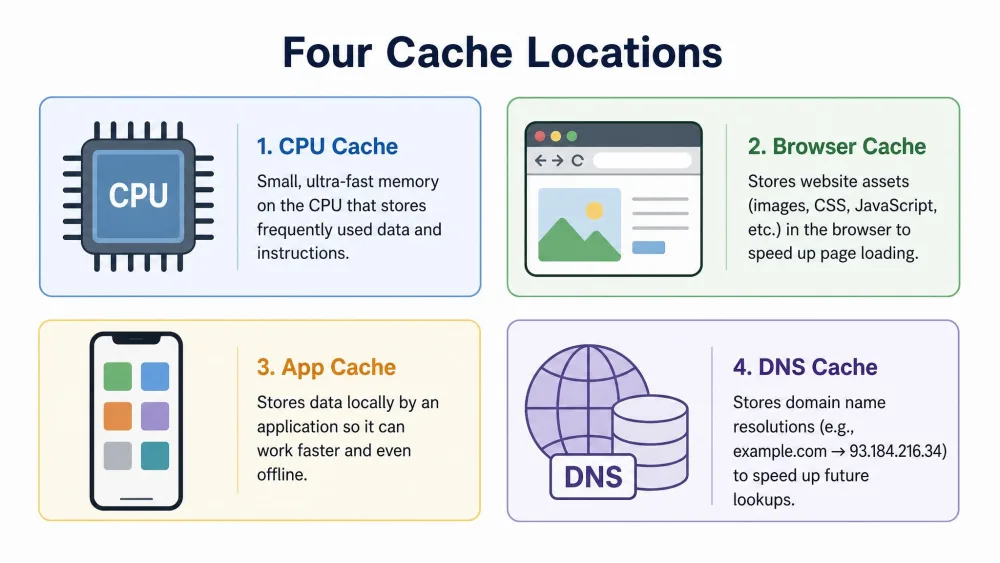
"Cache" describes a pattern, not a single thing, so it turns up in several places at once on the device in front of you. Four matter.
CPU cache (L1, L2, L3)
Your processor has tiny caches built into the chip. RAM is slow from the CPU's point of view, so the chip keeps whatever it's using right now in a closer store.
There are usually three levels. L1 is smallest and closest, L2 is bigger and further out, L3 is bigger again and shared between cores. Smaller and closer means faster.
The numbers make it concrete. Chips and Cheese measured Intel's Lion Cove core at 4 cycles for L1, 17 cycles for L2 and about 84 cycles for L3. Zen 5 gave 4 cycles, 14 cycles and 48 cycles. Main memory took over 565 cycles on Lion Cove and over 484 on Zen 5.
Those figures belong to those two 2025 chips, not every processor. The shape holds everywhere though: single digits, then tens, then hundreds. Main memory is roughly 100 times slower than L1. That gap is why CPU cache exists. It isn't something you manage, and there's no button to clear it.
Browser cache
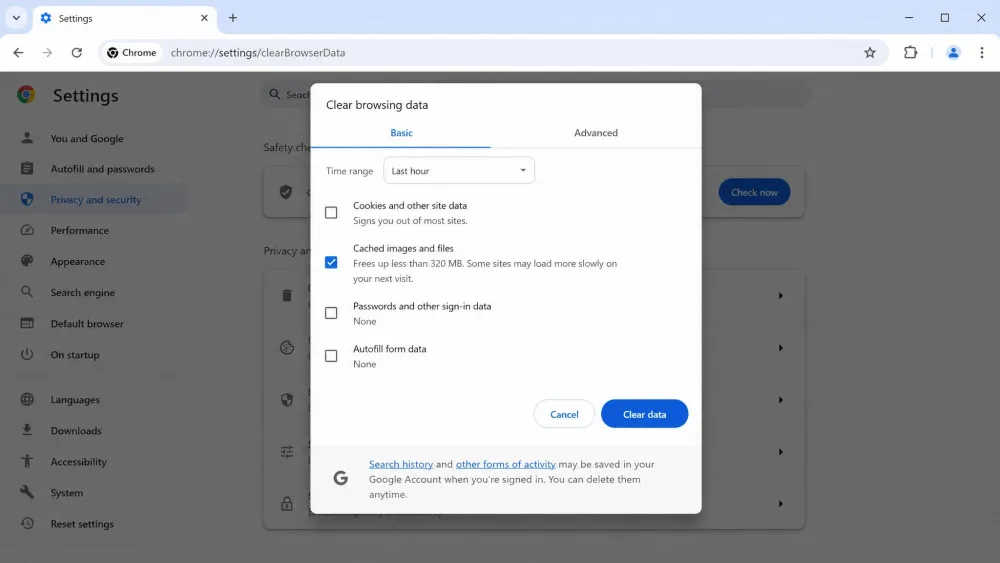
This is the one people mean. Your browser saves pieces of the sites you visit so it skips re-downloading them. Chrome calls the pile "Cached images and files" and describes it as the text and images from pages you've been to.
It lives on your disk and it's private to you, not shared or synced. Chromium keeps small items in block files and pushes anything larger than 16 KB into its own file. This is also where clearing actually matters, because it's the one that goes wrong in ways you notice.
App cache
Apps do what your browser does. A social app saves decoded images, a video app saves buffered clips, a news app saves articles it pulled down. It's scratch space.
On Android it's genuinely disposable. Google's developer guidance says that when a device is low on internal storage, Android may delete these cache files to recover space without telling the app. Clearing them by hand mostly does what the system would have done anyway.
App cache is also the biggest by volume. G2 notes cached files pile up into several hundred megabytes, or even gigabytes. That's why cache appears in storage settings as something to reclaim, not as a speed setting.
DNS cache
Type a web address and something has to translate that name into a numeric IP address. That's a DNS lookup, and your operating system saves the answers so it doesn't ask again every few seconds.
You almost never think about this one. It matters when a site moves and your machine keeps sending you to the old address. Windows caps how long it keeps a record at one day, and a shorter expiry on the record itself wins.
Pros and cons of cache
Cache is close to a free lunch, but free isn't costless. You trade a little disk space and a small risk of staleness for speed you'd otherwise never get. It's almost always worth it, which is why your device makes the trade without asking. The downsides are worth knowing anyway. They're why "clear your cache" became standard advice.
Pros
- Pages and apps open faster because nothing gets downloaded twice
- Content you've already loaded often works offline or on a bad connection
- Less data used, which matters on a metered or mobile plan
- Less network activity, so less battery drain
- It's automatic and needs no maintenance from you
Cons
- Stale files mean you can see an old version of a page after a site updates
- Corrupted cache files cause glitches and errors that look like real bugs
- Cached files accumulate and take up storage you might want back
- Pages you've visited leave traces on the device, which matters on a shared machine
Cache vs. cookies: what's the difference?
They get cleared together and mentioned in the same breath, so people assume they do the same job. They don't. Cache is about speed: it stores files so they don't need downloading again. Cookies are about identity: they store who you are and what you picked. That difference decides what happens when you clear each one.
| Feature | Cache | Cookies |
|---|---|---|
| What it does | Saves a local copy of files so they don't get downloaded again | Remembers who you are and what you chose |
| What it stores | Text and images from pages you've visited, plus scripts and other assets | Login sessions, site preferences, HTML5 storage data, media licences |
| Where it's stored | On your device, in browser or app storage | In your browser, often synced back to servers |
| How long it lasts | Until it expires or gets evicted, least recently used files first | Session cookies until the session ends, persistent ones until their expiry date |
| What happens when you clear it | Pages reload their files, the first visit is slower, and you stay signed in | You get signed out of sites and lose your preferences |
The size difference tells the same story. A cookie is tiny: RFC 6265 says browsers should support at least 4096 bytes per cookie, at least 50 cookies per domain and 3000 cookies in total. Your cache can run to gigabytes.
Should you clear your cache?
Usually, no. We don't clear ours unless something is actually broken, and we don't think most people need to clear theirs on a schedule. A cache doing its job is invisible, and clearing it throws away work your device already did.
The time to clear is when a specific thing misbehaves. A page that won't show a site's new design, a layout with buttons in the wrong place, an app showing an image that belongs somewhere else. Those are cache symptoms.

What clearing your cache actually does
It deletes the saved copies. Next visit, your browser downloads everything fresh, and the page you get is guaranteed to be the current version.
What it does not do is the part people get wrong constantly:
- It doesn't log you out. That's cookies. Zapier makes the same point: clear your cookies and you sign back in everywhere, while clearing the cache leaves you signed in.
- It doesn't delete saved passwords. Those are a separate option in Chrome's delete dialog, and clearing cached files never touches them.
- It doesn't make your device faster. If anything the first load afterwards is slower. G2 notes pages re-download their content, and images visibly reload before things return to normal.
What it does fix is stale and corrupted files. Forcing a fresh download is why clearing works on broken layouts, and why Asurion's technicians point to a cache purge for slow-loading sites, app crashes and files that display incorrectly.
Clearing the cache and clearing cookies are two different checkboxes, and most tools tick both by default. If you only want the fix, untick cookies before you confirm. Ticking cookies is what signs you out of every site and wipes your saved preferences.
How often should you clear it?
On no schedule at all. Clear it when something's wrong, otherwise leave it alone. The advice splits here: Asurion suggests roughly monthly as light maintenance and warns that clearing too often slows app loading. Zapier's position is firmer: don't clear without a specific reason.
Both are recommendations, not measurements, and we land closer to Zapier. Monthly clearing solves a problem most people don't have. Reclaiming storage is a legitimate reason, and tools that clear caches automatically handle that for you.
How to clear your cache
The steps are short and roughly the same everywhere: find the storage or privacy screen, pick the cache option, leave cookies alone. What follows is the short version. For the full walkthrough on every browser and device, including Firefox, Edge and Safari, see our guide on how to clear your cache.
Clear your browser cache
In Chrome, and most browsers built on it, it's three moves:
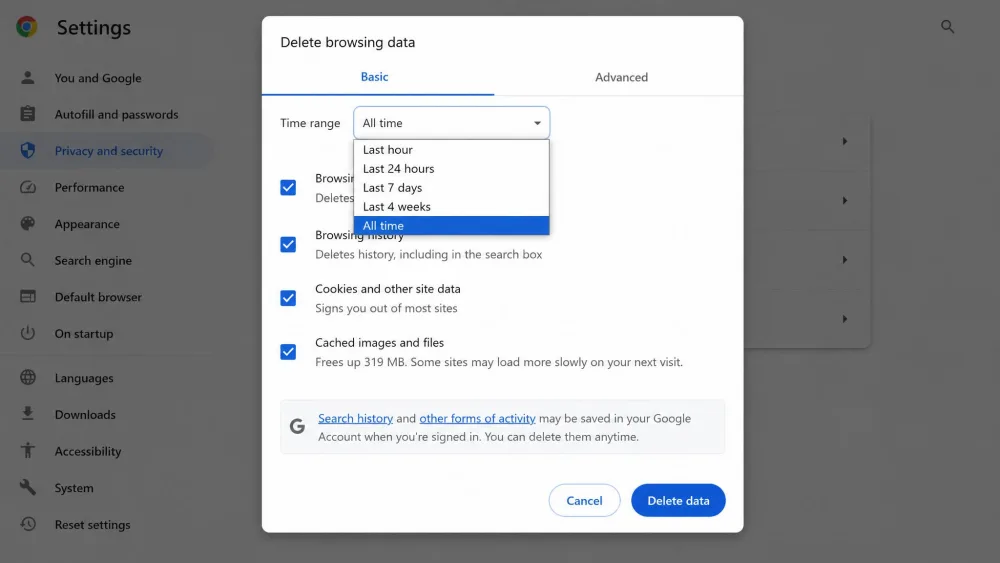
- Open the browser menu, then go to Delete browsing data. The shortcut is Ctrl+Shift+Delete, or Command+Shift+Delete on a Mac.
- Tick Cached images and files, and leave Cookies and other site data unticked unless you want to sign out everywhere.
- Choose a time range, then confirm.
To fix one page rather than wipe everything, hold Shift and click reload. The same flow works in Chrome on computer, Android and iPhone.
Clear app cache on Android
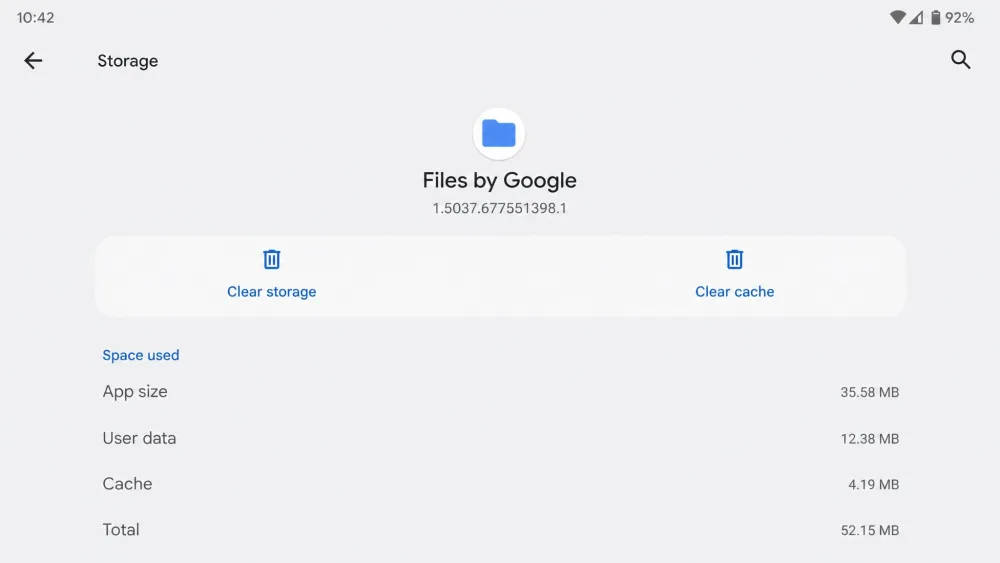
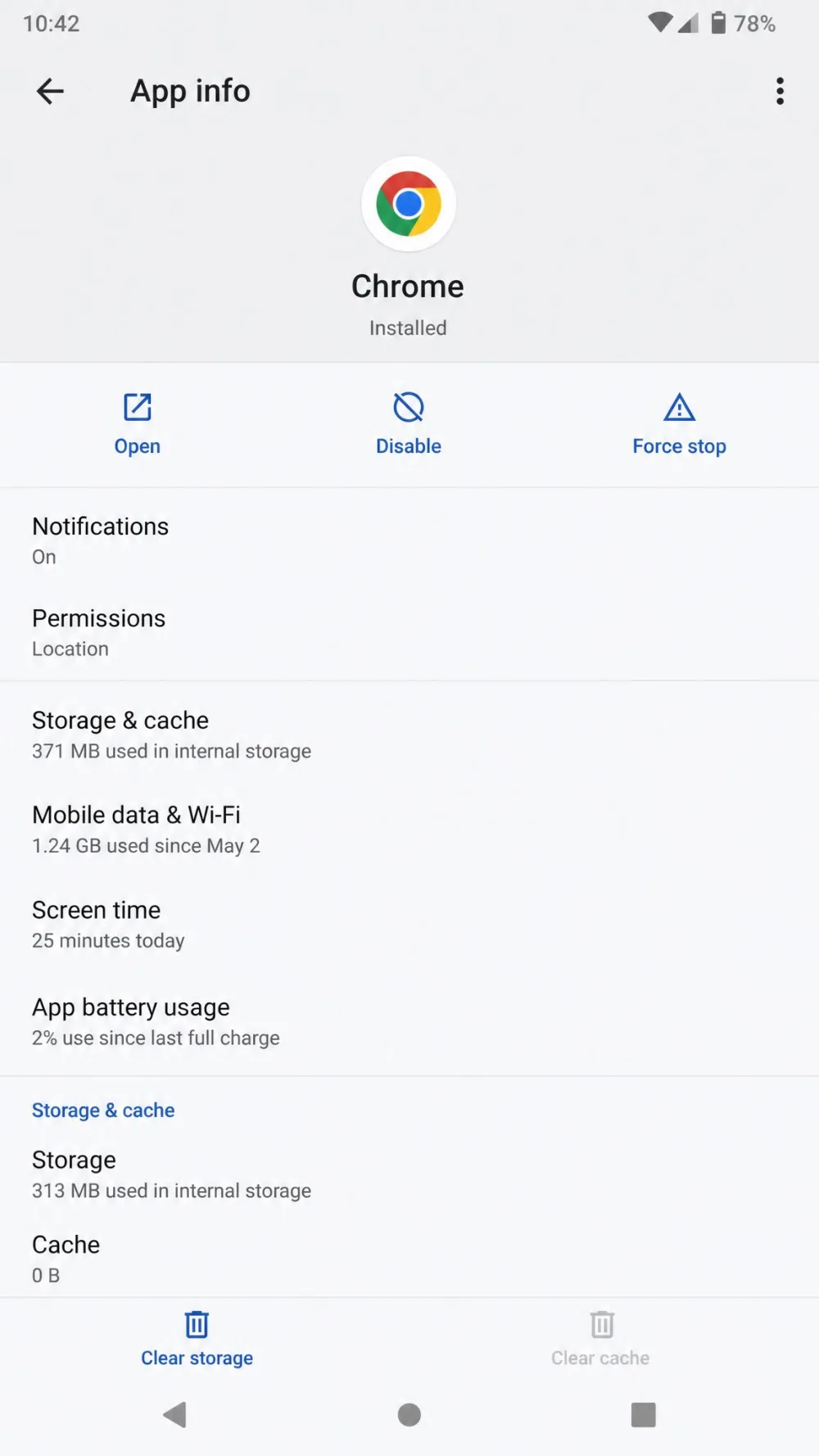
Android is the one platform with a real per-app cache button.
- Open Settings, then tap Apps.
- Tap the app you want, then tap Storage and cache.
- Tap Clear cache.
The button beside it is the tripwire. Clear storage, sometimes labelled Clear data, wipes the app's whole data folder and resets it to freshly-installed state, logins included. Clear cache removes only the scratch files and leaves your session alone. They sit inches apart.
Clear app cache on iPhone
iOS doesn't give you one. There's no per-app Clear Cache control in Settings at all, which surprises people arriving from Android.
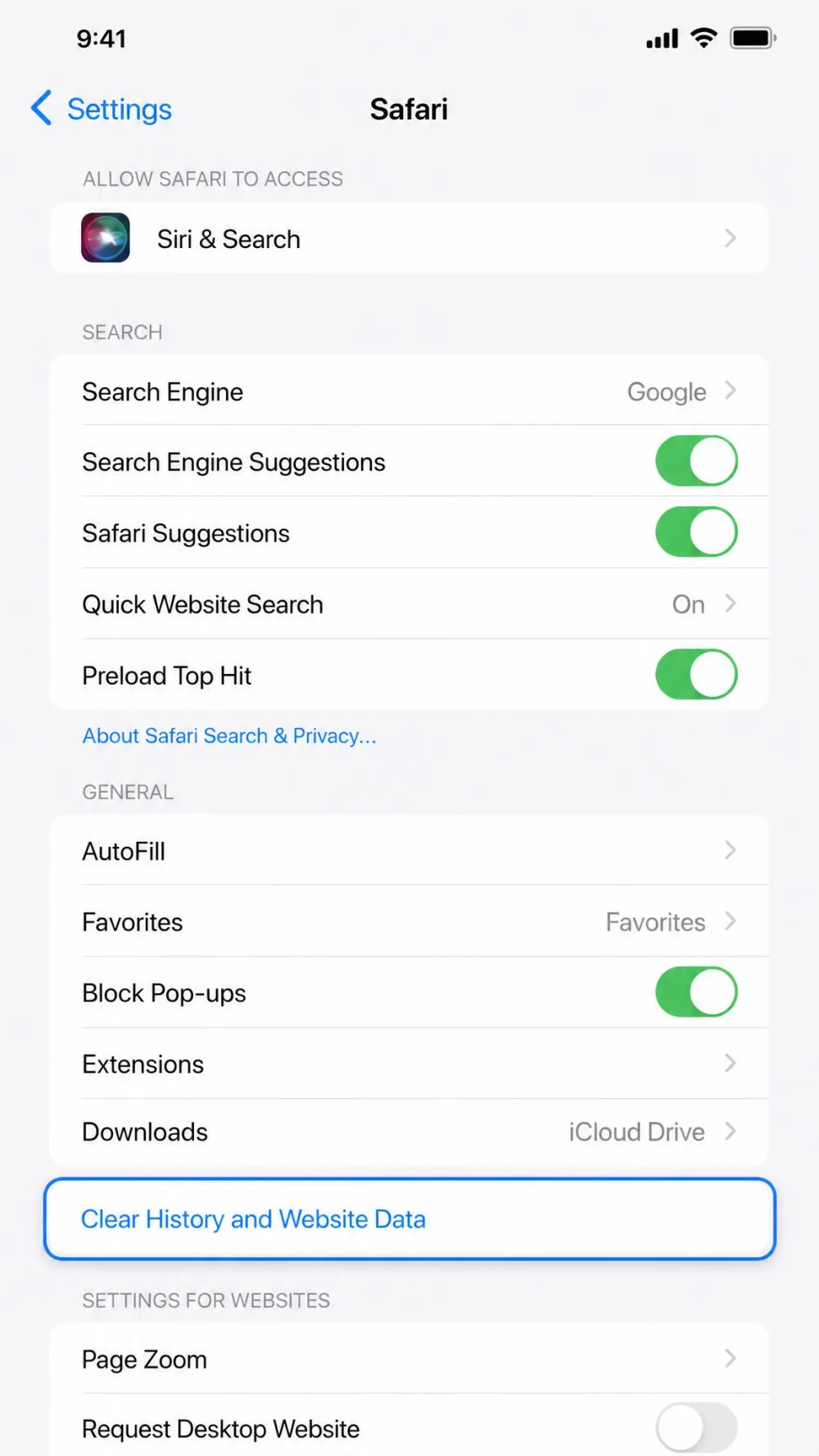
- For Safari, open Settings, then tap Apps, then Safari, then Clear History and Website Data.
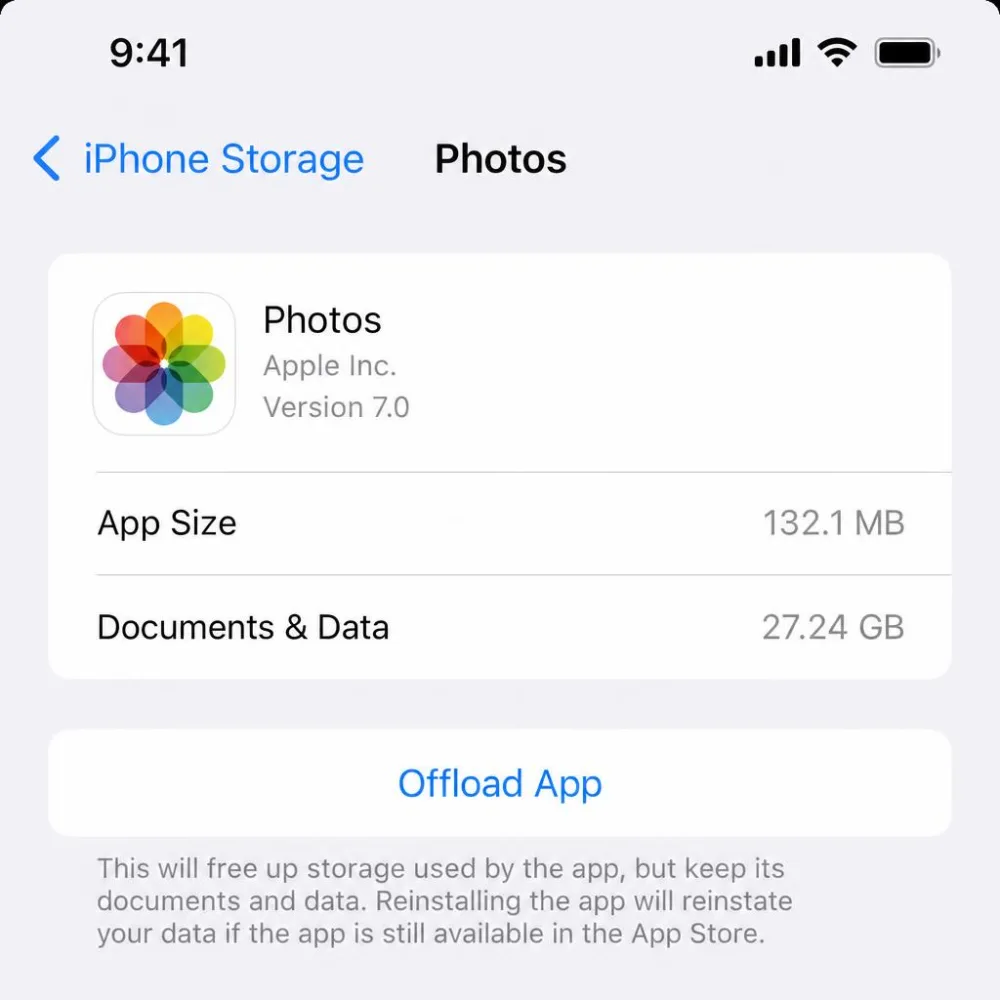
- For any other app, open Settings, then General, then iPhone Storage, pick the app, and tap Offload App. That removes the app but keeps its documents, and reinstalling clears the scratch files out.
- If the app has its own in-app storage setting, use that instead.
The Safari route sits on a separate screen and clears history along with the cached files, so it's a blunter instrument than Android's button.