Cache is the set of temporary files your Mac saves so apps launch faster and web pages reload quicker. Your browser stashes images so a site you visit often does not download them again. Apps keep working files close at hand. macOS itself holds system data it expects to reuse. Most of the time this is a good thing, because a warm cache is what makes your Mac feel quick.
The catch is that these files pile up quietly. Over months of use, cache can grow into a meaningful chunk of your storage, and now and then a stale cache file causes an app to misbehave. Clearing it is a simple way to free up space and, on a sluggish machine, smooth out odd behavior.
This guide walks you through every safe way to clear cache on your Mac, one cache type at a time. We cover browser cache in Safari, Chrome, Firefox, and Edge, the app and user cache you reach through Finder, and the deeper system cache, including flushing DNS in Terminal. We also cover the one-click cleaner-tool route and, just as important, what you should leave alone.
What is cache on a Mac (and why it builds up)
Cache is temporary data your Mac keeps on hand so it does not have to fetch or rebuild the same thing twice. When you open an app, it may write out working files it can reload instantly next time. When you load a web page, your browser saves images, scripts, and fonts so the next visit feels near instant. macOS keeps its own reusable data too. All of this is cache, and it exists to make your Mac faster.
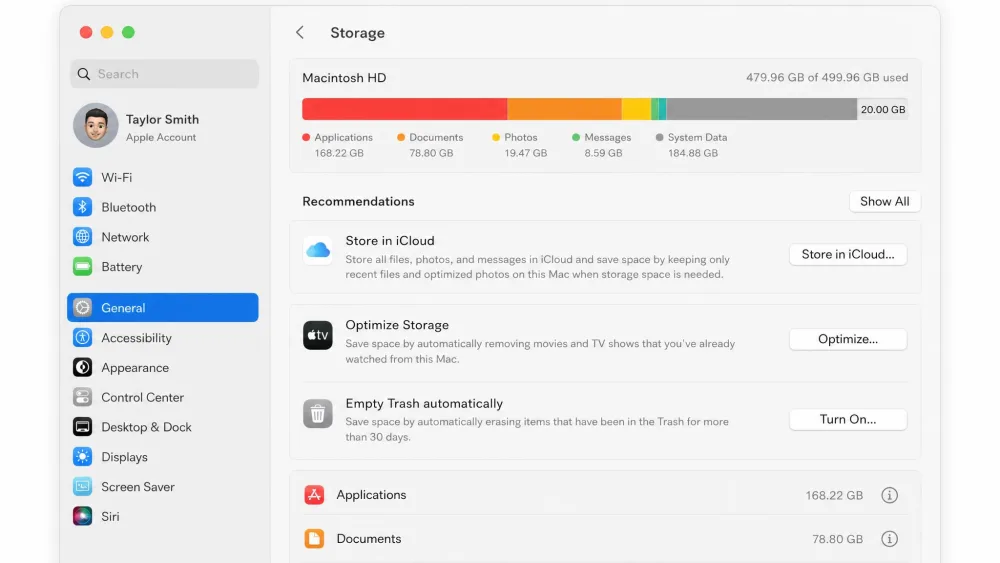
So why clear it at all? Because cache is temporary by design, but nothing forces it to shrink. It grows as you install apps, browse the web, and update software. Old entries stick around long after the app or site that made them is gone. On a Mac that is short on storage or acting sluggish, clearing cache is a quick, low-risk way to free up space and reset misbehaving apps.
The three types of cache: system, user/app, and browser
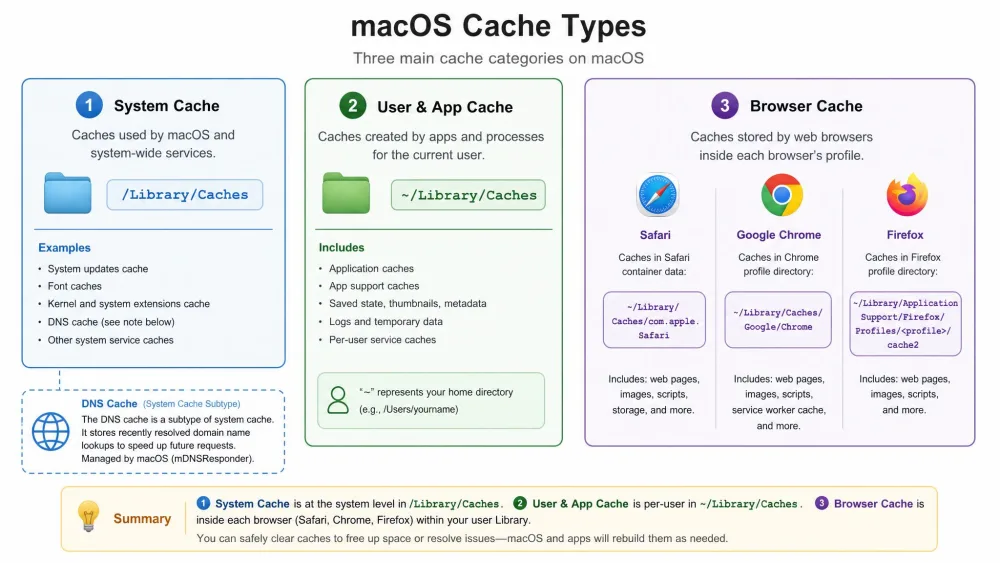
There are three kinds of cache on macOS, and knowing which is which tells you how safe each one is to clear.
System cache is created by macOS. It lives in the system-level folders and helps the operating system stay responsive. This is the type to treat with the most care. The DNS cache, which stores recently looked-up website addresses, is a subtype of system cache.
User or application cache is created by the apps you run. Each app keeps its working files in your personal Library folder. This is where a lot of reclaimable space hides, because uninstalled and rarely used apps often leave their cache behind.
Browser cache is a special case of app cache created by Safari, Chrome, Firefox, and Edge. It stores web page assets so sites reload faster. It is the safest cache to clear, and every browser gives you a built-in button to do it.
Should you clear the cache on your Mac?
For most people, clearing cache is worth doing when storage runs low or when an app starts behaving strangely. Browser cache in particular can fix pages that load a broken layout or serve you an outdated version of a site. Clearing app cache can nudge a stubborn app back into line.
That said, do not expect miracles. Cache exists to make your Mac faster, so clearing it does not always speed things up. On a healthy machine with plenty of free space, you may notice no difference at all, and the first launch of each app will actually be a touch slower until the cache rebuilds. Where clearing helps most is on a Mac that is genuinely low on disk space or is running an app that has gone haywire.
The honest answer on speed is that it is situational. A cluttered, storage-starved Mac often perks up. A well-provisioned one may not change. Either way, clearing cache is a reasonable bit of housekeeping, as long as you do it safely.
What's safe to delete and what to leave alone
Here is the safety hierarchy we follow. Browser cache is safe to clear anytime. The DNS cache is safe to flush. The cache of apps you no longer use is safe to remove. The cache of an app you are actively using should be cleared only after you quit that app first. System cache that macOS is currently using is best left alone unless you have a specific reason.
When you clear user, app, or system cache through Finder, open each Caches folder and delete the files inside it, never the folders themselves. Deleting a Caches folder outright, or anything under /System, can cause apps or macOS to misbehave. Leave active system cache alone, and if you are unsure about a folder, skip it. Back up your Mac before a manual cleanout so you can undo a mistake.
In our own cleanup runs, the manual folder-by-folder method is the part that trips people up. It is tedious, and deleting the wrong files is a genuine risk, which is exactly why we back up first and remove only the contents of a Caches folder rather than the folder itself.
How to clear browser cache on Mac
Browser cache is the easiest place to start and the safest to clear. Each browser keeps its own cache and gives you a menu to empty it. The steps below take under a minute per browser.
Clearing the cache alone keeps you signed in to your sites. If you also tick the option for cookies and other site data, you will be logged out of most sites and will need to sign back in. When you only want to free up space, leave cookies unchecked.
Clear cache in Safari
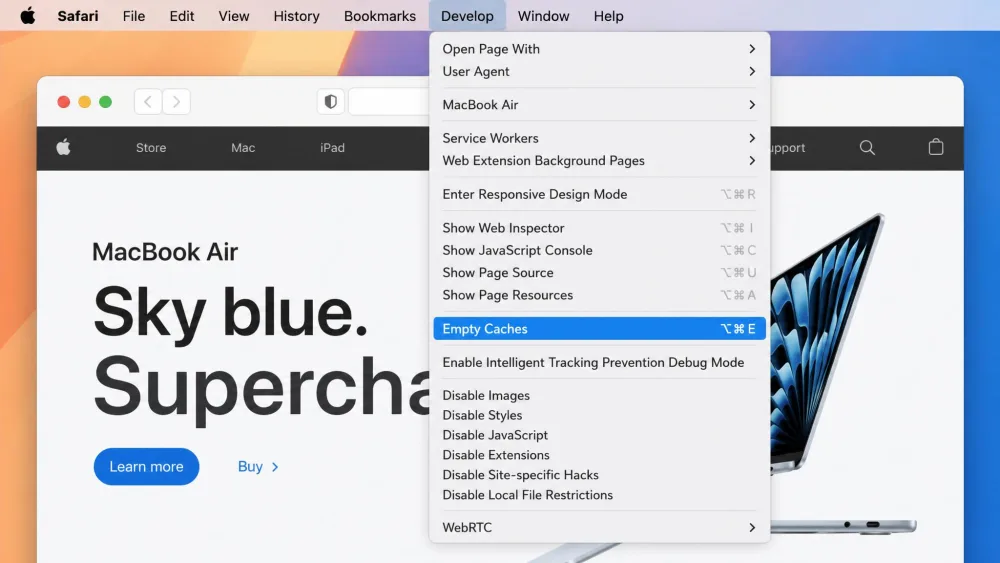
Safari hides its cache control inside a developer menu, so you enable that menu once and then it is a two-step job. Open Safari, choose Safari then Settings, and click Advanced. Turn on Show features for web developers (older versions call it Show Develop menu in menu bar). Now open the Develop menu in the menu bar and choose Empty Caches. The keyboard shortcut is Option+Command+E once the Develop menu is enabled.
If you would rather clear everything at once, open the History menu and choose Clear History, which removes history, cookies, and cache together. For step-by-step help from the source, see Apple's guide on how to clear Safari's cache. Remember that Clear History signs you out, while Empty Caches does not.
Clear cache in Chrome
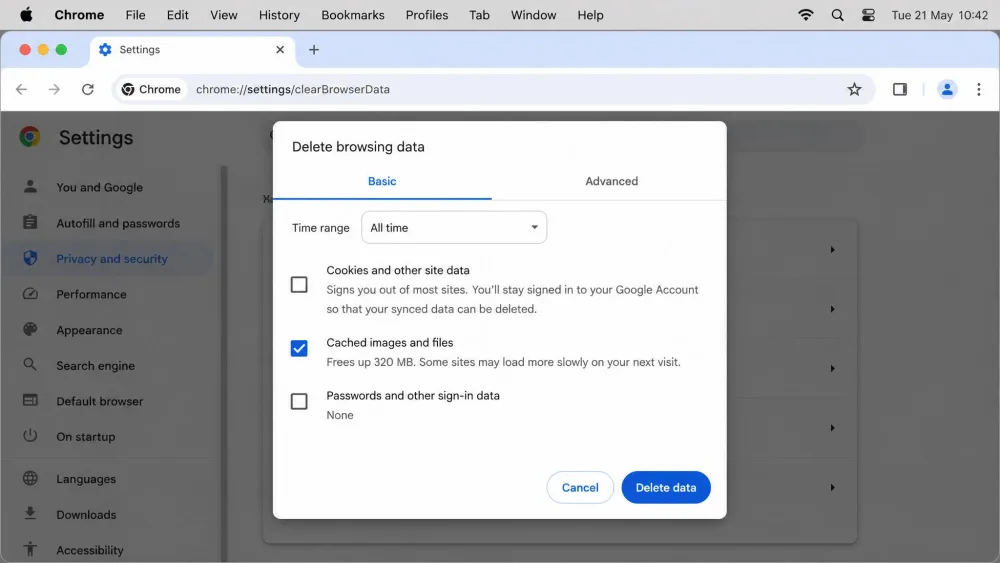
Chrome makes this simple. In Chrome, type chrome://settings into the address bar, or press Command + Shift + Delete to jump straight to the clear-data dialog. Go to Privacy and security, then Delete browsing data. Choose Cached images and files, set the Time range to All time, and click the button to delete. Leave the cookies box unchecked if you want to stay logged in.
The whole thing takes a few seconds, and Chrome will feel a touch slower on the first page load afterward while it rebuilds.
Clear cache in Firefox
Firefox uses similar wording. Open Firefox, type about:preferences into the address bar, and go to Privacy & Security. Scroll to the Cookies and Site Data section and choose Clear browsing data. Tick Temporary cached files and pages, leave cookies unticked if you want to stay signed in, and confirm. The same Command + Shift + Delete shortcut opens the clear dialog here too.
Mozilla's own instructions cover how to clear Firefox's cache in more detail if you get stuck.
Clear cache in Microsoft Edge
Edge follows Chrome closely because they share the same engine. Open Edge, click the three-dot menu, and go to Settings, then Privacy. Choose Clear browsing data, select Cached images and files, set the range to All time, and clear. As with the others, keep cookies unchecked to stay logged in.
How to clear app / user cache on Mac (Finder manual method)
App and user cache is where the bigger space savings usually hide, and you reach it through Finder. This is the manual method, and it works on any Mac without extra software.
First, quit the apps whose cache you plan to clear. Press Command+Q in each one so no background process is still holding its files open. Trying to delete cache for an app that is running can fail or cause odd behavior.
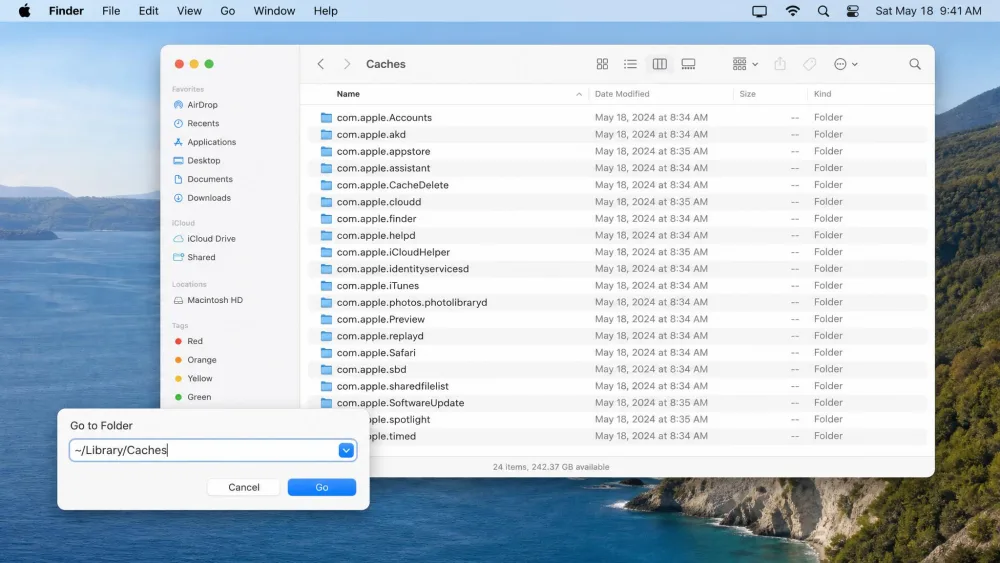
Next, open the Caches folder. In Finder, click the Go menu, choose Go to Folder, or press Shift + Command + G, then type ~/Library/Caches and press Return. You will see a list of folders, each named after an app or service. Open a folder, select the files inside, and move them to the Trash. Do this folder by folder for the apps whose cache you want to clear, then empty the Trash.
The golden rule bears repeating: delete the files inside each folder, not the folder itself. If you are not sure what a folder belongs to, leave it. Cache for apps you have uninstalled is safe to remove, and it is often the biggest, stalest chunk in there.
Before you start deleting, you can see which caches are actually large. Open Terminal and run du -sh ~/Library/Caches/* to list each cache folder with its size. That way you spend your effort on the folders that will actually free up meaningful space rather than clearing tiny ones.
One thing we always warn people about: right after you clear an app's cache, that app lags noticeably the first time you reopen it, because the cache has to rebuild from scratch. This is normal and short-lived. It is not a sign that something broke.
How to clear system cache on Mac
System cache is the deepest layer and the one to handle with the most care. The system-level cache lives in /Library/Caches, the folder at the root of your drive rather than inside your home folder. There is also a protected system cache under /System that you should never touch.
To clear the safe part manually, open Finder, click Go, choose Go to Folder, type /Library/Caches, and press Return. As with the user cache, open each folder and remove the files inside, never the folders themselves. macOS protects the most sensitive system files, and you will be asked for your password for some actions, which is a good moment to pause and make sure you know what you are removing.
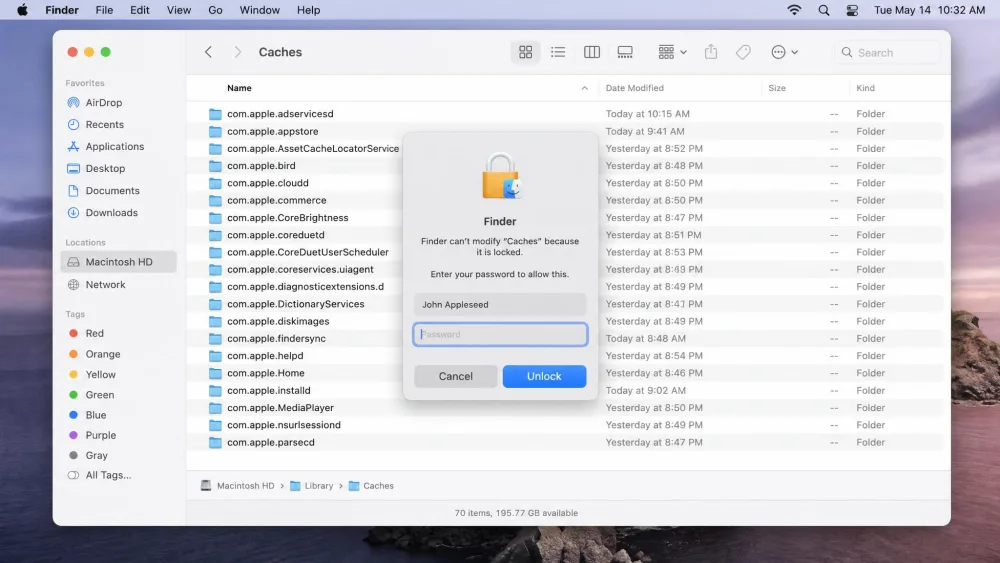
Two safer, more targeted routes exist for common system-cache jobs: flushing DNS in Terminal, and using Safe Mode to let macOS clear caches for you. Both are below.
Flush the DNS cache with Terminal
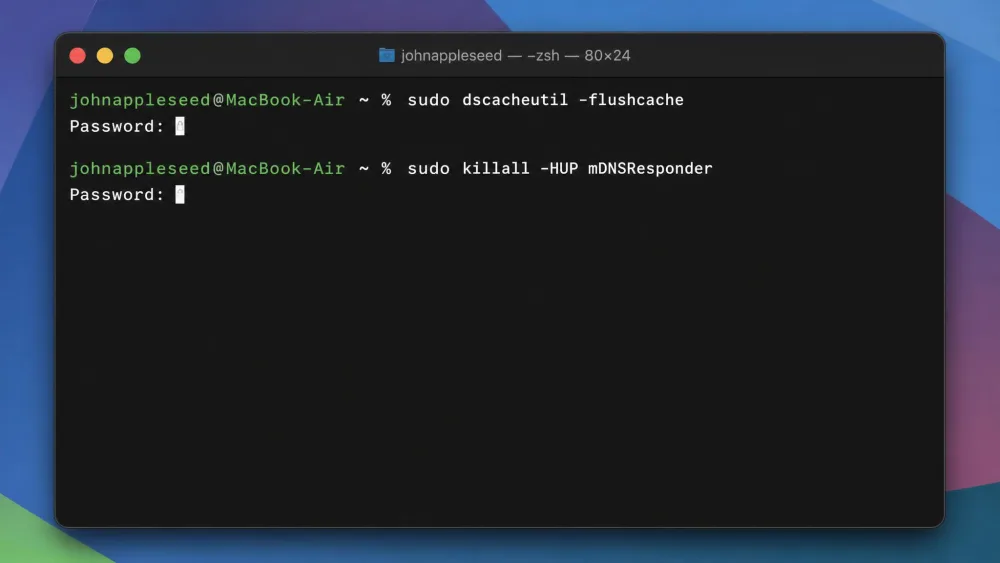
The DNS cache stores the addresses of sites you have visited so your Mac does not look them up again. When a site fails to load or points to an old address, flushing DNS often fixes it. Open Terminal from Applications, Utilities, and run this command:
sudo dscacheutil -flushcache; sudo killall -HUP mDNSResponder
You will be asked for your administrator password, which will not show as you type. Press Return, and the DNS cache is cleared. There is no confirmation message, and that is expected. This is one of the safest system-cache actions you can take.
Use Safe Mode to clear system caches automatically
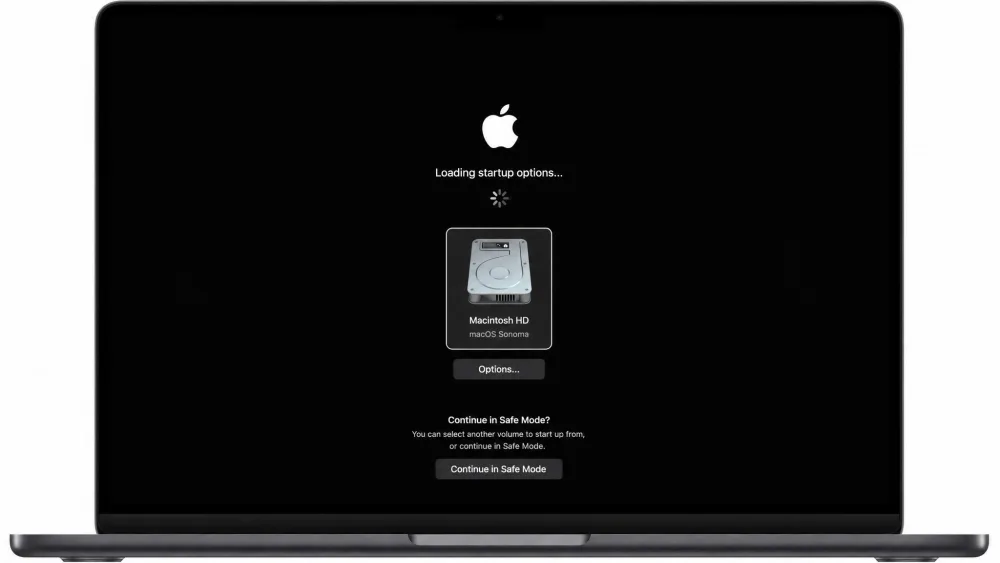
Safe Mode is the hands-off way to clear system caches, because macOS clears certain caches automatically when it starts in this mode. The steps differ by Mac type.
On an Intel Mac, restart and hold Shift as it boots, then release the key when you reach the login window. On an Apple Silicon Mac, shut down fully, then press and hold the power button until you see Loading startup options. Pick your startup volume, hold Shift, and click Continue in Safe Mode. Log in, let the Mac sit for a moment, then restart normally. macOS clears and rebuilds the relevant system caches on its own, with no folder digging required.
How to clear all cache automatically with a Mac cleaner tool
If the manual route feels like too much clicking, a dedicated cleaner tool does the same job in one pass. These apps scan the cache locations for you, flag what is safe to remove, and clean it without any trips into Finder. The trade-off is that you are trusting the app's judgment about what to delete, so pick a well-known one and review its selection before you confirm.
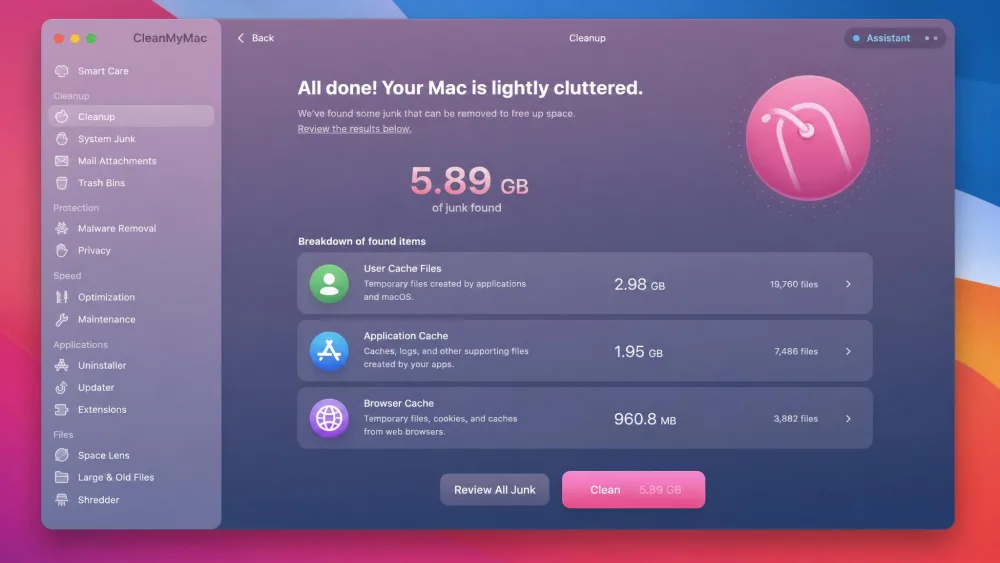
CleanMyMac is the tool we most often point people to for this. Its Cleanup module auto-detects your user, app, and browser cache files and removes them without any manual folder navigation. The flow is straightforward: open CleanMyMac, select Cleanup, run Scan, then click Clean, or choose Review All Junk first if you want to pick through the results yourself.
Pros
- One click clears user, app, and browser cache with no Finder digging
- Flags what is safe to remove, which lowers the risk of a manual mistake
- Reviews all cache locations in a single scan
Cons
- You are trusting the app to decide what is safe to delete
- It is a paid tool after the trial
- Freed space is still temporary, the same as with the manual method
CleanMyMac offers a 7 days free trial that you can cancel anytime, so you can run one full cleanup before deciding whether it is worth keeping. After the trial it is a paid subscription, and the exact annual price varies by plan, region, and whatever promotion MacPaw happens to be running, so we would rather send you to the live figure on the vendor site than quote a number that may be stale by the time you read this. Check the current pricing before you commit.

How often should you clear cache on your Mac?
There is no universal rule here, and anyone who gives you a fixed number is guessing. How often you should clear cache depends on how hard you use your Mac. As a rough rule of thumb, casual users are fine clearing quarterly, heavier users benefit from a monthly pass, and developers who generate a lot of cache may want to clear weekly. Treat those as starting points, not gospel.
A more practical trigger is to clear cache when you actually need to, rather than on a rigid schedule. When storage runs low, when an app starts misbehaving, or when a website loads wrong, that is your cue. Clearing cache constantly is counterproductive, because you throw away the very files that keep your Mac fast, and macOS just rebuilds them anyway.
Troubleshooting: problems after clearing cache
A few small hiccups are normal right after a cleanout, and none of them mean you broke anything. Here is what to expect and how to handle it.
Apps feel slow on first launch. This is the cache rebuilding. Open the app, give it a moment, and it returns to normal speed on the next launch.
A short overall slowdown. For a few minutes after clearing, your Mac may feel a little sluggish while caches regenerate, and the first page loads in your browser will be slower. This settles quickly.
You got logged out of sites. This happens when cookies and site data were cleared along with the cache. Just sign back in. Next time, leave the cookies box unchecked if you only meant to free up space.
Missing preferences or re-logins. After a system-cache clear, some apps may forget small settings or ask you to log in again until they re-cache. Re-enter what is needed and it sticks.
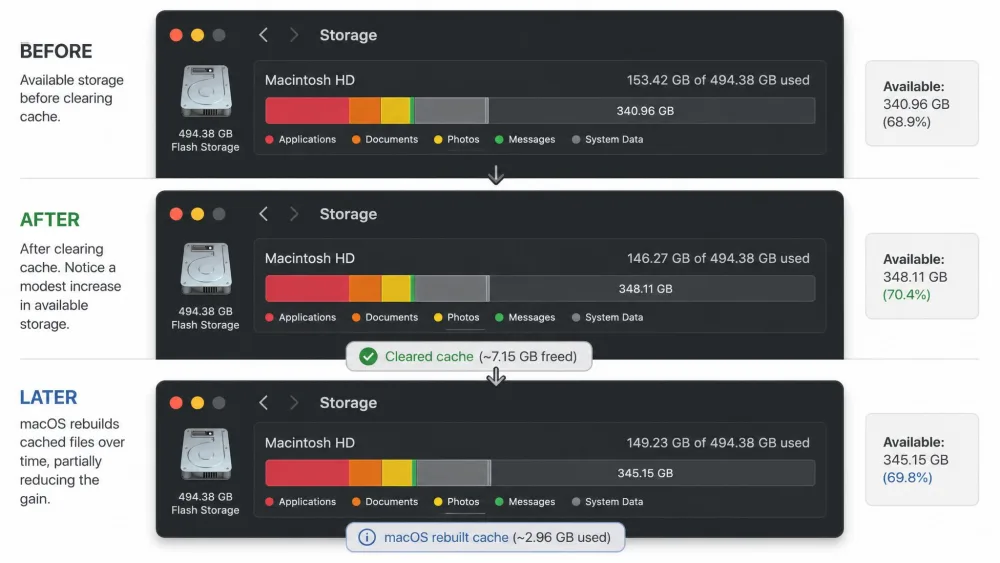
Freed space came back. This is the one that surprises people most. macOS rebuilds many cache files soon after you delete them, so the space you reclaimed is often temporary. That is normal behavior, not a failure. If you want lasting free space, look at large files, downloads, and unused apps rather than cache alone.
Frequently asked questions
Is it safe to clear cache on a Mac?
Will clearing cache delete my files or photos?
How often should I clear my Mac cache?
Does clearing cache speed up a Mac?
What is the difference between system, user, and browser cache?
How do I clear cache without third-party software?
For clearing cache on other devices, see our guides to clear cache on iPhone, clear cache on iPad, and clear cache on Android, or read Apple's guidance on managing storage for the bigger picture on reclaiming space.