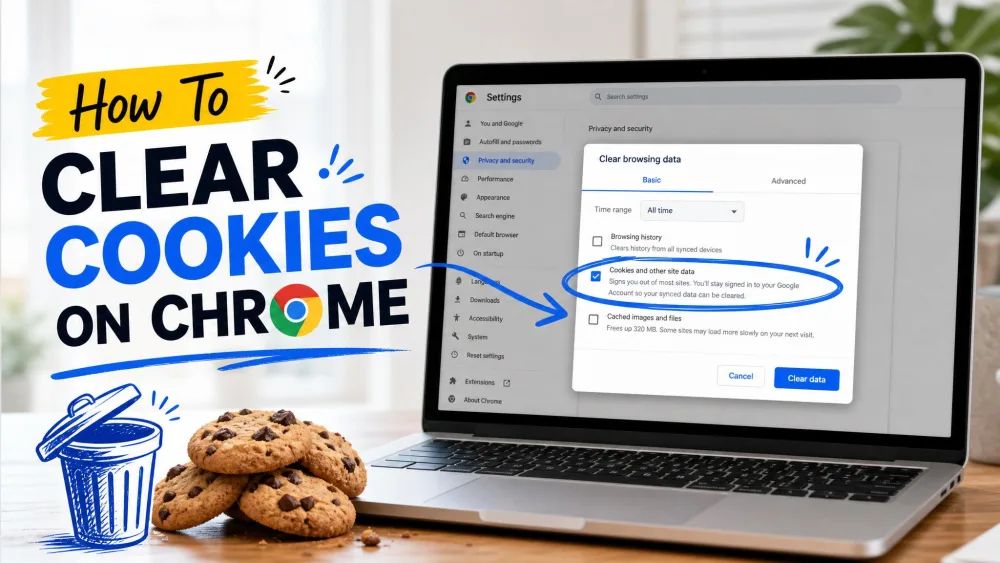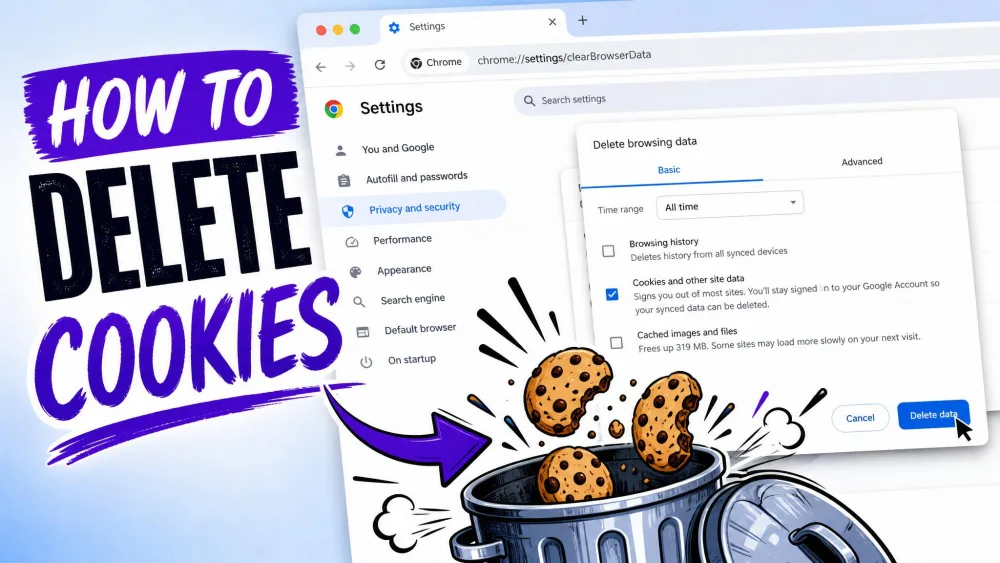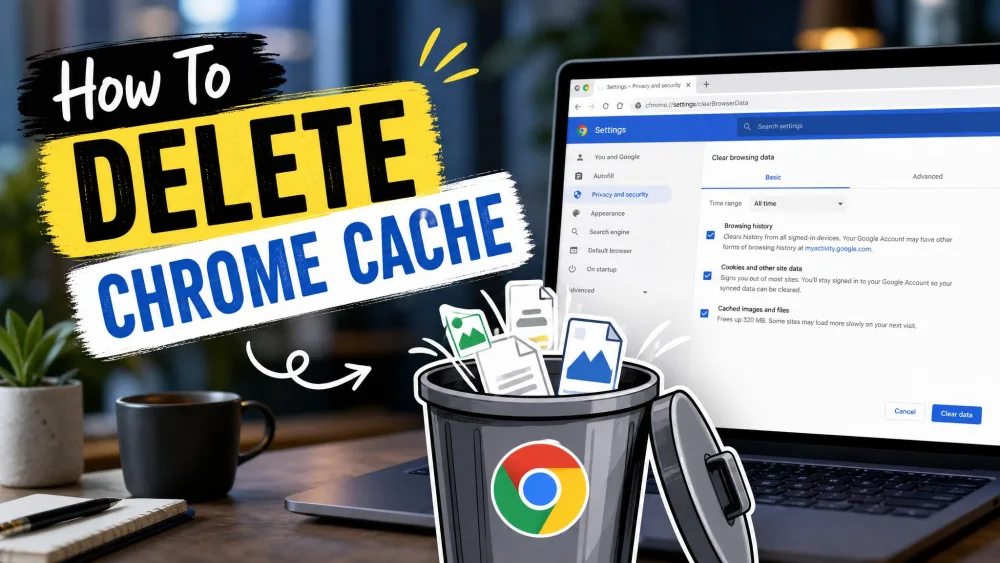
Chrome's cache is a stash of images, files, and scripts the browser saves so pages load faster on repeat visits. Usually that helps, but stale cached files can leave you with a broken layout, a missing button, or an old version of a page that has already changed. The fix is simple: delete Chrome cache, and the browser rebuilds those files fresh on your next visit. This guide covers every device. One note up front: Chrome uses "Clear" and "Delete" interchangeably, so both mean the same thing here.
What Is the Chrome Cache (and Why Clear It)?
The cache is Chrome's shortcut for repeat visits. Rather than re-downloading a site's logo, fonts, and scripts each time, it keeps local copies and reuses them, so familiar pages open faster.
The trouble starts when those copies fall out of date. In our testing, clearing the cache reliably fixes broken layouts, missing buttons, images that will not load, and pages still showing an old design.
Cache vs. Cookies vs. Browsing History
These three data types are easy to confuse, but clearing each one does something different.
| Data type | What it stores | Effect of clearing |
|---|---|---|
| Cached images and files | Copies of images and scripts for faster repeat visits | Pages reload slower once, then rebuild fresh |
| Cookies and other site data | Login and preference files that keep you signed in | Signs you out of most sites |
| Browsing history | The pages you have visited | Removes that list; leaves logins alone |
How to Delete Chrome Cache on Windows and Mac (Desktop)
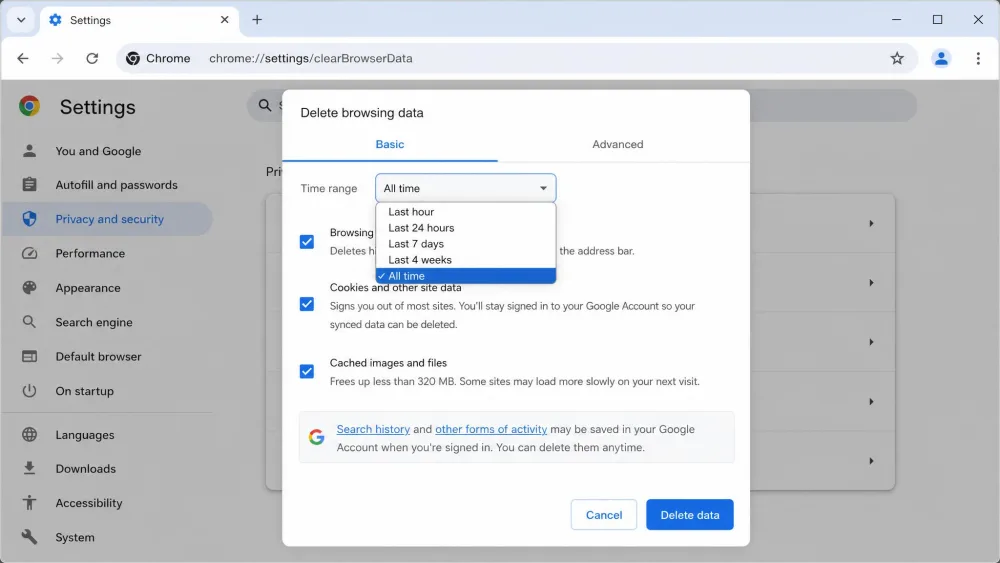
Desktop offers three ways in, and all three open the same Delete browsing data dialog.
Method 1: Keyboard Shortcut (Ctrl+Shift+Del / Cmd+Shift+Delete) - Fastest
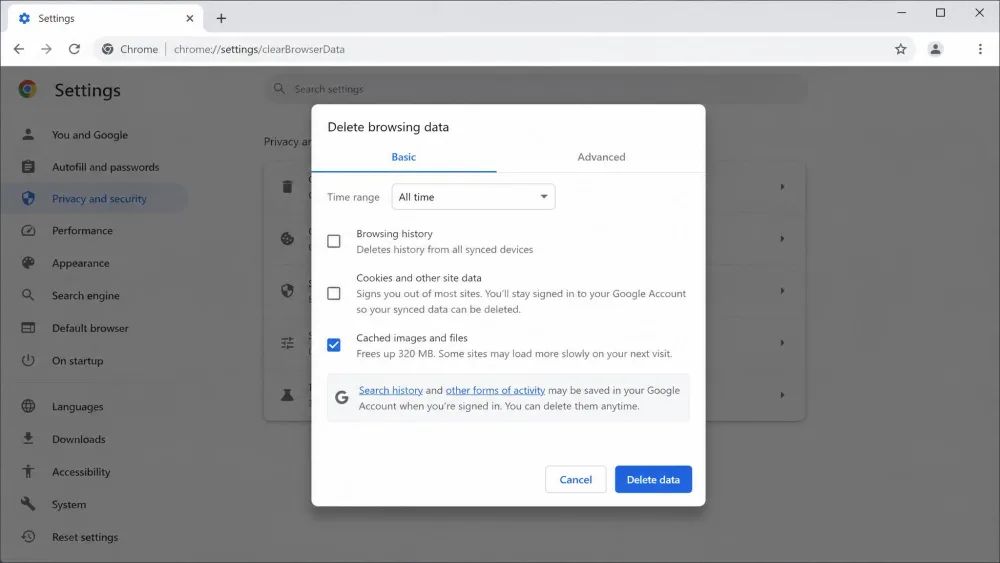
From any Chrome window, press Ctrl+Shift+Delete on Windows, Linux, or ChromeOS, or Cmd+Shift+Delete on a Mac to open the Delete browsing data dialog. Set the time range, tick "Cached images and files," and leave the Passwords and Autofill boxes unchecked. Click Delete data to finish.
Ctrl+Shift+Del on Windows and Cmd+Shift+Delete on a Mac jump straight to the dialog.
Method 2: Through Chrome Settings (Most Control)
In Chrome, go to Settings > Privacy and security > Delete browsing data. Open the time-range menu, which runs from Last hour through Last 24 hours, Last 7 days, Last 4 weeks, and All time. Pick All time for a full clear, check "Cached images and files," and click Delete data. Google's Chrome Delete browsing data help page lists every checkbox.
Method 3: From the Chrome Menu (Delete Browsing Data)
From the toolbar, open the three-dot menu and choose Delete browsing data, then set the time range, check the cache box, and confirm. Older Chrome builds call it "Clear Browsing Data" under More Tools.
How to Clear Chrome Cache on Android
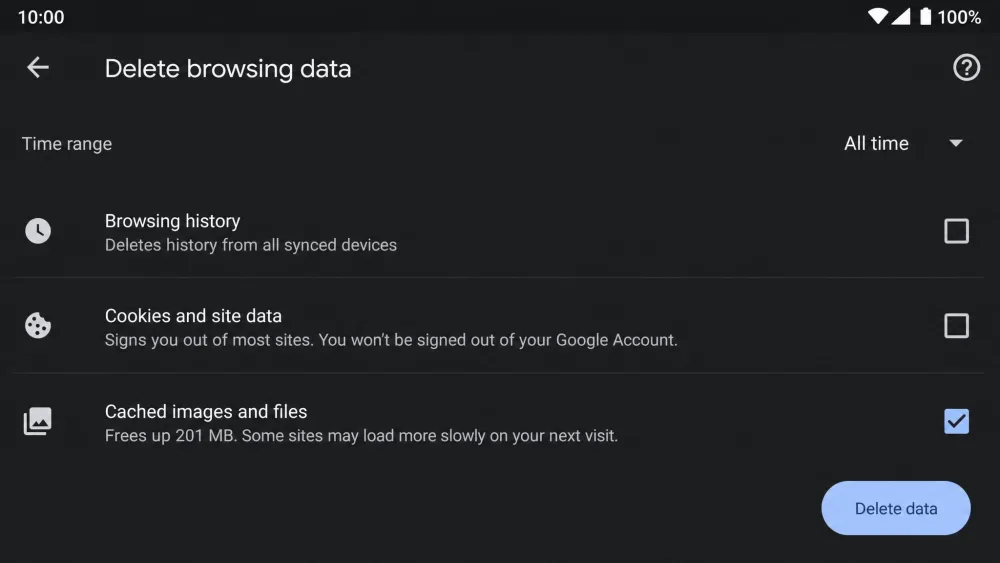
On a phone, open the Chrome app, tap the three-dot menu, and choose Delete browsing data. Tap More options to reach the time range, and here is the step people miss: it defaults to only the last 15 minutes, so switch it to All time first. Keep only "Cached images and files" ticked, then tap Delete data. For a full walkthrough, see our guide to clear cache on Android.
How to Clear Chrome Cache on iPhone and iPad
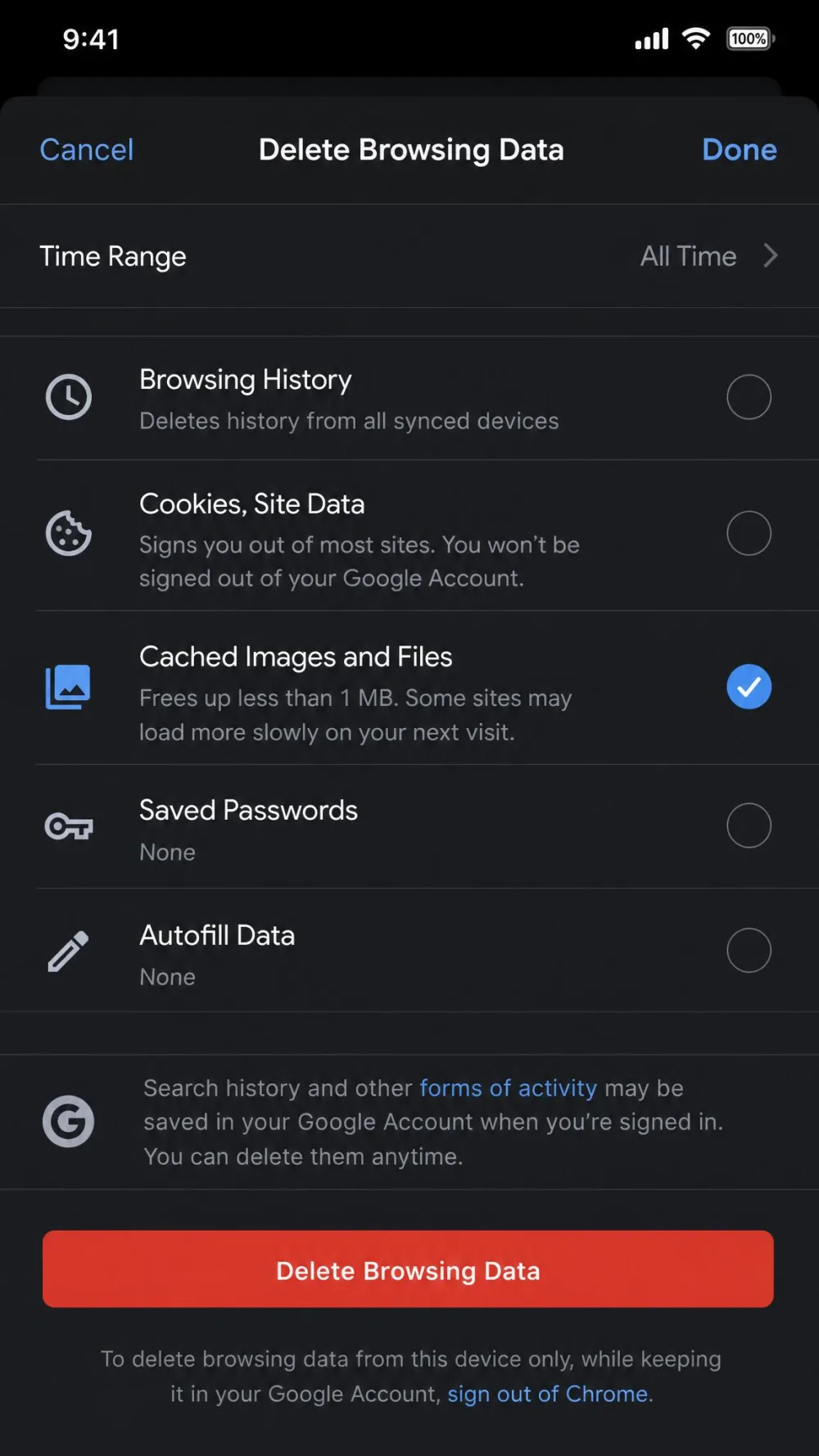
On an iPhone or iPad, open the Chrome app, tap the three-dot menu at the bottom right and choose Delete Browsing Data. Set the time range, select "Cached Images and Files," and tap Delete data. Clearing cookies here can sign you out of some sites, though Chrome sync keeps you in your Google Account. See our guides to clear cache on iPhone and clear cache on iPad.
How to Clear Cache for One Specific Website
When only one site is misbehaving, you do not have to clear everything. Click the site-info icon at the left of the address bar on that page, then look under Site settings or Cookies and site data for a Delete data option. The exact wording shifts a little between Chrome versions.
Force a Hard Refresh Without Clearing Everything
Sometimes one page is stale while the rest of the cache is fine. A hard refresh reloads only the current page and ignores its cached files, so you get the newest version without wiping anything else. On Windows, press Ctrl+F5 or Ctrl+Shift+R; on a Mac, press Cmd+Shift+R. We try this first, since it usually fixes a single stuck page in seconds.
Advanced: Empty Cache via Chrome DevTools
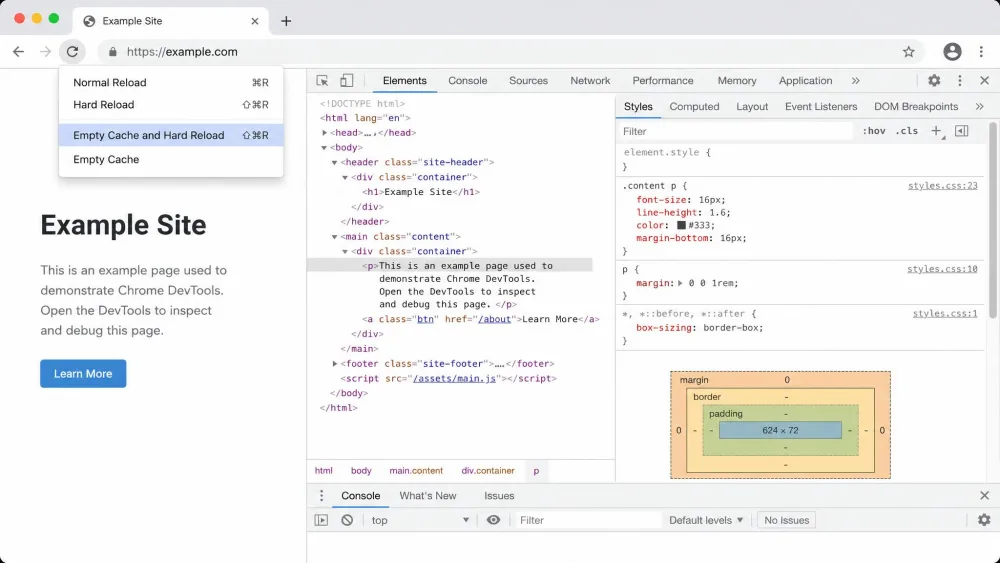
For a stubborn page a hard refresh will not fix, open DevTools with Ctrl+Shift+I on Windows or Cmd+Option+I on a Mac. Right-click the reload button and choose "Empty Cache and Hard Reload" to clear and reload just that site. This is common on single-page apps built with React, Angular, or Vue, whose bundled code ordinary refreshes keep from cache.
What Happens After You Clear the Cache
Your saved passwords, bookmarks, and autofill details are left alone, because they are separate data types that were never in the cache. Cards saved to your Google Account are safe too.
The one change is speed. Right after a full clear, the sites you visit most load slower the first time, since every asset re-downloads. That is normal, and speed returns on the next visit.
If you also tick "Cookies and other site data," clearing signs you out of most sites. Chrome sync keeps you in your Google Account, but individual sites need a fresh login.
Will Clearing Cache Delete Passwords or Bookmarks?
No. Passwords only go if you tick the Passwords box. Every time we clear the cache, both are still there afterward.
Bookmarks, saved passwords, and autofill details are separate data types, so a cache-only clear never touches them.
How Often Should You Clear Chrome's Cache?
There is no single correct interval; the right frequency depends on how heavily you browse and whether you are hitting problems, so treat any week-count as a loose guideline rather than a rule. Some guides suggest every 4 to 6 weeks; others say clear only when a page breaks. We clear only when a problem shows up, since routine clearing just forces slow re-downloads.
Troubleshooting: Still Seeing Problems After Clearing
If a page is still broken after a clear, first confirm the time range was All time, not the short default that mobile starts on. Try a hard refresh, then a DevTools Empty Cache and Hard Reload if that is not enough. If one page alone stays broken, an extension may be interfering, so test it in an Incognito window.
Frequently Asked Questions
Does clearing the cache delete my saved passwords?
Will clearing the cache log me out of Google and my accounts?
How often should I clear Chrome's cache?
Why is a site still broken after I cleared the cache?
Can I clear the cache for just one website?
What is the keyboard shortcut to clear the cache?
Summary
Deleting the Chrome cache takes about a minute and clears up most display glitches and outdated pages. On desktop, press Ctrl+Shift+Del on Windows or Cmd+Shift+Delete on a Mac, tick "Cached images and files," and click Delete data. On Android and iPhone, do the same from the three-dot menu, and widen the time range past the last 15 minutes. Leave the cookies box unchecked to keep your logins safe.