Cookies are small files that websites save in Chrome to remember you. They keep you signed in, hold your language and cart choices, and let sites recognize your device on the next visit. Most of the time that is helpful. But cookies also pile up, they let advertisers follow you around the web, and a stale one can leave a site stuck in a login loop or refusing to load.
Clearing them is the reset button. When we test cleanup tools here at The High Tech Society, wiping cookies is often the first thing we try before anything more drastic, because it fixes a surprising number of everyday browser problems. We ran every step below on current builds of Chrome for Windows, Mac, Android, and iPhone so the menu names and buttons match what you will actually see on screen.
This guide covers all four platforms, shows you how to clear one stubborn site without logging out of everything else, and explains exactly what changes after you do it.
What Cookies Are and Why You Should Clear Them
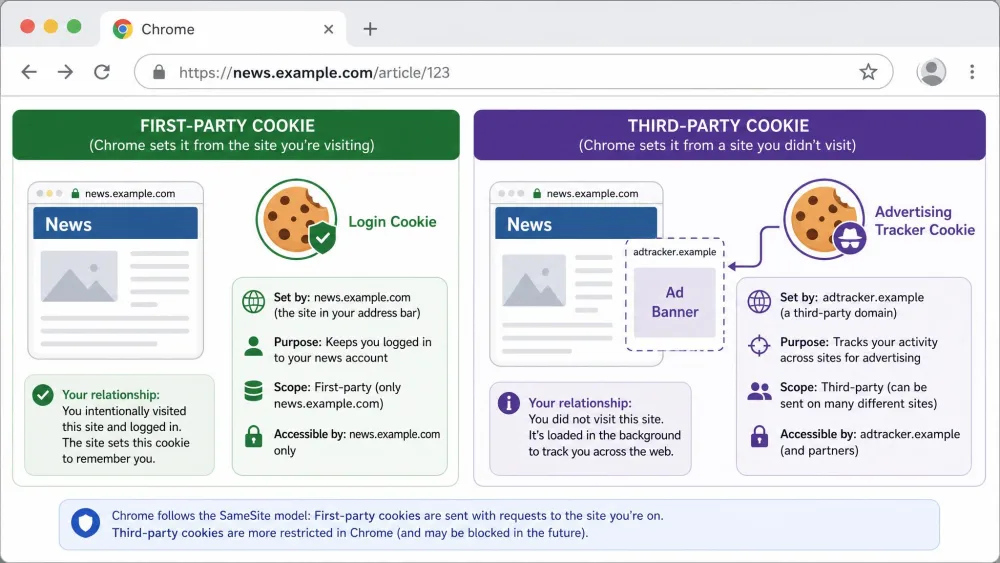
A cookie is a small text file a website creates and stores in your browser. It can hold a session ID that keeps you logged in, a note of your preferences, or a tracking tag that ties your visits together across sites. Chrome sorts them into two broad groups: first-party cookies from the site you are actually on, and third-party cookies dropped by advertisers and other outside services embedded in the page.
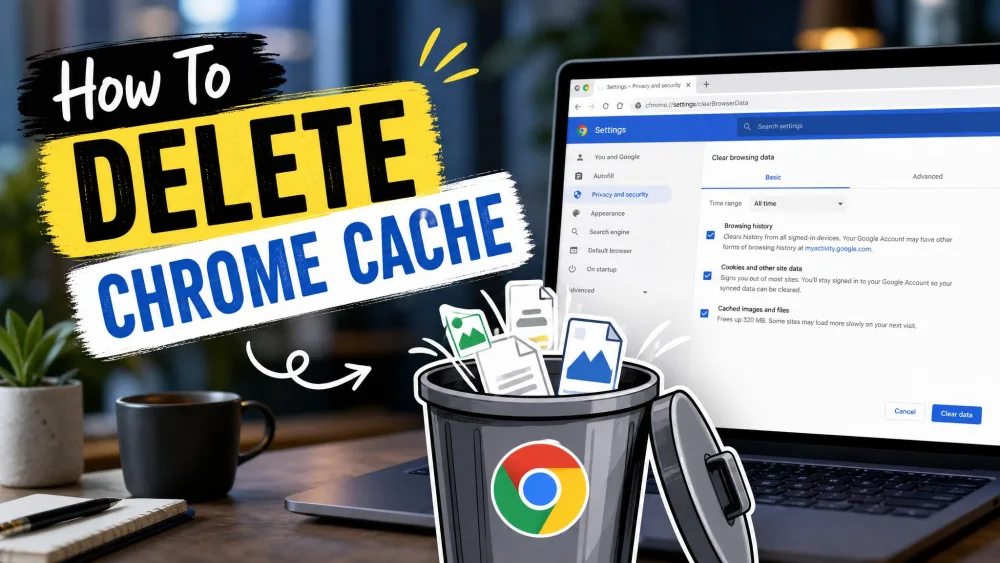
Cache is a separate store. Where cookies remember who you are, the cache saves page files like images, scripts, and stylesheets so a site loads faster the second time. The two can be cleared independently, and knowing the difference helps you pick the right fix.
There are a few solid reasons to clear cookies:
- Privacy. Deleting cookies removes the tracking tags that let advertisers build a profile of your browsing.
- Fixing broken sites. A corrupted or expired cookie is a common cause of pages that will not load, checkout screens that fail, and endless login loops.
- A fresh start on a shared or public computer. Clearing cookies signs you out so the next person does not land in your accounts.
One thing to keep in mind before you start: clearing cookies is not full anonymity. Sites can still recognize you through browser fingerprinting, your IP address, and other device identifiers. It is a strong privacy step, not a cloak of invisibility.
How to Clear Cookies on Chrome (Windows and Mac Desktop)
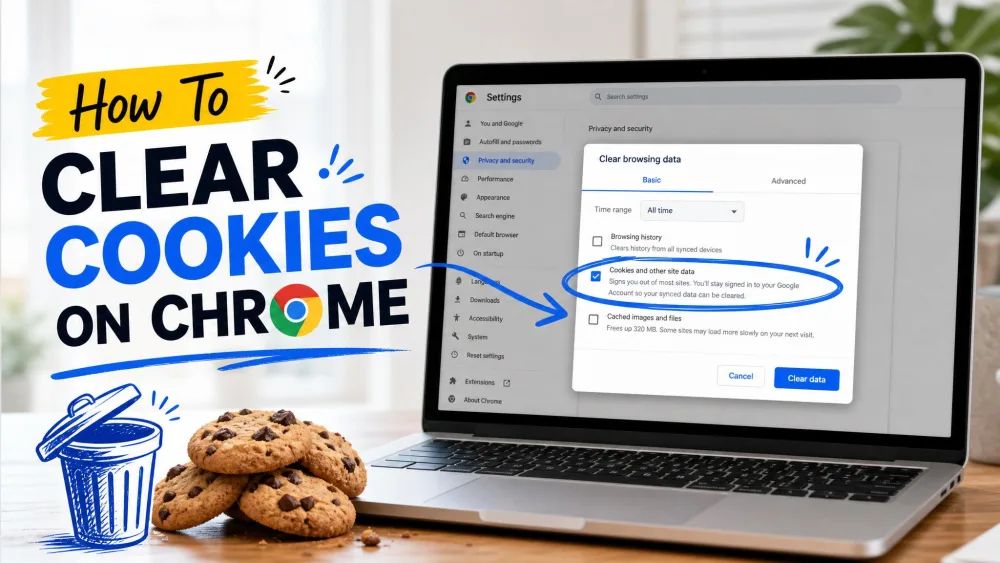
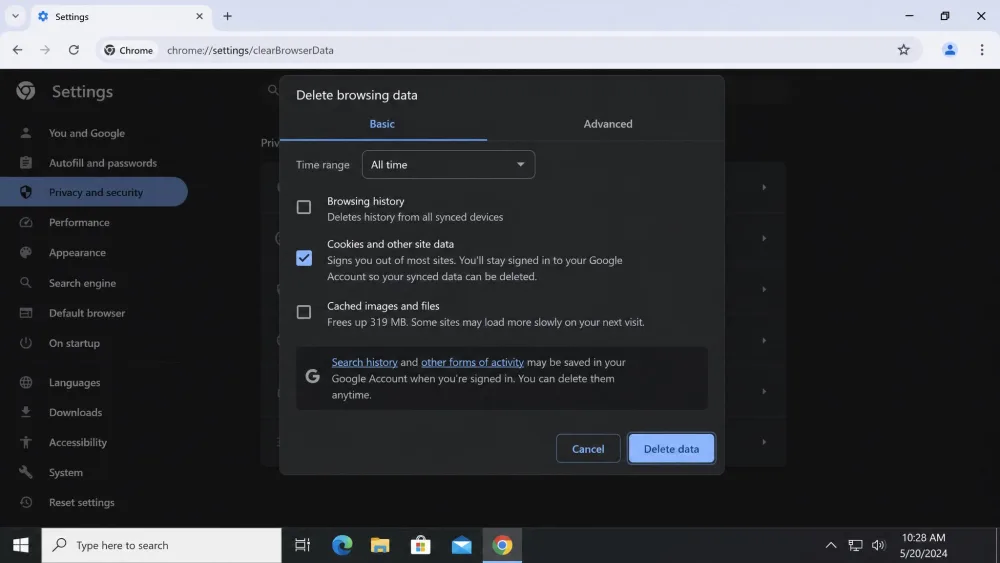
On a Windows PC or a Mac, cookies live behind the same dialog that clears the rest of your browsing data. Chrome now calls this dialog Delete browsing data (it was formerly labeled "Clear browsing data," so older guides and screenshots may still show that wording).
Clear All Cookies
Follow these steps to wipe every cookie at once:
- Open Chrome and click the More menu, the three-dot icon in the top-right corner.
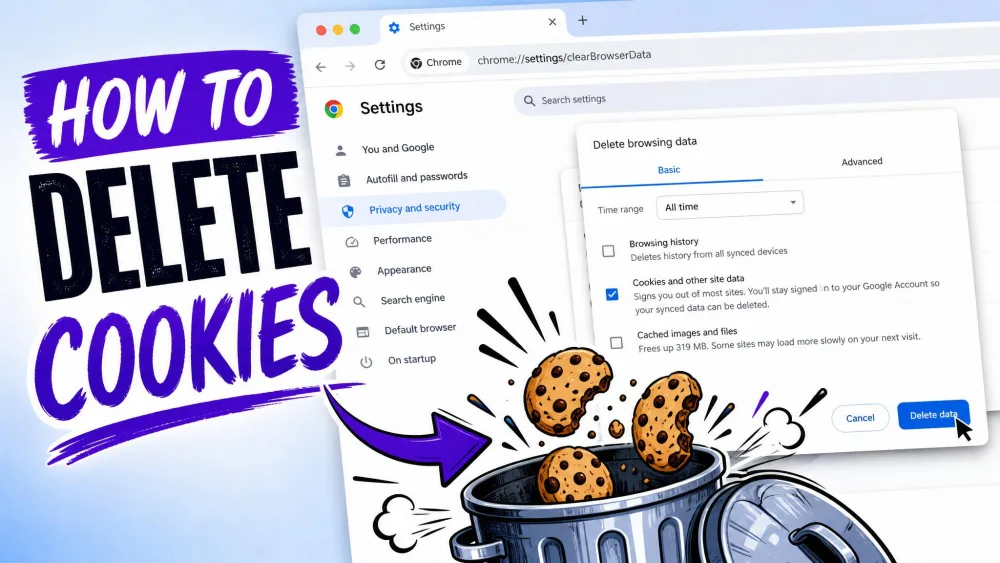
- Choose Delete browsing data from the menu.
- In the dialog, open the Time range dropdown. Pick All time to remove every stored cookie, or choose a shorter window like Last hour or Last 24 hours to clear only recent ones.
- Tick the box labeled Cookies and other site data.
- If you also want to clear the cache in the same pass, tick Cached images and files as well. This one dialog handles both, so you do not need a separate cache guide.
- Click Delete data to finish.
That is the whole procedure. To confirm the cookies are gone, close and reopen the sites you were signed into; they should ask you to log in again.
Skip the menu dig with a keyboard shortcut. Press Ctrl+Shift+Delete on Windows or Cmd+Shift+Delete on a Mac to jump straight to the Delete browsing data dialog. You can also type "Delete browsing data" into the address bar and tap the action chip Chrome offers.
Clear Cookies for a Specific Site
Wiping everything logs you out of every account at once, which is overkill when a single site is misbehaving. When one site stalls or throws a login loop, clearing just that site's cookies usually fixes it without touching your other logins. Here is how to target one site on desktop:
- Click the More menu, then choose Settings.
- Go to Privacy and security, then Third-party cookies.
- Click See all site data and permissions.
- Use the search box to find the site by name.
- Click the trash icon next to it, then confirm the deletion.
This removes only that site's cookies and leaves the rest of your sessions intact, which is exactly why we reach for it first when troubleshooting a single misbehaving page. If you would rather clear cookies across every browser at once, our guide to clear cache and cookies on any browser walks through the alternatives.
How to Clear Cookies on Chrome for Android
On an Android phone or tablet, the cookie controls sit inside Chrome's settings rather than a top-level menu. The steps are:
- Open the Chrome app and tap the More menu, the three dots in the top-right corner.
- Tap Settings, then Privacy and security.
- Tap Delete browsing data.
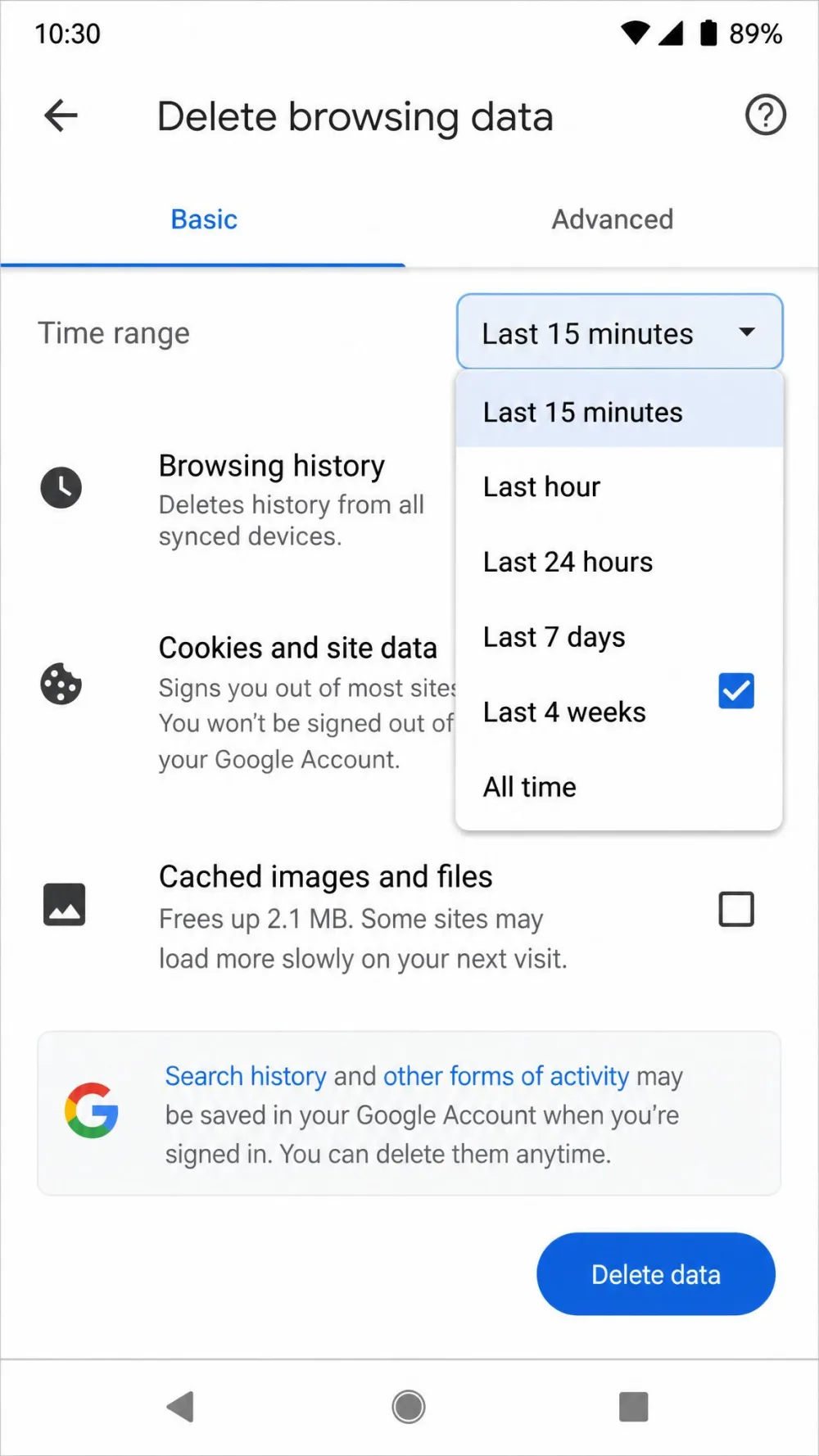
- Open the Time range dropdown and pick your window. Android offers Last 15 minutes, Last hour, Last 24 hours, Last 7 days, Last 4 weeks, and All time.
- Make sure Cookies and site data is checked.
- Tap Delete data to confirm.
Chrome will clear the cookies for the range you chose and drop you back into the browser. If you are cleaning up an Android device more broadly, it is worth pairing this with our steps to clear cache on Android.
How to Clear Cookies on Chrome for iPhone and iPad
Chrome on iOS follows a similar path, with Apple's own capitalization on the labels. To clear cookies on an iPhone or iPad:
- Open the Chrome app and tap the More menu, the three dots in the corner.
- Tap Settings, then Privacy and Security.
- Tap Delete Browsing Data.
- Check Cookies, Site Data in the list.
- Tap Delete Browsing Data at the bottom to confirm.
Because Chrome on iPhone and iPad shares your signed-in Google account, you may see the same accounts across devices, but this action only clears cookies on the device in your hand. For the built-in Safari browser, or for a device-wide cleanup, see our separate walkthrough on how to clear cookies on iPhone.
What Happens After You Clear Cookies
The most noticeable change is that you get signed out. After a full cookie clear, every site that remembered you, from Gmail and Facebook to your online banking, will ask you to log back in the next time you visit. That includes your Google account itself. Signing back in takes a moment, and your credentials are still saved.
Sites will also feel briefly slower right after clearing, because the images and page files have to reload from scratch. That slowdown lasts only until the pages rebuild their cache.
Clearing cookies signs you out of your accounts and can reset saved site preferences, but it does not touch your Chrome-saved passwords or your bookmarks. Those are stored separately and survive the clear untouched, so you will not lose them.
To put it plainly: cookies and site data go, saved passwords and bookmarks stay. That is why clearing cookies is a safe first move rather than a risky one. If a site still misbehaves afterward, the next thing to try is clearing the cache, which we cover in our guide to clear cache in Chrome.
How to Block or Manage Third-Party Cookies
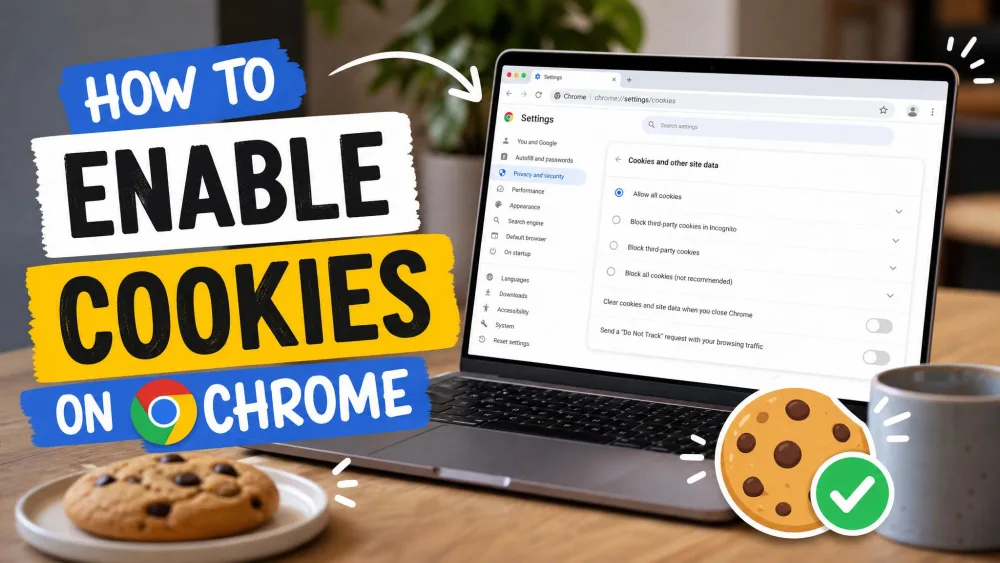
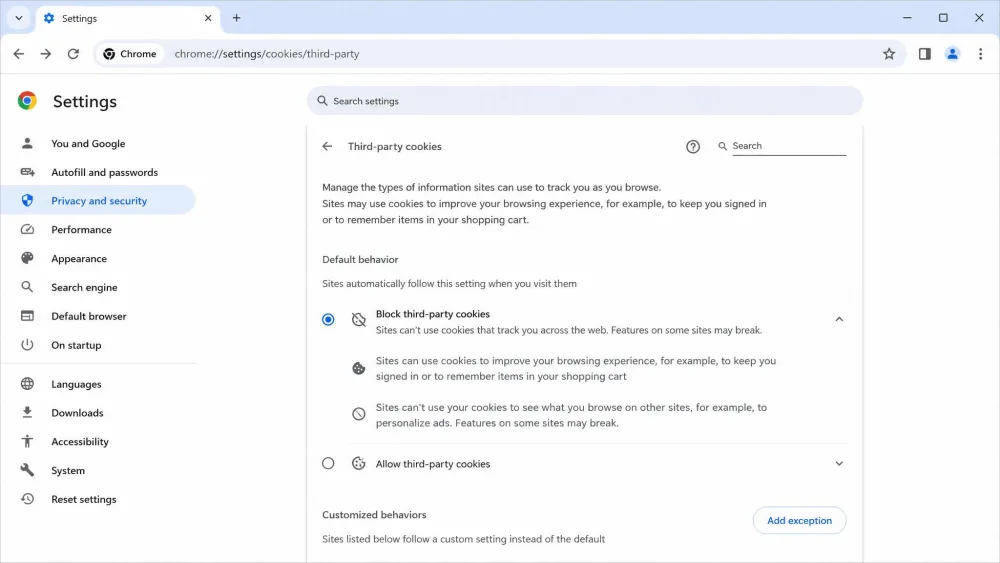
Clearing cookies is a one-time cleanup. If you want to stop the tracking cookies from coming back, Chrome lets you block third-party cookies going forward while keeping the useful first-party ones that log you in.
- Click the More menu, then Settings.
- Open Privacy and security, then Third-party cookies.
- Choose the setting you want. Blocking third-party cookies stops advertisers from tracking you across sites, while still letting each site set its own first-party cookies so your logins keep working.
You can also add exceptions for sites you trust, which helps when a blocked cookie breaks a feature you rely on. Managing this setting once saves you from clearing cookies as often.
Tips to Keep Chrome Private and Running Fast
A few habits keep cookies from becoming a problem in the first place:
- Set a clearing cadence that fits the device. On a personal computer, a clear once a month is a sensible rhythm. On a shared or public computer, clearing after each session makes more sense so you never leave an account open.
- Learn the shortcut. Ctrl+Shift+Delete on Windows or Cmd+Shift+Delete on a Mac gets you to the dialog in one press, which makes a regular clear painless.
- Clear one site, not everything. When a single page acts up, target that site's cookies rather than wiping every login.
- Use Incognito for one-off privacy. Incognito windows do not keep cookies after you close them, so a quick private session needs no cleanup at all.
- Block third-party cookies by default. This cuts most cross-site tracking without breaking your day-to-day logins.
- Pair cookie clearing with a cache clear when a site is truly stuck. The two stores fix different problems, and clearing both is the reliable reset. Mac users can follow our steps to clear cache and cookies on Mac.
Frequently Asked Questions
Does clearing cookies log me out of websites?
Will clearing cookies delete my saved passwords or bookmarks?
What is the keyboard shortcut to clear cookies in Chrome?
How often should I clear cookies?
What is the difference between clearing cookies and clearing cache?
Can I clear cookies for just one site?
Clearing cookies in Chrome takes under a minute on any device, and it solves more everyday browser headaches than any other single step. Learn the shortcut, clear one site when only one is broken, and reach for the full wipe when you want a clean slate or a privacy reset. For a deeper reference, Google keeps its own official Chrome cookies guide current for every platform.