Your computer takes two minutes to reach the desktop, and every click arrives a beat late. That pattern is familiar, and it is rarely a sign that the hardware is failing. On the aging machines we work with, slowdown almost always traces back to accumulated software rather than worn-out parts, which means the machine is fixable without buying anything.
The 12 fixes below run in a deliberate order. The early ones are free, quick, and reversible. The later ones ask for more effort or a small hardware spend, so only reach them if the first eight did not help.
Why Your Computer Slows Down
A PC does not degrade the way a battery does. What changes is the workload it carries. Every program you install adds files, and many add a background service or an update checker that keeps running long after you close the app itself. Most performance issues start there.
The Four Real Causes (Storage, Startup Load, Memory, Heat)
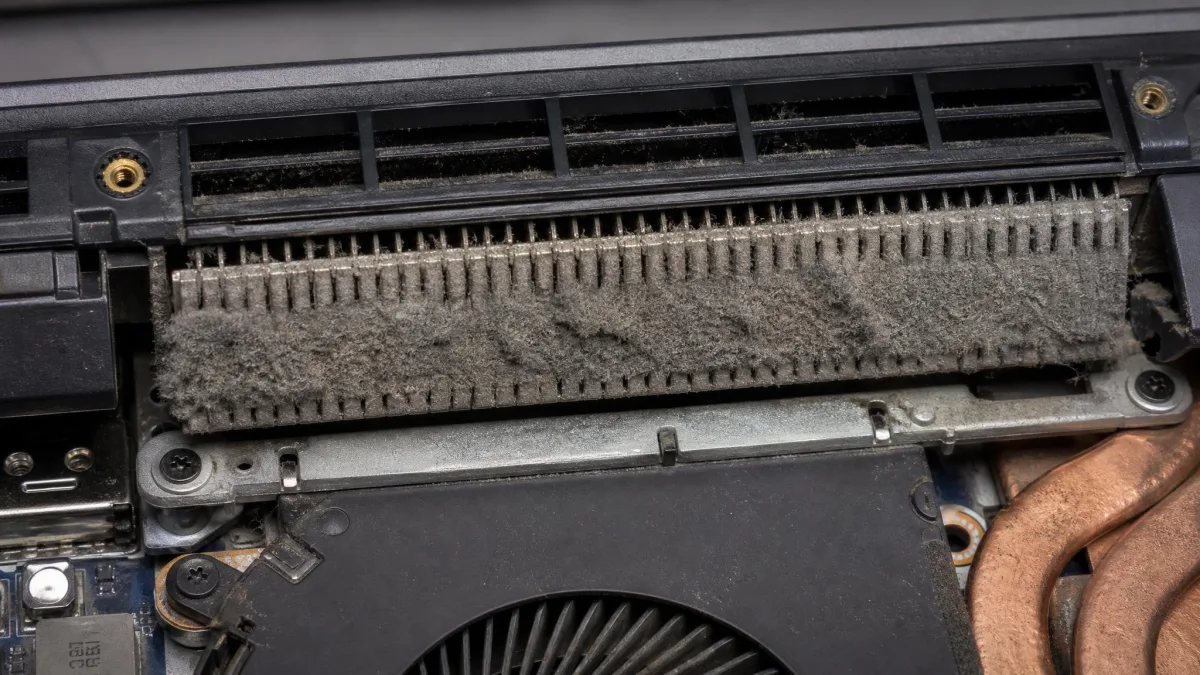
Storage comes first. A drive close to full slows read and write speeds noticeably, which shows up as sluggish app launches rather than an obvious error. Startup load is second, because programs that launch with Windows drag on CPU and RAM before you have opened anything yourself. Memory pressure is third, and it makes a system crawl once too many apps and browser tabs compete for the same pool. Heat is fourth: when dust blocks the fans, the processor slows itself deliberately to stay safe.
Start Here: Restart and Check What's Actually Slow
Restart the computer before you change a single setting. A restart clears stuck processes and resolves a surprising share of performance problems in less time than diagnosing them by hand.
Read Task Manager Like a Diagnostic Tool
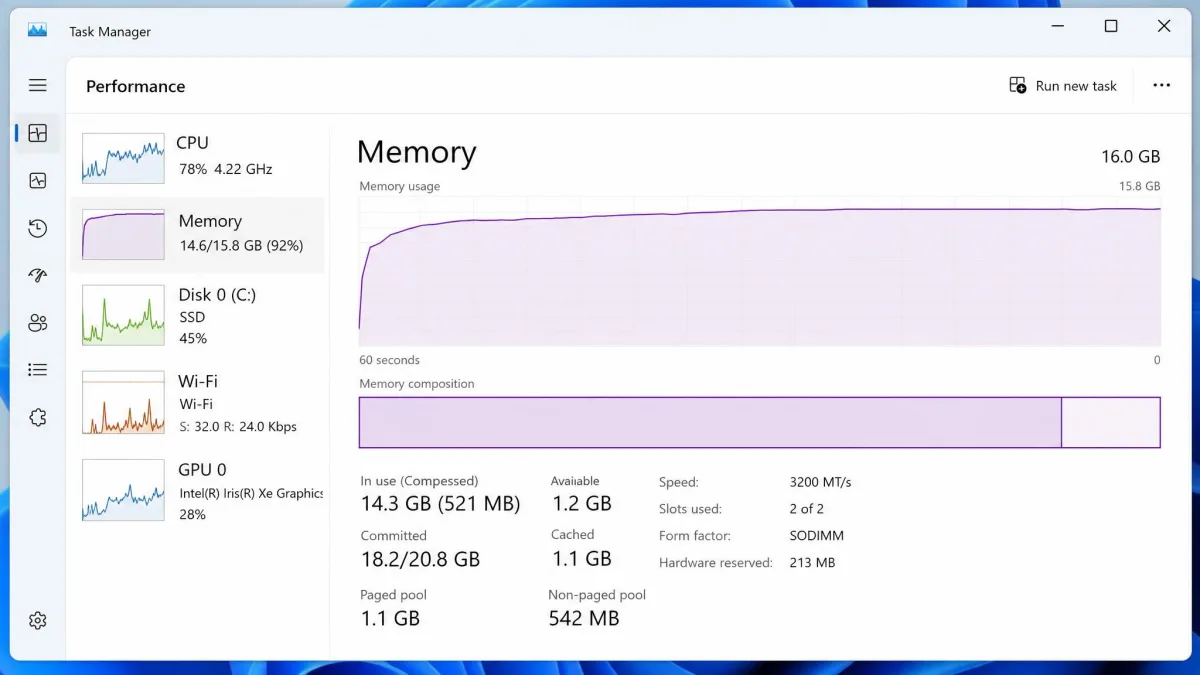
Back at the desktop, press Ctrl+Shift+Esc to open Task Manager, then click the CPU, Memory, and Disk column headers to sort the running processes by each in turn. Windows shades the heaviest consumers, so the process causing the problem is usually obvious within seconds. Use the table below to match what you are seeing to the fix worth trying first.
| Symptom | Likely cause | Fix to try first |
|---|---|---|
| Long boot, fine afterwards | Too many startup programs | Fix 2 |
| Everything slow, disk at 100% | Full or failing hard drive | Fix 3 |
| Slows down after an hour of use | Background processes or a memory leak | Fix 1 |
| Fans loud, speed drops under load | Dust and overheating | Fix 12 |
| Only the browser is slow | Tabs, extensions, cache | Fix 10 |
| Pop-ups, unfamiliar programs running | Malware or adware | Fix 5 |
1. Close Background Programs Eating Your CPU and Memory
With Task Manager sorted by CPU, look at the top few entries.
- Press Ctrl+Shift+Esc to open Task Manager.
- Click the Processes tab, then the CPU header.
- Select a heavy process you did not start, then click End task.
- Sort by Memory and Disk and repeat.
Closing a process only helps until the next restart, so treat this as a diagnostic rather than a cure. If the same background service returns every session, the real fix is fix 2 or fix 4.
Do not end tasks with names you cannot identify. Search the process name first. Windows components such as System, Registry, and Desktop Window Manager need to keep running.
2. Disable Startup Programs
Disabling non-essential startup apps produces the largest and most immediate improvement of anything here, both in boot time and in the resources left free once you reach the desktop.
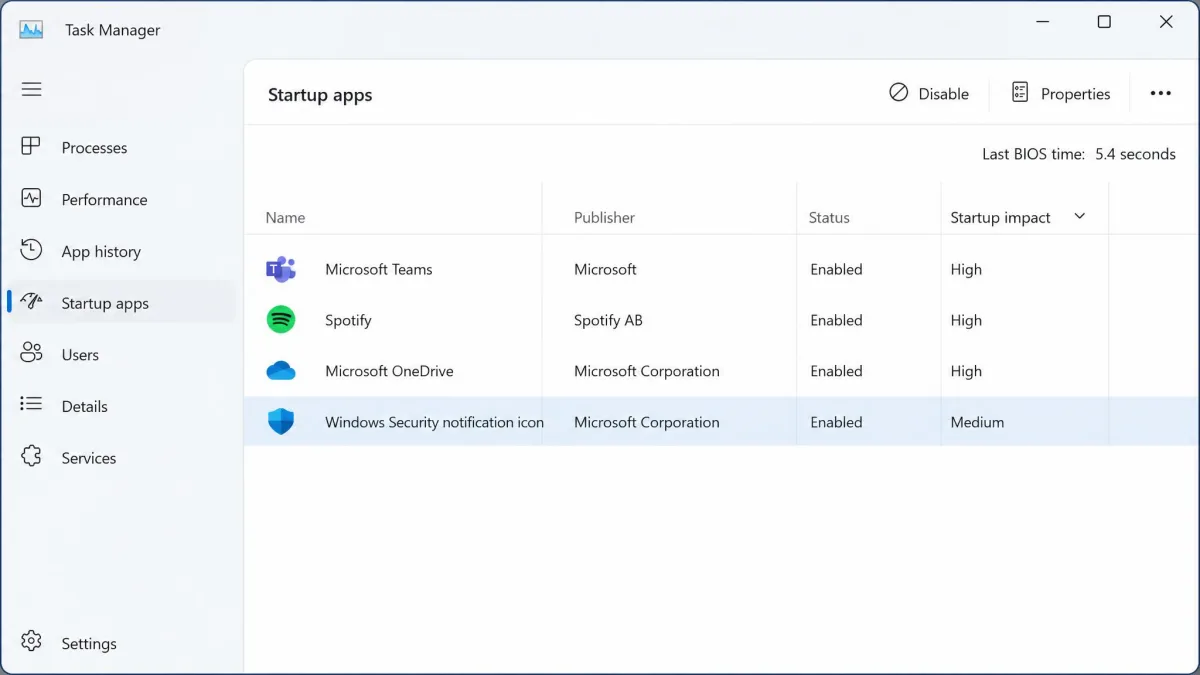
- Open Task Manager and click the Startup apps tab.
- Read the Startup impact column and sort by it.
- Select any High impact entry you do not need at login, then click Disable.
- Restart and see how the boot feels.
The impact rating is what makes this manageable. Rather than switching everything off and hoping, target the few high-impact entries and leave your security software and audio drivers alone.
How much time this saves depends almost entirely on your drive. In on test, an SSD machine went from a 27 seconds boot time to 20 seconds with every startup app disabled, and still managed 23 seconds with the essential ones left on. The same cleanup did far more on an older hard-drive machine, which fell from 1 minute 10 seconds to 51 seconds. That pattern matches what we expect: the slower the drive, the more each extra login-time program costs you.
Two things are worth knowing before you time your own machine. Most of the change happens after sign-in rather than before it, so watch how long the desktop and tray icons take to settle rather than how quickly the login screen appears. And a single boot run is not worth trusting, because times swing enough between runs that an average of three is the smallest sample that reads consistently. Nothing here is permanent either: disabling a startup entry does not uninstall the app or stop you launching it by hand, so the whole experiment is reversible in seconds.
Task Manager's Startup apps tab is only half the picture. Scheduled tasks set to run at logon add their own delay, and you clear those separately in Task Scheduler.
3. Free Up Disk Space
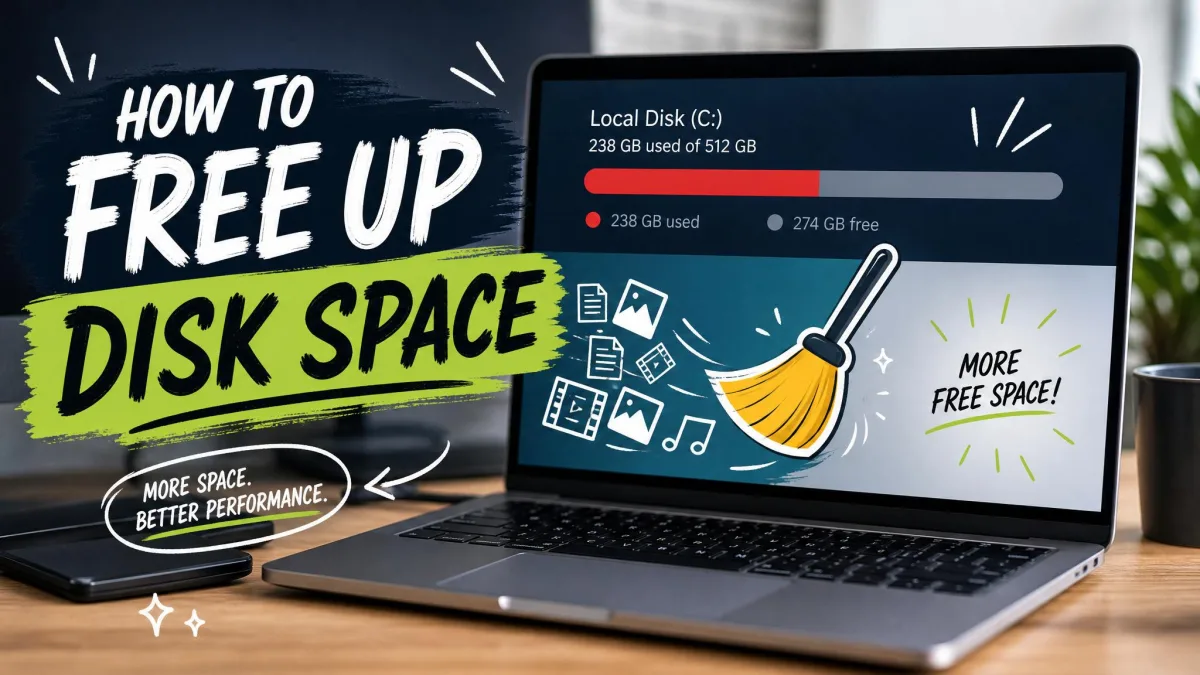
A nearly full drive slows everything, and it causes a second problem people rarely connect to storage: updates start failing. If Windows Update keeps stalling, check your free space first.
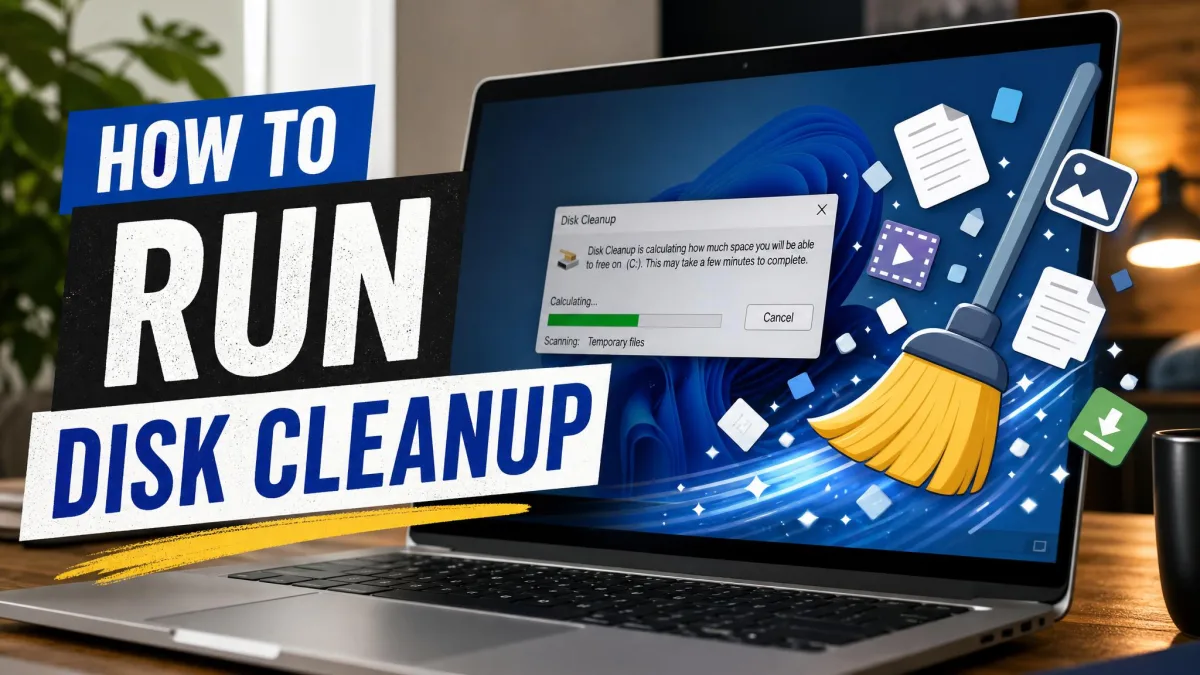
Windows offers two built-in tools for this. Open Settings > System > Storage to see Cleanup recommendations, which groups temporary files, large or unused files, cloud-synced files, and unused apps, and shows what each would save. For a deeper pass, search for Disk Cleanup, pick your drive, and choose Clean up system files.
Turn on Storage Sense on the same page. It runs automatically when the device is low on space, so it works as a safety net rather than routine housekeeping. It also leaves your Downloads folder alone unless you tell it otherwise, which is why that folder keeps growing unnoticed.
How Much Free Space Windows Actually Needs
Microsoft publishes no ongoing minimum percentage, so treat these numbers as practical guidance. On a hard drive, leave 15% to 20% empty. Windows reserves at least 7 GB for updates regardless of drive size, and feature updates typically need roughly 6 GB to 11 GB free on top of that. The requirement changes with each update, so Setup may ask for more. On an SSD, guidance runs from roughly 10% to 25% free, and the right number varies with the drive's own overprovisioning, so treat any single percentage as a floor rather than a rule.
4. Uninstall Programs You Don't Use
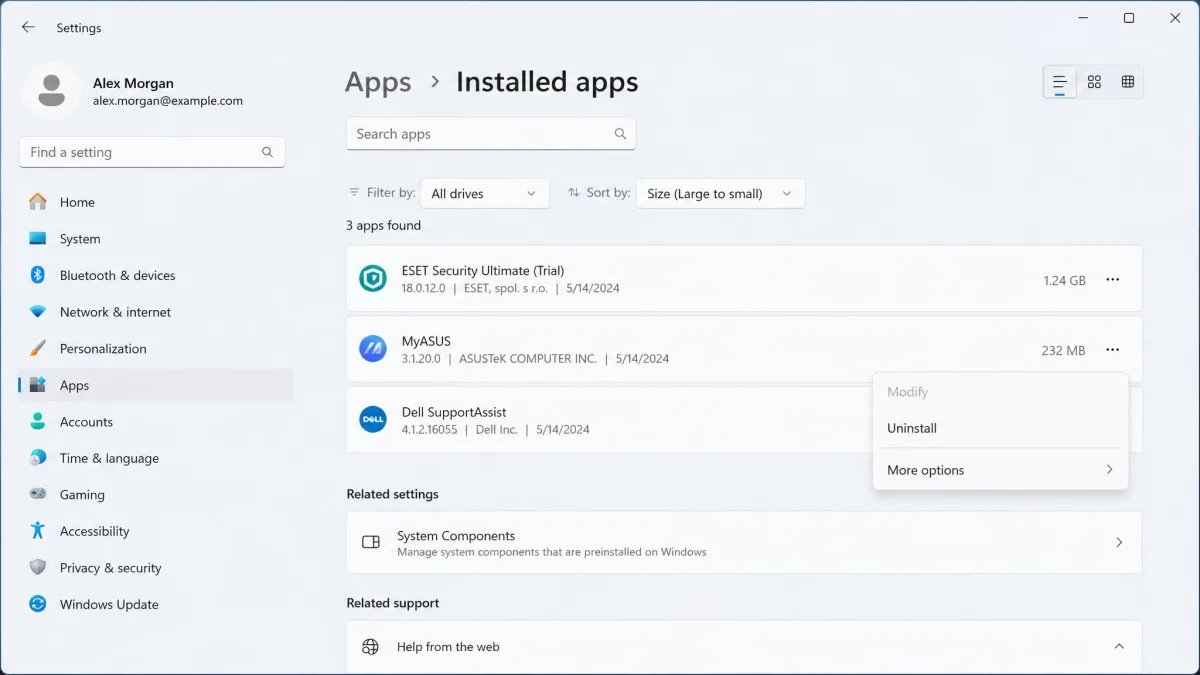
New laptops arrive carrying factory bloatware: trial security suites, promotional games, and manufacturer helper tools that nobody chose. Express installers add to the pile, quietly bundling extra software, which is how unwanted programs appear on a machine whose owner never installed them.
Open Settings > Apps > Installed apps, sort by size or install date, and work through the list. Microsoft's page on how to uninstall programs you no longer use covers Store and desktop apps alike. Uninstalling often leaves registry entries and scheduled tasks behind, so removal does not always reclaim the full performance cost.
5. Scan for Malware and Adware
Malware is not the most common cause of a slow computer, but rule it out early, because everything else is wasted if something is mining or serving ads in the background. Watch for pop-ups outside the browser, a home page you did not set, and processes that reappear seconds after you end them.
Open Windows Security from the Start menu, choose Virus & threat protection, then run a Full scan rather than a Quick scan. A full pass takes an hour or more on a large hard drive. If the results are clean but the symptoms persist, try one of the free antivirus options as a second opinion.
6. Update Windows and Your Drivers
Graphics and storage drivers carry real performance work, and a stale display driver makes a healthy system feel choppy. Open Settings > Windows Update and click Check for updates, then install everything offered, including optional driver updates. For anything Windows Update misses, Microsoft explains how to update your drivers by hand through Device Manager. Get graphics drivers from the GPU maker's own site rather than a third-party updater.
7. Optimize or Defragment Your Drive
Windows already handles this. It optimizes drives automatically once a week by default, and you can set that schedule to daily, weekly, or monthly, or turn it off. What the tool does depends on the drive: hard drives get defragmented, so files are reorganised into fewer pieces, while SSDs get trimmed, which tells the drive which blocks it may safely clean up while idle.
To check yours, type defrag in the search bar, open Defragment and Optimize Drives, select the drive, then click Analyze or Optimize. Microsoft's guide to how you optimize your drives covers the scheduling options. SSD maintenance is easy to neglect because trimming happens silently, and this utility is where you confirm it is running.
HDD vs SSD: Which One You Should Never Defragment
| Attribute | Hard disk drive | Solid-state drive |
|---|---|---|
| Maintenance action | Defragment | Trim |
| Should you defragment it? | Yes, on schedule | No, Windows trims instead |
| Default schedule | Once a week | Once a week |
| Free space to leave | 15% to 20% | Roughly 10% to 25% |
Never run a third-party defragmenter against an SSD. Defragmentation rewrites data across the drive, which spends write cycles for no speed gain and shortens the drive's life. Windows knows the difference and trims instead, so leave it to the built-in tool.
8. Turn Off Visual Effects and Animations
Press Windows Key + X, open System, then Advanced system settings, then Performance Settings. Choose Adjust for best performance, or untick individual animations if you want to keep smooth font rendering. On an older machine this makes the system feel noticeably more responsive, even though benchmark numbers barely move.
9. Set Your Power Mode to Best Performance
Laptops ship in a balanced mode that throttles the processor to save battery. Open Settings > System > Power & battery and set Power mode to Best performance. On a desktop, leave it there. On a laptop, expect shorter runtime, so switch back to Balanced when you unplug.
10. Lighten Your Web Browser
For a lot of people the computer is not slow at all. The browser is.
Tabs, Extensions, and Cache
Add-ons are a frequent hidden cause of slowness because each one raises memory use across every open tab, and the cost multiplies with the number of tabs you keep open.
- Open your browser's extensions page and remove anything you do not use weekly.
- Close tabs you are keeping "just in case" and bookmark them instead.
- Clear the cache and cookies from the browser's privacy settings.
- Restart the browser and check Task Manager again.
If the browser still uses several gigabytes of memory with a handful of tabs open, disable every extension, confirm the improvement, then re-enable them one at a time.
11. Repair Corrupted System Files (SFC and CHKDSK)
When Windows misbehaves after an interrupted update or a power cut, damaged system files are a plausible cause. Right-click Start, choose Terminal (Admin), and run these there.
- Run
sfc /scannowto repair missing or corrupted system files. - Run
DISM /Online /Cleanup-Image /RestoreHealthto check the Windows image against a clean copy and repair the component store. - Restart, then run
chkdsk d: /fto check a drive and fix file system errors, substituting your own drive letter. The/fswitch fixes errors but needs to lock the drive, so on the system drive chkdsk will offer to check it on the next restart instead. Add/rwhen you suspect the disk itself is failing, because it locates bad sectors and recovers readable information on top of everything/fdoes. On an NTFS volume you can also run/scanto check the drive online while you keep working. How long it takes varies from minutes to many hours depending on the drive's size, how full it is and whether it is a hard drive or an SSD, so no single duration applies.
Advice differs on which command to run first. Either order can work, because the two tools repair different layers, so the sequence is a preference rather than a requirement.
12. Clean Out Dust and Fix Overheating
If the fans run loud and the machine slows under sustained load, heat is throttling the processor. Shut the computer down, unplug it, and take it outside. Use short bursts of compressed air on the intake vents, the exhaust grille, and the heatsink fins, holding each fan still so it cannot spin freely. Raising a laptop on a stand helps too, because beds and sofas block the intake vents completely.
When Software Fixes Aren't Enough: Hardware Upgrades
If you have worked through all 12 fixes and the machine is still slow, two upgrades give the biggest return for the money.
Add More RAM
Windows 11 requires a minimum of 4 gigabytes (GB) of RAM, and that is a floor rather than a comfortable target. Copilot+ PCs raise the bar to 16 GB. Check your current amount in Task Manager under the Performance tab, which also tells you how many memory slots your machine has and how many are filled. For sizing, 8GB covers basic productivity, browsing and streaming, while 16GB is the sweet spot for mainstream multitasking and gaming. Creative work sits somewhere between 16GB and 32GB, and the right figure there depends on which apps you run and at what resolution, so both are defensible.
Switch to an SSD
Swapping a mechanical hard drive for an SSD is the most transformative upgrade an older laptop can get. Boot times, app launches, and file copies all improve at once, because the mechanical seek delay disappears. If your PC still boots from a spinning disk, do this before you consider a new machine.
Last Resort: Reset or Reinstall Windows
When years of software have left the system genuinely tangled, a clean start beats more troubleshooting. Open Settings > System > Recovery and choose Reset PC. On Windows 10, go to Update & Security > Recovery and click Get started. Microsoft's guide to how you reset your PC as a last resort covers both routes, and no installation media is needed.
You then pick a source. Cloud download pulls a fresh copy of Windows with the latest updates. Local reinstall uses the files already on the PC, which is faster on a slow connection but can land you on an older build that then needs a long update run.
Keep my files preserves your documents and photos, but it still removes every installed application and resets your settings. This is the step people most often regret not preparing for. Write down your software list, find your licence keys, and back up your files before you start.
How to Keep Your Computer Fast (Maintenance Schedule)
- Weekly: restart properly rather than closing the lid, and close browser tabs you are done with.
- Monthly: check Settings > System > Storage, empty the Recycle Bin, and clear your Downloads folder.
- Quarterly: review Startup apps and Installed apps, and run a full malware scan.
- Twice a year: clean the vents and fans, and confirm drivers are current.
Before you install anything new, choose Custom or Advanced in the installer rather than Express. That is where bundled toolbars and trial software are opted out of, and it saves you the cleanup later.
Frequently Asked Questions
Why is my computer suddenly so slow?
Does adding more RAM actually make a computer faster?
How much free disk space does Windows need to run well?
Will resetting Windows fix a slow computer?
Should I defragment an SSD?
Is a slow computer a sign of a virus?
How often should I restart my PC?
The Bottom Line
Most slow computers are not broken. They are carrying too much: too many programs starting at login, too little free space, a browser holding more memory than the rest of the system combined. Work down this list in order and you will usually find the problem in the first four fixes, and none of them cost anything.
If you reach the end and the machine is still slow, that is useful information rather than a dead end. It tells you the issue is hardware, and an SSD or a memory upgrade will do more for an old laptop than any setting change.